Accounts Receivable   Version 1.0 Unit 3: SAP Documents SAP-ERP
Course Agenda Topic 1:  Introduction Topic 2:  Customer Master Topic 3: SAP Documents Topic 4: Accounts Receivable Functions Topic 5: Financial Transactions, EFT and Lockbox
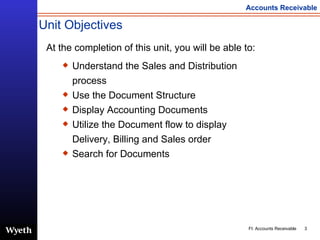
Unit Objectives At the completion of this unit, you will be able to: Understand the Sales and Distribution process Use the Document Structure Display Accounting Documents Utilize the Document flow to display Delivery, Billing and Sales order Search for Documents
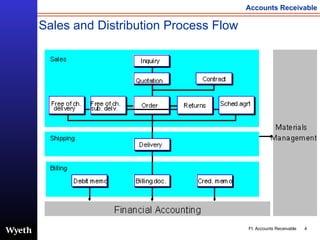
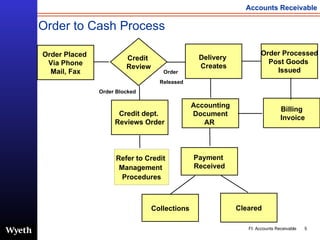
Sales and Distribution Process Flow
Order to Cash Process Order Placed  Via Phone Mail, Fax Order Processed Post Goods  Issued Accounting Document AR  Credit  Review Delivery  Creates Billing Invoice Payment  Received Collections Cleared Order  Released Order Blocked Credit dept.  Reviews Order Refer to Credit  Management  Procedures
Key Terms SAP Sales and Distribution (SD)  Document Overview Header  Item Document Flow
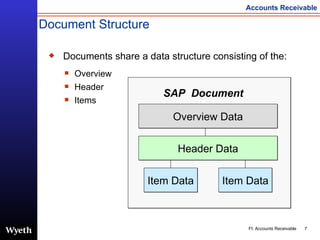
Document Structure Documents share a data structure consisting of the: Overview Header Items Overview Data Header Data Item Data Item Data SAP  Document
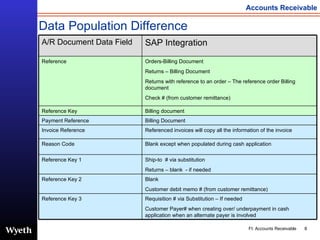
Data Population Difference Requisition # via Substitution – If needed Customer Payer# when creating over/ underpayment in cash application when an alternate payer is involved Reference Key 3 Blank Customer debit memo # (from customer remittance) Reference Key 2 Ship-to  # via substitution Returns – blank  - if needed Reference Key 1 Blank except when populated during cash application Reason Code Referenced invoices will copy all the information of the invoice Invoice Reference Billing Document Payment Reference Billing document Reference Key Orders-Billing Document Returns – Billing Document Returns with reference to an order – The reference order Billing document Check # (from customer remittance) Reference SAP Integration A/R Document Data Field
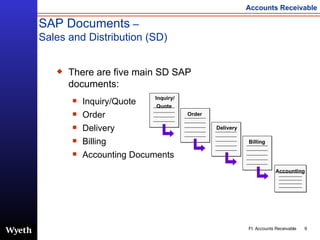
SAP Documents  –  Sales and Distribution (SD) There are five main SD SAP documents: Inquiry/Quote Order Delivery Billing Accounting Documents Delivery Billing   Accounting   Order   Inquiry/ Quote
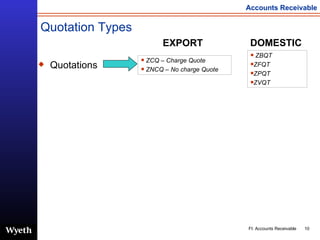
Quotations Quotation Types ZCQ – Charge Quote ZNCQ – No charge Quote EXPORT DOMESTIC ZBQT ZFQT ZPQT ZVQT
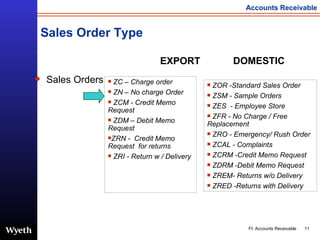
Sales Order Type Sales Orders ZC – Charge order ZN – No charge Order ZCM - Credit Memo Request ZDM – Debit Memo Request ZRN -  Credit Memo Request  for returns ZRI - Return w / Delivery EXPORT DOMESTIC ZOR -Standard Sales Order  ZSM - Sample Orders  ZES  - Employee Store  ZFR - No Charge / Free Replacement  ZRO - Emergency/ Rush Order  ZCAL - Complaints  ZCRM -Credit Memo Request  ZDRM -Debit Memo Request  ZREM- Returns w/o Delivery ZRED -Returns with Delivery
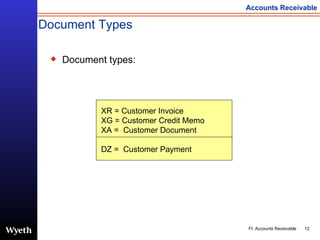
Document Types   Document types: XR = Customer Invoice XG = Customer Credit Memo XA =  Customer Document DZ =  Customer Payment
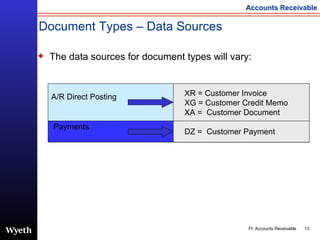
Document Types – Data Sources   The data sources for document types will vary: XR = Customer Invoice XG = Customer Credit Memo XA =  Customer Document DZ =  Customer Payment A/R Direct Posting Payments
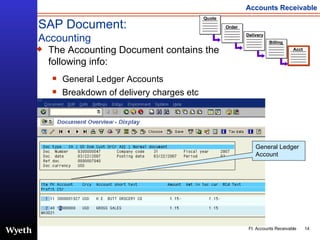
SAP Document: Accounting Delivery Billing   Acct   Order   Quote   The Accounting Document contains the  following info: General Ledger Accounts Breakdown of delivery charges etc General Ledger Account
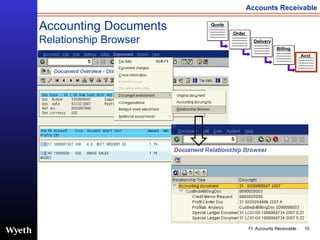
Accounting Documents Relationship Browser Delivery Billing   Acct   Order   Quote
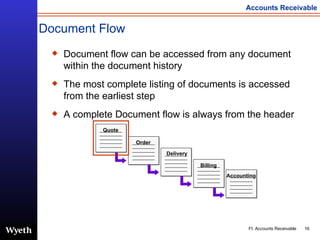
Document Flow Document flow can be accessed from any document within the document history The most complete listing of documents is accessed from the earliest step A complete Document flow is always from the header Delivery Billing   Accounting   Order   Quote
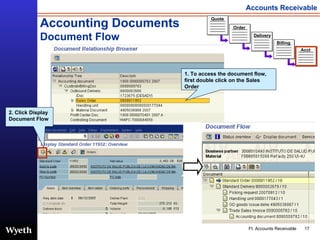
Accounting Documents Document Flow Delivery Billing   Order   Quote   Acct   1. To access the document flow, first double click on the Sales Order 2. Click Display Document Flow
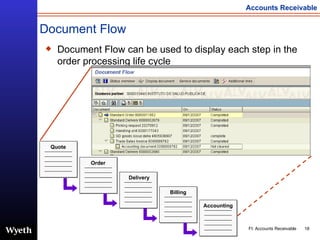
Document Flow Document Flow can be used to display each step in the order processing life cycle Delivery Billing   Accounting   Order   Quote
Demonstration 3.1 Observe as your instructor demonstrates: Relationship Browser Document Flow
Access Document Flow from Customer Line Item Display Most customer account questions / inquiries will reference the invoice number Use transaction  FBL5N  to access Customer Line Item Display Screen  From the Customer Line Item Display Screen, we can “drill-down” from the invoice number into the document flow
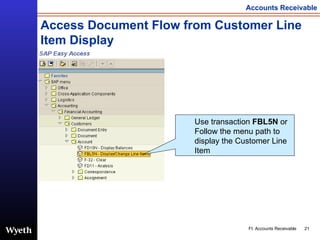
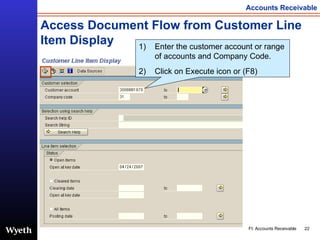
Access Document Flow from Customer Line Item Display Use transaction  FBL5N  or Follow the menu path to display the Customer Line Item
Access Document Flow from Customer Line Item Display Enter the customer account or range of accounts and Company Code. Click on Execute icon or (F8)
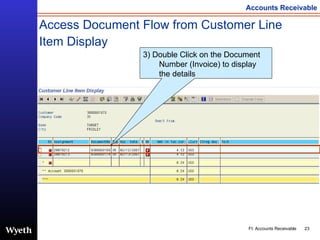
Access Document Flow from Customer Line Item Display   3) Double Click on the Document Number (Invoice) to display the details
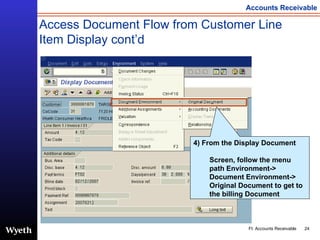
Access Document Flow from Customer Line Item Display cont’d 4) From the Display Document  Screen, follow the menu path Environment-> Document Environment-> Original Document to get to the billing Document
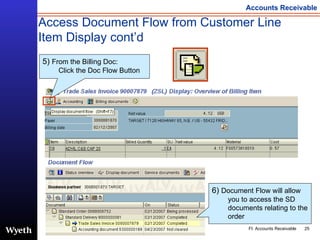
Access Document Flow from Customer Line Item Display cont’d 5)  From the Billing Doc: Click the Doc Flow Button 6)  Document Flow will allow you to access the SD documents relating to the order
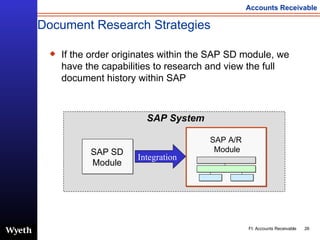
Document Research Strategies If the order originates within the SAP SD module, we have the capabilities to research and view the full document history within SAP Integration SAP SD Module SAP A/R  Module SAP System
Unit Recap Document Flow can be used to display each step in the order processing life cycle Document flow can be accessed from any document within the document history The most complete listing of documents is accessed from the earliest step – header Much of the data contained within the original sales order is carried forward to subsequent documents
Questions and Answers

SAP Accounts Reveivable SAP Documents | http://sapdocs.info

  • 1.
    Accounts Receivable Version 1.0 Unit 3: SAP Documents SAP-ERP
  • 2.
    Course Agenda Topic1: Introduction Topic 2: Customer Master Topic 3: SAP Documents Topic 4: Accounts Receivable Functions Topic 5: Financial Transactions, EFT and Lockbox
  • 3.
    Unit Objectives Atthe completion of this unit, you will be able to: Understand the Sales and Distribution process Use the Document Structure Display Accounting Documents Utilize the Document flow to display Delivery, Billing and Sales order Search for Documents
  • 4.
  • 5.
    Order to CashProcess Order Placed Via Phone Mail, Fax Order Processed Post Goods Issued Accounting Document AR Credit Review Delivery Creates Billing Invoice Payment Received Collections Cleared Order Released Order Blocked Credit dept. Reviews Order Refer to Credit Management Procedures
  • 6.
    Key Terms SAPSales and Distribution (SD) Document Overview Header Item Document Flow
  • 7.
    Document Structure Documentsshare a data structure consisting of the: Overview Header Items Overview Data Header Data Item Data Item Data SAP Document
  • 8.
    Data Population DifferenceRequisition # via Substitution – If needed Customer Payer# when creating over/ underpayment in cash application when an alternate payer is involved Reference Key 3 Blank Customer debit memo # (from customer remittance) Reference Key 2 Ship-to # via substitution Returns – blank - if needed Reference Key 1 Blank except when populated during cash application Reason Code Referenced invoices will copy all the information of the invoice Invoice Reference Billing Document Payment Reference Billing document Reference Key Orders-Billing Document Returns – Billing Document Returns with reference to an order – The reference order Billing document Check # (from customer remittance) Reference SAP Integration A/R Document Data Field
  • 9.
    SAP Documents – Sales and Distribution (SD) There are five main SD SAP documents: Inquiry/Quote Order Delivery Billing Accounting Documents Delivery Billing Accounting Order Inquiry/ Quote
  • 10.
    Quotations Quotation TypesZCQ – Charge Quote ZNCQ – No charge Quote EXPORT DOMESTIC ZBQT ZFQT ZPQT ZVQT
  • 11.
    Sales Order TypeSales Orders ZC – Charge order ZN – No charge Order ZCM - Credit Memo Request ZDM – Debit Memo Request ZRN - Credit Memo Request for returns ZRI - Return w / Delivery EXPORT DOMESTIC ZOR -Standard Sales Order ZSM - Sample Orders ZES - Employee Store ZFR - No Charge / Free Replacement ZRO - Emergency/ Rush Order ZCAL - Complaints ZCRM -Credit Memo Request ZDRM -Debit Memo Request ZREM- Returns w/o Delivery ZRED -Returns with Delivery
  • 12.
    Document Types Document types: XR = Customer Invoice XG = Customer Credit Memo XA = Customer Document DZ = Customer Payment
  • 13.
    Document Types –Data Sources The data sources for document types will vary: XR = Customer Invoice XG = Customer Credit Memo XA = Customer Document DZ = Customer Payment A/R Direct Posting Payments
  • 14.
    SAP Document: AccountingDelivery Billing Acct Order Quote The Accounting Document contains the following info: General Ledger Accounts Breakdown of delivery charges etc General Ledger Account
  • 15.
    Accounting Documents RelationshipBrowser Delivery Billing Acct Order Quote
  • 16.
    Document Flow Documentflow can be accessed from any document within the document history The most complete listing of documents is accessed from the earliest step A complete Document flow is always from the header Delivery Billing Accounting Order Quote
  • 17.
    Accounting Documents DocumentFlow Delivery Billing Order Quote Acct 1. To access the document flow, first double click on the Sales Order 2. Click Display Document Flow
  • 18.
    Document Flow DocumentFlow can be used to display each step in the order processing life cycle Delivery Billing Accounting Order Quote
  • 19.
    Demonstration 3.1 Observeas your instructor demonstrates: Relationship Browser Document Flow
  • 20.
    Access Document Flowfrom Customer Line Item Display Most customer account questions / inquiries will reference the invoice number Use transaction FBL5N to access Customer Line Item Display Screen From the Customer Line Item Display Screen, we can “drill-down” from the invoice number into the document flow
  • 21.
    Access Document Flowfrom Customer Line Item Display Use transaction FBL5N or Follow the menu path to display the Customer Line Item
  • 22.
    Access Document Flowfrom Customer Line Item Display Enter the customer account or range of accounts and Company Code. Click on Execute icon or (F8)
  • 23.
    Access Document Flowfrom Customer Line Item Display 3) Double Click on the Document Number (Invoice) to display the details
  • 24.
    Access Document Flowfrom Customer Line Item Display cont’d 4) From the Display Document Screen, follow the menu path Environment-> Document Environment-> Original Document to get to the billing Document
  • 25.
    Access Document Flowfrom Customer Line Item Display cont’d 5) From the Billing Doc: Click the Doc Flow Button 6) Document Flow will allow you to access the SD documents relating to the order
  • 26.
    Document Research StrategiesIf the order originates within the SAP SD module, we have the capabilities to research and view the full document history within SAP Integration SAP SD Module SAP A/R Module SAP System
  • 27.
    Unit Recap DocumentFlow can be used to display each step in the order processing life cycle Document flow can be accessed from any document within the document history The most complete listing of documents is accessed from the earliest step – header Much of the data contained within the original sales order is carried forward to subsequent documents
  • 28.

Editor's Notes

  • #2 Trademarks SAP and the SAP logo are registered trademarks of SAP AG PowerPoint, Word, MS-DOS, and EXCEL are registered trademarks of Microsoft NOTE: All screen shots in this presentation are representative examples Screens in the actual environment may have minor differences, such as additional unused fields and colors based on system version Copyright 2007 Wyeth All rights reserved Neither this training manual nor any part thereof may be passed on to others, copied or reproduced in any form or by any means, or translated into another language, for any purpose without the express prior consent in writing of Wyeth All rights reserved Updated: 02 May, 2007
  • #5 This process flow helps understand the whole SD process It integrates with MM (Materials management), and Accounting (Accounts Receivable and the General Ledger)
  • #7 Sales and Distribution: SD is a process within SAP Sales allows you to execute different business transactions based on sales documents defined in the system Four groups of sales documents are differentiated: Customer inquiries and quotations Sales orders Outline agreements, such as contracts and scheduling agreements Complaints, such as free of charge deliveries, credit and debit memo requests and returns Document: A document is a transaction within a module that contains data elements Overview: The complete picture of a document It contains the user ID, entry date, posting date and all details associated with the document Header: Contains information that pertains to the whole document Item: Contains information that is specific to a line item Document Flow: The document flow shows how far the subsequent documents have been processed on an item-specific basis
  • #9 A/R Documents will be populated with different data according to the specific data source
  • #10 Sales and Distribution (SD) SAP Documents Sales-related business transactions are recorded in the system as sales documents and grouped into four categories: Pre-sales documents: inquiries and quotations Sales orders Outline agreements, such as contracts and scheduling agreements Customer problems and complaints, leading to free-of-charge deliveries and credit memo requests
  • #16 To attain Accounting Documents Relationship Browser, Go to: Environment -> Document Environment -> Relationship browser Under Customer Billing Doc are all the accounting documents related to this transaction.
  • #17 Document Flow Document flow can be accessed from any document within the document history The most complete listing of document is accessed from the earliest step The Document Flow List will highlight the document from which you accessed the list For example, if you accessed the Document Flow while you were in the Delivery Document, the Delivery Document will be highlighted in blue on the Document Flow NOTE: There may be more than one delivery associated with a single order document
  • #22 Path is :