Consulting
Services
Application
Development
Technology
Integration
Demo with Selenium WebDriver &
Jenkins as Integration Server
Brindusa Gamaniata
Paul Brodner
Selenium WebDriver
◦ Introduction
◦ Installation details
◦ IDE & test environment configuration
◦ Demo
Jenkins
◦ Introduction
◦ Configuration Setup
◦ Selenium WebDriver test integration with Jenkins
◦ Second approach (Selenium WebDriver, Jenkins &
Ruby)
2
No, I’m not referring to the chemical element:
Is an open source framework
Provides a set of different tools for test
automation
◦ Selenium IDE
◦ Selenium Grid
◦ Selenium 1 (Selenium RC or Selenium Remote Control)
◦ Selenium 2 (Selenium WebDriver)
3
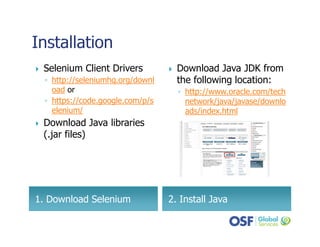
2. Install Java1. Download Selenium
Selenium Client Drivers
◦ http://seleniumhq.org/downl
oad or
◦ https://code.google.com/p/s
elenium/
Download Java libraries
(.jar files)
Download Java JDK from
the following location:
◦ http://www.oracle.com/tech
network/java/javase/downlo
ads/index.html
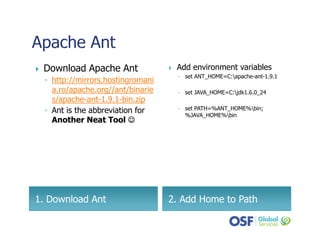
2. Add Home to Path1. Download Ant
Download Apache Ant
◦ http://mirrors.hostingromani
a.ro/apache.org//ant/binarie
s/apache-ant-1.9.1-bin.zip
◦ Ant is the abbreviation for
Another Neat Tool ☺☺☺☺
Add environment variables
◦ set ANT_HOME=C:apache-ant-1.9.1
◦ set JAVA_HOME=C:jdk1.6.0_24
◦ set PATH=%ANT_HOME%bin;
%JAVA_HOME%bin
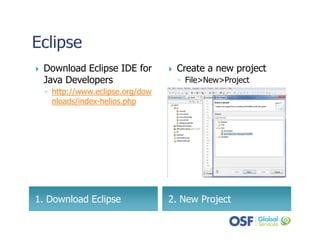
2. New Project1. Download Eclipse
Download Eclipse IDE for
Java Developers
◦ http://www.eclipse.org/dow
nloads/index-helios.php
Create a new project
◦ File>New>Project
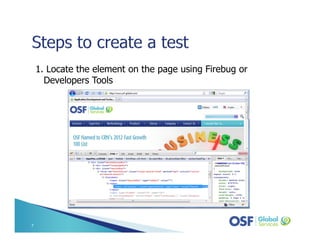
1. Locate the element on the page using Firebug or
Developers Tools
7
2. Choose how you will identify the element
• By id
selenium.findElement(By.id (“search”));
• By xpath
• Locate the element using his attributes
selenium.findElement(By.xpath (“//input[@id=‘search’]”));
• Locate the element using the previous element. This is useful when we have multiple
elements with the same attributes
selenium.findElement(By.xpath (“//fieldset/span/input[@id=‘search’]”));
3. Interact with the element
By searchLocator = By.xpath( “//fieldset//input[@id=‘search’]”);
WebElement searchInput = selenium.findElement(searchLocator);
String searchedText = “testing”;
searchInput.sendKeys(searchedText);
8
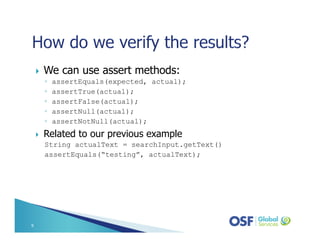
We can use assert methods:
◦ assertEquals(expected, actual);
◦ assertTrue(actual);
◦ assertFalse(actual);
◦ assertNull(actual);
◦ assertNotNull(actual);
Related to our previous example
String actualText = searchInput.getText()
assertEquals(“testing”, actualText);
9
10
DEMODEMODEMODEMO
((((WebDriverWebDriverWebDriverWebDriver ---- Java approach)Java approach)Java approach)Java approach)
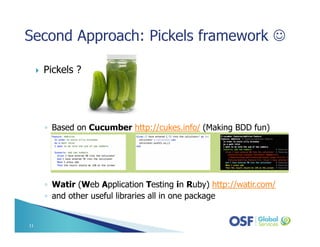
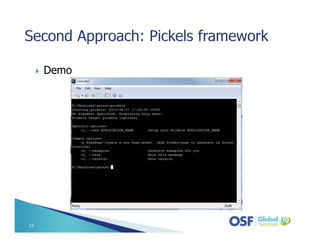
Pickels ?
◦ Based on Cucumber http://cukes.info/ (Making BDD fun)
◦ Watir (Web Application Testing in Ruby) http://watir.com/
◦ and other useful libraries all in one package
11
How to use it ?
◦ You must know Ruby language
◦ You can have access to Watir Api documentation
http://wtr.rubyforge.org/rdoc/1.6.5/
◦ Learn using the example provided by pickels
◦ You will create tests using Model based approach
12
Demo
13
Continuous Integration Server
Automate a specific task
Self test a specific build after commit
Maintain a build history of test results
Easy to configure and extend (using plugins)
Supports Revision Controls tools (Subversion, Git,
Perforce)
Much more https://wiki.jenkins-
ci.org/display/JENKINS/Meet+Jenkins
14
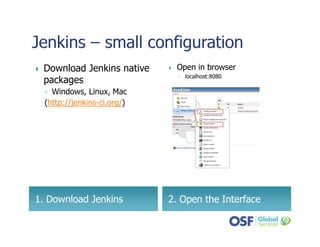
2. Open the Interface1. Download Jenkins
Download Jenkins native
packages
◦ Windows, Linux, Mac
(http://jenkins-ci.org/)
Open in browser
◦ localhost:8080
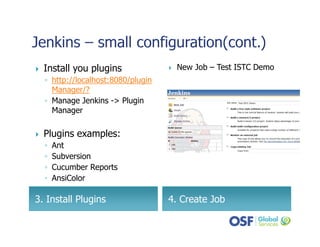
4. Create Job3. Install Plugins
Install you plugins
◦ http://localhost:8080/plugin
Manager/?
◦ Manage Jenkins -> Plugin
Manager
Plugins examples:
◦ Ant
◦ Subversion
◦ Cucumber Reports
◦ AnsiColor
New Job – Test ISTC Demo
17
DEMODEMODEMODEMO
(Jenkins)(Jenkins)(Jenkins)(Jenkins)
http://docs.seleniumhq.org/docs/03_webdriver.jsp
http://code.google.com/p/selenium/wiki/GettingSt
arted
http://ant.apache.org/manual/using.html
https://wiki.jenkins-
ci.org/display/JENKINS/Meet+Jenkins
http://jenkins-ci.org/
http://wtr.rubyforge.org/rdoc/1.6.5/
18
19
Thanks for watching!Thanks for watching!Thanks for watching!Thanks for watching!

Automation Testing

  • 1.
    Consulting Services Application Development Technology Integration Demo with SeleniumWebDriver & Jenkins as Integration Server Brindusa Gamaniata Paul Brodner
  • 2.
    Selenium WebDriver ◦ Introduction ◦Installation details ◦ IDE & test environment configuration ◦ Demo Jenkins ◦ Introduction ◦ Configuration Setup ◦ Selenium WebDriver test integration with Jenkins ◦ Second approach (Selenium WebDriver, Jenkins & Ruby) 2
  • 3.
    No, I’m notreferring to the chemical element: Is an open source framework Provides a set of different tools for test automation ◦ Selenium IDE ◦ Selenium Grid ◦ Selenium 1 (Selenium RC or Selenium Remote Control) ◦ Selenium 2 (Selenium WebDriver) 3
  • 4.
    2. Install Java1.Download Selenium Selenium Client Drivers ◦ http://seleniumhq.org/downl oad or ◦ https://code.google.com/p/s elenium/ Download Java libraries (.jar files) Download Java JDK from the following location: ◦ http://www.oracle.com/tech network/java/javase/downlo ads/index.html
  • 5.
    2. Add Hometo Path1. Download Ant Download Apache Ant ◦ http://mirrors.hostingromani a.ro/apache.org//ant/binarie s/apache-ant-1.9.1-bin.zip ◦ Ant is the abbreviation for Another Neat Tool ☺☺☺☺ Add environment variables ◦ set ANT_HOME=C:apache-ant-1.9.1 ◦ set JAVA_HOME=C:jdk1.6.0_24 ◦ set PATH=%ANT_HOME%bin; %JAVA_HOME%bin
  • 6.
    2. New Project1.Download Eclipse Download Eclipse IDE for Java Developers ◦ http://www.eclipse.org/dow nloads/index-helios.php Create a new project ◦ File>New>Project
  • 7.
    1. Locate theelement on the page using Firebug or Developers Tools 7
  • 8.
    2. Choose howyou will identify the element • By id selenium.findElement(By.id (“search”)); • By xpath • Locate the element using his attributes selenium.findElement(By.xpath (“//input[@id=‘search’]”)); • Locate the element using the previous element. This is useful when we have multiple elements with the same attributes selenium.findElement(By.xpath (“//fieldset/span/input[@id=‘search’]”)); 3. Interact with the element By searchLocator = By.xpath( “//fieldset//input[@id=‘search’]”); WebElement searchInput = selenium.findElement(searchLocator); String searchedText = “testing”; searchInput.sendKeys(searchedText); 8
  • 9.
    We can useassert methods: ◦ assertEquals(expected, actual); ◦ assertTrue(actual); ◦ assertFalse(actual); ◦ assertNull(actual); ◦ assertNotNull(actual); Related to our previous example String actualText = searchInput.getText() assertEquals(“testing”, actualText); 9
  • 10.
    10 DEMODEMODEMODEMO ((((WebDriverWebDriverWebDriverWebDriver ---- Javaapproach)Java approach)Java approach)Java approach)
  • 11.
    Pickels ? ◦ Basedon Cucumber http://cukes.info/ (Making BDD fun) ◦ Watir (Web Application Testing in Ruby) http://watir.com/ ◦ and other useful libraries all in one package 11
  • 12.
    How to useit ? ◦ You must know Ruby language ◦ You can have access to Watir Api documentation http://wtr.rubyforge.org/rdoc/1.6.5/ ◦ Learn using the example provided by pickels ◦ You will create tests using Model based approach 12
  • 13.
  • 14.
    Continuous Integration Server Automatea specific task Self test a specific build after commit Maintain a build history of test results Easy to configure and extend (using plugins) Supports Revision Controls tools (Subversion, Git, Perforce) Much more https://wiki.jenkins- ci.org/display/JENKINS/Meet+Jenkins 14
  • 15.
    2. Open theInterface1. Download Jenkins Download Jenkins native packages ◦ Windows, Linux, Mac (http://jenkins-ci.org/) Open in browser ◦ localhost:8080
  • 16.
    4. Create Job3.Install Plugins Install you plugins ◦ http://localhost:8080/plugin Manager/? ◦ Manage Jenkins -> Plugin Manager Plugins examples: ◦ Ant ◦ Subversion ◦ Cucumber Reports ◦ AnsiColor New Job – Test ISTC Demo
  • 17.
  • 18.
  • 19.
    19 Thanks for watching!Thanksfor watching!Thanks for watching!Thanks for watching!