#ATM16
Insight 2.0
Andrew Wyskida
Neela Sambandam
Scott Bodo
March, 2016 @ArubaNetworks |
2#ATM16
Agenda
 What’s New in Insight 2.0??
 Insight Dashboard
 Insight Report
 Insight Alert
 Insight Search
 Administration
 Caveats
@ArubaNetworks |
3#ATM16
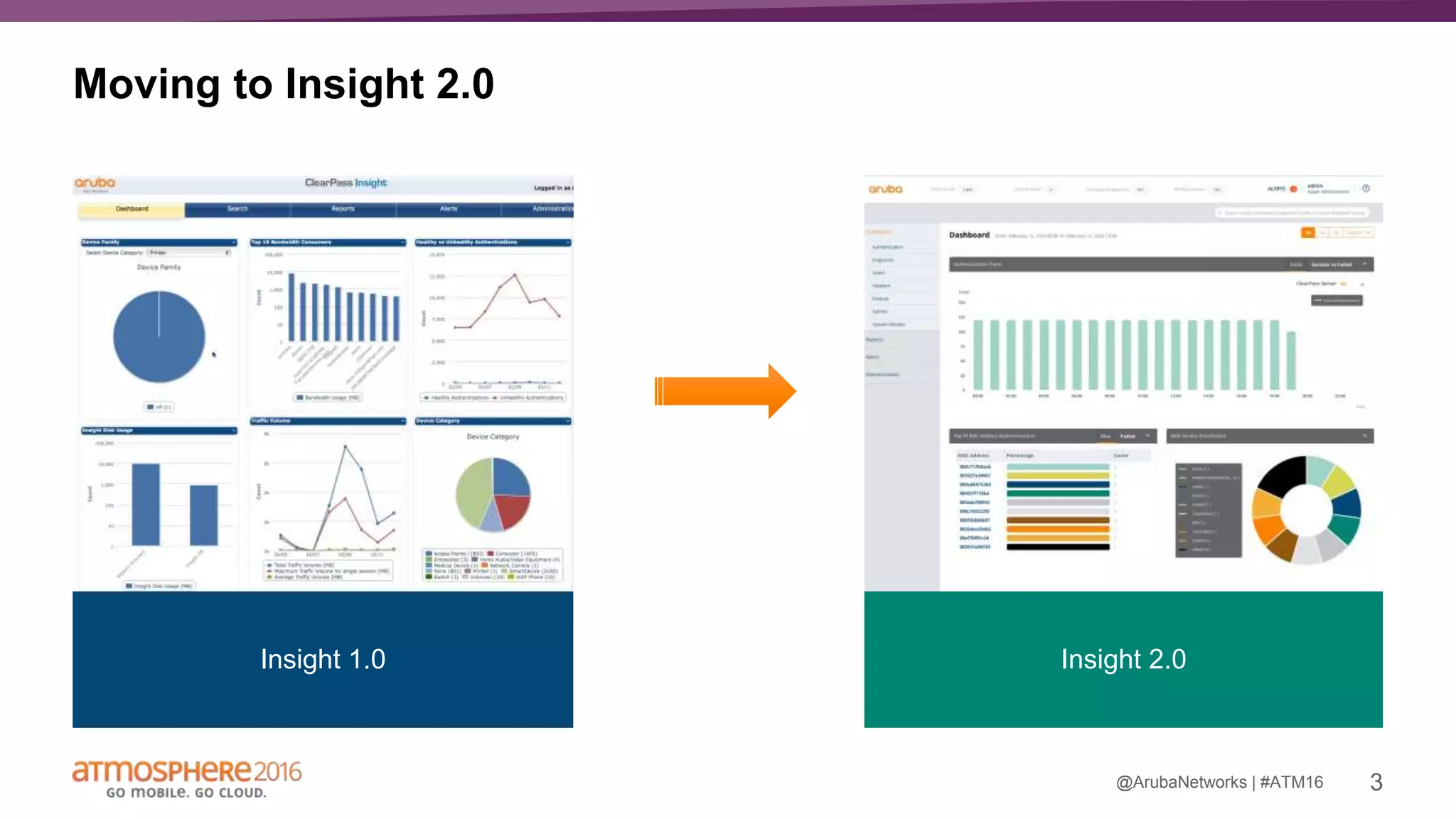
Insight 1.0
Moving to Insight 2.0
@ArubaNetworks |
Insight 2.0
4#ATM16
What’s New in Insight 2.0??
 More data hence more analytics
 Organized dashboard
 Pre-configured reports
 Data summary in reports
 Pre-configured alerts
 Improved search
 improved performance
 Ease of configuration
 Improved UI
@ArubaNetworks |
5#ATM16
Insight Dashboard
ClearPass cluster’s single pane of glass
@ArubaNetworks |
6#ATM16
Improved Dashboard
 More widgets
 Organized widgets in different category
 Pin your favorite dashboard widget
 Global (Time filter) and local filters
 Improved performance
 Ability to create report from dashboard
Caveat
system monitoring widgets can not be pinned to the dashboard
@ArubaNetworks |
7#ATM16
Insight Report
Reports to monitor your AAA, context and health
@ArubaNetworks |
8#ATM16
Improved Reports
 Pre-configured reports – yay!!
 Calendar view for recent activity
 Simplified report configuration
 Folder view for scheduled reports
 Notification for both on-demand and scheduled report
 PDF report has data summary, CSV has raw data which can be customized
 Predefined filters
 Customize reports with branding and logo
 Report generation progress indicator
 Sample reports
 Ability to clone/edit reports
Caveat - Deleting the report configuration deletes both configuration and related report output
Ability to create custom report/ combine reports – only using CSV
@ArubaNetworks |
9#ATM16
Insight Alert
Keeps you informed about your server and clients
@ArubaNetworks |
10#ATM16
Improved Alerts
 Pre-configured alerts – Yay!!
 Watchlist – monitors VIPs, Executives and devices that causes trouble – Yay!!
 Enable – enables/disables the alert
 Mute – mutes the alert output while you work on it
 Notification - email and SMS
 Folder view for alerts with same configuration
 Ability to edit and clone alert
Caveat
System alerts are not configurable – you can either enabled/disable
Watchlist can only alert on unsuccessful authentication for specific device
Color indicates the criticality of the alert not status of client
@ArubaNetworks |
11#ATM16
Insight Search
Deep dive context for client, user, ClearPass server and NAD
@ArubaNetworks |
12#ATM16
Improved Search
 Search for
 Client
 User
 ClearPass server
 NAD
 Improved search output- all you need to know in one place
 Ability to add clients/ users to watchlist from search results- star away!!
 Improved performance
Caveat
Search support only for client/user/ClearPass server/NAD
@ArubaNetworks |
13#ATM16
Administration
 Insight database migration is supported
 Single level insight support in operator login under guest
 Store reports offline using SCP/SFTP
 Database retention default – 30 days
 Report retention default – 60 days
 CSV report limit- 5000 rows
Caveat
Configuration migration is not supported
@ArubaNetworks |
14#ATM16
How do I configure it?
Insight is not enabled by default so navigating to https://<CLEARPASS-IP>/insight will fail without first
enabling it at the Server Configuration page.
15#ATM16
How do I test this?
Once enabled, navigate to https://<CLEARPASS-IP>/insight, login and have fun!
16#ATM16
Join Aruba’s Titans of Tomorrow
force in the fight against network
mayhem. Find out what your
IT superpower is.
Share your results with friends
and receive a free superpower
t-shirt.
www.arubatitans.com
Thank you
neela@hpe.com, @neela_sam
scott.bodo@hpe.com
drew.wyskida@hpe.com

Deep visibility to secure network access with aruba ClearPass Insight

  • 1.
    #ATM16 Insight 2.0 Andrew Wyskida NeelaSambandam Scott Bodo March, 2016 @ArubaNetworks |
  • 2.
    2#ATM16 Agenda  What’s Newin Insight 2.0??  Insight Dashboard  Insight Report  Insight Alert  Insight Search  Administration  Caveats @ArubaNetworks |
  • 3.
    3#ATM16 Insight 1.0 Moving toInsight 2.0 @ArubaNetworks | Insight 2.0
  • 4.
    4#ATM16 What’s New inInsight 2.0??  More data hence more analytics  Organized dashboard  Pre-configured reports  Data summary in reports  Pre-configured alerts  Improved search  improved performance  Ease of configuration  Improved UI @ArubaNetworks |
  • 5.
    5#ATM16 Insight Dashboard ClearPass cluster’ssingle pane of glass @ArubaNetworks |
  • 6.
    6#ATM16 Improved Dashboard  Morewidgets  Organized widgets in different category  Pin your favorite dashboard widget  Global (Time filter) and local filters  Improved performance  Ability to create report from dashboard Caveat system monitoring widgets can not be pinned to the dashboard @ArubaNetworks |
  • 7.
    7#ATM16 Insight Report Reports tomonitor your AAA, context and health @ArubaNetworks |
  • 8.
    8#ATM16 Improved Reports  Pre-configuredreports – yay!!  Calendar view for recent activity  Simplified report configuration  Folder view for scheduled reports  Notification for both on-demand and scheduled report  PDF report has data summary, CSV has raw data which can be customized  Predefined filters  Customize reports with branding and logo  Report generation progress indicator  Sample reports  Ability to clone/edit reports Caveat - Deleting the report configuration deletes both configuration and related report output Ability to create custom report/ combine reports – only using CSV @ArubaNetworks |
  • 9.
    9#ATM16 Insight Alert Keeps youinformed about your server and clients @ArubaNetworks |
  • 10.
    10#ATM16 Improved Alerts  Pre-configuredalerts – Yay!!  Watchlist – monitors VIPs, Executives and devices that causes trouble – Yay!!  Enable – enables/disables the alert  Mute – mutes the alert output while you work on it  Notification - email and SMS  Folder view for alerts with same configuration  Ability to edit and clone alert Caveat System alerts are not configurable – you can either enabled/disable Watchlist can only alert on unsuccessful authentication for specific device Color indicates the criticality of the alert not status of client @ArubaNetworks |
  • 11.
    11#ATM16 Insight Search Deep divecontext for client, user, ClearPass server and NAD @ArubaNetworks |
  • 12.
    12#ATM16 Improved Search  Searchfor  Client  User  ClearPass server  NAD  Improved search output- all you need to know in one place  Ability to add clients/ users to watchlist from search results- star away!!  Improved performance Caveat Search support only for client/user/ClearPass server/NAD @ArubaNetworks |
  • 13.
    13#ATM16 Administration  Insight databasemigration is supported  Single level insight support in operator login under guest  Store reports offline using SCP/SFTP  Database retention default – 30 days  Report retention default – 60 days  CSV report limit- 5000 rows Caveat Configuration migration is not supported @ArubaNetworks |
  • 14.
    14#ATM16 How do Iconfigure it? Insight is not enabled by default so navigating to https://<CLEARPASS-IP>/insight will fail without first enabling it at the Server Configuration page.
  • 15.
    15#ATM16 How do Itest this? Once enabled, navigate to https://<CLEARPASS-IP>/insight, login and have fun!
  • 16.
    16#ATM16 Join Aruba’s Titansof Tomorrow force in the fight against network mayhem. Find out what your IT superpower is. Share your results with friends and receive a free superpower t-shirt. www.arubatitans.com
  • 17.

Editor's Notes

  • #4 This is a sample Two Pictures with Captions slide ideal for including two pictures with brief descriptive statements. To Replace the Pictures on this Sample Slide (this applies to all slides in this template that contain replaceable pictures) Select the sample picture and press Delete. Click the icon inside the shape to open the Insert Picture dialog box. Navigate to the location where the picture is stored, select desired picture and click on the Insert button to fit the image proportionally within the shape. Note: Do not right-click the image to change the picture inside the picture placeholder. This will change the frame size of the picture placeholder. Instead, follow the steps outlined above. Tip: use the Crop tool to reposition a picture within a placeholder. From the Picture Tools Format tab on the ribbon, click the Crop button. Click and drag the picture within the placeholder to reposition. To scale the picture within the placeholder (while Crop is active), grab a round corner handle and drag to resize. Hold Shift key to constrain picture aspect ratio when resizing.
  • #17 Contest Overview - Aruba is running a marketing campaign where we ask “What is your IT superpower?” - Go to arubatitans.com to take a quick quiz to discover your superpower. - Share your results with friends and encourage others to play the game - Once you share, go to the Social and Community Hub, Gracia Commons, 3rd fl to pick up your free superpower shirt. FAQ 1. What do I have to do to get a shirt? Share your IT superpower results with friends and encourage them to play the game. Then come to the Social & Community Hub, 3rd Floor Gracia Commons to pick up your shirt. We just need your name and badge for verification. 2. Where do I get my shirt? Come to the #ATM16 Social & Community hub located at Gracia Commons on the 3rd Floor 3. Do I have to be at the event to get the shirt? Yes. You have to be at #ATM16 to get a shirt. 4. Can I get my colleague a shirt? He/she is in a session right now. Unfortunately not. We encourage your colleague to participate so that they can win a shirt for themselves. 5. Can I bring a shirt home for my colleague? Unfortunately not. You have to be at #ATM16 to get a shirt. 6. You don’t have a shirt in my size, can you ship the right size to me later? Unfortunately not. Please select the best size from our inventory on site.