SABEW 2014
Data Visualization
Dianne M. Finch
Elon University
@dmfinch
SABEW 2014
›  @dmfinch / #SABEWDataViz
›  I will tweet URLs that you’ll need
›  Or show them on screen
›  Sign in to geocommons.com
›  Sign in to Google. Go to Drive.
›  Make sure you have Google Fusion.
What We’ll Cover
›  Data and Encoding Overview
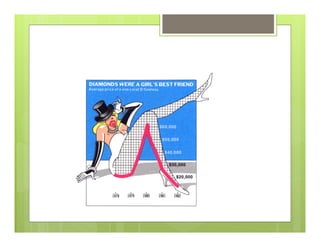
›  Charts and Junk Charts
›  Google Fusion – New Network Graph Tool
›  Map
›  Geocommons – Lat/Long and Map
›  Custom Icons
›  Google API – A timeline
›  Google API – How to manipulate code
without knowing code.
›  Other stuff if time!
SABEW 2014
SABEW 2014
Data-ink Ratio
›  More data – less ink!
›  Save the ink for infographics and text –
add those to the same web page to help
tell the story!
›  See:
›  http://www.infovis-wiki.net/index.php/Data-
Ink_Ratio
Data – most essential component
›  You’ve downloaded a CSV or XLS or JSON.
›  Does your data reflect any trends? Any outliers?
›  Did you vet your data? Talk to the source? Check for errors?
›  Did you look for spelling issues (John Smith and Jon Smith)
›  Are there redundant rows? One header row?
›  Do you need more data to clarify your story?
›  What is the simplest and clearest chart you could use?
›  Try using a sketchpad to draw circles, lines, texture, legends.
is not Absolute, is variable, is uncertain
needs context
is often biased (politics and agendas)
is often sampled (census)
doesn’t tell a whole story
requires skepticism
is error-prone (humans enter it – and they are
often bored and unfocused)
Data….
Data types
›  Nominal
›  Ordinal
›  Quantitative
So We Evaluate, filter, clean,
question and attribute our data
SEE: Harvard Business Review
Data Cleaning with Excel –
Lynda.com
›  Using absolute and relative cell references
Entering data using AutoFill and other techniques
›  Restricting input using validation rules
›  Sorting worksheet data
›  Creating a custom sort order
›  Filtering worksheet data
›  Introducing Excel formulas and functions
›  Adding a formula to a cell
›  Introducing arithmetic operators
›  Using absolute and relative cell references
›  Joining text in cells with concatenation
›  Summarizing data using an IF function
›  Creating formulas to count cells
›  Importing data from comma separated value (CSV) or text files
›  Introducing PivotTable reports (all 10 items in this category)
Chart design last step – and
there are many choices
›  Position along a common scale e.g. scatter plot
›  Position on identical but nonaligned scales e.g.
multiple scatter plots
›  Length e.g. bar chart
›  Angle & Slope (tie) e.g. pie chart
›  Area e.g. bubbles
›  Volume, density, and color saturation (tie) e.g. heatmap
›  Color hue e.g. newsmap
A look at the good ones
›  Arab Spring
›  Simple and Clear
›  Google Chart Gallery
›  NYT-Nursing Homes
›  Flu
›  Guns and Games
›  Other
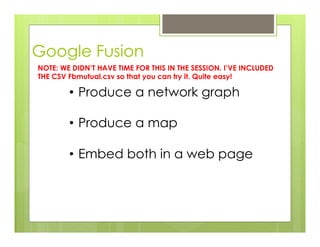
Google Fusion
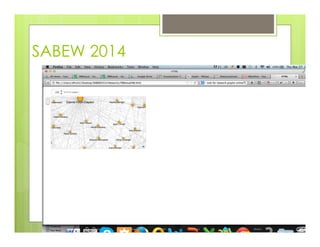
•  Produce a network graph
•  Produce a map
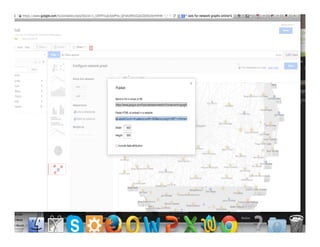
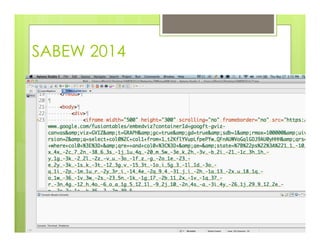
•  Embed both in a web page
NOTE: WE DIDN’T HAVE TIME FOR THIS IN THE SESSION. I’VE INCLUDED
THE CSV Fbmutual.csv so that you can try it. Quite easy!
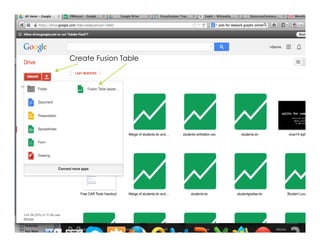
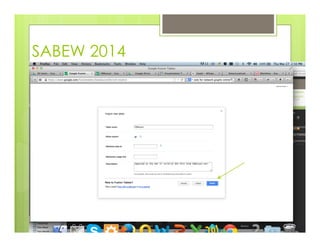
SABEW 2014Create Fusion Table
SABEW 2014
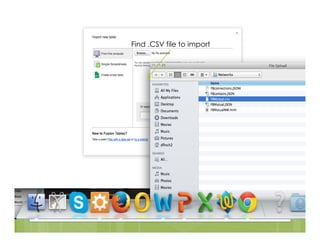
Find .CSV file to import
SABEW 2014
SABEW 2014
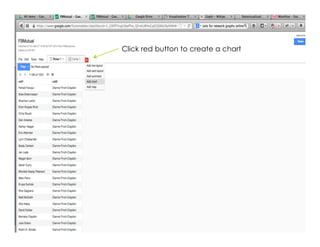
SABEW 2014Click red button to create a chart
SABEW 2014
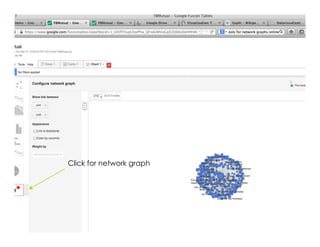
Click for network graph
SABEW 2014
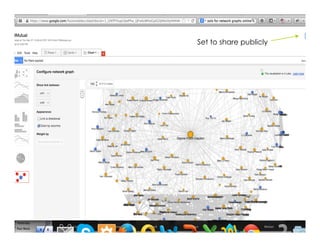
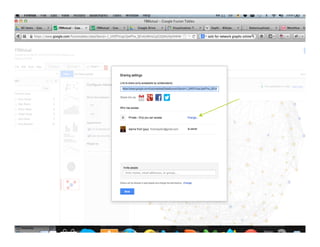
Set to share publicly
SABEW 2014
SABEW 2014
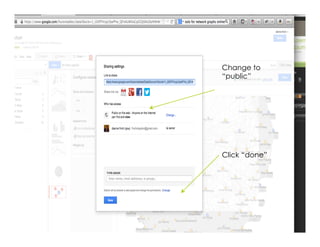
Change to
“public”
Click “done”
SABEW 2014
SABEW 2014
SABEW 2014
SABEW 2014
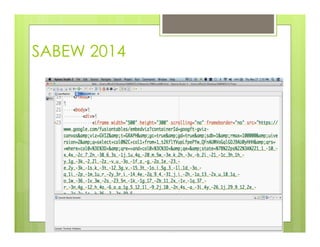
See HTML template
Make a copy!
Google API
“Serving” Viz Via Web Pages
Not everything can be run
from local computers
Hosted Sites
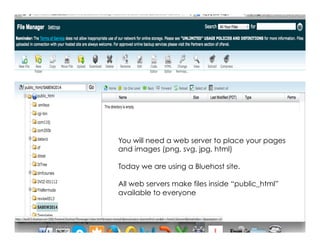
You will need a web server to place your pages
and images (png, svg, jpg, html)
Today we are using a Bluehost site.
All web servers make files inside “public_html”
available to everyone
Sign into: geocommons.com
Yellowdollar.png (you will use my hosted site)
coin_us_dollar.png (you will use my hosted site)
SABEWlist.csv
Maps and Layers and Custom
Icons!
Google API
›  Programming: JavaScript
›  Copy/paste without programming
›  Tweak using intuitive options
Google API
›  Programming: JavaScript
›  Copy/paste without programming
›  Tweak using intuitive options
Try this
›  Latitude Longitude
›  Tableau – take a peak
›  Build layers on maps
›  Add more custom icons
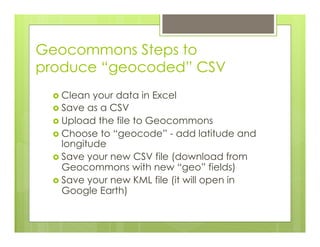
Geocommons Steps to
produce “geocoded” CSV
›  Clean your data in Excel
›  Save as a CSV
›  Upload the file to Geocommons
›  Choose to “geocode” - add latitude and
longitude
›  Save your new CSV file (download from
Geocommons with new “geo” fields)
›  Save your new KML file (it will open in
Google Earth)
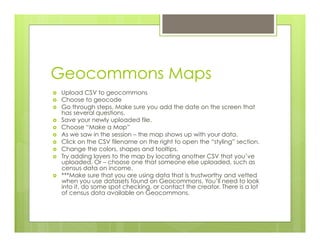
Geocommons Maps
›  Upload CSV to geocommons
›  Choose to geocode
›  Go through steps. Make sure you add the date on the screen that
has several questions.
›  Save your newly uploaded file.
›  Choose “Make a Map”
›  As we saw in the session – the map shows up with your data.
›  Click on the CSV filename on the right to open the “styling” section.
›  Change the colors, shapes and tooltips.
›  Try adding layers to the map by locating another CSV that you’ve
uploaded. Or – choose one that someone else uploaded, such as
census data on income.
›  ***Make sure that you are using data that is trustworthy and vetted
when you use datasets found on Geocommons. You’ll need to look
into it, do some spot checking, or contact the creator. There is a lot
of census data available on Geocommons.

Data Visualization: A Hands-On Primer for Business Journalists by Dianne Finch

  • 1.
    SABEW 2014 Data Visualization DianneM. Finch Elon University @dmfinch
  • 2.
    SABEW 2014 ›  @dmfinch/ #SABEWDataViz ›  I will tweet URLs that you’ll need ›  Or show them on screen ›  Sign in to geocommons.com ›  Sign in to Google. Go to Drive. ›  Make sure you have Google Fusion.
  • 3.
    What We’ll Cover › Data and Encoding Overview ›  Charts and Junk Charts ›  Google Fusion – New Network Graph Tool ›  Map ›  Geocommons – Lat/Long and Map ›  Custom Icons ›  Google API – A timeline ›  Google API – How to manipulate code without knowing code. ›  Other stuff if time!
  • 6.
  • 7.
  • 8.
    Data-ink Ratio ›  Moredata – less ink! ›  Save the ink for infographics and text – add those to the same web page to help tell the story! ›  See: ›  http://www.infovis-wiki.net/index.php/Data- Ink_Ratio
  • 10.
    Data – mostessential component ›  You’ve downloaded a CSV or XLS or JSON. ›  Does your data reflect any trends? Any outliers? ›  Did you vet your data? Talk to the source? Check for errors? ›  Did you look for spelling issues (John Smith and Jon Smith) ›  Are there redundant rows? One header row? ›  Do you need more data to clarify your story? ›  What is the simplest and clearest chart you could use? ›  Try using a sketchpad to draw circles, lines, texture, legends.
  • 11.
    is not Absolute,is variable, is uncertain needs context is often biased (politics and agendas) is often sampled (census) doesn’t tell a whole story requires skepticism is error-prone (humans enter it – and they are often bored and unfocused) Data….
  • 12.
    Data types ›  Nominal › Ordinal ›  Quantitative
  • 13.
    So We Evaluate,filter, clean, question and attribute our data SEE: Harvard Business Review
  • 14.
    Data Cleaning withExcel – Lynda.com ›  Using absolute and relative cell references Entering data using AutoFill and other techniques ›  Restricting input using validation rules ›  Sorting worksheet data ›  Creating a custom sort order ›  Filtering worksheet data ›  Introducing Excel formulas and functions ›  Adding a formula to a cell ›  Introducing arithmetic operators ›  Using absolute and relative cell references ›  Joining text in cells with concatenation ›  Summarizing data using an IF function ›  Creating formulas to count cells ›  Importing data from comma separated value (CSV) or text files ›  Introducing PivotTable reports (all 10 items in this category)
  • 15.
    Chart design laststep – and there are many choices ›  Position along a common scale e.g. scatter plot ›  Position on identical but nonaligned scales e.g. multiple scatter plots ›  Length e.g. bar chart ›  Angle & Slope (tie) e.g. pie chart ›  Area e.g. bubbles ›  Volume, density, and color saturation (tie) e.g. heatmap ›  Color hue e.g. newsmap
  • 16.
    A look atthe good ones ›  Arab Spring ›  Simple and Clear ›  Google Chart Gallery ›  NYT-Nursing Homes ›  Flu ›  Guns and Games ›  Other
  • 17.
    Google Fusion •  Producea network graph •  Produce a map •  Embed both in a web page NOTE: WE DIDN’T HAVE TIME FOR THIS IN THE SESSION. I’VE INCLUDED THE CSV Fbmutual.csv so that you can try it. Quite easy!
  • 18.
  • 19.
    SABEW 2014 Find .CSVfile to import
  • 20.
  • 21.
  • 22.
    SABEW 2014Click redbutton to create a chart
  • 23.
    SABEW 2014 Click fornetwork graph
  • 24.
    SABEW 2014 Set toshare publicly
  • 25.
  • 26.
  • 27.
  • 28.
  • 29.
  • 30.
  • 31.
  • 32.
    Google API “Serving” VizVia Web Pages Not everything can be run from local computers
  • 33.
    Hosted Sites You willneed a web server to place your pages and images (png, svg, jpg, html) Today we are using a Bluehost site. All web servers make files inside “public_html” available to everyone
  • 34.
    Sign into: geocommons.com Yellowdollar.png(you will use my hosted site) coin_us_dollar.png (you will use my hosted site) SABEWlist.csv
  • 35.
    Maps and Layersand Custom Icons!
  • 36.
    Google API ›  Programming:JavaScript ›  Copy/paste without programming ›  Tweak using intuitive options
  • 37.
    Google API ›  Programming:JavaScript ›  Copy/paste without programming ›  Tweak using intuitive options
  • 38.
    Try this ›  LatitudeLongitude ›  Tableau – take a peak ›  Build layers on maps ›  Add more custom icons
  • 39.
    Geocommons Steps to produce“geocoded” CSV ›  Clean your data in Excel ›  Save as a CSV ›  Upload the file to Geocommons ›  Choose to “geocode” - add latitude and longitude ›  Save your new CSV file (download from Geocommons with new “geo” fields) ›  Save your new KML file (it will open in Google Earth)
  • 40.
    Geocommons Maps ›  UploadCSV to geocommons ›  Choose to geocode ›  Go through steps. Make sure you add the date on the screen that has several questions. ›  Save your newly uploaded file. ›  Choose “Make a Map” ›  As we saw in the session – the map shows up with your data. ›  Click on the CSV filename on the right to open the “styling” section. ›  Change the colors, shapes and tooltips. ›  Try adding layers to the map by locating another CSV that you’ve uploaded. Or – choose one that someone else uploaded, such as census data on income. ›  ***Make sure that you are using data that is trustworthy and vetted when you use datasets found on Geocommons. You’ll need to look into it, do some spot checking, or contact the creator. There is a lot of census data available on Geocommons.