5 Ways to Improve
Your LiDAR Workflows
In memory of
Martin Isenburg,
founder of LAStools.
5 Ways to Improve
Your LiDAR Workflows
Meet the Presenters
Kailin
Opaleychuk
Richard Mosley Jovita Chan Dmitri Bagh
On Q&A
Agenda
● LiDAR Overview
● 5 Ways to Improve Your Lidar Workflows
1. Simplify the process of transforming and integrating point clouds
2. Prepare your data
3. Create (and automate the creation of) surface models
4. Visualize solutions by using LiDAR for 3D City Modelling
5. Expand your toolset with FME Hub and Third Party Tools
● Q&A
LiDAR Overview
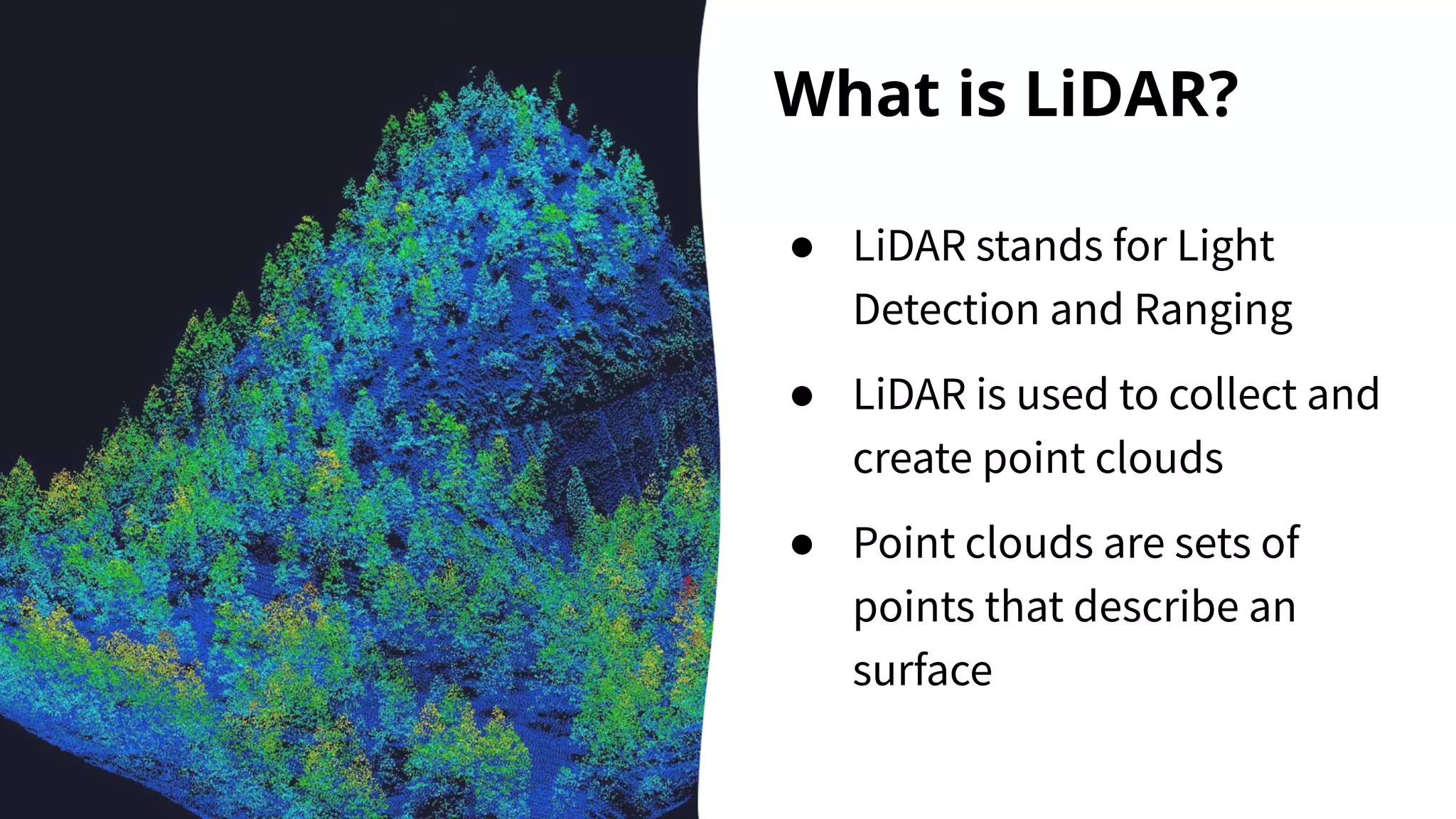
What is LiDAR?
● LiDAR stands for Light
Detection and Ranging
● LiDAR is used to collect and
create point clouds
● Point clouds are sets of
points that describe an
surface
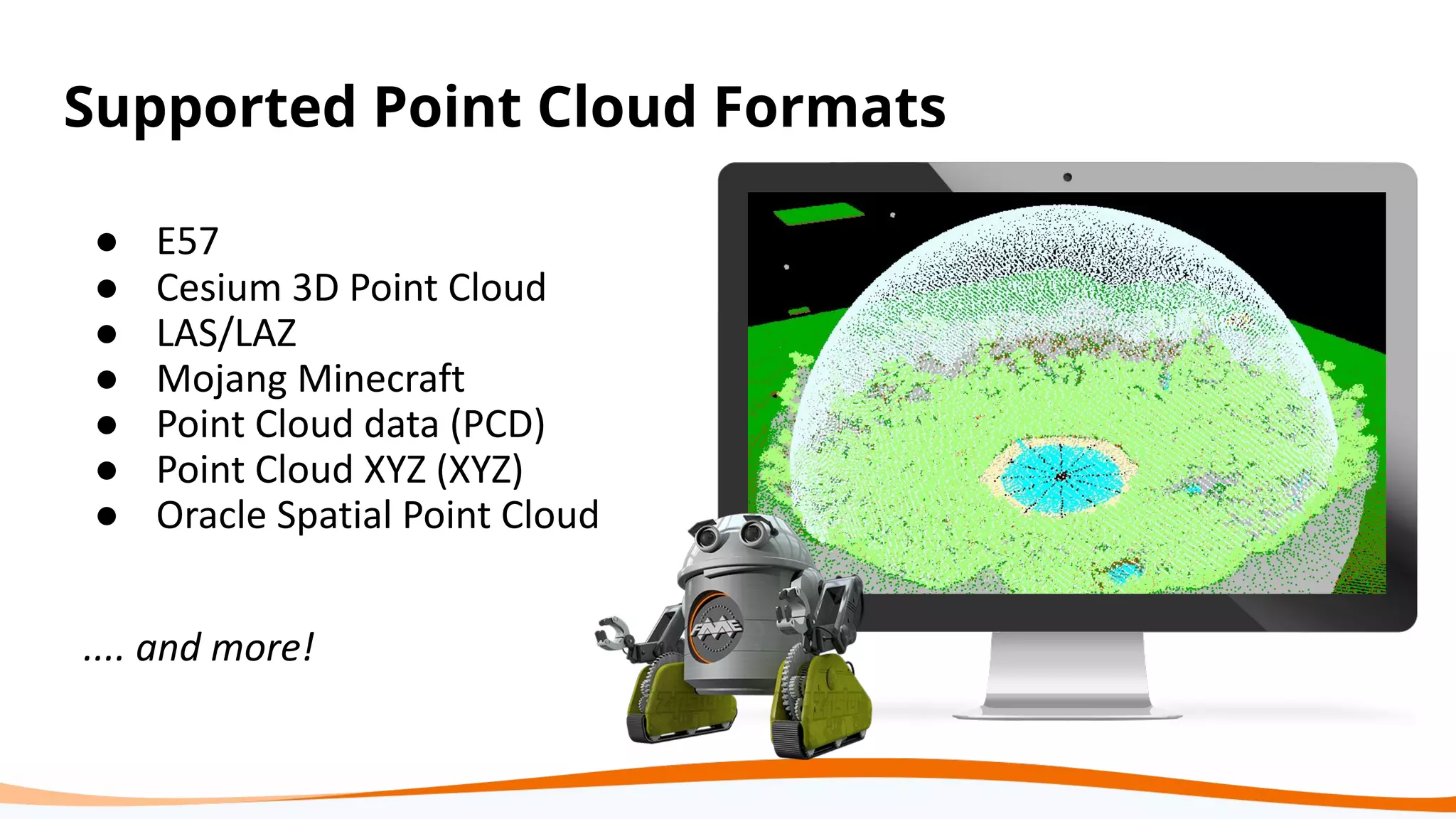
Supported Point Cloud Formats
● E57
● Cesium 3D Point Cloud
● LAS/LAZ
● Mojang Minecraft
● Point Cloud data (PCD)
● Point Cloud XYZ (XYZ)
● Oracle Spatial Point Cloud
.... and more!
Point clouds can help you produce
amazing 3D visualizations!
The problem with
point clouds...
They can be huge.
They’re kinda complicated if you are
new to working with them.
There can be limitations.
It’s hard to integrate them with other
data.
Working with them can be expensive.
FME®
Integration Platform
Connect. Transform. Automate.
FME Desktop FME Server FME Cloud
Build & Run Data Workflows Automate Data Workflows
(on-premises)
Automate Data Workflows
(cloud)
Get a free trial of FME Desktop and FME Server at safe.com
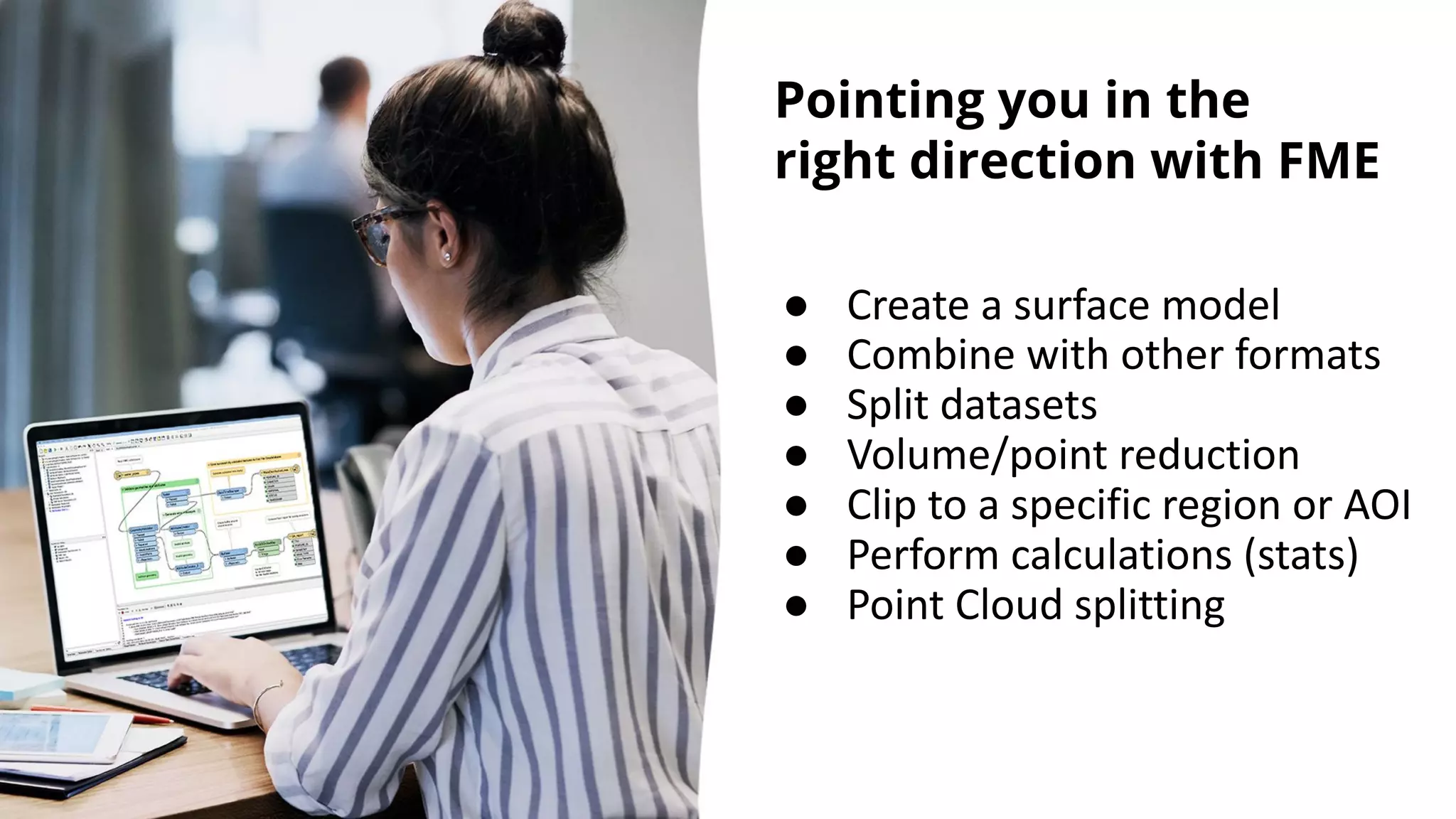
Pointing you in the
right direction with FME
● Create a surface model
● Combine with other formats
● Split datasets
● Volume/point reduction
● Clip to a specific region or AOI
● Perform calculations (stats)
● Point Cloud splitting
1. Simplify the process of transforming
and integrating point clouds using FME’s
Point Cloud Transformers.
Our transformers simplify the process of
transforming and integrating point clouds.
Combining transformers into workspaces
creates powerful, repeatable solutions.
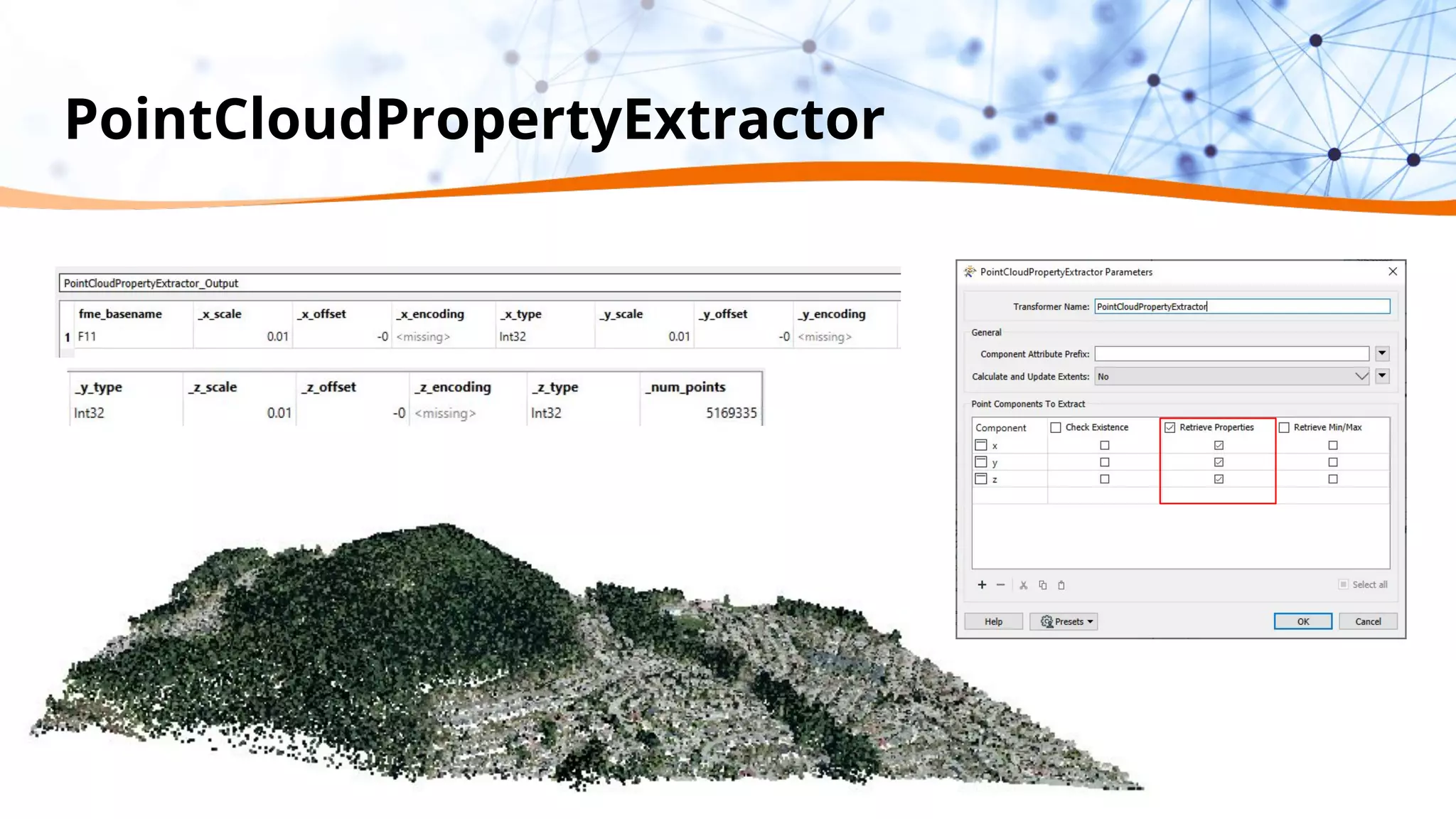
PointCloudPropertyExtractor
PointCloudCombiner
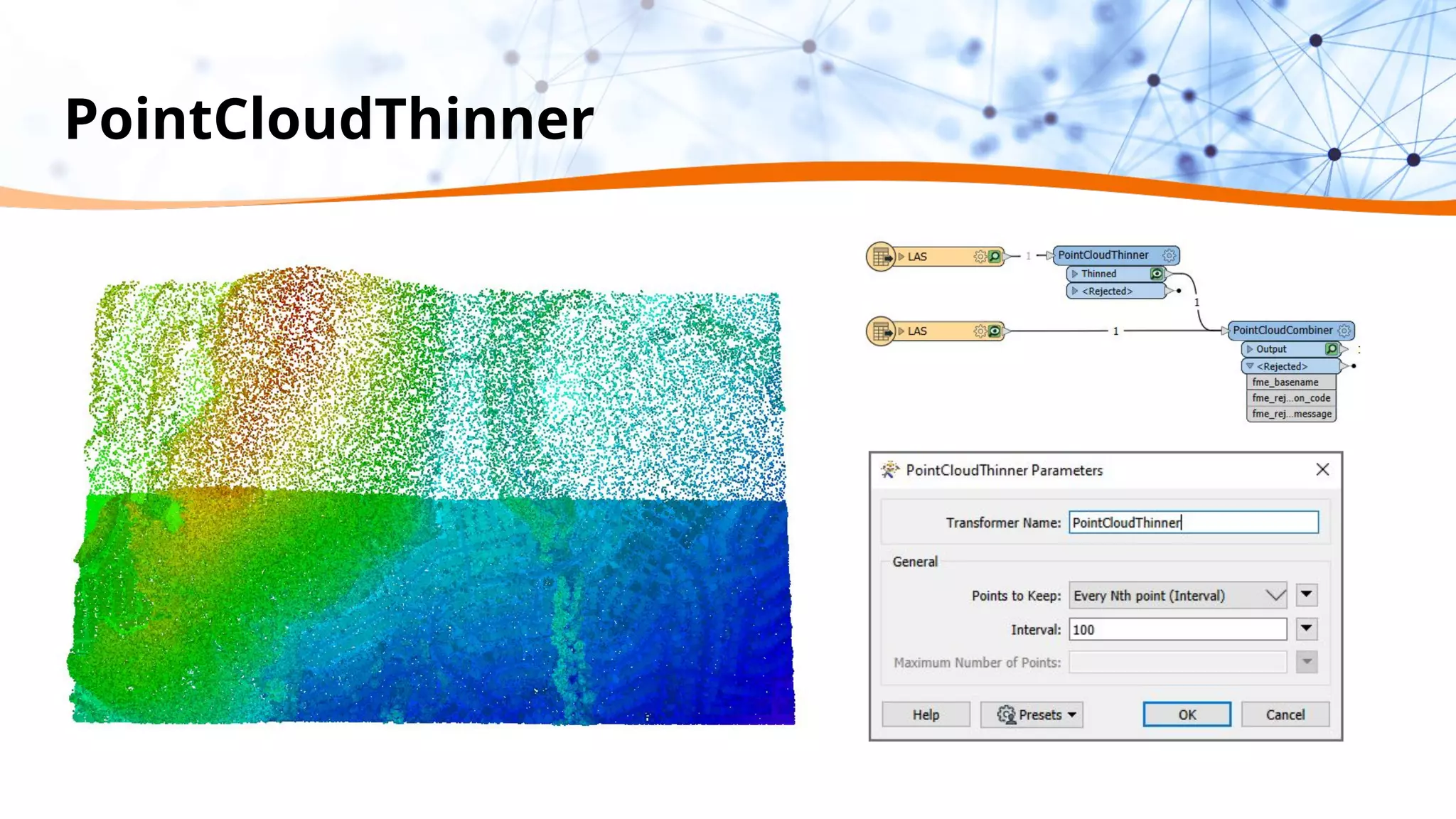
PointCloudThinner
2. Prepare your data
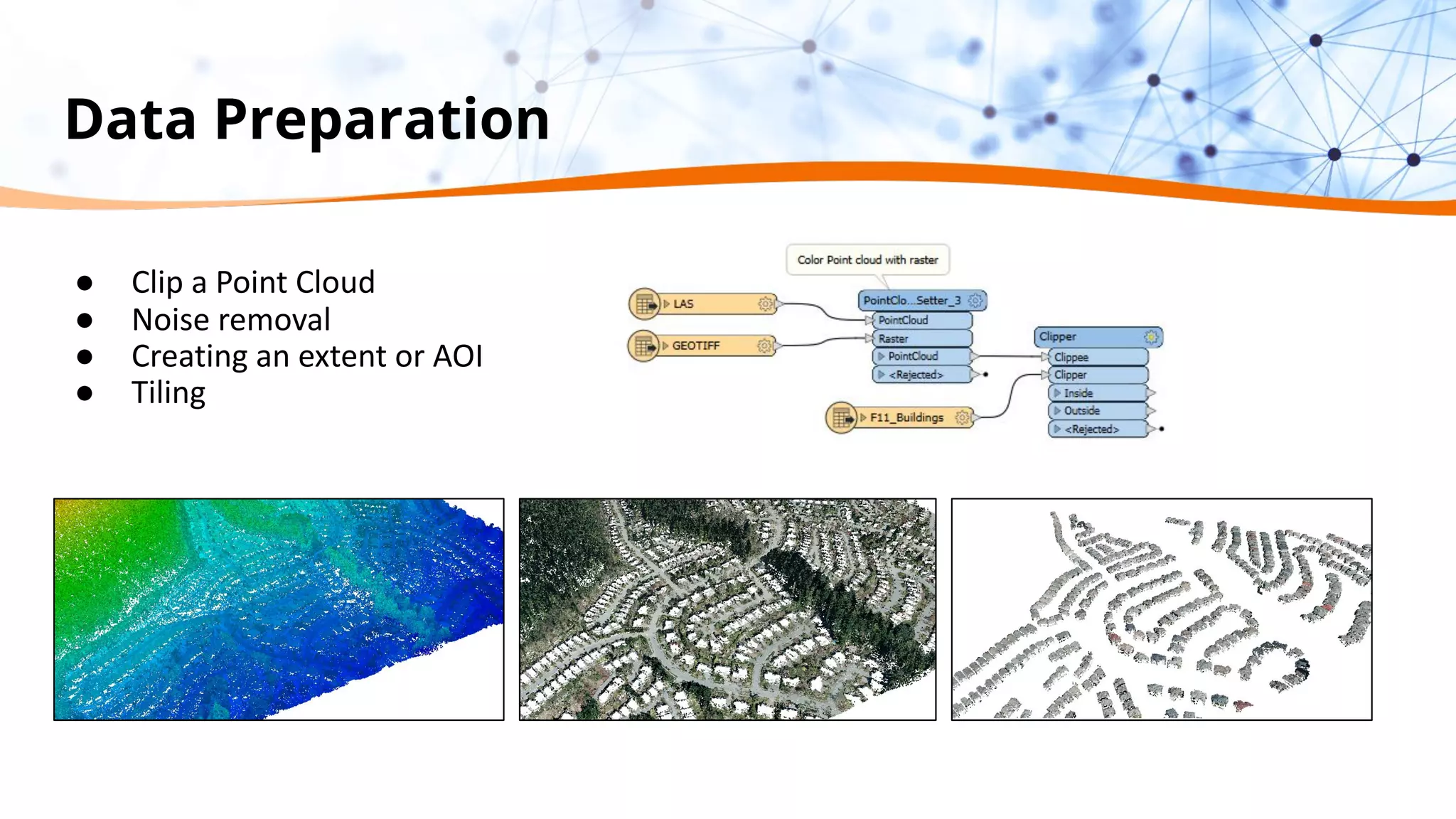
Data Preparation
● Clip a Point Cloud
● Noise removal
● Creating an extent or AOI
● Tiling
3. Create and automate surface models
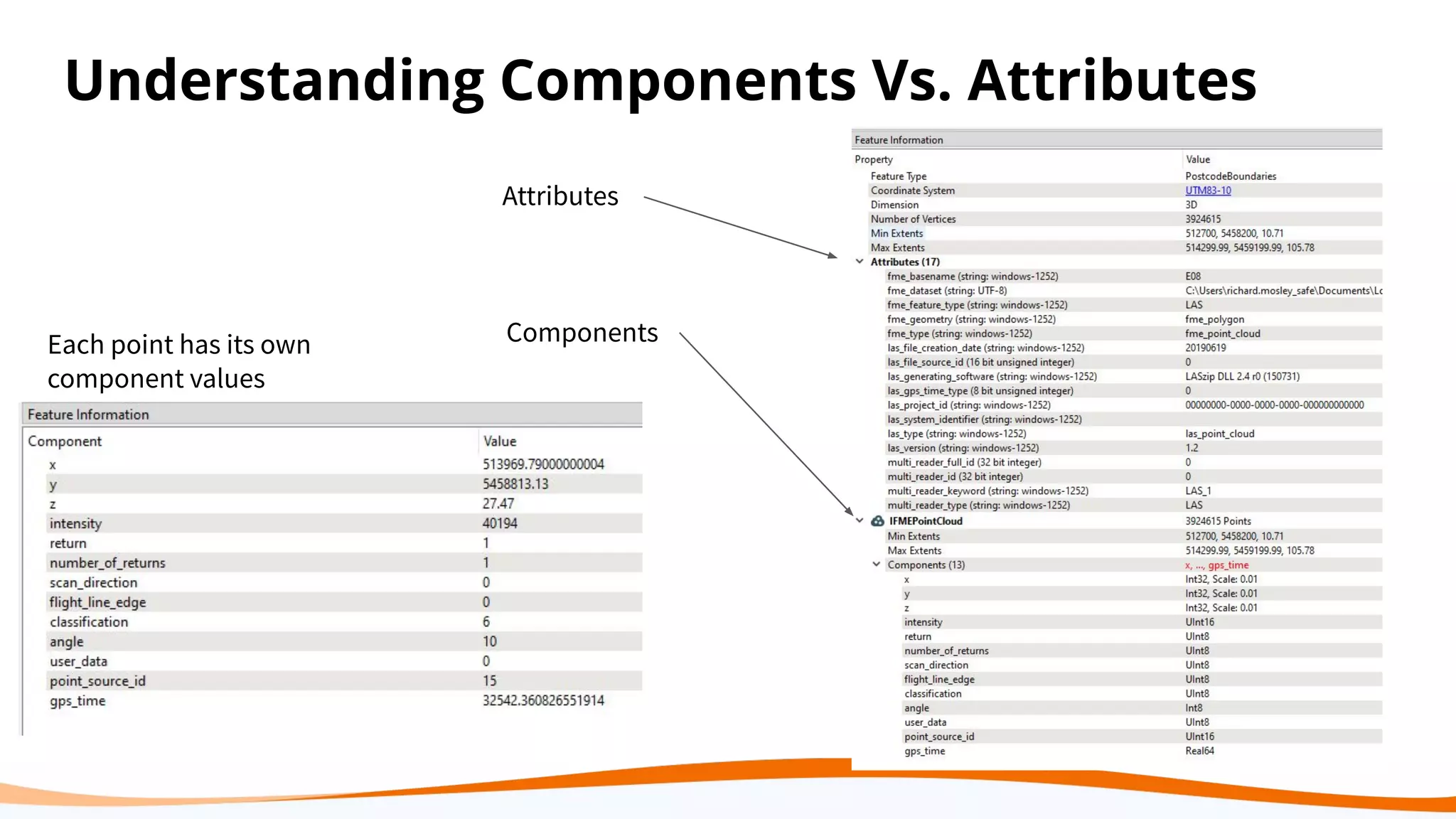
How FME Understands Point Clouds
● Point Cloud as 1 feature
● Each point has is own component
values
● Each individual component value
can be altered without it being an
attribute
● Attributes from other sources can
be added as components.
Understanding Components Vs. Attributes
Attributes
Components
Each point has its own
component values
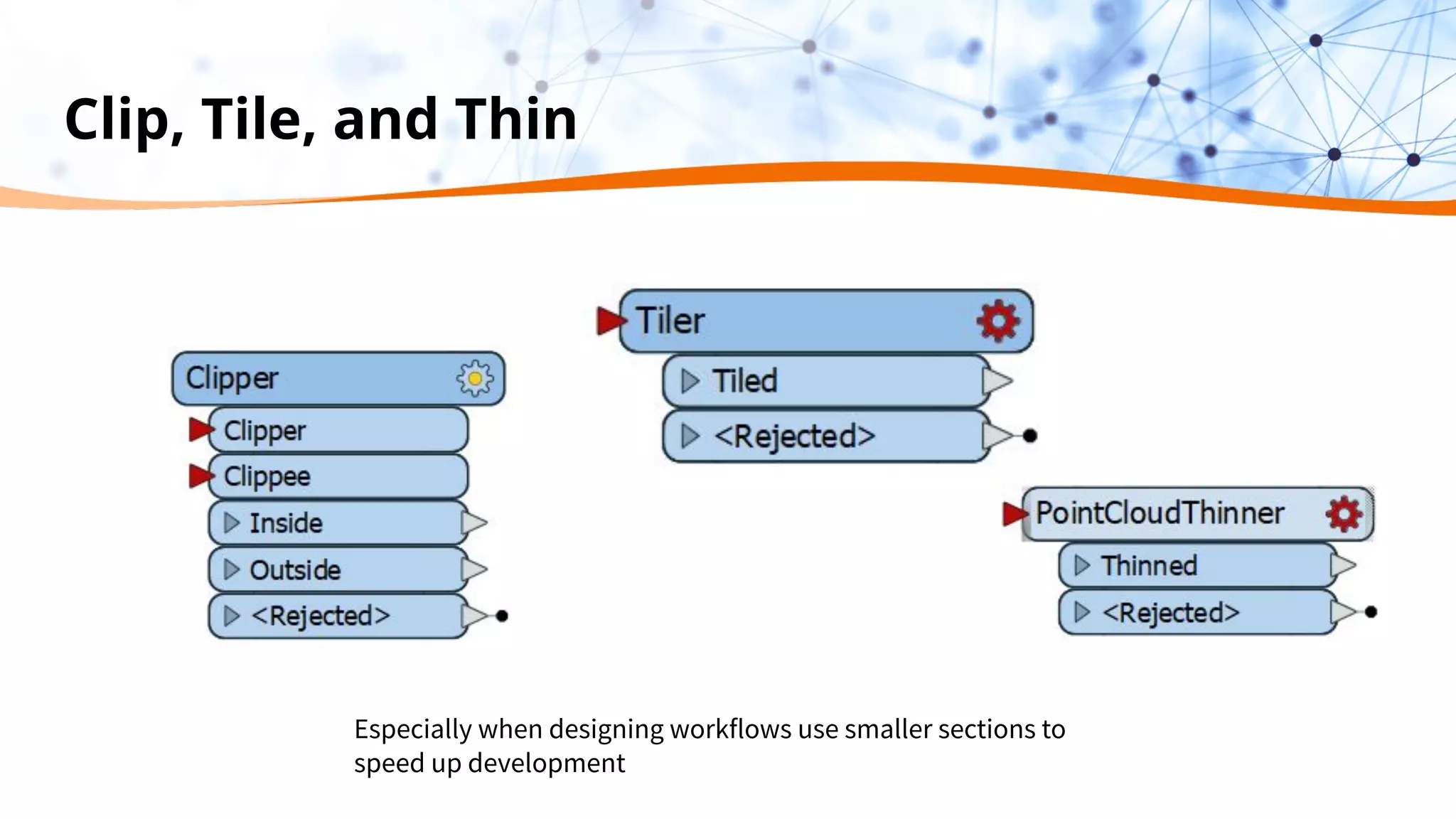
Clip, Tile, and Thin
Especially when designing workflows use smaller sections to
speed up development
Demo
DEM
Parameters
Set appearance on: Front
Side
Texture Mapping Type:
Top Down Georeferenced
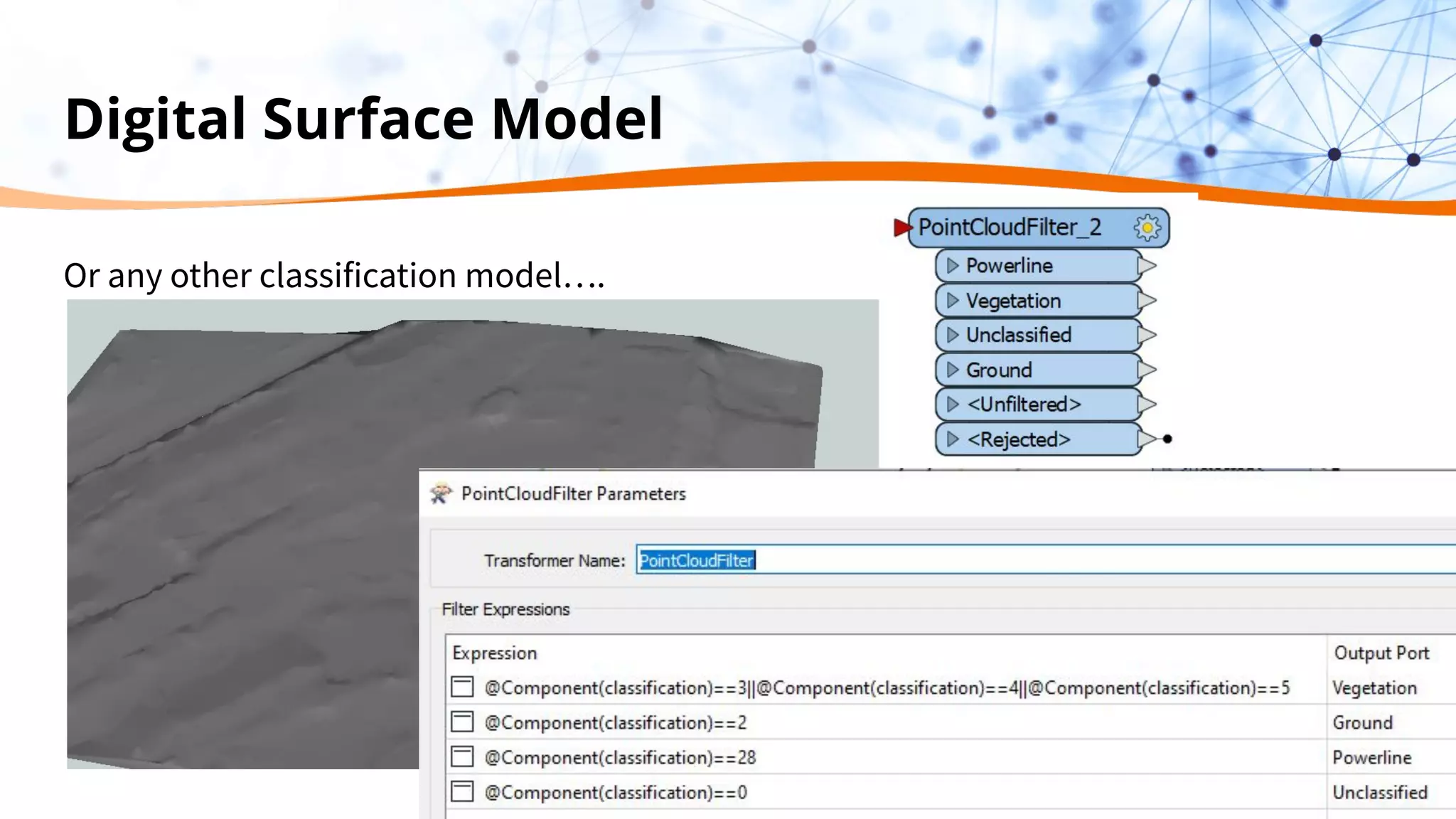
Digital Surface Model
Or any other classification model….
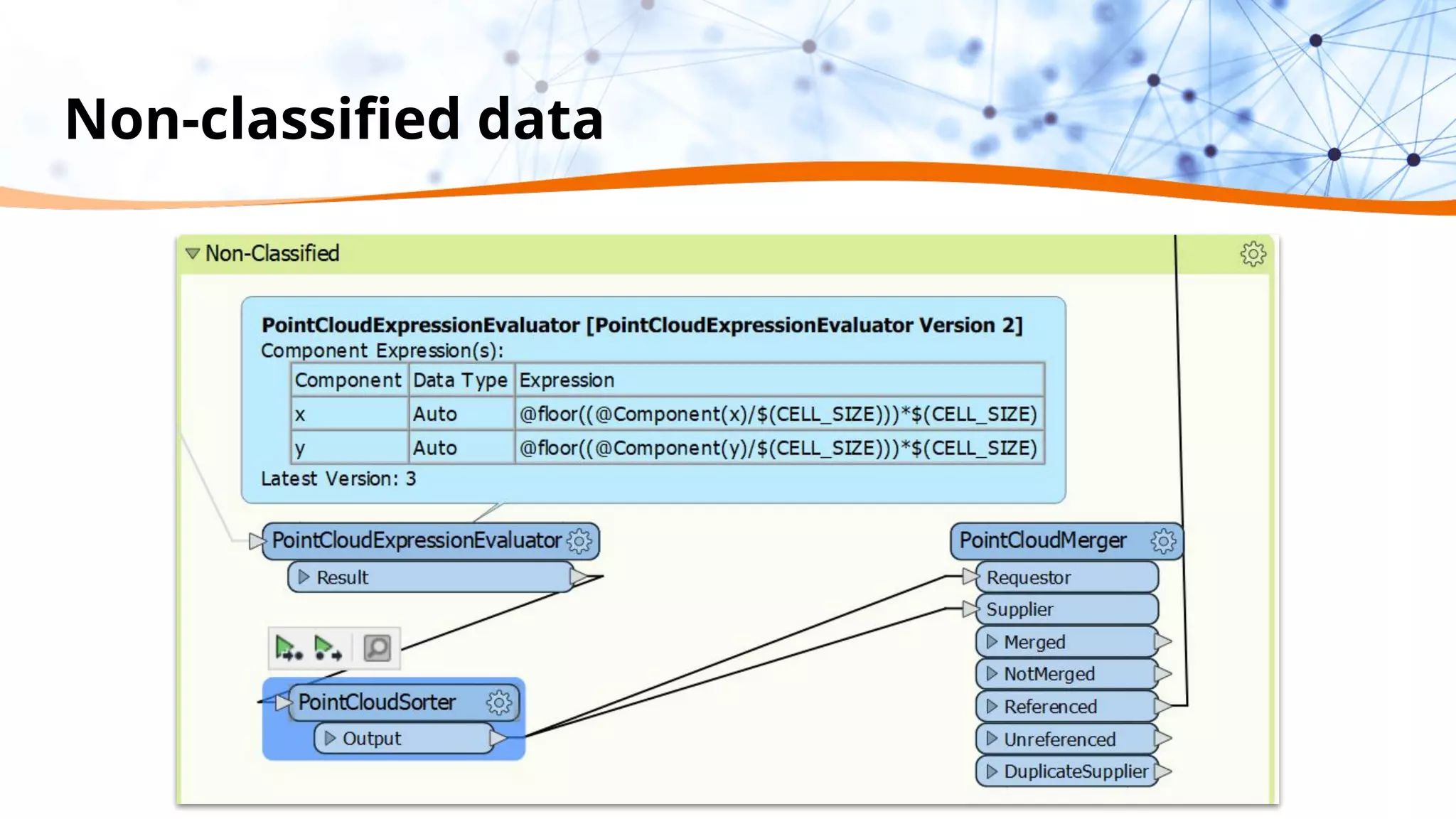
Non-classified data
Demo
Automate and Self Serve
Self-Service
● Geometry Picker
○ https://community.safe.com/s/article/using-the-geometry-picker-in-fme-server
Speed up
● Dynamic Engines
○ 1 engine can process 1 workspace at a time. So if you need some performance gains split your workflow and process smaller amounts of data
on more engines.
○ https://community.safe.com/s/article/getting-started-with-dynamic-engines
4. Visualize solutions by using LiDAR for
3D City Modelling
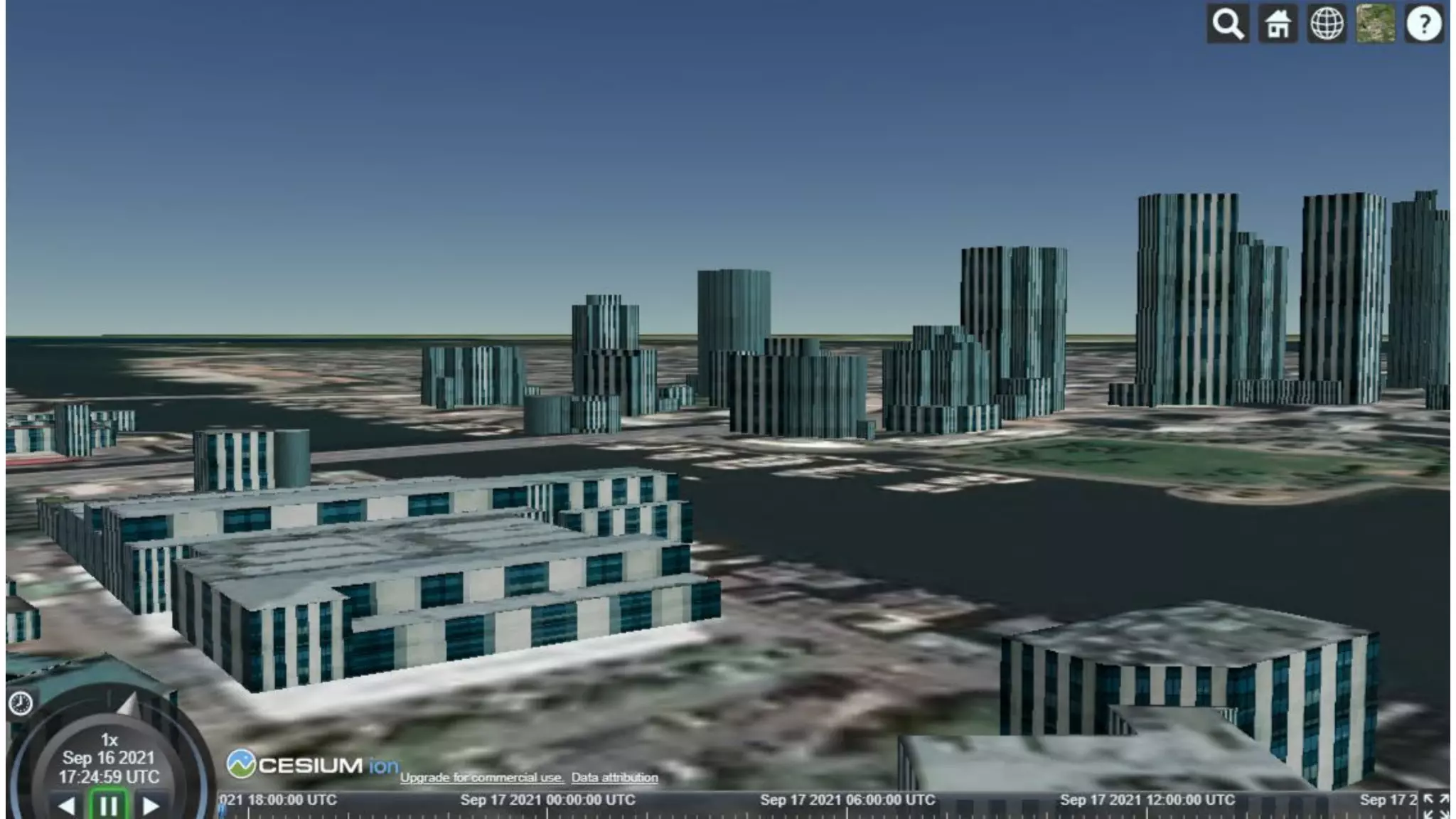
Demo: Creating 3D City Models
● Goal: Visualize the city as an accurate 3D model
to ensure developments are integrated well in their neighborhoods and to inform
future decisions
● Obstacles: Large datasets, different formats, which can be difficult to work with.
● Solutions: Use FME to extract needed information from LiDAR,
integrate with other formats like PNG textures and SketchUp models, and apply
that to a 3D City Model
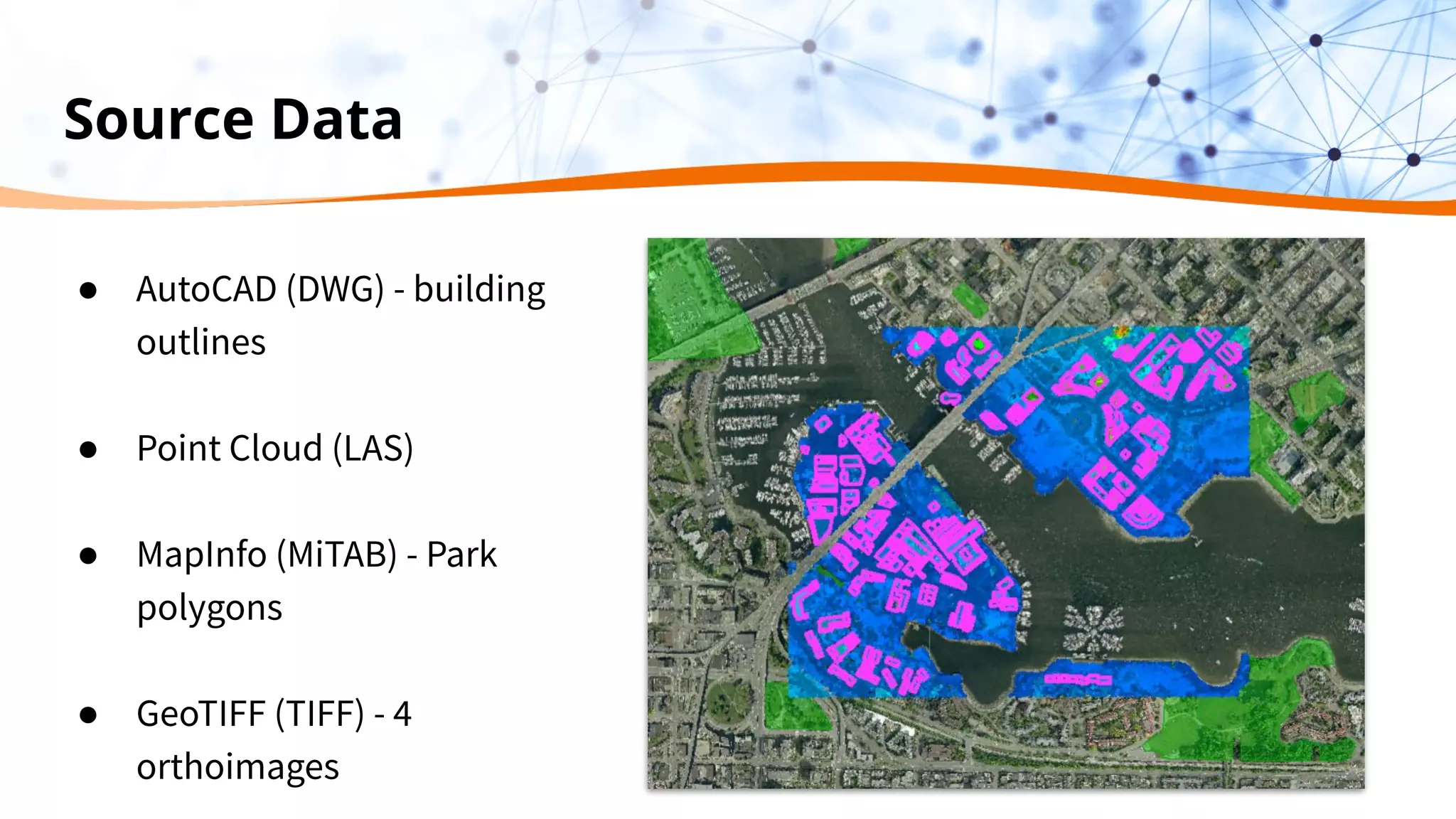
Source Data
● AutoCAD (DWG) - building
outlines
● Point Cloud (LAS)
● MapInfo (MiTAB) - Park
polygons
● GeoTIFF (TIFF) - 4
orthoimages
Source Data Continued
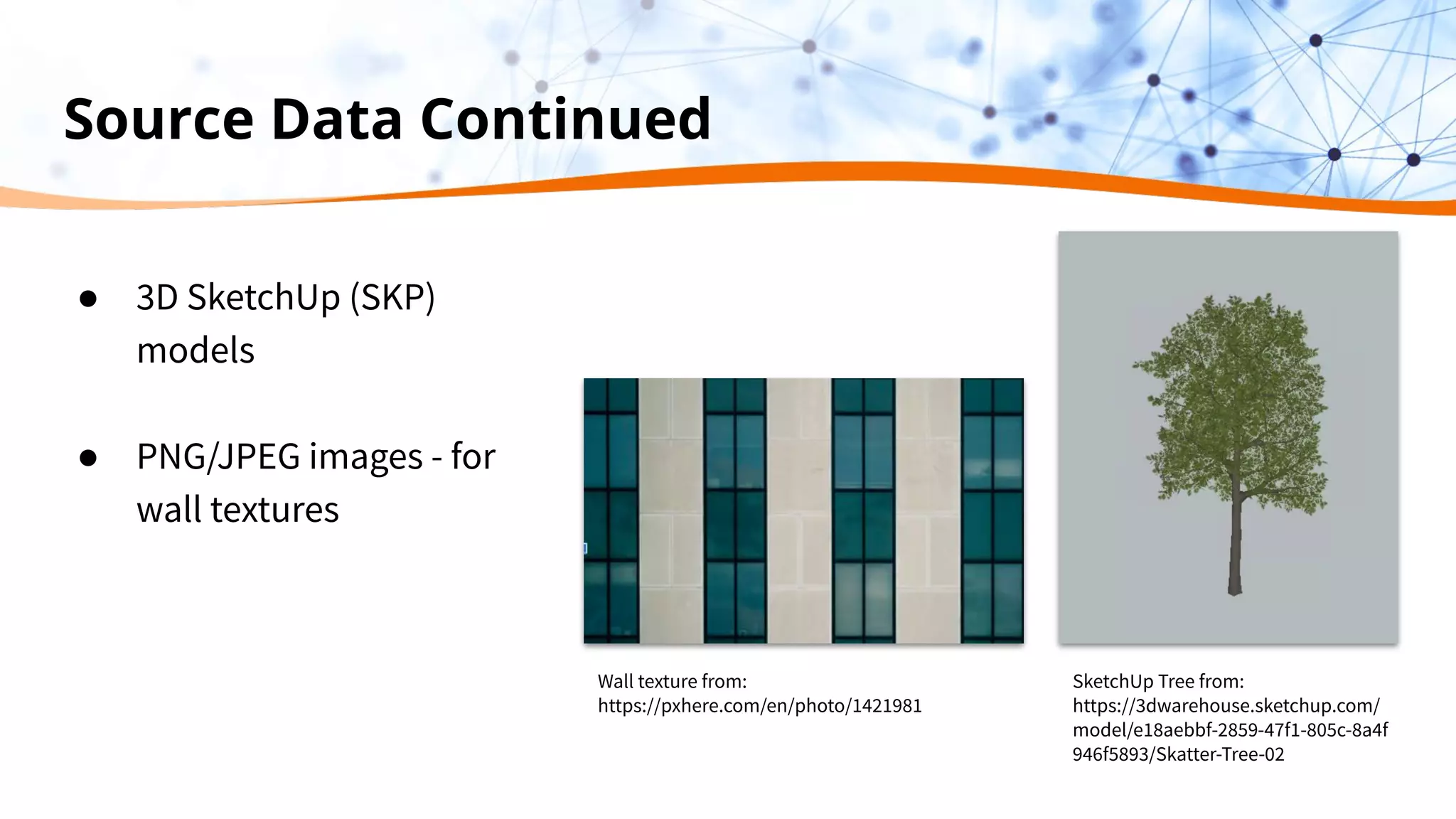
● 3D SketchUp (SKP)
models
● PNG/JPEG images - for
wall textures
Wall texture from:
https://pxhere.com/en/photo/1421981
SketchUp Tree from:
https://3dwarehouse.sketchup.com/
model/e18aebbf-2859-47f1-805c-8a4f
946f5893/Skatter-Tree-02
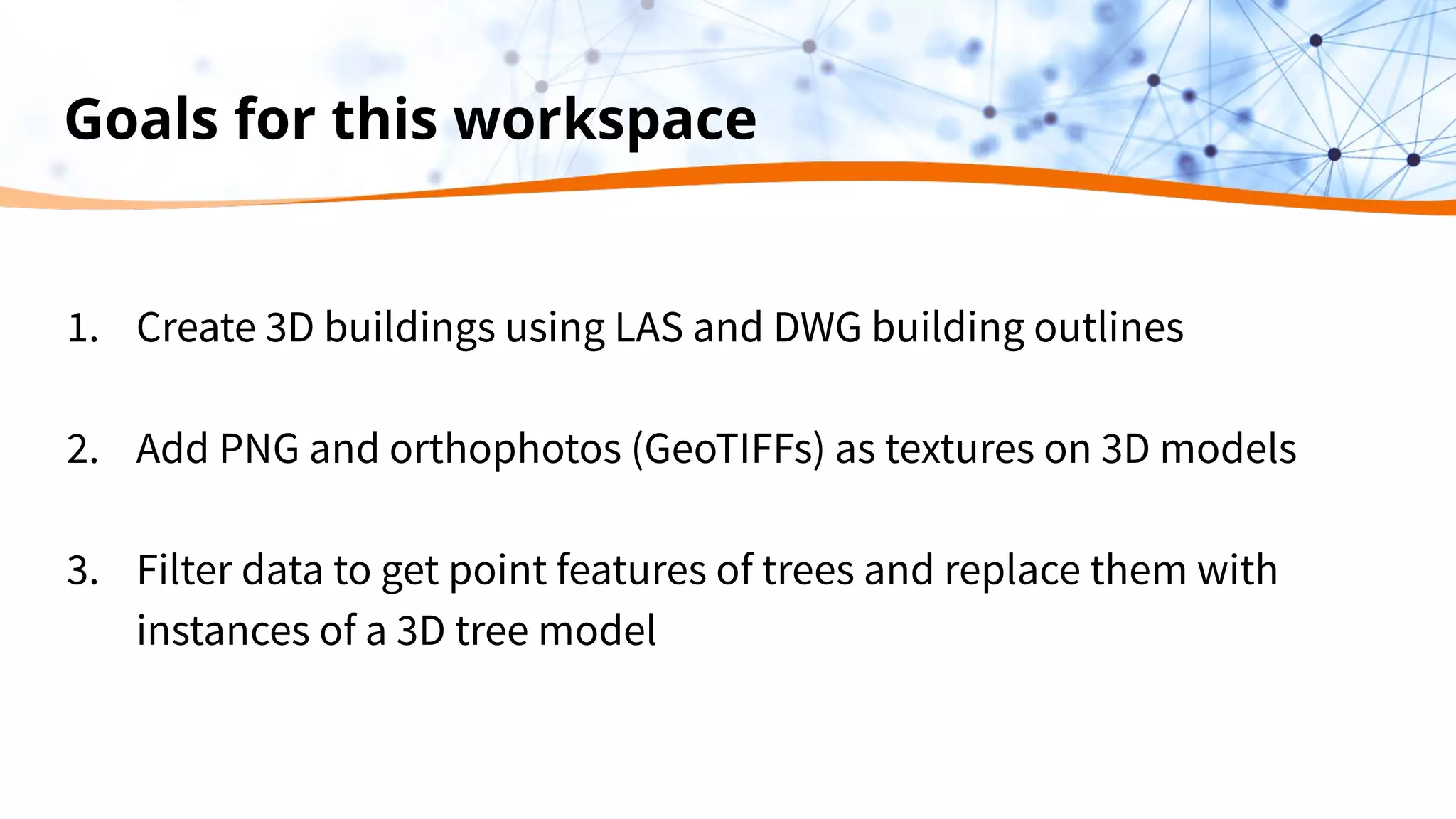
Goals for this workspace
1. Create 3D buildings using LAS and DWG building outlines
2. Add PNG and orthophotos (GeoTIFFs) as textures on 3D models
3. Filter data to get point features of trees and replace them with
instances of a 3D tree model
Demo
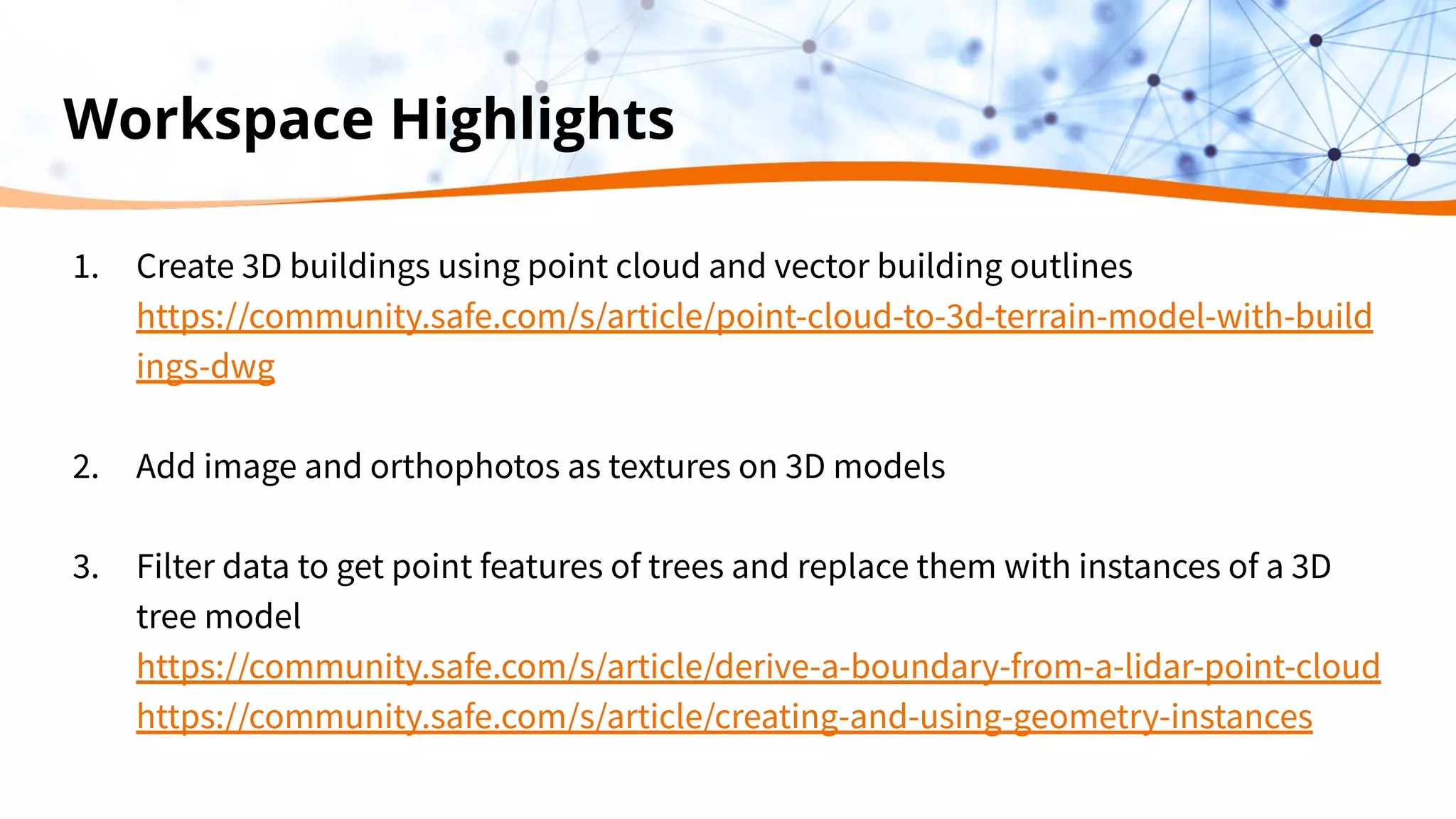
Workspace Highlights
1. Create 3D buildings using point cloud and vector building outlines
https://community.safe.com/s/article/point-cloud-to-3d-terrain-model-with-build
ings-dwg
2. Add image and orthophotos as textures on 3D models
3. Filter data to get point features of trees and replace them with instances of a 3D
tree model
https://community.safe.com/s/article/derive-a-boundary-from-a-lidar-point-cloud
https://community.safe.com/s/article/creating-and-using-geometry-instances
Tips and Tricks: Methods
● Similarities to raster processing
○ Use feature caching strategically
○ Tiling large datasets
● Knowing how FME works with point clouds
○ FME treats a point cloud as a single entity
■ For many operations, use Point cloud specific transformers (attributes vs.
components)
○ Writing it out to a format that doesn’t support point clouds means you’re actually
writing a bounding box
■ Coerce to multipoints, surface, or raster
Tips and Tricks: Transformers
3D Geometry
● TINGenerator - creates surface models
● Extruder - extrudes outline features (ex. buildings)
Applying textures
● AppearanceSetter - to add image textures, pay attention to the Texture
Mapping Type parameter
5. Expand your toolset with FME Hub
and Third Party Tools
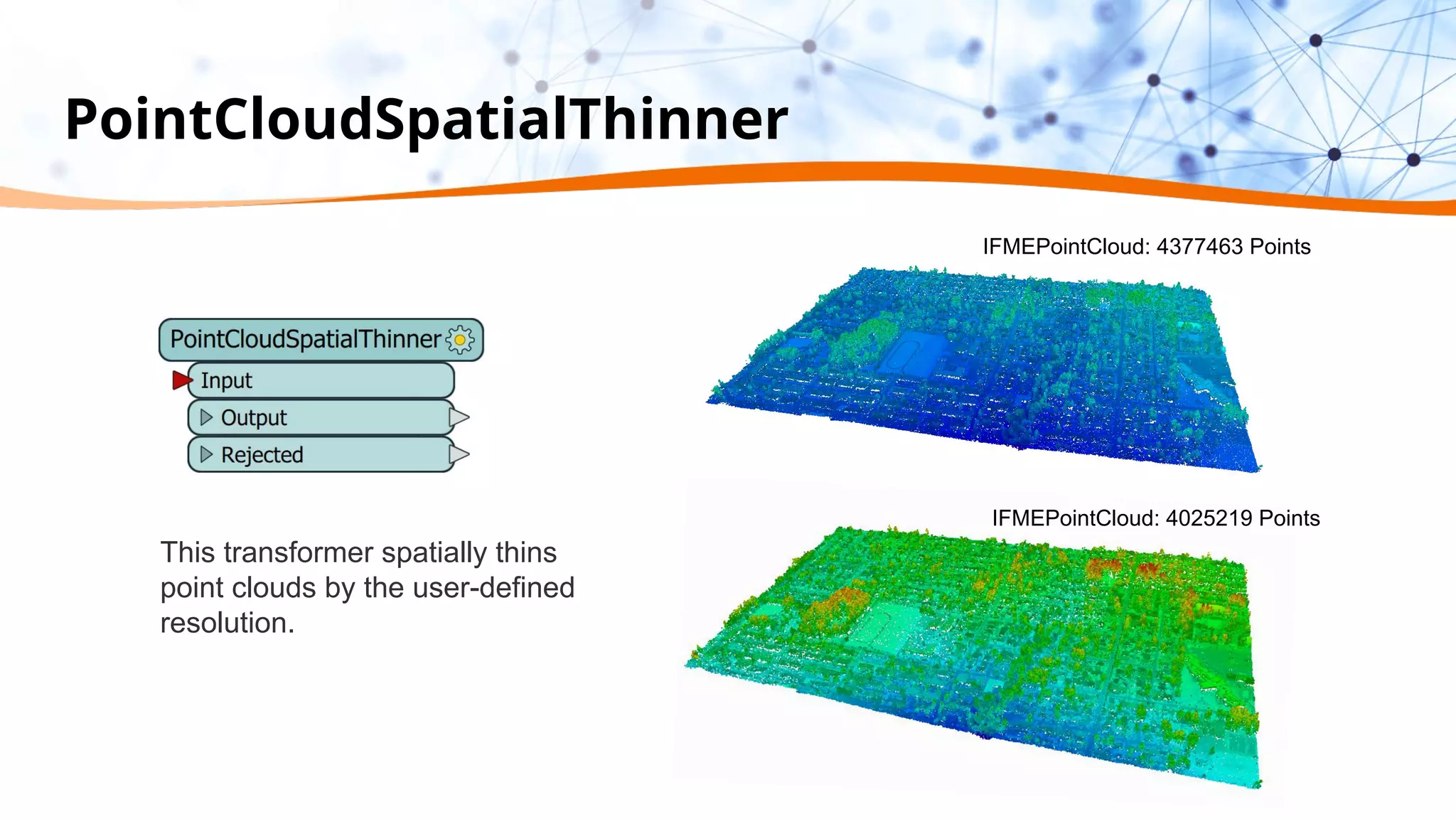
PointCloudSpatialThinner
This transformer spatially thins
point clouds by the user-defined
resolution.
IFMEPointCloud: 4377463 Points
IFMEPointCloud: 4025219 Points
Demo
PointCloudStatsRasterizer
Replaces a point cloud with
a raster which represents
statistical values of a
component of the source
point cloud.
Demo
LAStools
LAStools.lasground: for bare-earth identification: it classifies the LiDAR points into ground points (class =
2)
LAStools.lasheight: computes the height of each LAS point above the ground.
LAStools.classify: classifies buildings and high vegetation (i.e. trees).
LAStools is produced by Rapid Lasso GmbH
1. Read in LAS file using the ASPRS LiDAR Data Exchange Format (LAS) Reader
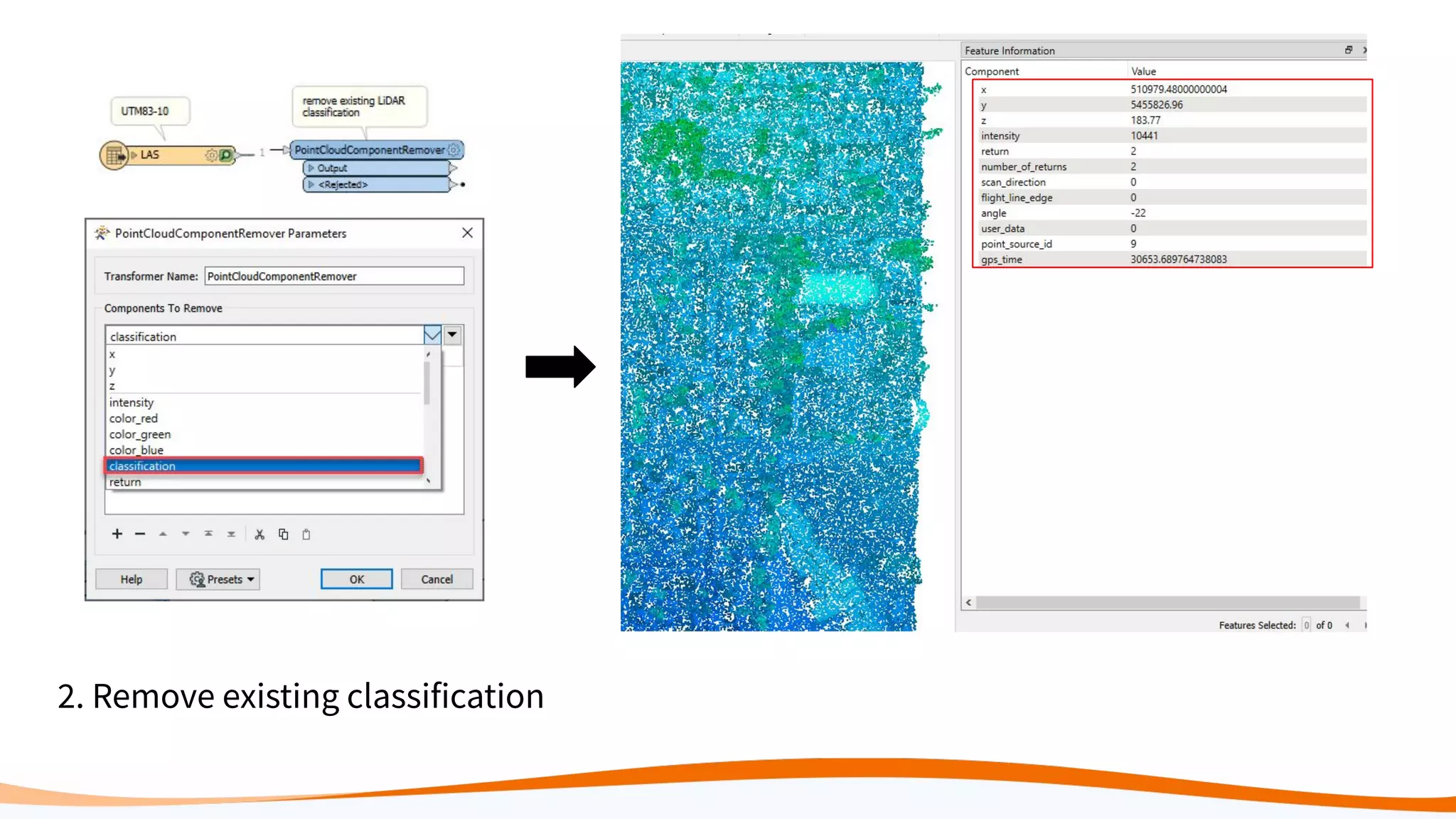
2. Remove existing classification
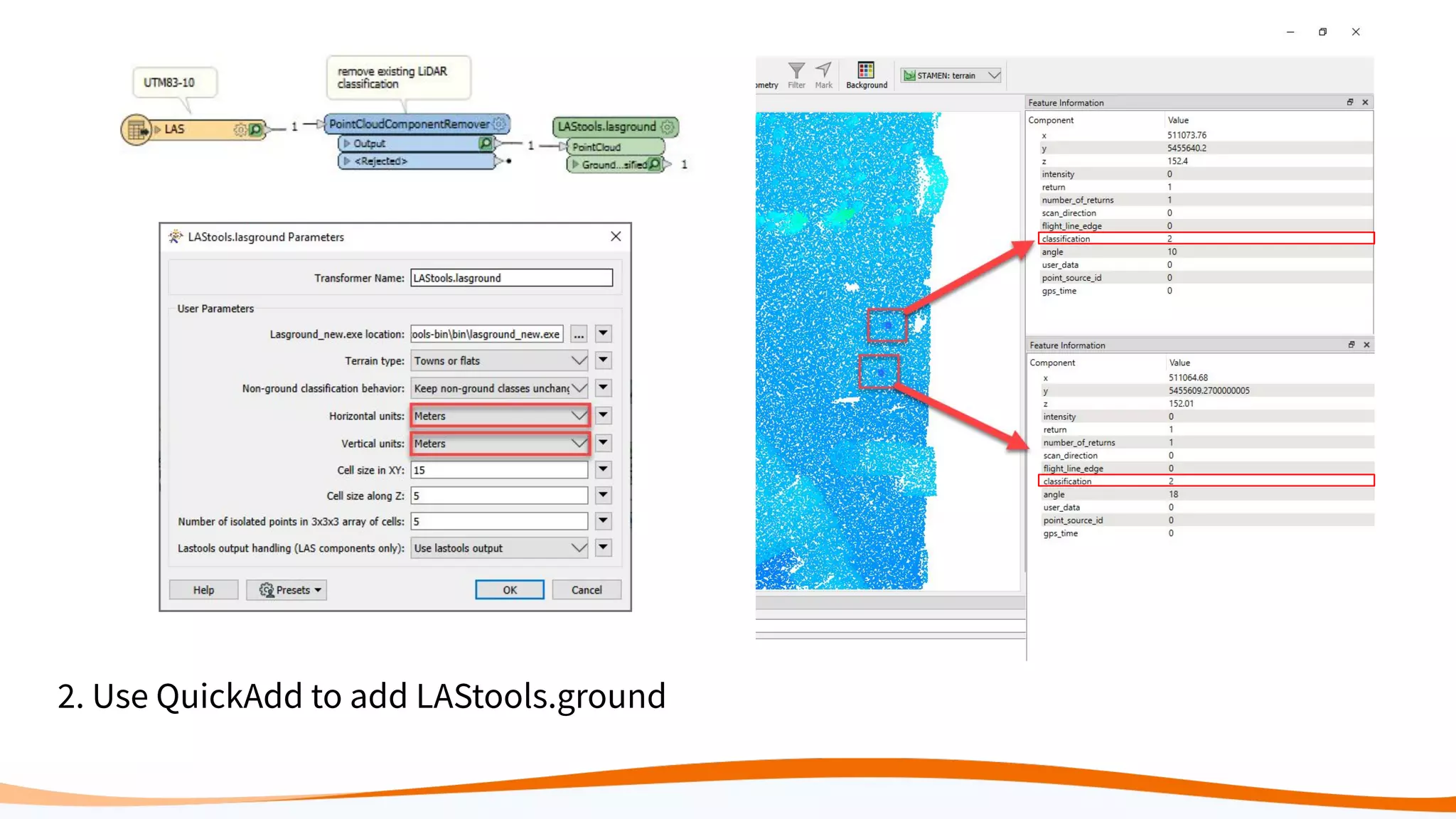
2. Use QuickAdd to add LAStools.ground
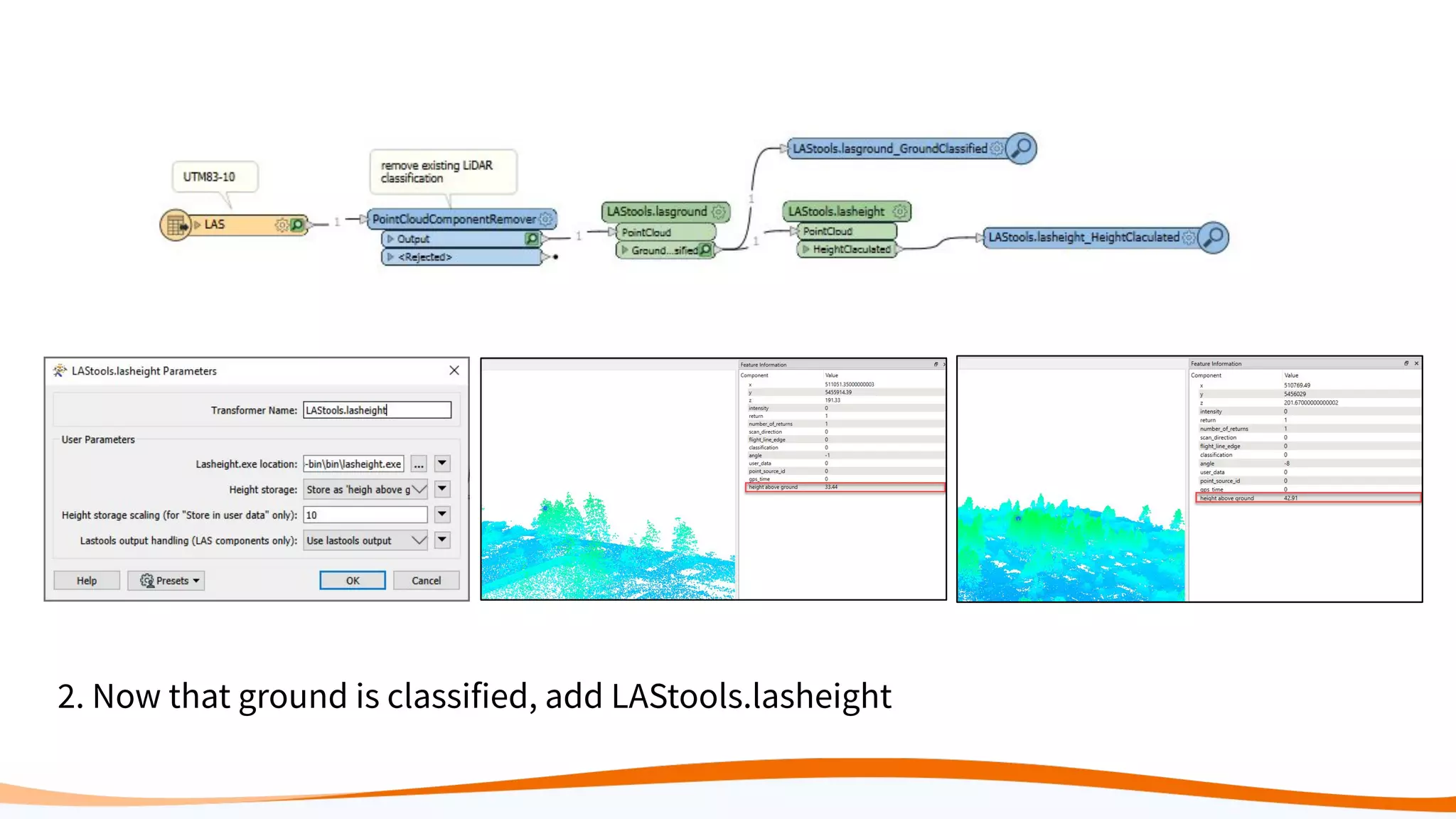
2. Now that ground is classified, add LAStools.lasheight
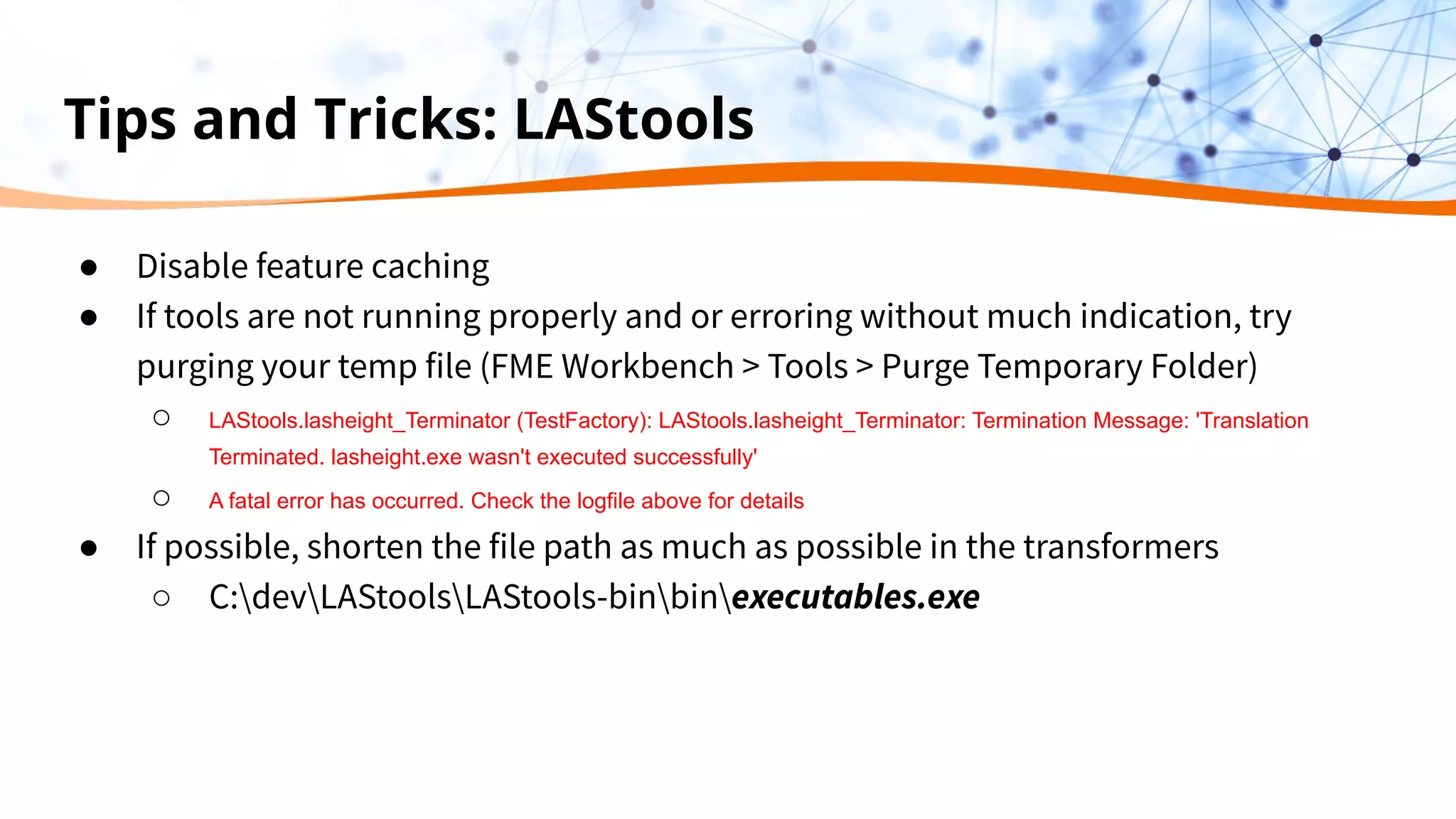
Tips and Tricks: LAStools
● Disable feature caching
● If tools are not running properly and or erroring without much indication, try
purging your temp file (FME Workbench > Tools > Purge Temporary Folder)
○ LAStools.lasheight_Terminator (TestFactory): LAStools.lasheight_Terminator: Termination Message: 'Translation
Terminated. lasheight.exe wasn't executed successfully'
○ A fatal error has occurred. Check the logfile above for details
● If possible, shorten the file path as much as possible in the transformers
○ C:devLAStoolsLAStools-binbinexecutables.exe
Summary
Working with LiDAR data
shouldn’t crash your computer.
With the right tools and knowledge, you can feel
confident integrating LiDAR with the rest of your
data and get the most out of LiDAR data.
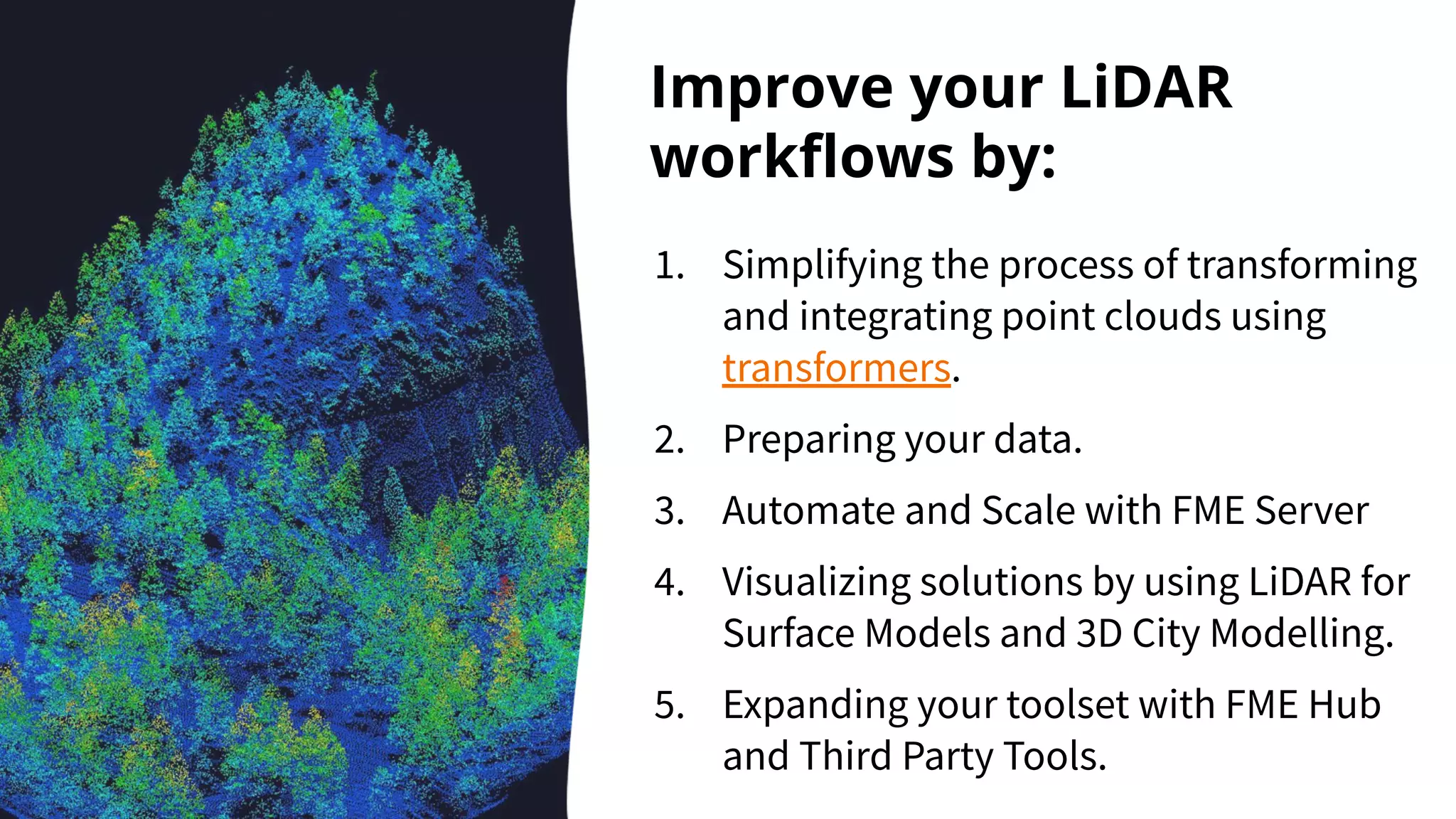
Improve your LiDAR
workflows by:
1. Simplifying the process of transforming
and integrating point clouds using
transformers.
2. Preparing your data.
3. Automate and Scale with FME Server
4. Visualizing solutions by using LiDAR for
Surface Models and 3D City Modelling.
5. Expanding your toolset with FME Hub
and Third Party Tools.
1. Visit this link
2. Enter your username
3. Enter the code:
LSWGA
Claim Your Community Badge!
Read our latest blog:
Top 4 LiDAR and Point Cloud
Processing Workflows
Thank you!
Try FME for free at safe.com/trial
Connect with us for more FME

5 Ways to Improve Your LiDAR Workflows

  • 1.
    5 Ways toImprove Your LiDAR Workflows
  • 2.
    In memory of MartinIsenburg, founder of LAStools.
  • 3.
    5 Ways toImprove Your LiDAR Workflows
  • 4.
    Meet the Presenters Kailin Opaleychuk RichardMosley Jovita Chan Dmitri Bagh On Q&A
  • 5.
    Agenda ● LiDAR Overview ●5 Ways to Improve Your Lidar Workflows 1. Simplify the process of transforming and integrating point clouds 2. Prepare your data 3. Create (and automate the creation of) surface models 4. Visualize solutions by using LiDAR for 3D City Modelling 5. Expand your toolset with FME Hub and Third Party Tools ● Q&A
  • 6.
  • 7.
    What is LiDAR? ●LiDAR stands for Light Detection and Ranging ● LiDAR is used to collect and create point clouds ● Point clouds are sets of points that describe an surface
  • 8.
    Supported Point CloudFormats ● E57 ● Cesium 3D Point Cloud ● LAS/LAZ ● Mojang Minecraft ● Point Cloud data (PCD) ● Point Cloud XYZ (XYZ) ● Oracle Spatial Point Cloud .... and more!
  • 9.
    Point clouds canhelp you produce amazing 3D visualizations!
  • 10.
    The problem with pointclouds... They can be huge. They’re kinda complicated if you are new to working with them. There can be limitations. It’s hard to integrate them with other data. Working with them can be expensive.
  • 11.
    FME® Integration Platform Connect. Transform.Automate. FME Desktop FME Server FME Cloud Build & Run Data Workflows Automate Data Workflows (on-premises) Automate Data Workflows (cloud) Get a free trial of FME Desktop and FME Server at safe.com
  • 12.
    Pointing you inthe right direction with FME ● Create a surface model ● Combine with other formats ● Split datasets ● Volume/point reduction ● Clip to a specific region or AOI ● Perform calculations (stats) ● Point Cloud splitting
  • 13.
    1. Simplify theprocess of transforming and integrating point clouds using FME’s Point Cloud Transformers.
  • 14.
    Our transformers simplifythe process of transforming and integrating point clouds. Combining transformers into workspaces creates powerful, repeatable solutions.
  • 15.
  • 16.
  • 17.
  • 18.
  • 19.
    Data Preparation ● Clipa Point Cloud ● Noise removal ● Creating an extent or AOI ● Tiling
  • 20.
    3. Create andautomate surface models
  • 21.
    How FME UnderstandsPoint Clouds ● Point Cloud as 1 feature ● Each point has is own component values ● Each individual component value can be altered without it being an attribute ● Attributes from other sources can be added as components.
  • 22.
    Understanding Components Vs.Attributes Attributes Components Each point has its own component values
  • 23.
    Clip, Tile, andThin Especially when designing workflows use smaller sections to speed up development
  • 24.
  • 25.
    DEM Parameters Set appearance on:Front Side Texture Mapping Type: Top Down Georeferenced
  • 26.
    Digital Surface Model Orany other classification model….
  • 27.
  • 28.
  • 29.
    Automate and SelfServe Self-Service ● Geometry Picker ○ https://community.safe.com/s/article/using-the-geometry-picker-in-fme-server Speed up ● Dynamic Engines ○ 1 engine can process 1 workspace at a time. So if you need some performance gains split your workflow and process smaller amounts of data on more engines. ○ https://community.safe.com/s/article/getting-started-with-dynamic-engines
  • 30.
    4. Visualize solutionsby using LiDAR for 3D City Modelling
  • 31.
    Demo: Creating 3DCity Models ● Goal: Visualize the city as an accurate 3D model to ensure developments are integrated well in their neighborhoods and to inform future decisions ● Obstacles: Large datasets, different formats, which can be difficult to work with. ● Solutions: Use FME to extract needed information from LiDAR, integrate with other formats like PNG textures and SketchUp models, and apply that to a 3D City Model
  • 32.
    Source Data ● AutoCAD(DWG) - building outlines ● Point Cloud (LAS) ● MapInfo (MiTAB) - Park polygons ● GeoTIFF (TIFF) - 4 orthoimages
  • 33.
    Source Data Continued ●3D SketchUp (SKP) models ● PNG/JPEG images - for wall textures Wall texture from: https://pxhere.com/en/photo/1421981 SketchUp Tree from: https://3dwarehouse.sketchup.com/ model/e18aebbf-2859-47f1-805c-8a4f 946f5893/Skatter-Tree-02
  • 34.
    Goals for thisworkspace 1. Create 3D buildings using LAS and DWG building outlines 2. Add PNG and orthophotos (GeoTIFFs) as textures on 3D models 3. Filter data to get point features of trees and replace them with instances of a 3D tree model
  • 35.
  • 37.
    Workspace Highlights 1. Create3D buildings using point cloud and vector building outlines https://community.safe.com/s/article/point-cloud-to-3d-terrain-model-with-build ings-dwg 2. Add image and orthophotos as textures on 3D models 3. Filter data to get point features of trees and replace them with instances of a 3D tree model https://community.safe.com/s/article/derive-a-boundary-from-a-lidar-point-cloud https://community.safe.com/s/article/creating-and-using-geometry-instances
  • 38.
    Tips and Tricks:Methods ● Similarities to raster processing ○ Use feature caching strategically ○ Tiling large datasets ● Knowing how FME works with point clouds ○ FME treats a point cloud as a single entity ■ For many operations, use Point cloud specific transformers (attributes vs. components) ○ Writing it out to a format that doesn’t support point clouds means you’re actually writing a bounding box ■ Coerce to multipoints, surface, or raster
  • 39.
    Tips and Tricks:Transformers 3D Geometry ● TINGenerator - creates surface models ● Extruder - extrudes outline features (ex. buildings) Applying textures ● AppearanceSetter - to add image textures, pay attention to the Texture Mapping Type parameter
  • 40.
    5. Expand yourtoolset with FME Hub and Third Party Tools
  • 41.
    PointCloudSpatialThinner This transformer spatiallythins point clouds by the user-defined resolution. IFMEPointCloud: 4377463 Points IFMEPointCloud: 4025219 Points
  • 42.
  • 43.
    PointCloudStatsRasterizer Replaces a pointcloud with a raster which represents statistical values of a component of the source point cloud.
  • 44.
  • 45.
    LAStools LAStools.lasground: for bare-earthidentification: it classifies the LiDAR points into ground points (class = 2) LAStools.lasheight: computes the height of each LAS point above the ground. LAStools.classify: classifies buildings and high vegetation (i.e. trees). LAStools is produced by Rapid Lasso GmbH
  • 46.
    1. Read inLAS file using the ASPRS LiDAR Data Exchange Format (LAS) Reader
  • 47.
    2. Remove existingclassification
  • 48.
    2. Use QuickAddto add LAStools.ground
  • 49.
    2. Now thatground is classified, add LAStools.lasheight
  • 50.
    Tips and Tricks:LAStools ● Disable feature caching ● If tools are not running properly and or erroring without much indication, try purging your temp file (FME Workbench > Tools > Purge Temporary Folder) ○ LAStools.lasheight_Terminator (TestFactory): LAStools.lasheight_Terminator: Termination Message: 'Translation Terminated. lasheight.exe wasn't executed successfully' ○ A fatal error has occurred. Check the logfile above for details ● If possible, shorten the file path as much as possible in the transformers ○ C:devLAStoolsLAStools-binbinexecutables.exe
  • 51.
  • 52.
    Working with LiDARdata shouldn’t crash your computer. With the right tools and knowledge, you can feel confident integrating LiDAR with the rest of your data and get the most out of LiDAR data.
  • 53.
    Improve your LiDAR workflowsby: 1. Simplifying the process of transforming and integrating point clouds using transformers. 2. Preparing your data. 3. Automate and Scale with FME Server 4. Visualizing solutions by using LiDAR for Surface Models and 3D City Modelling. 5. Expanding your toolset with FME Hub and Third Party Tools.
  • 54.
    1. Visit thislink 2. Enter your username 3. Enter the code: LSWGA Claim Your Community Badge! Read our latest blog: Top 4 LiDAR and Point Cloud Processing Workflows
  • 55.
    Thank you! Try FMEfor free at safe.com/trial Connect with us for more FME