UNIT III- DATA INPUT AND
TOPOLOGY
Scanner - Raster Data Input –
Raster Data File Formats – Vector Data
Input – Digitiser – Topology -
Adjacency, connectivity and
containment – Topological
Consistency rules – Attribute Data
linking – ODBC – GPS - Concept GPS
based mapping.
Scanner
Scanners
⚫ Scanners are used to convert from analog
maps or photographs to digital image data in
raster format.
⚫ Digital image data are usually integer-based
with one byte gray scale (256 gray tones from
0 to 255) for black and white image and a set
of three gray scales of red (R), green (G) and
blue(B) for color image.
⚫ The following four types of scanner are
commonly used in GIS and remote sensing.
Scanners
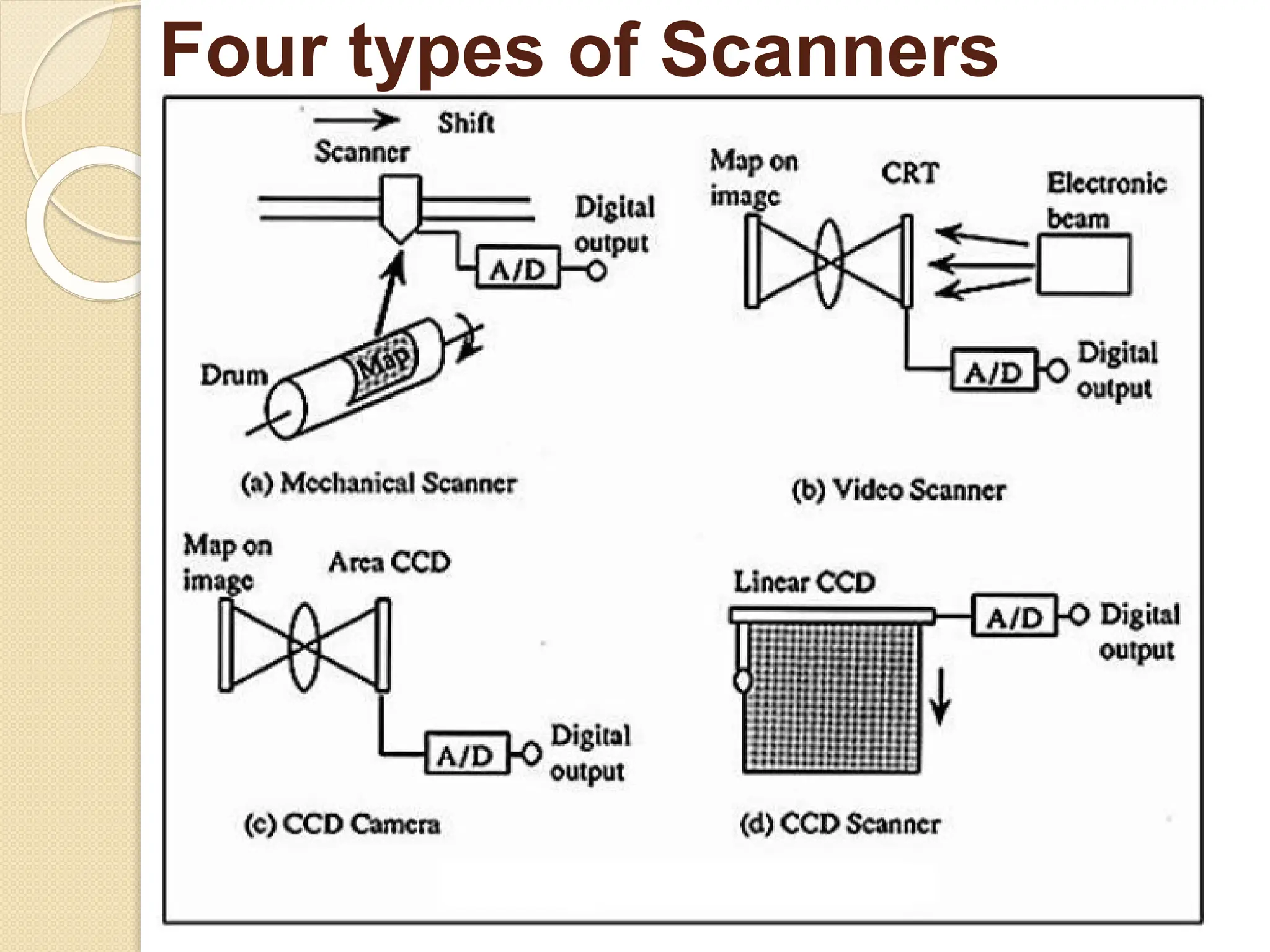
⚫ (a) Mechanical Scanner
⚫ It is called drum scanner since a map or an
image placed on a drum is digitized
mechanically with rotation of the drum and
shift of the sensor as shown in Figure 3.1 (a).
It is accurate but slow.
⚫ (b) Video Camera
⚫ Video camera with CRT (cathode ray tube) is
often used to digitize a small part of map of
firm. This is not very accurate but cheap. (See
Figure 3.1 (b).
Scanners
⚫ (c) CCD Camera Area CCD camera (called
digital still camera) instead of video camera
will be also convenient to acquire digital image
data (see Figure 3.1 (c). It is more stable and
accurate than video camera.
⚫ (d) CCD Scanner Flat bed type or roll feed
type scanner with linear CCD (charge coupled
device) is now commonly used to digitize
analog maps in raster format; either in mono-
tone or color mode (see Figure 3.1 (d). It is
accurate but expensive.
Four types of Scanners
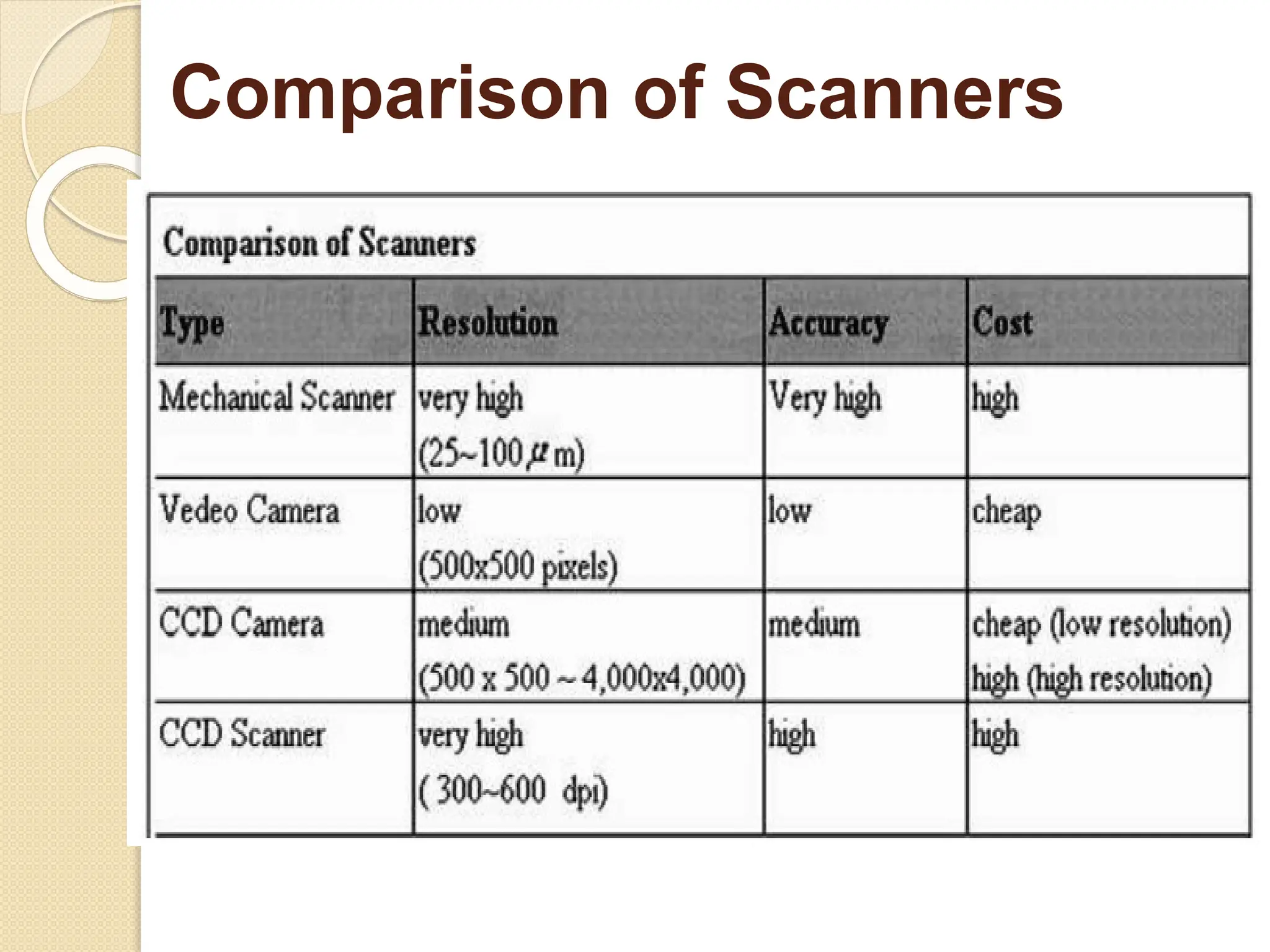
Comparison of Scanners
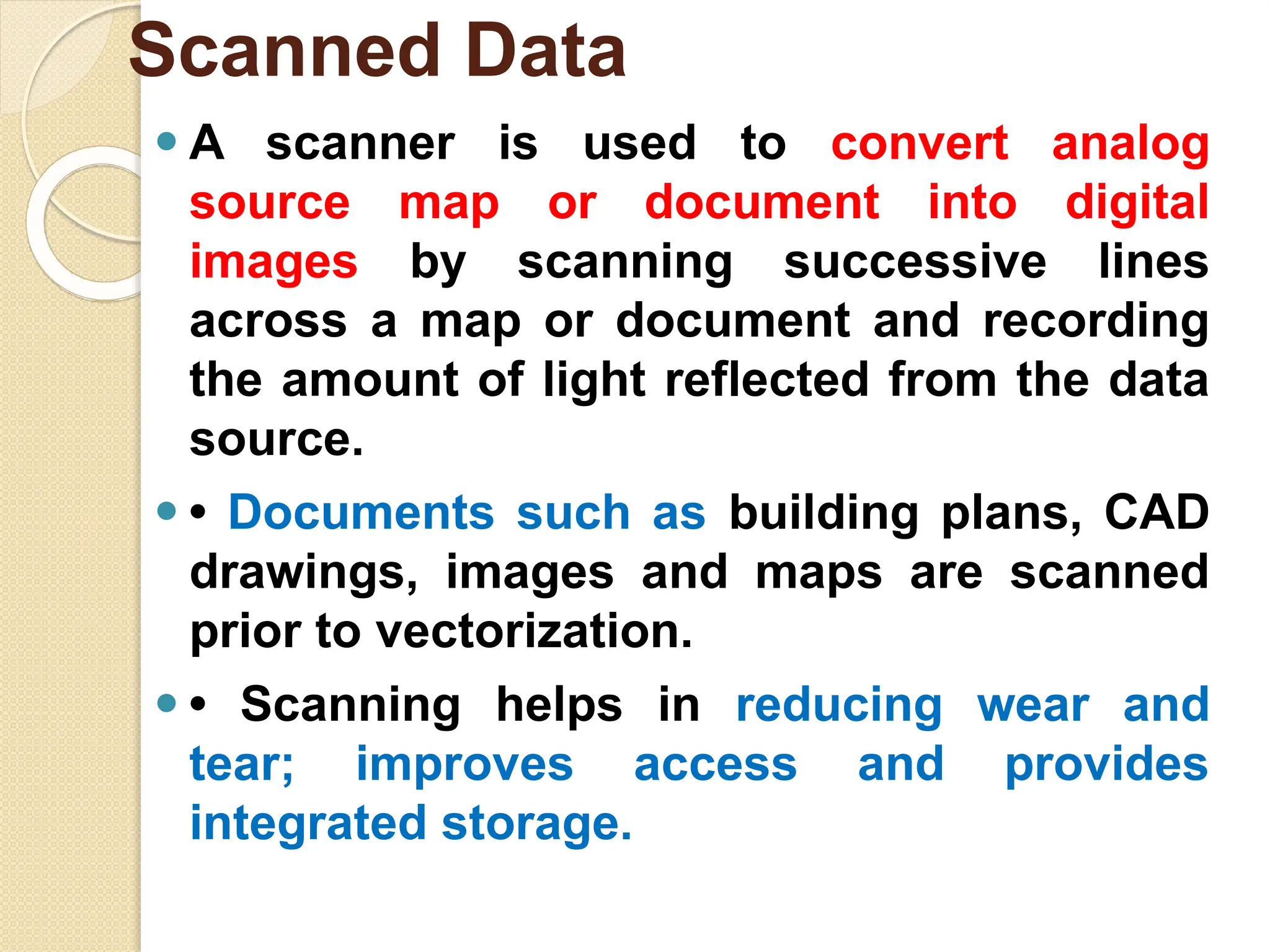
⚫ A scanner is used to convert analog
source map or document into digital
images by scanning successive lines
across a map or document and recording
the amount of light reflected from the data
source.
⚫ • Documents such as building plans, CAD
drawings, images and maps are scanned
prior to vectorization.
⚫ • Scanning helps in reducing wear and
tear; improves access and provides
integrated storage.
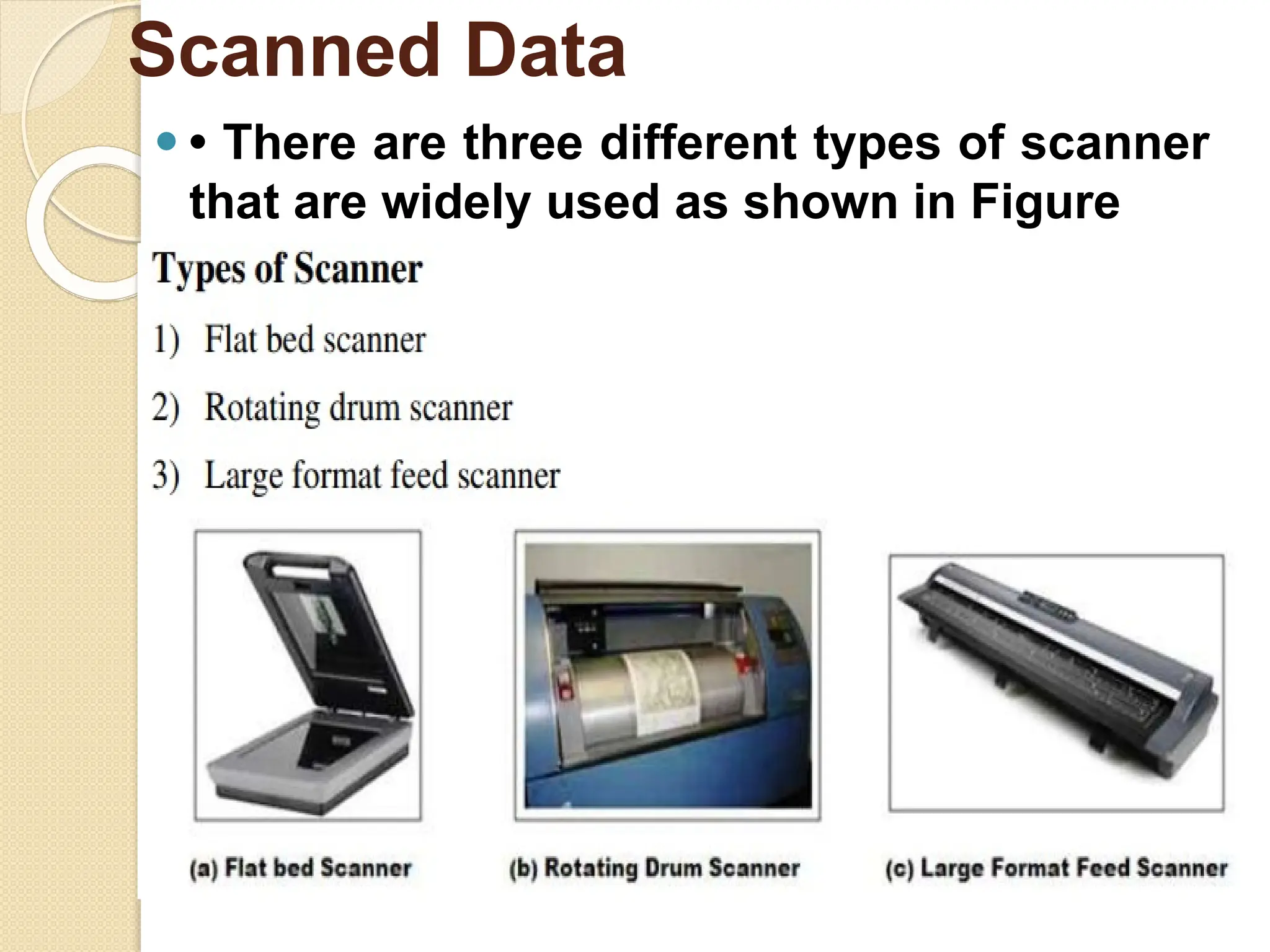
Scanned Data
⚫ • There are three different types of scanner
that are widely used as shown in Figure
Scanned Data
Types of scanners
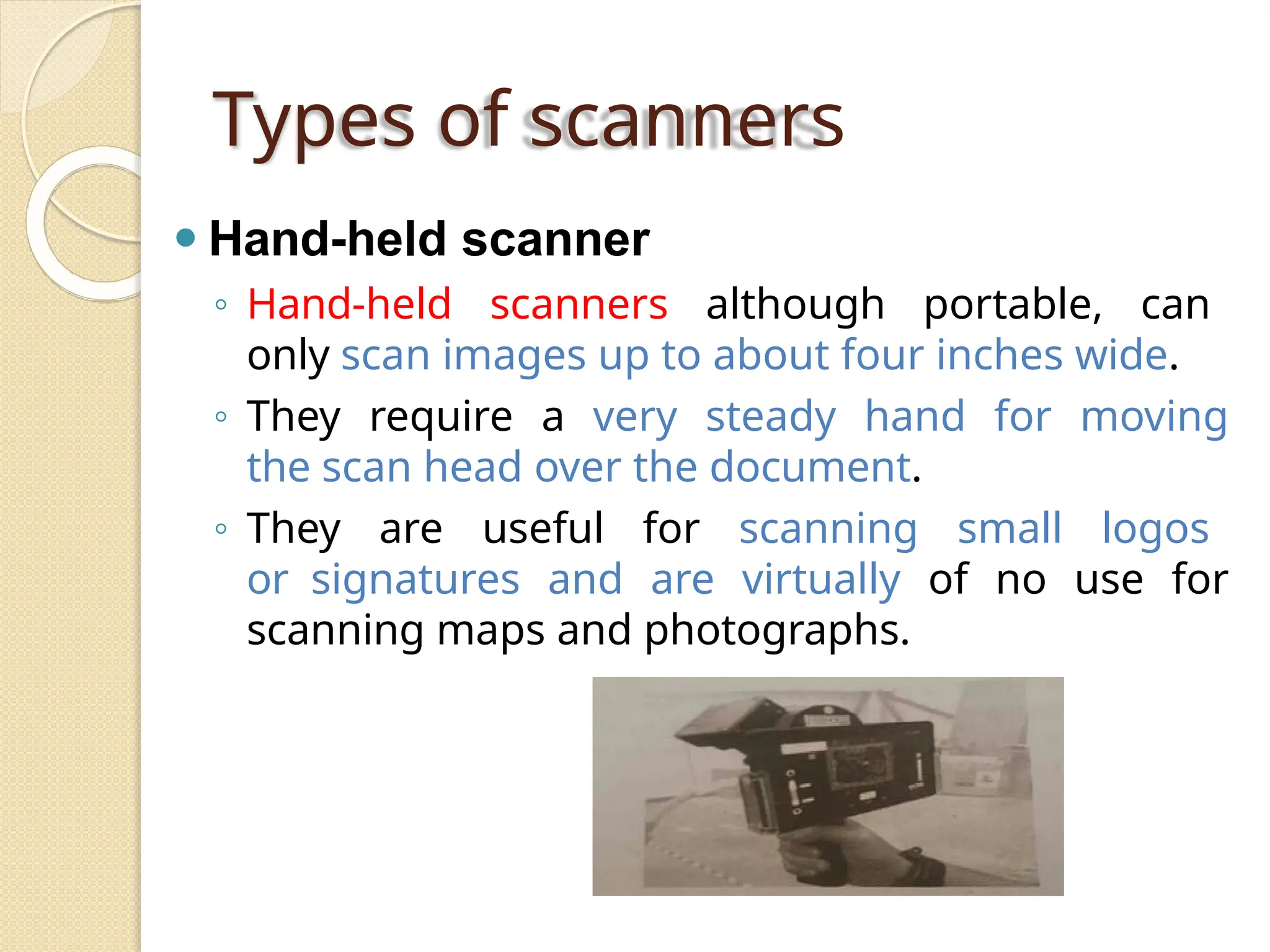
⚫ Hand-held scanner
◦ Hand-held scanners although portable, can
only scan images up to about four inches wide.
◦ They require a very steady hand for moving
the scan head over the document.
◦ They are useful for scanning small logos
or signatures and are virtually of no use for
scanning maps and photographs.
Types of scanners
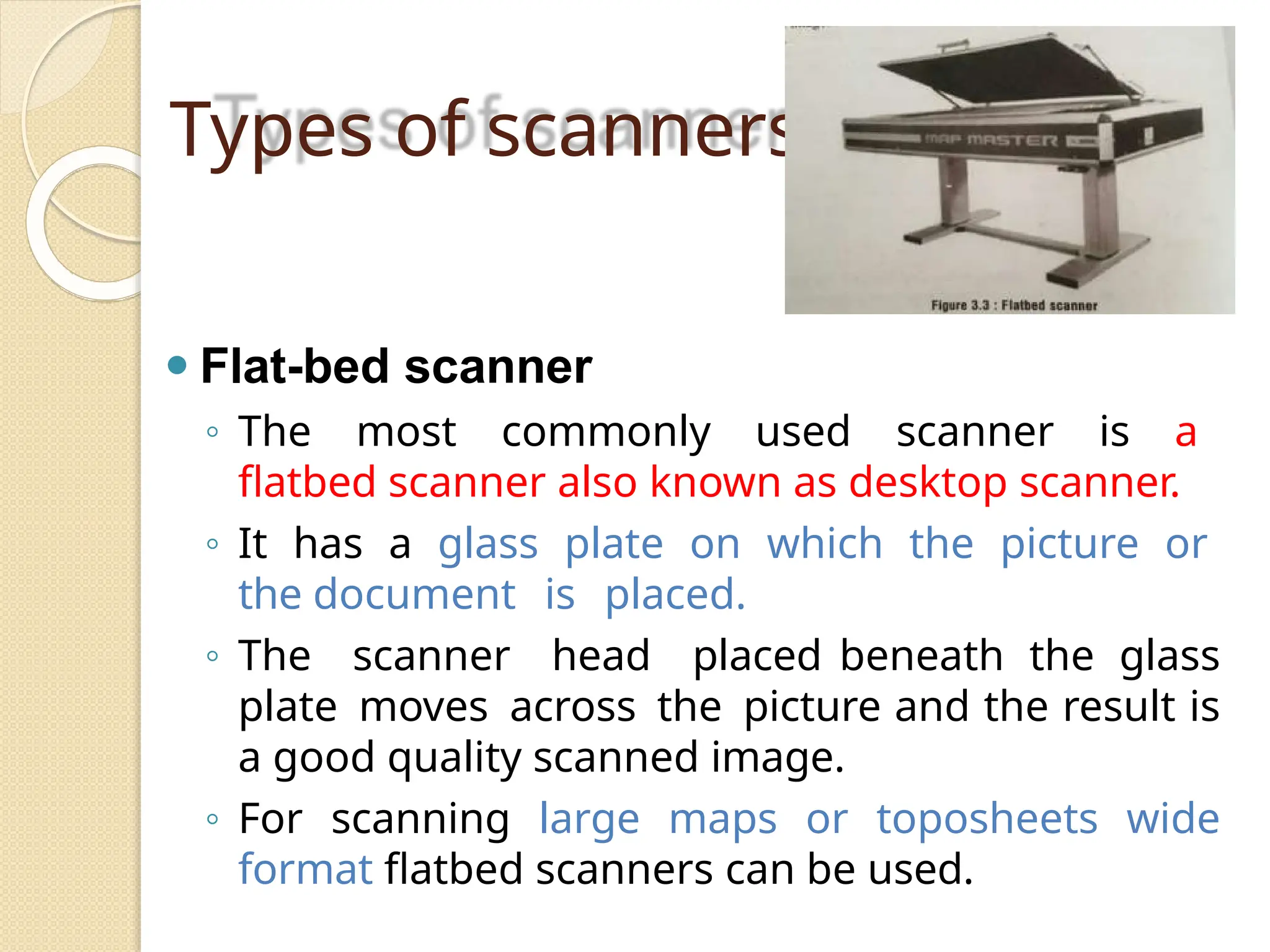
⚫ Flat-bed scanner
◦ The most commonly used scanner is a
flatbed scanner also known as desktop scanner.
◦ It has a glass plate on which the picture or
the document is placed.
◦ The scanner head placed beneath the glass
plate moves across the picture and the result is
a good quality scanned image.
◦ For scanning large maps or toposheets wide
format flatbed scanners can be used.
Types of scanners
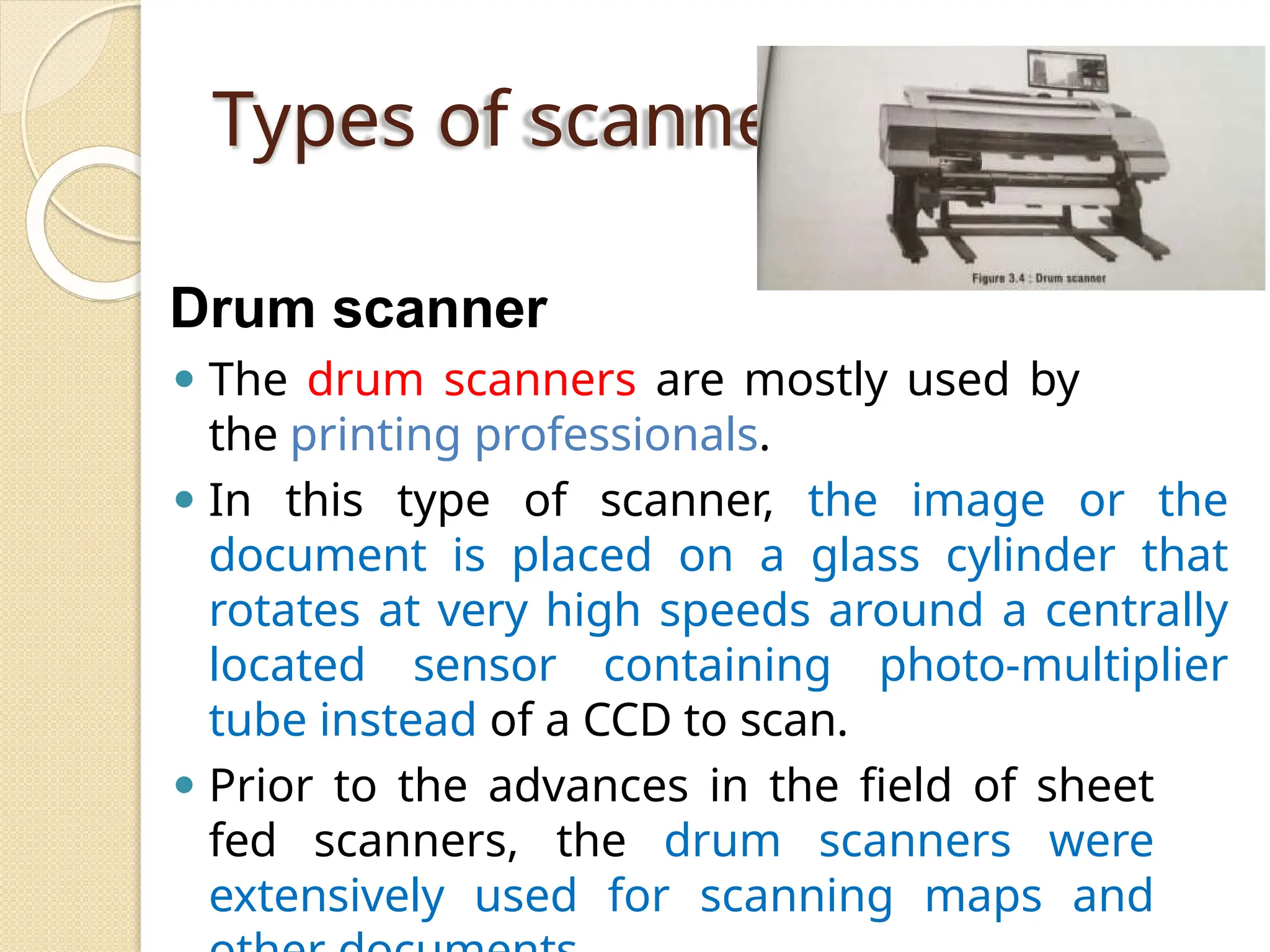
Drum scanner
⚫ The drum scanners are mostly used by
the printing professionals.
⚫ In this type of scanner, the image or the
document is placed on a glass cylinder that
rotates at very high speeds around a centrally
located sensor containing photo-multiplier
tube instead of a CCD to scan.
⚫ Prior to the advances in the field of sheet
fed scanners, the drum scanners were
extensively used for scanning maps and
Types of scanners
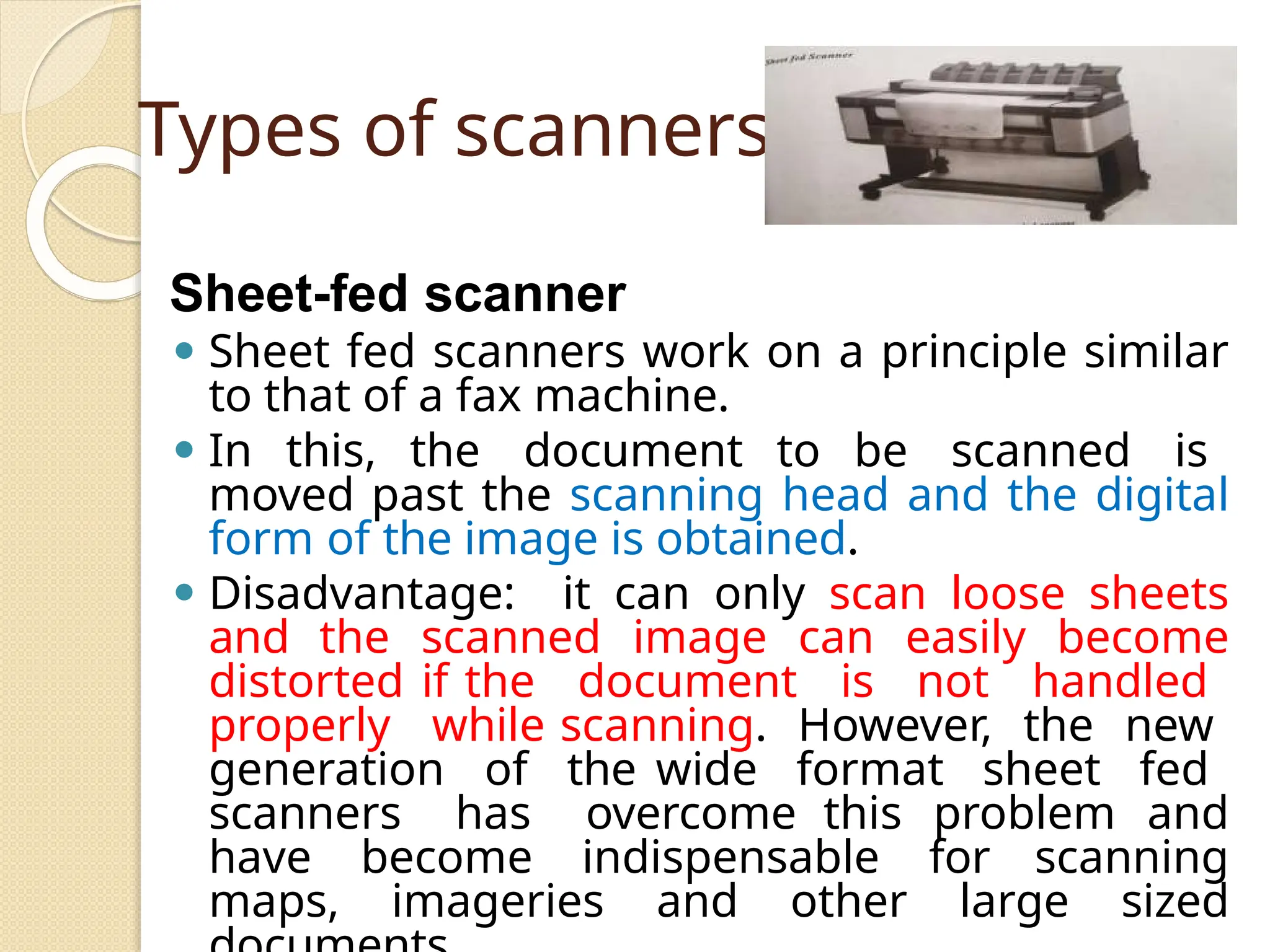
Sheet-fed scanner
⚫ Sheet fed scanners work on a principle similar
to that of a fax machine.
⚫ In this, the document to be scanned is
moved past the scanning head and the digital
form of the image is obtained.
⚫ Disadvantage: it can only scan loose sheets
and the scanned image can easily become
distorted if the document is not handled
properly while scanning. However, the new
generation of the wide format sheet fed
scanners has overcome this problem and
have become indispensable for scanning
maps, imageries and other large sized
Features of
scanners
1. The speed of a scanner is dependent on
the size of the document scanned. Larger the
document, longer the time it takes to
scan. Similarly, resolution also affects the
scanning speed. Scanning in high resolution
is slow and requires much greater time than
scanning in low resolution.
2. Resolution is a very important property
of a scanner as well as a scanned image. It
is the degree of sharpness of a displayed
character or image. For scanners,
resolution is generally expressed in dots per
linear inch. Thus, 300 dpi means 90,000 dots
per square inch. Generally, increasing the
scan resolution means increasing the size of
the image. Large images, in turn, means
Features of
scanners
3. A scanner interface is a software that lets
the scanner hardware communicate
with the that initiates a scan
process. are generally
available in two
applicatio
n
Scanners
interfaces
:
◦ Small Computer System Interface (SCSI)
scanners help in fast scans. The
technically advanced scanners usually
have this interface.
◦ Parallel Interface is used by some low-
end scanners. These are slower than the
SCSI interface scanners.
Types of
scanning
Scanning captures map features, text, and
symbols as individual cells, or pixels, and
produce an automated image. Based on the
document to be scanned there are different
scanning procedures followed.
1. Black and White Raster Scanning:
◦ Image scanned in B&W Black and white
or “binary” scanning is the simplest
method of converting any document
and can be performed on line
drawings, reduced media, text or any one
colour document.
⚫Applications
◦ Archival Drawing Libraries
Types of
scanning
2. Grey Scale and Colour Raster Scanning:
◦ Image scanned in color Gray scale
and (especially) colour images can be quite
large. It must be made sure that the
system is capable of handling files whose
size is often measured in tens of
megabytes. Because virtually every pixel is
populated with a value, an attempt to
compress the file results in little or no
reduction in file size.
⚫Applications
◦ Aerial photography
◦ Toposheets
◦ Navigation charts (air and nautical)
◦ Full colour maps
◦ Brochures and artwork
◦ Cartographic base data for “high-end”
Types of
scanning
⚫Rather than using black and white
printing plate separates, separate
images of map features are created
which can be distinguished by
colour. For example, elevation
contours can be extracted from a colour
image of a toposheet. This process is
much faster, and thus more cost
effective, than attempting to capture data
directly from the colour image.
⚫Applications
◦ Contour maps
◦ Road maps
◦ Hydrological maps
◦ Environmental maps
◦ Oil and gas mapping
Processing of
Scanned
Documen
t
⚫Scanning results in
conversion
of
the
image into an array of pixels
thereby producing an image in raster
format. A raster file is an image
created by a series of dots (called
“pixels”) that are arranged in rows and
columns. A scanner captures the image
by assigning a row, a column, and a
colour value (black or white, a grey
scale, or a colour) to each dot.
Raster Data Input /
Raster Data File
formats
⚫ Need to have tools to transform spatial data of various types into
digital format
⚫ data input is a major bottleneck in application of GIS technology
⚫ costs of input often consume 80% or more of project costs
⚫ ◦ data input is labor intensive, tedious, error-prone
⚫ ◦ there is a danger that construction of the database may become
an end in itself and the project may not move on to analysis of the
data collected
⚫ ◦ essential to find ways to reduce costs, maximize accuracy
⚫ Need to automate the input process as much as possible, but: ◦
⚫ automated input often creates bigger editing problems later ◦
⚫ source documents (maps) may often have to be redrafted to meet
rigid quality requirements of automated input
⚫ • because of the costs involved, much research has gone into
devising better input methods - however, few reductions in cost
have been realized
Introduction
⚫ sharing of digital data is one way around the input
bottleneck
⚫ more and more spatial data is becoming available
in digital form •
⚫ data input to a GIS involves encoding both the
locational and attribute data
⚫ the locational data is encoded as coordinates on
a particular Cartesian coordinate system
⚫ source maps may have different projections, scales
⚫ several stages of data transformation may be needed to
bring all data to a common coordinate system • attribute
data is often obtained and stored in tables
Introduction
⚫ Keyboard entry for non-spatial attributes and
occasionally locational data
⚫ Manual locating devices - user directly
manipulates a device whose location is
recognized by the computer ◦ e.g. digitizing
⚫ Automated devices- Automatically extract spatial
data from maps and photography ◦ e.g. scanning
⚫ Conversion directly from other digital sources
⚫ Voice input - has been tried, particularly for
controlling digitizer operations ◦ Not very
successful - machine needs to be recalibrated for
each operator, after coffee breaks, etc
Modes of Data Input
⚫ Since the input of attribute data is usually quite
simple, the discussion of data input techniques
will be limited to spatial data only.
⚫ There is no single method of entering the spatial
data into a GIS. Rather, there are several, mutually
compatible methods that can be used singly or in
combination.
⚫ The choice of data input method is governed
largely by the application, the available budget,
and the type and the complexity of data being
input.
Data Input Techniques
⚫ There are at least four basic procedures for
inputting spatial data into a GIS. These are:
⚫Manual digitizing;
⚫Automatic scanning;
⚫Entry of coordinates using coordinate
geometry; and the
⚫Conversion of existing digital data.
Data Input Techniques
⚫ While considerable work has been done with
newer technologies, the overwhelming majority of
GIS spatial data entry is done by manual
digitizing.
⚫ A digitizer is an electronic device consisting of a
table upon which the map or drawing is placed.
⚫ The user traces the spatial features with a hand-
held magnetic pen, often called a mouse or cursor.
⚫ While tracing the features the coordinates of
selected points, e.g. vertices, are sent to the
computer and stored.
⚫ All points that are recorded are registered against
positional control points, usually the map corners
that are keyed in by the user at the beginning of
the digitizing session.
Manual Digitizing
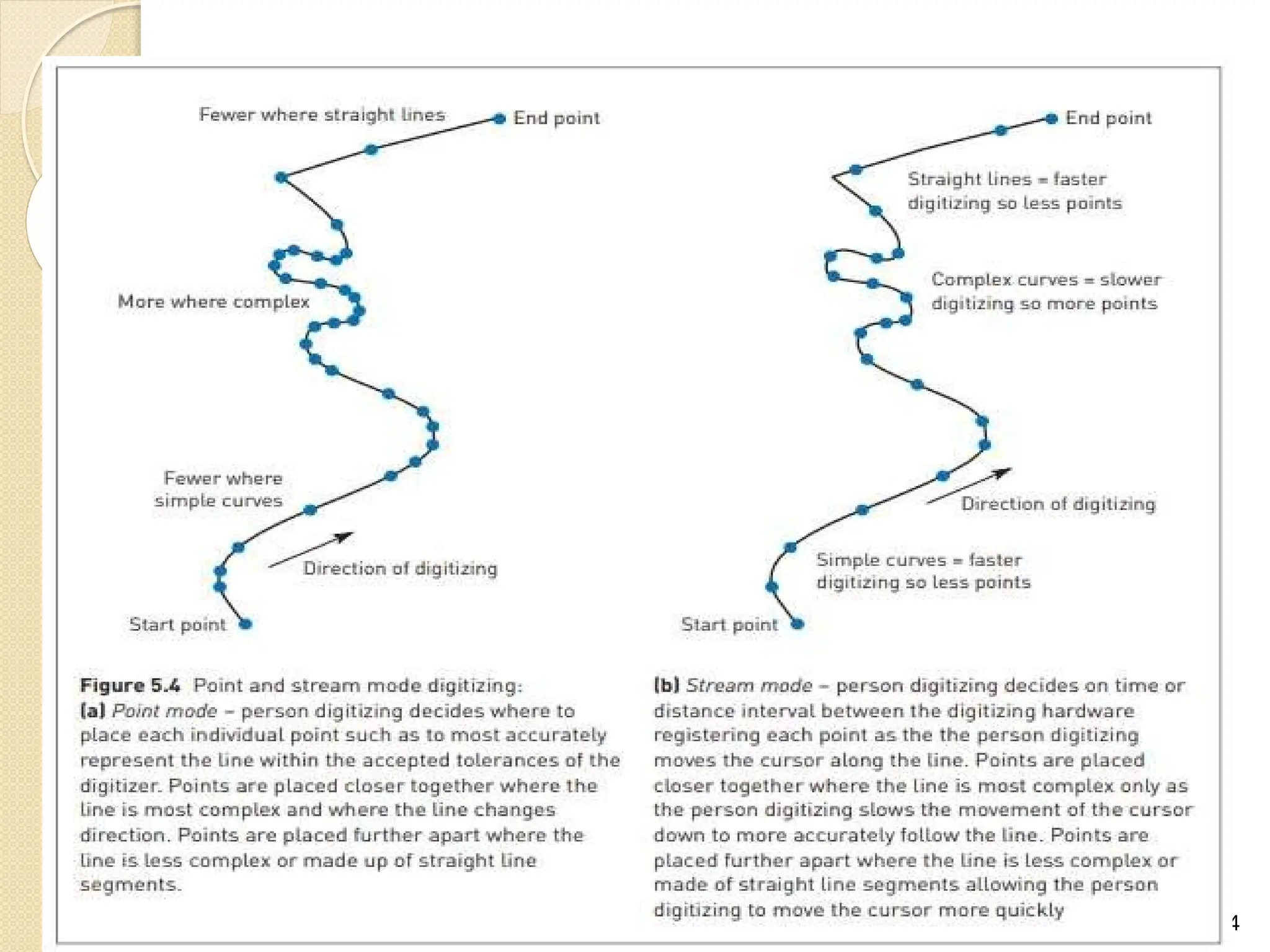
⚫ Digitizing can be done in a point mode, where
single points are recorded one at a time, or
⚫ in a stream mode, where a point is collected on
regular intervals of time or distance, measured by
an X and Y movement, e.g. every 3 metres.
⚫ Digitizing can also be done blindly or with a
graphics terminal.
⚫ Blind digitizing infers that the graphic result is not
immediately viewable to the person digitizing.
⚫ Most systems display the digitized linework as it
is being digitized on an accompanying graphics
terminal
Manual Digitizing
⚫ Most GIS's use a spaghetti mode of
digitizing. This allows the user to simply
digitize lines by indicating a start point and
an end point.
⚫ Data can be captured in point or stream
mode. However, some systems do allow
the user to capture the data in an arc/node
topological data structure.
⚫ The arc/node data structure requires that
the digitizer identify nodes.
Manual Digitizing
⚫ Manual digitizing has many advantages. These
include:
⚫ • Low capital cost, e.g. digitizing tables are cheap;
• Low cost of labour;
⚫ • Flexibility and adaptability to different data types
and sources;
⚫ • Easily taught in a short amount of time - an
easily mastered skill
⚫ • Generally the quality of data is high;
⚫ • Digitizing devices are very reliable and most
often offer a greater precision that the data
warrants; and
⚫ • Ability to easily register and update existing
data.
Manual Digitizing
⚫ A variety of scanning devices exist for the automatic capture
of spatial data.
⚫ While several different technical approaches exist in
scanning technology, all have the advantage of being able to
capture spatial features from a map at a rapid rate of speed.
⚫ However, as of yet, scanning has not proven to be a viable
alternative for most GIS implementation.
⚫ Scanners are generally expensive to acquire and operate.
⚫ As well, most scanning devices have limitations with
respect to the capture of selected features, e.g. text and
symbol recognition.
⚫ Experience has shown that most scanned data requires a
substantial amount of manual editing to create a clean data
layer.
⚫ Given these basic constraints some other practical
limitations of scanners should be identified. These include:
Automatic Scanning
⚫ Hard copy maps are often unable to be removed to where a
scanning device is available, e.g. most companies or
agencies cannot afford their own scanning device and
therefore must send their maps to a private firm for
scanning;
⚫ • Hard copy data may not be in a form that is viable for
effective scanning, e.g. maps are of poor quality, or are in
poor condition;
⚫ • Geographic features may be too few on a single map to
make it practical, costjustifiable, to scan;
⚫ • Often on busy maps a scanner may be unable to
distinguish the features to be captured from the surrounding
graphic information, e.g. dense contours with labels;
⚫ • With raster scanning there it is difficult to read unique
labels (text) for a geographic feature effectively; and
⚫ • Scanning is much more expensive than manual digitizing,
considering all the cost/performance issues.
Automatic Scanning
⚫ A third technique for the input of spatial data
involves the calculation and entry of coordinates
using coordinate geometry (COGO) procedures.
⚫ This involves entering, from survey data, the
explicit measurement of features from some
known monument.
⚫ This input technique is obviously very costly and
labour intensive. In fact, it is rarely used for
natural resource applications in GIS.
⚫ This method is useful for creating very precise
cartographic definitions of property, and
accordingly is more appropriate for land records
management at the cadastral or municipal scale
Coordinate Geometry
⚫ A fourth technique that is becoming increasingly popular for
data input is the conversion of existing digital data.
⚫ A variety of spatial data, including digital maps, are openly
available from a wide range of government and private
sources.
⚫ The most common digital data to be used in a GIS is data
from CAD systems. A number of data conversion programs
exist, mostly from GIS software vendors, to transform data
from CAD formats to a raster or topological GIS data format.
⚫ Several ad hoc standards for data exchange have been
established in the market place.
⚫ These are supplemented by a number of government
distribution formats that have been developed.
⚫ Given the wide variety of data formats that exist, most GIS
vendors have developed and provide data
exchange/conversion software to go from their format to
those considered common in the market place.
Conversion of Existing Digital Data
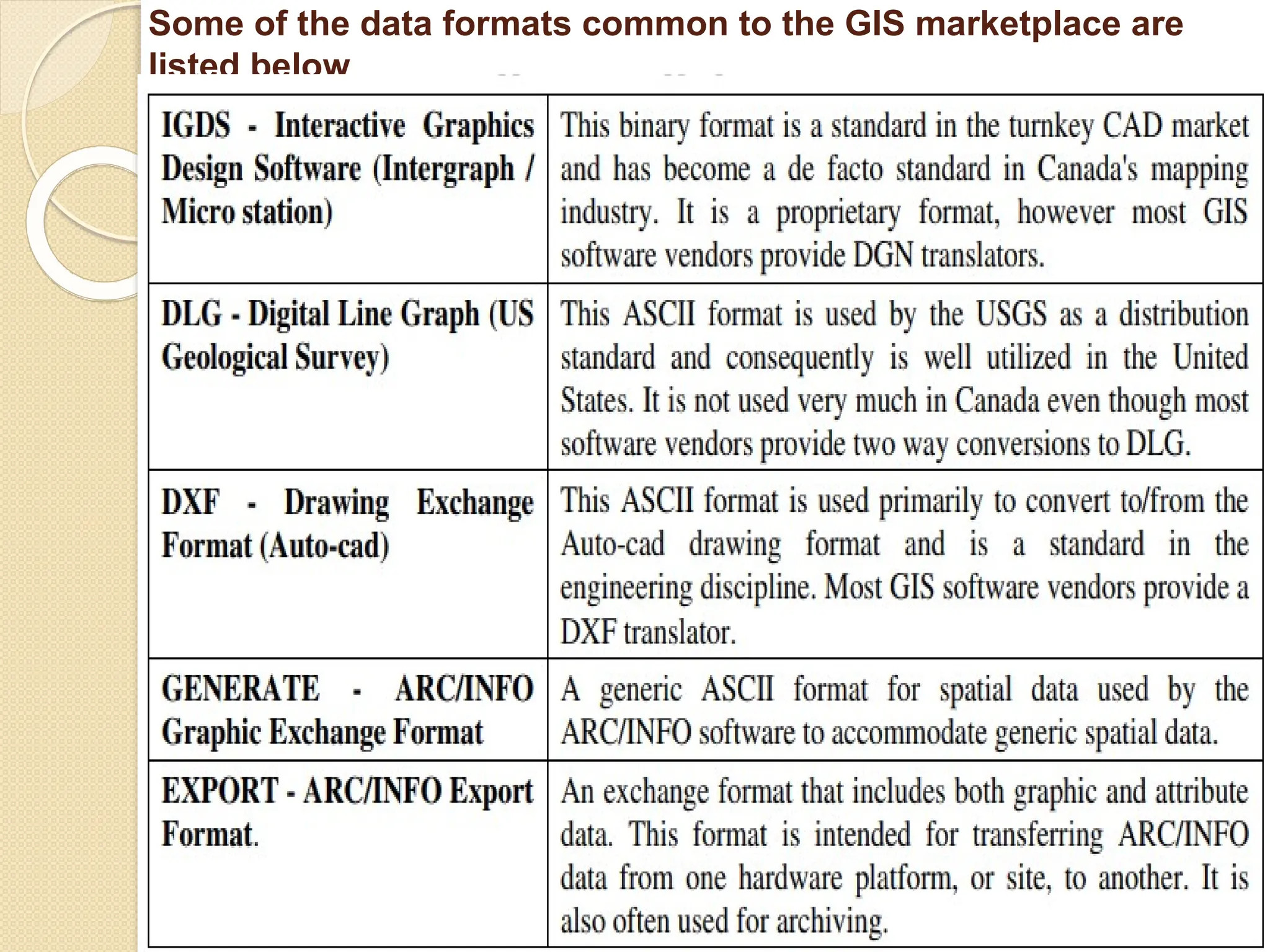
Some of the data formats common to the GIS marketplace are
listed below
⚫ Two common data formats based on the raster data model
are
⚫Grids
⚫Images
Raster Data File Formats
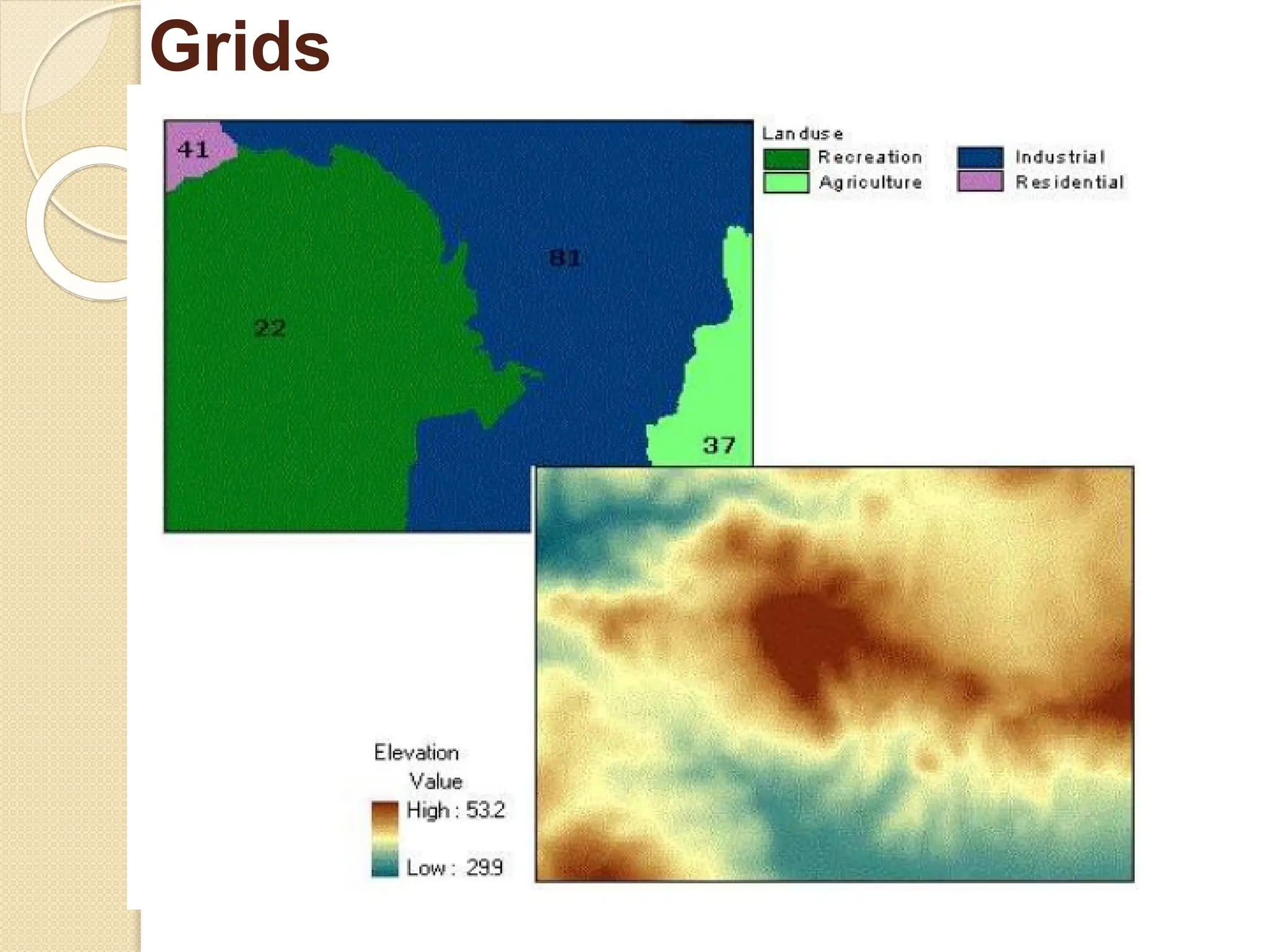
⚫ Grids are an ESRI file format used to store both
discrete features such as buildings, roads, and
parcels, and continuous phenomena such as
elevation, temperature, and precipitation.
⚫ Recall that the basic unit of the raster data model
is the cell. Cells store information about what
things are like at a particular location on the
earth's surface.
⚫ Depending on the type of data being stored, cell
values can be either integers (whole numbers) or
floating points (numbers with decimals).
⚫ There are two types of grids: one store integers
and the other stores floating points.
Grids
⚫ A discrete grid contains cells whose values are
integers, often code numbers for a particular category.
Cells can have the same value in a discrete grid. For
example, in a discrete grid of land use, each land use
type is coded by a different integer, but many cells
may have the same code. Discrete grids have an
attribute table that stores the cell values and their
associated attributes.
⚫ Continuous grid is used to represent continuous
phenomena; its cell values are floating points. Each
cell in a continuous grid can have a different floating
point value. For example, in a continuous grid
representing elevation, one cell might store an
elevation value of 564.3 meters, while the cell to the left
might store an elevation value of 565.1 meters. Unlike
discrete grids, continuous grids don't have an attribute
table.
Grids
⚫ Discrete grids represent discrete features such as land
use categories with integer values. Continuous grids
represent continuous phenomena such as elevation
with floating point values.
⚫ The attribute tables of discrete grids are INFO format,
the same format in which coverage feature class
attribute tables are stored.
⚫ As with coverage attribute tables, the INFO table of a
discrete grid is stored within an info folder, which is
stored at the same level as the grid in a workspace
folder. Again like coverages, there is one info folder for
all the grids in a workspace folder. To avoid breaking
or corrupting the connection between grid files and the
info folder, always use ArcCatalog to move, copy,
rename, and delete grids.
Grids
Grids
⚫ The term "image" is a collective term for raster’s
whose cells, or pixels, store brightness values of
reflected visible light or other types of
electromagnetic radiation, such as emitted heat
(infrared) or ultraviolet (UV). Aerial photos,
satellite images, and scanned paper maps are
examples of images commonly used in a GIS.
⚫ Images can be displayed as layers in a map or
they can be used as attributes for vector features.
For example, a real estate company might include
photos of available houses as an attribute of a
home’s layer. To be displayed as a layer, however,
images must be referenced to real-world locations
Images
⚫ For example, an aerial photo as it comes from the
camera is just a static picture, like a picture of a
house. There's no information about what part of
the world the photo has captured, and the photo
may contain distortion and scale variations
caused by the angle of the camera. To display
properly with other map layers, the aerial photo
must be assigned a coordinate system and some
of its pixels must be linked to known geographic
coordinates.
⚫ Raster images, such as aerial photographs and
scanned maps, can be referenced to realworld
locations, then displayed as a layer in a GIS map
Images
Images
Raster Data File Formats
⚫ Widely used JPEG, TIFF, and PNG formats
⚫ JPEG and TIFF – Used in digital cameras
- 8 bit data
🞄 JPEG (Joint Photographic Experts Group) –
Lossy compression
🞄 File extension is jfw
🞄 TIFF(Tagged Image File Format) – Either lossy
or
lossless
🞄 File extension is tiff
🞄 PNG (Portable Network Graphics )- Either lossy
or lossless
🞄 Viewed better in web-based browsers such as
Internet Explorer, Mozilla Firefox, Netscape,
and Safari.
🞄 File extension is png
⚫MrSID (Multiresolution
Seamless Image Database) format
is lossless compression format was
developed by LizardTech, Inc., for
use with large aerial photographs
or satellite images.
⚫The MrSID format is frequently
used for visualizing orthophotos.
Vector file
formats
Vector Data
Input
⚫ The most common vector file format is
the shapefile.
⚫ Shapefiles, developed by ESRI in the early
1990s for use with the dBASE III database
management software package in ArcView
2, are simple, non topological files
developed to store the geometric location
and attribute information of geographic
features.
⚫ Shapefiles are incapable of storing null values,
as well as annotations or network features.
⚫ Field names within the attribute table are
limited to ten characters, and each shapefile
can represent only point, line, or polygon
feature sets.
⚫ Supported data types are limited to floating
point, integer, date, and text.
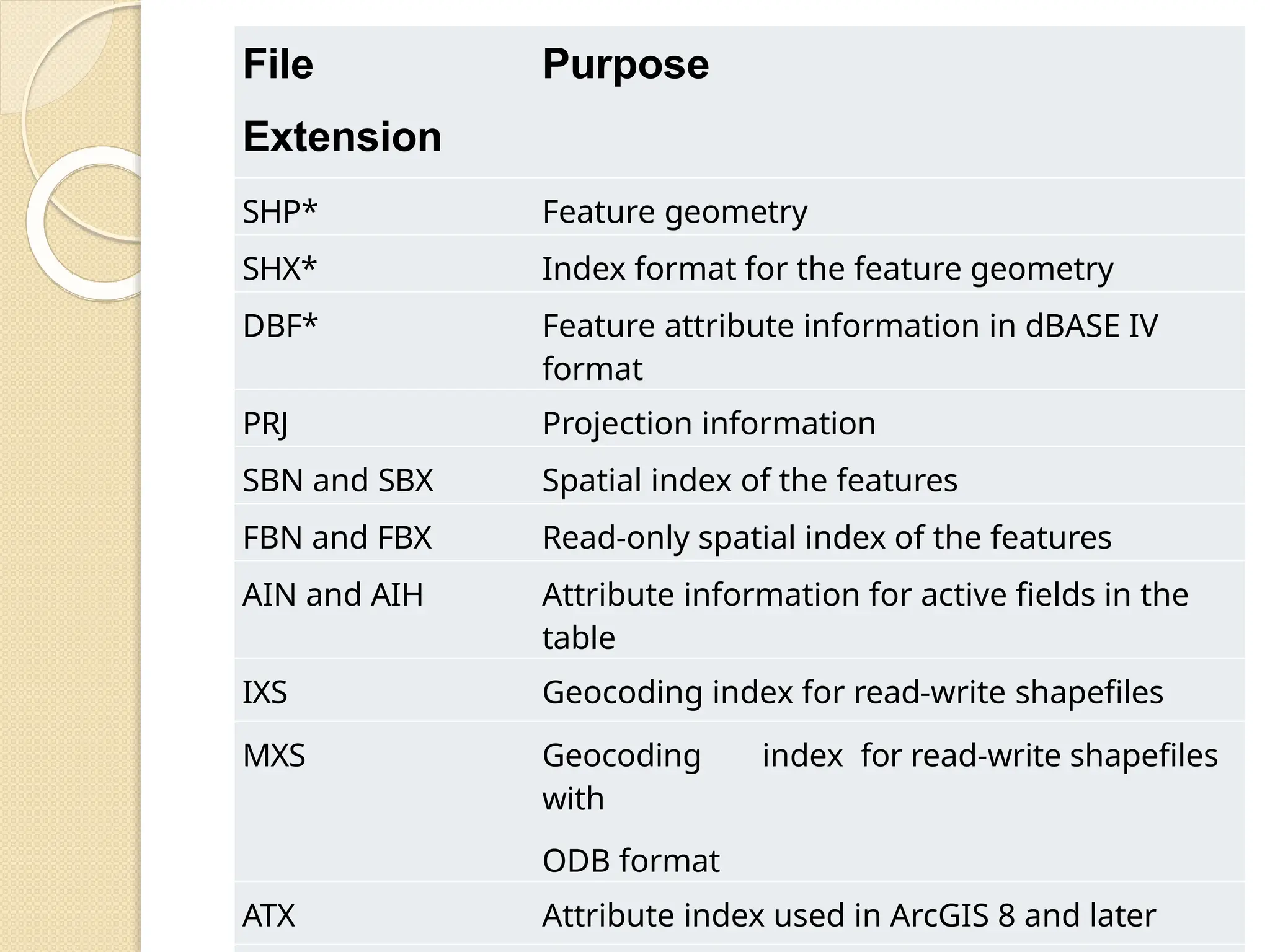
File
Extension
Purpose
SHP* Feature geometry
SHX* Index format for the feature geometry
DBF* Feature attribute information in dBASE IV
format
PRJ Projection information
SBN and SBX Spatial index of the features
FBN and FBX Read-only spatial index of the features
AIN and AIH Attribute information for active fields in the
table
IXS Geocoding index for read-write shapefiles
MXS Geocoding index for read-write shapefiles
with
ODB format
ATX Attribute index used in ArcGIS 8 and later
Digitizers
⚫ Digitizing in GIS is the process of
converting geographic data either from a
hardcopy or a scanned image into vector
data by tracing the features.
⚫ During the digitizing process, features
from the traced map or image are
captured as coordinates in either point,
line, or polygon format.
Types of Digitizing
⚫ Manual digitizing involves tracing
geographic features from an external
digitizing tablet
⚫ Heads up digitizing (also referred to as on-
screen digitizing) is the method of tracing
geographic features from another dataset
(usually an aerial, satellite image, or
scanned image of a map) directly on the
computer screen
⚫ Automated digitizing involves using
image processing software that
contains pattern recognition
technology to generated vectors.
3/9/202 27
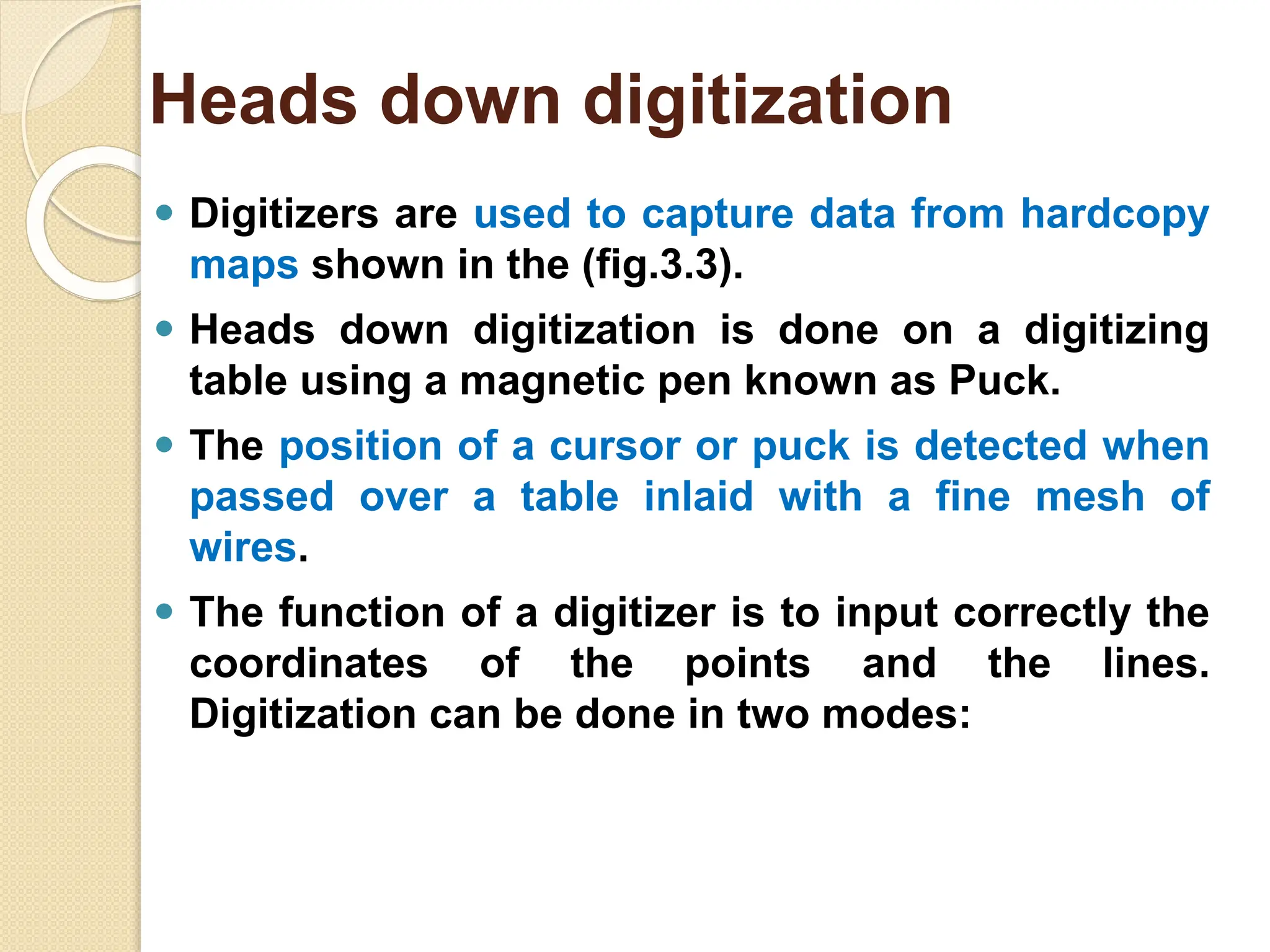
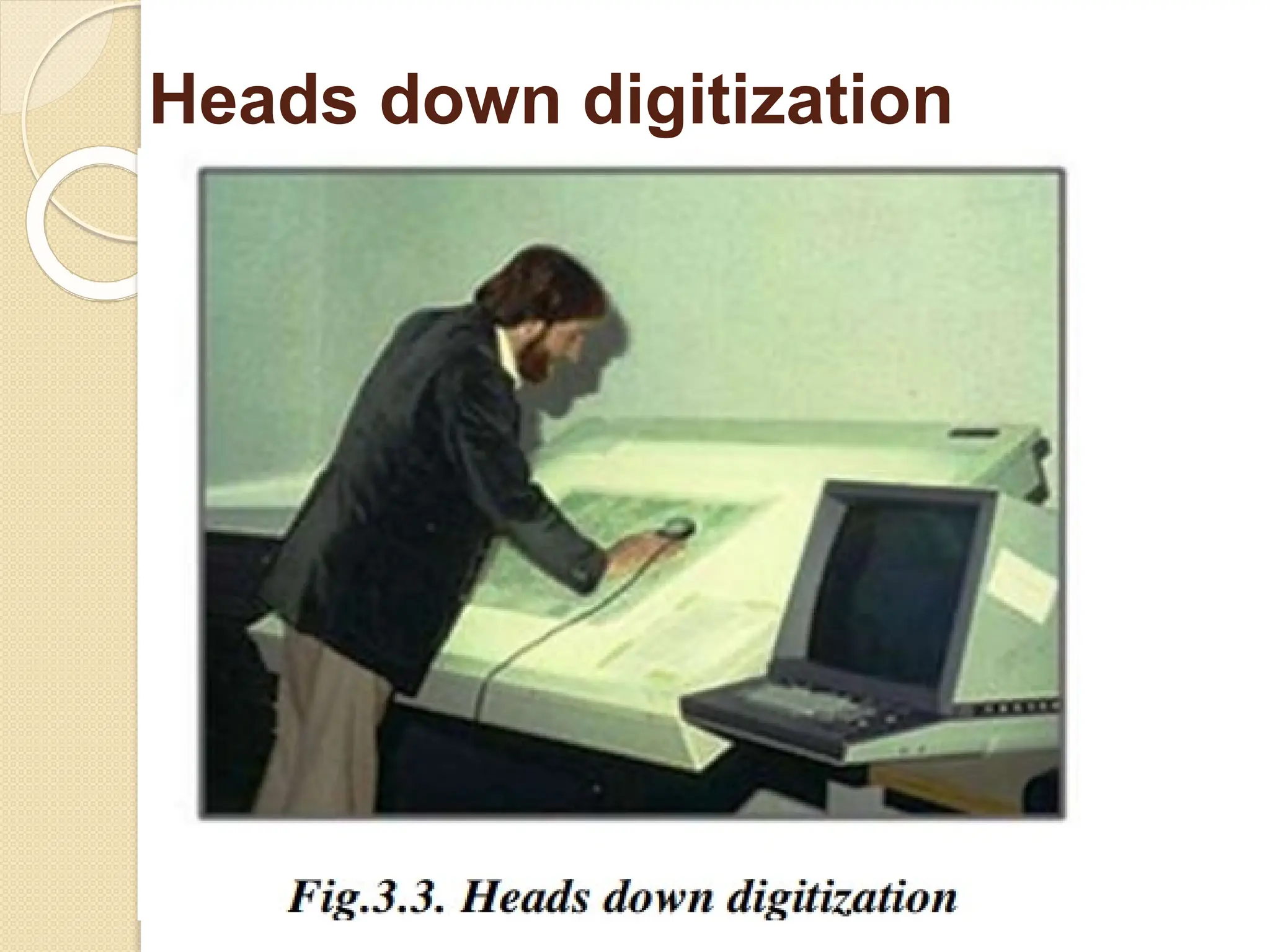
⚫ Digitizers are used to capture data from hardcopy
maps shown in the (fig.3.3).
⚫ Heads down digitization is done on a digitizing
table using a magnetic pen known as Puck.
⚫ The position of a cursor or puck is detected when
passed over a table inlaid with a fine mesh of
wires.
⚫ The function of a digitizer is to input correctly the
coordinates of the points and the lines.
Digitization can be done in two modes:
Heads down digitization
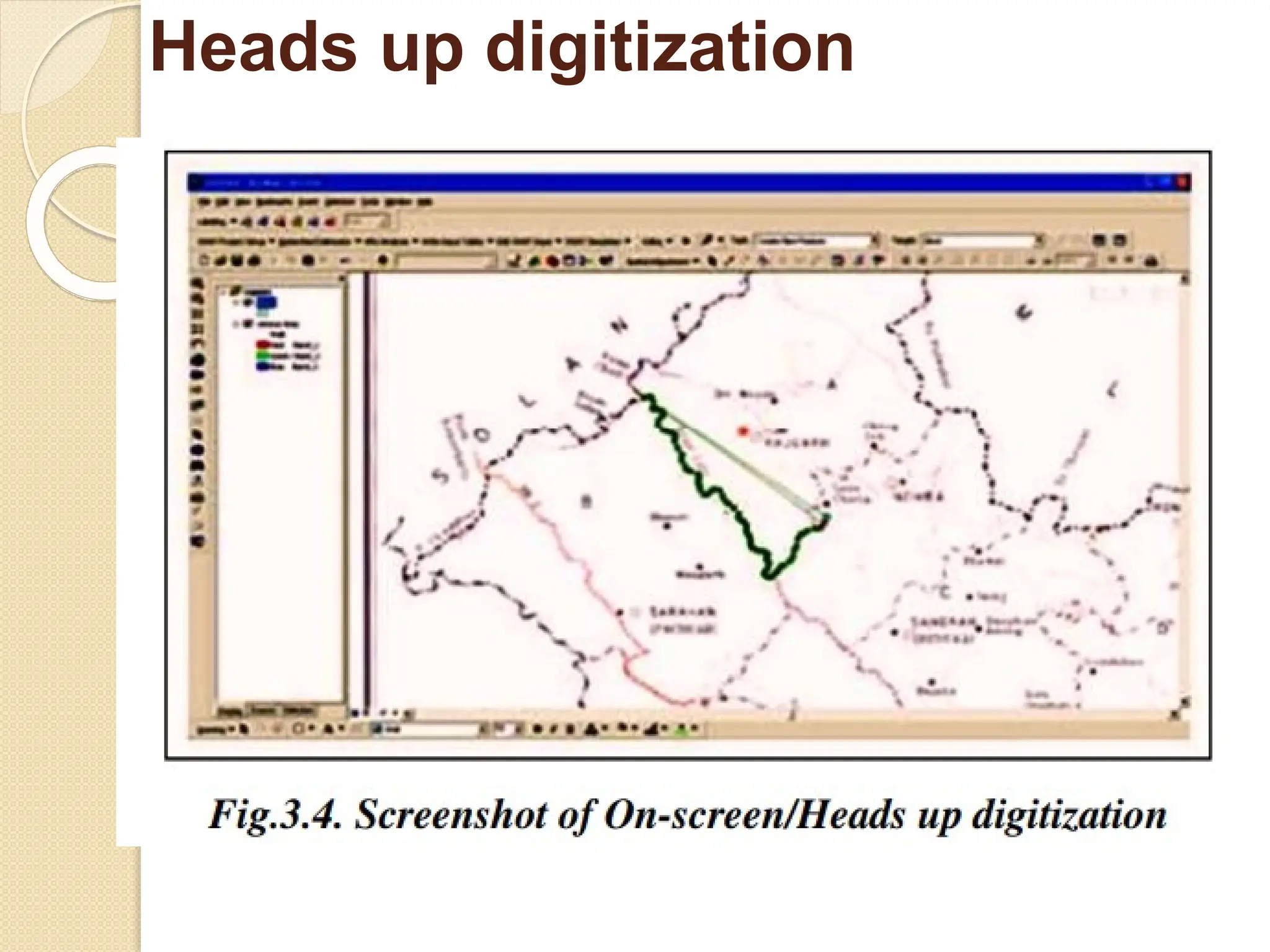
⚫ This method uses scanned copy of the map or
image and digitization is done on the screen of the
computer monitor (fig.3.4).
⚫ The scanned map lays vertical which can be
viewed without bending the head down and
therefore is called as heads up digitization.
⚫ Semi-automatic and automatic methods of
digitizing requires post processing but saves lot
of time and resources compared to manual
method.
Heads up digitization
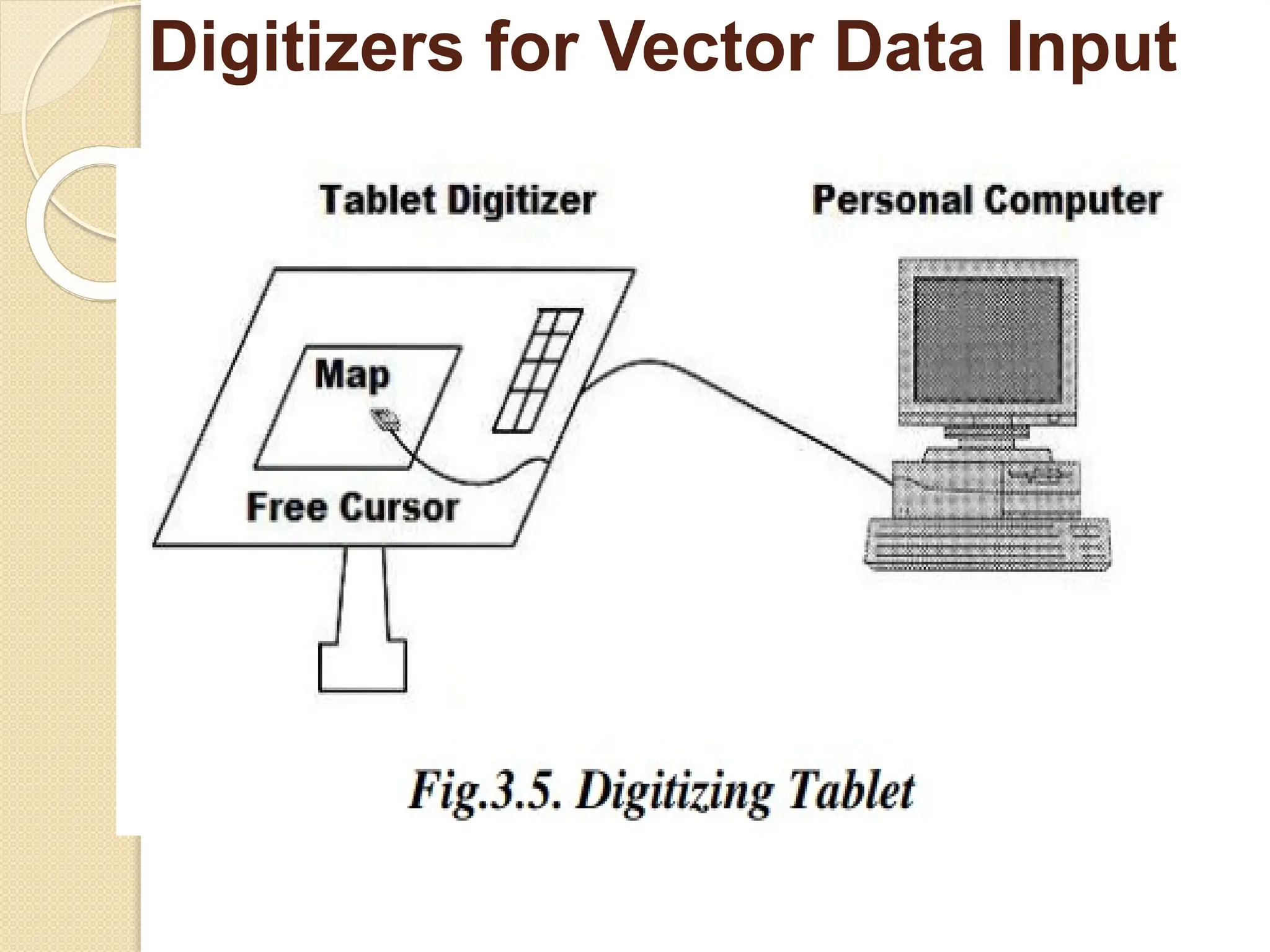
⚫ Tablet digitizers with a free cursor
connected with a personal computer are
the most common device for digitizing
spatial features with the plan metric
coordinates from analog maps.
⚫ The analog map is placed on the surface of
the digitizing tablet as shown in Figure 3.5.
The size of digitizer usually ranges from A3
to A0 size.
Digitizers for Vector Data Input
The digitizing operation is as follows
⚫ Step 1: a map is affixed to a digitizing table.
⚫ Step 2: control points or tics at four corners of
this map sheet should be digitized by the digitizer
and input to PC together with the map coordinates
of the four corners.
⚫ Step 3: map contents are digitized according to
the map layers and map code system in either
point mode or stream mode at short time interval.
⚫ Step 4: editing errors such as small gaps at line
junctions, overshoots, duplicates etc. should be
made for a clean dataset without errors.
⚫ Step 5: conversion from digitizer coordinates to
map coordinates to store in a spatial database.
Digitizers for Vector Data Input
Procedure for digitizing a paper
map using a manual digitizer
⚫Registration
⚫Digitizing point features
⚫Digitizing line features
⚫Digitizing area (polygon) features
⚫Adding attribute information
3/9/202 28
Registration
⚫ The map to be digitized is fixed tightly to the table top with
sticky tape. Five or more control points are identified
(usually the four corners of the map sheet and one
or more grid intersections in the middle).
⚫ The geographic co-ordinates of the control points are
noted and their locations digitized by positioning the
cross-hairs on the cursor exactly over them and pressing
the ‘digitize’ button on the cursor.
⚫ This sends the co-ordinates of a point on the table to the
computer and stores them in a file as ‘digitizer co-
ordinates’. These co- ordinates are the positions of
the cursor cross-hairs relative to the wire mesh in the
table.
⚫ They are usually stored as decimal inches or centimetres
from the bottom left-hand corner of the table.
⚫ Later, the geographic co-ordinates of the control points
are used to transform all digitizer co-ordinates into
3/9/2022 29
Digitizing point features
heights, hotel
locations
⚫Point features, for example
spot
or
meteorological stations, are
recorded as a single digitized
point.
A unique code number or identifier
is added so that attribute
information may be attached
later.
For instance, the hotel with ID
number ‘1’ would later be
3/9/202 30
Digitizing line features
⚫ Line features (such as roads or rivers)
are digitized as a series of points that the
software will join with straight line
segments.
⚫ In some GIS packages lines are referred
to as arcs, and their start and end points as
nodes. This gives rise to the term arc–
node topology, used to describe a
method of structuring line features.
⚫ As with point features, a unique code
number or identifier is added to each
line during the digitizing process and
attribute data attached using this code. For
a road, data describing road category,
number of carriageways, surface type, date
3/9/2022 31
Digitizing area (polygon)
features
⚫Area features or polygons, for
example forested areas or
administrative boundaries, are
digitized as a series of points linked
together by line segments in the same
way as line features.
⚫Here it is important that the start and
end points join to form a complete
area. Polygons can be digitized as a
series of individual lines, which are
later joined to form areas. In this
case it is important that each line
3/9/2022 32
Adding attribute information
⚫Attribute data may be added to
digitized polygon features by linking
them to a centroid (or seed point) in
each polygon.
⚫These are either digitized manually
(after digitizing the polygon boundaries)
or created automatically once the
polygons have been encoded. Using a
unique identifier or code number,
attribute data can then be linked to the
polygon centroids of appropriate
polygons.
⚫In this way, the forest stand may have
data relating to tree species, tree ages,
a point within the 33
3/9/202 34
3/9/2022 35
⚫In point mode the user begins
digitizing each line segment with a start
node, records each change in direction
of the line with a digitized point and
finishes the segment with an end node.
⚫Thus, a straight line can be digitized
with just two points, the start and end
nodes. For more complex lines, a
greater number of points are
required between the start and end
nodes.
⚫Smooth curves are problematic since they
require an infinite number of points to
record their true shape. However, some
digitizing packages allow the user to
record smooth curves as mathematically
curves
Point Mode
3/9/2022 36
Stream
mode
⚫ In stream mode the digitizer is set up
to record points according to a stated time
interval or on a distance basis.
⚫ Once the user has recorded the start of a
line the digitizer might be set to record a
point automatically every 0.5 seconds and
the user must move the cursor along the
line to record its shape.
⚫ An end node is required to stop the digitizer
recording further points.
⚫ The speed at which the cursor is moved
along the line determines the number of
points recorded.
⚫ Thus, where the line is more complex and
the cursor needs to be moved more slowly
and with more care, a greater number of
points will be recorded.
3/9/202 37
Advantages of Digitizing
⚫Low initial capital cost
⚫Flexible and adapts to different
types of data
⚫Easily mastered skill
⚫Digitizing devices are reliable
⚫Generally the quality of data is
high
3/9/202 38
Problems with
Digitizing
⚫ Paper maps are unstable, they stretch or
shrink, sometimes while they are on the
digitizing table.
⚫ The accuracy depends on the dedication of
the operator and his training and skill.
⚫ Accuracy also depends on the quality of
the source documents.
⚫ Paper maps weren’t prepared “digitally”
correct, but to visually impart
information, for example if railroads,
highways and tunnels pass through a
mountain pass the pass may be drawn
larger to accommodate the drawing.
3/9/202 39
⚫Converts paper maps into digital
format by capturing features as
cells, or pixels.
⚫Cells are captured using a scanner
head made up of photosensitive
cells.
⚫Advanced large format scanners
have heads with 8000
photosensitive cells
⚫Each sensor is able to record a pixel
rated between 0 (black) to 255
(white) and any graytones between.
Scanning Technology
3/9/202 39
⚫Some errors can be corrected
automatically
small gaps at line junctions
overshoots and sudden spikes
in lines
⚫• Error rates depend on the
complexity of the map, are high for
small scale, complex maps .
Editing errors from
digitizing
3/9/202 40
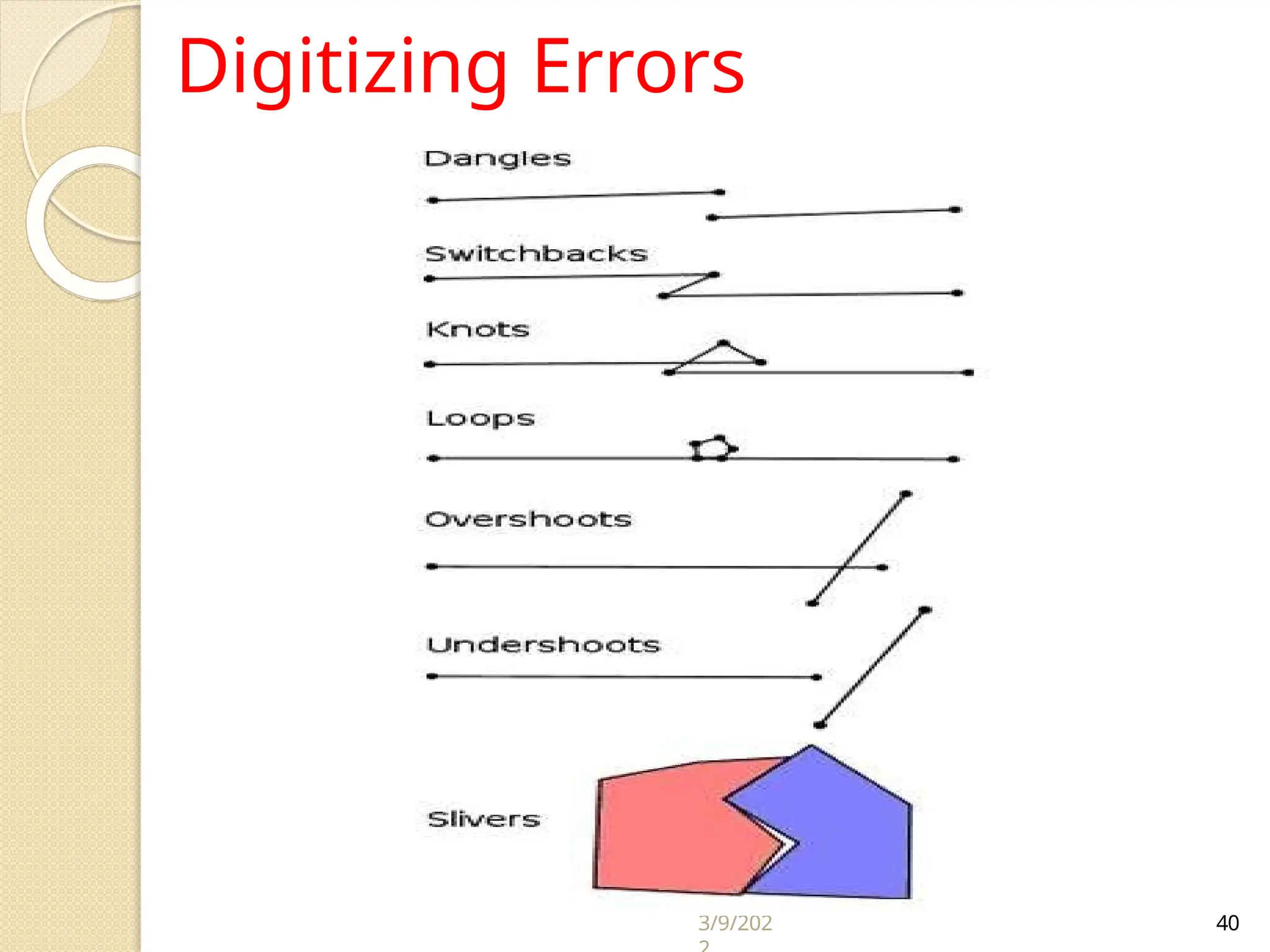
Digitizing Errors
TOPOLOGY
In geo-databases, a topology is a set
of rules that defines how point, line,
and polygon features share coincident
geometry.
Topology describes the means
whereby lines, borders, and points
meet up, intersect, and cross.
This includes how street centrelines
and census blocks share common
geometry, and adjacent soil polygons
share their common boundaries.
TOPOLOGY
Common terms used when referring to
topology include: dimensionality,
adjacency, connectivity, and
containment, with all but dimensional
dealing directly with the spatial
relationships of features.
Dimensionality - the distinction between
point, line, area, and volume, which are
said to have topological dimensions of 0, 1,
2, and 3 respectively.
TOPOLOGY
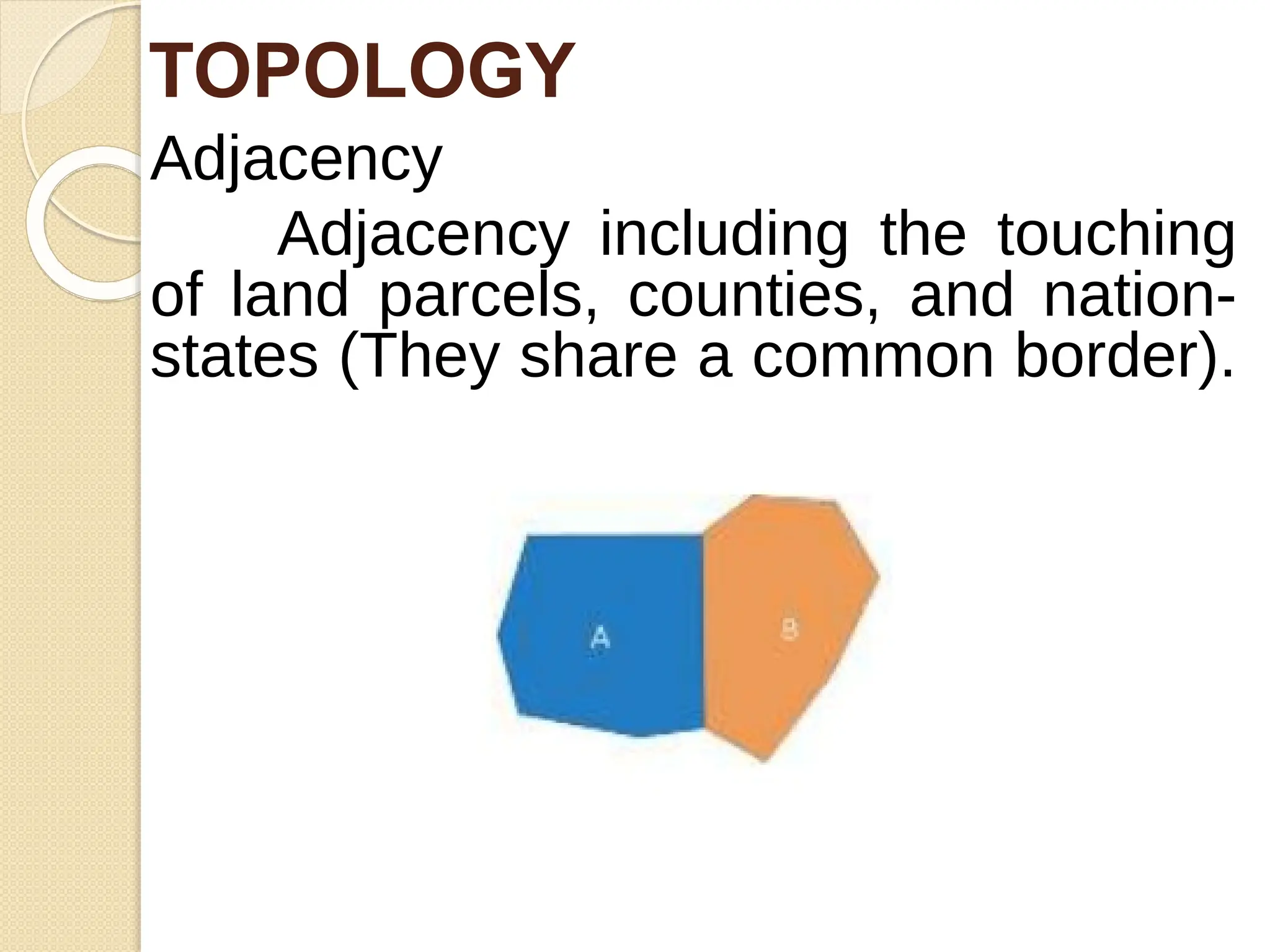
Adjacency
Adjacency including the touching
of land parcels, counties, and nation-
states (They share a common border).
TOPOLOGY
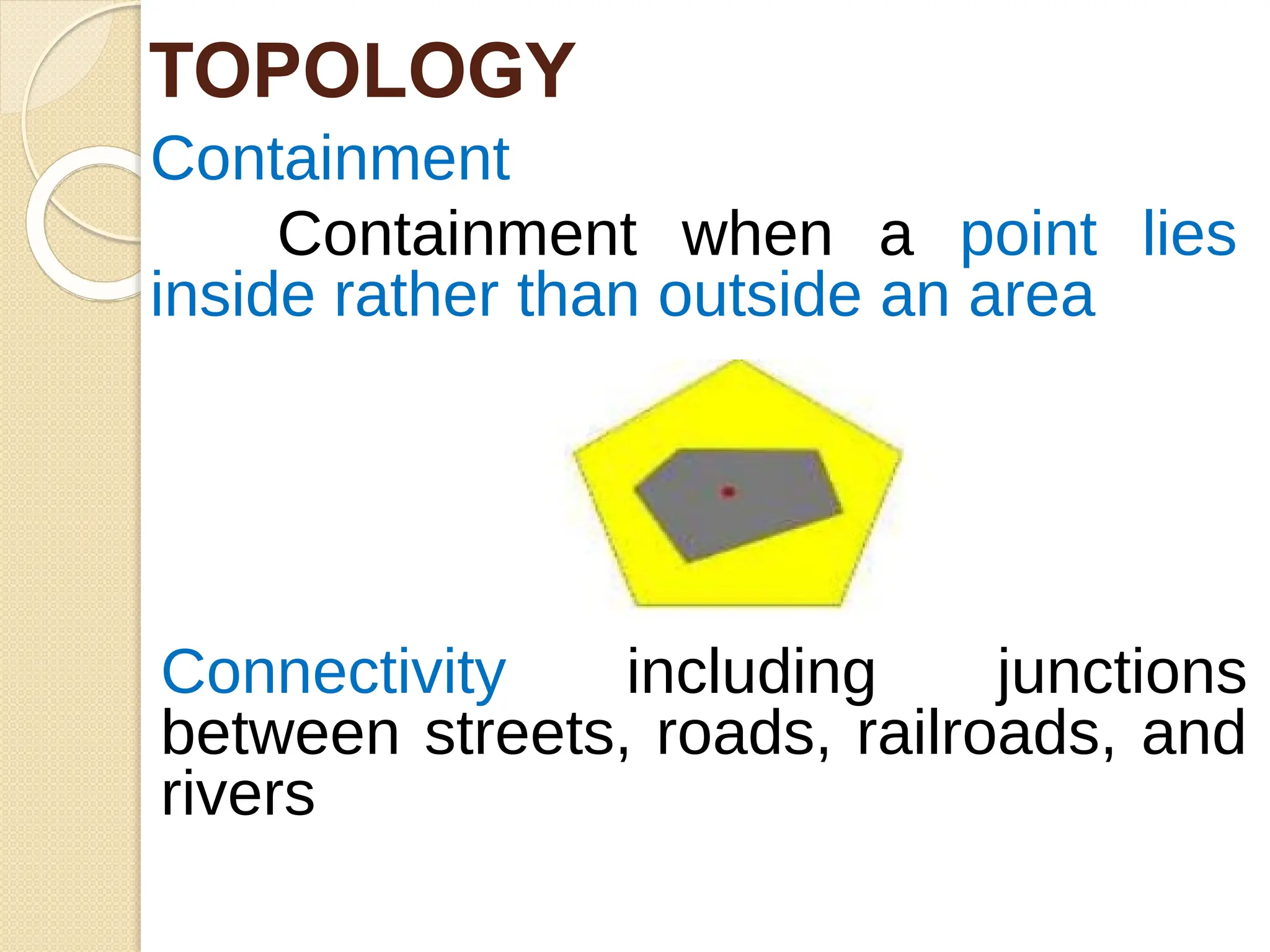
Containment
Containment when a point lies
inside rather than outside an area
TOPOLOGY
Connectivity including junctions
between streets, roads, railroads, and
rivers
A topology is a mathematical
procedure that describes how features
are spatially related and ensures data
quality of the spatial relationships.
Topological relationships include
following three basic elements:
⚫I. Connectivity: Information
about linkages among spatial objects
⚫II. Contiguity:
Information
abou
t
neighboring spatial
object
⚫III. Containment:
Information
abou
t
withi
n
inclusion of one spatial
object another spatial object
TOPOLOGY
Connectivity
define
s
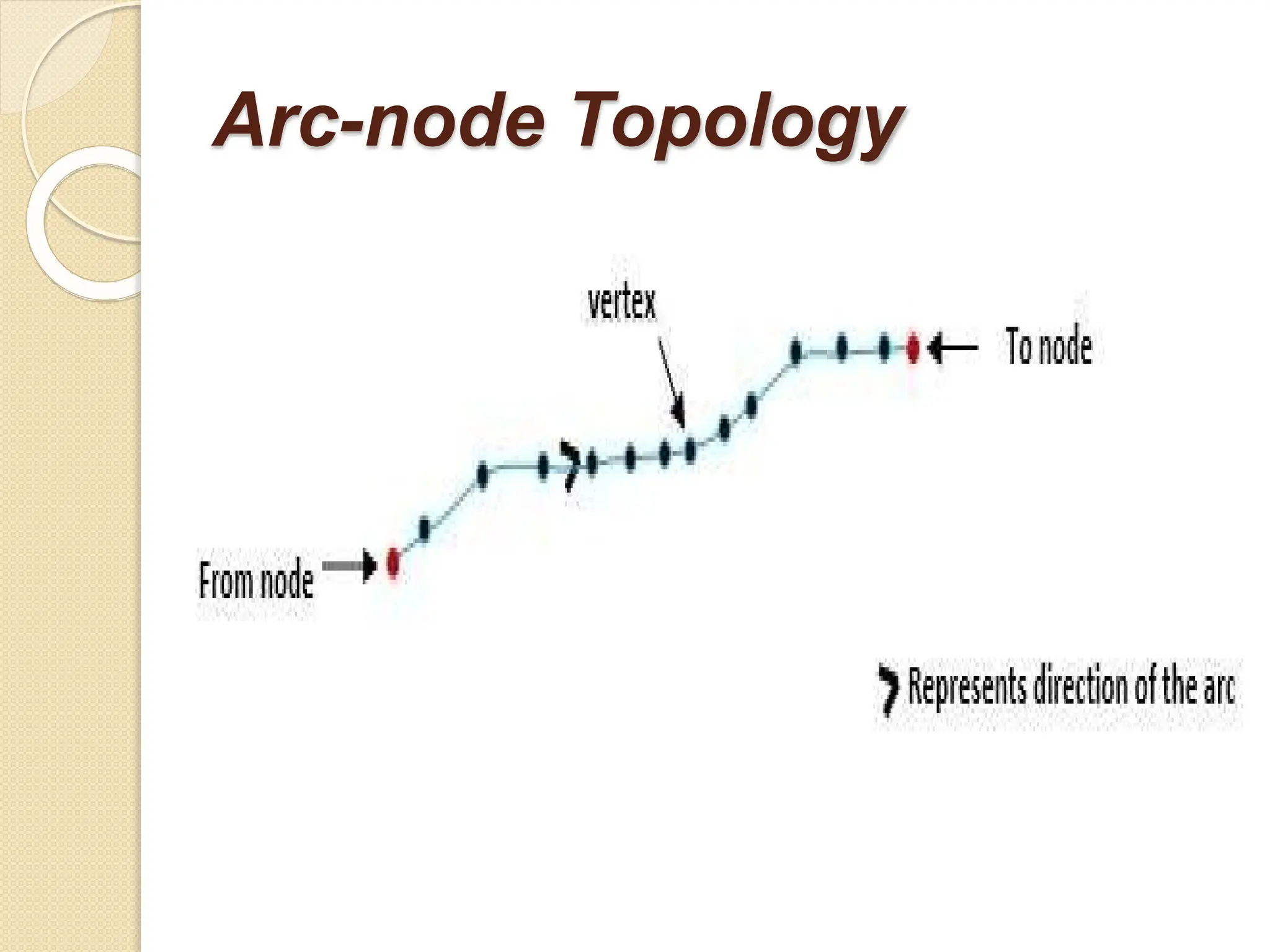
Arc node topology
connectivity –
1. Arcs are connected to each other
if they share a common node.
This is the basis for many
network tracing and path finding
operations.
2. Arcs represent linear features and
the borders of area features.
3. Every arc has a from-node which
is the first vertex in the arc and a to-
Arc-node Topology
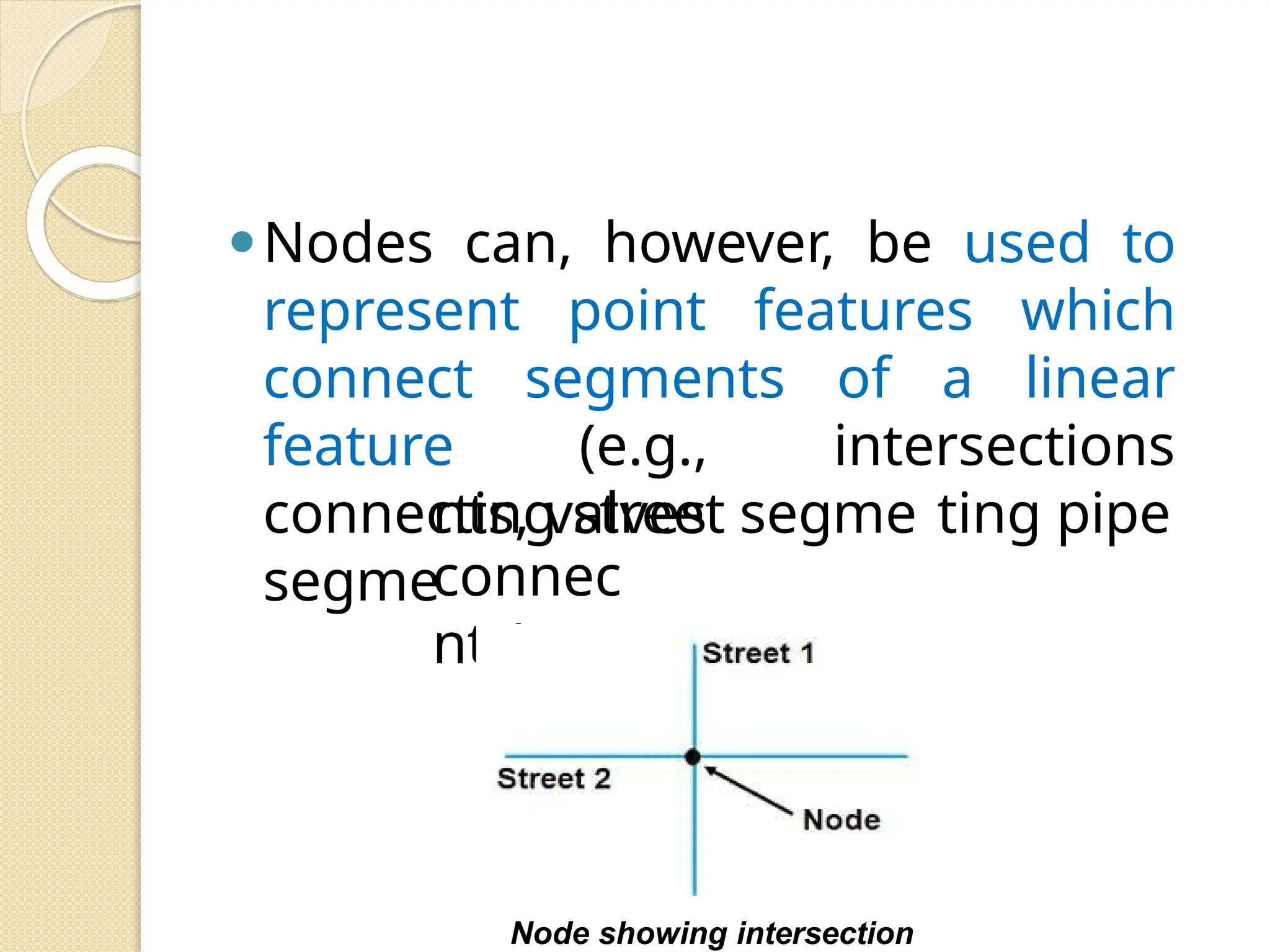
⚫Nodes can, however, be used to
represent point features which
connect segments of a linear
feature (e.g., intersections
connecting street segme ting pipe
segme
nts, valves
connec
nts).
Node showing intersection
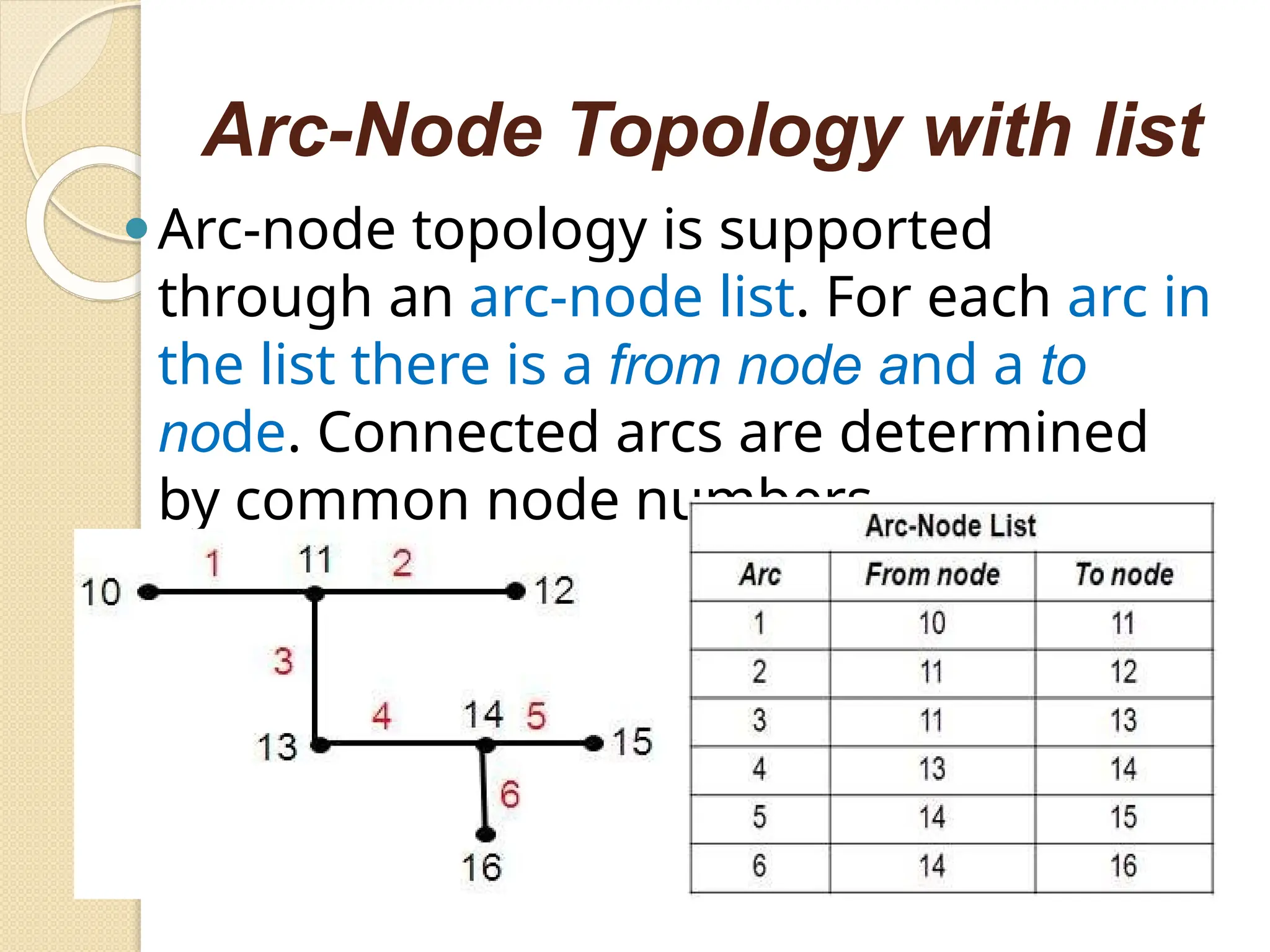
Arc-Node Topology with list
⚫Arc-node topology is supported
through an arc-node list. For each arc in
the list there is a from node and a to
node. Connected arcs are determined
by common node numbers.
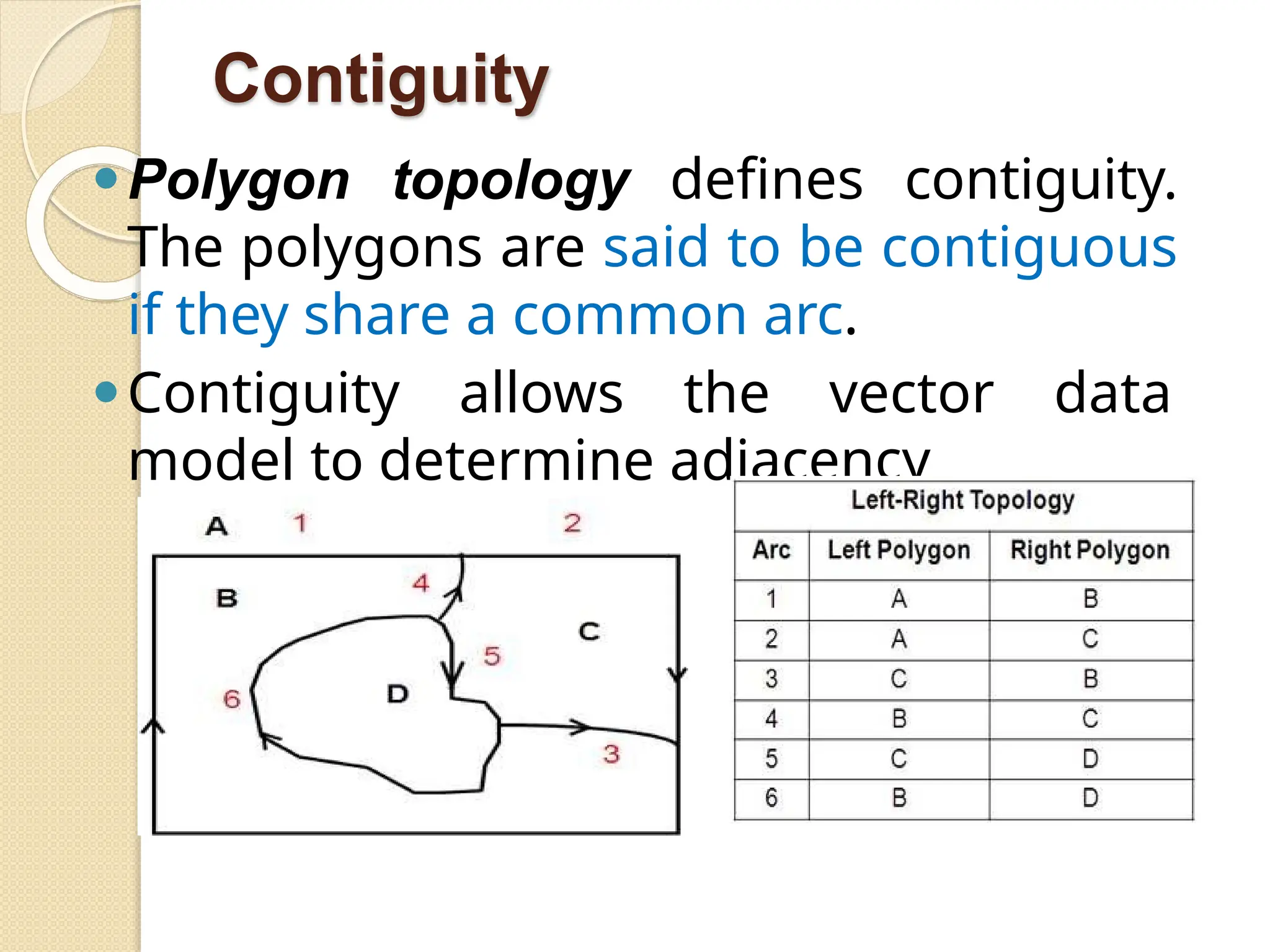
Contiguity
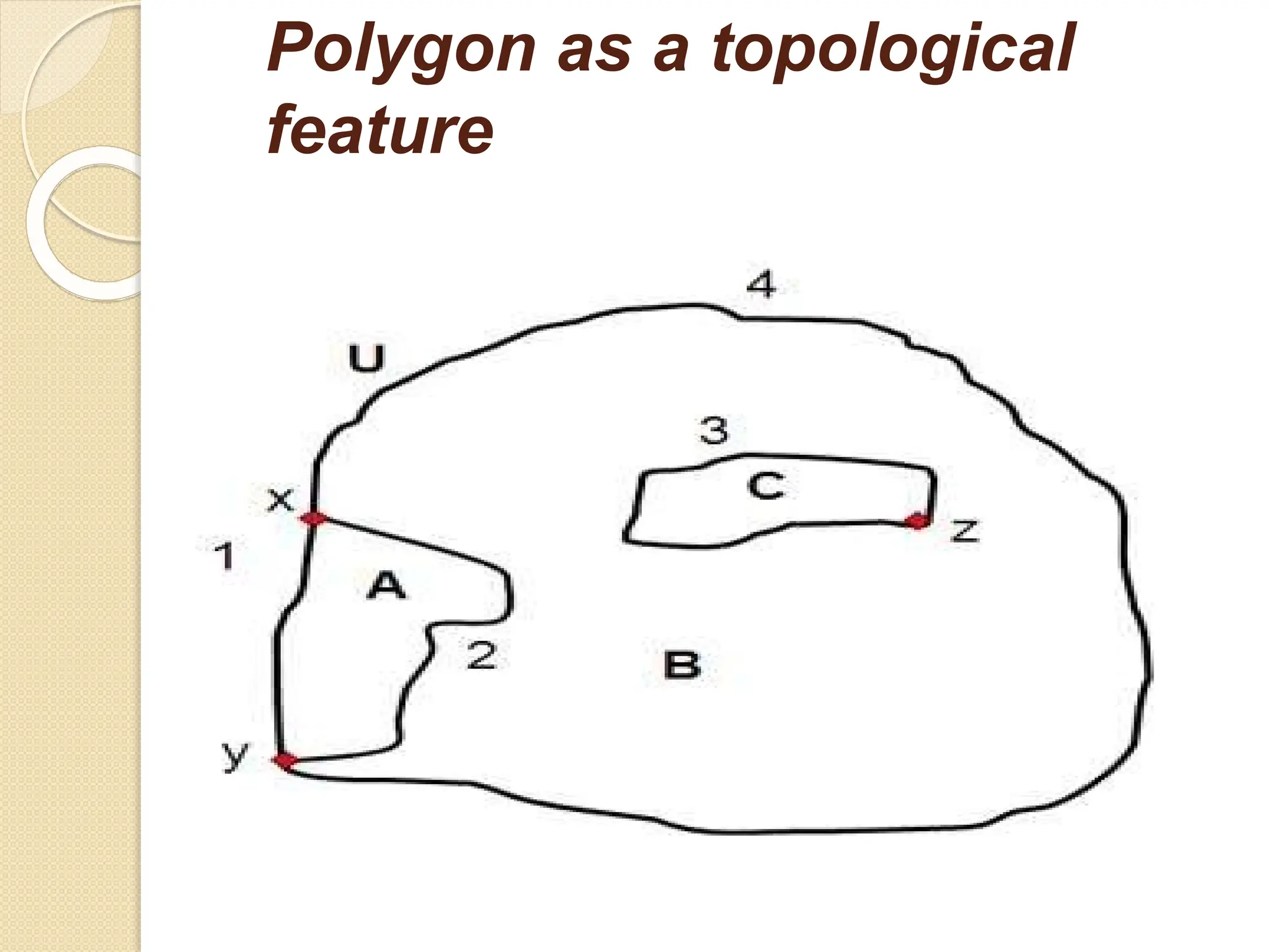
⚫Polygon topology defines contiguity.
The polygons are said to be contiguous
if they share a common arc.
⚫Contiguity allows the vector data
model to determine adjacency
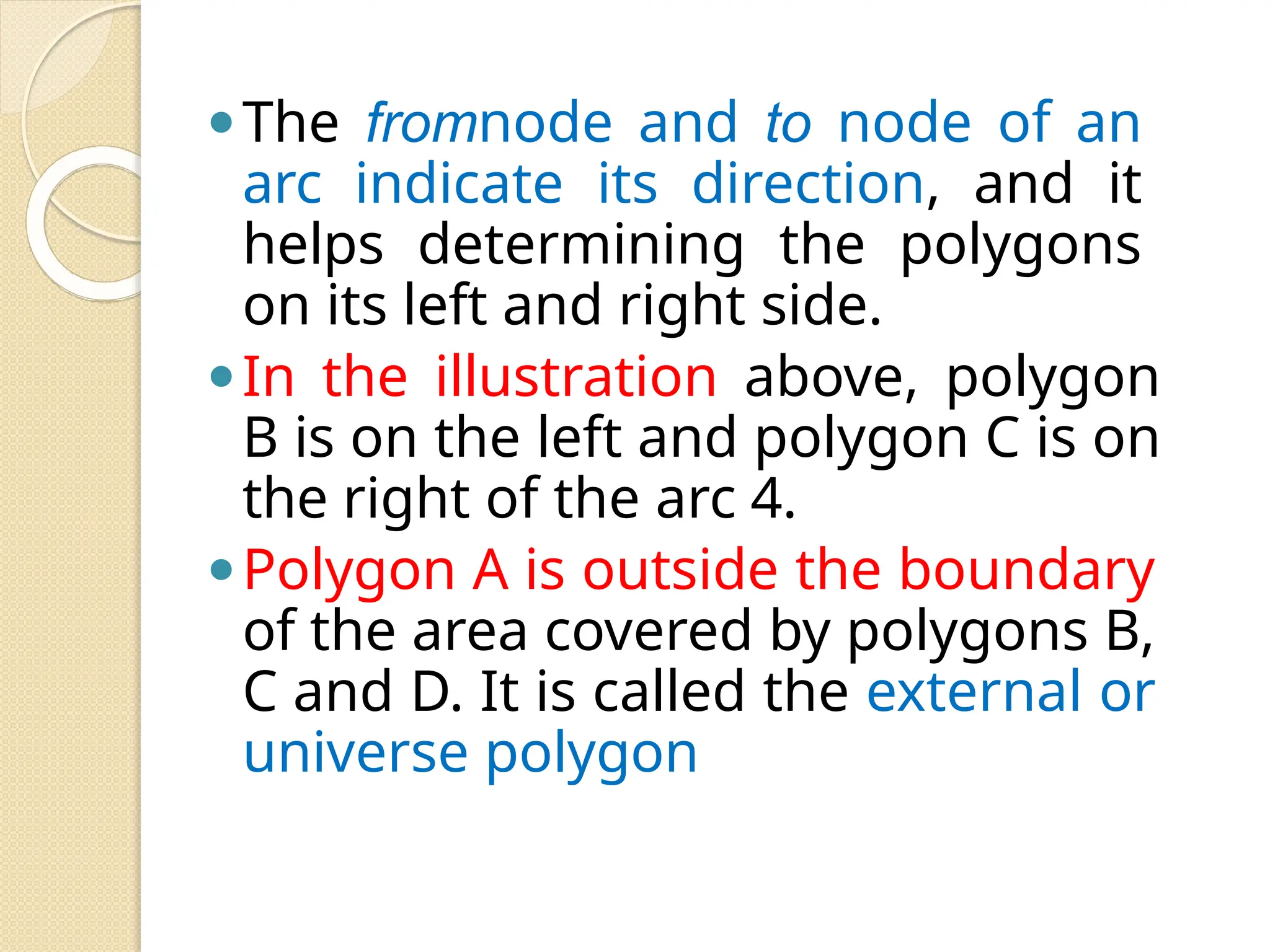
⚫The fromnode and to node of an
arc indicate its direction, and it
helps determining the polygons
on its left and right side.
⚫In the illustration above, polygon
B is on the left and polygon C is on
the right of the arc 4.
⚫Polygon A is outside the boundary
of the area covered by polygons B,
C and D. It is called the external or
universe polygon
Containment
⚫Geographic features cover
distinguishable area on the surface
of the earth.
⚫The polygons can be simple or they
can be complex with a hole or island
in the middle.
⚫In the illustration given below
assume a lake with an island in the
middle.
⚫The lake actually has two boundaries,
one which defines its outer edge and
the other (island) which defines its
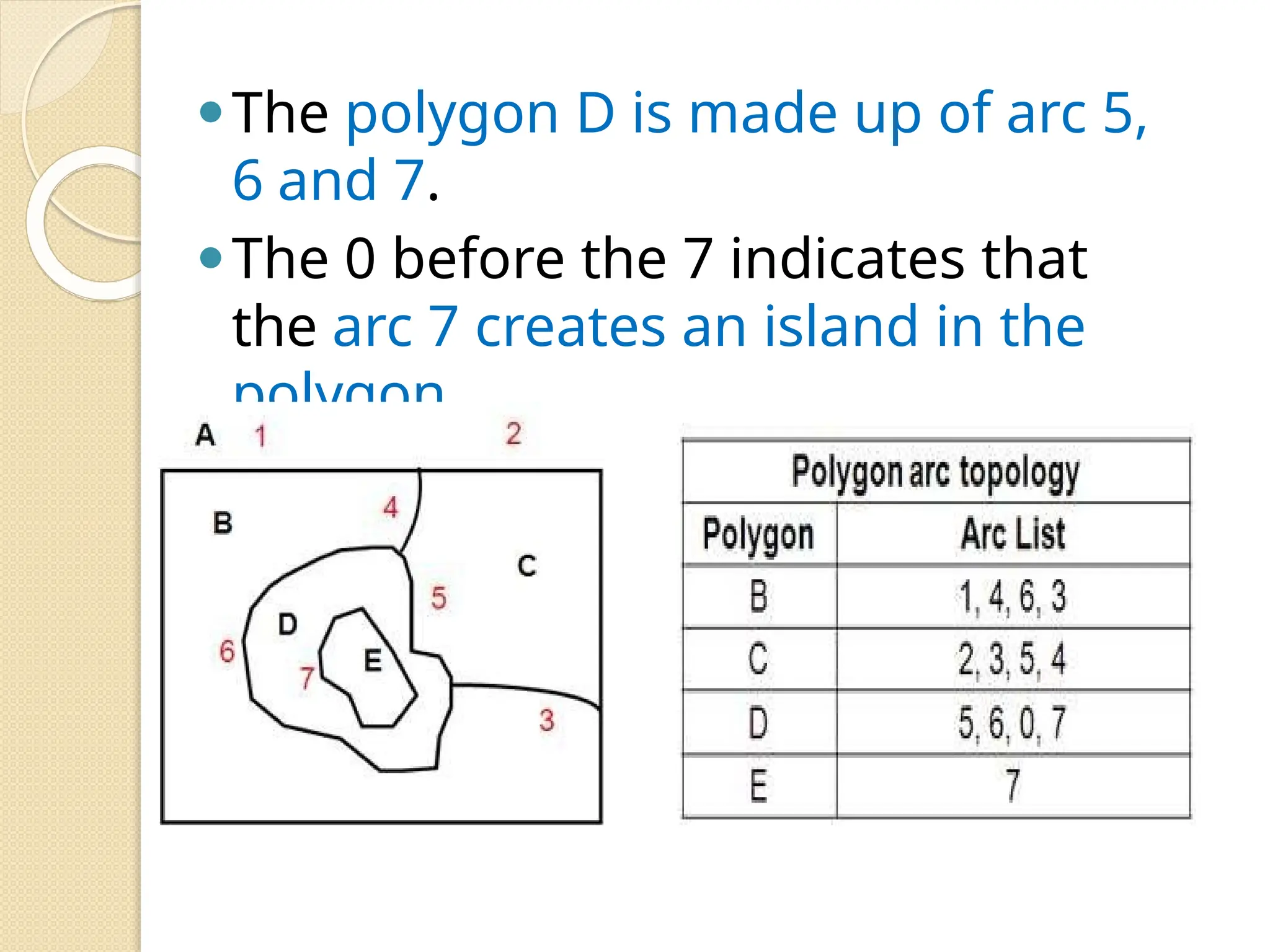
⚫The polygon D is made up of arc 5,
6 and 7.
⚫The 0 before the 7 indicates that
the arc 7 creates an island in the
polygon.
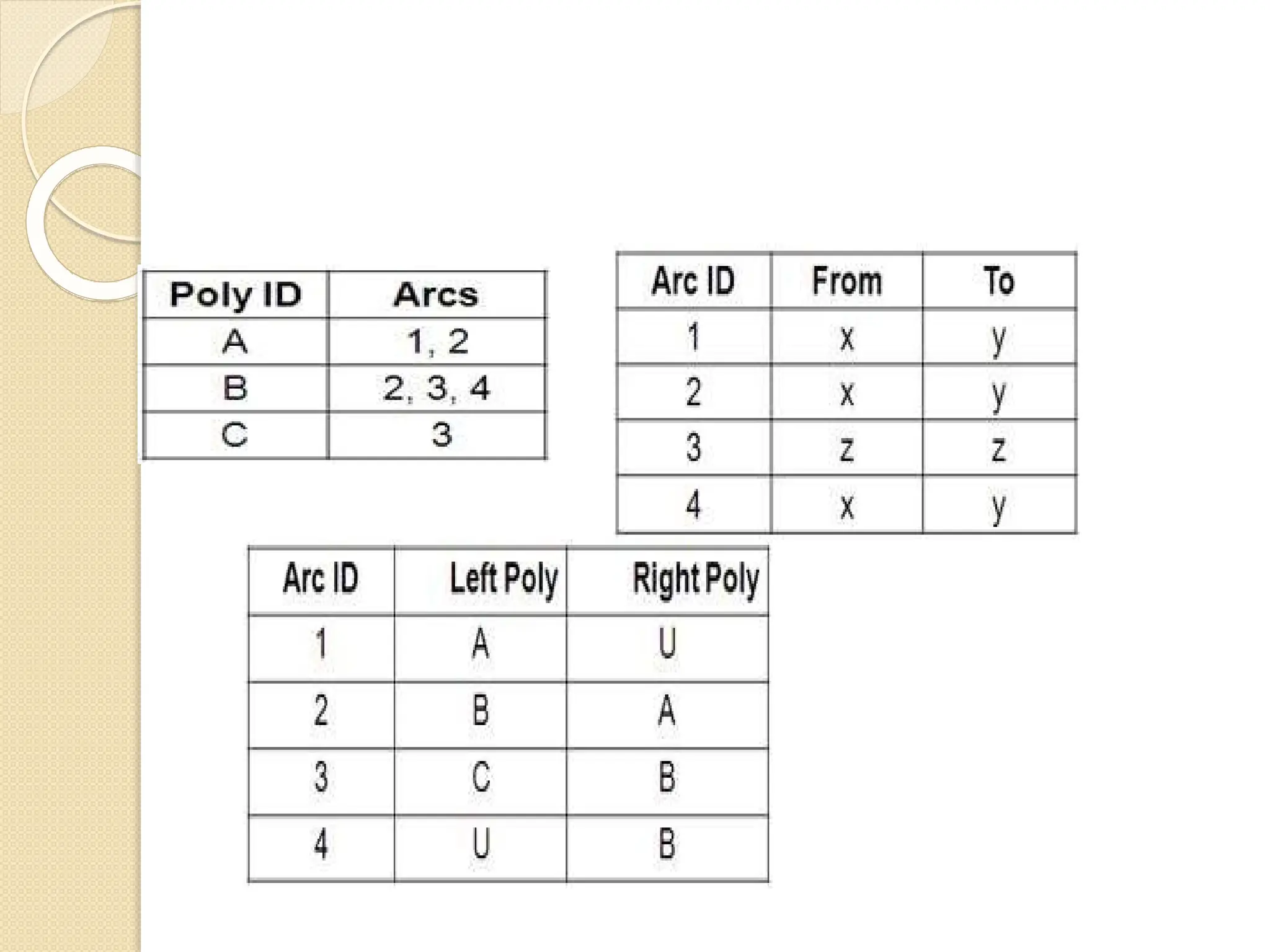
⚫Polygons are represented as an
ordered list of arcs and not in
terms of X, Y coordinates. This is
called Polygon-Arc topology
⚫Since arcs define the boundary of
polygon, arc coordinates are
stored only once, thereby reducing
the amount of data and ensuring
no overlap of boundaries of the
adjacent polygons.
Polygon as a topological
feature
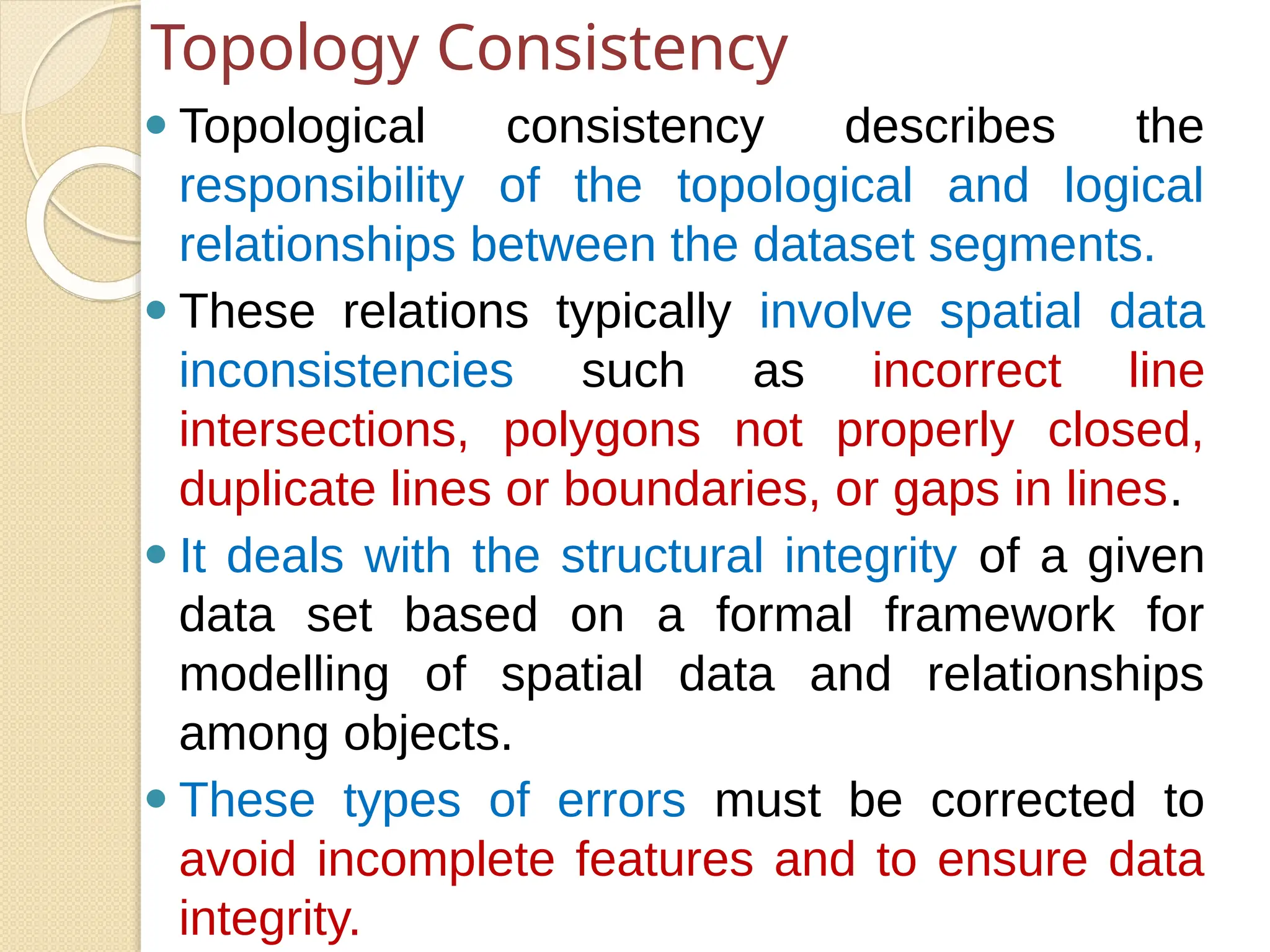
⚫ Topological consistency describes the
responsibility of the topological and logical
relationships between the dataset segments.
⚫ These relations typically involve spatial data
inconsistencies such as incorrect line
intersections, polygons not properly closed,
duplicate lines or boundaries, or gaps in lines.
⚫ It deals with the structural integrity of a given
data set based on a formal framework for
modelling of spatial data and relationships
among objects.
⚫ These types of errors must be corrected to
avoid incomplete features and to ensure data
integrity.
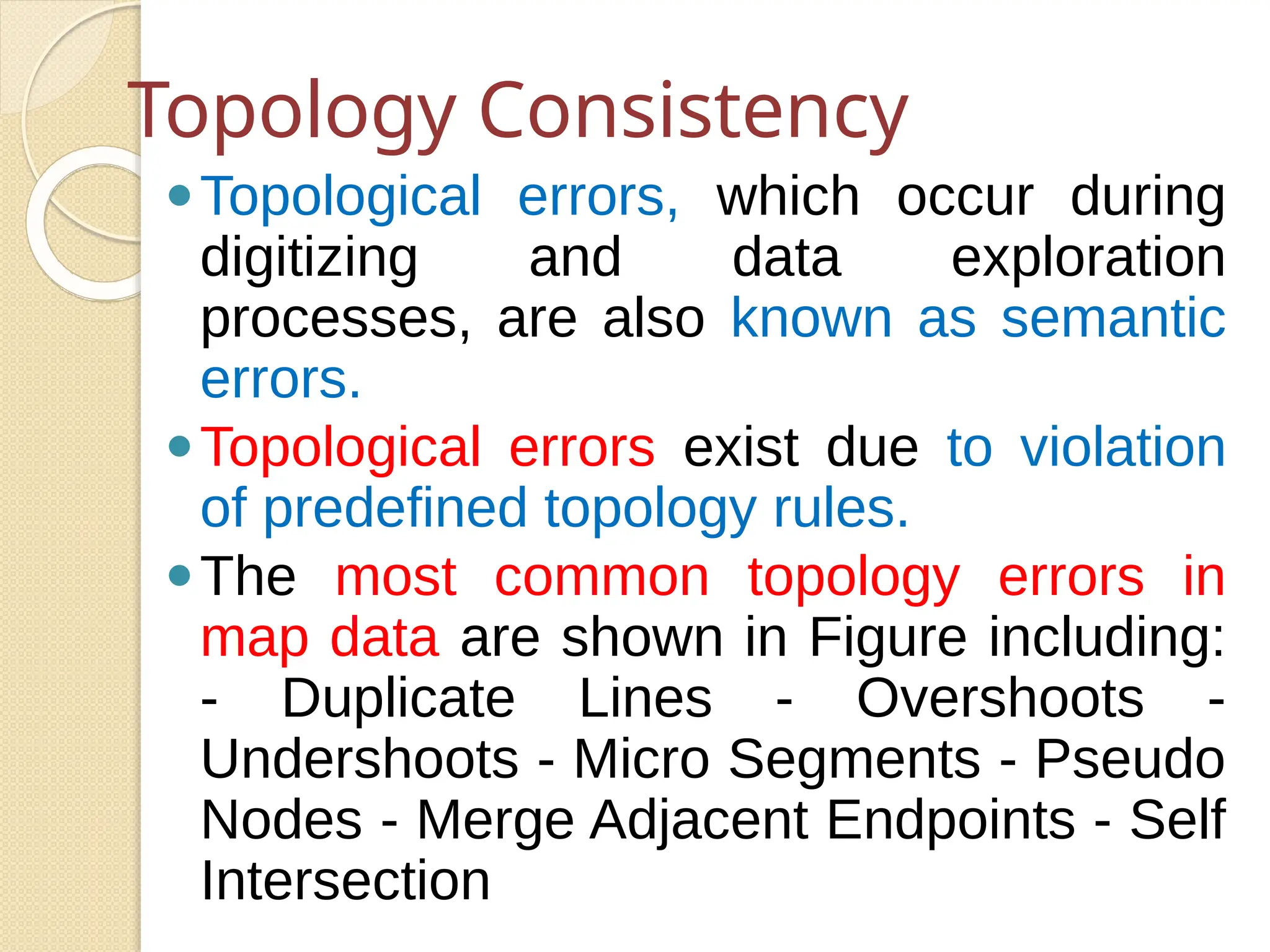
Topology Consistency
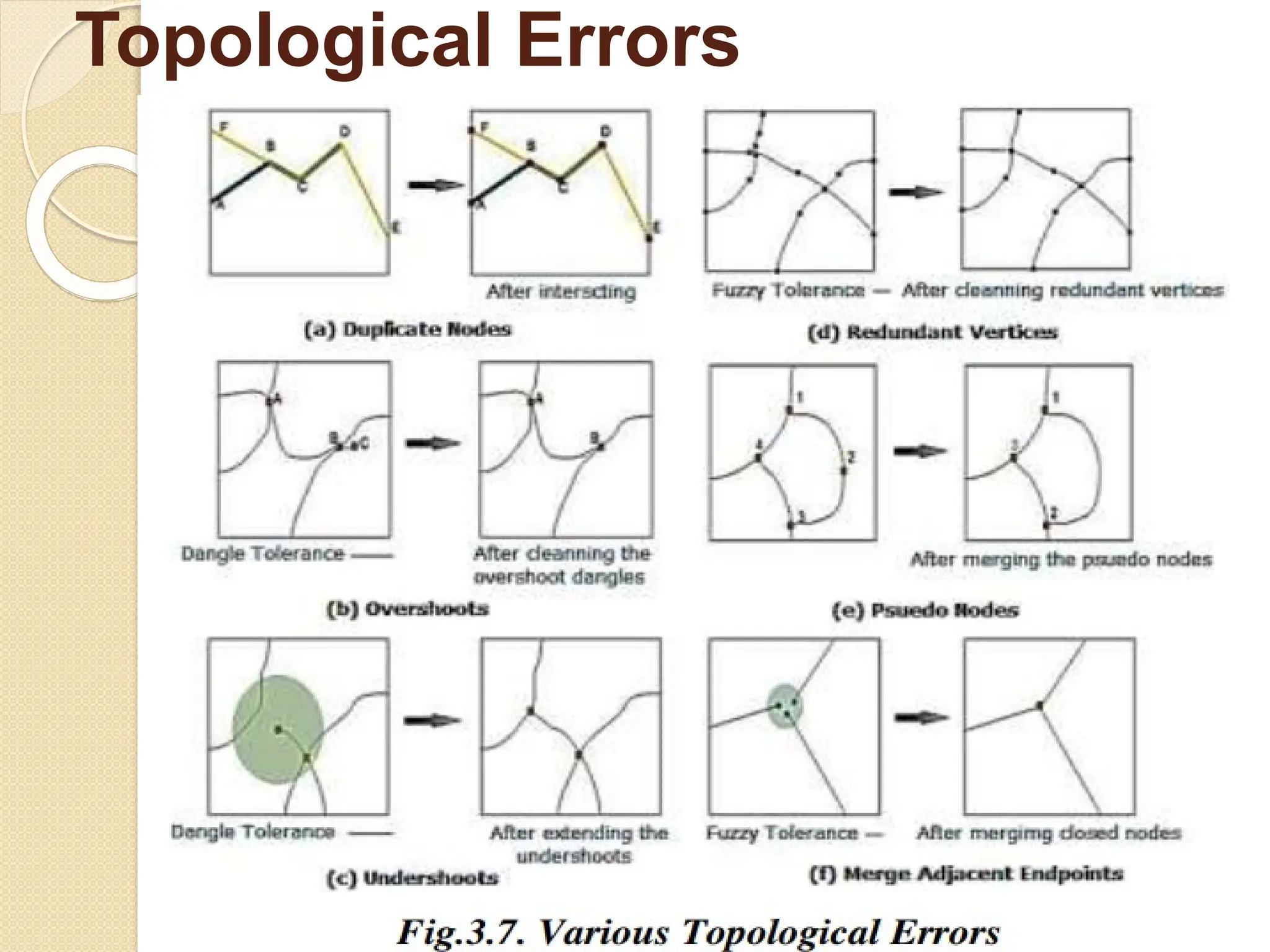
⚫Topological errors, which occur during
digitizing and data exploration
processes, are also known as semantic
errors.
⚫Topological errors exist due to violation
of predefined topology rules.
⚫The most common topology errors in
map data are shown in Figure including:
- Duplicate Lines - Overshoots -
Undershoots - Micro Segments - Pseudo
Nodes - Merge Adjacent Endpoints - Self
Intersection
Topological Errors
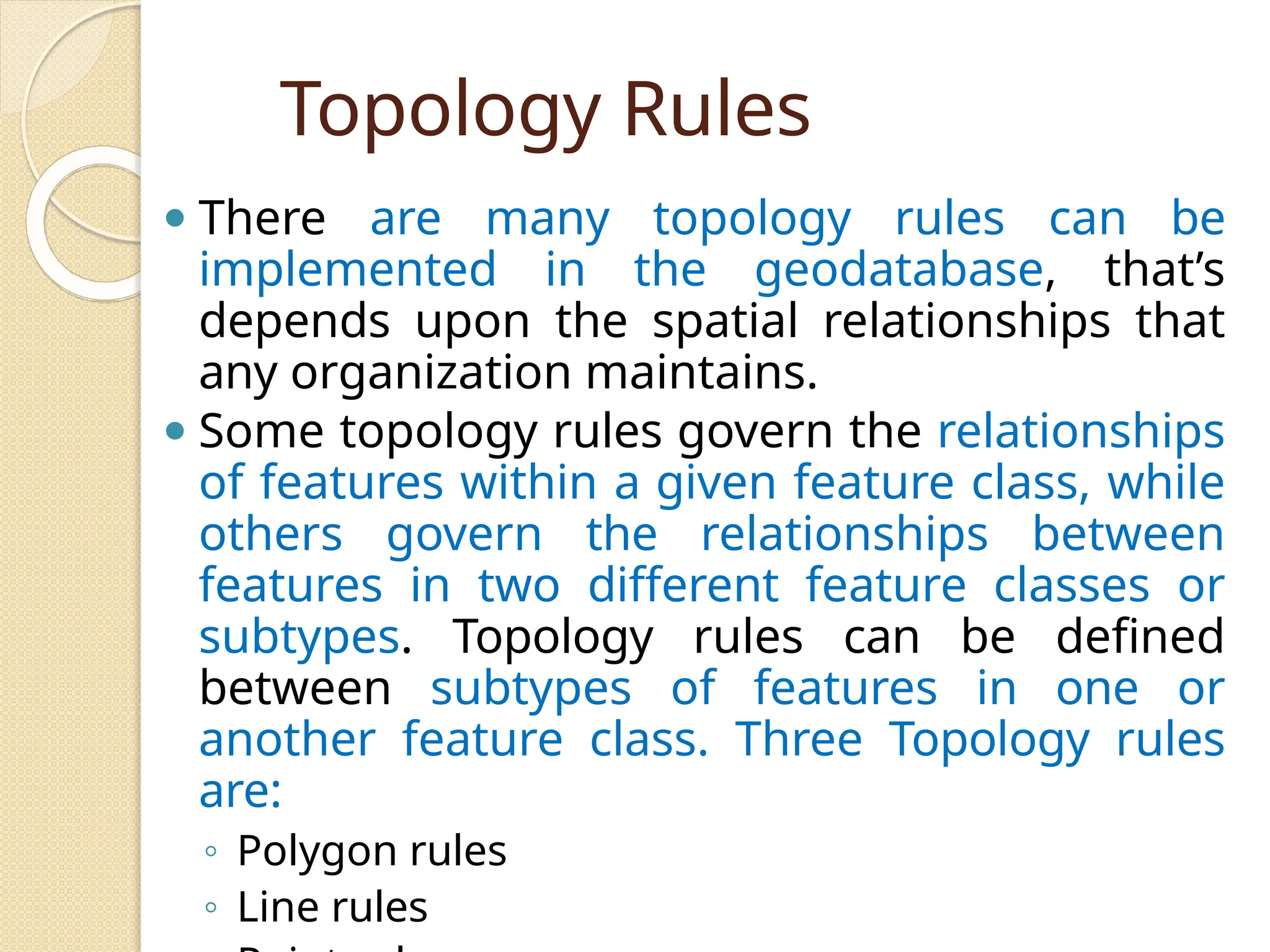
Topology Rules
⚫ There are many topology rules can be
implemented in the geodatabase, that’s
depends upon the spatial relationships that
any organization maintains.
⚫ Some topology rules govern the relationships
of features within a given feature class, while
others govern the relationships between
features in two different feature classes or
subtypes. Topology rules can be defined
between subtypes of features in one or
another feature class. Three Topology rules
are:
◦ Polygon rules
◦ Line rules
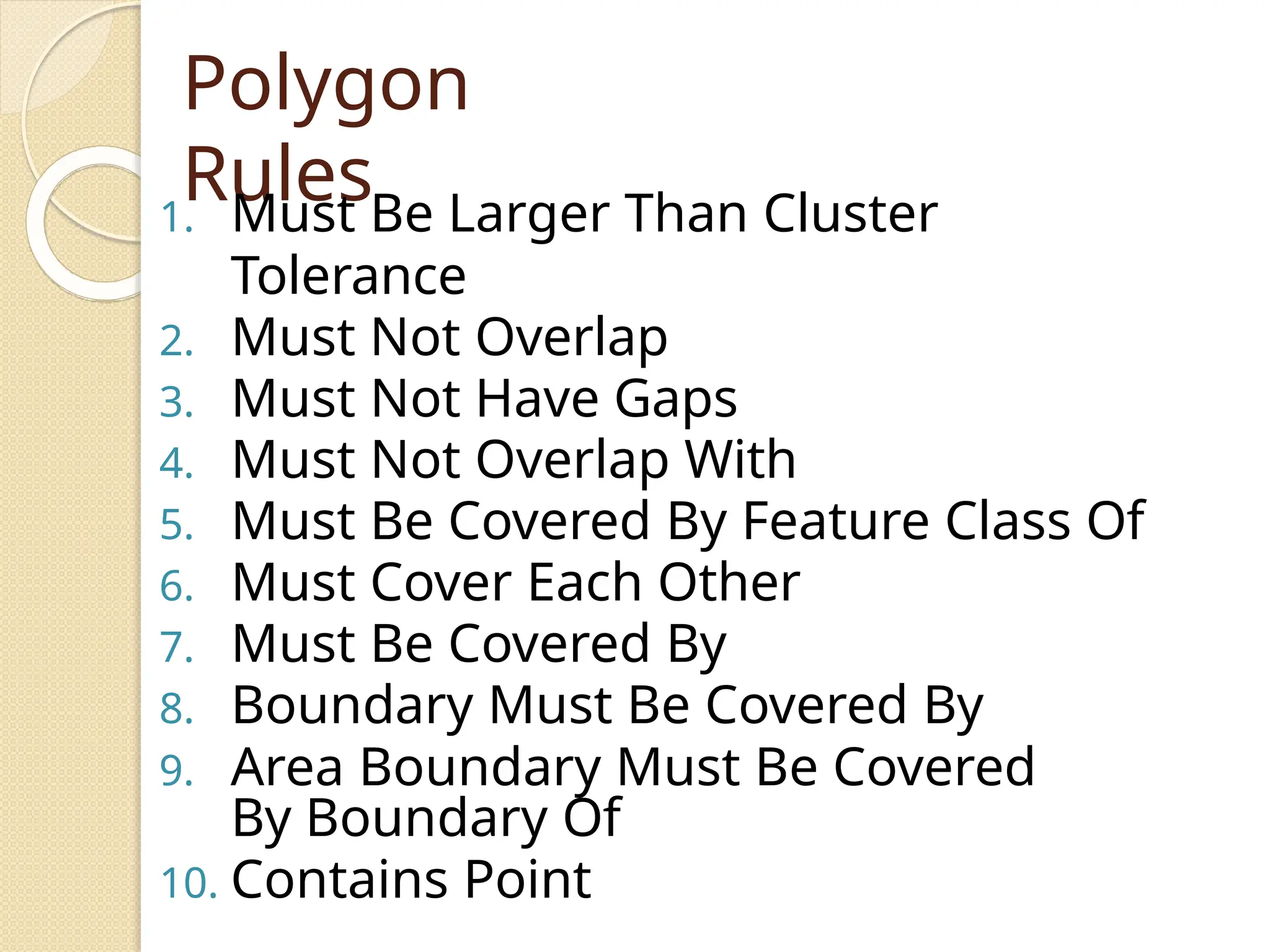
Polygon
Rules
1. Must Be Larger Than Cluster
Tolerance
2. Must Not Overlap
3. Must Not Have Gaps
4. Must Not Overlap With
5. Must Be Covered By Feature Class Of
6. Must Cover Each Other
7. Must Be Covered By
8. Boundary Must Be Covered By
9. Area Boundary Must Be Covered
By Boundary Of
10. Contains Point
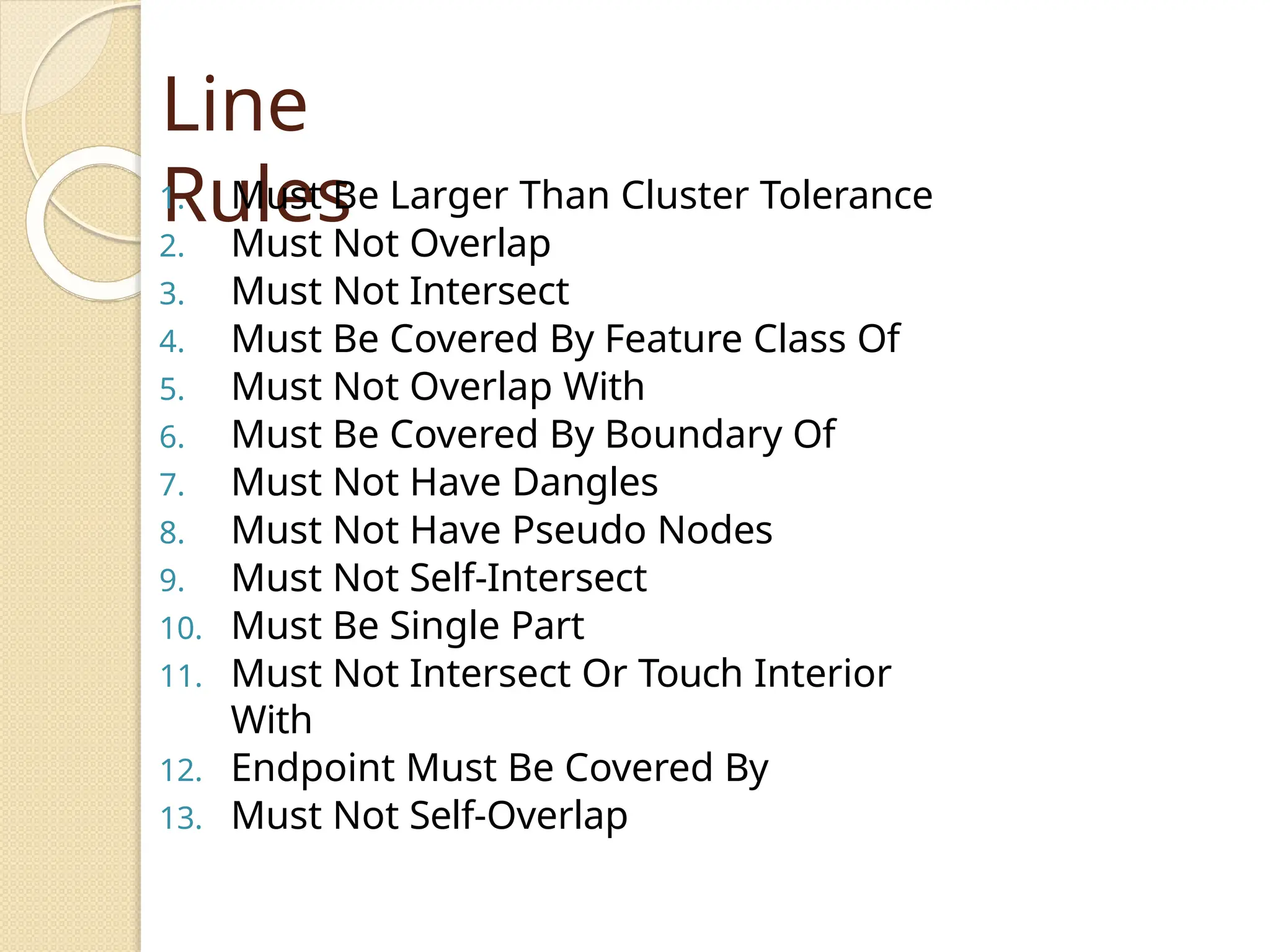
Line
Rules
1. Must Be Larger Than Cluster Tolerance
2. Must Not Overlap
3. Must Not Intersect
4. Must Be Covered By Feature Class Of
5. Must Not Overlap With
6. Must Be Covered By Boundary Of
7. Must Not Have Dangles
8. Must Not Have Pseudo Nodes
9. Must Not Self-Intersect
10. Must Be Single Part
11. Must Not Intersect Or Touch Interior
With
12. Endpoint Must Be Covered By
13. Must Not Self-Overlap
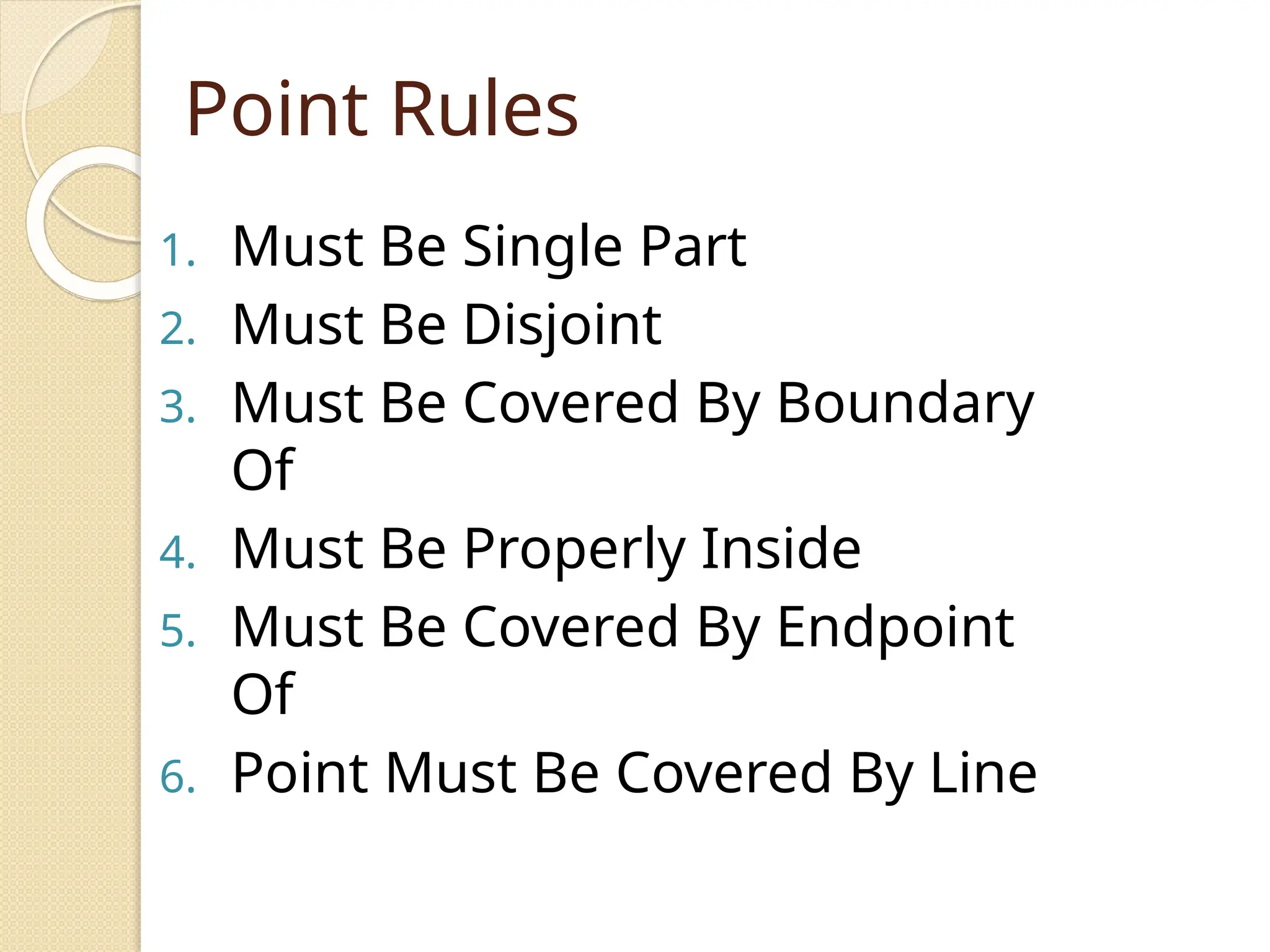
Point Rules
1. Must Be Single Part
2. Must Be Disjoint
3. Must Be Covered By Boundary
Of
4. Must Be Properly Inside
5. Must Be Covered By Endpoint
Of
6. Point Must Be Covered By Line
NON TOPOLOGICAL
FILE FORMATS
⚫ ADRG – National Geospatial-Intelligence Agency
(NGA)'s ARC Digitized Raster Graphics
⚫ • Binary file – An unformatted file consisting of raster
data written in one of several data types, where
multiple band are stored in BSQ (band sequential),
BIP (band interleaved by pixel) or BIL (band
interleaved by line). Geo-referencing and other
metadata are stored one or more sidecar files.
⚫ • Digital raster graphic (DRG) – digital scan of a paper
USGS topographic map
⚫ • ECRG – National Geospatial-Intelligence Agency
(NGA)'s Enhanced Compressed ARC Raster Graphics
(Better resolution than CADRG and no color loss) •
⚫ ECW – Enhanced Compressed Wavelet (from
ERDAS). A compressed wavelet format, often lossy.
Raster formats
⚫ • Esri grid – proprietary binary and meta-dataless
ASCII raster formats used by Esri
⚫ • GeoTIFF – TIFF variant enriched with GIS relevant
metadata
⚫ • IMG – ERDAS IMAGINE image file format
⚫ • JPEG2000 – Open-source raster format. A
compressed format, allows both lossy and lossless
compression.
⚫ • MrSID – Multi-Resolution Seamless Image Database
(by Lizardtech). A compressed wavelet format, allows
both lossy and lossless compression.
⚫ • RPF – Raster Product Format, military file format
specified in MIL-STD-2411
⚫ • CADRG – Compressed ADRG, developed by NGA,
nominal compression of 55:1 over ADRG (type of
Raster Product Format)
Raster formats
⚫ AutoCAD DXF – contour elevation plots in AutoCAD DXF
format (by Autodesk)
⚫ • Cartesian coordinate system (XYZ) – simple point cloud
⚫ • Digital line graph (DLG) – a USGS format for vector data
⚫ • Esri TIN - proprietary binary format for triangulated irregular
network data used by Esri
⚫ • Geography Markup Language (GML) – XML based open
standard (by OpenGIS) for GIS data exchange
⚫ • GeoJSON – a lightweight format based on JSON, used by
many open source GIS packages
⚫ GeoMedia – Intergraph's Microsoft Access based format for
spatial vector storage
⚫ • ISFC – Intergraph's MicroStation based CAD solution
attaching vector elements to a relational Microsoft Access
database
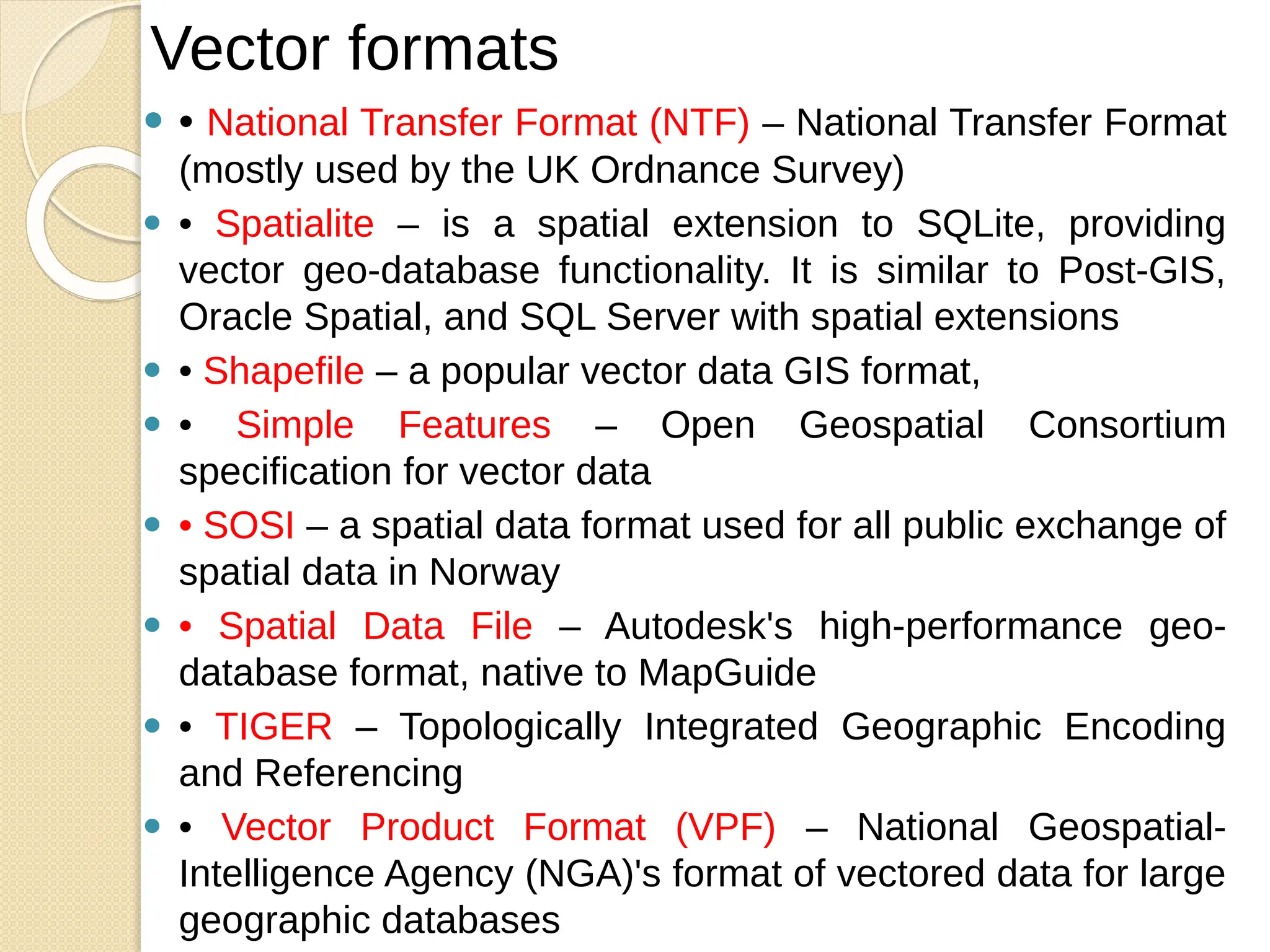
Vector formats
⚫ • National Transfer Format (NTF) – National Transfer Format
(mostly used by the UK Ordnance Survey)
⚫ • Spatialite – is a spatial extension to SQLite, providing
vector geo-database functionality. It is similar to Post-GIS,
Oracle Spatial, and SQL Server with spatial extensions
⚫ • Shapefile – a popular vector data GIS format,
⚫ • Simple Features – Open Geospatial Consortium
specification for vector data
⚫ • SOSI – a spatial data format used for all public exchange of
spatial data in Norway
⚫ • Spatial Data File – Autodesk's high-performance geo-
database format, native to MapGuide
⚫ • TIGER – Topologically Integrated Geographic Encoding
and Referencing
⚫ • Vector Product Format (VPF) – National Geospatial-
Intelligence Agency (NGA)'s format of vectored data for large
geographic databases
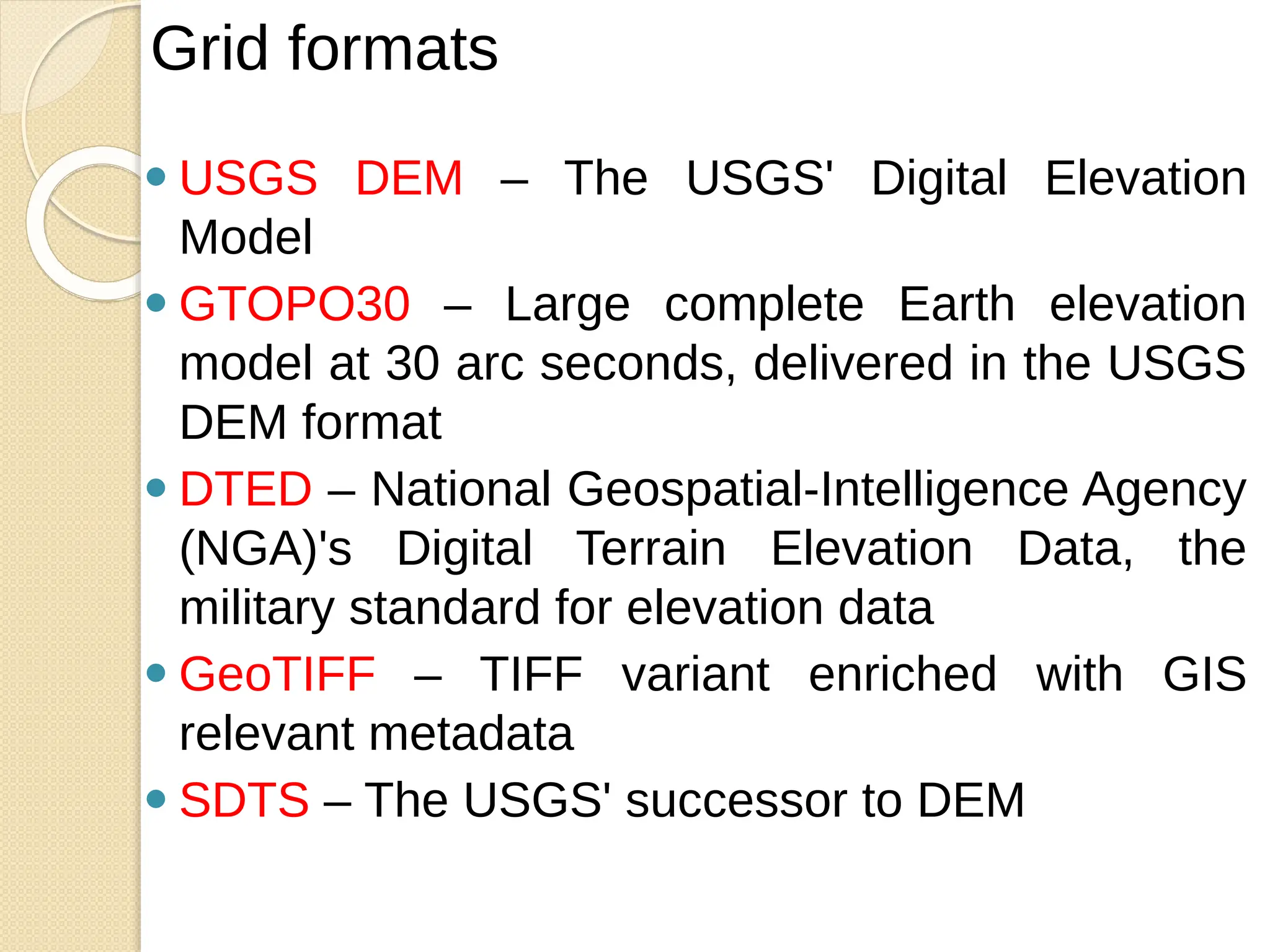
Vector formats
⚫ USGS DEM – The USGS' Digital Elevation
Model
⚫ GTOPO30 – Large complete Earth elevation
model at 30 arc seconds, delivered in the USGS
DEM format
⚫ DTED – National Geospatial-Intelligence Agency
(NGA)'s Digital Terrain Elevation Data, the
military standard for elevation data
⚫ GeoTIFF – TIFF variant enriched with GIS
relevant metadata
⚫ SDTS – The USGS' successor to DEM
Grid formats
ATTRIBUTE DATA
LINKING
⚫Before you can use your spatial data as
a basis for exploring your attribute data,
you must link the attribute data to the
spatial data.
⚫One way to use the attribute data after
you have linked it to the spatial data is
by creating a theme to control the
appearance of features in the spatial
data.
⚫ See Overview of SAS/GIS Software for more
information.
ATTRIBUTE DATA LINKING
⚫In the layer bar, right-click the COUNTY
layer name to open the pop-up menu for
the COUNTY layer.
⚫Select Edit to open the GIS Layer
window.
⚫In the definition for the COUNTY layer,
select Thematic.
⚫ The GIS Attribute Data Sets window appears
for you to define the link to the theme data set.
ATTRIBUTE DATA LINKING
⚫In the layer bar, right-click the COUNTY
layer name to open the pop-up menu for
the COUNTY layer.
⚫Select Edit to open the GIS Layer
window.
⚫In the definition for the COUNTY layer,
select Thematic.
⚫ The GIS Attribute Data Sets window appears
for you to define the link to the theme data set.
ATTRIBUTE DATA LINKING
⚫In the GIS Attribute Data Sets window,
select New to define a new link.
⚫In the resulting select a Member window,
select MAPS.USAAC.
⚫You must next specify the values that are
common to both the attribute and spatial
data, because the common values
provide the connection between the
spatial data and the attribute data.
ATTRIBUTE DATA LINKING
⚫The spatial database and the
MAPS.USAAC data set share
compatible state and county codes,
⚫so first select STATE in both the Data
Set Vars and Compositeslists, and then
⚫select COUNTY in both lists. Select
Save to save the link definition to the
Links list.
⚫Finally, select Continue to close the GIS
Attribute Data Setswindow. .
ATTRIBUTE DATA LINKING
⚫After the GIS Attribute Data Sets window
closes, the Var window automatically
opens for you.
⚫Select which variable in the attribute
data provides the theme data for your
theme.
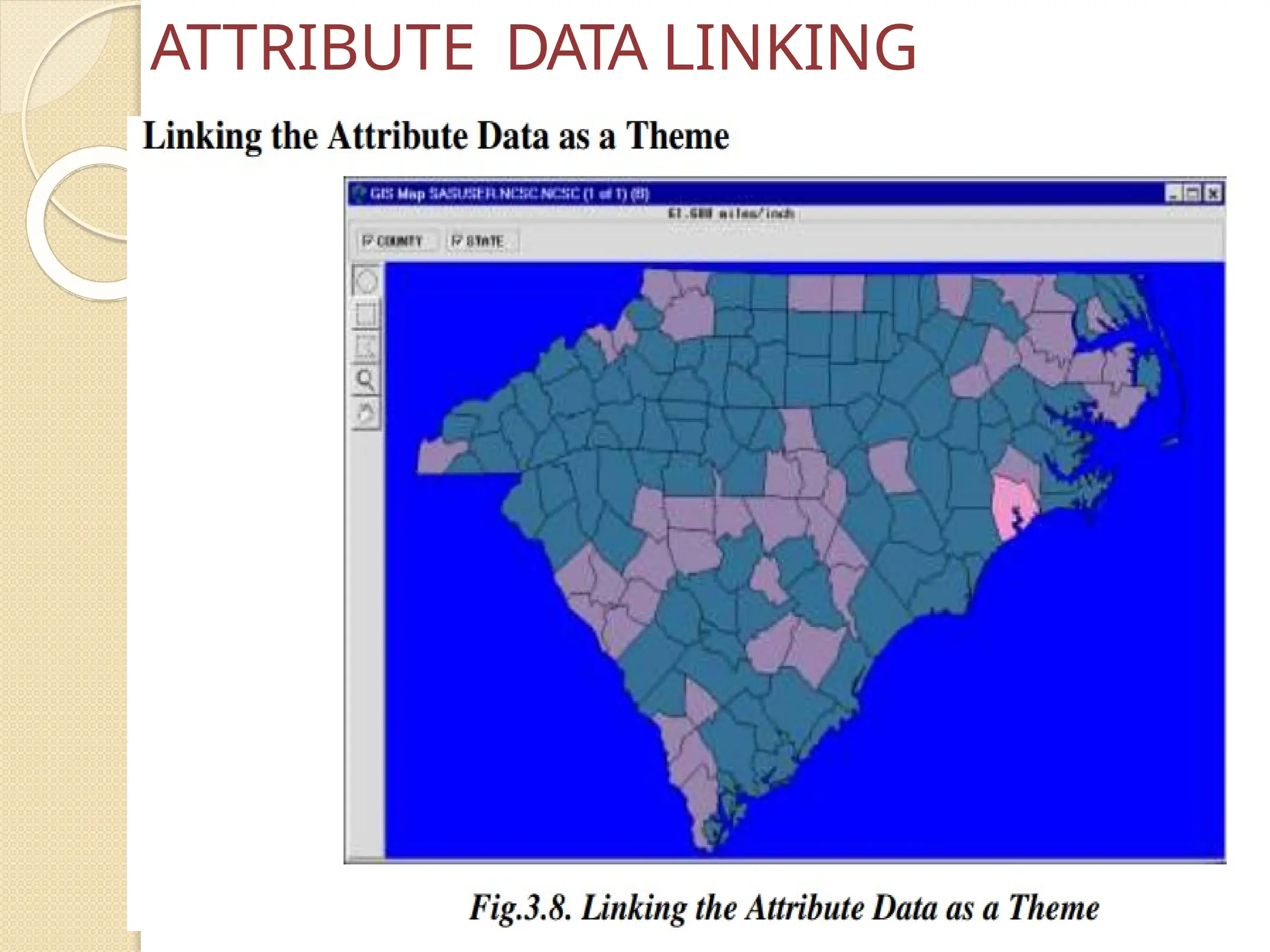
⚫Select the CHANGE variable to have the
counties colored according to the level of
change in the county population.
⚫Select OK to close the Var window.
ATTRIBUTE DATA LINKING
Attribute
Linking
⚫ Most database design guidelines promote
organizing user database into multiple tables
each focused on a specific topic instead of one
large table containing all the necessary fields.
⚫ Having multiple tables prevents
duplicating information in the database,
because user store the information only once
in one table. When user need information that
isn't in the current table, user can link the two
tables together.
⚫ For example, user might obtain data from
other departments in user organization,
purchase commercially available data, or
download data from the Internet. If this
information is stored in a table, such as a
dBASE, INFO, or geodatabase table, user can
associate it with user geographic features and
display the data on user map.
⚫ ArcGIS allows user to associate records in one
Joining the attributes
from a table
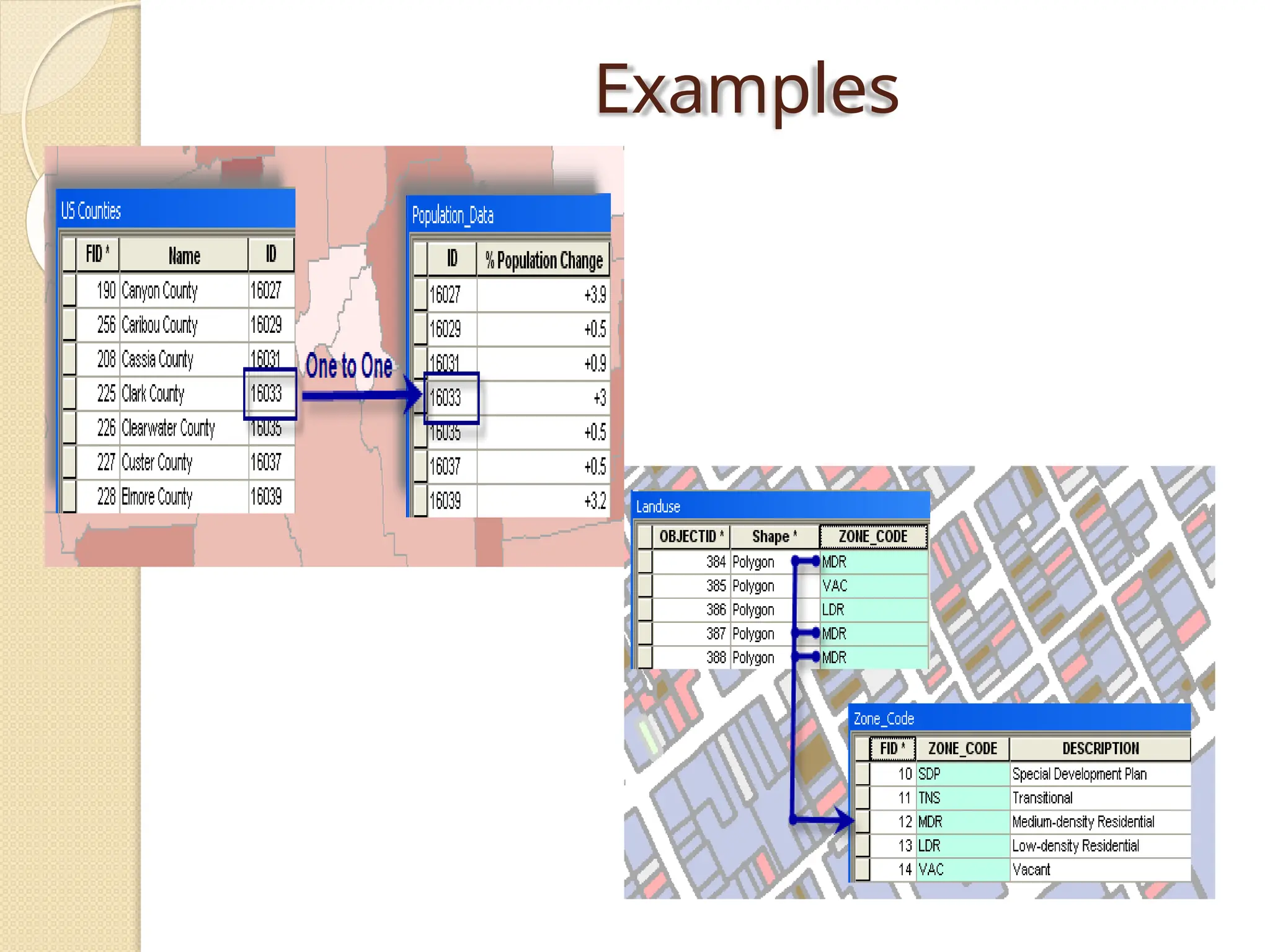
⚫ Typically, user'll join a table of data to a layer
based on the value of a field that can be
found in both tables. The name of the field
does not have to be the same, but the data
type has to be the same; user join numbers
to numbers, strings to strings, and so on.
User can perform a join with either the Join
Data dialog box, accessed by right-clicking a
layer in ArcMap, or the Add Join tool.
⚫ Suppose user have obtained data that
describes the percentage change in
population by country and user want to
generate some population growth maps
based on this information. As long as the
population data is stored in a table in user
database and shares a common field with
user layer, user can join it to user
Attribute Linking
⚫Joins
⚫Relations
◦ One to one
◦ One to many
◦ Many to
many
Examples
ODBC
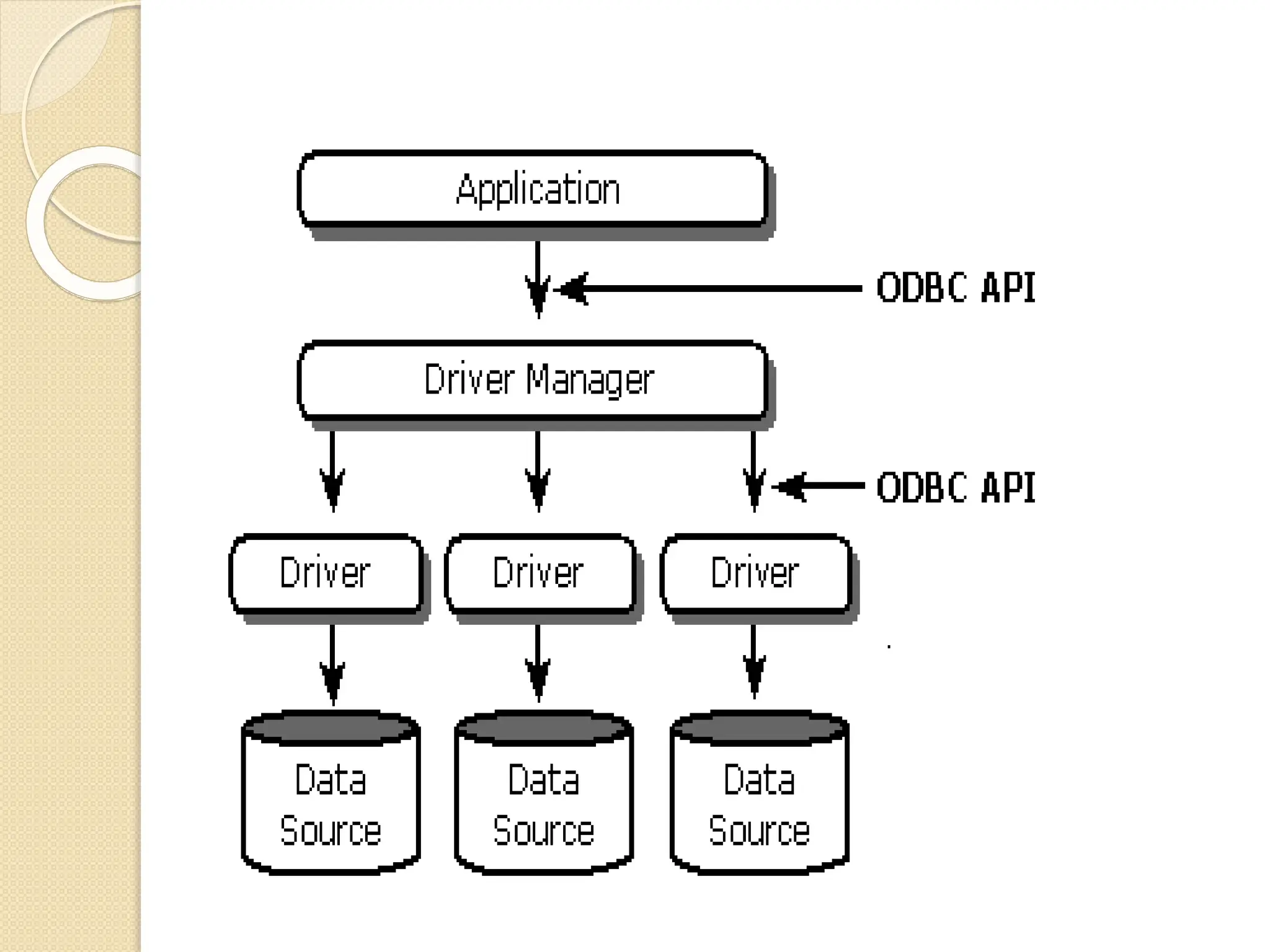
⚫ Open Database Connectivity (ODBC) is an
open standard application programming
interface (API) that allows application
programmers to access any database. ODBC
consists of four components, working
together to enable functions.
ODBC
Components of ODBC
The four different components of ODBC
are:
•Application: Processes and calls
the functions and submits the SQL
statements;
• Driver manager: Loads drivers for each
application;
•Driver: Handles ODBC function calls, and
then submits each SQL request to a data source;
•Data source: The data being accessed and
its database management system (DBMS) OS.
Connect to the database
⚫ The
following
steps describe using the Database
Connection dialog box.
1. Expand Database Connections in the Catalog
tree in ArcGIS or ArcCatalog and double-click
Add Database Connection.
2. Choose SQL Server from the
Database Platform drop-down list.
3. Type the SQL Server instance name
in
the Instance text box.
For example, if user are using a default
SQL Server instance, user can specify the instance name
or the IP address of the server in the Instance text
box. If specifying an IPV6 address, enclose the
address in brackets. For example, if the IPV6 address
of the server is 2000:ab1:0:2:f333:c432:55f6:d7ee,
type [2000:ab1:0:2:f333:c432:55f6:d7ee]
in the Instance text box.
4. Choose the type of authentication to use
when
connecting
to
authentication
the database:
or Operating
Database
system
authentication.
If user choose Operating system
authentication, user do not need to type a
user name and password—the connection is
made using the login name and password used
to log in to the operating system.
If user choose Database authentication,
user must provide a valid database user
name and password in the User name and
Password text boxes, respectively. User
names can be a maximum of 30 characters.
5. Note:
Save user name and password must be
checked for connection files that provide
ArcGIS services with access to the
database
Outside of ArcGIS, user can create user
names in SQL Server that contain
special characters
6.In the Database text box, type or
choose the name of the specific database
user want to connect to on the SQL
Server.
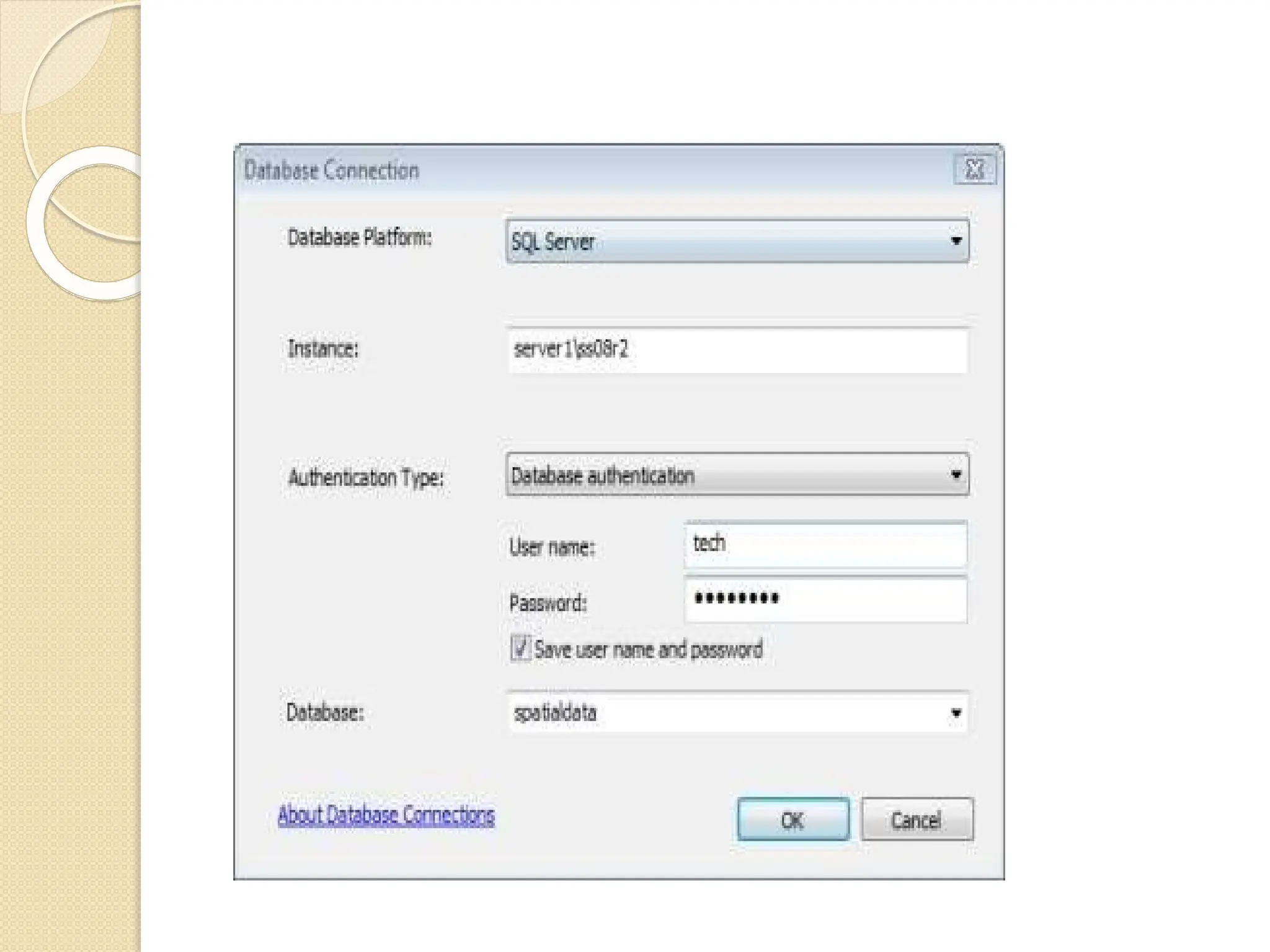
In the following example, a
connection is made to the database,
7. Click OK to connect.
A file is created
in <computer_name>Users<user_n
ame>AppDataRoamingESRIDeskto
p<release#>ArcGIS.
⚫The ArcGIS Maps Connect workflow
supports external content from Microsoft
SQL Server 2008 R2, 2012, 2012 R2,
and 2014, including the SQL Server
Express editions. The external content
must contain data that can be geo-
coded, such as an address, U.S. city,
U.S. state, ZIP code, or world city. The
external content must also contain a
primary key column.
LINKING EXTERNAL DATABASES
⚫Alternatively, the table can contain an
existing SQL server spatial data type
(geography or geometry) column that is then
converted by the Arc-GIS Maps Connect
workflow for use in ArcGIS Maps for
SharePoint
LINKING EXTERNAL DATABASES
⚫ If the external table has an existing spatial
column that contains no data, the ArcGIS
Maps Connect workflow populates the column
based on other location information in the
table (for example, address).
⚫ If no spatial column exists, the ArcGIS Maps
Connect workflow creates a geography spatial
type column named EsriShape with a Spatial
Reference Identifier (SRID) of 4326 (WGS 84).
⚫ The EsriShape field supports all geometries
including points, lines, and polygons. In all
scenarios, the external content can be
enriched with additional geographic data
variables from ArcGIS.
LINKING EXTERNAL DATABASES
⚫ If the ArcGIS Maps Connect workflow fails,
ensure the appropriate permissions for
Microsoft SQL Server have been set. You can
view the error messages in the SharePoint site
workflow history to view exact details on the
settings that need to be corrected.
Note
⚫ When the ArcGIS Maps Connect workflow
completes, the result is a regular SharePoint
list, not an external list. That said, the fields
created from the SQL Server database are of
an external type, and edits made to these
fields in SharePoint cannot be passed back to
the database. SharePoint can only pass back
the fields it has created, such as for the
ArcGIS Maps Locate workflow and
geoenrichment.
Note
⚫GPS stands for "Global Positioning
System."
⚫GPS is a satellite navigation system used
to determine the ground position of an
object.
⚫GPS technology was first used by the
United States military in the 1960s and
expanded into civilian use over the next few
decades.
⚫Today, GPS receivers are included in many
commercial products, such as automobiles,
Smartphone, exercise watches, and GIS
devices.
Global Positioning System
⚫The GPS system includes 24 satellites
deployed in space about 12,000 miles
(19,300 kilometers) above the earth's
surface.
⚫They orbit the earth once every 12 hours
at an extremely fast pace of roughly
7,000 miles per hour (11,200 kilometers
per hour).
⚫The satellites are evenly spread out so
that four satellites are accessible via
direct line-of-sight from anywhere on the
globe.
Global Positioning System
⚫Each GPS satellite broadcasts a
message that includes the satellite's
current position, orbit, and exact time.
⚫A GPS receiver combines the
broadcasts from multiple satellites to
calculate its exact position using a
process called triangulation.
⚫Three satellites are required in order to
determine a receiver's location, though a
connection to four satellites is ideal since
it provides greater accuracy.
Global Positioning System
⚫ In order for a GPS device to work correctly, it must
first establish a connection to the required number
of satellites. This process can take anywhere from
a few seconds to a few minutes, depending on the
strength of the receiver.
⚫ For example, a car's GPS unit will typically
establish a GPS connection faster than the
receiver in a watch or Smartphone.
⚫ Most GPS devices also use some type of location
caching to speed up GPS detection. By
memorizing its previous location, a GPS device
can quickly determine what satellites will be
available the next time it scans for a GPS signal.
Global Positioning System
⚫ GPS has many uses, for example;
⚫ • Clock synchronization: The GPS time signals use highly
accurate atomic clocks. This technology can be used for
things like automatic updates of daylight saving times on
cell phones
⚫ • Disaster relief and emergency services: Depend upon
GPS for location
⚫ • Tracking a vehicle, person, pet or aircraft: Receivers
provide continuous tracking and can provide an alert if the
receiver leaves a set area. Pets can be chipped so they
can be found if they become lost
⚫ • Geotagging: Applying location coordinates to digital
objects such as photographs and other documents for
purposes such as creating map overlays.
Uses of GPS
⚫ • Bus tour commentary: your location will determine what
information is displayed about approaching points of
interest
⚫ • Bus stops: to show how long the bus will take to arrive at
a bus stop. Navigation: eg Navman. The device uses voice
activation to describe a preferred route based on the
position of the receiver, the position of the destination and a
street map
⚫ • Personal Locator Beacons (PLB): used to inform search
and rescue authorities of your exact location in the event of
an emergency
⚫ • Recreation: For example, geo-caching and way-marking
⚫ • Surveying: Surveyors use absolute locations to make
maps and determine property boundaries
⚫ • Tectonics: enables fault motion measurement in
earthquakes
Uses of GPS
⚫ Maps have come a long way since people first began
drawings to show where they were. Modern maps are
created using special software that combines lots of
different sorts of information. This system of modern
mapping is called GIS – Geographic Information
Systems. GIS is used by organizations, such as city
councils, that need access to data and need to be able
to combine different data sets together. GIS gives
people in these organisations graphical
representations of data that allows them to:
⚫ • Analyze situations
⚫ • Write reports
⚫ • Track changes
⚫ • Make decisions
⚫ • Plan for the future, for example which parts of the
high country have undergone tenure review
Uses of GPS
⚫ People: people who use GIS are professionals
who have been educated to use GIS and have
made a career out of working with GIS
⚫ Data: geospatial information (where things are
located) and the details of objects such as
services, roads, buildings etc. are collected
and entered into the
⚫ GIS software Software: GIS software analyses
data and presents it in different combinations
for the user
⚫ Hardware: includes hand held devices for
collecting data and computers with GIS
software
GIS requires four things:
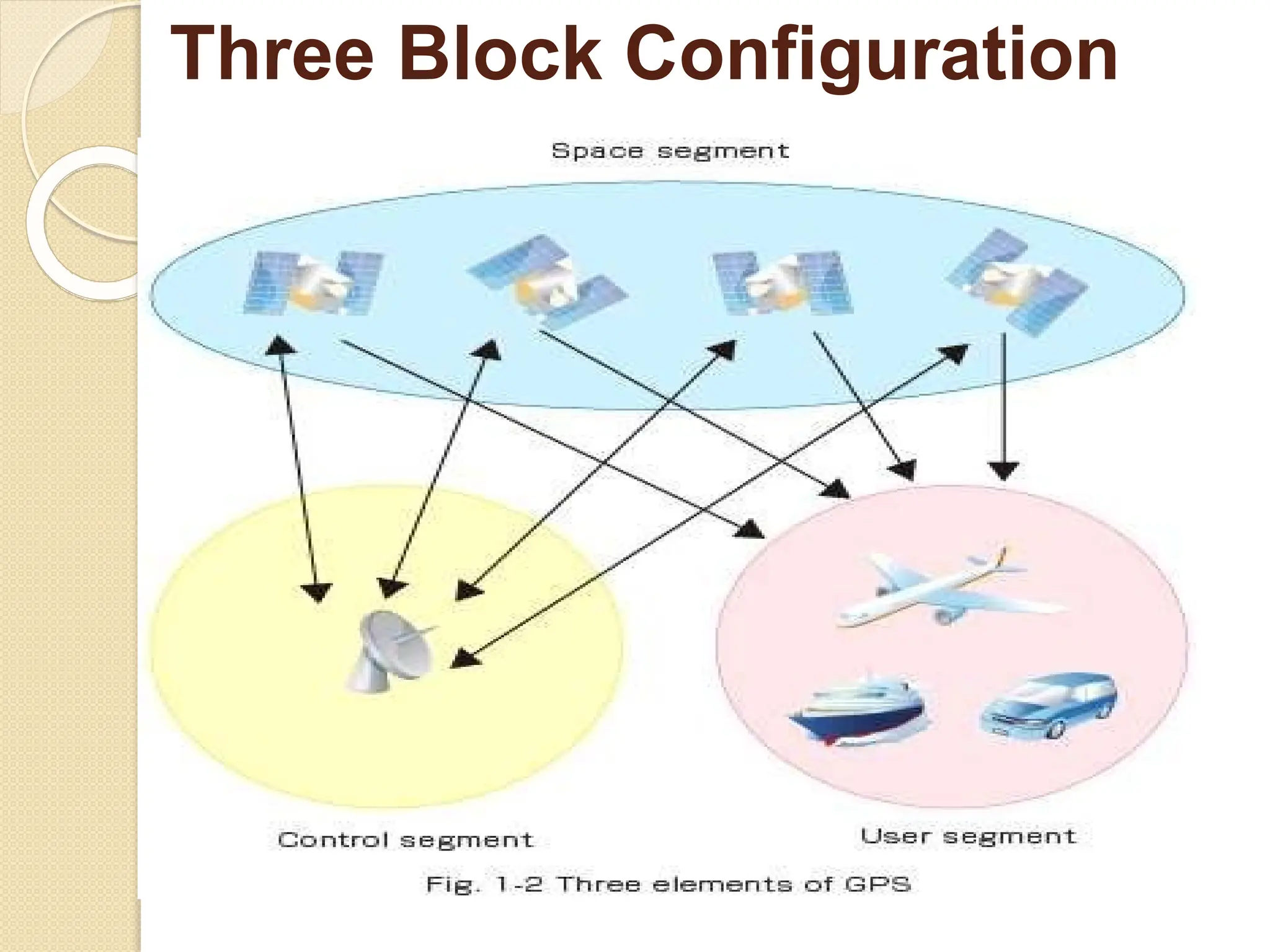
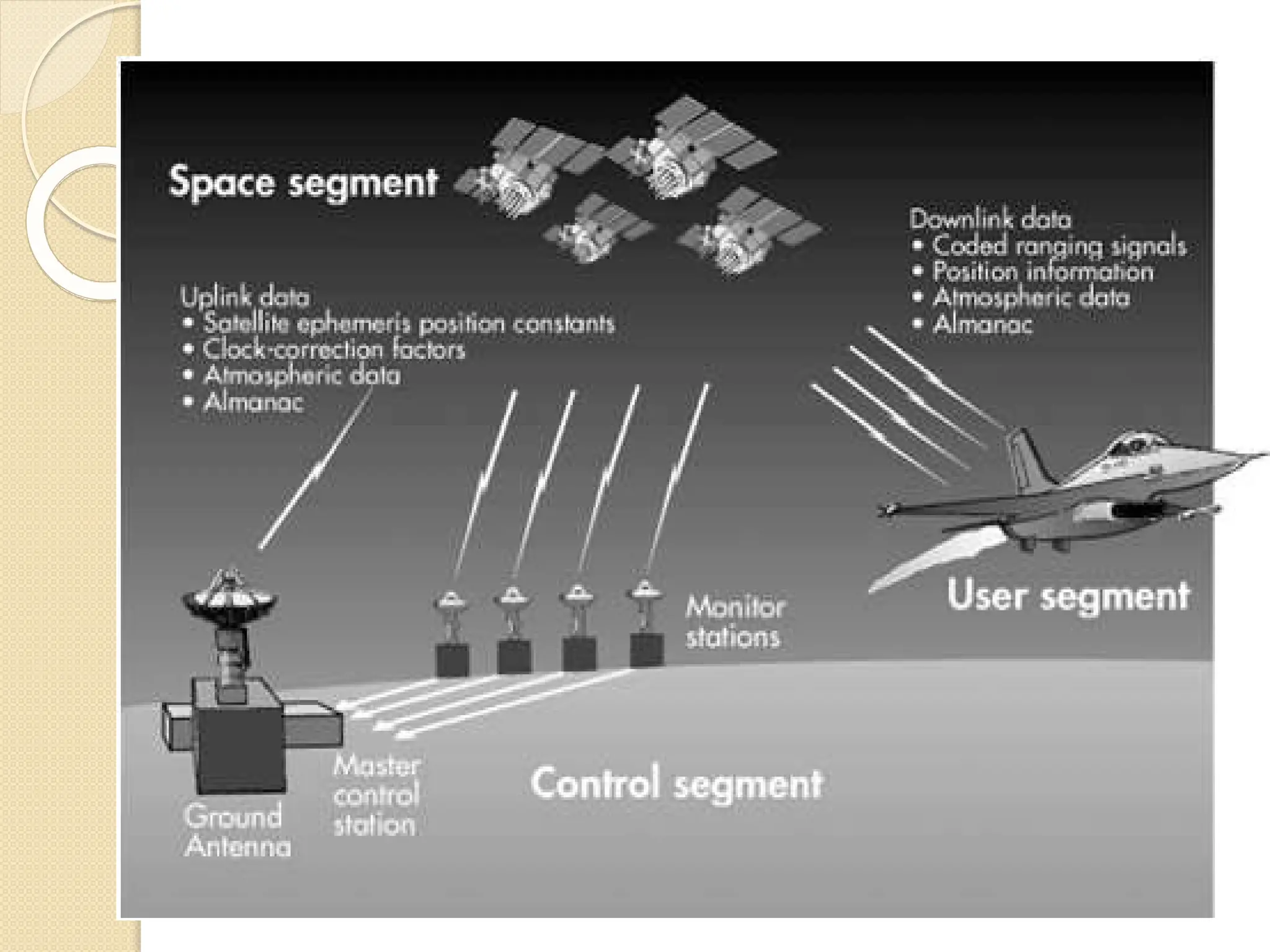
⚫GPS consists of the following three
segments.
⚫Space Segment
⚫Control Segment
⚫User Segment
Three-block configuration
Three Block Configuration
⚫Space Segment:
 The space segment is the number
of satellites in the
constellation. It comprises of 29
satellites circling the earth every
12 hours at 12,000 miles in
altitude.
 The function of the space segment
is utilized to route/navigation
signals and to store and
retransmit the route/navigation
message sent by the control
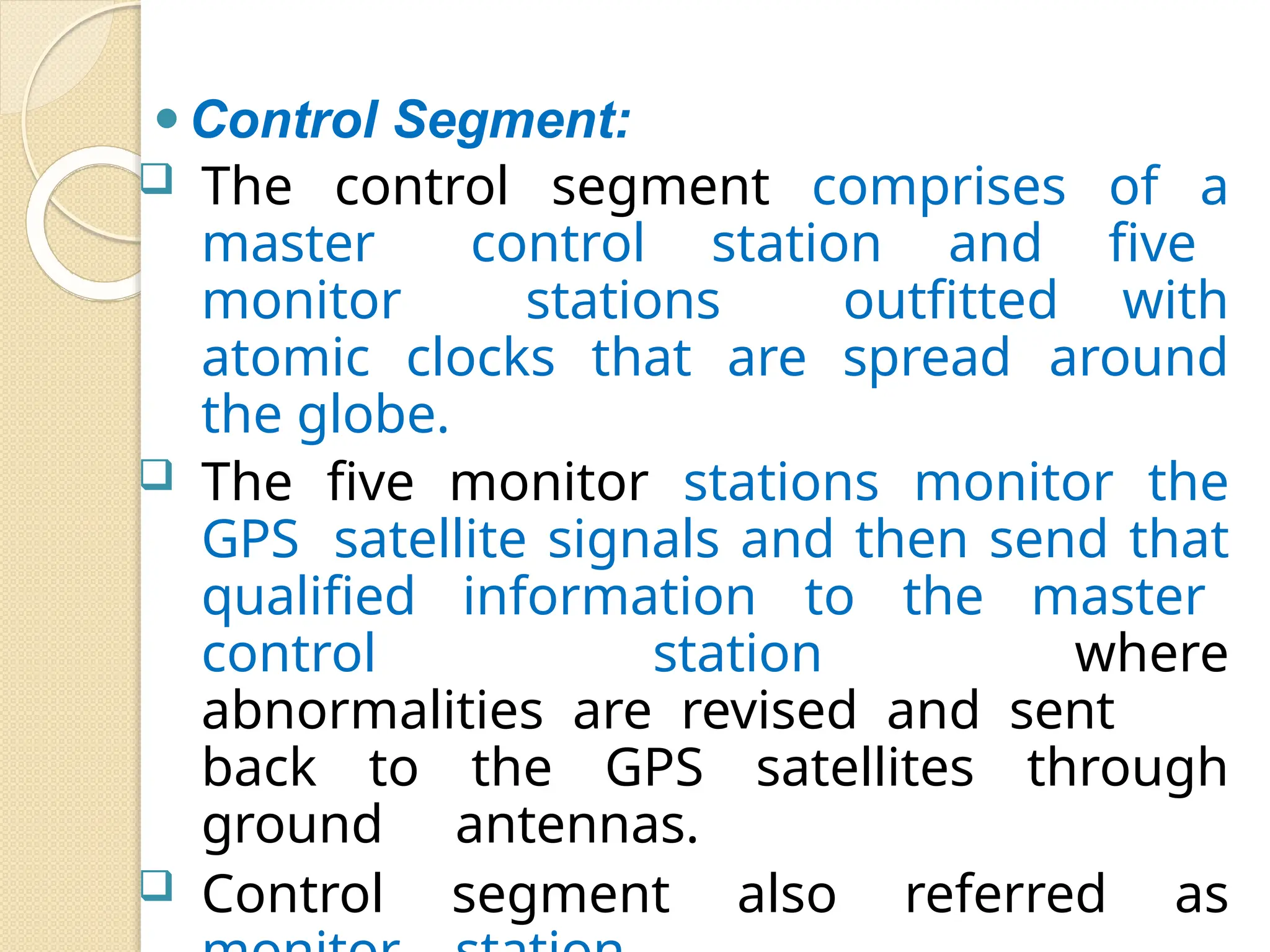
⚫Control Segment:
 The control segment comprises of a
master control station and five
monitor stations outfitted with
atomic clocks that are spread around
the globe.
 The five monitor stations monitor the
GPS satellite signals and then send that
qualified information to the master
control station where
abnormalities are revised and sent
back to the GPS satellites through
ground antennas.
 Control segment also referred as
⚫User Segment:
The user segment comprises of the
GPS receiver, which receives the
signals from the GPS satellites and
determine how far away it is from each
satellite.
Mainly this segment is used for the
U.S military, missile guidance systems,
civilian applications for GPS in almost
every field.
GPS POSITIONING
⚫ The working/operation of Global positioning system
is based on the ‘trilateration’ mathematical principle.
⚫ The position is determined from the distance
measurements to satellites.
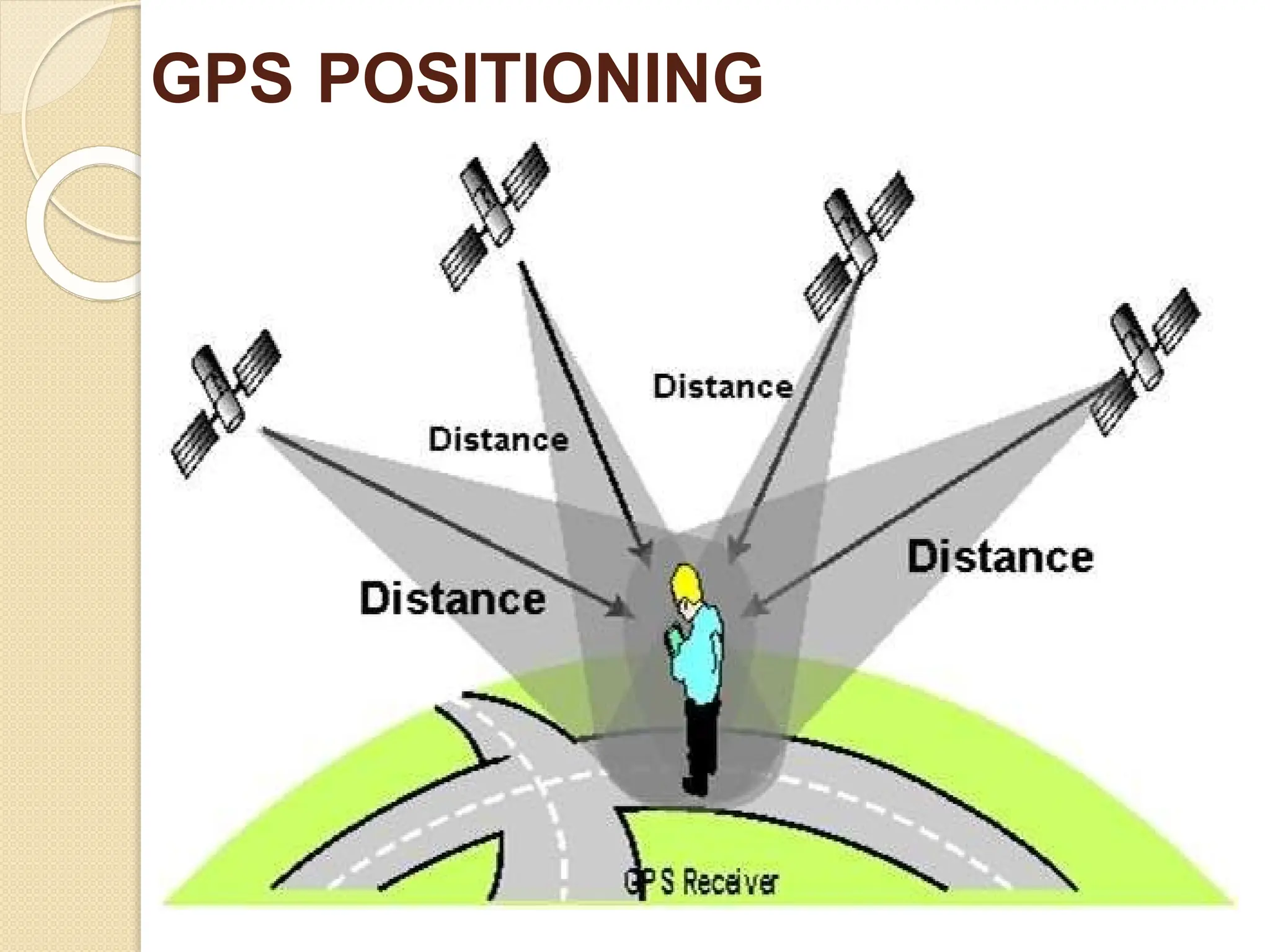
⚫ From the figure, the four satellites are used to
determine the position of the receiver on the earth.
The target location is confirmed by the 4th satellite.
And three satellites are used to trace the location
place. A fourth satellite is used to confirm the target
location of each of those space vehicles.
⚫ Global positioning system consists of satellite,
control station and monitor station and receiver.
⚫ The GPS receiver takes the information from the
satellite and uses the method of triangulation to
determine a user’s exact position.
GPS POSITIONING
GPS POSITIONING
⚫ GPS is used on some incidents in
several ways, such as:
⚫ To determine position locations; for example,
you need to radio a helicopter pilot the
coordinates of your position location so the
pilot can pick you up.
⚫ To navigate from one location to another;
for example, you need to travel from a
lookout to the fire perimeter.
⚫ To create digitized maps; for example, you are
assigned to plot the fire perimeter and hot
spots.
⚫ To determine distance between two
different points.
Advantages of GPS
⚫GPS satellite based navigation
system is an important tool for
military, civil and commercial
users
⚫Vehicle tracking systems GPS-
based navigation systems can
provide us with turn by turn
directions
⚫Very high speed
Disadvantages of GPS
⚫GPS satellite signals are too weak
when compared to phone signals, so
it doesn’t work as well indoors,
underwater, under trees, etc.
⚫The highest accuracy requires line-
of- sight from the receiver to the
satellite, this is why GPS doesn’t work
very well in an urban environment.
GPS Working
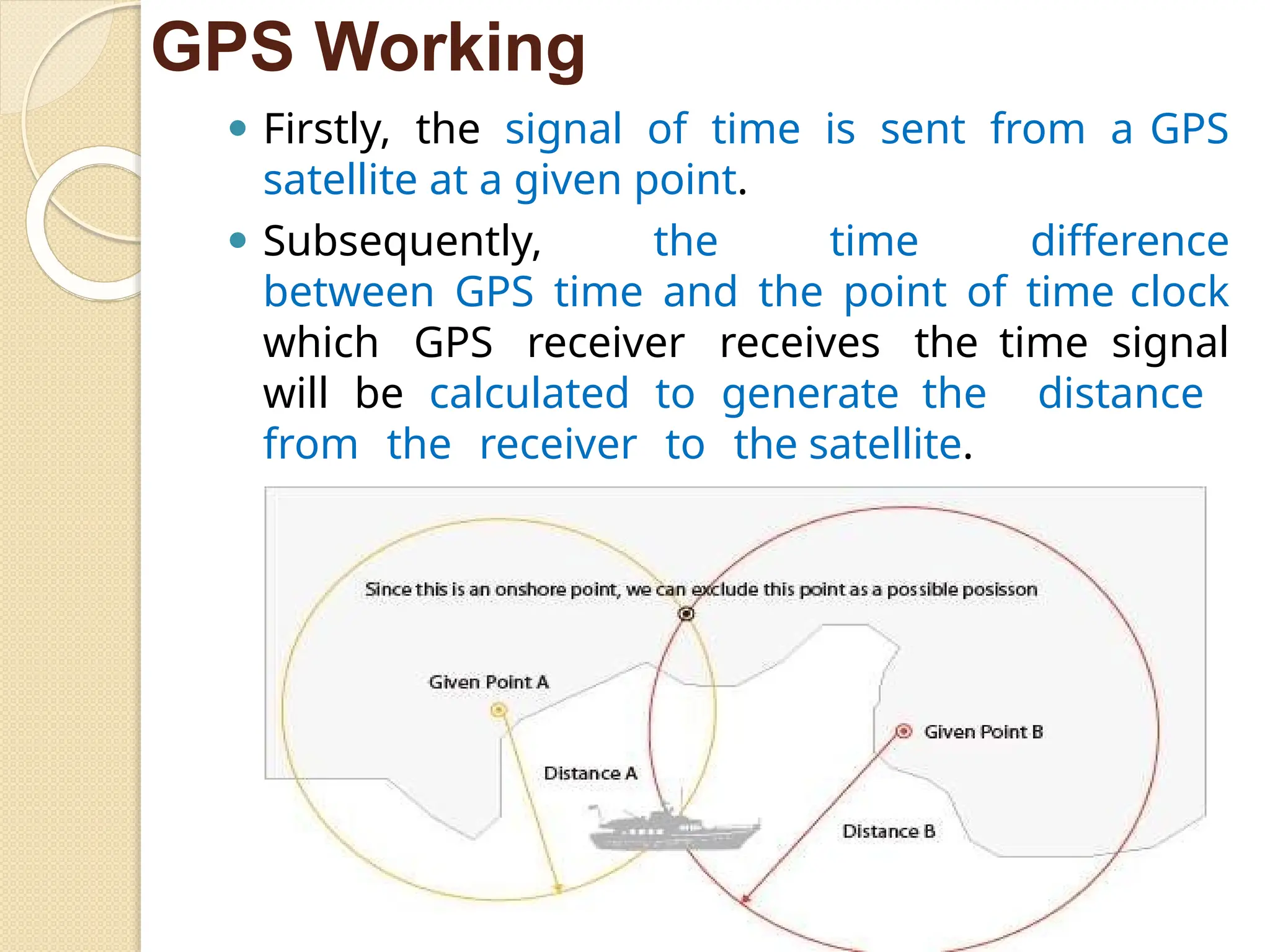
⚫ Firstly, the signal of time is sent from a GPS
satellite at a given point.
⚫ Subsequently, the time difference
between GPS time and the point of time clock
which GPS receiver receives the time signal
will be calculated to generate the distance
from the receiver to the satellite.
Navigation Messages
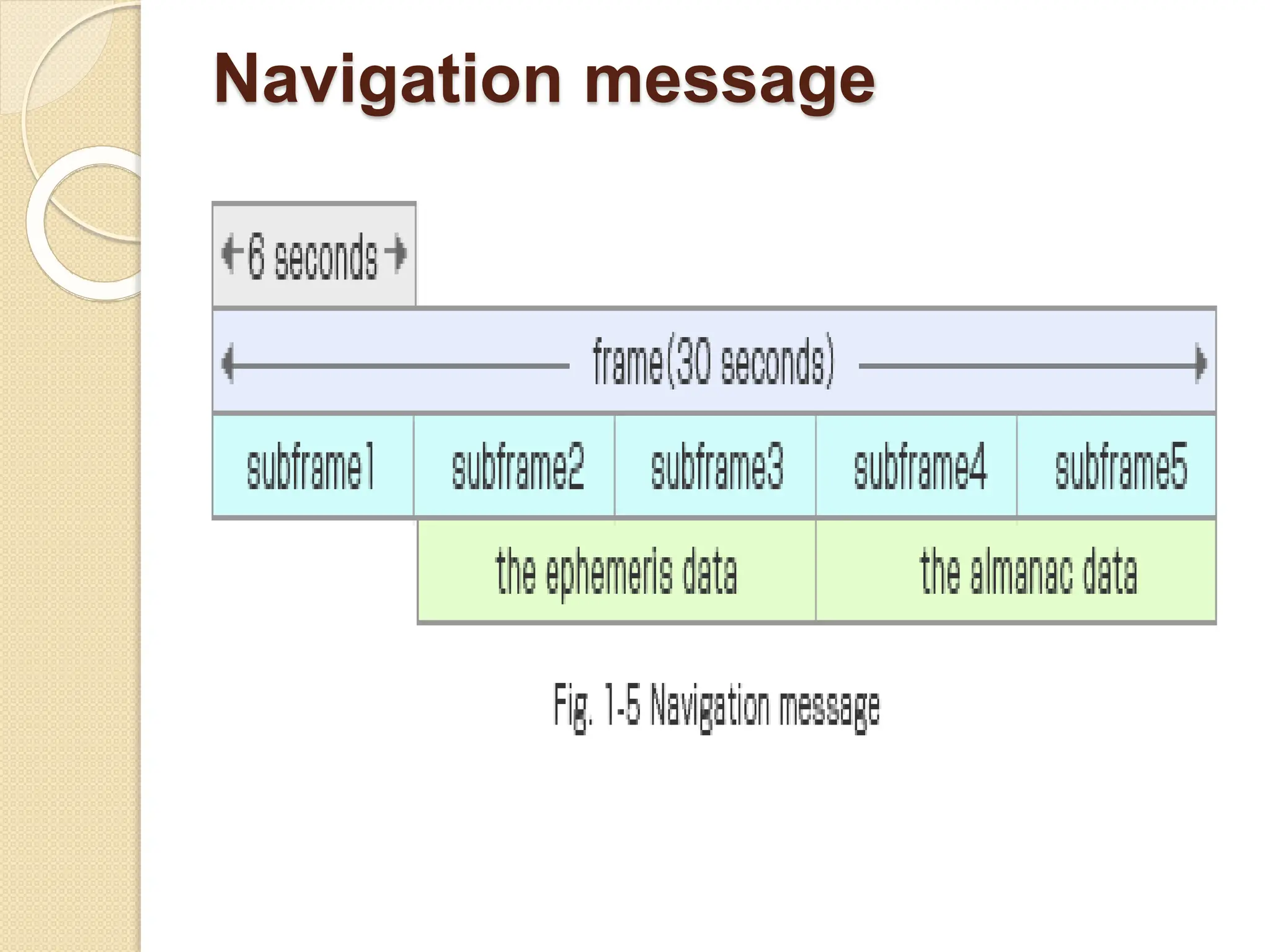
⚫ Navigation message consists of 25 frames, each of which
includes 5 sub-frames of 300 bits each.
⚫ The data length of 1 bit is 20 ms, and thus, the length of each
sub-frame is 6 seconds, and each frame is a grouping of
1,500 bits of information with the frame length of 30 seconds.
⚫ Since navigation message consists of 25 frames, this would
add up to the message length of 12.5 minutes (30 seconds x
25=12.5 minutes).
⚫ The GPS receiver requires 12.5 minutes to receive all the
necessary set of data, necessary condition for positioning,
when initial power activation takes place.
⚫ The GPS receiver is capable of storing this set of data gained
in the past internal backup battery, and it reads out the set of
data when power reactivation takes place, hence
instantaneously starting to receive GPS position
Navigation message
POSITIONING ACCURACY
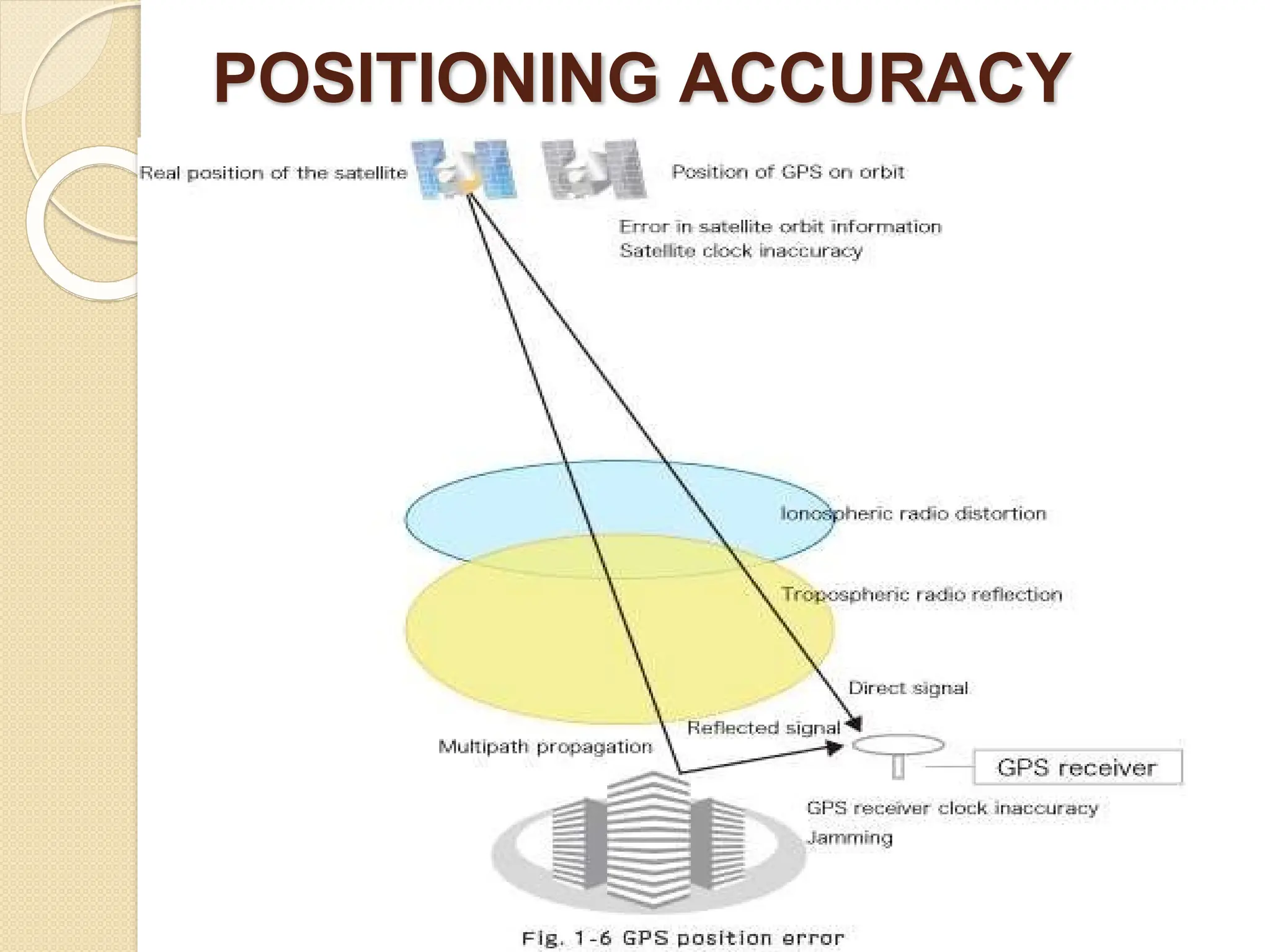
⚫ Factors that trigger GPS position errors
⚫ Ionosphere
The ionosphere is a portion of the upper
atmosphere, between the thermosphere and the
exosphere. When GPS signals pass through this layer, the
propagation velocity of the GPS signal goes slower, hence
causing propagation error.
⚫ Troposphere
The troposphere is the lowest portion of Earth's
atmosphere. Radio reflections caused by dry atmosphere
and water vapor within provoke GPS position error.
⚫ Multipath propagation
GPS signal is not immune to reflection when it hits
on the ground, structures and many others. This
phenomenon is called multipath propagation, one of the
causes of GPS position errors.
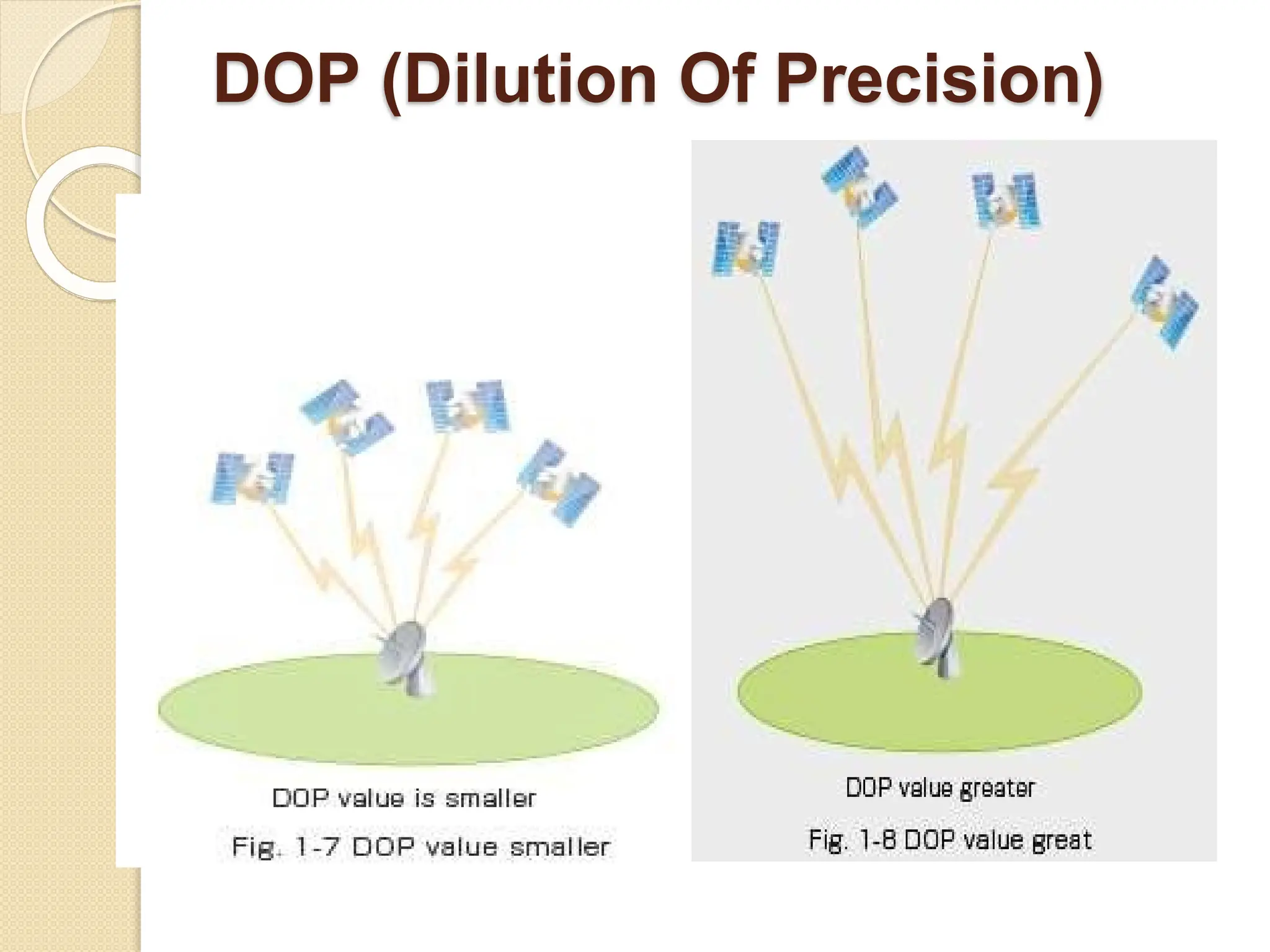
DOP (Dilution Of Precision)
⚫DOP is a value that shows the degree
of degradation of the GPS
positioning accuracy.
⚫The smaller the value is, the higher
the positioning accuracy is. This value
depends upon the positions of the
GPS satellites tracked for positioning. If
the satellites
spread
evenly over
the
the
positioning
accurac
y
woul
d
tracked
earth,
becom
e
higher, and if the positions
of
tracked satellites are disproportionate,
the positioning accuracy would become
lower.
DOP (Dilution Of Precision)
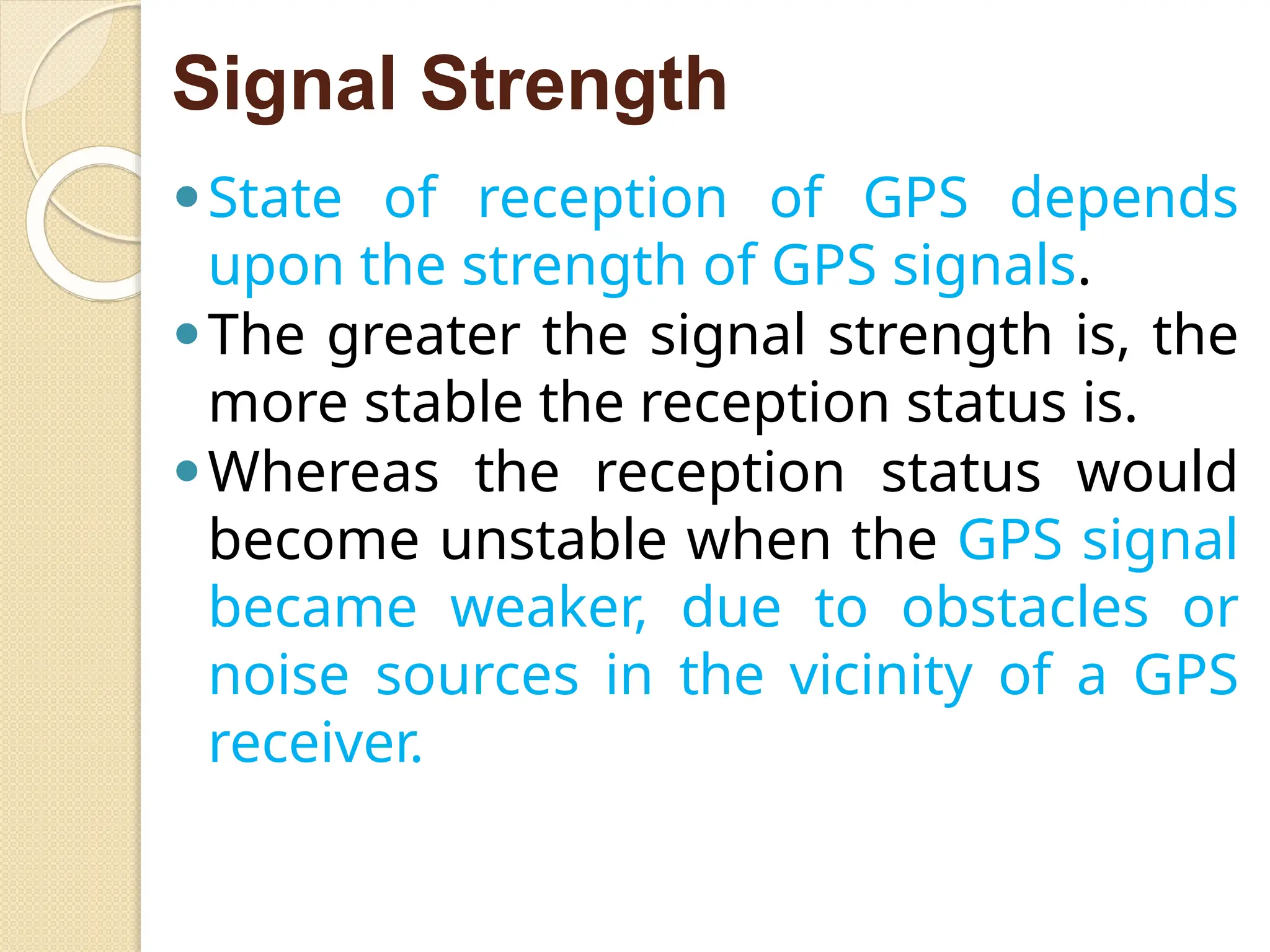
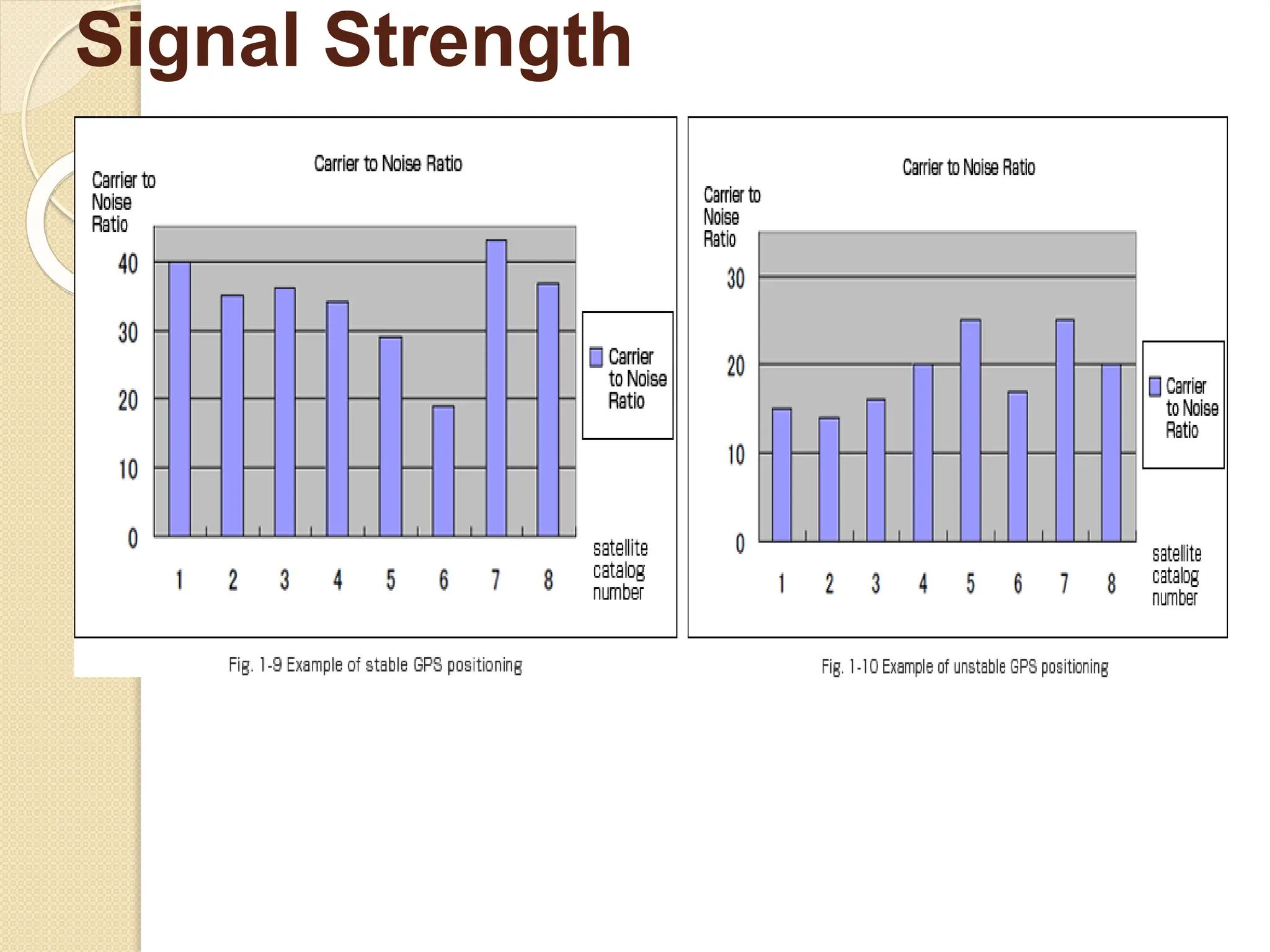
Signal Strength
⚫State of reception of GPS depends
upon the strength of GPS signals.
⚫The greater the signal strength is, the
more stable the reception status is.
⚫Whereas the reception status would
become unstable when the GPS signal
became weaker, due to obstacles or
noise sources in the vicinity of a GPS
receiver.
Signal Strength
Number of satellites tracked for
positioning
⚫If the number of the tracked satellites is
great, GPS positioning becomes greater,
but if there were a fewer satellites
tracked for positioning, it would be
difficult to generate GPS position.
⚫The Fig. 1-11 illustrates the occasion
where the GPS receiver tracks a greater
number of satellites for positioning.
⚫The Fig. 1-12 illustrates the occasion
where the GPS receiver tracks only a
few number of satellites for positioning. .
Number of satellites tracked for
positioning
GPS applications in Transportation
⚫ Due to the high accuracy, usability, ease and economy
of operations in all weather, offered by GPS, it has
found numerous applications in many fields ranging
from accuracy level of mm for the high precision
geodesy to several meters for navigational positioning.
Some of the applications in urban and transportation
field are:
⚫Establishment of ground control points for
imageries / map registration,
⚫Determination of a precise geo ID using GPS
data,
⚫Survey control for topographical and cadastral
surveys,
⚫ Air, road, rail, and marine navigation,
⚫ Intelligent traffic management system,
⚫ Vehicle tracking system etc. .

data input technique Digitization and GPS.pptx

  • 1.
    UNIT III- DATAINPUT AND TOPOLOGY
  • 2.
    Scanner - RasterData Input – Raster Data File Formats – Vector Data Input – Digitiser – Topology - Adjacency, connectivity and containment – Topological Consistency rules – Attribute Data linking – ODBC – GPS - Concept GPS based mapping.
  • 3.
  • 4.
    Scanners ⚫ Scanners areused to convert from analog maps or photographs to digital image data in raster format. ⚫ Digital image data are usually integer-based with one byte gray scale (256 gray tones from 0 to 255) for black and white image and a set of three gray scales of red (R), green (G) and blue(B) for color image. ⚫ The following four types of scanner are commonly used in GIS and remote sensing.
  • 5.
    Scanners ⚫ (a) MechanicalScanner ⚫ It is called drum scanner since a map or an image placed on a drum is digitized mechanically with rotation of the drum and shift of the sensor as shown in Figure 3.1 (a). It is accurate but slow. ⚫ (b) Video Camera ⚫ Video camera with CRT (cathode ray tube) is often used to digitize a small part of map of firm. This is not very accurate but cheap. (See Figure 3.1 (b).
  • 6.
    Scanners ⚫ (c) CCDCamera Area CCD camera (called digital still camera) instead of video camera will be also convenient to acquire digital image data (see Figure 3.1 (c). It is more stable and accurate than video camera. ⚫ (d) CCD Scanner Flat bed type or roll feed type scanner with linear CCD (charge coupled device) is now commonly used to digitize analog maps in raster format; either in mono- tone or color mode (see Figure 3.1 (d). It is accurate but expensive.
  • 7.
    Four types ofScanners
  • 8.
  • 9.
    ⚫ A scanneris used to convert analog source map or document into digital images by scanning successive lines across a map or document and recording the amount of light reflected from the data source. ⚫ • Documents such as building plans, CAD drawings, images and maps are scanned prior to vectorization. ⚫ • Scanning helps in reducing wear and tear; improves access and provides integrated storage. Scanned Data
  • 10.
    ⚫ • Thereare three different types of scanner that are widely used as shown in Figure Scanned Data
  • 11.
    Types of scanners ⚫Hand-held scanner ◦ Hand-held scanners although portable, can only scan images up to about four inches wide. ◦ They require a very steady hand for moving the scan head over the document. ◦ They are useful for scanning small logos or signatures and are virtually of no use for scanning maps and photographs.
  • 12.
    Types of scanners ⚫Flat-bed scanner ◦ The most commonly used scanner is a flatbed scanner also known as desktop scanner. ◦ It has a glass plate on which the picture or the document is placed. ◦ The scanner head placed beneath the glass plate moves across the picture and the result is a good quality scanned image. ◦ For scanning large maps or toposheets wide format flatbed scanners can be used.
  • 13.
    Types of scanners Drumscanner ⚫ The drum scanners are mostly used by the printing professionals. ⚫ In this type of scanner, the image or the document is placed on a glass cylinder that rotates at very high speeds around a centrally located sensor containing photo-multiplier tube instead of a CCD to scan. ⚫ Prior to the advances in the field of sheet fed scanners, the drum scanners were extensively used for scanning maps and
  • 14.
    Types of scanners Sheet-fedscanner ⚫ Sheet fed scanners work on a principle similar to that of a fax machine. ⚫ In this, the document to be scanned is moved past the scanning head and the digital form of the image is obtained. ⚫ Disadvantage: it can only scan loose sheets and the scanned image can easily become distorted if the document is not handled properly while scanning. However, the new generation of the wide format sheet fed scanners has overcome this problem and have become indispensable for scanning maps, imageries and other large sized
  • 15.
    Features of scanners 1. Thespeed of a scanner is dependent on the size of the document scanned. Larger the document, longer the time it takes to scan. Similarly, resolution also affects the scanning speed. Scanning in high resolution is slow and requires much greater time than scanning in low resolution. 2. Resolution is a very important property of a scanner as well as a scanned image. It is the degree of sharpness of a displayed character or image. For scanners, resolution is generally expressed in dots per linear inch. Thus, 300 dpi means 90,000 dots per square inch. Generally, increasing the scan resolution means increasing the size of the image. Large images, in turn, means
  • 16.
    Features of scanners 3. Ascanner interface is a software that lets the scanner hardware communicate with the that initiates a scan process. are generally available in two applicatio n Scanners interfaces : ◦ Small Computer System Interface (SCSI) scanners help in fast scans. The technically advanced scanners usually have this interface. ◦ Parallel Interface is used by some low- end scanners. These are slower than the SCSI interface scanners.
  • 17.
    Types of scanning Scanning capturesmap features, text, and symbols as individual cells, or pixels, and produce an automated image. Based on the document to be scanned there are different scanning procedures followed. 1. Black and White Raster Scanning: ◦ Image scanned in B&W Black and white or “binary” scanning is the simplest method of converting any document and can be performed on line drawings, reduced media, text or any one colour document. ⚫Applications ◦ Archival Drawing Libraries
  • 18.
    Types of scanning 2. GreyScale and Colour Raster Scanning: ◦ Image scanned in color Gray scale and (especially) colour images can be quite large. It must be made sure that the system is capable of handling files whose size is often measured in tens of megabytes. Because virtually every pixel is populated with a value, an attempt to compress the file results in little or no reduction in file size. ⚫Applications ◦ Aerial photography ◦ Toposheets ◦ Navigation charts (air and nautical) ◦ Full colour maps ◦ Brochures and artwork ◦ Cartographic base data for “high-end”
  • 19.
    Types of scanning ⚫Rather thanusing black and white printing plate separates, separate images of map features are created which can be distinguished by colour. For example, elevation contours can be extracted from a colour image of a toposheet. This process is much faster, and thus more cost effective, than attempting to capture data directly from the colour image. ⚫Applications ◦ Contour maps ◦ Road maps ◦ Hydrological maps ◦ Environmental maps ◦ Oil and gas mapping
  • 20.
    Processing of Scanned Documen t ⚫Scanning resultsin conversion of the image into an array of pixels thereby producing an image in raster format. A raster file is an image created by a series of dots (called “pixels”) that are arranged in rows and columns. A scanner captures the image by assigning a row, a column, and a colour value (black or white, a grey scale, or a colour) to each dot.
  • 21.
    Raster Data Input/ Raster Data File formats
  • 22.
    ⚫ Need tohave tools to transform spatial data of various types into digital format ⚫ data input is a major bottleneck in application of GIS technology ⚫ costs of input often consume 80% or more of project costs ⚫ ◦ data input is labor intensive, tedious, error-prone ⚫ ◦ there is a danger that construction of the database may become an end in itself and the project may not move on to analysis of the data collected ⚫ ◦ essential to find ways to reduce costs, maximize accuracy ⚫ Need to automate the input process as much as possible, but: ◦ ⚫ automated input often creates bigger editing problems later ◦ ⚫ source documents (maps) may often have to be redrafted to meet rigid quality requirements of automated input ⚫ • because of the costs involved, much research has gone into devising better input methods - however, few reductions in cost have been realized Introduction
  • 23.
    ⚫ sharing ofdigital data is one way around the input bottleneck ⚫ more and more spatial data is becoming available in digital form • ⚫ data input to a GIS involves encoding both the locational and attribute data ⚫ the locational data is encoded as coordinates on a particular Cartesian coordinate system ⚫ source maps may have different projections, scales ⚫ several stages of data transformation may be needed to bring all data to a common coordinate system • attribute data is often obtained and stored in tables Introduction
  • 24.
    ⚫ Keyboard entryfor non-spatial attributes and occasionally locational data ⚫ Manual locating devices - user directly manipulates a device whose location is recognized by the computer ◦ e.g. digitizing ⚫ Automated devices- Automatically extract spatial data from maps and photography ◦ e.g. scanning ⚫ Conversion directly from other digital sources ⚫ Voice input - has been tried, particularly for controlling digitizer operations ◦ Not very successful - machine needs to be recalibrated for each operator, after coffee breaks, etc Modes of Data Input
  • 25.
    ⚫ Since theinput of attribute data is usually quite simple, the discussion of data input techniques will be limited to spatial data only. ⚫ There is no single method of entering the spatial data into a GIS. Rather, there are several, mutually compatible methods that can be used singly or in combination. ⚫ The choice of data input method is governed largely by the application, the available budget, and the type and the complexity of data being input. Data Input Techniques
  • 26.
    ⚫ There areat least four basic procedures for inputting spatial data into a GIS. These are: ⚫Manual digitizing; ⚫Automatic scanning; ⚫Entry of coordinates using coordinate geometry; and the ⚫Conversion of existing digital data. Data Input Techniques
  • 27.
    ⚫ While considerablework has been done with newer technologies, the overwhelming majority of GIS spatial data entry is done by manual digitizing. ⚫ A digitizer is an electronic device consisting of a table upon which the map or drawing is placed. ⚫ The user traces the spatial features with a hand- held magnetic pen, often called a mouse or cursor. ⚫ While tracing the features the coordinates of selected points, e.g. vertices, are sent to the computer and stored. ⚫ All points that are recorded are registered against positional control points, usually the map corners that are keyed in by the user at the beginning of the digitizing session. Manual Digitizing
  • 28.
    ⚫ Digitizing canbe done in a point mode, where single points are recorded one at a time, or ⚫ in a stream mode, where a point is collected on regular intervals of time or distance, measured by an X and Y movement, e.g. every 3 metres. ⚫ Digitizing can also be done blindly or with a graphics terminal. ⚫ Blind digitizing infers that the graphic result is not immediately viewable to the person digitizing. ⚫ Most systems display the digitized linework as it is being digitized on an accompanying graphics terminal Manual Digitizing
  • 29.
    ⚫ Most GIS'suse a spaghetti mode of digitizing. This allows the user to simply digitize lines by indicating a start point and an end point. ⚫ Data can be captured in point or stream mode. However, some systems do allow the user to capture the data in an arc/node topological data structure. ⚫ The arc/node data structure requires that the digitizer identify nodes. Manual Digitizing
  • 30.
    ⚫ Manual digitizinghas many advantages. These include: ⚫ • Low capital cost, e.g. digitizing tables are cheap; • Low cost of labour; ⚫ • Flexibility and adaptability to different data types and sources; ⚫ • Easily taught in a short amount of time - an easily mastered skill ⚫ • Generally the quality of data is high; ⚫ • Digitizing devices are very reliable and most often offer a greater precision that the data warrants; and ⚫ • Ability to easily register and update existing data. Manual Digitizing
  • 31.
    ⚫ A varietyof scanning devices exist for the automatic capture of spatial data. ⚫ While several different technical approaches exist in scanning technology, all have the advantage of being able to capture spatial features from a map at a rapid rate of speed. ⚫ However, as of yet, scanning has not proven to be a viable alternative for most GIS implementation. ⚫ Scanners are generally expensive to acquire and operate. ⚫ As well, most scanning devices have limitations with respect to the capture of selected features, e.g. text and symbol recognition. ⚫ Experience has shown that most scanned data requires a substantial amount of manual editing to create a clean data layer. ⚫ Given these basic constraints some other practical limitations of scanners should be identified. These include: Automatic Scanning
  • 32.
    ⚫ Hard copymaps are often unable to be removed to where a scanning device is available, e.g. most companies or agencies cannot afford their own scanning device and therefore must send their maps to a private firm for scanning; ⚫ • Hard copy data may not be in a form that is viable for effective scanning, e.g. maps are of poor quality, or are in poor condition; ⚫ • Geographic features may be too few on a single map to make it practical, costjustifiable, to scan; ⚫ • Often on busy maps a scanner may be unable to distinguish the features to be captured from the surrounding graphic information, e.g. dense contours with labels; ⚫ • With raster scanning there it is difficult to read unique labels (text) for a geographic feature effectively; and ⚫ • Scanning is much more expensive than manual digitizing, considering all the cost/performance issues. Automatic Scanning
  • 33.
    ⚫ A thirdtechnique for the input of spatial data involves the calculation and entry of coordinates using coordinate geometry (COGO) procedures. ⚫ This involves entering, from survey data, the explicit measurement of features from some known monument. ⚫ This input technique is obviously very costly and labour intensive. In fact, it is rarely used for natural resource applications in GIS. ⚫ This method is useful for creating very precise cartographic definitions of property, and accordingly is more appropriate for land records management at the cadastral or municipal scale Coordinate Geometry
  • 34.
    ⚫ A fourthtechnique that is becoming increasingly popular for data input is the conversion of existing digital data. ⚫ A variety of spatial data, including digital maps, are openly available from a wide range of government and private sources. ⚫ The most common digital data to be used in a GIS is data from CAD systems. A number of data conversion programs exist, mostly from GIS software vendors, to transform data from CAD formats to a raster or topological GIS data format. ⚫ Several ad hoc standards for data exchange have been established in the market place. ⚫ These are supplemented by a number of government distribution formats that have been developed. ⚫ Given the wide variety of data formats that exist, most GIS vendors have developed and provide data exchange/conversion software to go from their format to those considered common in the market place. Conversion of Existing Digital Data
  • 35.
    Some of thedata formats common to the GIS marketplace are listed below
  • 36.
    ⚫ Two commondata formats based on the raster data model are ⚫Grids ⚫Images Raster Data File Formats
  • 37.
    ⚫ Grids arean ESRI file format used to store both discrete features such as buildings, roads, and parcels, and continuous phenomena such as elevation, temperature, and precipitation. ⚫ Recall that the basic unit of the raster data model is the cell. Cells store information about what things are like at a particular location on the earth's surface. ⚫ Depending on the type of data being stored, cell values can be either integers (whole numbers) or floating points (numbers with decimals). ⚫ There are two types of grids: one store integers and the other stores floating points. Grids
  • 38.
    ⚫ A discretegrid contains cells whose values are integers, often code numbers for a particular category. Cells can have the same value in a discrete grid. For example, in a discrete grid of land use, each land use type is coded by a different integer, but many cells may have the same code. Discrete grids have an attribute table that stores the cell values and their associated attributes. ⚫ Continuous grid is used to represent continuous phenomena; its cell values are floating points. Each cell in a continuous grid can have a different floating point value. For example, in a continuous grid representing elevation, one cell might store an elevation value of 564.3 meters, while the cell to the left might store an elevation value of 565.1 meters. Unlike discrete grids, continuous grids don't have an attribute table. Grids
  • 39.
    ⚫ Discrete gridsrepresent discrete features such as land use categories with integer values. Continuous grids represent continuous phenomena such as elevation with floating point values. ⚫ The attribute tables of discrete grids are INFO format, the same format in which coverage feature class attribute tables are stored. ⚫ As with coverage attribute tables, the INFO table of a discrete grid is stored within an info folder, which is stored at the same level as the grid in a workspace folder. Again like coverages, there is one info folder for all the grids in a workspace folder. To avoid breaking or corrupting the connection between grid files and the info folder, always use ArcCatalog to move, copy, rename, and delete grids. Grids
  • 40.
  • 41.
    ⚫ The term"image" is a collective term for raster’s whose cells, or pixels, store brightness values of reflected visible light or other types of electromagnetic radiation, such as emitted heat (infrared) or ultraviolet (UV). Aerial photos, satellite images, and scanned paper maps are examples of images commonly used in a GIS. ⚫ Images can be displayed as layers in a map or they can be used as attributes for vector features. For example, a real estate company might include photos of available houses as an attribute of a home’s layer. To be displayed as a layer, however, images must be referenced to real-world locations Images
  • 42.
    ⚫ For example,an aerial photo as it comes from the camera is just a static picture, like a picture of a house. There's no information about what part of the world the photo has captured, and the photo may contain distortion and scale variations caused by the angle of the camera. To display properly with other map layers, the aerial photo must be assigned a coordinate system and some of its pixels must be linked to known geographic coordinates. ⚫ Raster images, such as aerial photographs and scanned maps, can be referenced to realworld locations, then displayed as a layer in a GIS map Images
  • 43.
  • 44.
    Raster Data FileFormats ⚫ Widely used JPEG, TIFF, and PNG formats ⚫ JPEG and TIFF – Used in digital cameras - 8 bit data 🞄 JPEG (Joint Photographic Experts Group) – Lossy compression 🞄 File extension is jfw 🞄 TIFF(Tagged Image File Format) – Either lossy or lossless 🞄 File extension is tiff 🞄 PNG (Portable Network Graphics )- Either lossy or lossless 🞄 Viewed better in web-based browsers such as Internet Explorer, Mozilla Firefox, Netscape, and Safari. 🞄 File extension is png
  • 45.
    ⚫MrSID (Multiresolution Seamless ImageDatabase) format is lossless compression format was developed by LizardTech, Inc., for use with large aerial photographs or satellite images. ⚫The MrSID format is frequently used for visualizing orthophotos.
  • 46.
  • 47.
    Vector Data Input ⚫ Themost common vector file format is the shapefile. ⚫ Shapefiles, developed by ESRI in the early 1990s for use with the dBASE III database management software package in ArcView 2, are simple, non topological files developed to store the geometric location and attribute information of geographic features. ⚫ Shapefiles are incapable of storing null values, as well as annotations or network features. ⚫ Field names within the attribute table are limited to ten characters, and each shapefile can represent only point, line, or polygon feature sets. ⚫ Supported data types are limited to floating point, integer, date, and text.
  • 48.
    File Extension Purpose SHP* Feature geometry SHX*Index format for the feature geometry DBF* Feature attribute information in dBASE IV format PRJ Projection information SBN and SBX Spatial index of the features FBN and FBX Read-only spatial index of the features AIN and AIH Attribute information for active fields in the table IXS Geocoding index for read-write shapefiles MXS Geocoding index for read-write shapefiles with ODB format ATX Attribute index used in ArcGIS 8 and later
  • 49.
    Digitizers ⚫ Digitizing inGIS is the process of converting geographic data either from a hardcopy or a scanned image into vector data by tracing the features. ⚫ During the digitizing process, features from the traced map or image are captured as coordinates in either point, line, or polygon format.
  • 50.
    Types of Digitizing ⚫Manual digitizing involves tracing geographic features from an external digitizing tablet ⚫ Heads up digitizing (also referred to as on- screen digitizing) is the method of tracing geographic features from another dataset (usually an aerial, satellite image, or scanned image of a map) directly on the computer screen ⚫ Automated digitizing involves using image processing software that contains pattern recognition technology to generated vectors. 3/9/202 27
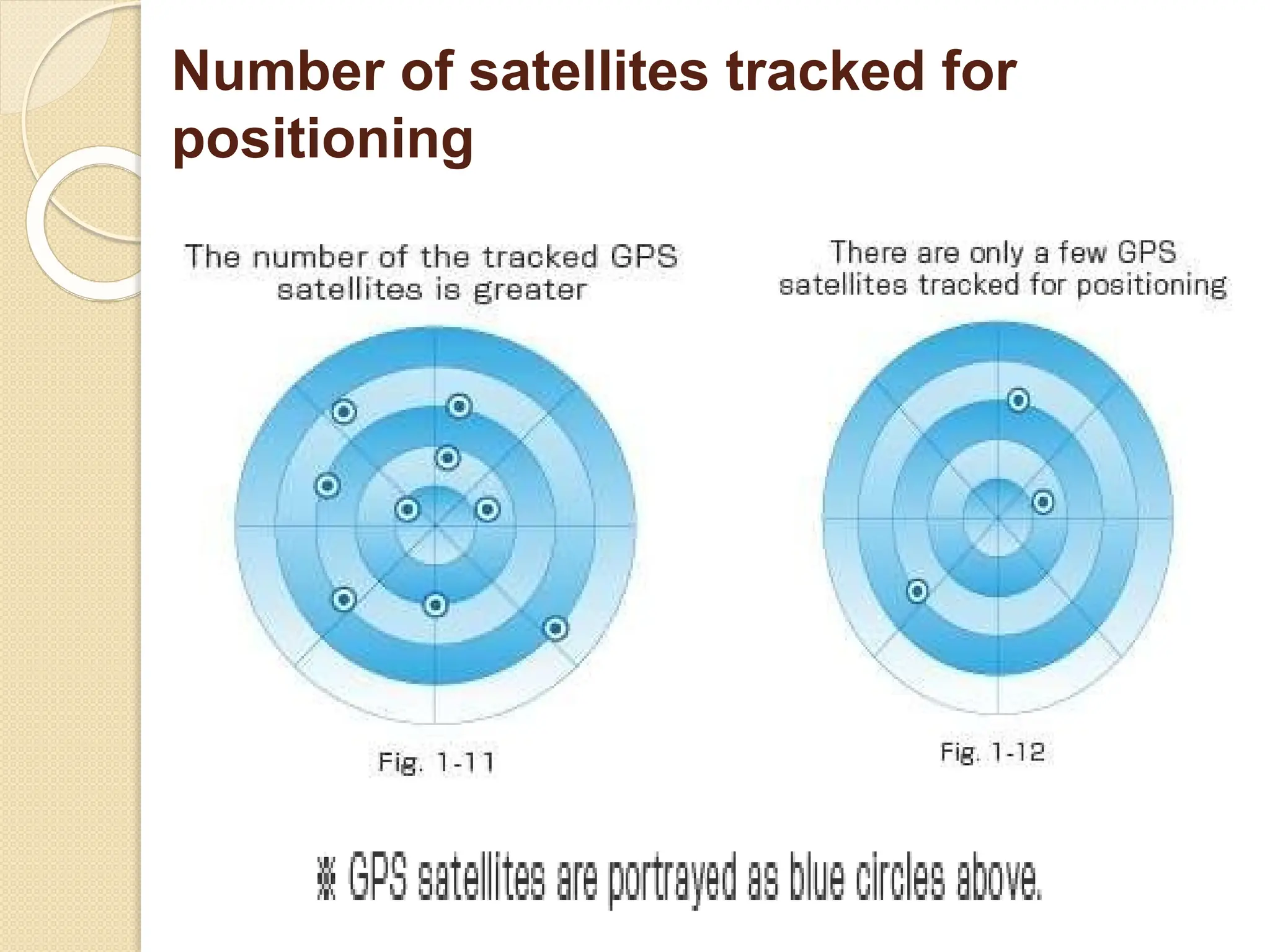
  • 51.
    ⚫ Digitizers areused to capture data from hardcopy maps shown in the (fig.3.3). ⚫ Heads down digitization is done on a digitizing table using a magnetic pen known as Puck. ⚫ The position of a cursor or puck is detected when passed over a table inlaid with a fine mesh of wires. ⚫ The function of a digitizer is to input correctly the coordinates of the points and the lines. Digitization can be done in two modes: Heads down digitization
  • 52.
  • 53.
    ⚫ This methoduses scanned copy of the map or image and digitization is done on the screen of the computer monitor (fig.3.4). ⚫ The scanned map lays vertical which can be viewed without bending the head down and therefore is called as heads up digitization. ⚫ Semi-automatic and automatic methods of digitizing requires post processing but saves lot of time and resources compared to manual method. Heads up digitization
  • 54.
  • 55.
    ⚫ Tablet digitizerswith a free cursor connected with a personal computer are the most common device for digitizing spatial features with the plan metric coordinates from analog maps. ⚫ The analog map is placed on the surface of the digitizing tablet as shown in Figure 3.5. The size of digitizer usually ranges from A3 to A0 size. Digitizers for Vector Data Input
  • 56.
  • 57.
    The digitizing operationis as follows ⚫ Step 1: a map is affixed to a digitizing table. ⚫ Step 2: control points or tics at four corners of this map sheet should be digitized by the digitizer and input to PC together with the map coordinates of the four corners. ⚫ Step 3: map contents are digitized according to the map layers and map code system in either point mode or stream mode at short time interval. ⚫ Step 4: editing errors such as small gaps at line junctions, overshoots, duplicates etc. should be made for a clean dataset without errors. ⚫ Step 5: conversion from digitizer coordinates to map coordinates to store in a spatial database. Digitizers for Vector Data Input
  • 58.
    Procedure for digitizinga paper map using a manual digitizer ⚫Registration ⚫Digitizing point features ⚫Digitizing line features ⚫Digitizing area (polygon) features ⚫Adding attribute information 3/9/202 28
  • 59.
    Registration ⚫ The mapto be digitized is fixed tightly to the table top with sticky tape. Five or more control points are identified (usually the four corners of the map sheet and one or more grid intersections in the middle). ⚫ The geographic co-ordinates of the control points are noted and their locations digitized by positioning the cross-hairs on the cursor exactly over them and pressing the ‘digitize’ button on the cursor. ⚫ This sends the co-ordinates of a point on the table to the computer and stores them in a file as ‘digitizer co- ordinates’. These co- ordinates are the positions of the cursor cross-hairs relative to the wire mesh in the table. ⚫ They are usually stored as decimal inches or centimetres from the bottom left-hand corner of the table. ⚫ Later, the geographic co-ordinates of the control points are used to transform all digitizer co-ordinates into 3/9/2022 29
  • 60.
    Digitizing point features heights,hotel locations ⚫Point features, for example spot or meteorological stations, are recorded as a single digitized point. A unique code number or identifier is added so that attribute information may be attached later. For instance, the hotel with ID number ‘1’ would later be 3/9/202 30
  • 61.
    Digitizing line features ⚫Line features (such as roads or rivers) are digitized as a series of points that the software will join with straight line segments. ⚫ In some GIS packages lines are referred to as arcs, and their start and end points as nodes. This gives rise to the term arc– node topology, used to describe a method of structuring line features. ⚫ As with point features, a unique code number or identifier is added to each line during the digitizing process and attribute data attached using this code. For a road, data describing road category, number of carriageways, surface type, date 3/9/2022 31
  • 62.
    Digitizing area (polygon) features ⚫Areafeatures or polygons, for example forested areas or administrative boundaries, are digitized as a series of points linked together by line segments in the same way as line features. ⚫Here it is important that the start and end points join to form a complete area. Polygons can be digitized as a series of individual lines, which are later joined to form areas. In this case it is important that each line 3/9/2022 32
  • 63.
    Adding attribute information ⚫Attributedata may be added to digitized polygon features by linking them to a centroid (or seed point) in each polygon. ⚫These are either digitized manually (after digitizing the polygon boundaries) or created automatically once the polygons have been encoded. Using a unique identifier or code number, attribute data can then be linked to the polygon centroids of appropriate polygons. ⚫In this way, the forest stand may have data relating to tree species, tree ages, a point within the 33
  • 64.
  • 65.
    3/9/2022 35 ⚫In pointmode the user begins digitizing each line segment with a start node, records each change in direction of the line with a digitized point and finishes the segment with an end node. ⚫Thus, a straight line can be digitized with just two points, the start and end nodes. For more complex lines, a greater number of points are required between the start and end nodes. ⚫Smooth curves are problematic since they require an infinite number of points to record their true shape. However, some digitizing packages allow the user to record smooth curves as mathematically curves Point Mode
  • 66.
    3/9/2022 36 Stream mode ⚫ Instream mode the digitizer is set up to record points according to a stated time interval or on a distance basis. ⚫ Once the user has recorded the start of a line the digitizer might be set to record a point automatically every 0.5 seconds and the user must move the cursor along the line to record its shape. ⚫ An end node is required to stop the digitizer recording further points. ⚫ The speed at which the cursor is moved along the line determines the number of points recorded. ⚫ Thus, where the line is more complex and the cursor needs to be moved more slowly and with more care, a greater number of points will be recorded.
  • 67.
    3/9/202 37 Advantages ofDigitizing ⚫Low initial capital cost ⚫Flexible and adapts to different types of data ⚫Easily mastered skill ⚫Digitizing devices are reliable ⚫Generally the quality of data is high
  • 68.
    3/9/202 38 Problems with Digitizing ⚫Paper maps are unstable, they stretch or shrink, sometimes while they are on the digitizing table. ⚫ The accuracy depends on the dedication of the operator and his training and skill. ⚫ Accuracy also depends on the quality of the source documents. ⚫ Paper maps weren’t prepared “digitally” correct, but to visually impart information, for example if railroads, highways and tunnels pass through a mountain pass the pass may be drawn larger to accommodate the drawing.
  • 69.
    3/9/202 39 ⚫Converts papermaps into digital format by capturing features as cells, or pixels. ⚫Cells are captured using a scanner head made up of photosensitive cells. ⚫Advanced large format scanners have heads with 8000 photosensitive cells ⚫Each sensor is able to record a pixel rated between 0 (black) to 255 (white) and any graytones between. Scanning Technology
  • 70.
    3/9/202 39 ⚫Some errorscan be corrected automatically small gaps at line junctions overshoots and sudden spikes in lines ⚫• Error rates depend on the complexity of the map, are high for small scale, complex maps . Editing errors from digitizing
  • 71.
  • 72.
  • 73.
    In geo-databases, atopology is a set of rules that defines how point, line, and polygon features share coincident geometry. Topology describes the means whereby lines, borders, and points meet up, intersect, and cross. This includes how street centrelines and census blocks share common geometry, and adjacent soil polygons share their common boundaries. TOPOLOGY
  • 74.
    Common terms usedwhen referring to topology include: dimensionality, adjacency, connectivity, and containment, with all but dimensional dealing directly with the spatial relationships of features. Dimensionality - the distinction between point, line, area, and volume, which are said to have topological dimensions of 0, 1, 2, and 3 respectively. TOPOLOGY
  • 75.
    Adjacency Adjacency including thetouching of land parcels, counties, and nation- states (They share a common border). TOPOLOGY
  • 76.
    Containment Containment when apoint lies inside rather than outside an area TOPOLOGY Connectivity including junctions between streets, roads, railroads, and rivers
  • 77.
    A topology isa mathematical procedure that describes how features are spatially related and ensures data quality of the spatial relationships. Topological relationships include following three basic elements: ⚫I. Connectivity: Information about linkages among spatial objects ⚫II. Contiguity: Information abou t neighboring spatial object ⚫III. Containment: Information abou t withi n inclusion of one spatial object another spatial object TOPOLOGY
  • 78.
    Connectivity define s Arc node topology connectivity– 1. Arcs are connected to each other if they share a common node. This is the basis for many network tracing and path finding operations. 2. Arcs represent linear features and the borders of area features. 3. Every arc has a from-node which is the first vertex in the arc and a to-
  • 79.
  • 80.
    ⚫Nodes can, however,be used to represent point features which connect segments of a linear feature (e.g., intersections connecting street segme ting pipe segme nts, valves connec nts). Node showing intersection
  • 81.
    Arc-Node Topology withlist ⚫Arc-node topology is supported through an arc-node list. For each arc in the list there is a from node and a to node. Connected arcs are determined by common node numbers.
  • 82.
    Contiguity ⚫Polygon topology definescontiguity. The polygons are said to be contiguous if they share a common arc. ⚫Contiguity allows the vector data model to determine adjacency
  • 83.
    ⚫The fromnode andto node of an arc indicate its direction, and it helps determining the polygons on its left and right side. ⚫In the illustration above, polygon B is on the left and polygon C is on the right of the arc 4. ⚫Polygon A is outside the boundary of the area covered by polygons B, C and D. It is called the external or universe polygon
  • 84.
    Containment ⚫Geographic features cover distinguishablearea on the surface of the earth. ⚫The polygons can be simple or they can be complex with a hole or island in the middle. ⚫In the illustration given below assume a lake with an island in the middle. ⚫The lake actually has two boundaries, one which defines its outer edge and the other (island) which defines its
  • 85.
    ⚫The polygon Dis made up of arc 5, 6 and 7. ⚫The 0 before the 7 indicates that the arc 7 creates an island in the polygon.
  • 86.
    ⚫Polygons are representedas an ordered list of arcs and not in terms of X, Y coordinates. This is called Polygon-Arc topology ⚫Since arcs define the boundary of polygon, arc coordinates are stored only once, thereby reducing the amount of data and ensuring no overlap of boundaries of the adjacent polygons.
  • 87.
    Polygon as atopological feature
  • 89.
    ⚫ Topological consistencydescribes the responsibility of the topological and logical relationships between the dataset segments. ⚫ These relations typically involve spatial data inconsistencies such as incorrect line intersections, polygons not properly closed, duplicate lines or boundaries, or gaps in lines. ⚫ It deals with the structural integrity of a given data set based on a formal framework for modelling of spatial data and relationships among objects. ⚫ These types of errors must be corrected to avoid incomplete features and to ensure data integrity. Topology Consistency
  • 90.
    Topology Consistency ⚫Topological errors,which occur during digitizing and data exploration processes, are also known as semantic errors. ⚫Topological errors exist due to violation of predefined topology rules. ⚫The most common topology errors in map data are shown in Figure including: - Duplicate Lines - Overshoots - Undershoots - Micro Segments - Pseudo Nodes - Merge Adjacent Endpoints - Self Intersection
  • 91.
  • 92.
    Topology Rules ⚫ Thereare many topology rules can be implemented in the geodatabase, that’s depends upon the spatial relationships that any organization maintains. ⚫ Some topology rules govern the relationships of features within a given feature class, while others govern the relationships between features in two different feature classes or subtypes. Topology rules can be defined between subtypes of features in one or another feature class. Three Topology rules are: ◦ Polygon rules ◦ Line rules
  • 93.
    Polygon Rules 1. Must BeLarger Than Cluster Tolerance 2. Must Not Overlap 3. Must Not Have Gaps 4. Must Not Overlap With 5. Must Be Covered By Feature Class Of 6. Must Cover Each Other 7. Must Be Covered By 8. Boundary Must Be Covered By 9. Area Boundary Must Be Covered By Boundary Of 10. Contains Point
  • 94.
    Line Rules 1. Must BeLarger Than Cluster Tolerance 2. Must Not Overlap 3. Must Not Intersect 4. Must Be Covered By Feature Class Of 5. Must Not Overlap With 6. Must Be Covered By Boundary Of 7. Must Not Have Dangles 8. Must Not Have Pseudo Nodes 9. Must Not Self-Intersect 10. Must Be Single Part 11. Must Not Intersect Or Touch Interior With 12. Endpoint Must Be Covered By 13. Must Not Self-Overlap
  • 95.
    Point Rules 1. MustBe Single Part 2. Must Be Disjoint 3. Must Be Covered By Boundary Of 4. Must Be Properly Inside 5. Must Be Covered By Endpoint Of 6. Point Must Be Covered By Line
  • 96.
  • 97.
    ⚫ ADRG –National Geospatial-Intelligence Agency (NGA)'s ARC Digitized Raster Graphics ⚫ • Binary file – An unformatted file consisting of raster data written in one of several data types, where multiple band are stored in BSQ (band sequential), BIP (band interleaved by pixel) or BIL (band interleaved by line). Geo-referencing and other metadata are stored one or more sidecar files. ⚫ • Digital raster graphic (DRG) – digital scan of a paper USGS topographic map ⚫ • ECRG – National Geospatial-Intelligence Agency (NGA)'s Enhanced Compressed ARC Raster Graphics (Better resolution than CADRG and no color loss) • ⚫ ECW – Enhanced Compressed Wavelet (from ERDAS). A compressed wavelet format, often lossy. Raster formats
  • 98.
    ⚫ • Esrigrid – proprietary binary and meta-dataless ASCII raster formats used by Esri ⚫ • GeoTIFF – TIFF variant enriched with GIS relevant metadata ⚫ • IMG – ERDAS IMAGINE image file format ⚫ • JPEG2000 – Open-source raster format. A compressed format, allows both lossy and lossless compression. ⚫ • MrSID – Multi-Resolution Seamless Image Database (by Lizardtech). A compressed wavelet format, allows both lossy and lossless compression. ⚫ • RPF – Raster Product Format, military file format specified in MIL-STD-2411 ⚫ • CADRG – Compressed ADRG, developed by NGA, nominal compression of 55:1 over ADRG (type of Raster Product Format) Raster formats
  • 99.
    ⚫ AutoCAD DXF– contour elevation plots in AutoCAD DXF format (by Autodesk) ⚫ • Cartesian coordinate system (XYZ) – simple point cloud ⚫ • Digital line graph (DLG) – a USGS format for vector data ⚫ • Esri TIN - proprietary binary format for triangulated irregular network data used by Esri ⚫ • Geography Markup Language (GML) – XML based open standard (by OpenGIS) for GIS data exchange ⚫ • GeoJSON – a lightweight format based on JSON, used by many open source GIS packages ⚫ GeoMedia – Intergraph's Microsoft Access based format for spatial vector storage ⚫ • ISFC – Intergraph's MicroStation based CAD solution attaching vector elements to a relational Microsoft Access database Vector formats
  • 100.
    ⚫ • NationalTransfer Format (NTF) – National Transfer Format (mostly used by the UK Ordnance Survey) ⚫ • Spatialite – is a spatial extension to SQLite, providing vector geo-database functionality. It is similar to Post-GIS, Oracle Spatial, and SQL Server with spatial extensions ⚫ • Shapefile – a popular vector data GIS format, ⚫ • Simple Features – Open Geospatial Consortium specification for vector data ⚫ • SOSI – a spatial data format used for all public exchange of spatial data in Norway ⚫ • Spatial Data File – Autodesk's high-performance geo- database format, native to MapGuide ⚫ • TIGER – Topologically Integrated Geographic Encoding and Referencing ⚫ • Vector Product Format (VPF) – National Geospatial- Intelligence Agency (NGA)'s format of vectored data for large geographic databases Vector formats
  • 101.
    ⚫ USGS DEM– The USGS' Digital Elevation Model ⚫ GTOPO30 – Large complete Earth elevation model at 30 arc seconds, delivered in the USGS DEM format ⚫ DTED – National Geospatial-Intelligence Agency (NGA)'s Digital Terrain Elevation Data, the military standard for elevation data ⚫ GeoTIFF – TIFF variant enriched with GIS relevant metadata ⚫ SDTS – The USGS' successor to DEM Grid formats
  • 102.
  • 103.
    ⚫Before you canuse your spatial data as a basis for exploring your attribute data, you must link the attribute data to the spatial data. ⚫One way to use the attribute data after you have linked it to the spatial data is by creating a theme to control the appearance of features in the spatial data. ⚫ See Overview of SAS/GIS Software for more information. ATTRIBUTE DATA LINKING
  • 104.
    ⚫In the layerbar, right-click the COUNTY layer name to open the pop-up menu for the COUNTY layer. ⚫Select Edit to open the GIS Layer window. ⚫In the definition for the COUNTY layer, select Thematic. ⚫ The GIS Attribute Data Sets window appears for you to define the link to the theme data set. ATTRIBUTE DATA LINKING
  • 105.
    ⚫In the layerbar, right-click the COUNTY layer name to open the pop-up menu for the COUNTY layer. ⚫Select Edit to open the GIS Layer window. ⚫In the definition for the COUNTY layer, select Thematic. ⚫ The GIS Attribute Data Sets window appears for you to define the link to the theme data set. ATTRIBUTE DATA LINKING
  • 106.
    ⚫In the GISAttribute Data Sets window, select New to define a new link. ⚫In the resulting select a Member window, select MAPS.USAAC. ⚫You must next specify the values that are common to both the attribute and spatial data, because the common values provide the connection between the spatial data and the attribute data. ATTRIBUTE DATA LINKING
  • 107.
    ⚫The spatial databaseand the MAPS.USAAC data set share compatible state and county codes, ⚫so first select STATE in both the Data Set Vars and Compositeslists, and then ⚫select COUNTY in both lists. Select Save to save the link definition to the Links list. ⚫Finally, select Continue to close the GIS Attribute Data Setswindow. . ATTRIBUTE DATA LINKING
  • 108.
    ⚫After the GISAttribute Data Sets window closes, the Var window automatically opens for you. ⚫Select which variable in the attribute data provides the theme data for your theme. ⚫Select the CHANGE variable to have the counties colored according to the level of change in the county population. ⚫Select OK to close the Var window. ATTRIBUTE DATA LINKING
  • 109.
  • 110.
    Attribute Linking ⚫ Most databasedesign guidelines promote organizing user database into multiple tables each focused on a specific topic instead of one large table containing all the necessary fields. ⚫ Having multiple tables prevents duplicating information in the database, because user store the information only once in one table. When user need information that isn't in the current table, user can link the two tables together. ⚫ For example, user might obtain data from other departments in user organization, purchase commercially available data, or download data from the Internet. If this information is stored in a table, such as a dBASE, INFO, or geodatabase table, user can associate it with user geographic features and display the data on user map. ⚫ ArcGIS allows user to associate records in one
  • 111.
    Joining the attributes froma table ⚫ Typically, user'll join a table of data to a layer based on the value of a field that can be found in both tables. The name of the field does not have to be the same, but the data type has to be the same; user join numbers to numbers, strings to strings, and so on. User can perform a join with either the Join Data dialog box, accessed by right-clicking a layer in ArcMap, or the Add Join tool. ⚫ Suppose user have obtained data that describes the percentage change in population by country and user want to generate some population growth maps based on this information. As long as the population data is stored in a table in user database and shares a common field with user layer, user can join it to user
  • 112.
    Attribute Linking ⚫Joins ⚫Relations ◦ Oneto one ◦ One to many ◦ Many to many
  • 113.
  • 114.
    ODBC ⚫ Open DatabaseConnectivity (ODBC) is an open standard application programming interface (API) that allows application programmers to access any database. ODBC consists of four components, working together to enable functions. ODBC Components of ODBC The four different components of ODBC are: •Application: Processes and calls the functions and submits the SQL statements; • Driver manager: Loads drivers for each application; •Driver: Handles ODBC function calls, and then submits each SQL request to a data source; •Data source: The data being accessed and its database management system (DBMS) OS.
  • 116.
    Connect to thedatabase ⚫ The following steps describe using the Database Connection dialog box. 1. Expand Database Connections in the Catalog tree in ArcGIS or ArcCatalog and double-click Add Database Connection. 2. Choose SQL Server from the Database Platform drop-down list. 3. Type the SQL Server instance name in the Instance text box. For example, if user are using a default SQL Server instance, user can specify the instance name or the IP address of the server in the Instance text box. If specifying an IPV6 address, enclose the address in brackets. For example, if the IPV6 address of the server is 2000:ab1:0:2:f333:c432:55f6:d7ee, type [2000:ab1:0:2:f333:c432:55f6:d7ee] in the Instance text box.
  • 117.
    4. Choose thetype of authentication to use when connecting to authentication the database: or Operating Database system authentication. If user choose Operating system authentication, user do not need to type a user name and password—the connection is made using the login name and password used to log in to the operating system. If user choose Database authentication, user must provide a valid database user name and password in the User name and Password text boxes, respectively. User names can be a maximum of 30 characters.
  • 118.
    5. Note: Save username and password must be checked for connection files that provide ArcGIS services with access to the database Outside of ArcGIS, user can create user names in SQL Server that contain special characters 6.In the Database text box, type or choose the name of the specific database user want to connect to on the SQL Server. In the following example, a connection is made to the database,
  • 120.
    7. Click OKto connect. A file is created in <computer_name>Users<user_n ame>AppDataRoamingESRIDeskto p<release#>ArcGIS.
  • 121.
    ⚫The ArcGIS MapsConnect workflow supports external content from Microsoft SQL Server 2008 R2, 2012, 2012 R2, and 2014, including the SQL Server Express editions. The external content must contain data that can be geo- coded, such as an address, U.S. city, U.S. state, ZIP code, or world city. The external content must also contain a primary key column. LINKING EXTERNAL DATABASES
  • 122.
    ⚫Alternatively, the tablecan contain an existing SQL server spatial data type (geography or geometry) column that is then converted by the Arc-GIS Maps Connect workflow for use in ArcGIS Maps for SharePoint LINKING EXTERNAL DATABASES
  • 123.
    ⚫ If theexternal table has an existing spatial column that contains no data, the ArcGIS Maps Connect workflow populates the column based on other location information in the table (for example, address). ⚫ If no spatial column exists, the ArcGIS Maps Connect workflow creates a geography spatial type column named EsriShape with a Spatial Reference Identifier (SRID) of 4326 (WGS 84). ⚫ The EsriShape field supports all geometries including points, lines, and polygons. In all scenarios, the external content can be enriched with additional geographic data variables from ArcGIS. LINKING EXTERNAL DATABASES
  • 124.
    ⚫ If theArcGIS Maps Connect workflow fails, ensure the appropriate permissions for Microsoft SQL Server have been set. You can view the error messages in the SharePoint site workflow history to view exact details on the settings that need to be corrected. Note
  • 125.
    ⚫ When theArcGIS Maps Connect workflow completes, the result is a regular SharePoint list, not an external list. That said, the fields created from the SQL Server database are of an external type, and edits made to these fields in SharePoint cannot be passed back to the database. SharePoint can only pass back the fields it has created, such as for the ArcGIS Maps Locate workflow and geoenrichment. Note
  • 126.
    ⚫GPS stands for"Global Positioning System." ⚫GPS is a satellite navigation system used to determine the ground position of an object. ⚫GPS technology was first used by the United States military in the 1960s and expanded into civilian use over the next few decades. ⚫Today, GPS receivers are included in many commercial products, such as automobiles, Smartphone, exercise watches, and GIS devices. Global Positioning System
  • 127.
    ⚫The GPS systemincludes 24 satellites deployed in space about 12,000 miles (19,300 kilometers) above the earth's surface. ⚫They orbit the earth once every 12 hours at an extremely fast pace of roughly 7,000 miles per hour (11,200 kilometers per hour). ⚫The satellites are evenly spread out so that four satellites are accessible via direct line-of-sight from anywhere on the globe. Global Positioning System
  • 128.
    ⚫Each GPS satellitebroadcasts a message that includes the satellite's current position, orbit, and exact time. ⚫A GPS receiver combines the broadcasts from multiple satellites to calculate its exact position using a process called triangulation. ⚫Three satellites are required in order to determine a receiver's location, though a connection to four satellites is ideal since it provides greater accuracy. Global Positioning System
  • 129.
    ⚫ In orderfor a GPS device to work correctly, it must first establish a connection to the required number of satellites. This process can take anywhere from a few seconds to a few minutes, depending on the strength of the receiver. ⚫ For example, a car's GPS unit will typically establish a GPS connection faster than the receiver in a watch or Smartphone. ⚫ Most GPS devices also use some type of location caching to speed up GPS detection. By memorizing its previous location, a GPS device can quickly determine what satellites will be available the next time it scans for a GPS signal. Global Positioning System
  • 130.
    ⚫ GPS hasmany uses, for example; ⚫ • Clock synchronization: The GPS time signals use highly accurate atomic clocks. This technology can be used for things like automatic updates of daylight saving times on cell phones ⚫ • Disaster relief and emergency services: Depend upon GPS for location ⚫ • Tracking a vehicle, person, pet or aircraft: Receivers provide continuous tracking and can provide an alert if the receiver leaves a set area. Pets can be chipped so they can be found if they become lost ⚫ • Geotagging: Applying location coordinates to digital objects such as photographs and other documents for purposes such as creating map overlays. Uses of GPS
  • 131.
    ⚫ • Bustour commentary: your location will determine what information is displayed about approaching points of interest ⚫ • Bus stops: to show how long the bus will take to arrive at a bus stop. Navigation: eg Navman. The device uses voice activation to describe a preferred route based on the position of the receiver, the position of the destination and a street map ⚫ • Personal Locator Beacons (PLB): used to inform search and rescue authorities of your exact location in the event of an emergency ⚫ • Recreation: For example, geo-caching and way-marking ⚫ • Surveying: Surveyors use absolute locations to make maps and determine property boundaries ⚫ • Tectonics: enables fault motion measurement in earthquakes Uses of GPS
  • 132.
    ⚫ Maps havecome a long way since people first began drawings to show where they were. Modern maps are created using special software that combines lots of different sorts of information. This system of modern mapping is called GIS – Geographic Information Systems. GIS is used by organizations, such as city councils, that need access to data and need to be able to combine different data sets together. GIS gives people in these organisations graphical representations of data that allows them to: ⚫ • Analyze situations ⚫ • Write reports ⚫ • Track changes ⚫ • Make decisions ⚫ • Plan for the future, for example which parts of the high country have undergone tenure review Uses of GPS
  • 133.
    ⚫ People: peoplewho use GIS are professionals who have been educated to use GIS and have made a career out of working with GIS ⚫ Data: geospatial information (where things are located) and the details of objects such as services, roads, buildings etc. are collected and entered into the ⚫ GIS software Software: GIS software analyses data and presents it in different combinations for the user ⚫ Hardware: includes hand held devices for collecting data and computers with GIS software GIS requires four things:
  • 134.
    ⚫GPS consists ofthe following three segments. ⚫Space Segment ⚫Control Segment ⚫User Segment Three-block configuration
  • 135.
  • 136.
    ⚫Space Segment:  Thespace segment is the number of satellites in the constellation. It comprises of 29 satellites circling the earth every 12 hours at 12,000 miles in altitude.  The function of the space segment is utilized to route/navigation signals and to store and retransmit the route/navigation message sent by the control
  • 138.
    ⚫Control Segment:  Thecontrol segment comprises of a master control station and five monitor stations outfitted with atomic clocks that are spread around the globe.  The five monitor stations monitor the GPS satellite signals and then send that qualified information to the master control station where abnormalities are revised and sent back to the GPS satellites through ground antennas.  Control segment also referred as
  • 139.
    ⚫User Segment: The usersegment comprises of the GPS receiver, which receives the signals from the GPS satellites and determine how far away it is from each satellite. Mainly this segment is used for the U.S military, missile guidance systems, civilian applications for GPS in almost every field.
  • 140.
    GPS POSITIONING ⚫ Theworking/operation of Global positioning system is based on the ‘trilateration’ mathematical principle. ⚫ The position is determined from the distance measurements to satellites. ⚫ From the figure, the four satellites are used to determine the position of the receiver on the earth. The target location is confirmed by the 4th satellite. And three satellites are used to trace the location place. A fourth satellite is used to confirm the target location of each of those space vehicles. ⚫ Global positioning system consists of satellite, control station and monitor station and receiver. ⚫ The GPS receiver takes the information from the satellite and uses the method of triangulation to determine a user’s exact position.
  • 141.
  • 142.
    GPS POSITIONING ⚫ GPSis used on some incidents in several ways, such as: ⚫ To determine position locations; for example, you need to radio a helicopter pilot the coordinates of your position location so the pilot can pick you up. ⚫ To navigate from one location to another; for example, you need to travel from a lookout to the fire perimeter. ⚫ To create digitized maps; for example, you are assigned to plot the fire perimeter and hot spots. ⚫ To determine distance between two different points.
  • 143.
    Advantages of GPS ⚫GPSsatellite based navigation system is an important tool for military, civil and commercial users ⚫Vehicle tracking systems GPS- based navigation systems can provide us with turn by turn directions ⚫Very high speed
  • 144.
    Disadvantages of GPS ⚫GPSsatellite signals are too weak when compared to phone signals, so it doesn’t work as well indoors, underwater, under trees, etc. ⚫The highest accuracy requires line- of- sight from the receiver to the satellite, this is why GPS doesn’t work very well in an urban environment.
  • 145.
    GPS Working ⚫ Firstly,the signal of time is sent from a GPS satellite at a given point. ⚫ Subsequently, the time difference between GPS time and the point of time clock which GPS receiver receives the time signal will be calculated to generate the distance from the receiver to the satellite.
  • 146.
    Navigation Messages ⚫ Navigationmessage consists of 25 frames, each of which includes 5 sub-frames of 300 bits each. ⚫ The data length of 1 bit is 20 ms, and thus, the length of each sub-frame is 6 seconds, and each frame is a grouping of 1,500 bits of information with the frame length of 30 seconds. ⚫ Since navigation message consists of 25 frames, this would add up to the message length of 12.5 minutes (30 seconds x 25=12.5 minutes). ⚫ The GPS receiver requires 12.5 minutes to receive all the necessary set of data, necessary condition for positioning, when initial power activation takes place. ⚫ The GPS receiver is capable of storing this set of data gained in the past internal backup battery, and it reads out the set of data when power reactivation takes place, hence instantaneously starting to receive GPS position
  • 147.
  • 148.
  • 149.
    POSITIONING ACCURACY ⚫ Factorsthat trigger GPS position errors ⚫ Ionosphere The ionosphere is a portion of the upper atmosphere, between the thermosphere and the exosphere. When GPS signals pass through this layer, the propagation velocity of the GPS signal goes slower, hence causing propagation error. ⚫ Troposphere The troposphere is the lowest portion of Earth's atmosphere. Radio reflections caused by dry atmosphere and water vapor within provoke GPS position error. ⚫ Multipath propagation GPS signal is not immune to reflection when it hits on the ground, structures and many others. This phenomenon is called multipath propagation, one of the causes of GPS position errors.
  • 150.
    DOP (Dilution OfPrecision) ⚫DOP is a value that shows the degree of degradation of the GPS positioning accuracy. ⚫The smaller the value is, the higher the positioning accuracy is. This value depends upon the positions of the GPS satellites tracked for positioning. If the satellites spread evenly over the the positioning accurac y woul d tracked earth, becom e higher, and if the positions of tracked satellites are disproportionate, the positioning accuracy would become lower.
  • 151.
    DOP (Dilution OfPrecision)
  • 152.
    Signal Strength ⚫State ofreception of GPS depends upon the strength of GPS signals. ⚫The greater the signal strength is, the more stable the reception status is. ⚫Whereas the reception status would become unstable when the GPS signal became weaker, due to obstacles or noise sources in the vicinity of a GPS receiver.
  • 153.
  • 154.
    Number of satellitestracked for positioning ⚫If the number of the tracked satellites is great, GPS positioning becomes greater, but if there were a fewer satellites tracked for positioning, it would be difficult to generate GPS position. ⚫The Fig. 1-11 illustrates the occasion where the GPS receiver tracks a greater number of satellites for positioning. ⚫The Fig. 1-12 illustrates the occasion where the GPS receiver tracks only a few number of satellites for positioning. .
  • 155.
    Number of satellitestracked for positioning
  • 156.
    GPS applications inTransportation ⚫ Due to the high accuracy, usability, ease and economy of operations in all weather, offered by GPS, it has found numerous applications in many fields ranging from accuracy level of mm for the high precision geodesy to several meters for navigational positioning. Some of the applications in urban and transportation field are: ⚫Establishment of ground control points for imageries / map registration, ⚫Determination of a precise geo ID using GPS data, ⚫Survey control for topographical and cadastral surveys, ⚫ Air, road, rail, and marine navigation, ⚫ Intelligent traffic management system, ⚫ Vehicle tracking system etc. .