TRAINING OF
Cspro
On 21st
to 22 , March 2015
Trainers: BIZIMANA
Appolinaire
IMANISHIMWE
Valentine
NTITANGURANWA
Jacson
Every participant should be able to explain why
Cspro as Software
To be aware of Cspro and its application
To perform data entry , exporting ,and other
practical skills related to this software
PART 1:Introduction
What is CSPro?
The Census and Survey Processing System (CSPro) is a
software package for entry, editing, tabulation, and
dissemination of census and survey data.
CSPro combines the features of the:
 Integrated Microcomputer Processing System (IMPS)
and the Integrated System for SurveyAnalysis (ISSA)
in aWindows environment.
6
 CSPro lets you create,modify,and run data entry,batch
editing,and tabulationapplicationsfrom a single,
integrated development environment.It processes data
on a case basis (one or more questionnaires),where a
case can consistof one or many data records.
 The data are stored in (ASCII) text files described by
data dictionaries.
 CSProprovides tools to view data and other text files,to
view tables and thematic maps created by CSPro
 CSProwas developed jointly by the U.S.Census Bureau,
Macro International,and Serpro,SA,with major funding
from the U.S.Agency for International Development.
Census Bureau Involvement
• U.S.Census Bureau has a long history of using technology to
process censuses,going back to Hollerith and the 1890
census
• International Programs Center has been helping countries
process census data for decades
• Off-the-shelf software in the past was not affordable, not easy
to use,or otherwise was not practical for some countries
where IPC worked
Integrated Microcomputer Processing
System (IMPS)
• Census Bureau developed and supported, with funding
principally from USAID
• DOS-based,text-based,used a COBOL compiler to enhance
functionality
• Several modules:
–
–
–
–
–
Entry
Editing
Tabulation
Variance Calculation
Operational Control
9
• CSPro does not have the latter two modules (yet)
10
Combination of IMPS and ISSA
• USAID was funding the development of two statistical
processing software packages:
– IMPS
– ISSA:Integrated System for SurveyAnalysis
• Developed by SERPRO and Macro International
• Both software packages were in need of an update to enter
theWindows/GUI world
• CSPro combines the best features of both software packages:
– The ease-of-use of IMPS
– The advanced functionality and logic language of ISSA
– Called:Census and Survey Processing System
CSPro in One Slide
 CSPro is a free software package used by hundreds of
organizations and tens of thousands of individuals for
entering,editing, tabulating, and disseminating census and
survey data.CSPro is designed to be as user-friendly and easy
to use as possible,yet powerful enough to handle the most
complex applications. It can be used by a wide range of
people,from non-technical staff assistants to senior
demographers and programmers.The funding for CSPro
comes from USAID.
1
Release History
 CSPro 2.0 (the first version) released on May 5,2000
 CSPro 3.x (2005) included a much more powerful tabulation
system
CSPro 4.0 (2008) added support for PDA devices
 CSPro 4.1 (2011) added additional tools for CAPI operations
on portable computers such as tablets
•Most recent version (CSPro 6.0.1) released on september25,
2014
Worldwide Use
 Used in over 160 countries by:
 National Statistical Offices
 NGOs
 Universities
 Hospitals
 Militaries
 Businesses
 Has processed the census data for countries as varied as
Djibouti (less than one million people) to Bangladesh (over
150 million people)
CSPro Processes…
 Censuses (population and housing; agriculture; and
economic)
 Demographic and labor force surveys
 Household income and expenditure surveys
 Major international projects such as:
 Demographicand Health Surveys (DHS),Macro International
 Living Standards Measurement Study (LSMS),World Bank
 Multiple Indicator Cluster Survey (MICS),UNICEF
Future?
 IMPS to CSPro marked the transition from DOS toWindows
 With low-cost computers proliferating (tablets,
smartphones),will there be another paradigm shift in the
future?
Cost
 CSPro is free and will be forever
 Some software packages charge both designer and
implementer fees
 Some software packages charge by number of data collection
points
7
Support
 Census Bureau provides free support for CSPro via email:
cspro@lists.census.gov
 There are CSPro consultants available for hire,though not
many
 Many applications have been created,though few available on
the Internet
 Very few Internet websites devoted to CSPro
18
Platform
 Works on any modern machine with MicrosoftWindows
 Data entry can be done,one question at a time,onWindows
Mobile PDAs (versions 5 and 6,notWindows Phone 7)
 The growth and activity in low cost tablets and smartphones
is not centered aroundWindows
 No way to turn applications into Internet applications
Robustness
 Has been tested and used for over ten years
 Can handle census-sized applications
 Can export data to major statistical software formats,and
often is used in combination with other programs
 Most major bugs have been fixed,though some known bugs
(generally minor) remain
0
Data File
 Flat file,text-based format
 Advantages:
Human readable
Possibleto create and modify without a data entry
application
2
2
Data File (continued)
 Disadvantages:
 Large file sizes,though smaller when compressed
 Extra files (e.g.,an index) must be stored as separate files
 Modifying an entry can force the whole file to be rewritten
 Fixed width fields mean that changing a dictionary means
reformatting existing files
 Inability to store variable-length text
 Processing is slower
 Not compliant with common database programs and languages,
e.g.,SQL
 Only one user can write to a file at any given time
 Key-from-imagenot supported natively
3
Keyed Data Entry
 CSProwas specificallydesigned for keyed data entry
 Can track the rates of keyers
 A verification operation can be established
 Has two modes that dictate how much control a keyer
has over an operation:operator- and system- controlled
modes
 Operationalcontrol of files can be challenging to new
users,particularlyif managingan operation with many
keyers
 Not ideal for keying letters unless they are Latin letters
CAPI Data Entry
 SupportsCAPI controls (e.g.,radio buttons) but as popup
windows,not built into the form
 No UNICODE support,though kludges mean CSPro can
supportdata entry in most languages
 Subject-oriented,non-linear,data entry is difficult to
program
 Designingthe dictionary,forms,and data entry is done in
three places,rather than all integrated
24
Logic Language
 Robust,and designed specifically for data entry and processing
 Easy tasks are simple to program and require few programming
skills




Some tasks could be programmed more cleanly in an object-
oriented framework
Simple debugging (tracing) is possible,but dynamic modification
of the code is not,requiring a rebuild of the application for any
small change
The syntax of features added later (e.g.,CAPI functions) is
sometimes awkward
Can run slowly as it is an interpreted language
25
 Inability to include standard modules across many applications
Editing and Tabulation
 Editing module is specifically designed for census editing, an
uncommon task




Tabulation is simple,drag and drop, and can create complex
tables with some programming
Area processing
Inability to perform complex analysis via the tabulation
module
Editing,and especially tabulation, are slow when run on large
data sets
26
Missing Modules
 Census variance
 Operational control system for data entry,and for application
design
 Cleaner interface with industry standard GIS products, rather
than the built-in MapViewer
 Dictionary(Defining the Structure of your Data)
 Identification items uniquely identify the
questionnaire
 Items(describes a response to a question)
 Value Sets which are used to ranges of valid
values during data entry and even categories of
data
PART 2:Dealing with CSPro 4.1
1. Create a Data Entry Application
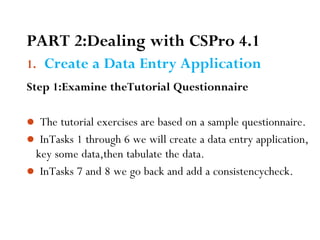
Step 1:Examine theTutorial Questionnaire
 The tutorial exercises are based on a sample questionnaire.
 InTasks 1 through 6 we will create a data entry application,
key some data,then tabulate the data.
 InTasks 7 and 8 we go back and add a consistencycheck.
28
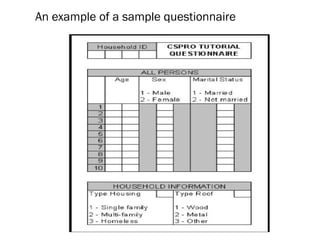
An example of a sample questionnaire
29
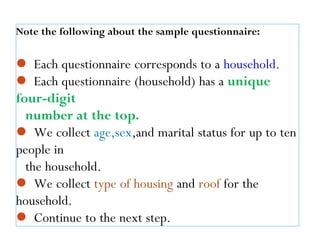
Note the following about the sample questionnaire:
 Each questionnaire corresponds to a household.
 Each questionnaire (household) has a unique
four-digit
number at the top.
 We collect age,sex,and marital status for up to ten
people in
the household.
 We collect type of housing and roof for the
household.
 Continue to the next step.30
31
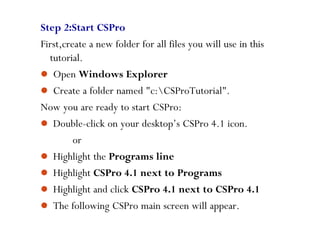
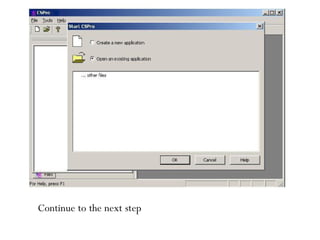
Step 2:Start CSPro
First,create a new folder for all files you will use in this
tutorial.
 Open Windows Explorer
 Create a folder named "c:CSProTutorial".
Now you are ready to start CSPro:
 Double-click on your desktop’s CSPro 4.1 icon.
or
 Highlight the Programs line
 Highlight CSPro 4.1 next to Programs
 Highlight and click CSPro 4.1 next to CSPro 4.1
 The following CSPro main screen will appear.
32
Continue to the next step
33
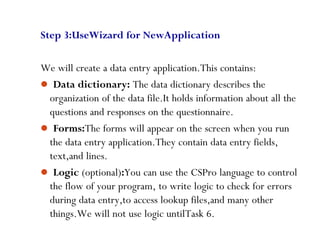
Step 3:UseWizard for NewApplication
We will create a data entry application.This contains:
 Data dictionary: The data dictionary describes the
organization of the data file.It holds information about all the
questions and responses on the questionnaire.
 Forms:The forms will appear on the screen when you run
the data entry application.They contain data entry fields,
text,and lines.
 Logic (optional):You can use the CSPro language to control
the flow of your program, to write logic to check for errors
during data entry,to access lookup files,and many other
things.We will not use logic untilTask 6.
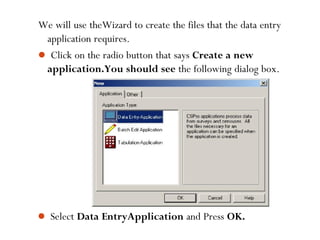
We will use theWizard to create the files that the data entry
application requires.
 Click on the radio button that says Create a new
application.You should see the following dialog box.
34
 Select Data EntryApplication and Press OK.
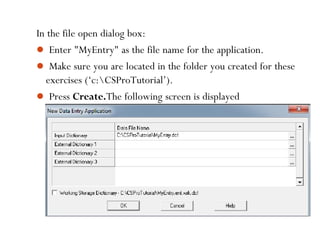
In the file open dialog box:
 Enter "MyEntry" as the file name for the application.
 Make sure you are located in the folder you created for these
exercises (‘c:CSProTutorial’).
 Press Create.The following screen is displayed
35
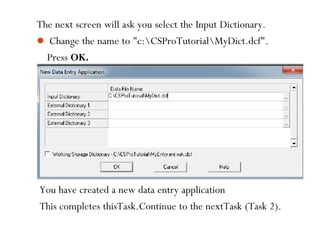
The next screen will ask you select the Input Dictionary.
 Change the name to "c:CSProTutorialMyDict.dcf".
Press OK.
You have created a new data entry application
This completes thisTask.Continue to the nextTask (Task 2).
37
2. Create the Data Dictionary
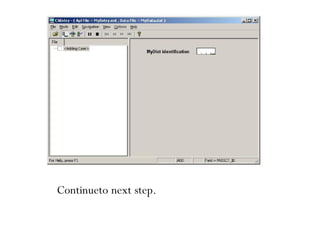
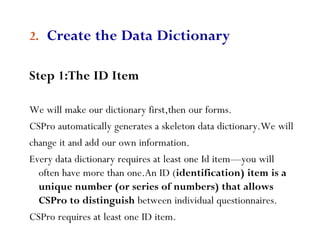
Step 1:The ID Item
We will make our dictionary first,then our forms.
CSPro automatically generates a skeleton data dictionary.We will
change it and add our own information.
Every data dictionary requires at least one Id item—you will
often have more than one.An ID (identification) item is a
unique number (or series of numbers) that allows
CSPro to distinguish between individual questionnaires.
CSPro requires at least one ID item.
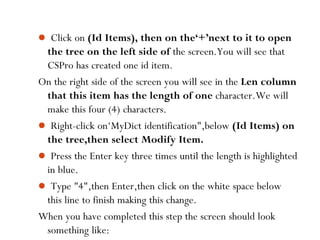
 Click on (Id Items), then on the‘+’next to it to open
the tree on the left side of the screen.You will see that
CSPro has created one id item.
On the right side of the screen you will see in the Len column
that this item has the length of one character.We will
make this four (4) characters.
 Right-click on‘MyDict identification",below (Id Items) on
the tree,then select Modify Item.
 Press the Enter key three times until the length is highlighted
in blue.
 Type "4",then Enter,then click on the white space below
this line to finish making this change.
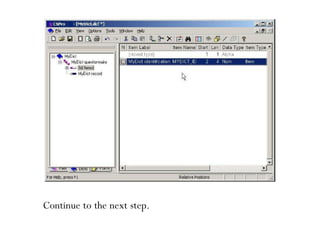
When you have completed this step the screen should look
something like:38
39
Continue to the next step.
Step 2:The Records
A record usually corresponds to a section of a questionnaire,
and consistsof a group of related questions.
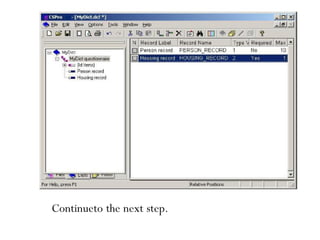
By default,CSPro creates one record.Our tutorial
application(Sample questionnaire) will have two records,
a‘Person Record’and a‘HousingRecord’.We will change
the one record that CSPro generated to‘Person Record’,
then add the‘HousingRecord’.
First,we will change the one record that CSPro generated to
‘Person Record’:
40
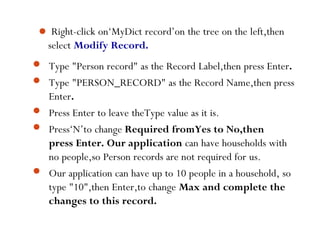
 Right-click on‘MyDict record’on the tree on the left,then
select Modify Record.





Type "Person record" as the Record Label,then press Enter.
Type "PERSON_RECORD" as the Record Name,then press
Enter.
Press Enter to leave theType value as it is.
Press‘N’to change Required fromYes to No,then
press Enter. Our application can have households with
no people,so Person records are not required for us.
Our application can have up to 10 people in a household, so
type "10",then Enter,to change Max and complete the
changes to this record.
41
42
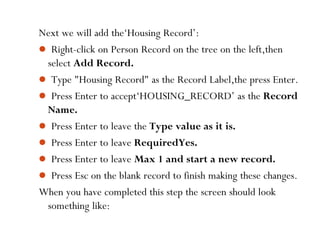
Next we will add the‘Housing Record’:
 Right-click on Person Record on the tree on the left,then
select Add Record.
 Type "Housing Record" as the Record Label,the press Enter.
 Press Enter to accept‘HOUSING_RECORD’ as the Record
Name.
 Press Enter to leave the Type value as it is.
 Press Enter to leave RequiredYes.
 Press Enter to leave Max 1 and start a new record.
 Press Esc on the blank record to finish making these changes.
When you have completed this step the screen should look
something like:
43
Continueto the next step.
44
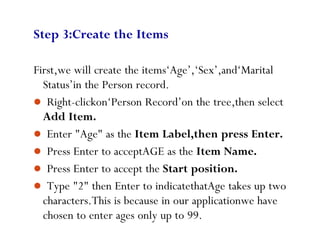
Step 3:Create the Items
First,we will create the items‘Age’,‘Sex’,and‘Marital
Status’in the Person record.
 Right-clickon‘Person Record’on the tree,then select
Add Item.
 Enter "Age" as the Item Label,then press Enter.
 Press Enter to acceptAGE as the Item Name.
 Press Enter to accept the Start position.
 Type "2" then Enter to indicatethatAge takes up two
characters.This is because in our applicationwe have
chosen to enter ages only up to 99.
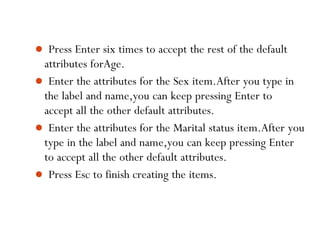
 Press Enter six times to accept the rest of the default
attributes forAge.
 Enter the attributes for the Sex item.After you type in
the label and name,you can keep pressing Enter to
accept all the other default attributes.
 Enter the attributes for the Marital status item.After you
type in the label and name,you can keep pressing Enter
to accept all the other default attributes.
 Press Esc to finish creating the items.
45
somethinglike:
46
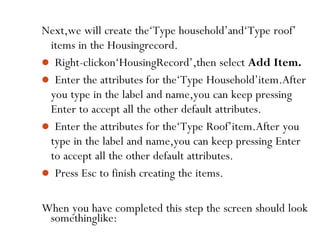
Next,we will create the‘Type household’and‘Type roof’
items in the Housingrecord.
 Right-clickon‘HousingRecord’,then select Add Item.
 Enter the attributes for the‘Type Household’item.After
you type in the label and name,you can keep pressing
Enter to accept all the other default attributes.
 Enter the attributes for the‘Type Roof’item.After you
type in the label and name,you can keep pressing Enter
to accept all the other default attributes.
 Press Esc to finish creating the items.
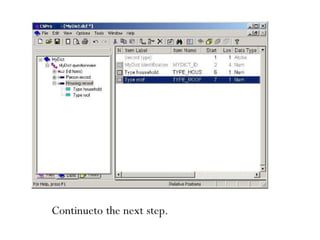
When you have completed this step the screen should look
47
Continueto the next step.
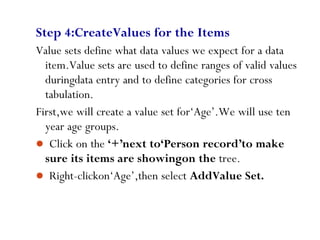
Step 4:CreateValues for the Items
Value sets define what data values we expect for a data
item.Value sets are used to define ranges of valid values
duringdata entry and to define categories for cross
tabulation.
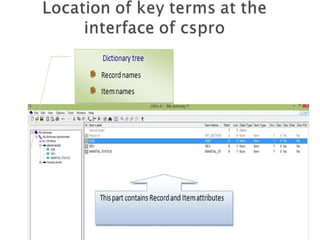
First,we will create a value set for‘Age’.We will use ten
year age groups.
 Click on the ‘+’next to‘Person record’to make
sure its items are showingon the tree.
 Right-clickon‘Age’,then select AddValue Set.
48
Continuein this fashion until you have reached 90-99.49
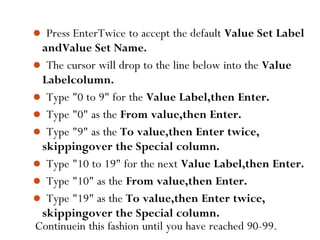
 Press EnterTwice to accept the default Value Set Label
andValue Set Name.
 The cursor will drop to the line below into the Value
Labelcolumn.
 Type "0 to 9" for the Value Label,then Enter.
 Type "0" as the From value,then Enter.
 Type "9" as the To value,then Enter twice,
skippingover the Special column.
 Type "10 to 19" for the next Value Label,then Enter.
 Type "10" as the From value,then Enter.
 Type "19" as the To value,then Enter twice,
skippingover the Special column.
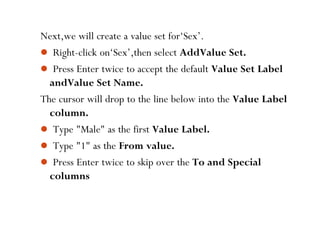
Next,we will create a value set for‘Sex’.
 Right-click on‘Sex’,then select AddValue Set.
 Press Enter twice to accept the default Value Set Label
andValue Set Name.
The cursor will drop to the line below into the Value Label
column.
 Type "Male" as the first Value Label.
 Type "1" as the From value.
 Press Enter twice to skip over the To and Special
columns
50
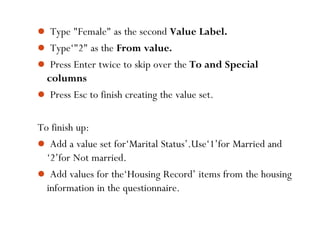
 Type "Female" as the second Value Label.
 Type‘"2" as the From value.
 Press Enter twice to skip over the To and Special
columns
 Press Esc to finish creating the value set.
To finish up:
 Add a value set for‘Marital Status’.Use‘1’for Married and
‘2’for Not married.
 Add values for the‘Housing Record’ items from the housing
information in the questionnaire.
51
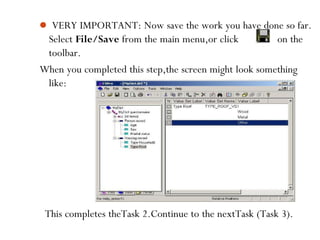
 VERY IMPORTANT: Now save the work you have done so far.
Select File/Save from the main menu,or click on the
toolbar.
When you completed this step,the screen might look something
like:
52
This completes theTask 2.Continue to the nextTask (Task 3).
53
3. Create the Data Entry Forms
Step 1:Place ID and Housing Items on Form
We will now switch from the data dictionaryto the forms.
IMPORTANTNOTE:
Generally it is a good idea to make the data entry forms
look just like the questionnaireitself.We can easily do
this in CSPro.However,in order to show you more
features and save time,we will not do so (use the help for
your application on this).
We will place the dictionaryitems on the data entry form.
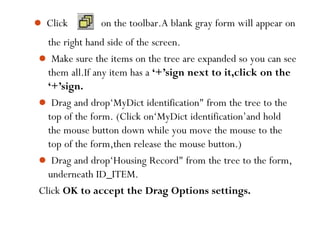
 Click on the toolbar.A blank gray form will appear on
the right hand side of the screen.
 Make sure the items on the tree are expanded so you can see
them all.If any item has a ‘+’sign next to it,click on the
‘+’sign.
 Drag and drop‘MyDict identification" from the tree to the
top of the form. (Click on‘MyDict identification’and hold
the mouse button down while you move the mouse to the
top of the form,then release the mouse button.)
 Drag and drop‘Housing Record" from the tree to the form,
underneath ID_ITEM.
Click OK to accept the Drag Options settings.
54
55
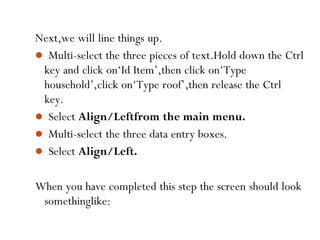
Next,we will line things up.
 Multi-select the three pieces of text.Hold down the Ctrl
key and click on‘Id Item’,then click on‘Type
household’,click on‘Type roof’,then release the Ctrl
key.
 Select Align/Leftfrom the main menu.
 Multi-select the three data entry boxes.
 Select Align/Left.
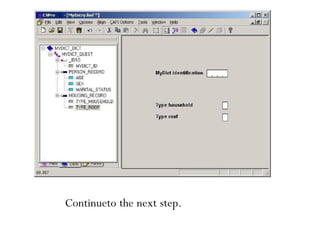
When you have completed this step the screen should look
somethinglike:
56
Continueto the next step.
57
Step 2:AddText and Boxes
First,we will add our own line of text at the top of the
screen.
 Right-clickon the form,somewhere above‘Id Item’.
 Select AddText from the menu.
 Type "My FirstApplication",then Enter (or click on
OK).
 Adjustthe positionof the text until it is just where you
want it.To do this,select the text (click on it) and use
the arrow keys,or drag and drop the text to the new
location.
58
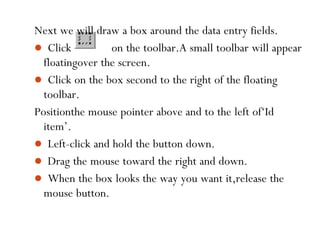
Next we will draw a box around the data entry fields.
 Click on the toolbar.A small toolbar will appear
floatingover the screen.
 Click on the box second to the right of the floating
toolbar.
Positionthe mouse pointer above and to the left of‘Id
item’.
 Left-click and hold the button down.
 Drag the mouse toward the right and down.
 When the box looks the way you want it,release the
mouse button.
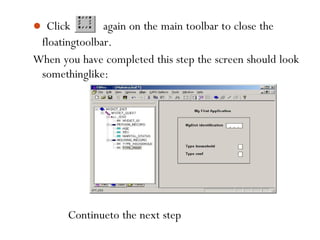
 Click again on the main toolbar to close the
floatingtoolbar.
When you have completed this step the screen should look
somethinglike:
59
Continueto the next step
60
Step 3:Generate FormsAutomatically
CSProallows you to generate a complete set of forms,
which include all the items in the data dictionary,in one
operation.We will use this feature now in order to save
time.
 Select Edit/GenerateForms from the main menu,
or press Ctrl-G.
 CSProwill warn you that the forms you made in steps 1
and 2 will be replaced.
Click on Yes to continue.
 The Drag Options dialog box will appear.Make
sure the Roster Options has Horizontal selected.
Click on OK to close the Drag Options dialog
box.
 Note that the tree on the left shows that you now have
three forms.Open up the entire tree by clicking the ‘+’
next to any part of the tree.
 Click on PERSON_RECORD_FORMon the tree.
You will see the roster that CSPro created for you.
 Click around on the tree on the left as you like to
explore the forms that CSPro created.
61
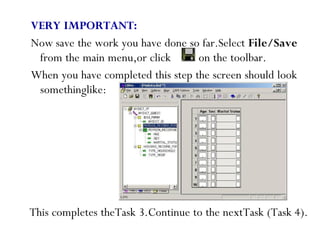
VERY IMPORTANT:
Now save the work you have done so far.Select File/Save
from the main menu,or click on the toolbar.
When you have completed this step the screen should look
somethinglike:
62
This completes theTask 3.Continue to the nextTask (Task 4).
63
4. Enter Data
Step 1:Run the Data EntryApplication
Your data entry applicationis now ready to run! CSEntry is
the name of the program that runs this application,
allowingyou to key in data.
 Run CSEntry by clicking on the toolbar,or
pressingCtrl-R.(CSProwill ask you to save your work if
you haven’t already done so.ClickYes.)
 CSEntrywill ask you to select a data file.The data we key
will go into this file.
64
Change to the folder you created for this set of exercises,
"c:CSProTutorial".
Type "MyData.dat"for the file name,then press Enter.
 CSEntrywill ask if you want to create a new file.Click
Yes.
 CSEntrywill ask for your Operator ID.You may type
in anythingyou like.
 The first data entry form will appear with the cursor
ready for you to begin entering data.
When you have completed this step the screen should look
somethinglike:
65
Continueto next step.
66
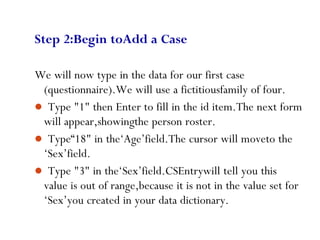
Step 2:Begin toAdd a Case
We will now type in the data for our first case
(questionnaire).We will use a fictitiousfamily of four.
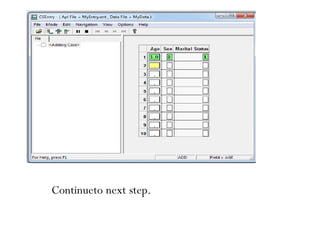
 Type "1" then Enter to fill in the id item.The next form
will appear,showingthe person roster.
 Type“18" in the‘Age’field.The cursor will moveto the
‘Sex’field.
 Type "3" in the‘Sex’field.CSEntrywill tell you this
value is out of range,because it is not in the value set for
‘Sex’you created in your data dictionary.
67
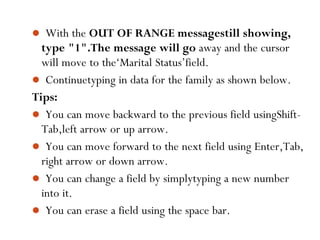
 With the OUT OF RANGE messagestill showing,
type "1".The message will go away and the cursor
will move to the‘Marital Status’field.
 Continuetyping in data for the family as shown below.
Tips:
 You can move backward to the previous field usingShift-
Tab,left arrow or up arrow.
 You can move forward to the next field using Enter,Tab,
right arrow or down arrow.
 You can change a field by simplytyping a new number
into it.
 You can erase a field using the space bar.
68
Continueto next step.
Step 3:FinishAdding a Case
We will now tell the roster that we have finished entering
people.
 Hold down the Ctrl key.
 Press the slash key (‘/’’) on the numeric keypad.
The next form will appear on the screen.
If you have trouble finding this key combination,which
could be the case on some laptops,you can select
Navigation/End Groupfrom the main menu.
69
70
Next we will type in the household form and end the case.
 Type "1" in the‘Type Household’field.
 Type "1" in the‘Type Roof’field.
 CSEntrywill ask us to accept the case.At this point you
can select No and go back and make changes to the data
in the case if you like.If you are satisfiedthat the data are
correct,press Enter or select Yes.
 CSEntrywill now show the first form again (NEW
SECOND EMPTY QUESTIONNAIRE),with the cursor
ready for you to type in another case.We will now stop
addingcases.
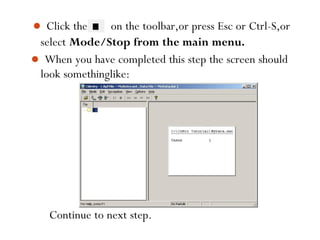
 Click the on the toolbar,or press Esc or Ctrl-S,or
select Mode/Stop from the main menu.
 When you have completed this step the screen should
look somethinglike:
71
Continue to next step.
72
Step 4:Modify a Case
Nowwe realize that the first person in the household is
really 15 years old and not 18 as we typed in.We will go
back into the data and change this value.
 Click on on the toolbar,or press Ctrl-M to enter
Modify mode.You should see the first form,with the
value‘1’showingfor‘Id item’.
 Press the PgDn key to advance to the next form.
 Type“15" in the‘Age’field.
 Press F12 to indicatethat you have finished making your
changes.
 The screen will now look something like the picture
below.CSEntry will ask you to accept the case,like it did
in the previous step.Select Yes.
 CSEntrywill save your changes and exit from Modify
mode.
 Close CSEntryby clicking on the X in the top right
corner,or selecting File/Exit from the main menu.
This completes thisTask 4.Continue to nextTask (Task 5).
73
Wizard,as we did inTask 2.
74
5. Tabulate Data
Step 1:Create aTabulationApplication
In this exercise we will perform simple cross tabulationsof
the data you entered in the previousTask.
If you still have your data entry applicationopen from
previousTask,close it now.
 Select File/Close from the main menu.CSPro may
prompt you to save changes.SelectYes.
We will now create a cross tabulation applicationusing the
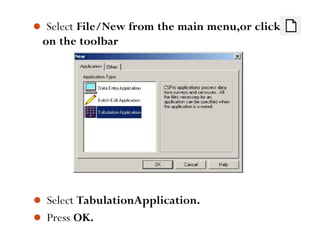
 Select File/New from the main menu,or click
on the toolbar
75
 Select TabulationApplication.
 Press OK.
76
In the file open dialog box:
 Enter "MyTab" as the file name for the application.
 Make sure you are located in the folder you created for
these exercises (‘c:CSProTutorial’).
 Press Create.
The next screen will ask you select the Input Dictionary.
 Change the name to "c:CSProTutorialMyDict.dcf".
 Press OK.
You are now ready to begin designingyour tabulation.
When you have completed this step the screen should look
somethinglike:
77
Continueto next step.
78
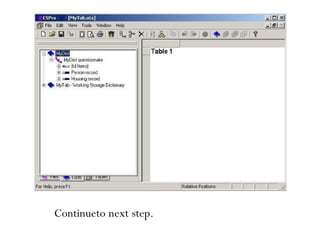
Step 2:Select Items toTabulate
We will create a tabulationofAge by Sex.Age will appear
as the rows and Sex as the columns.
 Click on the ‘+’next to‘Person record’to make
sure its items are showingon the tree.
 Drag and drop‘Age’from the tree to the left side of the
table.(Click on‘Age’and hold the mouse button down
while you move the mouse to the side of the table then
release the mouse button.)The drop point should be in
the white space next to one of the gray boxes along the
side.
item.79
 Drag and drop‘Sex’from the tree to the top of the table.
(Click on‘Sex’and hold the mouse button down while
you move the mouse to the top of the table then release
the mouse button.)The drop point should be in the
white space just under one of the gray boxes along the
top.
Tips:
 The item you drag from the dictionarytree will become
either a row item or a column item depending on where
you drop it.Imagine a diagonalline from the top left to
the bottom right of the table.An item dropped on the
left/under that line becomes a row item.An item
dropped on the right/abovethat line becomes a column
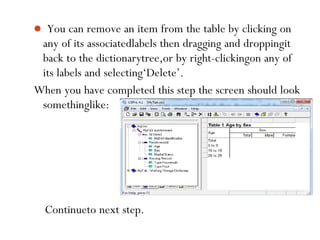
 You can remove an item from the table by clicking on
any of its associatedlabels then dragging and droppingit
back to the dictionarytree,or by right-clickingon any of
its labels and selecting‘Delete’.
When you have completed this step the screen should look
somethinglike:
80
Continueto next step.
81
Step 3:Run theTabulation
We are now ready to run the tabulation.We will use the data
file you created in the previousTask.
 Run the tabulation by clicking on the toolbar,or
pressingCtrl-R.If CSPro prompts you to save the changes,
click on Yes.
 CSProwill ask you for the data file(s) to tabulate.Select
‘MyData.dat’.Make sure the dialog box is set to the folder
you created for theseTasks,“C:CSProTutorial".
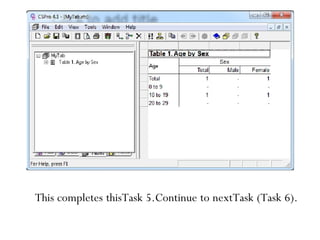
 The tabulated numbers will now appear in the table.That’s
all there is to it!Then you have completed this step the
screen should look something like:
82
This completes thisTask 5.Continue to nextTask (Task 6).
83
6. Modify theTable
Step 1:Add Percents
In thisTask we will modify the table you created in the
previousTask.We will begin by adding percents to
the columns next to the values for the Sex variable.
 Right-clickon the word "Sex" on the table,just above
the word "Male".
 Select TallyAttributes (Sex) from the right-click
menu.
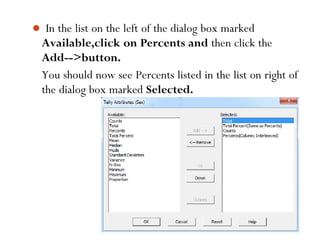
 In the list on the left of the dialog box marked
Available,click on Percents and then click the
Add-->button.
You should now see Percents listed in the list on right of
the dialog box marked Selected.
84
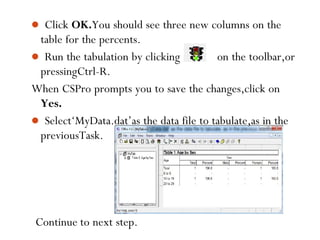
 Click OK.You should see three new columns on the
table for the percents.
 Run the tabulation by clicking on the toolbar,or
pressingCtrl-R.
When CSPro prompts you to save the changes,click on
Yes.
 Select‘MyData.dat’as the data file to tabulate,as in the
previousTask.
85 Continue to next step.
86
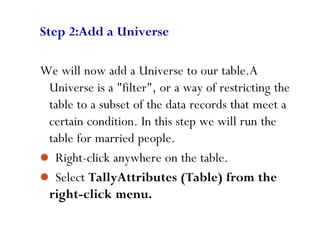
Step 2:Add a Universe
We will now add a Universe to our table.A
Universe is a "filter", or a way of restricting the
table to a subset of the data records that meet a
certain condition. In this step we will run the
table for married people.
 Right-click anywhere on the table.
 Select TallyAttributes (Table) from the
right-click menu.
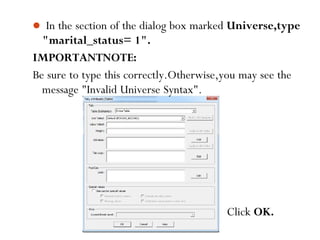
 In the section of the dialog box marked Universe,type
"marital_status= 1".
IMPORTANTNOTE:
Be sure to type this correctly.Otherwise,you may see the
message "Invalid Universe Syntax".
Click OK.
87
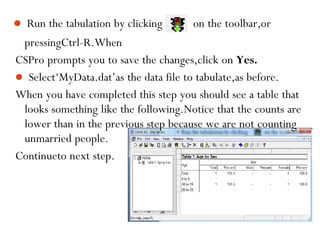
 Run the tabulation by clicking on the toolbar,or
pressingCtrl-R.When
CSPro prompts you to save the changes,click on Yes.
 Select‘MyData.dat’as the data file to tabulate,as before.
When you have completed this step you should see a table that
looks something like the following.Notice that the counts are
lower than in the previous step because we are not counting
unmarried people.
Continueto next step.
88
89
Step 3:Change theTitle Font
CSPro gives you great control over the format of
your tables.As an example,in this step we will
change the font of our table’s title to make it
bigger.
 Right-click on the title "Table 1.Age by Sex" at
the top of the table.
 Select Format (Title) from the right-click
menu.
 In the section of the dialog box marked Font
and Color click on the Change button.
This completes thisTask 6.Continue to nextTask (Task 7).90
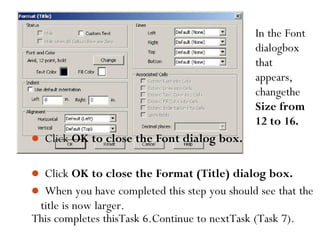
In the Font
dialogbox
that
appears,
changethe
Size from
12 to 16.
 Click OK to close the Font dialog box.
 Click OK to close the Format (Title) dialog box.
 When you have completed this step you should see that the
title is now larger.
9
7. Add Edits to the Data Entry
Step 1:Write Logic for the Edit
We will now return to the data entry application.
We will introduce a check to make sure that
married people are at least 12 years old.In our
data entry application, we will perform this check
immediately after the keyer enters the marital
status.
• If you still have your cross tabulation application
open from previous exercises,close it now.
92
Select File/Close from the main menu.CSPro may
prompt you to save changes.Select Yes.
 Open the data entry application we created earlier.Select
File/Openfrom the main menu.Click on the
applicationname,MYENTRY.ENT,and click on open.
 Get ready to write logic by pressingCtrl-L or selecting
View/ViewLogic from the main menu.
 Press Ctrl+T to show names instead of labels in the
forms tree.
 Click on the ‘+’next to‘PERSON_RECORD_FORM’
then click on the‘+’next to ‘PERSON_RECORD000
then click on‘MARITAL_STATUS’.
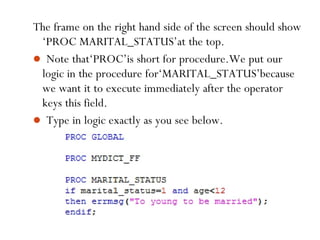
The frame on the right hand side of the screen should show
‘PROC MARITAL_STATUS’at the top.
 Note that‘PROC’is short for procedure.We put our
logic in the procedure for‘MARITAL_STATUS’because
we want it to execute immediately after the operator
keys this field.
 Type in logic exactly as you see below.
93
94
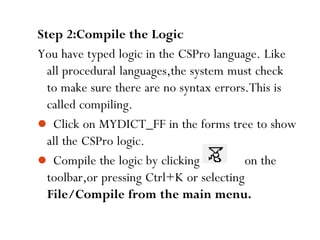
Step 2:Compile the Logic
You have typed logic in the CSPro language. Like
all procedural languages,the system must check
to make sure there are no syntax errors.This is
called compiling.
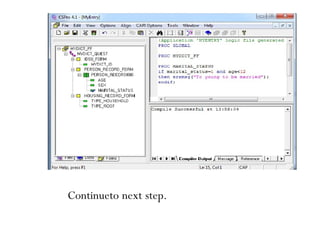
 Click on MYDICT_FF in the forms tree to show
all the CSPro logic.
 Compile the logic by clicking on the
toolbar,or pressing Ctrl+K or selecting
File/Compile from the main menu.
95
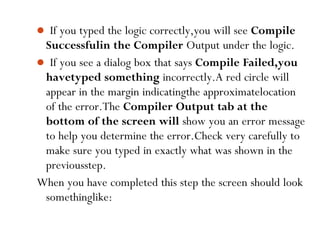
 If you typed the logic correctly,you will see Compile
Successfulin the Compiler Output under the logic.
 If you see a dialog box that says Compile Failed,you
havetyped something incorrectly.A red circle will
appear in the margin indicatingthe approximatelocation
of the error.The Compiler Output tab at the
bottom of the screen will show you an error message
to help you determine the error.Check very carefully to
make sure you typed in exactly what was shown in the
previousstep.
When you have completed this step the screen should look
somethinglike:
96
Continueto next step.
97
Step 3:Test the Edit
We are now ready to run the data application and
make sure our logic is working properly.
 Run CSEntry by clicking on the toolbar,or
pressing Ctrl-R.
 CSPro will ask you to save the changes.
Click Yes.
 CSEntry will ask you to select a data file.Type
"MyData.dat" for the file name,if it is not already
there,then press Enter.
 Type in any Operator ID.
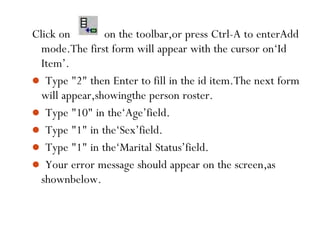
Click on on the toolbar,or press Ctrl-A to enterAdd
mode.The first form will appear with the cursor on‘Id
Item’.
 Type "2" then Enter to fill in the id item.The next form
will appear,showingthe person roster.
 Type "10" in the‘Age’field.
 Type "1" in the‘Sex’field.
 Type "1" in the‘Marital Status’field.
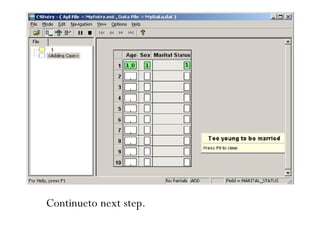
 Your error message should appear on the screen,as
shownbelow.
98
99
Continueto next step.
100
Step 4:Complete the Case
We will finish entering data for the second case,
including the error condition,so that we will be
able to test that condition in the following exercise.
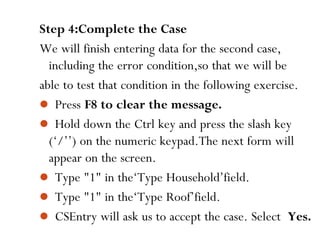
 Press F8 to clear the message.
 Hold down the Ctrl key and press the slash key
(‘/’’) on the numeric keypad.The next form will
appear on the screen.
 Type "1" in the‘Type Household’field.
 Type "1" in the‘Type Roof’field.
 CSEntry will ask us to accept the case. Select Yes.
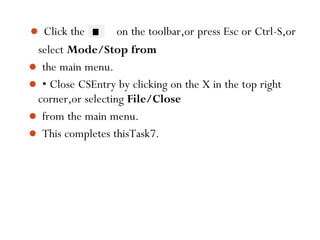
 Click the on the toolbar,or press Esc or Ctrl-S,or
select Mode/Stop from
 the main menu.
 • Close CSEntry by clicking on the X in the top right
corner,or selecting File/Close
 from the main menu.
 This completes thisTask7.
101
Useful Links
 U.S.Census Bureau website
http://www.census.gov/ipc/www/cspro
 CSPro Users
http://www.csprousers.org
 Twitter
http://twitter.com/cspro
 Mailing list for CSPro questions
cspro@lists.census.gov
Thank you
for
Your Kind attention
102

Cspro training material

  • 1.
    TRAINING OF Cspro On 21st to22 , March 2015 Trainers: BIZIMANA Appolinaire IMANISHIMWE Valentine NTITANGURANWA Jacson
  • 2.
    Every participant shouldbe able to explain why Cspro as Software To be aware of Cspro and its application To perform data entry , exporting ,and other practical skills related to this software
  • 4.
    PART 1:Introduction What isCSPro? The Census and Survey Processing System (CSPro) is a software package for entry, editing, tabulation, and dissemination of census and survey data. CSPro combines the features of the:  Integrated Microcomputer Processing System (IMPS) and the Integrated System for SurveyAnalysis (ISSA) in aWindows environment.
  • 5.
    6  CSPro letsyou create,modify,and run data entry,batch editing,and tabulationapplicationsfrom a single, integrated development environment.It processes data on a case basis (one or more questionnaires),where a case can consistof one or many data records.  The data are stored in (ASCII) text files described by data dictionaries.  CSProprovides tools to view data and other text files,to view tables and thematic maps created by CSPro  CSProwas developed jointly by the U.S.Census Bureau, Macro International,and Serpro,SA,with major funding from the U.S.Agency for International Development.
  • 7.
    Census Bureau Involvement •U.S.Census Bureau has a long history of using technology to process censuses,going back to Hollerith and the 1890 census • International Programs Center has been helping countries process census data for decades • Off-the-shelf software in the past was not affordable, not easy to use,or otherwise was not practical for some countries where IPC worked
  • 8.
    Integrated Microcomputer Processing System(IMPS) • Census Bureau developed and supported, with funding principally from USAID • DOS-based,text-based,used a COBOL compiler to enhance functionality • Several modules: – – – – – Entry Editing Tabulation Variance Calculation Operational Control 9 • CSPro does not have the latter two modules (yet)
  • 9.
    10 Combination of IMPSand ISSA • USAID was funding the development of two statistical processing software packages: – IMPS – ISSA:Integrated System for SurveyAnalysis • Developed by SERPRO and Macro International • Both software packages were in need of an update to enter theWindows/GUI world • CSPro combines the best features of both software packages: – The ease-of-use of IMPS – The advanced functionality and logic language of ISSA – Called:Census and Survey Processing System
  • 10.
    CSPro in OneSlide  CSPro is a free software package used by hundreds of organizations and tens of thousands of individuals for entering,editing, tabulating, and disseminating census and survey data.CSPro is designed to be as user-friendly and easy to use as possible,yet powerful enough to handle the most complex applications. It can be used by a wide range of people,from non-technical staff assistants to senior demographers and programmers.The funding for CSPro comes from USAID. 1
  • 11.
    Release History  CSPro2.0 (the first version) released on May 5,2000  CSPro 3.x (2005) included a much more powerful tabulation system CSPro 4.0 (2008) added support for PDA devices  CSPro 4.1 (2011) added additional tools for CAPI operations on portable computers such as tablets •Most recent version (CSPro 6.0.1) released on september25, 2014
  • 12.
    Worldwide Use  Usedin over 160 countries by:  National Statistical Offices  NGOs  Universities  Hospitals  Militaries  Businesses  Has processed the census data for countries as varied as Djibouti (less than one million people) to Bangladesh (over 150 million people)
  • 13.
    CSPro Processes…  Censuses(population and housing; agriculture; and economic)  Demographic and labor force surveys  Household income and expenditure surveys  Major international projects such as:  Demographicand Health Surveys (DHS),Macro International  Living Standards Measurement Study (LSMS),World Bank  Multiple Indicator Cluster Survey (MICS),UNICEF
  • 14.
    Future?  IMPS toCSPro marked the transition from DOS toWindows  With low-cost computers proliferating (tablets, smartphones),will there be another paradigm shift in the future?
  • 16.
    Cost  CSPro isfree and will be forever  Some software packages charge both designer and implementer fees  Some software packages charge by number of data collection points 7
  • 17.
    Support  Census Bureauprovides free support for CSPro via email: cspro@lists.census.gov  There are CSPro consultants available for hire,though not many  Many applications have been created,though few available on the Internet  Very few Internet websites devoted to CSPro 18
  • 18.
    Platform  Works onany modern machine with MicrosoftWindows  Data entry can be done,one question at a time,onWindows Mobile PDAs (versions 5 and 6,notWindows Phone 7)  The growth and activity in low cost tablets and smartphones is not centered aroundWindows  No way to turn applications into Internet applications
  • 19.
    Robustness  Has beentested and used for over ten years  Can handle census-sized applications  Can export data to major statistical software formats,and often is used in combination with other programs  Most major bugs have been fixed,though some known bugs (generally minor) remain 0
  • 20.
    Data File  Flatfile,text-based format  Advantages: Human readable Possibleto create and modify without a data entry application 2
  • 21.
    2 Data File (continued) Disadvantages:  Large file sizes,though smaller when compressed  Extra files (e.g.,an index) must be stored as separate files  Modifying an entry can force the whole file to be rewritten  Fixed width fields mean that changing a dictionary means reformatting existing files  Inability to store variable-length text  Processing is slower  Not compliant with common database programs and languages, e.g.,SQL  Only one user can write to a file at any given time
  • 22.
     Key-from-imagenot supportednatively 3 Keyed Data Entry  CSProwas specificallydesigned for keyed data entry  Can track the rates of keyers  A verification operation can be established  Has two modes that dictate how much control a keyer has over an operation:operator- and system- controlled modes  Operationalcontrol of files can be challenging to new users,particularlyif managingan operation with many keyers  Not ideal for keying letters unless they are Latin letters
  • 23.
    CAPI Data Entry SupportsCAPI controls (e.g.,radio buttons) but as popup windows,not built into the form  No UNICODE support,though kludges mean CSPro can supportdata entry in most languages  Subject-oriented,non-linear,data entry is difficult to program  Designingthe dictionary,forms,and data entry is done in three places,rather than all integrated 24
  • 24.
    Logic Language  Robust,anddesigned specifically for data entry and processing  Easy tasks are simple to program and require few programming skills     Some tasks could be programmed more cleanly in an object- oriented framework Simple debugging (tracing) is possible,but dynamic modification of the code is not,requiring a rebuild of the application for any small change The syntax of features added later (e.g.,CAPI functions) is sometimes awkward Can run slowly as it is an interpreted language 25  Inability to include standard modules across many applications
  • 25.
    Editing and Tabulation Editing module is specifically designed for census editing, an uncommon task     Tabulation is simple,drag and drop, and can create complex tables with some programming Area processing Inability to perform complex analysis via the tabulation module Editing,and especially tabulation, are slow when run on large data sets 26
  • 26.
    Missing Modules  Censusvariance  Operational control system for data entry,and for application design  Cleaner interface with industry standard GIS products, rather than the built-in MapViewer
  • 27.
     Dictionary(Defining theStructure of your Data)  Identification items uniquely identify the questionnaire  Items(describes a response to a question)  Value Sets which are used to ranges of valid values during data entry and even categories of data
  • 29.
    PART 2:Dealing withCSPro 4.1 1. Create a Data Entry Application Step 1:Examine theTutorial Questionnaire  The tutorial exercises are based on a sample questionnaire.  InTasks 1 through 6 we will create a data entry application, key some data,then tabulate the data.  InTasks 7 and 8 we go back and add a consistencycheck. 28
  • 30.
    An example ofa sample questionnaire 29
  • 31.
    Note the followingabout the sample questionnaire:  Each questionnaire corresponds to a household.  Each questionnaire (household) has a unique four-digit number at the top.  We collect age,sex,and marital status for up to ten people in the household.  We collect type of housing and roof for the household.  Continue to the next step.30
  • 32.
    31 Step 2:Start CSPro First,createa new folder for all files you will use in this tutorial.  Open Windows Explorer  Create a folder named "c:CSProTutorial". Now you are ready to start CSPro:  Double-click on your desktop’s CSPro 4.1 icon. or  Highlight the Programs line  Highlight CSPro 4.1 next to Programs  Highlight and click CSPro 4.1 next to CSPro 4.1  The following CSPro main screen will appear.
  • 33.
  • 34.
    33 Step 3:UseWizard forNewApplication We will create a data entry application.This contains:  Data dictionary: The data dictionary describes the organization of the data file.It holds information about all the questions and responses on the questionnaire.  Forms:The forms will appear on the screen when you run the data entry application.They contain data entry fields, text,and lines.  Logic (optional):You can use the CSPro language to control the flow of your program, to write logic to check for errors during data entry,to access lookup files,and many other things.We will not use logic untilTask 6.
  • 35.
    We will usetheWizard to create the files that the data entry application requires.  Click on the radio button that says Create a new application.You should see the following dialog box. 34  Select Data EntryApplication and Press OK.
  • 36.
    In the fileopen dialog box:  Enter "MyEntry" as the file name for the application.  Make sure you are located in the folder you created for these exercises (‘c:CSProTutorial’).  Press Create.The following screen is displayed 35
  • 37.
    The next screenwill ask you select the Input Dictionary.  Change the name to "c:CSProTutorialMyDict.dcf". Press OK. You have created a new data entry application This completes thisTask.Continue to the nextTask (Task 2).
  • 38.
    37 2. Create theData Dictionary Step 1:The ID Item We will make our dictionary first,then our forms. CSPro automatically generates a skeleton data dictionary.We will change it and add our own information. Every data dictionary requires at least one Id item—you will often have more than one.An ID (identification) item is a unique number (or series of numbers) that allows CSPro to distinguish between individual questionnaires. CSPro requires at least one ID item.
  • 39.
     Click on(Id Items), then on the‘+’next to it to open the tree on the left side of the screen.You will see that CSPro has created one id item. On the right side of the screen you will see in the Len column that this item has the length of one character.We will make this four (4) characters.  Right-click on‘MyDict identification",below (Id Items) on the tree,then select Modify Item.  Press the Enter key three times until the length is highlighted in blue.  Type "4",then Enter,then click on the white space below this line to finish making this change. When you have completed this step the screen should look something like:38
  • 40.
  • 41.
    Step 2:The Records Arecord usually corresponds to a section of a questionnaire, and consistsof a group of related questions. By default,CSPro creates one record.Our tutorial application(Sample questionnaire) will have two records, a‘Person Record’and a‘HousingRecord’.We will change the one record that CSPro generated to‘Person Record’, then add the‘HousingRecord’. First,we will change the one record that CSPro generated to ‘Person Record’: 40
  • 42.
     Right-click on‘MyDictrecord’on the tree on the left,then select Modify Record.      Type "Person record" as the Record Label,then press Enter. Type "PERSON_RECORD" as the Record Name,then press Enter. Press Enter to leave theType value as it is. Press‘N’to change Required fromYes to No,then press Enter. Our application can have households with no people,so Person records are not required for us. Our application can have up to 10 people in a household, so type "10",then Enter,to change Max and complete the changes to this record. 41
  • 43.
    42 Next we willadd the‘Housing Record’:  Right-click on Person Record on the tree on the left,then select Add Record.  Type "Housing Record" as the Record Label,the press Enter.  Press Enter to accept‘HOUSING_RECORD’ as the Record Name.  Press Enter to leave the Type value as it is.  Press Enter to leave RequiredYes.  Press Enter to leave Max 1 and start a new record.  Press Esc on the blank record to finish making these changes. When you have completed this step the screen should look something like:
  • 44.
  • 45.
    44 Step 3:Create theItems First,we will create the items‘Age’,‘Sex’,and‘Marital Status’in the Person record.  Right-clickon‘Person Record’on the tree,then select Add Item.  Enter "Age" as the Item Label,then press Enter.  Press Enter to acceptAGE as the Item Name.  Press Enter to accept the Start position.  Type "2" then Enter to indicatethatAge takes up two characters.This is because in our applicationwe have chosen to enter ages only up to 99.
  • 46.
     Press Entersix times to accept the rest of the default attributes forAge.  Enter the attributes for the Sex item.After you type in the label and name,you can keep pressing Enter to accept all the other default attributes.  Enter the attributes for the Marital status item.After you type in the label and name,you can keep pressing Enter to accept all the other default attributes.  Press Esc to finish creating the items. 45
  • 47.
    somethinglike: 46 Next,we will createthe‘Type household’and‘Type roof’ items in the Housingrecord.  Right-clickon‘HousingRecord’,then select Add Item.  Enter the attributes for the‘Type Household’item.After you type in the label and name,you can keep pressing Enter to accept all the other default attributes.  Enter the attributes for the‘Type Roof’item.After you type in the label and name,you can keep pressing Enter to accept all the other default attributes.  Press Esc to finish creating the items. When you have completed this step the screen should look
  • 48.
  • 49.
    Step 4:CreateValues forthe Items Value sets define what data values we expect for a data item.Value sets are used to define ranges of valid values duringdata entry and to define categories for cross tabulation. First,we will create a value set for‘Age’.We will use ten year age groups.  Click on the ‘+’next to‘Person record’to make sure its items are showingon the tree.  Right-clickon‘Age’,then select AddValue Set. 48
  • 50.
    Continuein this fashionuntil you have reached 90-99.49  Press EnterTwice to accept the default Value Set Label andValue Set Name.  The cursor will drop to the line below into the Value Labelcolumn.  Type "0 to 9" for the Value Label,then Enter.  Type "0" as the From value,then Enter.  Type "9" as the To value,then Enter twice, skippingover the Special column.  Type "10 to 19" for the next Value Label,then Enter.  Type "10" as the From value,then Enter.  Type "19" as the To value,then Enter twice, skippingover the Special column.
  • 51.
    Next,we will createa value set for‘Sex’.  Right-click on‘Sex’,then select AddValue Set.  Press Enter twice to accept the default Value Set Label andValue Set Name. The cursor will drop to the line below into the Value Label column.  Type "Male" as the first Value Label.  Type "1" as the From value.  Press Enter twice to skip over the To and Special columns 50
  • 52.
     Type "Female"as the second Value Label.  Type‘"2" as the From value.  Press Enter twice to skip over the To and Special columns  Press Esc to finish creating the value set. To finish up:  Add a value set for‘Marital Status’.Use‘1’for Married and ‘2’for Not married.  Add values for the‘Housing Record’ items from the housing information in the questionnaire. 51
  • 53.
     VERY IMPORTANT:Now save the work you have done so far. Select File/Save from the main menu,or click on the toolbar. When you completed this step,the screen might look something like: 52 This completes theTask 2.Continue to the nextTask (Task 3).
  • 54.
    53 3. Create theData Entry Forms Step 1:Place ID and Housing Items on Form We will now switch from the data dictionaryto the forms. IMPORTANTNOTE: Generally it is a good idea to make the data entry forms look just like the questionnaireitself.We can easily do this in CSPro.However,in order to show you more features and save time,we will not do so (use the help for your application on this). We will place the dictionaryitems on the data entry form.
  • 55.
     Click onthe toolbar.A blank gray form will appear on the right hand side of the screen.  Make sure the items on the tree are expanded so you can see them all.If any item has a ‘+’sign next to it,click on the ‘+’sign.  Drag and drop‘MyDict identification" from the tree to the top of the form. (Click on‘MyDict identification’and hold the mouse button down while you move the mouse to the top of the form,then release the mouse button.)  Drag and drop‘Housing Record" from the tree to the form, underneath ID_ITEM. Click OK to accept the Drag Options settings. 54
  • 56.
    55 Next,we will linethings up.  Multi-select the three pieces of text.Hold down the Ctrl key and click on‘Id Item’,then click on‘Type household’,click on‘Type roof’,then release the Ctrl key.  Select Align/Leftfrom the main menu.  Multi-select the three data entry boxes.  Select Align/Left. When you have completed this step the screen should look somethinglike:
  • 57.
  • 58.
    57 Step 2:AddText andBoxes First,we will add our own line of text at the top of the screen.  Right-clickon the form,somewhere above‘Id Item’.  Select AddText from the menu.  Type "My FirstApplication",then Enter (or click on OK).  Adjustthe positionof the text until it is just where you want it.To do this,select the text (click on it) and use the arrow keys,or drag and drop the text to the new location.
  • 59.
    58 Next we willdraw a box around the data entry fields.  Click on the toolbar.A small toolbar will appear floatingover the screen.  Click on the box second to the right of the floating toolbar. Positionthe mouse pointer above and to the left of‘Id item’.  Left-click and hold the button down.  Drag the mouse toward the right and down.  When the box looks the way you want it,release the mouse button.
  • 60.
     Click againon the main toolbar to close the floatingtoolbar. When you have completed this step the screen should look somethinglike: 59 Continueto the next step
  • 61.
    60 Step 3:Generate FormsAutomatically CSProallowsyou to generate a complete set of forms, which include all the items in the data dictionary,in one operation.We will use this feature now in order to save time.  Select Edit/GenerateForms from the main menu, or press Ctrl-G.  CSProwill warn you that the forms you made in steps 1 and 2 will be replaced. Click on Yes to continue.
  • 62.
     The DragOptions dialog box will appear.Make sure the Roster Options has Horizontal selected. Click on OK to close the Drag Options dialog box.  Note that the tree on the left shows that you now have three forms.Open up the entire tree by clicking the ‘+’ next to any part of the tree.  Click on PERSON_RECORD_FORMon the tree. You will see the roster that CSPro created for you.  Click around on the tree on the left as you like to explore the forms that CSPro created. 61
  • 63.
    VERY IMPORTANT: Now savethe work you have done so far.Select File/Save from the main menu,or click on the toolbar. When you have completed this step the screen should look somethinglike: 62 This completes theTask 3.Continue to the nextTask (Task 4).
  • 64.
    63 4. Enter Data Step1:Run the Data EntryApplication Your data entry applicationis now ready to run! CSEntry is the name of the program that runs this application, allowingyou to key in data.  Run CSEntry by clicking on the toolbar,or pressingCtrl-R.(CSProwill ask you to save your work if you haven’t already done so.ClickYes.)  CSEntrywill ask you to select a data file.The data we key will go into this file.
  • 65.
    64 Change to thefolder you created for this set of exercises, "c:CSProTutorial". Type "MyData.dat"for the file name,then press Enter.  CSEntrywill ask if you want to create a new file.Click Yes.  CSEntrywill ask for your Operator ID.You may type in anythingyou like.  The first data entry form will appear with the cursor ready for you to begin entering data. When you have completed this step the screen should look somethinglike:
  • 66.
  • 67.
    66 Step 2:Begin toAdda Case We will now type in the data for our first case (questionnaire).We will use a fictitiousfamily of four.  Type "1" then Enter to fill in the id item.The next form will appear,showingthe person roster.  Type“18" in the‘Age’field.The cursor will moveto the ‘Sex’field.  Type "3" in the‘Sex’field.CSEntrywill tell you this value is out of range,because it is not in the value set for ‘Sex’you created in your data dictionary.
  • 68.
    67  With theOUT OF RANGE messagestill showing, type "1".The message will go away and the cursor will move to the‘Marital Status’field.  Continuetyping in data for the family as shown below. Tips:  You can move backward to the previous field usingShift- Tab,left arrow or up arrow.  You can move forward to the next field using Enter,Tab, right arrow or down arrow.  You can change a field by simplytyping a new number into it.  You can erase a field using the space bar.
  • 69.
  • 70.
    Step 3:FinishAdding aCase We will now tell the roster that we have finished entering people.  Hold down the Ctrl key.  Press the slash key (‘/’’) on the numeric keypad. The next form will appear on the screen. If you have trouble finding this key combination,which could be the case on some laptops,you can select Navigation/End Groupfrom the main menu. 69
  • 71.
    70 Next we willtype in the household form and end the case.  Type "1" in the‘Type Household’field.  Type "1" in the‘Type Roof’field.  CSEntrywill ask us to accept the case.At this point you can select No and go back and make changes to the data in the case if you like.If you are satisfiedthat the data are correct,press Enter or select Yes.  CSEntrywill now show the first form again (NEW SECOND EMPTY QUESTIONNAIRE),with the cursor ready for you to type in another case.We will now stop addingcases.
  • 72.
     Click theon the toolbar,or press Esc or Ctrl-S,or select Mode/Stop from the main menu.  When you have completed this step the screen should look somethinglike: 71 Continue to next step.
  • 73.
    72 Step 4:Modify aCase Nowwe realize that the first person in the household is really 15 years old and not 18 as we typed in.We will go back into the data and change this value.  Click on on the toolbar,or press Ctrl-M to enter Modify mode.You should see the first form,with the value‘1’showingfor‘Id item’.  Press the PgDn key to advance to the next form.  Type“15" in the‘Age’field.  Press F12 to indicatethat you have finished making your changes.
  • 74.
     The screenwill now look something like the picture below.CSEntry will ask you to accept the case,like it did in the previous step.Select Yes.  CSEntrywill save your changes and exit from Modify mode.  Close CSEntryby clicking on the X in the top right corner,or selecting File/Exit from the main menu. This completes thisTask 4.Continue to nextTask (Task 5). 73
  • 75.
    Wizard,as we didinTask 2. 74 5. Tabulate Data Step 1:Create aTabulationApplication In this exercise we will perform simple cross tabulationsof the data you entered in the previousTask. If you still have your data entry applicationopen from previousTask,close it now.  Select File/Close from the main menu.CSPro may prompt you to save changes.SelectYes. We will now create a cross tabulation applicationusing the
  • 76.
     Select File/Newfrom the main menu,or click on the toolbar 75  Select TabulationApplication.  Press OK.
  • 77.
    76 In the fileopen dialog box:  Enter "MyTab" as the file name for the application.  Make sure you are located in the folder you created for these exercises (‘c:CSProTutorial’).  Press Create. The next screen will ask you select the Input Dictionary.  Change the name to "c:CSProTutorialMyDict.dcf".  Press OK. You are now ready to begin designingyour tabulation. When you have completed this step the screen should look somethinglike:
  • 78.
  • 79.
    78 Step 2:Select ItemstoTabulate We will create a tabulationofAge by Sex.Age will appear as the rows and Sex as the columns.  Click on the ‘+’next to‘Person record’to make sure its items are showingon the tree.  Drag and drop‘Age’from the tree to the left side of the table.(Click on‘Age’and hold the mouse button down while you move the mouse to the side of the table then release the mouse button.)The drop point should be in the white space next to one of the gray boxes along the side.
  • 80.
    item.79  Drag anddrop‘Sex’from the tree to the top of the table. (Click on‘Sex’and hold the mouse button down while you move the mouse to the top of the table then release the mouse button.)The drop point should be in the white space just under one of the gray boxes along the top. Tips:  The item you drag from the dictionarytree will become either a row item or a column item depending on where you drop it.Imagine a diagonalline from the top left to the bottom right of the table.An item dropped on the left/under that line becomes a row item.An item dropped on the right/abovethat line becomes a column
  • 81.
     You canremove an item from the table by clicking on any of its associatedlabels then dragging and droppingit back to the dictionarytree,or by right-clickingon any of its labels and selecting‘Delete’. When you have completed this step the screen should look somethinglike: 80 Continueto next step.
  • 82.
    81 Step 3:Run theTabulation Weare now ready to run the tabulation.We will use the data file you created in the previousTask.  Run the tabulation by clicking on the toolbar,or pressingCtrl-R.If CSPro prompts you to save the changes, click on Yes.  CSProwill ask you for the data file(s) to tabulate.Select ‘MyData.dat’.Make sure the dialog box is set to the folder you created for theseTasks,“C:CSProTutorial".  The tabulated numbers will now appear in the table.That’s all there is to it!Then you have completed this step the screen should look something like:
  • 83.
    82 This completes thisTask5.Continue to nextTask (Task 6).
  • 84.
    83 6. Modify theTable Step1:Add Percents In thisTask we will modify the table you created in the previousTask.We will begin by adding percents to the columns next to the values for the Sex variable.  Right-clickon the word "Sex" on the table,just above the word "Male".  Select TallyAttributes (Sex) from the right-click menu.
  • 85.
     In thelist on the left of the dialog box marked Available,click on Percents and then click the Add-->button. You should now see Percents listed in the list on right of the dialog box marked Selected. 84
  • 86.
     Click OK.Youshould see three new columns on the table for the percents.  Run the tabulation by clicking on the toolbar,or pressingCtrl-R. When CSPro prompts you to save the changes,click on Yes.  Select‘MyData.dat’as the data file to tabulate,as in the previousTask. 85 Continue to next step.
  • 87.
    86 Step 2:Add aUniverse We will now add a Universe to our table.A Universe is a "filter", or a way of restricting the table to a subset of the data records that meet a certain condition. In this step we will run the table for married people.  Right-click anywhere on the table.  Select TallyAttributes (Table) from the right-click menu.
  • 88.
     In thesection of the dialog box marked Universe,type "marital_status= 1". IMPORTANTNOTE: Be sure to type this correctly.Otherwise,you may see the message "Invalid Universe Syntax". Click OK. 87
  • 89.
     Run thetabulation by clicking on the toolbar,or pressingCtrl-R.When CSPro prompts you to save the changes,click on Yes.  Select‘MyData.dat’as the data file to tabulate,as before. When you have completed this step you should see a table that looks something like the following.Notice that the counts are lower than in the previous step because we are not counting unmarried people. Continueto next step. 88
  • 90.
    89 Step 3:Change theTitleFont CSPro gives you great control over the format of your tables.As an example,in this step we will change the font of our table’s title to make it bigger.  Right-click on the title "Table 1.Age by Sex" at the top of the table.  Select Format (Title) from the right-click menu.  In the section of the dialog box marked Font and Color click on the Change button.
  • 91.
    This completes thisTask6.Continue to nextTask (Task 7).90 In the Font dialogbox that appears, changethe Size from 12 to 16.  Click OK to close the Font dialog box.  Click OK to close the Format (Title) dialog box.  When you have completed this step you should see that the title is now larger.
  • 92.
    9 7. Add Editsto the Data Entry Step 1:Write Logic for the Edit We will now return to the data entry application. We will introduce a check to make sure that married people are at least 12 years old.In our data entry application, we will perform this check immediately after the keyer enters the marital status. • If you still have your cross tabulation application open from previous exercises,close it now.
  • 93.
    92 Select File/Close fromthe main menu.CSPro may prompt you to save changes.Select Yes.  Open the data entry application we created earlier.Select File/Openfrom the main menu.Click on the applicationname,MYENTRY.ENT,and click on open.  Get ready to write logic by pressingCtrl-L or selecting View/ViewLogic from the main menu.  Press Ctrl+T to show names instead of labels in the forms tree.  Click on the ‘+’next to‘PERSON_RECORD_FORM’ then click on the‘+’next to ‘PERSON_RECORD000 then click on‘MARITAL_STATUS’.
  • 94.
    The frame onthe right hand side of the screen should show ‘PROC MARITAL_STATUS’at the top.  Note that‘PROC’is short for procedure.We put our logic in the procedure for‘MARITAL_STATUS’because we want it to execute immediately after the operator keys this field.  Type in logic exactly as you see below. 93
  • 95.
    94 Step 2:Compile theLogic You have typed logic in the CSPro language. Like all procedural languages,the system must check to make sure there are no syntax errors.This is called compiling.  Click on MYDICT_FF in the forms tree to show all the CSPro logic.  Compile the logic by clicking on the toolbar,or pressing Ctrl+K or selecting File/Compile from the main menu.
  • 96.
    95  If youtyped the logic correctly,you will see Compile Successfulin the Compiler Output under the logic.  If you see a dialog box that says Compile Failed,you havetyped something incorrectly.A red circle will appear in the margin indicatingthe approximatelocation of the error.The Compiler Output tab at the bottom of the screen will show you an error message to help you determine the error.Check very carefully to make sure you typed in exactly what was shown in the previousstep. When you have completed this step the screen should look somethinglike:
  • 97.
  • 98.
    97 Step 3:Test theEdit We are now ready to run the data application and make sure our logic is working properly.  Run CSEntry by clicking on the toolbar,or pressing Ctrl-R.  CSPro will ask you to save the changes. Click Yes.  CSEntry will ask you to select a data file.Type "MyData.dat" for the file name,if it is not already there,then press Enter.  Type in any Operator ID.
  • 99.
    Click on onthe toolbar,or press Ctrl-A to enterAdd mode.The first form will appear with the cursor on‘Id Item’.  Type "2" then Enter to fill in the id item.The next form will appear,showingthe person roster.  Type "10" in the‘Age’field.  Type "1" in the‘Sex’field.  Type "1" in the‘Marital Status’field.  Your error message should appear on the screen,as shownbelow. 98
  • 100.
  • 101.
    100 Step 4:Complete theCase We will finish entering data for the second case, including the error condition,so that we will be able to test that condition in the following exercise.  Press F8 to clear the message.  Hold down the Ctrl key and press the slash key (‘/’’) on the numeric keypad.The next form will appear on the screen.  Type "1" in the‘Type Household’field.  Type "1" in the‘Type Roof’field.  CSEntry will ask us to accept the case. Select Yes.
  • 102.
     Click theon the toolbar,or press Esc or Ctrl-S,or select Mode/Stop from  the main menu.  • Close CSEntry by clicking on the X in the top right corner,or selecting File/Close  from the main menu.  This completes thisTask7. 101
  • 103.
    Useful Links  U.S.CensusBureau website http://www.census.gov/ipc/www/cspro  CSPro Users http://www.csprousers.org  Twitter http://twitter.com/cspro  Mailing list for CSPro questions cspro@lists.census.gov
  • 105.

Editor's Notes

  • #6 ASCII: American Standard Code for In