SILVER OAK COLLEGE OF
ENGINEERING AND
TECHNOLOGY
TOPIC:
CYBER SAFETY BASICS
PREPARED BY:
SONI VINAY(13CL111)
VAGHELA MAULIK(13CL120)
RAMPARIYA BHAVIN
ANKIT 1
CYBER-SAFETYCYBER-SAFETY
BASICSBASICS
INTRODUCTION
3
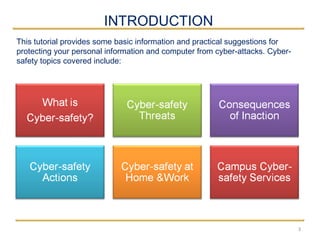
This tutorial provides some basic information and practical suggestions for
protecting your personal information and computer from cyber-attacks. Cyber-
safety topics covered include:
WHAT IS CYBER-SAFETY?
4
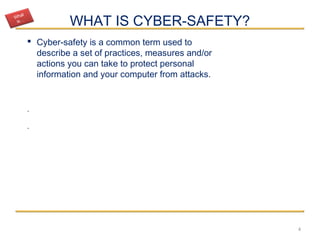
 Cyber-safety is a common term used to
describe a set of practices, measures and/or
actions you can take to protect personal
information and your computer from attacks.
.
.
What
is…
CYBER-SAFETY THREATS
5
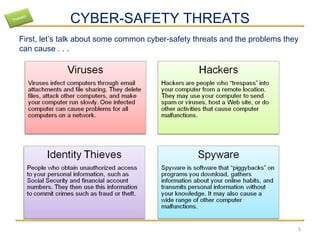
First, let’s talk about some common cyber-safety threats and the problems they
can cause . . .
Threats
CONSEQUENCES OF INACTION
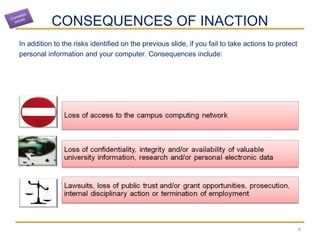
In addition to the risks identified on the previous slide, if you fail to take actions to protect
personal information and your computer. Consequences include:
6
Consequ
ences
CYBER-SAFETY ACTIONS
 The following slides describe the top seven actions you can take to protect
personal information and your computer..
 By implementing all seven of these security measures, you will protect
yourself, others, and your computer from many common threats.
 In most cases, implementing each of these security measures will only take
a few minutes.
7
Actions
TOP SEVEN CYBER-SAFETY ACTIONS
8
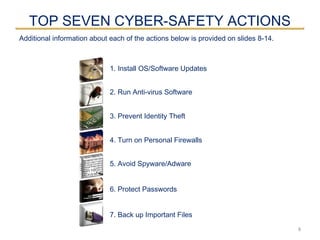
1. Install OS/Software Updates
2. Run Anti-virus Software
3. Prevent Identity Theft
4. Turn on Personal Firewalls
5. Avoid Spyware/Adware
7. Back up Important Files
Additional information about each of the actions below is provided on slides 8-14.
6. Protect Passwords
 Updates-sometimes called patches-fix problems with your operating system (OS) (e.g., Windows XP,
Windows Vista, Mac OS X) and software programs (e.g., Microsoft Office applications).
 Most new operating systems are set to download updates by default. After updates are downloaded,
you will be asked to install them. Click yes!
 To download patches for your system and software, visit:
 Windows Update: http://windowsupdate.microsoft.com to get or ensure you have all the
latest operating system updates only. Newer Windows systems are set to download these
updates by default.
 Microsoft Update: http://www.update.microsoft.com/microsoftupdate/ to get or ensure you
have all the latest OS and Microsoft Office software updates. You must sign up for this service.
 Apple: http://www.apple.com/support
 Unix: Consult documentation or online help for system update information and
instructions.
 Be sure to restart your computer after updates are installed so that the patches can be applied
immediately.
INSTALL OS/SOFTWARE
UPDATES
9
RUN ANTI-VIRUS SOFTWARE
10
 To avoid computer problems caused by viruses, install and run an anti-virus
program like Sophos.
 Periodically, check to see if your anti-virus is up to date by opening your anti-
virus program and checking the Last updated: date.
 Anti-virus software removes viruses, quarantines and repairs infected files,
and can help prevent future viruses.
PREVENT IDENTITY THEFT
11
 Don't give out financial account numbers, Social Security numbers, driver’s license
numbers or other personal identity information unless you know exactly who's receiving
it. Protect others people’s information as you would your own.
 Never send personal or confidential information via email or instant messages as these
can be easily intercepted.
 Beware of phishing scams - a form of fraud that uses email messages that appear to be
from a reputable business (often a financial institution) in an attempt to gain personal or
account information. These often do not include a personal salutation. Never enter
personal information into an online form you accessed via a link in an email you were
not expecting. Legitimate businesses will not ask for personal information online.
 Order a copy of your credit report from each of the three major credit bureaus-Equifax,
Experian, and Trans Union. Reports can be ordered online at each of the bureaus’ Web
sites. Make sure reports are accurate and include only those activities you have
authorized.
TURN ON PERSONAL
FIREWALLS
 Check your computer's security settings for a built-in personal firewall. If you have
one, turn it on. Microsoft Vista and Mac OSX have built-in firewalls. For more
information, see:
• Mac Firewall  
(docs.info.apple.com/article.html?path=Mac/10.4/en/mh1042.html)
• Microsoft Firewall
(www.microsoft.com/windowsxp/using/networking/security/winfirewall.mspx)
• Unix users should consult system documentation or online help for personal
firewall instructions and/or recommendations.
 Once your firewall is turned on, test your firewall for open ports that could allow in
viruses and hackers. Firewall scanners like the one on
http://www.auditmypc.com/firewall-test.asp simplify this process.
 Firewalls act as protective barriers between computers and the internet.
 Hackers search the Internet by sending out pings (calls) to random computers and
wait for responses. Firewalls prevent your computer from responding to these calls.
12
AVOID SPYWARE/ADWARE
13
 Spyware and adware take up memory and can slow down your computer or
cause other problems.
 Use Spybot and Ad-Aware to remove spyware/adware from your computer.
 Watch for allusions to spyware and adware in user agreements before
installing free software programs.
 Be wary of invitations to download software from unknown internet sources.
PROTECT PASSWORDS
14
 Do not share your passwords, and always make new passwords difficult to guess by
avoiding dictionary words, and mixing letters, numbers and punctuation.
 Do not use one of these common passwords or any variation of them: qwerty1, abc123,
letmein, password1, iloveyou1, (yourname1), baseball1.
 Change your passwords periodically.
 When choosing a password:
o Mix upper and lower case letters
o Use a minimum of 8 characters
o Use mnemonics to help you remember a difficult password
 Store passwords in a safe place. Consider using KeePass Password Safe
(http://keepass.info/), Keychain (Mac) or an encrypted USB drive to store passwords.
Avoid keeping passwords on a Post-it under your keyboard, on your monitor or in a
drawer near your computer!
BACK UP IMPORTANT FILES
 Reduce your risk of losing important files to a virus, computer crash, theft or
disaster by creating back-up copies.
 Keep your critical files in one place on your computer’s hard drive so you can
easily create a back up copy.
 Save copies of your important documents and files to a CD, online back up
service, flash or USB drive, or a server.
 Store your back-up media in a secure place away from your computer, in
case of fire or theft.
 Test your back up media periodically to make sure the files are accessible
and readable.
15
CYBER-SAFETY AT HOME
 Physically secure your computer by using security cables and locking doors
and windows in the dorms and off-campus housing.
 Avoid leaving your laptop unsupervised and in plain view in the library or
coffee house, or in your car, dorm room or home.
 Set up a user account and password to prevent unauthorized access to your
computer files.
 Do not install unnecessary programs on your computer.
 Microsoft users can download the free Secunia Personal Software Inspector
(https://psi.secunia.com/), which lets you scan your computer for any missing
operating system or software patches and provides instructions for getting all
the latest updates.
16
Home
CYBER-SAFETY AT WORK
 Be sure to work with your technical support coordinator before implementing
new cyber-safety measures.
 Talk with your technical support coordinator about what cyber-safety
measures are in place in your department.
 Report to your supervisor any cyber-safety policy violations, security
flaws/weaknesses you discover or any suspicious activity by unauthorized
individuals in your work area.
 Physically secure your computer by using security cables and locking
building/office doors and windows.
 Do not install unnecessary programs on your work computer.
17
Work
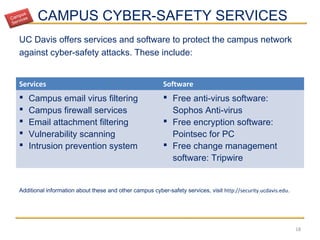
CAMPUS CYBER-SAFETY SERVICES
UC Davis offers services and software to protect the campus network
against cyber-safety attacks. These include:
18
Services Software
 Campus email virus filtering
 Campus firewall services
 Email attachment filtering
 Vulnerability scanning
 Intrusion prevention system
 Free anti-virus software:
Sophos Anti-virus
 Free encryption software:
Pointsec for PC
 Free change management
software: Tripwire
Additional information about these and other campus cyber-safety services, visit http://security.ucdavis.edu.
Campus
Services
THANK YOU
19

Cybersafety basics.ppt cs

  • 1.
    SILVER OAK COLLEGEOF ENGINEERING AND TECHNOLOGY TOPIC: CYBER SAFETY BASICS PREPARED BY: SONI VINAY(13CL111) VAGHELA MAULIK(13CL120) RAMPARIYA BHAVIN ANKIT 1
  • 2.
  • 3.
    INTRODUCTION 3 This tutorial providessome basic information and practical suggestions for protecting your personal information and computer from cyber-attacks. Cyber- safety topics covered include:
  • 4.
    WHAT IS CYBER-SAFETY? 4 Cyber-safety is a common term used to describe a set of practices, measures and/or actions you can take to protect personal information and your computer from attacks. . . What is…
  • 5.
    CYBER-SAFETY THREATS 5 First, let’stalk about some common cyber-safety threats and the problems they can cause . . . Threats
  • 6.
    CONSEQUENCES OF INACTION Inaddition to the risks identified on the previous slide, if you fail to take actions to protect personal information and your computer. Consequences include: 6 Consequ ences
  • 7.
    CYBER-SAFETY ACTIONS  Thefollowing slides describe the top seven actions you can take to protect personal information and your computer..  By implementing all seven of these security measures, you will protect yourself, others, and your computer from many common threats.  In most cases, implementing each of these security measures will only take a few minutes. 7 Actions
  • 8.
    TOP SEVEN CYBER-SAFETYACTIONS 8 1. Install OS/Software Updates 2. Run Anti-virus Software 3. Prevent Identity Theft 4. Turn on Personal Firewalls 5. Avoid Spyware/Adware 7. Back up Important Files Additional information about each of the actions below is provided on slides 8-14. 6. Protect Passwords
  • 9.
     Updates-sometimes calledpatches-fix problems with your operating system (OS) (e.g., Windows XP, Windows Vista, Mac OS X) and software programs (e.g., Microsoft Office applications).  Most new operating systems are set to download updates by default. After updates are downloaded, you will be asked to install them. Click yes!  To download patches for your system and software, visit:  Windows Update: http://windowsupdate.microsoft.com to get or ensure you have all the latest operating system updates only. Newer Windows systems are set to download these updates by default.  Microsoft Update: http://www.update.microsoft.com/microsoftupdate/ to get or ensure you have all the latest OS and Microsoft Office software updates. You must sign up for this service.  Apple: http://www.apple.com/support  Unix: Consult documentation or online help for system update information and instructions.  Be sure to restart your computer after updates are installed so that the patches can be applied immediately. INSTALL OS/SOFTWARE UPDATES 9
  • 10.
    RUN ANTI-VIRUS SOFTWARE 10 To avoid computer problems caused by viruses, install and run an anti-virus program like Sophos.  Periodically, check to see if your anti-virus is up to date by opening your anti- virus program and checking the Last updated: date.  Anti-virus software removes viruses, quarantines and repairs infected files, and can help prevent future viruses.
  • 11.
    PREVENT IDENTITY THEFT 11 Don't give out financial account numbers, Social Security numbers, driver’s license numbers or other personal identity information unless you know exactly who's receiving it. Protect others people’s information as you would your own.  Never send personal or confidential information via email or instant messages as these can be easily intercepted.  Beware of phishing scams - a form of fraud that uses email messages that appear to be from a reputable business (often a financial institution) in an attempt to gain personal or account information. These often do not include a personal salutation. Never enter personal information into an online form you accessed via a link in an email you were not expecting. Legitimate businesses will not ask for personal information online.  Order a copy of your credit report from each of the three major credit bureaus-Equifax, Experian, and Trans Union. Reports can be ordered online at each of the bureaus’ Web sites. Make sure reports are accurate and include only those activities you have authorized.
  • 12.
    TURN ON PERSONAL FIREWALLS Check your computer's security settings for a built-in personal firewall. If you have one, turn it on. Microsoft Vista and Mac OSX have built-in firewalls. For more information, see: • Mac Firewall   (docs.info.apple.com/article.html?path=Mac/10.4/en/mh1042.html) • Microsoft Firewall (www.microsoft.com/windowsxp/using/networking/security/winfirewall.mspx) • Unix users should consult system documentation or online help for personal firewall instructions and/or recommendations.  Once your firewall is turned on, test your firewall for open ports that could allow in viruses and hackers. Firewall scanners like the one on http://www.auditmypc.com/firewall-test.asp simplify this process.  Firewalls act as protective barriers between computers and the internet.  Hackers search the Internet by sending out pings (calls) to random computers and wait for responses. Firewalls prevent your computer from responding to these calls. 12
  • 13.
    AVOID SPYWARE/ADWARE 13  Spywareand adware take up memory and can slow down your computer or cause other problems.  Use Spybot and Ad-Aware to remove spyware/adware from your computer.  Watch for allusions to spyware and adware in user agreements before installing free software programs.  Be wary of invitations to download software from unknown internet sources.
  • 14.
    PROTECT PASSWORDS 14  Donot share your passwords, and always make new passwords difficult to guess by avoiding dictionary words, and mixing letters, numbers and punctuation.  Do not use one of these common passwords or any variation of them: qwerty1, abc123, letmein, password1, iloveyou1, (yourname1), baseball1.  Change your passwords periodically.  When choosing a password: o Mix upper and lower case letters o Use a minimum of 8 characters o Use mnemonics to help you remember a difficult password  Store passwords in a safe place. Consider using KeePass Password Safe (http://keepass.info/), Keychain (Mac) or an encrypted USB drive to store passwords. Avoid keeping passwords on a Post-it under your keyboard, on your monitor or in a drawer near your computer!
  • 15.
    BACK UP IMPORTANTFILES  Reduce your risk of losing important files to a virus, computer crash, theft or disaster by creating back-up copies.  Keep your critical files in one place on your computer’s hard drive so you can easily create a back up copy.  Save copies of your important documents and files to a CD, online back up service, flash or USB drive, or a server.  Store your back-up media in a secure place away from your computer, in case of fire or theft.  Test your back up media periodically to make sure the files are accessible and readable. 15
  • 16.
    CYBER-SAFETY AT HOME Physically secure your computer by using security cables and locking doors and windows in the dorms and off-campus housing.  Avoid leaving your laptop unsupervised and in plain view in the library or coffee house, or in your car, dorm room or home.  Set up a user account and password to prevent unauthorized access to your computer files.  Do not install unnecessary programs on your computer.  Microsoft users can download the free Secunia Personal Software Inspector (https://psi.secunia.com/), which lets you scan your computer for any missing operating system or software patches and provides instructions for getting all the latest updates. 16 Home
  • 17.
    CYBER-SAFETY AT WORK Be sure to work with your technical support coordinator before implementing new cyber-safety measures.  Talk with your technical support coordinator about what cyber-safety measures are in place in your department.  Report to your supervisor any cyber-safety policy violations, security flaws/weaknesses you discover or any suspicious activity by unauthorized individuals in your work area.  Physically secure your computer by using security cables and locking building/office doors and windows.  Do not install unnecessary programs on your work computer. 17 Work
  • 18.
    CAMPUS CYBER-SAFETY SERVICES UCDavis offers services and software to protect the campus network against cyber-safety attacks. These include: 18 Services Software  Campus email virus filtering  Campus firewall services  Email attachment filtering  Vulnerability scanning  Intrusion prevention system  Free anti-virus software: Sophos Anti-virus  Free encryption software: Pointsec for PC  Free change management software: Tripwire Additional information about these and other campus cyber-safety services, visit http://security.ucdavis.edu. Campus Services
  • 19.