C#TUTORIAL
C# (C-Sharp) is a programming language developed by Microsoft that runs on the .NET
Framework.
C# is used to develop web apps, desktop apps, mobile apps, games and much more.
 EXAMPLE
 using System;
 namespace HelloWorld
 {
 class Program
 {
 static void Main(string[] args)
 {
 Console.WriteLine("Hello World!");
 }
 }
 }
 C# Exercise #1
 Static void_____(string[] args)
 {
 ________.________(“Hello World!”);
 }
 ANSWER:
 Static void Main(string[] args)
 {
 Console.WriteLine(“Hello World!”);
 }
 What is C#?
 C# is pronounced "C-Sharp".
 It is an object-oriented programming language created by Microsoft that runs on the .NET Framework.
 C# has roots from the C family, and the language is close to other popular languages like C++ and Java.
 The first version was released in year 2002. The latest version, C# 8, was released in September 2019.
 C# is used for:
 Mobile applications
 Desktop applications
 Web applications
 Web services
 Web sites
 Games
 VR
 Database applications
 And much, much more!
 Why Use C#?
 It is one of the most popular programming language in the world
 It is easy to learn and simple to use
 It has a huge community support
 C# is an object oriented language which gives a clear structure to
programs and allows code to be reused, lowering development costs.
 As C# is close to C, C++ and Java, it makes it easy for programmers to
switch to C# or vice versa
 C# IDE
 The easiest way to get started with C#, is to use an IDE.
 An IDE (Integrated Development Environment) is used to edit and compile code.
 In our tutorial, we will use Visual Studio Community, which is free to download from
https://visualstudio.microsoft.com/vs/community/.
 Applications written in C# use the .NET Framework, so it makes sense to use Visual Studio, as the
program, the framework, and the language, are all created by Microsoft.
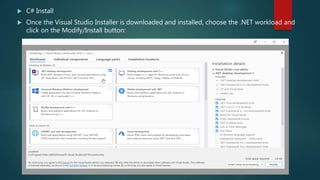
 C# Install
 Once the Visual Studio Installer is downloaded and installed, choose the .NET workload and
click on the Modify/Install button:
using System;
namespace HelloWorld
{
class Program
{
static void Main(string[] args)
{
Console.WriteLine("Hello World!");
}
}
}
Don't worry if you don't understand the code above - we will discuss it in detail in later chapters. For now, focus on
how to run the code.
Run the program by pressing the F5 button on your keyboard (or click on "Debug" -> "Start Debugging"). This will
compile and execute your code. The result will look something to this:
Learning C# At W3Schools
When learning C# at W3Schools.com, you can use our "Run Example" tool, which shows both
the code and the result. This will make it easier for you to understand every part as we move
forward:
using System;
namespace HelloWorld
{
class Program
{
static void Main(string[] args)
{
Console.WriteLine("Hello World!");
}
}
}
C# Syntax
In the previous chapter, we created a C# file called Program.cs, and we used the following
code to print "Hello World" to the screen:
using System;
namespace HelloWorld
{
class Program
{
static void Main(string[] args)
{
Console.WriteLine("Hello World!");
}
}
}
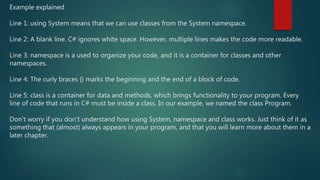
Example explained
Line 1: using System means that we can use classes from the System namespace.
Line 2: A blank line. C# ignores white space. However, multiple lines makes the code more readable.
Line 3: namespace is a used to organize your code, and it is a container for classes and other
namespaces.
Line 4: The curly braces {} marks the beginning and the end of a block of code.
Line 5: class is a container for data and methods, which brings functionality to your program. Every
line of code that runs in C# must be inside a class. In our example, we named the class Program.
Don't worry if you don't understand how using System, namespace and class works. Just think of it as
something that (almost) always appears in your program, and that you will learn more about them in a
later chapter.
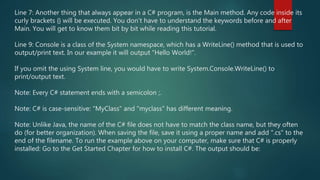
Line 7: Another thing that always appear in a C# program, is the Main method. Any code inside its
curly brackets {} will be executed. You don't have to understand the keywords before and after
Main. You will get to know them bit by bit while reading this tutorial.
Line 9: Console is a class of the System namespace, which has a WriteLine() method that is used to
output/print text. In our example it will output "Hello World!".
If you omit the using System line, you would have to write System.Console.WriteLine() to
print/output text.
Note: Every C# statement ends with a semicolon ;.
Note: C# is case-sensitive: "MyClass" and "myclass" has different meaning.
Note: Unlike Java, the name of the C# file does not have to match the class name, but they often
do (for better organization). When saving the file, save it using a proper name and add ".cs" to the
end of the filename. To run the example above on your computer, make sure that C# is properly
installed: Go to the Get Started Chapter for how to install C#. The output should be:
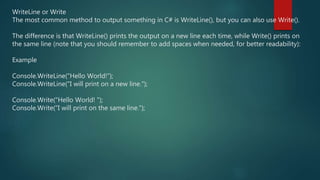
WriteLine or Write
The most common method to output something in C# is WriteLine(), but you can also use Write().
The difference is that WriteLine() prints the output on a new line each time, while Write() prints on
the same line (note that you should remember to add spaces when needed, for better readability):
Example
Console.WriteLine("Hello World!");
Console.WriteLine("I will print on a new line.");
Console.Write("Hello World! ");
Console.Write("I will print on the same line.");
C# Exercises
Exercise:
Insert the missing part of the code below to output "Hello World!".
static void_____(string[] args)
{
_______._______("Hello World!");
}
ANSWER:
static void Main(string[] args)
{
Console.WriteLine(“Hello World!”);
}
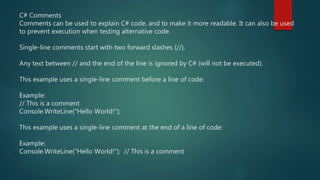
C# Comments
Comments can be used to explain C# code, and to make it more readable. It can also be used
to prevent execution when testing alternative code.
Single-line comments start with two forward slashes (//).
Any text between // and the end of the line is ignored by C# (will not be executed).
This example uses a single-line comment before a line of code:
Example:
// This is a comment
Console.WriteLine("Hello World!");
This example uses a single-line comment at the end of a line of code:
Example:
Console.WriteLine("Hello World!"); // This is a comment
 C# Multi-line Comments
 Multi-line comments start with /* and ends with */.
 Any text between /* and */ will be ignored by C#.
 This example uses a multi-line comment (a comment block) to explain the code:
 Example:
 /* The code below will print the words Hello World
 to the screen, and it is amazing */
 Console.WriteLine("Hello World!");
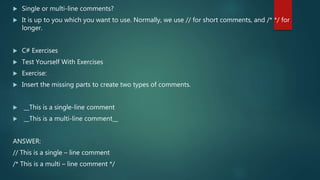
 Single or multi-line comments?
 It is up to you which you want to use. Normally, we use // for short comments, and /* */ for
longer.
 C# Exercises
 Test Yourself With Exercises
 Exercise:
 Insert the missing parts to create two types of comments.
 __This is a single-line comment
 __This is a multi-line comment__
ANSWER:
// This is a single – line comment
/* This is a multi – line comment */
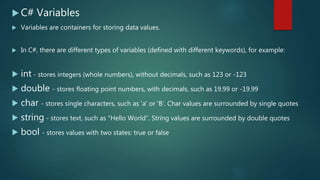
 C# Variables
 Variables are containers for storing data values.
 In C#, there are different types of variables (defined with different keywords), for example:
 int - stores integers (whole numbers), without decimals, such as 123 or -123
 double - stores floating point numbers, with decimals, such as 19.99 or -19.99
 char - stores single characters, such as 'a' or 'B'. Char values are surrounded by single quotes
 string - stores text, such as "Hello World". String values are surrounded by double quotes
 bool - stores values with two states: true or false
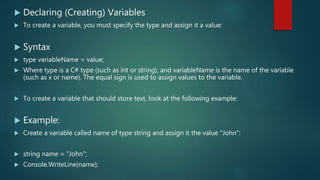
 Declaring (Creating) Variables
 To create a variable, you must specify the type and assign it a value:
 Syntax
 type variableName = value;
 Where type is a C# type (such as int or string), and variableName is the name of the variable
(such as x or name). The equal sign is used to assign values to the variable.
 To create a variable that should store text, look at the following example:
 Example:
 Create a variable called name of type string and assign it the value "John":
 string name = "John";
 Console.WriteLine(name);
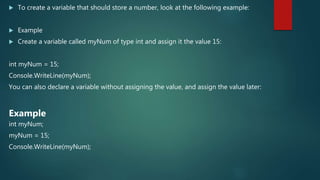
 To create a variable that should store a number, look at the following example:
 Example
 Create a variable called myNum of type int and assign it the value 15:
int myNum = 15;
Console.WriteLine(myNum);
You can also declare a variable without assigning the value, and assign the value later:
Example
int myNum;
myNum = 15;
Console.WriteLine(myNum);
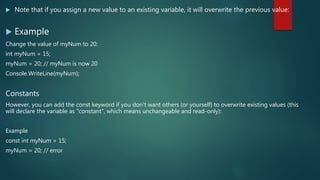
 Note that if you assign a new value to an existing variable, it will overwrite the previous value:
 Example
Change the value of myNum to 20:
int myNum = 15;
myNum = 20; // myNum is now 20
Console.WriteLine(myNum);
Constants
However, you can add the const keyword if you don't want others (or yourself) to overwrite existing values (this
will declare the variable as "constant", which means unchangeable and read-only):
Example
const int myNum = 15;
myNum = 20; // error
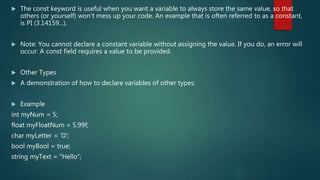
 The const keyword is useful when you want a variable to always store the same value, so that
others (or yourself) won't mess up your code. An example that is often referred to as a constant,
is PI (3.14159...).
 Note: You cannot declare a constant variable without assigning the value. If you do, an error will
occur: A const field requires a value to be provided.
 Other Types
 A demonstration of how to declare variables of other types:
 Example
int myNum = 5;
float myFloatNum = 5.99f;
char myLetter = 'D';
bool myBool = true;
string myText = "Hello";
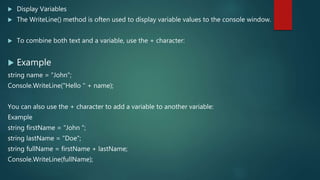
 Display Variables
 The WriteLine() method is often used to display variable values to the console window.
 To combine both text and a variable, use the + character:
 Example
string name = "John";
Console.WriteLine("Hello " + name);
You can also use the + character to add a variable to another variable:
Example
string firstName = "John ";
string lastName = "Doe";
string fullName = firstName + lastName;
Console.WriteLine(fullName);
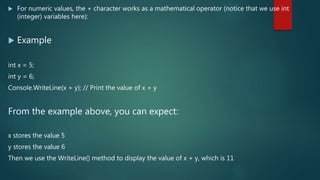
 For numeric values, the + character works as a mathematical operator (notice that we use int
(integer) variables here):
 Example
int x = 5;
int y = 6;
Console.WriteLine(x + y); // Print the value of x + y
From the example above, you can expect:
x stores the value 5
y stores the value 6
Then we use the WriteLine() method to display the value of x + y, which is 11
Declare Many Variables
 To declare more than one variable of the same type, use a comma-separated list:
Example
int x = 5, y = 6, z = 50;
Console.WriteLine(x + y + z); C# Identifiers
All C# variables must be identified with unique names.
These unique names are called identifiers.
Identifiers can be short names (like x and y) or more descriptive names (age, sum, totalVolume).
Note: It is recommended to use descriptive names in order to create understandable and maintainable code.
The general rules for constructing names for variables (unique identifiers) are:
Names can contain letters, digits and the underscore character (_)
Names must begin with a letter
Names should start with a lowercase letter and it cannot contain whitespace
Names are case sensitive ("myVar" and "myvar" are different variables)
Reserved words (like C# keywords, such as int or double) cannot be used as names
 C# Exercises
Cordovilla
Cordovilla

Cordovilla

  • 1.
  • 2.
    C# (C-Sharp) isa programming language developed by Microsoft that runs on the .NET Framework. C# is used to develop web apps, desktop apps, mobile apps, games and much more.  EXAMPLE  using System;  namespace HelloWorld  {  class Program  {  static void Main(string[] args)  {  Console.WriteLine("Hello World!");  }  }  }
  • 3.
     C# Exercise#1  Static void_____(string[] args)  {  ________.________(“Hello World!”);  }  ANSWER:  Static void Main(string[] args)  {  Console.WriteLine(“Hello World!”);  }
  • 4.
     What isC#?  C# is pronounced "C-Sharp".  It is an object-oriented programming language created by Microsoft that runs on the .NET Framework.  C# has roots from the C family, and the language is close to other popular languages like C++ and Java.  The first version was released in year 2002. The latest version, C# 8, was released in September 2019.  C# is used for:  Mobile applications  Desktop applications  Web applications  Web services  Web sites  Games  VR  Database applications  And much, much more!
  • 5.
     Why UseC#?  It is one of the most popular programming language in the world  It is easy to learn and simple to use  It has a huge community support  C# is an object oriented language which gives a clear structure to programs and allows code to be reused, lowering development costs.  As C# is close to C, C++ and Java, it makes it easy for programmers to switch to C# or vice versa
  • 6.
     C# IDE The easiest way to get started with C#, is to use an IDE.  An IDE (Integrated Development Environment) is used to edit and compile code.  In our tutorial, we will use Visual Studio Community, which is free to download from https://visualstudio.microsoft.com/vs/community/.  Applications written in C# use the .NET Framework, so it makes sense to use Visual Studio, as the program, the framework, and the language, are all created by Microsoft.
  • 7.
     C# Install Once the Visual Studio Installer is downloaded and installed, choose the .NET workload and click on the Modify/Install button:
  • 8.
    using System; namespace HelloWorld { classProgram { static void Main(string[] args) { Console.WriteLine("Hello World!"); } } } Don't worry if you don't understand the code above - we will discuss it in detail in later chapters. For now, focus on how to run the code. Run the program by pressing the F5 button on your keyboard (or click on "Debug" -> "Start Debugging"). This will compile and execute your code. The result will look something to this:
  • 9.
    Learning C# AtW3Schools When learning C# at W3Schools.com, you can use our "Run Example" tool, which shows both the code and the result. This will make it easier for you to understand every part as we move forward: using System; namespace HelloWorld { class Program { static void Main(string[] args) { Console.WriteLine("Hello World!"); } } }
  • 10.
    C# Syntax In theprevious chapter, we created a C# file called Program.cs, and we used the following code to print "Hello World" to the screen: using System; namespace HelloWorld { class Program { static void Main(string[] args) { Console.WriteLine("Hello World!"); } } }
  • 11.
    Example explained Line 1:using System means that we can use classes from the System namespace. Line 2: A blank line. C# ignores white space. However, multiple lines makes the code more readable. Line 3: namespace is a used to organize your code, and it is a container for classes and other namespaces. Line 4: The curly braces {} marks the beginning and the end of a block of code. Line 5: class is a container for data and methods, which brings functionality to your program. Every line of code that runs in C# must be inside a class. In our example, we named the class Program. Don't worry if you don't understand how using System, namespace and class works. Just think of it as something that (almost) always appears in your program, and that you will learn more about them in a later chapter.
  • 12.
    Line 7: Anotherthing that always appear in a C# program, is the Main method. Any code inside its curly brackets {} will be executed. You don't have to understand the keywords before and after Main. You will get to know them bit by bit while reading this tutorial. Line 9: Console is a class of the System namespace, which has a WriteLine() method that is used to output/print text. In our example it will output "Hello World!". If you omit the using System line, you would have to write System.Console.WriteLine() to print/output text. Note: Every C# statement ends with a semicolon ;. Note: C# is case-sensitive: "MyClass" and "myclass" has different meaning. Note: Unlike Java, the name of the C# file does not have to match the class name, but they often do (for better organization). When saving the file, save it using a proper name and add ".cs" to the end of the filename. To run the example above on your computer, make sure that C# is properly installed: Go to the Get Started Chapter for how to install C#. The output should be:
  • 13.
    WriteLine or Write Themost common method to output something in C# is WriteLine(), but you can also use Write(). The difference is that WriteLine() prints the output on a new line each time, while Write() prints on the same line (note that you should remember to add spaces when needed, for better readability): Example Console.WriteLine("Hello World!"); Console.WriteLine("I will print on a new line."); Console.Write("Hello World! "); Console.Write("I will print on the same line.");
  • 14.
    C# Exercises Exercise: Insert themissing part of the code below to output "Hello World!". static void_____(string[] args) { _______._______("Hello World!"); } ANSWER: static void Main(string[] args) { Console.WriteLine(“Hello World!”); }
  • 15.
    C# Comments Comments canbe used to explain C# code, and to make it more readable. It can also be used to prevent execution when testing alternative code. Single-line comments start with two forward slashes (//). Any text between // and the end of the line is ignored by C# (will not be executed). This example uses a single-line comment before a line of code: Example: // This is a comment Console.WriteLine("Hello World!"); This example uses a single-line comment at the end of a line of code: Example: Console.WriteLine("Hello World!"); // This is a comment
  • 16.
     C# Multi-lineComments  Multi-line comments start with /* and ends with */.  Any text between /* and */ will be ignored by C#.  This example uses a multi-line comment (a comment block) to explain the code:  Example:  /* The code below will print the words Hello World  to the screen, and it is amazing */  Console.WriteLine("Hello World!");
  • 17.
     Single ormulti-line comments?  It is up to you which you want to use. Normally, we use // for short comments, and /* */ for longer.  C# Exercises  Test Yourself With Exercises  Exercise:  Insert the missing parts to create two types of comments.  __This is a single-line comment  __This is a multi-line comment__ ANSWER: // This is a single – line comment /* This is a multi – line comment */
  • 18.
     C# Variables Variables are containers for storing data values.  In C#, there are different types of variables (defined with different keywords), for example:  int - stores integers (whole numbers), without decimals, such as 123 or -123  double - stores floating point numbers, with decimals, such as 19.99 or -19.99  char - stores single characters, such as 'a' or 'B'. Char values are surrounded by single quotes  string - stores text, such as "Hello World". String values are surrounded by double quotes  bool - stores values with two states: true or false
  • 19.
     Declaring (Creating)Variables  To create a variable, you must specify the type and assign it a value:  Syntax  type variableName = value;  Where type is a C# type (such as int or string), and variableName is the name of the variable (such as x or name). The equal sign is used to assign values to the variable.  To create a variable that should store text, look at the following example:  Example:  Create a variable called name of type string and assign it the value "John":  string name = "John";  Console.WriteLine(name);
  • 20.
     To createa variable that should store a number, look at the following example:  Example  Create a variable called myNum of type int and assign it the value 15: int myNum = 15; Console.WriteLine(myNum); You can also declare a variable without assigning the value, and assign the value later: Example int myNum; myNum = 15; Console.WriteLine(myNum);
  • 21.
     Note thatif you assign a new value to an existing variable, it will overwrite the previous value:  Example Change the value of myNum to 20: int myNum = 15; myNum = 20; // myNum is now 20 Console.WriteLine(myNum); Constants However, you can add the const keyword if you don't want others (or yourself) to overwrite existing values (this will declare the variable as "constant", which means unchangeable and read-only): Example const int myNum = 15; myNum = 20; // error
  • 22.
     The constkeyword is useful when you want a variable to always store the same value, so that others (or yourself) won't mess up your code. An example that is often referred to as a constant, is PI (3.14159...).  Note: You cannot declare a constant variable without assigning the value. If you do, an error will occur: A const field requires a value to be provided.  Other Types  A demonstration of how to declare variables of other types:  Example int myNum = 5; float myFloatNum = 5.99f; char myLetter = 'D'; bool myBool = true; string myText = "Hello";
  • 23.
     Display Variables The WriteLine() method is often used to display variable values to the console window.  To combine both text and a variable, use the + character:  Example string name = "John"; Console.WriteLine("Hello " + name); You can also use the + character to add a variable to another variable: Example string firstName = "John "; string lastName = "Doe"; string fullName = firstName + lastName; Console.WriteLine(fullName);
  • 24.
     For numericvalues, the + character works as a mathematical operator (notice that we use int (integer) variables here):  Example int x = 5; int y = 6; Console.WriteLine(x + y); // Print the value of x + y From the example above, you can expect: x stores the value 5 y stores the value 6 Then we use the WriteLine() method to display the value of x + y, which is 11
  • 25.
    Declare Many Variables To declare more than one variable of the same type, use a comma-separated list: Example int x = 5, y = 6, z = 50; Console.WriteLine(x + y + z); C# Identifiers All C# variables must be identified with unique names. These unique names are called identifiers. Identifiers can be short names (like x and y) or more descriptive names (age, sum, totalVolume). Note: It is recommended to use descriptive names in order to create understandable and maintainable code. The general rules for constructing names for variables (unique identifiers) are: Names can contain letters, digits and the underscore character (_) Names must begin with a letter Names should start with a lowercase letter and it cannot contain whitespace Names are case sensitive ("myVar" and "myvar" are different variables) Reserved words (like C# keywords, such as int or double) cannot be used as names
  • 26.