Crystal Report
Crystal Report
It is included in all major editions and ships in all languages
available with Visual Studio .NET. Crystal Reports .NET provides
developers with the fastest, most productive way to create and
integrate presentation-quality, interactive reports that scale to
meet the demands of end users.
Crystal Reports .NET is a very powerful report writer. It offers a
very well-defined object model that provides flexibility when
integrating reports into Windows and Web applications. It also
comes with a highly customizable viewer component that gives
developers control over how their reports are presented to users.
New Features in Crystal Reports .NET
• Integrated into .NET IDE
Crystal Reports .NET has been completely re-written from the
ground-up in C#. It is tightly integrated into the Visual Studio
.NET IDE. Developers no longer have to switch to a different
application to create and edit reports.
• Crystal Reports Viewer
Crystal Reports .NET provides developers with two different
report viewing components. The first can be used for displaying
reports in Windows forms. The other is a component that can be
used to display reports in a Web environment. The beauty of
these viewers is in their simplicity. Viewing a report is as simple as
setting the Report Source property of the respective viewer.
• Allowing users to interact with the report
Developers can give users the ability to interact with their reports
object via a programmable API. Developers can change report
properties by calling methods or setting properties of the viewer
object.
• ADO.NET Integration
ADO.NET is now the lingua-franca of data interchange in the .NET
world. Crystal Reports .NET provides the ability to use ADO.NET
datasets as the data source for reports.
• Expose Reports as Web Services
Reports can be exposed as Web services. This adds additional
power to Web service applications. Exposing reports as Web
services enables developers to offer real-time information (in the
form of a report) as opposed to real-time data!
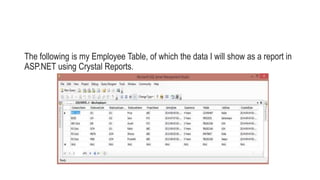
The following is my Employee Table, of which the data I will show as a report in
ASP.NET using Crystal Reports.

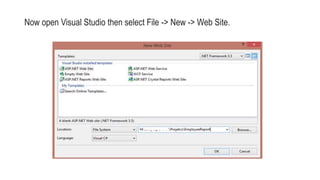
Now open Visual Studio then select File -> New -> Web Site.
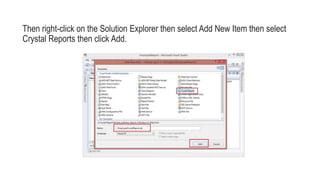
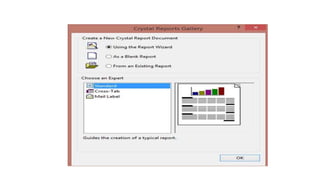
Then right-click on the Solution Explorer then select Add New Item then select
Crystal Reports then click Add.
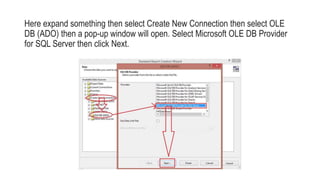
Here expand something then select Create New Connection then select OLE
DB (ADO) then a pop-up window will open. Select Microsoft OLE DB Provider
for SQL Server then click Next.
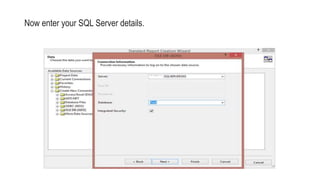
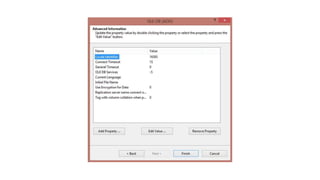
Now enter your SQL Server details.
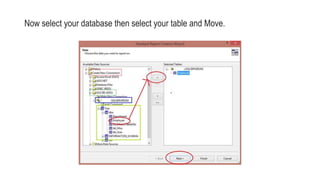
Now select your database then select your table and Move.
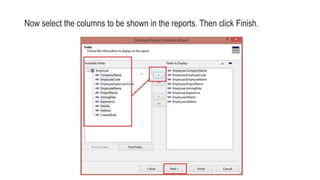
Now select the columns to be shown in the reports. Then click Finish.
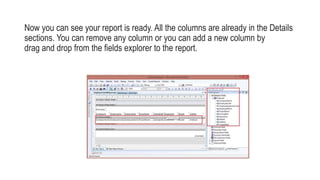
Now you can see your report is ready. All the columns are already in the Details
sections. You can remove any column or you can add a new column by
drag and drop from the fields explorer to the report.
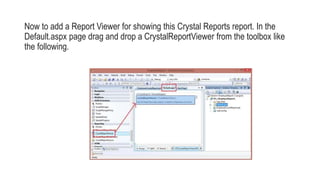
Now to add a Report Viewer for showing this Crystal Reports report. In the
Default.aspx page drag and drop a CrystalReportViewer from the toolbox like
the following.
Now for the Page_Load event write the following code:
1. using System;
2. using System.Configuration;
3. using System.Data;
4. using System.Linq;
5. using System.Web;
6. using System.Web.Security;
7. using System.Web.UI;
8. using System.Web.UI.HtmlControls;
9. using System.Web.UI.WebControls;
10. using System.Web.UI.WebControls.WebParts;
11. using System.Xml.Linq;
12. using CrystalDecisions.CrystalReports.Engine;
13.
14. public partial class _Default : System.Web.UI.Page
15. {
16. protected void Page_Load(object sender, EventArgs e)
17. {
18. ReportDocument cryRpt = new ReportDocument();
19. cryRpt.Load(Server.MapPath("EmployeeCrystalReport.rpt"));
20. CrystalReportViewer1.ReportSource = cryRpt;
21. }
22. }
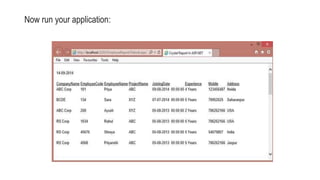
Now run your application:

crystalReport.pptx

  • 1.
  • 2.
    Crystal Report It isincluded in all major editions and ships in all languages available with Visual Studio .NET. Crystal Reports .NET provides developers with the fastest, most productive way to create and integrate presentation-quality, interactive reports that scale to meet the demands of end users.
  • 3.
    Crystal Reports .NETis a very powerful report writer. It offers a very well-defined object model that provides flexibility when integrating reports into Windows and Web applications. It also comes with a highly customizable viewer component that gives developers control over how their reports are presented to users.
  • 4.
    New Features inCrystal Reports .NET • Integrated into .NET IDE Crystal Reports .NET has been completely re-written from the ground-up in C#. It is tightly integrated into the Visual Studio .NET IDE. Developers no longer have to switch to a different application to create and edit reports.
  • 5.
    • Crystal ReportsViewer Crystal Reports .NET provides developers with two different report viewing components. The first can be used for displaying reports in Windows forms. The other is a component that can be used to display reports in a Web environment. The beauty of these viewers is in their simplicity. Viewing a report is as simple as setting the Report Source property of the respective viewer.
  • 6.
    • Allowing usersto interact with the report Developers can give users the ability to interact with their reports object via a programmable API. Developers can change report properties by calling methods or setting properties of the viewer object.
  • 7.
    • ADO.NET Integration ADO.NETis now the lingua-franca of data interchange in the .NET world. Crystal Reports .NET provides the ability to use ADO.NET datasets as the data source for reports.
  • 8.
    • Expose Reportsas Web Services Reports can be exposed as Web services. This adds additional power to Web service applications. Exposing reports as Web services enables developers to offer real-time information (in the form of a report) as opposed to real-time data!
  • 9.
    The following ismy Employee Table, of which the data I will show as a report in ASP.NET using Crystal Reports.

  • 10.
    Now open VisualStudio then select File -> New -> Web Site.
  • 11.
    Then right-click onthe Solution Explorer then select Add New Item then select Crystal Reports then click Add.
  • 13.
    Here expand somethingthen select Create New Connection then select OLE DB (ADO) then a pop-up window will open. Select Microsoft OLE DB Provider for SQL Server then click Next.
  • 14.
    Now enter yourSQL Server details.
  • 16.
    Now select yourdatabase then select your table and Move.
  • 17.
    Now select thecolumns to be shown in the reports. Then click Finish.
  • 18.
    Now you cansee your report is ready. All the columns are already in the Details sections. You can remove any column or you can add a new column by drag and drop from the fields explorer to the report.
  • 19.
    Now to adda Report Viewer for showing this Crystal Reports report. In the Default.aspx page drag and drop a CrystalReportViewer from the toolbox like the following.
  • 20.
    Now for thePage_Load event write the following code: 1. using System; 2. using System.Configuration; 3. using System.Data; 4. using System.Linq; 5. using System.Web; 6. using System.Web.Security; 7. using System.Web.UI; 8. using System.Web.UI.HtmlControls; 9. using System.Web.UI.WebControls; 10. using System.Web.UI.WebControls.WebParts; 11. using System.Xml.Linq; 12. using CrystalDecisions.CrystalReports.Engine; 13. 14. public partial class _Default : System.Web.UI.Page 15. { 16. protected void Page_Load(object sender, EventArgs e) 17. { 18. ReportDocument cryRpt = new ReportDocument(); 19. cryRpt.Load(Server.MapPath("EmployeeCrystalReport.rpt")); 20. CrystalReportViewer1.ReportSource = cryRpt; 21. } 22. }
  • 21.
    Now run yourapplication: