Creo Parametric 3.0
Tips and Tricks
Evan Winter
System
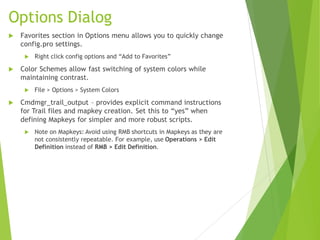
Options Dialog
 Favorites section in Options menu allows you to quickly change
config.pro settings.
 Right click config options and “Add to Favorites”
 Color Schemes allow fast switching of system colors while
maintaining contrast.
 File > Options > System Colors
 Cmdmgr_trail_output – provides explicit command instructions
for Trail files and mapkey creation. Set this to “yes” when
defining Mapkeys for simpler and more robust scripts.
 Note on Mapkeys: Avoid using RMB shortcuts in Mapkeys as they are
not consistently repeatable. For example, use Operations > Edit
Definition instead of RMB > Edit Definition.
Creating Mapkeys
File > Options > Environment > Mapkeys Settings…
Creating Mapkeys (Cont.)
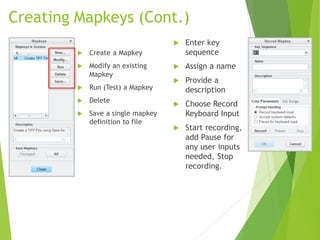
 Create a Mapkey
 Modify an existing
Mapkey
 Run (Test) a Mapkey
 Delete
 Save a single mapkey
definition to file
 Enter key
sequence
 Assign a name
 Provide a
description
 Choose Record
Keyboard Input
 Start recording,
add Pause for
any user inputs
needed, Stop
recording.
Creating Mapkeys (Cont.)
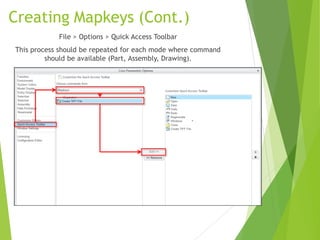
File > Options > Quick Access Toolbar
This process should be repeated for each mode where command
should be available (Part, Assembly, Drawing).
Part Mode
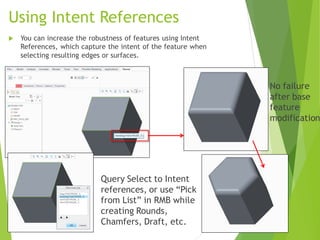
Using Intent References
 You can increase the robustness of features using Intent
References, which capture the intent of the feature when
selecting resulting edges or surfaces.
No failure
after base
feature
modification
Query Select to Intent
references, or use “Pick
from List” in RMB while
creating Rounds,
Chamfers, Draft, etc.
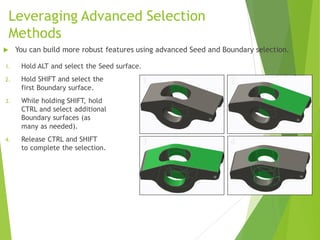
Leveraging Advanced Selection
Methods
1. Hold ALT and select the Seed surface.
2. Hold SHIFT and select the
first Boundary surface.
3. While holding SHIFT, hold
CTRL and select additional
Boundary surfaces (as
many as needed).
4. Release CTRL and SHIFT
to complete the selection.
 You can build more robust features using advanced Seed and Boundary selection.
1 2
3 4
Leveraging Advanced Selection
Methods (Cont.)
 Within a feature, use the Details dialog to manage advanced
selections.
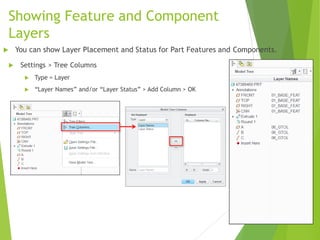
Showing Feature and Component
Layers
 Settings > Tree Columns
 Type = Layer
 “Layer Names” and/or “Layer Status” > Add Column > OK
 You can show Layer Placement and Status for Part Features and Components.
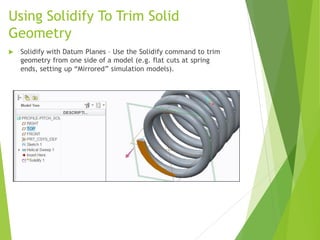
Using Solidify To Trim Solid
Geometry
 Solidify with Datum Planes – Use the Solidify command to trim
geometry from one side of a model (e.g. flat cuts at spring
ends, setting up “Mirrored” simulation models).
Improving Patterns
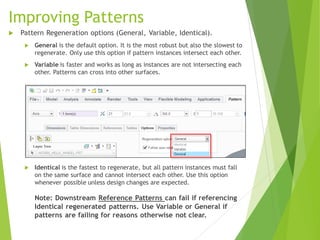
 Pattern Regeneration options (General, Variable, Identical).
 General is the default option. It is the most robust but also the slowest to
regenerate. Only use this option if pattern instances intersect each other.
 Variable is faster and works as long as instances are not intersecting each
other. Patterns can cross into other surfaces.
 Identical is the fastest to regenerate, but all pattern instances must fall
on the same surface and cannot intersect each other. Use this option
whenever possible unless design changes are expected.
Note: Downstream Reference Patterns can fail if referencing
Identical regenerated patterns. Use Variable or General if
patterns are failing for reasons otherwise not clear.
Getting Transform measurements
using Vertices
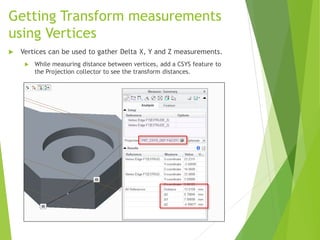
 Vertices can be used to gather Delta X, Y and Z measurements.
 While measuring distance between vertices, add a CSYS feature to
the Projection collector to see the transform distances.
Measuring Multiple Distances from
a Single Reference
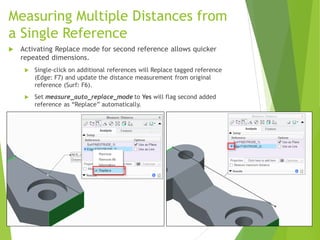
 Activating Replace mode for second reference allows quicker
repeated dimensions.
 Single-click on additional references will Replace tagged reference
(Edge: F7) and update the distance measurement from original
reference (Surf: F6).
 Set measure_auto_replace_mode to Yes will flag second added
reference as “Replace” automatically.
Creating Cast/Machined Parts
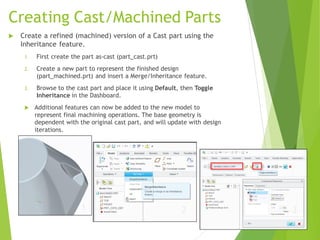
 Create a refined (machined) version of a Cast part using the
Inheritance feature.
1. First create the part as-cast (part_cast.prt)
2. Create a new part to represent the finished design
(part_machined.prt) and insert a Merge/Inheritance feature.
3. Browse to the cast part and place it using Default, then Toggle
Inheritance in the Dashboard.
 Additional features can now be added to the new model to
represent final machining operations. The base geometry is
dependent with the original cast part, and will update with design
iterations.
1 2 3
Adding colors to Cast/Machined
Parts
 Apply colors to a model that represent machining operations on a
previously Cast part.
1. In the machined model (an inheritance part from the previous slide), apply a
color to the “part” definition that represents the machined surfaces (select
the part name in the Model Tree when applying color).
2. Select a single surface, then RMB select Solid Surfaces. Pick a “cast” (matte)
color from the Appearance Gallery to apply the color to the “surface”
definition of the part.
3. Add the final machining features (holes, chamfers, facing, milling, etc.) to
“reveal” the machined part color underneath the cast surface color.
1 2 3
Assembly Mode
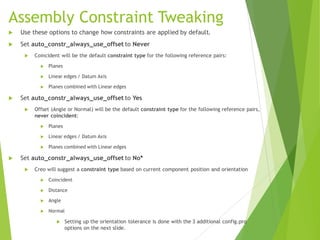
Assembly Constraint Tweaking
 Use these options to change how constraints are applied by default.
 Set auto_constr_always_use_offset to Never
 Coincident will be the default constraint type for the following reference pairs:
 Planes
 Linear edges / Datum Axis
 Planes combined with Linear edges
 Set auto_constr_always_use_offset to Yes
 Offset (Angle or Normal) will be the default constraint type for the following reference pairs,
never coincident:
 Planes
 Linear edges / Datum Axis
 Planes combined with Linear edges
 Set auto_constr_always_use_offset to No*
 Creo will suggest a constraint type based on current component position and orientation
 Coincident
 Distance
 Angle
 Normal
 Setting up the orientation tolerance is done with the 3 additional config.pro
options on the next slide.
Assembly Constraint Tweaking
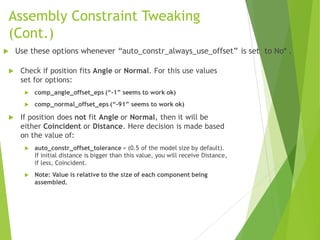
(Cont.)
 Check if position fits Angle or Normal. For this use values
set for options:
 comp_angle_offset_eps (“-1” seems to work ok)
 comp_normal_offset_eps (“-91” seems to work ok)
 If position does not fit Angle or Normal, then it will be
either Coincident or Distance. Here decision is made based
on the value of:
 auto_constr_offset_tolerance = (0.5 of the model size by default).
If initial distance is bigger than this value, you will receive Distance,
if less, Coincident.
 Note: Value is relative to the size of each component being
assembled.
 Use these options whenever “auto_constr_always_use_offset” is set to No* .
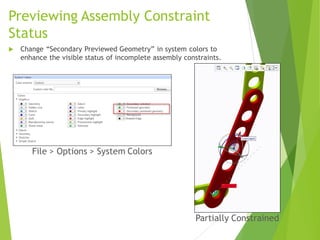
Previewing Assembly Constraint
Status
 Change “Secondary Previewed Geometry” in system colors to
enhance the visible status of incomplete assembly constraints.
Partially Constrained
File > Options > System Colors
Assembly Feature (Cut)
Considerations
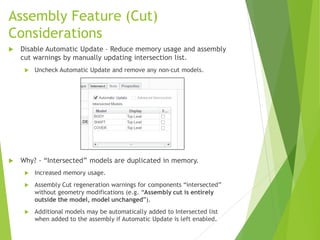
 Disable Automatic Update – Reduce memory usage and assembly
cut warnings by manually updating intersection list.
 Uncheck Automatic Update and remove any non-cut models.
 Why? - “Intersected” models are duplicated in memory.
 Increased memory usage.
 Assembly Cut regeneration warnings for components “intersected”
without geometry modifications (e.g. “Assembly cut is entirely
outside the model, model unchanged”).
 Additional models may be automatically added to Intersected list
when added to the assembly if Automatic Update is left enabled.
Large Assembly Management
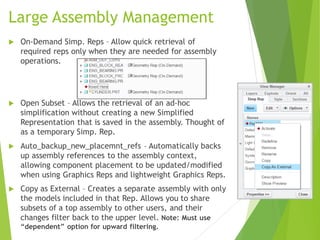
 On-Demand Simp. Reps – Allow quick retrieval of
required reps only when they are needed for assembly
operations.
 Open Subset – Allows the retrieval of an ad-hoc
simplification without creating a new Simplified
Representation that is saved in the assembly. Thought of
as a temporary Simp. Rep.
 Auto_backup_new_placemnt_refs – Automatically backs
up assembly references to the assembly context,
allowing component placement to be updated/modified
when using Graphics Reps and lightweight Graphics Reps.
 Copy as External – Creates a separate assembly with only
the models included in that Rep. Allows you to share
subsets of a top assembly to other users, and their
changes filter back to the upper level. Note: Must use
“dependent” option for upward filtering.
Options Modeler
Config.pro Options
 template_cnfg_asm
 Specifies the default configurable product template file.
 template_module
 Specifies the default module template file
Variant Builder Tips
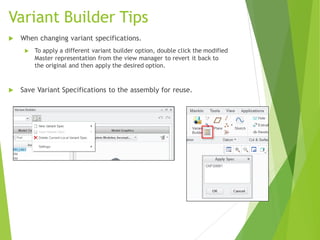
 When changing variant specifications.
 To apply a different variant builder option, double click the modified
Master representation from the view manager to revert it back to
the original and then apply the desired option.
 Save Variant Specifications to the assembly for reuse.
Legacy Data
 Overbuilt Assemblies
1. (Top Level) File > Save As > Save As Configurable Product
2. (Overbuilt Components) RMB > Transfer into Module
 Interchange Assemblies
 File > Save As > Save As Configurable Module
Mechanism
General Mechanism Notes
 Wildfire 4.0 mechanism connections will properly convert to
Creo 2.
 Typical Mechanism Workflow
1. Create Connections in assembly mode (Pin, Slider, Slot, etc.)
2. In Mechanism application, define servo motors to create motion
profiles.
3. Create motion relationships if needed (Gears, Belts, Cams).
4. Define Mechanism Analyses (servo motors and start/end times).
5. Define Measures and graph them against previously run analyses.
Converting Constraint Sets to
Mechanism Connections
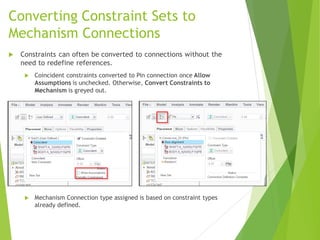
 Constraints can often be converted to connections without the
need to redefine references.
 Coincident constraints converted to Pin connection once Allow
Assumptions is unchecked. Otherwise, Convert Constraints to
Mechanism is greyed out.
 Mechanism Connection type assigned is based on constraint types
already defined.
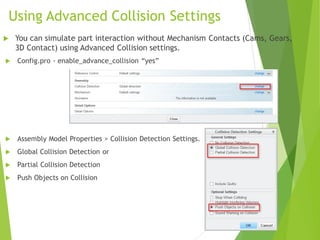
Using Advanced Collision Settings
 Config.pro - enable_advance_collision “yes”
 Assembly Model Properties > Collision Detection Settings.
 Global Collision Detection or
 Partial Collision Detection
 Push Objects on Collision
 You can simulate part interaction without Mechanism Contacts (Cams, Gears,
3D Contact) using Advanced Collision settings.
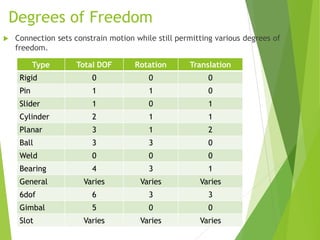
Degrees of Freedom
Type Total DOF Rotation Translation
Rigid 0 0 0
Pin 1 1 0
Slider 1 0 1
Cylinder 2 1 1
Planar 3 1 2
Ball 3 3 0
Weld 0 0 0
Bearing 4 3 1
General Varies Varies Varies
6dof 6 3 3
Gimbal 5 0 0
Slot Varies Varies Varies
 Connection sets constrain motion while still permitting various degrees of
freedom.
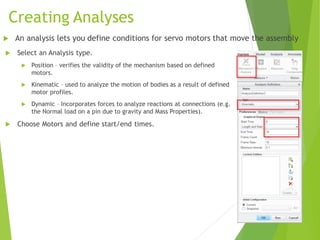
Creating Analyses
 Select an Analysis type.
 Position – verifies the validity of the mechanism based on defined
motors.
 Kinematic – used to analyze the motion of bodies as a result of defined
motor profiles.
 Dynamic – Incorporates forces to analyze reactions at connections (e.g.
the Normal load on a pin due to gravity and Mass Properties).
 Choose Motors and define start/end times.
 An analysis lets you define conditions for servo motors that move the assembly
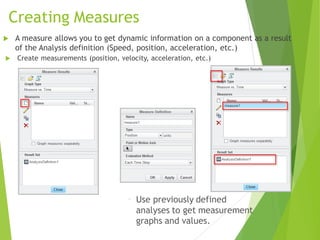
Creating Measures
 Create measurements (position, velocity, acceleration, etc.)
 A measure allows you to get dynamic information on a component as a result
of the Analysis definition (Speed, position, acceleration, etc.)
• Use previously defined
analyses to get measurement
graphs and values.
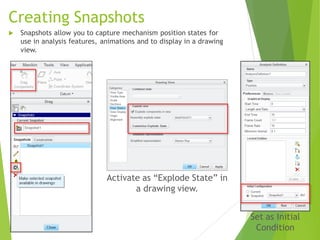
Creating Snapshots
 Snapshots allow you to capture mechanism position states for
use in analysis features, animations and to display in a drawing
view.
Activate as “Explode State” in
a drawing view.
Set as Initial
Condition
Drawings
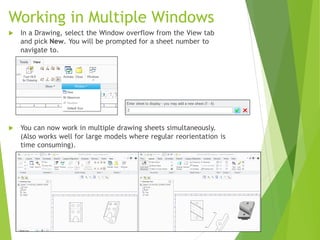
Working in Multiple Windows
 In a Drawing, select the Window overflow from the View tab
and pick New. You will be prompted for a sheet number to
navigate to.
 You can now work in multiple drawing sheets simultaneously.
(Also works well for large models where regular reorientation is
time consuming).
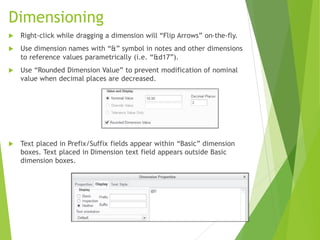
Dimensioning
 Right-click while dragging a dimension will “Flip Arrows” on-the-fly.
 Use dimension names with “&” symbol in notes and other dimensions
to reference values parametrically (i.e. “&d17”).
 Use “Rounded Dimension Value” to prevent modification of nominal
value when decimal places are decreased.
 Text placed in Prefix/Suffix fields appear within “Basic” dimension
boxes. Text placed in Dimension text field appears outside Basic
dimension boxes.
Managing Large Drawings
(Config.pro Options)
 Allow_refs_to_geom_reps_in_drws – Controls whether
dimensions and notes can be created in views using Geometry
Reps. Care should be taken as dimensions and annotations may
not update if geometry changes.
 Auto_regen_views – Sets whether drawing views update
automatically when changing sheets or windows. Set to no,
drawing views must be updated manually, but large drawing
performance is dramatically improved.
 Hlr_for_quilts – Determines if HLR is performed on quilt
features.
 Save_display – Saves the display of drawing items such as notes
and dimensions so that they are shown when a drawing is
retrieved in read-only mode.
 Force_Wireframe_in_drawings
Displaying Set Datums on
Drawings
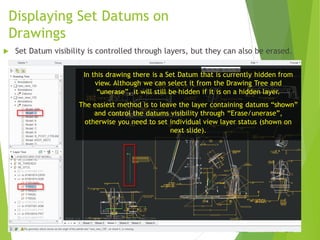
In this drawing there is a Set Datum that is currently hidden from
view. Although we can select it from the Drawing Tree and
“unerase”, it will still be hidden if it is on a hidden layer.
The easiest method is to leave the layer containing datums “shown”
and control the datums visibility through “Erase/unerase”,
otherwise you need to set individual view layer status (shown on
next slide).
 Set Datum visibility is controlled through layers, but they can also be erased.
Displaying Set Datums on
Drawings (Cont.)
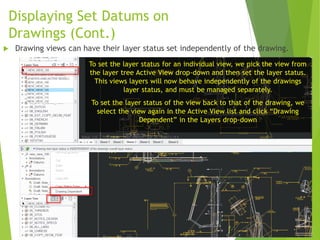
To set the layer status for an individual view, we pick the view from
the layer tree Active View drop-down and then set the layer status.
This views layers will now behave independently of the drawings
layer status, and must be managed separately.
To set the layer status of the view back to that of the drawing, we
select the view again in the Active View list and click “Drawing
Dependent” in the Layers drop-down
 Drawing views can have their layer status set independently of the drawing.
Dealing with Erased Dimensions
and Axes
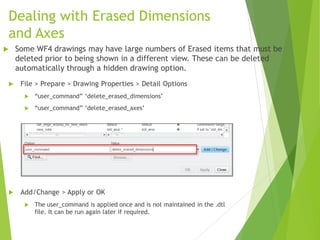
 File > Prepare > Drawing Properties > Detail Options
 “user_command” ‘delete_erased_dimensions’
 “user_command” ‘delete_erased_axes’
 Add/Change > Apply or OK
 The user_command is applied once and is not maintained in the .dtl
file. It can be run again later if required.
 Some WF4 drawings may have large numbers of Erased items that must be
deleted prior to being shown in a different view. These can be deleted
automatically through a hidden drawing option.
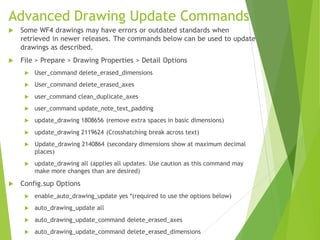
Advanced Drawing Update Commands
 Some WF4 drawings may have errors or outdated standards when
retrieved in newer releases. The commands below can be used to update
drawings as described.
 File > Prepare > Drawing Properties > Detail Options
 User_command delete_erased_dimensions
 User_command delete_erased_axes
 user_command clean_duplicate_axes
 user_command update_note_text_padding
 update_drawing 1808656 (remove extra spaces in basic dimensions)
 update_drawing 2119624 (Crosshatching break across text)
 Update_drawing 2140864 (secondary dimensions show at maximum decimal
places)
 update_drawing all (applies all updates. Use caution as this command may
make more changes than are desired)
 Config.sup Options
 enable_auto_drawing_update yes *(required to use the options below)
 auto_drawing_update all
 auto_drawing_update_command delete_erased_axes
 auto_drawing_update_command delete_erased_dimensions
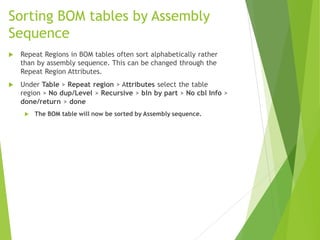
Sorting BOM tables by Assembly
Sequence
 Repeat Regions in BOM tables often sort alphabetically rather
than by assembly sequence. This can be changed through the
Repeat Region Attributes.
 Under Table > Repeat region > Attributes select the table
region > No dup/Level > Recursive > bln by part > No cbl Info >
done/return > done
 The BOM table will now be sorted by Assembly sequence.
Sketcher
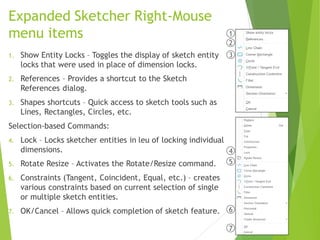
Expanded Sketcher Right-Mouse
menu items
1. Show Entity Locks – Toggles the display of sketch entity
locks that were used in place of dimension locks.
2. References – Provides a shortcut to the Sketch
References dialog.
3. Shapes shortcuts – Quick access to sketch tools such as
Lines, Rectangles, Circles, etc.
Selection-based Commands:
4. Lock – Locks sketcher entities in leu of locking individual
dimensions.
5. Rotate Resize – Activates the Rotate/Resize command.
6. Constraints (Tangent, Coincident, Equal, etc.) – creates
various constraints based on current selection of single
or multiple sketch entities.
7. OK/Cancel – Allows quick completion of sketch feature.
1
2
3
4
5
6
7
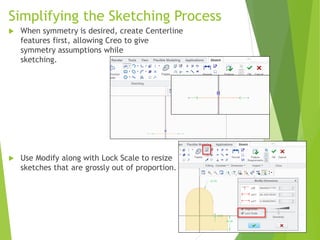
Simplifying the Sketching Process
 When symmetry is desired, create Centerline
features first, allowing Creo to give
symmetry assumptions while
sketching.
 Use Modify along with Lock Scale to resize
sketches that are grossly out of proportion.
Resolving Failures
Config.pro settings for managing
failed models.
 Regen_failure_handling
 No_resolve_mode*
 Resolve_mode
Specifies whether to enter resolve mode when regeneration failures
occur. Resolve_mode - Enter resolve mode when regeneration
failures occur. No_resolve_mode - Don't enter resolve mode when
regeneration failures occur.
 allow_save_failed_model
 Prompt*
 Yes
 No
Yes - Failed models can be saved. No - Failed models cannot be
saved. Prompt - Let the user decide whether failed models can be
saved.
Top Down Design
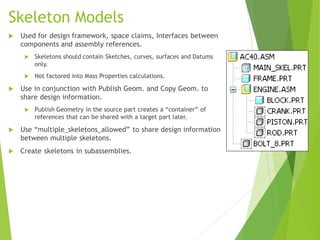
Skeleton Models
 Used for design framework, space claims, Interfaces between
components and assembly references.
 Skeletons should contain Sketches, curves, surfaces and Datums
only.
 Not factored into Mass Properties calculations.
 Use in conjunction with Publish Geom. and Copy Geom. to
share design information.
 Publish Geometry in the source part creates a “container” of
references that can be shared with a target part later.
 Use “multiple_skeletons_allowed” to share design information
between multiple skeletons.
 Create skeletons in subassemblies.
Standard Skeleton Model Methods
 For Skeletons that drive geometry and assembly position.
 Use “Publish Geometry” and/or “Copy Geometry” that references
the assembly context.
 For skeletons that drive geometry only (constraints/connections
added later in assembly context).
 Use “Publish Geometry” and/or “External Copy Geometry” that
references the skeleton model directly.
 Allows placement between skeleton CSYS and component CSYS.
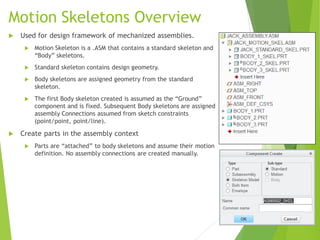
Motion Skeletons Overview
 Used for design framework of mechanized assemblies.
 Motion Skeleton is a .ASM that contains a standard skeleton and
“Body” skeletons.
 Standard skeleton contains design geometry.
 Body skeletons are assigned geometry from the standard
skeleton.
 The first Body skeleton created is assumed as the “Ground”
component and is fixed. Subsequent Body skeletons are assigned
assembly Connections assumed from sketch constraints
(point/point, point/line).
 Create parts in the assembly context
 Parts are “attached” to body skeletons and assume their motion
definition. No assembly connections are created manually.

Creo 3.0 tips and tricks r4

  • 1.
    Creo Parametric 3.0 Tipsand Tricks Evan Winter
  • 2.
  • 3.
    Options Dialog  Favoritessection in Options menu allows you to quickly change config.pro settings.  Right click config options and “Add to Favorites”  Color Schemes allow fast switching of system colors while maintaining contrast.  File > Options > System Colors  Cmdmgr_trail_output – provides explicit command instructions for Trail files and mapkey creation. Set this to “yes” when defining Mapkeys for simpler and more robust scripts.  Note on Mapkeys: Avoid using RMB shortcuts in Mapkeys as they are not consistently repeatable. For example, use Operations > Edit Definition instead of RMB > Edit Definition.
  • 4.
    Creating Mapkeys File >Options > Environment > Mapkeys Settings…
  • 5.
    Creating Mapkeys (Cont.) Create a Mapkey  Modify an existing Mapkey  Run (Test) a Mapkey  Delete  Save a single mapkey definition to file  Enter key sequence  Assign a name  Provide a description  Choose Record Keyboard Input  Start recording, add Pause for any user inputs needed, Stop recording.
  • 6.
    Creating Mapkeys (Cont.) File> Options > Quick Access Toolbar This process should be repeated for each mode where command should be available (Part, Assembly, Drawing).
  • 7.
  • 8.
    Using Intent References You can increase the robustness of features using Intent References, which capture the intent of the feature when selecting resulting edges or surfaces. No failure after base feature modification Query Select to Intent references, or use “Pick from List” in RMB while creating Rounds, Chamfers, Draft, etc.
  • 9.
    Leveraging Advanced Selection Methods 1.Hold ALT and select the Seed surface. 2. Hold SHIFT and select the first Boundary surface. 3. While holding SHIFT, hold CTRL and select additional Boundary surfaces (as many as needed). 4. Release CTRL and SHIFT to complete the selection.  You can build more robust features using advanced Seed and Boundary selection. 1 2 3 4
  • 10.
    Leveraging Advanced Selection Methods(Cont.)  Within a feature, use the Details dialog to manage advanced selections.
  • 11.
    Showing Feature andComponent Layers  Settings > Tree Columns  Type = Layer  “Layer Names” and/or “Layer Status” > Add Column > OK  You can show Layer Placement and Status for Part Features and Components.
  • 12.
    Using Solidify ToTrim Solid Geometry  Solidify with Datum Planes – Use the Solidify command to trim geometry from one side of a model (e.g. flat cuts at spring ends, setting up “Mirrored” simulation models).
  • 13.
    Improving Patterns  PatternRegeneration options (General, Variable, Identical).  General is the default option. It is the most robust but also the slowest to regenerate. Only use this option if pattern instances intersect each other.  Variable is faster and works as long as instances are not intersecting each other. Patterns can cross into other surfaces.  Identical is the fastest to regenerate, but all pattern instances must fall on the same surface and cannot intersect each other. Use this option whenever possible unless design changes are expected. Note: Downstream Reference Patterns can fail if referencing Identical regenerated patterns. Use Variable or General if patterns are failing for reasons otherwise not clear.
  • 14.
    Getting Transform measurements usingVertices  Vertices can be used to gather Delta X, Y and Z measurements.  While measuring distance between vertices, add a CSYS feature to the Projection collector to see the transform distances.
  • 15.
    Measuring Multiple Distancesfrom a Single Reference  Activating Replace mode for second reference allows quicker repeated dimensions.  Single-click on additional references will Replace tagged reference (Edge: F7) and update the distance measurement from original reference (Surf: F6).  Set measure_auto_replace_mode to Yes will flag second added reference as “Replace” automatically.
  • 16.
    Creating Cast/Machined Parts Create a refined (machined) version of a Cast part using the Inheritance feature. 1. First create the part as-cast (part_cast.prt) 2. Create a new part to represent the finished design (part_machined.prt) and insert a Merge/Inheritance feature. 3. Browse to the cast part and place it using Default, then Toggle Inheritance in the Dashboard.  Additional features can now be added to the new model to represent final machining operations. The base geometry is dependent with the original cast part, and will update with design iterations. 1 2 3
  • 17.
    Adding colors toCast/Machined Parts  Apply colors to a model that represent machining operations on a previously Cast part. 1. In the machined model (an inheritance part from the previous slide), apply a color to the “part” definition that represents the machined surfaces (select the part name in the Model Tree when applying color). 2. Select a single surface, then RMB select Solid Surfaces. Pick a “cast” (matte) color from the Appearance Gallery to apply the color to the “surface” definition of the part. 3. Add the final machining features (holes, chamfers, facing, milling, etc.) to “reveal” the machined part color underneath the cast surface color. 1 2 3
  • 18.
  • 19.
    Assembly Constraint Tweaking Use these options to change how constraints are applied by default.  Set auto_constr_always_use_offset to Never  Coincident will be the default constraint type for the following reference pairs:  Planes  Linear edges / Datum Axis  Planes combined with Linear edges  Set auto_constr_always_use_offset to Yes  Offset (Angle or Normal) will be the default constraint type for the following reference pairs, never coincident:  Planes  Linear edges / Datum Axis  Planes combined with Linear edges  Set auto_constr_always_use_offset to No*  Creo will suggest a constraint type based on current component position and orientation  Coincident  Distance  Angle  Normal  Setting up the orientation tolerance is done with the 3 additional config.pro options on the next slide.
  • 20.
    Assembly Constraint Tweaking (Cont.) Check if position fits Angle or Normal. For this use values set for options:  comp_angle_offset_eps (“-1” seems to work ok)  comp_normal_offset_eps (“-91” seems to work ok)  If position does not fit Angle or Normal, then it will be either Coincident or Distance. Here decision is made based on the value of:  auto_constr_offset_tolerance = (0.5 of the model size by default). If initial distance is bigger than this value, you will receive Distance, if less, Coincident.  Note: Value is relative to the size of each component being assembled.  Use these options whenever “auto_constr_always_use_offset” is set to No* .
  • 21.
    Previewing Assembly Constraint Status Change “Secondary Previewed Geometry” in system colors to enhance the visible status of incomplete assembly constraints. Partially Constrained File > Options > System Colors
  • 22.
    Assembly Feature (Cut) Considerations Disable Automatic Update – Reduce memory usage and assembly cut warnings by manually updating intersection list.  Uncheck Automatic Update and remove any non-cut models.  Why? - “Intersected” models are duplicated in memory.  Increased memory usage.  Assembly Cut regeneration warnings for components “intersected” without geometry modifications (e.g. “Assembly cut is entirely outside the model, model unchanged”).  Additional models may be automatically added to Intersected list when added to the assembly if Automatic Update is left enabled.
  • 23.
    Large Assembly Management On-Demand Simp. Reps – Allow quick retrieval of required reps only when they are needed for assembly operations.  Open Subset – Allows the retrieval of an ad-hoc simplification without creating a new Simplified Representation that is saved in the assembly. Thought of as a temporary Simp. Rep.  Auto_backup_new_placemnt_refs – Automatically backs up assembly references to the assembly context, allowing component placement to be updated/modified when using Graphics Reps and lightweight Graphics Reps.  Copy as External – Creates a separate assembly with only the models included in that Rep. Allows you to share subsets of a top assembly to other users, and their changes filter back to the upper level. Note: Must use “dependent” option for upward filtering.
  • 24.
  • 25.
    Config.pro Options  template_cnfg_asm Specifies the default configurable product template file.  template_module  Specifies the default module template file
  • 26.
    Variant Builder Tips When changing variant specifications.  To apply a different variant builder option, double click the modified Master representation from the view manager to revert it back to the original and then apply the desired option.  Save Variant Specifications to the assembly for reuse.
  • 27.
    Legacy Data  OverbuiltAssemblies 1. (Top Level) File > Save As > Save As Configurable Product 2. (Overbuilt Components) RMB > Transfer into Module  Interchange Assemblies  File > Save As > Save As Configurable Module
  • 28.
  • 29.
    General Mechanism Notes Wildfire 4.0 mechanism connections will properly convert to Creo 2.  Typical Mechanism Workflow 1. Create Connections in assembly mode (Pin, Slider, Slot, etc.) 2. In Mechanism application, define servo motors to create motion profiles. 3. Create motion relationships if needed (Gears, Belts, Cams). 4. Define Mechanism Analyses (servo motors and start/end times). 5. Define Measures and graph them against previously run analyses.
  • 30.
    Converting Constraint Setsto Mechanism Connections  Constraints can often be converted to connections without the need to redefine references.  Coincident constraints converted to Pin connection once Allow Assumptions is unchecked. Otherwise, Convert Constraints to Mechanism is greyed out.  Mechanism Connection type assigned is based on constraint types already defined.
  • 31.
    Using Advanced CollisionSettings  Config.pro - enable_advance_collision “yes”  Assembly Model Properties > Collision Detection Settings.  Global Collision Detection or  Partial Collision Detection  Push Objects on Collision  You can simulate part interaction without Mechanism Contacts (Cams, Gears, 3D Contact) using Advanced Collision settings.
  • 32.
    Degrees of Freedom TypeTotal DOF Rotation Translation Rigid 0 0 0 Pin 1 1 0 Slider 1 0 1 Cylinder 2 1 1 Planar 3 1 2 Ball 3 3 0 Weld 0 0 0 Bearing 4 3 1 General Varies Varies Varies 6dof 6 3 3 Gimbal 5 0 0 Slot Varies Varies Varies  Connection sets constrain motion while still permitting various degrees of freedom.
  • 33.
    Creating Analyses  Selectan Analysis type.  Position – verifies the validity of the mechanism based on defined motors.  Kinematic – used to analyze the motion of bodies as a result of defined motor profiles.  Dynamic – Incorporates forces to analyze reactions at connections (e.g. the Normal load on a pin due to gravity and Mass Properties).  Choose Motors and define start/end times.  An analysis lets you define conditions for servo motors that move the assembly
  • 34.
    Creating Measures  Createmeasurements (position, velocity, acceleration, etc.)  A measure allows you to get dynamic information on a component as a result of the Analysis definition (Speed, position, acceleration, etc.) • Use previously defined analyses to get measurement graphs and values.
  • 35.
    Creating Snapshots  Snapshotsallow you to capture mechanism position states for use in analysis features, animations and to display in a drawing view. Activate as “Explode State” in a drawing view. Set as Initial Condition
  • 36.
  • 37.
    Working in MultipleWindows  In a Drawing, select the Window overflow from the View tab and pick New. You will be prompted for a sheet number to navigate to.  You can now work in multiple drawing sheets simultaneously. (Also works well for large models where regular reorientation is time consuming).
  • 38.
    Dimensioning  Right-click whiledragging a dimension will “Flip Arrows” on-the-fly.  Use dimension names with “&” symbol in notes and other dimensions to reference values parametrically (i.e. “&d17”).  Use “Rounded Dimension Value” to prevent modification of nominal value when decimal places are decreased.  Text placed in Prefix/Suffix fields appear within “Basic” dimension boxes. Text placed in Dimension text field appears outside Basic dimension boxes.
  • 39.
    Managing Large Drawings (Config.proOptions)  Allow_refs_to_geom_reps_in_drws – Controls whether dimensions and notes can be created in views using Geometry Reps. Care should be taken as dimensions and annotations may not update if geometry changes.  Auto_regen_views – Sets whether drawing views update automatically when changing sheets or windows. Set to no, drawing views must be updated manually, but large drawing performance is dramatically improved.  Hlr_for_quilts – Determines if HLR is performed on quilt features.  Save_display – Saves the display of drawing items such as notes and dimensions so that they are shown when a drawing is retrieved in read-only mode.  Force_Wireframe_in_drawings
  • 40.
    Displaying Set Datumson Drawings In this drawing there is a Set Datum that is currently hidden from view. Although we can select it from the Drawing Tree and “unerase”, it will still be hidden if it is on a hidden layer. The easiest method is to leave the layer containing datums “shown” and control the datums visibility through “Erase/unerase”, otherwise you need to set individual view layer status (shown on next slide).  Set Datum visibility is controlled through layers, but they can also be erased.
  • 41.
    Displaying Set Datumson Drawings (Cont.) To set the layer status for an individual view, we pick the view from the layer tree Active View drop-down and then set the layer status. This views layers will now behave independently of the drawings layer status, and must be managed separately. To set the layer status of the view back to that of the drawing, we select the view again in the Active View list and click “Drawing Dependent” in the Layers drop-down  Drawing views can have their layer status set independently of the drawing.
  • 42.
    Dealing with ErasedDimensions and Axes  File > Prepare > Drawing Properties > Detail Options  “user_command” ‘delete_erased_dimensions’  “user_command” ‘delete_erased_axes’  Add/Change > Apply or OK  The user_command is applied once and is not maintained in the .dtl file. It can be run again later if required.  Some WF4 drawings may have large numbers of Erased items that must be deleted prior to being shown in a different view. These can be deleted automatically through a hidden drawing option.
  • 43.
    Advanced Drawing UpdateCommands  Some WF4 drawings may have errors or outdated standards when retrieved in newer releases. The commands below can be used to update drawings as described.  File > Prepare > Drawing Properties > Detail Options  User_command delete_erased_dimensions  User_command delete_erased_axes  user_command clean_duplicate_axes  user_command update_note_text_padding  update_drawing 1808656 (remove extra spaces in basic dimensions)  update_drawing 2119624 (Crosshatching break across text)  Update_drawing 2140864 (secondary dimensions show at maximum decimal places)  update_drawing all (applies all updates. Use caution as this command may make more changes than are desired)  Config.sup Options  enable_auto_drawing_update yes *(required to use the options below)  auto_drawing_update all  auto_drawing_update_command delete_erased_axes  auto_drawing_update_command delete_erased_dimensions
  • 44.
    Sorting BOM tablesby Assembly Sequence  Repeat Regions in BOM tables often sort alphabetically rather than by assembly sequence. This can be changed through the Repeat Region Attributes.  Under Table > Repeat region > Attributes select the table region > No dup/Level > Recursive > bln by part > No cbl Info > done/return > done  The BOM table will now be sorted by Assembly sequence.
  • 45.
  • 46.
    Expanded Sketcher Right-Mouse menuitems 1. Show Entity Locks – Toggles the display of sketch entity locks that were used in place of dimension locks. 2. References – Provides a shortcut to the Sketch References dialog. 3. Shapes shortcuts – Quick access to sketch tools such as Lines, Rectangles, Circles, etc. Selection-based Commands: 4. Lock – Locks sketcher entities in leu of locking individual dimensions. 5. Rotate Resize – Activates the Rotate/Resize command. 6. Constraints (Tangent, Coincident, Equal, etc.) – creates various constraints based on current selection of single or multiple sketch entities. 7. OK/Cancel – Allows quick completion of sketch feature. 1 2 3 4 5 6 7
  • 47.
    Simplifying the SketchingProcess  When symmetry is desired, create Centerline features first, allowing Creo to give symmetry assumptions while sketching.  Use Modify along with Lock Scale to resize sketches that are grossly out of proportion.
  • 48.
  • 49.
    Config.pro settings formanaging failed models.  Regen_failure_handling  No_resolve_mode*  Resolve_mode Specifies whether to enter resolve mode when regeneration failures occur. Resolve_mode - Enter resolve mode when regeneration failures occur. No_resolve_mode - Don't enter resolve mode when regeneration failures occur.  allow_save_failed_model  Prompt*  Yes  No Yes - Failed models can be saved. No - Failed models cannot be saved. Prompt - Let the user decide whether failed models can be saved.
  • 50.
  • 51.
    Skeleton Models  Usedfor design framework, space claims, Interfaces between components and assembly references.  Skeletons should contain Sketches, curves, surfaces and Datums only.  Not factored into Mass Properties calculations.  Use in conjunction with Publish Geom. and Copy Geom. to share design information.  Publish Geometry in the source part creates a “container” of references that can be shared with a target part later.  Use “multiple_skeletons_allowed” to share design information between multiple skeletons.  Create skeletons in subassemblies.
  • 52.
    Standard Skeleton ModelMethods  For Skeletons that drive geometry and assembly position.  Use “Publish Geometry” and/or “Copy Geometry” that references the assembly context.  For skeletons that drive geometry only (constraints/connections added later in assembly context).  Use “Publish Geometry” and/or “External Copy Geometry” that references the skeleton model directly.  Allows placement between skeleton CSYS and component CSYS.
  • 53.
    Motion Skeletons Overview Used for design framework of mechanized assemblies.  Motion Skeleton is a .ASM that contains a standard skeleton and “Body” skeletons.  Standard skeleton contains design geometry.  Body skeletons are assigned geometry from the standard skeleton.  The first Body skeleton created is assumed as the “Ground” component and is fixed. Subsequent Body skeletons are assigned assembly Connections assumed from sketch constraints (point/point, point/line).  Create parts in the assembly context  Parts are “attached” to body skeletons and assume their motion definition. No assembly connections are created manually.