
How do I create a application within IIS 7.0?


  Application Documents :

  Application Document Path :

     C:Inetpubwwwroot >SSE(Create New Folder) > Copy all documents into SSE(New folder)

  Now application Path is C:InetpubwwwrootSSE


  Tools Used by applications : .NetFramework 2.0 ,ASPAJAXExtSetup,Sql server

  Path for ASPAJAXExtSetup.msi on Berlin Server :

        C:inetpubwwwrootSSEASPAJAXExtSetup.msi

   Note : Please run above exe on server because application use ajax extension method on many pages


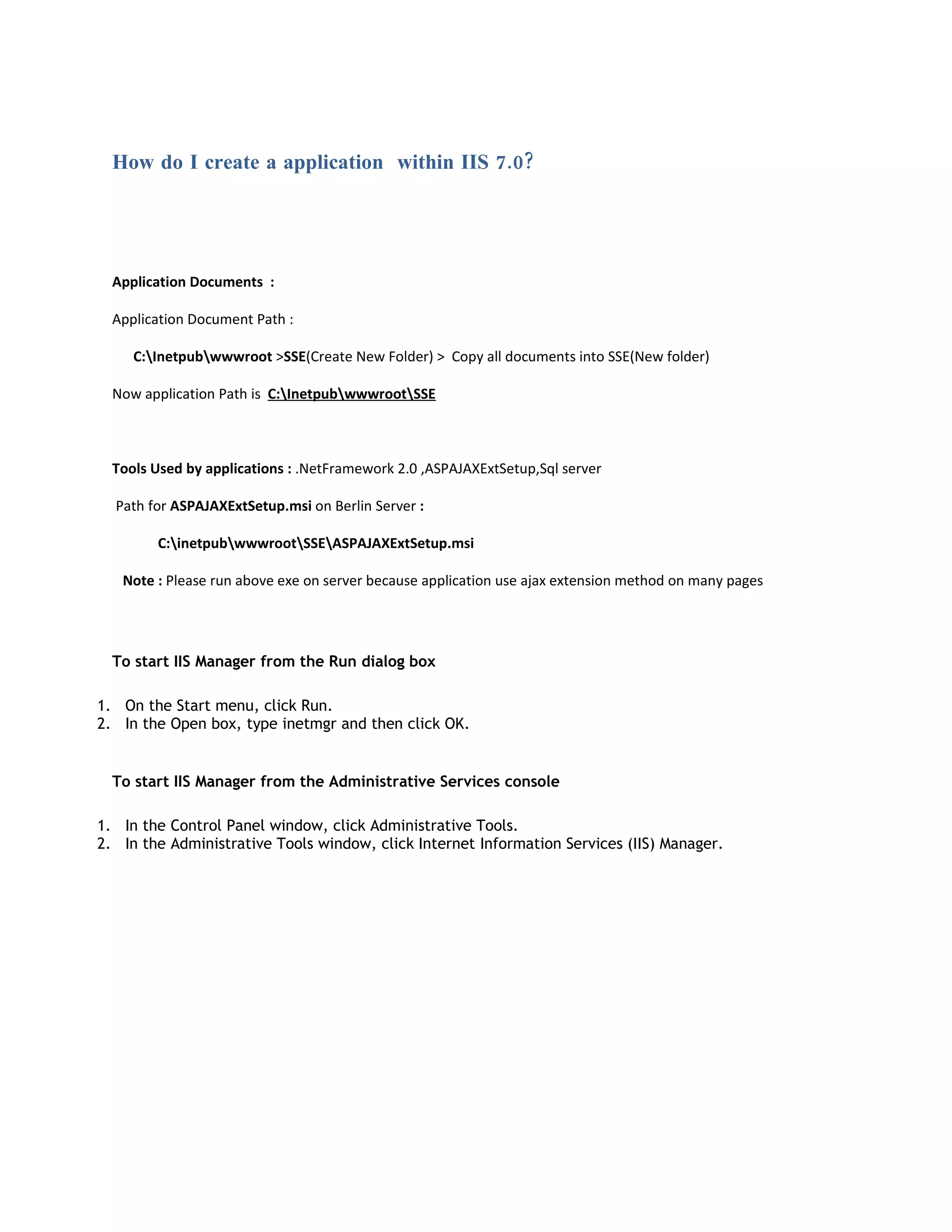
  To start IIS Manager from the Run dialog box

1. On the Start menu, click Run.
2. In the Open box, type inetmgr and then click OK.


  To start IIS Manager from the Administrative Services console

1. In the Control Panel window, click Administrative Tools.
2. In the Administrative Tools window, click Internet Information Services (IIS) Manager.
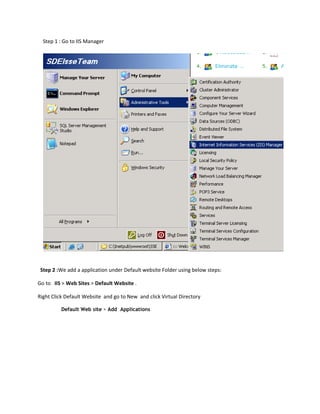
Step 1 : Go to IIS Manager


 Step 2 :We add a application under Default website Folder using below steps:

Go to IIS > Web Sites > Default Website .

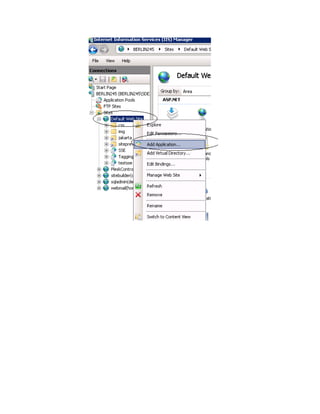
Right Click Default Website and go to New and click Virtual Directory

          Default Web site > Add Applications
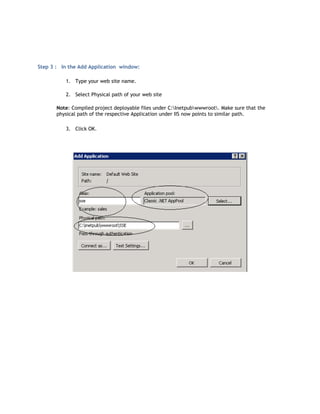
Step 3 : In the Add Application window:

          1. Type your web site name.

          2. Select Physical path of your web site

       Note: Compiled project deployable files under C:Inetpubwwwroot. Make sure that the
       physical path of the respective Application under IIS now points to similar path.

          3. Click OK.
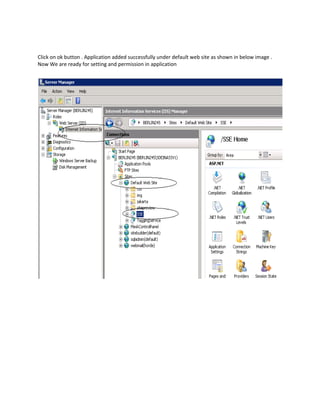
Click on ok button . Application added successfully under default web site as shown in below image .
Now We are ready for setting and permission in application
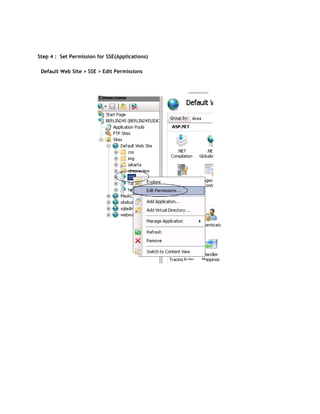
Step 4 : Set Permission for SSE(Applications)

 Default Web Site > SSE > Edit Permissions
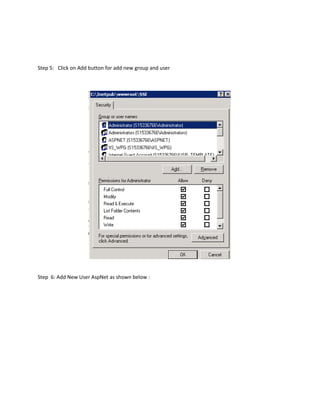
Step 5: Click on Add button for add new group and user


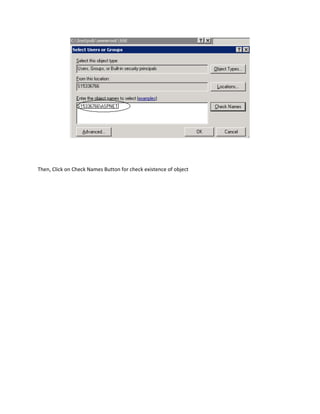
Step 6: Add New User AspNet as shown below :
Then, Click on Check Names Button for check existence of object
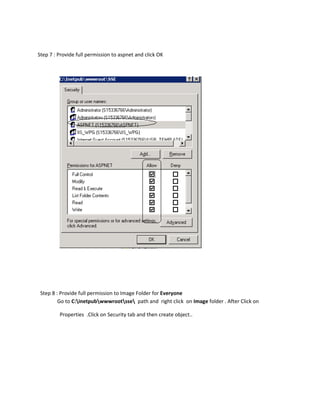
Step 7 : Provide full permission to aspnet and click OK


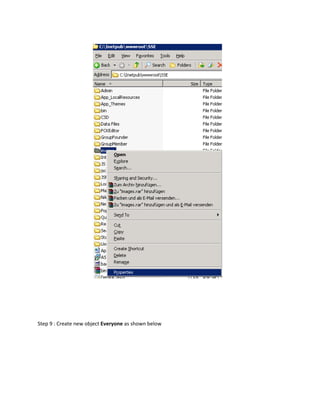
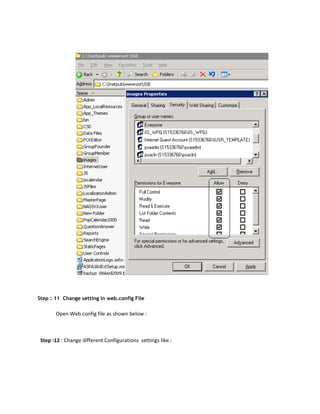
 Step 8 : Provide full permission to Image Folder for Everyone
         Go to C:inetpubwwwrootsse path and right click on Image folder . After Click on

         Properties .Click on Security tab and then create object..
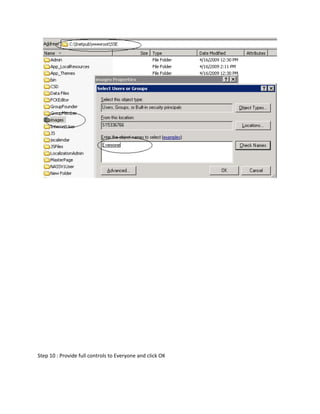
Step 9 : Create new object Everyone as shown below
Step 10 : Provide full controls to Everyone and click OK
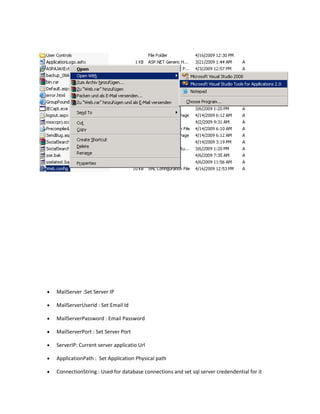
Step : 11 Change setting in web.config File

       Open Web.config file as shown below :


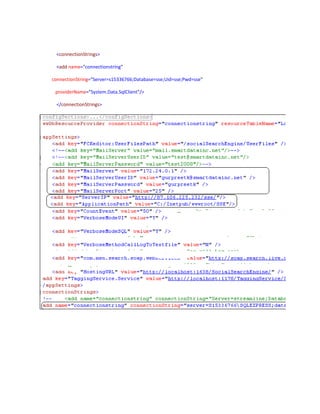
 Step :12 : Change different Configurations settings like :
•   MailServer :Set Server IP

•   MailServerUserId : Set Email Id

•   MailServerPassword : Email Password

•   MailServerPort : Set Server Port

•   ServerIP: Current server applicatio Url

•   ApplicationPath : Set Application Physical path

•   ConnectionString : Used for database connections and set sql server credendential for it
<connectionStrings>

 <add name="connectionstring"

connectionString="Server=s15336766;Database=sse;Uid=sse;Pwd=sse"

 providerName="System.Data.SqlClient"/>

 </connectionStrings>
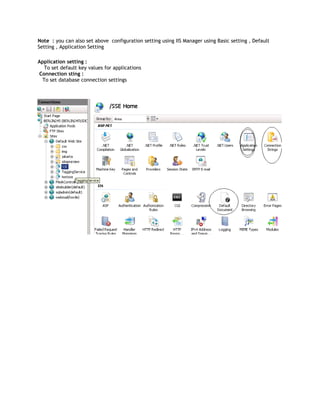
Note : you can also set above configuration setting using IIS Manager using Basic setting , Default
Setting , Application Setting

Application setting :
  To set default key values for applications
Connection sting :
 To set database connection settings
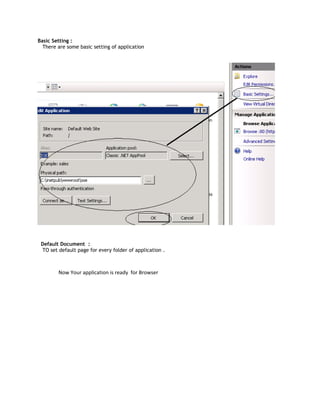
Basic Setting :
  There are some basic setting of application


 Default Document :
 TO set default page for every folder of application .


        Now Your application is ready for Browser
Create Tagging Service Application

Path of Tagging Service : C:inetpubwwwroottaggingservice
  Similar step as sse application you can create tagging service application

Create Applicationwith IIS 7

  • 1.
    How do Icreate a application within IIS 7.0? Application Documents : Application Document Path : C:Inetpubwwwroot >SSE(Create New Folder) > Copy all documents into SSE(New folder) Now application Path is C:InetpubwwwrootSSE Tools Used by applications : .NetFramework 2.0 ,ASPAJAXExtSetup,Sql server Path for ASPAJAXExtSetup.msi on Berlin Server : C:inetpubwwwrootSSEASPAJAXExtSetup.msi Note : Please run above exe on server because application use ajax extension method on many pages To start IIS Manager from the Run dialog box 1. On the Start menu, click Run. 2. In the Open box, type inetmgr and then click OK. To start IIS Manager from the Administrative Services console 1. In the Control Panel window, click Administrative Tools. 2. In the Administrative Tools window, click Internet Information Services (IIS) Manager.
  • 2.
    Step 1 :Go to IIS Manager Step 2 :We add a application under Default website Folder using below steps: Go to IIS > Web Sites > Default Website . Right Click Default Website and go to New and click Virtual Directory Default Web site > Add Applications
  • 4.
    Step 3 :In the Add Application window: 1. Type your web site name. 2. Select Physical path of your web site Note: Compiled project deployable files under C:Inetpubwwwroot. Make sure that the physical path of the respective Application under IIS now points to similar path. 3. Click OK.
  • 5.
    Click on okbutton . Application added successfully under default web site as shown in below image . Now We are ready for setting and permission in application
  • 6.
    Step 4 :Set Permission for SSE(Applications) Default Web Site > SSE > Edit Permissions
  • 7.
    Step 5: Clickon Add button for add new group and user Step 6: Add New User AspNet as shown below :
  • 8.
    Then, Click onCheck Names Button for check existence of object
  • 9.
    Step 7 :Provide full permission to aspnet and click OK Step 8 : Provide full permission to Image Folder for Everyone Go to C:inetpubwwwrootsse path and right click on Image folder . After Click on Properties .Click on Security tab and then create object..
  • 10.
    Step 9 :Create new object Everyone as shown below
  • 11.
    Step 10 :Provide full controls to Everyone and click OK
  • 12.
    Step : 11Change setting in web.config File Open Web.config file as shown below : Step :12 : Change different Configurations settings like :
  • 13.
    MailServer :Set Server IP • MailServerUserId : Set Email Id • MailServerPassword : Email Password • MailServerPort : Set Server Port • ServerIP: Current server applicatio Url • ApplicationPath : Set Application Physical path • ConnectionString : Used for database connections and set sql server credendential for it
  • 14.
  • 15.
    Note : youcan also set above configuration setting using IIS Manager using Basic setting , Default Setting , Application Setting Application setting : To set default key values for applications Connection sting : To set database connection settings
  • 16.
    Basic Setting : There are some basic setting of application Default Document : TO set default page for every folder of application . Now Your application is ready for Browser
  • 17.
    Create Tagging ServiceApplication Path of Tagging Service : C:inetpubwwwroottaggingservice Similar step as sse application you can create tagging service application