Create Sites on IIS
By Paul Davis
Who I AM
My name is Paul Davis.
I have been doing web hosting
development for over 15 years
(including both PHP and ASP.NET).
I share my experience on building sites
and using web hosting solutions on
ASP.NETHosting2Go.com
WebHosting2Go.com
BigCheapHosting.com
VPSHosting2Go.com
Who Is
This For
I have received emails and comments
asking how to build sites on IIS. To answer
these and whoever have same questions,
I write this PPT.
I classify the topic into three:
Build ASP.NET sites on IIS;
Build ASP sites on IIS;
Build WordPress sites on IIS.
The first one is the most common
practice while the latter 2 are also
popular, especially when IIS 7.0 supports
WordPress.
Ready to Go?
Create Sites On IIS
Create ASP.NET Sites on IIS
Create ASP Sites on IIS
Create WordPress Sites on IIS
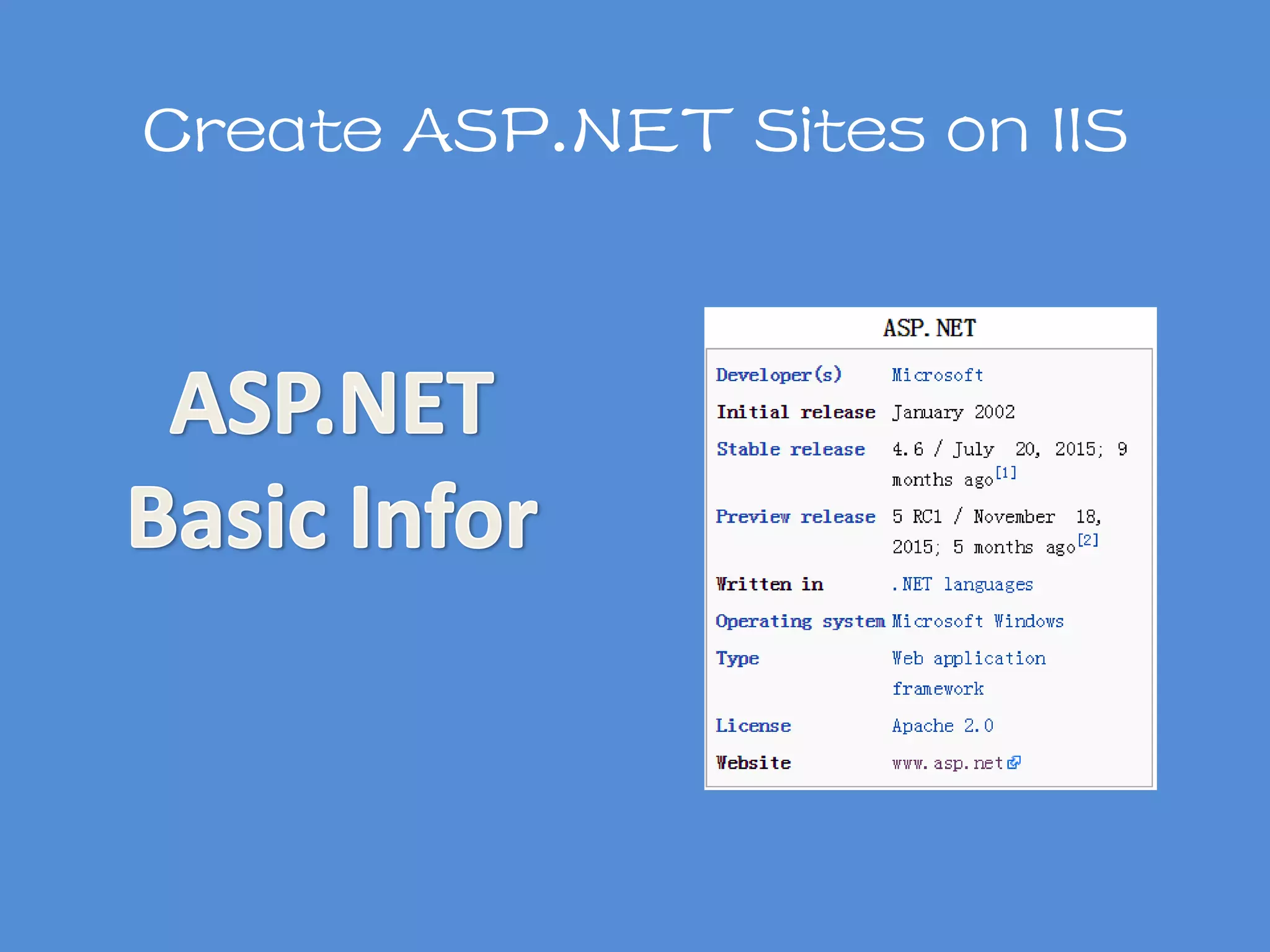
Create ASP.NET Sites on IIS
Install IIS and ASP.NET Module
Add ASP.NET Applications
Edit ASP.NET Settings
Configure Application Security
Step 1
Step 2
Step 3
Step 4
Create ASP.NET Sites on IIS
• Step 1, Install IIS and ASP.NET Module
By command lines
Or
By the IIS Manager UI
We introduce UI way here.
Create ASP.NET Sites on IIS
Make clicks as following steps to get
Windows Features Screen:
• Control Panel
• Programs
• Turn Windows features on or off
• Step 1, Install IIS and ASP.NET Module
Create ASP.NET Sites on IIS
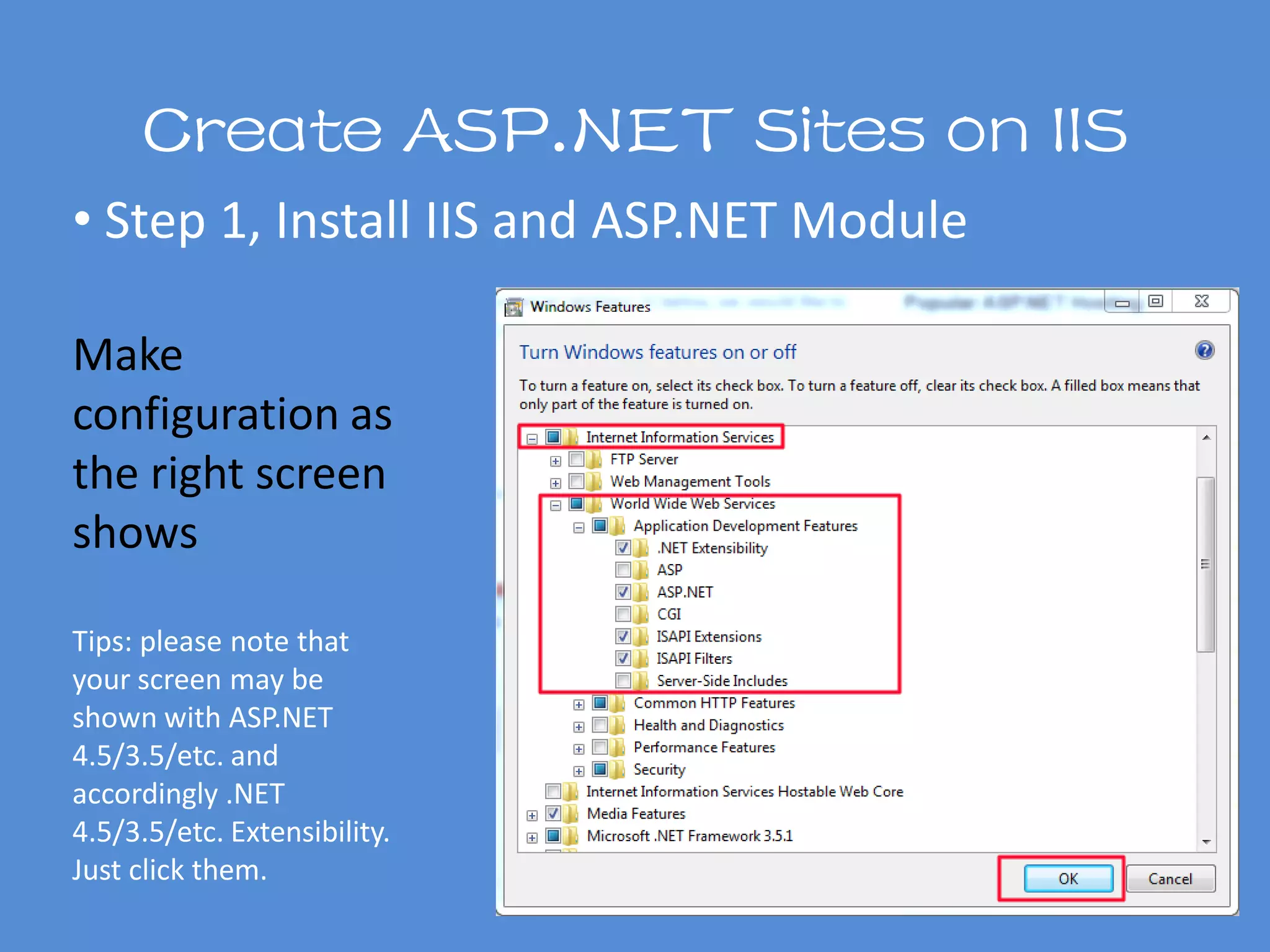
Make
configuration as
the right screen
shows
Tips: please note that
your screen may be
shown with ASP.NET
4.5/3.5/etc. and
accordingly .NET
4.5/3.5/etc. Extensibility.
Just click them.
• Step 1, Install IIS and ASP.NET Module
Create ASP.NET Site on IIS
• Step 2, Add ASP.NET Applications
Control
Panel
System and
Security
Administrati
on Tools
Internet
Information
Services (IIS)
Manager
A: click items in below:
Create ASP.NET Sites on IIS
• Step 2, Add ASP.NET Applications
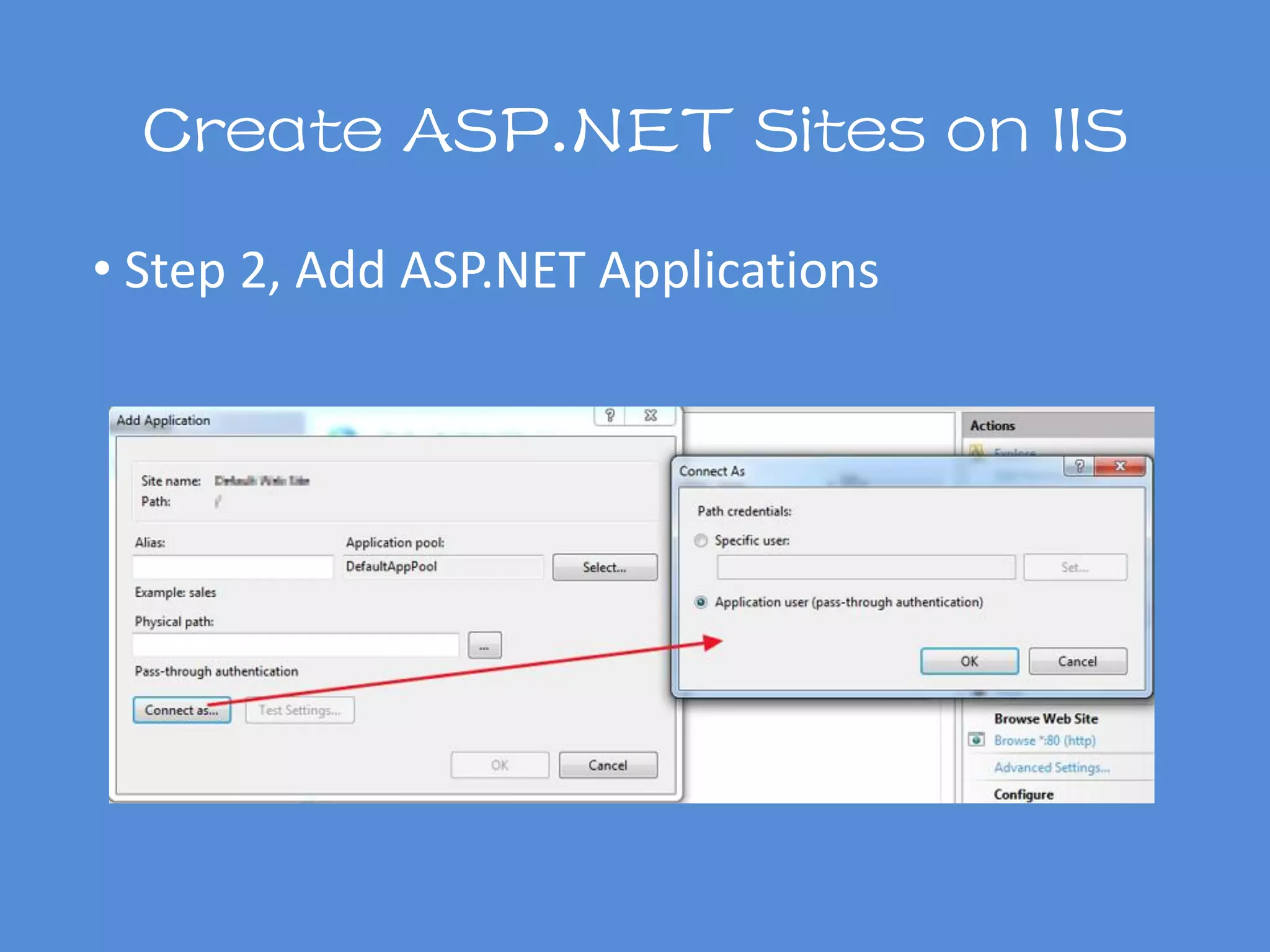
B: Right Click the site you want to install applications
C: select Add Application
D: fill in blanks in Add Application screen
Create ASP.NET Sites on IIS
• Step 2, Add ASP.NET Applications
Create ASP.NET Sites on IIS
• Step 3, Edit ASP.NET Settings
ASP.NET
Settings
Session
State
.NET
Globaliz
ation
.NET
Compila
tion
Pages
and
Controls
Create ASP.NET Sites on IIS
• Step 4, Configure Application Security
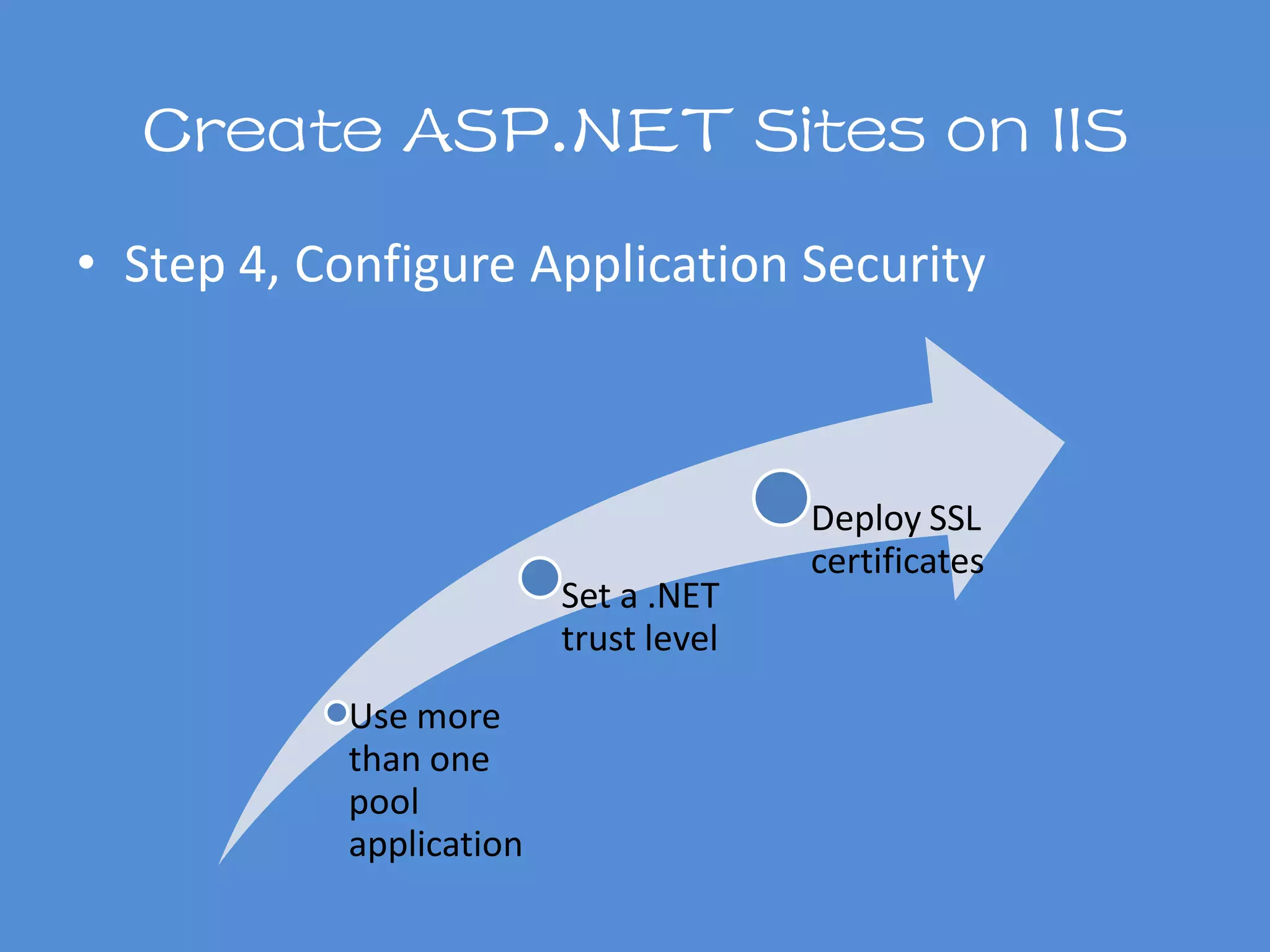
Use more
than one
pool
application
Set a .NET
trust level
Deploy SSL
certificates
Create ASP Sites on IIS
ASP IS NOT DEAD…
Create ASP Sites on IIS
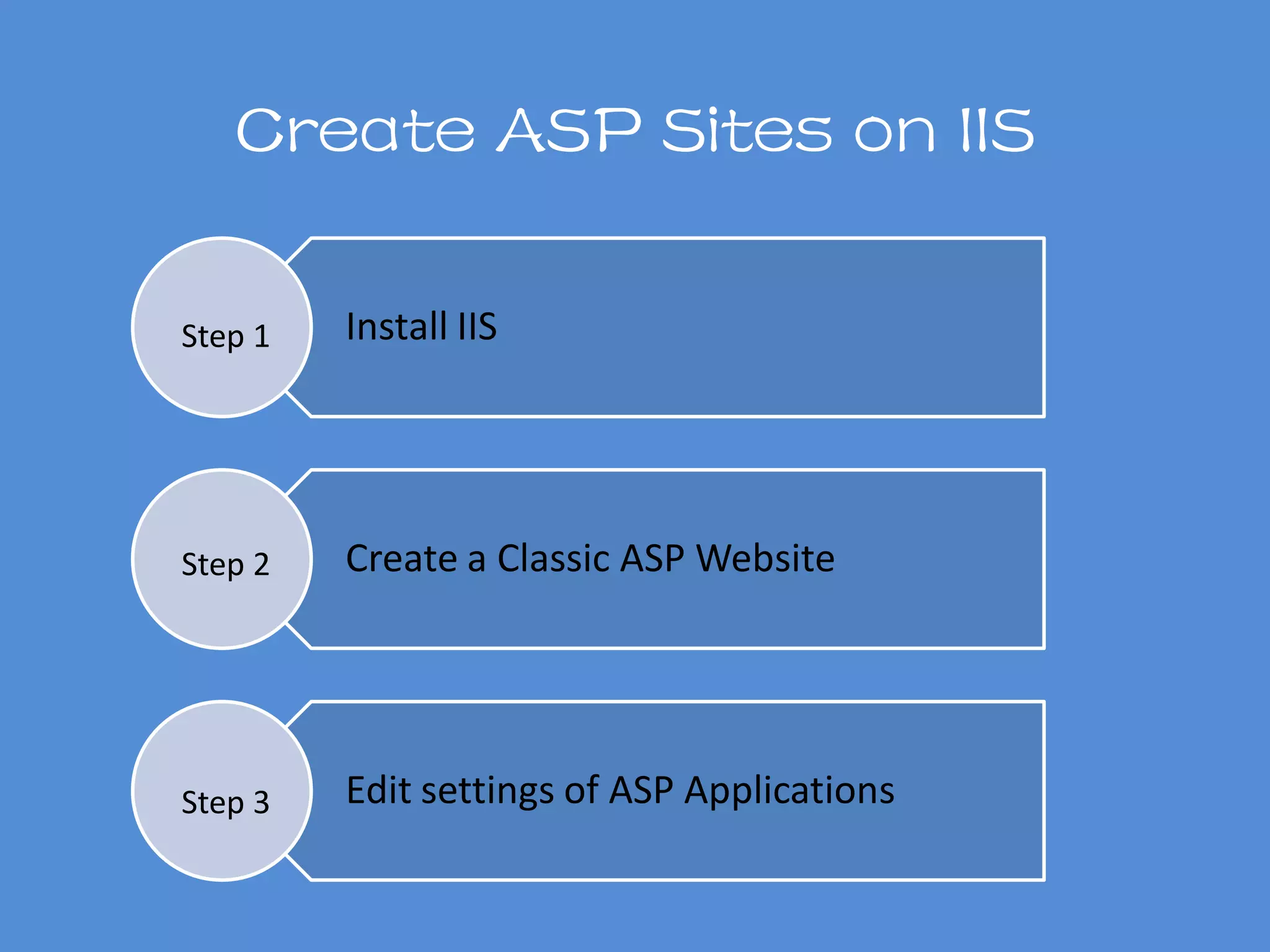
Install IIS
Create a Classic ASP Website
Edit settings of ASP Applications
Step 1
Step 2
Step 3
Create ASP Sites on IIS
• Step 1, Install IIS
By Web PI
By command
lines
By Windows
UI
Control Panel
Turn Windows
features on or
off
Internet
Information
Services
Create ASP Sites on IIS
• Step 2, Create a Classic ASP Website
By UI
By command
lines
Editing
configuration
files
Creating WMI
scripts
Multiple ways to choose:
Create ASP Sites on IIS
• Step 2, Create a Classic ASP Website
Use UI: similar to create an ASP.NET site on IIS we
talked in slide12 and slide 13.
But you have to fill out more blanks, such as:
Type
IP address
Port
Host name
Create ASP Sites on IIS
• Step 3, Edit settings of ASP Applications
• More complex
• Higher skills
By
command
lines
• Enter IIS manager
• Double click ASP
• Change settings
By UI
Create WordPress Sites on IIS
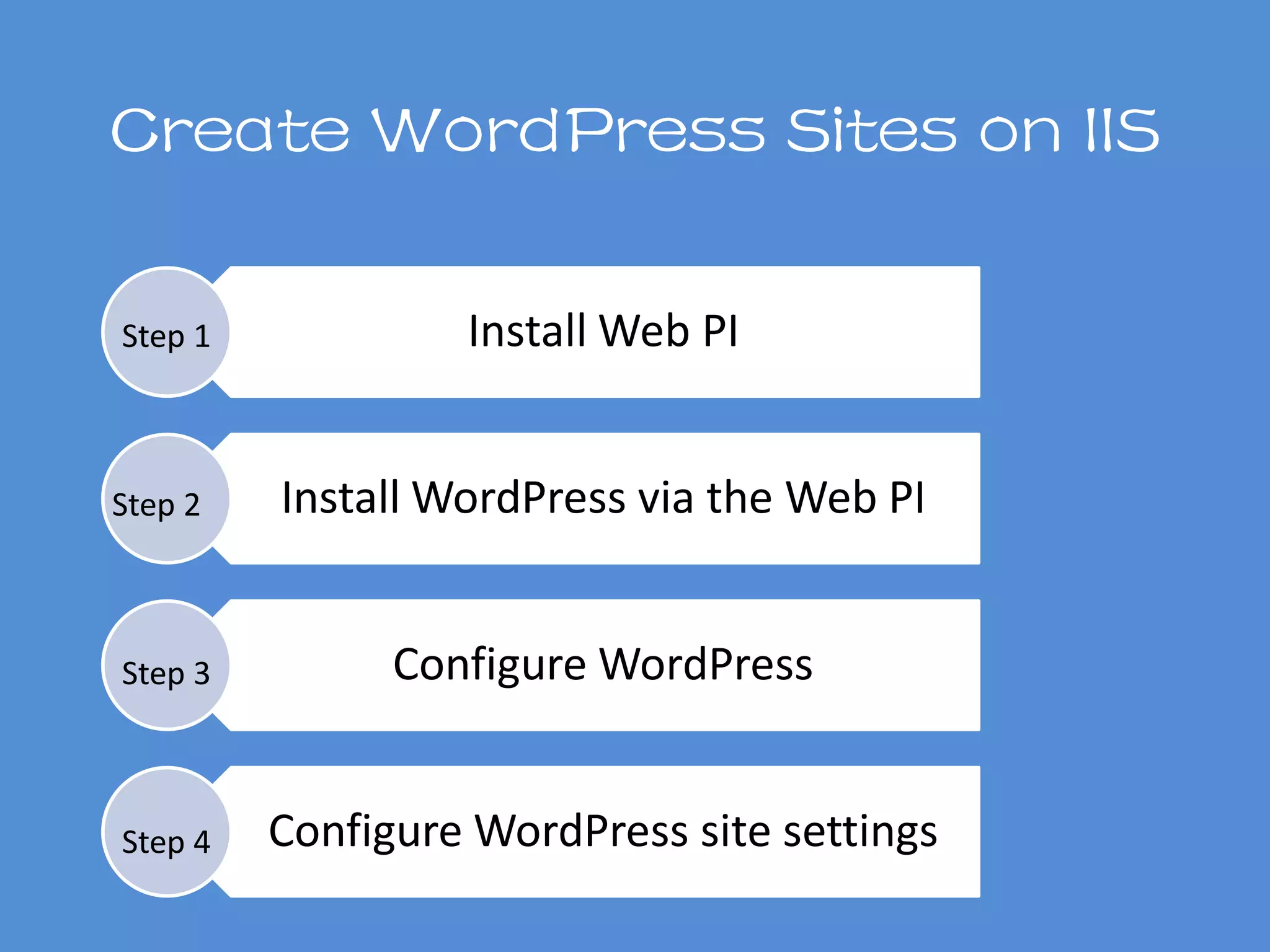
Install Web PI
Install WordPress via the Web PI
Configure WordPress
Configure WordPress site settings
Step 1
Step 2
Step 3
Step 4
Create WordPress Sites on IIS
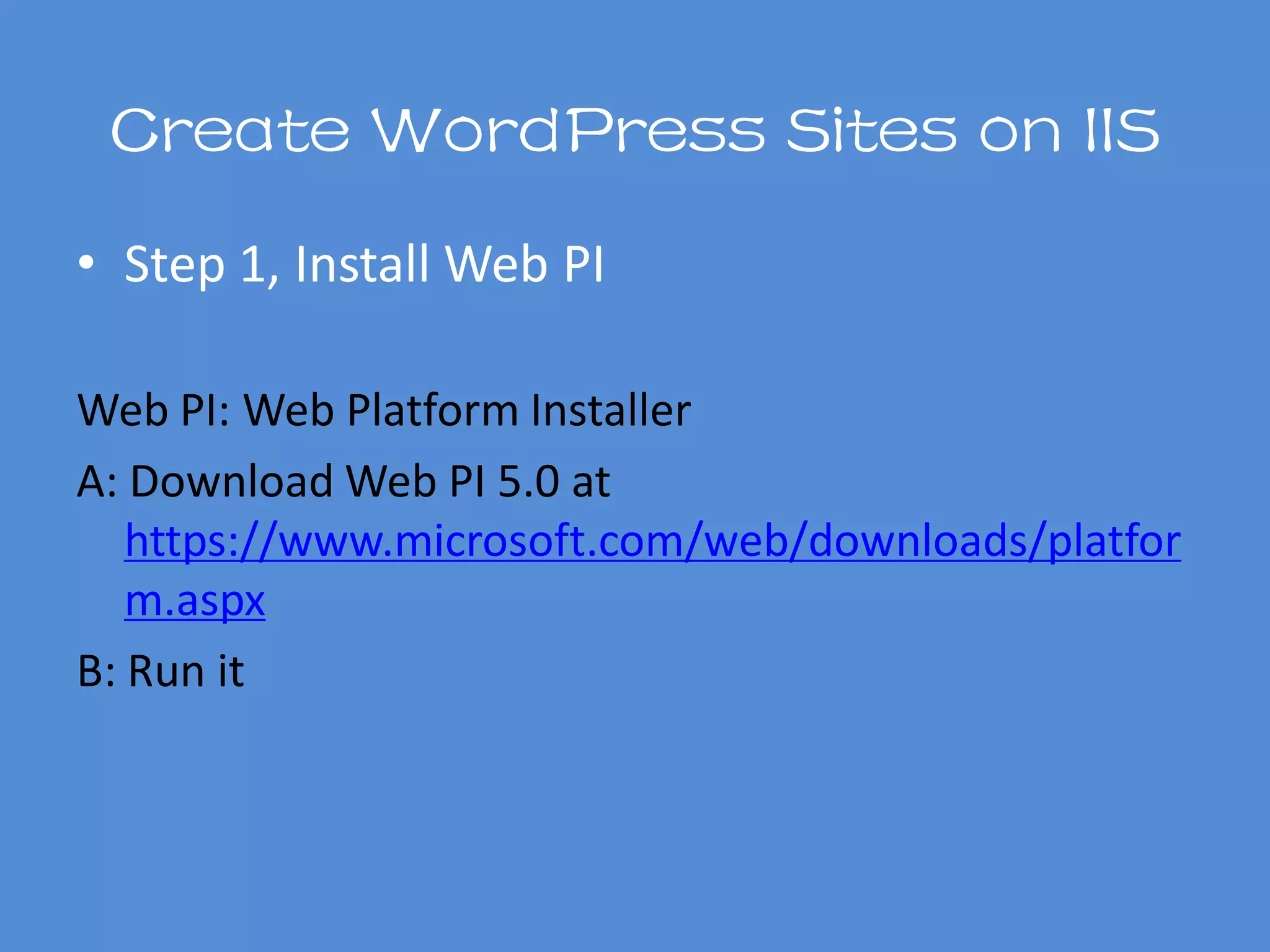
• Step 1, Install Web PI
Web PI: Web Platform Installer
A: Download Web PI 5.0 at
https://www.microsoft.com/web/downloads/platfor
m.aspx
B: Run it
Create WordPress Sites on IIS
• Step 2, Install WordPress via the Web PI
Create WordPress Sites on IIS
• Step 2, Install WordPress via the Web PI
Web PI Application
WordPressInstall
Create WordPress Sites on IIS
• Step 3, Configure WordPress
Configura
tion
database
Files and
license
agreemen
ts
Security
keys
Save
passwords
Create WordPress Sites on IIS
• Step 3, Configure WordPress
Database configuration:
Choose MySQL (Not installed)
Create WordPress Sites on IIS
• Step 3, Configure WordPress
Files and license agreements:
Make sure the WordPress version is your selected
Create WordPress Sites on IIS
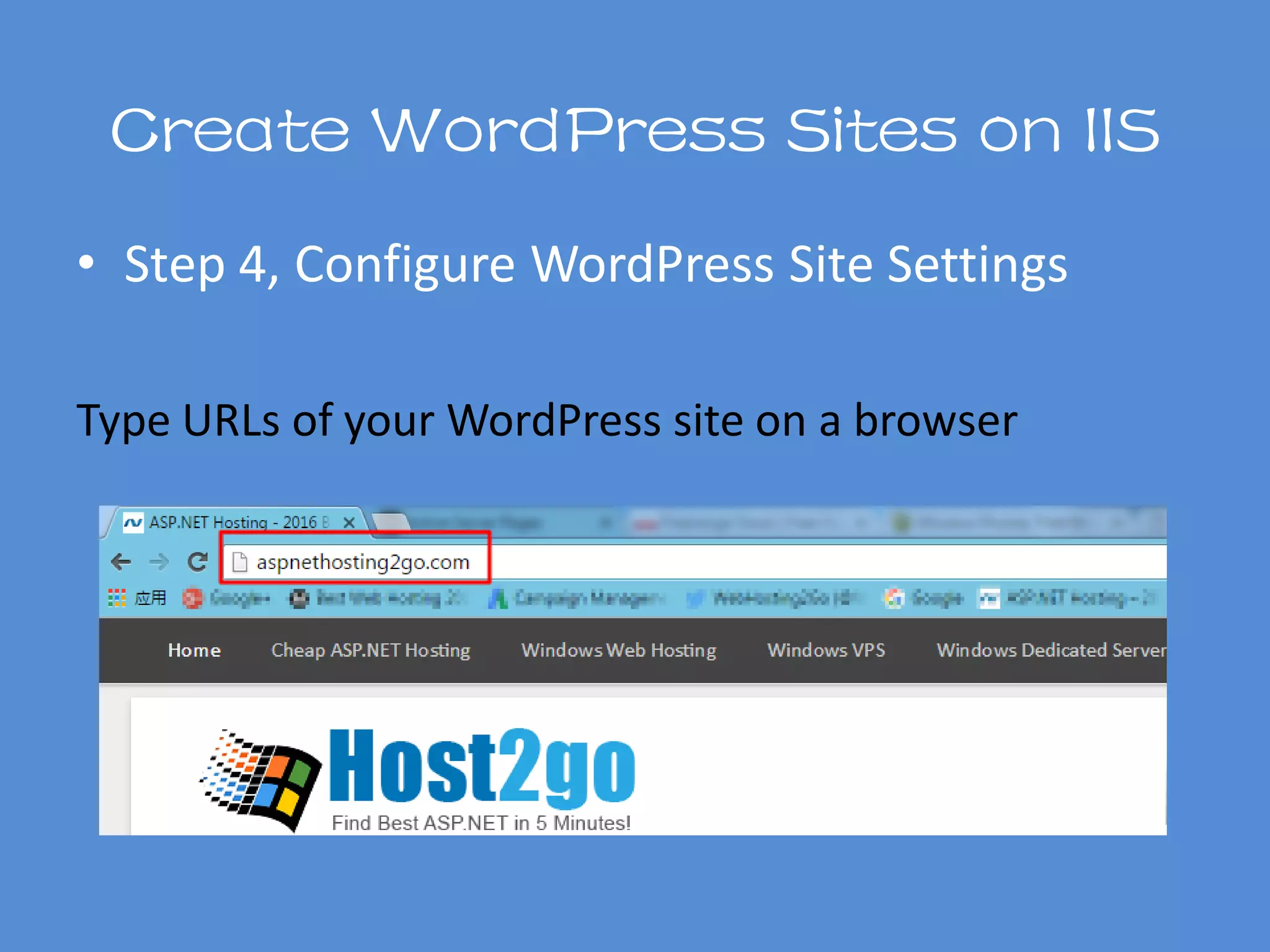
• Step 4, Configure WordPress Site Settings
Type URLs of your WordPress site on a browser
Create WordPress Sites on IIS
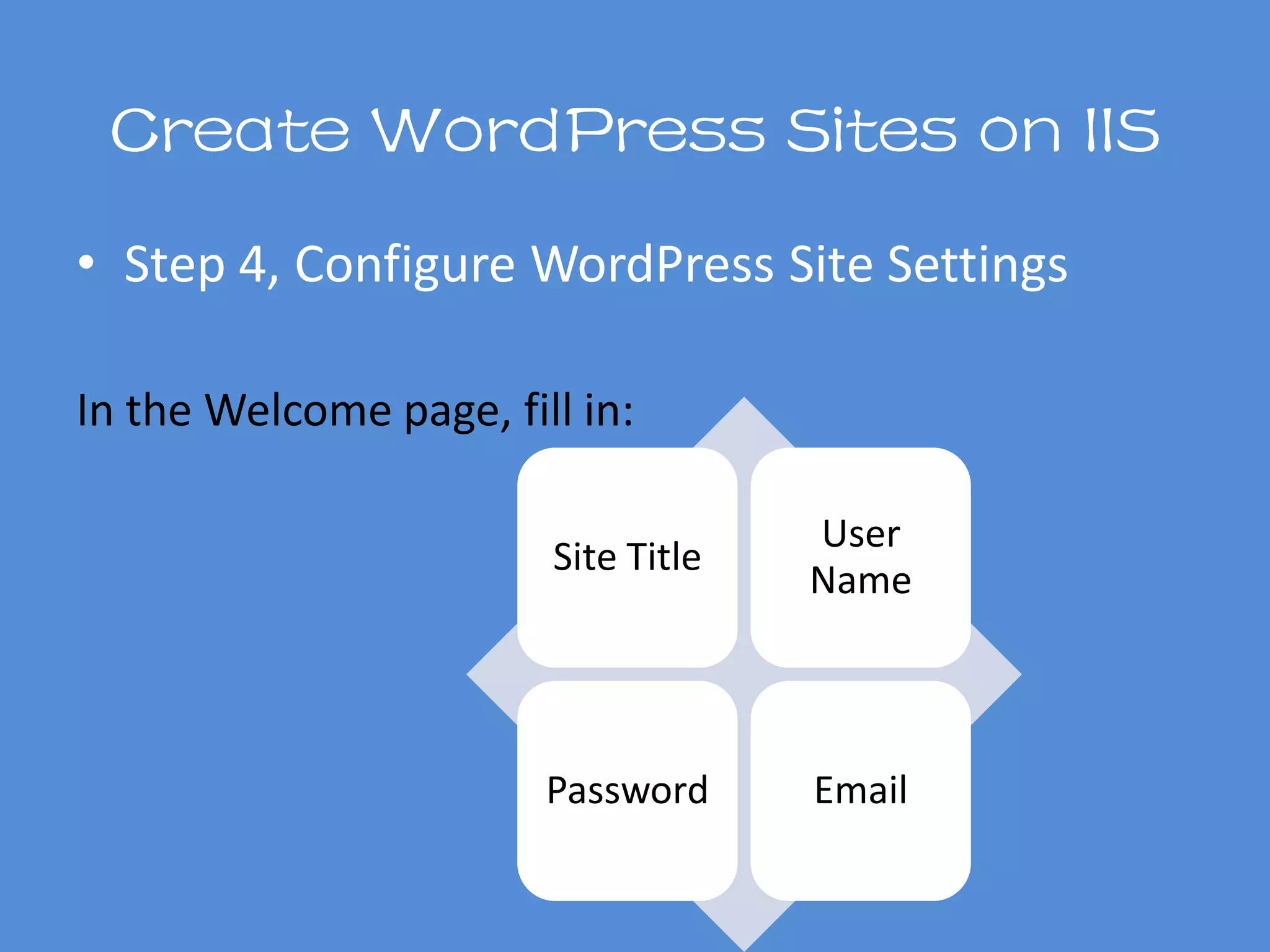
• Step 4, Configure WordPress Site Settings
In the Welcome page, fill in:
Site Title
User
Name
Password Email
Now, Start Your Journey
Contact Information
Follow Paul in
Google +
Read more articles from Paul in
ASPNETHosting2Go.com
WebHosting2Go.com
BigCheapHosting.com
VPSHosting2Go.com

Build sites on iis

  • 1.
    Create Sites onIIS By Paul Davis
  • 2.
    Who I AM Myname is Paul Davis. I have been doing web hosting development for over 15 years (including both PHP and ASP.NET). I share my experience on building sites and using web hosting solutions on ASP.NETHosting2Go.com WebHosting2Go.com BigCheapHosting.com VPSHosting2Go.com
  • 3.
    Who Is This For Ihave received emails and comments asking how to build sites on IIS. To answer these and whoever have same questions, I write this PPT. I classify the topic into three: Build ASP.NET sites on IIS; Build ASP sites on IIS; Build WordPress sites on IIS. The first one is the most common practice while the latter 2 are also popular, especially when IIS 7.0 supports WordPress.
  • 4.
  • 5.
    Create Sites OnIIS Create ASP.NET Sites on IIS Create ASP Sites on IIS Create WordPress Sites on IIS
  • 6.
  • 7.
  • 8.
    Create ASP.NET Siteson IIS Install IIS and ASP.NET Module Add ASP.NET Applications Edit ASP.NET Settings Configure Application Security Step 1 Step 2 Step 3 Step 4
  • 9.
    Create ASP.NET Siteson IIS • Step 1, Install IIS and ASP.NET Module By command lines Or By the IIS Manager UI We introduce UI way here.
  • 10.
    Create ASP.NET Siteson IIS Make clicks as following steps to get Windows Features Screen: • Control Panel • Programs • Turn Windows features on or off • Step 1, Install IIS and ASP.NET Module
  • 11.
    Create ASP.NET Siteson IIS Make configuration as the right screen shows Tips: please note that your screen may be shown with ASP.NET 4.5/3.5/etc. and accordingly .NET 4.5/3.5/etc. Extensibility. Just click them. • Step 1, Install IIS and ASP.NET Module
  • 12.
    Create ASP.NET Siteon IIS • Step 2, Add ASP.NET Applications Control Panel System and Security Administrati on Tools Internet Information Services (IIS) Manager A: click items in below:
  • 13.
    Create ASP.NET Siteson IIS • Step 2, Add ASP.NET Applications B: Right Click the site you want to install applications C: select Add Application D: fill in blanks in Add Application screen
  • 14.
    Create ASP.NET Siteson IIS • Step 2, Add ASP.NET Applications
  • 15.
    Create ASP.NET Siteson IIS • Step 3, Edit ASP.NET Settings ASP.NET Settings Session State .NET Globaliz ation .NET Compila tion Pages and Controls
  • 16.
    Create ASP.NET Siteson IIS • Step 4, Configure Application Security Use more than one pool application Set a .NET trust level Deploy SSL certificates
  • 17.
    Create ASP Siteson IIS ASP IS NOT DEAD…
  • 18.
    Create ASP Siteson IIS Install IIS Create a Classic ASP Website Edit settings of ASP Applications Step 1 Step 2 Step 3
  • 19.
    Create ASP Siteson IIS • Step 1, Install IIS By Web PI By command lines By Windows UI Control Panel Turn Windows features on or off Internet Information Services
  • 20.
    Create ASP Siteson IIS • Step 2, Create a Classic ASP Website By UI By command lines Editing configuration files Creating WMI scripts Multiple ways to choose:
  • 21.
    Create ASP Siteson IIS • Step 2, Create a Classic ASP Website Use UI: similar to create an ASP.NET site on IIS we talked in slide12 and slide 13. But you have to fill out more blanks, such as: Type IP address Port Host name
  • 22.
    Create ASP Siteson IIS • Step 3, Edit settings of ASP Applications • More complex • Higher skills By command lines • Enter IIS manager • Double click ASP • Change settings By UI
  • 23.
  • 24.
    Create WordPress Siteson IIS Install Web PI Install WordPress via the Web PI Configure WordPress Configure WordPress site settings Step 1 Step 2 Step 3 Step 4
  • 25.
    Create WordPress Siteson IIS • Step 1, Install Web PI Web PI: Web Platform Installer A: Download Web PI 5.0 at https://www.microsoft.com/web/downloads/platfor m.aspx B: Run it
  • 26.
    Create WordPress Siteson IIS • Step 2, Install WordPress via the Web PI
  • 27.
    Create WordPress Siteson IIS • Step 2, Install WordPress via the Web PI Web PI Application WordPressInstall
  • 28.
    Create WordPress Siteson IIS • Step 3, Configure WordPress Configura tion database Files and license agreemen ts Security keys Save passwords
  • 29.
    Create WordPress Siteson IIS • Step 3, Configure WordPress Database configuration: Choose MySQL (Not installed)
  • 30.
    Create WordPress Siteson IIS • Step 3, Configure WordPress Files and license agreements: Make sure the WordPress version is your selected
  • 31.
    Create WordPress Siteson IIS • Step 4, Configure WordPress Site Settings Type URLs of your WordPress site on a browser
  • 32.
    Create WordPress Siteson IIS • Step 4, Configure WordPress Site Settings In the Welcome page, fill in: Site Title User Name Password Email
  • 33.
  • 34.
    Contact Information Follow Paulin Google + Read more articles from Paul in ASPNETHosting2Go.com WebHosting2Go.com BigCheapHosting.com VPSHosting2Go.com