IIS WEBSITE HOSTING
Author : Syed Ubaid Ali Jafri Page 1
Following Are the steps that should be follow when Mapping a .Aspx site with IIS
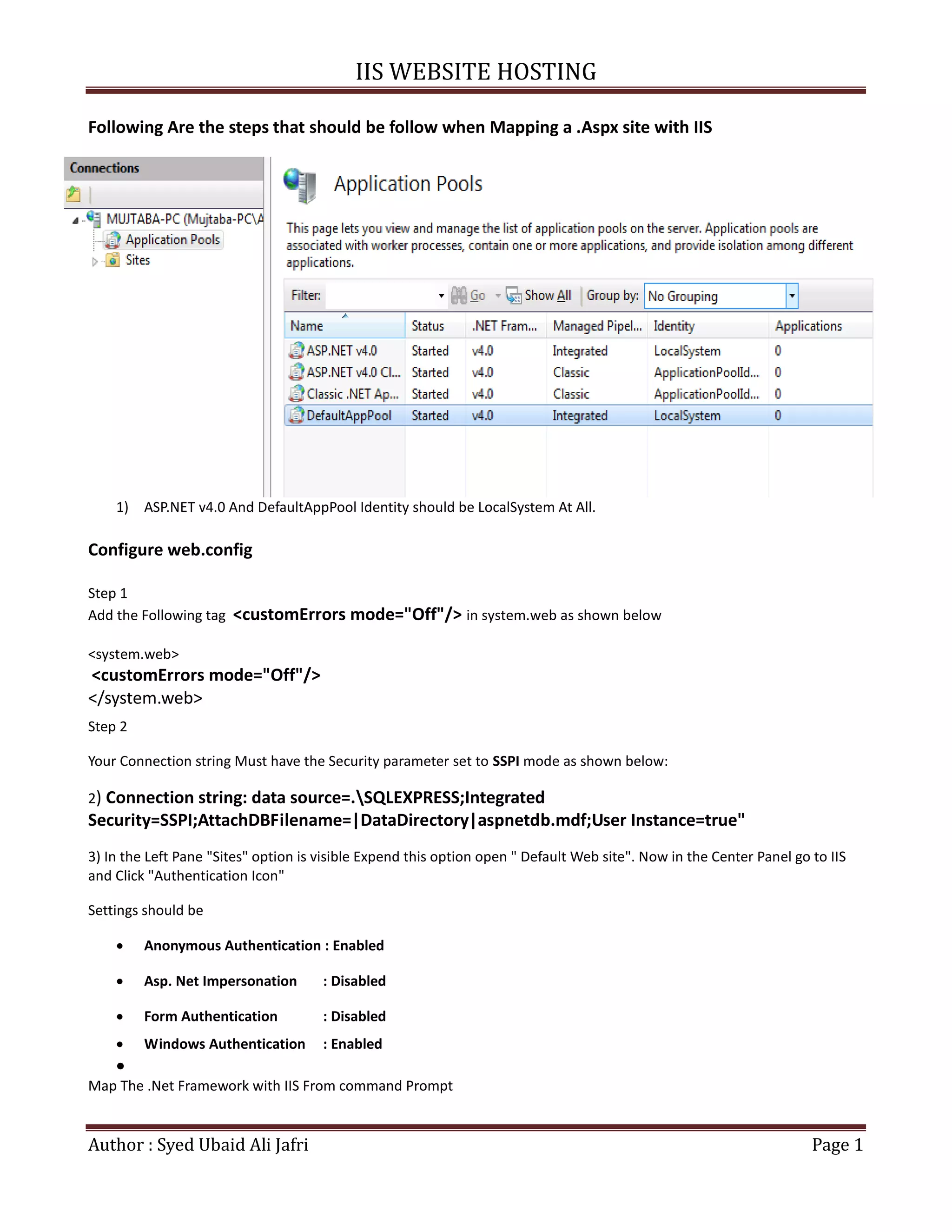
1) ASP.NET v4.0 And DefaultAppPool Identity should be LocalSystem At All.
Configure web.config
Step 1
Add the Following tag <customErrors mode="Off"/> in system.web as shown below
<system.web>
<customErrors mode="Off"/>
</system.web>
Step 2
Your Connection string Must have the Security parameter set to SSPI mode as shown below:
2) Connection string: data source=.SQLEXPRESS;Integrated
Security=SSPI;AttachDBFilename=|DataDirectory|aspnetdb.mdf;User Instance=true"
3) In the Left Pane "Sites" option is visible Expend this option open " Default Web site". Now in the Center Panel go to IIS
and Click "Authentication Icon"
Settings should be
 Anonymous Authentication : Enabled
 Asp. Net Impersonation : Disabled
 Form Authentication : Disabled
 Windows Authentication : Enabled

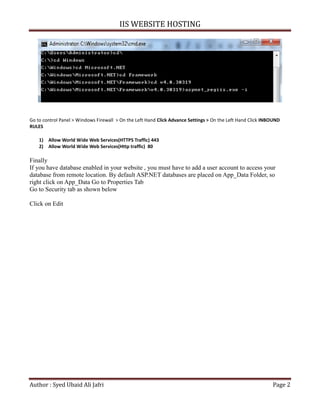
Map The .Net Framework with IIS From command Prompt
IIS WEBSITE HOSTING
Author : Syed Ubaid Ali Jafri Page 2
Go to control Panel > Windows Firewall > On the Left Hand Click Advance Settings > On the Left Hand Click INBOUND
RULES
1) Allow World Wide Web Services(HTTPS Traffic) 443
2) Allow World Wide Web Services(Http traffic) 80
Finally
If you have database enabled in your website , you must have to add a user account to access your
database from remote location. By default ASP.NET databases are placed on App_Data Folder, so
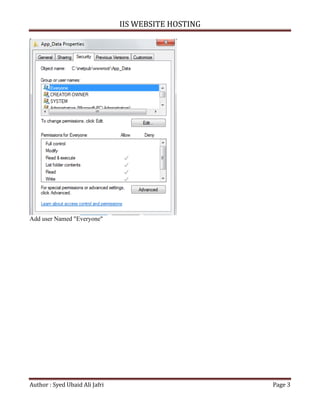
right click on App_Data Go to Properties Tab
Go to Security tab as shown below
Click on Edit
IIS WEBSITE HOSTING
Author : Syed Ubaid Ali Jafri Page 3
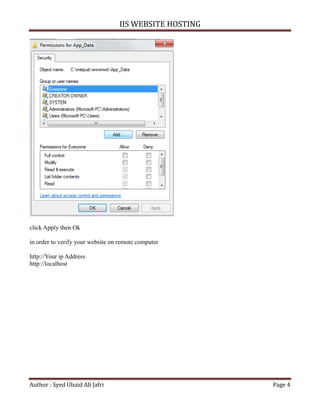
Add user Named "Everyone"
IIS WEBSITE HOSTING
Author : Syed Ubaid Ali Jafri Page 4
click Apply then Ok
in order to verify your website on remote computer
http://Your ip Address
http://localhost

Syed Ubaid Ali Jafri - Secure IIS Configuration Windows 7

  • 1.
    IIS WEBSITE HOSTING Author: Syed Ubaid Ali Jafri Page 1 Following Are the steps that should be follow when Mapping a .Aspx site with IIS 1) ASP.NET v4.0 And DefaultAppPool Identity should be LocalSystem At All. Configure web.config Step 1 Add the Following tag <customErrors mode="Off"/> in system.web as shown below <system.web> <customErrors mode="Off"/> </system.web> Step 2 Your Connection string Must have the Security parameter set to SSPI mode as shown below: 2) Connection string: data source=.SQLEXPRESS;Integrated Security=SSPI;AttachDBFilename=|DataDirectory|aspnetdb.mdf;User Instance=true" 3) In the Left Pane "Sites" option is visible Expend this option open " Default Web site". Now in the Center Panel go to IIS and Click "Authentication Icon" Settings should be  Anonymous Authentication : Enabled  Asp. Net Impersonation : Disabled  Form Authentication : Disabled  Windows Authentication : Enabled  Map The .Net Framework with IIS From command Prompt
  • 2.
    IIS WEBSITE HOSTING Author: Syed Ubaid Ali Jafri Page 2 Go to control Panel > Windows Firewall > On the Left Hand Click Advance Settings > On the Left Hand Click INBOUND RULES 1) Allow World Wide Web Services(HTTPS Traffic) 443 2) Allow World Wide Web Services(Http traffic) 80 Finally If you have database enabled in your website , you must have to add a user account to access your database from remote location. By default ASP.NET databases are placed on App_Data Folder, so right click on App_Data Go to Properties Tab Go to Security tab as shown below Click on Edit
  • 3.
    IIS WEBSITE HOSTING Author: Syed Ubaid Ali Jafri Page 3 Add user Named "Everyone"
  • 4.
    IIS WEBSITE HOSTING Author: Syed Ubaid Ali Jafri Page 4 click Apply then Ok in order to verify your website on remote computer http://Your ip Address http://localhost