MAS101: #UserBLAST2015
Mat Newman, IBM
Gabriella Davis, The Turtle Partnership
Susan Bulloch, IBM
#UserBlast2015
@matnewman
@gabturtle
@notesgoddess
Summary
 EVERYTHING you need to know about increasing productivity within your workplace in less
than 60 minutes! Mat Newman, Gabriella Davis and Susan Bulloch will show you how to
harness the explosive energy of IBM's tightly integrated Collaboration Solutions, enhance
your utilisation of existing traditional document editors and RELEASE THE POWER of your
employees by understanding how only IBM has the unique capabilities to truly deliver on the
benefits of a Socially-driven productivity revolution. Ensure you get your annual injection of
Information and Enthusiasm to take back to your workplace to energise yourself and your
users, don't miss #UserBlast!
What is Notes
 Notes is a Database
 Notes is secure
 Notes can access information from virtually anywhere
 NOTES is the Client
 DOMINO is the Server
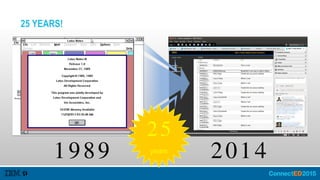
25 YEARS!
1989 2014
25
years
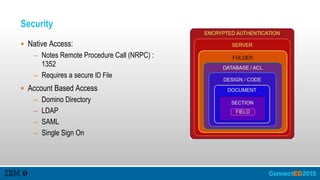
Security
 Native Access:
– Notes Remote Procedure Call (NRPC) :
1352
– Requires a secure ID File
 Account Based Access
– Domino Directory
– LDAP
– SAML
– Single Sign On
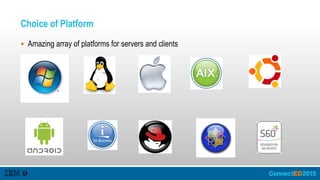
Choice of Platform
 Amazing array of platforms for servers and clients
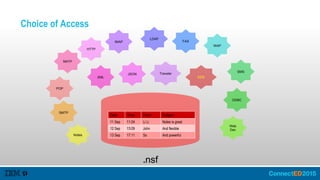
Choice of Access
.nsf
Date Time From Subject
11 Sep 11:04 Li Li Notes is great
12 Sep 13:09 John And flexible
13 Sep 17:11 So And powerfulNotes
SMTP
POP
IMAP
NNTP
LDAP
FAX
WAP
SMS
ODBC
Web
Dav
XML
HTTP
JSON Traveler
DDS
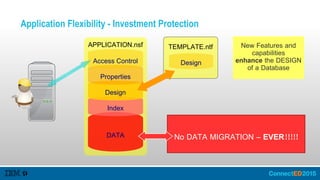
Application Flexibility - Investment Protection
APPLICATION.nsf
DATA
Index
Design
Properties
Access Control
TEMPLATE.ntf New Features and
capabilities
enhance the DESIGN
of a Database
No DATA MIGRATION – EVER!!!!!
Design
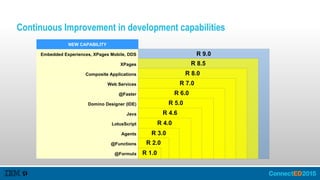
Continuous Improvement in development capabilities
NEW CAPABILITY
Embedded Experiences, XPages Mobile, DDS
XPages
Composite Applications
Web Services
@Faster
Domino Designer (IDE)
Java
LotusScript
Agents
@Functions
@Formula
R 9.0
R 8.5
R 8.0
R 7.0
R 6.0
R 5.0
R 4.6
R 4.0
R 3.0
R 2.0
R 1.0
Application Development
 Native Applications for the Notes Client
– Robust application framework
– Ability to distribute application across multiple servers
– Ability to take application offline
 Domino based applications
– Choice in Development tools
– Browser, Mobile and API based access
Users can create their own applications
 File -> Application -> New
 Templates for Libraries, Discussion, Journal/Notebook, Blogs, Wiki's and more!
 "Nifty 50" a collection of templates, recently updated
 All Notes Enterprise users have access to the Designer client
Check out OpenNTF for a solution that's right for you!
 Hundreds of templates and code samples to easily extend your Notes/Domino environment
 http://www.openntf.org
Know your Notes
Which part is "Notes"
 Notes isn't just email
 Notes is the SOFTWARE that enables:
– Access to Native Notes Databases,
• Mail/Calendar/To-Do is just ONE of those databases
– Ability to consume information from a variety of sources
• Natively (eg: HTTP/ Web Browser, SMTP, LDAP, etc)
• API's, Web Services ...
– Extensibility via the Eclipse framework
• Live Text
• Widgets
• Plug-ins
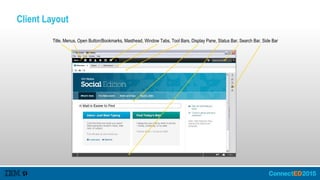
Client Layout
Title, Menus, Open Button/Bookmarks, Masthead, Window Tabs, Tool Bars, Display Pane, Status Bar, Search Bar, Side Bar
Which part is a "Database"
 Databases are native Notes 'applications',
– i.e: That is why there is a 'File -> Application' menu choice
 Every Database has it's own security settings,
– See earlier security slide
 Each individual database contains it's own functionality,
– Mail/Calendar/To-Do (PIM) is just ONE database
 Each database can have it's own preferences or personal 'profile',
– PIM preferences and Contacts preferences are separate
 Databases can be Replicated, or taken "off-line"
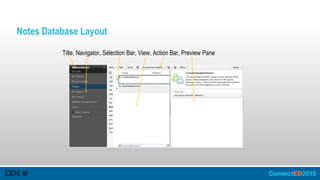
Notes Database Layout
 Title, Navigator, Selection Bar, View, Action Bar, Preview Pane
Folders vs Views
 Folders
– contain documents that are "put there"
 Views
– contain documents matching a criteria
 Why do I need to know this?
– Eg: A message dragged from "Sent" IS STILL "SENT"!
– Applies to: "Sent", "All Documents", "Follow Up"
Notes Databases: Basic Short-Cuts
Short Cut Key What it Does
CTRL+M Creates a new Message
Enter Opens the SELECTED document
Enter (with any document open) Opens the NEXT document
TAB Opens the next UNREAD document
Backspace Opens the PREVIOUS document
DELETE Deletes the open document AND moves to the next document
Escape Closes the current window.
CTRL+SHIFT+L Opens the complete Short-Cut List
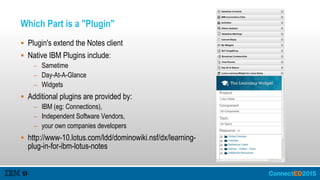
Which Part is a "Plugin"
 Plugin's extend the Notes client
 Native IBM Plugins include:
– Sametime
– Day-At-A-Glance
– Widgets
 Additional plugins are provided by:
– IBM (eg: Connections),
– Independent Software Vendors,
– your own companies developers
 http://www-10.lotus.com/ldd/dominowiki.nsf/dx/learning-
plug-in-for-ibm-lotus-notes
Preferences and Settings
Notes has over 1000 settings to enable you to customise it to the
way you want Notes to work
Administrators have the ability to control a majority of those
settings
Some commonly asked settings
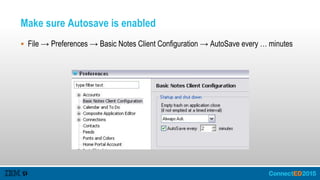
Make sure Autosave is enabled
 File → Preferences → Basic Notes Client Configuration → AutoSave every … minutes
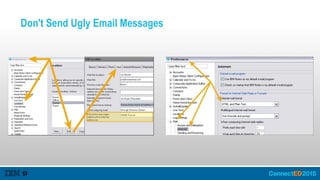
Don't Send Ugly Email Messages
Get your PIM (Mail/Calendar/Contacts/To-Do) settings right!
 Sorting in Folders and Views
– Do you prefer New at the Top or Bottom?
 Setting calendar alarms
– Yes, Notes has them, they are a preference!
 Using Colour-Coded calendar entries
– Create personal categories, then colour code them
MORE Notes tips: See previous #UserBLAST sessions
 www.slideshare.net/matnewman
Is your stuff being backed up for you?
 Notes Roaming
– Personal Databases
– Rich Client Settings
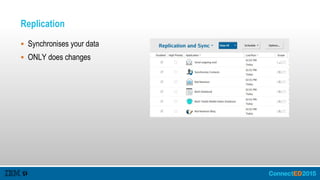
Replication
 Synchronises your data
 ONLY does changes
Creating Replicas
 Open the required application
 File -> Application -> Make available Offline
 Additional options control
– Security
– What information replicates
– Creating a Full-Text index (more later...)
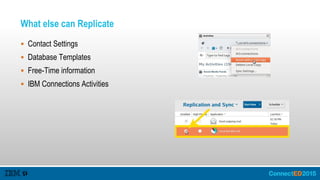
What else can Replicate
 Contact Settings
 Database Templates
 Free-Time information
 IBM Connections Activities
Search
 Notes most powerful feature
 Quick search
– Easily locate anything in a VIEW
 Full-Text Search
– Easily locate any content in any Notes document or attachment
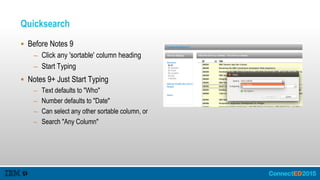
Quicksearch
 Before Notes 9
– Click any 'sortable' column heading
– Start Typing
 Notes 9+ Just Start Typing
– Text defaults to "Who"
– Number defaults to "Date"
– Can select any other sortable column, or
– Search "Any Column"
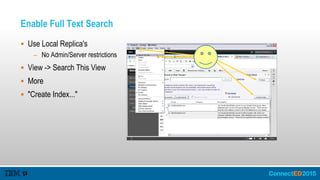
Enable Full Text Search
 Use Local Replica's
– No Admin/Server restrictions
 View -> Search This View
 More
 "Create Index..."
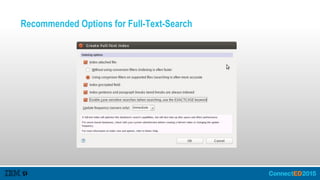
Recommended Options for Full-Text-Search
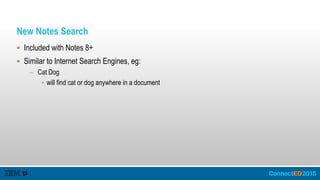
New Notes Search
 Included with Notes 8+
 Similar to Internet Search Engines, eg:
– Cat Dog
• will find cat or dog anywhere in a document
Classic Notes Search
 Activate by preceding search with "/"
 Use FTI Syntax
 Sample difference:
– /cat dog
– Will only find the exact phrase "cat dog"
Advanced Searching
 Boolean Operators:
– AND OR NOT ()
 Field Searching:
– [FieldName]="content"
– eg: [From] [To] [Subject] [Body]
 Date, Field, Multiple Words, Example Form
 Save and Load Searches
 Adding any Notes Application to the
Search Bar
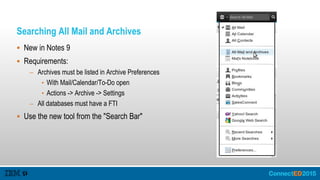
Searching All Mail and Archives
 New in Notes 9
 Requirements:
– Archives must be listed in Archive Preferences
• With Mail/Calendar/To-Do open
• Actions -> Archive -> Settings
– All databases must have a FTI
 Use the new tool from the "Search Bar"
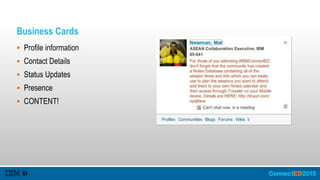
Business Cards
 Profile information
 Contact Details
 Status Updates
 Presence
 CONTENT!
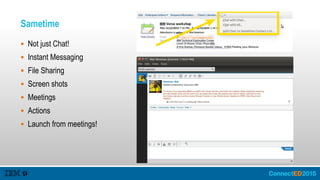
Sametime
 Not just Chat!
 Instant Messaging
 File Sharing
 Screen shots
 Meetings
 Actions
 Launch from meetings!
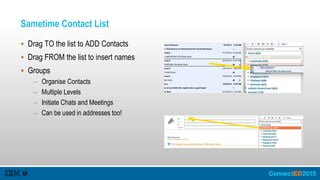
Sametime Contact List
 Drag TO the list to ADD Contacts
 Drag FROM the list to insert names
 Groups
– Organise Contacts
– Multiple Levels
– Initiate Chats and Meetings
– Can be used in addresses too!
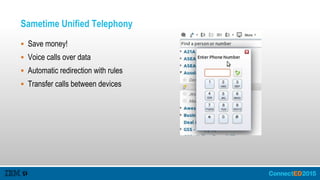
Sametime Unified Telephony
 Save money!
 Voice calls over data
 Automatic redirection with rules
 Transfer calls between devices
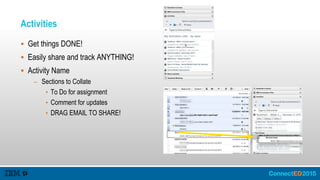
Activities
 Get things DONE!
 Easily share and track ANYTHING!
 Activity Name
– Sections to Collate
• To Do for assignment
• Comment for updates
• DRAG EMAIL TO SHARE!
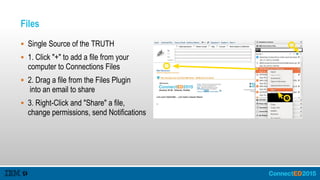
Files
 Single Source of the TRUTH
 1. Click "+" to add a file from your
computer to Connections Files
 2. Drag a file from the Files Plugin
into an email to share
 3. Right-Click and "Share" a file,
change permissions, send Notifications
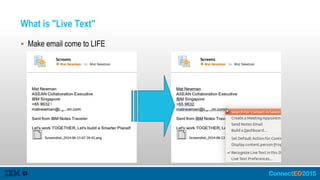
What is "Live Text"
 Make email come to LIFE
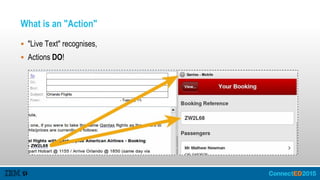
What is an "Action"
 "Live Text" recognises,
 Actions DO!
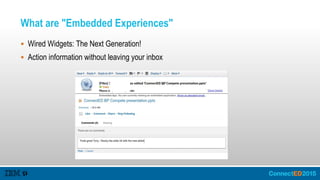
What are "Embedded Experiences"
 Wired Widgets: The Next Generation!
 Action information without leaving your inbox
Thank YOU!
Engage Online
 SocialBiz User Group socialbizug.org
–Join the epicenter of Notes and Collaboration user groups
 Social Business Insights blog ibm.com/blogs/socialbusiness
–Read and engage with our bloggers
 Follow us on Twitter
–@IBMConnect and @IBMSocialBiz
 LinkedIn http://bit.ly/SBComm
–Participate in the IBM Social Business group on LinkedIn
 Facebook https://www.facebook.com/IBMConnected
–Like IBM Social Business on Facebook
Notices and Disclaimers
Copyright © 2015 by International Business Machines Corporation (IBM). No part of this document may be reproduced or transmitted in any form without written permission from IBM.
U.S. Government Users Restricted Rights - Use, duplication or disclosure restricted by GSA ADP Schedule Contract with IBM.
Information in these presentations (including information relating to products that have not yet been announced by IBM) has been reviewed for accuracy as of the date of initial publication and could include
unintentional technical or typographical errors. IBM shall have no responsibility to update this information. THIS DOCUMENT IS DISTRIBUTED "AS IS" WITHOUT ANY WARRANTY, EITHER EXPRESS OR IMPLIED.
IN NO EVENT SHALL IBM BE LIABLE FOR ANY DAMAGE ARISING FROM THE USE OF THIS INFORMATION, INCLUDING BUT NOT LIMITED TO, LOSS OF DATA, BUSINESS INTERRUPTION, LOSS OF
PROFIT OR LOSS OF OPPORTUNITY. IBM products and services are warranted according to the terms and conditions of the agreements under which they are provided.
Any statements regarding IBM's future direction, intent or product plans are subject to change or withdrawal without notice.
Performance data contained herein was generally obtained in a controlled, isolated environments. Customer examples are presented as illustrations of how those customers have used IBM products and the results
they may have achieved. Actual performance, cost, savings or other results in other operating environments may vary.
References in this document to IBM products, programs, or services does not imply that IBM intends to make such products, programs or services available in all countries in which IBM operates or does business.
Workshops, sessions and associated materials may have been prepared by independent session speakers, and do not necessarily reflect the views of IBM. All materials and discussions are provided for informational
purposes only, and are neither intended to, nor shall constitute legal or other guidance or advice to any individual participant or their specific situation.
It is the customer’s responsibility to insure its own compliance with legal requirements and to obtain advice of competent legal counsel as to the identification and interpretation of any relevant laws and regulatory
requirements that may affect the customer’s business and any actions the customer may need to take to comply with such laws. IBM does not provide legal advice or represent or warrant that its services or products
will ensure that the customer is in compliance with any law.
Information concerning non-IBM products was obtained from the suppliers of those products, their published announcements or other publicly available sources. IBM has not tested those products in connection with
this publication and cannot confirm the accuracy of performance, compatibility or any other claims related to non-IBM products. Questions on the capabilities of non-IBM products should be addressed to the suppliers
of those products. IBM does not warrant the quality of any third-party products, or the ability of any such third-party products to interoperate with IBM’s products. IBM EXPRESSLY DISCLAIMS ALL WARRANTIES,
EXPRESSED OR IMPLIED, INCLUDING BUT NOT LIMITED TO, THE IMPLIED WARRANTIES OF MERCHANTABILITY AND FITNESS FOR A PARTICULAR PURPOSE.
The provision of the information contained herein is not intended to, and does not, grant any right or license under any IBM patents, copyrights, trademarks or other intellectual property right.
IBM, the IBM logo, ibm.com, BrassRing®, Connections™, Domino®, Global Business Services®, Global Technology Services®, SmartCloud®, Social Business®, Kenexa®, Notes®, PartnerWorld®, Prove It!®,
PureSystems®, Sametime®, Verse™, Watson™, WebSphere®, Worklight®, are trademarks of International Business Machines Corporation, registered in many jurisdictions worldwide. Other product and service
names might be trademarks of IBM or other companies. A current list of IBM trademarks is available on the Web at "Copyright and trademark information" at: www.ibm.com/legal/copytrade.shtml.

Connect ed2015 mas101_user blast 2015

  • 1.
    MAS101: #UserBLAST2015 Mat Newman,IBM Gabriella Davis, The Turtle Partnership Susan Bulloch, IBM
  • 2.
  • 3.
    Summary  EVERYTHING youneed to know about increasing productivity within your workplace in less than 60 minutes! Mat Newman, Gabriella Davis and Susan Bulloch will show you how to harness the explosive energy of IBM's tightly integrated Collaboration Solutions, enhance your utilisation of existing traditional document editors and RELEASE THE POWER of your employees by understanding how only IBM has the unique capabilities to truly deliver on the benefits of a Socially-driven productivity revolution. Ensure you get your annual injection of Information and Enthusiasm to take back to your workplace to energise yourself and your users, don't miss #UserBlast!
  • 4.
    What is Notes Notes is a Database  Notes is secure  Notes can access information from virtually anywhere  NOTES is the Client  DOMINO is the Server
  • 6.
  • 7.
    Security  Native Access: –Notes Remote Procedure Call (NRPC) : 1352 – Requires a secure ID File  Account Based Access – Domino Directory – LDAP – SAML – Single Sign On
  • 8.
    Choice of Platform Amazing array of platforms for servers and clients
  • 9.
    Choice of Access .nsf DateTime From Subject 11 Sep 11:04 Li Li Notes is great 12 Sep 13:09 John And flexible 13 Sep 17:11 So And powerfulNotes SMTP POP IMAP NNTP LDAP FAX WAP SMS ODBC Web Dav XML HTTP JSON Traveler DDS
  • 10.
    Application Flexibility -Investment Protection APPLICATION.nsf DATA Index Design Properties Access Control TEMPLATE.ntf New Features and capabilities enhance the DESIGN of a Database No DATA MIGRATION – EVER!!!!! Design
  • 11.
    Continuous Improvement indevelopment capabilities NEW CAPABILITY Embedded Experiences, XPages Mobile, DDS XPages Composite Applications Web Services @Faster Domino Designer (IDE) Java LotusScript Agents @Functions @Formula R 9.0 R 8.5 R 8.0 R 7.0 R 6.0 R 5.0 R 4.6 R 4.0 R 3.0 R 2.0 R 1.0
  • 12.
    Application Development  NativeApplications for the Notes Client – Robust application framework – Ability to distribute application across multiple servers – Ability to take application offline  Domino based applications – Choice in Development tools – Browser, Mobile and API based access
  • 13.
    Users can createtheir own applications  File -> Application -> New  Templates for Libraries, Discussion, Journal/Notebook, Blogs, Wiki's and more!  "Nifty 50" a collection of templates, recently updated  All Notes Enterprise users have access to the Designer client
  • 14.
    Check out OpenNTFfor a solution that's right for you!  Hundreds of templates and code samples to easily extend your Notes/Domino environment  http://www.openntf.org
  • 15.
  • 16.
    Which part is"Notes"  Notes isn't just email  Notes is the SOFTWARE that enables: – Access to Native Notes Databases, • Mail/Calendar/To-Do is just ONE of those databases – Ability to consume information from a variety of sources • Natively (eg: HTTP/ Web Browser, SMTP, LDAP, etc) • API's, Web Services ... – Extensibility via the Eclipse framework • Live Text • Widgets • Plug-ins
  • 17.
    Client Layout Title, Menus,Open Button/Bookmarks, Masthead, Window Tabs, Tool Bars, Display Pane, Status Bar, Search Bar, Side Bar
  • 18.
    Which part isa "Database"  Databases are native Notes 'applications', – i.e: That is why there is a 'File -> Application' menu choice  Every Database has it's own security settings, – See earlier security slide  Each individual database contains it's own functionality, – Mail/Calendar/To-Do (PIM) is just ONE database  Each database can have it's own preferences or personal 'profile', – PIM preferences and Contacts preferences are separate  Databases can be Replicated, or taken "off-line"
  • 19.
    Notes Database Layout Title, Navigator, Selection Bar, View, Action Bar, Preview Pane
  • 20.
    Folders vs Views Folders – contain documents that are "put there"  Views – contain documents matching a criteria  Why do I need to know this? – Eg: A message dragged from "Sent" IS STILL "SENT"! – Applies to: "Sent", "All Documents", "Follow Up"
  • 21.
    Notes Databases: BasicShort-Cuts Short Cut Key What it Does CTRL+M Creates a new Message Enter Opens the SELECTED document Enter (with any document open) Opens the NEXT document TAB Opens the next UNREAD document Backspace Opens the PREVIOUS document DELETE Deletes the open document AND moves to the next document Escape Closes the current window. CTRL+SHIFT+L Opens the complete Short-Cut List
  • 22.
    Which Part isa "Plugin"  Plugin's extend the Notes client  Native IBM Plugins include: – Sametime – Day-At-A-Glance – Widgets  Additional plugins are provided by: – IBM (eg: Connections), – Independent Software Vendors, – your own companies developers  http://www-10.lotus.com/ldd/dominowiki.nsf/dx/learning- plug-in-for-ibm-lotus-notes
  • 23.
    Preferences and Settings Noteshas over 1000 settings to enable you to customise it to the way you want Notes to work Administrators have the ability to control a majority of those settings
  • 24.
  • 25.
    Make sure Autosaveis enabled  File → Preferences → Basic Notes Client Configuration → AutoSave every … minutes
  • 26.
    Don't Send UglyEmail Messages
  • 27.
    Get your PIM(Mail/Calendar/Contacts/To-Do) settings right!  Sorting in Folders and Views – Do you prefer New at the Top or Bottom?  Setting calendar alarms – Yes, Notes has them, they are a preference!  Using Colour-Coded calendar entries – Create personal categories, then colour code them
  • 28.
    MORE Notes tips:See previous #UserBLAST sessions  www.slideshare.net/matnewman
  • 29.
    Is your stuffbeing backed up for you?  Notes Roaming – Personal Databases – Rich Client Settings
  • 30.
    Replication  Synchronises yourdata  ONLY does changes
  • 31.
    Creating Replicas  Openthe required application  File -> Application -> Make available Offline  Additional options control – Security – What information replicates – Creating a Full-Text index (more later...)
  • 32.
    What else canReplicate  Contact Settings  Database Templates  Free-Time information  IBM Connections Activities
  • 33.
    Search  Notes mostpowerful feature  Quick search – Easily locate anything in a VIEW  Full-Text Search – Easily locate any content in any Notes document or attachment
  • 34.
    Quicksearch  Before Notes9 – Click any 'sortable' column heading – Start Typing  Notes 9+ Just Start Typing – Text defaults to "Who" – Number defaults to "Date" – Can select any other sortable column, or – Search "Any Column"
  • 35.
    Enable Full TextSearch  Use Local Replica's – No Admin/Server restrictions  View -> Search This View  More  "Create Index..."
  • 36.
    Recommended Options forFull-Text-Search
  • 37.
    New Notes Search Included with Notes 8+  Similar to Internet Search Engines, eg: – Cat Dog • will find cat or dog anywhere in a document
  • 38.
    Classic Notes Search Activate by preceding search with "/"  Use FTI Syntax  Sample difference: – /cat dog – Will only find the exact phrase "cat dog"
  • 39.
    Advanced Searching  BooleanOperators: – AND OR NOT ()  Field Searching: – [FieldName]="content" – eg: [From] [To] [Subject] [Body]  Date, Field, Multiple Words, Example Form  Save and Load Searches  Adding any Notes Application to the Search Bar
  • 40.
    Searching All Mailand Archives  New in Notes 9  Requirements: – Archives must be listed in Archive Preferences • With Mail/Calendar/To-Do open • Actions -> Archive -> Settings – All databases must have a FTI  Use the new tool from the "Search Bar"
  • 41.
    Business Cards  Profileinformation  Contact Details  Status Updates  Presence  CONTENT!
  • 42.
    Sametime  Not justChat!  Instant Messaging  File Sharing  Screen shots  Meetings  Actions  Launch from meetings!
  • 43.
    Sametime Contact List Drag TO the list to ADD Contacts  Drag FROM the list to insert names  Groups – Organise Contacts – Multiple Levels – Initiate Chats and Meetings – Can be used in addresses too!
  • 44.
    Sametime Unified Telephony Save money!  Voice calls over data  Automatic redirection with rules  Transfer calls between devices
  • 45.
    Activities  Get thingsDONE!  Easily share and track ANYTHING!  Activity Name – Sections to Collate • To Do for assignment • Comment for updates • DRAG EMAIL TO SHARE!
  • 46.
    Files  Single Sourceof the TRUTH  1. Click "+" to add a file from your computer to Connections Files  2. Drag a file from the Files Plugin into an email to share  3. Right-Click and "Share" a file, change permissions, send Notifications
  • 47.
    What is "LiveText"  Make email come to LIFE
  • 48.
    What is an"Action"  "Live Text" recognises,  Actions DO!
  • 49.
    What are "EmbeddedExperiences"  Wired Widgets: The Next Generation!  Action information without leaving your inbox
  • 50.
  • 51.
    Engage Online  SocialBizUser Group socialbizug.org –Join the epicenter of Notes and Collaboration user groups  Social Business Insights blog ibm.com/blogs/socialbusiness –Read and engage with our bloggers  Follow us on Twitter –@IBMConnect and @IBMSocialBiz  LinkedIn http://bit.ly/SBComm –Participate in the IBM Social Business group on LinkedIn  Facebook https://www.facebook.com/IBMConnected –Like IBM Social Business on Facebook
  • 52.
    Notices and Disclaimers Copyright© 2015 by International Business Machines Corporation (IBM). No part of this document may be reproduced or transmitted in any form without written permission from IBM. U.S. Government Users Restricted Rights - Use, duplication or disclosure restricted by GSA ADP Schedule Contract with IBM. Information in these presentations (including information relating to products that have not yet been announced by IBM) has been reviewed for accuracy as of the date of initial publication and could include unintentional technical or typographical errors. IBM shall have no responsibility to update this information. THIS DOCUMENT IS DISTRIBUTED "AS IS" WITHOUT ANY WARRANTY, EITHER EXPRESS OR IMPLIED. IN NO EVENT SHALL IBM BE LIABLE FOR ANY DAMAGE ARISING FROM THE USE OF THIS INFORMATION, INCLUDING BUT NOT LIMITED TO, LOSS OF DATA, BUSINESS INTERRUPTION, LOSS OF PROFIT OR LOSS OF OPPORTUNITY. IBM products and services are warranted according to the terms and conditions of the agreements under which they are provided. Any statements regarding IBM's future direction, intent or product plans are subject to change or withdrawal without notice. Performance data contained herein was generally obtained in a controlled, isolated environments. Customer examples are presented as illustrations of how those customers have used IBM products and the results they may have achieved. Actual performance, cost, savings or other results in other operating environments may vary. References in this document to IBM products, programs, or services does not imply that IBM intends to make such products, programs or services available in all countries in which IBM operates or does business. Workshops, sessions and associated materials may have been prepared by independent session speakers, and do not necessarily reflect the views of IBM. All materials and discussions are provided for informational purposes only, and are neither intended to, nor shall constitute legal or other guidance or advice to any individual participant or their specific situation. It is the customer’s responsibility to insure its own compliance with legal requirements and to obtain advice of competent legal counsel as to the identification and interpretation of any relevant laws and regulatory requirements that may affect the customer’s business and any actions the customer may need to take to comply with such laws. IBM does not provide legal advice or represent or warrant that its services or products will ensure that the customer is in compliance with any law. Information concerning non-IBM products was obtained from the suppliers of those products, their published announcements or other publicly available sources. IBM has not tested those products in connection with this publication and cannot confirm the accuracy of performance, compatibility or any other claims related to non-IBM products. Questions on the capabilities of non-IBM products should be addressed to the suppliers of those products. IBM does not warrant the quality of any third-party products, or the ability of any such third-party products to interoperate with IBM’s products. IBM EXPRESSLY DISCLAIMS ALL WARRANTIES, EXPRESSED OR IMPLIED, INCLUDING BUT NOT LIMITED TO, THE IMPLIED WARRANTIES OF MERCHANTABILITY AND FITNESS FOR A PARTICULAR PURPOSE. The provision of the information contained herein is not intended to, and does not, grant any right or license under any IBM patents, copyrights, trademarks or other intellectual property right. IBM, the IBM logo, ibm.com, BrassRing®, Connections™, Domino®, Global Business Services®, Global Technology Services®, SmartCloud®, Social Business®, Kenexa®, Notes®, PartnerWorld®, Prove It!®, PureSystems®, Sametime®, Verse™, Watson™, WebSphere®, Worklight®, are trademarks of International Business Machines Corporation, registered in many jurisdictions worldwide. Other product and service names might be trademarks of IBM or other companies. A current list of IBM trademarks is available on the Web at "Copyright and trademark information" at: www.ibm.com/legal/copytrade.shtml.