What's New in the Notes Basic Client from 8.0
to 8.5.2
Mary Beth Raven | Lotus User Experience Design Lead
2
What's new in Lotus Notes Basic client – by
release
●
Notes Basic 8
●
Notes Basic 8.5 (including 801 and 802 – really not
much for Basic client users)
●
Notes Basic 8.5.1
●
Notes Basic 8.5.2
3
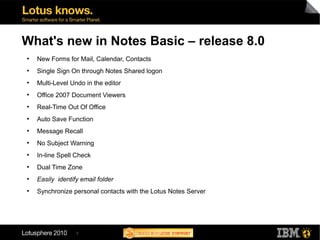
What's new in Notes Basic – release 8.0
●
New Forms for Mail, Calendar, Contacts
●
Single Sign On through Notes Shared logon
●
Multi-Level Undo in the editor
●
Office 2007 Document Viewers
●
Real-Time Out Of Office
●
Auto Save Function
●
Message Recall
●
No Subject Warning
●
In-line Spell Check
●
Dual Time Zone
●
Easily identify email folder
●
Synchronize personal contacts with the Lotus Notes Server
4
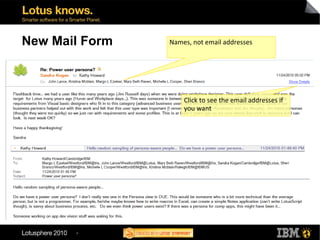
New Mail Form Names, not email addresses
Click to see the email addresses if
you want
5
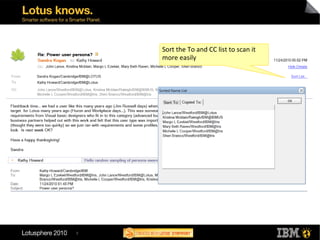
Sort the To and CC list to scan it
more easily
6
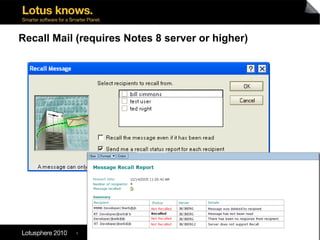
Recall Mail (requires Notes 8 server or higher)
7
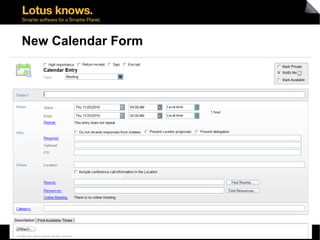
New Calendar Form
8
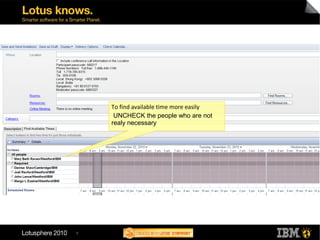
To find available time more easily
UNCHECK the people who are not
realy necessary
9
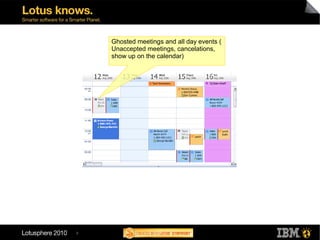
Ghosted meetings and all day events (
Unaccepted meetings, cancelations,
show up on the calendar)
10
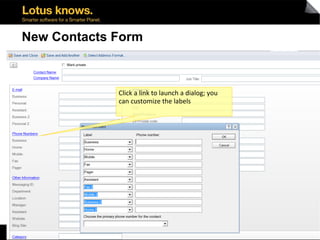
New Contacts Form
Click a link to launch a dialog; you
can customize the labels
11
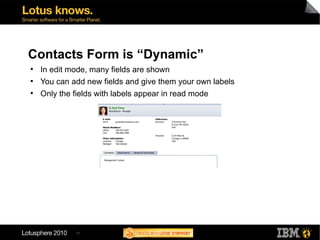
Contacts Form is “Dynamic”
●
In edit mode, many fields are shown
●
You can add new fields and give them your own labels
●
Only the fields with labels appear in read mode
12
Notes 8.5. Basic client
●
Forward Vcard
●
Import Contacts
13
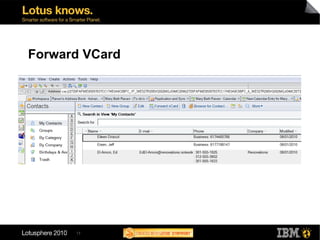
Forward VCard
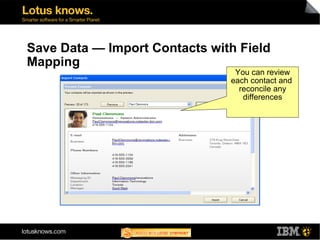
Save Data — Import Contacts with Field
Mapping
You can review
each contact and
reconcile any
differences
14
15
What's New in the Notes Basic client 8.5.1
●
Mail
●
Calendar
●
Contacts
16
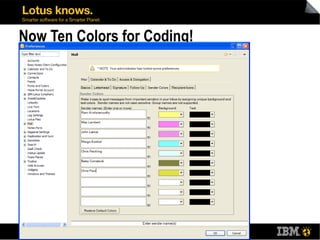
Now Ten Colors for Coding!
17
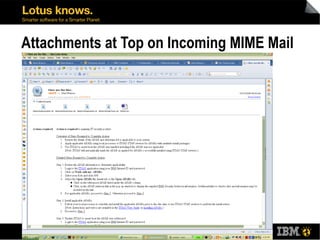
Attachments at Top on Incoming MIME Mail
18
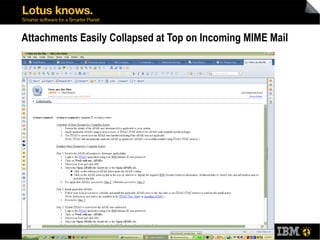
Attachments Easily Collapsed at Top on Incoming MIME Mail
19
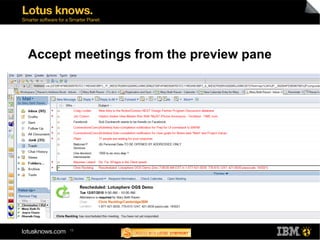
Accept meetings from the preview pane
20
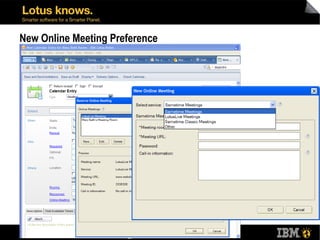
New Online Meeting Preference
21
New Location for Online Meeting Info
Click to join
Plus meeting id
Entire url easy to select and ping to
others
22
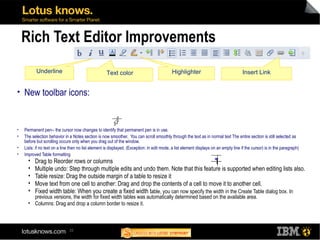
Rich Text Editor Improvements
• New toolbar icons:
• Permanent pen-- the cursor now changes to identify that permanent pen is in use.
• The selection behavior in a Notes section is now smoother. You can scroll smoothly through the text as in normal text The entire section is still selected as
before but scrolling occurs only when you drag out of the window.
• Lists: if no text on a line then no list element is displayed. (Exception: in edit mode, a list element displays on an empty line if the cursor) is in the paragraph)
• Improved Table formatting
 Drag to Reorder rows or columns
 Multiple undo: Step through multiple edits and undo them. Note that this feature is supported when editing lists also.
 Table resize: Drag the outside margin of a table to resize it
 Move text from one cell to another: Drag and drop the contents of a cell to move it to another cell.
 Fixed width table: When you create a fixed width table, you can now specify the width in the Create Table dialog box. In
previous versions, the width for fixed width tables was automatically determined based on the available area.
 Columns: Drag and drop a column border to resize it.
Underline Text color Highlighter Insert Link
23
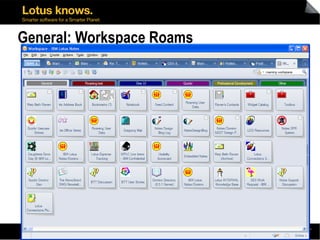
General: Workspace Roams
24
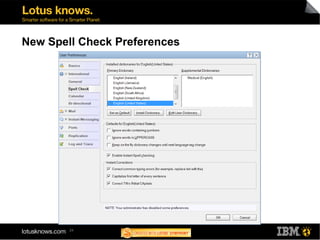
New Spell Check Preferences
25
What's new in the Notes Basic Client v.8.5.2
●
Mail
●
Calendar
●
Contacts
●
Other
26
Notes Client: Overview of Mail user enhancements
●
Set a default font for mail
●
Folders stay expanded or collapsed
●
Five new preferences
●
Set an .ini variable to collapse preview
●
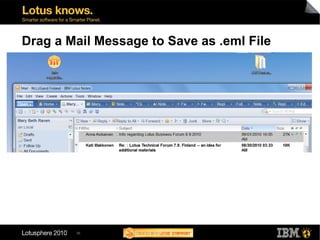
Drag a message to the desktop and save as a .eml file
27
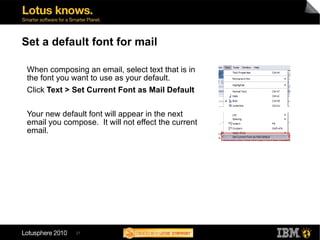
Set a default font for mail
When composing an email, select text that is in
the font you want to use as your default.
Click Text > Set Current Font as Mail Default
Your new default font will appear in the next
email you compose. It will not effect the current
email.
28
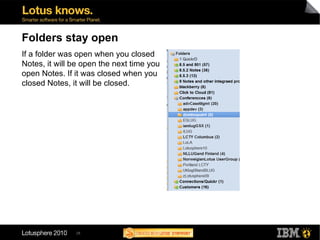
Folders stay open
If a folder was open when you closed
Notes, it will be open the next time you
open Notes. If it was closed when you
closed Notes, it will be closed.
29
New preferences
●
Sort Inbox by Sender's LAST name
●
Always show details in mail header
●
Always get a return receipt
●
Close original email after replying or forwarding
●
More signature options
30
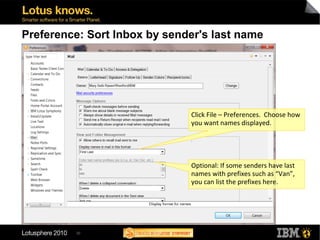
Preference: Sort Inbox by sender's last name
Click File – Preferences. Choose how
you want names displayed.
.
Optional: If some senders have last
names with prefixes such as “Van”,
you can list the prefixes here.
31
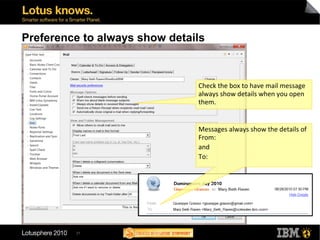
Preference to always show details
Check the box to have mail message
always show details when you open
them.
Messages always show the details of
From:
and
To:
32
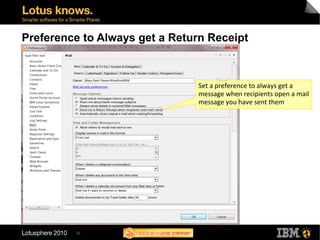
Preference to Always get a Return Receipt
Set a preference to always get a
message when recipients open a mail
message you have sent them
33
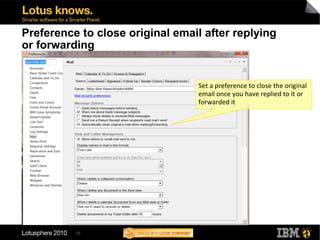
Preference to close original email after replying
or forwarding
Set a preference to close the original
email once you have replied to it or
forwarded it
34
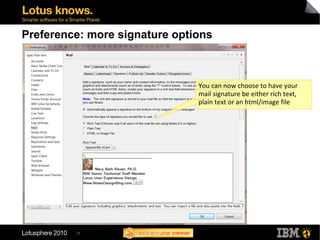
Preference: more signature options
You can now choose to have your
mail signature be either rich text,
plain text or an html/image file
35
Set a Notes .ini variable to close preview
You can set the following Notes.ini to
have the preview pane collapsed by
default in your Inbox and calendar:
ShowPreviewCollapsedInitially=1
Note: This only affects the default
behavior. So, if you set this as 1, the
preview pane will be collapsed the
first time you open Notes. But then if
you open the preview pane and
leave it open, it will be open on future
restarts.
36
Drag a Mail Message to Save as .eml File
37
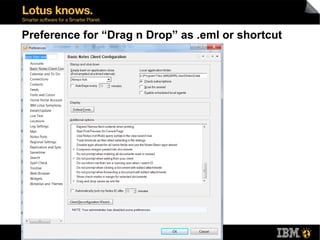
Preference for “Drag n Drop” as .eml or shortcut
38
Overview of Calendar user enhancements
●
More internationalized options for meetings that fall on the
“weekend”
●
Meeting subject changes get reflected in rooms and resource
reservations
39
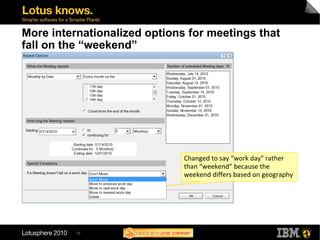
More internationalized options for meetings that
fall on the “weekend”
Changed to say “work day” rather
than “weekend” because the
weekend differs based on geography
40
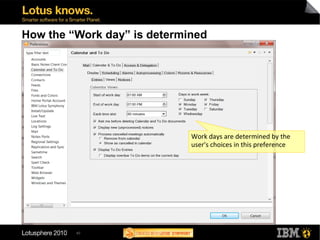
How the “Work day” is determined
Work days are determined by the
user's choices in this preference
41
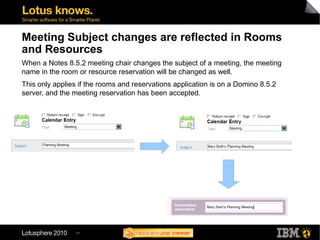
Meeting Subject changes are reflected in Rooms
and Resources
When a Notes 8.5.2 meeting chair changes the subject of a meeting, the meeting
name in the room or resource reservation will be changed as well.
This only applies if the rooms and reservations application is on a Domino 8.5.2
server, and the meeting reservation has been accepted.
42
Overview of Contacts user enhancements
●
Make a contact or group private
●
Send someone a group or location
43
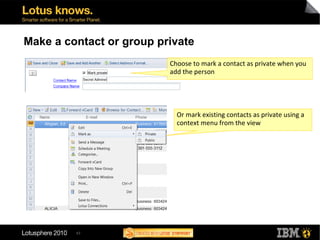
Make a contact or group private
Choose to mark a contact as private when you
add the person
Or mark existing contacts as private using a
context menu from the view
44
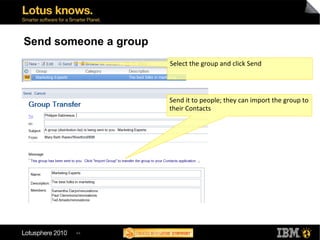
Send someone a group
Select the group and click Send
Send it to people; they can import the group to
their Contacts
45
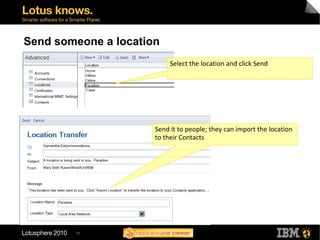
Send someone a location
Select the location and click Send
Send it to people; they can import the location
to their Contacts
46
Overview of other user enhancements
●
Various usability enhancements
●
Administration-related client improvements
●
See pretty application icons in the Workspace
47
Various usability enhancements
●
Switch to contacts from navigator
●
CTRL+Click to keep same document selected
●
No interruptions during server failover
●
Replication and synchronization are multi-threaded
48
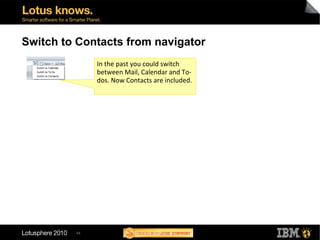
Switch to Contacts from navigator
In the past you could switch
between Mail, Calendar and To-
dos. Now Contacts are included.
49
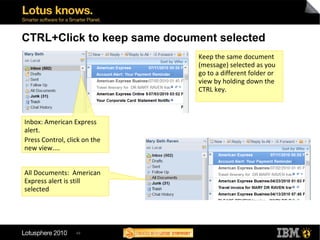
CTRL+Click to keep same document selected
Inbox: American Express
alert.
Press Control, click on the
new view....
Keep the same document
(message) selected as you
go to a different folder or
view by holding down the
CTRL key.
All Documents: American
Express alert is still
selected
50
No interruptions during server failover
If the server goes down during any of the following activities, it will
fail over to another server automatically without interrupting your
activity or showing you error messages:
●
Creating a new email, calendar entry, or to do item
●
Opening a document in an application
●
Opening a different folder or view
●
Replying or forwarding with attachments
●
Creating a new document while multiple documents are
selected (multiple documents remain selected)
●
Sending a message
●
Switching back to the primary server when it becomes available
●
Deleting a single or multiple document.
51
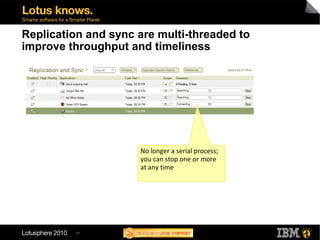
Replication and sync are multi-threaded to
improve throughput and timeliness
No longer a serial process;
you can stop one or more
at any time
52
Administration-related client improvements
●
Enable or disable roaming using from .ini settings
●
New way to collect info in Notes hangs
●
Notes “pre-loader” option
●
Pretty database icons
53
Enable or disable roaming from .ini file
Add the following to the Notes.ini file:
DisableRoaming=0 (roaming processing is not disabled)
DisableRoaming=1 (roaming processing is disabled)
Why would you want to do that?
●
The admin enabled you for roaming (no roaming data on server yet) and you
do not want to be prompted for any roaming processing.
●
The admin registers you as a roaming user and wants to set up a client
without going through roaming setup.
●
The (power) user is already roaming on a machine and wants to disable
roaming.
●
The (power) user is already roaming (has roaming data on the server) and
wants to disable roaming setup while setting up a Notes client on a new
machine.
54
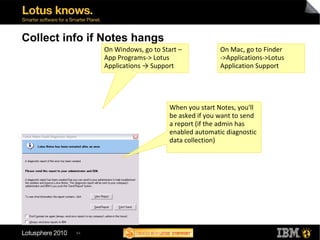
Collect info if Notes hangs
On Windows, go to Start –
App Programs-> Lotus
Applications → Support
When you start Notes, you'll
be asked if you want to send
a report (if the admin has
enabled automatic diagnostic
data collection)
On Mac, go to Finder
->Applications->Lotus
Application Support
55
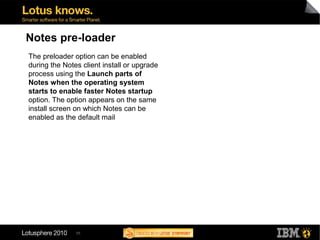
Notes pre-loader
The preloader option can be enabled
during the Notes client install or upgrade
process using the Launch parts of
Notes when the operating system
starts to enable faster Notes startup
option. The option appears on the same
install screen on which Notes can be
enabled as the default mail
56
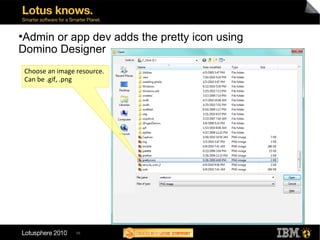
●
Admin or app dev adds the pretty icon using
Domino Designer
Choose an image resource.
Can be .gif, .png
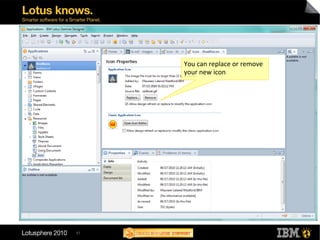
57
You can replace or remove
your new icon
58
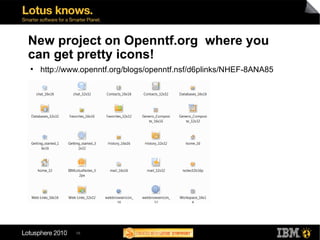
New project on Openntf.org where you
can get pretty icons!
●
http://www.openntf.org/blogs/openntf.nsf/d6plinks/NHEF-8ANA85
59
Thank you!
Visit
www.ibm.com/lotus/notesanddomino
www.NotesDesignBlog.com

Notes basicfrom8to852

  • 1.
    What's New inthe Notes Basic Client from 8.0 to 8.5.2 Mary Beth Raven | Lotus User Experience Design Lead
  • 2.
    2 What's new inLotus Notes Basic client – by release ● Notes Basic 8 ● Notes Basic 8.5 (including 801 and 802 – really not much for Basic client users) ● Notes Basic 8.5.1 ● Notes Basic 8.5.2
  • 3.
    3 What's new inNotes Basic – release 8.0 ● New Forms for Mail, Calendar, Contacts ● Single Sign On through Notes Shared logon ● Multi-Level Undo in the editor ● Office 2007 Document Viewers ● Real-Time Out Of Office ● Auto Save Function ● Message Recall ● No Subject Warning ● In-line Spell Check ● Dual Time Zone ● Easily identify email folder ● Synchronize personal contacts with the Lotus Notes Server
  • 4.
    4 New Mail FormNames, not email addresses Click to see the email addresses if you want
  • 5.
    5 Sort the Toand CC list to scan it more easily
  • 6.
    6 Recall Mail (requiresNotes 8 server or higher)
  • 7.
  • 8.
    8 To find availabletime more easily UNCHECK the people who are not realy necessary
  • 9.
    9 Ghosted meetings andall day events ( Unaccepted meetings, cancelations, show up on the calendar)
  • 10.
    10 New Contacts Form Clicka link to launch a dialog; you can customize the labels
  • 11.
    11 Contacts Form is“Dynamic” ● In edit mode, many fields are shown ● You can add new fields and give them your own labels ● Only the fields with labels appear in read mode
  • 12.
    12 Notes 8.5. Basicclient ● Forward Vcard ● Import Contacts
  • 13.
  • 14.
    Save Data —Import Contacts with Field Mapping You can review each contact and reconcile any differences 14
  • 15.
    15 What's New inthe Notes Basic client 8.5.1 ● Mail ● Calendar ● Contacts
  • 16.
    16 Now Ten Colorsfor Coding!
  • 17.
    17 Attachments at Topon Incoming MIME Mail
  • 18.
    18 Attachments Easily Collapsedat Top on Incoming MIME Mail
  • 19.
    19 Accept meetings fromthe preview pane
  • 20.
  • 21.
    21 New Location forOnline Meeting Info Click to join Plus meeting id Entire url easy to select and ping to others
  • 22.
    22 Rich Text EditorImprovements • New toolbar icons: • Permanent pen-- the cursor now changes to identify that permanent pen is in use. • The selection behavior in a Notes section is now smoother. You can scroll smoothly through the text as in normal text The entire section is still selected as before but scrolling occurs only when you drag out of the window. • Lists: if no text on a line then no list element is displayed. (Exception: in edit mode, a list element displays on an empty line if the cursor) is in the paragraph) • Improved Table formatting  Drag to Reorder rows or columns  Multiple undo: Step through multiple edits and undo them. Note that this feature is supported when editing lists also.  Table resize: Drag the outside margin of a table to resize it  Move text from one cell to another: Drag and drop the contents of a cell to move it to another cell.  Fixed width table: When you create a fixed width table, you can now specify the width in the Create Table dialog box. In previous versions, the width for fixed width tables was automatically determined based on the available area.  Columns: Drag and drop a column border to resize it. Underline Text color Highlighter Insert Link
  • 23.
  • 24.
    24 New Spell CheckPreferences
  • 25.
    25 What's new inthe Notes Basic Client v.8.5.2 ● Mail ● Calendar ● Contacts ● Other
  • 26.
    26 Notes Client: Overviewof Mail user enhancements ● Set a default font for mail ● Folders stay expanded or collapsed ● Five new preferences ● Set an .ini variable to collapse preview ● Drag a message to the desktop and save as a .eml file
  • 27.
    27 Set a defaultfont for mail When composing an email, select text that is in the font you want to use as your default. Click Text > Set Current Font as Mail Default Your new default font will appear in the next email you compose. It will not effect the current email.
  • 28.
    28 Folders stay open Ifa folder was open when you closed Notes, it will be open the next time you open Notes. If it was closed when you closed Notes, it will be closed.
  • 29.
    29 New preferences ● Sort Inboxby Sender's LAST name ● Always show details in mail header ● Always get a return receipt ● Close original email after replying or forwarding ● More signature options
  • 30.
    30 Preference: Sort Inboxby sender's last name Click File – Preferences. Choose how you want names displayed. . Optional: If some senders have last names with prefixes such as “Van”, you can list the prefixes here.
  • 31.
    31 Preference to alwaysshow details Check the box to have mail message always show details when you open them. Messages always show the details of From: and To:
  • 32.
    32 Preference to Alwaysget a Return Receipt Set a preference to always get a message when recipients open a mail message you have sent them
  • 33.
    33 Preference to closeoriginal email after replying or forwarding Set a preference to close the original email once you have replied to it or forwarded it
  • 34.
    34 Preference: more signatureoptions You can now choose to have your mail signature be either rich text, plain text or an html/image file
  • 35.
    35 Set a Notes.ini variable to close preview You can set the following Notes.ini to have the preview pane collapsed by default in your Inbox and calendar: ShowPreviewCollapsedInitially=1 Note: This only affects the default behavior. So, if you set this as 1, the preview pane will be collapsed the first time you open Notes. But then if you open the preview pane and leave it open, it will be open on future restarts.
  • 36.
    36 Drag a MailMessage to Save as .eml File
  • 37.
    37 Preference for “Dragn Drop” as .eml or shortcut
  • 38.
    38 Overview of Calendaruser enhancements ● More internationalized options for meetings that fall on the “weekend” ● Meeting subject changes get reflected in rooms and resource reservations
  • 39.
    39 More internationalized optionsfor meetings that fall on the “weekend” Changed to say “work day” rather than “weekend” because the weekend differs based on geography
  • 40.
    40 How the “Workday” is determined Work days are determined by the user's choices in this preference
  • 41.
    41 Meeting Subject changesare reflected in Rooms and Resources When a Notes 8.5.2 meeting chair changes the subject of a meeting, the meeting name in the room or resource reservation will be changed as well. This only applies if the rooms and reservations application is on a Domino 8.5.2 server, and the meeting reservation has been accepted.
  • 42.
    42 Overview of Contactsuser enhancements ● Make a contact or group private ● Send someone a group or location
  • 43.
    43 Make a contactor group private Choose to mark a contact as private when you add the person Or mark existing contacts as private using a context menu from the view
  • 44.
    44 Send someone agroup Select the group and click Send Send it to people; they can import the group to their Contacts
  • 45.
    45 Send someone alocation Select the location and click Send Send it to people; they can import the location to their Contacts
  • 46.
    46 Overview of otheruser enhancements ● Various usability enhancements ● Administration-related client improvements ● See pretty application icons in the Workspace
  • 47.
    47 Various usability enhancements ● Switchto contacts from navigator ● CTRL+Click to keep same document selected ● No interruptions during server failover ● Replication and synchronization are multi-threaded
  • 48.
    48 Switch to Contactsfrom navigator In the past you could switch between Mail, Calendar and To- dos. Now Contacts are included.
  • 49.
    49 CTRL+Click to keepsame document selected Inbox: American Express alert. Press Control, click on the new view.... Keep the same document (message) selected as you go to a different folder or view by holding down the CTRL key. All Documents: American Express alert is still selected
  • 50.
    50 No interruptions duringserver failover If the server goes down during any of the following activities, it will fail over to another server automatically without interrupting your activity or showing you error messages: ● Creating a new email, calendar entry, or to do item ● Opening a document in an application ● Opening a different folder or view ● Replying or forwarding with attachments ● Creating a new document while multiple documents are selected (multiple documents remain selected) ● Sending a message ● Switching back to the primary server when it becomes available ● Deleting a single or multiple document.
  • 51.
    51 Replication and syncare multi-threaded to improve throughput and timeliness No longer a serial process; you can stop one or more at any time
  • 52.
    52 Administration-related client improvements ● Enableor disable roaming using from .ini settings ● New way to collect info in Notes hangs ● Notes “pre-loader” option ● Pretty database icons
  • 53.
    53 Enable or disableroaming from .ini file Add the following to the Notes.ini file: DisableRoaming=0 (roaming processing is not disabled) DisableRoaming=1 (roaming processing is disabled) Why would you want to do that? ● The admin enabled you for roaming (no roaming data on server yet) and you do not want to be prompted for any roaming processing. ● The admin registers you as a roaming user and wants to set up a client without going through roaming setup. ● The (power) user is already roaming on a machine and wants to disable roaming. ● The (power) user is already roaming (has roaming data on the server) and wants to disable roaming setup while setting up a Notes client on a new machine.
  • 54.
    54 Collect info ifNotes hangs On Windows, go to Start – App Programs-> Lotus Applications → Support When you start Notes, you'll be asked if you want to send a report (if the admin has enabled automatic diagnostic data collection) On Mac, go to Finder ->Applications->Lotus Application Support
  • 55.
    55 Notes pre-loader The preloaderoption can be enabled during the Notes client install or upgrade process using the Launch parts of Notes when the operating system starts to enable faster Notes startup option. The option appears on the same install screen on which Notes can be enabled as the default mail
  • 56.
    56 ● Admin or appdev adds the pretty icon using Domino Designer Choose an image resource. Can be .gif, .png
  • 57.
    57 You can replaceor remove your new icon
  • 58.
    58 New project onOpenntf.org where you can get pretty icons! ● http://www.openntf.org/blogs/openntf.nsf/d6plinks/NHEF-8ANA85
  • 59.