ID304: IBM Sametime 9 
Voice and Video Deployment 
Bhavuk Srivastava, 
Sametime Video Architect, IBM 
Email – sbhavuk@in.ibm.com 
© 2014 IBM Corporation
Please Note 
2 
IBM’s statements regarding its plans, directions, and intent are subject to change or withdrawal without notice at IBM’s sole 
discretion. 
Information regarding potential future products is intended to outline our general product direction and it should not be 
relied on in making a purchasing decision. 
The information mentioned regarding potential future products is not a commitment, promise, or legal obligation to deliver 
any material, code or functionality. Information about potential future products may not be incorporated into any contract. 
The development, release, and timing of any future features or functionality described for our products remains at our sole 
discretion 
Performance is based on measurements and projections using standard IBM benchmarks in a controlled environment. 
The actual throughput or performance that any user will experience will vary depending upon many factors, including 
considerations such as the amount of multiprogramming in the user’s job stream, the I/O configuration, the storage 
configuration, and the workload processed. Therefore, no assurance can be given that an individual user will achieve 
results similar to those stated here.
Agenda 
 What we would like to achieve in this session... 
 Technology Concepts 
 Features served..and more.. 
 Building Blocks.. 
 Architecture Build-up 
 Deployment Blueprints 
 Best Practices and Techniques 
3
What we would like to achieve in this session.. 
 Bring forward the preview of Sametime 9 Video technology * 
4 
– Software based MCU, SVC, Continuous Presence, SAC 
 Whats new in Sametime 9 ? 
– Voice and Video Features being offered 
 Building Blocks 
– Sametime Video Components – VMGR, VMCU, CF/PR, TURN 
 Steps for enabling Video 
– Security, User Policy, b/w requirement, devices, firewalls 
 Integrating the building blocks 
– Planning the required deployment 
 Things to remember.. 
– Best practices
Agenda 
 What we would like to achieve in this session... 
 Technology Concepts 
 Features served..and more.. 
 Building Blocks.. 
 Architecture Build-up 
 Deployment Blueprints 
 Best Practices and Techniques 
5
Sametime 9 Video Technology 
Video MCU 
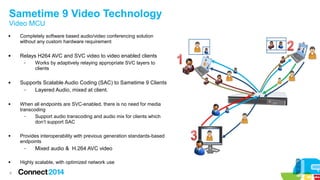
 Completely software based audio/video conferencing solution 
6 
without any custom hardware requirement 
 Relays H264 AVC and SVC video to video enabled clients 
– Works by adaptively relaying appropriate SVC layers to 
clients 
 Supports Scalable Audio Coding (SAC) to Sametime 9 Clients 
– Layered Audio, mixed at client. 
 When all endpoints are SVC-enabled, there is no need for media 
transcoding 
– Support audio transcoding and audio mix for clients which 
don’t support SAC 
 Provides interoperability with previous generation standards-based 
endpoints 
– Mixed audio & H.264 AVC video 
 Highly scalable, with optimized network use
Sametime 9 Video Technology 
Scalable Video Coding (SVC) and Continuous Presence 
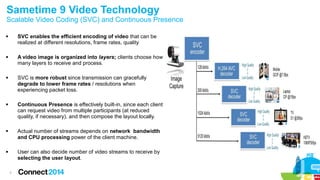
 SVC enables the efficient encoding of video that can be 
7 
realized at different resolutions, frame rates, quality 
 A video image is organized into layers; clients choose how 
many layers to receive and process. 
 SVC is more robust since transmission can gracefully 
degrade to lower frame rates / resolutions when 
experiencing packet loss. 
 Continuous Presence is effectively built-in, since each client 
can request video from multiple participants (at reduced 
quality, if necessary), and then compose the layout locally. 
 Actual number of streams depends on network bandwidth 
and CPU processing power of the client machine. 
 User can also decide number of video streams to receive by 
selecting the user layout.
Sametime 9 Video Technology 
Scalable Audio Coding (SAC) 
8 
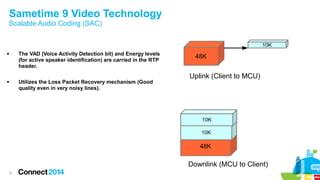
48K 
10K 
Uplink (Client to MCU) 
10K 
10K 
48K 
Downlink (MCU to Client) 
 The VAD (Voice Activity Detection bit) and Energy levels 
(for active speaker identification) are carried in the RTP 
header. 
 Utilizes the Loss Packet Recovery mechanism (Good 
quality even in very noisy lines).
Agenda 
 What we would like to achieve in this session... 
 Technology Concepts 
 Features served..and more.. 
 Building Blocks.. 
 Architecture Build-up 
 Deployment Blueprints 
 Best Practices and Techniques 
9
Sametime 9 Video Features 
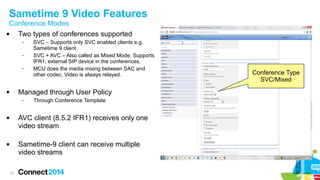
Conference Modes 
 Two types of conferences supported 
10 
– SVC – Supports only SVC enabled clients e.g. 
Sametime 9 client 
– SVC + AVC – Also called as Mixed Mode. Supports 
IFR1, external SIP device in the conferences. 
– MCU does the media mixing between SAC and 
other codec. Video is always relayed. 
 Managed through User Policy 
– Through Conference Template 
 AVC client (8.5.2 IFR1) receives only one 
video stream 
 Sametime-9 client can receive multiple 
video streams 
Conference Type 
SVC/Mixed
Sametime 9 Video Features 
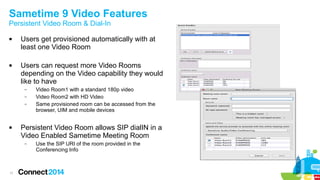
Persistent Video Room & Dial-In 
 Users get provisioned automatically with at 
11 
least one Video Room 
 Users can request more Video Rooms 
depending on the Video capability they would 
like to have 
– Video Room1 with a standard 180p video 
– Video Room2 with HD Video 
– Same provisioned room can be accessed from the 
browser, UIM and mobile devices 
 Persistent Video Room allows SIP dialIN in a 
Video Enabled Sametime Meeting Room 
– Use the SIP URI of the room provided in the 
Conferencing Info
Sametime 9 Video Features 
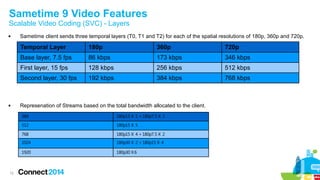
Scalable Video Coding (SVC) - Layers 
 Sametime client sends three temporal layers (T0, T1 and T2) for each of the spatial resolutions of 180p, 360p and 720p. 
 Represenation of Streams based on the total bandwidth allocated to the client. 
12 
Temporal Layer 180p 360p 720p 
Base layer, 7.5 fps 86 kbps 173 kbps 346 kbps 
First layer, 15 fps 128 kbps 256 kbps 512 kbps 
Second layer, 30 fps 192 kbps 384 kbps 768 kbps 
384 180p15 X 1 + 180p7.5 X 2 
512 180p15 X 5 
768 180p15 X 4 + 180p7.5 X 2 
1024 180p30 X 2 + 180p15 X 4 
1920 180p30 X6
Sametime 9 Video Features 
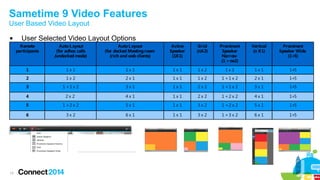
User Based Video Layout 
 User Selected Video Layout Options 
13 
Remote 
participants 
Auto L ayout 
(for adhoc calls 
/undocked mode) 
Auto L ayout 
(for docked Meeting room 
(rich and web clients) 
Active 
Speaker 
(1X1) 
Grid 
(nX2) 
Prominent 
Speaker 
Narrow 
(1 + nx2) 
Vertical 
(n X1) 
Prominent 
Speaker Wide 
(1+5) 
1 1 x 1 1 x 1 1 x 1 1 x 2 1 x 1 1 x 1 1+5 
2 1 x 2 2 x 1 1 x 1 1 x 2 1 + 1 x 2 2 x 1 1+5 
3 1 + 1 x 2 3 x 1 1 x 1 2 x 2 1 + 1 x 2 3 x 1 1+5 
4 2 x 2 4 x 1 1 x 1 2 x 2 1 + 2 x 2 4 x 1 1+5 
5 1 + 2 x 2 5 x 1 1 x 1 3 x 2 1 + 2 x 2 5 x 1 1+5 
6 3 x 2 6 x 1 1 x 1 3 x 2 1 + 3 x 2 6 x 1 1+5
Sametime 9 Video Features 
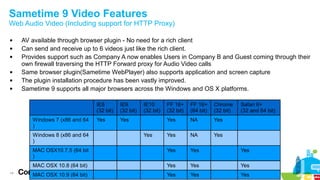
Web Audio Video (Including support for HTTP Proxy) 
 AV available through browser plugin - No need for a rich client 
 Can send and receive up to 6 videos just like the rich client. 
 Provides support such as Company A now enables Users in Company B and Guest coming through their 
14 
own firewall traversing the HTTP Forward proxy for Audio Video calls 
 Same browser plugin(Sametime WebPlayer) also supports application and screen capture 
 The plugin installation procedure has been vastly improved. 
 Sametime 9 supports all major browsers across the Windows and OS X platforms. 
IE8 
(32 bit) 
IE9 
(32 bit) 
IE10 
(32 bit) 
FF 16+ 
(32 bit) 
FF 16+ 
(64 bit) 
Chrome 
(32 bit) 
Safari 6+ 
(32 and 64 bit) 
Windows 7 (x86 and 64 
) 
Yes Yes Yes NA Yes 
Windows 8 (x86 and 64 
) 
Yes Yes NA Yes 
MAC OSX10.7.5 (64 bit 
) 
Yes Yes Yes 
MAC OSX 10.8 (64 bit) Yes Yes Yes 
MAC OSX 10.9 (64 bit) Yes Yes Yes
Agenda 
 What we would like to achieve in this session... 
 Technology Concepts 
 Features served..and more.. 
 Building Blocks.. 
 Architecture Build-up 
 Deployment BluePrints 
 Best Practices and Techniques 
15
Sametime 9 Video - Building Blocks 
Sametime Media Manager Components 
 Conference Manager 
16 
– Manages all video calls, including point to point and multipoint conferences 
– Acts as a Back 2 Back User Agent (B2BUA) 
 SIP Proxy/Registrar 
– Maintains registry for all Sametime SIP end points, conferences 
– Routes all SIP messages 
– Requires access to LDAP 
 Video Manager 
– Manages the scaling and distribution of audio and video conferences, maintains the Video Rooms 
– Maintains MCU pools and Geographical distribution 
– Manages attributes for conferences, such as maximum line-rate. Must be installed on its own machine. 
 Video MCU (Multipoint Control Unit) 
– Enables multi-way, audio and video conferences with continuous presence and multiple client layouts. 
– Serves as a switch for scalable audio and video streams 
– Must be installed on its own machine. 
 TURN 
– Aids in transport of media when conference participants are separated by firewalls. 
– Adds support for NAT clients.
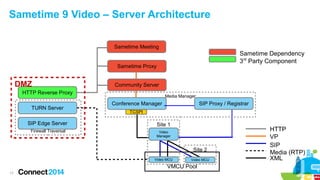
Sametime 9 Video – Server Architecture 
17 
Sametime Proxy 
Community Server 
Conference Manager 
DMZ 
TURN Server 
SIP Edge Server 
TCSPI 
HTTP Reverse Proxy 
Media Manager 
Firewall Traversal 
Sametime Dependency 
3rd Party Component 
HTTP 
SIP 
Media (RTP) 
Site 1 
Video 
Manager 
Site 2 
Video MCU Video MCU 
VMCU Pool 
Sametime Meeting 
SIP Proxy / Registrar 
VP 
XML
Agenda 
 What we would like to achieve in this session... 
 Technology Concepts 
 Features served..and more.. 
 Building Blocks.. 
 Architecture Build-up 
 Deployment BluePrints 
 Best Practices and Techniques 
18
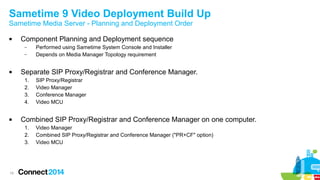
Sametime 9 Video Deployment Build Up 
Sametime Media Server - Planning and Deployment Order 
 Component Planning and Deployment sequence 
19 
– Performed using Sametime System Console and Installer 
– Depends on Media Manager Topology requirement 
 Separate SIP Proxy/Registrar and Conference Manager. 
1. SIP Proxy/Registrar 
2. Video Manager 
3. Conference Manager 
4. Video MCU 
 Combined SIP Proxy/Registrar and Conference Manager on one computer. 
1. Video Manager 
2. Combined SIP Proxy/Registrar and Conference Manager ("PR+CF" option) 
3. Video MCU
Sametime 9 Video Deployment Build Up 
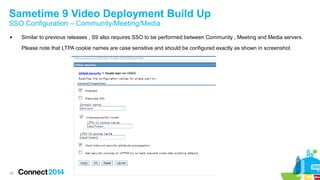
SSO Configuration – Community/Meeting/Media 
 Similar to previous releases , S9 also requires SSO to be performed between Community , Meeting and Media servers. 
20 
Please note that LTPA cookie names are case sensitive and should be configured exactly as shown in screenshot.
Sametime 9 Video Deployment Build Up 
Key Exchange – VMGR and Conference Manager 
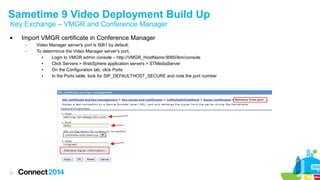
 Import VMGR certificate in Conference Manager 
21 
– Video Manager server's port is 5061 by default; 
– To determince the Video Manager server's port, 
● Login to VMGR admin console – http://VMGR_HostName:9060/ibm/console 
● Click Servers > WebSphere application servers > STMediaServer 
● On the Configuration tab, click Ports 
● In the Ports table, look for SIP_DEFAULTHOST_SECURE and note the port number
Sametime 9 Video Deployment Build Up 
Key Exchange – VMGR and Conference Manager 
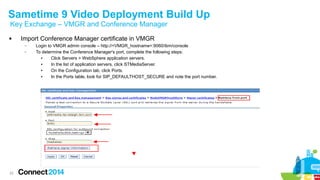
 Import Conference Manager certificate in VMGR 
22 
– Login to VMGR admin console – http://<VMGR_hostname>:9060/ibm/console 
– To determine the Conference Manager's port, complete the following steps: 
● Click Servers > WebSphere application servers. 
● In the list of application servers, click STMediaServer. 
● On the Configuration tab, click Ports. 
● In the Ports table, look for SIP_DEFAULTHOST_SECURE and note the port number.
Sametime 9 Video Deployment Build Up 
Add Video MCU servers into Video Manager 
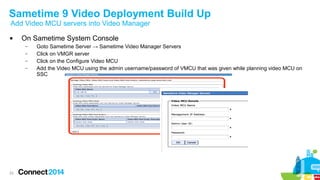
 On Sametime System Console 
23 
– Goto Sametime Server → Sametime Video Manager Servers 
– Click on VMGR server 
– Click on the Configure Video MCU 
– Add the Video MCU using the admin username/password of VMCU that was given while planning video MCU on 
SSC
Agenda 
 What we would like to achieve in this session... 
 Technology Concepts 
 Features served..and more.. 
 Building Blocks.. 
 Architecture Build-up 
 Deployment BluePrints 
 Best Practices and Techniques 
24
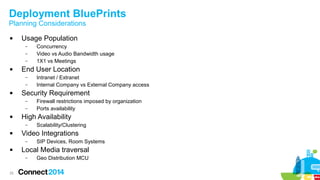
Deployment BluePrints 
Planning Considerations 
 Usage Population 
25 
– Concurrency 
– Video vs Audio Bandwidth usage 
– 1X1 vs Meetings 
 End User Location 
– Intranet / Extranet 
– Internal Company vs External Company access 
 Security Requirement 
– Firewall restrictions imposed by organization 
– Ports availability 
 High Availability 
– Scalability/Clustering 
 Video Integrations 
– SIP Devices, Room Systems 
 Local Media traversal 
– Geo Distribution MCU
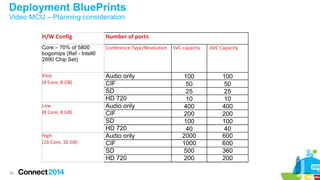
Deployment BluePrints 
Video MCU – Planning consideration 
26 
H/W Config Number of ports 
Core – 70% of 5800 
bogomips (Ref - Intel® 
2690 Chip Set) 
Conference Type/Resolution SVC capacity AVC Capacity 
Pilot 
(4 Core, 8 GB) 
Audio only 100 100 
CIF 50 50 
SD 25 25 
HD 720 10 10 
Low 
(8 Core, 8 GB) 
Audio only 400 400 
CIF 200 200 
SD 100 100 
HD 720 40 40 
High 
(16 Core, 16 GB) 
Audio only 2000 600 
CIF 1000 600 
SD 500 360 
HD 720 200 200
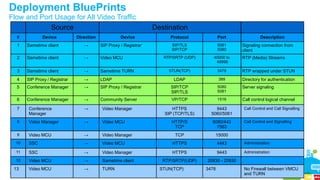
Deployment BluePrints 
Flow and Port Usage for All Video Traffic 
27 
Source Destination 
# Device Direction Device Protocol Port Description 
1 Sametime client → SIP Proxy / Registrar SIP/TLS 
SIP/TCP 
5081 
5080 
Signaling connection from 
client 
2 Sametime client → Video MCU RTP/SRTP (UDP) 40000 to 
49999 
RTP (Media) Streams 
3 Sametime client → Sametime TURN STUN(TCP) 3478 RTP wrapped under STUN 
4 SIP Proxy / Registrar → LDAP LDAP 389 Directory for authentication 
5 Conference Manager → SIP Proxy / Registrar SIP/TCP 
SIP/TLS 
5080 
5081 
Server signaling 
6 Conference Manager → Community Server VP/TCP 1516 Call control logical channel 
7 Conference 
Manager 
→ Video Manager HTTPS 
SIP (TCP/TLS) 
9443 
5060/5061 
Call Control and Call Signalling 
8 Video Manager → Video MCU HTTP/S 
TCP 
8080/443 
7563 
Call Control and Signalling 
9 Video MCU → Video Manager TCP 15000 
10 SSC → Video MCU HTTPS 4443 Administration 
11 SSC → Video Manager HTTPS 9443 Administration 
12 Video MCU → Sametime client RTP/SRTP(UDP) 20830 - 20930 
13 Video MCU → TURN STUN(TCP) 3478 No Firewall between VMCU 
and TURN
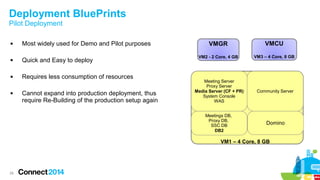
Deployment BluePrints 
Pilot Deployment 
 Most widely used for Demo and Pilot purposes 
 Quick and Easy to deploy 
 Requires less consumption of resources 
 Cannot expand into production deployment, thus 
28 
require Re-Building of the production setup again 
VMGR 
VM2 - 2 Core, 4 GB 
Meetings DB, 
Proxy DB, 
SSC DB 
DB2 
VMCU 
VM3 – 4 Core, 8 GB 
Community Server 
Domino 
Meeting Server 
Proxy Server 
Media Server (CF + PR) 
System Console 
WAS 
VM1 – 4 Core, 8 GB
Deployment BluePrints 
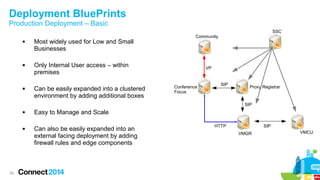
Production Deployment – Basic 
29 
 Most widely used for Low and Small 
Businesses 
 Only Internal User access – within 
premises 
 Can be easily expanded into a clustered 
environment by adding additional boxes 
 Easy to Manage and Scale 
 Can also be easily expanded into an 
external facing deployment by adding 
firewall rules and edge components 
VP 
SIP 
Conference Proxy Registrar 
Focus 
SIP 
HTTP SIP 
VMGR VMCU 
Community 
SSC
Deployment BluePrints 
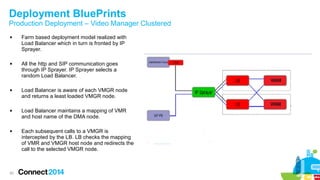
Production Deployment – Video Manager Clustered 
 Farm based deployment model realized with 
30 
Load Balancer which in turn is fronted by IP 
Sprayer. 
 All the http and SIP communication goes 
through IP Sprayer. IP Sprayer selects a 
random Load Balancer. 
 Load Balancer is aware of each VMGR node 
and returns a least loaded VMGR node. 
 Load Balancer maintains a mapping of VMR 
and host name of the DMA node. 
 Each subsequent calls to a VMGR is 
intercepted by the LB. LB checks the mapping 
of VMR and VMGR host node and redirects the 
call to the selected VMGR node.
Deployment BluePrints 
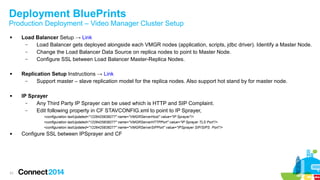
Production Deployment – Video Manager Cluster Setup 
 Load Balancer Setup → Link 
31 
– Load Balancer gets deployed alongside each VMGR nodes (application, scripts, jdbc driver). Identify a Master Node. 
– Change the Load Balancer Data Source on replica nodes to point to Master Node. 
– Configure SSL between Load Balancer Master-Replica Nodes. 
 Replication Setup Instructions → Link 
– Support master – slave replication model for the replica nodes. Also support hot stand by for master node. 
 IP Sprayer 
– Any Third Party IP Sprayer can be used which is HTTP and SIP Complaint. 
– Edit following property in CF STAVCONFIG.xml to point to IP Sprayer, 
<configuration lastUpdated="1226425838277" name="VMGRServerHost" value="IP Sprayer"/> 
<configuration lastUpdated="1226425838277" name="VMGRServerHTTPPort" value="IP Sprayer TLS Port"/> 
<configuration lastUpdated="1226425838277" name="VMGRServerSIPPort" value="IPSprayer SIP/SIPS Port"/> 
 Configure SSL between IPSprayer and CF
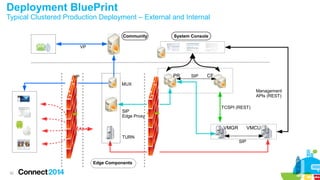
Deployment BluePrint 
Typical Clustered Production Deployment – External and Internal 
32 
Community System Console 
MUX 
SIP 
Edge Proxy 
Edge Components 
Management 
APIs (REST) 
TCSPI (REST) 
PR CF 
VMGR VMCU 
VP 
VP 
TURN 
SIP 
SIP
Deployment BluePrints 
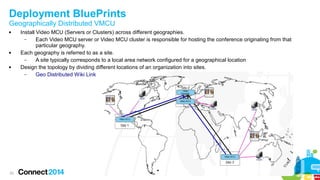
Geographically Distributed VMCU 
 Install Video MCU (Servers or Clusters) across different geographies. 
33 
– Each Video MCU server or Video MCU cluster is responsible for hosting the conference originating from that 
particular geography. 
 Each geography is referred to as a site. 
– A site typically corresponds to a local area network configured for a geographical location 
 Design the topology by dividing different locations of an organization into sites. 
– Geo Distributed Wiki Link
Agenda 
 What we would like to achieve in this session... 
 Technology Concepts 
 Features served..and more.. 
 Building Blocks.. 
 Architecture Build-up 
 Deployment BluePrints 
 Best Practices and Techniques 
34
Best Practices and Techniques 
Points to remember 
 It is mandatory to exchange certificates between Media Manager and Video Manager and vice versa. Note it is also necessary to 
35 
restart respective servers once certs are exchanged. 
 When VMCU is added to VMGR , we need to use VMCU password that was set during deployment plan creation. It is also 
recommended to restart VMCU after this. 
 VMGR's VM is restarted. After restart WAS server is started without restarting solid db. All the restart steps need to be followed in 
proper sequence. 
 VMGR should be installed with root privilege and requiretty should be disabled before installation begins 
 VMGR should not be installed on internet/public network. If already installed for timeperiod, DNS lookup needs to be disabled. 
 On VMGR clustered environment it is necessary to add VMGR LB's HTTPS port in VH of WAS SIP Proxy fronting CF cluster. 
 In case of clustered deployment of media server(CF/PR and VMGR) it is necessary to add FQDN of WAS Proxy fronting PR cluster or 
LB VIP in PR Domain List. 
 Manually changing stavconfig.xml → 
– Make sure to make changes in the Deployment Manager and Media Server Nodes 
– Make sure to restart all the servers including SSC DMGR and ConsoleServer
Best Practices and Techniques 
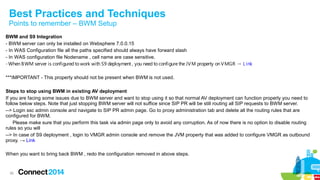
Points to remember – BWM Setup 
BWM and S9 Integration 
- BWM server can only be installed on Websphere 7.0.0.15 
- In WAS Configuration file all the paths specified should always have forward slash 
- In WAS configuration file Nodename , cell name are case sensitive. 
- When BWM server is configured to work with S9 deployment , you need to configure the JVM property on VMGR → L ink 
***IMPORTANT - This property should not be present when BWM is not used. 
Steps to stop using BWM in existing AV deployment 
If you are facing some issues due to BWM server and want to stop using it so that normal AV deployment can function properly you need to 
follow below steps. Note that just stopping BWM server will not suffice since SIP PR will be still routing all SIP requests to BWM server. 
--> Login ssc admin console and navigate to SIP PR admin page. Go to proxy administration tab and delete all the routing rules that are 
configured for BWM. 
Please make sure that you perform this task via admin page only to avoid any corruption. As of now there is no option to disable routing 
rules so you will 
--> In case of S9 deployment , login to VMGR admin console and remove the JVM property that was added to configure VMGR as outbound 
proxy. → Link 
When you want to bring back BWM , redo the configuration removed in above steps. 
36
Best Practices and Techniques 
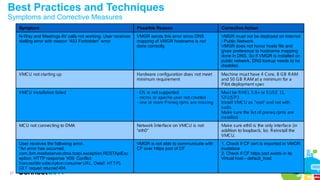
Symptoms and Corrective Measures 
37 
Symptom Possible Reason Corrective Action 
N-Way and Meetings AV calls not working. User receives 
dialling error with reason “403 Forbidden” error 
VMGR sends this error since DNS 
mapping of VMGR hostname is not 
done correctly. 
VMGR must not be deployed on Internet 
/ Public Network. 
VMGR does not honor hosts file and 
gives preference to hostname mapping 
done in DNS. So if VMGR is installed on 
public network, DNS lookup needs to be 
disabled. 
VMCU not starting up Hardware configuration does not meet 
minimum requirement 
Machine must have 4 Core, 8 GB RAM 
and 50 GB RAM at a minimum for a 
Pilot deployment spec 
VMCU installation failed - OS is not supported. 
- mcms or apache user not created 
- one or more Prereq rpms are missing 
Must be RHE L 5.8+ or SUSE 11, 
SP2/SP3 
Install VMCU as "root" and not with 
sudo. 
Make sure the list of prereq rpms are 
installed. 
MCU not connecting to DMA Network Interface on VMCU is not 
"eth0" 
Make sure eth0 is the only interface (in 
addition to loopback, lo). Reinstall the 
VMCU. 
User receives the following error.. 
“An error has occurred. 
com.ibm.mediaserver.dma.tcspi.exception.RESTApiExc 
eption: HTTP response '409: Conflict 
Inaccessible subscription consumer URL . Detail: HTTPS 
GET request returned 404. 
VMGR is not able to communicate with 
CF over Https port of CF 
1. Check if CF cert is imported in VMGR 
truststore 
2. Check if CF https port exists in its 
Virtual host - default_host
Best Practices and Techniques 
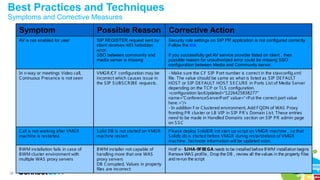
Symptoms and Corrective Measures 
38 
Symptom Possible Reason Corrective Action 
AV is not enabled for user SIP REGISTER request sent by 
client receives 403 forbidden 
error. 
SSO between community and 
media server is missing 
Security role settings on SIP PR application is not configured correctly. 
Follow the link 
If you successfully get AV service provider listed on client , then 
possible reason for unauthorized error could be missing SSO 
configuration between Media and Community server. 
In n-way or meetings Video call, 
Coninuous Presence is not seen 
VMGR/CF configuration may be 
incorrect which causes issue in 
the SIP SUBSCRIBE requests. 
- Make sure the CF SIP Port number is correct in the stavconfig.xml 
file. The value should be same as what is listed as SIP DE FAULT 
HOST or SIP DE FAULT HOST SE CURE in Ports List of Media Server 
depending on the TCP or TLS configuration. 
<configuration lastUpdated="1226425838277" 
name="ConferenceServerPort" value="<Put the correct port value 
here.>"/> 
- In addition For Clustered environment, Add FQDN of WAS Proxy 
fronting PR cluster or LB VIP in SIP PR's Domain List. These entries 
need to be made in Handled Domains section on SIP PR admin page 
on SSC 
Call is not working after VMGR 
machine is restarted. 
Solid DB is not started on VMGR 
machine restart . 
Please deploy SolidDB init start up script on VMGR machine , so that 
Solidb db is started before VMGR during restart/reboot of VMGR 
machine. Technote information will be updated soon. 
BWM installation fails in case of 
BWM cluster environment with 
multiple WAS proxy servers 
BWM installer not capable of 
handling more that one WAS 
proxy servers 
DB Corrupted, Values in property 
files are incorrect 
HotFix- SSJJHHAA--99FF88EEGGAA needs to be installed before BWM installation begins 
Remove WAS profile , Drop the DB , review all the values in the property files 
and re-run the script
Best Practices and Techniques 
Symptoms and Corrective Measures 
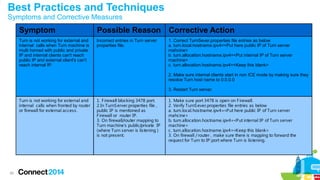
39 
Symptom Possible Reason Corrective Action 
Turn is not working for external and 
Incorrect entries in Turn server 
internal calls when Turn machine is 
properties file. 
multi homed with public and private 
IP and internal clients can't reach 
public IP and external client's can't 
reach internal IP. 
1. Correct TurnSever.properties file entries as below 
a. turn.local.hostname.ipv4=<Put here public IP of Turn server 
mahcine> 
b. turn.allocation.hostname.ipv4=<Put internal IP of Turn server 
machine> 
c. turn.allocation.hostname.ipv4=<Keep this blank> 
2. Make sure internal clients start in non ICE mode by making sure they 
resolve Turn host name to 0.0.0.0 
3. Restart Turn server. 
Turn is not working for external and 
internal calls when fronted by router 
or firewall for external access. 
1. Firewall blocking 3478 port. 
2.In TurnServer.properties file , 
public IP is mentioned as 
F irewall or router IP. 
3. On firewall/router mapping to 
Turn machine's public/private IP 
(where Turn server is listening ) 
is not present. 
1. Make sure port 3478 is open on Firewall. 
2. Verify TurnSever.properties file entries as below 
a. turn.local.hostname.ipv4=<Put here public IP of Turn server 
mahcine> 
b. turn.allocation.hostname.ipv4=<Put internal IP of Turn server 
machine> 
c. turn.allocation.hostname.ipv4=<Keep this blank> 
3. On firewall / router , make sure there is mapping to forward the 
request for Turn to IP:port where Turn is listening.
Best Practices and Techniques 
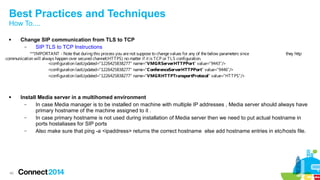
How To.... 
 Change SIP communication from TLS to TCP 
40 
– SIP TLS to TCP Instructions 
**IMPORTANT - Note that during this process you are not suppose to change values for any of the below parameters since they http 
communication will always happen over secured channel(HTTPS) no matter if it is TCP or TLS configuration. 
<configuration lastUpdated="1226425838277" name="VMGRServerHTTPPort" value="9443"/> 
<configuration lastUpdated="1226425838277" name="ConferenceServerHTTPPort" value="9446"/> 
<configuration lastUpdated="1226425838277" name="VMGRHTTPTransportProtocol" value="HTTPS"/> 
 Install Media server in a multihomed environment 
– In case Media manager is to be installed on machine with multiple IP addresses , Media server should always have 
primary hostname of the machine assigned to it . 
– In case primary hostname is not used during installation of Media server then we need to put actual hostname in 
ports hostaliases for SIP ports 
– Also make sure that ping -a <ipaddress> returns the correct hostname else add hostname entries in etc/hosts file.
Best Practices and Techniques 
How To.... 
 How to disable/enable SRTP (Media Encryption) 
41 
– Encryption setting on client and server can be managed from Media manager policy. 
– Navigate to SSC admin console -> Manage policies -> Media Manager section and edit the required policy created for media 
– If you want to enable encryption then 
● Voice and Video section : Enable encryption for client: ON 
● Audio Video Template section : Encryption: Encrypt all 
– If you want to disable encryption 
● Voice and Video section : Enable encryption for client: Off 
● Audio Video Template section : Encryption: No Encryption 
** IMPORTANT : Mismatch in the value under both the sections above will lead to Audio video call failure.
Best Practices and Techniques 
How To.... 
 How to create new room with different resolution. ( Explained steps assume creating a new HD room) 
42 
– Room experience is associated with conference template that is configured at back end. For each new experience 
you need to create a new Audio Video conference template . 
– Navigate to SSC admin console -> Manage policies -> Media Manager section. 
– Create a new policy. You can give a suitable name to this policy. We will call it HD policy in our case. 
– Create new Audio video template which will contain suitable values to get desired experience. Add template button 
will add a new template. 
– Following parameters in the template will define video experience 
– Use case - 9.0 and pre-9.0 clients will join conference 
● Conference Mode - Mixed AVC and SVC 
● Conference Mode experience – Can select anything depending on how many Video streams it can support 
● Conference Line Rate: 1024 
– Use case - Only 9.0 clients will join conference and no recording feature 
● Conference Mode - SVC only 
● Conference Line Rate: 1024 
– Below parameters in Voice and Video section of policy needs to be set to match conference settings 
● Video resolution: HD-720p 1280x720@30 fps 768 kbps level 31 
● Client line rate (kbps): 1024 kbps 
– All other parameters in this policy can be set to similar values in default policy.
Best Practices and Techniques 
How To.. 
 Integrate with External SIP Devices/Room Systems 
43 
– By default telephony is not enabled in conference. To enable follow below steps 
● Navigate to - 
<WAS_Install_Loc>/AppServer/profiles/<ConferenceManager_Profile>/installedApps/<cellname>/Conference 
Focus.ear/ConferenceFocus.war/ConferenceManager.properties 
● Change TelephoneConferenceEnabled value to true. 
● Restart Conference Manager server. 
● Follow an additional Technote for correcting the External SIP Peer configuration - > Link
Best Practices and Techniques 
VMCU – How To... 
44 
How to collect VMCU installation logs Run /usr/share/SoftMcu/InstallValidator.sh and save output to a file. 
Where VMCU's core dumps are saved? Core dump files if any are saved in /output/core directory. 
How to check VMCU is up and running? Run "service soft_mcu status". It should print "Service is Up" 
How to restart VMCU? service soft_mcu restart 
How to collect VMCU logs Run 
/mcms/Scripts/LogCollector.sh 
How to collect wireshark logs tcpdump -i eth0 -s0 -w tcpdump_ eth0.cap
Acknowledgements and Disclaimers 
Availability. References in this presentation to IBM products, programs, or services do not imply that they will be available in all countries in which IBM operates. 
The workshops, sessions and materials have been prepared by IBM or the session speakers and reflect their own views. They are provided for informational purposes only, and are neither 
intended to, nor shall have the effect of being, legal or other guidance or advice to any participant. While efforts were made to verify the completeness and accuracy of the information 
contained in this presentation, it is provided AS-IS without warranty of any kind, express or implied. IBM shall not be responsible for any damages arising out of the use of, or otherwise 
related to, this presentation or any other materials. Nothing contained in this presentation is intended to, nor shall have the effect of, creating any warranties or representations from IBM or 
its suppliers or licensors, or altering the terms and conditions of the applicable license agreement governing the use of IBM software. 
All customer examples described are presented as illustrations of how those customers have used IBM products and the results they may have achieved. Actual environmental costs and 
performance characteristics may vary by customer. Nothing contained in these materials is intended to, nor shall have the effect of, stating or implying that any activities undertaken by you 
will result in any specific sales, revenue growth or other results. 
© Copyright IBM Corporation 2014. All rights reserved. 
 U.S. Government Users Restricted Rights - Use, duplication or disclosure restricted by GSA ADP Schedule Contract with IBM Corp. 
 IBM, the IBM logo, ibm.com, and IBM Sametime, Websphere are trademarks or registered trademarks of International Business Machines Corporation in the United States, other 
countries, or both. If these and other IBM trademarked terms are marked on their first occurrence in this information with a trademark symbol (® or ™), these symbols indicate U.S. 
registered or common law trademarks owned by IBM at the time this information was published. Such trademarks may also be registered or common law trademarks in other countries. A 
current list of IBM trademarks is available on the Web at “Copyright and trademark information” at www.ibm.com/legal/copytrade.shtml 
 Microsoft and Windows are trademarks of Microsoft Corporation in the United States, other countries, or both. 
 Linux is a registered trademark of Linus Torvalds in the United States, other countries, or both. Other company, product, or service names may be trademarks or service marks of others. 
Other company, product, or service names may be trademarks or service marks of others. 
4455

Utf 8'en'ibm sametime 9 - voice and video deployment

  • 1.
    ID304: IBM Sametime9 Voice and Video Deployment Bhavuk Srivastava, Sametime Video Architect, IBM Email – sbhavuk@in.ibm.com © 2014 IBM Corporation
  • 2.
    Please Note 2 IBM’s statements regarding its plans, directions, and intent are subject to change or withdrawal without notice at IBM’s sole discretion. Information regarding potential future products is intended to outline our general product direction and it should not be relied on in making a purchasing decision. The information mentioned regarding potential future products is not a commitment, promise, or legal obligation to deliver any material, code or functionality. Information about potential future products may not be incorporated into any contract. The development, release, and timing of any future features or functionality described for our products remains at our sole discretion Performance is based on measurements and projections using standard IBM benchmarks in a controlled environment. The actual throughput or performance that any user will experience will vary depending upon many factors, including considerations such as the amount of multiprogramming in the user’s job stream, the I/O configuration, the storage configuration, and the workload processed. Therefore, no assurance can be given that an individual user will achieve results similar to those stated here.
  • 3.
    Agenda  Whatwe would like to achieve in this session...  Technology Concepts  Features served..and more..  Building Blocks..  Architecture Build-up  Deployment Blueprints  Best Practices and Techniques 3
  • 4.
    What we wouldlike to achieve in this session..  Bring forward the preview of Sametime 9 Video technology * 4 – Software based MCU, SVC, Continuous Presence, SAC  Whats new in Sametime 9 ? – Voice and Video Features being offered  Building Blocks – Sametime Video Components – VMGR, VMCU, CF/PR, TURN  Steps for enabling Video – Security, User Policy, b/w requirement, devices, firewalls  Integrating the building blocks – Planning the required deployment  Things to remember.. – Best practices
  • 5.
    Agenda  Whatwe would like to achieve in this session...  Technology Concepts  Features served..and more..  Building Blocks..  Architecture Build-up  Deployment Blueprints  Best Practices and Techniques 5
  • 6.
    Sametime 9 VideoTechnology Video MCU  Completely software based audio/video conferencing solution 6 without any custom hardware requirement  Relays H264 AVC and SVC video to video enabled clients – Works by adaptively relaying appropriate SVC layers to clients  Supports Scalable Audio Coding (SAC) to Sametime 9 Clients – Layered Audio, mixed at client.  When all endpoints are SVC-enabled, there is no need for media transcoding – Support audio transcoding and audio mix for clients which don’t support SAC  Provides interoperability with previous generation standards-based endpoints – Mixed audio & H.264 AVC video  Highly scalable, with optimized network use
  • 7.
    Sametime 9 VideoTechnology Scalable Video Coding (SVC) and Continuous Presence  SVC enables the efficient encoding of video that can be 7 realized at different resolutions, frame rates, quality  A video image is organized into layers; clients choose how many layers to receive and process.  SVC is more robust since transmission can gracefully degrade to lower frame rates / resolutions when experiencing packet loss.  Continuous Presence is effectively built-in, since each client can request video from multiple participants (at reduced quality, if necessary), and then compose the layout locally.  Actual number of streams depends on network bandwidth and CPU processing power of the client machine.  User can also decide number of video streams to receive by selecting the user layout.
  • 8.
    Sametime 9 VideoTechnology Scalable Audio Coding (SAC) 8 48K 10K Uplink (Client to MCU) 10K 10K 48K Downlink (MCU to Client)  The VAD (Voice Activity Detection bit) and Energy levels (for active speaker identification) are carried in the RTP header.  Utilizes the Loss Packet Recovery mechanism (Good quality even in very noisy lines).
  • 9.
    Agenda  Whatwe would like to achieve in this session...  Technology Concepts  Features served..and more..  Building Blocks..  Architecture Build-up  Deployment Blueprints  Best Practices and Techniques 9
  • 10.
    Sametime 9 VideoFeatures Conference Modes  Two types of conferences supported 10 – SVC – Supports only SVC enabled clients e.g. Sametime 9 client – SVC + AVC – Also called as Mixed Mode. Supports IFR1, external SIP device in the conferences. – MCU does the media mixing between SAC and other codec. Video is always relayed.  Managed through User Policy – Through Conference Template  AVC client (8.5.2 IFR1) receives only one video stream  Sametime-9 client can receive multiple video streams Conference Type SVC/Mixed
  • 11.
    Sametime 9 VideoFeatures Persistent Video Room & Dial-In  Users get provisioned automatically with at 11 least one Video Room  Users can request more Video Rooms depending on the Video capability they would like to have – Video Room1 with a standard 180p video – Video Room2 with HD Video – Same provisioned room can be accessed from the browser, UIM and mobile devices  Persistent Video Room allows SIP dialIN in a Video Enabled Sametime Meeting Room – Use the SIP URI of the room provided in the Conferencing Info
  • 12.
    Sametime 9 VideoFeatures Scalable Video Coding (SVC) - Layers  Sametime client sends three temporal layers (T0, T1 and T2) for each of the spatial resolutions of 180p, 360p and 720p.  Represenation of Streams based on the total bandwidth allocated to the client. 12 Temporal Layer 180p 360p 720p Base layer, 7.5 fps 86 kbps 173 kbps 346 kbps First layer, 15 fps 128 kbps 256 kbps 512 kbps Second layer, 30 fps 192 kbps 384 kbps 768 kbps 384 180p15 X 1 + 180p7.5 X 2 512 180p15 X 5 768 180p15 X 4 + 180p7.5 X 2 1024 180p30 X 2 + 180p15 X 4 1920 180p30 X6
  • 13.
    Sametime 9 VideoFeatures User Based Video Layout  User Selected Video Layout Options 13 Remote participants Auto L ayout (for adhoc calls /undocked mode) Auto L ayout (for docked Meeting room (rich and web clients) Active Speaker (1X1) Grid (nX2) Prominent Speaker Narrow (1 + nx2) Vertical (n X1) Prominent Speaker Wide (1+5) 1 1 x 1 1 x 1 1 x 1 1 x 2 1 x 1 1 x 1 1+5 2 1 x 2 2 x 1 1 x 1 1 x 2 1 + 1 x 2 2 x 1 1+5 3 1 + 1 x 2 3 x 1 1 x 1 2 x 2 1 + 1 x 2 3 x 1 1+5 4 2 x 2 4 x 1 1 x 1 2 x 2 1 + 2 x 2 4 x 1 1+5 5 1 + 2 x 2 5 x 1 1 x 1 3 x 2 1 + 2 x 2 5 x 1 1+5 6 3 x 2 6 x 1 1 x 1 3 x 2 1 + 3 x 2 6 x 1 1+5
  • 14.
    Sametime 9 VideoFeatures Web Audio Video (Including support for HTTP Proxy)  AV available through browser plugin - No need for a rich client  Can send and receive up to 6 videos just like the rich client.  Provides support such as Company A now enables Users in Company B and Guest coming through their 14 own firewall traversing the HTTP Forward proxy for Audio Video calls  Same browser plugin(Sametime WebPlayer) also supports application and screen capture  The plugin installation procedure has been vastly improved.  Sametime 9 supports all major browsers across the Windows and OS X platforms. IE8 (32 bit) IE9 (32 bit) IE10 (32 bit) FF 16+ (32 bit) FF 16+ (64 bit) Chrome (32 bit) Safari 6+ (32 and 64 bit) Windows 7 (x86 and 64 ) Yes Yes Yes NA Yes Windows 8 (x86 and 64 ) Yes Yes NA Yes MAC OSX10.7.5 (64 bit ) Yes Yes Yes MAC OSX 10.8 (64 bit) Yes Yes Yes MAC OSX 10.9 (64 bit) Yes Yes Yes
  • 15.
    Agenda  Whatwe would like to achieve in this session...  Technology Concepts  Features served..and more..  Building Blocks..  Architecture Build-up  Deployment BluePrints  Best Practices and Techniques 15
  • 16.
    Sametime 9 Video- Building Blocks Sametime Media Manager Components  Conference Manager 16 – Manages all video calls, including point to point and multipoint conferences – Acts as a Back 2 Back User Agent (B2BUA)  SIP Proxy/Registrar – Maintains registry for all Sametime SIP end points, conferences – Routes all SIP messages – Requires access to LDAP  Video Manager – Manages the scaling and distribution of audio and video conferences, maintains the Video Rooms – Maintains MCU pools and Geographical distribution – Manages attributes for conferences, such as maximum line-rate. Must be installed on its own machine.  Video MCU (Multipoint Control Unit) – Enables multi-way, audio and video conferences with continuous presence and multiple client layouts. – Serves as a switch for scalable audio and video streams – Must be installed on its own machine.  TURN – Aids in transport of media when conference participants are separated by firewalls. – Adds support for NAT clients.
  • 17.
    Sametime 9 Video– Server Architecture 17 Sametime Proxy Community Server Conference Manager DMZ TURN Server SIP Edge Server TCSPI HTTP Reverse Proxy Media Manager Firewall Traversal Sametime Dependency 3rd Party Component HTTP SIP Media (RTP) Site 1 Video Manager Site 2 Video MCU Video MCU VMCU Pool Sametime Meeting SIP Proxy / Registrar VP XML
  • 18.
    Agenda  Whatwe would like to achieve in this session...  Technology Concepts  Features served..and more..  Building Blocks..  Architecture Build-up  Deployment BluePrints  Best Practices and Techniques 18
  • 19.
    Sametime 9 VideoDeployment Build Up Sametime Media Server - Planning and Deployment Order  Component Planning and Deployment sequence 19 – Performed using Sametime System Console and Installer – Depends on Media Manager Topology requirement  Separate SIP Proxy/Registrar and Conference Manager. 1. SIP Proxy/Registrar 2. Video Manager 3. Conference Manager 4. Video MCU  Combined SIP Proxy/Registrar and Conference Manager on one computer. 1. Video Manager 2. Combined SIP Proxy/Registrar and Conference Manager ("PR+CF" option) 3. Video MCU
  • 20.
    Sametime 9 VideoDeployment Build Up SSO Configuration – Community/Meeting/Media  Similar to previous releases , S9 also requires SSO to be performed between Community , Meeting and Media servers. 20 Please note that LTPA cookie names are case sensitive and should be configured exactly as shown in screenshot.
  • 21.
    Sametime 9 VideoDeployment Build Up Key Exchange – VMGR and Conference Manager  Import VMGR certificate in Conference Manager 21 – Video Manager server's port is 5061 by default; – To determince the Video Manager server's port, ● Login to VMGR admin console – http://VMGR_HostName:9060/ibm/console ● Click Servers > WebSphere application servers > STMediaServer ● On the Configuration tab, click Ports ● In the Ports table, look for SIP_DEFAULTHOST_SECURE and note the port number
  • 22.
    Sametime 9 VideoDeployment Build Up Key Exchange – VMGR and Conference Manager  Import Conference Manager certificate in VMGR 22 – Login to VMGR admin console – http://<VMGR_hostname>:9060/ibm/console – To determine the Conference Manager's port, complete the following steps: ● Click Servers > WebSphere application servers. ● In the list of application servers, click STMediaServer. ● On the Configuration tab, click Ports. ● In the Ports table, look for SIP_DEFAULTHOST_SECURE and note the port number.
  • 23.
    Sametime 9 VideoDeployment Build Up Add Video MCU servers into Video Manager  On Sametime System Console 23 – Goto Sametime Server → Sametime Video Manager Servers – Click on VMGR server – Click on the Configure Video MCU – Add the Video MCU using the admin username/password of VMCU that was given while planning video MCU on SSC
  • 24.
    Agenda  Whatwe would like to achieve in this session...  Technology Concepts  Features served..and more..  Building Blocks..  Architecture Build-up  Deployment BluePrints  Best Practices and Techniques 24
  • 25.
    Deployment BluePrints PlanningConsiderations  Usage Population 25 – Concurrency – Video vs Audio Bandwidth usage – 1X1 vs Meetings  End User Location – Intranet / Extranet – Internal Company vs External Company access  Security Requirement – Firewall restrictions imposed by organization – Ports availability  High Availability – Scalability/Clustering  Video Integrations – SIP Devices, Room Systems  Local Media traversal – Geo Distribution MCU
  • 26.
    Deployment BluePrints VideoMCU – Planning consideration 26 H/W Config Number of ports Core – 70% of 5800 bogomips (Ref - Intel® 2690 Chip Set) Conference Type/Resolution SVC capacity AVC Capacity Pilot (4 Core, 8 GB) Audio only 100 100 CIF 50 50 SD 25 25 HD 720 10 10 Low (8 Core, 8 GB) Audio only 400 400 CIF 200 200 SD 100 100 HD 720 40 40 High (16 Core, 16 GB) Audio only 2000 600 CIF 1000 600 SD 500 360 HD 720 200 200
  • 27.
    Deployment BluePrints Flowand Port Usage for All Video Traffic 27 Source Destination # Device Direction Device Protocol Port Description 1 Sametime client → SIP Proxy / Registrar SIP/TLS SIP/TCP 5081 5080 Signaling connection from client 2 Sametime client → Video MCU RTP/SRTP (UDP) 40000 to 49999 RTP (Media) Streams 3 Sametime client → Sametime TURN STUN(TCP) 3478 RTP wrapped under STUN 4 SIP Proxy / Registrar → LDAP LDAP 389 Directory for authentication 5 Conference Manager → SIP Proxy / Registrar SIP/TCP SIP/TLS 5080 5081 Server signaling 6 Conference Manager → Community Server VP/TCP 1516 Call control logical channel 7 Conference Manager → Video Manager HTTPS SIP (TCP/TLS) 9443 5060/5061 Call Control and Call Signalling 8 Video Manager → Video MCU HTTP/S TCP 8080/443 7563 Call Control and Signalling 9 Video MCU → Video Manager TCP 15000 10 SSC → Video MCU HTTPS 4443 Administration 11 SSC → Video Manager HTTPS 9443 Administration 12 Video MCU → Sametime client RTP/SRTP(UDP) 20830 - 20930 13 Video MCU → TURN STUN(TCP) 3478 No Firewall between VMCU and TURN
  • 28.
    Deployment BluePrints PilotDeployment  Most widely used for Demo and Pilot purposes  Quick and Easy to deploy  Requires less consumption of resources  Cannot expand into production deployment, thus 28 require Re-Building of the production setup again VMGR VM2 - 2 Core, 4 GB Meetings DB, Proxy DB, SSC DB DB2 VMCU VM3 – 4 Core, 8 GB Community Server Domino Meeting Server Proxy Server Media Server (CF + PR) System Console WAS VM1 – 4 Core, 8 GB
  • 29.
    Deployment BluePrints ProductionDeployment – Basic 29  Most widely used for Low and Small Businesses  Only Internal User access – within premises  Can be easily expanded into a clustered environment by adding additional boxes  Easy to Manage and Scale  Can also be easily expanded into an external facing deployment by adding firewall rules and edge components VP SIP Conference Proxy Registrar Focus SIP HTTP SIP VMGR VMCU Community SSC
  • 30.
    Deployment BluePrints ProductionDeployment – Video Manager Clustered  Farm based deployment model realized with 30 Load Balancer which in turn is fronted by IP Sprayer.  All the http and SIP communication goes through IP Sprayer. IP Sprayer selects a random Load Balancer.  Load Balancer is aware of each VMGR node and returns a least loaded VMGR node.  Load Balancer maintains a mapping of VMR and host name of the DMA node.  Each subsequent calls to a VMGR is intercepted by the LB. LB checks the mapping of VMR and VMGR host node and redirects the call to the selected VMGR node.
  • 31.
    Deployment BluePrints ProductionDeployment – Video Manager Cluster Setup  Load Balancer Setup → Link 31 – Load Balancer gets deployed alongside each VMGR nodes (application, scripts, jdbc driver). Identify a Master Node. – Change the Load Balancer Data Source on replica nodes to point to Master Node. – Configure SSL between Load Balancer Master-Replica Nodes.  Replication Setup Instructions → Link – Support master – slave replication model for the replica nodes. Also support hot stand by for master node.  IP Sprayer – Any Third Party IP Sprayer can be used which is HTTP and SIP Complaint. – Edit following property in CF STAVCONFIG.xml to point to IP Sprayer, <configuration lastUpdated="1226425838277" name="VMGRServerHost" value="IP Sprayer"/> <configuration lastUpdated="1226425838277" name="VMGRServerHTTPPort" value="IP Sprayer TLS Port"/> <configuration lastUpdated="1226425838277" name="VMGRServerSIPPort" value="IPSprayer SIP/SIPS Port"/>  Configure SSL between IPSprayer and CF
  • 32.
    Deployment BluePrint TypicalClustered Production Deployment – External and Internal 32 Community System Console MUX SIP Edge Proxy Edge Components Management APIs (REST) TCSPI (REST) PR CF VMGR VMCU VP VP TURN SIP SIP
  • 33.
    Deployment BluePrints GeographicallyDistributed VMCU  Install Video MCU (Servers or Clusters) across different geographies. 33 – Each Video MCU server or Video MCU cluster is responsible for hosting the conference originating from that particular geography.  Each geography is referred to as a site. – A site typically corresponds to a local area network configured for a geographical location  Design the topology by dividing different locations of an organization into sites. – Geo Distributed Wiki Link
  • 34.
    Agenda  Whatwe would like to achieve in this session...  Technology Concepts  Features served..and more..  Building Blocks..  Architecture Build-up  Deployment BluePrints  Best Practices and Techniques 34
  • 35.
    Best Practices andTechniques Points to remember  It is mandatory to exchange certificates between Media Manager and Video Manager and vice versa. Note it is also necessary to 35 restart respective servers once certs are exchanged.  When VMCU is added to VMGR , we need to use VMCU password that was set during deployment plan creation. It is also recommended to restart VMCU after this.  VMGR's VM is restarted. After restart WAS server is started without restarting solid db. All the restart steps need to be followed in proper sequence.  VMGR should be installed with root privilege and requiretty should be disabled before installation begins  VMGR should not be installed on internet/public network. If already installed for timeperiod, DNS lookup needs to be disabled.  On VMGR clustered environment it is necessary to add VMGR LB's HTTPS port in VH of WAS SIP Proxy fronting CF cluster.  In case of clustered deployment of media server(CF/PR and VMGR) it is necessary to add FQDN of WAS Proxy fronting PR cluster or LB VIP in PR Domain List.  Manually changing stavconfig.xml → – Make sure to make changes in the Deployment Manager and Media Server Nodes – Make sure to restart all the servers including SSC DMGR and ConsoleServer
  • 36.
    Best Practices andTechniques Points to remember – BWM Setup BWM and S9 Integration - BWM server can only be installed on Websphere 7.0.0.15 - In WAS Configuration file all the paths specified should always have forward slash - In WAS configuration file Nodename , cell name are case sensitive. - When BWM server is configured to work with S9 deployment , you need to configure the JVM property on VMGR → L ink ***IMPORTANT - This property should not be present when BWM is not used. Steps to stop using BWM in existing AV deployment If you are facing some issues due to BWM server and want to stop using it so that normal AV deployment can function properly you need to follow below steps. Note that just stopping BWM server will not suffice since SIP PR will be still routing all SIP requests to BWM server. --> Login ssc admin console and navigate to SIP PR admin page. Go to proxy administration tab and delete all the routing rules that are configured for BWM. Please make sure that you perform this task via admin page only to avoid any corruption. As of now there is no option to disable routing rules so you will --> In case of S9 deployment , login to VMGR admin console and remove the JVM property that was added to configure VMGR as outbound proxy. → Link When you want to bring back BWM , redo the configuration removed in above steps. 36
  • 37.
    Best Practices andTechniques Symptoms and Corrective Measures 37 Symptom Possible Reason Corrective Action N-Way and Meetings AV calls not working. User receives dialling error with reason “403 Forbidden” error VMGR sends this error since DNS mapping of VMGR hostname is not done correctly. VMGR must not be deployed on Internet / Public Network. VMGR does not honor hosts file and gives preference to hostname mapping done in DNS. So if VMGR is installed on public network, DNS lookup needs to be disabled. VMCU not starting up Hardware configuration does not meet minimum requirement Machine must have 4 Core, 8 GB RAM and 50 GB RAM at a minimum for a Pilot deployment spec VMCU installation failed - OS is not supported. - mcms or apache user not created - one or more Prereq rpms are missing Must be RHE L 5.8+ or SUSE 11, SP2/SP3 Install VMCU as "root" and not with sudo. Make sure the list of prereq rpms are installed. MCU not connecting to DMA Network Interface on VMCU is not "eth0" Make sure eth0 is the only interface (in addition to loopback, lo). Reinstall the VMCU. User receives the following error.. “An error has occurred. com.ibm.mediaserver.dma.tcspi.exception.RESTApiExc eption: HTTP response '409: Conflict Inaccessible subscription consumer URL . Detail: HTTPS GET request returned 404. VMGR is not able to communicate with CF over Https port of CF 1. Check if CF cert is imported in VMGR truststore 2. Check if CF https port exists in its Virtual host - default_host
  • 38.
    Best Practices andTechniques Symptoms and Corrective Measures 38 Symptom Possible Reason Corrective Action AV is not enabled for user SIP REGISTER request sent by client receives 403 forbidden error. SSO between community and media server is missing Security role settings on SIP PR application is not configured correctly. Follow the link If you successfully get AV service provider listed on client , then possible reason for unauthorized error could be missing SSO configuration between Media and Community server. In n-way or meetings Video call, Coninuous Presence is not seen VMGR/CF configuration may be incorrect which causes issue in the SIP SUBSCRIBE requests. - Make sure the CF SIP Port number is correct in the stavconfig.xml file. The value should be same as what is listed as SIP DE FAULT HOST or SIP DE FAULT HOST SE CURE in Ports List of Media Server depending on the TCP or TLS configuration. <configuration lastUpdated="1226425838277" name="ConferenceServerPort" value="<Put the correct port value here.>"/> - In addition For Clustered environment, Add FQDN of WAS Proxy fronting PR cluster or LB VIP in SIP PR's Domain List. These entries need to be made in Handled Domains section on SIP PR admin page on SSC Call is not working after VMGR machine is restarted. Solid DB is not started on VMGR machine restart . Please deploy SolidDB init start up script on VMGR machine , so that Solidb db is started before VMGR during restart/reboot of VMGR machine. Technote information will be updated soon. BWM installation fails in case of BWM cluster environment with multiple WAS proxy servers BWM installer not capable of handling more that one WAS proxy servers DB Corrupted, Values in property files are incorrect HotFix- SSJJHHAA--99FF88EEGGAA needs to be installed before BWM installation begins Remove WAS profile , Drop the DB , review all the values in the property files and re-run the script
  • 39.
    Best Practices andTechniques Symptoms and Corrective Measures 39 Symptom Possible Reason Corrective Action Turn is not working for external and Incorrect entries in Turn server internal calls when Turn machine is properties file. multi homed with public and private IP and internal clients can't reach public IP and external client's can't reach internal IP. 1. Correct TurnSever.properties file entries as below a. turn.local.hostname.ipv4=<Put here public IP of Turn server mahcine> b. turn.allocation.hostname.ipv4=<Put internal IP of Turn server machine> c. turn.allocation.hostname.ipv4=<Keep this blank> 2. Make sure internal clients start in non ICE mode by making sure they resolve Turn host name to 0.0.0.0 3. Restart Turn server. Turn is not working for external and internal calls when fronted by router or firewall for external access. 1. Firewall blocking 3478 port. 2.In TurnServer.properties file , public IP is mentioned as F irewall or router IP. 3. On firewall/router mapping to Turn machine's public/private IP (where Turn server is listening ) is not present. 1. Make sure port 3478 is open on Firewall. 2. Verify TurnSever.properties file entries as below a. turn.local.hostname.ipv4=<Put here public IP of Turn server mahcine> b. turn.allocation.hostname.ipv4=<Put internal IP of Turn server machine> c. turn.allocation.hostname.ipv4=<Keep this blank> 3. On firewall / router , make sure there is mapping to forward the request for Turn to IP:port where Turn is listening.
  • 40.
    Best Practices andTechniques How To....  Change SIP communication from TLS to TCP 40 – SIP TLS to TCP Instructions **IMPORTANT - Note that during this process you are not suppose to change values for any of the below parameters since they http communication will always happen over secured channel(HTTPS) no matter if it is TCP or TLS configuration. <configuration lastUpdated="1226425838277" name="VMGRServerHTTPPort" value="9443"/> <configuration lastUpdated="1226425838277" name="ConferenceServerHTTPPort" value="9446"/> <configuration lastUpdated="1226425838277" name="VMGRHTTPTransportProtocol" value="HTTPS"/>  Install Media server in a multihomed environment – In case Media manager is to be installed on machine with multiple IP addresses , Media server should always have primary hostname of the machine assigned to it . – In case primary hostname is not used during installation of Media server then we need to put actual hostname in ports hostaliases for SIP ports – Also make sure that ping -a <ipaddress> returns the correct hostname else add hostname entries in etc/hosts file.
  • 41.
    Best Practices andTechniques How To....  How to disable/enable SRTP (Media Encryption) 41 – Encryption setting on client and server can be managed from Media manager policy. – Navigate to SSC admin console -> Manage policies -> Media Manager section and edit the required policy created for media – If you want to enable encryption then ● Voice and Video section : Enable encryption for client: ON ● Audio Video Template section : Encryption: Encrypt all – If you want to disable encryption ● Voice and Video section : Enable encryption for client: Off ● Audio Video Template section : Encryption: No Encryption ** IMPORTANT : Mismatch in the value under both the sections above will lead to Audio video call failure.
  • 42.
    Best Practices andTechniques How To....  How to create new room with different resolution. ( Explained steps assume creating a new HD room) 42 – Room experience is associated with conference template that is configured at back end. For each new experience you need to create a new Audio Video conference template . – Navigate to SSC admin console -> Manage policies -> Media Manager section. – Create a new policy. You can give a suitable name to this policy. We will call it HD policy in our case. – Create new Audio video template which will contain suitable values to get desired experience. Add template button will add a new template. – Following parameters in the template will define video experience – Use case - 9.0 and pre-9.0 clients will join conference ● Conference Mode - Mixed AVC and SVC ● Conference Mode experience – Can select anything depending on how many Video streams it can support ● Conference Line Rate: 1024 – Use case - Only 9.0 clients will join conference and no recording feature ● Conference Mode - SVC only ● Conference Line Rate: 1024 – Below parameters in Voice and Video section of policy needs to be set to match conference settings ● Video resolution: HD-720p 1280x720@30 fps 768 kbps level 31 ● Client line rate (kbps): 1024 kbps – All other parameters in this policy can be set to similar values in default policy.
  • 43.
    Best Practices andTechniques How To..  Integrate with External SIP Devices/Room Systems 43 – By default telephony is not enabled in conference. To enable follow below steps ● Navigate to - <WAS_Install_Loc>/AppServer/profiles/<ConferenceManager_Profile>/installedApps/<cellname>/Conference Focus.ear/ConferenceFocus.war/ConferenceManager.properties ● Change TelephoneConferenceEnabled value to true. ● Restart Conference Manager server. ● Follow an additional Technote for correcting the External SIP Peer configuration - > Link
  • 44.
    Best Practices andTechniques VMCU – How To... 44 How to collect VMCU installation logs Run /usr/share/SoftMcu/InstallValidator.sh and save output to a file. Where VMCU's core dumps are saved? Core dump files if any are saved in /output/core directory. How to check VMCU is up and running? Run "service soft_mcu status". It should print "Service is Up" How to restart VMCU? service soft_mcu restart How to collect VMCU logs Run /mcms/Scripts/LogCollector.sh How to collect wireshark logs tcpdump -i eth0 -s0 -w tcpdump_ eth0.cap
  • 45.
    Acknowledgements and Disclaimers Availability. References in this presentation to IBM products, programs, or services do not imply that they will be available in all countries in which IBM operates. The workshops, sessions and materials have been prepared by IBM or the session speakers and reflect their own views. They are provided for informational purposes only, and are neither intended to, nor shall have the effect of being, legal or other guidance or advice to any participant. While efforts were made to verify the completeness and accuracy of the information contained in this presentation, it is provided AS-IS without warranty of any kind, express or implied. IBM shall not be responsible for any damages arising out of the use of, or otherwise related to, this presentation or any other materials. Nothing contained in this presentation is intended to, nor shall have the effect of, creating any warranties or representations from IBM or its suppliers or licensors, or altering the terms and conditions of the applicable license agreement governing the use of IBM software. All customer examples described are presented as illustrations of how those customers have used IBM products and the results they may have achieved. Actual environmental costs and performance characteristics may vary by customer. Nothing contained in these materials is intended to, nor shall have the effect of, stating or implying that any activities undertaken by you will result in any specific sales, revenue growth or other results. © Copyright IBM Corporation 2014. All rights reserved.  U.S. Government Users Restricted Rights - Use, duplication or disclosure restricted by GSA ADP Schedule Contract with IBM Corp.  IBM, the IBM logo, ibm.com, and IBM Sametime, Websphere are trademarks or registered trademarks of International Business Machines Corporation in the United States, other countries, or both. If these and other IBM trademarked terms are marked on their first occurrence in this information with a trademark symbol (® or ™), these symbols indicate U.S. registered or common law trademarks owned by IBM at the time this information was published. Such trademarks may also be registered or common law trademarks in other countries. A current list of IBM trademarks is available on the Web at “Copyright and trademark information” at www.ibm.com/legal/copytrade.shtml  Microsoft and Windows are trademarks of Microsoft Corporation in the United States, other countries, or both.  Linux is a registered trademark of Linus Torvalds in the United States, other countries, or both. Other company, product, or service names may be trademarks or service marks of others. Other company, product, or service names may be trademarks or service marks of others. 4455