Welcome to IBM Lotus iNotes 8.5.1
A new version of IBM® Lotus® iNotes™ is coming to your desktop. Take a look at what's in store!


                                                   What's new
Here are some great new features:
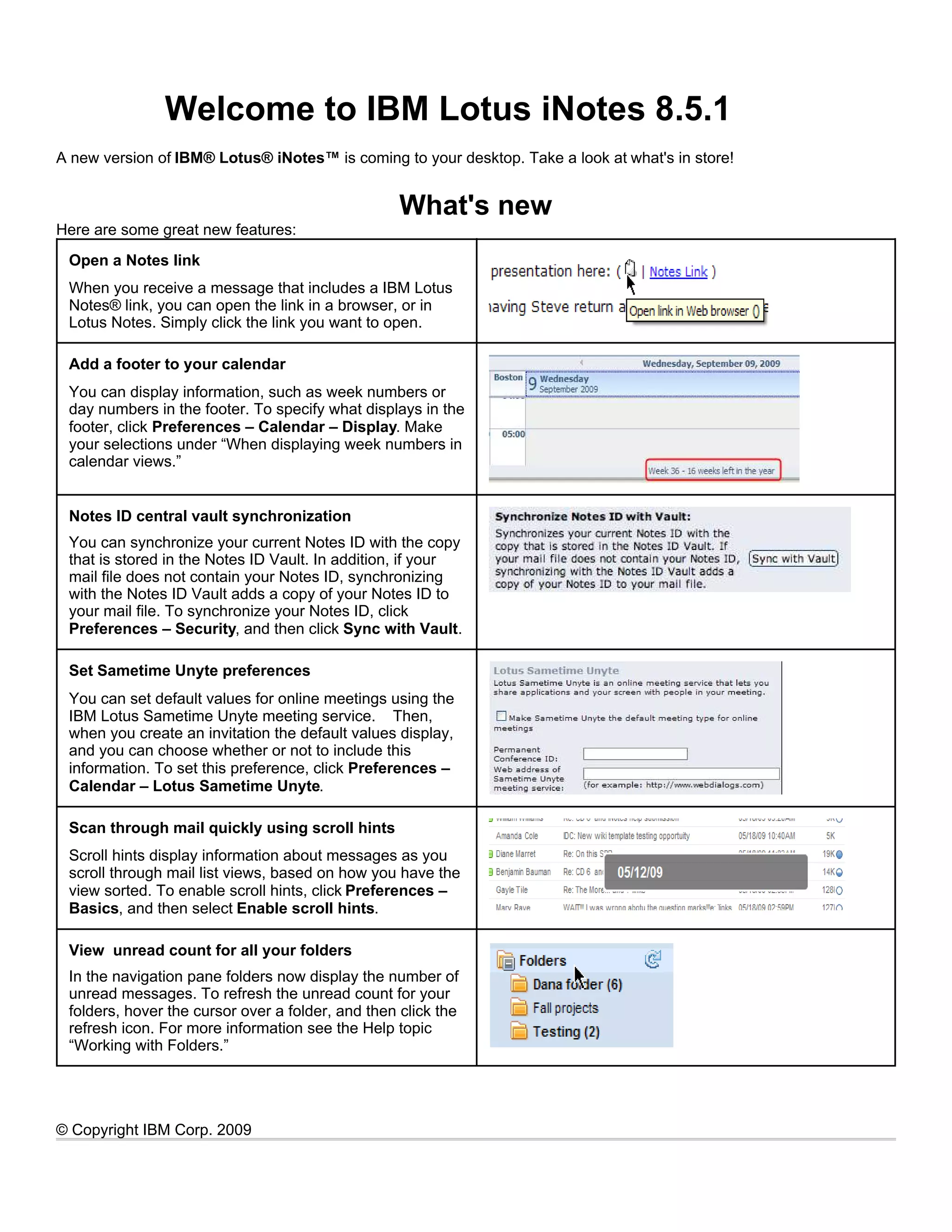
 Open a Notes link
 When you receive a message that includes a IBM Lotus
 Notes® link, you can open the link in a browser, or in
 Lotus Notes. Simply click the link you want to open.

 Add a footer to your calendar
 You can display information, such as week numbers or
 day numbers in the footer. To specify what displays in the
 footer, click Preferences – Calendar – Display. Make
 your selections under “When displaying week numbers in
 calendar views.”


 Notes ID central vault synchronization
 You can synchronize your current Notes ID with the copy
 that is stored in the Notes ID Vault. In addition, if your
 mail file does not contain your Notes ID, synchronizing
 with the Notes ID Vault adds a copy of your Notes ID to
 your mail file. To synchronize your Notes ID, click
 Preferences – Security, and then click Sync with Vault.

 Set Sametime Unyte preferences
 You can set default values for online meetings using the
 IBM Lotus Sametime Unyte meeting service. Then,
 when you create an invitation the default values display,
 and you can choose whether or not to include this
 information. To set this preference, click Preferences –
 Calendar – Lotus Sametime Unyte.

 Scan through mail quickly using scroll hints
 Scroll hints display information about messages as you
 scroll through mail list views, based on how you have the
 view sorted. To enable scroll hints, click Preferences –
 Basics, and then select Enable scroll hints.

 View unread count for all your folders
 In the navigation pane folders now display the number of
 unread messages. To refresh the unread count for your
 folders, hover the cursor over a folder, and then click the
 refresh icon. For more information see the Help topic
 “Working with Folders.”


© Copyright IBM Corp. 2009
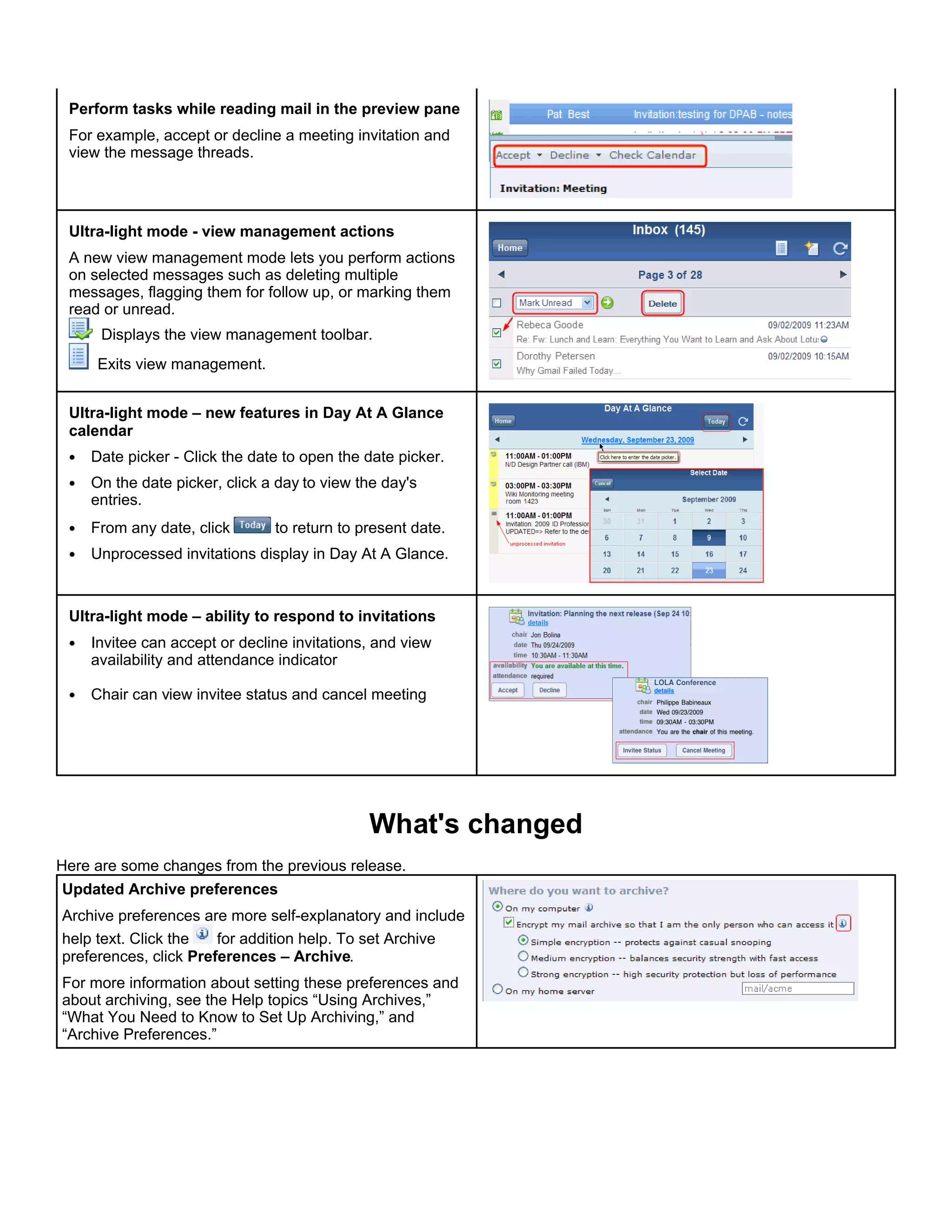
Perform tasks while reading mail in the preview pane
 For example, accept or decline a meeting invitation and
 view the message threads.


 Ultra-light mode - view management actions
 A new view management mode lets you perform actions
 on selected messages such as deleting multiple
 messages, flagging them for follow up, or marking them
 read or unread.
      Displays the view management toolbar.
     Exits view management.


 Ultra-light mode – new features in Day At A Glance
 calendar
 •   Date picker - Click the date to open the date picker.
 •   On the date picker, click a day to view the day's
     entries.
 •   From any date, click       to return to present date.
 •   Unprocessed invitations display in Day At A Glance.


 Ultra-light mode – ability to respond to invitations
 •   Invitee can accept or decline invitations, and view
     availability and attendance indicator

 •   Chair can view invitee status and cancel meeting


                                              What's changed
Here are some changes from the previous release.
Updated Archive preferences
Archive preferences are more self-explanatory and include
help text. Click the   for addition help. To set Archive
preferences, click Preferences – Archive.
For more information about setting these preferences and
about archiving, see the Help topics “Using Archives,”
“What You Need to Know to Set Up Archiving,” and
“Archive Preferences.”
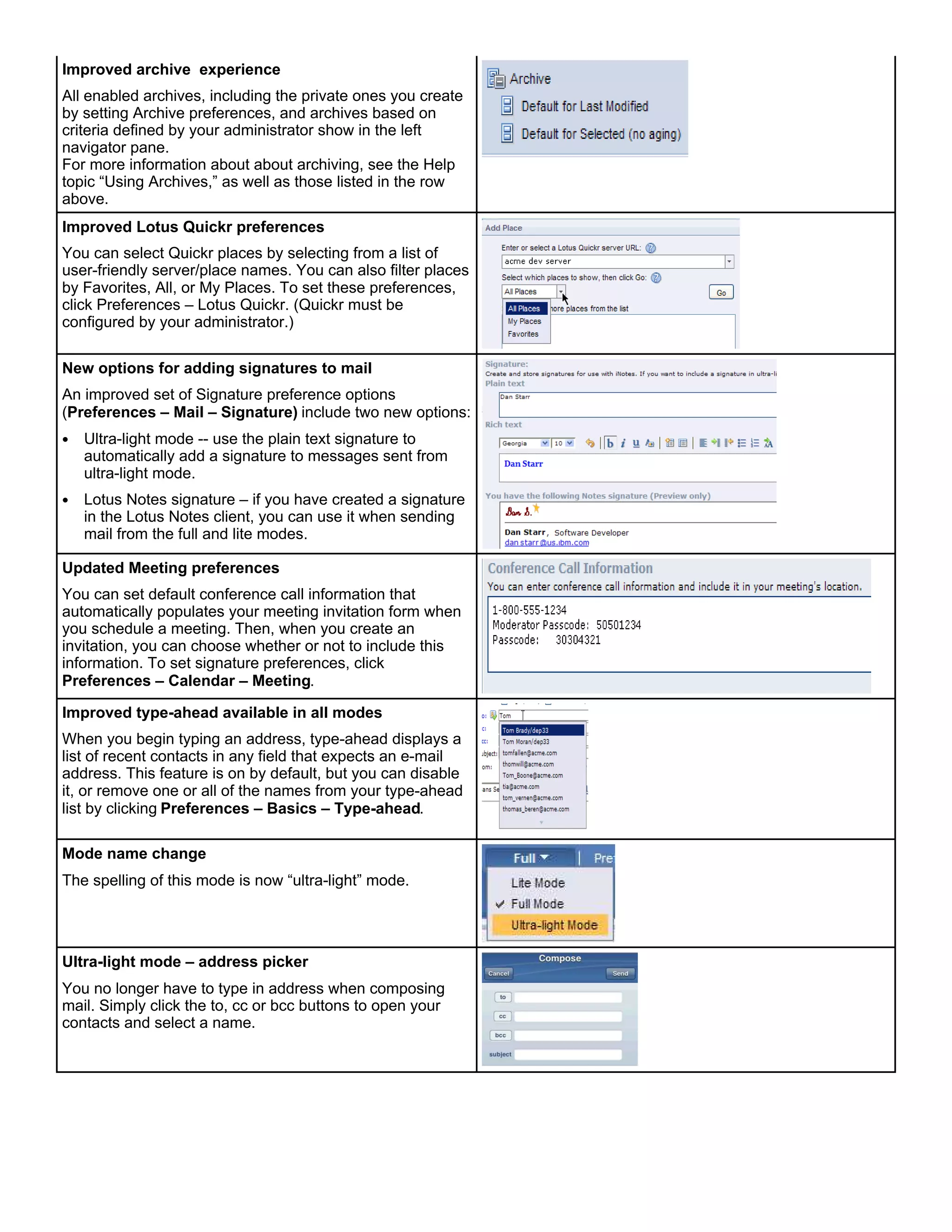
Improved archive experience
All enabled archives, including the private ones you create
by setting Archive preferences, and archives based on
criteria defined by your administrator show in the left
navigator pane.
For more information about about archiving, see the Help
topic “Using Archives,” as well as those listed in the row
above.
Improved Lotus Quickr preferences
You can select Quickr places by selecting from a list of
user-friendly server/place names. You can also filter places
by Favorites, All, or My Places. To set these preferences,
click Preferences – Lotus Quickr. (Quickr must be
configured by your administrator.)

New options for adding signatures to mail
An improved set of Signature preference options
(Preferences – Mail – Signature) include two new options:
•   Ultra-light mode -- use the plain text signature to
    automatically add a signature to messages sent from
    ultra-light mode.
•   Lotus Notes signature – if you have created a signature
    in the Lotus Notes client, you can use it when sending
    mail from the full and lite modes.

Updated Meeting preferences
You can set default conference call information that
automatically populates your meeting invitation form when
you schedule a meeting. Then, when you create an
invitation, you can choose whether or not to include this
information. To set signature preferences, click
Preferences – Calendar – Meeting.

Improved type-ahead available in all modes
When you begin typing an address, type-ahead displays a
list of recent contacts in any field that expects an e-mail
address. This feature is on by default, but you can disable
it, or remove one or all of the names from your type-ahead
list by clicking Preferences – Basics – Type-ahead.

Mode name change
The spelling of this mode is now “ultra-light” mode.


Ultra-light mode – address picker
You no longer have to type in address when composing
mail. Simply click the to, cc or bcc buttons to open your
contacts and select a name.
Learn more
Resource                                     Description
Media Gallery                                View the entire collection of demos, tutorials, reference cards, and product tours
                                             in the product Media Gallery on the Lotus Notes and Domino wiki.
Blog                                         View and blog about tips for using Lotus iNotes, see the Notes Design Blog blog
                                             at:
                                             http://www.notesdesignblog.com/NotesDesignBlog/NDBlog.nsf
New Features                                 To see a complete list of what is new in this release, see the topic “New
                                             Features” in the product Help.


                                                     Getting help
Use the following resources to get more assistance:

Resource                                     Description
Help desk
                                             Phone number
Internal wiki/blog
                                             URL
Help links and locations                     Click Help at the top-lright of the Lotus iNotes window to view Lotus iNotes Help
                                             topics.
Submit feedback                              Let us know if this guide was helpful to you or provide comments on our Help
                                             topics. Click Help - Submit Feedback or click the Submit Feedback link at the
                                             bottom of the topic in the Lotus iNotes Help.


IBM, the IBM logo, and ibm.com are trademarks or registered trademarks of International Business Machines Corp., registered in
many jurisdictions worldwide. Other product and service names might be trademarks of IBM or other companies. A current list of IBM
trademarks is available on the Web at “ Copyright and trademark information ” at www.ibm.com/legal/copytrade.shtml.

Welcome to IBM Lotus iNotes 8.5.1

  • 1.
    Welcome to IBMLotus iNotes 8.5.1 A new version of IBM® Lotus® iNotes™ is coming to your desktop. Take a look at what's in store! What's new Here are some great new features: Open a Notes link When you receive a message that includes a IBM Lotus Notes® link, you can open the link in a browser, or in Lotus Notes. Simply click the link you want to open. Add a footer to your calendar You can display information, such as week numbers or day numbers in the footer. To specify what displays in the footer, click Preferences – Calendar – Display. Make your selections under “When displaying week numbers in calendar views.” Notes ID central vault synchronization You can synchronize your current Notes ID with the copy that is stored in the Notes ID Vault. In addition, if your mail file does not contain your Notes ID, synchronizing with the Notes ID Vault adds a copy of your Notes ID to your mail file. To synchronize your Notes ID, click Preferences – Security, and then click Sync with Vault. Set Sametime Unyte preferences You can set default values for online meetings using the IBM Lotus Sametime Unyte meeting service. Then, when you create an invitation the default values display, and you can choose whether or not to include this information. To set this preference, click Preferences – Calendar – Lotus Sametime Unyte. Scan through mail quickly using scroll hints Scroll hints display information about messages as you scroll through mail list views, based on how you have the view sorted. To enable scroll hints, click Preferences – Basics, and then select Enable scroll hints. View unread count for all your folders In the navigation pane folders now display the number of unread messages. To refresh the unread count for your folders, hover the cursor over a folder, and then click the refresh icon. For more information see the Help topic “Working with Folders.” © Copyright IBM Corp. 2009
  • 2.
    Perform tasks whilereading mail in the preview pane For example, accept or decline a meeting invitation and view the message threads. Ultra-light mode - view management actions A new view management mode lets you perform actions on selected messages such as deleting multiple messages, flagging them for follow up, or marking them read or unread. Displays the view management toolbar. Exits view management. Ultra-light mode – new features in Day At A Glance calendar • Date picker - Click the date to open the date picker. • On the date picker, click a day to view the day's entries. • From any date, click to return to present date. • Unprocessed invitations display in Day At A Glance. Ultra-light mode – ability to respond to invitations • Invitee can accept or decline invitations, and view availability and attendance indicator • Chair can view invitee status and cancel meeting What's changed Here are some changes from the previous release. Updated Archive preferences Archive preferences are more self-explanatory and include help text. Click the for addition help. To set Archive preferences, click Preferences – Archive. For more information about setting these preferences and about archiving, see the Help topics “Using Archives,” “What You Need to Know to Set Up Archiving,” and “Archive Preferences.”
  • 3.
    Improved archive experience Allenabled archives, including the private ones you create by setting Archive preferences, and archives based on criteria defined by your administrator show in the left navigator pane. For more information about about archiving, see the Help topic “Using Archives,” as well as those listed in the row above. Improved Lotus Quickr preferences You can select Quickr places by selecting from a list of user-friendly server/place names. You can also filter places by Favorites, All, or My Places. To set these preferences, click Preferences – Lotus Quickr. (Quickr must be configured by your administrator.) New options for adding signatures to mail An improved set of Signature preference options (Preferences – Mail – Signature) include two new options: • Ultra-light mode -- use the plain text signature to automatically add a signature to messages sent from ultra-light mode. • Lotus Notes signature – if you have created a signature in the Lotus Notes client, you can use it when sending mail from the full and lite modes. Updated Meeting preferences You can set default conference call information that automatically populates your meeting invitation form when you schedule a meeting. Then, when you create an invitation, you can choose whether or not to include this information. To set signature preferences, click Preferences – Calendar – Meeting. Improved type-ahead available in all modes When you begin typing an address, type-ahead displays a list of recent contacts in any field that expects an e-mail address. This feature is on by default, but you can disable it, or remove one or all of the names from your type-ahead list by clicking Preferences – Basics – Type-ahead. Mode name change The spelling of this mode is now “ultra-light” mode. Ultra-light mode – address picker You no longer have to type in address when composing mail. Simply click the to, cc or bcc buttons to open your contacts and select a name.
  • 4.
    Learn more Resource Description Media Gallery View the entire collection of demos, tutorials, reference cards, and product tours in the product Media Gallery on the Lotus Notes and Domino wiki. Blog View and blog about tips for using Lotus iNotes, see the Notes Design Blog blog at: http://www.notesdesignblog.com/NotesDesignBlog/NDBlog.nsf New Features To see a complete list of what is new in this release, see the topic “New Features” in the product Help. Getting help Use the following resources to get more assistance: Resource Description Help desk Phone number Internal wiki/blog URL Help links and locations Click Help at the top-lright of the Lotus iNotes window to view Lotus iNotes Help topics. Submit feedback Let us know if this guide was helpful to you or provide comments on our Help topics. Click Help - Submit Feedback or click the Submit Feedback link at the bottom of the topic in the Lotus iNotes Help. IBM, the IBM logo, and ibm.com are trademarks or registered trademarks of International Business Machines Corp., registered in many jurisdictions worldwide. Other product and service names might be trademarks of IBM or other companies. A current list of IBM trademarks is available on the Web at “ Copyright and trademark information ” at www.ibm.com/legal/copytrade.shtml.