Final Project Report
Augmented Reality Video Playlist
Surya Sekhar Chandra
Electrical Engineering
Colorado School Of Mines
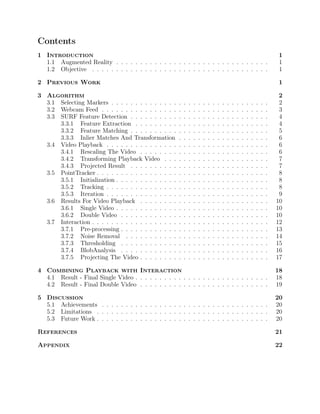
Contents
1 Introduction 1
1.1 Augmented Reality . . . . . . . . . . . . . . . . . . . . . . . . . . . . . . . . 1
1.2 Objective . . . . . . . . . . . . . . . . . . . . . . . . . . . . . . . . . . . . . 1
2 Previous Work 1
3 Algorithm 2
3.1 Selecting Markers . . . . . . . . . . . . . . . . . . . . . . . . . . . . . . . . . 2
3.2 Webcam Feed . . . . . . . . . . . . . . . . . . . . . . . . . . . . . . . . . . . 3
3.3 SURF Feature Detection . . . . . . . . . . . . . . . . . . . . . . . . . . . . . 4
3.3.1 Feature Extraction . . . . . . . . . . . . . . . . . . . . . . . . . . . . 4
3.3.2 Feature Matching . . . . . . . . . . . . . . . . . . . . . . . . . . . . . 5
3.3.3 Inlier Matches And Transformation . . . . . . . . . . . . . . . . . . . 6
3.4 Video Playback . . . . . . . . . . . . . . . . . . . . . . . . . . . . . . . . . . 6
3.4.1 Rescaling The Video . . . . . . . . . . . . . . . . . . . . . . . . . . . 6
3.4.2 Transforming Playback Video . . . . . . . . . . . . . . . . . . . . . . 7
3.4.3 Projected Result . . . . . . . . . . . . . . . . . . . . . . . . . . . . . 7
3.5 PointTracker . . . . . . . . . . . . . . . . . . . . . . . . . . . . . . . . . . . . 8
3.5.1 Initialization . . . . . . . . . . . . . . . . . . . . . . . . . . . . . . . . 8
3.5.2 Tracking . . . . . . . . . . . . . . . . . . . . . . . . . . . . . . . . . . 8
3.5.3 Iteration . . . . . . . . . . . . . . . . . . . . . . . . . . . . . . . . . . 9
3.6 Results For Video Playback . . . . . . . . . . . . . . . . . . . . . . . . . . . 10
3.6.1 Single Video . . . . . . . . . . . . . . . . . . . . . . . . . . . . . . . . 10
3.6.2 Double Video . . . . . . . . . . . . . . . . . . . . . . . . . . . . . . . 10
3.7 Interaction . . . . . . . . . . . . . . . . . . . . . . . . . . . . . . . . . . . . . 12
3.7.1 Pre-processing . . . . . . . . . . . . . . . . . . . . . . . . . . . . . . . 13
3.7.2 Noise Removal . . . . . . . . . . . . . . . . . . . . . . . . . . . . . . 14
3.7.3 Thresholding . . . . . . . . . . . . . . . . . . . . . . . . . . . . . . . 15
3.7.4 BlobAnalysis . . . . . . . . . . . . . . . . . . . . . . . . . . . . . . . 16
3.7.5 Projecting The Video . . . . . . . . . . . . . . . . . . . . . . . . . . . 17
4 Combining Playback with Interaction 18
4.1 Result - Final Single Video . . . . . . . . . . . . . . . . . . . . . . . . . . . . 18
4.2 Result - Final Double Video . . . . . . . . . . . . . . . . . . . . . . . . . . . 19
5 Discussion 20
5.1 Achievements . . . . . . . . . . . . . . . . . . . . . . . . . . . . . . . . . . . 20
5.2 Limitations . . . . . . . . . . . . . . . . . . . . . . . . . . . . . . . . . . . . 20
5.3 Future Work . . . . . . . . . . . . . . . . . . . . . . . . . . . . . . . . . . . . 20
References 21
Appendix 22
1 Introduction
1.1 Augmented Reality
Augmented reality (AR) is the integration of digital information with a live video of user’s
environment in real time. Its interfaces consist of a blend of both real and virtual content.
It presents the user a virtual way to interact with the environment. It is an evolving field of
research in computer vision and widely used in interactive gaming platforms and in various
sports to display scores and statistics on the playing field.
1.2 Objective
The goal of this project is to create an augmented reality video playlist that presents the
user an environment to interact with a playlist of videos.
The aim of the first part of the project is to play a set of videos on everyday objects that
are found in the living room using a live webcam feed. The choice of markers is crucial for
the process. SURF feature extraction algorithm is used for the object recognition and pose
estimation. The aim of the second part of the project is to add interaction, allowing the user
to select a particular video and view it as desired using finger gestures. The fingertips of the
user are detected by the help of a set of markers and the 2D transformation is calculated to
play the video as desired by the user.
Assumptions: This project is implemented in a MATLAB environment and uses a webcam
recorded video instead of a live feed to implement the algorithm.
2 Previous Work
The SURF feature detection[1] is a popular method for object recognition. The detector
and descriptor schemes used in SURF feature detection can be applied for real-world object
recognition. It uses a repeatability score for the detectors that gives the number of interest
points found for the part of the image visible in both the test image and the scene image.
This detector-description scheme is found to out perform current state of the art, both in
speed and accuracy.
Tracking features that are extracted from successive frames of a video is the main part
of this project, where computationally efficient way to keep track of the features extracted
in each frame is required.In SURFTrac[2], instead of tracking in 2D images, it is useful
to search and match candidate features in local neighborhoods inside a 3D image pyramid
without computing their feature descriptors that are further validated by fitting to a motion
model. First, SURF features extracted from the first video frame image are matched against
the rest, followed by using RANSAC algorithm and finding the best image as key node.
Next, placement of labels is computed. At every new video frame, the SURFTrac[2] is run
to update the interest points, compute the homography against the previous video frame,
1
and update the label location accordingly. SURFTrac[2] algorithm is an efficient method for
tracking scale-invariant interest points without computing their descriptors.
Augmented Reality inspection of objects using markerless fingertip detection[3] is helpful
for the second part of this project, which involves playing videos using fingertip detection.
The skin tone or skin color is used to segment the hand from the background. After which,
ellipses are fitted at fingertips based on candidate curvature points according to the hand
contour. It takes 10 seconds to first detect the hand and fingers with fingers held up.
Fingertip trajectory is tracked by a matching algorithm that minimizes the displacement of
pairs of fingertips over two frames. Using a model of the hand created earlier, the pose of
the hand can be estimated. For the purpose of this project, instead of using the skin tone to
segment the entire hand, red tape is used as markers on the fingertips, which are segmented
out and their gestures are used to play the videos accordingly.
3 Algorithm
3.1 Selecting Markers
Fig. 1: Fiducial marker Fig. 2: Plain book cover
The shape of the marker should preferably be a rectangle to facilitate a proper video
playing surface. Figure 3.1 shows a fiducial marker that is very good for detection, tracking
and pose estimation, but this is not an everyday item that is found in a living room and
hence, it is not used in this project. Figure 2 shows a plain notebook cover that is a common
everyday item found in a room. However, due to its lack of features, it is not suitable for
the SURF feature detection algorithm used in this project.
2
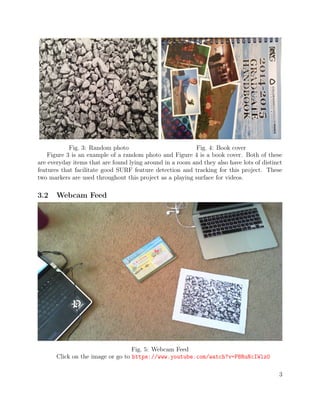
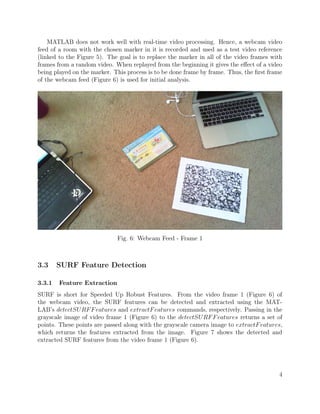
Fig. 3: Random photo Fig. 4: Book cover
Figure 3 is an example of a random photo and Figure 4 is a book cover. Both of these
are everyday items that are found lying around in a room and they also have lots of distinct
features that facilitate good SURF feature detection and tracking for this project. These
two markers are used throughout this project as a playing surface for videos.
3.2 Webcam Feed
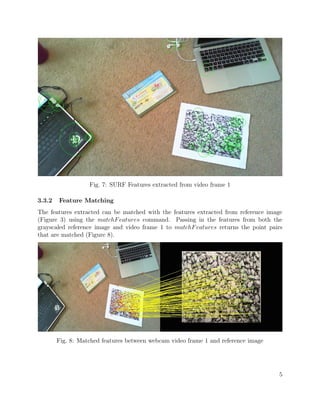
Fig. 5: Webcam Feed
Click on the image or go to https://www.youtube.com/watch?v=PBRuNcIWlz0
3
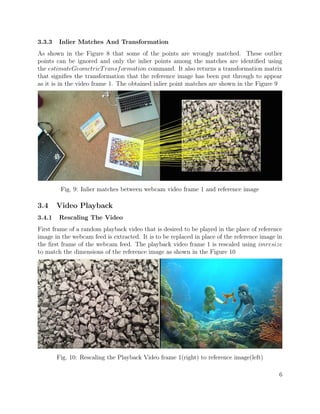
MATLAB does not work well with real-time video processing. Hence, a webcam video
feed of a room with the chosen marker in it is recorded and used as a test video reference
(linked to the Figure 5). The goal is to replace the marker in all of the video frames with
frames from a random video. When replayed from the beginning it gives the effect of a video
being played on the marker. This process is to be done frame by frame. Thus, the first frame
of the webcam feed (Figure 6) is used for initial analysis.
Fig. 6: Webcam Feed - Frame 1
3.3 SURF Feature Detection
3.3.1 Feature Extraction
SURF is short for Speeded Up Robust Features. From the video frame 1 (Figure 6) of
the webcam video, the SURF features can be detected and extracted using the MAT-
LAB’s detectSURFFeatures and extractFeatures commands, respectively. Passing in the
grayscale image of video frame 1 (Figure 6) to the detectSURFFeatures returns a set of
points. These points are passed along with the grayscale camera image to extractFeatures,
which returns the features extracted from the image. Figure 7 shows the detected and
extracted SURF features from the video frame 1 (Figure 6).
4
Fig. 7: SURF Features extracted from video frame 1
3.3.2 Feature Matching
The features extracted can be matched with the features extracted from reference image
(Figure 3) using the matchFeatures command. Passing in the features from both the
grayscaled reference image and video frame 1 to matchFeatures returns the point pairs
that are matched (Figure 8).
Fig. 8: Matched features between webcam video frame 1 and reference image
5
3.3.3 Inlier Matches And Transformation
As shown in the Figure 8 that some of the points are wrongly matched. These outlier
points can be ignored and only the inlier points among the matches are identified using
the estimateGeometricTransformation command. It also returns a transformation matrix
that signifies the transformation that the reference image has been put through to appear
as it is in the video frame 1. The obtained inlier point matches are shown in the Figure 9
Fig. 9: Inlier matches between webcam video frame 1 and reference image
3.4 Video Playback
3.4.1 Rescaling The Video
First frame of a random playback video that is desired to be played in the place of reference
image in the webcam feed is extracted. It is to be replaced in place of the reference image in
the first frame of the webcam feed. The playback video frame 1 is rescaled using imresize
to match the dimensions of the reference image as shown in the Figure 10
Fig. 10: Rescaling the Playback Video frame 1(right) to reference image(left)
6
3.4.2 Transforming Playback Video
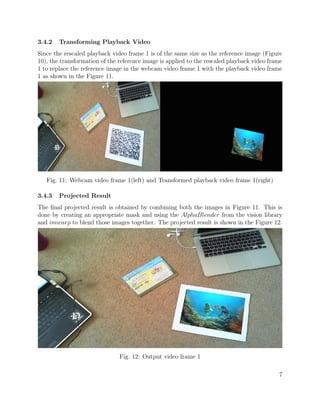
Since the rescaled playback video frame 1 is of the same size as the reference image (Figure
10), the transformation of the reference image is applied to the rescaled playback video frame
1 to replace the reference image in the webcam video frame 1 with the playback video frame
1 as shown in the Figure 11.
Fig. 11: Webcam video frame 1(left) and Transformed playback video frame 1(right)
3.4.3 Projected Result
The final projected result is obtained by combining both the images in Figure 11. This is
done by creating an appropriate mask and using the AlphaBlender from the vision library
and imwarp to blend those images together. The projected result is shown in the Figure 12.
Fig. 12: Output video frame 1
7
3.5 PointTracker
The method used thus far is computationally expensive and takes 2 to 3 seconds for each
frame. A PointTracker object from MATLAB’s vision library is used to solve this problem.
A PointTracker object uses a KLT (Kanade-Lucas-Tomasi) feature tracking algorithm to
keep track of a set of points over different frames in a video. It works well for tracking objects
that do not change shape over time. It is used in video stabilization, object tracking and
camera motion estimation.
3.5.1 Initialization
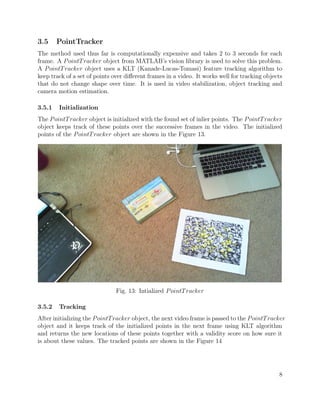
The PointTracker object is initialized with the found set of inlier points. The PointTracker
object keeps track of these points over the successive frames in the video. The initialized
points of the PointTracker object are shown in the Figure 13.
Fig. 13: Intialized PointTracker
3.5.2 Tracking
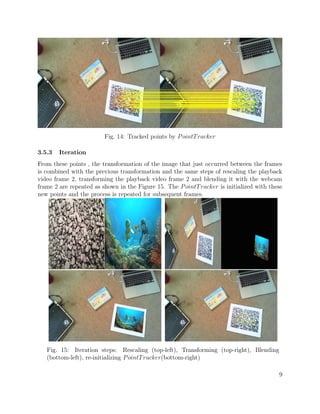
After initializing the PointTracker object, the next video frame is passed to the PointTracker
object and it keeps track of the initialized points in the next frame using KLT algorithm
and returns the new locations of these points together with a validity score on how sure it
is about these values. The tracked points are shown in the Figure 14
8
Fig. 14: Tracked points by PointTracker
3.5.3 Iteration
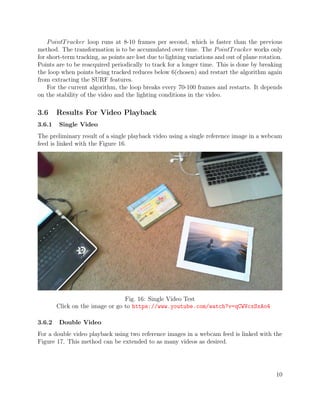
From these points , the transformation of the image that just occurred between the frames
is combined with the previous transformation and the same steps of rescaling the playback
video frame 2, transforming the playback video frame 2 and blending it with the webcam
frame 2 are repeated as shown in the Figure 15. The PointTracker is initialized with these
new points and the process is repeated for subsequent frames.
Fig. 15: Iteration steps: Rescaling (top-left), Transforming (top-right), Blending
(bottom-left), re-initializing PointTracker(bottom-right)
9
PointTracker loop runs at 8-10 frames per second, which is faster than the previous
method. The transformation is to be accumulated over time. The PointTracker works only
for short-term tracking, as points are lost due to lighting variations and out of plane rotation.
Points are to be reacquired periodically to track for a longer time. This is done by breaking
the loop when points being tracked reduces below 6(chosen) and restart the algorithm again
from extracting the SURF features.
For the current algorithm, the loop breaks every 70-100 frames and restarts. It depends
on the stability of the video and the lighting conditions in the video.
3.6 Results For Video Playback
3.6.1 Single Video
The preliminary result of a single playback video using a single reference image in a webcam
feed is linked with the Figure 16.
Fig. 16: Single Video Test
Click on the image or go to https://www.youtube.com/watch?v=qCWVcxSxAo4
3.6.2 Double Video
For a double video playback using two reference images in a webcam feed is linked with the
Figure 17. This method can be extended to as many videos as desired.
10
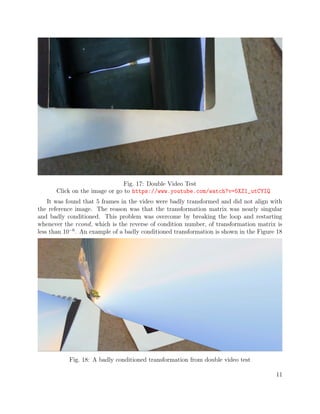
Fig. 17: Double Video Test
Click on the image or go to https://www.youtube.com/watch?v=5XZ1_utCYIQ
It was found that 5 frames in the video were badly transformed and did not align with
the reference image. The reason was that the transformation matrix was nearly singular
and badly conditioned. This problem was overcome by breaking the loop and restarting
whenever the rcond, which is the reverse of condition number, of transformation matrix is
less than 10−6
. An example of a badly conditioned transformation is shown in the Figure 18
Fig. 18: A badly conditioned transformation from double video test
11
3.7 Interaction
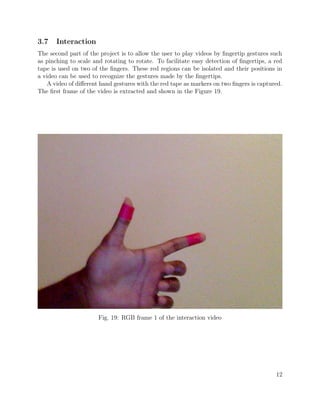
The second part of the project is to allow the user to play videos by fingertip gestures such
as pinching to scale and rotating to rotate. To facilitate easy detection of fingertips, a red
tape is used on two of the fingers. These red regions can be isolated and their positions in
a video can be used to recognize the gestures made by the fingertips.
A video of different hand gestures with the red tape as markers on two fingers is captured.
The first frame of the video is extracted and shown in the Figure 19.
Fig. 19: RGB frame 1 of the interaction video
12
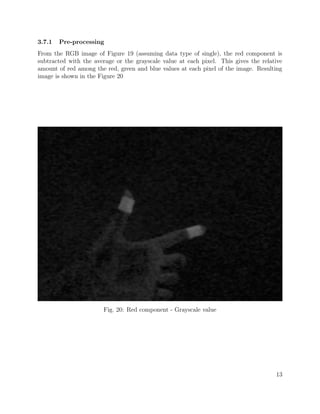
3.7.1 Pre-processing
From the RGB image of Figure 19 (assuming data type of single), the red component is
subtracted with the average or the grayscale value at each pixel. This gives the relative
amount of red among the red, green and blue values at each pixel of the image. Resulting
image is shown in the Figure 20
Fig. 20: Red component - Grayscale value
13
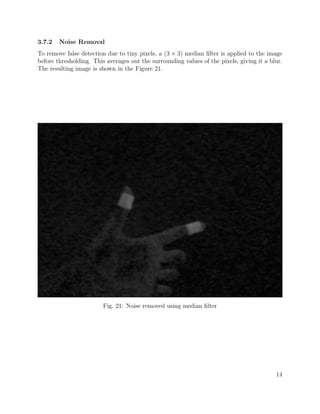
3.7.2 Noise Removal
To remove false detection due to tiny pixels, a (3 × 3) median filter is applied to the image
before thresholding. This averages out the surrounding values of the pixels, giving it a blur.
The resulting image is shown in the Figure 21.
Fig. 21: Noise removed using median filter
14
3.7.3 Thresholding
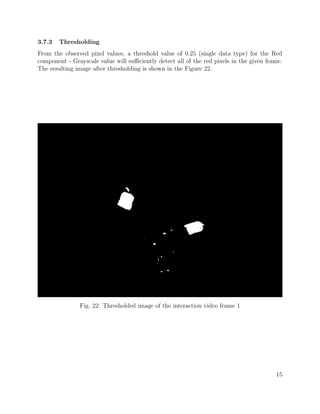
From the observed pixel values, a threshold value of 0.25 (single data type) for the Red
component - Grayscale value will sufficiently detect all of the red pixels in the given frame.
The resulting image after thresholding is shown in the Figure 22.
Fig. 22: Thresholded image of the interaction video frame 1
15
3.7.4 BlobAnalysis
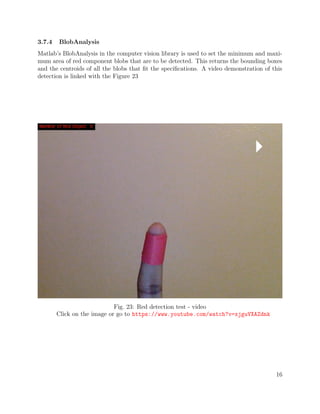
Matlab’s BlobAnalysis in the computer vision library is used to set the minimum and maxi-
mum area of red component blobs that are to be detected. This returns the bounding boxes
and the centroids of all the blobs that fit the specifications. A video demonstration of this
detection is linked with the Figure 23
Fig. 23: Red detection test - video
Click on the image or go to https://www.youtube.com/watch?v=xjguVXAZdnk
16
3.7.5 Projecting The Video
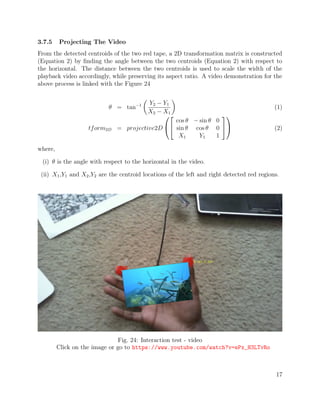
From the detected centroids of the two red tape, a 2D transformation matrix is constructed
(Equation 2) by finding the angle between the two centroids (Equation 2) with respect to
the horizontal. The distance between the two centroids is used to scale the width of the
playback video accordingly, while preserving its aspect ratio. A video demonstration for the
above process is linked with the Figure 24
θ = tan−1 Y2 − Y1
X2 − X1
(1)
tform2D = projective2D




cos θ − sin θ 0
sin θ cos θ 0
X1 Y1 1



 (2)
where,
(i) θ is the angle with respect to the horizontal in the video.
(ii) X1,Y1 and X2,Y2 are the centroid locations of the left and right detected red regions.
Fig. 24: Interaction test - video
Click on the image or go to https://www.youtube.com/watch?v=ePx_H3LTvRo
17
4 Combining Playback with Interaction
4.1 Result - Final Single Video
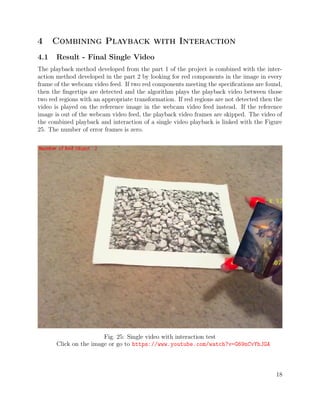
The playback method developed from the part 1 of the project is combined with the inter-
action method developed in the part 2 by looking for red components in the image in every
frame of the webcam video feed. If two red components meeting the specifications are found,
then the fingertips are detected and the algorithm plays the playback video between those
two red regions with an appropriate transformation. If red regions are not detected then the
video is played on the reference image in the webcam video feed instead. If the reference
image is out of the webcam video feed, the playback video frames are skipped. The video of
the combined playback and interaction of a single video playback is linked with the Figure
25. The number of error frames is zero.
Fig. 25: Single video with interaction test
Click on the image or go to https://www.youtube.com/watch?v=G69nCvYhJGA
18
4.2 Result - Final Double Video
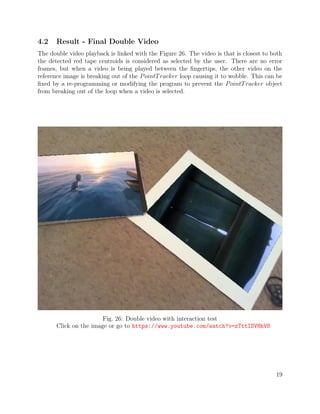
The double video playback is linked with the Figure 26. The video is that is closest to both
the detected red tape centroids is considered as selected by the user. There are no error
frames, but when a video is being played between the fingertips, the other video on the
reference image is breaking out of the PointTracker loop causing it to wobble. This can be
fixed by a re-programming or modifying the program to prevent the PointTracker object
from breaking out of the loop when a video is selected.
Fig. 26: Double video with interaction test
Click on the image or go to https://www.youtube.com/watch?v=zTttISVHhV8
19
5 Discussion
5.1 Achievements
• Successful MATLAB implementation of algorithms.
• The Interaction and playback worked well together after combining both the algo-
rithms.
• The goal of the project was achieved successfully with a working prototype for single
and double videos.
• With proper environmental conditions, choice of markers and webcam feed, the above
algorithm works with over 90% accuracy.
5.2 Limitations
• MATLAB implementation is not suitable for real-time processing. Only a pre-recorded
webcam feed was used for the project.
• The markers or reference images used need to have lot of features for effective tracking.
• The webcam feed should be sufficiently stable and with no sudden movements to avoid
the blurring, which hinders feature extraction.
• Lighting condition in the room affects both the feature detection and the red marker
detection.
• The features cannot be extracted with a webcam video taken far away (over 2 meters)
from the reference image.
5.3 Future Work
• Re-programming to overcome the glitch in programming for PointTracker breaking
out of loop when multiple videos are played in background while a video is selected.
(Figure 26)
• Implement the interaction with a markerless fingertip detection and hand pose estima-
tion to play the videos.
• Implement this algorithm for multiple videos in real-time environment using openCV.
20
References
[1] Bay, Herbert, et al. Speeded-up robust features (SURF). Computer vision and image
understanding 110.3 (2008): 346-359.
[2] Ta, Duy-Nguyen, et al. Surftrac: Efficient tracking and continuous object recognition
using local feature descriptors. Computer Vision and Pattern Recognition, 2009. CVPR
2009. IEEE Conference on. IEEE, 2009.
[3] Lee, Taehee, and Tobias Hollerer. Handy AR: Markerless inspection of augmented reality
objects using fingertip tracking. Wearable Computers, 2007 11th IEEE International
Symposium on. IEEE, 2007.
21
Appendix
MATLAB Code:
clear all
close all
%% INITIALIZATION FOR FEATURES AND RED TRACKING
% webcamera or a video to use
camera = vision.VideoFileReader('refboth3.avi');
% videos to be played
video1 = vision.VideoFileReader('turtle.mp4');
video2 = vision.VideoFileReader('turtle.mp4');
% setup a video writer and video player to view the output
videoFWriter = vision.VideoFileWriter('Output_both4.avi', ...
'FrameRate', camera.info.VideoFrameRate);
camInfo = camera.info.VideoSize;
vid1Info = video1.info.VideoSize;
screenSize = get(0,'ScreenSize');
videoPlayer = vision.VideoPlayer('Name','OUTPUT','Position',...
[50 50 camInfo(1)+20 camInfo(2)+20]);
% Threshold for red detection
redThresh = 0.25;
%Extract blobs and Texts that need to be printed on the video
% Set blob analysis handling
hblob = vision.BlobAnalysis('AreaOutputPort', false, ...
'CentroidOutputPort', true, ...
'BoundingBoxOutputPort', true', ...
'MinimumBlobArea', 300, ...
'MaximumBlobArea', 5000, ...
'MaximumCount', 10);
% Set Red box handling
hshapeinsRedBox = vision.ShapeInserter('BorderColor', 'Custom', ...
'CustomBorderColor', [1 0 0], ...
'Fill', true, ...
'FillColor', 'Custom', ...
'CustomFillColor', [1 0 0], ...
'Opacity', 0.4);
% Set text for number of blobs
htextins = vision.TextInserter('Text', 'Number of Red Object: %2d', ...
'Location', [7 2], ...
'Color', [1 0 0], ... // red color
'FontSize', 12);
22
% set text for centroid
htextinsCent = vision.TextInserter('Text', '+ X:%4d, Y:%4d', ...
'LocationSource', 'Input port', ...
'Color', [1 1 0], ... // yellow color
'FontSize', 14);
% set text for centroid
htextinsCent2 = vision.TextInserter('Text', '+ X:%4d, Y:%4d', ...
'LocationSource', 'Input port', ...
'Color', [1 1 0], ... // yellow color
'FontSize', 14);
nFrame = 0; % Frame number initialization
%% forward the video to played/camera input video by frames as required
for k = 1:200
step(video1);
end
for k = 1:300
step(video2);
end
for k = 1:45
step(camera);
end
%% LOAD REF IMAGE AND FEATURES
%Reference images
refImg1 = imread('stones_edit.jpg');
refImg2 = imread('book.jpg');
refImgGray1 = rgb2gray(refImg1);
refPts1 = detectSURFFeatures(refImgGray1);
refFeatures1 = extractFeatures(refImgGray1,refPts1);
refImgGray2 = rgb2gray(refImg2);
refPts2 = detectSURFFeatures(refImgGray2);
refFeatures2 = extractFeatures(refImgGray2,refPts2);
Frame = 0;
start = 1;
looped = 0;
flag1 = 1;
23
flag2 = 1;
%% MAIN LOOP
while ~isDone(camera)
error1 = 0;
error2 = 0;
% red object
if(looped == 0)
camImg = step(camera);
videoFrame1 = step(video1);
videoFrame2 = step(video2);
end
looped = 0;
% obtain the mirror image for displaying incase of laptop built in cam
% rgbFrame = flipdim(rgbFrame,2);
% Get red component of the image
diffFrame = imsubtract(camImg(:,:,1), rgb2gray(camImg));
% Filter out the noise by using median filter
diffFrame = medfilt2(diffFrame, [3 3]);
% Convert the image into binary image with the red objects as white
binFrame = im2bw(diffFrame, redThresh);
% Get the centroids and bounding boxes of the blobs
[centroid, bbox] = step(hblob, binFrame);
% Convert the centroids into Integer for further steps
centroid = uint16(centroid);
%camImg(1:20,1:165,:) = 0; % put a black region on the output stream
if(length(bbox(:,1)) >= 2)
vidIn = step(hshapeinsRedBox, camImg, bbox); % Insert the red box
centerX = uint16(0);
centerY = uint16(0);
scaleX = uint16(0);
scaleY = uint16(0);
% Write the corresponding centroids
for object = 1:1:length(bbox(:,1))
centX = centroid(object,1); centY = centroid(object,2);
vidIn = step(htextinsCent, vidIn, [centX centY], ...
[centX−6 centY−9]);
%center and scaling
24
centerX = centX + centerX;
centerY = centY + centerY;
if(length(bbox(:,1)) >1 )
scaleX = uint16(abs(double(centroid(2,1))...
− double(centroid(1,1))));
scaleY = uint16(abs(double(centroid(2,2))...
− double(centroid(1,2))));
dist = uint16(((abs(double(centroid(2,1))...
− double(centroid(1,1))))^2 ...
+ (abs(double(centroid(1,2)))...
− double(centroid(2,2)))^2)^.5);
end
end
%Display Centroid of all shapes
centerX = centerX/ length(bbox(:,1));
centerY = centerY/ length(bbox(:,1));
yy1= refTransform1.T(3,2);
yy2= refTransform2.T(3,2);
xx1= refTransform1.T(3,1);
xx2= refTransform2.T(3,1);
centerX = single(centerX);
centerY = single(centerY);
if( (centerX−xx1)^2 + (centerY−yy1)^2 ...
> (centerX−xx2)^2 + (centerY−yy2)^2)
flag1 = 1;
flag2 = 0;
videoFrame0 = videoFrame2;
disp('picked2');
else
flag1 = 0;
flag2 = 1;
disp('picked1');
videoFrame0 = videoFrame1;
end
% vidIn = step(htextinsCent2, vidIn, [centerX centerY],
% [centerX−6 centerY−9]);
% DISPLAY SCALING
% vidIn = step(htextinsCent2, vidIn, [scaleX scaleY], [scaleX−6
% scaleY−9]);
% Count the number of blobs
vidIn = step(htextins, vidIn, uint8(length(bbox(:,1))));
%% Scaling my video image to be played to the size of the red objects
if(scaleX ~=0 && scaleY~=0 && length(bbox(:,1))>1)
ImgScaleY = size(videoFrame0,1);
25
ImgScaleX = size(videoFrame0,2);
ActualScale = ImgScaleX/ImgScaleY;
s = double(dist)/double(ImgScaleX);
if s~=0
videoFrameScaled0 = imresize(videoFrame0,s);
outputView0 = imref2d(size(vidIn));
Yy=(double(centroid(2,2))) − double(centroid(1,2));
Xx=(double(centroid(2,1))) − double(centroid(1,1));
theta = −atan2(Yy,Xx)
thetadeg = theta * 180/pi
tform = projective2d([cos(theta) −sin(theta) 0; ...
sin(theta) cos(theta) 0; ...
double(centroid(1,1)) double(centroid(1,2)) 1]);
videoFrameTransformed0 = imwarp(videoFrameScaled0,...
tform, 'OutputView',outputView0);
%imshow(videoFrameTransformed);
alphaBlender0 = vision.AlphaBlender(...
'Operation','Binary mask', 'MaskSource', 'Input port');
mask0 = videoFrameTransformed0(:,:,1) | ...
videoFrameTransformed0(:,:,2) | ...
videoFrameTransformed0(:,:,3) > 0;
videoFrameTransformed0 = im2single(videoFrameTransformed0);
vidIn = step(alphaBlender0, vidIn,...
videoFrameTransformed0, mask0);
end
end
nFrame = nFrame+1;
%% If red objects are less than 2 display videos on reference images
else
flag1 = 1;
flag2 = 1;
end
%CAMERA IMAGE FEATURES
camImgGray = rgb2gray(camImg);
camPts = detectSURFFeatures(camImgGray);
camFeatures = extractFeatures(camImgGray, camPts);
%% FIND MATCHES
%video1
if(flag1 == 1)
disp('part1')
idxPairs1 = matchFeatures(camFeatures,refFeatures1);
matchedCamPts1 = camPts(idxPairs1(:,1));
26
matchedRefPts1 = refPts1(idxPairs1(:,2));
if(size(idxPairs1,1)<5)
step(video1);
disp('matches1');
%%%%%%%%%%%%%%%%%%%%%%%%%%%%%%%%%%continue
size(idxPairs1,1)
else
[refTransform1, inlierRefPts1, inlierCamPts1] ...
= estimateGeometricTransform(...
matchedRefPts1,matchedCamPts1,'Similarity');
if(size(inlierCamPts1,1)<4 )
step(video1);
disp('inliers1');
%%%%%%%%%%%%%%%%%%%%%%%%%%%%continue
end
% if(rcond(refTransform.T)<10^−6 )
% disp('rcond refT'); continue
% end
end
end
%video2
if(flag2 == 1)
disp('part2')
idxPairs2 = matchFeatures(camFeatures,refFeatures2);
matchedCamPts2 = camPts(idxPairs2(:,1));
matchedRefPts2 = refPts2(idxPairs2(:,2));
if(size(idxPairs2,1)<3)
step(video2);
disp('matches2');
%%%%%%%%%%%%%%%%%%%%%%%%%%%%%%%%%%continue
size(idxPairs2,1)
else
[refTransform2, inlierRefPts2, inlierCamPts2] ...
= estimateGeometricTransform(...
matchedRefPts2,matchedCamPts2,'Similarity');
if(size(inlierCamPts2,1)<4 )
step(video2);
disp('inliers2');
%%%%%%%%%%%%%%%%%%%%%%%%%%%%continue
end
% if(rcond(refTransform.T)<10^−6 )
% disp('rcond refT'); continue
% end
end
end
if(error1 == 1 && error2 == 1 )
disp('part3')
step(videoPlayer, camImg);
27
step(videoFWriter, camImg);
continue
end
%disp('running')
%% RESCALE VIDEO
%video1
if(flag1==1&& error1 ~= 1)
disp('part4')
videoFrame1 = step(video1);
videoFrameScaled1 = imresize(videoFrame1,...
[size(refImg1,1) size(refImg1,2)]);
outputView = imref2d(size(camImg));
videoFrameTransformed1 = imwarp(videoFrameScaled1,...
refTransform1,'OutputView',outputView);
%Insert
alphaBlender1 = vision.AlphaBlender(...
'Operation','Binary mask', 'MaskSource', 'Input port');
mask1 = videoFrameTransformed1(:,:,1) | ...
videoFrameTransformed1(:,:,2) | ...
videoFrameTransformed1(:,:,3) > 0;
outputFrame1 = step(alphaBlender1, camImg,...
videoFrameTransformed1, mask1);
if flag2==0
outputFrame1 = step(alphaBlender1, vidIn,...
videoFrameTransformed1, mask1);
outputFrame2 = outputFrame1;
end
end
%video 2
if(flag2==1 && error2 ~= 1)
videoFrame2 = step(video2);
videoFrameScaled2 = imresize(videoFrame2,...
[size(refImg2,1) size(refImg2,2)]);
outputView = imref2d(size(camImg));
videoFrameTransformed2 = imwarp(videoFrameScaled2,...
refTransform2,'OutputView',outputView);
%Insert
alphaBlender2 = vision.AlphaBlender(...
'Operation','Binary mask', 'MaskSource', 'Input port');
28
mask2 = videoFrameTransformed2(:,:,1) | ...
videoFrameTransformed2(:,:,2) | ...
videoFrameTransformed2(:,:,3) > 0;
disp('part6')
if flag1==0
disp('part7')
outputFrame2 = step(alphaBlender2, vidIn,...
videoFrameTransformed2, mask2);
else
outputFrame2 = step(alphaBlender2, outputFrame1,...
videoFrameTransformed2, mask2);
end
end
disp('output')
step(videoPlayer, outputFrame2);
step(videoFWriter, outputFrame2);
%%%%%%%%%%%%%%%%%%%%%%%%%%%%%%%%%%%%%%%%%%%%%%%%%%%%%%%%%%%%%%%%%%%%%%
%%
if(flag1 == 1 && flag2 == 1)
% %INITIALIZE POINT TRACKER
pointTracker1 = vision.PointTracker('MaxBidirectionalError',1);
initialize(pointTracker1, inlierCamPts1.Location, camImg);
%display pts being used for tracking
trackingMarkers1 = insertMarker(camImg, inlierCamPts1.Location,...
'Size',7,'Color','yellow');
pointTracker2 = vision.PointTracker('MaxBidirectionalError',1);
initialize(pointTracker2, inlierCamPts2.Location, camImg);
%display pts being used for tracking
trackingMarkers2 = insertMarker(camImg, inlierCamPts2.Location,...
'Size',7,'Color','yellow');
%%%%%%%%%%%%%%%%%%%%%%%NEXT FRAME TRACK
while ~isDone(camera)
prevCamImg = camImg;
camImg = step(camera);
% Get red component of the image
diffFrame = imsubtract(camImg(:,:,1), rgb2gray(camImg));
% Filter out the noise by using median filter
diffFrame = medfilt2(diffFrame, [3 3]);
% Convert the image into binary image with the red objects as white
binFrame = im2bw(diffFrame, redThresh);
% Get the centroids and bounding boxes of the blobs
29
[centroid, bbox] = step(hblob, binFrame);
% Convert the centroids into Integer for further steps
centroid = uint16(centroid);
if(length(bbox(:,1)) >= 2)
looped = 1;
break;
end
[trackedPoints2, isValid2] = step(pointTracker2, camImg);
newValidLoc2 = trackedPoints2(isValid2,:);
oldValidLoc2 = inlierCamPts2.Location(isValid2,:);
[trackedPoints1, isValid1] = step(pointTracker1, camImg);
newValidLoc1 = trackedPoints1(isValid1,:);
oldValidLoc1 = inlierCamPts1.Location(isValid1,:);
%Estimate geometric transform between two frames
%MUST HAVE ATLEAST 4 tracked points b/w frames
if(nnz(isValid1) >= 6)
[trackingTransform1, oldInlierLocations1 ,...
newInlierLocations1] =...
estimateGeometricTransform(...
oldValidLoc1, newValidLoc1,'Similarity');
disp(nnz(isValid1));
else
disp('nnz');
disp(nnz(isValid1));
nz = −1;
break;
end
%MUST HAVE ATLEAST 4 tracked points b/w frames
if(nnz(isValid2) >= 11)
[trackingTransform2, oldInlierLocations2 ,...
newInlierLocations2] =...
estimateGeometricTransform(...
oldValidLoc2, newValidLoc2,'Similarity');
disp(nnz(isValid2));
else
disp('nnz2');
disp(nnz(isValid2));
nz = −1;
break;
end
30
%RESET POINT TRACKER FOR TRACKING NEXT FRAME
setPoints(pointTracker1,newInlierLocations1 );
setPoints(pointTracker2,newInlierLocations2 );
%ACCUMULATE GEOMETRIC TRANSF FROM REF TO CURRENT FRAME
trackingTransform1.T = refTransform1.T * trackingTransform1.T;
trackingTransform2.T = refTransform2.T * trackingTransform2.T;
%
% if(rcond(trackingTransform1.T) < 10^−6)
% disp('rcond'); disp(rcond(trackingTransform1.T)); break
% end
%
disp(rcond(trackingTransform1.T));
disp(rcond(trackingTransform2.T));
%RESCALE NEW REPLACEMENT VIDEO FRAME
videoFrame1 = step(video1);
videoFrame2 = step(video2);
videoFrameScaled1 = imresize(videoFrame1,...
[size(refImg1,1) size(refImg1,2)]);
videoFrameScaled2 = imresize(videoFrame2,...
[size(refImg2,1) size(refImg2,2)]);
%imwarp(video, ScaleTransform,... 'OutputView',outputView);
% figure(1)
% imshowpair(refImg,videoFrameScaled,'Montage');
% pause
% APPLY TRANSFORM TO THE NEW VIDEO
outputView = imref2d(size(camImg));
videoFrameTransformed1 = imwarp(videoFrameScaled1,...
trackingTransform1,'OutputView',outputView);
% figure(1)
% imshowpair(camImg,videoFrameTransformed,
% 'Montage');
% pause
%INSERT
alphaBlender1 = vision.AlphaBlender(...
'Operation','Binary mask', 'MaskSource', 'Input port');
mask1 = videoFrameTransformed1(:,:,1) | ...
videoFrameTransformed1(:,:,2) | ...
videoFrameTransformed1(:,:,3) > 0;
31
videoFrameTransformed2 = imwarp(videoFrameScaled2,...
trackingTransform2, 'OutputView',outputView);
%Insert
alphaBlender2 = vision.AlphaBlender(...
'Operation','Binary mask', 'MaskSource', 'Input port');
mask2 = videoFrameTransformed2(:,:,1) | ...
videoFrameTransformed2(:,:,2) | ...
videoFrameTransformed2(:,:,3) > 0;
outputFrame1 = step(alphaBlender1, camImg,...
videoFrameTransformed1, mask1);
outputFrame2 = step(alphaBlender2, outputFrame1,...
videoFrameTransformed2, mask2);
step(videoPlayer, outputFrame2);
step(videoFWriter, outputFrame2);
Frame = Frame + 1;
end
end
end
%%
% Release all memory and buffer used
release(videoFWriter)
release(video1);
delete(camera);
release(video2);
release(videoPlayer);
32

Augmented Reality Video Playlist - Computer Vision Project

  • 1.
    Final Project Report AugmentedReality Video Playlist Surya Sekhar Chandra Electrical Engineering Colorado School Of Mines
  • 2.
    Contents 1 Introduction 1 1.1Augmented Reality . . . . . . . . . . . . . . . . . . . . . . . . . . . . . . . . 1 1.2 Objective . . . . . . . . . . . . . . . . . . . . . . . . . . . . . . . . . . . . . 1 2 Previous Work 1 3 Algorithm 2 3.1 Selecting Markers . . . . . . . . . . . . . . . . . . . . . . . . . . . . . . . . . 2 3.2 Webcam Feed . . . . . . . . . . . . . . . . . . . . . . . . . . . . . . . . . . . 3 3.3 SURF Feature Detection . . . . . . . . . . . . . . . . . . . . . . . . . . . . . 4 3.3.1 Feature Extraction . . . . . . . . . . . . . . . . . . . . . . . . . . . . 4 3.3.2 Feature Matching . . . . . . . . . . . . . . . . . . . . . . . . . . . . . 5 3.3.3 Inlier Matches And Transformation . . . . . . . . . . . . . . . . . . . 6 3.4 Video Playback . . . . . . . . . . . . . . . . . . . . . . . . . . . . . . . . . . 6 3.4.1 Rescaling The Video . . . . . . . . . . . . . . . . . . . . . . . . . . . 6 3.4.2 Transforming Playback Video . . . . . . . . . . . . . . . . . . . . . . 7 3.4.3 Projected Result . . . . . . . . . . . . . . . . . . . . . . . . . . . . . 7 3.5 PointTracker . . . . . . . . . . . . . . . . . . . . . . . . . . . . . . . . . . . . 8 3.5.1 Initialization . . . . . . . . . . . . . . . . . . . . . . . . . . . . . . . . 8 3.5.2 Tracking . . . . . . . . . . . . . . . . . . . . . . . . . . . . . . . . . . 8 3.5.3 Iteration . . . . . . . . . . . . . . . . . . . . . . . . . . . . . . . . . . 9 3.6 Results For Video Playback . . . . . . . . . . . . . . . . . . . . . . . . . . . 10 3.6.1 Single Video . . . . . . . . . . . . . . . . . . . . . . . . . . . . . . . . 10 3.6.2 Double Video . . . . . . . . . . . . . . . . . . . . . . . . . . . . . . . 10 3.7 Interaction . . . . . . . . . . . . . . . . . . . . . . . . . . . . . . . . . . . . . 12 3.7.1 Pre-processing . . . . . . . . . . . . . . . . . . . . . . . . . . . . . . . 13 3.7.2 Noise Removal . . . . . . . . . . . . . . . . . . . . . . . . . . . . . . 14 3.7.3 Thresholding . . . . . . . . . . . . . . . . . . . . . . . . . . . . . . . 15 3.7.4 BlobAnalysis . . . . . . . . . . . . . . . . . . . . . . . . . . . . . . . 16 3.7.5 Projecting The Video . . . . . . . . . . . . . . . . . . . . . . . . . . . 17 4 Combining Playback with Interaction 18 4.1 Result - Final Single Video . . . . . . . . . . . . . . . . . . . . . . . . . . . . 18 4.2 Result - Final Double Video . . . . . . . . . . . . . . . . . . . . . . . . . . . 19 5 Discussion 20 5.1 Achievements . . . . . . . . . . . . . . . . . . . . . . . . . . . . . . . . . . . 20 5.2 Limitations . . . . . . . . . . . . . . . . . . . . . . . . . . . . . . . . . . . . 20 5.3 Future Work . . . . . . . . . . . . . . . . . . . . . . . . . . . . . . . . . . . . 20 References 21 Appendix 22
  • 3.
    1 Introduction 1.1 AugmentedReality Augmented reality (AR) is the integration of digital information with a live video of user’s environment in real time. Its interfaces consist of a blend of both real and virtual content. It presents the user a virtual way to interact with the environment. It is an evolving field of research in computer vision and widely used in interactive gaming platforms and in various sports to display scores and statistics on the playing field. 1.2 Objective The goal of this project is to create an augmented reality video playlist that presents the user an environment to interact with a playlist of videos. The aim of the first part of the project is to play a set of videos on everyday objects that are found in the living room using a live webcam feed. The choice of markers is crucial for the process. SURF feature extraction algorithm is used for the object recognition and pose estimation. The aim of the second part of the project is to add interaction, allowing the user to select a particular video and view it as desired using finger gestures. The fingertips of the user are detected by the help of a set of markers and the 2D transformation is calculated to play the video as desired by the user. Assumptions: This project is implemented in a MATLAB environment and uses a webcam recorded video instead of a live feed to implement the algorithm. 2 Previous Work The SURF feature detection[1] is a popular method for object recognition. The detector and descriptor schemes used in SURF feature detection can be applied for real-world object recognition. It uses a repeatability score for the detectors that gives the number of interest points found for the part of the image visible in both the test image and the scene image. This detector-description scheme is found to out perform current state of the art, both in speed and accuracy. Tracking features that are extracted from successive frames of a video is the main part of this project, where computationally efficient way to keep track of the features extracted in each frame is required.In SURFTrac[2], instead of tracking in 2D images, it is useful to search and match candidate features in local neighborhoods inside a 3D image pyramid without computing their feature descriptors that are further validated by fitting to a motion model. First, SURF features extracted from the first video frame image are matched against the rest, followed by using RANSAC algorithm and finding the best image as key node. Next, placement of labels is computed. At every new video frame, the SURFTrac[2] is run to update the interest points, compute the homography against the previous video frame, 1
  • 4.
    and update thelabel location accordingly. SURFTrac[2] algorithm is an efficient method for tracking scale-invariant interest points without computing their descriptors. Augmented Reality inspection of objects using markerless fingertip detection[3] is helpful for the second part of this project, which involves playing videos using fingertip detection. The skin tone or skin color is used to segment the hand from the background. After which, ellipses are fitted at fingertips based on candidate curvature points according to the hand contour. It takes 10 seconds to first detect the hand and fingers with fingers held up. Fingertip trajectory is tracked by a matching algorithm that minimizes the displacement of pairs of fingertips over two frames. Using a model of the hand created earlier, the pose of the hand can be estimated. For the purpose of this project, instead of using the skin tone to segment the entire hand, red tape is used as markers on the fingertips, which are segmented out and their gestures are used to play the videos accordingly. 3 Algorithm 3.1 Selecting Markers Fig. 1: Fiducial marker Fig. 2: Plain book cover The shape of the marker should preferably be a rectangle to facilitate a proper video playing surface. Figure 3.1 shows a fiducial marker that is very good for detection, tracking and pose estimation, but this is not an everyday item that is found in a living room and hence, it is not used in this project. Figure 2 shows a plain notebook cover that is a common everyday item found in a room. However, due to its lack of features, it is not suitable for the SURF feature detection algorithm used in this project. 2
  • 5.
    Fig. 3: Randomphoto Fig. 4: Book cover Figure 3 is an example of a random photo and Figure 4 is a book cover. Both of these are everyday items that are found lying around in a room and they also have lots of distinct features that facilitate good SURF feature detection and tracking for this project. These two markers are used throughout this project as a playing surface for videos. 3.2 Webcam Feed Fig. 5: Webcam Feed Click on the image or go to https://www.youtube.com/watch?v=PBRuNcIWlz0 3
  • 6.
    MATLAB does notwork well with real-time video processing. Hence, a webcam video feed of a room with the chosen marker in it is recorded and used as a test video reference (linked to the Figure 5). The goal is to replace the marker in all of the video frames with frames from a random video. When replayed from the beginning it gives the effect of a video being played on the marker. This process is to be done frame by frame. Thus, the first frame of the webcam feed (Figure 6) is used for initial analysis. Fig. 6: Webcam Feed - Frame 1 3.3 SURF Feature Detection 3.3.1 Feature Extraction SURF is short for Speeded Up Robust Features. From the video frame 1 (Figure 6) of the webcam video, the SURF features can be detected and extracted using the MAT- LAB’s detectSURFFeatures and extractFeatures commands, respectively. Passing in the grayscale image of video frame 1 (Figure 6) to the detectSURFFeatures returns a set of points. These points are passed along with the grayscale camera image to extractFeatures, which returns the features extracted from the image. Figure 7 shows the detected and extracted SURF features from the video frame 1 (Figure 6). 4
  • 7.
    Fig. 7: SURFFeatures extracted from video frame 1 3.3.2 Feature Matching The features extracted can be matched with the features extracted from reference image (Figure 3) using the matchFeatures command. Passing in the features from both the grayscaled reference image and video frame 1 to matchFeatures returns the point pairs that are matched (Figure 8). Fig. 8: Matched features between webcam video frame 1 and reference image 5
  • 8.
    3.3.3 Inlier MatchesAnd Transformation As shown in the Figure 8 that some of the points are wrongly matched. These outlier points can be ignored and only the inlier points among the matches are identified using the estimateGeometricTransformation command. It also returns a transformation matrix that signifies the transformation that the reference image has been put through to appear as it is in the video frame 1. The obtained inlier point matches are shown in the Figure 9 Fig. 9: Inlier matches between webcam video frame 1 and reference image 3.4 Video Playback 3.4.1 Rescaling The Video First frame of a random playback video that is desired to be played in the place of reference image in the webcam feed is extracted. It is to be replaced in place of the reference image in the first frame of the webcam feed. The playback video frame 1 is rescaled using imresize to match the dimensions of the reference image as shown in the Figure 10 Fig. 10: Rescaling the Playback Video frame 1(right) to reference image(left) 6
  • 9.
    3.4.2 Transforming PlaybackVideo Since the rescaled playback video frame 1 is of the same size as the reference image (Figure 10), the transformation of the reference image is applied to the rescaled playback video frame 1 to replace the reference image in the webcam video frame 1 with the playback video frame 1 as shown in the Figure 11. Fig. 11: Webcam video frame 1(left) and Transformed playback video frame 1(right) 3.4.3 Projected Result The final projected result is obtained by combining both the images in Figure 11. This is done by creating an appropriate mask and using the AlphaBlender from the vision library and imwarp to blend those images together. The projected result is shown in the Figure 12. Fig. 12: Output video frame 1 7
  • 10.
    3.5 PointTracker The methodused thus far is computationally expensive and takes 2 to 3 seconds for each frame. A PointTracker object from MATLAB’s vision library is used to solve this problem. A PointTracker object uses a KLT (Kanade-Lucas-Tomasi) feature tracking algorithm to keep track of a set of points over different frames in a video. It works well for tracking objects that do not change shape over time. It is used in video stabilization, object tracking and camera motion estimation. 3.5.1 Initialization The PointTracker object is initialized with the found set of inlier points. The PointTracker object keeps track of these points over the successive frames in the video. The initialized points of the PointTracker object are shown in the Figure 13. Fig. 13: Intialized PointTracker 3.5.2 Tracking After initializing the PointTracker object, the next video frame is passed to the PointTracker object and it keeps track of the initialized points in the next frame using KLT algorithm and returns the new locations of these points together with a validity score on how sure it is about these values. The tracked points are shown in the Figure 14 8
  • 11.
    Fig. 14: Trackedpoints by PointTracker 3.5.3 Iteration From these points , the transformation of the image that just occurred between the frames is combined with the previous transformation and the same steps of rescaling the playback video frame 2, transforming the playback video frame 2 and blending it with the webcam frame 2 are repeated as shown in the Figure 15. The PointTracker is initialized with these new points and the process is repeated for subsequent frames. Fig. 15: Iteration steps: Rescaling (top-left), Transforming (top-right), Blending (bottom-left), re-initializing PointTracker(bottom-right) 9
  • 12.
    PointTracker loop runsat 8-10 frames per second, which is faster than the previous method. The transformation is to be accumulated over time. The PointTracker works only for short-term tracking, as points are lost due to lighting variations and out of plane rotation. Points are to be reacquired periodically to track for a longer time. This is done by breaking the loop when points being tracked reduces below 6(chosen) and restart the algorithm again from extracting the SURF features. For the current algorithm, the loop breaks every 70-100 frames and restarts. It depends on the stability of the video and the lighting conditions in the video. 3.6 Results For Video Playback 3.6.1 Single Video The preliminary result of a single playback video using a single reference image in a webcam feed is linked with the Figure 16. Fig. 16: Single Video Test Click on the image or go to https://www.youtube.com/watch?v=qCWVcxSxAo4 3.6.2 Double Video For a double video playback using two reference images in a webcam feed is linked with the Figure 17. This method can be extended to as many videos as desired. 10
  • 13.
    Fig. 17: DoubleVideo Test Click on the image or go to https://www.youtube.com/watch?v=5XZ1_utCYIQ It was found that 5 frames in the video were badly transformed and did not align with the reference image. The reason was that the transformation matrix was nearly singular and badly conditioned. This problem was overcome by breaking the loop and restarting whenever the rcond, which is the reverse of condition number, of transformation matrix is less than 10−6 . An example of a badly conditioned transformation is shown in the Figure 18 Fig. 18: A badly conditioned transformation from double video test 11
  • 14.
    3.7 Interaction The secondpart of the project is to allow the user to play videos by fingertip gestures such as pinching to scale and rotating to rotate. To facilitate easy detection of fingertips, a red tape is used on two of the fingers. These red regions can be isolated and their positions in a video can be used to recognize the gestures made by the fingertips. A video of different hand gestures with the red tape as markers on two fingers is captured. The first frame of the video is extracted and shown in the Figure 19. Fig. 19: RGB frame 1 of the interaction video 12
  • 15.
    3.7.1 Pre-processing From theRGB image of Figure 19 (assuming data type of single), the red component is subtracted with the average or the grayscale value at each pixel. This gives the relative amount of red among the red, green and blue values at each pixel of the image. Resulting image is shown in the Figure 20 Fig. 20: Red component - Grayscale value 13
  • 16.
    3.7.2 Noise Removal Toremove false detection due to tiny pixels, a (3 × 3) median filter is applied to the image before thresholding. This averages out the surrounding values of the pixels, giving it a blur. The resulting image is shown in the Figure 21. Fig. 21: Noise removed using median filter 14
  • 17.
    3.7.3 Thresholding From theobserved pixel values, a threshold value of 0.25 (single data type) for the Red component - Grayscale value will sufficiently detect all of the red pixels in the given frame. The resulting image after thresholding is shown in the Figure 22. Fig. 22: Thresholded image of the interaction video frame 1 15
  • 18.
    3.7.4 BlobAnalysis Matlab’s BlobAnalysisin the computer vision library is used to set the minimum and maxi- mum area of red component blobs that are to be detected. This returns the bounding boxes and the centroids of all the blobs that fit the specifications. A video demonstration of this detection is linked with the Figure 23 Fig. 23: Red detection test - video Click on the image or go to https://www.youtube.com/watch?v=xjguVXAZdnk 16
  • 19.
    3.7.5 Projecting TheVideo From the detected centroids of the two red tape, a 2D transformation matrix is constructed (Equation 2) by finding the angle between the two centroids (Equation 2) with respect to the horizontal. The distance between the two centroids is used to scale the width of the playback video accordingly, while preserving its aspect ratio. A video demonstration for the above process is linked with the Figure 24 θ = tan−1 Y2 − Y1 X2 − X1 (1) tform2D = projective2D     cos θ − sin θ 0 sin θ cos θ 0 X1 Y1 1     (2) where, (i) θ is the angle with respect to the horizontal in the video. (ii) X1,Y1 and X2,Y2 are the centroid locations of the left and right detected red regions. Fig. 24: Interaction test - video Click on the image or go to https://www.youtube.com/watch?v=ePx_H3LTvRo 17
  • 20.
    4 Combining Playbackwith Interaction 4.1 Result - Final Single Video The playback method developed from the part 1 of the project is combined with the inter- action method developed in the part 2 by looking for red components in the image in every frame of the webcam video feed. If two red components meeting the specifications are found, then the fingertips are detected and the algorithm plays the playback video between those two red regions with an appropriate transformation. If red regions are not detected then the video is played on the reference image in the webcam video feed instead. If the reference image is out of the webcam video feed, the playback video frames are skipped. The video of the combined playback and interaction of a single video playback is linked with the Figure 25. The number of error frames is zero. Fig. 25: Single video with interaction test Click on the image or go to https://www.youtube.com/watch?v=G69nCvYhJGA 18
  • 21.
    4.2 Result -Final Double Video The double video playback is linked with the Figure 26. The video is that is closest to both the detected red tape centroids is considered as selected by the user. There are no error frames, but when a video is being played between the fingertips, the other video on the reference image is breaking out of the PointTracker loop causing it to wobble. This can be fixed by a re-programming or modifying the program to prevent the PointTracker object from breaking out of the loop when a video is selected. Fig. 26: Double video with interaction test Click on the image or go to https://www.youtube.com/watch?v=zTttISVHhV8 19
  • 22.
    5 Discussion 5.1 Achievements •Successful MATLAB implementation of algorithms. • The Interaction and playback worked well together after combining both the algo- rithms. • The goal of the project was achieved successfully with a working prototype for single and double videos. • With proper environmental conditions, choice of markers and webcam feed, the above algorithm works with over 90% accuracy. 5.2 Limitations • MATLAB implementation is not suitable for real-time processing. Only a pre-recorded webcam feed was used for the project. • The markers or reference images used need to have lot of features for effective tracking. • The webcam feed should be sufficiently stable and with no sudden movements to avoid the blurring, which hinders feature extraction. • Lighting condition in the room affects both the feature detection and the red marker detection. • The features cannot be extracted with a webcam video taken far away (over 2 meters) from the reference image. 5.3 Future Work • Re-programming to overcome the glitch in programming for PointTracker breaking out of loop when multiple videos are played in background while a video is selected. (Figure 26) • Implement the interaction with a markerless fingertip detection and hand pose estima- tion to play the videos. • Implement this algorithm for multiple videos in real-time environment using openCV. 20
  • 23.
    References [1] Bay, Herbert,et al. Speeded-up robust features (SURF). Computer vision and image understanding 110.3 (2008): 346-359. [2] Ta, Duy-Nguyen, et al. Surftrac: Efficient tracking and continuous object recognition using local feature descriptors. Computer Vision and Pattern Recognition, 2009. CVPR 2009. IEEE Conference on. IEEE, 2009. [3] Lee, Taehee, and Tobias Hollerer. Handy AR: Markerless inspection of augmented reality objects using fingertip tracking. Wearable Computers, 2007 11th IEEE International Symposium on. IEEE, 2007. 21
  • 24.
    Appendix MATLAB Code: clear all closeall %% INITIALIZATION FOR FEATURES AND RED TRACKING % webcamera or a video to use camera = vision.VideoFileReader('refboth3.avi'); % videos to be played video1 = vision.VideoFileReader('turtle.mp4'); video2 = vision.VideoFileReader('turtle.mp4'); % setup a video writer and video player to view the output videoFWriter = vision.VideoFileWriter('Output_both4.avi', ... 'FrameRate', camera.info.VideoFrameRate); camInfo = camera.info.VideoSize; vid1Info = video1.info.VideoSize; screenSize = get(0,'ScreenSize'); videoPlayer = vision.VideoPlayer('Name','OUTPUT','Position',... [50 50 camInfo(1)+20 camInfo(2)+20]); % Threshold for red detection redThresh = 0.25; %Extract blobs and Texts that need to be printed on the video % Set blob analysis handling hblob = vision.BlobAnalysis('AreaOutputPort', false, ... 'CentroidOutputPort', true, ... 'BoundingBoxOutputPort', true', ... 'MinimumBlobArea', 300, ... 'MaximumBlobArea', 5000, ... 'MaximumCount', 10); % Set Red box handling hshapeinsRedBox = vision.ShapeInserter('BorderColor', 'Custom', ... 'CustomBorderColor', [1 0 0], ... 'Fill', true, ... 'FillColor', 'Custom', ... 'CustomFillColor', [1 0 0], ... 'Opacity', 0.4); % Set text for number of blobs htextins = vision.TextInserter('Text', 'Number of Red Object: %2d', ... 'Location', [7 2], ... 'Color', [1 0 0], ... // red color 'FontSize', 12); 22
  • 25.
    % set textfor centroid htextinsCent = vision.TextInserter('Text', '+ X:%4d, Y:%4d', ... 'LocationSource', 'Input port', ... 'Color', [1 1 0], ... // yellow color 'FontSize', 14); % set text for centroid htextinsCent2 = vision.TextInserter('Text', '+ X:%4d, Y:%4d', ... 'LocationSource', 'Input port', ... 'Color', [1 1 0], ... // yellow color 'FontSize', 14); nFrame = 0; % Frame number initialization %% forward the video to played/camera input video by frames as required for k = 1:200 step(video1); end for k = 1:300 step(video2); end for k = 1:45 step(camera); end %% LOAD REF IMAGE AND FEATURES %Reference images refImg1 = imread('stones_edit.jpg'); refImg2 = imread('book.jpg'); refImgGray1 = rgb2gray(refImg1); refPts1 = detectSURFFeatures(refImgGray1); refFeatures1 = extractFeatures(refImgGray1,refPts1); refImgGray2 = rgb2gray(refImg2); refPts2 = detectSURFFeatures(refImgGray2); refFeatures2 = extractFeatures(refImgGray2,refPts2); Frame = 0; start = 1; looped = 0; flag1 = 1; 23
  • 26.
    flag2 = 1; %%MAIN LOOP while ~isDone(camera) error1 = 0; error2 = 0; % red object if(looped == 0) camImg = step(camera); videoFrame1 = step(video1); videoFrame2 = step(video2); end looped = 0; % obtain the mirror image for displaying incase of laptop built in cam % rgbFrame = flipdim(rgbFrame,2); % Get red component of the image diffFrame = imsubtract(camImg(:,:,1), rgb2gray(camImg)); % Filter out the noise by using median filter diffFrame = medfilt2(diffFrame, [3 3]); % Convert the image into binary image with the red objects as white binFrame = im2bw(diffFrame, redThresh); % Get the centroids and bounding boxes of the blobs [centroid, bbox] = step(hblob, binFrame); % Convert the centroids into Integer for further steps centroid = uint16(centroid); %camImg(1:20,1:165,:) = 0; % put a black region on the output stream if(length(bbox(:,1)) >= 2) vidIn = step(hshapeinsRedBox, camImg, bbox); % Insert the red box centerX = uint16(0); centerY = uint16(0); scaleX = uint16(0); scaleY = uint16(0); % Write the corresponding centroids for object = 1:1:length(bbox(:,1)) centX = centroid(object,1); centY = centroid(object,2); vidIn = step(htextinsCent, vidIn, [centX centY], ... [centX−6 centY−9]); %center and scaling 24
  • 27.
    centerX = centX+ centerX; centerY = centY + centerY; if(length(bbox(:,1)) >1 ) scaleX = uint16(abs(double(centroid(2,1))... − double(centroid(1,1)))); scaleY = uint16(abs(double(centroid(2,2))... − double(centroid(1,2)))); dist = uint16(((abs(double(centroid(2,1))... − double(centroid(1,1))))^2 ... + (abs(double(centroid(1,2)))... − double(centroid(2,2)))^2)^.5); end end %Display Centroid of all shapes centerX = centerX/ length(bbox(:,1)); centerY = centerY/ length(bbox(:,1)); yy1= refTransform1.T(3,2); yy2= refTransform2.T(3,2); xx1= refTransform1.T(3,1); xx2= refTransform2.T(3,1); centerX = single(centerX); centerY = single(centerY); if( (centerX−xx1)^2 + (centerY−yy1)^2 ... > (centerX−xx2)^2 + (centerY−yy2)^2) flag1 = 1; flag2 = 0; videoFrame0 = videoFrame2; disp('picked2'); else flag1 = 0; flag2 = 1; disp('picked1'); videoFrame0 = videoFrame1; end % vidIn = step(htextinsCent2, vidIn, [centerX centerY], % [centerX−6 centerY−9]); % DISPLAY SCALING % vidIn = step(htextinsCent2, vidIn, [scaleX scaleY], [scaleX−6 % scaleY−9]); % Count the number of blobs vidIn = step(htextins, vidIn, uint8(length(bbox(:,1)))); %% Scaling my video image to be played to the size of the red objects if(scaleX ~=0 && scaleY~=0 && length(bbox(:,1))>1) ImgScaleY = size(videoFrame0,1); 25
  • 28.
    ImgScaleX = size(videoFrame0,2); ActualScale= ImgScaleX/ImgScaleY; s = double(dist)/double(ImgScaleX); if s~=0 videoFrameScaled0 = imresize(videoFrame0,s); outputView0 = imref2d(size(vidIn)); Yy=(double(centroid(2,2))) − double(centroid(1,2)); Xx=(double(centroid(2,1))) − double(centroid(1,1)); theta = −atan2(Yy,Xx) thetadeg = theta * 180/pi tform = projective2d([cos(theta) −sin(theta) 0; ... sin(theta) cos(theta) 0; ... double(centroid(1,1)) double(centroid(1,2)) 1]); videoFrameTransformed0 = imwarp(videoFrameScaled0,... tform, 'OutputView',outputView0); %imshow(videoFrameTransformed); alphaBlender0 = vision.AlphaBlender(... 'Operation','Binary mask', 'MaskSource', 'Input port'); mask0 = videoFrameTransformed0(:,:,1) | ... videoFrameTransformed0(:,:,2) | ... videoFrameTransformed0(:,:,3) > 0; videoFrameTransformed0 = im2single(videoFrameTransformed0); vidIn = step(alphaBlender0, vidIn,... videoFrameTransformed0, mask0); end end nFrame = nFrame+1; %% If red objects are less than 2 display videos on reference images else flag1 = 1; flag2 = 1; end %CAMERA IMAGE FEATURES camImgGray = rgb2gray(camImg); camPts = detectSURFFeatures(camImgGray); camFeatures = extractFeatures(camImgGray, camPts); %% FIND MATCHES %video1 if(flag1 == 1) disp('part1') idxPairs1 = matchFeatures(camFeatures,refFeatures1); matchedCamPts1 = camPts(idxPairs1(:,1)); 26
  • 29.
    matchedRefPts1 = refPts1(idxPairs1(:,2)); if(size(idxPairs1,1)<5) step(video1); disp('matches1'); %%%%%%%%%%%%%%%%%%%%%%%%%%%%%%%%%%continue size(idxPairs1,1) else [refTransform1,inlierRefPts1, inlierCamPts1] ... = estimateGeometricTransform(... matchedRefPts1,matchedCamPts1,'Similarity'); if(size(inlierCamPts1,1)<4 ) step(video1); disp('inliers1'); %%%%%%%%%%%%%%%%%%%%%%%%%%%%continue end % if(rcond(refTransform.T)<10^−6 ) % disp('rcond refT'); continue % end end end %video2 if(flag2 == 1) disp('part2') idxPairs2 = matchFeatures(camFeatures,refFeatures2); matchedCamPts2 = camPts(idxPairs2(:,1)); matchedRefPts2 = refPts2(idxPairs2(:,2)); if(size(idxPairs2,1)<3) step(video2); disp('matches2'); %%%%%%%%%%%%%%%%%%%%%%%%%%%%%%%%%%continue size(idxPairs2,1) else [refTransform2, inlierRefPts2, inlierCamPts2] ... = estimateGeometricTransform(... matchedRefPts2,matchedCamPts2,'Similarity'); if(size(inlierCamPts2,1)<4 ) step(video2); disp('inliers2'); %%%%%%%%%%%%%%%%%%%%%%%%%%%%continue end % if(rcond(refTransform.T)<10^−6 ) % disp('rcond refT'); continue % end end end if(error1 == 1 && error2 == 1 ) disp('part3') step(videoPlayer, camImg); 27
  • 30.
    step(videoFWriter, camImg); continue end %disp('running') %% RESCALEVIDEO %video1 if(flag1==1&& error1 ~= 1) disp('part4') videoFrame1 = step(video1); videoFrameScaled1 = imresize(videoFrame1,... [size(refImg1,1) size(refImg1,2)]); outputView = imref2d(size(camImg)); videoFrameTransformed1 = imwarp(videoFrameScaled1,... refTransform1,'OutputView',outputView); %Insert alphaBlender1 = vision.AlphaBlender(... 'Operation','Binary mask', 'MaskSource', 'Input port'); mask1 = videoFrameTransformed1(:,:,1) | ... videoFrameTransformed1(:,:,2) | ... videoFrameTransformed1(:,:,3) > 0; outputFrame1 = step(alphaBlender1, camImg,... videoFrameTransformed1, mask1); if flag2==0 outputFrame1 = step(alphaBlender1, vidIn,... videoFrameTransformed1, mask1); outputFrame2 = outputFrame1; end end %video 2 if(flag2==1 && error2 ~= 1) videoFrame2 = step(video2); videoFrameScaled2 = imresize(videoFrame2,... [size(refImg2,1) size(refImg2,2)]); outputView = imref2d(size(camImg)); videoFrameTransformed2 = imwarp(videoFrameScaled2,... refTransform2,'OutputView',outputView); %Insert alphaBlender2 = vision.AlphaBlender(... 'Operation','Binary mask', 'MaskSource', 'Input port'); 28
  • 31.
    mask2 = videoFrameTransformed2(:,:,1)| ... videoFrameTransformed2(:,:,2) | ... videoFrameTransformed2(:,:,3) > 0; disp('part6') if flag1==0 disp('part7') outputFrame2 = step(alphaBlender2, vidIn,... videoFrameTransformed2, mask2); else outputFrame2 = step(alphaBlender2, outputFrame1,... videoFrameTransformed2, mask2); end end disp('output') step(videoPlayer, outputFrame2); step(videoFWriter, outputFrame2); %%%%%%%%%%%%%%%%%%%%%%%%%%%%%%%%%%%%%%%%%%%%%%%%%%%%%%%%%%%%%%%%%%%%%% %% if(flag1 == 1 && flag2 == 1) % %INITIALIZE POINT TRACKER pointTracker1 = vision.PointTracker('MaxBidirectionalError',1); initialize(pointTracker1, inlierCamPts1.Location, camImg); %display pts being used for tracking trackingMarkers1 = insertMarker(camImg, inlierCamPts1.Location,... 'Size',7,'Color','yellow'); pointTracker2 = vision.PointTracker('MaxBidirectionalError',1); initialize(pointTracker2, inlierCamPts2.Location, camImg); %display pts being used for tracking trackingMarkers2 = insertMarker(camImg, inlierCamPts2.Location,... 'Size',7,'Color','yellow'); %%%%%%%%%%%%%%%%%%%%%%%NEXT FRAME TRACK while ~isDone(camera) prevCamImg = camImg; camImg = step(camera); % Get red component of the image diffFrame = imsubtract(camImg(:,:,1), rgb2gray(camImg)); % Filter out the noise by using median filter diffFrame = medfilt2(diffFrame, [3 3]); % Convert the image into binary image with the red objects as white binFrame = im2bw(diffFrame, redThresh); % Get the centroids and bounding boxes of the blobs 29
  • 32.
    [centroid, bbox] =step(hblob, binFrame); % Convert the centroids into Integer for further steps centroid = uint16(centroid); if(length(bbox(:,1)) >= 2) looped = 1; break; end [trackedPoints2, isValid2] = step(pointTracker2, camImg); newValidLoc2 = trackedPoints2(isValid2,:); oldValidLoc2 = inlierCamPts2.Location(isValid2,:); [trackedPoints1, isValid1] = step(pointTracker1, camImg); newValidLoc1 = trackedPoints1(isValid1,:); oldValidLoc1 = inlierCamPts1.Location(isValid1,:); %Estimate geometric transform between two frames %MUST HAVE ATLEAST 4 tracked points b/w frames if(nnz(isValid1) >= 6) [trackingTransform1, oldInlierLocations1 ,... newInlierLocations1] =... estimateGeometricTransform(... oldValidLoc1, newValidLoc1,'Similarity'); disp(nnz(isValid1)); else disp('nnz'); disp(nnz(isValid1)); nz = −1; break; end %MUST HAVE ATLEAST 4 tracked points b/w frames if(nnz(isValid2) >= 11) [trackingTransform2, oldInlierLocations2 ,... newInlierLocations2] =... estimateGeometricTransform(... oldValidLoc2, newValidLoc2,'Similarity'); disp(nnz(isValid2)); else disp('nnz2'); disp(nnz(isValid2)); nz = −1; break; end 30
  • 33.
    %RESET POINT TRACKERFOR TRACKING NEXT FRAME setPoints(pointTracker1,newInlierLocations1 ); setPoints(pointTracker2,newInlierLocations2 ); %ACCUMULATE GEOMETRIC TRANSF FROM REF TO CURRENT FRAME trackingTransform1.T = refTransform1.T * trackingTransform1.T; trackingTransform2.T = refTransform2.T * trackingTransform2.T; % % if(rcond(trackingTransform1.T) < 10^−6) % disp('rcond'); disp(rcond(trackingTransform1.T)); break % end % disp(rcond(trackingTransform1.T)); disp(rcond(trackingTransform2.T)); %RESCALE NEW REPLACEMENT VIDEO FRAME videoFrame1 = step(video1); videoFrame2 = step(video2); videoFrameScaled1 = imresize(videoFrame1,... [size(refImg1,1) size(refImg1,2)]); videoFrameScaled2 = imresize(videoFrame2,... [size(refImg2,1) size(refImg2,2)]); %imwarp(video, ScaleTransform,... 'OutputView',outputView); % figure(1) % imshowpair(refImg,videoFrameScaled,'Montage'); % pause % APPLY TRANSFORM TO THE NEW VIDEO outputView = imref2d(size(camImg)); videoFrameTransformed1 = imwarp(videoFrameScaled1,... trackingTransform1,'OutputView',outputView); % figure(1) % imshowpair(camImg,videoFrameTransformed, % 'Montage'); % pause %INSERT alphaBlender1 = vision.AlphaBlender(... 'Operation','Binary mask', 'MaskSource', 'Input port'); mask1 = videoFrameTransformed1(:,:,1) | ... videoFrameTransformed1(:,:,2) | ... videoFrameTransformed1(:,:,3) > 0; 31
  • 34.
    videoFrameTransformed2 = imwarp(videoFrameScaled2,... trackingTransform2,'OutputView',outputView); %Insert alphaBlender2 = vision.AlphaBlender(... 'Operation','Binary mask', 'MaskSource', 'Input port'); mask2 = videoFrameTransformed2(:,:,1) | ... videoFrameTransformed2(:,:,2) | ... videoFrameTransformed2(:,:,3) > 0; outputFrame1 = step(alphaBlender1, camImg,... videoFrameTransformed1, mask1); outputFrame2 = step(alphaBlender2, outputFrame1,... videoFrameTransformed2, mask2); step(videoPlayer, outputFrame2); step(videoFWriter, outputFrame2); Frame = Frame + 1; end end end %% % Release all memory and buffer used release(videoFWriter) release(video1); delete(camera); release(video2); release(videoPlayer); 32