
1
CHAPTER 1 :
Introduction to Computer
By- Atul Yadav
2
Lesson Objectives:
At the end of this lesson students should:
• Define computer
• Know the history of computer
• Identify and understand
important characteristics of
computer
• Identify different types of computer
• Understand different applications of
computers
• Know components of computer
system (hardware and software
A World of Computers
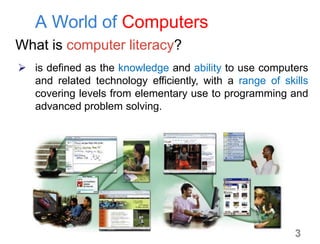
What is computer literacy?
 is defined as the knowledge and ability to use computers
and related technology efficiently, with a range of skills
covering levels from elementary use to programming and
advanced problem solving.
3
5
 Computer is an electronic device that can
accept input data, process data, store data
and produce output according to set of
instructions /program.
Computer Definition
Computer History…
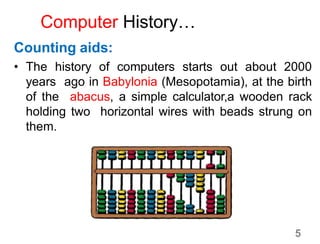
Counting aids:
• The history of computers starts out about 2000
years ago in Babylonia (Mesopotamia), at the birth
of the abacus, a simple calculator,a wooden rack
holding two horizontal wires with beads strung on
them.
5
Computer History…
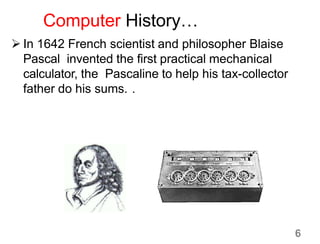
 In 1642 French scientist and philosopher Blaise
Pascal invented the first practical mechanical
calculator, the Pascaline to help his tax-collector
father do his sums. .
6
7
Computer History…
• In 1671, German mathematician and
philosopher Gottfried Wilhelm Leibniz came
up with a similar but more advanced
machine.
• The Leibniz machine could do much more
than Pascal's: as well as adding and
subtracting, it could multiply, divide, and work
out square roots.
• Another pioneering feature was the first
memory store or "register."
8
Computer History…
Programmable calculator (Engines of
calculation):
CharlesBabbage is considered to
be the father of
modern digital computers.
He designed “Difference Engine” in 1822.
He designeda fully automatic analytical
engine in 1842 for performing basic
arithmetic functions.
His efforts establisheda number of
principles that arefundamental to the
design of any digital computer.
9
Computer History…
• The Z1, originally created by Germany's
Konrad Zuse in his parents' living room in
1936 to 1938 and is considered to be the first
electro- mechanical binary programmable
(modern) computer and really the first
functional computer.
• In 1946 John Mauchly and J. Presper Eckert
invented the world's first fully electronic,
general- purpose, digital computer --
Electronic Numerical Integrator And
Calculator (ENIAC)
10
Computer History…
• By 1974, Intel had launched a popular
microprocessor known as the 8080 and
computer hobbyists were soon building
home computers around it.
• The first was the MITS Altair 8800, built
by Ed Roberts.
• From this time processor based
modern computers evolved largely.
11
Characteristics of Computer
1. Speed: The speed o f a computer in
processing information is increasing from
time to time and computers can calculate at
very high speed.
2. Accuracy: The accuracy of a computer
system is very high provided that the data
and the program given to it are accurate.
Error in computer data processing is mostly human
factor. The program may be wrongly coded or the
data may be wrongly entered.
12
3. Storage: Computers can store large
amount of data using their memory unit
4. Versatility: Computers can be programmed
and applied for different purposes. People
can use
computers for different applications.
5. Diligence: The computer does the same
thing repeatedly without saying “I am
tired or I am bored”.
Characteristics of computer…
13
Limitations of Computer
 No I.Q:
– A computer is a machine that has no intelligence to
perform any task.
– Each instruction has to be given to computer.
– A computer cannot take any decision on its own.
 Dependency
– It functions as per a user’s instruction, so it is fully
dependent on human being
 Environment
– The operating environment of computer should be dust
free and suitable.
 No Feeling
– Computers have no feelings or emotions.
– It cannot make judgment based on feeling, taste,
experience, and knowledge unlike a human being.
14
Types of Computers
Criteria's:
• Based on the operational
principle(hardware structure and the way
physical quantities are represented in a
computer)
• Based on their processing power, cost and
size
15
Types of Computers…
• Based on the operational principle,
computers can be classified into three
categories:
1. Analog computer
2. Digital computer
3. Hybrid computer
16
Analog Computers
• Analog computers are used to process
analog data.
• Analog data is of continuous nature and
which is not discrete or separate such as
temperature, pressure, speed weight,
voltage, depth etc.
• Utilize mechanical or electrical
energy to operate.
• Analog computers are the first computers
being developed and provided the basis for
the development of the modern digital
computers.
17
Analog Computers…
• Analog computers are widely used for certain
specialized engineering and scientific
applications, for calculation and
measurement of analog quantities.
• These computers are ideal in situations
where data can be accepted directly from
measuring instrument without having to
convert it into numbers or codes.
Examples: The Speedometer of a car
measures speed, the change of temperature
is measured by a Thermometer, etc.
18
Digital Computers
• They use digital circuits and are designed to
operate on two states, namely bits 0 and 1.
They are analogous to states ON and OFF.
• Data on these computers is represented
as a series of 0s and 1s.
• Digital computers are suitable for complex
computation and have higher processing
speeds.
• They are programmable.
19
Digital Computers…
• Digital computers are either special
purpose computers or general purpose
ones.
• Special purpose computers, as their name
suggests, are designed for specific types of
data processing while general purpose
computers are meant for general use.
• Most of the computers available today are
digital computers.
• The most common examples of digital
computers are accounting machines and
calculators.
• Analog computers lack digital memory
where as digital computers store
information.
20
Digital Computers…
Examples:
• IBM PC
• Apple Macintosh
• Digital
calculators
• Digital watches
etc
21
Hybrid Computers
• These computers are a combination of
both digital and analog computers.
• In this type of computers, the digital
segments perform process control by
conversion of analog signals to digital ones.
• Hybrid computers for example are used
for scientific calculations, in defense
and radar systems.
22
Hybrid Computers…
• For example a petrol pump contains a
processor that converts fuel flow
measurements into quantity and price
values.
• In hospital Intensive Care Unit (ICU), an
analog device is used which measures
patient's blood pressure and temperature
etc, which are then converted and
displayed in the form of digits.
• Radar systems are another example.
23
Cont’d
…• Based on their processing power (speed),
cost and size computers can be classified
into 4 types:
a) Micro computers
b) Minicomputers
c) Mainframe computers
d) Super computers
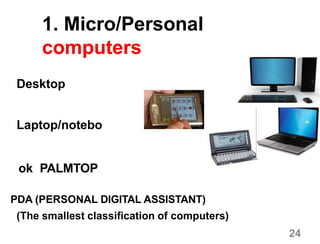
1. Micro/Personal
computers
Desktop
Laptop/notebo
ok PALMTOP
PDA (PERSONAL DIGITAL ASSISTANT)
(The smallest classification of computers)
24
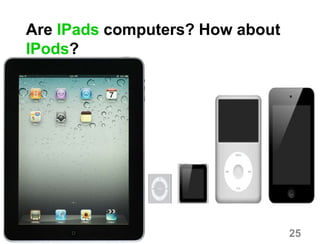
Are IPads computers? How about
IPods?
25
2. Minicomputer
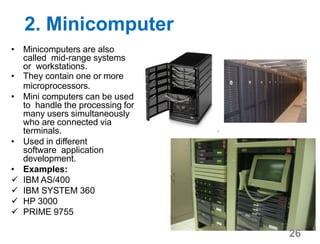
• Minicomputers are also
called mid-range systems
or workstations.
• They contain one or more
microprocessors.
• Mini computers can be used
to handle the processing for
many users simultaneously
who are connected via
terminals.
• Used in different
software application
development.
• Examples:
 IBM AS/400
 IBM SYSTEM 360
 HP 3000
 PRIME 9755
26
3. Mainframe computers
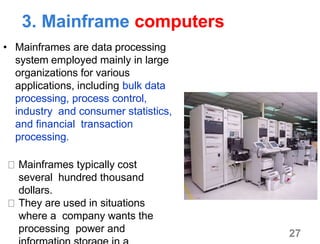
• Mainframes are data processing
system employed mainly in large
organizations for various
applications, including bulk data
processing, process control,
industry and consumer statistics,
and financial transaction
processing.
Mainframes typically cost
several hundred thousand
dollars.
They are used in situations
where a company wants the
processing power and 27
28
Mainframe computers…
• A mainframe computer may contain
several microprocessors.
• A single mainframe computer can be
used by hundreds of people at once.
• A mainframe computer system is usually
composed of several computers in addition to
the mainframe, or host processor.
Examples:
• IBM S/390
• Amdahl 580
• Control Data Cyber 176
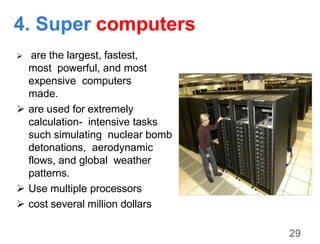
4. Super computers
 are the largest, fastest,
most powerful, and most
expensive computers
made.
 are used for extremely
calculation- intensive tasks
such simulating nuclear bomb
detonations, aerodynamic
flows, and global weather
patterns.
 Use multiple processors
 cost several million dollars
29
30
Super computers…
Features:
• The aerospace, automotive, chemical,
electronics and petroleum industries use
supercomputers extensively.
• Supercomputers are used in weather
forecasting.
• The ultra supercomputer will simulate
nuclear explosions (eliminating the need to
explode any bombs).
• Supercomputers can perform at up to 128
gigaflops, and use bus widths of 32 or 64 bits.
This capability makes supercomputers suitable
for processor- intensive applications, such as
graphics.
31
Super computers…
EXAMPLE:
Cray-1
Cray-2
Control Data Cyber
205
 ETA
32
Applications of Computer
The various applications of computers in
today's arena include:
Home
Health Care
Business
Banking
Insurance
Education
Marketing
Engineering Design
Military
Communication
Government
33
In HealthCare
To keep the record of patients and
medicines.
Used in scanning and diagnosing
different diseases.
ECG, Ultrasounds and CT Scans etc.,
are also done by computerized
machines.
34
In HealthCare…
 Some major fields of health care in which
computers are used are:
• Diagnostic System - Computers are used to
collect data and identify cause of illness.
• Lab-diagnostic System - All tests can be done and
reports are prepared by computer.
• Patient Monitoring System - These are used to
check patient's signs for abnormality such as in
Cardiac Arrest, ECG etc.
• Pharmacy Information System - Computer
checks Drug- Labels, Expiry dates, harmful drug’s
side effects etc.
• Surgery : Nowadays, computers are also
used in performing surgery.
35
Computer System
36
Computer System
Computer system consists of two parts:
1. Computer Hardware
– A generic name for the various devices that
make up a computer system
2. Computer Software
– Set of instructions that direct the
computer hardware to perform a
particular task
37
Hardwar
e• Any visible part of a computer which can be seen and
touched is known as hardware.
• Hardware components are involved in the data processing
cycle as an input, output or as both.
• On data processing cycle, there are hardware devices used
to enter data which are known as input devices and other
hardware devices used to display the information are
known as output devices but there are also devices used
as both input and output devices.
• Moreover others are involved in the processing cycle such
as CPU, RAM, ROM.
38
Hardware
Components1. Input Unit – feeds data & instruction to the computer
system
2. Output Unit – displays / prints the results of the
processing
3. CPU – is the brain of the computer that caries out
the processing of the data as per the instructions
4. Memory – stores data and programs within and/or outside
the computer system
5. Power supply– used to convert AC into DC and
provide
appropriate power for each of internal components of a
PC.
39
Input Devices
• Input is all information put into a computer.
• Input can be supplied from a variety of
sources:
– A person
– A storage device on computer
– Another computer
– A peripheral device
– Another piece of equipment, such as a
musical instrument or thermometer
40
Input Devices…
• Input devicesgather and translate data into
a form the computer understands.
• Primary input devices:
– Keyboard - Most common input device; used to
type in commands and data.
– Mouse or trackball: enhances
user’s ability to input commands, manipulate
text, images.
41
Input Devices…
• Scanners: are peripheral input devices
which allow users to import:
– Text
– Graphics
– Images
• Specialized software aids in translating
information into a format the computer
can understand and manipulate.
42
Input Devices…
• Digital Cameras: are peripheral input
devices that allow users to create
pictures and/or movies in a digital
format.
–Some require specialized software to
import images into the computer.
–Some record digital images directly to a
disk that can be read by the computer.
Some input devices
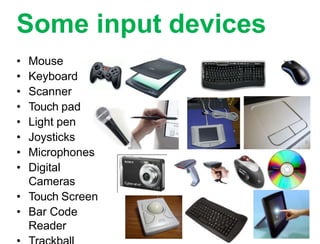
• Mouse
• Keyboard
• Scanner
• Touch pad
• Light pen
• Joysticks
• Microphones
• Digital
Cameras
• Touch Screen
• Bar Code
Reader
44
Output Devices
Used to display processed information to the
user either in softcopy or hardcopy
Soft copy – output displayed on a computer
screen. It is the primary output medium.
E.g. Monitor, speaker, LCD projector
Hard copy – output produced on paper or
micro film.
E.g. Printers, plotters, …
44
45
Output Devices…
• Monitors: are the most commonly used
output device.
• Most monitors use a bitmap display.
– Allows user to resize the display.
– Divides the screen into a matrix of tiny square
“dots” called pixels.
– The more “dots” a screen can display, the higher
the
resolution of the monitor.
46
Output Devices…
• Monitors are connected to a computer
system via a port integrated on the video
adapter or graphics card.
• Graphics cards convert digital data output
from software to analog data for display on
monitors.
Output Devices…
Printer
• Most widely used output devices to prepare
printed paper documents
• There are Impact and Non-impact printers
• Impact printers
Form characters by striking an inked ribbon
with hammers against paper
E.g. Dot matrix printers & ink printers
47
Output Devices…
• Non-impact printers:
Form characters without physical contact
between a printer and paper
E.g. Laser jet printers
Plotters
capable of drawing complex shapes with
multiple colors
48
Output Devices…
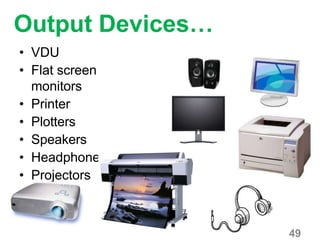
• VDU
• Flat screen
monitors
• Printer
• Plotters
• Speakers
• Headphone
• Projectors
49
Central Processing Unit
• CPU or microprocessor is often described
as the brain of a computer.
• CPU is an integrated circuit or “chip” which
processes instructions and data.
It is the place where data processing takes place
• The system's memory also plays a crucial role in
processing data.
• Both the CPU and memory are attached to the
system's motherboard, which connects all the
computer's devices together, enabling them to
communicate.
50
51
CPU Speed
• CPUspeed is measured by the number of
completed instruction cycles per second
–Currently, CPU speeds
range
from
600 megahertz (MHz or
million cycles persecond) to 4 gigahertz (GHz or billion
cycles per second).
• Always check new software’s requirements
for CPU type and speed before
purchasing.
Main parts of CPU
Arithmetic and Logical Unit (ALU)
The control unit
Registers
52
The Control Unit
Controls the entire operation of the computer.
Directs the flow of data through the CPU, and to
and from other devices.
The control unit stores the CPU's microcode,
which contains the instructions for all the tasks
the CPU can perform.
53
The Arithmetic Logic Unit
The actual manipulation of data takes place in
the ALU.
Performs the arithmetic operations and the
logical comparisons
Controls the speed of calculations;
Larger & powerful computers speed are measured in:
Pico seconds
Nano seconds, etc.
54
55
Registers
 A special storage location within CPU which temporarily
hold data and program instructions while they are being
processed.
 Small amount of very fast memory built in CPU
 Registers are normally measured in the number of bits, 8,
32, 64. It means it can store 8, 32 and 64 bits of data
respectively.
 Both the ALU and control units are connected to registers,
such that to execute an instruction the control units
retrieves data from main memory and places it into a
register and after processing the results are stored in
register.
56
Bus
• Refers to an electronic highway through which
information are transmitted between the various
components
• A bus(transmission path) is a path between the
components of a computer. Data and instructions travel
along these paths.
• Different types of bus
• Data bus
• Address bus
• Control bus
57
Bus…
• The bus width determines how many
bits can be transmitted between the CPU
and other devices.
• A 64 bits wide bus carries 8 characters at
a time
• The wider the data bus the more data it
can carry at one time
58
Computer
Memory• Computer memory refers to devices that are
used to store data or programs (sequence of
instructions) on temporary or permanent
basis.
• You can store data on your hard disk, that
used to store data permanently, while data
which is being processed is stored in RAM
(Random Access Memory)
59
How computer memory is
measured?• Bit:1 or 0 level of storage
• Byte: A byte consists of eight bits.
• Kilobyte: A kilobyte (KB) consists of 1024
bytes.
• Megabyte: A megabyte (MB) consists of
1024 kilobytes, approximately 1,000,000
bytes.
• Gigabyte: A gigabyte (GB) consists of 1024
megabytes, approximately 1,000,000,000
bytes.
• Terabyte: A terabyte (TB) consists of
approximately 1,000,000,000,000 bytes.
60
Types of Computer Memory
Computer memory or storage devices
are classified into two broad
categories:
i. Primary memory / storage
 Internal storage
 RAM and ROM
ii. Secondary memory / storage
 External storage
 CD / DVD, Hard disk, floppy disk, magnetic
tape
61
Primary Memory
Two types of primary memory:
• Main memory (RAM):
 The main working area of the computer
 The CPU can utilize only those
instructions and data that are stored in
main memory
• ROM:
 Stores small programs permanently
62
RA
M• Stands for Random Access Memory
• “Waiting room” for computer’s CPU.
• Working place of computer used to store
data temporarily.
• Holds instructions for processing
data, processed data, and raw
data.
• The amount of RAM in a PC has a direct
impact on the system's speed.
63
RAM…
• The more RAM a PC has, the more program
instructions and data can be held in
memory, which is faster than storage on
disk.
• Ram is measured by:
–Capacity (in Megabytes or Gigabytes)
–Speed (in Nanoseconds)
64
RAM
…• All software applications will have RAM
specifications listed on their packaging.
• Many applications list both a minimum and a
recommended amount of RAM necessary to
run the software.
• Be cautious about buying software for a
system based on minimum requirement.
65
RO
M
• Read Only Memory (ROM) as the name
suggests is a special type of memory chip
which holds software which can be read
but not written to.
• A good example is the ROM-BIOS chip,
which contains read-only software.
• Often network cards and video cards also
contain ROM chips.
66
Comparison
RAM
• Volatile
• Working area of computer
(stores data and program
code needed by the CPU)
• Allows both read and write
ROM
• Non-volatile
• Permanently stores
programs
• Allows read only
67
Secondary Storage Devices
 Storage devices designed to retain data and
instruction in a more permanent form.
 Non-volatile storage media.
 Capacity and speed are important
considerations when selecting a new storage
device for a PC.
 Currently used ones:
• hard disks,
• floppy disk,
• optical disk (CD)
• Versatile disk (DVD)
• Flash disk
68
Storage Technology
• Magnetic storage devices store data
by magnetizing particles on a
disk or tape.
• Optical storage devices store data as light
and dark spots on the disk surface.
69
Magnetic storage devices
Hard Disks:
• Capacity is measured in gigabytes(GB)
or Terabytes(TB).
• Typically permanently installed.
• Used to store operating system,
application software, utilities and
data.
Exercise:
What is Hard Disk Drive?
70
Magnetic storage devices..
Internal Hard Disks:
• Store all your files and folders permanently.
• Speed: Very fast. The speed of a hard disk is
often quoted as “average access time” speed,
measured in milliseconds. The smaller this
number, the faster the disk is.
• Capacity: Enormous, Measured in Gigabytes
Terabytes.
• Cost: cheapest way of storing data.
71
Magnetic storage devices…
External Hard Disks:
• Another type of hard disk is an external hard disk that is
placed outside the computer.
• This is helpful for computers that have no spaceinside
the cabinet for installing extra hard drive.
• A big advantage of this type of drive is that backup of data
is easier.
• Speed: Normally slower than internal disks, but
more expensive than internal disks.
• Capacity: Same as internal disks.
• Cost: More expensive than internal disks.
72
Magnetic storage devices…
Floppy Disks:
• Capacity is 1.44 to 2.0 megabytes (MB or
millions of bytes).
–Storage device with the smallest capacity
–Most portable storage media
Exercise
What is Floppy Disk Drive?
73
Magnetic storage devices…
Magnetic Disk /Tape:
• Generally used for system backups,
becoming less common.
Exercise:
What about Flash Disk?
74
Optical storage devices
CD-ROM Drives:
• Typically installed on all new computer
systems.
• Usedto read data from CDand write data to
a CD by a laser.
CD:
Used to store data and programs.
Capacity is 600 to 750 MB .
Most mass-producedcommercial software
is packaged on a CD.
75
Optical storage devices…
DVD drives:
• Used to read data from the DVD and write
data to the DVD by laser.
• Can also read CDs, now more common
as a standard device on new computer
systems.
DVD:
Store large amount of data.
Capacity is 4.7GB.
76
Exercise--
• List and discuss the common types
of CD?
• List and discuss the common types
of DVD?
77
Computer
software
78
Computer Software
What is software?
• Consists of a series of instructions that tells the
computer what to do, when to do and how to
do it.
• Instructions and associated data, stored in
electronic format, that direct the computer to
accomplish a task.
• Also called a program.
• Computer programmers write the
codes/instructions that make-up software
applications/programs.
79
Types of Software
1. System
Software
2. Application
Software
80
System Software
 Software that can control or maintain
the operations of the computer and its
devices.
 System software can be categorized as:
Operating system
Utilities and drivers
Programming language
81
Operating System Software
An Operating System (OS) is the
master controller within a computer.
Coordinates all activities among
computer hardware devices.
An operating system interacts with:
– All hardware installed in or connected
to a computer system.
– All software installed or running from a
storage device on a computer system.
82
Operating System
Software…Directs all the activities and sets all the
rules for how the hardware and software
will work together.
Common operating system software:
Microsoft Windows
Mac OS
Network operating system (NOS)
83
Operating System
Software…Microsoft Windows:
– Most popular operating system.
– Supports a vast array of application software
and peripheral devices.
Examples:
DOS, Windows 95, 98, ME, NT, XP,7,8,10
Mac OS:
– For Apple computers.
– Does not have same functionality
and
support for
software and peripheral
devices.
Examples:
MAC system OS 6,7,8,9,10
84
Operating System Software…
Network operating system (NOS):
– Manages network resources.
– Maintains security.
– Tracks user accounts.
– Handles communication between workstations
and servers.
Popular network operating systems:
Windows NT /server, Novell Netware, UNIX
85
Utilities and Drivers
• Utility Programs allow the user to perform
maintenance-type tasks usually related to
managing a computer, its devices or its
programs.
• Utilities provide file management
capabilities such as copying,
moving or renaming a file.
• Drivers are usually used to allow some devices to
communicate with the operating system.
86
Programming Languages
• Basic building blocks of any software.
• Programming languages allow a
programmer to write instructions that a
computer can understand.
• Programming languages have
some resemblance to the English
language.
– Visual basic
– Pascal
– Fortran
– C++
– Java
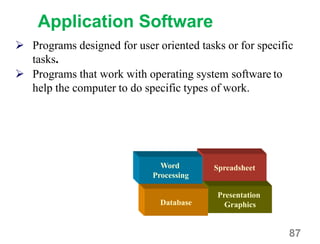
Application Software
Presentation
Graphics
Spreadsheet
Database
Word
Processing
87
 Programs designed for user oriented tasks or for specific
tasks.
 Programs that work with operating system software to
help the computer to do specific types of work.
88
Application Software…
1. Business software: word processors,
spreadsheets, and database programs.
2. Communication software: allows
computers to communicate with other
computers
– E.g fax software, Novell NetWare,
AOL, Modem Software.
3. Graphics software: software that allows
users to create and manipulate graphics.
– E.g Photoshop, Print Shop, etc.
89
Application Software…
4. Education and Reference software: Programs
that help teach new material and ideas, and
programs that can be used to find information
– E.g: Encarta, Worldbook Encyclopedia,
Kindergarten
5. Entertainment and Leisure software:
Jumpsta
rt
– E.g: Warcraft, Age of Empires, Barbie Design
Center, Pacman, Solitair
6. Integrated software:
Combines software
into one program or
several types of
package,
Quicken(Spreadsheet /data base /communications
/reference) or Print Shop (Graphics /Word
processor).
90
Application Software…
 Productivity Software:
• Spreadsheets
• Databases
 Presentation Software
• Presentation software
 Document Preparation
• Word Processing
• Desktop Publishing
 Project Management Software
91
Application Software…
Graphics Creation and
Manipulation
Video Editing
Internet Connectivity
Website Creation and
Management
Financial Management
Educational Games and Tutorials
92
Examples of software Usage
 What software is available for a home user?
 Personal finance management
 Web access
 Communications
 Entertainment
What software is available for a small
office/home office (SOHO) user?
 Productivity software
 Web usage
 E-mail
93
Examples of software Usage…
What are the needs of the large business
user?
 Payroll
 Inventory
 E-commerce
 Desktop publishing
Computer Applications in Society
What are some examples of
computer applications in society?
Education
Finance
Government
Healthcare
Science
Publishing
Travel
Manufacturing
Next
95
Introduction of computer

Introduction of computer

  • 1.
    1 CHAPTER 1 : Introductionto Computer By- Atul Yadav
  • 2.
    2 Lesson Objectives: At theend of this lesson students should: • Define computer • Know the history of computer • Identify and understand important characteristics of computer • Identify different types of computer • Understand different applications of computers • Know components of computer system (hardware and software
  • 3.
    A World ofComputers What is computer literacy?  is defined as the knowledge and ability to use computers and related technology efficiently, with a range of skills covering levels from elementary use to programming and advanced problem solving. 3
  • 4.
    5  Computer isan electronic device that can accept input data, process data, store data and produce output according to set of instructions /program. Computer Definition
  • 5.
    Computer History… Counting aids: •The history of computers starts out about 2000 years ago in Babylonia (Mesopotamia), at the birth of the abacus, a simple calculator,a wooden rack holding two horizontal wires with beads strung on them. 5
  • 6.
    Computer History…  In1642 French scientist and philosopher Blaise Pascal invented the first practical mechanical calculator, the Pascaline to help his tax-collector father do his sums. . 6
  • 7.
    7 Computer History… • In1671, German mathematician and philosopher Gottfried Wilhelm Leibniz came up with a similar but more advanced machine. • The Leibniz machine could do much more than Pascal's: as well as adding and subtracting, it could multiply, divide, and work out square roots. • Another pioneering feature was the first memory store or "register."
  • 8.
    8 Computer History… Programmable calculator(Engines of calculation): CharlesBabbage is considered to be the father of modern digital computers. He designed “Difference Engine” in 1822. He designeda fully automatic analytical engine in 1842 for performing basic arithmetic functions. His efforts establisheda number of principles that arefundamental to the design of any digital computer.
  • 9.
    9 Computer History… • TheZ1, originally created by Germany's Konrad Zuse in his parents' living room in 1936 to 1938 and is considered to be the first electro- mechanical binary programmable (modern) computer and really the first functional computer. • In 1946 John Mauchly and J. Presper Eckert invented the world's first fully electronic, general- purpose, digital computer -- Electronic Numerical Integrator And Calculator (ENIAC)
  • 10.
    10 Computer History… • By1974, Intel had launched a popular microprocessor known as the 8080 and computer hobbyists were soon building home computers around it. • The first was the MITS Altair 8800, built by Ed Roberts. • From this time processor based modern computers evolved largely.
  • 11.
    11 Characteristics of Computer 1.Speed: The speed o f a computer in processing information is increasing from time to time and computers can calculate at very high speed. 2. Accuracy: The accuracy of a computer system is very high provided that the data and the program given to it are accurate. Error in computer data processing is mostly human factor. The program may be wrongly coded or the data may be wrongly entered.
  • 12.
    12 3. Storage: Computerscan store large amount of data using their memory unit 4. Versatility: Computers can be programmed and applied for different purposes. People can use computers for different applications. 5. Diligence: The computer does the same thing repeatedly without saying “I am tired or I am bored”. Characteristics of computer…
  • 13.
    13 Limitations of Computer No I.Q: – A computer is a machine that has no intelligence to perform any task. – Each instruction has to be given to computer. – A computer cannot take any decision on its own.  Dependency – It functions as per a user’s instruction, so it is fully dependent on human being  Environment – The operating environment of computer should be dust free and suitable.  No Feeling – Computers have no feelings or emotions. – It cannot make judgment based on feeling, taste, experience, and knowledge unlike a human being.
  • 14.
    14 Types of Computers Criteria's: •Based on the operational principle(hardware structure and the way physical quantities are represented in a computer) • Based on their processing power, cost and size
  • 15.
    15 Types of Computers… •Based on the operational principle, computers can be classified into three categories: 1. Analog computer 2. Digital computer 3. Hybrid computer
  • 16.
    16 Analog Computers • Analogcomputers are used to process analog data. • Analog data is of continuous nature and which is not discrete or separate such as temperature, pressure, speed weight, voltage, depth etc. • Utilize mechanical or electrical energy to operate. • Analog computers are the first computers being developed and provided the basis for the development of the modern digital computers.
  • 17.
    17 Analog Computers… • Analogcomputers are widely used for certain specialized engineering and scientific applications, for calculation and measurement of analog quantities. • These computers are ideal in situations where data can be accepted directly from measuring instrument without having to convert it into numbers or codes. Examples: The Speedometer of a car measures speed, the change of temperature is measured by a Thermometer, etc.
  • 18.
    18 Digital Computers • Theyuse digital circuits and are designed to operate on two states, namely bits 0 and 1. They are analogous to states ON and OFF. • Data on these computers is represented as a series of 0s and 1s. • Digital computers are suitable for complex computation and have higher processing speeds. • They are programmable.
  • 19.
    19 Digital Computers… • Digitalcomputers are either special purpose computers or general purpose ones. • Special purpose computers, as their name suggests, are designed for specific types of data processing while general purpose computers are meant for general use. • Most of the computers available today are digital computers. • The most common examples of digital computers are accounting machines and calculators. • Analog computers lack digital memory where as digital computers store information.
  • 20.
    20 Digital Computers… Examples: • IBMPC • Apple Macintosh • Digital calculators • Digital watches etc
  • 21.
    21 Hybrid Computers • Thesecomputers are a combination of both digital and analog computers. • In this type of computers, the digital segments perform process control by conversion of analog signals to digital ones. • Hybrid computers for example are used for scientific calculations, in defense and radar systems.
  • 22.
    22 Hybrid Computers… • Forexample a petrol pump contains a processor that converts fuel flow measurements into quantity and price values. • In hospital Intensive Care Unit (ICU), an analog device is used which measures patient's blood pressure and temperature etc, which are then converted and displayed in the form of digits. • Radar systems are another example.
  • 23.
    23 Cont’d …• Based ontheir processing power (speed), cost and size computers can be classified into 4 types: a) Micro computers b) Minicomputers c) Mainframe computers d) Super computers
  • 24.
    1. Micro/Personal computers Desktop Laptop/notebo ok PALMTOP PDA(PERSONAL DIGITAL ASSISTANT) (The smallest classification of computers) 24
  • 25.
    Are IPads computers?How about IPods? 25
  • 26.
    2. Minicomputer • Minicomputersare also called mid-range systems or workstations. • They contain one or more microprocessors. • Mini computers can be used to handle the processing for many users simultaneously who are connected via terminals. • Used in different software application development. • Examples:  IBM AS/400  IBM SYSTEM 360  HP 3000  PRIME 9755 26
  • 27.
    3. Mainframe computers •Mainframes are data processing system employed mainly in large organizations for various applications, including bulk data processing, process control, industry and consumer statistics, and financial transaction processing. Mainframes typically cost several hundred thousand dollars. They are used in situations where a company wants the processing power and 27
  • 28.
    28 Mainframe computers… • Amainframe computer may contain several microprocessors. • A single mainframe computer can be used by hundreds of people at once. • A mainframe computer system is usually composed of several computers in addition to the mainframe, or host processor. Examples: • IBM S/390 • Amdahl 580 • Control Data Cyber 176
  • 29.
    4. Super computers are the largest, fastest, most powerful, and most expensive computers made.  are used for extremely calculation- intensive tasks such simulating nuclear bomb detonations, aerodynamic flows, and global weather patterns.  Use multiple processors  cost several million dollars 29
  • 30.
    30 Super computers… Features: • Theaerospace, automotive, chemical, electronics and petroleum industries use supercomputers extensively. • Supercomputers are used in weather forecasting. • The ultra supercomputer will simulate nuclear explosions (eliminating the need to explode any bombs). • Supercomputers can perform at up to 128 gigaflops, and use bus widths of 32 or 64 bits. This capability makes supercomputers suitable for processor- intensive applications, such as graphics.
  • 31.
  • 32.
    32 Applications of Computer Thevarious applications of computers in today's arena include: Home Health Care Business Banking Insurance Education Marketing Engineering Design Military Communication Government
  • 33.
    33 In HealthCare To keepthe record of patients and medicines. Used in scanning and diagnosing different diseases. ECG, Ultrasounds and CT Scans etc., are also done by computerized machines.
  • 34.
    34 In HealthCare…  Somemajor fields of health care in which computers are used are: • Diagnostic System - Computers are used to collect data and identify cause of illness. • Lab-diagnostic System - All tests can be done and reports are prepared by computer. • Patient Monitoring System - These are used to check patient's signs for abnormality such as in Cardiac Arrest, ECG etc. • Pharmacy Information System - Computer checks Drug- Labels, Expiry dates, harmful drug’s side effects etc. • Surgery : Nowadays, computers are also used in performing surgery.
  • 35.
  • 36.
    36 Computer System Computer systemconsists of two parts: 1. Computer Hardware – A generic name for the various devices that make up a computer system 2. Computer Software – Set of instructions that direct the computer hardware to perform a particular task
  • 37.
    37 Hardwar e• Any visiblepart of a computer which can be seen and touched is known as hardware. • Hardware components are involved in the data processing cycle as an input, output or as both. • On data processing cycle, there are hardware devices used to enter data which are known as input devices and other hardware devices used to display the information are known as output devices but there are also devices used as both input and output devices. • Moreover others are involved in the processing cycle such as CPU, RAM, ROM.
  • 38.
    38 Hardware Components1. Input Unit– feeds data & instruction to the computer system 2. Output Unit – displays / prints the results of the processing 3. CPU – is the brain of the computer that caries out the processing of the data as per the instructions 4. Memory – stores data and programs within and/or outside the computer system 5. Power supply– used to convert AC into DC and provide appropriate power for each of internal components of a PC.
  • 39.
    39 Input Devices • Inputis all information put into a computer. • Input can be supplied from a variety of sources: – A person – A storage device on computer – Another computer – A peripheral device – Another piece of equipment, such as a musical instrument or thermometer
  • 40.
    40 Input Devices… • Inputdevicesgather and translate data into a form the computer understands. • Primary input devices: – Keyboard - Most common input device; used to type in commands and data. – Mouse or trackball: enhances user’s ability to input commands, manipulate text, images.
  • 41.
    41 Input Devices… • Scanners:are peripheral input devices which allow users to import: – Text – Graphics – Images • Specialized software aids in translating information into a format the computer can understand and manipulate.
  • 42.
    42 Input Devices… • DigitalCameras: are peripheral input devices that allow users to create pictures and/or movies in a digital format. –Some require specialized software to import images into the computer. –Some record digital images directly to a disk that can be read by the computer.
  • 43.
    Some input devices •Mouse • Keyboard • Scanner • Touch pad • Light pen • Joysticks • Microphones • Digital Cameras • Touch Screen • Bar Code Reader 44
  • 44.
    Output Devices Used todisplay processed information to the user either in softcopy or hardcopy Soft copy – output displayed on a computer screen. It is the primary output medium. E.g. Monitor, speaker, LCD projector Hard copy – output produced on paper or micro film. E.g. Printers, plotters, … 44
  • 45.
    45 Output Devices… • Monitors:are the most commonly used output device. • Most monitors use a bitmap display. – Allows user to resize the display. – Divides the screen into a matrix of tiny square “dots” called pixels. – The more “dots” a screen can display, the higher the resolution of the monitor.
  • 46.
    46 Output Devices… • Monitorsare connected to a computer system via a port integrated on the video adapter or graphics card. • Graphics cards convert digital data output from software to analog data for display on monitors.
  • 47.
    Output Devices… Printer • Mostwidely used output devices to prepare printed paper documents • There are Impact and Non-impact printers • Impact printers Form characters by striking an inked ribbon with hammers against paper E.g. Dot matrix printers & ink printers 47
  • 48.
    Output Devices… • Non-impactprinters: Form characters without physical contact between a printer and paper E.g. Laser jet printers Plotters capable of drawing complex shapes with multiple colors 48
  • 49.
    Output Devices… • VDU •Flat screen monitors • Printer • Plotters • Speakers • Headphone • Projectors 49
  • 50.
    Central Processing Unit •CPU or microprocessor is often described as the brain of a computer. • CPU is an integrated circuit or “chip” which processes instructions and data. It is the place where data processing takes place • The system's memory also plays a crucial role in processing data. • Both the CPU and memory are attached to the system's motherboard, which connects all the computer's devices together, enabling them to communicate. 50
  • 51.
    51 CPU Speed • CPUspeedis measured by the number of completed instruction cycles per second –Currently, CPU speeds range from 600 megahertz (MHz or million cycles persecond) to 4 gigahertz (GHz or billion cycles per second). • Always check new software’s requirements for CPU type and speed before purchasing.
  • 52.
    Main parts ofCPU Arithmetic and Logical Unit (ALU) The control unit Registers 52
  • 53.
    The Control Unit Controlsthe entire operation of the computer. Directs the flow of data through the CPU, and to and from other devices. The control unit stores the CPU's microcode, which contains the instructions for all the tasks the CPU can perform. 53
  • 54.
    The Arithmetic LogicUnit The actual manipulation of data takes place in the ALU. Performs the arithmetic operations and the logical comparisons Controls the speed of calculations; Larger & powerful computers speed are measured in: Pico seconds Nano seconds, etc. 54
  • 55.
    55 Registers  A specialstorage location within CPU which temporarily hold data and program instructions while they are being processed.  Small amount of very fast memory built in CPU  Registers are normally measured in the number of bits, 8, 32, 64. It means it can store 8, 32 and 64 bits of data respectively.  Both the ALU and control units are connected to registers, such that to execute an instruction the control units retrieves data from main memory and places it into a register and after processing the results are stored in register.
  • 56.
    56 Bus • Refers toan electronic highway through which information are transmitted between the various components • A bus(transmission path) is a path between the components of a computer. Data and instructions travel along these paths. • Different types of bus • Data bus • Address bus • Control bus
  • 57.
    57 Bus… • The buswidth determines how many bits can be transmitted between the CPU and other devices. • A 64 bits wide bus carries 8 characters at a time • The wider the data bus the more data it can carry at one time
  • 58.
    58 Computer Memory• Computer memoryrefers to devices that are used to store data or programs (sequence of instructions) on temporary or permanent basis. • You can store data on your hard disk, that used to store data permanently, while data which is being processed is stored in RAM (Random Access Memory)
  • 59.
    59 How computer memoryis measured?• Bit:1 or 0 level of storage • Byte: A byte consists of eight bits. • Kilobyte: A kilobyte (KB) consists of 1024 bytes. • Megabyte: A megabyte (MB) consists of 1024 kilobytes, approximately 1,000,000 bytes. • Gigabyte: A gigabyte (GB) consists of 1024 megabytes, approximately 1,000,000,000 bytes. • Terabyte: A terabyte (TB) consists of approximately 1,000,000,000,000 bytes.
  • 60.
    60 Types of ComputerMemory Computer memory or storage devices are classified into two broad categories: i. Primary memory / storage  Internal storage  RAM and ROM ii. Secondary memory / storage  External storage  CD / DVD, Hard disk, floppy disk, magnetic tape
  • 61.
    61 Primary Memory Two typesof primary memory: • Main memory (RAM):  The main working area of the computer  The CPU can utilize only those instructions and data that are stored in main memory • ROM:  Stores small programs permanently
  • 62.
    62 RA M• Stands forRandom Access Memory • “Waiting room” for computer’s CPU. • Working place of computer used to store data temporarily. • Holds instructions for processing data, processed data, and raw data. • The amount of RAM in a PC has a direct impact on the system's speed.
  • 63.
    63 RAM… • The moreRAM a PC has, the more program instructions and data can be held in memory, which is faster than storage on disk. • Ram is measured by: –Capacity (in Megabytes or Gigabytes) –Speed (in Nanoseconds)
  • 64.
    64 RAM …• All softwareapplications will have RAM specifications listed on their packaging. • Many applications list both a minimum and a recommended amount of RAM necessary to run the software. • Be cautious about buying software for a system based on minimum requirement.
  • 65.
    65 RO M • Read OnlyMemory (ROM) as the name suggests is a special type of memory chip which holds software which can be read but not written to. • A good example is the ROM-BIOS chip, which contains read-only software. • Often network cards and video cards also contain ROM chips.
  • 66.
    66 Comparison RAM • Volatile • Workingarea of computer (stores data and program code needed by the CPU) • Allows both read and write ROM • Non-volatile • Permanently stores programs • Allows read only
  • 67.
    67 Secondary Storage Devices Storage devices designed to retain data and instruction in a more permanent form.  Non-volatile storage media.  Capacity and speed are important considerations when selecting a new storage device for a PC.  Currently used ones: • hard disks, • floppy disk, • optical disk (CD) • Versatile disk (DVD) • Flash disk
  • 68.
    68 Storage Technology • Magneticstorage devices store data by magnetizing particles on a disk or tape. • Optical storage devices store data as light and dark spots on the disk surface.
  • 69.
    69 Magnetic storage devices HardDisks: • Capacity is measured in gigabytes(GB) or Terabytes(TB). • Typically permanently installed. • Used to store operating system, application software, utilities and data. Exercise: What is Hard Disk Drive?
  • 70.
    70 Magnetic storage devices.. InternalHard Disks: • Store all your files and folders permanently. • Speed: Very fast. The speed of a hard disk is often quoted as “average access time” speed, measured in milliseconds. The smaller this number, the faster the disk is. • Capacity: Enormous, Measured in Gigabytes Terabytes. • Cost: cheapest way of storing data.
  • 71.
    71 Magnetic storage devices… ExternalHard Disks: • Another type of hard disk is an external hard disk that is placed outside the computer. • This is helpful for computers that have no spaceinside the cabinet for installing extra hard drive. • A big advantage of this type of drive is that backup of data is easier. • Speed: Normally slower than internal disks, but more expensive than internal disks. • Capacity: Same as internal disks. • Cost: More expensive than internal disks.
  • 72.
    72 Magnetic storage devices… FloppyDisks: • Capacity is 1.44 to 2.0 megabytes (MB or millions of bytes). –Storage device with the smallest capacity –Most portable storage media Exercise What is Floppy Disk Drive?
  • 73.
    73 Magnetic storage devices… MagneticDisk /Tape: • Generally used for system backups, becoming less common. Exercise: What about Flash Disk?
  • 74.
    74 Optical storage devices CD-ROMDrives: • Typically installed on all new computer systems. • Usedto read data from CDand write data to a CD by a laser. CD: Used to store data and programs. Capacity is 600 to 750 MB . Most mass-producedcommercial software is packaged on a CD.
  • 75.
    75 Optical storage devices… DVDdrives: • Used to read data from the DVD and write data to the DVD by laser. • Can also read CDs, now more common as a standard device on new computer systems. DVD: Store large amount of data. Capacity is 4.7GB.
  • 76.
    76 Exercise-- • List anddiscuss the common types of CD? • List and discuss the common types of DVD?
  • 77.
  • 78.
    78 Computer Software What issoftware? • Consists of a series of instructions that tells the computer what to do, when to do and how to do it. • Instructions and associated data, stored in electronic format, that direct the computer to accomplish a task. • Also called a program. • Computer programmers write the codes/instructions that make-up software applications/programs.
  • 79.
    79 Types of Software 1.System Software 2. Application Software
  • 80.
    80 System Software  Softwarethat can control or maintain the operations of the computer and its devices.  System software can be categorized as: Operating system Utilities and drivers Programming language
  • 81.
    81 Operating System Software AnOperating System (OS) is the master controller within a computer. Coordinates all activities among computer hardware devices. An operating system interacts with: – All hardware installed in or connected to a computer system. – All software installed or running from a storage device on a computer system.
  • 82.
    82 Operating System Software…Directs allthe activities and sets all the rules for how the hardware and software will work together. Common operating system software: Microsoft Windows Mac OS Network operating system (NOS)
  • 83.
    83 Operating System Software…Microsoft Windows: –Most popular operating system. – Supports a vast array of application software and peripheral devices. Examples: DOS, Windows 95, 98, ME, NT, XP,7,8,10 Mac OS: – For Apple computers. – Does not have same functionality and support for software and peripheral devices. Examples: MAC system OS 6,7,8,9,10
  • 84.
    84 Operating System Software… Networkoperating system (NOS): – Manages network resources. – Maintains security. – Tracks user accounts. – Handles communication between workstations and servers. Popular network operating systems: Windows NT /server, Novell Netware, UNIX
  • 85.
    85 Utilities and Drivers •Utility Programs allow the user to perform maintenance-type tasks usually related to managing a computer, its devices or its programs. • Utilities provide file management capabilities such as copying, moving or renaming a file. • Drivers are usually used to allow some devices to communicate with the operating system.
  • 86.
    86 Programming Languages • Basicbuilding blocks of any software. • Programming languages allow a programmer to write instructions that a computer can understand. • Programming languages have some resemblance to the English language. – Visual basic – Pascal – Fortran – C++ – Java
  • 87.
    Application Software Presentation Graphics Spreadsheet Database Word Processing 87  Programsdesigned for user oriented tasks or for specific tasks.  Programs that work with operating system software to help the computer to do specific types of work.
  • 88.
    88 Application Software… 1. Businesssoftware: word processors, spreadsheets, and database programs. 2. Communication software: allows computers to communicate with other computers – E.g fax software, Novell NetWare, AOL, Modem Software. 3. Graphics software: software that allows users to create and manipulate graphics. – E.g Photoshop, Print Shop, etc.
  • 89.
    89 Application Software… 4. Educationand Reference software: Programs that help teach new material and ideas, and programs that can be used to find information – E.g: Encarta, Worldbook Encyclopedia, Kindergarten 5. Entertainment and Leisure software: Jumpsta rt – E.g: Warcraft, Age of Empires, Barbie Design Center, Pacman, Solitair 6. Integrated software: Combines software into one program or several types of package, Quicken(Spreadsheet /data base /communications /reference) or Print Shop (Graphics /Word processor).
  • 90.
    90 Application Software…  ProductivitySoftware: • Spreadsheets • Databases  Presentation Software • Presentation software  Document Preparation • Word Processing • Desktop Publishing  Project Management Software
  • 91.
    91 Application Software… Graphics Creationand Manipulation Video Editing Internet Connectivity Website Creation and Management Financial Management Educational Games and Tutorials
  • 92.
    92 Examples of softwareUsage  What software is available for a home user?  Personal finance management  Web access  Communications  Entertainment What software is available for a small office/home office (SOHO) user?  Productivity software  Web usage  E-mail
  • 93.
    93 Examples of softwareUsage… What are the needs of the large business user?  Payroll  Inventory  E-commerce  Desktop publishing
  • 94.
    Computer Applications inSociety What are some examples of computer applications in society? Education Finance Government Healthcare Science Publishing Travel Manufacturing Next 95