1 
Varna Free University “Chernorizec Hrabar” 
------------------------------------------------------------------------- 
Institute of Technology 
Introduction to 
Computer Networking 
Prof. Teodora Bakardjieva
2 
1.0 Introduction 
The purpose of the networking guidelines are as follows: 
 to assist students in understanding the benefits of networking 
 to help students place in context their current stage of networking 
development in their school. 
 to assist students in planning the next stage of network development 
in their school. 
 to provide standard networking ‘models’ and best practice to students 
that will assist students in their network planning. 
This document includes information under the following main headings: 
 Introduction to Networking 
 Advantages of Networking 
 Types of Networks 
 Models of networking appropriate to students 
 NCTE recommendation to students 
 Some relevant terms. 
1.1. Basic of Networking 
A computer network consists of a collection of computers, printers and other 
equipment that is connected together so that they can communicate with 
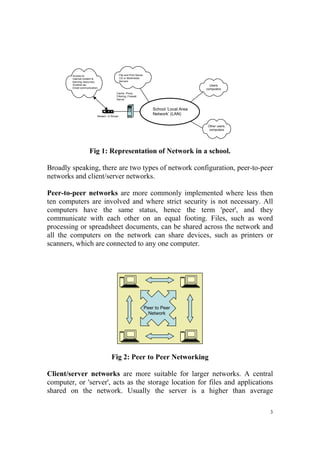
each other. Fig 1 gives an example of a network in a school comprising of a 
local area network or LAN connecting computers with each other, the 
internet, and various servers.
3 
File and Print Server 
CD or Multimedia 
Servers 
Users 
computers 
Other users, 
computers 
Cache, Proxy, 
Filtering, Firewall 
Server 
Access to: 
Internet content & 
learning resources, 
Scoilnet etc 
Email communication 
Modem or Router 
School ‘Local Area 
Network’ (LAN) 
Fig 1: Representation of Network in a school. 
Broadly speaking, there are two types of network configuration, peer-to-peer 
networks and client/server networks. 
Peer-to-peer networks are more commonly implemented where less then 
ten computers are involved and where strict security is not necessary. All 
computers have the same status, hence the term 'peer', and they 
communicate with each other on an equal footing. Files, such as word 
processing or spreadsheet documents, can be shared across the network and 
all the computers on the network can share devices, such as printers or 
scanners, which are connected to any one computer. 
Peer to Peer 
Network 
Fig 2: Peer to Peer Networking 
Client/server networks are more suitable for larger networks. A central 
computer, or 'server', acts as the storage location for files and applications 
shared on the network. Usually the server is a higher than average
performance computer. The server also controls the network access of the 
other computers which are referred to as the 'client' computers. Typically, 
teachers and students in a school will use the client computers for their work 
and only the network administrator (usually a designated staff member) will 
have access rights to the server. 
4 
Other 
equipment 
Fig 3: Client - Server Networking 
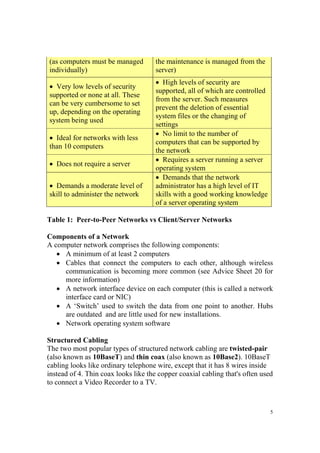
Table 1 provides a summary comparison between Peer-to-Peer and 
Client/Server Networks. 
Peer-to-Peer Networks vs Client/Server Networks 
Peer-to-Peer Networks Client/Server Networks 
 Easy to set up  More difficult to set up 
 Less expensive to install  More expensive to install 
 Can be implemented on a wide 
range of operating systems 
 A variety of operating systems can 
be supported on the client computers, 
but the server needs to run an 
operating system that supports 
networking 
 More time consuming to 
maintain the software being used 
 Less time consuming to maintain 
the software being used (as most of 
File Server
5 
(as computers must be managed 
individually) 
the maintenance is managed from the 
server)  
 Very low levels of security 
supported or none at all. These 
can be very cumbersome to set 
up, depending on the operating 
system being used 
 High levels of security are 
supported, all of which are controlled 
from the server. Such measures 
prevent the deletion of essential 
system files or the changing of 
settings 
 Ideal for networks with less 
than 10 computers 
 No limit to the number of 
computers that can be supported by 
the network 
 Does not require a server  Requires a server running a server 
operating system 
 Demands a moderate level of 
skill to administer the network 
 Demands that the network 
administrator has a high level of IT 
skills with a good working knowledge 
of a server operating system 
Table 1: Peer-to-Peer Networks vs Client/Server Networks 
Components of a Network 
A computer network comprises the following components: 
 A minimum of at least 2 computers 
 Cables that connect the computers to each other, although wireless 
communication is becoming more common (see Advice Sheet 20 for 
more information) 
 A network interface device on each computer (this is called a network 
interface card or NIC) 
 A ‘Switch’ used to switch the data from one point to another. Hubs 
are outdated and are little used for new installations. 
 Network operating system software 
Structured Cabling 
The two most popular types of structured network cabling are twisted-pair 
(also known as 10BaseT) and thin coax (also known as 10Base2). 10BaseT 
cabling looks like ordinary telephone wire, except that it has 8 wires inside 
instead of 4. Thin coax looks like the copper coaxial cabling that's often used 
to connect a Video Recorder to a TV.
10BaseT Cabling 
When 10BaseT cabling is used, a strand of cabling is inserted between each 
computer and a hub. If you have 5 computers, you'll need 5 cables. Each 
cable cannot exceed 325 feet in length. Because the cables from all of the 
PCs converge at a common point, a 10BaseT network forms a star 
configuration. 
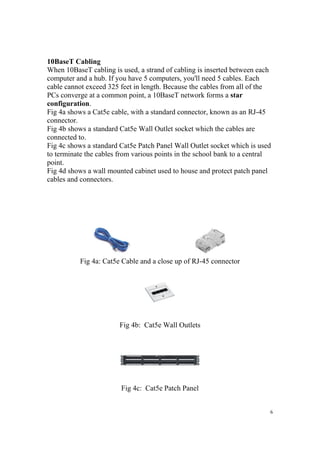
Fig 4a shows a Cat5e cable, with a standard connector, known as an RJ-45 
connector. 
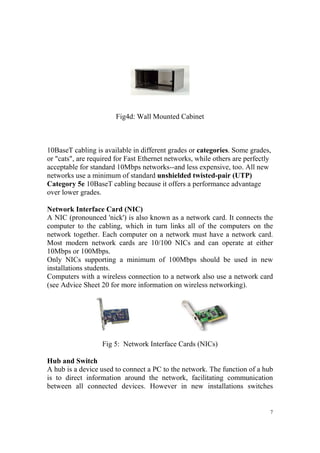
Fig 4b shows a standard Cat5e Wall Outlet socket which the cables are 
connected to. 
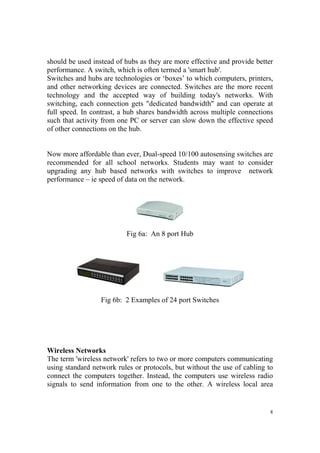
Fig 4c shows a standard Cat5e Patch Panel Wall Outlet socket which is used 
to terminate the cables from various points in the school bank to a central 
point. 
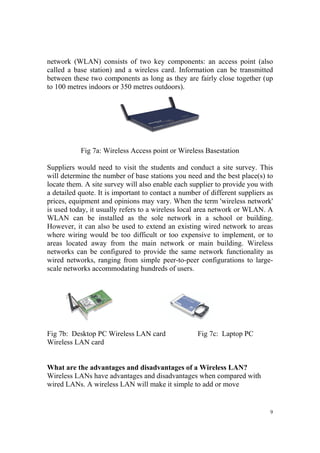
Fig 4d shows a wall mounted cabinet used to house and protect patch panel 
cables and connectors. 
6 
Fig 4a: Cat5e Cable and a close up of RJ-45 connector 
Fig 4b: Cat5e Wall Outlets 
Fig 4c: Cat5e Patch Panel
7 
Fig4d: Wall Mounted Cabinet 
10BaseT cabling is available in different grades or categories. Some grades, 
or "cats", are required for Fast Ethernet networks, while others are perfectly 
acceptable for standard 10Mbps networks--and less expensive, too. All new 
networks use a minimum of standard unshielded twisted-pair (UTP) 
Category 5e 10BaseT cabling because it offers a performance advantage 
over lower grades. 
Network Interface Card (NIC) 
A NIC (pronounced 'nick') is also known as a network card. It connects the 
computer to the cabling, which in turn links all of the computers on the 
network together. Each computer on a network must have a network card. 
Most modern network cards are 10/100 NICs and can operate at either 
10Mbps or 100Mbps. 
Only NICs supporting a minimum of 100Mbps should be used in new 
installations students. 
Computers with a wireless connection to a network also use a network card 
(see Advice Sheet 20 for more information on wireless networking). 
Fig 5: Network Interface Cards (NICs) 
Hub and Switch 
A hub is a device used to connect a PC to the network. The function of a hub 
is to direct information around the network, facilitating communication 
between all connected devices. However in new installations switches
should be used instead of hubs as they are more effective and provide better 
performance. A switch, which is often termed a 'smart hub'. 
Switches and hubs are technologies or ‘boxes’ to which computers, printers, 
and other networking devices are connected. Switches are the more recent 
technology and the accepted way of building today's networks. With 
switching, each connection gets "dedicated bandwidth" and can operate at 
full speed. In contrast, a hub shares bandwidth across multiple connections 
such that activity from one PC or server can slow down the effective speed 
of other connections on the hub. 
Now more affordable than ever, Dual-speed 10/100 autosensing switches are 
recommended for all school networks. Students may want to consider 
upgrading any hub based networks with switches to improve network 
performance – ie speed of data on the network. 
8 
Fig 6a: An 8 port Hub 
Fig 6b: 2 Examples of 24 port Switches 
Wireless Networks 
The term 'wireless network' refers to two or more computers communicating 
using standard network rules or protocols, but without the use of cabling to 
connect the computers together. Instead, the computers use wireless radio 
signals to send information from one to the other. A wireless local area
network (WLAN) consists of two key components: an access point (also 
called a base station) and a wireless card. Information can be transmitted 
between these two components as long as they are fairly close together (up 
to 100 metres indoors or 350 metres outdoors). 
9 
Fig 7a: Wireless Access point or Wireless Basestation 
Suppliers would need to visit the students and conduct a site survey. This 
will determine the number of base stations you need and the best place(s) to 
locate them. A site survey will also enable each supplier to provide you with 
a detailed quote. It is important to contact a number of different suppliers as 
prices, equipment and opinions may vary. When the term 'wireless network' 
is used today, it usually refers to a wireless local area network or WLAN. A 
WLAN can be installed as the sole network in a school or building. 
However, it can also be used to extend an existing wired network to areas 
where wiring would be too difficult or too expensive to implement, or to 
areas located away from the main network or main building. Wireless 
networks can be configured to provide the same network functionality as 
wired networks, ranging from simple peer-to-peer configurations to large-scale 
networks accommodating hundreds of users. 
Fig 7b: Desktop PC Wireless LAN card Fig 7c: Laptop PC 
Wireless LAN card 
What are the advantages and disadvantages of a Wireless LAN? 
Wireless LANs have advantages and disadvantages when compared with 
wired LANs. A wireless LAN will make it simple to add or move
workstations, and to install access points to provide connectivity in areas 
where it is difficult to lay cable. Temporary or semi-permanent buildings 
that are in range of an access point can be wirelessly connected to a LAN to 
give these buildings connectivity. Where computer labs are used in students, 
the computers (laptops) could be put on a mobile cart and wheeled from 
classroom to classroom, providing they are in range of access points. Wired 
network points would be needed for each of the access points. 
A WLAN has some specific advantages: 
 It is easier to add or move workstations 
 It is easier to provide connectivity in areas where it is difficult to lay 
cable 
 Installation can be fast and easy and can eliminate the need to pull 
cable through walls and ceilings 
 Access to the network can be from anywhere in the school within 
range of an access point 
 Portable or semi-permanent buildings can be connected using a 
wireless LAN 
 Where laptops are used, the ‘computer suite’ can be moved from 
classroom to classroom on mobile carts 
 While the initial investment required for wireless LAN hardware can 
be similar to the cost of wired LAN hardware, installation expenses 
can be significantly lower 
 Where a school is located on more than one site (such as on two sides 
of a road), it is possible with directional antennae, to avoid digging 
trenches under roads to connect the sites 
 In historic buildings where traditional cabling would compromise the 
façade, a wireless LAN can avoid drilling holes in walls 
 Long-term cost benefits can be found in dynamic environments 
requiring frequent moves and changes 
 They allows the possibility of individual pupil allocation of wireless 
devices that move around the school with the pupil. 
WLANs also have some disadvantages: 
10 
 As the number of computers using the network increases, the data 
transfer rate to each computer will decrease accordingly 
 As standards change, it may be necessary to replace wireless cards 
and/or access points
 Lower wireless bandwidth means some applications such as video 
streaming will be more effective on a wired LAN 
 Security is more difficult to guarantee, and requires configuration 
 Devices will only operate at a limited distance from an access point, 
with the distance determined by the standard used and buildings and 
other obstacles between the access point and the user 
 A wired LAN is most likely to be required to provide a backbone to 
the wireless LAN; a wireless LAN should be a supplement to a wired 
LAN and not a complete solution 
 Long-term cost benefits are harder to achieve in static environments 
that require few moves and changes 
 It is easier to make a wired network ‘future proof’ for high data 
transfer. 
Wireless Network Components 
There are certain parallels between the equipment used to build a WLAN 
and that used in a traditional wired LAN. Both networks require network 
interface cards or network adapter cards. A wireless LAN PC card, which 
contains an in-built antenna, is used to connect notebook computers to a 
wireless network. Usually, this is inserted into the relevant slot in the side of 
the notebook, but some may be internal to the notebook. Desktop computers 
can also connect to a wireless network if a wireless network card is inserted 
into one of its internal PCI slots. 
In a wireless network, an 'access point' has a similar function to the hub in 
wired networks. It broadcasts and receives signals to and from the 
surrounding computers via their adapter card. It is also the point where a 
wireless network can be connected into an existing wired network. 
The most obvious difference between wireless and wired networks, 
however, is that the latter uses some form of cable to connect computers 
together. A wireless network does not need cable to form a physical 
connection between computers. 
Wireless Network Configurations 
Wireless networks can be configured in an ad hoc/peer-to-peer arrangement 
or as a local area network. 
Ad Hoc/Peer-to-Peer Configuration 
This is the most basic wireless network configuration. It relies on the 
11
wireless network adapters installed in the computers that are communicating 
with each other. A computer within range of the transmitting computer can 
connect to it. However, if a number of computers are networked in this way, 
they must remain within range of each other. Even though this configuration 
has no real administration overhead, it should only be a consideration for 
very small installations. 
Benefits and Educational Uses 
The installation of cables is time consuming and expensive. The advantages 
of not doing so are apparent: 
the amount of work required and the time taken to complete it are 
significantly reduced 
the network is accessible in places where wiring would have been difficult 
or impossible with no cables linking computers together, cable-related faults 
and network downtime are minimized. 
Where a wireless network is in place, teachers or students can have 
continuous access to the network, even as they move with their equipment 
from class to class. 
The space over which a wireless network operates is not planar but 
spherical. Therefore, in a multi-level site, network access is available in 
rooms above or below the access point, without the need for additional 
infrastructure. 
In a location within a school where network access is required occasionally, 
desktop computers fitted with wireless network cards can be placed on 
trolleys and moved from location to location. They can also be located in 
areas where group work is taking place. As they are connected to the 
network, documents and files can be shared, and access to the Internet is 
available, enhancing group project work. 
As the range of the wireless network extends outside the building, students 
and teachers can use wireless devices to gather and record data outside, e.g., 
as part of a science experiment or individual performance data as part of a 
PE class. 
Technical and Purchasing Considerations 
Network interface cards for wireless networks are more expensive than their 
wired counterparts. The cost of the access points has also to be considered. 
Wireless networks work at up top 54Mbps, whereas wired networks 
normally work at 100Mbps (Fast Ethernet). This data transmission rate is 
dependant on the number of users, the distance from the access point and the 
fabric of the building (metal structures in walls may have an impact). A 
12
wireless network will be noticeably slow when a group of users are 
transferring large files. This should be considered if multimedia applications 
are to be delivered over the network to a significant number of users. 
As the range of the network may extend beyond the walls of the building, it 
can be accessed from outside. Consideration should be given to what 
security features the equipment provides to ensure that only valid users have 
access to the network and that data is protected. 
13 
1.2. Advantages of Networking students 
Speed. 
Networks provide a very rapid method for sharing and transferring files. 
Without a network, files are shared by copying them to floppy disks, then 
carrying or sending the disks from one computer to another. This method of 
transferring files in this manner is very time-consuming. 
Cost. 
The network version of most software programs are available at considerable 
savings when compared to buying individually licensed copies. Besides 
monetary savings, sharing a program on a network allows for easier upgrading 
of the program. The changes have to be done only once, on the file server, 
instead of on all the individual workstations. 
Centralized Software Management. 
One of the greatest benefits of installing a network at a school is the fact that all 
of the software can be loaded on one computer (the file server). This eliminates 
that need to spend time and energy installing updates and tracking files on 
independent computers throughout the building. 
Resource Sharing. 
Sharing resources is another area in which a network exceeds stand-alone 
computers. Most students cannot afford enough laser printers, fax machines, 
modems, scanners, and CD-ROM players for each computer. However, if these 
or similar peripherals are added to a network, they can be shared by many users. 
Flexible Access. 
School networks allow students to access their files from computers throughout 
the school. Students can begin an assignment in their classroom, save part of it
on a public access area of the network, then go to the media center after school 
to finish their work. Students can also work cooperatively through the network. 
Security. 
Files and programs on a network can be designated as "copy inhibit," so that 
you do not have to worry about illegal copying of programs. Also, passwords 
can be established for specific directories to restrict access to authorized users. 
Main challenges of installing a School Network 
Costs 
Although a network will generally save money over time, the initial costs can 
be substantial, and the installation may require the services of a technician. 
Requires Administrative Time. 
Proper maintenance of a network requires considerable time and expertise. 
Many students have installed a network, only to find that they did not budget 
for the necessary administrative support. 
File Server May Fail. 
Although a file server is no more susceptible to failure than any other computer, 
when the files server "goes down," the entire network may come to a halt. 
When this happens, the entire school may lose access to necessary programs 
and files. 
14
15 
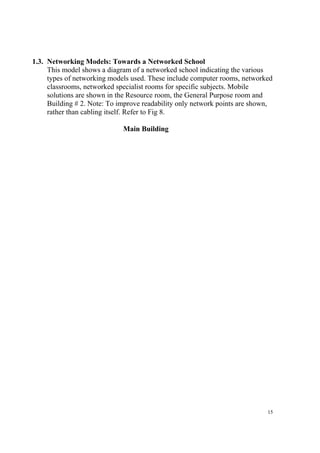
1.3. Networking Models: Towards a Networked School 
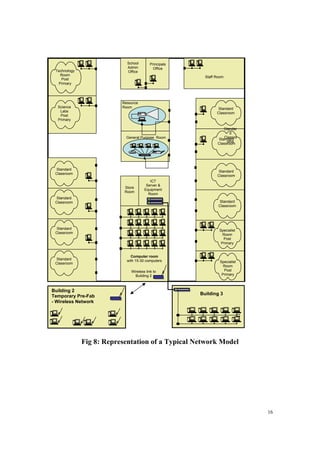
This model shows a diagram of a networked school indicating the various 
types of networking models used. These include computer rooms, networked 
classrooms, networked specialist rooms for specific subjects. Mobile 
solutions are shown in the Resource room, the General Purpose room and 
Building # 2. Note: To improve readability only network points are shown, 
rather than cabling itself. Refer to Fig 8. 
Main Building
16 
Resource 
Room 
Staff Room 
Standard 
Classroom 
Standard 
Classroom 
Standard 
Classroom 
Standard 
Classroom 
Specialist 
Room 
Post 
Primary 
Specialist 
Room 
Post 
Primary 
General Purpose Room 
Wireless link to 
Building 2 
Technology 
Room 
Post 
Primary 
Standard 
Classroom 
Standard 
Classroom 
Standard 
Classroom 
Building 2 Building 3 
Temporary Pre-Fab 
- Wireless Network 
Fig 8: Representation of a Typical Network Model 
Standard 
Classroom 
Store 
Room 
ICT 
Server & 
Equipment 
Room 
Computer room 
with 15-30 computers 
Standar 
d 
Classro 
oms 
School 
Admin 
Office 
Principals 
Office 
Science 
Labs 
Post 
Primary
17 
File & Print Server 
Cache, Proxy, 
Filtering, Firewall 
Server 
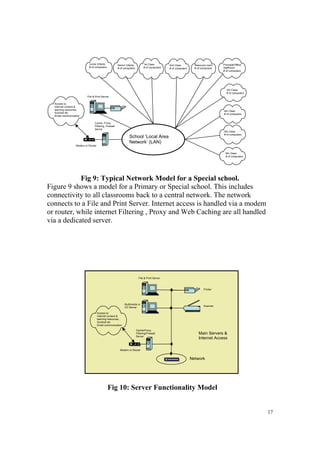
Fig 9: Typical Network Model for a Special school. 
Figure 9 shows a model for a Primary or Special school. This includes 
connectivity to all classrooms back to a central network. The network 
connects to a File and Print Server. Internet access is handled via a modem 
or router, while internet Filtering , Proxy and Web Caching are all handled 
via a dedicated server. 
Printer 
Scanner 
File & Print Server 
Cache/Proxy, 
Filtering/Firewall 
Server 
Fig 10: Server Functionality Model 
Access to: 
Internet content & 
learning resources, 
Scoilnet etc 
Email communication 
Modem or Router 
Principal/Office 
Staffroom 
# of computers 
School ‘Local Area 
Network’ (LAN) 
Resource room 
# of computers 
3rd Class 
# of computers 
4th Class 
# of computers 
5th Class 
# of computers 
6th Class 
# of computers 
2nd Class 
# of computers 
Junior Infants 
# of computers 
Senior Infants 
# of computers 
1st Class 
# of computers 
Main Servers & 
Internet Access 
Network 
Multimedia or 
CD Server 
Access to: 
Internet content & 
learning resources, 
Scoilnet etc 
Email communication 
Modem or Router
18 
Server Functionality 
The network connects to a File and Print Server, Fig 10. The File server 
stores common files, The Print Server manages the different requests for 
printing. A Multimedia or CD server is used to store and distribute 
Multimedia - Sound, Video, Text , applications etc . Internet access is 
handled via a modem or router, while internet Filtering , Proxy and Web 
Caching are all handled via a dedicated server. 
Example network configurations: 
Models for Networking 
First let’s review some simple models where no networking exits and 
computers are used in standalone or ad-hoc mode. The following represent 
some simple models representing classrooms. 
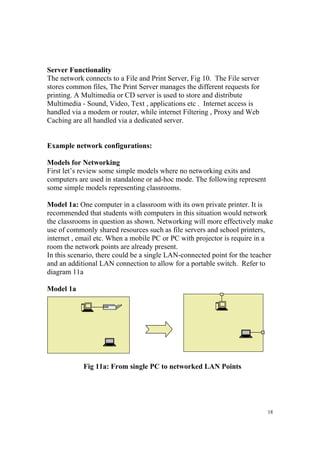
Model 1a: One computer in a classroom with its own private printer. It is 
recommended that students with computers in this situation would network 
the classrooms in question as shown. Networking will more effectively make 
use of commonly shared resources such as file servers and school printers, 
internet , email etc. When a mobile PC or PC with projector is require in a 
room the network points are already present. 
In this scenario, there could be a single LAN-connected point for the teacher 
and an additional LAN connection to allow for a portable switch. Refer to 
diagram 11a 
Model 1a 
Fig 11a: From single PC to networked LAN Points
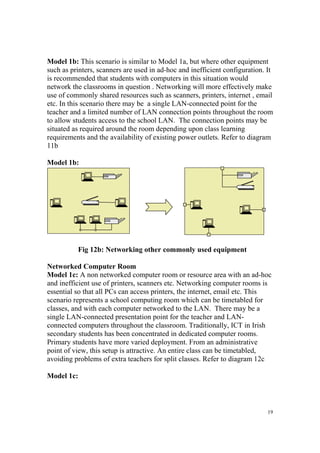
Model 1b: This scenario is similar to Model 1a, but where other equipment 
such as printers, scanners are used in ad-hoc and inefficient configuration. It 
is recommended that students with computers in this situation would 
network the classrooms in question . Networking will more effectively make 
use of commonly shared resources such as scanners, printers, internet , email 
etc. In this scenario there may be a single LAN-connected point for the 
teacher and a limited number of LAN connection points throughout the room 
to allow students access to the school LAN. The connection points may be 
situated as required around the room depending upon class learning 
requirements and the availability of existing power outlets. Refer to diagram 
11b 
Model 1b: 
19 
Fig 12b: Networking other commonly used equipment 
Networked Computer Room 
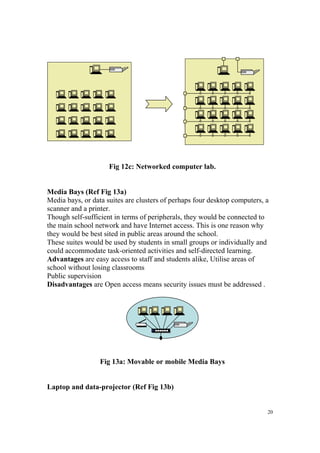
Model 1c: A non networked computer room or resource area with an ad-hoc 
and inefficient use of printers, scanners etc. Networking computer rooms is 
essential so that all PCs can access printers, the internet, email etc. This 
scenario represents a school computing room which can be timetabled for 
classes, and with each computer networked to the LAN. There may be a 
single LAN-connected presentation point for the teacher and LAN-connected 
computers throughout the classroom. Traditionally, ICT in Irish 
secondary students has been concentrated in dedicated computer rooms. 
Primary students have more varied deployment. From an administrative 
point of view, this setup is attractive. An entire class can be timetabled, 
avoiding problems of extra teachers for split classes. Refer to diagram 12c 
Model 1c:
20 
Fig 12c: Networked computer lab. 
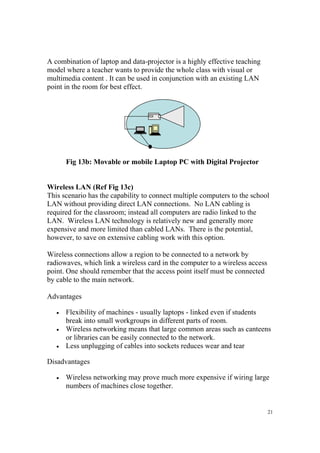
Media Bays (Ref Fig 13a) 
Media bays, or data suites are clusters of perhaps four desktop computers, a 
scanner and a printer. 
Though self-sufficient in terms of peripherals, they would be connected to 
the main school network and have Internet access. This is one reason why 
they would be best sited in public areas around the school. 
These suites would be used by students in small groups or individually and 
could accommodate task-oriented activities and self-directed learning. 
Advantages are easy access to staff and students alike, Utilise areas of 
school without losing classrooms 
Public supervision 
Disadvantages are Open access means security issues must be addressed . 
Fig 13a: Movable or mobile Media Bays 
Laptop and data-projector (Ref Fig 13b)
21 
A combination of laptop and data-projector is a highly effective teaching 
model where a teacher wants to provide the whole class with visual or 
multimedia content . It can be used in conjunction with an existing LAN 
point in the room for best effect. 
Fig 13b: Movable or mobile Laptop PC with Digital Projector 
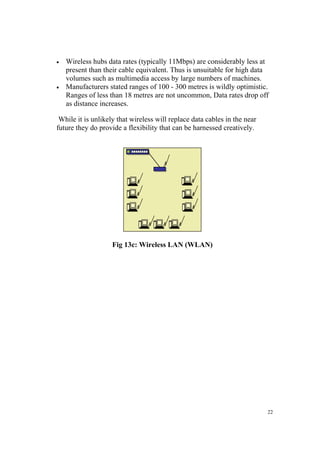
Wireless LAN (Ref Fig 13c) 
This scenario has the capability to connect multiple computers to the school 
LAN without providing direct LAN connections. No LAN cabling is 
required for the classroom; instead all computers are radio linked to the 
LAN. Wireless LAN technology is relatively new and generally more 
expensive and more limited than cabled LANs. There is the potential, 
however, to save on extensive cabling work with this option. 
Wireless connections allow a region to be connected to a network by 
radiowaves, which link a wireless card in the computer to a wireless access 
point. One should remember that the access point itself must be connected 
by cable to the main network. 
Advantages 
 Flexibility of machines - usually laptops - linked even if students 
break into small workgroups in different parts of room. 
 Wireless networking means that large common areas such as canteens 
or libraries can be easily connected to the network. 
 Less unplugging of cables into sockets reduces wear and tear 
Disadvantages 
 Wireless networking may prove much more expensive if wiring large 
numbers of machines close together.
 Wireless hubs data rates (typically 11Mbps) are considerably less at 
present than their cable equivalent. Thus is unsuitable for high data 
volumes such as multimedia access by large numbers of machines. 
 Manufacturers stated ranges of 100 - 300 metres is wildly optimistic. 
Ranges of less than 18 metres are not uncommon, Data rates drop off 
as distance increases. 
While it is unlikely that wireless will replace data cables in the near 
future they do provide a flexibility that can be harnessed creatively. 
22 
Fig 13c: Wireless LAN (WLAN)
23 
2.1. Some Relevant Terms 
MDF Main Distribution Frame 
IDF Intermediate Distribution Frame 
Broadband Refers to a higher speed always on internet connection 
Narrowband Refers to speeds of up to 128kbps 
Dial up Refers to having to dial up the internet every time one 
goes online. 
Always On Refers to the nature of broadband, being ‘always on’ means a 
dial up is not required. 
Download speed The speed at which data is delivered to a school modem 
from the internet 
Upload speed The speed at which data is sent to the internet from a 
school modem. 
ISP Internet Service Provider 
ISDN Integrated Services Digital Network (64kbps single 
channel or 128kbps dual channel) 
PSTN Public Switched Telephone Network (refers to an 
ordinary telephone line) 
ADSL Asymmetric Digital Subscriber Loop 
Mbps Megabits per second (1,000,000 bits per second) 
Kbps Kilobits per second (1,000 bits per second) 
Ethernet Ethernet is a standard for transferring data over networks. 
USB Universal Serial Bus 
Modem A simple device used to access the internet 
Router A more technically advanced device used to access the 
internet

Computer networks--introduction computer-networking

  • 1.
    1 Varna FreeUniversity “Chernorizec Hrabar” ------------------------------------------------------------------------- Institute of Technology Introduction to Computer Networking Prof. Teodora Bakardjieva
  • 2.
    2 1.0 Introduction The purpose of the networking guidelines are as follows:  to assist students in understanding the benefits of networking  to help students place in context their current stage of networking development in their school.  to assist students in planning the next stage of network development in their school.  to provide standard networking ‘models’ and best practice to students that will assist students in their network planning. This document includes information under the following main headings:  Introduction to Networking  Advantages of Networking  Types of Networks  Models of networking appropriate to students  NCTE recommendation to students  Some relevant terms. 1.1. Basic of Networking A computer network consists of a collection of computers, printers and other equipment that is connected together so that they can communicate with each other. Fig 1 gives an example of a network in a school comprising of a local area network or LAN connecting computers with each other, the internet, and various servers.
  • 3.
    3 File andPrint Server CD or Multimedia Servers Users computers Other users, computers Cache, Proxy, Filtering, Firewall Server Access to: Internet content & learning resources, Scoilnet etc Email communication Modem or Router School ‘Local Area Network’ (LAN) Fig 1: Representation of Network in a school. Broadly speaking, there are two types of network configuration, peer-to-peer networks and client/server networks. Peer-to-peer networks are more commonly implemented where less then ten computers are involved and where strict security is not necessary. All computers have the same status, hence the term 'peer', and they communicate with each other on an equal footing. Files, such as word processing or spreadsheet documents, can be shared across the network and all the computers on the network can share devices, such as printers or scanners, which are connected to any one computer. Peer to Peer Network Fig 2: Peer to Peer Networking Client/server networks are more suitable for larger networks. A central computer, or 'server', acts as the storage location for files and applications shared on the network. Usually the server is a higher than average
  • 4.
    performance computer. Theserver also controls the network access of the other computers which are referred to as the 'client' computers. Typically, teachers and students in a school will use the client computers for their work and only the network administrator (usually a designated staff member) will have access rights to the server. 4 Other equipment Fig 3: Client - Server Networking Table 1 provides a summary comparison between Peer-to-Peer and Client/Server Networks. Peer-to-Peer Networks vs Client/Server Networks Peer-to-Peer Networks Client/Server Networks  Easy to set up  More difficult to set up  Less expensive to install  More expensive to install  Can be implemented on a wide range of operating systems  A variety of operating systems can be supported on the client computers, but the server needs to run an operating system that supports networking  More time consuming to maintain the software being used  Less time consuming to maintain the software being used (as most of File Server
  • 5.
    5 (as computersmust be managed individually) the maintenance is managed from the server)   Very low levels of security supported or none at all. These can be very cumbersome to set up, depending on the operating system being used  High levels of security are supported, all of which are controlled from the server. Such measures prevent the deletion of essential system files or the changing of settings  Ideal for networks with less than 10 computers  No limit to the number of computers that can be supported by the network  Does not require a server  Requires a server running a server operating system  Demands a moderate level of skill to administer the network  Demands that the network administrator has a high level of IT skills with a good working knowledge of a server operating system Table 1: Peer-to-Peer Networks vs Client/Server Networks Components of a Network A computer network comprises the following components:  A minimum of at least 2 computers  Cables that connect the computers to each other, although wireless communication is becoming more common (see Advice Sheet 20 for more information)  A network interface device on each computer (this is called a network interface card or NIC)  A ‘Switch’ used to switch the data from one point to another. Hubs are outdated and are little used for new installations.  Network operating system software Structured Cabling The two most popular types of structured network cabling are twisted-pair (also known as 10BaseT) and thin coax (also known as 10Base2). 10BaseT cabling looks like ordinary telephone wire, except that it has 8 wires inside instead of 4. Thin coax looks like the copper coaxial cabling that's often used to connect a Video Recorder to a TV.
  • 6.
    10BaseT Cabling When10BaseT cabling is used, a strand of cabling is inserted between each computer and a hub. If you have 5 computers, you'll need 5 cables. Each cable cannot exceed 325 feet in length. Because the cables from all of the PCs converge at a common point, a 10BaseT network forms a star configuration. Fig 4a shows a Cat5e cable, with a standard connector, known as an RJ-45 connector. Fig 4b shows a standard Cat5e Wall Outlet socket which the cables are connected to. Fig 4c shows a standard Cat5e Patch Panel Wall Outlet socket which is used to terminate the cables from various points in the school bank to a central point. Fig 4d shows a wall mounted cabinet used to house and protect patch panel cables and connectors. 6 Fig 4a: Cat5e Cable and a close up of RJ-45 connector Fig 4b: Cat5e Wall Outlets Fig 4c: Cat5e Patch Panel
  • 7.
    7 Fig4d: WallMounted Cabinet 10BaseT cabling is available in different grades or categories. Some grades, or "cats", are required for Fast Ethernet networks, while others are perfectly acceptable for standard 10Mbps networks--and less expensive, too. All new networks use a minimum of standard unshielded twisted-pair (UTP) Category 5e 10BaseT cabling because it offers a performance advantage over lower grades. Network Interface Card (NIC) A NIC (pronounced 'nick') is also known as a network card. It connects the computer to the cabling, which in turn links all of the computers on the network together. Each computer on a network must have a network card. Most modern network cards are 10/100 NICs and can operate at either 10Mbps or 100Mbps. Only NICs supporting a minimum of 100Mbps should be used in new installations students. Computers with a wireless connection to a network also use a network card (see Advice Sheet 20 for more information on wireless networking). Fig 5: Network Interface Cards (NICs) Hub and Switch A hub is a device used to connect a PC to the network. The function of a hub is to direct information around the network, facilitating communication between all connected devices. However in new installations switches
  • 8.
    should be usedinstead of hubs as they are more effective and provide better performance. A switch, which is often termed a 'smart hub'. Switches and hubs are technologies or ‘boxes’ to which computers, printers, and other networking devices are connected. Switches are the more recent technology and the accepted way of building today's networks. With switching, each connection gets "dedicated bandwidth" and can operate at full speed. In contrast, a hub shares bandwidth across multiple connections such that activity from one PC or server can slow down the effective speed of other connections on the hub. Now more affordable than ever, Dual-speed 10/100 autosensing switches are recommended for all school networks. Students may want to consider upgrading any hub based networks with switches to improve network performance – ie speed of data on the network. 8 Fig 6a: An 8 port Hub Fig 6b: 2 Examples of 24 port Switches Wireless Networks The term 'wireless network' refers to two or more computers communicating using standard network rules or protocols, but without the use of cabling to connect the computers together. Instead, the computers use wireless radio signals to send information from one to the other. A wireless local area
  • 9.
    network (WLAN) consistsof two key components: an access point (also called a base station) and a wireless card. Information can be transmitted between these two components as long as they are fairly close together (up to 100 metres indoors or 350 metres outdoors). 9 Fig 7a: Wireless Access point or Wireless Basestation Suppliers would need to visit the students and conduct a site survey. This will determine the number of base stations you need and the best place(s) to locate them. A site survey will also enable each supplier to provide you with a detailed quote. It is important to contact a number of different suppliers as prices, equipment and opinions may vary. When the term 'wireless network' is used today, it usually refers to a wireless local area network or WLAN. A WLAN can be installed as the sole network in a school or building. However, it can also be used to extend an existing wired network to areas where wiring would be too difficult or too expensive to implement, or to areas located away from the main network or main building. Wireless networks can be configured to provide the same network functionality as wired networks, ranging from simple peer-to-peer configurations to large-scale networks accommodating hundreds of users. Fig 7b: Desktop PC Wireless LAN card Fig 7c: Laptop PC Wireless LAN card What are the advantages and disadvantages of a Wireless LAN? Wireless LANs have advantages and disadvantages when compared with wired LANs. A wireless LAN will make it simple to add or move
  • 10.
    workstations, and toinstall access points to provide connectivity in areas where it is difficult to lay cable. Temporary or semi-permanent buildings that are in range of an access point can be wirelessly connected to a LAN to give these buildings connectivity. Where computer labs are used in students, the computers (laptops) could be put on a mobile cart and wheeled from classroom to classroom, providing they are in range of access points. Wired network points would be needed for each of the access points. A WLAN has some specific advantages:  It is easier to add or move workstations  It is easier to provide connectivity in areas where it is difficult to lay cable  Installation can be fast and easy and can eliminate the need to pull cable through walls and ceilings  Access to the network can be from anywhere in the school within range of an access point  Portable or semi-permanent buildings can be connected using a wireless LAN  Where laptops are used, the ‘computer suite’ can be moved from classroom to classroom on mobile carts  While the initial investment required for wireless LAN hardware can be similar to the cost of wired LAN hardware, installation expenses can be significantly lower  Where a school is located on more than one site (such as on two sides of a road), it is possible with directional antennae, to avoid digging trenches under roads to connect the sites  In historic buildings where traditional cabling would compromise the façade, a wireless LAN can avoid drilling holes in walls  Long-term cost benefits can be found in dynamic environments requiring frequent moves and changes  They allows the possibility of individual pupil allocation of wireless devices that move around the school with the pupil. WLANs also have some disadvantages: 10  As the number of computers using the network increases, the data transfer rate to each computer will decrease accordingly  As standards change, it may be necessary to replace wireless cards and/or access points
  • 11.
     Lower wirelessbandwidth means some applications such as video streaming will be more effective on a wired LAN  Security is more difficult to guarantee, and requires configuration  Devices will only operate at a limited distance from an access point, with the distance determined by the standard used and buildings and other obstacles between the access point and the user  A wired LAN is most likely to be required to provide a backbone to the wireless LAN; a wireless LAN should be a supplement to a wired LAN and not a complete solution  Long-term cost benefits are harder to achieve in static environments that require few moves and changes  It is easier to make a wired network ‘future proof’ for high data transfer. Wireless Network Components There are certain parallels between the equipment used to build a WLAN and that used in a traditional wired LAN. Both networks require network interface cards or network adapter cards. A wireless LAN PC card, which contains an in-built antenna, is used to connect notebook computers to a wireless network. Usually, this is inserted into the relevant slot in the side of the notebook, but some may be internal to the notebook. Desktop computers can also connect to a wireless network if a wireless network card is inserted into one of its internal PCI slots. In a wireless network, an 'access point' has a similar function to the hub in wired networks. It broadcasts and receives signals to and from the surrounding computers via their adapter card. It is also the point where a wireless network can be connected into an existing wired network. The most obvious difference between wireless and wired networks, however, is that the latter uses some form of cable to connect computers together. A wireless network does not need cable to form a physical connection between computers. Wireless Network Configurations Wireless networks can be configured in an ad hoc/peer-to-peer arrangement or as a local area network. Ad Hoc/Peer-to-Peer Configuration This is the most basic wireless network configuration. It relies on the 11
  • 12.
    wireless network adaptersinstalled in the computers that are communicating with each other. A computer within range of the transmitting computer can connect to it. However, if a number of computers are networked in this way, they must remain within range of each other. Even though this configuration has no real administration overhead, it should only be a consideration for very small installations. Benefits and Educational Uses The installation of cables is time consuming and expensive. The advantages of not doing so are apparent: the amount of work required and the time taken to complete it are significantly reduced the network is accessible in places where wiring would have been difficult or impossible with no cables linking computers together, cable-related faults and network downtime are minimized. Where a wireless network is in place, teachers or students can have continuous access to the network, even as they move with their equipment from class to class. The space over which a wireless network operates is not planar but spherical. Therefore, in a multi-level site, network access is available in rooms above or below the access point, without the need for additional infrastructure. In a location within a school where network access is required occasionally, desktop computers fitted with wireless network cards can be placed on trolleys and moved from location to location. They can also be located in areas where group work is taking place. As they are connected to the network, documents and files can be shared, and access to the Internet is available, enhancing group project work. As the range of the wireless network extends outside the building, students and teachers can use wireless devices to gather and record data outside, e.g., as part of a science experiment or individual performance data as part of a PE class. Technical and Purchasing Considerations Network interface cards for wireless networks are more expensive than their wired counterparts. The cost of the access points has also to be considered. Wireless networks work at up top 54Mbps, whereas wired networks normally work at 100Mbps (Fast Ethernet). This data transmission rate is dependant on the number of users, the distance from the access point and the fabric of the building (metal structures in walls may have an impact). A 12
  • 13.
    wireless network willbe noticeably slow when a group of users are transferring large files. This should be considered if multimedia applications are to be delivered over the network to a significant number of users. As the range of the network may extend beyond the walls of the building, it can be accessed from outside. Consideration should be given to what security features the equipment provides to ensure that only valid users have access to the network and that data is protected. 13 1.2. Advantages of Networking students Speed. Networks provide a very rapid method for sharing and transferring files. Without a network, files are shared by copying them to floppy disks, then carrying or sending the disks from one computer to another. This method of transferring files in this manner is very time-consuming. Cost. The network version of most software programs are available at considerable savings when compared to buying individually licensed copies. Besides monetary savings, sharing a program on a network allows for easier upgrading of the program. The changes have to be done only once, on the file server, instead of on all the individual workstations. Centralized Software Management. One of the greatest benefits of installing a network at a school is the fact that all of the software can be loaded on one computer (the file server). This eliminates that need to spend time and energy installing updates and tracking files on independent computers throughout the building. Resource Sharing. Sharing resources is another area in which a network exceeds stand-alone computers. Most students cannot afford enough laser printers, fax machines, modems, scanners, and CD-ROM players for each computer. However, if these or similar peripherals are added to a network, they can be shared by many users. Flexible Access. School networks allow students to access their files from computers throughout the school. Students can begin an assignment in their classroom, save part of it
  • 14.
    on a publicaccess area of the network, then go to the media center after school to finish their work. Students can also work cooperatively through the network. Security. Files and programs on a network can be designated as "copy inhibit," so that you do not have to worry about illegal copying of programs. Also, passwords can be established for specific directories to restrict access to authorized users. Main challenges of installing a School Network Costs Although a network will generally save money over time, the initial costs can be substantial, and the installation may require the services of a technician. Requires Administrative Time. Proper maintenance of a network requires considerable time and expertise. Many students have installed a network, only to find that they did not budget for the necessary administrative support. File Server May Fail. Although a file server is no more susceptible to failure than any other computer, when the files server "goes down," the entire network may come to a halt. When this happens, the entire school may lose access to necessary programs and files. 14
  • 15.
    15 1.3. NetworkingModels: Towards a Networked School This model shows a diagram of a networked school indicating the various types of networking models used. These include computer rooms, networked classrooms, networked specialist rooms for specific subjects. Mobile solutions are shown in the Resource room, the General Purpose room and Building # 2. Note: To improve readability only network points are shown, rather than cabling itself. Refer to Fig 8. Main Building
  • 16.
    16 Resource Room Staff Room Standard Classroom Standard Classroom Standard Classroom Standard Classroom Specialist Room Post Primary Specialist Room Post Primary General Purpose Room Wireless link to Building 2 Technology Room Post Primary Standard Classroom Standard Classroom Standard Classroom Building 2 Building 3 Temporary Pre-Fab - Wireless Network Fig 8: Representation of a Typical Network Model Standard Classroom Store Room ICT Server & Equipment Room Computer room with 15-30 computers Standar d Classro oms School Admin Office Principals Office Science Labs Post Primary
  • 17.
    17 File &Print Server Cache, Proxy, Filtering, Firewall Server Fig 9: Typical Network Model for a Special school. Figure 9 shows a model for a Primary or Special school. This includes connectivity to all classrooms back to a central network. The network connects to a File and Print Server. Internet access is handled via a modem or router, while internet Filtering , Proxy and Web Caching are all handled via a dedicated server. Printer Scanner File & Print Server Cache/Proxy, Filtering/Firewall Server Fig 10: Server Functionality Model Access to: Internet content & learning resources, Scoilnet etc Email communication Modem or Router Principal/Office Staffroom # of computers School ‘Local Area Network’ (LAN) Resource room # of computers 3rd Class # of computers 4th Class # of computers 5th Class # of computers 6th Class # of computers 2nd Class # of computers Junior Infants # of computers Senior Infants # of computers 1st Class # of computers Main Servers & Internet Access Network Multimedia or CD Server Access to: Internet content & learning resources, Scoilnet etc Email communication Modem or Router
  • 18.
    18 Server Functionality The network connects to a File and Print Server, Fig 10. The File server stores common files, The Print Server manages the different requests for printing. A Multimedia or CD server is used to store and distribute Multimedia - Sound, Video, Text , applications etc . Internet access is handled via a modem or router, while internet Filtering , Proxy and Web Caching are all handled via a dedicated server. Example network configurations: Models for Networking First let’s review some simple models where no networking exits and computers are used in standalone or ad-hoc mode. The following represent some simple models representing classrooms. Model 1a: One computer in a classroom with its own private printer. It is recommended that students with computers in this situation would network the classrooms in question as shown. Networking will more effectively make use of commonly shared resources such as file servers and school printers, internet , email etc. When a mobile PC or PC with projector is require in a room the network points are already present. In this scenario, there could be a single LAN-connected point for the teacher and an additional LAN connection to allow for a portable switch. Refer to diagram 11a Model 1a Fig 11a: From single PC to networked LAN Points
  • 19.
    Model 1b: Thisscenario is similar to Model 1a, but where other equipment such as printers, scanners are used in ad-hoc and inefficient configuration. It is recommended that students with computers in this situation would network the classrooms in question . Networking will more effectively make use of commonly shared resources such as scanners, printers, internet , email etc. In this scenario there may be a single LAN-connected point for the teacher and a limited number of LAN connection points throughout the room to allow students access to the school LAN. The connection points may be situated as required around the room depending upon class learning requirements and the availability of existing power outlets. Refer to diagram 11b Model 1b: 19 Fig 12b: Networking other commonly used equipment Networked Computer Room Model 1c: A non networked computer room or resource area with an ad-hoc and inefficient use of printers, scanners etc. Networking computer rooms is essential so that all PCs can access printers, the internet, email etc. This scenario represents a school computing room which can be timetabled for classes, and with each computer networked to the LAN. There may be a single LAN-connected presentation point for the teacher and LAN-connected computers throughout the classroom. Traditionally, ICT in Irish secondary students has been concentrated in dedicated computer rooms. Primary students have more varied deployment. From an administrative point of view, this setup is attractive. An entire class can be timetabled, avoiding problems of extra teachers for split classes. Refer to diagram 12c Model 1c:
  • 20.
    20 Fig 12c:Networked computer lab. Media Bays (Ref Fig 13a) Media bays, or data suites are clusters of perhaps four desktop computers, a scanner and a printer. Though self-sufficient in terms of peripherals, they would be connected to the main school network and have Internet access. This is one reason why they would be best sited in public areas around the school. These suites would be used by students in small groups or individually and could accommodate task-oriented activities and self-directed learning. Advantages are easy access to staff and students alike, Utilise areas of school without losing classrooms Public supervision Disadvantages are Open access means security issues must be addressed . Fig 13a: Movable or mobile Media Bays Laptop and data-projector (Ref Fig 13b)
  • 21.
    21 A combinationof laptop and data-projector is a highly effective teaching model where a teacher wants to provide the whole class with visual or multimedia content . It can be used in conjunction with an existing LAN point in the room for best effect. Fig 13b: Movable or mobile Laptop PC with Digital Projector Wireless LAN (Ref Fig 13c) This scenario has the capability to connect multiple computers to the school LAN without providing direct LAN connections. No LAN cabling is required for the classroom; instead all computers are radio linked to the LAN. Wireless LAN technology is relatively new and generally more expensive and more limited than cabled LANs. There is the potential, however, to save on extensive cabling work with this option. Wireless connections allow a region to be connected to a network by radiowaves, which link a wireless card in the computer to a wireless access point. One should remember that the access point itself must be connected by cable to the main network. Advantages  Flexibility of machines - usually laptops - linked even if students break into small workgroups in different parts of room.  Wireless networking means that large common areas such as canteens or libraries can be easily connected to the network.  Less unplugging of cables into sockets reduces wear and tear Disadvantages  Wireless networking may prove much more expensive if wiring large numbers of machines close together.
  • 22.
     Wireless hubsdata rates (typically 11Mbps) are considerably less at present than their cable equivalent. Thus is unsuitable for high data volumes such as multimedia access by large numbers of machines.  Manufacturers stated ranges of 100 - 300 metres is wildly optimistic. Ranges of less than 18 metres are not uncommon, Data rates drop off as distance increases. While it is unlikely that wireless will replace data cables in the near future they do provide a flexibility that can be harnessed creatively. 22 Fig 13c: Wireless LAN (WLAN)
  • 23.
    23 2.1. SomeRelevant Terms MDF Main Distribution Frame IDF Intermediate Distribution Frame Broadband Refers to a higher speed always on internet connection Narrowband Refers to speeds of up to 128kbps Dial up Refers to having to dial up the internet every time one goes online. Always On Refers to the nature of broadband, being ‘always on’ means a dial up is not required. Download speed The speed at which data is delivered to a school modem from the internet Upload speed The speed at which data is sent to the internet from a school modem. ISP Internet Service Provider ISDN Integrated Services Digital Network (64kbps single channel or 128kbps dual channel) PSTN Public Switched Telephone Network (refers to an ordinary telephone line) ADSL Asymmetric Digital Subscriber Loop Mbps Megabits per second (1,000,000 bits per second) Kbps Kilobits per second (1,000 bits per second) Ethernet Ethernet is a standard for transferring data over networks. USB Universal Serial Bus Modem A simple device used to access the internet Router A more technically advanced device used to access the internet