BASIC COMPUTERBASIC COMPUTER
OPERATIONOPERATION
OUTLINEOUTLINE
 Computer HardwareComputer Hardware
 Operating systemsOperating systems
 TermsTerms
 Disk capacitiesDisk capacities
 VirusesViruses
 Applications and DocumentsApplications and Documents
 InstallInstallationation/reinstall/reinstallationation
 Internet ApplicationsInternet Applications
Computer HardwareComputer Hardware
 CaseCase
 Power switchPower switch
 Reset switchReset switch
 Hard driveHard drive
 FloppyFloppy
 CD/DVDCD/DVD
 Serial portsSerial ports
 Parallel portParallel port
 USB portUSB port
 Keyboard/mouseKeyboard/mouse
 Network cardNetwork card
 ModemModem
 Sound cardSound card
 Video cardVideo card
 RAMRAM
 MotherboardMotherboard
 FanFan
 CablesCables
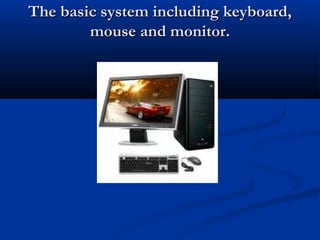
The basic system including keyboard,The basic system including keyboard,
mouse and monitor.mouse and monitor.
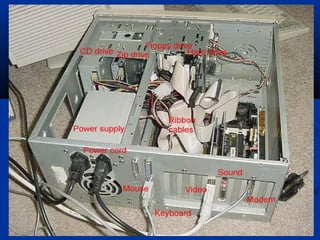
What is in the box?What is in the box?
MotherboardMotherboard
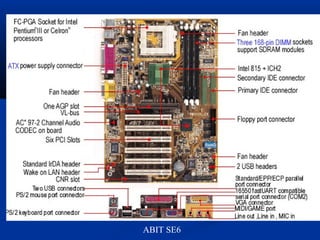
Typical parts of a motherboard.Typical parts of a motherboard.
ABIT SE6
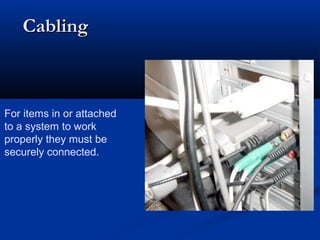
CablingCabling
For items in or attached
to a system to work
properly they must be
securely connected.
Operating systemsOperating systems
 All computer systems have an operating system.All computer systems have an operating system.
Currently, there are three dominate typical userCurrently, there are three dominate typical user
operating systems.operating systems.
 Macintosh OS,Macintosh OS,
 Microsoft Windows OSMicrosoft Windows OS,,
 LinuxLinux..
TermsTerms
 A:A: Floppy diskFloppy disk C: Local disk D: Local diskC: Local disk D: Local disk (partition)(partition)
 RAM = Random Access Memory. The thinking space available to a computer toRAM = Random Access Memory. The thinking space available to a computer to
use while performing operations. The space is emptied outuse while performing operations. The space is emptied out when the computer iswhen the computer is
turned off.turned off.
 DDIRECTORYIRECTORY == AAn organizational structure on disks to file management easier.n organizational structure on disks to file management easier.
Directories also become a local region for the computer to hunt forDirectories also become a local region for the computer to hunt for other filesother files
related to the current file.related to the current file.
 DOCUMENT = A file created using an application. The file is only useful usingDOCUMENT = A file created using an application. The file is only useful using
the application that created it or a similar application that canthe application that created it or a similar application that can convert it.convert it.
 APPLICATION = A program that allows a computer to perform a certainAPPLICATION = A program that allows a computer to perform a certain
function.function.
Disk capacitiesDisk capacities
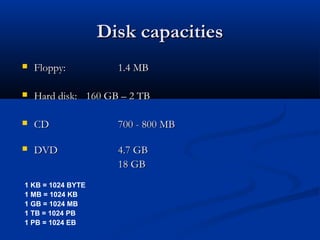
 FloppyFloppy:: 1.4 MB1.4 MB
 Hard disk:Hard disk: 160160 GGB – 2 TBB – 2 TB
 CDCD 700 - 800700 - 800 MBMB
 DVDDVD 4.7 GB4.7 GB
18 GB18 GB
1 KB = 1024 BYTE
1 MB = 1024 KB
1 GB = 1024 MB
1 TB = 1024 PB
1 PB = 1024 EB
CDs, DVDsCDs, DVDs BackupBackup
Identify and use icons,Identify and use icons,
windows, menuswindows, menus
 Point, click, double-click, drag & dropPoint, click, double-click, drag & drop
 Minimize and maximize a windowMinimize and maximize a window
 Use pull-down menusUse pull-down menus
 Select, open, and move an iconSelect, open, and move an icon
 Select, open, move, and close a windowSelect, open, move, and close a window
 Resize a windowResize a window
 Scroll a windowScroll a window
 AActivate and de-activate a windowctivate and de-activate a window
 Start an application and create a documentStart an application and create a document
Name, save, retrieve, revise aName, save, retrieve, revise a
documentdocument
 Name a documentName a document (!)(!)
 Save a documentSave a document
 Retrieve a document from floppy diskRetrieve a document from floppy disk
 Retrieve a document from hard diskRetrieve a document from hard disk
 Re-name a documentRe-name a document
 Edit and re-save a documentEdit and re-save a document
 Print a documentPrint a document
 Create and name foldersCreate and name folders
 Save, open, and place documents inside foldersSave, open, and place documents inside folders
ApplicationsApplications
 Open and work with more than one applicationOpen and work with more than one application
at a timeat a time
 To switch between themTo switch between them forfor WindowsWindows:: click on theclick on the
applicationapplication at the "TASKBAR"at the "TASKBAR" down on the screendown on the screen
 AltAlt &&TABTAB buttonbutton
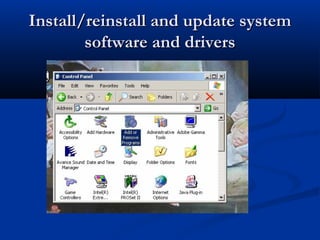
Install/reinstall and update systemInstall/reinstall and update system
software and driverssoftware and drivers
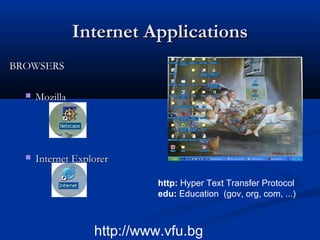
Internet ApplicationsInternet Applications
BROWSERSBROWSERS
 MozillaMozilla
 Internet ExplorerInternet Explorer
http://www.vfu.bg
http: Hyper Text Transfer Protocol
edu: Education (gov, org, com, ...)
FTP (File Transfer Protocol)FTP (File Transfer Protocol)
 TheThe simplest and most secure way tosimplest and most secure way to eexchange files over thexchange files over the
Internet.Internet.
 FTPFTP Client isClient is thethe software that is designed to transfer files back-software that is designed to transfer files back-
and-forth between two computers over the Internet. It needs toand-forth between two computers over the Internet. It needs to
be installed onbe installed on thethe computer and can only be used with a livecomputer and can only be used with a live
connection to theconnection to the Internet.Internet. (Browsers, WS-Ftp, SSH, Cute-(Browsers, WS-Ftp, SSH, Cute-
Ftp,...)Ftp,...)
PC ARF
VirusesViruses
 Viruses are programs that reproduce themselves into the files of your computerViruses are programs that reproduce themselves into the files of your computer
 Anti-virus softwareAnti-virus software and automatic updateand automatic update
 Mcafee Virus ScanMcafee Virus Scan
Configuration of Automatic Mcafee Virus Update via FTPConfiguration of Automatic Mcafee Virus Update via FTP
http://www.math.metu.edu.tr/department/doc/virus/virus_update.htmlhttp://www.math.metu.edu.tr/department/doc/virus/virus_update.html
 Current security patches applied to operating system and applications.Current security patches applied to operating system and applications.
 Do not openDo not open any unexpected attachments that are e-mailed to you. (Particularlyany unexpected attachments that are e-mailed to you. (Particularly
“.exe” files.)“.exe” files.)
REFERENCESREFERENCES
 Computer Fundamentals for TeachersComputer Fundamentals for Teachers , Major Competencies, Major Competencies
 Basic Computer Operation and TroubleshootingBasic Computer Operation and Troubleshooting

Computer basics--basic comp-oper

  • 1.
  • 2.
    OUTLINEOUTLINE  Computer HardwareComputerHardware  Operating systemsOperating systems  TermsTerms  Disk capacitiesDisk capacities  VirusesViruses  Applications and DocumentsApplications and Documents  InstallInstallationation/reinstall/reinstallationation  Internet ApplicationsInternet Applications
  • 3.
    Computer HardwareComputer Hardware CaseCase  Power switchPower switch  Reset switchReset switch  Hard driveHard drive  FloppyFloppy  CD/DVDCD/DVD  Serial portsSerial ports  Parallel portParallel port  USB portUSB port  Keyboard/mouseKeyboard/mouse  Network cardNetwork card  ModemModem  Sound cardSound card  Video cardVideo card  RAMRAM  MotherboardMotherboard  FanFan  CablesCables
  • 4.
    The basic systemincluding keyboard,The basic system including keyboard, mouse and monitor.mouse and monitor.
  • 5.
    What is inthe box?What is in the box? MotherboardMotherboard
  • 7.
    Typical parts ofa motherboard.Typical parts of a motherboard. ABIT SE6
  • 8.
    CablingCabling For items inor attached to a system to work properly they must be securely connected.
  • 9.
    Operating systemsOperating systems All computer systems have an operating system.All computer systems have an operating system. Currently, there are three dominate typical userCurrently, there are three dominate typical user operating systems.operating systems.  Macintosh OS,Macintosh OS,  Microsoft Windows OSMicrosoft Windows OS,,  LinuxLinux..
  • 10.
    TermsTerms  A:A: FloppydiskFloppy disk C: Local disk D: Local diskC: Local disk D: Local disk (partition)(partition)  RAM = Random Access Memory. The thinking space available to a computer toRAM = Random Access Memory. The thinking space available to a computer to use while performing operations. The space is emptied outuse while performing operations. The space is emptied out when the computer iswhen the computer is turned off.turned off.  DDIRECTORYIRECTORY == AAn organizational structure on disks to file management easier.n organizational structure on disks to file management easier. Directories also become a local region for the computer to hunt forDirectories also become a local region for the computer to hunt for other filesother files related to the current file.related to the current file.  DOCUMENT = A file created using an application. The file is only useful usingDOCUMENT = A file created using an application. The file is only useful using the application that created it or a similar application that canthe application that created it or a similar application that can convert it.convert it.  APPLICATION = A program that allows a computer to perform a certainAPPLICATION = A program that allows a computer to perform a certain function.function.
  • 11.
    Disk capacitiesDisk capacities FloppyFloppy:: 1.4 MB1.4 MB  Hard disk:Hard disk: 160160 GGB – 2 TBB – 2 TB  CDCD 700 - 800700 - 800 MBMB  DVDDVD 4.7 GB4.7 GB 18 GB18 GB 1 KB = 1024 BYTE 1 MB = 1024 KB 1 GB = 1024 MB 1 TB = 1024 PB 1 PB = 1024 EB
  • 12.
    CDs, DVDsCDs, DVDsBackupBackup
  • 13.
    Identify and useicons,Identify and use icons, windows, menuswindows, menus  Point, click, double-click, drag & dropPoint, click, double-click, drag & drop  Minimize and maximize a windowMinimize and maximize a window  Use pull-down menusUse pull-down menus  Select, open, and move an iconSelect, open, and move an icon  Select, open, move, and close a windowSelect, open, move, and close a window  Resize a windowResize a window  Scroll a windowScroll a window  AActivate and de-activate a windowctivate and de-activate a window  Start an application and create a documentStart an application and create a document
  • 14.
    Name, save, retrieve,revise aName, save, retrieve, revise a documentdocument  Name a documentName a document (!)(!)  Save a documentSave a document  Retrieve a document from floppy diskRetrieve a document from floppy disk  Retrieve a document from hard diskRetrieve a document from hard disk  Re-name a documentRe-name a document  Edit and re-save a documentEdit and re-save a document  Print a documentPrint a document  Create and name foldersCreate and name folders  Save, open, and place documents inside foldersSave, open, and place documents inside folders
  • 15.
    ApplicationsApplications  Open andwork with more than one applicationOpen and work with more than one application at a timeat a time  To switch between themTo switch between them forfor WindowsWindows:: click on theclick on the applicationapplication at the "TASKBAR"at the "TASKBAR" down on the screendown on the screen  AltAlt &&TABTAB buttonbutton
  • 16.
    Install/reinstall and updatesystemInstall/reinstall and update system software and driverssoftware and drivers
  • 17.
    Internet ApplicationsInternet Applications BROWSERSBROWSERS MozillaMozilla  Internet ExplorerInternet Explorer http://www.vfu.bg http: Hyper Text Transfer Protocol edu: Education (gov, org, com, ...)
  • 18.
    FTP (File TransferProtocol)FTP (File Transfer Protocol)  TheThe simplest and most secure way tosimplest and most secure way to eexchange files over thexchange files over the Internet.Internet.  FTPFTP Client isClient is thethe software that is designed to transfer files back-software that is designed to transfer files back- and-forth between two computers over the Internet. It needs toand-forth between two computers over the Internet. It needs to be installed onbe installed on thethe computer and can only be used with a livecomputer and can only be used with a live connection to theconnection to the Internet.Internet. (Browsers, WS-Ftp, SSH, Cute-(Browsers, WS-Ftp, SSH, Cute- Ftp,...)Ftp,...) PC ARF
  • 19.
    VirusesViruses  Viruses areprograms that reproduce themselves into the files of your computerViruses are programs that reproduce themselves into the files of your computer  Anti-virus softwareAnti-virus software and automatic updateand automatic update  Mcafee Virus ScanMcafee Virus Scan Configuration of Automatic Mcafee Virus Update via FTPConfiguration of Automatic Mcafee Virus Update via FTP http://www.math.metu.edu.tr/department/doc/virus/virus_update.htmlhttp://www.math.metu.edu.tr/department/doc/virus/virus_update.html  Current security patches applied to operating system and applications.Current security patches applied to operating system and applications.  Do not openDo not open any unexpected attachments that are e-mailed to you. (Particularlyany unexpected attachments that are e-mailed to you. (Particularly “.exe” files.)“.exe” files.)
  • 20.
    REFERENCESREFERENCES  Computer Fundamentalsfor TeachersComputer Fundamentals for Teachers , Major Competencies, Major Competencies  Basic Computer Operation and TroubleshootingBasic Computer Operation and Troubleshooting