Components of the System Unit
The System Unit
 A case that contains the electronic
components of the computer used to
process data.
The System Unit
 The case of the system unit, or chassis, is
made of metal or plastic and protects the
electrical components inside.
 The trend is towards a smaller form
factor, or size and shape, of desktop
computers.
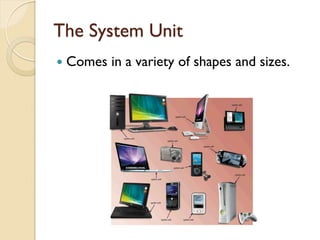
The System Unit
 Comes in a variety of shapes and sizes.
The System Unit
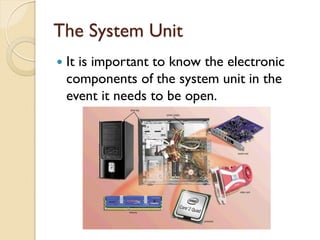
 It is important to know the electronic
components of the system unit in the
event it needs to be open.
The Motherboard
 Also called the system board, is the main
circuit board of the system unit.
 Many electronic components attach to
the motherboard and others are built
into it.
The Motherboard
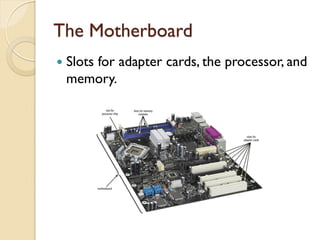
 Slots for adapter cards, the processor, and
memory.
The Motherboard
 Computer chips are small pieces of semi-
conducting material, usually silicon, on
which integrated circuits are etched.
◦ IC’s contain may microscopic pathways
capable of carrying an electric current.
◦ They contain components such as resistors,
capacitors, and transistors.
 Manufacturers package chips to be
attached to a circuit board, such at the
motherboard or adapter cards.
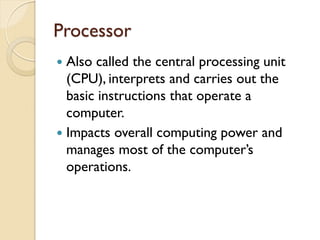
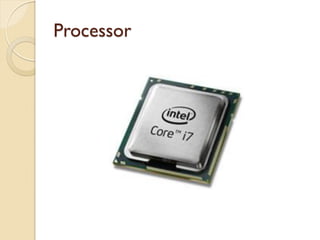
Processor
 Also called the central processing unit
(CPU), interprets and carries out the
basic instructions that operate a
computer.
 Impacts overall computing power and
manages most of the computer’s
operations.
Processor
Processor
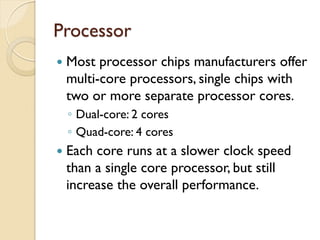
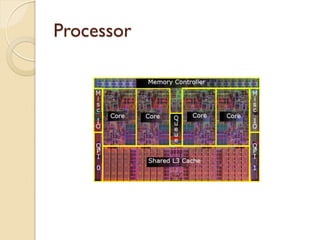
 Most processor chips manufacturers offer
multi-core processors, single chips with
two or more separate processor cores.
◦ Dual-core: 2 cores
◦ Quad-core: 4 cores
 Each core runs at a slower clock speed
than a single core processor, but still
increase the overall performance.
Processor
Processor
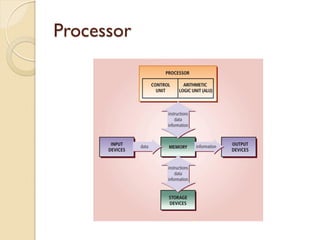
 Contain a control unit and an arithmetic
logic unit (ALU)
◦ Control Unit: Component of the processor
that directs and coordinates most of the
operations in the computer.
◦ Arithmetic Logic Unit: Component of the
processor that performs arithmetic,
comparison, and other operations.
Processor
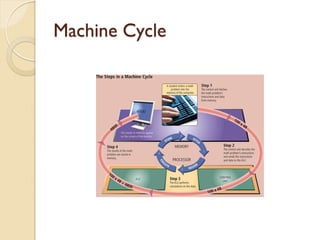
Machine Cycle
 For every instruction, a processor repeats
a set of four basic operations, which
comprise a machine cycle
Machine Cycle
 Fetching: Process of obtaining a program
instruction or data item from memory.
 Decoding: Process of translating the
instruction into signals the computer can
execute.
 Executing: Process of carrying out the
commands.
 Storing:Writing results to memory.
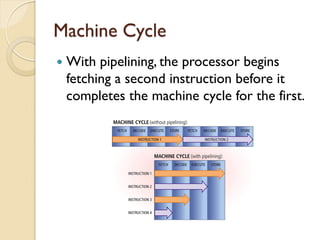
Machine Cycle
Machine Cycle
 With pipelining, the processor begins
fetching a second instruction before it
completes the machine cycle for the first.
Registers
 Small, high-speed storage locations that
temporarily hold data and instructions.
 A part of the processor, itself.
The System Clock
 A small quartz crystal circuit used to
control the timing of all computer
operations.
 Each tick equates to a clock cycle.
 Today, processors are superscalar, which
means they can execute more than one
instruction per clock cycle.
The System Clock
 Clock speed is the pace of the system
clock and is measured by the numbers of
ticks per second.
 Current personal computers have clock
speeds in the gigahertz range.
 One gigahertz (GHz) equals one billion
ticks of the system clock per second.
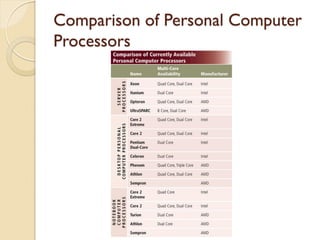
Comparison of Personal Computer
Processors
 Intel
◦ Core family for high-performance.
◦ Pentium or Celeron for basic computers.
◦ Xeon or Itanium for workstations and low-
end servers.
 AMD
◦ Intel compatible processors, structured
similar to Intel, perform same functions, can
be as powerful, often are less expensive.
Comparison of Personal Computer
Processors
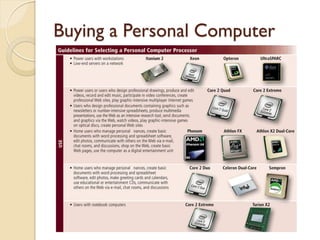
Buying a Personal Computer
Processor Cooling
 Processors generate heat which could
cause the chip to burn up.
 The computer fans generate airflow, but
the processor requires additional cooling.
 Heat sinks/pipes and liquid cooling are
often used to dissipate processor heat.
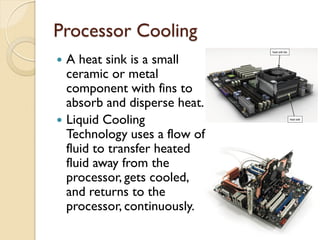
Processor Cooling
 A heat sink is a small
ceramic or metal
component with fins to
absorb and disperse heat.
 Liquid Cooling
Technology uses a flow of
fluid to transfer heated
fluid away from the
processor, gets cooled,
and returns to the
processor, continuously.
Parallel Processing
 A method that uses multiple processors
simultaneously to execute a single program
or task.
 A single problem is divided into portions and
multiple processors work on their assigned
portion at the same time.
 Special software is needed to divide the
problem and bring the results back together
again.
 Super computers use massive parallel
processing for applications such as artificial
intelligence and weather forecasting.
Data Representation
 Most computers are digital, meaning they
recognize two discrete states: on and off.
 This is due to the two states of electrical
switches.
 Two digits, 0 and 1, represent off and on
respectively, which is the basis for the
binary system.
Data Representation
 The binary system is a number system
that has just two unique digits, 0 and 1,
called bits.
 A bit is the smallest unit of data the
computer can process.
 A byte is 8 bits grouped together as a
unit, totally 256 unique combinations.
Data Representation
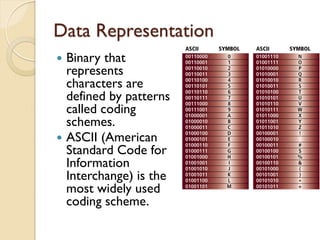
 Binary that
represents
characters are
defined by patterns
called coding
schemes.
 ASCII (American
Standard Code for
Information
Interchange) is the
most widely used
coding scheme.
Data Representation
 Unicode is a 16-bit coding scheme that
has the capacity of representing more
than 65,000 characters.
 It is large enough to fit almost all of the
world’s current written language as well
as classic languages, even reserving 30,000
codes for future expansion.
Data Representation
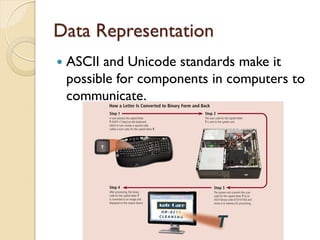
 ASCII and Unicode standards make it
possible for components in computers to
communicate.
Memory
 Consists of electronic components that
store instructions waiting to be executed
by the processor, data needed by those
instructions, and the results of processing
the data.
 Memory usually consists of one or more
chips on the motherboard or some other
circuit board on the computer.
Bytes and Addressable Memory
 A byte is the basic storage unit in
memory.
 The instructions and data exist in
memory as bytes.
 An address is a location in memory
where each byte resides temporarily.
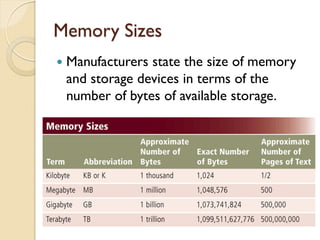
Memory Sizes
 Manufacturers state the size of memory
and storage devices in terms of the
number of bytes of available storage.
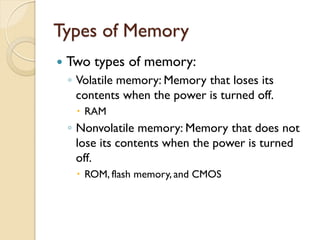
Types of Memory
 Two types of memory:
◦ Volatile memory: Memory that loses its
contents when the power is turned off.
 RAM
◦ Nonvolatile memory: Memory that does not
lose its contents when the power is turned
off.
 ROM, flash memory, and CMOS
RAM
 Users typically are referring to RAM
when discussing computer memory.
 RAM (random access memory), or main
memory, consists of memory chips that
can be read from and written to by the
processor and other devices.
 When the computer is powered up, the
RAM is initially populated with operating
system files from a storage devices, such
as a hard disk.
RAM
 The processor interprets and executes
instructions while the program is in RAM.
 Most RAM is volatile, so it will lose its
contents when the power is removed.
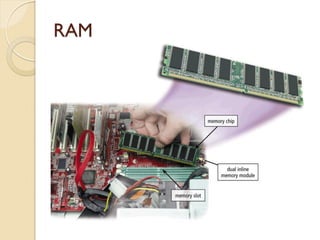
 RAM chips usually reside on a memory
module, which is a small circuit board.
 Memory slots on the motherboard hold
the memory modules.
RAM
RAM Configurations
 The amount of RAM necessary in a
computer often depends on the types of
software you plan to use.
 Retail software typically indicates the
minimum amount of RAM it requires.
Cache
 Pronounced “cash,” helps improve
processing times.
 Memory cache stores frequently used
instructions and data.
 L1 cache: built directly into processor
chip, usually small (8-128 KB)
 L2 cache: slightly slower than L1 with
larger capacity (64KB-16MB)
 L3 cache: on the motherboard, often up
to 8MB
Cache
 When the processor needs an instruction
or data, it searches memory in this order:
L1, L2, L3, then RAM, with a greater delay
in processing for each level of memory it
must search.
ROM
 ROM (Read-only memory) refers to
memory chips storing permanent data and
instructions.
 The data cannot be modified on most ROM
chips and is nonvolatile.
 ROM chips called firmware contain
permanently written data, instructions, or
information.
 PROM is a programmable ROM on which a
programmer can write permanently.
 EEPROM is an electrically erasable PROM.
Flash Memory
 A type of nonvolatile memory that can be
erased electronically and rewritten,
similar to EEPROM.
 It allows computers to store startup
instructions and is easy to update
contents.
 They store data and programs for many
mobile computers and devices such as
smart phones, portable media players, and
digital cameras.
CMOS
 Some RAM chips. Flash memory chips,
and other memory chips use
complementary metal-oxide
semiconductors (CMOS) technology
because it provides high speeds and
consumes little power.
 Battery backed CMOS chips keep the
date and time even when the computer is
turned off.
Memory Access Time
 Access time is the amount of time it takes
the processor to read data, instructions,
and information from memory.
 Directly affects how fast the computer
processes data.
 Accessing data in memory can be more
than 200,000 times faster than accessing
data on a hard disk because of the
mechanical motion of the hard disk.
Memory Access Time
 Access times can be given in terms of
fractional seconds, such as nanoseconds
(one billionth of a second) or in terms of
Hz.
 The higher the hertz (MHz, GHz) the
faster the access time; conversely, the
lower the nanoseconds, the faster the
access time.
Expansion Slots and Adapter Cards
 An expansion slot is a socket on the
motherboard that can hold an adapter card.
 An adapter card, or expansion card, is a
circuit board that enhances functions of a
component of the system unit and/or
provides connections to peripherals.
 Peripherals are devices that connect to the
system unit and is controlled by the
processor in the computer.
◦ Modems, disk drives, printers, scanners,
keyboards.
Expansion Slots and Adapter Cards
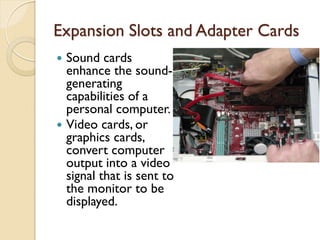
 Sound cards
enhance the sound-
generating
capabilities of a
personal computer.
 Video cards, or
graphics cards,
convert computer
output into a video
signal that is sent to
the monitor to be
displayed.
Expansion Slots and Adapter Cards
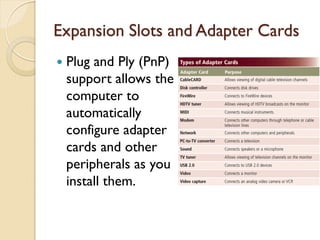
 Plug and Ply (PnP)
support allows the
computer to
automatically
configure adapter
cards and other
peripherals as you
install them.
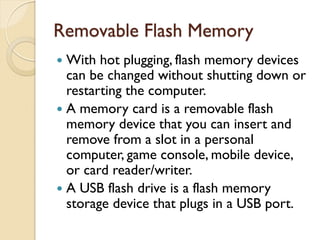
Removable Flash Memory
 With hot plugging, flash memory devices
can be changed without shutting down or
restarting the computer.
 A memory card is a removable flash
memory device that you can insert and
remove from a slot in a personal
computer, game console, mobile device,
or card reader/writer.
 A USB flash drive is a flash memory
storage device that plugs in a USB port.
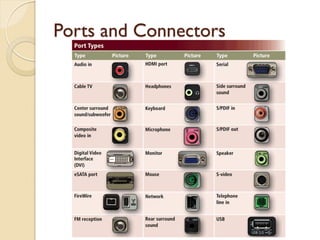
Ports and Connectors
 A port is the point at which a peripheral
attaches to or communicates with a
system unit so that the peripheral can
send data to or receive information from
the computer.
 A connector joins a cable to a port.
Ports and Connectors
 USB port, or universal serial bus port, can
connect up to 127 different peripherals
with a single connector.
 FireWire port, similar to USB, used for
connecting devices that require faster
data transmission, such as video cameras.
Other Ports
 Bluetooth uses radio waves to transmit
data between two devices.
 SCSI port is a special high-speed parallel
port for peripherals.
 eSATA port, IrDA Port, Serial Ports, MIDI
Port.
Buses
 Bits transfer internally within the circuitry of a
computer along electrical channels, called buses,
which allow for various devices, both inside and
attached to the system unit, to communicate with
each other.
 The size of the bus, called bus width, determines
the number of bits that the computer can
transmit at one time.
 In conjunction with the bus width, many
computer professionals refer to a computer’s
word size, which is the number of bits the
processor can interpret and execute at a given
time.
Expansion Bus
 Some peripherals outside the system unit
connect to a port on an adapter card
inserted in an expansion slot which
connects to the expansion bus.
 The most common types are: PCI bus,
PCI Express bus,AGP bus, USB, FireWire
bus, and PC Card bus.
Bays
 A bay is an opening inside the system unit
in which you can install additional
equipment.
 A drive bay is a rectangular opening that
typically holds disk drives.
 An external bay allows a user to access
openings in the bay from outside the
system unit, like optical disc drives.
Power Supply
 The component of the system unit that
converts the wall outlet AC power into
DC power, which the computer can use.
 Different motherboards and computers
require different wattages.

Components of the System Unit.pdf

  • 1.
    Components of theSystem Unit
  • 2.
    The System Unit A case that contains the electronic components of the computer used to process data.
  • 3.
    The System Unit The case of the system unit, or chassis, is made of metal or plastic and protects the electrical components inside.  The trend is towards a smaller form factor, or size and shape, of desktop computers.
  • 4.
    The System Unit Comes in a variety of shapes and sizes.
  • 5.
    The System Unit It is important to know the electronic components of the system unit in the event it needs to be open.
  • 6.
    The Motherboard  Alsocalled the system board, is the main circuit board of the system unit.  Many electronic components attach to the motherboard and others are built into it.
  • 7.
    The Motherboard  Slotsfor adapter cards, the processor, and memory.
  • 8.
    The Motherboard  Computerchips are small pieces of semi- conducting material, usually silicon, on which integrated circuits are etched. ◦ IC’s contain may microscopic pathways capable of carrying an electric current. ◦ They contain components such as resistors, capacitors, and transistors.  Manufacturers package chips to be attached to a circuit board, such at the motherboard or adapter cards.
  • 9.
    Processor  Also calledthe central processing unit (CPU), interprets and carries out the basic instructions that operate a computer.  Impacts overall computing power and manages most of the computer’s operations.
  • 10.
  • 11.
    Processor  Most processorchips manufacturers offer multi-core processors, single chips with two or more separate processor cores. ◦ Dual-core: 2 cores ◦ Quad-core: 4 cores  Each core runs at a slower clock speed than a single core processor, but still increase the overall performance.
  • 12.
  • 13.
    Processor  Contain acontrol unit and an arithmetic logic unit (ALU) ◦ Control Unit: Component of the processor that directs and coordinates most of the operations in the computer. ◦ Arithmetic Logic Unit: Component of the processor that performs arithmetic, comparison, and other operations.
  • 14.
  • 15.
    Machine Cycle  Forevery instruction, a processor repeats a set of four basic operations, which comprise a machine cycle
  • 16.
    Machine Cycle  Fetching:Process of obtaining a program instruction or data item from memory.  Decoding: Process of translating the instruction into signals the computer can execute.  Executing: Process of carrying out the commands.  Storing:Writing results to memory.
  • 17.
  • 18.
    Machine Cycle  Withpipelining, the processor begins fetching a second instruction before it completes the machine cycle for the first.
  • 19.
    Registers  Small, high-speedstorage locations that temporarily hold data and instructions.  A part of the processor, itself.
  • 20.
    The System Clock A small quartz crystal circuit used to control the timing of all computer operations.  Each tick equates to a clock cycle.  Today, processors are superscalar, which means they can execute more than one instruction per clock cycle.
  • 21.
    The System Clock Clock speed is the pace of the system clock and is measured by the numbers of ticks per second.  Current personal computers have clock speeds in the gigahertz range.  One gigahertz (GHz) equals one billion ticks of the system clock per second.
  • 22.
    Comparison of PersonalComputer Processors  Intel ◦ Core family for high-performance. ◦ Pentium or Celeron for basic computers. ◦ Xeon or Itanium for workstations and low- end servers.  AMD ◦ Intel compatible processors, structured similar to Intel, perform same functions, can be as powerful, often are less expensive.
  • 23.
    Comparison of PersonalComputer Processors
  • 24.
  • 25.
    Processor Cooling  Processorsgenerate heat which could cause the chip to burn up.  The computer fans generate airflow, but the processor requires additional cooling.  Heat sinks/pipes and liquid cooling are often used to dissipate processor heat.
  • 26.
    Processor Cooling  Aheat sink is a small ceramic or metal component with fins to absorb and disperse heat.  Liquid Cooling Technology uses a flow of fluid to transfer heated fluid away from the processor, gets cooled, and returns to the processor, continuously.
  • 27.
    Parallel Processing  Amethod that uses multiple processors simultaneously to execute a single program or task.  A single problem is divided into portions and multiple processors work on their assigned portion at the same time.  Special software is needed to divide the problem and bring the results back together again.  Super computers use massive parallel processing for applications such as artificial intelligence and weather forecasting.
  • 28.
    Data Representation  Mostcomputers are digital, meaning they recognize two discrete states: on and off.  This is due to the two states of electrical switches.  Two digits, 0 and 1, represent off and on respectively, which is the basis for the binary system.
  • 29.
    Data Representation  Thebinary system is a number system that has just two unique digits, 0 and 1, called bits.  A bit is the smallest unit of data the computer can process.  A byte is 8 bits grouped together as a unit, totally 256 unique combinations.
  • 30.
    Data Representation  Binarythat represents characters are defined by patterns called coding schemes.  ASCII (American Standard Code for Information Interchange) is the most widely used coding scheme.
  • 31.
    Data Representation  Unicodeis a 16-bit coding scheme that has the capacity of representing more than 65,000 characters.  It is large enough to fit almost all of the world’s current written language as well as classic languages, even reserving 30,000 codes for future expansion.
  • 32.
    Data Representation  ASCIIand Unicode standards make it possible for components in computers to communicate.
  • 33.
    Memory  Consists ofelectronic components that store instructions waiting to be executed by the processor, data needed by those instructions, and the results of processing the data.  Memory usually consists of one or more chips on the motherboard or some other circuit board on the computer.
  • 34.
    Bytes and AddressableMemory  A byte is the basic storage unit in memory.  The instructions and data exist in memory as bytes.  An address is a location in memory where each byte resides temporarily.
  • 35.
    Memory Sizes  Manufacturersstate the size of memory and storage devices in terms of the number of bytes of available storage.
  • 36.
    Types of Memory Two types of memory: ◦ Volatile memory: Memory that loses its contents when the power is turned off.  RAM ◦ Nonvolatile memory: Memory that does not lose its contents when the power is turned off.  ROM, flash memory, and CMOS
  • 37.
    RAM  Users typicallyare referring to RAM when discussing computer memory.  RAM (random access memory), or main memory, consists of memory chips that can be read from and written to by the processor and other devices.  When the computer is powered up, the RAM is initially populated with operating system files from a storage devices, such as a hard disk.
  • 38.
    RAM  The processorinterprets and executes instructions while the program is in RAM.  Most RAM is volatile, so it will lose its contents when the power is removed.  RAM chips usually reside on a memory module, which is a small circuit board.  Memory slots on the motherboard hold the memory modules.
  • 39.
  • 40.
    RAM Configurations  Theamount of RAM necessary in a computer often depends on the types of software you plan to use.  Retail software typically indicates the minimum amount of RAM it requires.
  • 41.
    Cache  Pronounced “cash,”helps improve processing times.  Memory cache stores frequently used instructions and data.  L1 cache: built directly into processor chip, usually small (8-128 KB)  L2 cache: slightly slower than L1 with larger capacity (64KB-16MB)  L3 cache: on the motherboard, often up to 8MB
  • 42.
    Cache  When theprocessor needs an instruction or data, it searches memory in this order: L1, L2, L3, then RAM, with a greater delay in processing for each level of memory it must search.
  • 43.
    ROM  ROM (Read-onlymemory) refers to memory chips storing permanent data and instructions.  The data cannot be modified on most ROM chips and is nonvolatile.  ROM chips called firmware contain permanently written data, instructions, or information.  PROM is a programmable ROM on which a programmer can write permanently.  EEPROM is an electrically erasable PROM.
  • 44.
    Flash Memory  Atype of nonvolatile memory that can be erased electronically and rewritten, similar to EEPROM.  It allows computers to store startup instructions and is easy to update contents.  They store data and programs for many mobile computers and devices such as smart phones, portable media players, and digital cameras.
  • 45.
    CMOS  Some RAMchips. Flash memory chips, and other memory chips use complementary metal-oxide semiconductors (CMOS) technology because it provides high speeds and consumes little power.  Battery backed CMOS chips keep the date and time even when the computer is turned off.
  • 46.
    Memory Access Time Access time is the amount of time it takes the processor to read data, instructions, and information from memory.  Directly affects how fast the computer processes data.  Accessing data in memory can be more than 200,000 times faster than accessing data on a hard disk because of the mechanical motion of the hard disk.
  • 47.
    Memory Access Time Access times can be given in terms of fractional seconds, such as nanoseconds (one billionth of a second) or in terms of Hz.  The higher the hertz (MHz, GHz) the faster the access time; conversely, the lower the nanoseconds, the faster the access time.
  • 48.
    Expansion Slots andAdapter Cards  An expansion slot is a socket on the motherboard that can hold an adapter card.  An adapter card, or expansion card, is a circuit board that enhances functions of a component of the system unit and/or provides connections to peripherals.  Peripherals are devices that connect to the system unit and is controlled by the processor in the computer. ◦ Modems, disk drives, printers, scanners, keyboards.
  • 49.
    Expansion Slots andAdapter Cards  Sound cards enhance the sound- generating capabilities of a personal computer.  Video cards, or graphics cards, convert computer output into a video signal that is sent to the monitor to be displayed.
  • 50.
    Expansion Slots andAdapter Cards  Plug and Ply (PnP) support allows the computer to automatically configure adapter cards and other peripherals as you install them.
  • 51.
    Removable Flash Memory With hot plugging, flash memory devices can be changed without shutting down or restarting the computer.  A memory card is a removable flash memory device that you can insert and remove from a slot in a personal computer, game console, mobile device, or card reader/writer.  A USB flash drive is a flash memory storage device that plugs in a USB port.
  • 52.
    Ports and Connectors A port is the point at which a peripheral attaches to or communicates with a system unit so that the peripheral can send data to or receive information from the computer.  A connector joins a cable to a port.
  • 53.
  • 54.
    Ports and Connectors USB port, or universal serial bus port, can connect up to 127 different peripherals with a single connector.  FireWire port, similar to USB, used for connecting devices that require faster data transmission, such as video cameras.
  • 55.
    Other Ports  Bluetoothuses radio waves to transmit data between two devices.  SCSI port is a special high-speed parallel port for peripherals.  eSATA port, IrDA Port, Serial Ports, MIDI Port.
  • 56.
    Buses  Bits transferinternally within the circuitry of a computer along electrical channels, called buses, which allow for various devices, both inside and attached to the system unit, to communicate with each other.  The size of the bus, called bus width, determines the number of bits that the computer can transmit at one time.  In conjunction with the bus width, many computer professionals refer to a computer’s word size, which is the number of bits the processor can interpret and execute at a given time.
  • 57.
    Expansion Bus  Someperipherals outside the system unit connect to a port on an adapter card inserted in an expansion slot which connects to the expansion bus.  The most common types are: PCI bus, PCI Express bus,AGP bus, USB, FireWire bus, and PC Card bus.
  • 58.
    Bays  A bayis an opening inside the system unit in which you can install additional equipment.  A drive bay is a rectangular opening that typically holds disk drives.  An external bay allows a user to access openings in the bay from outside the system unit, like optical disc drives.
  • 59.
    Power Supply  Thecomponent of the system unit that converts the wall outlet AC power into DC power, which the computer can use.  Different motherboards and computers require different wattages.