Components of the System
Unit
INTRODUCTION TO COMPUTER
Contents
• System Unit
• Data Representation
• Memory Unit
• Expansion Slots
• Expansion Cards
• Ports & Connectors
• Computer Buses
• Power Supply
System Unit
System Unit
• System unit is the main body of the computer
• It is a case that contains different electronic components of the computer
• These components include a central processing unit, memory (i.e. RAM, ROM), disk
drives, power supply, computer fan, and other electronic components
• All these components are connected to motherboard inside the system unit
• All computers and mobile devices have a system unit
• Input/output devices and some storage devices such as USB flash drive are
connected with system unit
• Different types of computers have system units of different shapes and sizes
• In laptop computers, keyboard with a pointing device is built on the top of the
system unit
• Display screen is attached to system unit with hinges
• Similarly, in mobile devices and many other mobile computers, display screen and
keyboard are often built on system unit
System Unit
Motherboard
• Motherboard is the main circuit board of the system unit
• It is also known as the system board or main board
• It is the most important circuit board inside the system unit
• Many electronic components are connected to motherboard and some
components are built into it
• Processor chip and memory chips are plugged (installed) into motherboard
• Motherboard contains sockets or slots on which electronic components are
installed
Central Processing Unit (CPU)
• Simply called a CPU
• It is the most important component of the computer
• Also known as a processor
• CPU is considered as the brain of the computer
• It performs different operations on data according to given instructions
• It also manages other operations of the computer
• CPU used in a personal computer is known as a microprocessor
• It consists of a single chip
• It is located on motherboard inside the system unit
• Today most of the processor chip manufacturers providing multi-core processors
• A multi-core processor is a single chip that contains two or more processors
• Each processor is called processor core or simply core
• Operating system views each processor core as a separate processor
• A multi-core processor typically increases overall performance of computer system
Central Processing Unit (CPU)
Components of CPU
• CPU contains two main components: Control Unit and the Arithmetic Logic Unit (ALU)
• These two components work together to perform different operations in computer system
• Control Unit (CU)
• Control unit is the most important component of CPU
• It controls and coordinates most of the operations in computer and its different components
• For example, control unit receives data and instructions from input device and stores them in main
memory. Similarly, it sends output to output device.
• Control unit also controls execution of instructions of program
• It fetches instructions and data from memory unit
• It decodes and executes instructions one by one
• If there is an arithmetic or logical operation, control unit issues a command signal to Arithmetic
Logic Unit (ALU) to perform required operation on data
• Arithmetic Logic Unit (ALU)
• It performs arithmetic and logical operations on data
• Arithmetic operations  ALU performs addition, subtraction, multiplication, and division
• Logical operations  ALU compares numerical data as well as alphabetic data
• For example, it checks whether first number is greater than second, less than second or equal to second, etc.
Registers
• A processor contains small, high-speed storage locations
• These storage locations are called registers
• Registers are used during program execution
• They temporarily hold instructions, data, or intermediate results of
calculations
• The size of these registers is 2 or 4 or 8 bytes
• The large sizes of registers increase the performance of CPU
• For example, a computer having 32-bit (4-bytes) registers means CPU can
process four bytes of data at a time
• A processor has different types of registers
• Each register is used for a specific purpose
Machine Cycle
• Process by which CPU obtains a program instruction from memory, decodes &
executes it, and stores result in memory (if necessary)
• Also known as instruction cycle
• CPU performs four basic operations to take action on each instruction of
program
• These operations are fetching, decoding, executing, and storing (if necessary)
Machine Cycle
Fetching
• Control unit obtains an instruction (or data item) from memory for taking action on
it
Decoding
• Control unit translates instruction into signals so that computer can understand it
• Control unit analyzes the instruction to determine the type of action to be
performed
• Control unit also reads any required data from main memory to be processed
Executing
• Control unit takes action on decoded instruction
• After decoding instruction and getting required data, control unit executes
instruction
Storing
• Control unit may be required to store results of executed instruction in memory (but
this condition is not always required)
System Clock
• System clock is an electronic component
• It controls the timing of all operations of computer
• It generates regular electronic pulses or ticks
• It is just like your heart that beats at a regular rate to keep your body functioning
• It is because computer clock is known as heart of the computer
• It controls functions of computer by generating regular electronic pulses or ticks
• System clock can generate pulses/ticks from millions to billions per second
• Each tick or pulse is known as clock cycle
• Clock speed is measured by number of clock cycles or ticks per second
• A processor of PC can execute more than one instruction per clock cycle
• For example, today PCs have clock speeds up to GHz (Gigahertz, where Giga means billion, and unit of cycle
per second is hertz)
• Thus, one gigahertz is equal to one billion cycles or ticks per second
• Speed of processor depends upon clock speed
• A processor can execute many instructions per second if clock speed is faster
• Today, speed of PCs is up to 3 GHz or more
• Speed of system clock affects performance of computer
• However, speed of system clock does not affect performance of input/output devices and storage devices
Data Representation
Data Representation
• On state represents digit ‘1’, while off state represents digit ‘0’
• Digital computers work with binary system
• Binary system is a number system that has only two unique digits: ‘0’ and ‘1’
• These digits are known as binary digits
• Binary digit ‘0’ or ‘1’ is called a bit
• ‘bit’ stands for binary digit
• It is the smallest unit of data that the computer can process
• Data and instructions are represented inside the computer as a group of bits
• A group of 8-bits is called byte
• Usually, a single character is represented by one byte
• A character may be an uppercase or lowercase letter, digit, or any symbol or
sign
Data Representation
• Data and instructions must be converted into binary form
• Representation of data and instructions in binary form is called a coding
scheme
• In coding scheme, every character, symbol, or numeric digit is represented by
a group of bits
• Data and instructions can be converted into the binary form using different
coding schemes
• Most widely used coding scheme is ASCII (American Standard Code for
Information and Interchange)
• In 8-bit ASCII code, 256 characters can be represented
• For example, in ASCII coding scheme, alphabetic letter ‘A’ (lowercase
uppercase letter) is represented as ‘01000001’, while ‘a’ (lowercase letter) is
represented as ‘01100001’
Memory Unit
Memory Unit
• A component of computer that is used to store data and instructions is called
memory
• Personal computer contains a main memory
• Before processing data, control unit must load data and instructions in main
memory
• It reads data and instructions from main memory and processes data
according to given instructions
• Data and results of calculations are also stored in main memory
• Main memory is also known as working area of the computer
• A computer cannot work without having main memory
Memory Unit
Structure of Main Memory
• Main memory used in a modern computer is built in the form of a chip
• Chip is made of semiconductor material
• Main memory of a computer consists of thousands or millions of cells
• Each cell can store a bit (Binary digit)
• A bit represents 0 or 1
• These cells are logically organized into a group of 8 bits called a byte
• A byte is the basic storage unit in memory
• When instructions of program and data are transferred to memory from a
storage device (i.e. hard disk), instructions and data exist in memory as bytes
• Each byte exists temporarily in a specific memory location that has an address
• The address is a unique number that identifies the location of a byte in
memory
Memory Unit
Memory Access Time
• The amount of time required by a processor to read data or instruction from
memory is called access time
• Usually, access time is measured in nanoseconds (ns)
• A nanosecond is one-billionth of a second
• Some manufacturers state access time in megahertz (MHz)
• Access time affects overall performance of the computer
• Control unit can access any byte of data from main memory by specifying its address
• Different bytes from main memory can be accessed directly (or randomly)
• Accessing any part of memory takes an equal amount of time
• It is very fast as compared to other storage devices such as hard disk and an optical
disk
• For example, accessing data from main memory is more than 200,000 times faster
than accessing data from the hard disk
• It is because; main memory does not involve any mechanical movement in accessing data or
instruction.
Memory Unit
Memory Size
• Storage capacity of memory is expressed in terms of number of bytes
• The data and program sizes are also measured in bytes
• Today, computer memories are available up to a terabyte
• In near future, memories will be available up to Yottabytes (YB)
Types of Memories
Volatile Memory
• A type of computer memory that requires continuous power (electricity) to
maintain stored information
• In this type of memory, data and instructions are stored temporarily
• It loses its contents (stored information) when computer is turned off
• So it is a temporary memory
• Examples  RAM, cache memory, and CPU registers
Non-Volatile Memory
• A type of computer memory that can maintain (retain) stored information even
when power supply is off (or interrupted)
• In this type of memory, data and instructions are stored permanently
• It does not lose its contents when the computer is turned off
• So it is a permanent memory
• Examples  ROM, flash memory, and all secondary storage devices
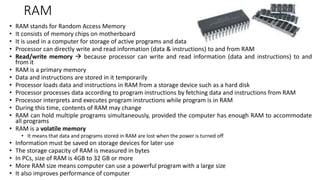
RAM
• RAM stands for Random Access Memory
• It consists of memory chips on motherboard
• It is used in a computer for storage of active programs and data
• Processor can directly write and read information (data & instructions) to and from RAM
• Read/write memory  because processor can write and read information (data and instructions) to and
from it
• RAM is a primary memory
• Data and instructions are stored in it temporarily
• Processor loads data and instructions in RAM from a storage device such as a hard disk
• Processor processes data according to program instructions by fetching data and instructions from RAM
• Processor interprets and executes program instructions while program is in RAM
• During this time, contents of RAM may change
• RAM can hold multiple programs simultaneously, provided the computer has enough RAM to accommodate
all programs
• RAM is a volatile memory
• It means that data and programs stored in RAM are lost when the power is turned off
• Information must be saved on storage devices for later use
• The storage capacity of RAM is measured in bytes
• In PCs, size of RAM is 4GB to 32 GB or more
• More RAM size means computer can use a powerful program with a large size
• It also improves performance of computer
RAM
Types of RAMs
• DRAM
• DRAM stands for Dynamic Random Access Memory
• This type of RAM is used in most of the computers
• In order to maintain data in DRAM, it is refreshed with electric charge again and again;
otherwise, data stored into it can be lost
• During refreshing process, CPU has to wait for writing and reading data to and from DRAM 
Therefore, slow memory
• SRAM
• SRAM stands for Static Random Access Memory
• It does not have to be refreshed with electric charge again and again
• It is faster than DRAM because CPU does not have to wait to access data from SRAM
• SRAM chips utilize less power than DRAM
• SRAM chip is more expensive than DRAM chip
• In most modern computer SRAM technology is used to build a very fast memory
• This fast memory is known as cache memory
ROM
• ROM stands for Read Only Memory
• It is a memory chip in which data and instructions can be stored permanently
• Data and instructions stored on most of the ROM chips cannot be modified
• Data and instructions stored in ROM can only be read
• This is the reason why it is called read only memory
• However, in some types of ROM chips data and instructions can be erased and reprogrammed
• ROM is a non-volatile memory
• It means that its contents are not lost when the computer is turned off
• Manufacturers of ROM chips often record data and instructions on ROM chips when they manufacture
chips
• These ROM chips are called firmware
• Mostly, ROM chip contains instructions that help booting process of a computer
• When computer is switched on, instructions in ROM chip are automatically activated and prepare
computer for use
• Many other devices also contain ROM chips
• For example, a printer has a ROM chip that contains data or information for fonts
• Almost every electronic device has a ROM chip that contains information or software about that device
and controls its different operations
ROM
Types of ROM
• PROM
• PROM stands for Programmable Read Only Memory
• This type of ROM is initially blank
• User or manufacturer can write data or programs on it by using special devices
• However, once program or data is written on PROM chip, it cannot be changed
• If there is an error in writing program or data on PROM chip, error cannot be removed
• PROM chip becomes unusable
• EPROM
• EPROM stands for Erasable Programmable Read Only Memory
• This form of ROM is also initially blank
• User or manufacturer can write a program or data on it by using special devices
• Program or data written on EPROM chip can be removed (erased) by using special devices and ultraviolet rays
• So program or data written on EPROM chip can be changed and new data can also be added
• EPROMs are generally used in devices in which information or programs are repeatedly changed (updated)
• EEPROM
• EEPROM stands for Electrically Erasable Programmable Read Only Memory
• In this type of ROM, user can write or change instructions and information with the help of electrical devices
• So data stored in this type of ROM chip can be modified easily
Difference between RAM and ROM
ROM
• Read only Memory
• Permanent Memory
• Non-volatile Memory
• Manufacturer of ROM can only
write data and programs into it at its
manufacturing time
• Small storage capacity
• Data is written into it using special
devices and ultraviolet rays
RAM
• Random Access Memory
• Temporary memory
• Volatile memory
• User can read and write data and
programs into it at any time during
data processing
• Large storage capacity
• Data is written into it using electrical
devices
Cache Memory
• Processor obtains data and instructions from RAM during data processing
• Often processor obtains same data or instructions from RAM again and again (or
repeatedly)
• In this way, a lot of time of processor is wasted for obtaining same data or
instructions from memory
• So performance of processor is affected
• Cache memory is a very small but very fast memory
• It is used to improve the performance of the processor (or computer system)
• Some cache memories are built inside processor (CPU) and some are separate chips
on motherboard and are located between RAM and CPU
• CPU stores frequently used instructions and data in cache memory
• When CPU needs a specific data or program instruction, it quickly obtains from
cache memory
• So cache memory speeds up the working of CPU
Cache Memory
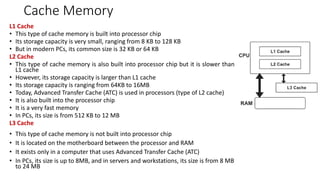
L1 Cache
• This type of cache memory is built into processor chip
• Its storage capacity is very small, ranging from 8 KB to 128 KB
• But in modern PCs, its common size is 32 KB or 64 KB
L2 Cache
• This type of cache memory is also built into processor chip but it is slower than
L1 cache
• However, its storage capacity is larger than L1 cache
• Its storage capacity is ranging from 64KB to 16MB
• Today, Advanced Transfer Cache (ATC) is used in processors (type of L2 cache)
• It is also built into the processor chip
• It is a very fast memory
• In PCs, its size is from 512 KB to 12 MB
L3 Cache
• This type of cache memory is not built into processor chip
• It is located on the motherboard between the processor and RAM
• It exists only in a computer that uses Advanced Transfer Cache (ATC)
• In PCs, its size is up to 8MB, and in servers and workstations, its size is from 8 MB
to 24 MB
Order of Searching Data or Instruction
• When a processor needs any instruction or data, it searches in the following
order:
• L1 cache
• L2 cache
• L3 cache
• RAM
• If data or instruction is not found in all of the above memories, then
processor searches required data or instruction on disk (such as a hard disk)
and loads into RAM
• Processor also loads a copy of data or instruction in one of the cache memory
Flash Memory
• Flash memory is a type of non-volatile memory
• It can be erased electronically and rewritten like EEPROM
• Most computers use flash memory to store startup instructions
• Flash memory chips are also used in mobile computers and peripherals
devices to store data and programs
• These mobile computers and devices include PDAs, smartphones, tablets,
portable media players, printers, digital cameras, digital voice recorders, etc.
• For example, when you enter names and addresses into smartphones, a flash
memory chip stores the data
• Some portable media players store music on flash memory chips; others store
music in memory cards
• Memory cards contain flash memory on a removable device instead of a chip
CMOS
• CMOS stands for Complementary Metal Oxide Semiconductor
• It is similar to RAM but it is a non-volatile memory
• It is a high-speed memory
• It uses a battery to retain information even when power to computer is off
• Contents of CMOS can be changed very easily
• CMOS is a special type of memory
• It stores configuration information about the computer such as information
about the type of disk drives, keyboard, monitor, system current date & time,
password, system startup information, etc.
• Flash memory chips that store computer start-up information often use
CMOS technology
Expansion Slots
Expansion Slots
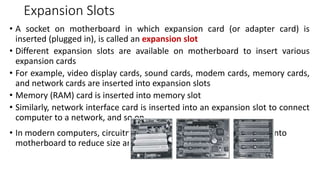
• A socket on motherboard in which expansion card (or adapter card) is
inserted (plugged in), is called an expansion slot
• Different expansion slots are available on motherboard to insert various
expansion cards
• For example, video display cards, sound cards, modem cards, memory cards,
and network cards are inserted into expansion slots
• Memory (RAM) card is inserted into memory slot
• Similarly, network interface card is inserted into an expansion slot to connect
computer to a network, and so on
• In modern computers, circuitry of many of these cards is integrated into
motherboard to reduce size and cost
Expansion Cards
Expansion Cards
• An expansion card is a small circuit board which is inserted into an expansion slot on
motherboard
• It is also known as an adapter card, adapter board, add-on card, interface card, or just card
• It is used to add additional peripheral devices to a computer system
• It means that an expansion card provides a connection to a peripheral device and controls
its working
• Examples of peripheral devices are monitor, modem, disk drive, printer, scanner, keyboard,
mouse, etc.
• For example, a network interface card (NIC) is used in a computer to connect it to a local
area network (LAN)
• Similarly, a sound card is used in a computer to connect microphones, headphones, and
speakers
• Some important types of adapter cards are video cards, sound cards, and network
interface cards
• In a modern computer, motherboard includes all necessary capabilities about peripheral
devices and don’t require adapter cards
• For example, sound and video functions may be built into motherboard
Ports & Connectors
Ports & Connectors
• A point at which a peripheral device (such as
keyboard, mouse, monitor, modem, etc.) is
connected to the computer or mobile device is called
port
• Ports provide a standard way of communication
between computer and its peripheral devices
• A computer or mobile device has different types of
ports to connect different peripheral devices
• For example, in a desktop personal computer, system
unit contains different ports on its front and back
• A peripheral device comes with a cable and a
connector
• A connector joins a cable to a port
• It is connected with computer by plugging its
connector into a port
Types of Ports
Serial Port
• A serial port provides a connection for transmitting data one bit at a time
• A serial port is also known as a communication (COM) port
• Transmission of data through a serial port is very slow
• Its data transmission rate is 115 Kbps or more
• Mouse, keyboard, and modem, etc. are connected to serial port
• These devices do not require fast data transmission
• Nowadays, serial ports are not used in modern computers
• These ports were used in older computers
• In modern computers, serial ports have been replaced with USB ports
Types of Ports
Parallel Port
• A parallel port provides a connection for transmitting data many bits at a
time
• Transmission of data through parallel port is faster than serial port
• It is up to 12 Mbps or more
• Printer and scanner are connected to parallel port
• Parallel ports are also known as Line Printer Ports (LPT)
• These ports were used in older computers
• In modern computers, parallel ports also have been replaced with USB ports
Types of Ports
USB
• USB stands for Universal Serial Bus
• Today, it is the most popular standard port used in PCs
• USB allows up to 127 peripheral devices to be connected with a single connector
• Some examples of devices that can be connected to USB port include a keyboard,
mouse, printer, scanner, digital camera, portable media player, webcam, speakers,
card reader, smartphone, PDA, game console, USB flash drives, external hard disk,
etc.
• Today, personal computers typically have six to eight USB ports either on front or
back of system unit
• Mobile devices also contain USB ports
• Usually, these ports are smaller than those of PCs
• In addition to computers and mobile devices, we also find USB ports in vehicles,
airplane seats, and other public locations
• USB port can also be used as a power supply for different devices such as
smartphones and tablets etc.
Computer Buses
Computer Buses
• A computer consists of different components and devices such as CPU, main memory, I/O
devices, etc.
• These components and devices are interconnected by using a set of parallel lines or wires
• These are electrical paths or channels
• A set of electrical paths/channels through which computer (CPU) sends and receives data
and instructions (and also sends command signals) to and from different components of
computer is called a computer bus
• Computer bus is backbone of computer and a computer cannot perform any function
without it
• Various devices or components of a computer communicate with each other through
buses
• For example, buses are used to transfer data from the input device to memory, from
memory to output device or storage device, or between memory and processor
• Capacity of a bus depends upon the number of data lines it contains
• Amount of data (or the number of bits) that a Bus can carry at one time from one
component of the computer to another is known as bus width
• For example, a bus with 32 lines can transfer 32 bits (or 4 bytes) at a time
• Larger number of bits handled by bus, faster the data transfer rate of the computer
Types of Buses
System Buses
• System buses are part of motherboard
• It connects processor to main memory and other devices that reside on
motherboard
• System Bus is divided into three types: Data Bus, Address Bus, and Control
Bus
Types of Buses
System Buses
Data Bus
• Data bus is used to transfer data (and instructions) between different
components of computer
• It connects CPU, memory unit, and other hardware devices on motherboard
• Data bus is bi-directional
• It means that data can be sent and received through this electrical path
• For example, CPU can write and read data to and from main memory
through data bus
• Data bus consists of 8, 16, 32, or 64 parallel lines
• Data Bus of 64-line can transfer 64-bits (or 8 bytes) of data at a time
• Number of lines in Data Bus affects speed of data transfer between different
components of computer
Types of Buses
System Buses
Address Bus
• Address bus is used to carry address information of different components or
memory locations of computer
• Address bus is unidirectional
• It means that information flows only in one direction
• CPU can only send address information and cannot receive any information through address
bus
• Components of computer are connected through address bus
• Each component is assigned a unique ID  address of that component
• When a computer component needs to communicate with another component, it
uses address bus to specify the address of that component
• The width of address bus is from 16 to 32 bits
• A system with a 32-bit address bus can address 232 (4,294,967,296 i.e. 4GB)
memory locations
Types of Buses
System Buses
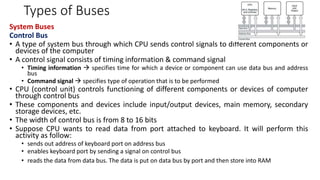
Control Bus
• A type of system bus through which CPU sends control signals to different components or
devices of the computer
• A control signal consists of timing information & command signal
• Timing information  specifies time for which a device or component can use data bus and address
bus
• Command signal  specifies type of operation that is to be performed
• CPU (control unit) controls functioning of different components or devices of computer
through control bus
• These components and devices include input/output devices, main memory, secondary
storage devices, etc.
• The width of control bus is from 8 to 16 bits
• Suppose CPU wants to read data from port attached to keyboard. It will perform this
activity as follow:
• sends out address of keyboard port on address bus
• enables keyboard port by sending a signal on control bus
• reads the data from data bus. The data is put on data bus by port and then store into RAM
Types of Buses
Expansion Buses
• Computer buses that connect CPU (processor) to peripheral devices
• A peripheral device is connected to system unit through a port on an adapter
card or expansion card
• Expansion card is inserted in an expansion slot on motherboard
• Expansion slot is connected to expansion bus
• Expansion bus is connected to system bus
• A processor communicates with peripheral via expansion bus and system bus
• Data transmitted to processor or memory travels from an expansion slot
through expansion bus and system bus
• The width of expansion buses is typically from 16 to 64 bits
Power Supply
Power Supply
• Power supply is an electrical component that supplies power to computer
• It is installed inside system unit and has its own cooling fan
• It is a simple electrical system that converts AC power into DC power
• It takes 240 or 110 AC voltage and converts it into DC voltages of 3V, 6V, 12V,
and 24V
• Low DC voltage is required to operate different components of a computer
AC Adapter
• Some external peripheral devices such as an external modem, router,
speakers, etc. require an AC adapter as a power supply
• It is an external power supply which also converts AC power into DC power
that the peripheral devices require
• AC Adapter is also called an AC converter or charger
• One end of AC adapter is plugged in the wall outlet and the other end is
attached to peripheral device
Battery
• A battery is a hardware component that can be charged electrically and can
be used as a source of power
• Mobile phones and other mobile devices run using batteries
• Similarly, mobile computers such as laptops can also run using batteries

System Unit- introduction to computing applications.pdf

  • 1.
    Components of theSystem Unit INTRODUCTION TO COMPUTER
  • 2.
    Contents • System Unit •Data Representation • Memory Unit • Expansion Slots • Expansion Cards • Ports & Connectors • Computer Buses • Power Supply
  • 3.
  • 4.
    System Unit • Systemunit is the main body of the computer • It is a case that contains different electronic components of the computer • These components include a central processing unit, memory (i.e. RAM, ROM), disk drives, power supply, computer fan, and other electronic components • All these components are connected to motherboard inside the system unit • All computers and mobile devices have a system unit • Input/output devices and some storage devices such as USB flash drive are connected with system unit • Different types of computers have system units of different shapes and sizes • In laptop computers, keyboard with a pointing device is built on the top of the system unit • Display screen is attached to system unit with hinges • Similarly, in mobile devices and many other mobile computers, display screen and keyboard are often built on system unit
  • 5.
  • 6.
    Motherboard • Motherboard isthe main circuit board of the system unit • It is also known as the system board or main board • It is the most important circuit board inside the system unit • Many electronic components are connected to motherboard and some components are built into it • Processor chip and memory chips are plugged (installed) into motherboard • Motherboard contains sockets or slots on which electronic components are installed
  • 7.
    Central Processing Unit(CPU) • Simply called a CPU • It is the most important component of the computer • Also known as a processor • CPU is considered as the brain of the computer • It performs different operations on data according to given instructions • It also manages other operations of the computer • CPU used in a personal computer is known as a microprocessor • It consists of a single chip • It is located on motherboard inside the system unit • Today most of the processor chip manufacturers providing multi-core processors • A multi-core processor is a single chip that contains two or more processors • Each processor is called processor core or simply core • Operating system views each processor core as a separate processor • A multi-core processor typically increases overall performance of computer system
  • 8.
    Central Processing Unit(CPU) Components of CPU • CPU contains two main components: Control Unit and the Arithmetic Logic Unit (ALU) • These two components work together to perform different operations in computer system • Control Unit (CU) • Control unit is the most important component of CPU • It controls and coordinates most of the operations in computer and its different components • For example, control unit receives data and instructions from input device and stores them in main memory. Similarly, it sends output to output device. • Control unit also controls execution of instructions of program • It fetches instructions and data from memory unit • It decodes and executes instructions one by one • If there is an arithmetic or logical operation, control unit issues a command signal to Arithmetic Logic Unit (ALU) to perform required operation on data • Arithmetic Logic Unit (ALU) • It performs arithmetic and logical operations on data • Arithmetic operations  ALU performs addition, subtraction, multiplication, and division • Logical operations  ALU compares numerical data as well as alphabetic data • For example, it checks whether first number is greater than second, less than second or equal to second, etc.
  • 9.
    Registers • A processorcontains small, high-speed storage locations • These storage locations are called registers • Registers are used during program execution • They temporarily hold instructions, data, or intermediate results of calculations • The size of these registers is 2 or 4 or 8 bytes • The large sizes of registers increase the performance of CPU • For example, a computer having 32-bit (4-bytes) registers means CPU can process four bytes of data at a time • A processor has different types of registers • Each register is used for a specific purpose
  • 10.
    Machine Cycle • Processby which CPU obtains a program instruction from memory, decodes & executes it, and stores result in memory (if necessary) • Also known as instruction cycle • CPU performs four basic operations to take action on each instruction of program • These operations are fetching, decoding, executing, and storing (if necessary)
  • 11.
    Machine Cycle Fetching • Controlunit obtains an instruction (or data item) from memory for taking action on it Decoding • Control unit translates instruction into signals so that computer can understand it • Control unit analyzes the instruction to determine the type of action to be performed • Control unit also reads any required data from main memory to be processed Executing • Control unit takes action on decoded instruction • After decoding instruction and getting required data, control unit executes instruction Storing • Control unit may be required to store results of executed instruction in memory (but this condition is not always required)
  • 12.
    System Clock • Systemclock is an electronic component • It controls the timing of all operations of computer • It generates regular electronic pulses or ticks • It is just like your heart that beats at a regular rate to keep your body functioning • It is because computer clock is known as heart of the computer • It controls functions of computer by generating regular electronic pulses or ticks • System clock can generate pulses/ticks from millions to billions per second • Each tick or pulse is known as clock cycle • Clock speed is measured by number of clock cycles or ticks per second • A processor of PC can execute more than one instruction per clock cycle • For example, today PCs have clock speeds up to GHz (Gigahertz, where Giga means billion, and unit of cycle per second is hertz) • Thus, one gigahertz is equal to one billion cycles or ticks per second • Speed of processor depends upon clock speed • A processor can execute many instructions per second if clock speed is faster • Today, speed of PCs is up to 3 GHz or more • Speed of system clock affects performance of computer • However, speed of system clock does not affect performance of input/output devices and storage devices
  • 13.
  • 14.
    Data Representation • Onstate represents digit ‘1’, while off state represents digit ‘0’ • Digital computers work with binary system • Binary system is a number system that has only two unique digits: ‘0’ and ‘1’ • These digits are known as binary digits • Binary digit ‘0’ or ‘1’ is called a bit • ‘bit’ stands for binary digit • It is the smallest unit of data that the computer can process • Data and instructions are represented inside the computer as a group of bits • A group of 8-bits is called byte • Usually, a single character is represented by one byte • A character may be an uppercase or lowercase letter, digit, or any symbol or sign
  • 15.
    Data Representation • Dataand instructions must be converted into binary form • Representation of data and instructions in binary form is called a coding scheme • In coding scheme, every character, symbol, or numeric digit is represented by a group of bits • Data and instructions can be converted into the binary form using different coding schemes • Most widely used coding scheme is ASCII (American Standard Code for Information and Interchange) • In 8-bit ASCII code, 256 characters can be represented • For example, in ASCII coding scheme, alphabetic letter ‘A’ (lowercase uppercase letter) is represented as ‘01000001’, while ‘a’ (lowercase letter) is represented as ‘01100001’
  • 16.
  • 17.
    Memory Unit • Acomponent of computer that is used to store data and instructions is called memory • Personal computer contains a main memory • Before processing data, control unit must load data and instructions in main memory • It reads data and instructions from main memory and processes data according to given instructions • Data and results of calculations are also stored in main memory • Main memory is also known as working area of the computer • A computer cannot work without having main memory
  • 18.
    Memory Unit Structure ofMain Memory • Main memory used in a modern computer is built in the form of a chip • Chip is made of semiconductor material • Main memory of a computer consists of thousands or millions of cells • Each cell can store a bit (Binary digit) • A bit represents 0 or 1 • These cells are logically organized into a group of 8 bits called a byte • A byte is the basic storage unit in memory • When instructions of program and data are transferred to memory from a storage device (i.e. hard disk), instructions and data exist in memory as bytes • Each byte exists temporarily in a specific memory location that has an address • The address is a unique number that identifies the location of a byte in memory
  • 19.
    Memory Unit Memory AccessTime • The amount of time required by a processor to read data or instruction from memory is called access time • Usually, access time is measured in nanoseconds (ns) • A nanosecond is one-billionth of a second • Some manufacturers state access time in megahertz (MHz) • Access time affects overall performance of the computer • Control unit can access any byte of data from main memory by specifying its address • Different bytes from main memory can be accessed directly (or randomly) • Accessing any part of memory takes an equal amount of time • It is very fast as compared to other storage devices such as hard disk and an optical disk • For example, accessing data from main memory is more than 200,000 times faster than accessing data from the hard disk • It is because; main memory does not involve any mechanical movement in accessing data or instruction.
  • 20.
    Memory Unit Memory Size •Storage capacity of memory is expressed in terms of number of bytes • The data and program sizes are also measured in bytes • Today, computer memories are available up to a terabyte • In near future, memories will be available up to Yottabytes (YB)
  • 21.
    Types of Memories VolatileMemory • A type of computer memory that requires continuous power (electricity) to maintain stored information • In this type of memory, data and instructions are stored temporarily • It loses its contents (stored information) when computer is turned off • So it is a temporary memory • Examples  RAM, cache memory, and CPU registers Non-Volatile Memory • A type of computer memory that can maintain (retain) stored information even when power supply is off (or interrupted) • In this type of memory, data and instructions are stored permanently • It does not lose its contents when the computer is turned off • So it is a permanent memory • Examples  ROM, flash memory, and all secondary storage devices
  • 22.
    RAM • RAM standsfor Random Access Memory • It consists of memory chips on motherboard • It is used in a computer for storage of active programs and data • Processor can directly write and read information (data & instructions) to and from RAM • Read/write memory  because processor can write and read information (data and instructions) to and from it • RAM is a primary memory • Data and instructions are stored in it temporarily • Processor loads data and instructions in RAM from a storage device such as a hard disk • Processor processes data according to program instructions by fetching data and instructions from RAM • Processor interprets and executes program instructions while program is in RAM • During this time, contents of RAM may change • RAM can hold multiple programs simultaneously, provided the computer has enough RAM to accommodate all programs • RAM is a volatile memory • It means that data and programs stored in RAM are lost when the power is turned off • Information must be saved on storage devices for later use • The storage capacity of RAM is measured in bytes • In PCs, size of RAM is 4GB to 32 GB or more • More RAM size means computer can use a powerful program with a large size • It also improves performance of computer
  • 23.
    RAM Types of RAMs •DRAM • DRAM stands for Dynamic Random Access Memory • This type of RAM is used in most of the computers • In order to maintain data in DRAM, it is refreshed with electric charge again and again; otherwise, data stored into it can be lost • During refreshing process, CPU has to wait for writing and reading data to and from DRAM  Therefore, slow memory • SRAM • SRAM stands for Static Random Access Memory • It does not have to be refreshed with electric charge again and again • It is faster than DRAM because CPU does not have to wait to access data from SRAM • SRAM chips utilize less power than DRAM • SRAM chip is more expensive than DRAM chip • In most modern computer SRAM technology is used to build a very fast memory • This fast memory is known as cache memory
  • 24.
    ROM • ROM standsfor Read Only Memory • It is a memory chip in which data and instructions can be stored permanently • Data and instructions stored on most of the ROM chips cannot be modified • Data and instructions stored in ROM can only be read • This is the reason why it is called read only memory • However, in some types of ROM chips data and instructions can be erased and reprogrammed • ROM is a non-volatile memory • It means that its contents are not lost when the computer is turned off • Manufacturers of ROM chips often record data and instructions on ROM chips when they manufacture chips • These ROM chips are called firmware • Mostly, ROM chip contains instructions that help booting process of a computer • When computer is switched on, instructions in ROM chip are automatically activated and prepare computer for use • Many other devices also contain ROM chips • For example, a printer has a ROM chip that contains data or information for fonts • Almost every electronic device has a ROM chip that contains information or software about that device and controls its different operations
  • 25.
    ROM Types of ROM •PROM • PROM stands for Programmable Read Only Memory • This type of ROM is initially blank • User or manufacturer can write data or programs on it by using special devices • However, once program or data is written on PROM chip, it cannot be changed • If there is an error in writing program or data on PROM chip, error cannot be removed • PROM chip becomes unusable • EPROM • EPROM stands for Erasable Programmable Read Only Memory • This form of ROM is also initially blank • User or manufacturer can write a program or data on it by using special devices • Program or data written on EPROM chip can be removed (erased) by using special devices and ultraviolet rays • So program or data written on EPROM chip can be changed and new data can also be added • EPROMs are generally used in devices in which information or programs are repeatedly changed (updated) • EEPROM • EEPROM stands for Electrically Erasable Programmable Read Only Memory • In this type of ROM, user can write or change instructions and information with the help of electrical devices • So data stored in this type of ROM chip can be modified easily
  • 26.
    Difference between RAMand ROM ROM • Read only Memory • Permanent Memory • Non-volatile Memory • Manufacturer of ROM can only write data and programs into it at its manufacturing time • Small storage capacity • Data is written into it using special devices and ultraviolet rays RAM • Random Access Memory • Temporary memory • Volatile memory • User can read and write data and programs into it at any time during data processing • Large storage capacity • Data is written into it using electrical devices
  • 27.
    Cache Memory • Processorobtains data and instructions from RAM during data processing • Often processor obtains same data or instructions from RAM again and again (or repeatedly) • In this way, a lot of time of processor is wasted for obtaining same data or instructions from memory • So performance of processor is affected • Cache memory is a very small but very fast memory • It is used to improve the performance of the processor (or computer system) • Some cache memories are built inside processor (CPU) and some are separate chips on motherboard and are located between RAM and CPU • CPU stores frequently used instructions and data in cache memory • When CPU needs a specific data or program instruction, it quickly obtains from cache memory • So cache memory speeds up the working of CPU
  • 28.
    Cache Memory L1 Cache •This type of cache memory is built into processor chip • Its storage capacity is very small, ranging from 8 KB to 128 KB • But in modern PCs, its common size is 32 KB or 64 KB L2 Cache • This type of cache memory is also built into processor chip but it is slower than L1 cache • However, its storage capacity is larger than L1 cache • Its storage capacity is ranging from 64KB to 16MB • Today, Advanced Transfer Cache (ATC) is used in processors (type of L2 cache) • It is also built into the processor chip • It is a very fast memory • In PCs, its size is from 512 KB to 12 MB L3 Cache • This type of cache memory is not built into processor chip • It is located on the motherboard between the processor and RAM • It exists only in a computer that uses Advanced Transfer Cache (ATC) • In PCs, its size is up to 8MB, and in servers and workstations, its size is from 8 MB to 24 MB
  • 29.
    Order of SearchingData or Instruction • When a processor needs any instruction or data, it searches in the following order: • L1 cache • L2 cache • L3 cache • RAM • If data or instruction is not found in all of the above memories, then processor searches required data or instruction on disk (such as a hard disk) and loads into RAM • Processor also loads a copy of data or instruction in one of the cache memory
  • 30.
    Flash Memory • Flashmemory is a type of non-volatile memory • It can be erased electronically and rewritten like EEPROM • Most computers use flash memory to store startup instructions • Flash memory chips are also used in mobile computers and peripherals devices to store data and programs • These mobile computers and devices include PDAs, smartphones, tablets, portable media players, printers, digital cameras, digital voice recorders, etc. • For example, when you enter names and addresses into smartphones, a flash memory chip stores the data • Some portable media players store music on flash memory chips; others store music in memory cards • Memory cards contain flash memory on a removable device instead of a chip
  • 31.
    CMOS • CMOS standsfor Complementary Metal Oxide Semiconductor • It is similar to RAM but it is a non-volatile memory • It is a high-speed memory • It uses a battery to retain information even when power to computer is off • Contents of CMOS can be changed very easily • CMOS is a special type of memory • It stores configuration information about the computer such as information about the type of disk drives, keyboard, monitor, system current date & time, password, system startup information, etc. • Flash memory chips that store computer start-up information often use CMOS technology
  • 32.
  • 33.
    Expansion Slots • Asocket on motherboard in which expansion card (or adapter card) is inserted (plugged in), is called an expansion slot • Different expansion slots are available on motherboard to insert various expansion cards • For example, video display cards, sound cards, modem cards, memory cards, and network cards are inserted into expansion slots • Memory (RAM) card is inserted into memory slot • Similarly, network interface card is inserted into an expansion slot to connect computer to a network, and so on • In modern computers, circuitry of many of these cards is integrated into motherboard to reduce size and cost
  • 34.
  • 35.
    Expansion Cards • Anexpansion card is a small circuit board which is inserted into an expansion slot on motherboard • It is also known as an adapter card, adapter board, add-on card, interface card, or just card • It is used to add additional peripheral devices to a computer system • It means that an expansion card provides a connection to a peripheral device and controls its working • Examples of peripheral devices are monitor, modem, disk drive, printer, scanner, keyboard, mouse, etc. • For example, a network interface card (NIC) is used in a computer to connect it to a local area network (LAN) • Similarly, a sound card is used in a computer to connect microphones, headphones, and speakers • Some important types of adapter cards are video cards, sound cards, and network interface cards • In a modern computer, motherboard includes all necessary capabilities about peripheral devices and don’t require adapter cards • For example, sound and video functions may be built into motherboard
  • 36.
  • 37.
    Ports & Connectors •A point at which a peripheral device (such as keyboard, mouse, monitor, modem, etc.) is connected to the computer or mobile device is called port • Ports provide a standard way of communication between computer and its peripheral devices • A computer or mobile device has different types of ports to connect different peripheral devices • For example, in a desktop personal computer, system unit contains different ports on its front and back • A peripheral device comes with a cable and a connector • A connector joins a cable to a port • It is connected with computer by plugging its connector into a port
  • 38.
    Types of Ports SerialPort • A serial port provides a connection for transmitting data one bit at a time • A serial port is also known as a communication (COM) port • Transmission of data through a serial port is very slow • Its data transmission rate is 115 Kbps or more • Mouse, keyboard, and modem, etc. are connected to serial port • These devices do not require fast data transmission • Nowadays, serial ports are not used in modern computers • These ports were used in older computers • In modern computers, serial ports have been replaced with USB ports
  • 39.
    Types of Ports ParallelPort • A parallel port provides a connection for transmitting data many bits at a time • Transmission of data through parallel port is faster than serial port • It is up to 12 Mbps or more • Printer and scanner are connected to parallel port • Parallel ports are also known as Line Printer Ports (LPT) • These ports were used in older computers • In modern computers, parallel ports also have been replaced with USB ports
  • 40.
    Types of Ports USB •USB stands for Universal Serial Bus • Today, it is the most popular standard port used in PCs • USB allows up to 127 peripheral devices to be connected with a single connector • Some examples of devices that can be connected to USB port include a keyboard, mouse, printer, scanner, digital camera, portable media player, webcam, speakers, card reader, smartphone, PDA, game console, USB flash drives, external hard disk, etc. • Today, personal computers typically have six to eight USB ports either on front or back of system unit • Mobile devices also contain USB ports • Usually, these ports are smaller than those of PCs • In addition to computers and mobile devices, we also find USB ports in vehicles, airplane seats, and other public locations • USB port can also be used as a power supply for different devices such as smartphones and tablets etc.
  • 41.
  • 42.
    Computer Buses • Acomputer consists of different components and devices such as CPU, main memory, I/O devices, etc. • These components and devices are interconnected by using a set of parallel lines or wires • These are electrical paths or channels • A set of electrical paths/channels through which computer (CPU) sends and receives data and instructions (and also sends command signals) to and from different components of computer is called a computer bus • Computer bus is backbone of computer and a computer cannot perform any function without it • Various devices or components of a computer communicate with each other through buses • For example, buses are used to transfer data from the input device to memory, from memory to output device or storage device, or between memory and processor • Capacity of a bus depends upon the number of data lines it contains • Amount of data (or the number of bits) that a Bus can carry at one time from one component of the computer to another is known as bus width • For example, a bus with 32 lines can transfer 32 bits (or 4 bytes) at a time • Larger number of bits handled by bus, faster the data transfer rate of the computer
  • 43.
    Types of Buses SystemBuses • System buses are part of motherboard • It connects processor to main memory and other devices that reside on motherboard • System Bus is divided into three types: Data Bus, Address Bus, and Control Bus
  • 44.
    Types of Buses SystemBuses Data Bus • Data bus is used to transfer data (and instructions) between different components of computer • It connects CPU, memory unit, and other hardware devices on motherboard • Data bus is bi-directional • It means that data can be sent and received through this electrical path • For example, CPU can write and read data to and from main memory through data bus • Data bus consists of 8, 16, 32, or 64 parallel lines • Data Bus of 64-line can transfer 64-bits (or 8 bytes) of data at a time • Number of lines in Data Bus affects speed of data transfer between different components of computer
  • 45.
    Types of Buses SystemBuses Address Bus • Address bus is used to carry address information of different components or memory locations of computer • Address bus is unidirectional • It means that information flows only in one direction • CPU can only send address information and cannot receive any information through address bus • Components of computer are connected through address bus • Each component is assigned a unique ID  address of that component • When a computer component needs to communicate with another component, it uses address bus to specify the address of that component • The width of address bus is from 16 to 32 bits • A system with a 32-bit address bus can address 232 (4,294,967,296 i.e. 4GB) memory locations
  • 46.
    Types of Buses SystemBuses Control Bus • A type of system bus through which CPU sends control signals to different components or devices of the computer • A control signal consists of timing information & command signal • Timing information  specifies time for which a device or component can use data bus and address bus • Command signal  specifies type of operation that is to be performed • CPU (control unit) controls functioning of different components or devices of computer through control bus • These components and devices include input/output devices, main memory, secondary storage devices, etc. • The width of control bus is from 8 to 16 bits • Suppose CPU wants to read data from port attached to keyboard. It will perform this activity as follow: • sends out address of keyboard port on address bus • enables keyboard port by sending a signal on control bus • reads the data from data bus. The data is put on data bus by port and then store into RAM
  • 47.
    Types of Buses ExpansionBuses • Computer buses that connect CPU (processor) to peripheral devices • A peripheral device is connected to system unit through a port on an adapter card or expansion card • Expansion card is inserted in an expansion slot on motherboard • Expansion slot is connected to expansion bus • Expansion bus is connected to system bus • A processor communicates with peripheral via expansion bus and system bus • Data transmitted to processor or memory travels from an expansion slot through expansion bus and system bus • The width of expansion buses is typically from 16 to 64 bits
  • 48.
  • 49.
    Power Supply • Powersupply is an electrical component that supplies power to computer • It is installed inside system unit and has its own cooling fan • It is a simple electrical system that converts AC power into DC power • It takes 240 or 110 AC voltage and converts it into DC voltages of 3V, 6V, 12V, and 24V • Low DC voltage is required to operate different components of a computer
  • 50.
    AC Adapter • Someexternal peripheral devices such as an external modem, router, speakers, etc. require an AC adapter as a power supply • It is an external power supply which also converts AC power into DC power that the peripheral devices require • AC Adapter is also called an AC converter or charger • One end of AC adapter is plugged in the wall outlet and the other end is attached to peripheral device
  • 51.
    Battery • A batteryis a hardware component that can be charged electrically and can be used as a source of power • Mobile phones and other mobile devices run using batteries • Similarly, mobile computers such as laptops can also run using batteries