

Clustering in Data Mining
Lesson: Data Mining
Professor: Mrs M.Hosseini
Group Members: Mojtaba Derakhshandi,S.Mostafa Sayyedi,Mojtaba Sadeghi
Clustering in Data Mining
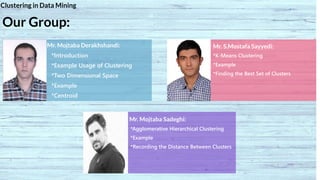
Our Group:
Mr. Mojtaba Derakhshandi:
*Introduction
*Example Usage of Clustering
*Two Dimensional Space
*Example
*Centroid
Mr. Mojtaba Sadeghi:
Mr. S.Mostafa Sayyedi:
*K-Means Clustering
*Example
*Finding the Best Set of Clusters
*Agglomerative Hierarchical Clustering
*Example
*Recording the Distance Between Clusters
Introduction
What is Clustering?
Clustering in Data Mining
Mojtaba Derakhshandi
Page: 1
Page 4
unlimited
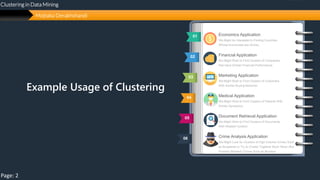
Economics Application
We Might be Interested in Finding Countries
Whose Economies are Similar.
Financial Application
We Might Wish to Find Clusters of Companies
that Have Similar Financial Performance.
Marketing Application
We Might Wish to Find Clusters of Customers
With Similar Buying Behavior.
Medical Application
We Might Wish to Find Clusters of Patients With
Similar Symptoms.
Document Retrieval Application
We Might Wish to Find Clusters of Documents
With Related Content.
Crime Analysis Application
We Might Look for Clusters of High Volume Crimes Such
as Burglaries or Try to Cluster Together Much Rarer (But
Possibly Related) Crimes Such as Murders.
01
02
03
04
05
06
Example Usage of Clustering
Clustering in Data Mining
Mojtaba Derakhshandi
Page: 2
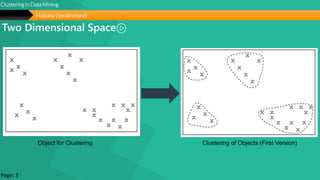
Two Dimensional Space
Clustering in Data Mining
Mojtaba Derakhshandi
Object for Clustering Clustering of Objects (First Version)
Page: 3
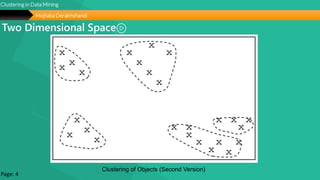
Two Dimensional Space
Clustering in Data Mining
Mojtaba Derakhshandi
Clustering of Objects (Second Version)
Page: 4
Page 7
unlimited
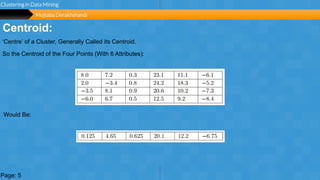
Centroid:
Clustering in Data Mining
Page: 5
‘Centre’ of a Cluster, Generally Called its Centroid.
So the Centroid of the Four Points (With 6 Attributes):
Would Be:
Mojtaba Derakhshandi
Page 8
unlimited
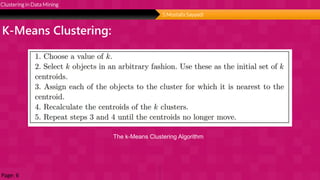
K-Means Clustering:
Clustering in Data Mining
The k-Means Clustering Algorithm
Page: 6
S.Mostafa Sayyedi
Page 9
unlimited
Example:
Clustering in Data Mining
S.Mostafa Sayyedi
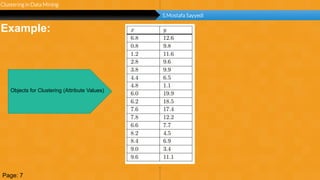
Objects for Clustering (Attribute Values)
Page: 7
Page 10
unlimited
Example:
Clustering in Data Mining
S.Mostafa Sayyedi
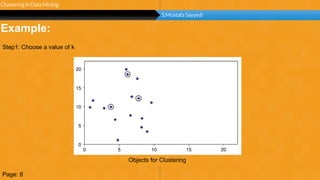
Objects for Clustering
Page: 8
Step1: Choose a value of k
Page 11
unlimited
Example:
Clustering in Data Mining
S.Mostafa Sayyedi
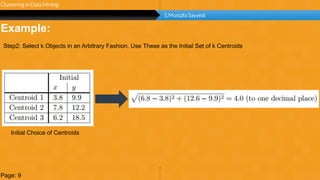
Initial Choice of Centroids
Page: 9
Step2: Select k Objects in an Arbitrary Fashion. Use These as the Initial Set of k Centroids
Page 12
unlimited
Example:
Clustering in Data Mining
S.Mostafa Sayyedi
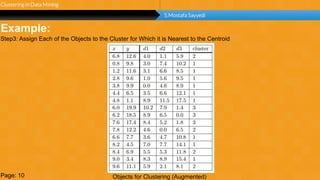
Objects for Clustering (Augmented)Page: 10
Step3: Assign Each of the Objects to the Cluster for Which it is Nearest to the Centroid
Page 13
unlimited
Example:
Clustering in Data Mining
S.Mostafa Sayyedi
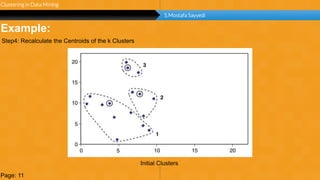
Initial Clusters
Page: 11
Step4: Recalculate the Centroids of the k Clusters
Page 14
unlimited
Example:
Clustering in Data Mining
S.Mostafa Sayyedi
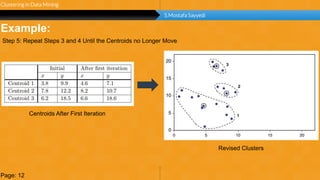
Centroids After First Iteration
Page: 12
Revised Clusters
Step 5: Repeat Steps 3 and 4 Until the Centroids no Longer Move
Page 15
unlimited
Example:
Clustering in Data Mining
S.Mostafa Sayyedi
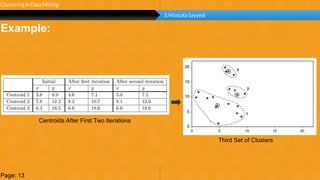
Centroids After First Two Iterations
Page: 13
Third Set of Clusters
Page 16
unlimited
Finding the Best Set of Clusters:
Clustering in Data Mining
S.Mostafa Sayyedi
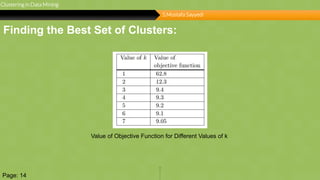
Value of Objective Function for Different Values of k
Page: 14
Page 17
unlimited
Clustering in Data Mining
Mojtaba Sadeghi
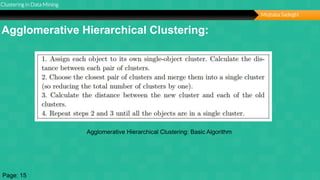
Agglomerative Hierarchical Clustering:
Agglomerative Hierarchical Clustering: Basic Algorithm
Page: 15
Page 18
unlimited
Example
Clustering in Data Mining
Mojtaba Sadeghi
Page: 16
Clustering in Data Mining
Mojtaba Sadeghi
Original Data (11 Objects) Clusters After Two Passes
Page: 17
Clustering in Data Mining
Mojtaba Sadeghi
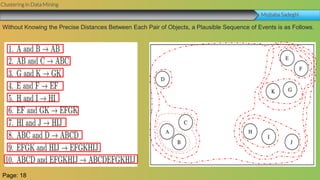
Without Knowing the Precise Distances Between Each Pair of Objects, a Plausible Sequence of Events is as Follows.
Page: 18
Clustering in Data Mining
Mojtaba Sadeghi
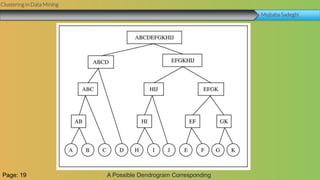
A Possible Dendrogram CorrespondingPage: 19
Clustering in Data Mining
Mojtaba Sadeghi
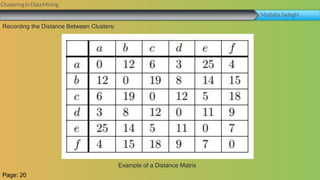
Example of a Distance Matrix
Page: 20
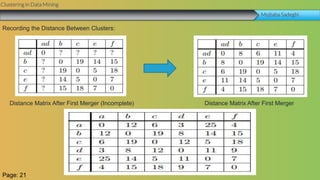
Recording the Distance Between Clusters:
Clustering in Data Mining
Mojtaba Sadeghi
Distance Matrix After First Merger (Incomplete)
Page: 21
Distance Matrix After First Merger
Recording the Distance Between Clusters:
Clustering in Data Mining
Mojtaba Sadeghi
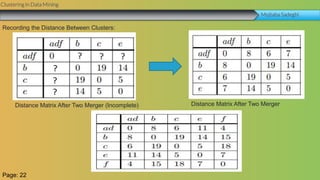
Distance Matrix After Two Merger (Incomplete)
Page: 22
Recording the Distance Between Clusters:
Distance Matrix After Two Merger
Clustering in Data Mining
Mojtaba Sadeghi
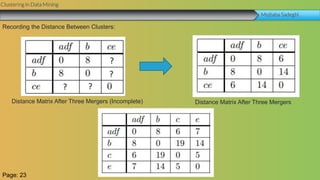
Distance Matrix After Three Mergers (Incomplete)
Page: 23
Recording the Distance Between Clusters:
Distance Matrix After Three Mergers
Clustering in Data Mining
Mojtaba Sadeghi
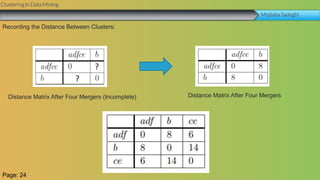
Distance Matrix After Four Mergers (Incomplete)
Page: 24
Recording the Distance Between Clusters:
Distance Matrix After Four Mergers
Clustering in Data Mining
Mojtaba Sadeghi
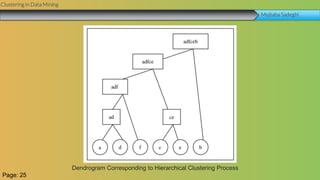
Dendrogram Corresponding to Hierarchical Clustering Process
Page: 25
Any Question?
Resource
Principles of Data Mining
Third Edition
Prof. Max Bramer
School of Computing
University of Portsmouth
Portsmouth, Hampshire, UK
Publisher: Springer
29
THANK YOU

Clustering in Data Mining

  • 1.
    Clustering in DataMining Lesson: Data Mining Professor: Mrs M.Hosseini Group Members: Mojtaba Derakhshandi,S.Mostafa Sayyedi,Mojtaba Sadeghi
  • 2.
    Clustering in DataMining Our Group: Mr. Mojtaba Derakhshandi: *Introduction *Example Usage of Clustering *Two Dimensional Space *Example *Centroid Mr. Mojtaba Sadeghi: Mr. S.Mostafa Sayyedi: *K-Means Clustering *Example *Finding the Best Set of Clusters *Agglomerative Hierarchical Clustering *Example *Recording the Distance Between Clusters
  • 3.
    Introduction What is Clustering? Clusteringin Data Mining Mojtaba Derakhshandi Page: 1
  • 4.
    Page 4 unlimited Economics Application WeMight be Interested in Finding Countries Whose Economies are Similar. Financial Application We Might Wish to Find Clusters of Companies that Have Similar Financial Performance. Marketing Application We Might Wish to Find Clusters of Customers With Similar Buying Behavior. Medical Application We Might Wish to Find Clusters of Patients With Similar Symptoms. Document Retrieval Application We Might Wish to Find Clusters of Documents With Related Content. Crime Analysis Application We Might Look for Clusters of High Volume Crimes Such as Burglaries or Try to Cluster Together Much Rarer (But Possibly Related) Crimes Such as Murders. 01 02 03 04 05 06 Example Usage of Clustering Clustering in Data Mining Mojtaba Derakhshandi Page: 2
  • 5.
    Two Dimensional Space Clusteringin Data Mining Mojtaba Derakhshandi Object for Clustering Clustering of Objects (First Version) Page: 3
  • 6.
    Two Dimensional Space Clusteringin Data Mining Mojtaba Derakhshandi Clustering of Objects (Second Version) Page: 4
  • 7.
    Page 7 unlimited Centroid: Clustering inData Mining Page: 5 ‘Centre’ of a Cluster, Generally Called its Centroid. So the Centroid of the Four Points (With 6 Attributes): Would Be: Mojtaba Derakhshandi
  • 8.
    Page 8 unlimited K-Means Clustering: Clusteringin Data Mining The k-Means Clustering Algorithm Page: 6 S.Mostafa Sayyedi
  • 9.
    Page 9 unlimited Example: Clustering inData Mining S.Mostafa Sayyedi Objects for Clustering (Attribute Values) Page: 7
  • 10.
    Page 10 unlimited Example: Clustering inData Mining S.Mostafa Sayyedi Objects for Clustering Page: 8 Step1: Choose a value of k
  • 11.
    Page 11 unlimited Example: Clustering inData Mining S.Mostafa Sayyedi Initial Choice of Centroids Page: 9 Step2: Select k Objects in an Arbitrary Fashion. Use These as the Initial Set of k Centroids
  • 12.
    Page 12 unlimited Example: Clustering inData Mining S.Mostafa Sayyedi Objects for Clustering (Augmented)Page: 10 Step3: Assign Each of the Objects to the Cluster for Which it is Nearest to the Centroid
  • 13.
    Page 13 unlimited Example: Clustering inData Mining S.Mostafa Sayyedi Initial Clusters Page: 11 Step4: Recalculate the Centroids of the k Clusters
  • 14.
    Page 14 unlimited Example: Clustering inData Mining S.Mostafa Sayyedi Centroids After First Iteration Page: 12 Revised Clusters Step 5: Repeat Steps 3 and 4 Until the Centroids no Longer Move
  • 15.
    Page 15 unlimited Example: Clustering inData Mining S.Mostafa Sayyedi Centroids After First Two Iterations Page: 13 Third Set of Clusters
  • 16.
    Page 16 unlimited Finding theBest Set of Clusters: Clustering in Data Mining S.Mostafa Sayyedi Value of Objective Function for Different Values of k Page: 14
  • 17.
    Page 17 unlimited Clustering inData Mining Mojtaba Sadeghi Agglomerative Hierarchical Clustering: Agglomerative Hierarchical Clustering: Basic Algorithm Page: 15
  • 18.
    Page 18 unlimited Example Clustering inData Mining Mojtaba Sadeghi Page: 16
  • 19.
    Clustering in DataMining Mojtaba Sadeghi Original Data (11 Objects) Clusters After Two Passes Page: 17
  • 20.
    Clustering in DataMining Mojtaba Sadeghi Without Knowing the Precise Distances Between Each Pair of Objects, a Plausible Sequence of Events is as Follows. Page: 18
  • 21.
    Clustering in DataMining Mojtaba Sadeghi A Possible Dendrogram CorrespondingPage: 19
  • 22.
    Clustering in DataMining Mojtaba Sadeghi Example of a Distance Matrix Page: 20 Recording the Distance Between Clusters:
  • 23.
    Clustering in DataMining Mojtaba Sadeghi Distance Matrix After First Merger (Incomplete) Page: 21 Distance Matrix After First Merger Recording the Distance Between Clusters:
  • 24.
    Clustering in DataMining Mojtaba Sadeghi Distance Matrix After Two Merger (Incomplete) Page: 22 Recording the Distance Between Clusters: Distance Matrix After Two Merger
  • 25.
    Clustering in DataMining Mojtaba Sadeghi Distance Matrix After Three Mergers (Incomplete) Page: 23 Recording the Distance Between Clusters: Distance Matrix After Three Mergers
  • 26.
    Clustering in DataMining Mojtaba Sadeghi Distance Matrix After Four Mergers (Incomplete) Page: 24 Recording the Distance Between Clusters: Distance Matrix After Four Mergers
  • 27.
    Clustering in DataMining Mojtaba Sadeghi Dendrogram Corresponding to Hierarchical Clustering Process Page: 25
  • 28.
  • 29.
    Resource Principles of DataMining Third Edition Prof. Max Bramer School of Computing University of Portsmouth Portsmouth, Hampshire, UK Publisher: Springer 29
  • 30.

Editor's Notes

  • #2 Section Break “All Content is editable How Edit/Fill Shape Color -> “Right Click” on the Object, select “Format Shape”, choose “Fill” a color from color pallete (bucket icon-on the right side on New Powerpoint) How to Group an Object/Shape -> “Right Click” on the Object (More than 1), select “Group” > “Group” How to Ungroup an Object/Shape -> “Right Click” on the Object, select “Group” > “Ungroup”
  • #5 Book Option  “All Content is editable How Edit/Fill Shape Color -> “Right Click” on the Object, select “Format Shape”, choose “Fill” a color from color pallete (bucket icon-on the right side on New Powerpoint) How to Group an Object/Shape -> “Right Click” on the Object (More than 1), select “Group” > “Group” How to Ungroup an Object/Shape -> “Right Click” on the Object, select “Group” > “Ungroup”
  • #6 INTRODUCTION page  “All Content is editable For edit Footer or visible content you must getting to the Master Slide -> click “VIEW” tab -> in the “Master Views” group, click “Slide Master”. (–and- or you can changeyour logo on there”)
  • #7 INTRODUCTION page  “All Content is editable For edit Footer or visible content you must getting to the Master Slide -> click “VIEW” tab -> in the “Master Views” group, click “Slide Master”. (–and- or you can changeyour logo on there”)
  • #8 Timeline page  “All Content is editable How Edit/Fill Shape Color -> “Right Click” on the Object, select “Format Shape”, choose “Fill” a color from color pallete (bucket icon-on the right side on New Powerpoint) NOTE: Please ungroup the object/shape before, if you want to change an individual shape. How to Group an Object/Shape -> “Right Click” on the Object (More than 1), select “Group” > “Group” How to Ungroup an Object/Shape -> “Right Click” on the Object, select “Group” > “Ungroup”
  • #9 Timeline page  “All Content is editable How Edit/Fill Shape Color -> “Right Click” on the Object, select “Format Shape”, choose “Fill” a color from color pallete (bucket icon-on the right side on New Powerpoint) NOTE: Please ungroup the object/shape before, if you want to change an individual shape. How to Group an Object/Shape -> “Right Click” on the Object (More than 1), select “Group” > “Group” How to Ungroup an Object/Shape -> “Right Click” on the Object, select “Group” > “Ungroup”
  • #10 Timeline page  “All Content is editable How Edit/Fill Shape Color -> “Right Click” on the Object, select “Format Shape”, choose “Fill” a color from color pallete (bucket icon-on the right side on New Powerpoint) NOTE: Please ungroup the object/shape before, if you want to change an individual shape. How to Group an Object/Shape -> “Right Click” on the Object (More than 1), select “Group” > “Group” How to Ungroup an Object/Shape -> “Right Click” on the Object, select “Group” > “Ungroup”
  • #11 Timeline page  “All Content is editable How Edit/Fill Shape Color -> “Right Click” on the Object, select “Format Shape”, choose “Fill” a color from color pallete (bucket icon-on the right side on New Powerpoint) NOTE: Please ungroup the object/shape before, if you want to change an individual shape. How to Group an Object/Shape -> “Right Click” on the Object (More than 1), select “Group” > “Group” How to Ungroup an Object/Shape -> “Right Click” on the Object, select “Group” > “Ungroup”
  • #12 Timeline page  “All Content is editable How Edit/Fill Shape Color -> “Right Click” on the Object, select “Format Shape”, choose “Fill” a color from color pallete (bucket icon-on the right side on New Powerpoint) NOTE: Please ungroup the object/shape before, if you want to change an individual shape. How to Group an Object/Shape -> “Right Click” on the Object (More than 1), select “Group” > “Group” How to Ungroup an Object/Shape -> “Right Click” on the Object, select “Group” > “Ungroup”
  • #13 Timeline page  “All Content is editable How Edit/Fill Shape Color -> “Right Click” on the Object, select “Format Shape”, choose “Fill” a color from color pallete (bucket icon-on the right side on New Powerpoint) NOTE: Please ungroup the object/shape before, if you want to change an individual shape. How to Group an Object/Shape -> “Right Click” on the Object (More than 1), select “Group” > “Group” How to Ungroup an Object/Shape -> “Right Click” on the Object, select “Group” > “Ungroup”
  • #14 Timeline page  “All Content is editable How Edit/Fill Shape Color -> “Right Click” on the Object, select “Format Shape”, choose “Fill” a color from color pallete (bucket icon-on the right side on New Powerpoint) NOTE: Please ungroup the object/shape before, if you want to change an individual shape. How to Group an Object/Shape -> “Right Click” on the Object (More than 1), select “Group” > “Group” How to Ungroup an Object/Shape -> “Right Click” on the Object, select “Group” > “Ungroup”
  • #15 Timeline page  “All Content is editable How Edit/Fill Shape Color -> “Right Click” on the Object, select “Format Shape”, choose “Fill” a color from color pallete (bucket icon-on the right side on New Powerpoint) NOTE: Please ungroup the object/shape before, if you want to change an individual shape. How to Group an Object/Shape -> “Right Click” on the Object (More than 1), select “Group” > “Group” How to Ungroup an Object/Shape -> “Right Click” on the Object, select “Group” > “Ungroup”
  • #16 Timeline page  “All Content is editable How Edit/Fill Shape Color -> “Right Click” on the Object, select “Format Shape”, choose “Fill” a color from color pallete (bucket icon-on the right side on New Powerpoint) NOTE: Please ungroup the object/shape before, if you want to change an individual shape. How to Group an Object/Shape -> “Right Click” on the Object (More than 1), select “Group” > “Group” How to Ungroup an Object/Shape -> “Right Click” on the Object, select “Group” > “Ungroup”
  • #17 Timeline page  “All Content is editable How Edit/Fill Shape Color -> “Right Click” on the Object, select “Format Shape”, choose “Fill” a color from color pallete (bucket icon-on the right side on New Powerpoint) NOTE: Please ungroup the object/shape before, if you want to change an individual shape. How to Group an Object/Shape -> “Right Click” on the Object (More than 1), select “Group” > “Group” How to Ungroup an Object/Shape -> “Right Click” on the Object, select “Group” > “Ungroup”
  • #18 Timeline page  “All Content is editable How Edit/Fill Shape Color -> “Right Click” on the Object, select “Format Shape”, choose “Fill” a color from color pallete (bucket icon-on the right side on New Powerpoint) NOTE: Please ungroup the object/shape before, if you want to change an individual shape. How to Group an Object/Shape -> “Right Click” on the Object (More than 1), select “Group” > “Group” How to Ungroup an Object/Shape -> “Right Click” on the Object, select “Group” > “Ungroup”
  • #19 Hand Attractive  “All Content is editable How Edit/Fill Shape Color -> “Right Click” on the Object, select “Format Shape”, choose “Fill” a color from color pallete (bucket icon-on the right side on New Powerpoint) How to Group an Object/Shape -> “Right Click” on the Object (More than 1), select “Group” > “Group” How to Ungroup an Object/Shape -> “Right Click” on the Object, select “Group” > “Ungroup”