Introduction to Web Design
Lecture 2
Muhammad Waheed
2
Use of this material
 If you would like to be able to distribute this
PowerPoint presentation from your own website
– simply credit the author with a link to The small
Business Depot. Use the following:
Link URL: https://bit.ly/3fKjffa
Author: Muhammad Waheed– Abiding Tech Computer Education
Copyright – 2021 – Abiding Tech Computer Education
3
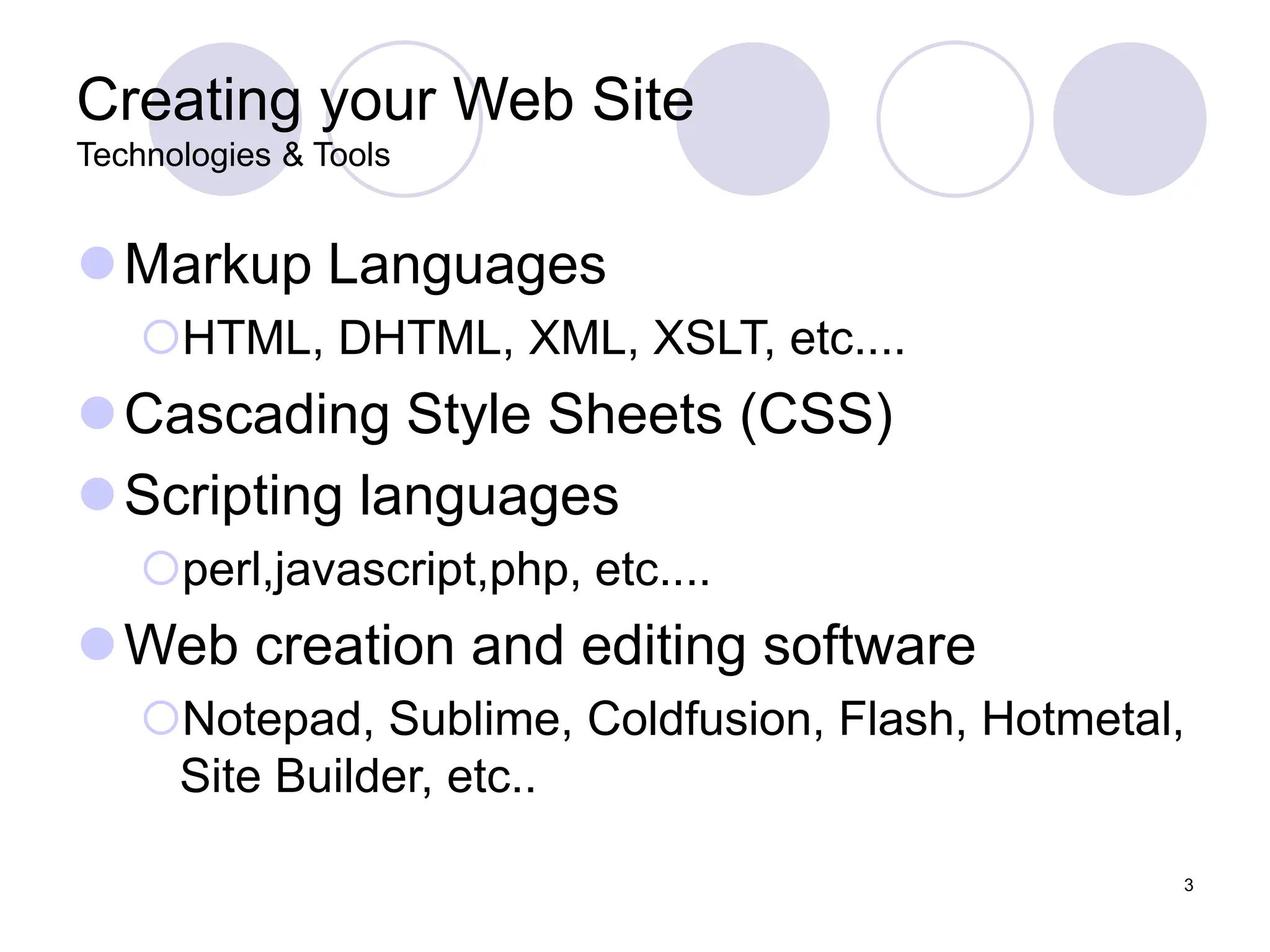
Creating your Web Site
Technologies & Tools
Markup Languages
HTML, DHTML, XML, XSLT, etc....
Cascading Style Sheets (CSS)
Scripting languages
perl,javascript,php, etc....
Web creation and editing software
Notepad, Sublime, Coldfusion, Flash, Hotmetal,
Site Builder, etc..
4
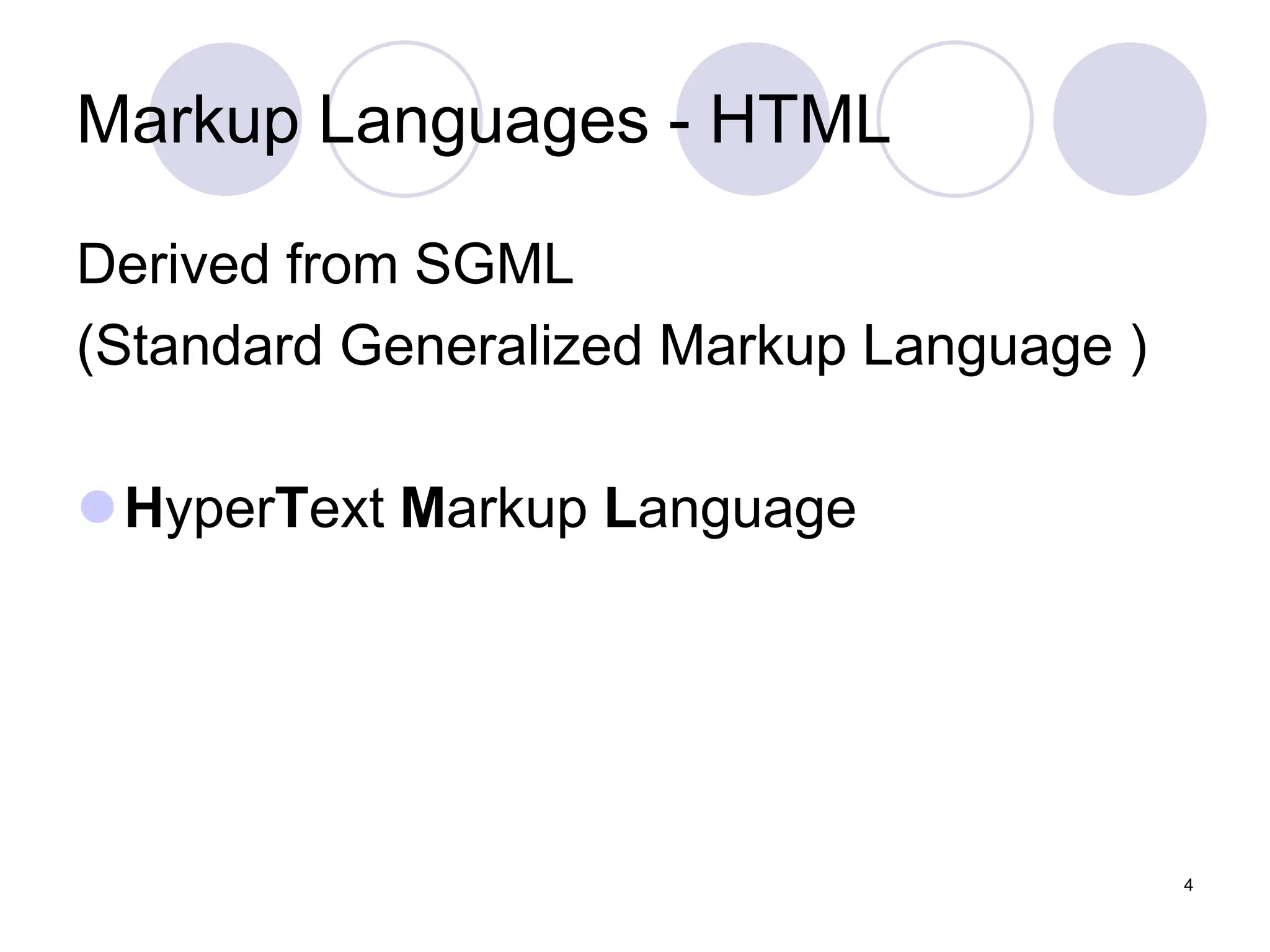
Markup Languages - HTML
Derived from SGML
(Standard Generalized Markup Language )
HyperText Markup Language
5
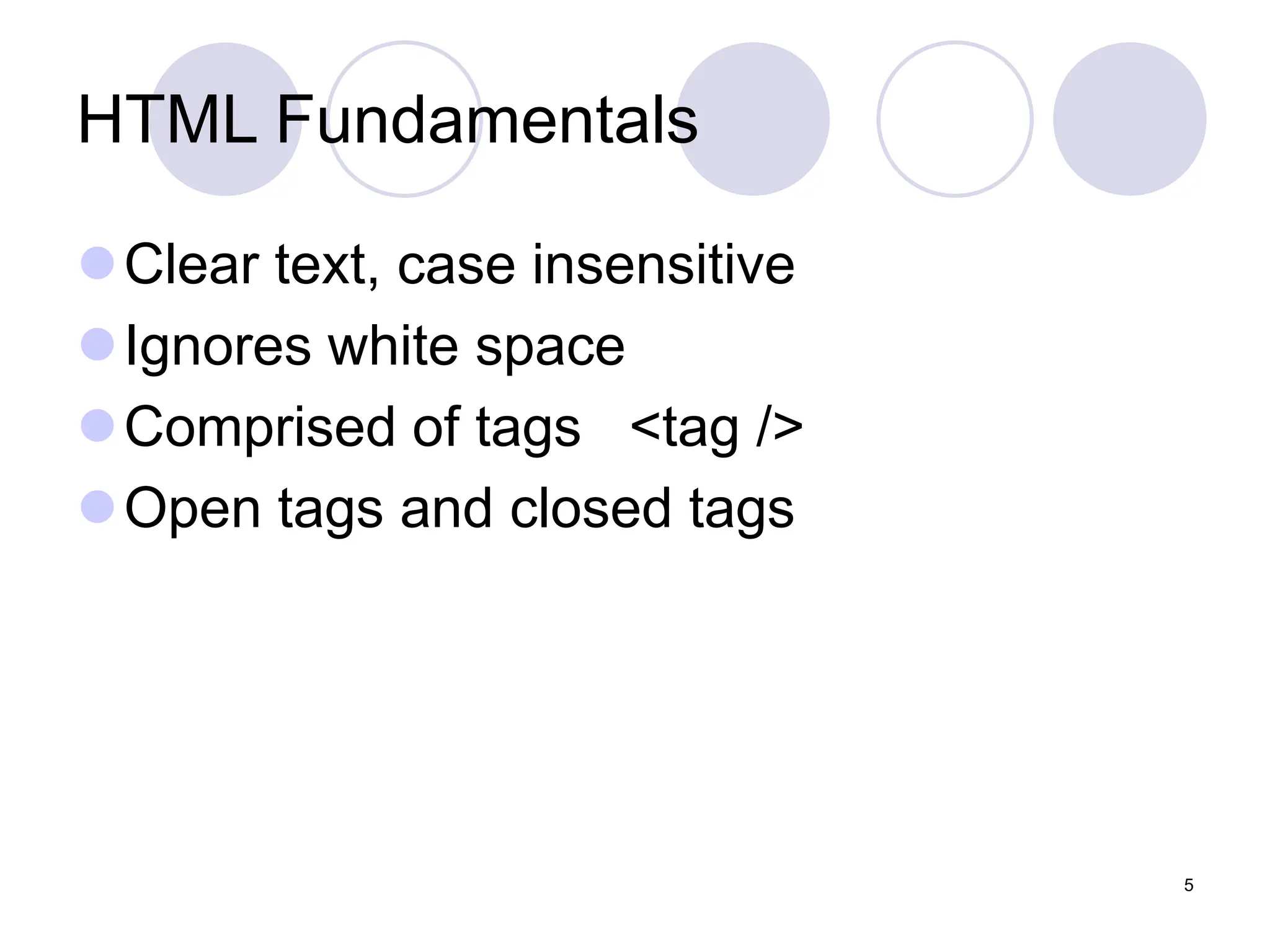
HTML Fundamentals
Clear text, case insensitive
Ignores white space
Comprised of tags <tag />
Open tags and closed tags
6
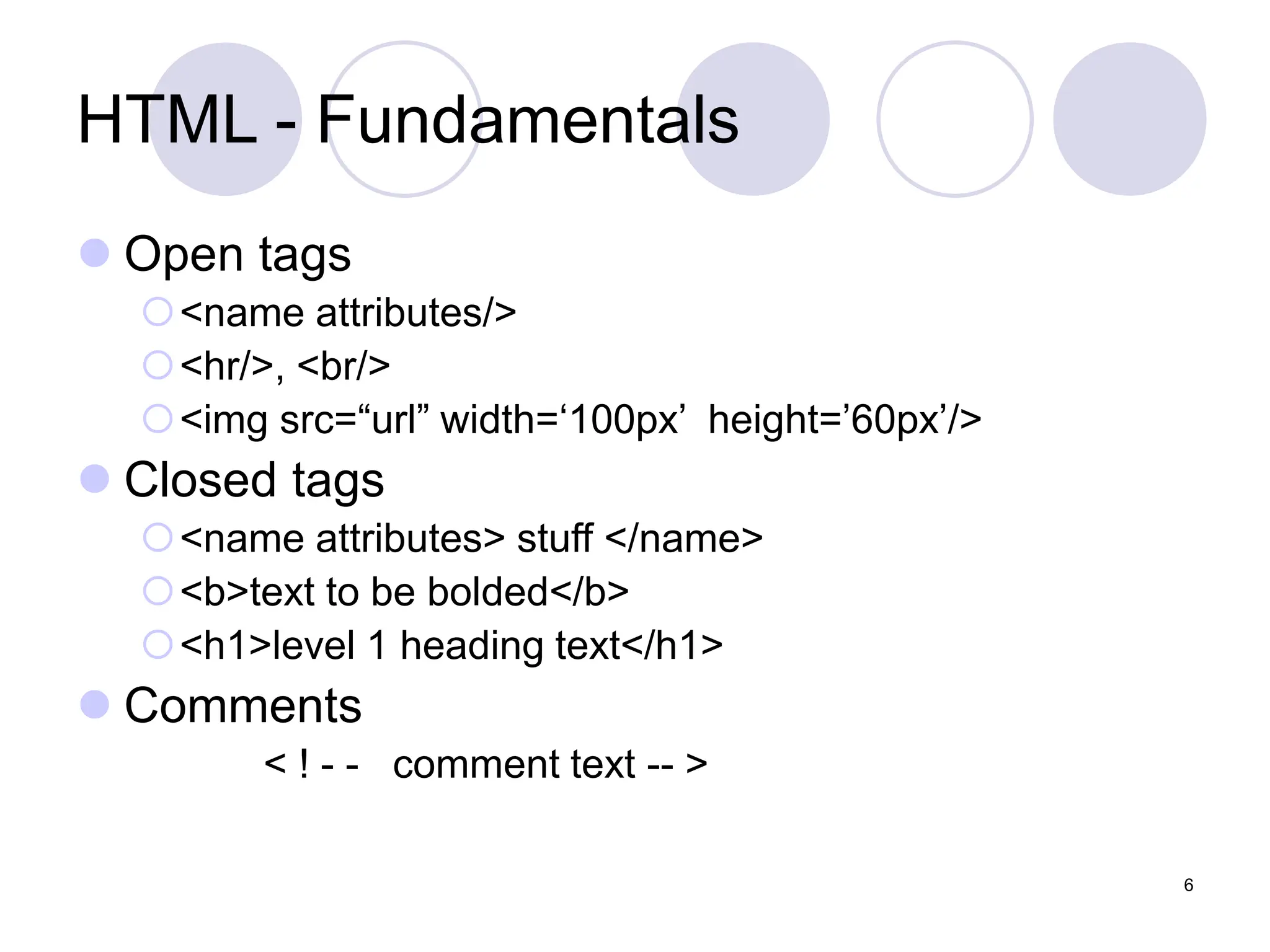
HTML - Fundamentals
 Open tags
<name attributes/>
<hr/>, <br/>
<img src=“url” width=‘100px’ height=’60px’/>
 Closed tags
<name attributes> stuff </name>
<b>text to be bolded</b>
<h1>level 1 heading text</h1>
 Comments
< ! - - comment text -- >
7
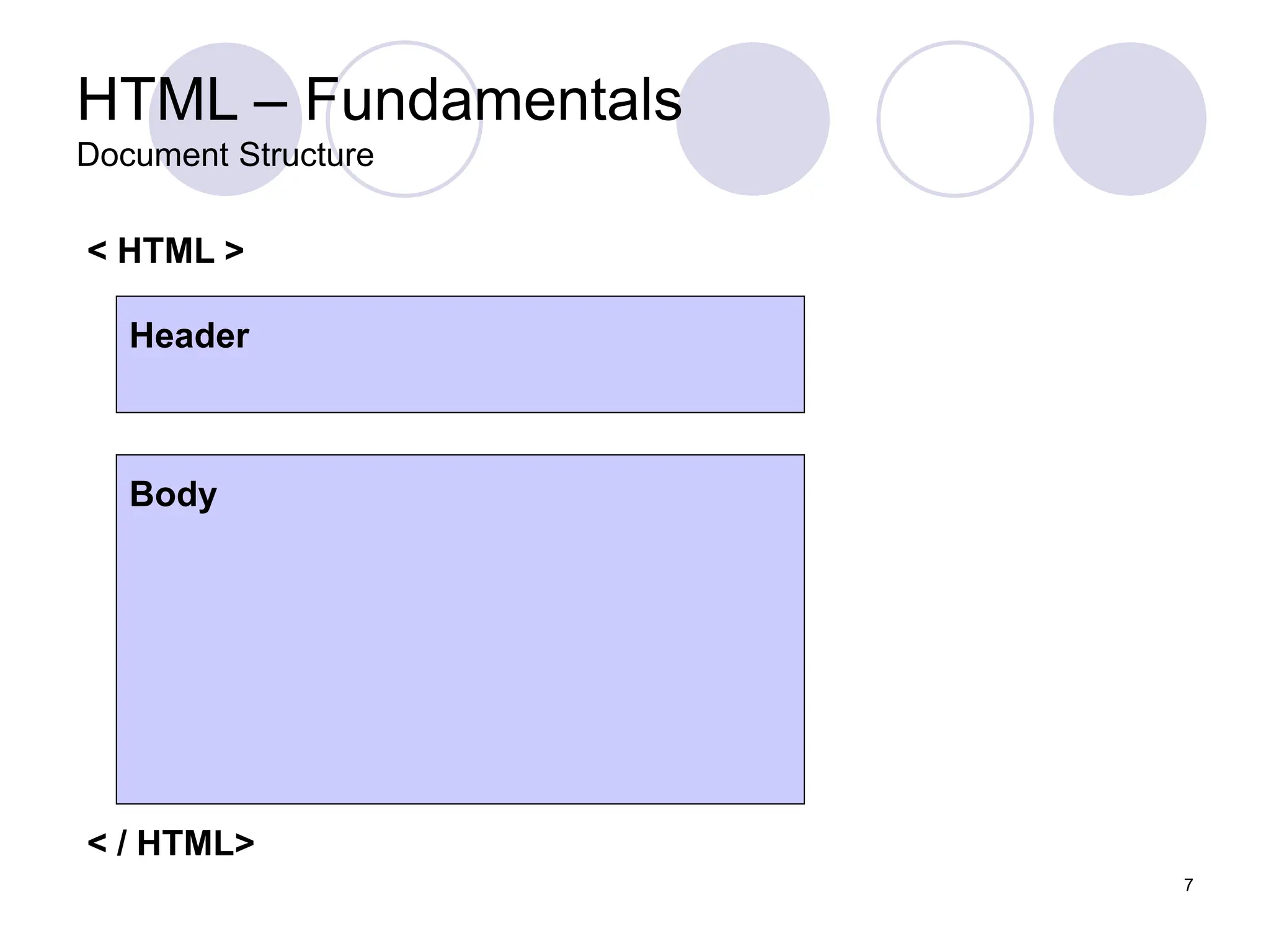
HTML – Fundamentals
Document Structure
Header
Body
< / HTML>
< HTML >
8
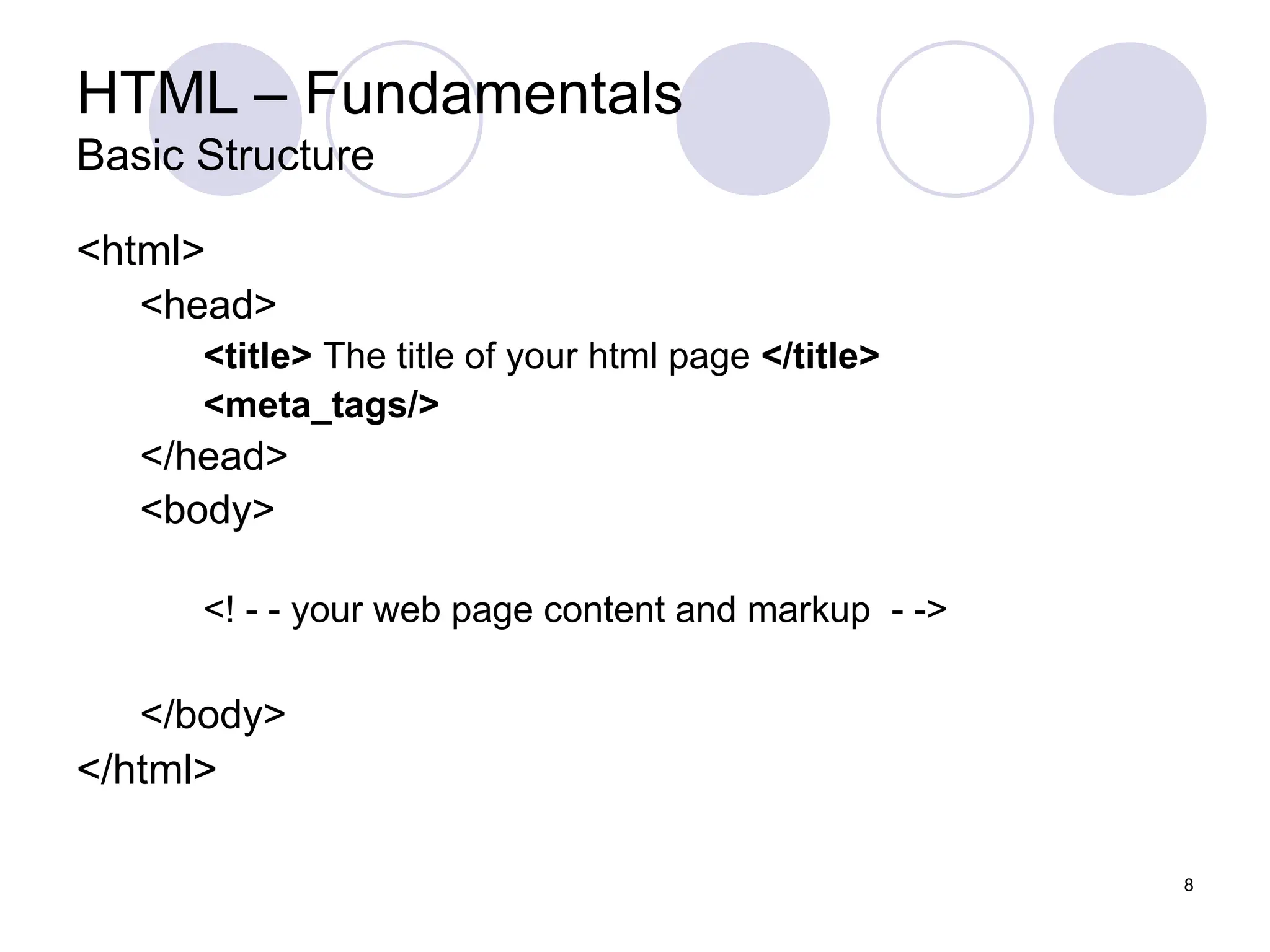
HTML – Fundamentals
Basic Structure
<html>
<head>
<title> The title of your html page </title>
<meta_tags/>
</head>
<body>
<! - - your web page content and markup - ->
</body>
</html>
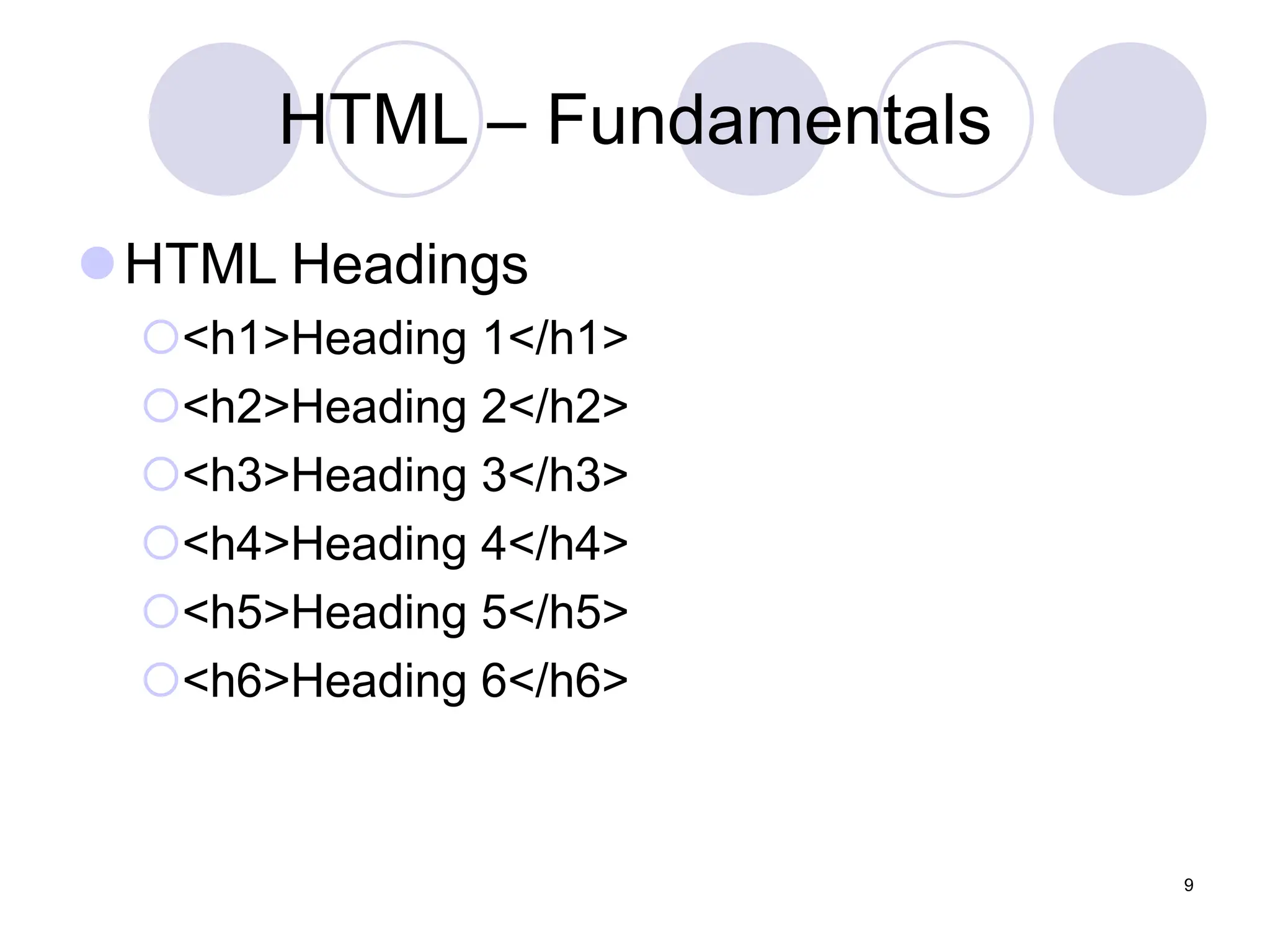
HTML – Fundamentals
HTML Headings
<h1>Heading 1</h1>
<h2>Heading 2</h2>
<h3>Heading 3</h3>
<h4>Heading 4</h4>
<h5>Heading 5</h5>
<h6>Heading 6</h6>
9
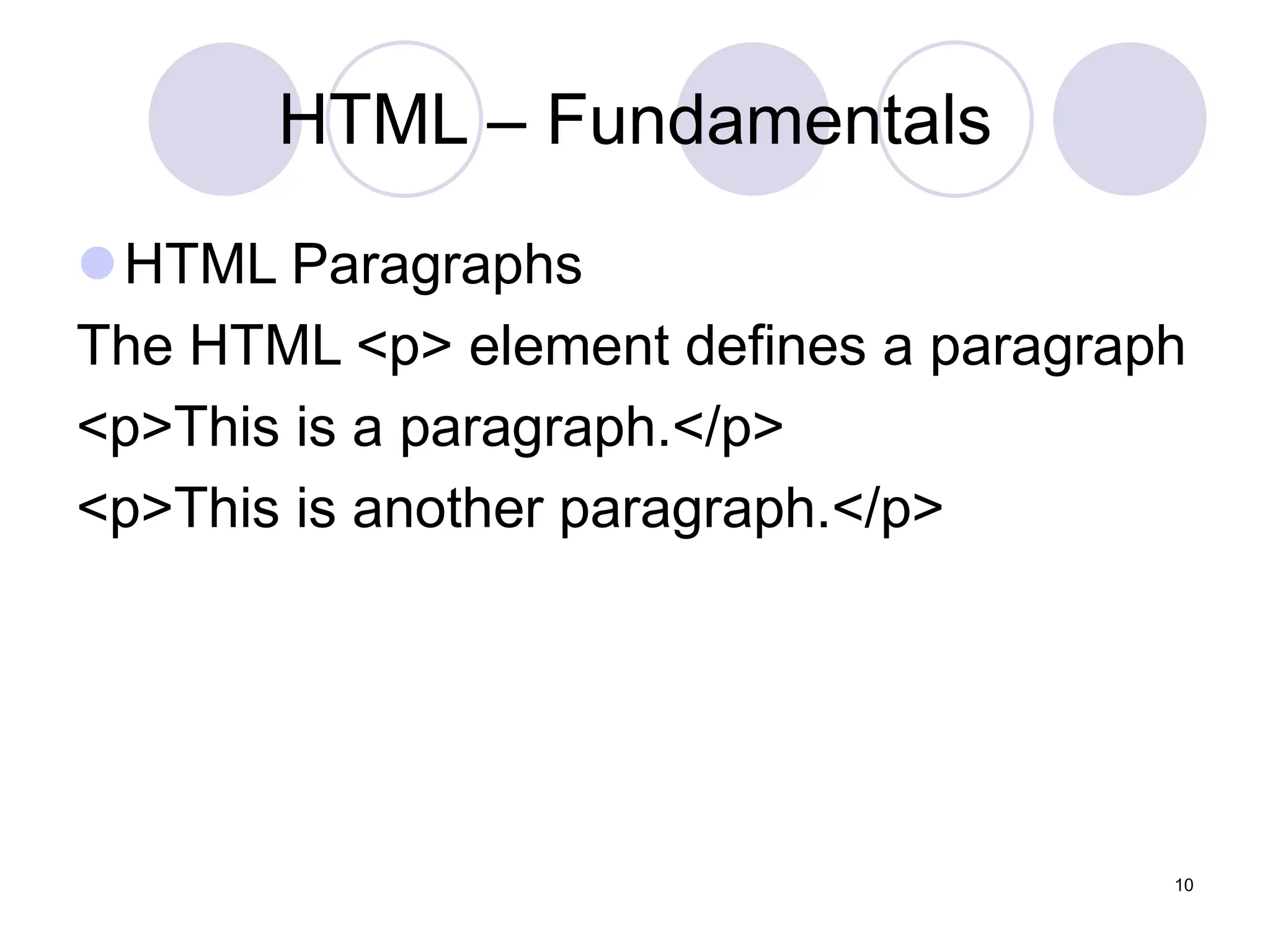
HTML – Fundamentals
HTML Paragraphs
The HTML <p> element defines a paragraph
<p>This is a paragraph.</p>
<p>This is another paragraph.</p>
10
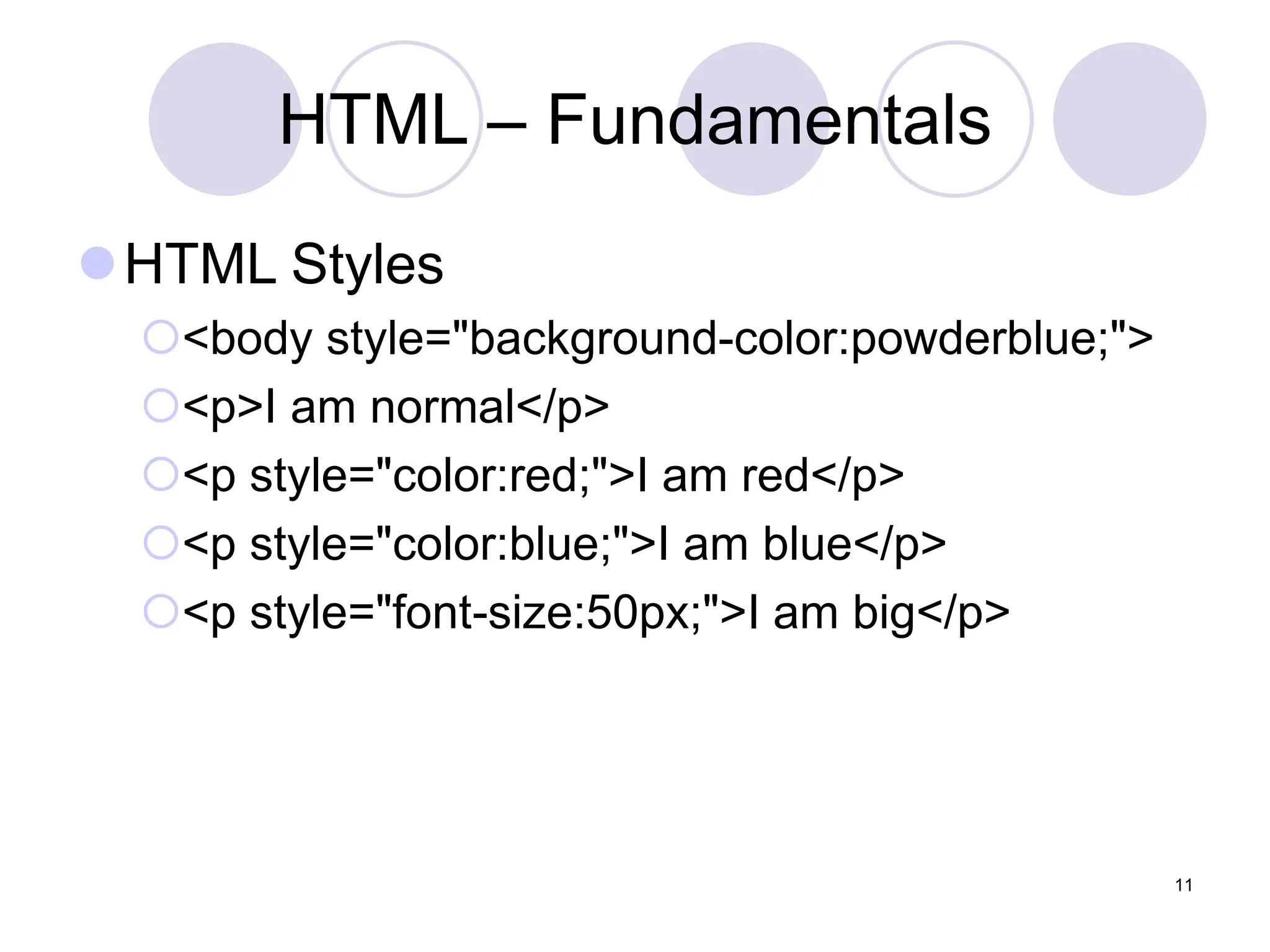
HTML – Fundamentals
HTML Styles
<body style="background-color:powderblue;">
<p>I am normal</p>
<p style="color:red;">I am red</p>
<p style="color:blue;">I am blue</p>
<p style="font-size:50px;">I am big</p>
11
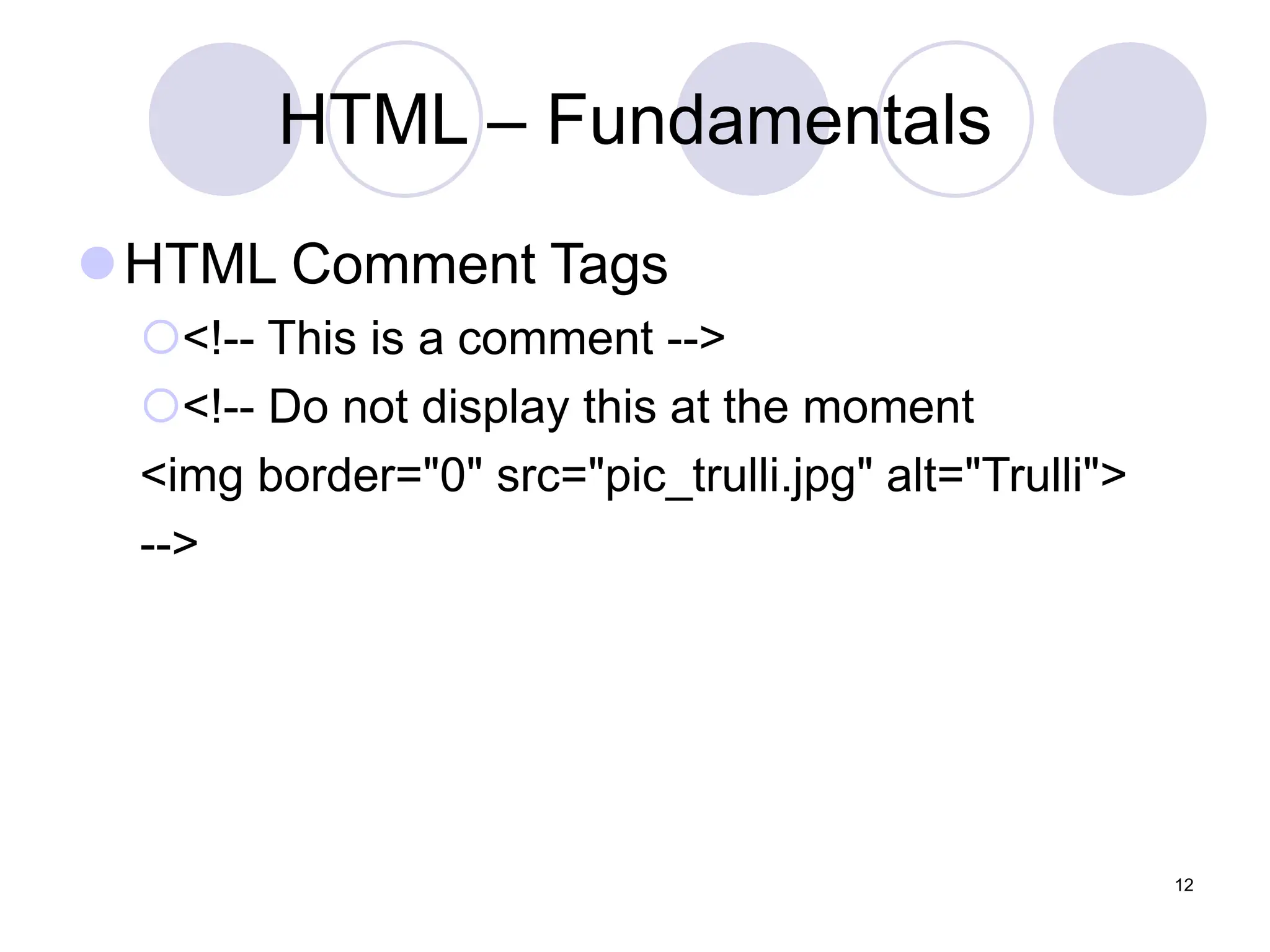
HTML – Fundamentals
HTML Comment Tags
<!-- This is a comment -->
<!-- Do not display this at the moment
<img border="0" src="pic_trulli.jpg" alt="Trulli">
-->
12
HTML – Fundamentals
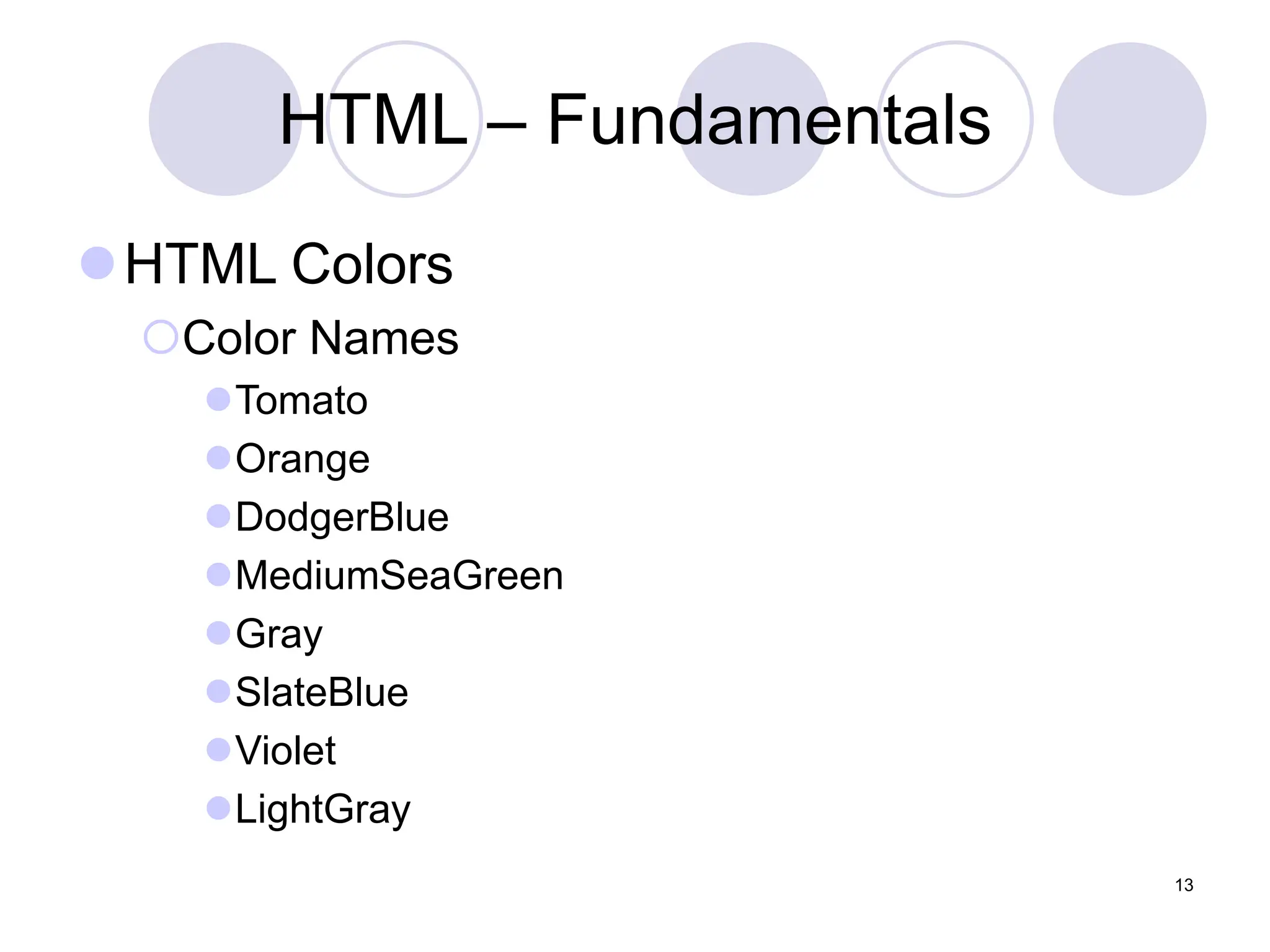
HTML Colors
Color Names
Tomato
Orange
DodgerBlue
MediumSeaGreen
Gray
SlateBlue
Violet
LightGray
13
HTML – Fundamentals
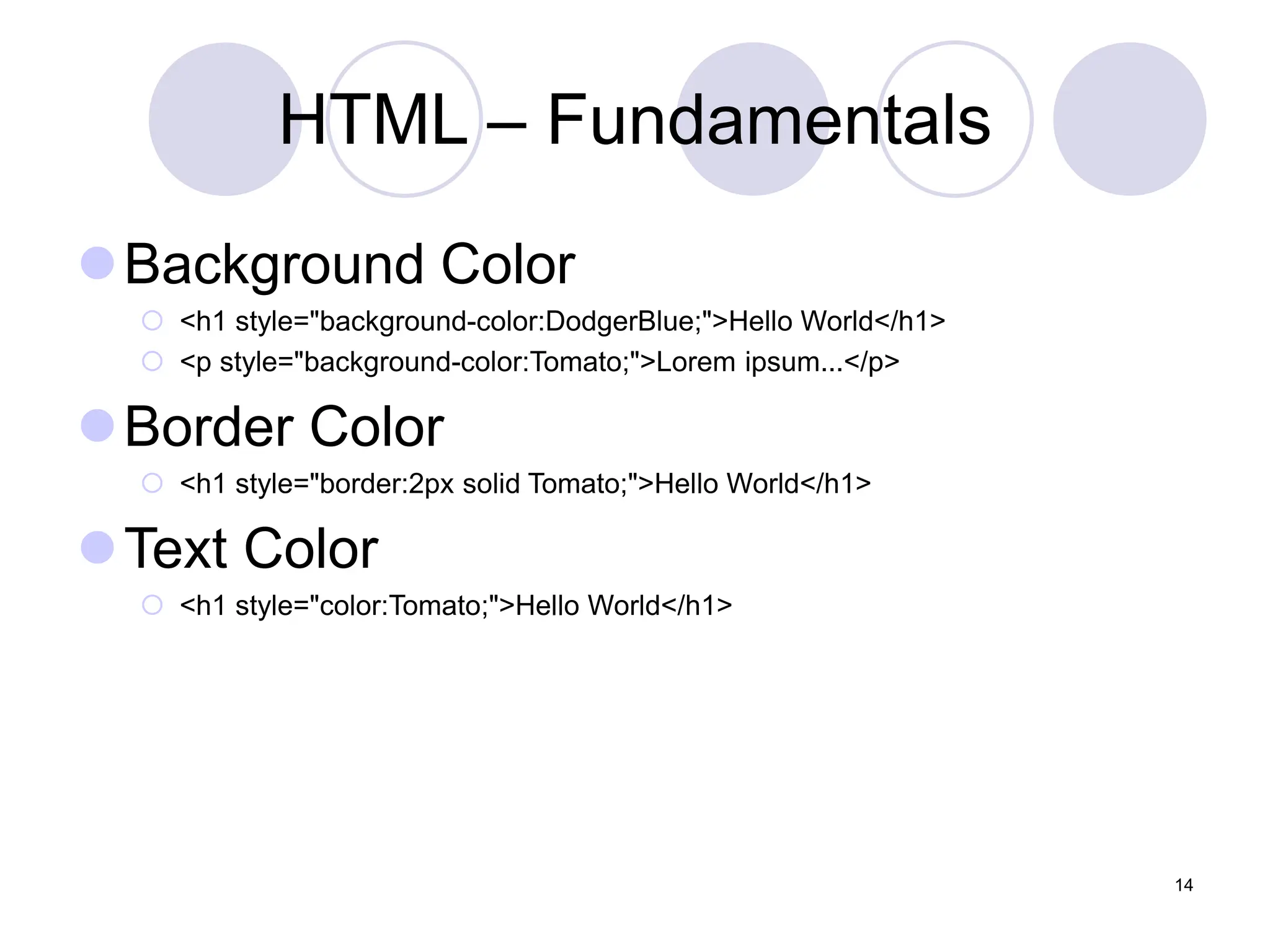
Background Color
 <h1 style="background-color:DodgerBlue;">Hello World</h1>
 <p style="background-color:Tomato;">Lorem ipsum...</p>
Border Color
 <h1 style="border:2px solid Tomato;">Hello World</h1>
Text Color
 <h1 style="color:Tomato;">Hello World</h1>
14
HTML – Fundamentals
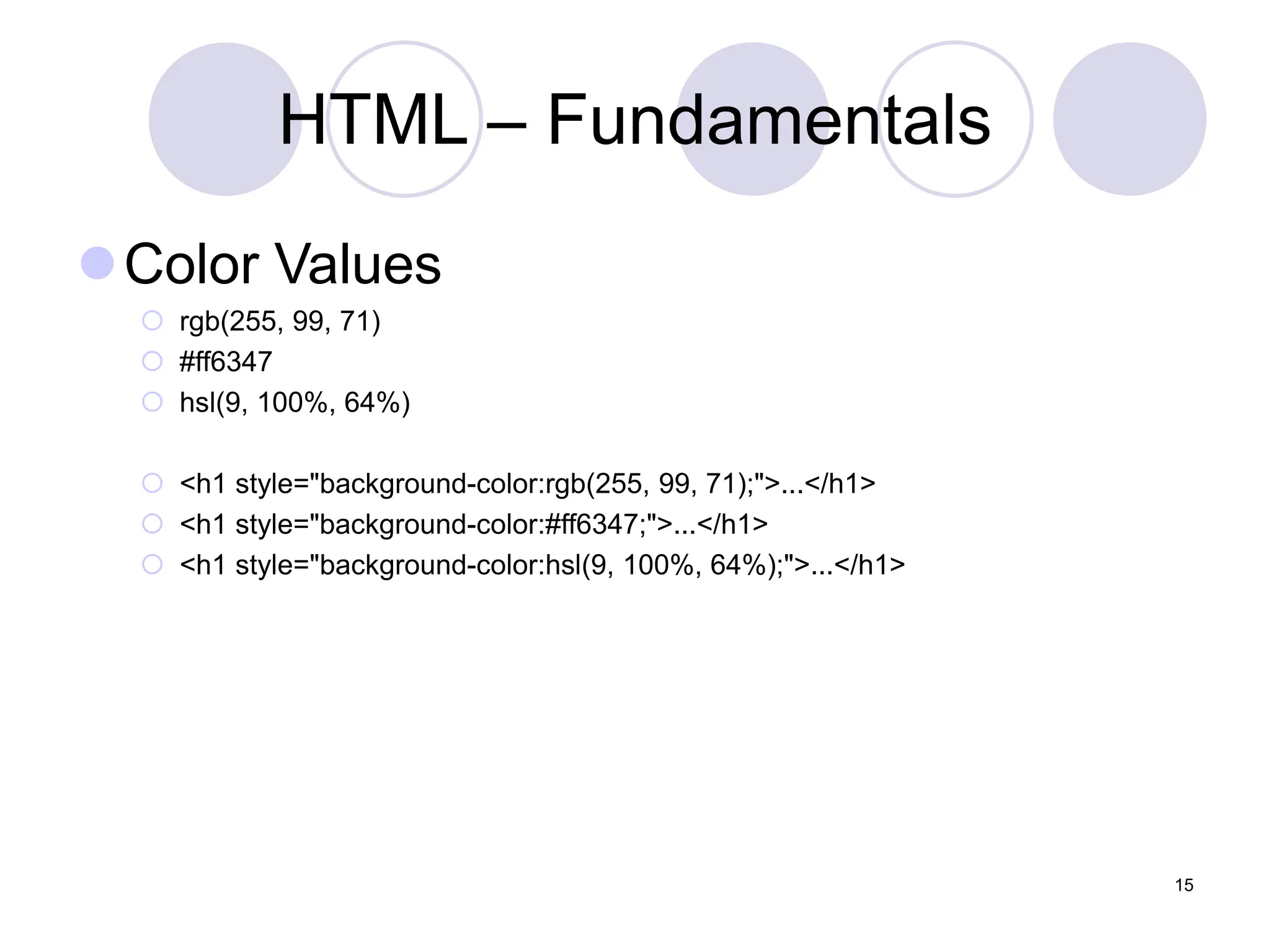
Color Values
 rgb(255, 99, 71)
 #ff6347
 hsl(9, 100%, 64%)
 <h1 style="background-color:rgb(255, 99, 71);">...</h1>
 <h1 style="background-color:#ff6347;">...</h1>
 <h1 style="background-color:hsl(9, 100%, 64%);">...</h1>
15
HTML – Fundamentals
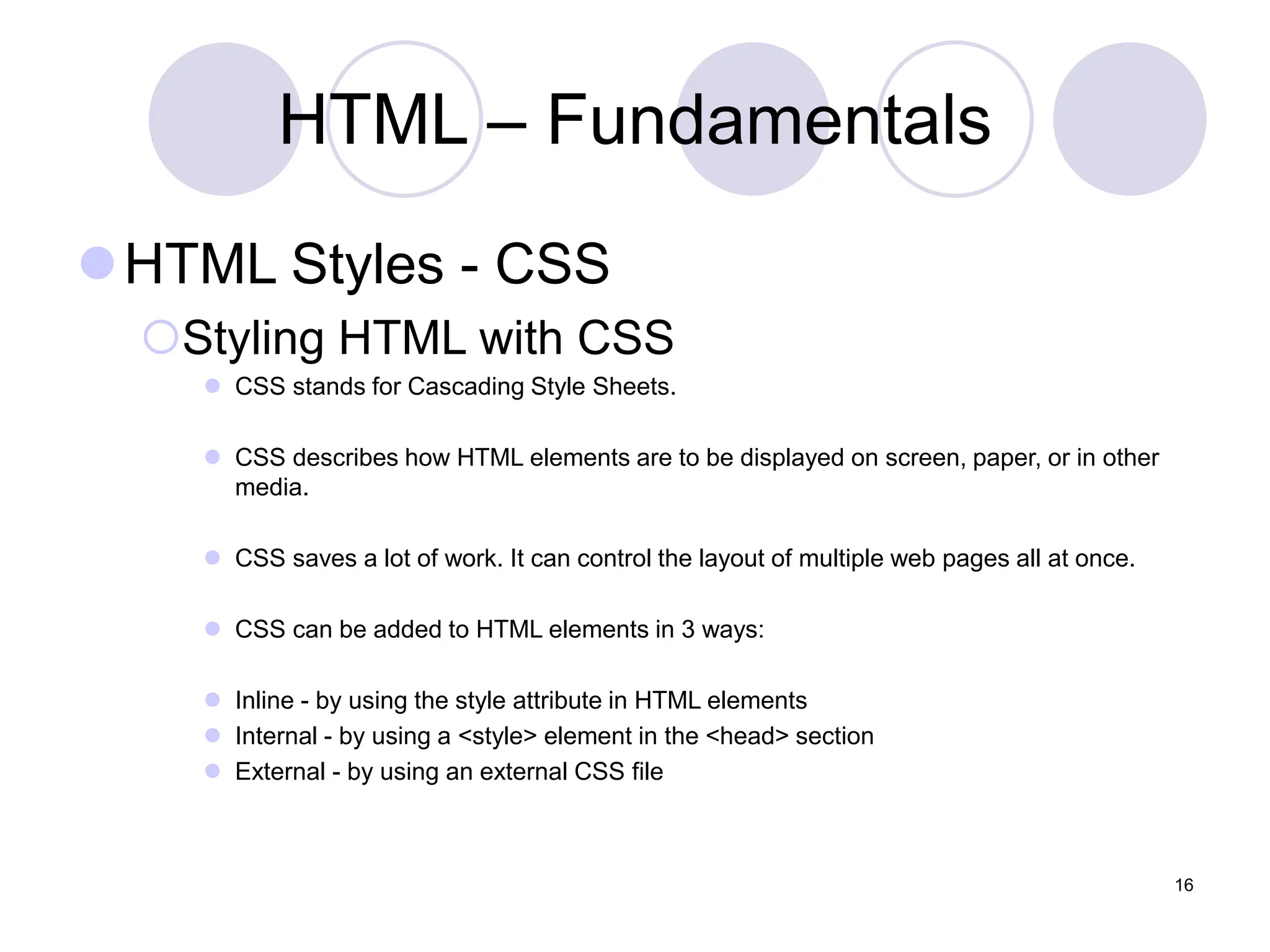
HTML Styles - CSS
Styling HTML with CSS
 CSS stands for Cascading Style Sheets.
 CSS describes how HTML elements are to be displayed on screen, paper, or in other
media.
 CSS saves a lot of work. It can control the layout of multiple web pages all at once.
 CSS can be added to HTML elements in 3 ways:
 Inline - by using the style attribute in HTML elements
 Internal - by using a <style> element in the <head> section
 External - by using an external CSS file
16
HTML – Fundamentals
Inline CSS
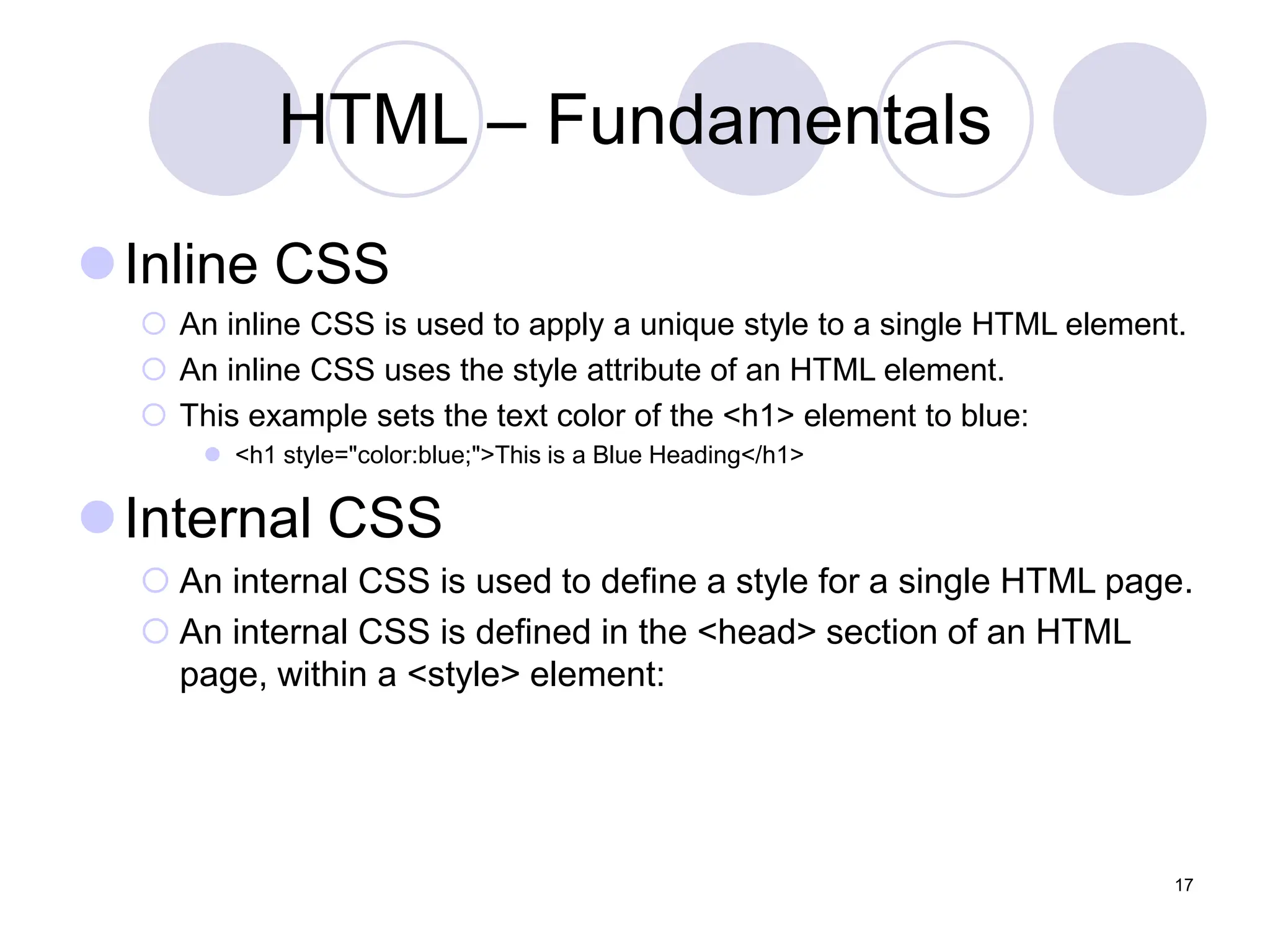
 An inline CSS is used to apply a unique style to a single HTML element.
 An inline CSS uses the style attribute of an HTML element.
 This example sets the text color of the <h1> element to blue:
 <h1 style="color:blue;">This is a Blue Heading</h1>
Internal CSS
 An internal CSS is used to define a style for a single HTML page.
 An internal CSS is defined in the <head> section of an HTML
page, within a <style> element:
17
HTML – Fundamentals
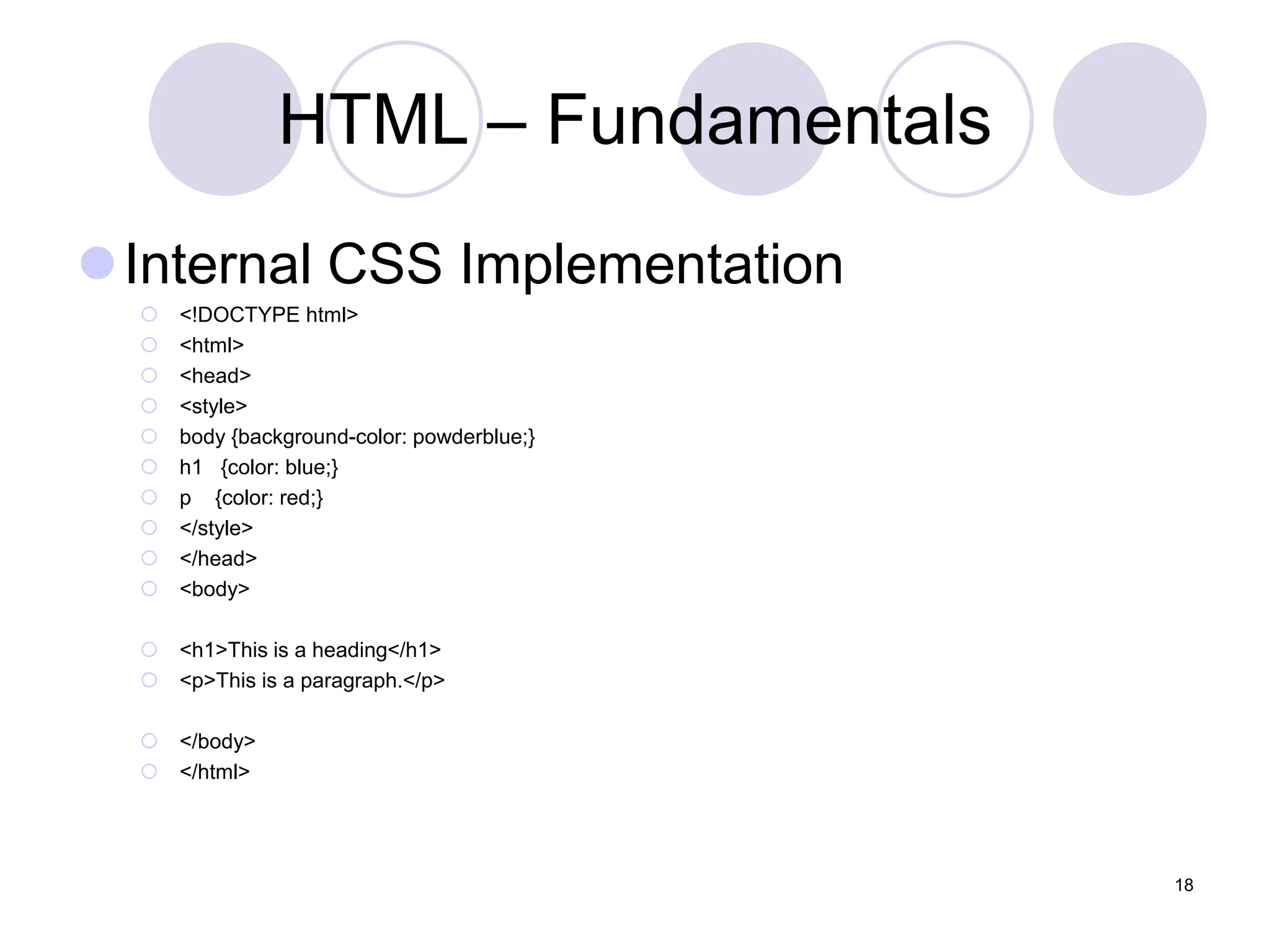
Internal CSS Implementation
 <!DOCTYPE html>
 <html>
 <head>
 <style>
 body {background-color: powderblue;}
 h1 {color: blue;}
 p {color: red;}
 </style>
 </head>
 <body>
 <h1>This is a heading</h1>
 <p>This is a paragraph.</p>
 </body>
 </html>
18
HTML – Fundamentals
External CSS
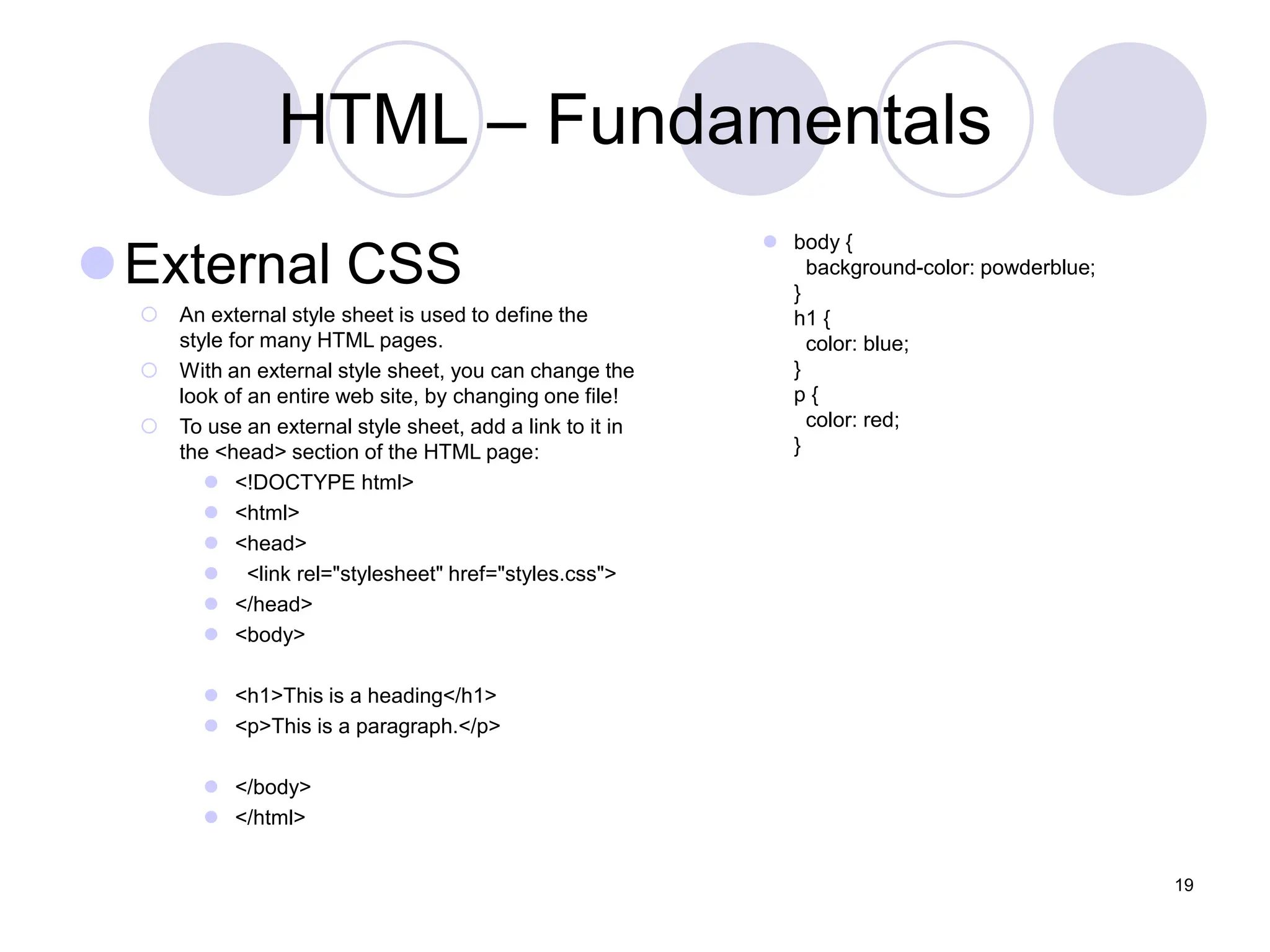
 An external style sheet is used to define the
style for many HTML pages.
 With an external style sheet, you can change the
look of an entire web site, by changing one file!
 To use an external style sheet, add a link to it in
the <head> section of the HTML page:
 <!DOCTYPE html>
 <html>
 <head>
 <link rel="stylesheet" href="styles.css">
 </head>
 <body>
 <h1>This is a heading</h1>
 <p>This is a paragraph.</p>
 </body>
 </html>
 body {
background-color: powderblue;
}
h1 {
color: blue;
}
p {
color: red;
}
19
HTML – Fundamentals
HTML Images
HTML Images Syntax
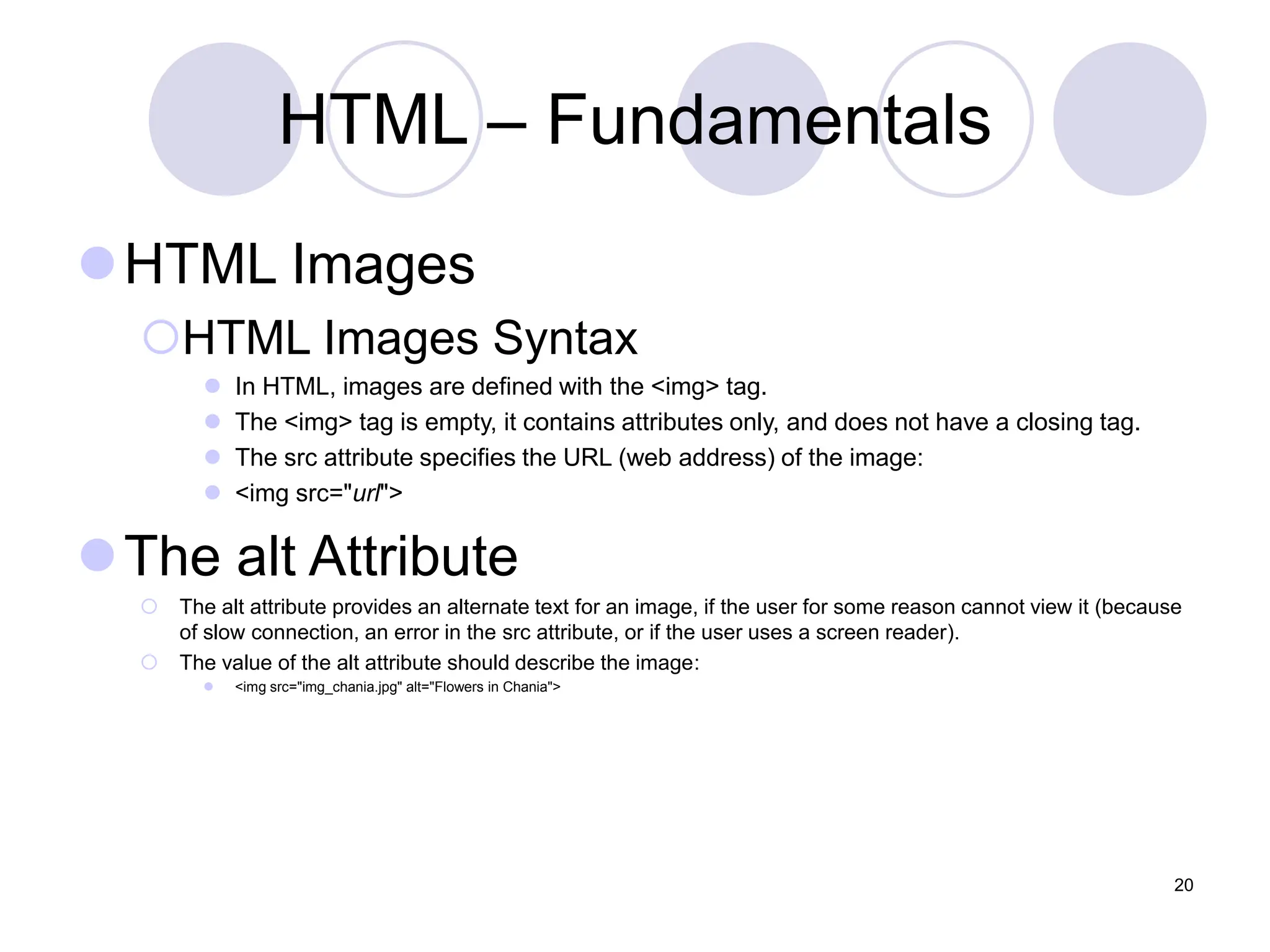
 In HTML, images are defined with the <img> tag.
 The <img> tag is empty, it contains attributes only, and does not have a closing tag.
 The src attribute specifies the URL (web address) of the image:
 <img src="url">
The alt Attribute
 The alt attribute provides an alternate text for an image, if the user for some reason cannot view it (because
of slow connection, an error in the src attribute, or if the user uses a screen reader).
 The value of the alt attribute should describe the image:
 <img src="img_chania.jpg" alt="Flowers in Chania">
20
HTML – Fundamentals
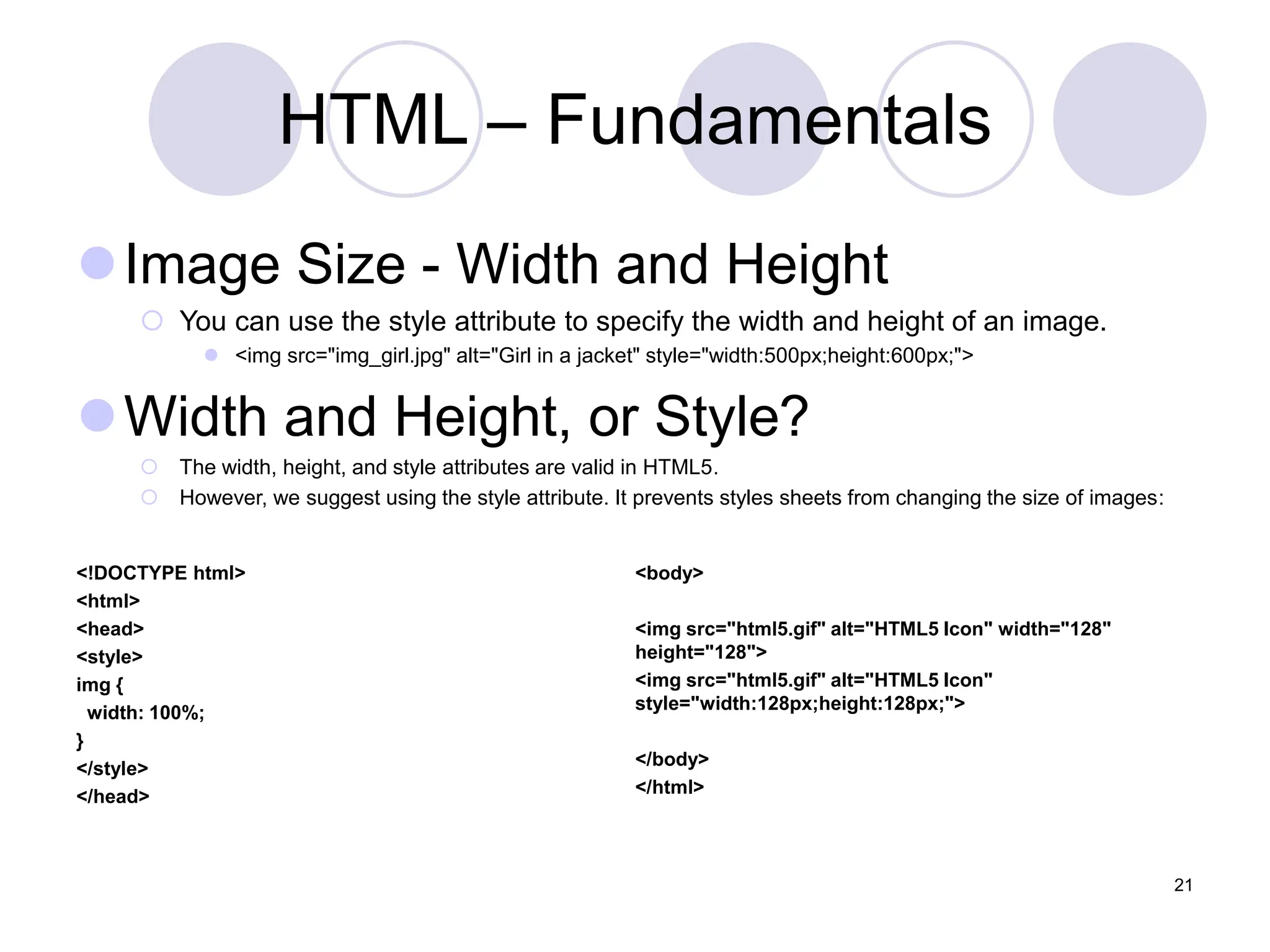
Image Size - Width and Height
 You can use the style attribute to specify the width and height of an image.
 <img src="img_girl.jpg" alt="Girl in a jacket" style="width:500px;height:600px;">
Width and Height, or Style?
 The width, height, and style attributes are valid in HTML5.
 However, we suggest using the style attribute. It prevents styles sheets from changing the size of images:
21
<!DOCTYPE html>
<html>
<head>
<style>
img {
width: 100%;
}
</style>
</head>
<body>
<img src="html5.gif" alt="HTML5 Icon" width="128"
height="128">
<img src="html5.gif" alt="HTML5 Icon"
style="width:128px;height:128px;">
</body>
</html>
HTML – Fundamentals
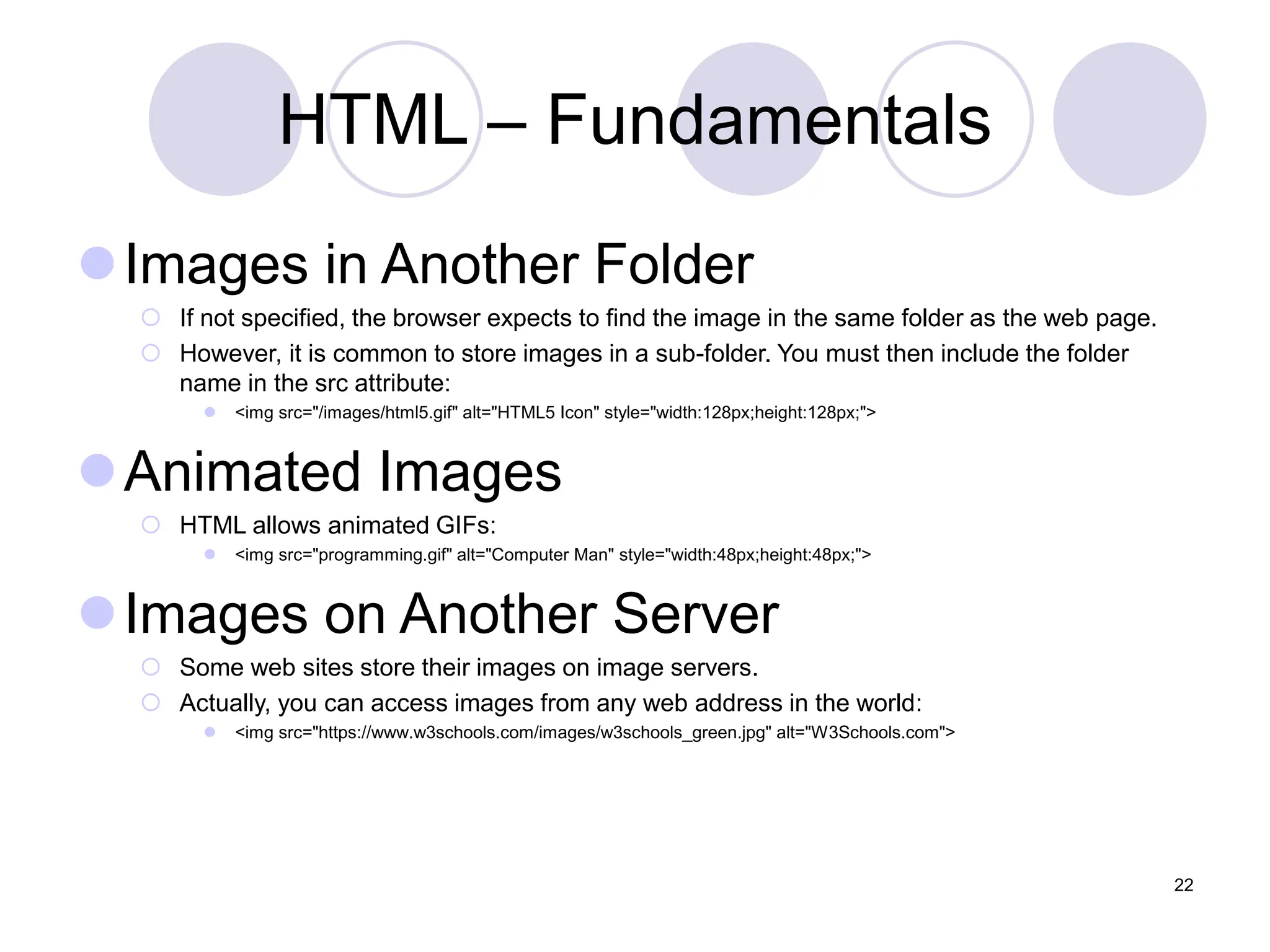
Images in Another Folder
 If not specified, the browser expects to find the image in the same folder as the web page.
 However, it is common to store images in a sub-folder. You must then include the folder
name in the src attribute:
 <img src="/images/html5.gif" alt="HTML5 Icon" style="width:128px;height:128px;">
Animated Images
 HTML allows animated GIFs:
 <img src="programming.gif" alt="Computer Man" style="width:48px;height:48px;">
Images on Another Server
 Some web sites store their images on image servers.
 Actually, you can access images from any web address in the world:
 <img src="https://www.w3schools.com/images/w3schools_green.jpg" alt="W3Schools.com">
22
HTML – Fundamentals
HTML The class Attribute
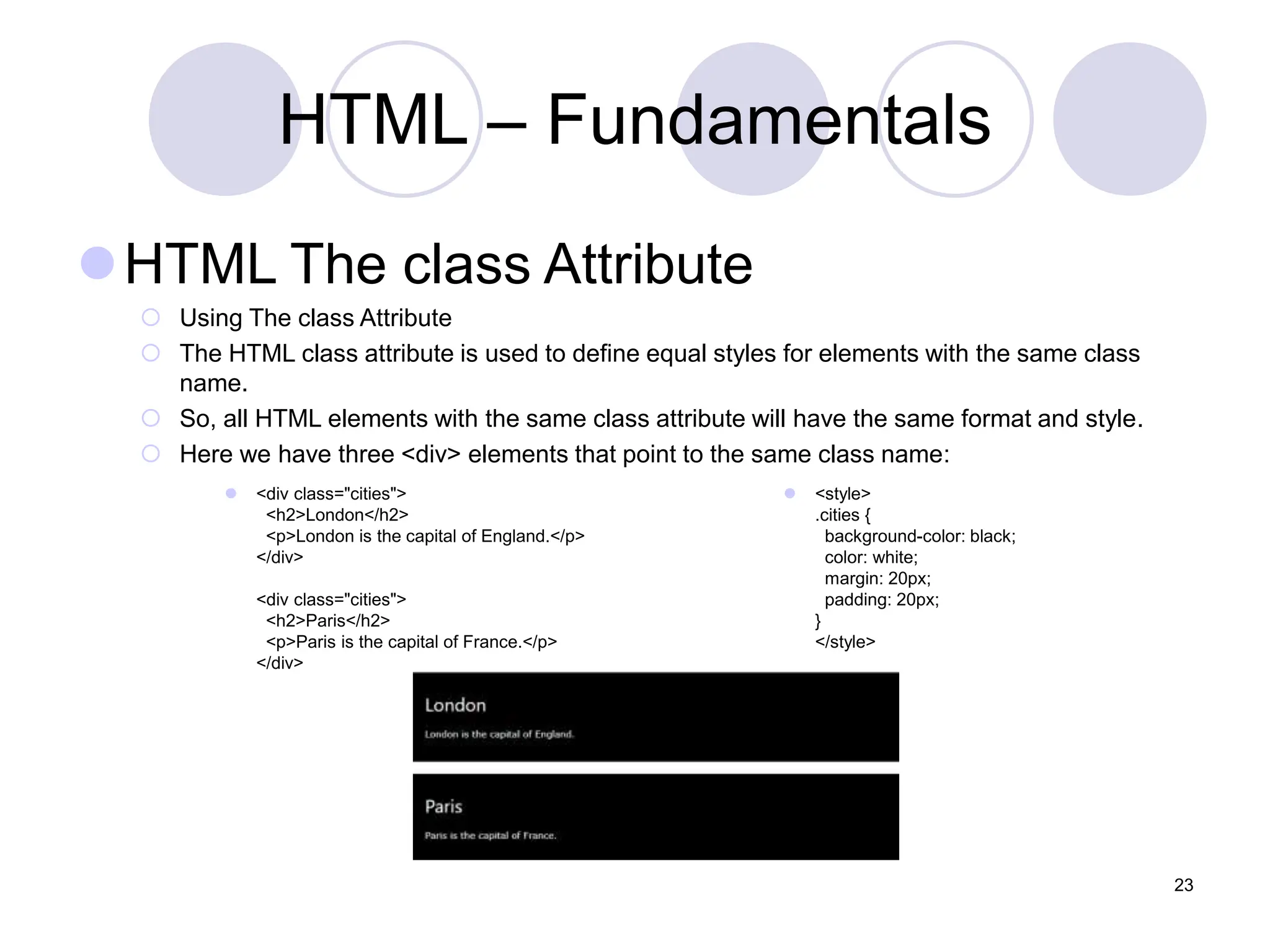
 Using The class Attribute
 The HTML class attribute is used to define equal styles for elements with the same class
name.
 So, all HTML elements with the same class attribute will have the same format and style.
 Here we have three <div> elements that point to the same class name:
23
 <div class="cities">
<h2>London</h2>
<p>London is the capital of England.</p>
</div>
<div class="cities">
<h2>Paris</h2>
<p>Paris is the capital of France.</p>
</div>
 <style>
.cities {
background-color: black;
color: white;
margin: 20px;
padding: 20px;
}
</style>
HTML – Fundamentals
HTML The id Attribute
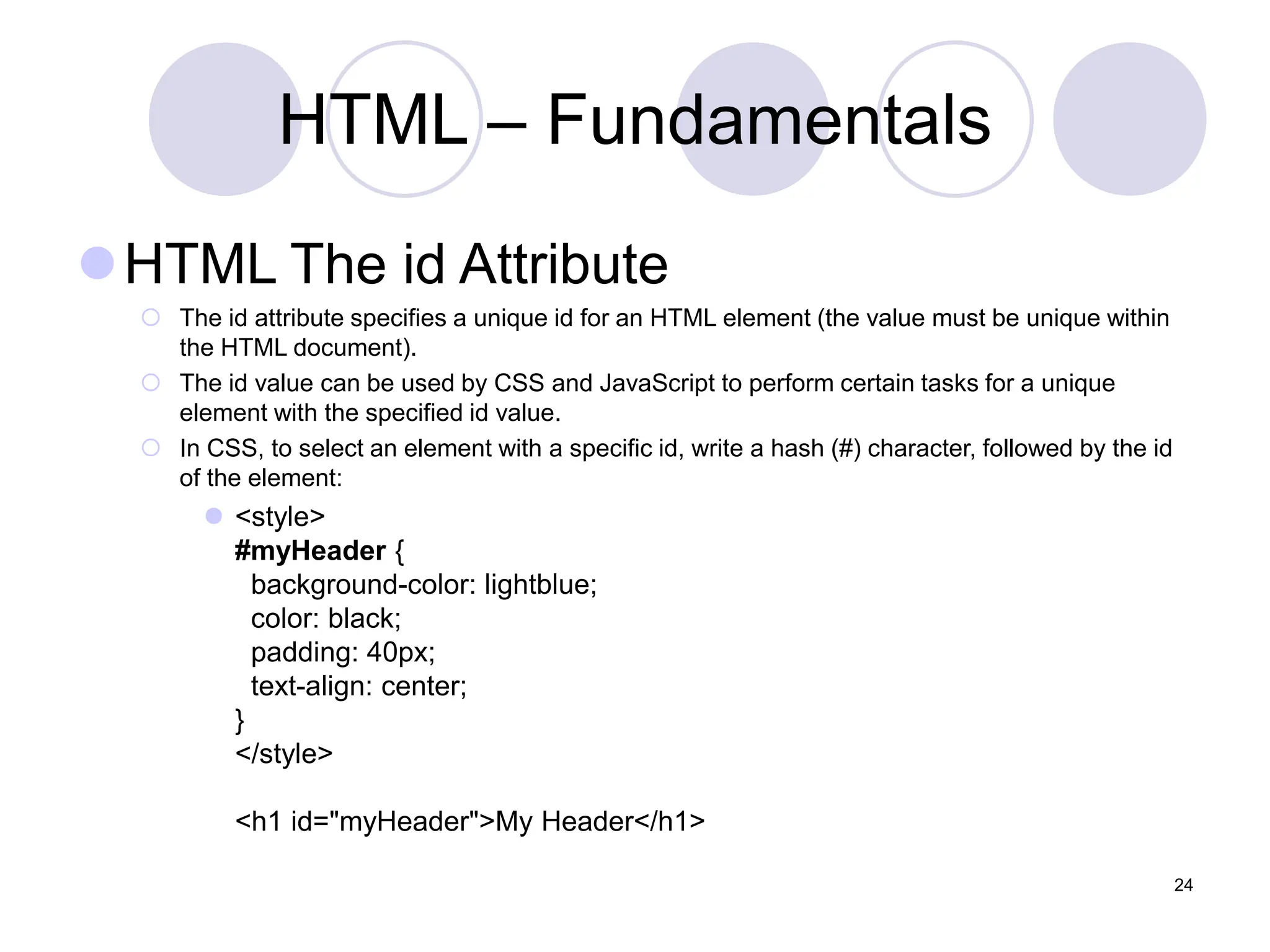
 The id attribute specifies a unique id for an HTML element (the value must be unique within
the HTML document).
 The id value can be used by CSS and JavaScript to perform certain tasks for a unique
element with the specified id value.
 In CSS, to select an element with a specific id, write a hash (#) character, followed by the id
of the element:
 <style>
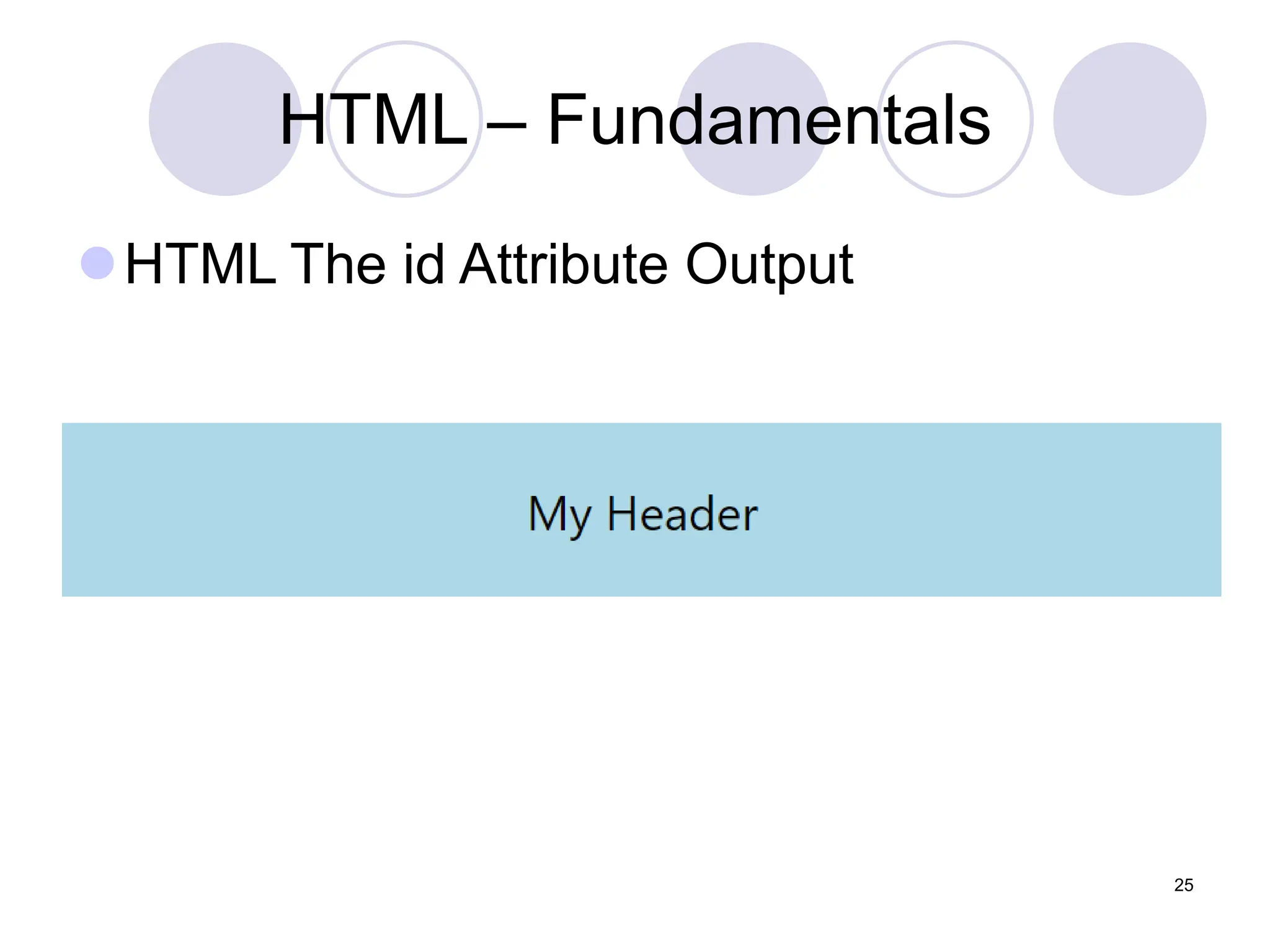
#myHeader {
background-color: lightblue;
color: black;
padding: 40px;
text-align: center;
}
</style>
<h1 id="myHeader">My Header</h1>
24
HTML – Fundamentals
HTML The id Attribute Output
25
HTML – Fundamentals
The HTML <style> Element
 The <style> element is used to define style information for a single HTML page:
<html>
<head>
<title>Page Title</title>
<style>
body {background-color: powderblue;}
h1 {color: red;}
p {color: blue;}
</style>
</head>
<body>
<h1>This is a Heading</h1>
<p>This is a paragraph.</p>
</body>
</html>
26
HTML – Fundamentals
The HTML <link> Element
 The <link> element is used to link to external style sheets:
 <head>
 <title>Page Title</title>
 <link rel="stylesheet" href="mystyle.css">
 </head>
The HTML <meta> Element
 The <meta> element is used to specify which character set is used, page
description, keywords, author, and other metadata.
 Metadata is used by browsers (how to display content), by search engines
(keywords), and other web services.
27
CSS Backgrounds
The CSS background properties are used
to define the background effects for
elements.
CSS background properties:
background-color
background-image
background-repeat
background-attachment
background-position
CSS Backgrounds
Background Color
The background-color property specifies the
background color of an element.
The background color of a page is set like this:
body {
background-color: lightblue;
}
CSS Backgrounds
Background Image
 The background-image property specifies an image to use as
the background of an element.
 By default, the image is repeated so it covers the entire element.
 The background image for a page can be set like this:
 body {
 background-image: url("paper.gif");
 }
CSS Backgrounds
Background Image - Repeat Horizontally
or Vertically
 By default, the background-image property repeats an image both
horizontally and vertically.
 Some images should be repeated only horizontally or vertically, or they
will look strange, like this:
 body {
background-image: url("gradient_bg.png");
background-repeat: repeat-x;
}
CSS Backgrounds
 Background Image - Set position and no-repeat
Showing the background image only once is also
specified by the background-repeat property:
 body {
background-image: url("img_tree.png");
background-repeat: no-repeat;
}
 In the example above, the background image is shown in the
same place as the text. We want to change the position of
the image, so that it does not disturb the text too much.
 The position of the image is specified by the background-
position property:
background-position: right top;
CSS Backgrounds
Background Image - Fixed position
To specify that the background image should be
fixed (will not scroll with the rest of the page),
use the background-attachment property:
body {
 background-image: url("img_tree.png");
 background-repeat: no-repeat;
 background-position: right top;
 background-attachment: fixed;
}
CSS Backgrounds
 Background - Shorthand property
 To shorten the code, it is also possible to specify all the
background properties in one single property. This is called a
shorthand property.
 The shorthand property for background is background:
 body {
background: #ffffff url("img_tree.png") no-repeat right top;
}
 When using the shorthand property the order of the property values
is:
 background-color
 background-image
 background-repeat
 background-attachment
 background-position

Web Designing Lecture 2 in Software.pptx

  • 1.
    Introduction to WebDesign Lecture 2 Muhammad Waheed
  • 2.
    2 Use of thismaterial  If you would like to be able to distribute this PowerPoint presentation from your own website – simply credit the author with a link to The small Business Depot. Use the following: Link URL: https://bit.ly/3fKjffa Author: Muhammad Waheed– Abiding Tech Computer Education Copyright – 2021 – Abiding Tech Computer Education
  • 3.
    3 Creating your WebSite Technologies & Tools Markup Languages HTML, DHTML, XML, XSLT, etc.... Cascading Style Sheets (CSS) Scripting languages perl,javascript,php, etc.... Web creation and editing software Notepad, Sublime, Coldfusion, Flash, Hotmetal, Site Builder, etc..
  • 4.
    4 Markup Languages -HTML Derived from SGML (Standard Generalized Markup Language ) HyperText Markup Language
  • 5.
    5 HTML Fundamentals Clear text,case insensitive Ignores white space Comprised of tags <tag /> Open tags and closed tags
  • 6.
    6 HTML - Fundamentals Open tags <name attributes/> <hr/>, <br/> <img src=“url” width=‘100px’ height=’60px’/>  Closed tags <name attributes> stuff </name> <b>text to be bolded</b> <h1>level 1 heading text</h1>  Comments < ! - - comment text -- >
  • 7.
    7 HTML – Fundamentals DocumentStructure Header Body < / HTML> < HTML >
  • 8.
    8 HTML – Fundamentals BasicStructure <html> <head> <title> The title of your html page </title> <meta_tags/> </head> <body> <! - - your web page content and markup - -> </body> </html>
  • 9.
    HTML – Fundamentals HTMLHeadings <h1>Heading 1</h1> <h2>Heading 2</h2> <h3>Heading 3</h3> <h4>Heading 4</h4> <h5>Heading 5</h5> <h6>Heading 6</h6> 9
  • 10.
    HTML – Fundamentals HTMLParagraphs The HTML <p> element defines a paragraph <p>This is a paragraph.</p> <p>This is another paragraph.</p> 10
  • 11.
    HTML – Fundamentals HTMLStyles <body style="background-color:powderblue;"> <p>I am normal</p> <p style="color:red;">I am red</p> <p style="color:blue;">I am blue</p> <p style="font-size:50px;">I am big</p> 11
  • 12.
    HTML – Fundamentals HTMLComment Tags <!-- This is a comment --> <!-- Do not display this at the moment <img border="0" src="pic_trulli.jpg" alt="Trulli"> --> 12
  • 13.
    HTML – Fundamentals HTMLColors Color Names Tomato Orange DodgerBlue MediumSeaGreen Gray SlateBlue Violet LightGray 13
  • 14.
    HTML – Fundamentals BackgroundColor  <h1 style="background-color:DodgerBlue;">Hello World</h1>  <p style="background-color:Tomato;">Lorem ipsum...</p> Border Color  <h1 style="border:2px solid Tomato;">Hello World</h1> Text Color  <h1 style="color:Tomato;">Hello World</h1> 14
  • 15.
    HTML – Fundamentals ColorValues  rgb(255, 99, 71)  #ff6347  hsl(9, 100%, 64%)  <h1 style="background-color:rgb(255, 99, 71);">...</h1>  <h1 style="background-color:#ff6347;">...</h1>  <h1 style="background-color:hsl(9, 100%, 64%);">...</h1> 15
  • 16.
    HTML – Fundamentals HTMLStyles - CSS Styling HTML with CSS  CSS stands for Cascading Style Sheets.  CSS describes how HTML elements are to be displayed on screen, paper, or in other media.  CSS saves a lot of work. It can control the layout of multiple web pages all at once.  CSS can be added to HTML elements in 3 ways:  Inline - by using the style attribute in HTML elements  Internal - by using a <style> element in the <head> section  External - by using an external CSS file 16
  • 17.
    HTML – Fundamentals InlineCSS  An inline CSS is used to apply a unique style to a single HTML element.  An inline CSS uses the style attribute of an HTML element.  This example sets the text color of the <h1> element to blue:  <h1 style="color:blue;">This is a Blue Heading</h1> Internal CSS  An internal CSS is used to define a style for a single HTML page.  An internal CSS is defined in the <head> section of an HTML page, within a <style> element: 17
  • 18.
    HTML – Fundamentals InternalCSS Implementation  <!DOCTYPE html>  <html>  <head>  <style>  body {background-color: powderblue;}  h1 {color: blue;}  p {color: red;}  </style>  </head>  <body>  <h1>This is a heading</h1>  <p>This is a paragraph.</p>  </body>  </html> 18
  • 19.
    HTML – Fundamentals ExternalCSS  An external style sheet is used to define the style for many HTML pages.  With an external style sheet, you can change the look of an entire web site, by changing one file!  To use an external style sheet, add a link to it in the <head> section of the HTML page:  <!DOCTYPE html>  <html>  <head>  <link rel="stylesheet" href="styles.css">  </head>  <body>  <h1>This is a heading</h1>  <p>This is a paragraph.</p>  </body>  </html>  body { background-color: powderblue; } h1 { color: blue; } p { color: red; } 19
  • 20.
    HTML – Fundamentals HTMLImages HTML Images Syntax  In HTML, images are defined with the <img> tag.  The <img> tag is empty, it contains attributes only, and does not have a closing tag.  The src attribute specifies the URL (web address) of the image:  <img src="url"> The alt Attribute  The alt attribute provides an alternate text for an image, if the user for some reason cannot view it (because of slow connection, an error in the src attribute, or if the user uses a screen reader).  The value of the alt attribute should describe the image:  <img src="img_chania.jpg" alt="Flowers in Chania"> 20
  • 21.
    HTML – Fundamentals ImageSize - Width and Height  You can use the style attribute to specify the width and height of an image.  <img src="img_girl.jpg" alt="Girl in a jacket" style="width:500px;height:600px;"> Width and Height, or Style?  The width, height, and style attributes are valid in HTML5.  However, we suggest using the style attribute. It prevents styles sheets from changing the size of images: 21 <!DOCTYPE html> <html> <head> <style> img { width: 100%; } </style> </head> <body> <img src="html5.gif" alt="HTML5 Icon" width="128" height="128"> <img src="html5.gif" alt="HTML5 Icon" style="width:128px;height:128px;"> </body> </html>
  • 22.
    HTML – Fundamentals Imagesin Another Folder  If not specified, the browser expects to find the image in the same folder as the web page.  However, it is common to store images in a sub-folder. You must then include the folder name in the src attribute:  <img src="/images/html5.gif" alt="HTML5 Icon" style="width:128px;height:128px;"> Animated Images  HTML allows animated GIFs:  <img src="programming.gif" alt="Computer Man" style="width:48px;height:48px;"> Images on Another Server  Some web sites store their images on image servers.  Actually, you can access images from any web address in the world:  <img src="https://www.w3schools.com/images/w3schools_green.jpg" alt="W3Schools.com"> 22
  • 23.
    HTML – Fundamentals HTMLThe class Attribute  Using The class Attribute  The HTML class attribute is used to define equal styles for elements with the same class name.  So, all HTML elements with the same class attribute will have the same format and style.  Here we have three <div> elements that point to the same class name: 23  <div class="cities"> <h2>London</h2> <p>London is the capital of England.</p> </div> <div class="cities"> <h2>Paris</h2> <p>Paris is the capital of France.</p> </div>  <style> .cities { background-color: black; color: white; margin: 20px; padding: 20px; } </style>
  • 24.
    HTML – Fundamentals HTMLThe id Attribute  The id attribute specifies a unique id for an HTML element (the value must be unique within the HTML document).  The id value can be used by CSS and JavaScript to perform certain tasks for a unique element with the specified id value.  In CSS, to select an element with a specific id, write a hash (#) character, followed by the id of the element:  <style> #myHeader { background-color: lightblue; color: black; padding: 40px; text-align: center; } </style> <h1 id="myHeader">My Header</h1> 24
  • 25.
    HTML – Fundamentals HTMLThe id Attribute Output 25
  • 26.
    HTML – Fundamentals TheHTML <style> Element  The <style> element is used to define style information for a single HTML page: <html> <head> <title>Page Title</title> <style> body {background-color: powderblue;} h1 {color: red;} p {color: blue;} </style> </head> <body> <h1>This is a Heading</h1> <p>This is a paragraph.</p> </body> </html> 26
  • 27.
    HTML – Fundamentals TheHTML <link> Element  The <link> element is used to link to external style sheets:  <head>  <title>Page Title</title>  <link rel="stylesheet" href="mystyle.css">  </head> The HTML <meta> Element  The <meta> element is used to specify which character set is used, page description, keywords, author, and other metadata.  Metadata is used by browsers (how to display content), by search engines (keywords), and other web services. 27
  • 28.
    CSS Backgrounds The CSSbackground properties are used to define the background effects for elements. CSS background properties: background-color background-image background-repeat background-attachment background-position
  • 29.
    CSS Backgrounds Background Color Thebackground-color property specifies the background color of an element. The background color of a page is set like this: body { background-color: lightblue; }
  • 30.
    CSS Backgrounds Background Image The background-image property specifies an image to use as the background of an element.  By default, the image is repeated so it covers the entire element.  The background image for a page can be set like this:  body {  background-image: url("paper.gif");  }
  • 31.
    CSS Backgrounds Background Image- Repeat Horizontally or Vertically  By default, the background-image property repeats an image both horizontally and vertically.  Some images should be repeated only horizontally or vertically, or they will look strange, like this:  body { background-image: url("gradient_bg.png"); background-repeat: repeat-x; }
  • 32.
    CSS Backgrounds  BackgroundImage - Set position and no-repeat Showing the background image only once is also specified by the background-repeat property:  body { background-image: url("img_tree.png"); background-repeat: no-repeat; }  In the example above, the background image is shown in the same place as the text. We want to change the position of the image, so that it does not disturb the text too much.  The position of the image is specified by the background- position property: background-position: right top;
  • 33.
    CSS Backgrounds Background Image- Fixed position To specify that the background image should be fixed (will not scroll with the rest of the page), use the background-attachment property: body {  background-image: url("img_tree.png");  background-repeat: no-repeat;  background-position: right top;  background-attachment: fixed; }
  • 34.
    CSS Backgrounds  Background- Shorthand property  To shorten the code, it is also possible to specify all the background properties in one single property. This is called a shorthand property.  The shorthand property for background is background:  body { background: #ffffff url("img_tree.png") no-repeat right top; }  When using the shorthand property the order of the property values is:  background-color  background-image  background-repeat  background-attachment  background-position