Company
LOGO
Operating Systems
Operating Systems
Chapter 1: Overview of Operating
Systems
Systems
2
Content
1. What is an Operating System?
2. Components and Structures of Computer Systems
3. Main functions of Operating System
4. Types of Operating Systems
5. Interfaces of Operating Systems
6. Operating System Mode
7. Exemple Windows 10
1. What is an Operating System?
 Operating System definition:
 An Operating System is a software that
acts as an interface between the computer
hardware components and the user.
3
Operating System goals:
Execute user programs and make solving user problems easier,
Make the computer system convenient to use,
Use the computer hardware in an efficient manner.
1. What is an Operating System?
 Some examples of Operating Systems:
4
3. Components and Structures of
Computer Systems
Computer system can be divided into four components:
Hardware:
Provides basic computing resources.
CPU, memory, I/O devices
Operating system:
Controls and coordinates use of hardware among various
applications and users.
Application programs:
Define the ways in which the system resources are used to solve
the computing problems of the users.
Word processors, compilers, web browsers, database systems,
video games
Users
People, machines, other computers
5
USER
APPLICATION
S
OPERATING
SYSTEM
HARDWARE
3. Components and Structures of
Operating System
 Accessing computer resources is divides into layers.
 Each layer is isolated and only interacts directly with the
layer below or above it.
 If we install a new hardware device:
 No need to change anything about the user / applications,
 However, you need to make changes to the operating system,
 You need to install the device drivers that the operating system
will use to control the new device.
6
USER
APPLICATION
S
OPERATING
SYSTEM
HARDWARE
3. Components and Structures of
Operating System
 If we install a new software application:
 No need to make any changes to your hardware,
 But you need to make sure that the application is supported by
the operating system,
 User will need to learn how to use the new application.
 If we change the operating system:
 Need to make sure that both applications and hardware will be
compatible with the new operating system.
7
USER
APPLICATION
S
OPERATING
SYSTEM
HARDWARE
4. Main Functions of Operating
System
 Some typical operating system functions may include managing memory,
files, processes, I/O system and devices, security.
 Below are the main functions of operating system:
8
4. Main Functions of Operating
System
 Memory Management: Performs the task of allocation and de-allocation of
memory space to programs in need of this resources.
 Process Management: Helps OS to create and delete processes. It also
provides mechanisms for synchronization and communication among
processes.
 File Management: Manages all the file-related activities such as organization
storage, retrieval, naming, sharing and protection of files.
 Device Management: Keeps tracks of all devices. This module also
responsible for this task is known as the I/O controller. It also performs the task
of allocation and de-allocation of the devices.
9
4. Main Functions of Operating
System
 I/O System Management: One of the main objects of any OS is to hide the
proprties of that hardware devices from the user.
 Secondary-Storage Management: Systems have several levels of storage
which includes primary storage, secondary storage, and cache storage.
Instructions and data must be stored in primary storage or cache so that a
running program can reference it.
 Security: Security module protects the data and information of a computer
system against malware threat and authorized access.
 Command interpretation: This module is interpreting commands given by the
and acting system resources to process that commands.
10
4. Main Functions of Operating
System
 Networking: A distributed system is a group of processors which do not share
memory, hardware devices, or a clock. The processors communicate with one
another through the network.
 Communication Management: Coordination and assignment of compilers,
interpreters, and another software resource of the various users of the computer
systems.
 Job Accounting: Keeping track of time & resource used by various job and
users.
11
5. Types of Operating Systems
Following are the popular types of OS:
Batch Operating System
Multitasking/Time Sharing OS
Multiprocessing OS
Real Time OS
Distributed OS
Network OS
Mobile OS
12
5. Types of Operating Systems
 Batch Operating System: Some computer processes are very lengthy and
time-consuming. To speed the same process, a job with a similar type of needs
are batched together and run as a group.
The user of a batch operating system never directly interacts with the computer. In
this type of OS, every user prepares his or her job on an offline device like a
punch card and submit it to the computer operator.
 Multitasking/Time Sharing OS: Time-sharing operating system enables
people located at a different terminal(shell) to use a single computer system at
the same time. The processor time (CPU) which is shared among multiple users
is termed as time sharing.
13
5. Types of Operating Systems
 Multiprocessing OS: Are also known as parallel OS or tightly coupled OS. It
executes multiple jobs at the same time, makes the processing faster and
supports large physical address space and larger virtual address space. If one
processor fails then other processor should retrieve the interrupted process
state, so execution of process can continue.
 Real time OS: A real time operating system time interval to process and
respond to inputs is very small. Examples: Military Software Systems, Space
Software Systems are the Real time OS example.
 Distributed OS: Distributed systems use many processors located in different
machines to provide very fast computation to its users.
14
5. Types of Operating Systems
 Network OS: Network Operating System runs on a server. It provides the
capability to serve to manage data, user, groups, security, application, and other
networking functions.
 Mobile OS: Mobile operating systems are those OS which is especially that are
designed to power smartphones, tablets, and wearables devices.
15
6. Interfaces of Operating Systems
A user interface (UI) controls how you enter data and
instruction and how information is displayed on the
screen.
There are two types of user interfaces:
A.Command Line Interface
B.Graphical User Interface
16
6. Interfaces of Operating Systems
A.Command Line Interface
In a command line interface, a user types commands
represented by short keywords or abbreviations or presses
special keys on the keyboard to enter data and instructions.
17
6. Interfaces of Operating Systems
B. Graphical User Interface
With a graphical user interface (GUI), user interacts with
menus and visual images.
18
7. Operating System Mode
 The User Mode is concerned with the actual
interface between the user and the system.
 It controls things like running applications
and accessing files.
19
 The Kernel Mode is concerned with everything
running in the background. It controls things
like accessing system resources, controlling
hardware functions and processing program
instructions.
 It controls things like running applications
and accessing files.
 System calls are used to change mode from
User to Kernel.
Company
LOGO
Intro to Windows 10
Why windows 10?
 Windows 10 is the latest Microsoft
Operating System.
 Is replacing Windows 7 on campus
 Much more friendly than Windows 8
 More Secure .
 Runs better (uses fewer resources)
What’s New in windows
10?
 A few feature highlights
 • Start menu
 • Using tiles
 • How to search
 • Task view
 • Virtual desktops
 • Snap enhancements
 • Quick access tools
 Personalization and
Settings
 • A new look
 • Personalize your lock
screen
 • Desktop and Colors
Start Menu
Windows 10: Windows 7:
How to use the start menu:
Start menu: Using tiles
 In the right pane of the Start menu, you’ll find tiles for some common apps.
 To move a tile, just drag it to another position. You can rearrange them within the
pane. You can also drag apps between the tile view and the app list view.
How-to Search
 Windows 10 Start menu comes with a great
Search tool.

Search apps

Search files

Search the web
 Use Cortana
Task View
 One of the best parts of windows.
 Separate all apps into a spread out view to
find the window you are looking for.
 Great for organization!
 Also “Windows + TAB”
Quick Access Tools
 The Quick Access menu provides access to
advanced system tools such as Power
Options, Task Manager, and Control Panel.
Personalization and
Settings:
 Settings gets a new
“modern” look.
 Basically, a
condensed “control
panel”

FYI, control panel is
still available.
Settings in Windows 7 vs
Windows 10
 Windows 10:
 Windows 7:
Settings for System
 Settings here change
system configurations
(Display resolution/monitors,
default apps, power, etc.)
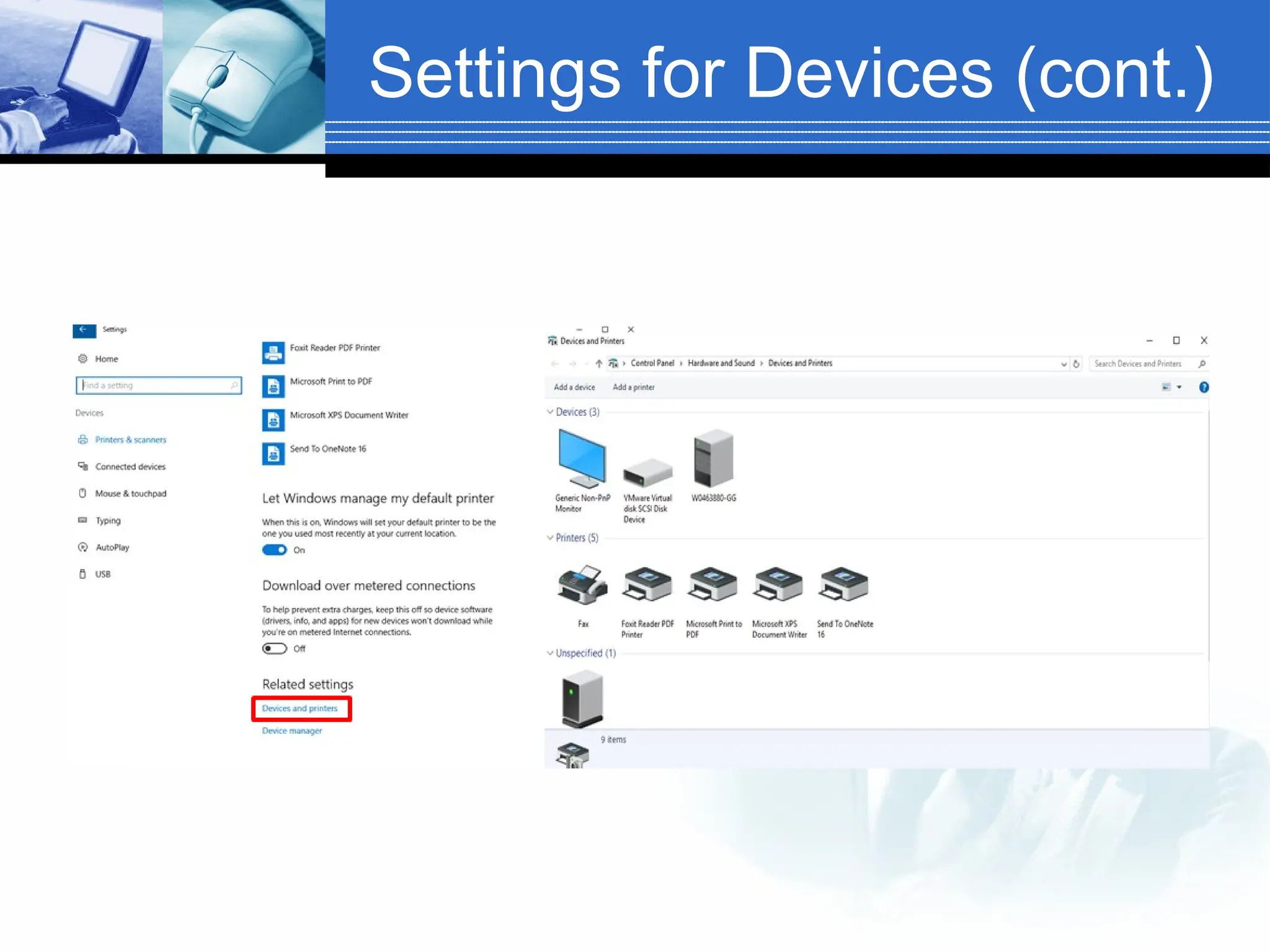
Settings for devices
 Manage settings for external
devices (printers, mice, scanners)
 95% of time it’s printers

95% of time, use old view.
Settings for Devices (cont.)
Where is “My Computer”?
 Right-click the start button > Select File Explorer
 Click “This PC” to get to your drives.
How do I “logout”?
 Click the start button
 Click the user icon
 Select sign out.
How do I “switch users”?
 Common when you need to login on
someone else’s PC.
 Select “other user” on login screen.
 Sign in with AD information.
Adding Shortcuts to
desktop
 Click the Start button
 Scroll to the app you want
 Hold down the left mouse button
 Drag the app to the desktop
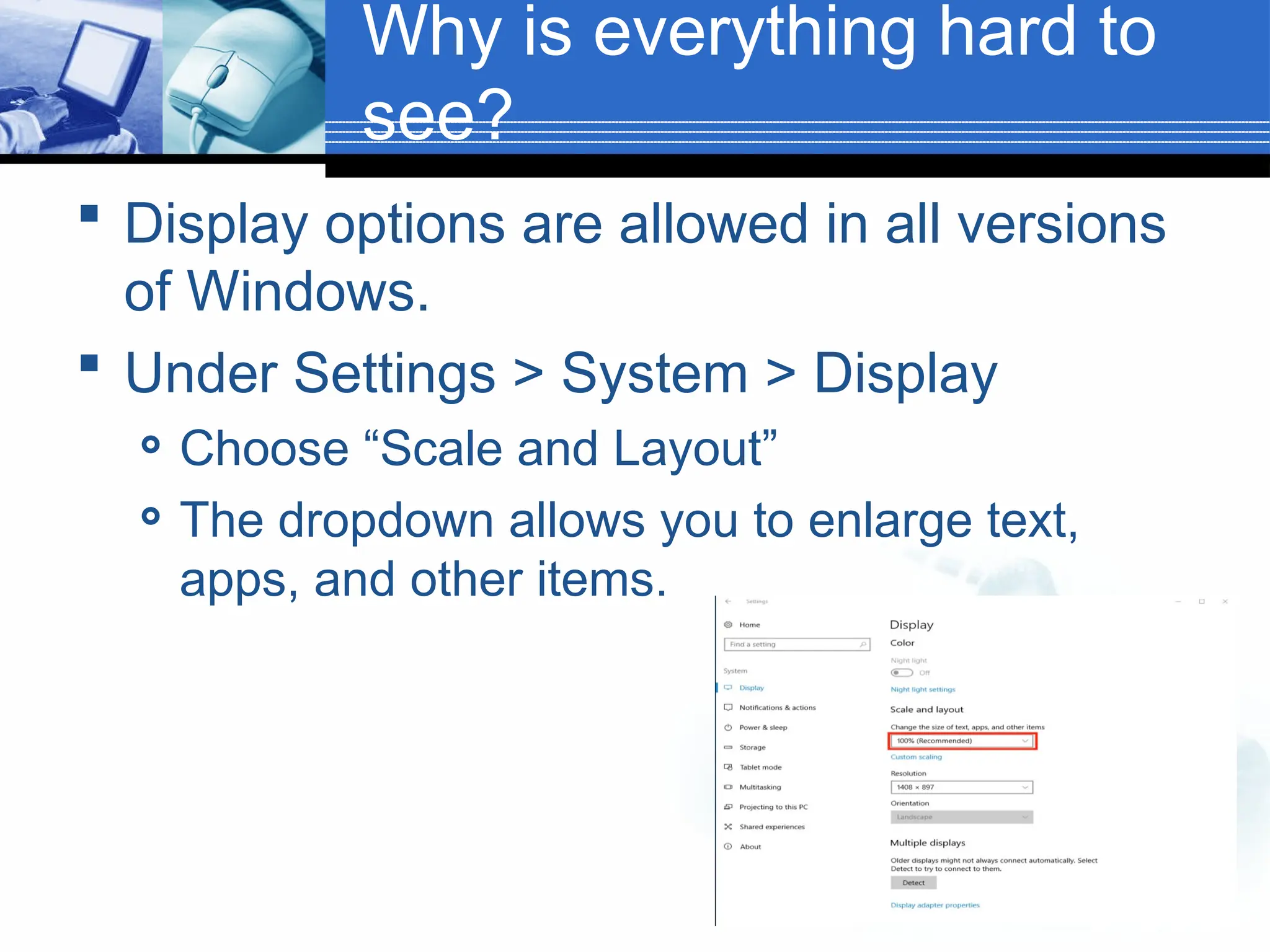
Why is everything hard to
see?
 Display options are allowed in all versions
of Windows.
 Under Settings > System > Display
 Choose “Scale and Layout”
 The dropdown allows you to enlarge text,
apps, and other items.
The End
Thank you
39

chapter 1_Overview of operating systems.ppt

  • 1.
    Company LOGO Operating Systems Operating Systems Chapter1: Overview of Operating Chapter 1: Overview of Operating Systems Systems
  • 2.
    2 Content 1. What isan Operating System? 2. Components and Structures of Computer Systems 3. Main functions of Operating System 4. Types of Operating Systems 5. Interfaces of Operating Systems 6. Operating System Mode 7. Exemple Windows 10
  • 3.
    1. What isan Operating System?  Operating System definition:  An Operating System is a software that acts as an interface between the computer hardware components and the user. 3 Operating System goals: Execute user programs and make solving user problems easier, Make the computer system convenient to use, Use the computer hardware in an efficient manner.
  • 4.
    1. What isan Operating System?  Some examples of Operating Systems: 4
  • 5.
    3. Components andStructures of Computer Systems Computer system can be divided into four components: Hardware: Provides basic computing resources. CPU, memory, I/O devices Operating system: Controls and coordinates use of hardware among various applications and users. Application programs: Define the ways in which the system resources are used to solve the computing problems of the users. Word processors, compilers, web browsers, database systems, video games Users People, machines, other computers 5 USER APPLICATION S OPERATING SYSTEM HARDWARE
  • 6.
    3. Components andStructures of Operating System  Accessing computer resources is divides into layers.  Each layer is isolated and only interacts directly with the layer below or above it.  If we install a new hardware device:  No need to change anything about the user / applications,  However, you need to make changes to the operating system,  You need to install the device drivers that the operating system will use to control the new device. 6 USER APPLICATION S OPERATING SYSTEM HARDWARE
  • 7.
    3. Components andStructures of Operating System  If we install a new software application:  No need to make any changes to your hardware,  But you need to make sure that the application is supported by the operating system,  User will need to learn how to use the new application.  If we change the operating system:  Need to make sure that both applications and hardware will be compatible with the new operating system. 7 USER APPLICATION S OPERATING SYSTEM HARDWARE
  • 8.
    4. Main Functionsof Operating System  Some typical operating system functions may include managing memory, files, processes, I/O system and devices, security.  Below are the main functions of operating system: 8
  • 9.
    4. Main Functionsof Operating System  Memory Management: Performs the task of allocation and de-allocation of memory space to programs in need of this resources.  Process Management: Helps OS to create and delete processes. It also provides mechanisms for synchronization and communication among processes.  File Management: Manages all the file-related activities such as organization storage, retrieval, naming, sharing and protection of files.  Device Management: Keeps tracks of all devices. This module also responsible for this task is known as the I/O controller. It also performs the task of allocation and de-allocation of the devices. 9
  • 10.
    4. Main Functionsof Operating System  I/O System Management: One of the main objects of any OS is to hide the proprties of that hardware devices from the user.  Secondary-Storage Management: Systems have several levels of storage which includes primary storage, secondary storage, and cache storage. Instructions and data must be stored in primary storage or cache so that a running program can reference it.  Security: Security module protects the data and information of a computer system against malware threat and authorized access.  Command interpretation: This module is interpreting commands given by the and acting system resources to process that commands. 10
  • 11.
    4. Main Functionsof Operating System  Networking: A distributed system is a group of processors which do not share memory, hardware devices, or a clock. The processors communicate with one another through the network.  Communication Management: Coordination and assignment of compilers, interpreters, and another software resource of the various users of the computer systems.  Job Accounting: Keeping track of time & resource used by various job and users. 11
  • 12.
    5. Types ofOperating Systems Following are the popular types of OS: Batch Operating System Multitasking/Time Sharing OS Multiprocessing OS Real Time OS Distributed OS Network OS Mobile OS 12
  • 13.
    5. Types ofOperating Systems  Batch Operating System: Some computer processes are very lengthy and time-consuming. To speed the same process, a job with a similar type of needs are batched together and run as a group. The user of a batch operating system never directly interacts with the computer. In this type of OS, every user prepares his or her job on an offline device like a punch card and submit it to the computer operator.  Multitasking/Time Sharing OS: Time-sharing operating system enables people located at a different terminal(shell) to use a single computer system at the same time. The processor time (CPU) which is shared among multiple users is termed as time sharing. 13
  • 14.
    5. Types ofOperating Systems  Multiprocessing OS: Are also known as parallel OS or tightly coupled OS. It executes multiple jobs at the same time, makes the processing faster and supports large physical address space and larger virtual address space. If one processor fails then other processor should retrieve the interrupted process state, so execution of process can continue.  Real time OS: A real time operating system time interval to process and respond to inputs is very small. Examples: Military Software Systems, Space Software Systems are the Real time OS example.  Distributed OS: Distributed systems use many processors located in different machines to provide very fast computation to its users. 14
  • 15.
    5. Types ofOperating Systems  Network OS: Network Operating System runs on a server. It provides the capability to serve to manage data, user, groups, security, application, and other networking functions.  Mobile OS: Mobile operating systems are those OS which is especially that are designed to power smartphones, tablets, and wearables devices. 15
  • 16.
    6. Interfaces ofOperating Systems A user interface (UI) controls how you enter data and instruction and how information is displayed on the screen. There are two types of user interfaces: A.Command Line Interface B.Graphical User Interface 16
  • 17.
    6. Interfaces ofOperating Systems A.Command Line Interface In a command line interface, a user types commands represented by short keywords or abbreviations or presses special keys on the keyboard to enter data and instructions. 17
  • 18.
    6. Interfaces ofOperating Systems B. Graphical User Interface With a graphical user interface (GUI), user interacts with menus and visual images. 18
  • 19.
    7. Operating SystemMode  The User Mode is concerned with the actual interface between the user and the system.  It controls things like running applications and accessing files. 19  The Kernel Mode is concerned with everything running in the background. It controls things like accessing system resources, controlling hardware functions and processing program instructions.  It controls things like running applications and accessing files.  System calls are used to change mode from User to Kernel.
  • 20.
  • 21.
    Why windows 10? Windows 10 is the latest Microsoft Operating System.  Is replacing Windows 7 on campus  Much more friendly than Windows 8  More Secure .  Runs better (uses fewer resources)
  • 22.
    What’s New inwindows 10?  A few feature highlights  • Start menu  • Using tiles  • How to search  • Task view  • Virtual desktops  • Snap enhancements  • Quick access tools  Personalization and Settings  • A new look  • Personalize your lock screen  • Desktop and Colors
  • 23.
  • 24.
    How to usethe start menu:
  • 25.
    Start menu: Usingtiles  In the right pane of the Start menu, you’ll find tiles for some common apps.  To move a tile, just drag it to another position. You can rearrange them within the pane. You can also drag apps between the tile view and the app list view.
  • 26.
    How-to Search  Windows10 Start menu comes with a great Search tool.  Search apps  Search files  Search the web  Use Cortana
  • 27.
    Task View  Oneof the best parts of windows.  Separate all apps into a spread out view to find the window you are looking for.  Great for organization!  Also “Windows + TAB”
  • 28.
    Quick Access Tools The Quick Access menu provides access to advanced system tools such as Power Options, Task Manager, and Control Panel.
  • 29.
    Personalization and Settings:  Settingsgets a new “modern” look.  Basically, a condensed “control panel”  FYI, control panel is still available.
  • 30.
    Settings in Windows7 vs Windows 10  Windows 10:  Windows 7:
  • 31.
    Settings for System Settings here change system configurations (Display resolution/monitors, default apps, power, etc.)
  • 32.
    Settings for devices Manage settings for external devices (printers, mice, scanners)  95% of time it’s printers  95% of time, use old view.
  • 33.
  • 34.
    Where is “MyComputer”?  Right-click the start button > Select File Explorer  Click “This PC” to get to your drives.
  • 35.
    How do I“logout”?  Click the start button  Click the user icon  Select sign out.
  • 36.
    How do I“switch users”?  Common when you need to login on someone else’s PC.  Select “other user” on login screen.  Sign in with AD information.
  • 37.
    Adding Shortcuts to desktop Click the Start button  Scroll to the app you want  Hold down the left mouse button  Drag the app to the desktop
  • 38.
    Why is everythinghard to see?  Display options are allowed in all versions of Windows.  Under Settings > System > Display  Choose “Scale and Layout”  The dropdown allows you to enlarge text, apps, and other items.
  • 39.