Typing Skills(Arabic/English)
chapter(2)
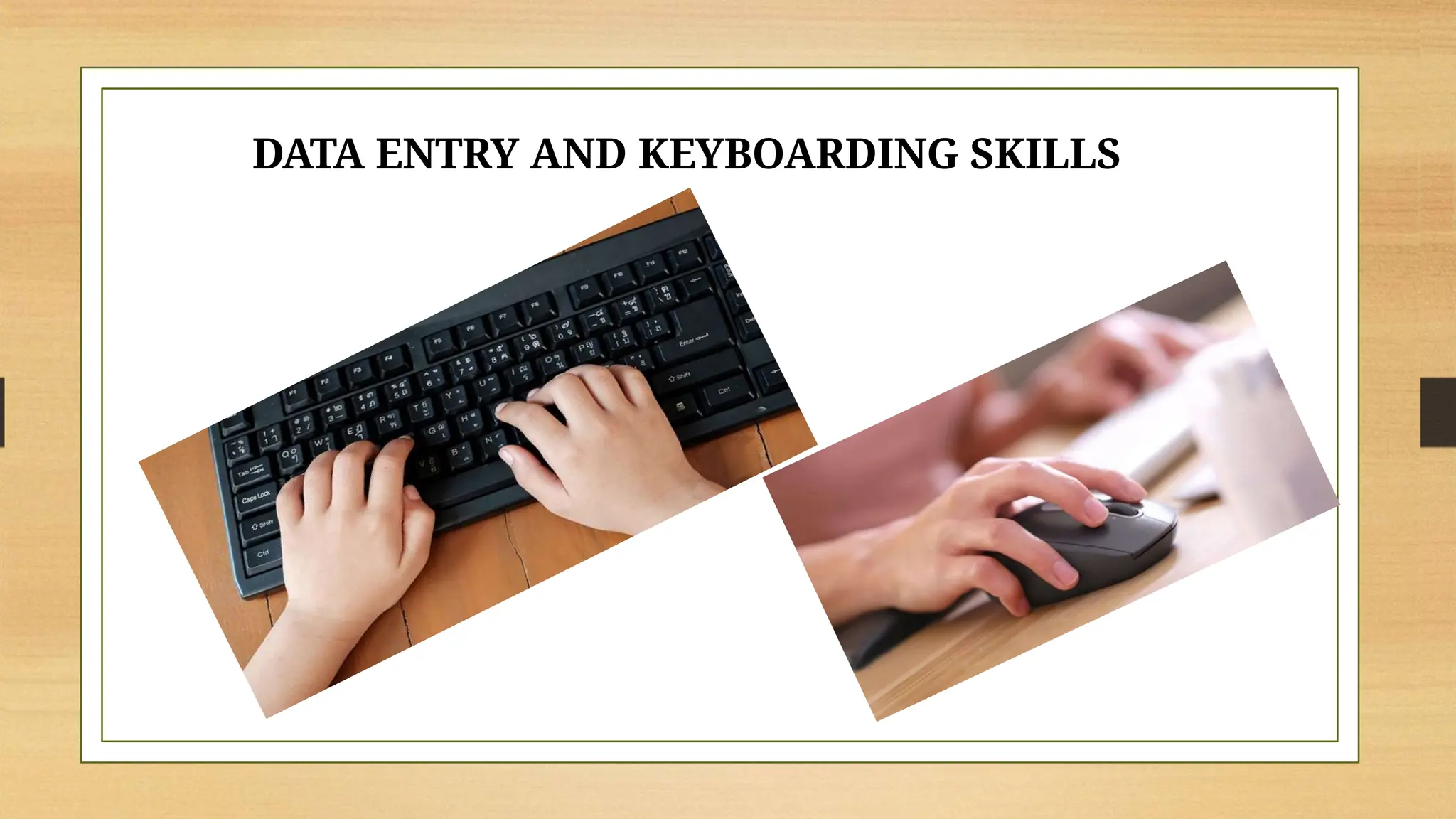
DATA ENTRY AND KEYBOARDING SKILLS
KEYBOARD
SKILLS
 Data Entry - To input the data into computer.
 Keyboarding skills - Set of skills required to operate a keyboard
smoothly while typing.
 Keyboard: A keyboard is a text-based input device used to input data to
the computer.
 We can enter alphabets, digits and symbols into the computer.
 The touch method of typewriting is a method of typing without using the
sense of sight to find the keys.
 There is no need to search the key while typing and one has to move only the
finger which is needed to strike a key.
 Touch typing involves placing the eight fingers in a horizontal row along the
middle of the keyboard.
 Typing speed generally improves with practice.
Types of Keys
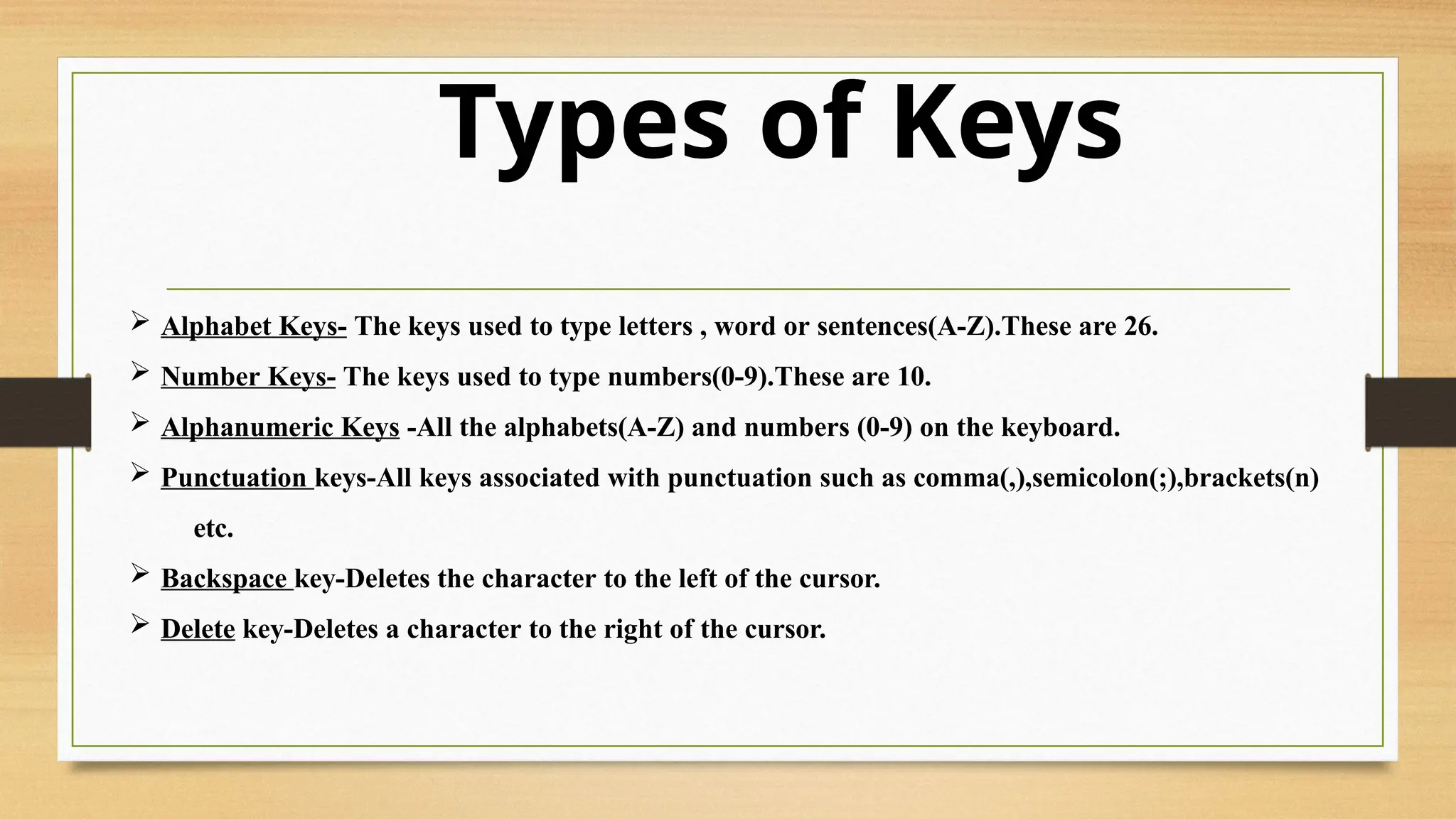
 Alphabet Keys- The keys used to type letters , word or sentences(A-Z).These are 26.
 Number Keys- The keys used to type numbers(0-9).These are 10.
 Alphanumeric Keys -All the alphabets(A-Z) and numbers (0-9) on the keyboard.
 Punctuation keys-All keys associated with punctuation such as comma(,),semicolon(;),brackets(n)
etc.
 Backspace key-Deletes the character to the left of the cursor.
 Delete key-Deletes a character to the right of the cursor.
Types of Keys
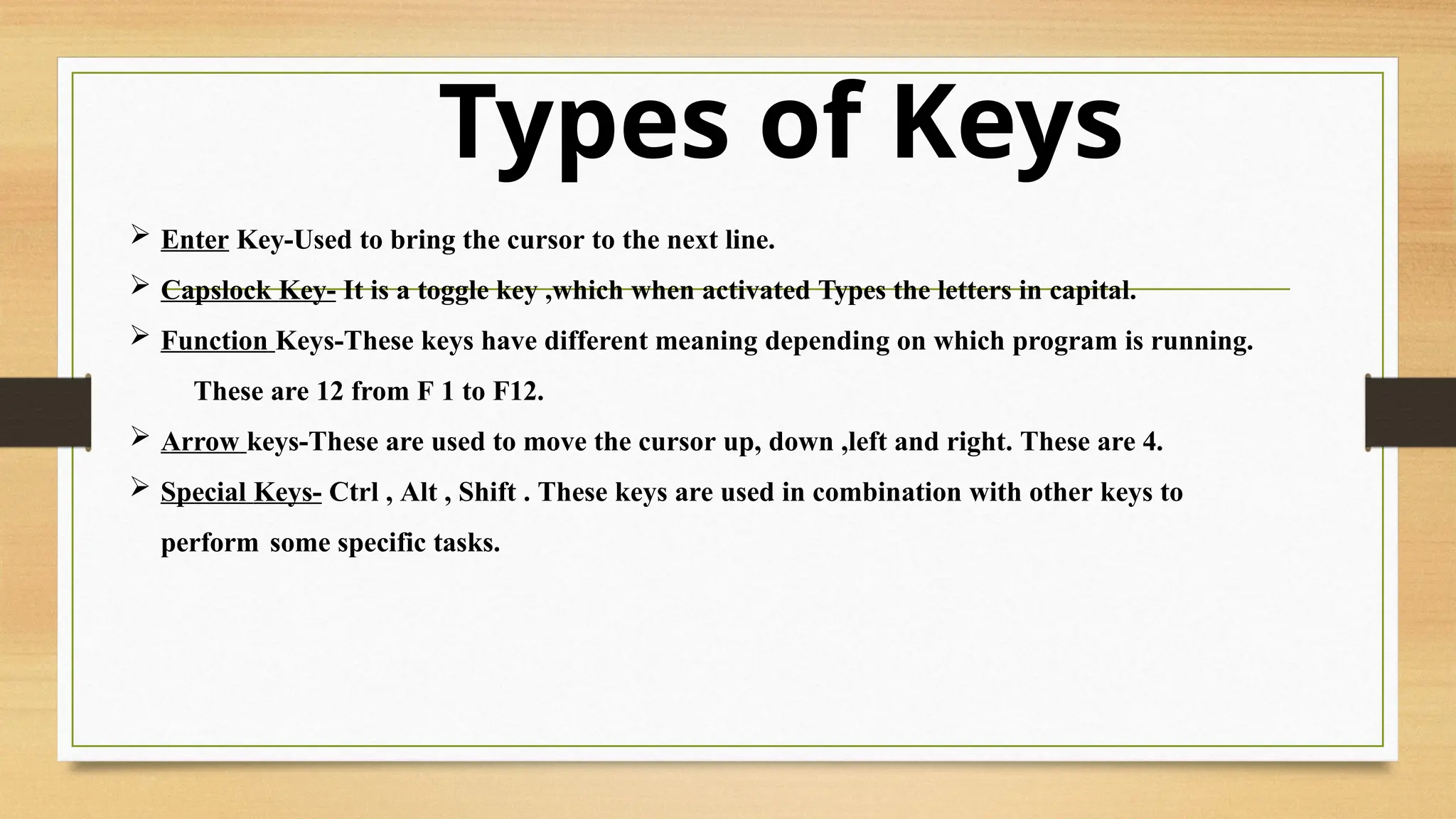
 Enter Key-Used to bring the cursor to the next line.
 Capslock Key- It is a toggle key ,which when activated Types the letters in capital.
 Function Keys-These keys have different meaning depending on which program is running.
These are 12 from F 1 to F12.
 Arrow keys-These are used to move the cursor up, down ,left and right. These are 4.
 Special Keys- Ctrl , Alt , Shift . These keys are used in combination with other keys to
perform some specific tasks.
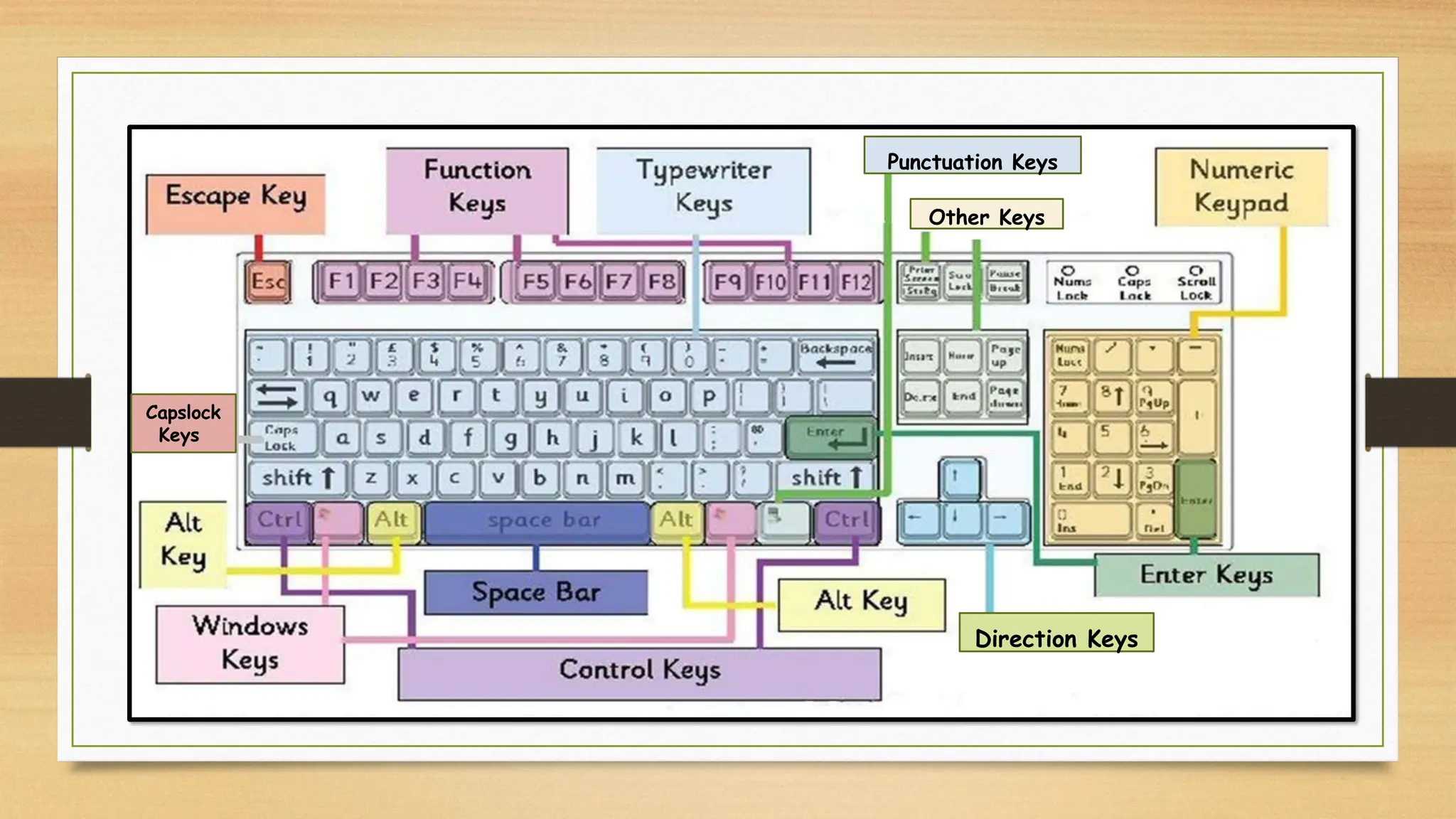
Direction Keys
Punctuation Keys
Other Keys
Capslock
Keys
Home Keys
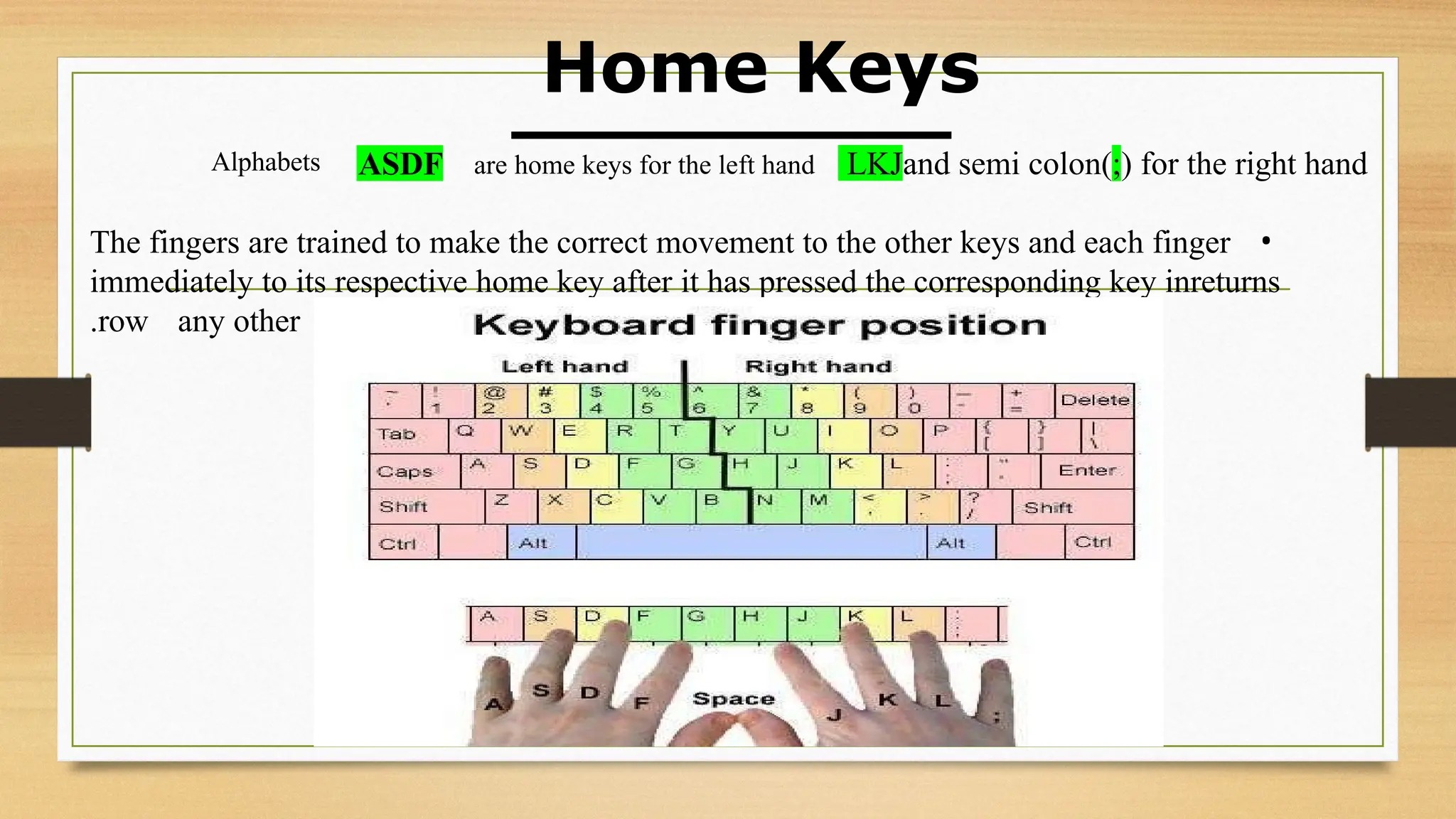
ASDF LKJand semi colon(;) for the right hand
•
The fingers are trained to make the correct movement to the other keys and each finger
returns
immediately to its respective home key after it has pressed the corresponding key in
any other
row
.
are home keys for the left hand
Alphabets
Guide keys
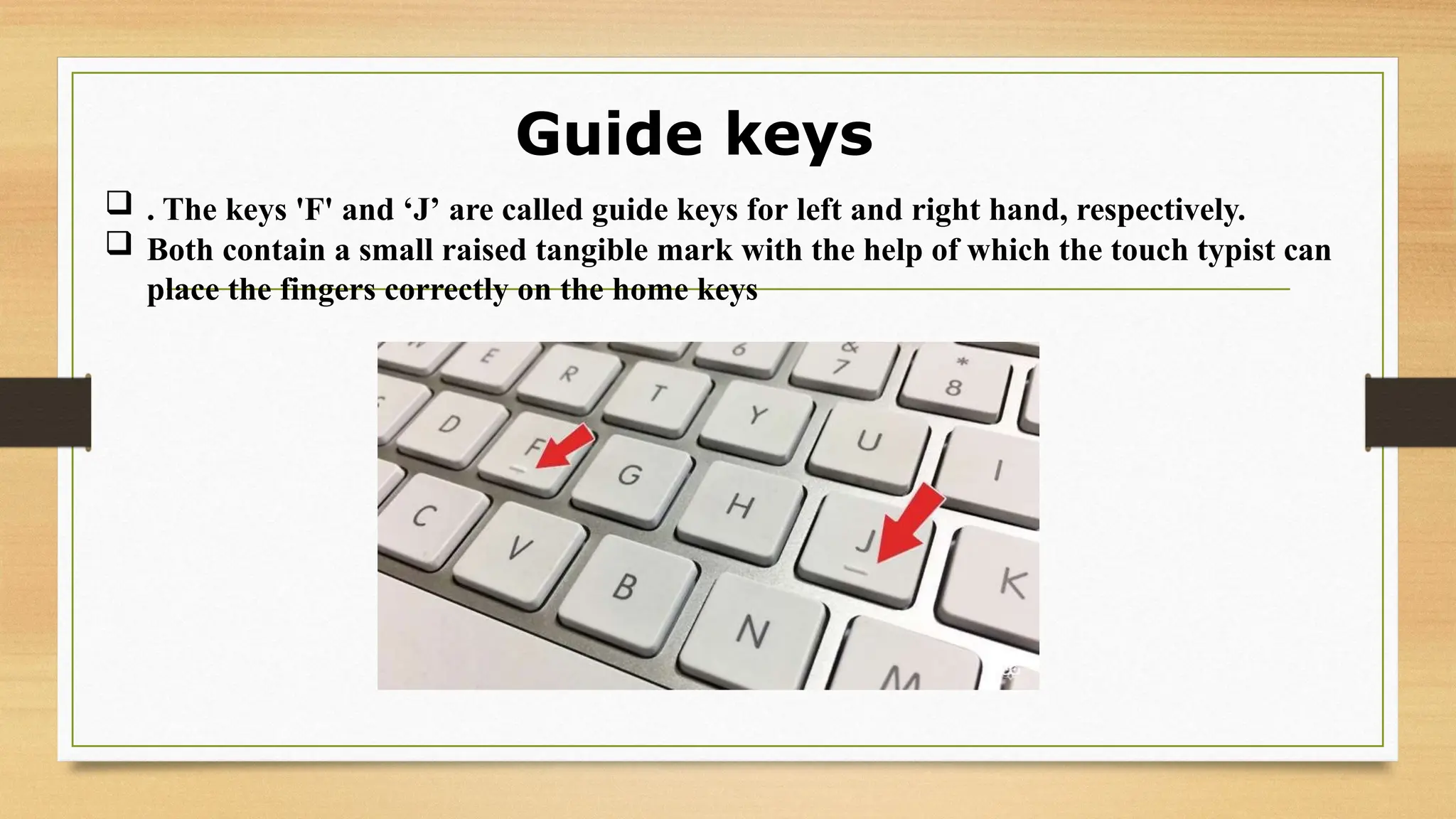
 . The keys 'F' and ‘J’ are called guide keys for left and right hand, respectively.
 Both contain a small raised tangible mark with the help of which the touch typist can
place the fingers correctly on the home keys
List of some Common Control Key Shortcuts
Ctrl+A These two keys will select all text or other objects
Ctrl+C Copy any selected text or another object.
Ctrl+V Paste any text or another object that has been copied
Ctrl+X Cut selected text or another object
Ctrl+S Save the document or file.
Ctrl+N Create a new page or document.
Ctrl+O Open a file in most programs.
Ctrl+P Open a print window to print the page you're viewing.
Ctrl+ Previous word
←
Ctrl+ Next word
→
Ctrl+Delete Delete next word
Ctrl+ Backspace Delete previous word
←
Allocation of Keys to Fingers
Points to be kept in mind while typing
 Press the keys gently, don't put much pressure.
Rest your fingers on Home row while typing.
 While typing, release the keys immediately as soon as you
press it otherwise it will repeatedly type the same character.
 Try typing without looking at the keyboard. At initial stage , you may
face problem but slowly and gradually you will learn with practice.
Points to be kept in mind while typing
Press the keys only with the fingers allotted for them.
Maintain patience if committed mistake at initial stage.
 Maintain a balance between speed and accuracy, as both are
equally important.
 To be a master at typing, daily practice it. You can start with small
words , then move onto sentences and further to paragraphs. But without
looking the letters.
POINTING
DEVICES
Pointing Devices
Mouse Operations
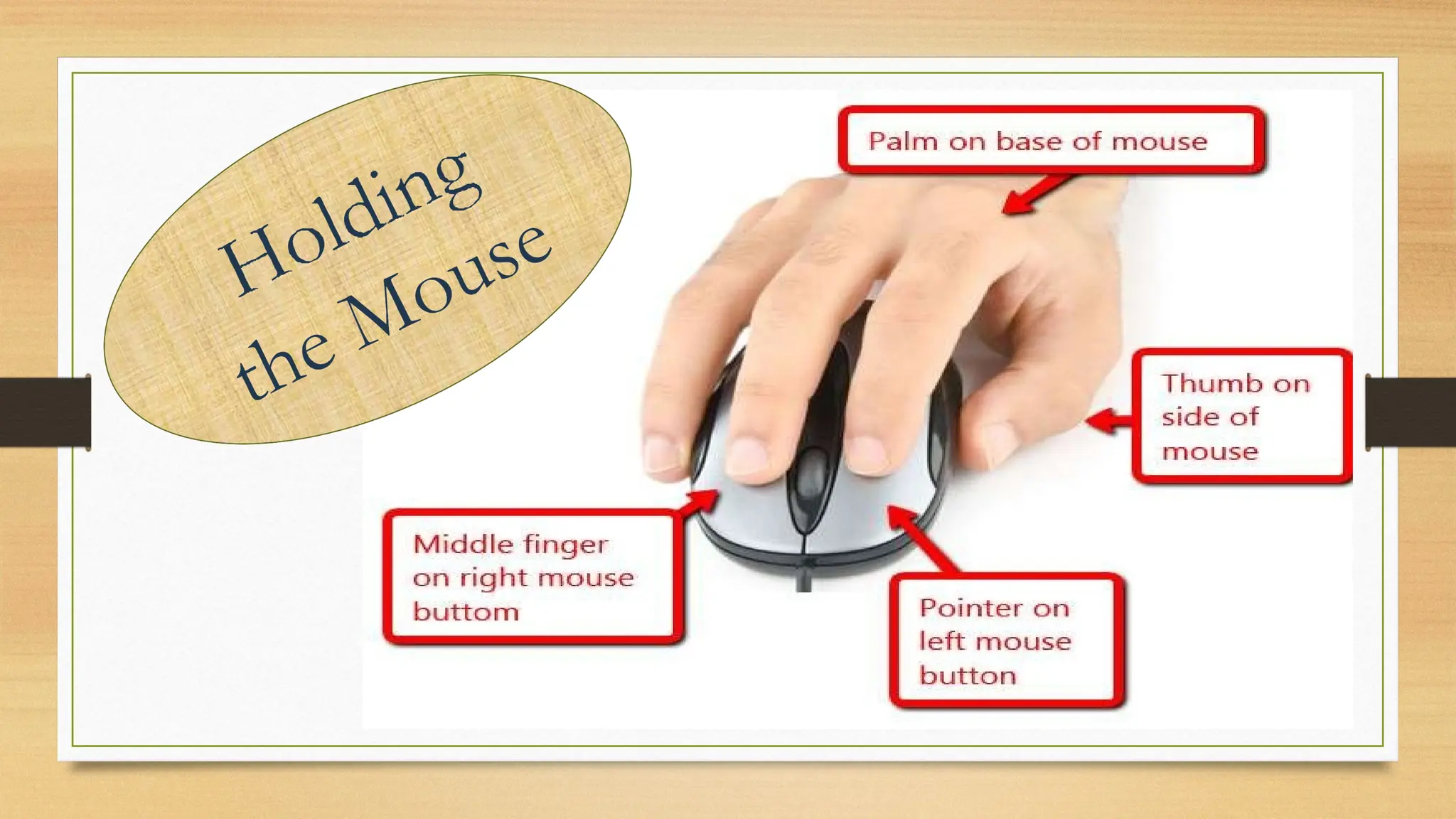
Holding the Mouse
Proper posture of body while typing
 Placement of mouse , keyboard ,
computer table and chair
 Instead of typing , directly some item can be selected from computer
screen , for example “print” or “ close” button
This can be done using point and draw devices such as mouse.
It can select , as well as draw lines, curves or shapes.
Some other pointing devices are joystick, light pen, touch pad etc.
POINTING DEVICES
MOUSE
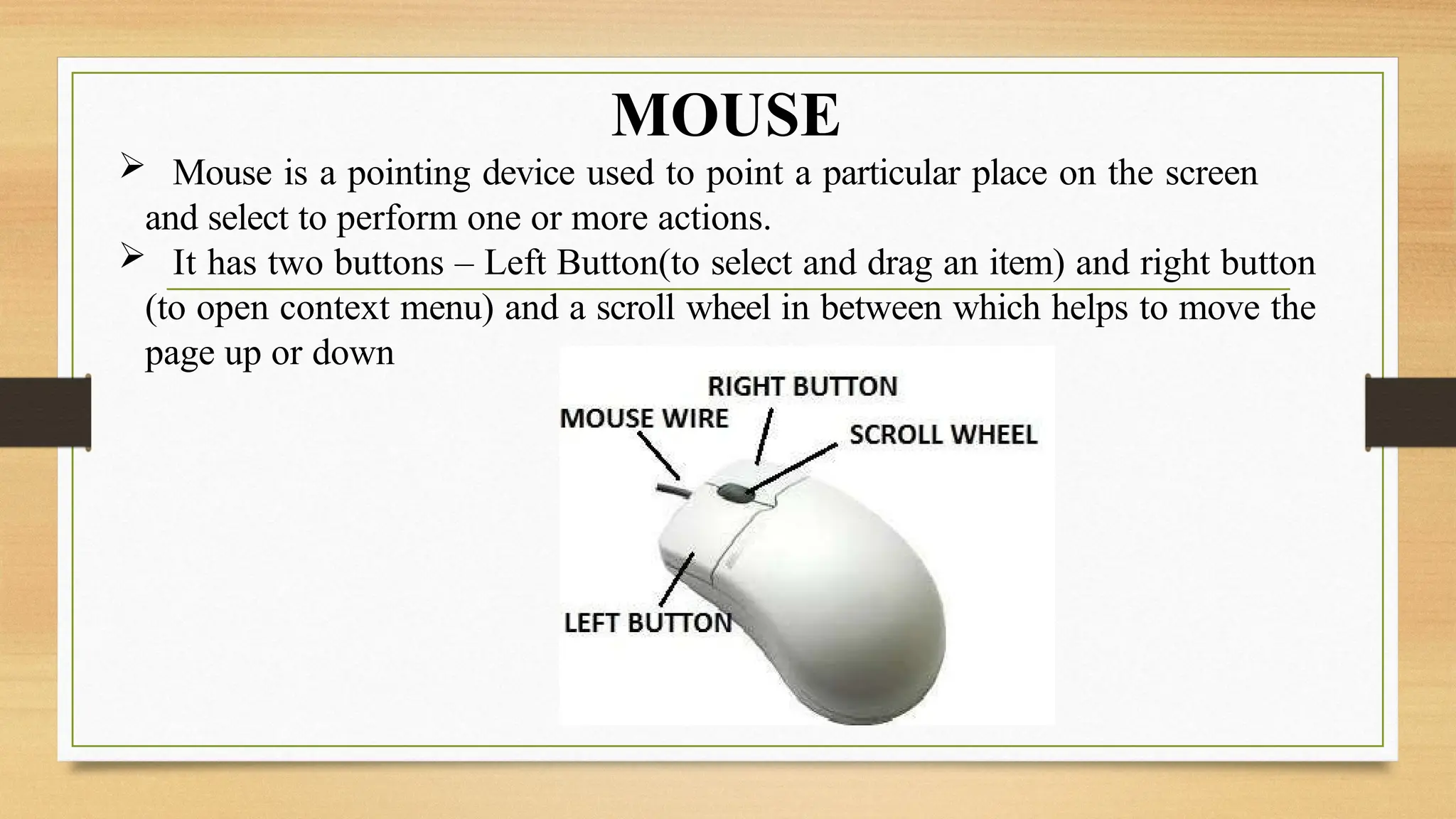
 Mouse is a pointing device used to point a particular place on the screen
and select to perform one or more actions.
 It has two buttons – Left Button(to select and drag an item) and right button
(to open context menu) and a scroll wheel in between which helps to move the
page up or down
Rapid Typing Tutor
Download Rapid typing tutor software to enhance your typing speed and practice on
that
.
Colours Indicators in Rapid
Typing Tutors
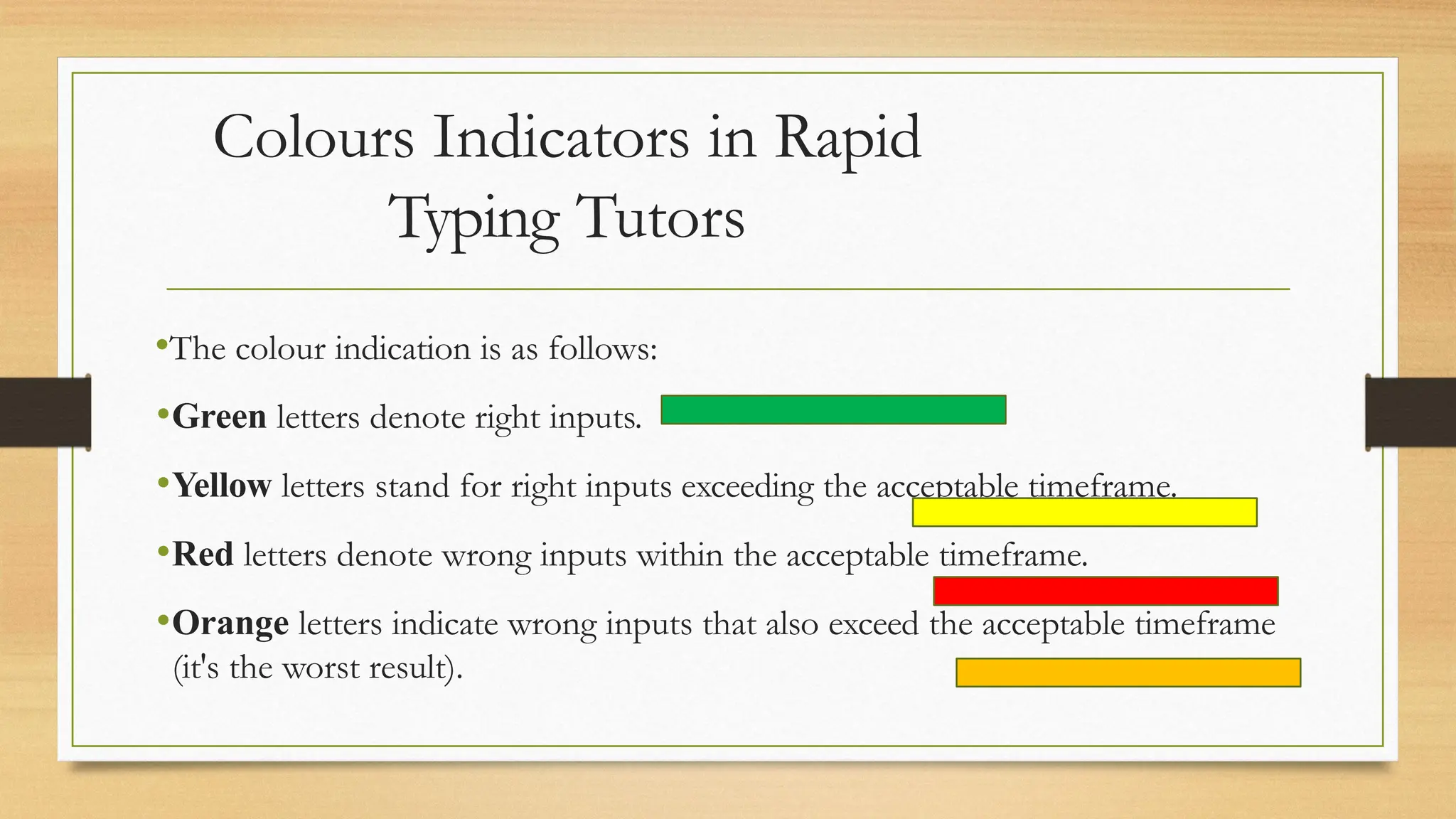
•The colour indication is as follows:
•Green letters denote right inputs.
•Yellow letters stand for right inputs exceeding the acceptable timeframe.
•Red letters denote wrong inputs within the acceptable timeframe.
•Orange letters indicate wrong inputs that also exceed the acceptable timeframe
(it's the worst result).
THANK
YOU

chapter2DATA ENTRY AND KEYBOARDING SKILLS.pptx

  • 1.
  • 2.
    DATA ENTRY ANDKEYBOARDING SKILLS
  • 3.
  • 4.
     Data Entry- To input the data into computer.  Keyboarding skills - Set of skills required to operate a keyboard smoothly while typing.  Keyboard: A keyboard is a text-based input device used to input data to the computer.  We can enter alphabets, digits and symbols into the computer.  The touch method of typewriting is a method of typing without using the sense of sight to find the keys.  There is no need to search the key while typing and one has to move only the finger which is needed to strike a key.  Touch typing involves placing the eight fingers in a horizontal row along the middle of the keyboard.  Typing speed generally improves with practice.
  • 5.
    Types of Keys Alphabet Keys- The keys used to type letters , word or sentences(A-Z).These are 26.  Number Keys- The keys used to type numbers(0-9).These are 10.  Alphanumeric Keys -All the alphabets(A-Z) and numbers (0-9) on the keyboard.  Punctuation keys-All keys associated with punctuation such as comma(,),semicolon(;),brackets(n) etc.  Backspace key-Deletes the character to the left of the cursor.  Delete key-Deletes a character to the right of the cursor.
  • 6.
    Types of Keys Enter Key-Used to bring the cursor to the next line.  Capslock Key- It is a toggle key ,which when activated Types the letters in capital.  Function Keys-These keys have different meaning depending on which program is running. These are 12 from F 1 to F12.  Arrow keys-These are used to move the cursor up, down ,left and right. These are 4.  Special Keys- Ctrl , Alt , Shift . These keys are used in combination with other keys to perform some specific tasks.
  • 7.
  • 8.
    Home Keys ASDF LKJandsemi colon(;) for the right hand • The fingers are trained to make the correct movement to the other keys and each finger returns immediately to its respective home key after it has pressed the corresponding key in any other row . are home keys for the left hand Alphabets
  • 9.
    Guide keys  .The keys 'F' and ‘J’ are called guide keys for left and right hand, respectively.  Both contain a small raised tangible mark with the help of which the touch typist can place the fingers correctly on the home keys
  • 10.
    List of someCommon Control Key Shortcuts Ctrl+A These two keys will select all text or other objects Ctrl+C Copy any selected text or another object. Ctrl+V Paste any text or another object that has been copied Ctrl+X Cut selected text or another object Ctrl+S Save the document or file. Ctrl+N Create a new page or document. Ctrl+O Open a file in most programs. Ctrl+P Open a print window to print the page you're viewing. Ctrl+ Previous word ← Ctrl+ Next word → Ctrl+Delete Delete next word Ctrl+ Backspace Delete previous word ←
  • 11.
  • 12.
    Points to bekept in mind while typing  Press the keys gently, don't put much pressure. Rest your fingers on Home row while typing.  While typing, release the keys immediately as soon as you press it otherwise it will repeatedly type the same character.  Try typing without looking at the keyboard. At initial stage , you may face problem but slowly and gradually you will learn with practice.
  • 13.
    Points to bekept in mind while typing Press the keys only with the fingers allotted for them. Maintain patience if committed mistake at initial stage.  Maintain a balance between speed and accuracy, as both are equally important.  To be a master at typing, daily practice it. You can start with small words , then move onto sentences and further to paragraphs. But without looking the letters.
  • 14.
  • 15.
    Pointing Devices Mouse Operations Holdingthe Mouse Proper posture of body while typing  Placement of mouse , keyboard , computer table and chair
  • 16.
     Instead oftyping , directly some item can be selected from computer screen , for example “print” or “ close” button This can be done using point and draw devices such as mouse. It can select , as well as draw lines, curves or shapes. Some other pointing devices are joystick, light pen, touch pad etc. POINTING DEVICES
  • 17.
    MOUSE  Mouse isa pointing device used to point a particular place on the screen and select to perform one or more actions.  It has two buttons – Left Button(to select and drag an item) and right button (to open context menu) and a scroll wheel in between which helps to move the page up or down
  • 19.
    Rapid Typing Tutor DownloadRapid typing tutor software to enhance your typing speed and practice on that .
  • 21.
    Colours Indicators inRapid Typing Tutors •The colour indication is as follows: •Green letters denote right inputs. •Yellow letters stand for right inputs exceeding the acceptable timeframe. •Red letters denote wrong inputs within the acceptable timeframe. •Orange letters indicate wrong inputs that also exceed the acceptable timeframe (it's the worst result).
  • 22.