Introduction to JavaScript
Table of Contents
• What is DHTML?
• DHTML Technologies
• XHTML, CSS, JavaScript, DOM
3© Sun Technologies Inc.
Table of Contents (2)
• Introduction to JavaScript
• What is JavaScript
• Implementing JavaScript into Web pages
• In <head> part
• In <body> part
• In external .js file
4
© Sun Technologies Inc.
Table of Contents (3)
• JavaScript Syntax
• JavaScript operators
• JavaScript Data Types
• JavaScript Pop-up boxes
• alert, confirm and prompt
• Conditional and switch statements, loops and
functions
• Document Object Model
• Debugging in JavaScript
5© Sun Technologies Inc.
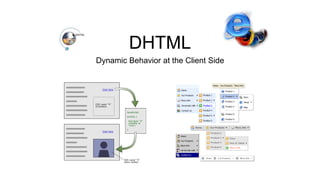
DHTML
Dynamic Behavior at the Client Side
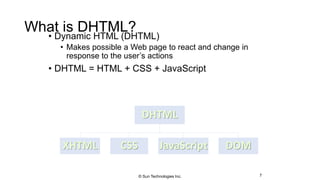
What is DHTML?
• Dynamic HTML (DHTML)
• Makes possible a Web page to react and change in
response to the user’s actions
• DHTML = HTML + CSS + JavaScript
7
DHTML
XHTML CSS JavaScript DOM
© Sun Technologies Inc.
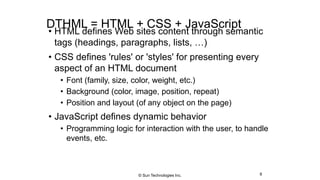
DTHML = HTML + CSS + JavaScript
• HTML defines Web sites content through semantic
tags (headings, paragraphs, lists, …)
• CSS defines 'rules' or 'styles' for presenting every
aspect of an HTML document
• Font (family, size, color, weight, etc.)
• Background (color, image, position, repeat)
• Position and layout (of any object on the page)
• JavaScript defines dynamic behavior
• Programming logic for interaction with the user, to handle
events, etc.
8© Sun Technologies Inc.
JavaScript
Dynamic Behavior in a Web Page
JavaScript
• JavaScript is a front-end scripting language
developed by Netscape for dynamic content
• Lightweight, but with limited capabilities
• Can be used as object-oriented language
• Client-side technology
• Embedded in your HTML page
• Interpreted by the Web browser
• Simple and flexible
• Powerful to manipulate the DOM
10© Sun Technologies Inc.
JavaScript Advantages• JavaScript allows interactivity such as:
• Implementing form validation
• React to user actions, e.g. handle keys
• Changing an image on moving mouse over it
• Sections of a page appearing and disappearing
• Content loading and changing dynamically
• Performing complex calculations
• Custom HTML controls, e.g. scrollable table
• Implementing AJAX functionality
11© Sun Technologies Inc.
What Can JavaScript Do?
• Can handle events
• Can read and write HTML elements and modify the
DOM tree
• Can validate form data
• Can access / modify browser cookies
• Can detect the user’s browser and OS
• Can be used as object-oriented language
• Can handle exceptions
• Can perform asynchronous server calls (AJAX)
12
© Sun Technologies Inc.
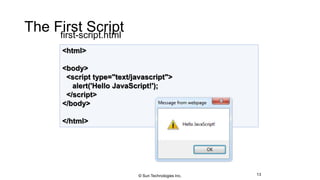
The First Scriptfirst-script.html
13
<html>
<body>
<script type="text/javascript">
alert('Hello JavaScript!');
</script>
</body>
</html>
© Sun Technologies Inc.
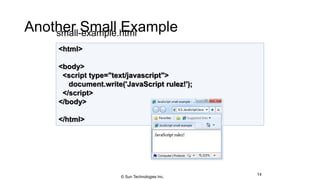
Another Small Examplesmall-example.html
14
<html>
<body>
<script type="text/javascript">
document.write('JavaScript rulez!');
</script>
</body>
</html>
© Sun Technologies Inc.
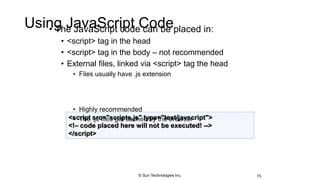
Using JavaScript Code• The JavaScript code can be placed in:
• <script> tag in the head
• <script> tag in the body – not recommended
• External files, linked via <script> tag the head
• Files usually have .js extension
• Highly recommended
• The .js files get cached by the browser
15
<script src="scripts.js" type="text/javscript">
<!– code placed here will not be executed! -->
</script>
© Sun Technologies Inc.
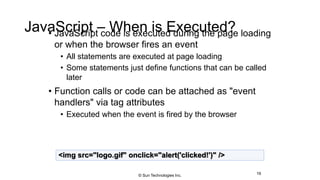
JavaScript – When is Executed?• JavaScript code is executed during the page loading
or when the browser fires an event
• All statements are executed at page loading
• Some statements just define functions that can be called
later
• Function calls or code can be attached as "event
handlers" via tag attributes
• Executed when the event is fired by the browser
16
<img src="logo.gif" onclick="alert('clicked!')" />
© Sun Technologies Inc.
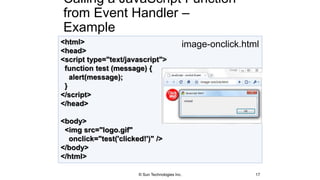
<html>
<head>
<script type="text/javascript">
function test (message) {
alert(message);
}
</script>
</head>
<body>
<img src="logo.gif"
onclick="test('clicked!')" />
</body>
</html>
Calling a JavaScript Function
from Event Handler –
Example
image-onclick.html
17© Sun Technologies Inc.
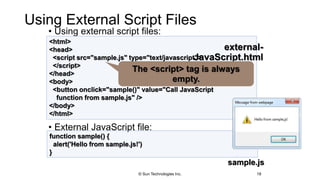
Using External Script Files
• Using external script files:
• External JavaScript file:
18
<html>
<head>
<script src="sample.js" type="text/javascript">
</script>
</head>
<body>
<button onclick="sample()" value="Call JavaScript
function from sample.js" />
</body>
</html>
function sample() {
alert('Hello from sample.js!')
}
external-
JavaScript.html
sample.js
The <script> tag is always
empty.
© Sun Technologies Inc.
The
JavaScript
Syntax
JavaScript Syntax
• The JavaScript syntax is similar to C# and
Java
• Operators (+, *, =, !=, &&, ++, …)
• Variables (typeless)
• Conditional statements (if, else)
• Loops (for, while)
• Arrays (my_array[]) and associative arrays
(my_array['abc'])
• Functions (can return value)
• Function variables (like the C# delegates)
20© Sun Technologies Inc.
Data Types• JavaScript data types:
• Numbers (integer, floating-point)
• Boolean (true / false)
• String type – string of characters
• Arrays
• Associative arrays (hash tables)
21
var myName = "You can use both single or double
quotes for strings";
var my_array = [1, 5.3, "aaa"];
var my_hash = {a:2, b:3, c:"text"};
© Sun Technologies Inc.
Everything is Object• Every variable can be considered as object
• For example strings and arrays have member functions:
22
var test = "some string";
alert(test[7]); // shows letter 'r'
alert(test.charAt(5)); // shows letter 's'
alert("test".charAt(1)); //shows letter 'e'
alert("test".substring(1,3)); //shows 'es'
var arr = [1,3,4];
alert (arr.length); // shows 3
arr.push(7); // appends 7 to end of array
alert (arr[3]); // shows 7
objects.html
© Sun Technologies Inc.
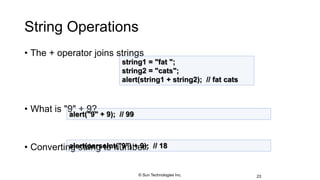
String Operations
• The + operator joins strings
• What is "9" + 9?
• Converting string to number:
23
string1 = "fat ";
string2 = "cats";
alert(string1 + string2); // fat cats
alert("9" + 9); // 99
alert(parseInt("9") + 9); // 18
© Sun Technologies Inc.
Arrays Operations and Properties
• Declaring new empty array:
• Declaring an array holding few elements:
• Appending an element / getting the last element:
• Reading the number of elements (array length):
• Finding element's index in the array:
24
var arr = new Array();
var arr = [1, 2, 3, 4, 5];
arr.push(3);
var element = arr.pop();
arr.length;
arr.indexOf(1);
© Sun Technologies Inc.
Standard Popup Boxes• Alert box with text and [OK] button
• Just a message shown in a dialog box:
• Confirmation box
• Contains text, [OK] button and [Cancel] button:
• Prompt box
• Contains text, input field with default value:
25
alert("Some text here");
confirm("Are you sure?");
prompt ("enter amount", 10);
© Sun Technologies Inc.
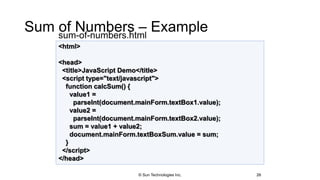
Sum of Numbers – Examplesum-of-numbers.html
26
<html>
<head>
<title>JavaScript Demo</title>
<script type="text/javascript">
function calcSum() {
value1 =
parseInt(document.mainForm.textBox1.value);
value2 =
parseInt(document.mainForm.textBox2.value);
sum = value1 + value2;
document.mainForm.textBoxSum.value = sum;
}
</script>
</head>
© Sun Technologies Inc.
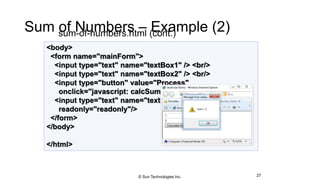
Sum of Numbers – Example (2)sum-of-numbers.html (cont.)
27
<body>
<form name="mainForm">
<input type="text" name="textBox1" /> <br/>
<input type="text" name="textBox2" /> <br/>
<input type="button" value="Process"
onclick="javascript: calcSum()" />
<input type="text" name="textBoxSum"
readonly="readonly"/>
</form>
</body>
</html>
© Sun Technologies Inc.
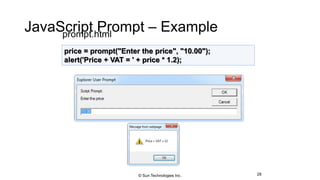
JavaScript Prompt – Exampleprompt.html
28
price = prompt("Enter the price", "10.00");
alert('Price + VAT = ' + price * 1.2);
© Sun Technologies Inc.
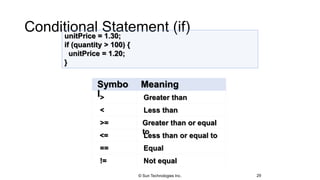
Greater than
<=
Symbo
l
Meaning
>
< Less than
>= Greater than or equal
to
Less than or equal to
== Equal
!= Not equal
Conditional Statement (if)
29
unitPrice = 1.30;
if (quantity > 100) {
unitPrice = 1.20;
}
© Sun Technologies Inc.
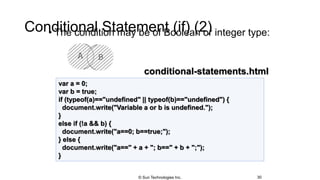
Conditional Statement (if) (2)• The condition may be of Boolean or integer type:
30
var a = 0;
var b = true;
if (typeof(a)=="undefined" || typeof(b)=="undefined") {
document.write("Variable a or b is undefined.");
}
else if (!a && b) {
document.write("a==0; b==true;");
} else {
document.write("a==" + a + "; b==" + b + ";");
}
conditional-statements.html
© Sun Technologies Inc.
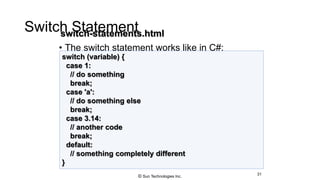
Switch Statement
• The switch statement works like in C#:
31
switch (variable) {
case 1:
// do something
break;
case 'a':
// do something else
break;
case 3.14:
// another code
break;
default:
// something completely different
}
switch-statements.html
© Sun Technologies Inc.
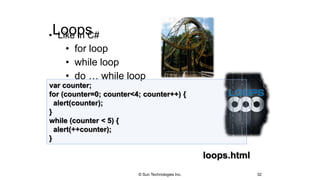
Loops• Like in C#
• for loop
• while loop
• do … while loop
32
var counter;
for (counter=0; counter<4; counter++) {
alert(counter);
}
while (counter < 5) {
alert(++counter);
}
loops.html
© Sun Technologies Inc.
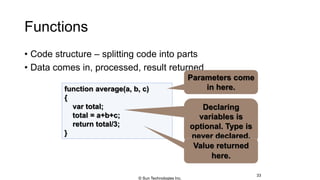
Functions
• Code structure – splitting code into parts
• Data comes in, processed, result returned
33
function average(a, b, c)
{
var total;
total = a+b+c;
return total/3;
}
Parameters come
in here.
Declaring
variables is
optional. Type is
never declared.
Value returned
here.
© Sun Technologies Inc.
Function Arguments
and Return Value
• Functions are not required to return a value
• When calling function it is not obligatory to specify all of
its arguments
• The function has access to all the arguments passed
via arguments array
34
function sum() {
var sum = 0;
for (var i = 0; i < arguments.length; i ++)
sum += parseInt(arguments[i]);
return sum;
}
alert(sum(1, 2, 4));
functions-demo.html
© Sun Technologies Inc.
Document Object
Model (DOM)
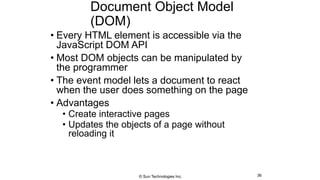
Document Object Model
(DOM)
• Every HTML element is accessible via the
JavaScript DOM API
• Most DOM objects can be manipulated by
the programmer
• The event model lets a document to react
when the user does something on the page
• Advantages
• Create interactive pages
• Updates the objects of a page without
reloading it
36© Sun Technologies Inc.
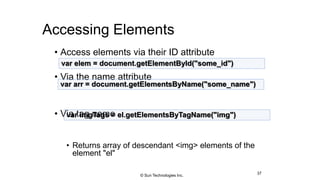
Accessing Elements
• Access elements via their ID attribute
• Via the name attribute
• Via tag name
• Returns array of descendant <img> elements of the
element "el"
37
var elem = document.getElementById("some_id")
var arr = document.getElementsByName("some_name")
var imgTags = el.getElementsByTagName("img")
© Sun Technologies Inc.
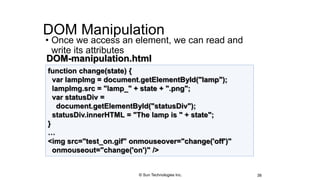
DOM Manipulation
• Once we access an element, we can read and
write its attributes
38
function change(state) {
var lampImg = document.getElementById("lamp");
lampImg.src = "lamp_" + state + ".png";
var statusDiv =
document.getElementById("statusDiv");
statusDiv.innerHTML = "The lamp is " + state";
}
…
<img src="test_on.gif" onmouseover="change('off')"
onmouseout="change('on')" />
DOM-manipulation.html
© Sun Technologies Inc.
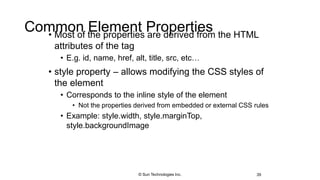
Common Element Properties• Most of the properties are derived from the HTML
attributes of the tag
• E.g. id, name, href, alt, title, src, etc…
• style property – allows modifying the CSS styles of
the element
• Corresponds to the inline style of the element
• Not the properties derived from embedded or external CSS rules
• Example: style.width, style.marginTop,
style.backgroundImage
39© Sun Technologies Inc.
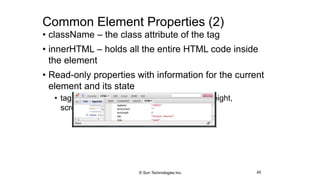
Common Element Properties (2)
• className – the class attribute of the tag
• innerHTML – holds all the entire HTML code inside
the element
• Read-only properties with information for the current
element and its state
• tagName, offsetWidth, offsetHeight, scrollHeight,
scrollTop, nodeType, etc…
40© Sun Technologies Inc.
Accessing Elements through
the DOM Tree Structure
• We can access elements in the DOM through some
tree manipulation properties:
• element.childNodes
• element.parentNode
• element.nextSibling
• element.previousSibling
• element.firstChild
• element.lastChild
41© Sun Technologies Inc.
Accessing Elements through
the DOM Tree – Example
 Warning: may not return what you expected due to Browser differences
42
var el = document.getElementById('div_tag');
alert (el.childNodes[0].value);
alert (el.childNodes[1].
getElementsByTagName('span').id);
…
<div id="div_tag">
<input type="text" value="test text" />
<div>
<span id="test">test span</span>
</div>
</div>
accessing-elements-demo.html
© Sun Technologies Inc.
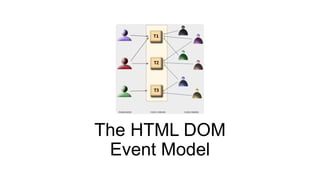
The HTML DOM
Event Model
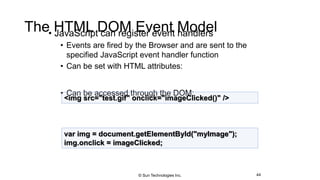
The HTML DOM Event Model• JavaScript can register event handlers
• Events are fired by the Browser and are sent to the
specified JavaScript event handler function
• Can be set with HTML attributes:
• Can be accessed through the DOM:
44
<img src="test.gif" onclick="imageClicked()" />
var img = document.getElementById("myImage");
img.onclick = imageClicked;
© Sun Technologies Inc.
The HTML DOM Event Model (2)
• All event handlers receive one parameter
• It brings information about the event
• Contains the type of the event (mouse click, key press, etc.)
• Data about the location where the event has been fired (e.g. mouse
coordinates)
• Holds a reference to the event sender
• E.g. the button that was clicked
45© Sun Technologies Inc.
The HTML DOM Event Model (3)
• Holds information about the state of [Alt], [Ctrl] and [Shift] keys
• Some browsers do not send this object, but place it in the
document.event
• Some of the names of the event’s object properties are browser-
specific
46
© Sun Technologies Inc.
Common DOM Events• Mouse events:
• onclick, onmousedown, onmouseup
• onmouseover, onmouseout, onmousemove
• Key events:
• onkeypress, onkeydown, onkeyup
• Only for input fields
• Interface events:
• onblur, onfocus
• onscroll
© Sun Technologies Inc.
Common DOM Events (2)
• Form events
• onchange – for input fields
• onsubmit
• Allows you to cancel a form submission
• Useful for form validation
• Miscellaneous events
• onload, onunload
• Allowed only for the <body> element
• Fires when all content on the page was loaded / unloaded
48© Sun Technologies Inc.
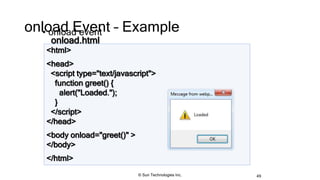
onload Event – Example• onload event
49
<html>
<head>
<script type="text/javascript">
function greet() {
alert("Loaded.");
}
</script>
</head>
<body onload="greet()" >
</body>
</html>
onload.html
© Sun Technologies Inc.
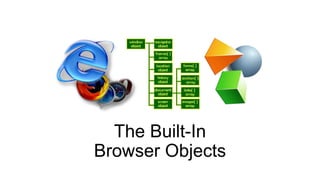
The Built-In
Browser Objects
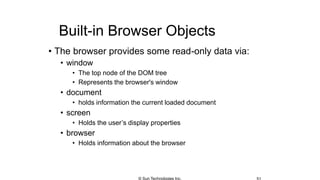
Built-in Browser Objects
• The browser provides some read-only data via:
• window
• The top node of the DOM tree
• Represents the browser's window
• document
• holds information the current loaded document
• screen
• Holds the user’s display properties
• browser
• Holds information about the browser
© Sun Technologies Inc.
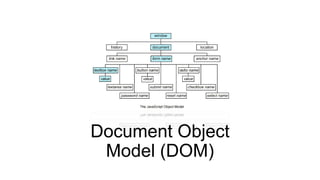
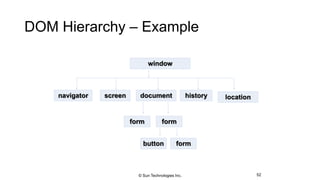
DOM Hierarchy – Example
52
window
navigator screen document history location
form
button form
form
© Sun Technologies Inc.
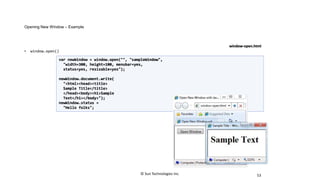
Opening New Window – Example
• window.open()
53
var newWindow = window.open("", "sampleWindow",
"width=300, height=100, menubar=yes,
status=yes, resizable=yes");
newWindow.document.write(
"<html><head><title>
Sample Title</title>
</head><body><h1>Sample
Text</h1></body>");
newWindow.status =
"Hello folks";
window-open.html
© Sun Technologies Inc.
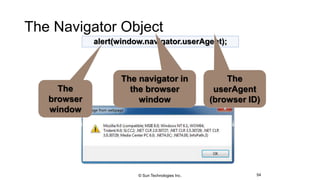
The Navigator Object
54
alert(window.navigator.userAgent);
The navigator in
the browser
window
The
userAgent
(browser ID)
The
browser
window
© Sun Technologies Inc.
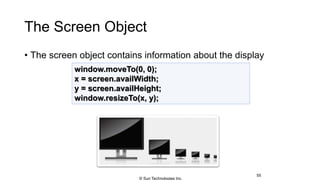
The Screen Object
• The screen object contains information about the display
55
window.moveTo(0, 0);
x = screen.availWidth;
y = screen.availHeight;
window.resizeTo(x, y);
© Sun Technologies Inc.
Document and Location
• document object
• Provides some built-in arrays of specific objects on the
currently loaded Web page
• document.location
• Used to access the currently open URL or redirect the browser
56
document.links[0].href = "yahoo.com";
document.write(
"This is some <b>bold text</b>");
document.location = "http://www.yahoo.com/";
© Sun Technologies Inc.
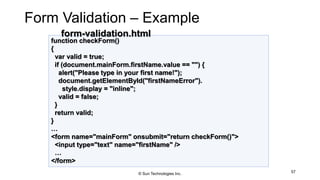
Form Validation – Example
57
function checkForm()
{
var valid = true;
if (document.mainForm.firstName.value == "") {
alert("Please type in your first name!");
document.getElementById("firstNameError").
style.display = "inline";
valid = false;
}
return valid;
}
…
<form name="mainForm" onsubmit="return checkForm()">
<input type="text" name="firstName" />
…
</form>
form-validation.html
© Sun Technologies Inc.
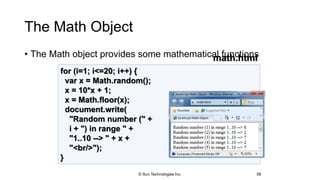
The Math Object
• The Math object provides some mathematical functions
58
for (i=1; i<=20; i++) {
var x = Math.random();
x = 10*x + 1;
x = Math.floor(x);
document.write(
"Random number (" +
i + ") in range " +
"1..10 --> " + x +
"<br/>");
}
math.html
© Sun Technologies Inc.
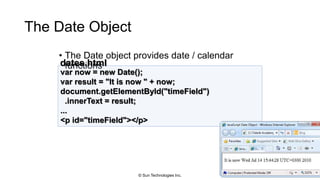
The Date Object
• The Date object provides date / calendar
functions
59
var now = new Date();
var result = "It is now " + now;
document.getElementById("timeField")
.innerText = result;
...
<p id="timeField"></p>
dates.html
© Sun Technologies Inc.
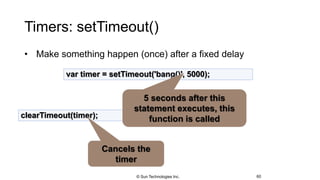
Timers: setTimeout()
• Make something happen (once) after a fixed delay
60
var timer = setTimeout('bang()', 5000);
clearTimeout(timer);
5 seconds after this
statement executes, this
function is called
Cancels the
timer
© Sun Technologies Inc.
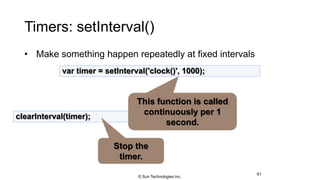
Timers: setInterval()
• Make something happen repeatedly at fixed intervals
61
var timer = setInterval('clock()', 1000);
clearInterval(timer);
This function is called
continuously per 1
second.
Stop the
timer.
© Sun Technologies Inc.
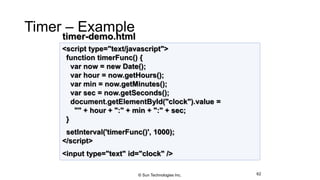
Timer – Example
62
<script type="text/javascript">
function timerFunc() {
var now = new Date();
var hour = now.getHours();
var min = now.getMinutes();
var sec = now.getSeconds();
document.getElementById("clock").value =
"" + hour + ":" + min + ":" + sec;
}
setInterval('timerFunc()', 1000);
</script>
<input type="text" id="clock" />
timer-demo.html
© Sun Technologies Inc.
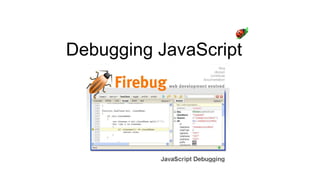
Debugging JavaScript
• Modern browsers have JavaScript console where errors in
scripts are reported
• Errors may differ across browsers
• Several tools to debug JavaScript
• Microsoft Script Editor
• Add-on for Internet Explorer
• Supports breakpoints, watches
• JavaScript statement debugger; opens the script editor
64© Sun Technologies Inc.
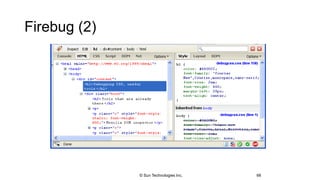
Firebug• Firebug – Firefox add-on for debugging JavaScript,
CSS, HTML
• Supports breakpoints, watches, JavaScript console editor
• Very useful for CSS and HTML too
• You can edit all the document real-time: CSS, HTML, etc
• Shows how CSS rules apply to element
• Shows Ajax requests and responses
• Firebug is written mostly in JavaScript
65© Sun Technologies Inc.
Firebug (2)
66© Sun Technologies Inc.
JavaScript Console Object• The console object exists only if there is a
debugging tool that supports it
• Used to write log messages at runtime
• Methods of the console object:
• debug(message)
• info(message)
• log(message)
• warn(message)
• error(message)
67© Sun Technologies Inc.
Questions?
© Sun Technologies Inc. 68

Javascript

  • 2.
  • 3.
    Table of Contents •What is DHTML? • DHTML Technologies • XHTML, CSS, JavaScript, DOM 3© Sun Technologies Inc.
  • 4.
    Table of Contents(2) • Introduction to JavaScript • What is JavaScript • Implementing JavaScript into Web pages • In <head> part • In <body> part • In external .js file 4 © Sun Technologies Inc.
  • 5.
    Table of Contents(3) • JavaScript Syntax • JavaScript operators • JavaScript Data Types • JavaScript Pop-up boxes • alert, confirm and prompt • Conditional and switch statements, loops and functions • Document Object Model • Debugging in JavaScript 5© Sun Technologies Inc.
  • 6.
  • 7.
    What is DHTML? •Dynamic HTML (DHTML) • Makes possible a Web page to react and change in response to the user’s actions • DHTML = HTML + CSS + JavaScript 7 DHTML XHTML CSS JavaScript DOM © Sun Technologies Inc.
  • 8.
    DTHML = HTML+ CSS + JavaScript • HTML defines Web sites content through semantic tags (headings, paragraphs, lists, …) • CSS defines 'rules' or 'styles' for presenting every aspect of an HTML document • Font (family, size, color, weight, etc.) • Background (color, image, position, repeat) • Position and layout (of any object on the page) • JavaScript defines dynamic behavior • Programming logic for interaction with the user, to handle events, etc. 8© Sun Technologies Inc.
  • 9.
  • 10.
    JavaScript • JavaScript isa front-end scripting language developed by Netscape for dynamic content • Lightweight, but with limited capabilities • Can be used as object-oriented language • Client-side technology • Embedded in your HTML page • Interpreted by the Web browser • Simple and flexible • Powerful to manipulate the DOM 10© Sun Technologies Inc.
  • 11.
    JavaScript Advantages• JavaScriptallows interactivity such as: • Implementing form validation • React to user actions, e.g. handle keys • Changing an image on moving mouse over it • Sections of a page appearing and disappearing • Content loading and changing dynamically • Performing complex calculations • Custom HTML controls, e.g. scrollable table • Implementing AJAX functionality 11© Sun Technologies Inc.
  • 12.
    What Can JavaScriptDo? • Can handle events • Can read and write HTML elements and modify the DOM tree • Can validate form data • Can access / modify browser cookies • Can detect the user’s browser and OS • Can be used as object-oriented language • Can handle exceptions • Can perform asynchronous server calls (AJAX) 12 © Sun Technologies Inc.
  • 13.
    The First Scriptfirst-script.html 13 <html> <body> <scripttype="text/javascript"> alert('Hello JavaScript!'); </script> </body> </html> © Sun Technologies Inc.
  • 14.
    Another Small Examplesmall-example.html 14 <html> <body> <scripttype="text/javascript"> document.write('JavaScript rulez!'); </script> </body> </html> © Sun Technologies Inc.
  • 15.
    Using JavaScript Code•The JavaScript code can be placed in: • <script> tag in the head • <script> tag in the body – not recommended • External files, linked via <script> tag the head • Files usually have .js extension • Highly recommended • The .js files get cached by the browser 15 <script src="scripts.js" type="text/javscript"> <!– code placed here will not be executed! --> </script> © Sun Technologies Inc.
  • 16.
    JavaScript – Whenis Executed?• JavaScript code is executed during the page loading or when the browser fires an event • All statements are executed at page loading • Some statements just define functions that can be called later • Function calls or code can be attached as "event handlers" via tag attributes • Executed when the event is fired by the browser 16 <img src="logo.gif" onclick="alert('clicked!')" /> © Sun Technologies Inc.
  • 17.
    <html> <head> <script type="text/javascript"> function test(message) { alert(message); } </script> </head> <body> <img src="logo.gif" onclick="test('clicked!')" /> </body> </html> Calling a JavaScript Function from Event Handler – Example image-onclick.html 17© Sun Technologies Inc.
  • 18.
    Using External ScriptFiles • Using external script files: • External JavaScript file: 18 <html> <head> <script src="sample.js" type="text/javascript"> </script> </head> <body> <button onclick="sample()" value="Call JavaScript function from sample.js" /> </body> </html> function sample() { alert('Hello from sample.js!') } external- JavaScript.html sample.js The <script> tag is always empty. © Sun Technologies Inc.
  • 19.
  • 20.
    JavaScript Syntax • TheJavaScript syntax is similar to C# and Java • Operators (+, *, =, !=, &&, ++, …) • Variables (typeless) • Conditional statements (if, else) • Loops (for, while) • Arrays (my_array[]) and associative arrays (my_array['abc']) • Functions (can return value) • Function variables (like the C# delegates) 20© Sun Technologies Inc.
  • 21.
    Data Types• JavaScriptdata types: • Numbers (integer, floating-point) • Boolean (true / false) • String type – string of characters • Arrays • Associative arrays (hash tables) 21 var myName = "You can use both single or double quotes for strings"; var my_array = [1, 5.3, "aaa"]; var my_hash = {a:2, b:3, c:"text"}; © Sun Technologies Inc.
  • 22.
    Everything is Object•Every variable can be considered as object • For example strings and arrays have member functions: 22 var test = "some string"; alert(test[7]); // shows letter 'r' alert(test.charAt(5)); // shows letter 's' alert("test".charAt(1)); //shows letter 'e' alert("test".substring(1,3)); //shows 'es' var arr = [1,3,4]; alert (arr.length); // shows 3 arr.push(7); // appends 7 to end of array alert (arr[3]); // shows 7 objects.html © Sun Technologies Inc.
  • 23.
    String Operations • The+ operator joins strings • What is "9" + 9? • Converting string to number: 23 string1 = "fat "; string2 = "cats"; alert(string1 + string2); // fat cats alert("9" + 9); // 99 alert(parseInt("9") + 9); // 18 © Sun Technologies Inc.
  • 24.
    Arrays Operations andProperties • Declaring new empty array: • Declaring an array holding few elements: • Appending an element / getting the last element: • Reading the number of elements (array length): • Finding element's index in the array: 24 var arr = new Array(); var arr = [1, 2, 3, 4, 5]; arr.push(3); var element = arr.pop(); arr.length; arr.indexOf(1); © Sun Technologies Inc.
  • 25.
    Standard Popup Boxes•Alert box with text and [OK] button • Just a message shown in a dialog box: • Confirmation box • Contains text, [OK] button and [Cancel] button: • Prompt box • Contains text, input field with default value: 25 alert("Some text here"); confirm("Are you sure?"); prompt ("enter amount", 10); © Sun Technologies Inc.
  • 26.
    Sum of Numbers– Examplesum-of-numbers.html 26 <html> <head> <title>JavaScript Demo</title> <script type="text/javascript"> function calcSum() { value1 = parseInt(document.mainForm.textBox1.value); value2 = parseInt(document.mainForm.textBox2.value); sum = value1 + value2; document.mainForm.textBoxSum.value = sum; } </script> </head> © Sun Technologies Inc.
  • 27.
    Sum of Numbers– Example (2)sum-of-numbers.html (cont.) 27 <body> <form name="mainForm"> <input type="text" name="textBox1" /> <br/> <input type="text" name="textBox2" /> <br/> <input type="button" value="Process" onclick="javascript: calcSum()" /> <input type="text" name="textBoxSum" readonly="readonly"/> </form> </body> </html> © Sun Technologies Inc.
  • 28.
    JavaScript Prompt –Exampleprompt.html 28 price = prompt("Enter the price", "10.00"); alert('Price + VAT = ' + price * 1.2); © Sun Technologies Inc.
  • 29.
    Greater than <= Symbo l Meaning > < Lessthan >= Greater than or equal to Less than or equal to == Equal != Not equal Conditional Statement (if) 29 unitPrice = 1.30; if (quantity > 100) { unitPrice = 1.20; } © Sun Technologies Inc.
  • 30.
    Conditional Statement (if)(2)• The condition may be of Boolean or integer type: 30 var a = 0; var b = true; if (typeof(a)=="undefined" || typeof(b)=="undefined") { document.write("Variable a or b is undefined."); } else if (!a && b) { document.write("a==0; b==true;"); } else { document.write("a==" + a + "; b==" + b + ";"); } conditional-statements.html © Sun Technologies Inc.
  • 31.
    Switch Statement • Theswitch statement works like in C#: 31 switch (variable) { case 1: // do something break; case 'a': // do something else break; case 3.14: // another code break; default: // something completely different } switch-statements.html © Sun Technologies Inc.
  • 32.
    Loops• Like inC# • for loop • while loop • do … while loop 32 var counter; for (counter=0; counter<4; counter++) { alert(counter); } while (counter < 5) { alert(++counter); } loops.html © Sun Technologies Inc.
  • 33.
    Functions • Code structure– splitting code into parts • Data comes in, processed, result returned 33 function average(a, b, c) { var total; total = a+b+c; return total/3; } Parameters come in here. Declaring variables is optional. Type is never declared. Value returned here. © Sun Technologies Inc.
  • 34.
    Function Arguments and ReturnValue • Functions are not required to return a value • When calling function it is not obligatory to specify all of its arguments • The function has access to all the arguments passed via arguments array 34 function sum() { var sum = 0; for (var i = 0; i < arguments.length; i ++) sum += parseInt(arguments[i]); return sum; } alert(sum(1, 2, 4)); functions-demo.html © Sun Technologies Inc.
  • 35.
  • 36.
    Document Object Model (DOM) •Every HTML element is accessible via the JavaScript DOM API • Most DOM objects can be manipulated by the programmer • The event model lets a document to react when the user does something on the page • Advantages • Create interactive pages • Updates the objects of a page without reloading it 36© Sun Technologies Inc.
  • 37.
    Accessing Elements • Accesselements via their ID attribute • Via the name attribute • Via tag name • Returns array of descendant <img> elements of the element "el" 37 var elem = document.getElementById("some_id") var arr = document.getElementsByName("some_name") var imgTags = el.getElementsByTagName("img") © Sun Technologies Inc.
  • 38.
    DOM Manipulation • Oncewe access an element, we can read and write its attributes 38 function change(state) { var lampImg = document.getElementById("lamp"); lampImg.src = "lamp_" + state + ".png"; var statusDiv = document.getElementById("statusDiv"); statusDiv.innerHTML = "The lamp is " + state"; } … <img src="test_on.gif" onmouseover="change('off')" onmouseout="change('on')" /> DOM-manipulation.html © Sun Technologies Inc.
  • 39.
    Common Element Properties•Most of the properties are derived from the HTML attributes of the tag • E.g. id, name, href, alt, title, src, etc… • style property – allows modifying the CSS styles of the element • Corresponds to the inline style of the element • Not the properties derived from embedded or external CSS rules • Example: style.width, style.marginTop, style.backgroundImage 39© Sun Technologies Inc.
  • 40.
    Common Element Properties(2) • className – the class attribute of the tag • innerHTML – holds all the entire HTML code inside the element • Read-only properties with information for the current element and its state • tagName, offsetWidth, offsetHeight, scrollHeight, scrollTop, nodeType, etc… 40© Sun Technologies Inc.
  • 41.
    Accessing Elements through theDOM Tree Structure • We can access elements in the DOM through some tree manipulation properties: • element.childNodes • element.parentNode • element.nextSibling • element.previousSibling • element.firstChild • element.lastChild 41© Sun Technologies Inc.
  • 42.
    Accessing Elements through theDOM Tree – Example  Warning: may not return what you expected due to Browser differences 42 var el = document.getElementById('div_tag'); alert (el.childNodes[0].value); alert (el.childNodes[1]. getElementsByTagName('span').id); … <div id="div_tag"> <input type="text" value="test text" /> <div> <span id="test">test span</span> </div> </div> accessing-elements-demo.html © Sun Technologies Inc.
  • 43.
  • 44.
    The HTML DOMEvent Model• JavaScript can register event handlers • Events are fired by the Browser and are sent to the specified JavaScript event handler function • Can be set with HTML attributes: • Can be accessed through the DOM: 44 <img src="test.gif" onclick="imageClicked()" /> var img = document.getElementById("myImage"); img.onclick = imageClicked; © Sun Technologies Inc.
  • 45.
    The HTML DOMEvent Model (2) • All event handlers receive one parameter • It brings information about the event • Contains the type of the event (mouse click, key press, etc.) • Data about the location where the event has been fired (e.g. mouse coordinates) • Holds a reference to the event sender • E.g. the button that was clicked 45© Sun Technologies Inc.
  • 46.
    The HTML DOMEvent Model (3) • Holds information about the state of [Alt], [Ctrl] and [Shift] keys • Some browsers do not send this object, but place it in the document.event • Some of the names of the event’s object properties are browser- specific 46 © Sun Technologies Inc.
  • 47.
    Common DOM Events•Mouse events: • onclick, onmousedown, onmouseup • onmouseover, onmouseout, onmousemove • Key events: • onkeypress, onkeydown, onkeyup • Only for input fields • Interface events: • onblur, onfocus • onscroll © Sun Technologies Inc.
  • 48.
    Common DOM Events(2) • Form events • onchange – for input fields • onsubmit • Allows you to cancel a form submission • Useful for form validation • Miscellaneous events • onload, onunload • Allowed only for the <body> element • Fires when all content on the page was loaded / unloaded 48© Sun Technologies Inc.
  • 49.
    onload Event –Example• onload event 49 <html> <head> <script type="text/javascript"> function greet() { alert("Loaded."); } </script> </head> <body onload="greet()" > </body> </html> onload.html © Sun Technologies Inc.
  • 50.
  • 51.
    Built-in Browser Objects •The browser provides some read-only data via: • window • The top node of the DOM tree • Represents the browser's window • document • holds information the current loaded document • screen • Holds the user’s display properties • browser • Holds information about the browser © Sun Technologies Inc.
  • 52.
    DOM Hierarchy –Example 52 window navigator screen document history location form button form form © Sun Technologies Inc.
  • 53.
    Opening New Window– Example • window.open() 53 var newWindow = window.open("", "sampleWindow", "width=300, height=100, menubar=yes, status=yes, resizable=yes"); newWindow.document.write( "<html><head><title> Sample Title</title> </head><body><h1>Sample Text</h1></body>"); newWindow.status = "Hello folks"; window-open.html © Sun Technologies Inc.
  • 54.
    The Navigator Object 54 alert(window.navigator.userAgent); Thenavigator in the browser window The userAgent (browser ID) The browser window © Sun Technologies Inc.
  • 55.
    The Screen Object •The screen object contains information about the display 55 window.moveTo(0, 0); x = screen.availWidth; y = screen.availHeight; window.resizeTo(x, y); © Sun Technologies Inc.
  • 56.
    Document and Location •document object • Provides some built-in arrays of specific objects on the currently loaded Web page • document.location • Used to access the currently open URL or redirect the browser 56 document.links[0].href = "yahoo.com"; document.write( "This is some <b>bold text</b>"); document.location = "http://www.yahoo.com/"; © Sun Technologies Inc.
  • 57.
    Form Validation –Example 57 function checkForm() { var valid = true; if (document.mainForm.firstName.value == "") { alert("Please type in your first name!"); document.getElementById("firstNameError"). style.display = "inline"; valid = false; } return valid; } … <form name="mainForm" onsubmit="return checkForm()"> <input type="text" name="firstName" /> … </form> form-validation.html © Sun Technologies Inc.
  • 58.
    The Math Object •The Math object provides some mathematical functions 58 for (i=1; i<=20; i++) { var x = Math.random(); x = 10*x + 1; x = Math.floor(x); document.write( "Random number (" + i + ") in range " + "1..10 --> " + x + "<br/>"); } math.html © Sun Technologies Inc.
  • 59.
    The Date Object •The Date object provides date / calendar functions 59 var now = new Date(); var result = "It is now " + now; document.getElementById("timeField") .innerText = result; ... <p id="timeField"></p> dates.html © Sun Technologies Inc.
  • 60.
    Timers: setTimeout() • Makesomething happen (once) after a fixed delay 60 var timer = setTimeout('bang()', 5000); clearTimeout(timer); 5 seconds after this statement executes, this function is called Cancels the timer © Sun Technologies Inc.
  • 61.
    Timers: setInterval() • Makesomething happen repeatedly at fixed intervals 61 var timer = setInterval('clock()', 1000); clearInterval(timer); This function is called continuously per 1 second. Stop the timer. © Sun Technologies Inc.
  • 62.
    Timer – Example 62 <scripttype="text/javascript"> function timerFunc() { var now = new Date(); var hour = now.getHours(); var min = now.getMinutes(); var sec = now.getSeconds(); document.getElementById("clock").value = "" + hour + ":" + min + ":" + sec; } setInterval('timerFunc()', 1000); </script> <input type="text" id="clock" /> timer-demo.html © Sun Technologies Inc.
  • 63.
  • 64.
    Debugging JavaScript • Modernbrowsers have JavaScript console where errors in scripts are reported • Errors may differ across browsers • Several tools to debug JavaScript • Microsoft Script Editor • Add-on for Internet Explorer • Supports breakpoints, watches • JavaScript statement debugger; opens the script editor 64© Sun Technologies Inc.
  • 65.
    Firebug• Firebug –Firefox add-on for debugging JavaScript, CSS, HTML • Supports breakpoints, watches, JavaScript console editor • Very useful for CSS and HTML too • You can edit all the document real-time: CSS, HTML, etc • Shows how CSS rules apply to element • Shows Ajax requests and responses • Firebug is written mostly in JavaScript 65© Sun Technologies Inc.
  • 66.
    Firebug (2) 66© SunTechnologies Inc.
  • 67.
    JavaScript Console Object•The console object exists only if there is a debugging tool that supports it • Used to write log messages at runtime • Methods of the console object: • debug(message) • info(message) • log(message) • warn(message) • error(message) 67© Sun Technologies Inc.
  • 68.