MANAGING CISCO IOS SOFTWARE       TS, PHẠM VĂN TÍNH PART9
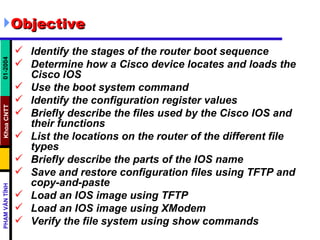
Objective Identify the stages of the router boot sequence  Determine how a Cisco device locates and loads the Cisco IOS  Use the boot system command  Identify the configuration register values  Briefly describe the files used by the Cisco IOS and their functions  List the locations on the router of the different file types  Briefly describe the parts of the IOS name  Save and restore configuration files using TFTP and copy-and-paste  Load an IOS image using TFTP  Load an IOS image using XModem  Verify the file system using show commands
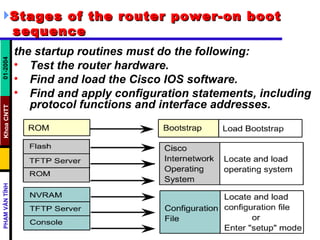
Stages of the router power-on boot  sequence   the startup routines must do the following: Test the router hardware.  Find and load the Cisco IOS software.  Find and apply configuration statements, including protocol functions and interface addresses.
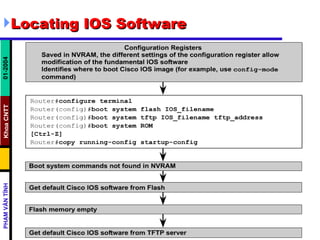
Locating IOS Software
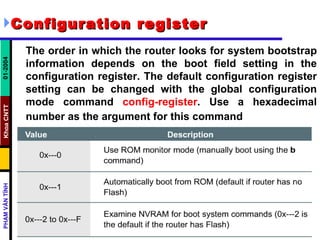
Configuration register   The order in which the router looks for system bootstrap information depends on the boot field setting in the configuration register. The default configuration register setting can be changed with the global configuration mode command  config-register . Use a hexadecimal number as the argument for this command
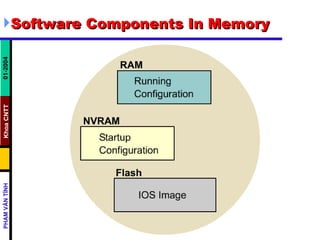
Software Components In Memory
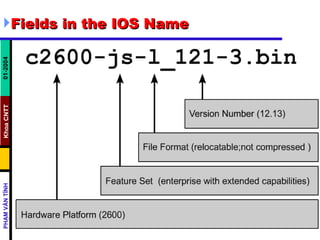
Fields in the IOS Name
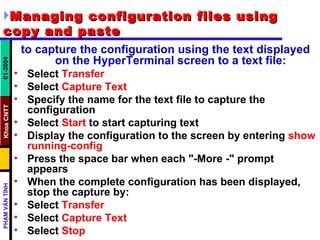
Managing configuration files using copy and paste   to capture the configuration using the text displayed on the HyperTerminal screen to a text file:   Select  Transfer   Select  Capture Text   Specify the name for the text file to capture the configuration  Select  Start  to start capturing text  Display the configuration to the screen by entering  show running-config   Press the space bar when each "-More -" prompt appears  When the complete configuration has been displayed, stop the capture by:  Select  Transfer   Select  Capture Text   Select  Stop
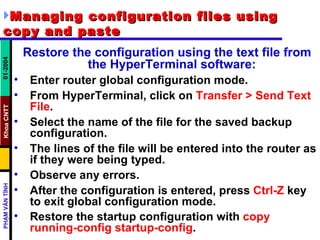
Managing configuration files using copy and paste   Restore the configuration using the text file from the HyperTerminal software:   Enter router global configuration mode.  From HyperTerminal, click on  Transfer > Send Text File .  Select the name of the file for the saved backup configuration.  The lines of the file will be entered into the router as if they were being typed.  Observe any errors.  After the configuration is entered, press  Ctrl-Z  key to exit global configuration mode.  Restore the startup configuration with  copy running-config startup-config .
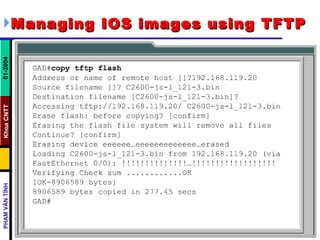
Managing IOS images using TFTP
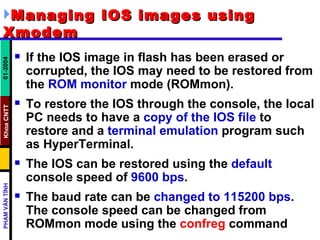
Managing IOS images using Xmodem   If the IOS image in flash has been erased or corrupted, the IOS may need to be restored from the  ROM monitor  mode (ROMmon).  To restore the IOS through the console, the local PC needs to have a  copy of the IOS file  to restore and a  terminal emulation  program such as HyperTerminal.  The IOS can be restored using the  default  console speed of  9600 bps .  The baud rate can be  changed to 115200 bps . The console speed can be changed from ROMmon mode using the  confreg  command
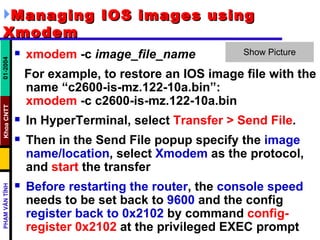
Managing IOS images using Xmodem   xmodem  -c  image_file_name   For example, to restore an IOS image file with the name “c2600-is-mz.122-10a.bin”: xmodem  -c c2600-is-mz.122-10a.bin In HyperTerminal, select  Transfer > Send File .  Then in the Send File popup specify the  image name/location , select  Xmodem  as the protocol, and  start  the transfer  Before restarting the router , the  console speed  needs to be set back to  9600  and the config  register back to 0x2102  by command  config-register 0x2102  at the privileged EXEC prompt
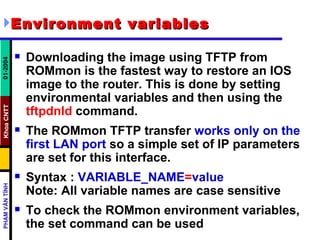
Environment variables   Downloading the image using TFTP from ROMmon is the fastest way to restore an IOS image to the router. This is done by setting environmental variables and then using the  tftpdnld  command. The ROMmon TFTP transfer  works only on the first LAN port  so a simple set of IP parameters are set for this interface. Syntax :  VARIABLE_NAME = value   Note: All variable names are case sensitive To check the ROMmon environment variables, the set command can be used
List of Environment variables IP_ADDRESS  – The IP address on the LAN interface  IP_SUBNET_MASK  – The subnet mask for the LAN interface  DEFAULT_GATEWAY  – The default gateway for the LAN interface  TFTP_SERVER  – The IP address of the TFTP server  TFTP_FILE  – The IOS filename on the server
File system verification   show version  show flash

Chapter 05 - Ios

  • 1.
    MANAGING CISCO IOSSOFTWARE TS, PHẠM VĂN TÍNH PART9
  • 2.
    Objective Identify thestages of the router boot sequence Determine how a Cisco device locates and loads the Cisco IOS Use the boot system command Identify the configuration register values Briefly describe the files used by the Cisco IOS and their functions List the locations on the router of the different file types Briefly describe the parts of the IOS name Save and restore configuration files using TFTP and copy-and-paste Load an IOS image using TFTP Load an IOS image using XModem Verify the file system using show commands
  • 3.
    Stages of therouter power-on boot sequence the startup routines must do the following: Test the router hardware. Find and load the Cisco IOS software. Find and apply configuration statements, including protocol functions and interface addresses.
  • 4.
  • 5.
    Configuration register The order in which the router looks for system bootstrap information depends on the boot field setting in the configuration register. The default configuration register setting can be changed with the global configuration mode command config-register . Use a hexadecimal number as the argument for this command
  • 6.
  • 7.
    Fields in theIOS Name
  • 8.
    Managing configuration filesusing copy and paste to capture the configuration using the text displayed on the HyperTerminal screen to a text file: Select Transfer Select Capture Text Specify the name for the text file to capture the configuration Select Start to start capturing text Display the configuration to the screen by entering show running-config Press the space bar when each "-More -" prompt appears When the complete configuration has been displayed, stop the capture by: Select Transfer Select Capture Text Select Stop
  • 9.
    Managing configuration filesusing copy and paste Restore the configuration using the text file from the HyperTerminal software: Enter router global configuration mode. From HyperTerminal, click on Transfer > Send Text File . Select the name of the file for the saved backup configuration. The lines of the file will be entered into the router as if they were being typed. Observe any errors. After the configuration is entered, press Ctrl-Z key to exit global configuration mode. Restore the startup configuration with copy running-config startup-config .
  • 10.
  • 11.
    Managing IOS imagesusing Xmodem If the IOS image in flash has been erased or corrupted, the IOS may need to be restored from the ROM monitor mode (ROMmon). To restore the IOS through the console, the local PC needs to have a copy of the IOS file to restore and a terminal emulation program such as HyperTerminal. The IOS can be restored using the default console speed of 9600 bps . The baud rate can be changed to 115200 bps . The console speed can be changed from ROMmon mode using the confreg command
  • 12.
    Managing IOS imagesusing Xmodem xmodem -c image_file_name For example, to restore an IOS image file with the name “c2600-is-mz.122-10a.bin”: xmodem -c c2600-is-mz.122-10a.bin In HyperTerminal, select Transfer > Send File . Then in the Send File popup specify the image name/location , select Xmodem as the protocol, and start the transfer Before restarting the router , the console speed needs to be set back to 9600 and the config register back to 0x2102 by command config-register 0x2102 at the privileged EXEC prompt
  • 13.
    Environment variables Downloading the image using TFTP from ROMmon is the fastest way to restore an IOS image to the router. This is done by setting environmental variables and then using the tftpdnld command. The ROMmon TFTP transfer works only on the first LAN port so a simple set of IP parameters are set for this interface. Syntax : VARIABLE_NAME = value Note: All variable names are case sensitive To check the ROMmon environment variables, the set command can be used
  • 14.
    List of Environmentvariables IP_ADDRESS – The IP address on the LAN interface IP_SUBNET_MASK – The subnet mask for the LAN interface DEFAULT_GATEWAY – The default gateway for the LAN interface TFTP_SERVER – The IP address of the TFTP server TFTP_FILE – The IOS filename on the server
  • 15.
    File system verification show version show flash