A+ Guide to Hardware, 4e


           Chapter 3
Form Factors and Power Supplies
Objectives
• Learn about different form factors and computer
  cases
• Learn how electricity is measured
• Learn how to protect your computer system against
  damaging changes in electrical power
• Learn about Energy Star specifications
• Learn how to troubleshoot electrical problems


A+ Guide to Hardware, 4e                              2
Introduction
• Power supply: passes power to PC components
• Elements driving type of power supply used in a PC:
    – The motherboard
    – The form factor of the computer case
• Energy Star devices: designed to save energy
• Electricity topics covered:
    –   Measurements of electricity
    –   How electricity is delivered
    –   Protecting a PC from electrical damage
    –   Changing a defective power supply
A+ Guide to Hardware, 4e                           3
Computer Case, Motherboard, and
      Power Supply Form Factors
• Form factor
    – Specifies size, shape, features of a hardware device
• Form factor for motherboard is chosen first
    – Same form factor is used for case and power supply
• Using the same form factor assures you that:
    –   The motherboard fits the case
    –   The powers supply cords provide proper voltage
    –   Holes in the motherboard align with holes in the case
    –   Holes in the case align with ports off the motherboard
    –   Wires on the case match connections on motherboard
A+ Guide to Hardware, 4e                                     4
Types of Form Factors
• AT (Advanced Technology) form factor
    – Specified motherboard dimensions of 12” x 13.8”
    – Utilized by IBM AT PC in the 1980s
• Baby AT form factor
    – Specified motherboard dimensions of 13” x 8.7”
    – Industry standard form factor from 1993 to 1997
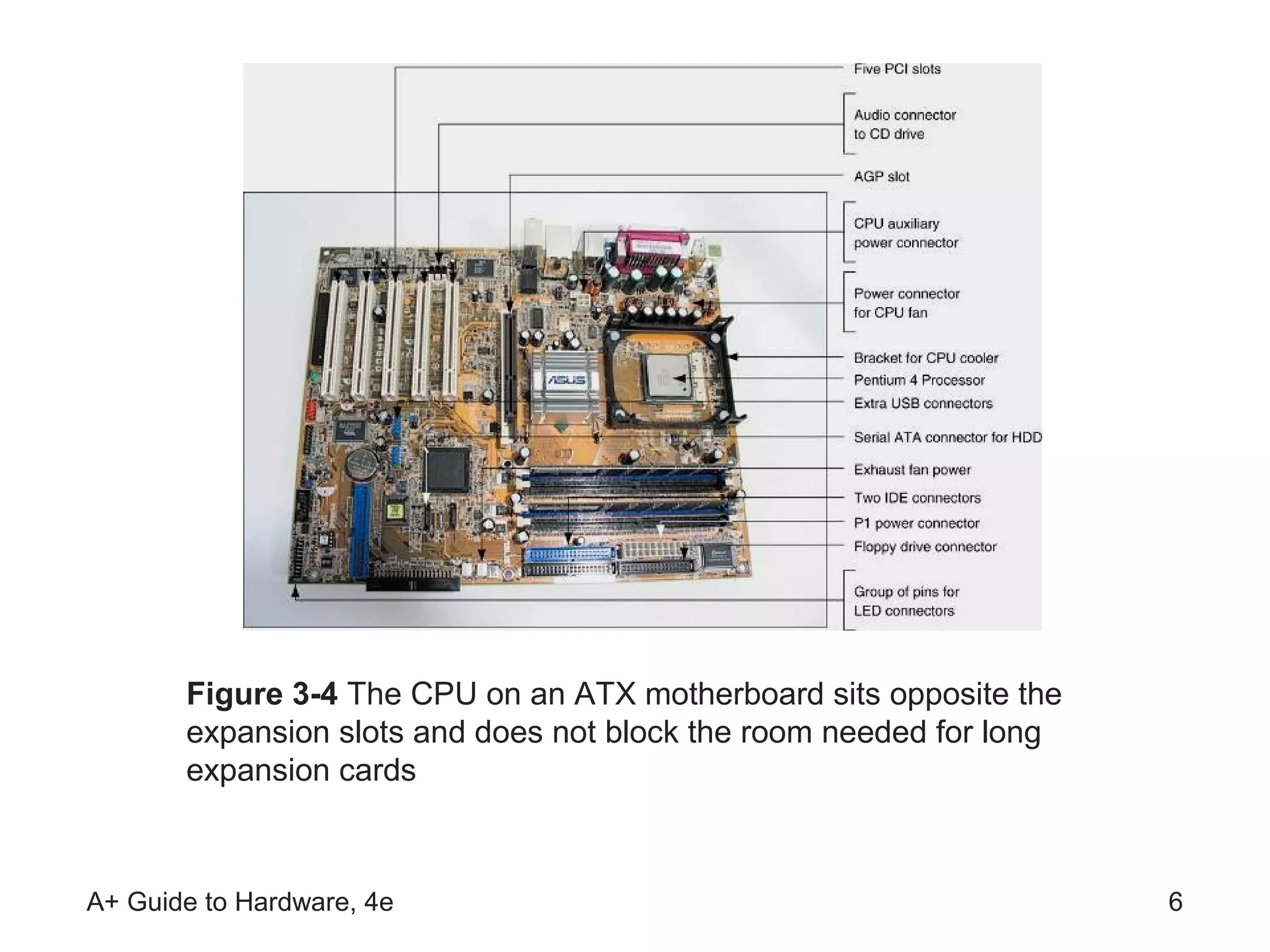
• ATX form factor
    – Specified motherboard dimensions of 12” x 9.6”
    – Open specification that is most commonly used today
    – Includes all AT voltages plus a +3.3-volt circuit
A+ Guide to Hardware, 4e                                5
Figure 3-4 The CPU on an ATX motherboard sits opposite the
       expansion slots and does not block the room needed for long
       expansion cards


A+ Guide to Hardware, 4e                                             6
Types of Form Factors (continued)
• MicroATX form factor
   – Reduces number of I/O slots on the motherboard
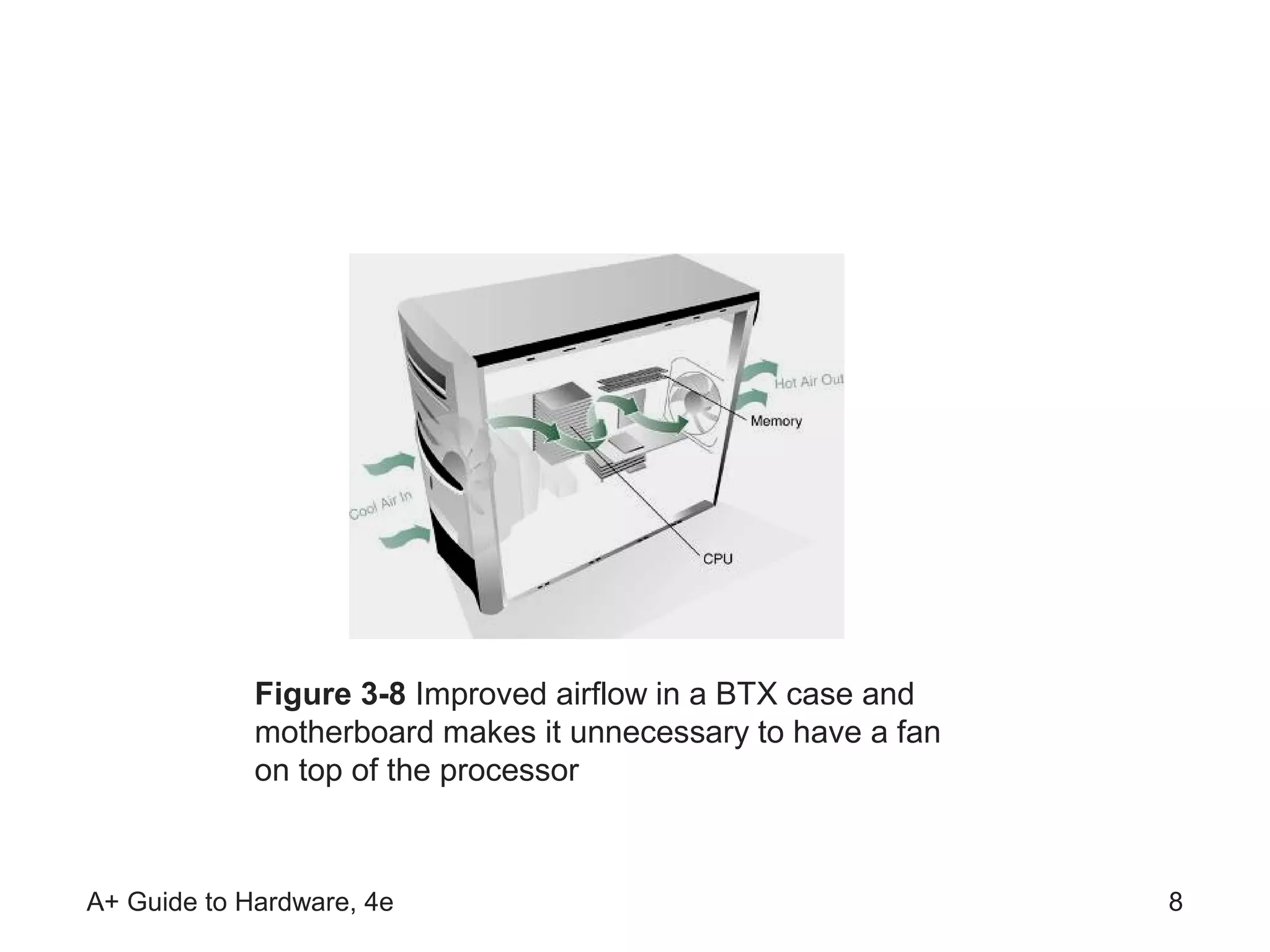
• BTX (Balanced Technology Extended) form factor
   – Focuses on reducing heat and supporting motherboard
• LPX and Mini-LPX form factors
   – Designed for low-end PC motherboards
• NLX form factor
   – Developed to improve the LPX form factor
• Backplane Systems (Active and Passive)
   – Use boards with slots, but little or no circuitry
A+ Guide to Hardware, 4e                                 7
Figure 3-8 Improved airflow in a BTX case and
             motherboard makes it unnecessary to have a fan
             on top of the processor


A+ Guide to Hardware, 4e                                      8
Types of Cases
• Computer case (chassis)
    – Houses power supply, motherboard, cards, drives
    – Panel switches/lights are used to control/monitor PC
• Desktop cases
    – Motherboard on the bottom, power supply to the rear
• Tower cases
    – Are up to 2 feet high and can contain several drives
• Notebook cases
    – Used for all portables and have desktop components

A+ Guide to Hardware, 4e                                     9
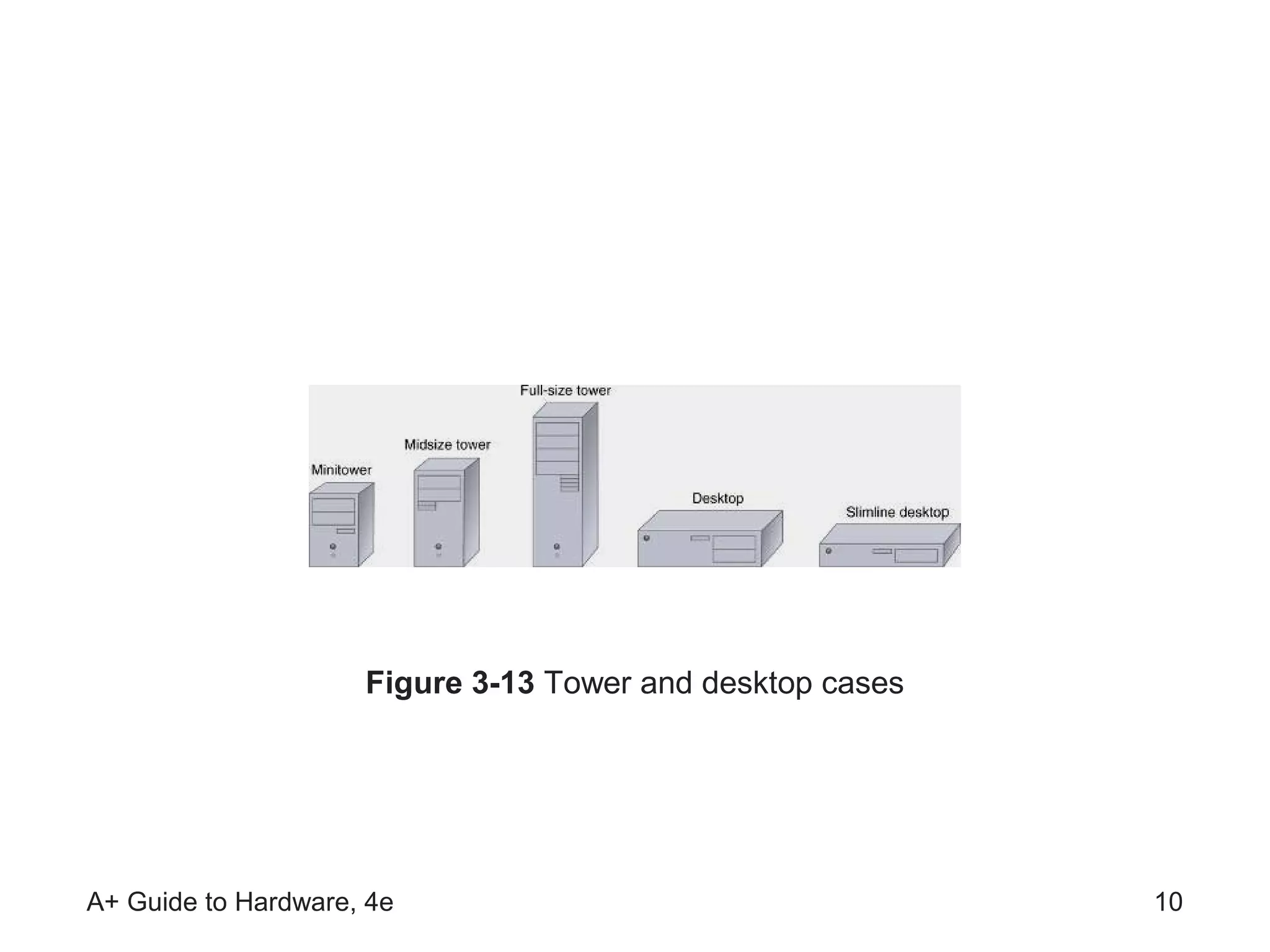
Figure 3-13 Tower and desktop cases


A+ Guide to Hardware, 4e                                   10
Measures and Properties of Electricity
• Successful PC technicians:
    –   Understand electricity
    –   Know how to use electricity
    –   Know how to measure electricity
    –   Can protect computer equipment from electricity
• Units used to measure characteristics of electricity
    – Volt, amp, ohm, and watt


A+ Guide to Hardware, 4e                                  11
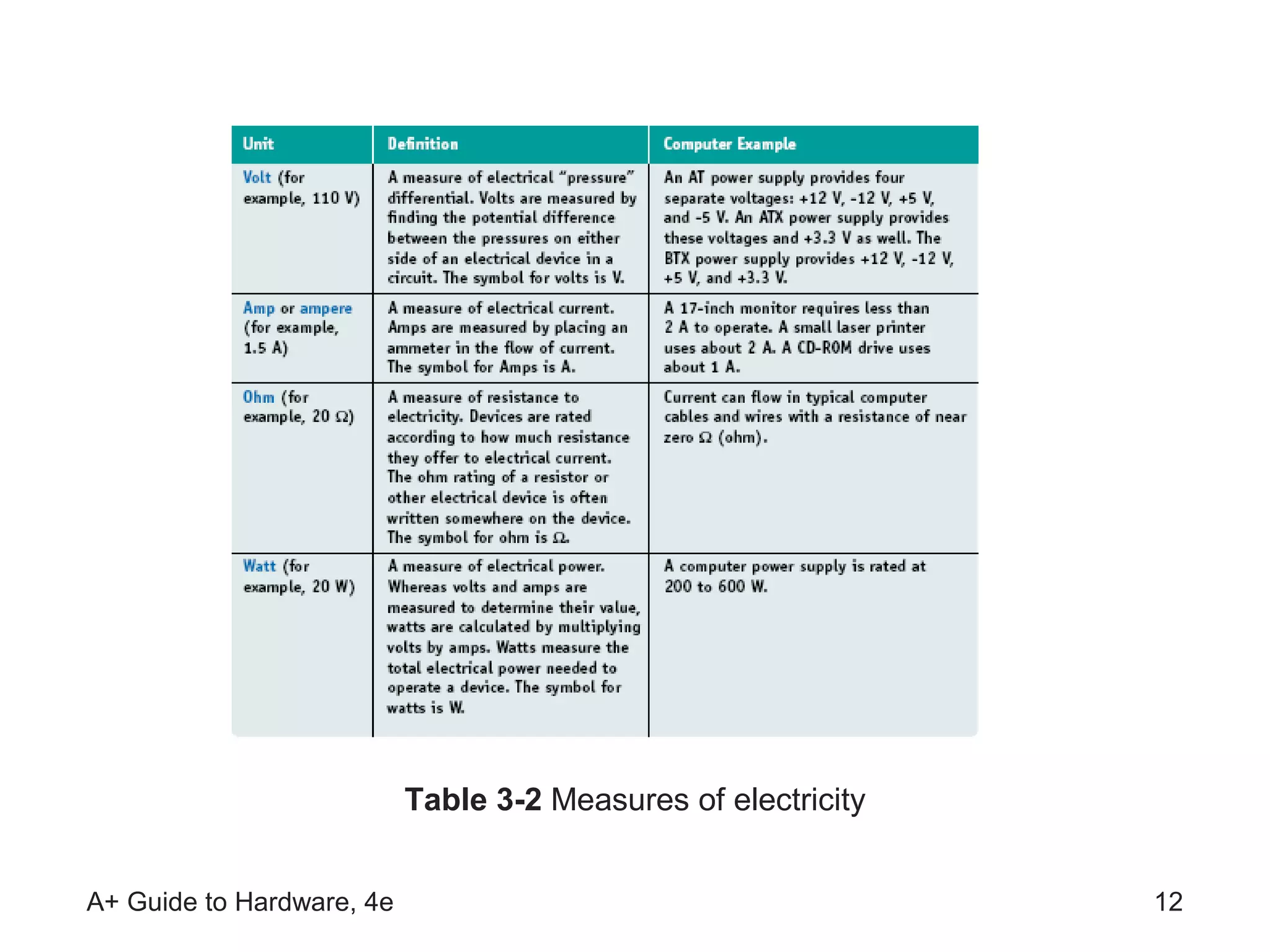
Table 3-2 Measures of electricity


A+ Guide to Hardware, 4e                                       12
AC and DC
• Alternating current (AC)
    – Oscillatory current driven by an alternating voltage
    – Example: house current oscillates at 60 Hz
• Direct current (DC)
    – Single direction current driven by constant voltage
    – Required by computer in small amounts, such as 5 V

• Rectifier: converts AC to DC
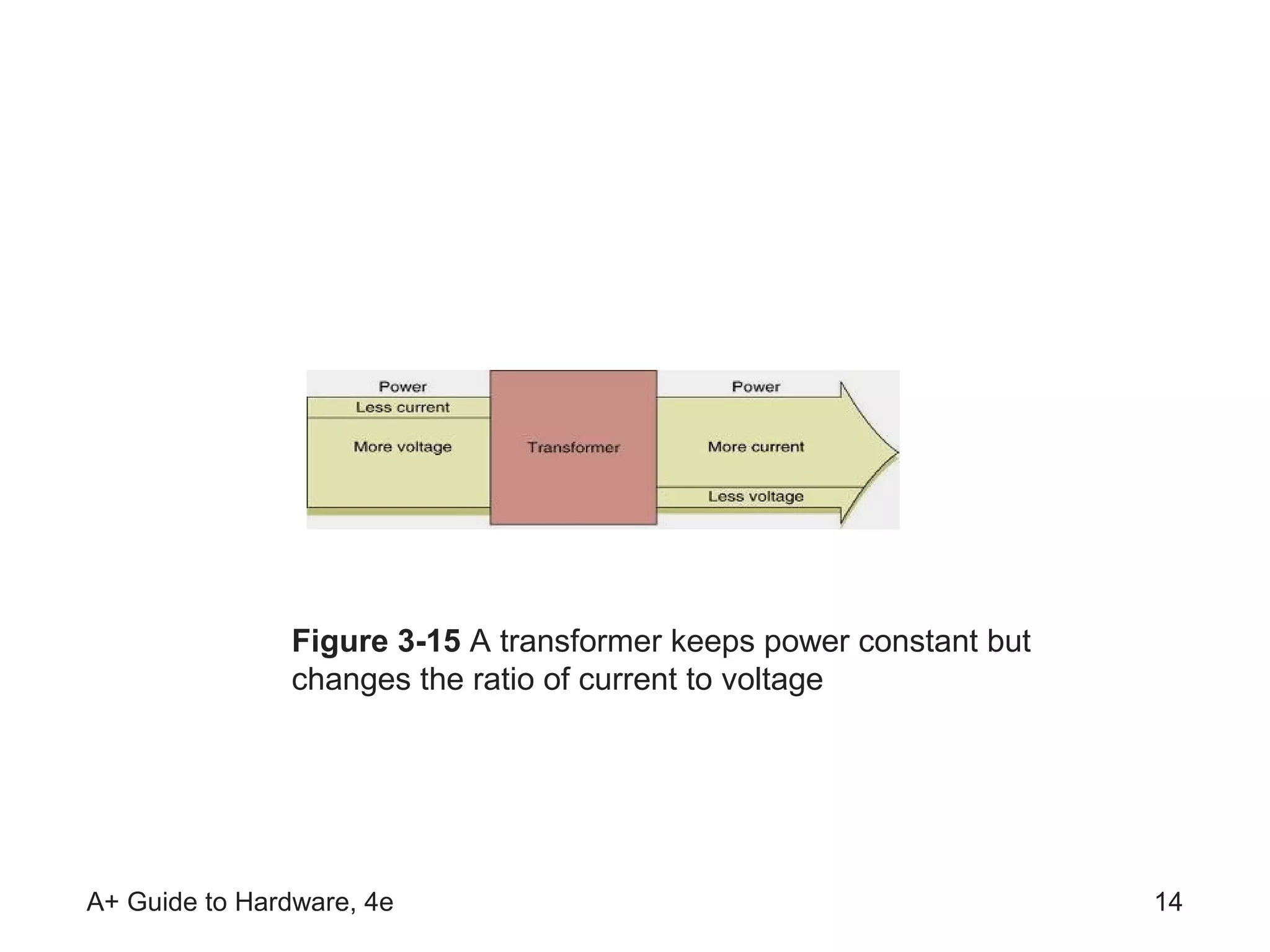
• Transformer: changes ratio of current to voltage
• Power supply acts as a transformer and rectifier
A+ Guide to Hardware, 4e                                     13
Figure 3-15 A transformer keeps power constant but
                changes the ratio of current to voltage


A+ Guide to Hardware, 4e                                             14
Hot, Neutral, and Ground
• Completing a circuit:
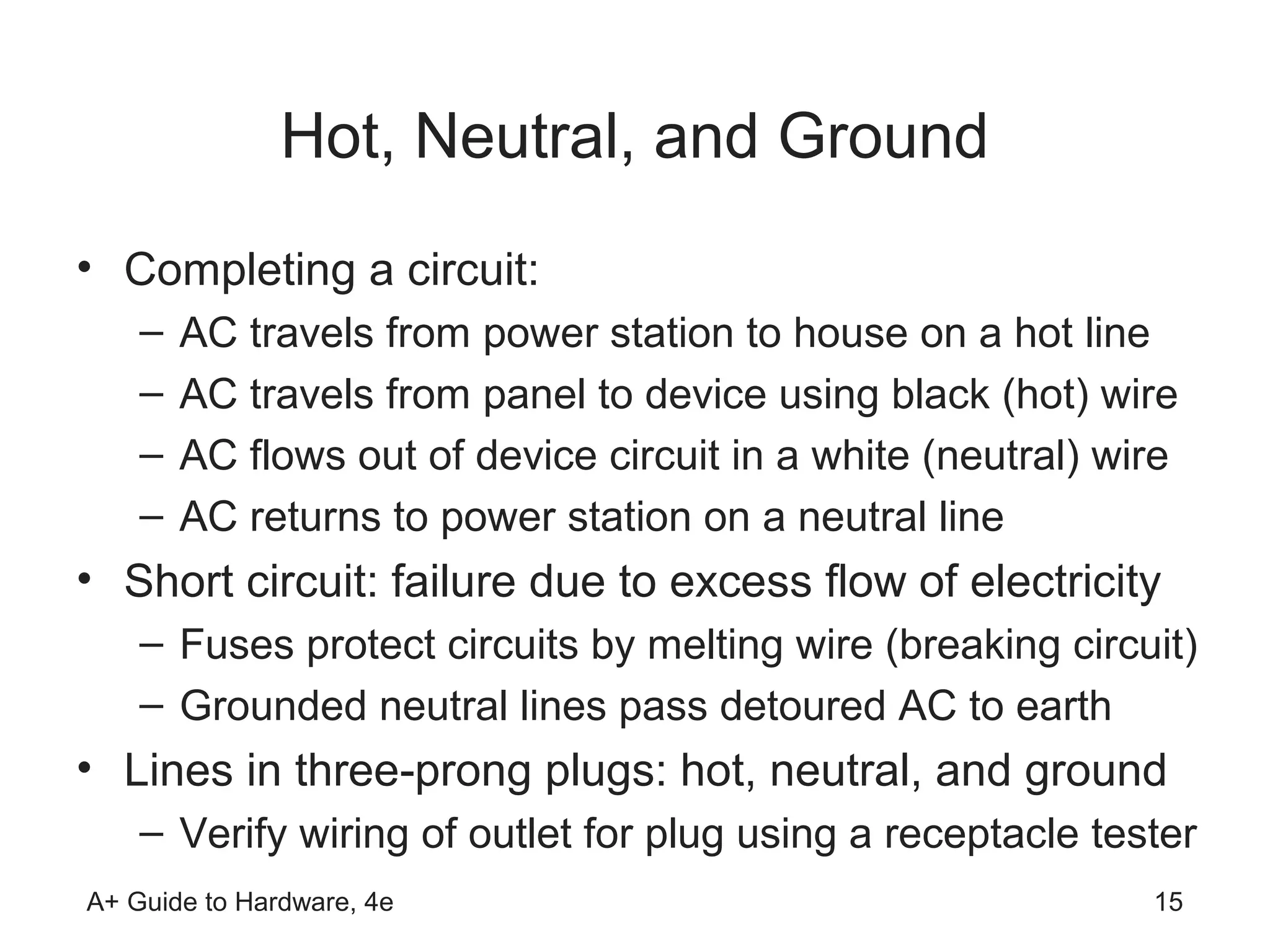
    –   AC travels from power station to house on a hot line
    –   AC travels from panel to device using black (hot) wire
    –   AC flows out of device circuit in a white (neutral) wire
    –   AC returns to power station on a neutral line
• Short circuit: failure due to excess flow of electricity
    – Fuses protect circuits by melting wire (breaking circuit)
    – Grounded neutral lines pass detoured AC to earth
• Lines in three-prong plugs: hot, neutral, and ground
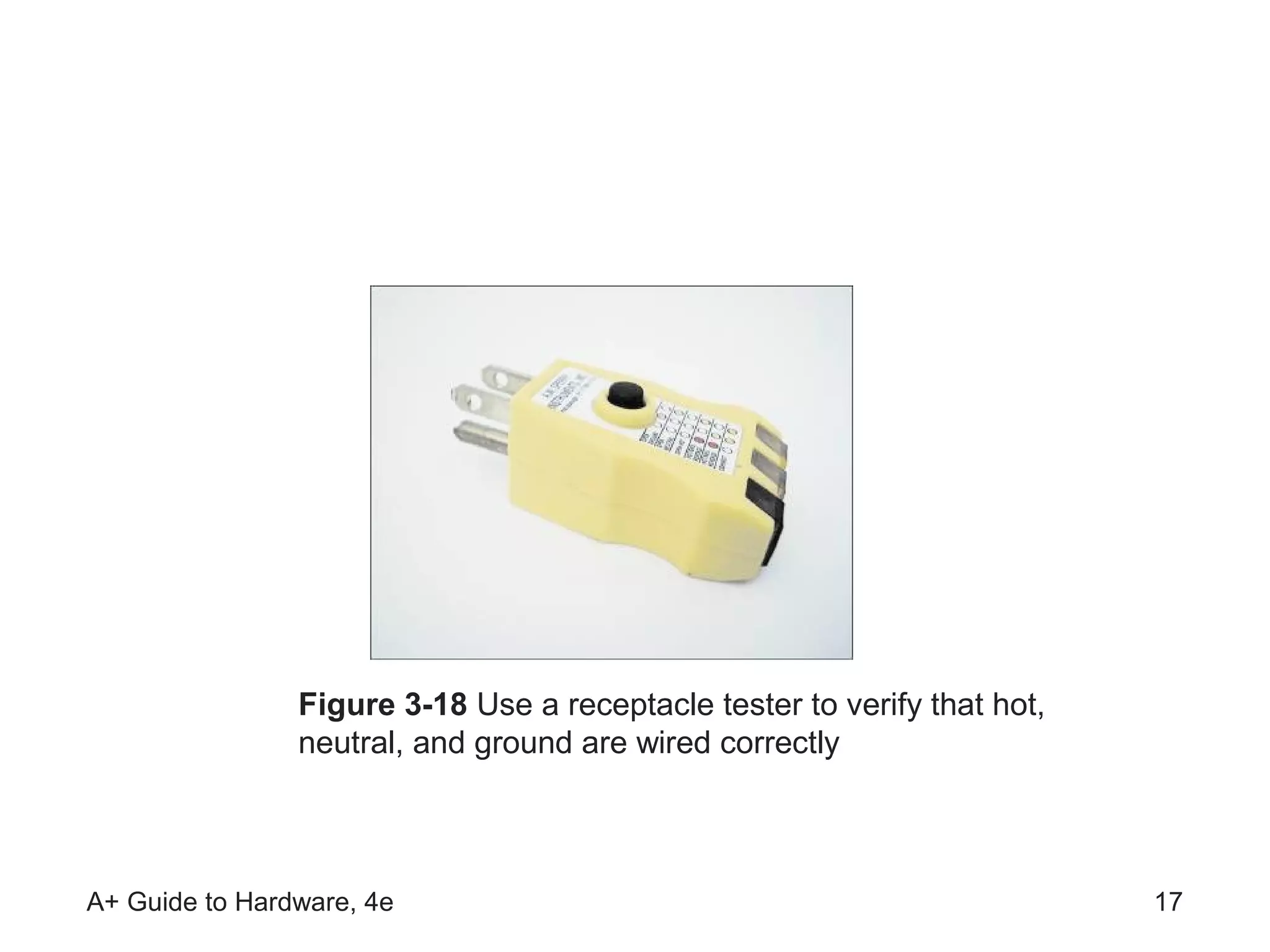
    – Verify wiring of outlet for plug using a receptacle tester
A+ Guide to Hardware, 4e                                      15
Figure 3-16 Normally, electricity flows from hot to neutral to make
        a closed circuit in the controlled environment of an electrical
        device such as a lamp


A+ Guide to Hardware, 4e                                                      16
Figure 3-18 Use a receptacle tester to verify that hot,
                neutral, and ground are wired correctly


A+ Guide to Hardware, 4e                                                  17
Some Common Electric Components
• Materials used to make components:
    – Conductors: weakly resist flow of current; e.g., copper
    – Insulators: highly resist flow of current; e.g., ceramics
    – Semiconductors: allow flow if charged; e.g., silicon
• Transistor
    –   Used to switch current on (1) and off (0)
    –   Also used to amplify current
    –   Made of three layers of semiconductor material
    –   Charge applied to center layer controls switching


A+ Guide to Hardware, 4e                                    18
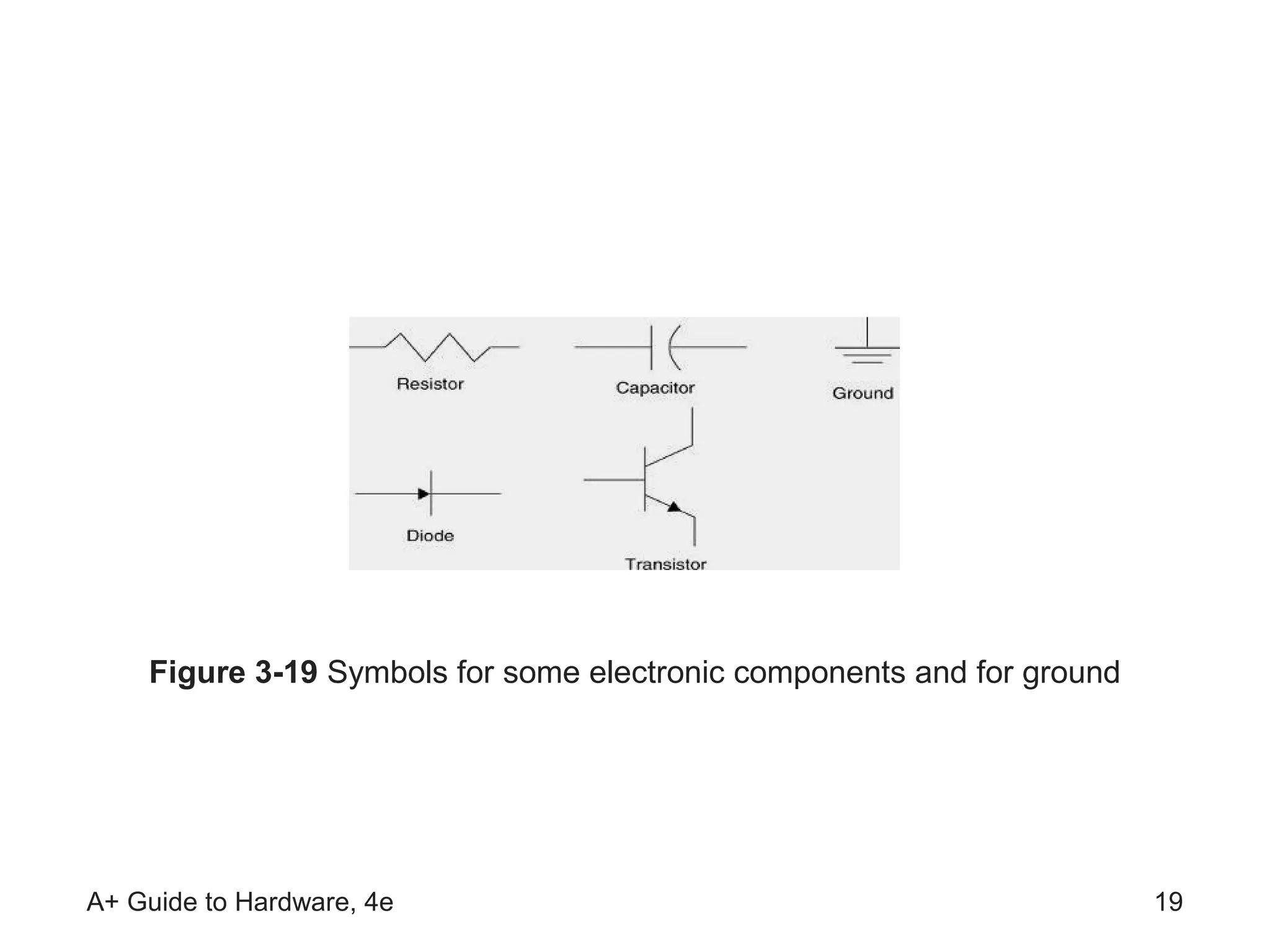
Figure 3-19 Symbols for some electronic components and for ground


A+ Guide to Hardware, 4e                                                19
Some Common Electric Components
           (continued)
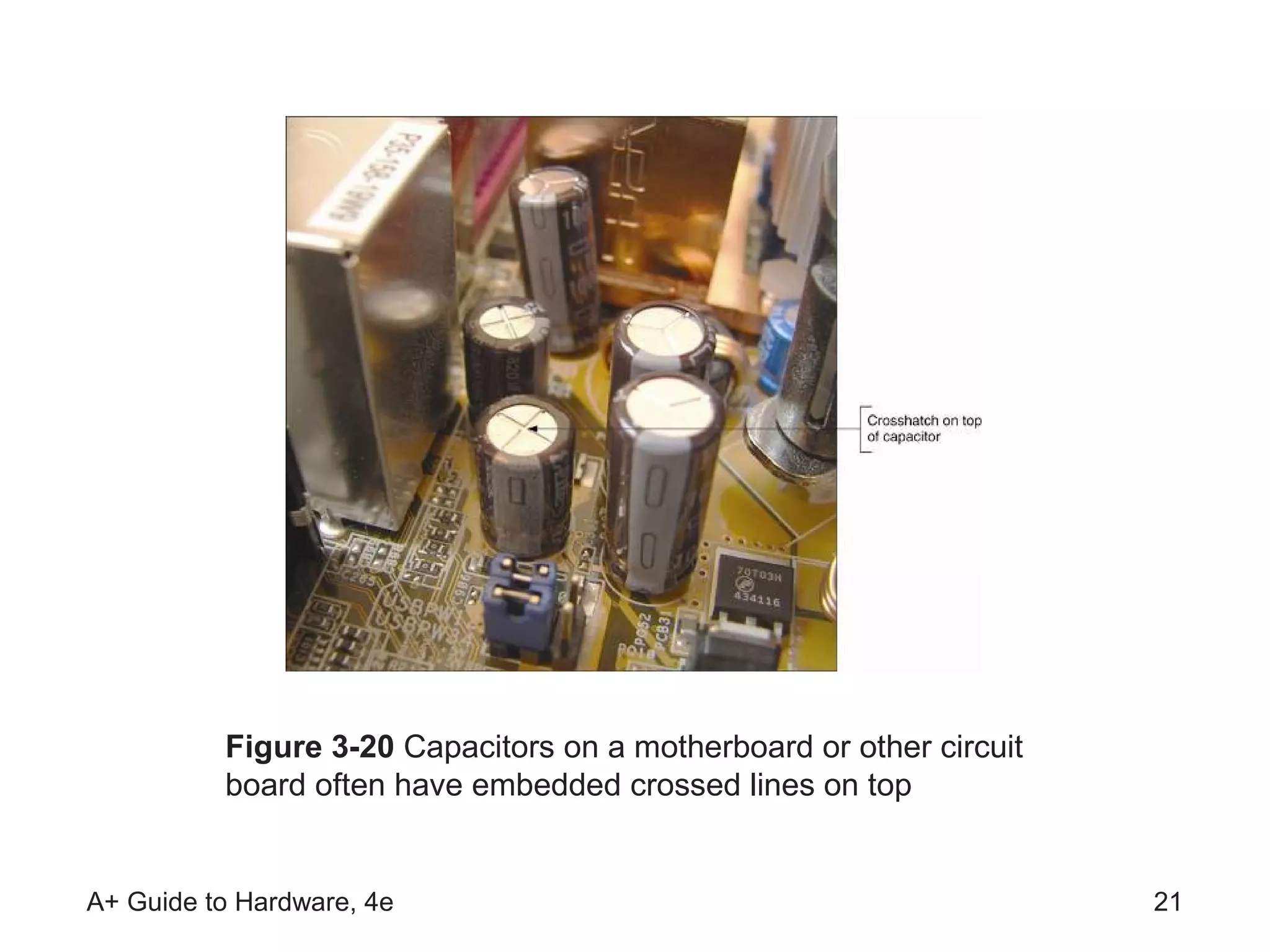
• Capacitor
    – Holds electrical charge for a period of time
    – Used to create even flow of current in a PC
• Diode
    – Allows electricity to flow in one direction only
    – Used to rectify current (convert AC to DC)
• Resistor
    – Controls the amount of current flowing through device
    – Degree of resistance is measured in ohms

A+ Guide to Hardware, 4e                                 20
Figure 3-20 Capacitors on a motherboard or other circuit
          board often have embedded crossed lines on top


A+ Guide to Hardware, 4e                                             21
Protecting Your Computer System
• Electrical threats to a computer system:
    – Static electricity
    – Electromagnetic interference
    – Power surges
• Objectives in this section:
    – Understand nature of each threat
    – Learn how to protect your system from these threats


A+ Guide to Hardware, 4e                                22
Static Electricity
• Static electricity (electrostatic discharge or ESD)
    – Due to charge difference between user and device
    – Touching device causes discharge, damaging device
• ESD is particularly severe in dry and cold climates
• How to protect system from ESD:
    – Use ground bracelet or ESD gloves
    – Touch computer case before touching components
• Safety rule: unplug power cord before working in case
    – Residual power in plugged device can cause damage

A+ Guide to Hardware, 4e                                23
EMI (Electromagnetic Interference)
• Caused by magnetic fields generated by current flow
• RFI (radio frequency interference):
    – EMI in radio frequency range affecting reception
• The crosstalk problem
    – Data in cables crossing EM fields gets corrupted
    – Control crosstalk by shielding cables and power supply
• Use a tuned-down AM radio to detect EMI
• Other ways to protect a device from EMI:
    – Use line conditioners to filter out electrical noise
    – Move the PC to a new location
A+ Guide to Hardware, 4e                                     24
Surge Protection and Battery Backup
• Storms and uneven AC flow cause power surges
• Prevent power surges by installing an AC filter
• Types of devices used to manage power surges:
    – Surge suppressors
    – Power conditioners
    – Uninterruptible power supplies (UPSs)
• Use devices with UL (Underwriters Laboratory) logo


A+ Guide to Hardware, 4e                            25
Surge Suppressors
• Also called a surge protector
• Protects equipment from sudden changes in power
    – Works by absorbing and/or blocking the surge
• Recommended features:
    –   Joules rating that is greater than 600 joules
    –   Protection activated in less than 2 nanoseconds
    –   Warranty for connected equipment and UL seal
    –   Light indicating that surge protection is working
    –   Data line protector for telephone line to modem
    –   Let-through voltage rating and line noise filtering
A+ Guide to Hardware, 4e                                      26
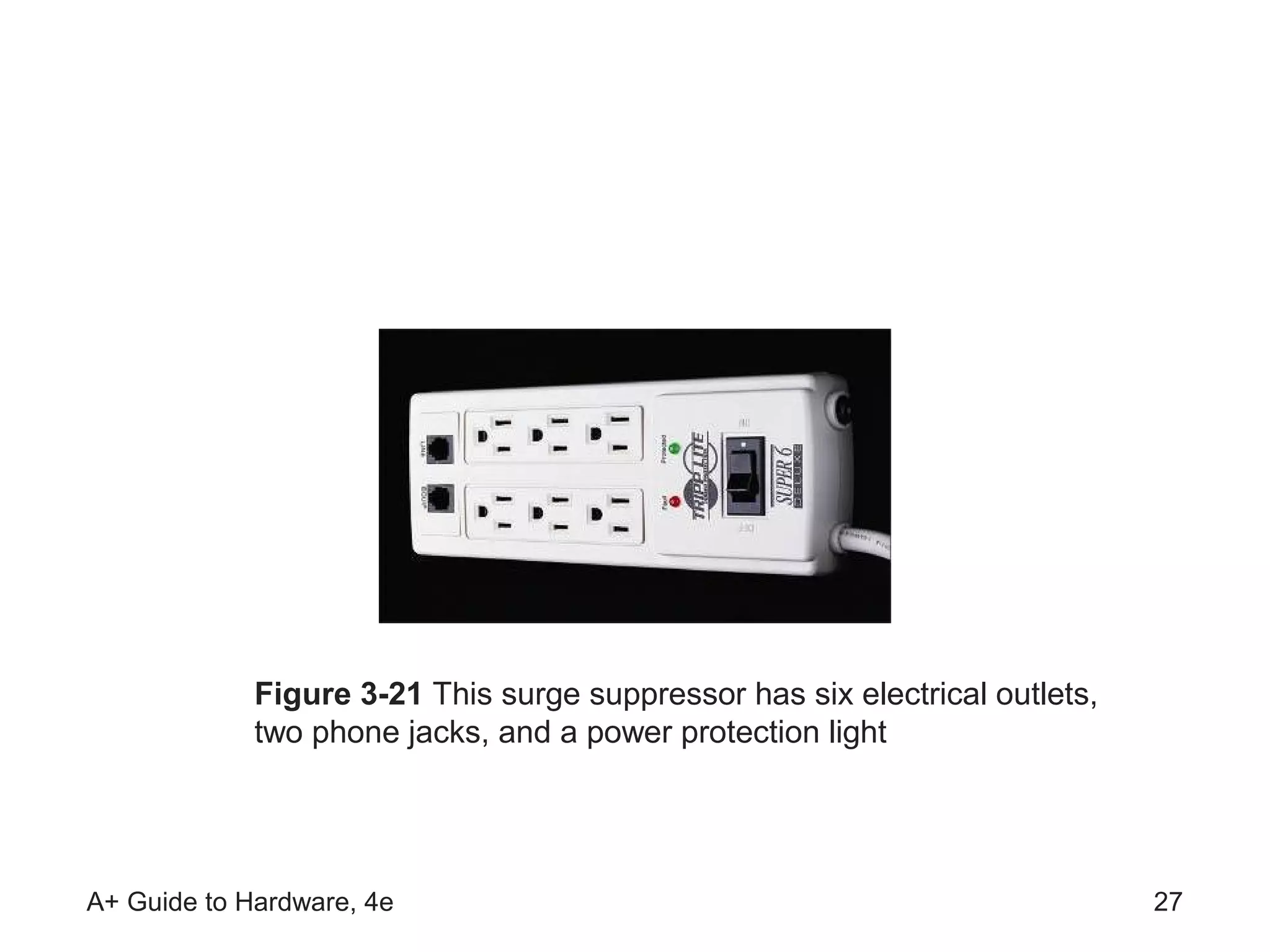
Figure 3-21 This surge suppressor has six electrical outlets,
             two phone jacks, and a power protection light


A+ Guide to Hardware, 4e                                                     27
Power Conditioners
• Sometimes called line conditioners
• Functions:
    – Protect against spikes or swells (voltage surges)
    – Raise voltage during brownouts (voltage sags)
• Load supported measured in watts or volt-amps (VA)
• Determining the VA needed to support your system:
    – Multiply the amperage of each component by 120 V
    – Add up the VA for each component


A+ Guide to Hardware, 4e                                  28
Uninterruptible Power Supply
• UPS offers three benefits:
    – Conditions line to account for brownouts and spikes
    – Provides power backup when AC fails (blackout)
    – Provides protection against very high spikes
• Designs: standby, inline, and line-interactive
• Smart (intelligent) UPS: controlled with software
• What to consider when buying a UPS:
    – UPS rating should exceed VA load by at least 25 %
    – Degree of line conditioning
    – Warranties, guarantees, and service policies
A+ Guide to Hardware, 4e                                  29
Energy Star Systems (The Green Star)
• Energy Star systems have the U.S. Green Star
    – Indicates device meets energy conserving standards
    – Devices: computers, monitors, printers, copiers, faxes
• Goals of Energy Star (a.k.a. Green) standards:
    – Reduce overall electricity consumption
    – Protect and preserve natural resources
• How computer components meet standards
    – Uses standby program for switching to sleep mode
    – No more than 30 watts used during sleep mode

A+ Guide to Hardware, 4e                                 30
Power-Management Methods and
               Features
• Methods used to meet Energy Star standards:
    – Advanced Configuration and Power Interface (ACPI)
         • Standard used by most desktops and notebooks
         • Comprises four power-saving modes: S1 - S4
         • Some features controlled by BIOS, others by Windows
    – Advanced Power Management (APM) specification
    – AT Attachment (ATA) for various drives
    – Display Power Management Signaling (DPMS)


A+ Guide to Hardware, 4e                                    31
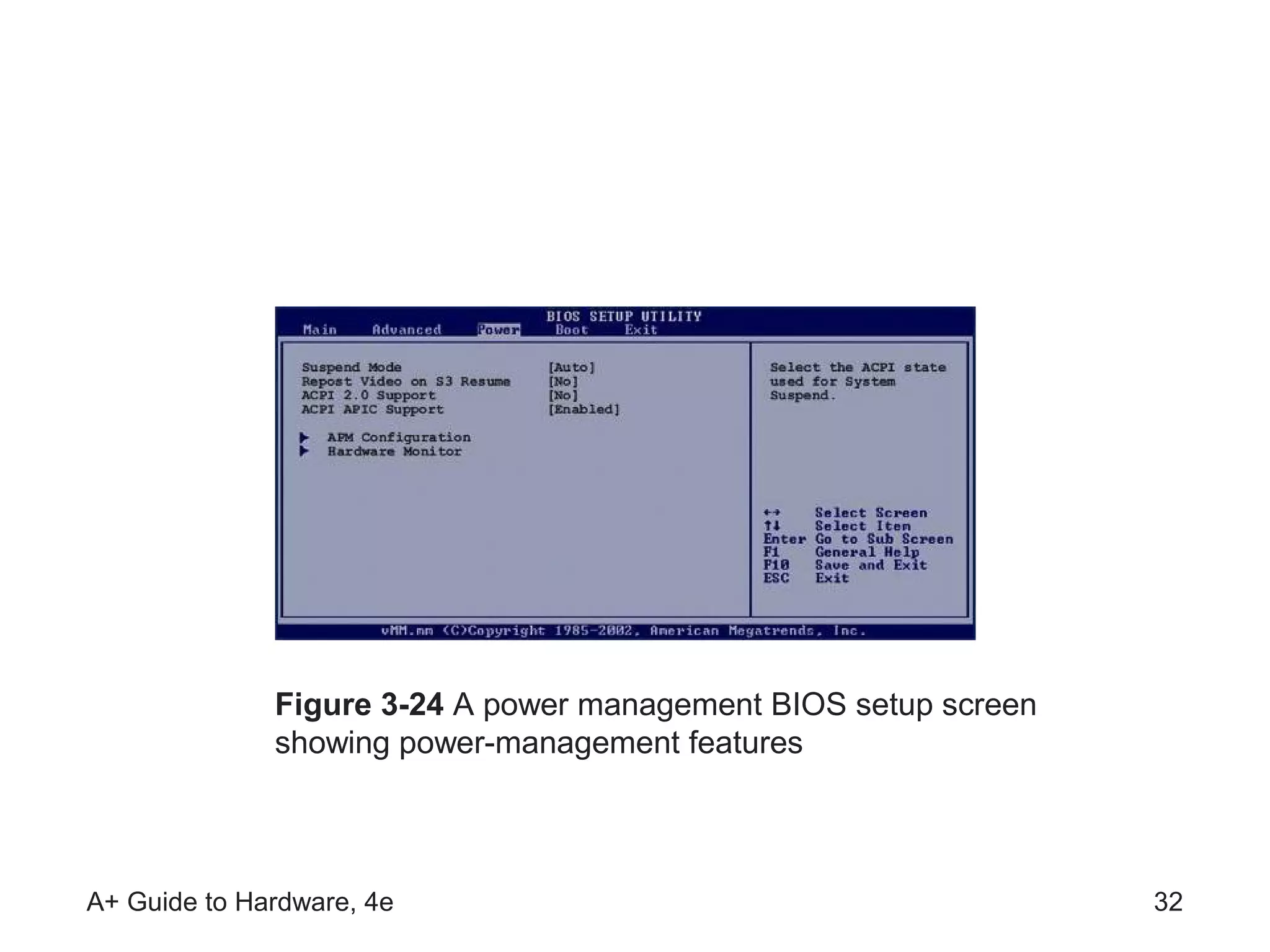
Figure 3-24 A power management BIOS setup screen
              showing power-management features


A+ Guide to Hardware, 4e                                         32
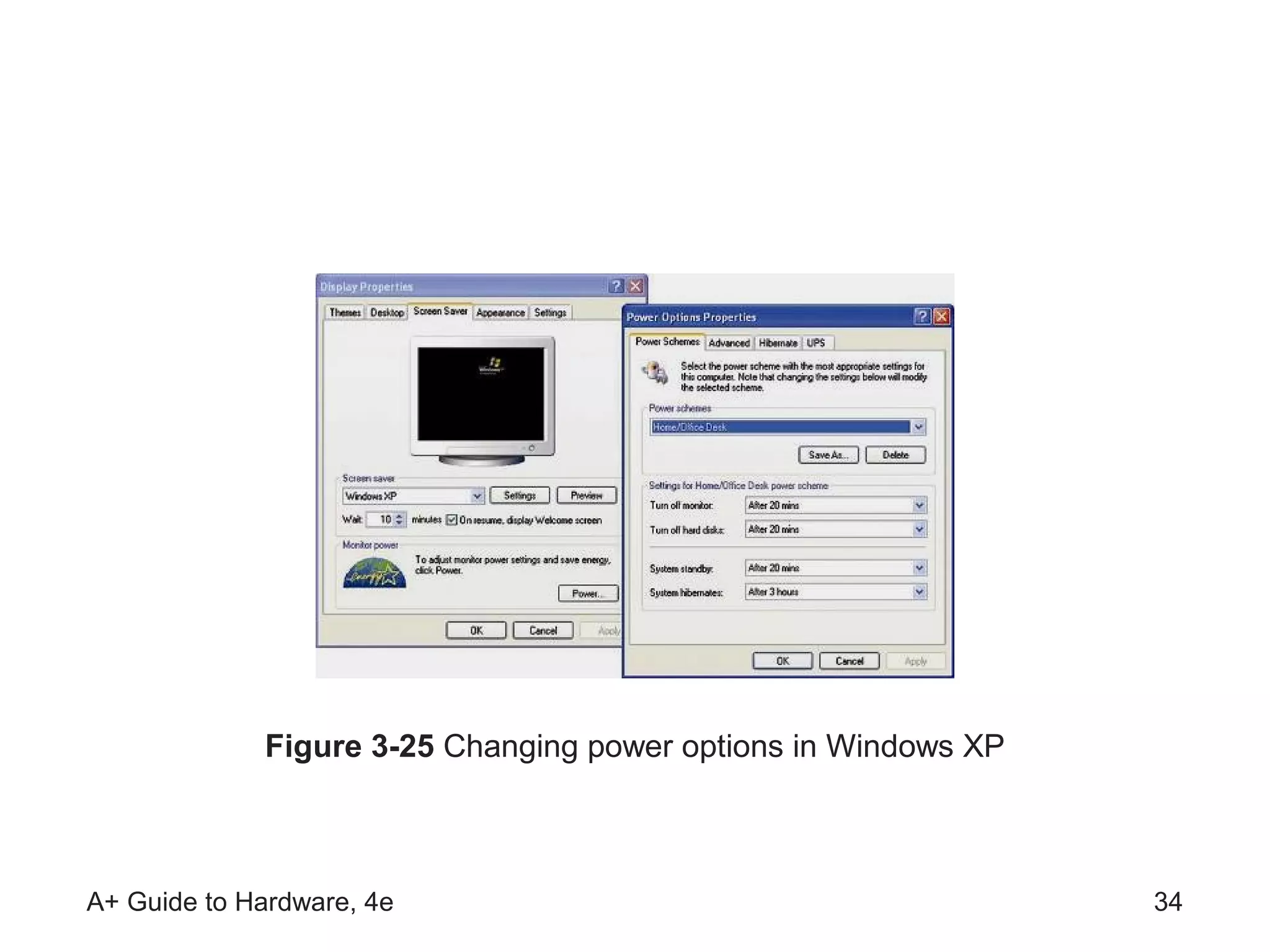
Energy Star Monitors
• Display Power Management Signaling (DPMS)
   – Specifications applying to video card and monitor
   – Allow both devices to simultaneously enter sleep mode
• Accessing energy settings in Windows 2000/XP
   – Right-click the desktop and select Properties
        • The Display Properties dialog box opens
   – Click the Screen Saver tab
        • If monitor is Energy Star–compliant, logo is at bottom
   – Click Power button to open Power Options Properties


A+ Guide to Hardware, 4e                                           33
Figure 3-25 Changing power options in Windows XP


A+ Guide to Hardware, 4e                                        34
Troubleshooting the Electrical System
• Problems can occur before or after boot
• Problems can be consistent or inconsistent
• Possible symptoms of an electrical problem:
    –   The PC appears “dead”
    –   The PC sometimes halts during booting
    –   Error codes or beeps occur during booting
    –   You smell burnt parts or odors
• Check the simple things first
    – Example: determine whether all switches are on

A+ Guide to Hardware, 4e                               35
Problems with External Power
• Brownout (reduced current) may create issues
    – Check out other devices using the same circuit
    – Remove other devices to see if voltage increases
• Dealing with intermittent errors caused by noise:
    – Use a line monitor to monitor and condition voltage


A+ Guide to Hardware, 4e                                    36
Problems with Loose Internal
                 Connections
• Can cause a system to appear dead or reboot itself
• Troubleshooting tasks:
    – Remove the cover of the case
    – Check all power connections
         • Check cables linking power supply to motherboard
         • Check cables linking power supply to drives


A+ Guide to Hardware, 4e                                      37
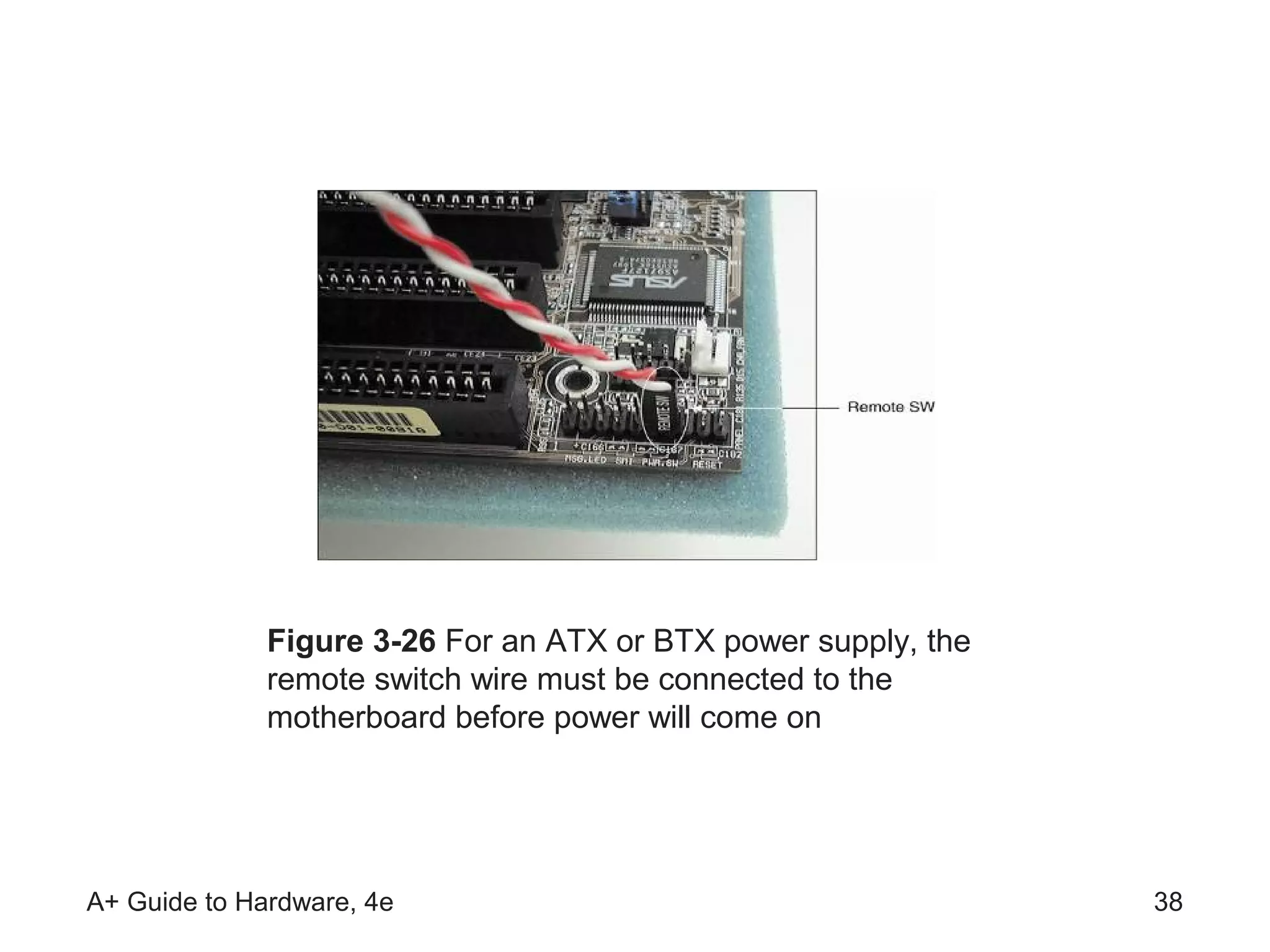
Figure 3-26 For an ATX or BTX power supply, the
              remote switch wire must be connected to the
              motherboard before power will come on


A+ Guide to Hardware, 4e                                        38
Problems that Come and Go
• Intermittent symptoms indicating a post-boot
  problem
    –   The computer stops or hangs or reboots for no reason
    –   Memory errors appear intermittently
    –   Data is written incorrectly to the hard drive
    –   The keyboard stops working at odd times
    –   The motherboard fails or is damaged
    –   Power supply overheats and becomes hot to the touch
    –   The power supply fan becomes very noisy or stops
• Intermittent problems are often difficult to solve
A+ Guide to Hardware, 4e                                 39
Problems with an Inadequate Power
                 Supply
• Power supply may not meet needs of new devices
• Testing for an adequate power supply
     – Make all devices in the system work at the same time
     – Example: copy files from new drive to old drive
• Simple solution: upgrade to a higher power supply
• Calculating total wattage needed by system
     – Multiply volts in circuit by amps required for device
     – Add all products to determine total wattage
• Power supply range: 200 watts to 600 watts

A+ Guide to Hardware, 4e                                       40
Problems with the Power Supply,
             Boards, or Drives
• Issues:
    – Inadequate or faulty power supply
    – Components drawing power might be bad
• Problems caused:
    – System hangs or gives intermittent errors
    – System reboots or does not boot at all
• Actions to take:
    – Isolate and remove any faulty expansion cards
    – Upgrade or switch the power supply
    – Test voltage output of power supply with a multimeter
A+ Guide to Hardware, 4e                                 41
Problems with the Power Supply Fan
• Defective fans usually hum before they stop working
• Response to diagnosis of defective fan
    – Replace fan or the entire power supply
• If replacement does not work, suspect another short
• Do not operate a PC if the fan does not work
    – Computers will overheat, damaging circuit boards
• Indirect sources of fan problems:
    – Shorts in drives, motherboard, or expansion cards


A+ Guide to Hardware, 4e                                  42
Power Problems with the Motherboard
• Bad contact between board component and chassis
    – Short can seriously damage the motherboard
    – Check for missing or extra standoffs (spacers)
• Shorts in the circuit on the motherboard
    – Look for damage to the bottom of the motherboard
    – Look for burned-out capacitors
• Frayed wires on connections can also cause shorts
    – Test hard drive cables connected to motherboard


A+ Guide to Hardware, 4e                                 43
Problems with Overheating
•   Causes intermittent problems
•   May also cause the system to reboot or not boot
•   Temperature in a case should not exceed 100° F
•   Some possible solutions:
    –   Remove dust from power supply, vents, heat sink
    –   Secure cables and cords with tie wraps
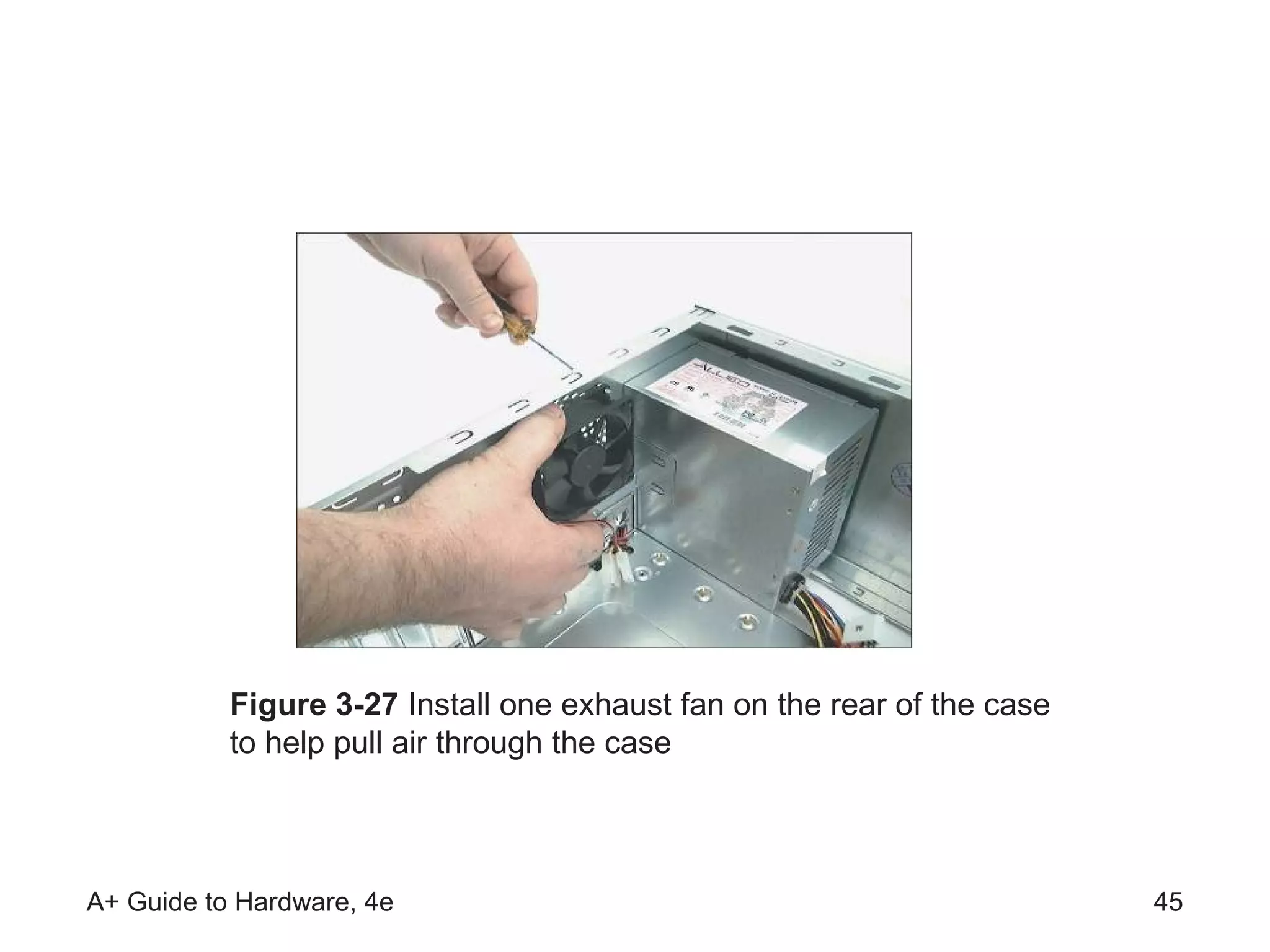
    –   Install another exhaust fan on the rear of the case
    –   Install a fan in expansion slot next to video card
    –   Replace component that is damaged

A+ Guide to Hardware, 4e                                      44
Figure 3-27 Install one exhaust fan on the rear of the case
           to help pull air through the case


A+ Guide to Hardware, 4e                                                 45
Replacing the Power Supply
• The power supply is a field replaceable unit (FRU)
• Criteria for replacement power supply to meet:
    – Uses the correct form factor
    – Adequately rated for power in watts
    – Has all power connectors needed by your system
• Before replacing power supply, test new device
    – Connect components to new power supply
    – Turn on PC and observe whether problem is solved
    – If problem is solved, perform replacement procedure


A+ Guide to Hardware, 4e                                46
Summary
• Form factor: specifies size, shape, features of device
• Motherboard, power supply, and case share the same
  form factor, such as ATX
• Three types of cases: desktop, tower, and notebook
• Quantities that characterize electricity: voltage,
  current, resistance, and power
• Current flows from hot wires to neutral wires; excess
  current escapes through grounds


 A+ Guide to Hardware, 4e                            47
Summary (continued)
• AC supplied by power station is transformed and
  rectified before flowing into the PC
• Major components in a circuit board: transistor,
  capacitor, diode, resistor
• Electrical threats: ESD, EMI, uneven current flow,
  sudden power surges (or spikes)
• Energy Star standards promote energy conservation
• PCs comply with Energy Star standards by enabling
  devices to enter into a low power sleep mode


A+ Guide to Hardware, 4e                          48

Ch03

  • 1.
    A+ Guide toHardware, 4e Chapter 3 Form Factors and Power Supplies
  • 2.
    Objectives • Learn aboutdifferent form factors and computer cases • Learn how electricity is measured • Learn how to protect your computer system against damaging changes in electrical power • Learn about Energy Star specifications • Learn how to troubleshoot electrical problems A+ Guide to Hardware, 4e 2
  • 3.
    Introduction • Power supply:passes power to PC components • Elements driving type of power supply used in a PC: – The motherboard – The form factor of the computer case • Energy Star devices: designed to save energy • Electricity topics covered: – Measurements of electricity – How electricity is delivered – Protecting a PC from electrical damage – Changing a defective power supply A+ Guide to Hardware, 4e 3
  • 4.
    Computer Case, Motherboard,and Power Supply Form Factors • Form factor – Specifies size, shape, features of a hardware device • Form factor for motherboard is chosen first – Same form factor is used for case and power supply • Using the same form factor assures you that: – The motherboard fits the case – The powers supply cords provide proper voltage – Holes in the motherboard align with holes in the case – Holes in the case align with ports off the motherboard – Wires on the case match connections on motherboard A+ Guide to Hardware, 4e 4
  • 5.
    Types of FormFactors • AT (Advanced Technology) form factor – Specified motherboard dimensions of 12” x 13.8” – Utilized by IBM AT PC in the 1980s • Baby AT form factor – Specified motherboard dimensions of 13” x 8.7” – Industry standard form factor from 1993 to 1997 • ATX form factor – Specified motherboard dimensions of 12” x 9.6” – Open specification that is most commonly used today – Includes all AT voltages plus a +3.3-volt circuit A+ Guide to Hardware, 4e 5
  • 6.
    Figure 3-4 TheCPU on an ATX motherboard sits opposite the expansion slots and does not block the room needed for long expansion cards A+ Guide to Hardware, 4e 6
  • 7.
    Types of FormFactors (continued) • MicroATX form factor – Reduces number of I/O slots on the motherboard • BTX (Balanced Technology Extended) form factor – Focuses on reducing heat and supporting motherboard • LPX and Mini-LPX form factors – Designed for low-end PC motherboards • NLX form factor – Developed to improve the LPX form factor • Backplane Systems (Active and Passive) – Use boards with slots, but little or no circuitry A+ Guide to Hardware, 4e 7
  • 8.
    Figure 3-8 Improvedairflow in a BTX case and motherboard makes it unnecessary to have a fan on top of the processor A+ Guide to Hardware, 4e 8
  • 9.
    Types of Cases •Computer case (chassis) – Houses power supply, motherboard, cards, drives – Panel switches/lights are used to control/monitor PC • Desktop cases – Motherboard on the bottom, power supply to the rear • Tower cases – Are up to 2 feet high and can contain several drives • Notebook cases – Used for all portables and have desktop components A+ Guide to Hardware, 4e 9
  • 10.
    Figure 3-13 Towerand desktop cases A+ Guide to Hardware, 4e 10
  • 11.
    Measures and Propertiesof Electricity • Successful PC technicians: – Understand electricity – Know how to use electricity – Know how to measure electricity – Can protect computer equipment from electricity • Units used to measure characteristics of electricity – Volt, amp, ohm, and watt A+ Guide to Hardware, 4e 11
  • 12.
    Table 3-2 Measuresof electricity A+ Guide to Hardware, 4e 12
  • 13.
    AC and DC •Alternating current (AC) – Oscillatory current driven by an alternating voltage – Example: house current oscillates at 60 Hz • Direct current (DC) – Single direction current driven by constant voltage – Required by computer in small amounts, such as 5 V • Rectifier: converts AC to DC • Transformer: changes ratio of current to voltage • Power supply acts as a transformer and rectifier A+ Guide to Hardware, 4e 13
  • 14.
    Figure 3-15 Atransformer keeps power constant but changes the ratio of current to voltage A+ Guide to Hardware, 4e 14
  • 15.
    Hot, Neutral, andGround • Completing a circuit: – AC travels from power station to house on a hot line – AC travels from panel to device using black (hot) wire – AC flows out of device circuit in a white (neutral) wire – AC returns to power station on a neutral line • Short circuit: failure due to excess flow of electricity – Fuses protect circuits by melting wire (breaking circuit) – Grounded neutral lines pass detoured AC to earth • Lines in three-prong plugs: hot, neutral, and ground – Verify wiring of outlet for plug using a receptacle tester A+ Guide to Hardware, 4e 15
  • 16.
    Figure 3-16 Normally,electricity flows from hot to neutral to make a closed circuit in the controlled environment of an electrical device such as a lamp A+ Guide to Hardware, 4e 16
  • 17.
    Figure 3-18 Usea receptacle tester to verify that hot, neutral, and ground are wired correctly A+ Guide to Hardware, 4e 17
  • 18.
    Some Common ElectricComponents • Materials used to make components: – Conductors: weakly resist flow of current; e.g., copper – Insulators: highly resist flow of current; e.g., ceramics – Semiconductors: allow flow if charged; e.g., silicon • Transistor – Used to switch current on (1) and off (0) – Also used to amplify current – Made of three layers of semiconductor material – Charge applied to center layer controls switching A+ Guide to Hardware, 4e 18
  • 19.
    Figure 3-19 Symbolsfor some electronic components and for ground A+ Guide to Hardware, 4e 19
  • 20.
    Some Common ElectricComponents (continued) • Capacitor – Holds electrical charge for a period of time – Used to create even flow of current in a PC • Diode – Allows electricity to flow in one direction only – Used to rectify current (convert AC to DC) • Resistor – Controls the amount of current flowing through device – Degree of resistance is measured in ohms A+ Guide to Hardware, 4e 20
  • 21.
    Figure 3-20 Capacitorson a motherboard or other circuit board often have embedded crossed lines on top A+ Guide to Hardware, 4e 21
  • 22.
    Protecting Your ComputerSystem • Electrical threats to a computer system: – Static electricity – Electromagnetic interference – Power surges • Objectives in this section: – Understand nature of each threat – Learn how to protect your system from these threats A+ Guide to Hardware, 4e 22
  • 23.
    Static Electricity • Staticelectricity (electrostatic discharge or ESD) – Due to charge difference between user and device – Touching device causes discharge, damaging device • ESD is particularly severe in dry and cold climates • How to protect system from ESD: – Use ground bracelet or ESD gloves – Touch computer case before touching components • Safety rule: unplug power cord before working in case – Residual power in plugged device can cause damage A+ Guide to Hardware, 4e 23
  • 24.
    EMI (Electromagnetic Interference) •Caused by magnetic fields generated by current flow • RFI (radio frequency interference): – EMI in radio frequency range affecting reception • The crosstalk problem – Data in cables crossing EM fields gets corrupted – Control crosstalk by shielding cables and power supply • Use a tuned-down AM radio to detect EMI • Other ways to protect a device from EMI: – Use line conditioners to filter out electrical noise – Move the PC to a new location A+ Guide to Hardware, 4e 24
  • 25.
    Surge Protection andBattery Backup • Storms and uneven AC flow cause power surges • Prevent power surges by installing an AC filter • Types of devices used to manage power surges: – Surge suppressors – Power conditioners – Uninterruptible power supplies (UPSs) • Use devices with UL (Underwriters Laboratory) logo A+ Guide to Hardware, 4e 25
  • 26.
    Surge Suppressors • Alsocalled a surge protector • Protects equipment from sudden changes in power – Works by absorbing and/or blocking the surge • Recommended features: – Joules rating that is greater than 600 joules – Protection activated in less than 2 nanoseconds – Warranty for connected equipment and UL seal – Light indicating that surge protection is working – Data line protector for telephone line to modem – Let-through voltage rating and line noise filtering A+ Guide to Hardware, 4e 26
  • 27.
    Figure 3-21 Thissurge suppressor has six electrical outlets, two phone jacks, and a power protection light A+ Guide to Hardware, 4e 27
  • 28.
    Power Conditioners • Sometimescalled line conditioners • Functions: – Protect against spikes or swells (voltage surges) – Raise voltage during brownouts (voltage sags) • Load supported measured in watts or volt-amps (VA) • Determining the VA needed to support your system: – Multiply the amperage of each component by 120 V – Add up the VA for each component A+ Guide to Hardware, 4e 28
  • 29.
    Uninterruptible Power Supply •UPS offers three benefits: – Conditions line to account for brownouts and spikes – Provides power backup when AC fails (blackout) – Provides protection against very high spikes • Designs: standby, inline, and line-interactive • Smart (intelligent) UPS: controlled with software • What to consider when buying a UPS: – UPS rating should exceed VA load by at least 25 % – Degree of line conditioning – Warranties, guarantees, and service policies A+ Guide to Hardware, 4e 29
  • 30.
    Energy Star Systems(The Green Star) • Energy Star systems have the U.S. Green Star – Indicates device meets energy conserving standards – Devices: computers, monitors, printers, copiers, faxes • Goals of Energy Star (a.k.a. Green) standards: – Reduce overall electricity consumption – Protect and preserve natural resources • How computer components meet standards – Uses standby program for switching to sleep mode – No more than 30 watts used during sleep mode A+ Guide to Hardware, 4e 30
  • 31.
    Power-Management Methods and Features • Methods used to meet Energy Star standards: – Advanced Configuration and Power Interface (ACPI) • Standard used by most desktops and notebooks • Comprises four power-saving modes: S1 - S4 • Some features controlled by BIOS, others by Windows – Advanced Power Management (APM) specification – AT Attachment (ATA) for various drives – Display Power Management Signaling (DPMS) A+ Guide to Hardware, 4e 31
  • 32.
    Figure 3-24 Apower management BIOS setup screen showing power-management features A+ Guide to Hardware, 4e 32
  • 33.
    Energy Star Monitors •Display Power Management Signaling (DPMS) – Specifications applying to video card and monitor – Allow both devices to simultaneously enter sleep mode • Accessing energy settings in Windows 2000/XP – Right-click the desktop and select Properties • The Display Properties dialog box opens – Click the Screen Saver tab • If monitor is Energy Star–compliant, logo is at bottom – Click Power button to open Power Options Properties A+ Guide to Hardware, 4e 33
  • 34.
    Figure 3-25 Changingpower options in Windows XP A+ Guide to Hardware, 4e 34
  • 35.
    Troubleshooting the ElectricalSystem • Problems can occur before or after boot • Problems can be consistent or inconsistent • Possible symptoms of an electrical problem: – The PC appears “dead” – The PC sometimes halts during booting – Error codes or beeps occur during booting – You smell burnt parts or odors • Check the simple things first – Example: determine whether all switches are on A+ Guide to Hardware, 4e 35
  • 36.
    Problems with ExternalPower • Brownout (reduced current) may create issues – Check out other devices using the same circuit – Remove other devices to see if voltage increases • Dealing with intermittent errors caused by noise: – Use a line monitor to monitor and condition voltage A+ Guide to Hardware, 4e 36
  • 37.
    Problems with LooseInternal Connections • Can cause a system to appear dead or reboot itself • Troubleshooting tasks: – Remove the cover of the case – Check all power connections • Check cables linking power supply to motherboard • Check cables linking power supply to drives A+ Guide to Hardware, 4e 37
  • 38.
    Figure 3-26 Foran ATX or BTX power supply, the remote switch wire must be connected to the motherboard before power will come on A+ Guide to Hardware, 4e 38
  • 39.
    Problems that Comeand Go • Intermittent symptoms indicating a post-boot problem – The computer stops or hangs or reboots for no reason – Memory errors appear intermittently – Data is written incorrectly to the hard drive – The keyboard stops working at odd times – The motherboard fails or is damaged – Power supply overheats and becomes hot to the touch – The power supply fan becomes very noisy or stops • Intermittent problems are often difficult to solve A+ Guide to Hardware, 4e 39
  • 40.
    Problems with anInadequate Power Supply • Power supply may not meet needs of new devices • Testing for an adequate power supply – Make all devices in the system work at the same time – Example: copy files from new drive to old drive • Simple solution: upgrade to a higher power supply • Calculating total wattage needed by system – Multiply volts in circuit by amps required for device – Add all products to determine total wattage • Power supply range: 200 watts to 600 watts A+ Guide to Hardware, 4e 40
  • 41.
    Problems with thePower Supply, Boards, or Drives • Issues: – Inadequate or faulty power supply – Components drawing power might be bad • Problems caused: – System hangs or gives intermittent errors – System reboots or does not boot at all • Actions to take: – Isolate and remove any faulty expansion cards – Upgrade or switch the power supply – Test voltage output of power supply with a multimeter A+ Guide to Hardware, 4e 41
  • 42.
    Problems with thePower Supply Fan • Defective fans usually hum before they stop working • Response to diagnosis of defective fan – Replace fan or the entire power supply • If replacement does not work, suspect another short • Do not operate a PC if the fan does not work – Computers will overheat, damaging circuit boards • Indirect sources of fan problems: – Shorts in drives, motherboard, or expansion cards A+ Guide to Hardware, 4e 42
  • 43.
    Power Problems withthe Motherboard • Bad contact between board component and chassis – Short can seriously damage the motherboard – Check for missing or extra standoffs (spacers) • Shorts in the circuit on the motherboard – Look for damage to the bottom of the motherboard – Look for burned-out capacitors • Frayed wires on connections can also cause shorts – Test hard drive cables connected to motherboard A+ Guide to Hardware, 4e 43
  • 44.
    Problems with Overheating • Causes intermittent problems • May also cause the system to reboot or not boot • Temperature in a case should not exceed 100° F • Some possible solutions: – Remove dust from power supply, vents, heat sink – Secure cables and cords with tie wraps – Install another exhaust fan on the rear of the case – Install a fan in expansion slot next to video card – Replace component that is damaged A+ Guide to Hardware, 4e 44
  • 45.
    Figure 3-27 Installone exhaust fan on the rear of the case to help pull air through the case A+ Guide to Hardware, 4e 45
  • 46.
    Replacing the PowerSupply • The power supply is a field replaceable unit (FRU) • Criteria for replacement power supply to meet: – Uses the correct form factor – Adequately rated for power in watts – Has all power connectors needed by your system • Before replacing power supply, test new device – Connect components to new power supply – Turn on PC and observe whether problem is solved – If problem is solved, perform replacement procedure A+ Guide to Hardware, 4e 46
  • 47.
    Summary • Form factor:specifies size, shape, features of device • Motherboard, power supply, and case share the same form factor, such as ATX • Three types of cases: desktop, tower, and notebook • Quantities that characterize electricity: voltage, current, resistance, and power • Current flows from hot wires to neutral wires; excess current escapes through grounds A+ Guide to Hardware, 4e 47
  • 48.
    Summary (continued) • ACsupplied by power station is transformed and rectified before flowing into the PC • Major components in a circuit board: transistor, capacitor, diode, resistor • Electrical threats: ESD, EMI, uneven current flow, sudden power surges (or spikes) • Energy Star standards promote energy conservation • PCs comply with Energy Star standards by enabling devices to enter into a low power sleep mode A+ Guide to Hardware, 4e 48