The “cd” (Change Directory)
Command
Mac Terminal Tutorial
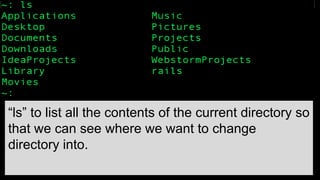
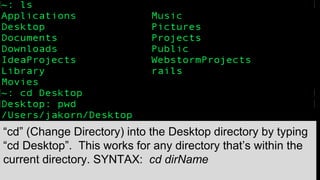
“ls” to list all the contents of the current directory so
that we can see where we want to change
directory into.
“cd” (Change Directory) into the Desktop directory by typing
“cd Desktop”. This works for any directory that’s within the
current directory. SYNTAX: cd dirName
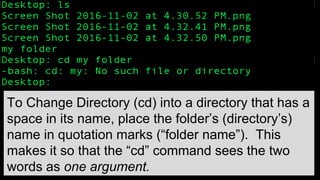
To Change Directory (cd) into a directory that has a
space in its name, place the folder’s (directory’s)
name in quotation marks (“folder name”). This
makes it so that the “cd” command sees the two
words as one argument.
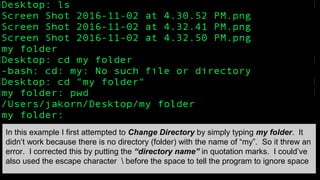
In this example I first attempted to Change Directory by simply typing my folder. It
didn’t work because there is no directory (folder) with the name of “my”. So it threw an
error. I corrected this by putting the “directory name” in quotation marks. I could’ve
also used the escape character  before the space to tell the program to ignore space
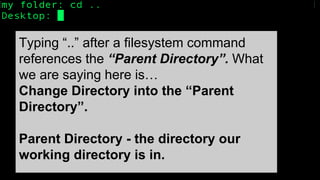
Typing “..” after a filesystem command
references the “Parent Directory”. What
we are saying here is…
Change Directory into the “Parent
Directory”.
Parent Directory - the directory our
working directory is in.
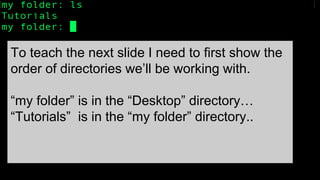
To teach the next slide I need to first show the
order of directories we’ll be working with.
“my folder” is in the “Desktop” directory…
“Tutorials” is in the “my folder” directory..
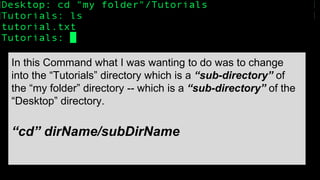
In this Command what I was wanting to do was to change
into the “Tutorials” directory which is a “sub-directory” of
the “my folder” directory -- which is a “sub-directory” of the
“Desktop” directory.
“cd” dirName/subDirName
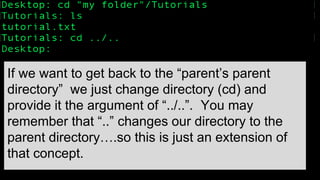
If we want to get back to the “parent’s parent
directory” we just change directory (cd) and
provide it the argument of “../..”. You may
remember that “..” changes our directory to the
parent directory….so this is just an extension of
that concept.
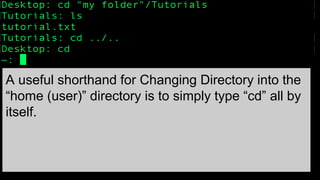
A useful shorthand for Changing Directory into the
“home (user)” directory is to simply type “cd” all by
itself.
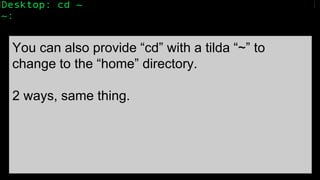
You can also provide “cd” with a tilda “~” to
change to the “home” directory.
2 ways, same thing.
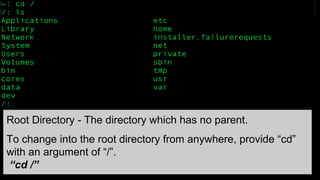
Root Directory - The directory which has no parent.
To change into the root directory from anywhere, provide “cd”
with an argument of “/”.
“cd /”
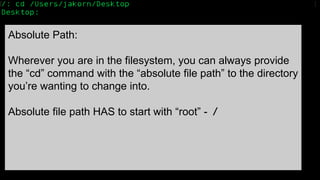
Absolute Path:
Wherever you are in the filesystem, you can always provide
the “cd” command with the “absolute file path” to the directory
you’re wanting to change into.
Absolute file path HAS to start with “root” - /
Thanks For Watching.
Please Visit:
www.HatBoySoftware.com
Jake Corn - JakeCornCodes@gmail.com

cd - The Change Directory Command

  • 1.
    The “cd” (ChangeDirectory) Command Mac Terminal Tutorial
  • 3.
    “ls” to listall the contents of the current directory so that we can see where we want to change directory into.
  • 4.
    “cd” (Change Directory)into the Desktop directory by typing “cd Desktop”. This works for any directory that’s within the current directory. SYNTAX: cd dirName
  • 5.
    To Change Directory(cd) into a directory that has a space in its name, place the folder’s (directory’s) name in quotation marks (“folder name”). This makes it so that the “cd” command sees the two words as one argument.
  • 6.
    In this exampleI first attempted to Change Directory by simply typing my folder. It didn’t work because there is no directory (folder) with the name of “my”. So it threw an error. I corrected this by putting the “directory name” in quotation marks. I could’ve also used the escape character before the space to tell the program to ignore space
  • 7.
    Typing “..” aftera filesystem command references the “Parent Directory”. What we are saying here is… Change Directory into the “Parent Directory”. Parent Directory - the directory our working directory is in.
  • 8.
    To teach thenext slide I need to first show the order of directories we’ll be working with. “my folder” is in the “Desktop” directory… “Tutorials” is in the “my folder” directory..
  • 9.
    In this Commandwhat I was wanting to do was to change into the “Tutorials” directory which is a “sub-directory” of the “my folder” directory -- which is a “sub-directory” of the “Desktop” directory. “cd” dirName/subDirName
  • 10.
    If we wantto get back to the “parent’s parent directory” we just change directory (cd) and provide it the argument of “../..”. You may remember that “..” changes our directory to the parent directory….so this is just an extension of that concept.
  • 11.
    A useful shorthandfor Changing Directory into the “home (user)” directory is to simply type “cd” all by itself.
  • 12.
    You can alsoprovide “cd” with a tilda “~” to change to the “home” directory. 2 ways, same thing.
  • 13.
    Root Directory -The directory which has no parent. To change into the root directory from anywhere, provide “cd” with an argument of “/”. “cd /”
  • 14.
    Absolute Path: Wherever youare in the filesystem, you can always provide the “cd” command with the “absolute file path” to the directory you’re wanting to change into. Absolute file path HAS to start with “root” - /
  • 15.
    Thanks For Watching. PleaseVisit: www.HatBoySoftware.com Jake Corn - JakeCornCodes@gmail.com