MEWAR UNIVERSITY
CATIA V5
Mr. M. Kumar
BRANCH: MECHANICAL ENGINEERING
COURSE: BACHELOR OF TECHNOLOGY
MUR1402163
YEAR: 3RD
, SEMESTER: 6TH
PRESENTATION REPORT: CATIA
HISTORY AND SCOPE OF APPLICATION
 CATIA started as an in-
house development in
1977 by French aircraft
manufacturer Avions
Marcel Dassault, at
that time customer of
the CADAM software
to develop Dassault's
Mirage fighter jet.
 Initially named CATI
(conception assistée
tridimensionnelle
interactive–French for
interactiveaided three-
dimensional design), it
was renamed CATIA in
1981 when Dassault
created a subsidiary to
develop and sell the
software.
Commonly referred to as a 3D Product Lifecycle
Management software suite, CATIA supports multiple stages of
product development (CAx), including conceptualization, design
(CAD), engineering (CAE) and manufacturing (CAM). CATIA
facilitates collaborative engineering across disciplines around its
3DEXPERIENCE platform, including surfacing & shape design,
electrical, fluid and electronic systems design, mechanical
engineering and systems engineering.
CATIA facilitates the design of electronic, electrical, and distributed
systems such as fluid and HVAC systems, all the way to the
production of documentation for manufacturing.
CATIA Overview
• CATIA v5 is an Integrated Computer Aided
Engineering tool:
– Incorporates CAD, CAM, CAE, and other applications
– Completely re-written since CATIA v4 and still under
development
– CATIA v5 is a native Windows application
– User friendly icon based graphical user interface
– Based on Variational/ Parametric technology
– Encourages design flexibility and design reuse
– Supports Knowledge Based Design
CATIA v5 Philosophy
• A Flexible Modelling environment
– Ability to easily modify models, and implement design
changes
– Support for data sharing, and data reuse
• Knowledge enabled
– Capture of design constraints, and design intent as well as
final model geometry
– Management of non-geometric as well as geometric
design information
• The 3D Part is the Master Model
– Drawings, Assemblies and Analyses are associative to the
3D parts. If the part design changes, the downstream
models with change too.
CATIA v5 Applications
 Product Structure
 Part Design
 Assembly Design
 Sketcher
 Drafting (Interactive and
Generative)
 Wireframe and Surface
 Freestyle Shaper
 Digital Shape Editor
 Knowledgeware
 Photo Studio
 4D Navigator (including
kinematics)
 Manufacturing
 Finite Element Analysis
Manipulating the Display using the Mouse
 Pan
 Press and hold the middle mouse
button and move the mouse to pan
 Rotate
 Press and hold the middle mouse
button then the left mouse button
and move the mouse to rotate
 Zoom
 Press and hold the middle mouse
button and click the left mouse
button then move the mouse to
zoom in and out
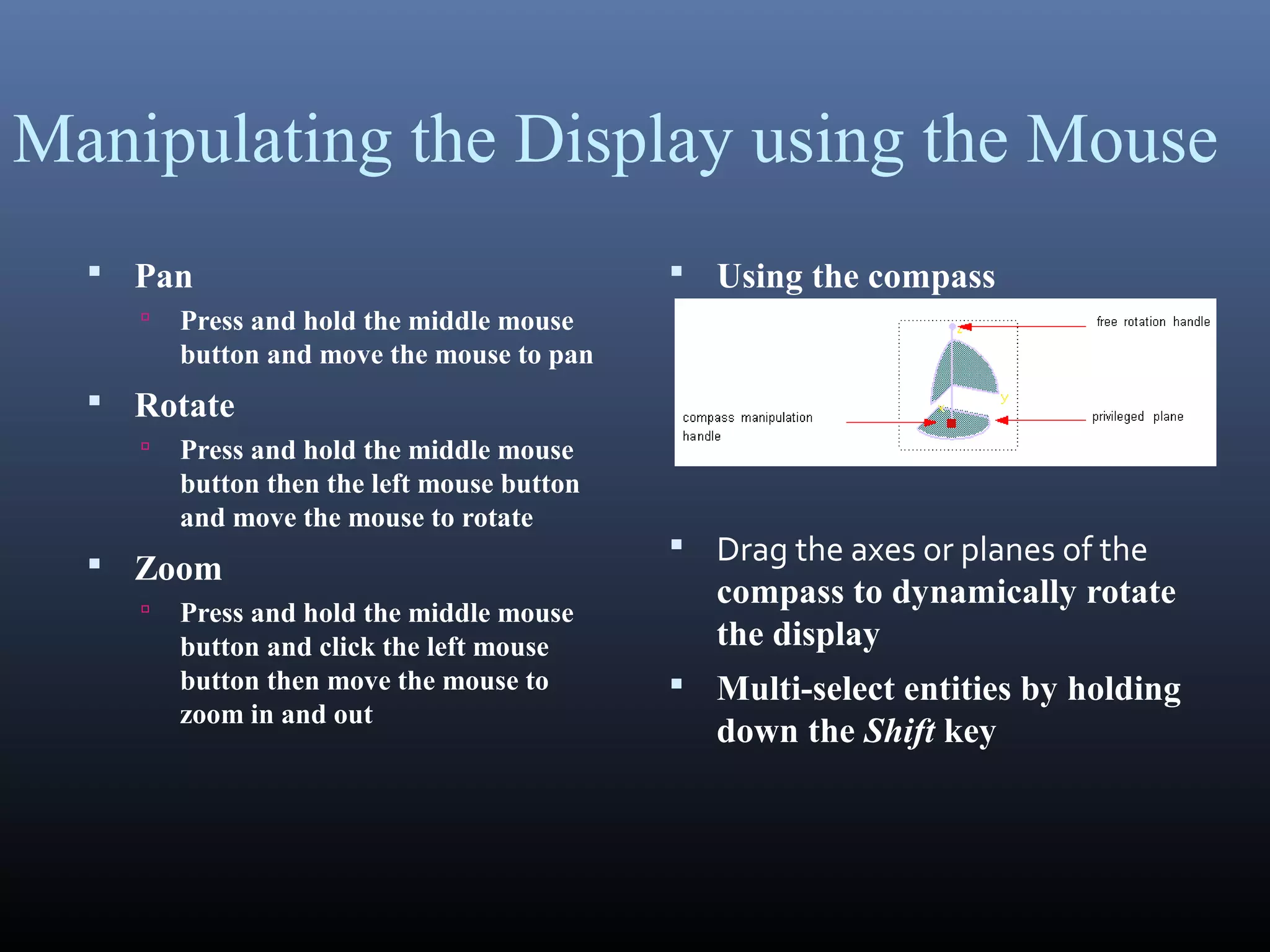
 Using the compass
 Drag the axes or planes of the
compass to dynamically rotate
the display
 Multi-select entities by holding
down the Shift key
Part Design
 The Part Design application is used to create solid
models of parts
 Solid parts are usually created from 2D profiles that
are extruded or revolved to form a base feature
 The Part Design task is tightly integrated with a 2D
sketching tool
 A library of features is provided to allow user to add
additional details to a base part
 Parts can be modified by selecting their features in the
specification tree
 Parts are stored in files with the extension .CATPart
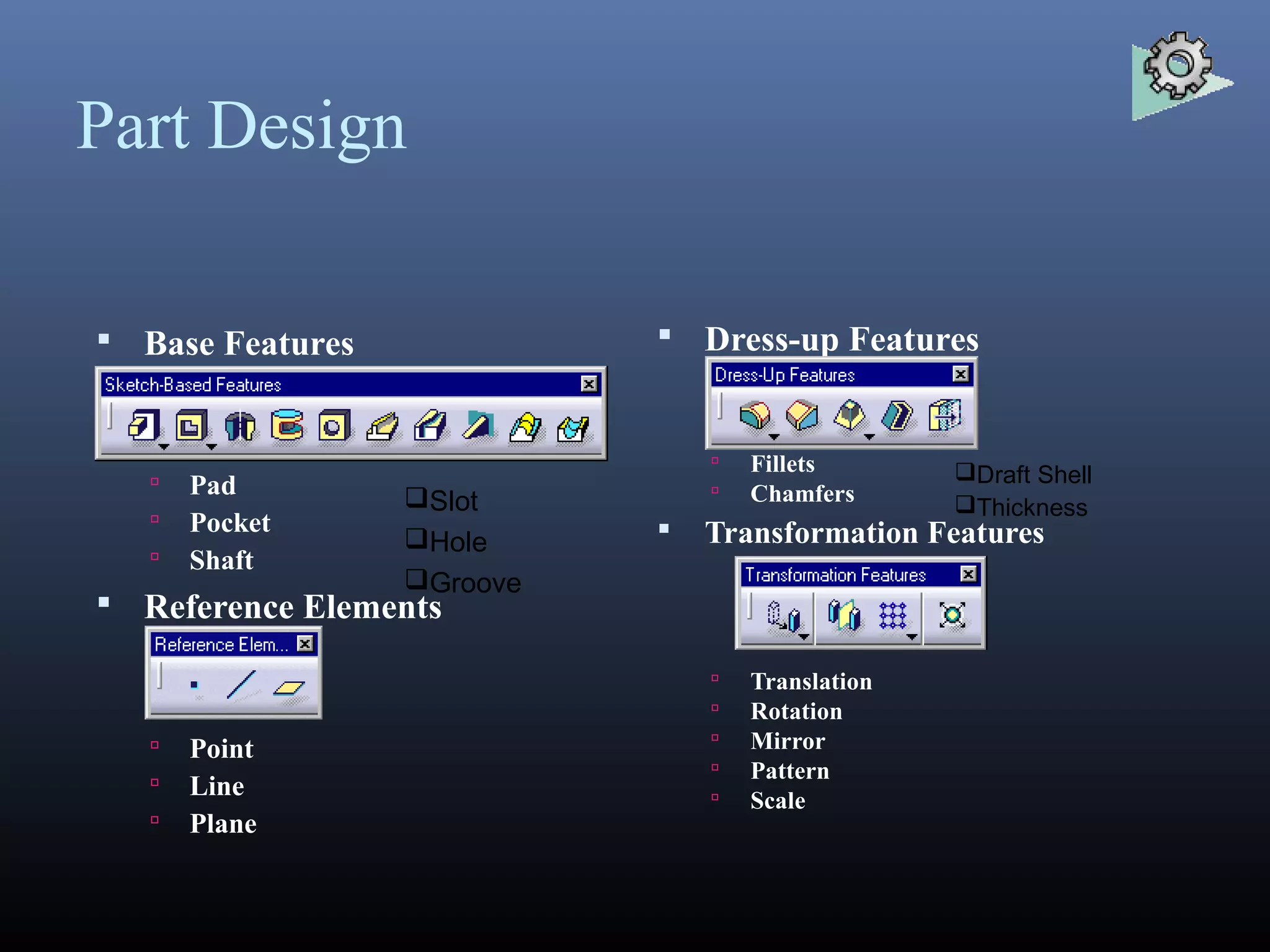
Part Design
 Base Features
 Pad
 Pocket
 Shaft
 Reference Elements
 Point
 Line
 Plane
 Dress-up Features
 Fillets
 Chamfers
 Transformation Features
 Translation
 Rotation
 Mirror
 Pattern
 Scale
Slot
Hole
Groove
Draft Shell
Thickness
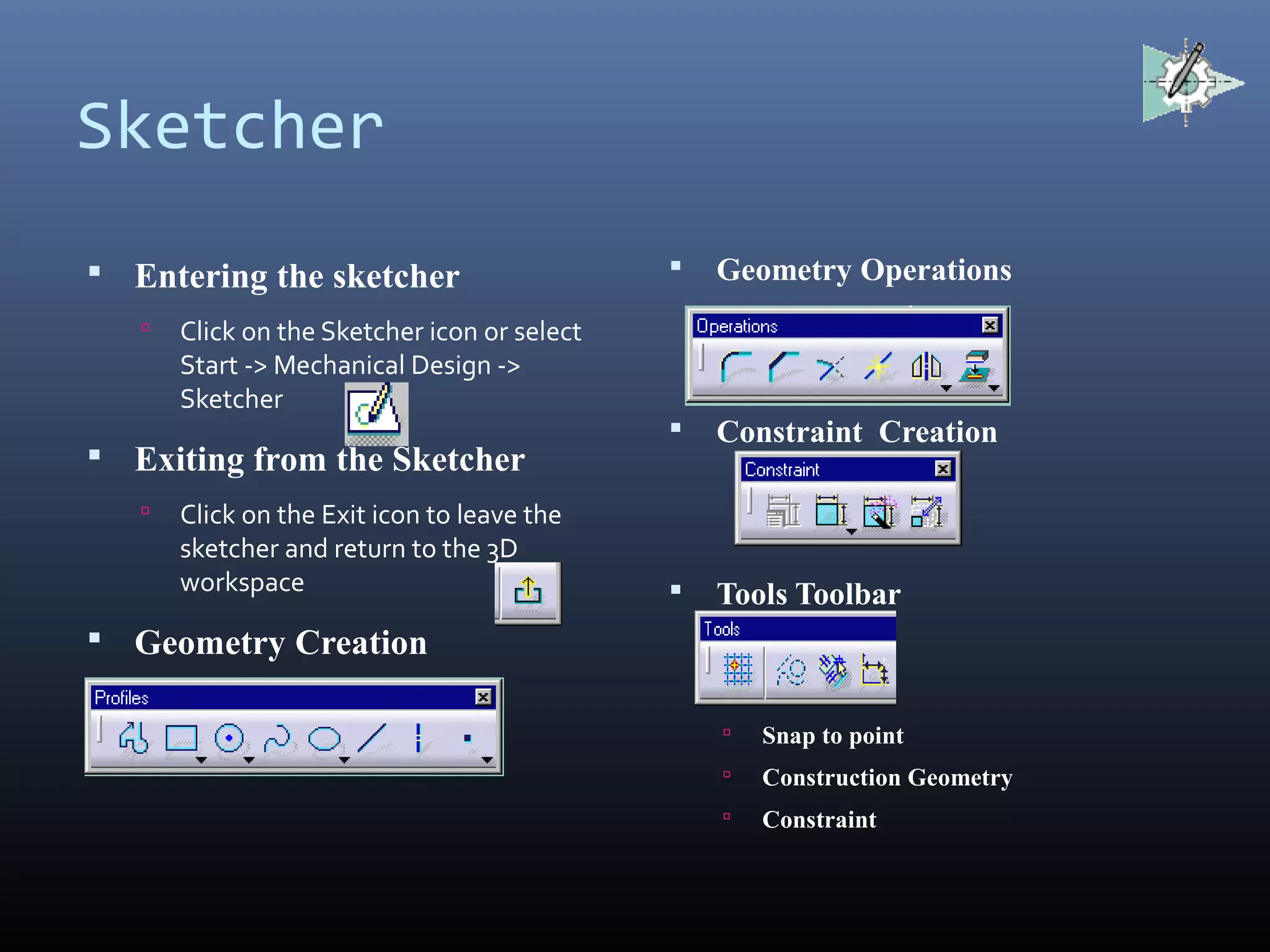
Sketcher
 Entering the sketcher
 Click on the Sketcher icon or select
Start -> Mechanical Design ->
Sketcher
 Exiting from the Sketcher
 Click on the Exit icon to leave the
sketcher and return to the 3D
workspace
 Geometry Creation
 Geometry Operations
 Constraint Creation
 Tools Toolbar
 Snap to point
 Construction Geometry
 Constraint
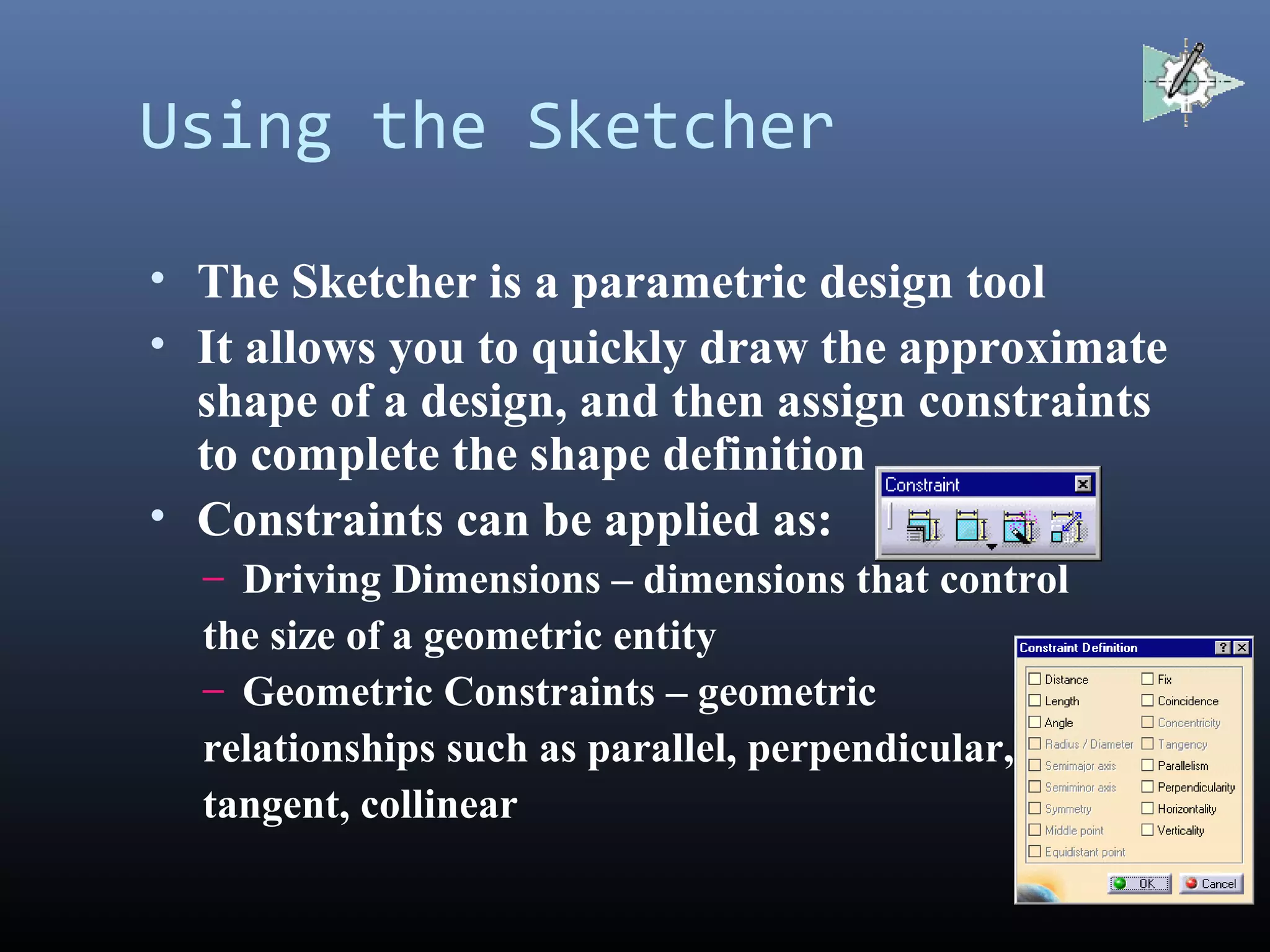
Using the Sketcher
• The Sketcher is a parametric design tool
• It allows you to quickly draw the approximate
shape of a design, and then assign constraints
to complete the shape definition
• Constraints can be applied as:
– Driving Dimensions – dimensions that control
the size of a geometric entity
– Geometric Constraints – geometric
relationships such as parallel, perpendicular,
tangent, collinear
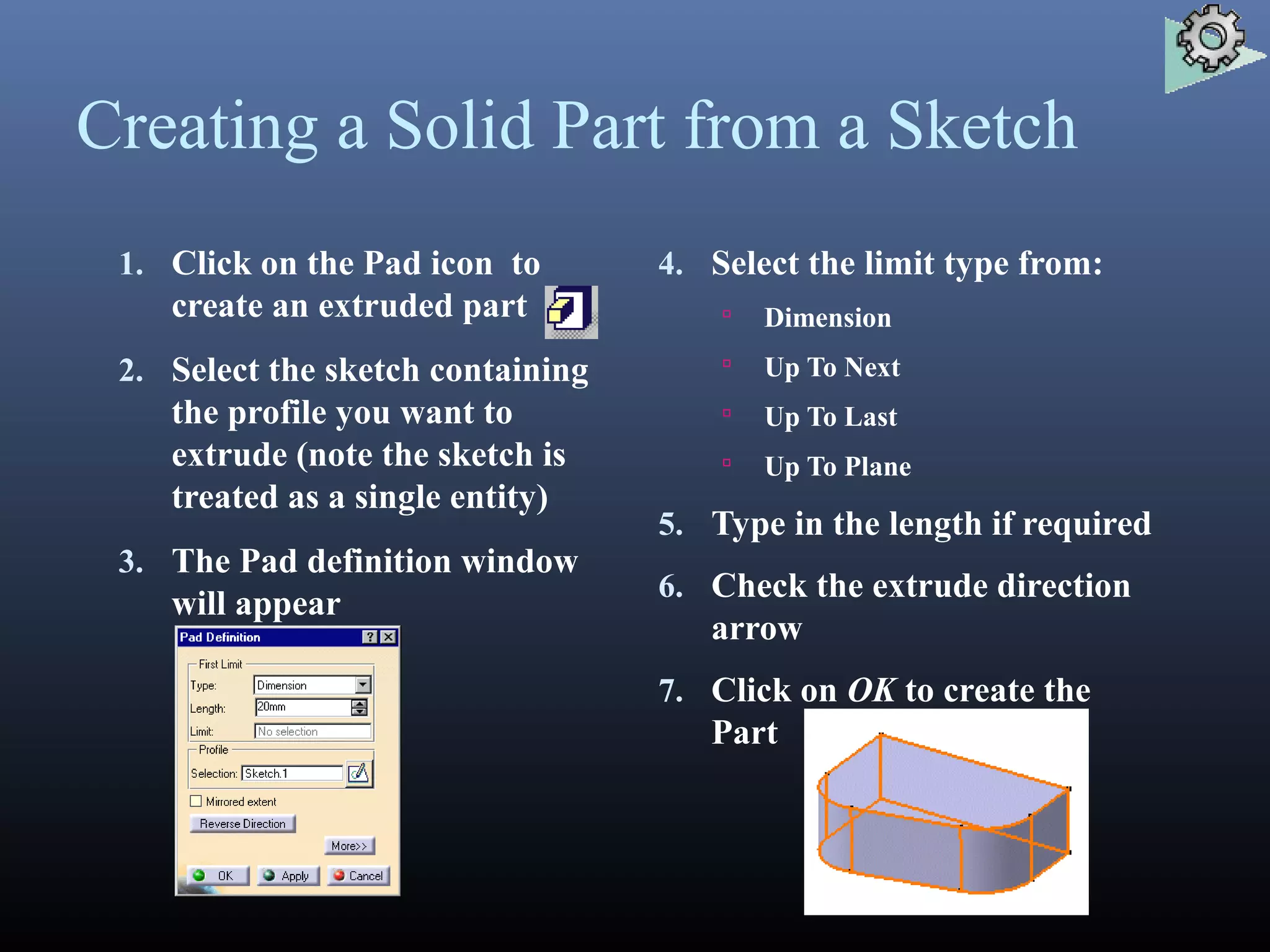
Creating a Solid Part from a Sketch
1. Click on the Pad icon to
create an extruded part
2. Select the sketch containing
the profile you want to
extrude (note the sketch is
treated as a single entity)
3. The Pad definition window
will appear
4. Select the limit type from:
 Dimension
 Up To Next
 Up To Last
 Up To Plane
5. Type in the length if required
6. Check the extrude direction
arrow
7. Click on OK to create the
Part
Assembly Design
• The Assembly Design application allows you to
create a product model from a number of
separate parts
• The parts in a product assembly are not joined
together, but assembled as they would be in a
physical assembly
• The product assembly structure is hierarchical
and allows you to model complex product
relationships
• Constraints can be applied between the parts in
assembly to define relationships between them
Wireframe and Surface
 The Wireframe and Surface task provides a
more traditional CAD 3D modelling
environment
 The Wireframe functionality allows you to
create Wireframe points, lines and curves in 3D
space, without using the constraint based
approach of the sketcher
 The Surface functionality allows you to create
smooth freeform surfaces by sweeping
Wireframe curves through 3D space
 Wireframe and Surface is integrated with the
other CATIA applications allowing for hybrid
surface and solid modelling
Wireframe and Surface
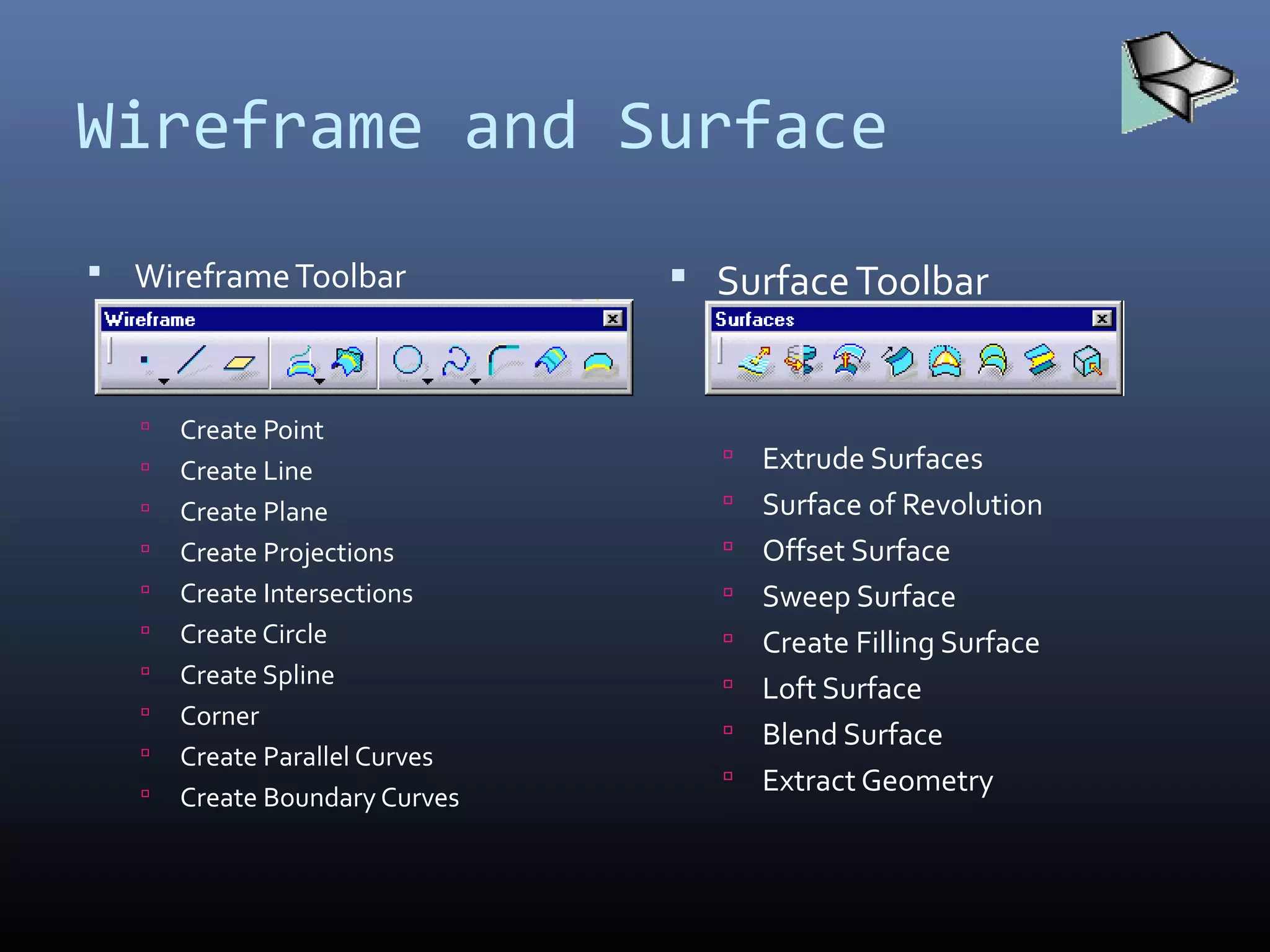
 WireframeToolbar
 Create Point
 Create Line
 Create Plane
 Create Projections
 Create Intersections
 Create Circle
 Create Spline
 Corner
 Create Parallel Curves
 Create Boundary Curves
 SurfaceToolbar
 Extrude Surfaces
 Surface of Revolution
 Offset Surface
 Sweep Surface
 Create Filling Surface
 Loft Surface
 Blend Surface
 Extract Geometry
Interactive Drafting
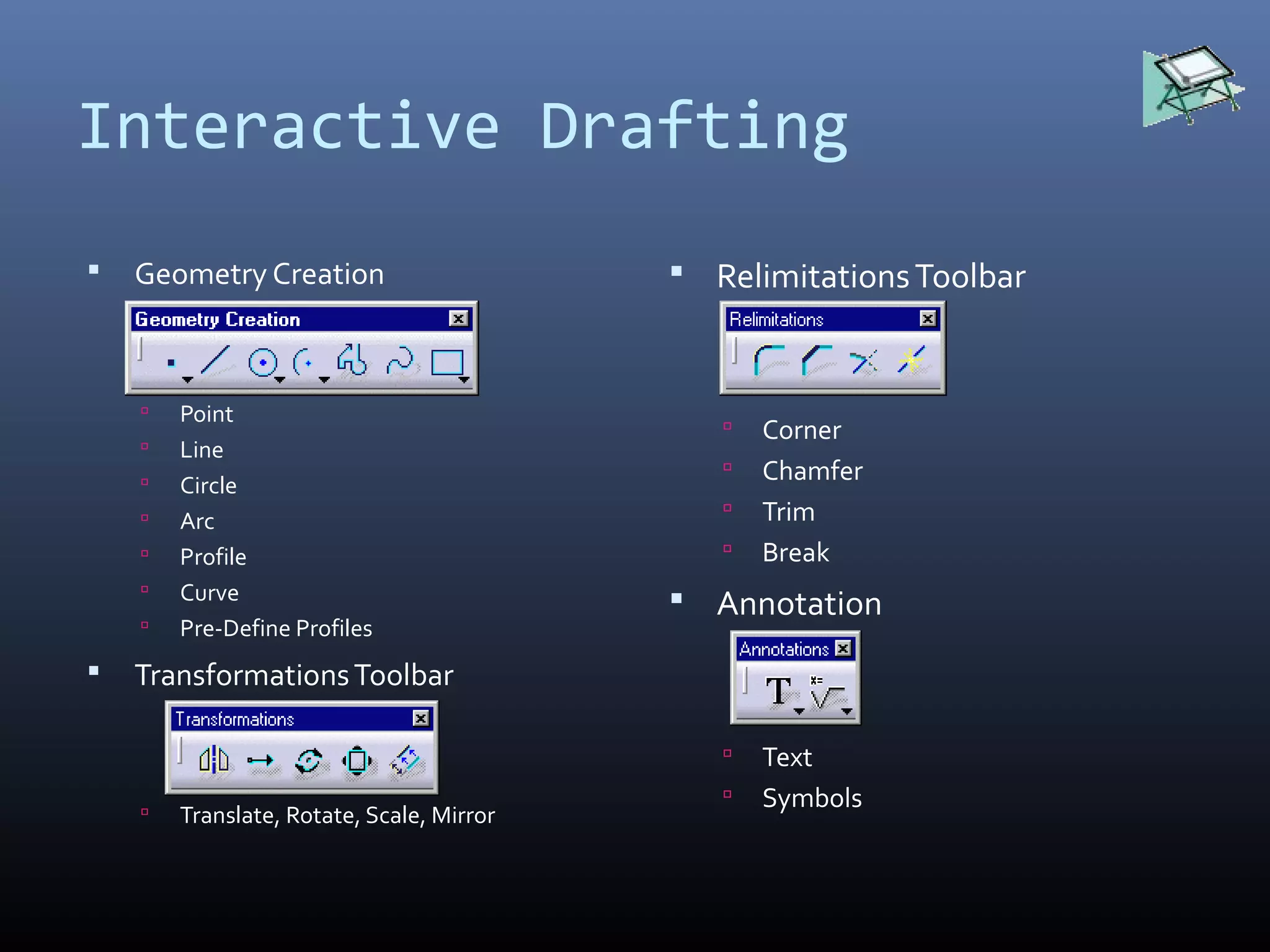
 Geometry Creation
 Point
 Line
 Circle
 Arc
 Profile
 Curve
 Pre-Define Profiles
 TransformationsToolbar
 Translate, Rotate, Scale, Mirror
 RelimitationsToolbar
 Corner
 Chamfer
 Trim
 Break
 Annotation
 Text
 Symbols
Catia v5 presentation report

Catia v5 presentation report

  • 1.
    MEWAR UNIVERSITY CATIA V5 Mr.M. Kumar BRANCH: MECHANICAL ENGINEERING COURSE: BACHELOR OF TECHNOLOGY MUR1402163 YEAR: 3RD , SEMESTER: 6TH PRESENTATION REPORT: CATIA
  • 2.
    HISTORY AND SCOPEOF APPLICATION  CATIA started as an in- house development in 1977 by French aircraft manufacturer Avions Marcel Dassault, at that time customer of the CADAM software to develop Dassault's Mirage fighter jet.  Initially named CATI (conception assistée tridimensionnelle interactive–French for interactiveaided three- dimensional design), it was renamed CATIA in 1981 when Dassault created a subsidiary to develop and sell the software.
  • 3.
    Commonly referred toas a 3D Product Lifecycle Management software suite, CATIA supports multiple stages of product development (CAx), including conceptualization, design (CAD), engineering (CAE) and manufacturing (CAM). CATIA facilitates collaborative engineering across disciplines around its 3DEXPERIENCE platform, including surfacing & shape design, electrical, fluid and electronic systems design, mechanical engineering and systems engineering. CATIA facilitates the design of electronic, electrical, and distributed systems such as fluid and HVAC systems, all the way to the production of documentation for manufacturing.
  • 4.
    CATIA Overview • CATIAv5 is an Integrated Computer Aided Engineering tool: – Incorporates CAD, CAM, CAE, and other applications – Completely re-written since CATIA v4 and still under development – CATIA v5 is a native Windows application – User friendly icon based graphical user interface – Based on Variational/ Parametric technology – Encourages design flexibility and design reuse – Supports Knowledge Based Design
  • 5.
    CATIA v5 Philosophy •A Flexible Modelling environment – Ability to easily modify models, and implement design changes – Support for data sharing, and data reuse • Knowledge enabled – Capture of design constraints, and design intent as well as final model geometry – Management of non-geometric as well as geometric design information • The 3D Part is the Master Model – Drawings, Assemblies and Analyses are associative to the 3D parts. If the part design changes, the downstream models with change too.
  • 6.
    CATIA v5 Applications Product Structure  Part Design  Assembly Design  Sketcher  Drafting (Interactive and Generative)  Wireframe and Surface  Freestyle Shaper  Digital Shape Editor  Knowledgeware  Photo Studio  4D Navigator (including kinematics)  Manufacturing  Finite Element Analysis
  • 7.
    Manipulating the Displayusing the Mouse  Pan  Press and hold the middle mouse button and move the mouse to pan  Rotate  Press and hold the middle mouse button then the left mouse button and move the mouse to rotate  Zoom  Press and hold the middle mouse button and click the left mouse button then move the mouse to zoom in and out  Using the compass  Drag the axes or planes of the compass to dynamically rotate the display  Multi-select entities by holding down the Shift key
  • 8.
    Part Design  ThePart Design application is used to create solid models of parts  Solid parts are usually created from 2D profiles that are extruded or revolved to form a base feature  The Part Design task is tightly integrated with a 2D sketching tool  A library of features is provided to allow user to add additional details to a base part  Parts can be modified by selecting their features in the specification tree  Parts are stored in files with the extension .CATPart
  • 9.
    Part Design  BaseFeatures  Pad  Pocket  Shaft  Reference Elements  Point  Line  Plane  Dress-up Features  Fillets  Chamfers  Transformation Features  Translation  Rotation  Mirror  Pattern  Scale Slot Hole Groove Draft Shell Thickness
  • 10.
    Sketcher  Entering thesketcher  Click on the Sketcher icon or select Start -> Mechanical Design -> Sketcher  Exiting from the Sketcher  Click on the Exit icon to leave the sketcher and return to the 3D workspace  Geometry Creation  Geometry Operations  Constraint Creation  Tools Toolbar  Snap to point  Construction Geometry  Constraint
  • 11.
    Using the Sketcher •The Sketcher is a parametric design tool • It allows you to quickly draw the approximate shape of a design, and then assign constraints to complete the shape definition • Constraints can be applied as: – Driving Dimensions – dimensions that control the size of a geometric entity – Geometric Constraints – geometric relationships such as parallel, perpendicular, tangent, collinear
  • 12.
    Creating a SolidPart from a Sketch 1. Click on the Pad icon to create an extruded part 2. Select the sketch containing the profile you want to extrude (note the sketch is treated as a single entity) 3. The Pad definition window will appear 4. Select the limit type from:  Dimension  Up To Next  Up To Last  Up To Plane 5. Type in the length if required 6. Check the extrude direction arrow 7. Click on OK to create the Part
  • 13.
    Assembly Design • TheAssembly Design application allows you to create a product model from a number of separate parts • The parts in a product assembly are not joined together, but assembled as they would be in a physical assembly • The product assembly structure is hierarchical and allows you to model complex product relationships • Constraints can be applied between the parts in assembly to define relationships between them
  • 14.
    Wireframe and Surface The Wireframe and Surface task provides a more traditional CAD 3D modelling environment  The Wireframe functionality allows you to create Wireframe points, lines and curves in 3D space, without using the constraint based approach of the sketcher  The Surface functionality allows you to create smooth freeform surfaces by sweeping Wireframe curves through 3D space  Wireframe and Surface is integrated with the other CATIA applications allowing for hybrid surface and solid modelling
  • 15.
    Wireframe and Surface WireframeToolbar  Create Point  Create Line  Create Plane  Create Projections  Create Intersections  Create Circle  Create Spline  Corner  Create Parallel Curves  Create Boundary Curves  SurfaceToolbar  Extrude Surfaces  Surface of Revolution  Offset Surface  Sweep Surface  Create Filling Surface  Loft Surface  Blend Surface  Extract Geometry
  • 16.
    Interactive Drafting  GeometryCreation  Point  Line  Circle  Arc  Profile  Curve  Pre-Define Profiles  TransformationsToolbar  Translate, Rotate, Scale, Mirror  RelimitationsToolbar  Corner  Chamfer  Trim  Break  Annotation  Text  Symbols