Presenting Indrustrial Training on
CATIA V5
Submitted to:
Mr. Sandeep Jhamb
HOD Mechanical Department
AIET, College Kukas, Jaipur
Submitted by:
Md Asif
Class: 4TH Year, 7TH Sem. ME
RTU Roll No. 17EAIME041
•1
Contnets
Introduction to CATIA
CATIA v5 Applications
CATIA User Interface
Manipulating the Display using the Mouse
More Common Commands
The Specification Tree
Common Module
Part Design
Sketching
Working with Features
Assembly Modelling
•2
Introduction to CATIA
• CATIA v5 is a 3D moudling advanced software of
CAD Design. It was developed by Dassult
systemes. That is french Engineering in the field
of automotive 3D Design software.
– Incorporates CAD, CAM, CAE, and other applications
– Completely re-written since CATIA v4 and still under
development
– CATIA v5 is a native Windows application
– User friendly icon based graphical user interface
– Based on Variational/ Parametric technology
– Encourages design flexibility and design reuse
– Supports Knowledge Based Design
Lecture 1
•3
CATIA v5 Applications
• Product Structure
• Part Design
• Assembly Design
• Sketcher
• Drafting (Interactive and
Generative)
• Wireframe and Surface
• Freestyle Shaper
• Digital Shape Editor
• Knowledgeware
• Photo Studio
• 4D Navigator (including
kinematics)
• Manufacturing
• Finite Element Analysis
Lecture 1
•4
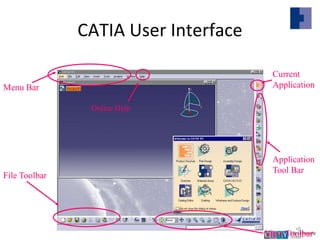
CATIA User Interface
Menu Bar
View Toolbar
Application
Tool Bar
File Toolbar
Current
Application
Online Help
Lecture 1
•5
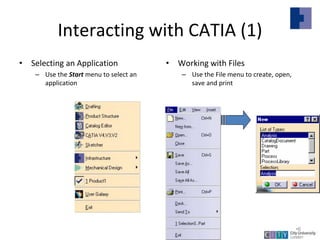
Interacting with CATIA (1)
• Selecting an Application
– Use the Start menu to select an
application
• Working with Files
– Use the File menu to create, open,
save and print
Lecture 1
•6
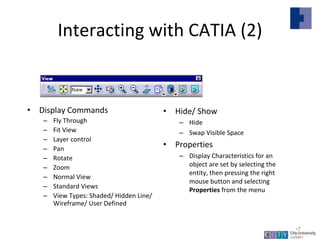
Interacting with CATIA (2)
• Display Commands
– Fly Through
– Fit View
– Layer control
– Pan
– Rotate
– Zoom
– Normal View
– Standard Views
– View Types: Shaded/ Hidden Line/
Wireframe/ User Defined
• Hide/ Show
– Hide
– Swap Visible Space
• Properties
– Display Characteristics for an
object are set by selecting the
entity, then pressing the right
mouse button and selecting
Properties from the menu
Lecture 1
•7
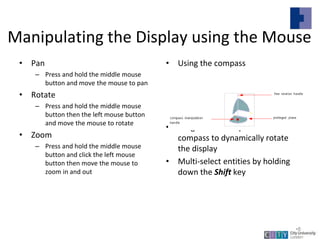
Manipulating the Display using the Mouse
• Pan
– Press and hold the middle mouse
button and move the mouse to pan
• Rotate
– Press and hold the middle mouse
button then the left mouse button
and move the mouse to rotate
• Zoom
– Press and hold the middle mouse
button and click the left mouse
button then move the mouse to
zoom in and out
• Using the compass
• Drag the axes or planes of the
compass to dynamically rotate
the display
• Multi-select entities by holding
down the Shift key
Lecture 1
•8
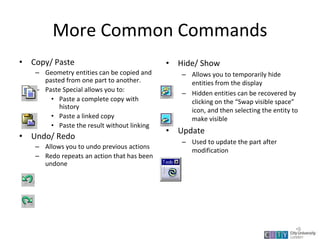
More Common Commands
• Copy/ Paste
– Geometry entities can be copied and
pasted from one part to another.
– Paste Special allows you to:
• Paste a complete copy with
history
• Paste a linked copy
• Paste the result without linking
• Undo/ Redo
– Allows you to undo previous actions
– Redo repeats an action that has been
undone
• Hide/ Show
– Allows you to temporarily hide
entities from the display
– Hidden entities can be recovered by
clicking on the “Swap visible space”
icon, and then selecting the entity to
make visible
• Update
– Used to update the part after
modification
Lecture 1
•9
The Specification Tree
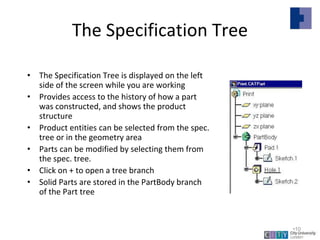
• The Specification Tree is displayed on the left
side of the screen while you are working
• Provides access to the history of how a part
was constructed, and shows the product
structure
• Product entities can be selected from the spec.
tree or in the geometry area
• Parts can be modified by selecting them from
the spec. tree.
• Click on + to open a tree branch
• Solid Parts are stored in the PartBody branch
of the Part tree
Lecture 1
•10
Some Common Module
Skecher
Part Design
Drafting
Assembly
•11
Part Design
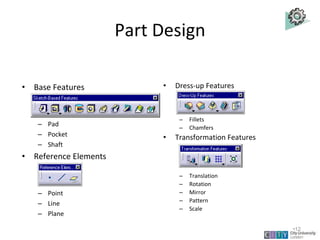
• Base Features
– Pad
– Pocket
– Shaft
• Reference Elements
– Point
– Line
– Plane
• Dress-up Features
– Fillets
– Chamfers
• Transformation Features
– Translation
– Rotation
– Mirror
– Pattern
– Scale
Slot
Hole
Groove
Draft Shell
Thickness
Lecture 1
•12
Sketcher
• The sketcher is used to create 2D sketches of
designs, and apply constraints to the sketched
geometry
• The sketcher is now the main environment for
developing 2D profiles that will be used to build
solid models (but traditional 2D wireframe
techniques are available in the Wireframe and
Surface application)
• The sketcher provides a flexible environment for
creating and modifying 2D geometry
Lecture 1
•13
Sketcher
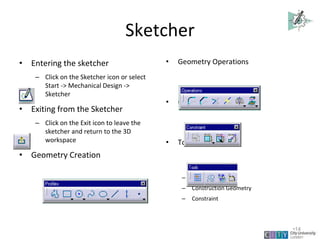
• Entering the sketcher
– Click on the Sketcher icon or select
Start -> Mechanical Design ->
Sketcher
• Exiting from the Sketcher
– Click on the Exit icon to leave the
sketcher and return to the 3D
workspace
• Geometry Creation
• Geometry Operations
• Constraint Creation
• Tools Toolbar
– Snap to point
– Construction Geometry
– Constraint
Lecture 1
•14
Sketching Example
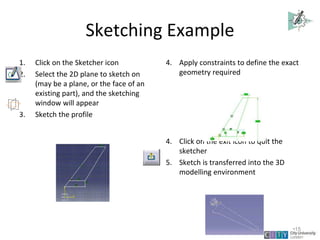
1. Click on the Sketcher icon
2. Select the 2D plane to sketch on
(may be a plane, or the face of an
existing part), and the sketching
window will appear
3. Sketch the profile
4. Apply constraints to define the exact
geometry required
4. Click on the exit icon to quit the
sketcher
5. Sketch is transferred into the 3D
modelling environment
Lecture 1
•15
Creating a Solid Part from a Sketch
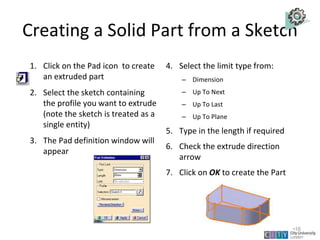
1. Click on the Pad icon to create
an extruded part
2. Select the sketch containing
the profile you want to extrude
(note the sketch is treated as a
single entity)
3. The Pad definition window will
appear
4. Select the limit type from:
– Dimension
– Up To Next
– Up To Last
– Up To Plane
5. Type in the length if required
6. Check the extrude direction
arrow
7. Click on OK to create the Part
Lecture 1
•16
Part Design
• The Part Design application is used to create solid
models of parts
• Solid parts are usually created from 2D profiles that are
extruded or revolved to form a base feature
• The Part Design task is tightly integrated with a 2D
sketching tool
• A library of features is provided to allow user to add
additional details to a base part
• Parts can be modified by selecting their features in the
specification tree
• Parts are stored in files with the extension .CATPart
Lecture 1
•17
Working with Features
• The Part Design task uses intelligent design features
• The features contain information about their context as well as their
shape
• For example a Hole feature can only be created once you have
created a part body
– A hole feature requires an attachment face, and driving dimensions
– A hole is a negative feature – it is automatically subtracted from the main Part
Body
• Other features include Pad, Revolve, Pocket, Groove, Thread, Rib,
Slot, Stiffener
• When a new feature is added to a solid part it is automatically
combined with the existing part
Lecture 1
•18
Modifying a Part
• All parts created in Part Design can be edited at any time in the life of
the part
• The parameters used to create a feature can be accessed by double
clicking on the feature definition in the product specification tree or
on the part geometry
• For example to change the height of a pad you should double click on
the pad node in the specification tree.
• The original feature dialogue will appear on the screen
• Change the values and click on OK.
• When you have modified the feature parameters the part will
automatically update. The part turns red briefly to indicate that it is
out of date
Lecture 1
•19
Assembly Design
• The Assembly Design application allows you to
create a product model from a number of separate
parts
• The parts in a product assembly are not joined
together, but assembled as they would be in a
physical assembly
• The product assembly structure is hierarchical and
allows you to model complex product relationships
• Constraints can be applied between the parts in
assembly to define relationships between them
Lecture 2
•20
Thanking You
•21

Catia v5 ppt md asif 7th sem

  • 1.
    Presenting Indrustrial Trainingon CATIA V5 Submitted to: Mr. Sandeep Jhamb HOD Mechanical Department AIET, College Kukas, Jaipur Submitted by: Md Asif Class: 4TH Year, 7TH Sem. ME RTU Roll No. 17EAIME041 •1
  • 2.
    Contnets Introduction to CATIA CATIAv5 Applications CATIA User Interface CATIA User Interface Manipulating the Display using the Mouse More Common Commands The Specification Tree Common Module Part Design Sketching Working with Features Assembly Modelling •2
  • 3.
    Introduction to CATIA •CATIA v5 is a 3D moudling advanced software of CAD Design. It was developed by Dassult systemes. That is french Engineering in the field of automotive 3D Design software. – Incorporates CAD, CAM, CAE, and other applications – Completely re-written since CATIA v4 and still under development – CATIA v5 is a native Windows application – User friendly icon based graphical user interface – Based on Variational/ Parametric technology – Encourages design flexibility and design reuse – Supports Knowledge Based Design Lecture 1 •3
  • 4.
    CATIA v5 Applications •Product Structure • Part Design • Assembly Design • Sketcher • Drafting (Interactive and Generative) • Wireframe and Surface • Freestyle Shaper • Digital Shape Editor • Knowledgeware • Photo Studio • 4D Navigator (including kinematics) • Manufacturing • Finite Element Analysis Lecture 1 •4
  • 5.
    CATIA User Interface MenuBar View Toolbar Application Tool Bar File Toolbar Current Application Online Help Lecture 1 •5
  • 6.
    Interacting with CATIA(1) • Selecting an Application – Use the Start menu to select an application • Working with Files – Use the File menu to create, open, save and print Lecture 1 •6
  • 7.
    Interacting with CATIA(2) • Display Commands – Fly Through – Fit View – Layer control – Pan – Rotate – Zoom – Normal View – Standard Views – View Types: Shaded/ Hidden Line/ Wireframe/ User Defined • Hide/ Show – Hide – Swap Visible Space • Properties – Display Characteristics for an object are set by selecting the entity, then pressing the right mouse button and selecting Properties from the menu Lecture 1 •7
  • 8.
    Manipulating the Displayusing the Mouse • Pan – Press and hold the middle mouse button and move the mouse to pan • Rotate – Press and hold the middle mouse button then the left mouse button and move the mouse to rotate • Zoom – Press and hold the middle mouse button and click the left mouse button then move the mouse to zoom in and out • Using the compass • Drag the axes or planes of the compass to dynamically rotate the display • Multi-select entities by holding down the Shift key Lecture 1 •8
  • 9.
    More Common Commands •Copy/ Paste – Geometry entities can be copied and pasted from one part to another. – Paste Special allows you to: • Paste a complete copy with history • Paste a linked copy • Paste the result without linking • Undo/ Redo – Allows you to undo previous actions – Redo repeats an action that has been undone • Hide/ Show – Allows you to temporarily hide entities from the display – Hidden entities can be recovered by clicking on the “Swap visible space” icon, and then selecting the entity to make visible • Update – Used to update the part after modification Lecture 1 •9
  • 10.
    The Specification Tree •The Specification Tree is displayed on the left side of the screen while you are working • Provides access to the history of how a part was constructed, and shows the product structure • Product entities can be selected from the spec. tree or in the geometry area • Parts can be modified by selecting them from the spec. tree. • Click on + to open a tree branch • Solid Parts are stored in the PartBody branch of the Part tree Lecture 1 •10
  • 11.
    Some Common Module Skecher PartDesign Drafting Assembly •11
  • 12.
    Part Design • BaseFeatures – Pad – Pocket – Shaft • Reference Elements – Point – Line – Plane • Dress-up Features – Fillets – Chamfers • Transformation Features – Translation – Rotation – Mirror – Pattern – Scale Slot Hole Groove Draft Shell Thickness Lecture 1 •12
  • 13.
    Sketcher • The sketcheris used to create 2D sketches of designs, and apply constraints to the sketched geometry • The sketcher is now the main environment for developing 2D profiles that will be used to build solid models (but traditional 2D wireframe techniques are available in the Wireframe and Surface application) • The sketcher provides a flexible environment for creating and modifying 2D geometry Lecture 1 •13
  • 14.
    Sketcher • Entering thesketcher – Click on the Sketcher icon or select Start -> Mechanical Design -> Sketcher • Exiting from the Sketcher – Click on the Exit icon to leave the sketcher and return to the 3D workspace • Geometry Creation • Geometry Operations • Constraint Creation • Tools Toolbar – Snap to point – Construction Geometry – Constraint Lecture 1 •14
  • 15.
    Sketching Example 1. Clickon the Sketcher icon 2. Select the 2D plane to sketch on (may be a plane, or the face of an existing part), and the sketching window will appear 3. Sketch the profile 4. Apply constraints to define the exact geometry required 4. Click on the exit icon to quit the sketcher 5. Sketch is transferred into the 3D modelling environment Lecture 1 •15
  • 16.
    Creating a SolidPart from a Sketch 1. Click on the Pad icon to create an extruded part 2. Select the sketch containing the profile you want to extrude (note the sketch is treated as a single entity) 3. The Pad definition window will appear 4. Select the limit type from: – Dimension – Up To Next – Up To Last – Up To Plane 5. Type in the length if required 6. Check the extrude direction arrow 7. Click on OK to create the Part Lecture 1 •16
  • 17.
    Part Design • ThePart Design application is used to create solid models of parts • Solid parts are usually created from 2D profiles that are extruded or revolved to form a base feature • The Part Design task is tightly integrated with a 2D sketching tool • A library of features is provided to allow user to add additional details to a base part • Parts can be modified by selecting their features in the specification tree • Parts are stored in files with the extension .CATPart Lecture 1 •17
  • 18.
    Working with Features •The Part Design task uses intelligent design features • The features contain information about their context as well as their shape • For example a Hole feature can only be created once you have created a part body – A hole feature requires an attachment face, and driving dimensions – A hole is a negative feature – it is automatically subtracted from the main Part Body • Other features include Pad, Revolve, Pocket, Groove, Thread, Rib, Slot, Stiffener • When a new feature is added to a solid part it is automatically combined with the existing part Lecture 1 •18
  • 19.
    Modifying a Part •All parts created in Part Design can be edited at any time in the life of the part • The parameters used to create a feature can be accessed by double clicking on the feature definition in the product specification tree or on the part geometry • For example to change the height of a pad you should double click on the pad node in the specification tree. • The original feature dialogue will appear on the screen • Change the values and click on OK. • When you have modified the feature parameters the part will automatically update. The part turns red briefly to indicate that it is out of date Lecture 1 •19
  • 20.
    Assembly Design • TheAssembly Design application allows you to create a product model from a number of separate parts • The parts in a product assembly are not joined together, but assembled as they would be in a physical assembly • The product assembly structure is hierarchical and allows you to model complex product relationships • Constraints can be applied between the parts in assembly to define relationships between them Lecture 2 •20
  • 21.