Copyright © NTT Communications Corporation.
Transform your business, transcend expectations with our technologically advanced solutions.
Can we boost more HPC performance?
Integrate IBM POWER servers with GPUs to
OpenStack Environment
Ankit Purohit, Takeaki Matsumoto
Copyright © NTT Communications Corporation.
1
Self-Introduction
Takeaki Matsumoto
takeaki.matsumoto@ntt.com
NTT Communications
Technology Development
R&D for OpenStack
Ops for Private Cloud
Ankit Purohit
a.purohit@ntt.com
NTT Communications
Technology Development
High Performance Computing
GPU
Copyright © NTT Communications Corporation.
● March 19, 2018 at Las Vegas
● OpenPOWER Summit Website: https://openpowerfoundation.org/summit-2018-03-us/
● Co-speaker : Yutaka Kawai, IBM Japan
● Our Talk’s Video: https://www.youtube.com/watch?v=L4g6SmTGcOU&feature=youtu.be
2
Previous talk at OpenPOWER Summit 2018
Copyright © NTT Communications Corporation.
3
Agenda
● Background
○ Our OpenStack GPU cloud
○ Motivation for using POWER server
● Goal
○ Can we boost more performance with POWER?
● Approach
○ Unleash POWER’s full performance as Baremetal server
○ Integrate POWER server into OpenStack Cloud
● Conclusion
● Another choice: Kubernetes
Copyright © NTT Communications Corporation.
4
Agenda
● Background
○ Our OpenStack GPU cloud
○ Motivation for using POWER server
● Goal
○ Can we boost more performance with POWER?
● Approach
○ Unleash POWER’s full performance as Baremetal server
○ Integrate POWER server into OpenStack Cloud
● Conclusion
● Another choice: Kubernetes
Copyright © NTT Communications Corporation.
5
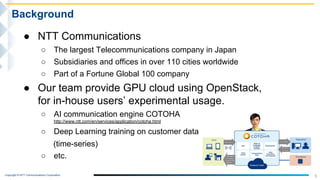
Background
● NTT Communications
○ The largest Telecommunications company in Japan
○ Subsidiaries and offices in over 110 cities worldwide
○ Part of a Fortune Global 100 company
● Our team provide GPU cloud using OpenStack,
for in-house users’ experimental usage.
○ AI communication engine COTOHA
http://www.ntt.com/en/services/application/cotoha.html
○ Deep Learning training on customer data
(time-series)
○ etc.
Copyright © NTT Communications Corporation.
6
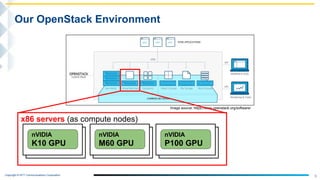
Our OpenStack Environment
nVIDIA
K10 GPU
x86 servers (as compute nodes)
nVIDIA
M60 GPU
nVIDIA
P100 GPU
Image source: https://www.openstack.org/software/
Copyright © NTT Communications Corporation.
7
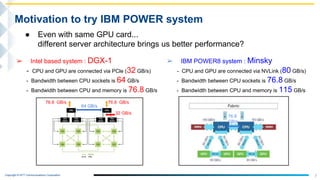
Motivation to try IBM POWER system
➢ Intel based system : DGX-1
- CPU and GPU are connected via PCle (32 GB/s)
- Bandwidth between CPU sockets is 64 GB/s
- Bandwidth between CPU and memory is 76.8 GB/s
➢ IBM POWER8 system : Minsky
- CPU and GPU are connected via NVLink (80 GB/s)
- Bandwidth between CPU sockets is 76.8 GB/s
- Bandwidth between CPU and memory is 115 GB/s
32 GB/s
64 GB/s
76.8 GB/s76.8 GB/s
● Even with same GPU card...
different server architecture brings us better performance?
76.8
GB/s
Copyright © NTT Communications Corporation.
8
Goal
How can we boost more
performance with POWER?
Copyright © NTT Communications Corporation.
9
Agenda
● Background
○ Our OpenStack GPU cloud
○ Motivation for using POWER server
● Goal
○ Can we boost more performance with POWER?
● Approach
○ Unleash POWER’s full performance as Baremetal server
○ Integrate POWER server into OpenStack Cloud
● Conclusion
● Another choice: Kubernetes
Copyright © NTT Communications Corporation.
- nbody is kind of cuda sample program.
- This program can calculate single precision and double precision by
using GPU and the results are displayed in GFLOPS.
- It can be also calculated by CPU only.
10
Benchmark program: nbody
$ ./nbody -benchmark -numbodies=2048000 -numdevices=1
-benchmark : (run benchmark to measure performance)
-numbodies : (number of bodies (>= 1) to run in simulation)
(for GPU benchmark:2048000, for CPU benchmark:20480)
-numdevice : (where i=(number of CUDA devices > 0) to use for simulation)
-cpu : (run n-body simulation on the CPU)]
-fp64 : (use double precision floating point values for simulation)
Copyright © NTT Communications Corporation.
11
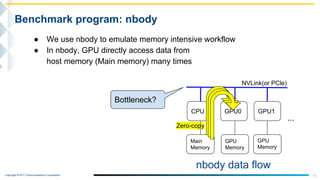
Benchmark program: nbody
Zero-copy
CPU GPU1GPU0
Main
Memory
GPU
Memory
GPU
Memory
NVLink(or PCle)
...
● We use nbody to emulate memory intensive workflow
● In nbody, GPU directly access data from
host memory (Main memory) many times
Bottleneck?
nbody data flow
Copyright © NTT Communications Corporation.
12
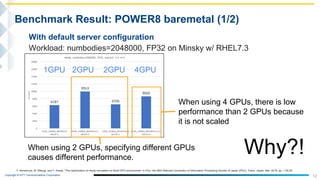
Benchmark Result: POWER8 baremetal (1/2)
With default server configuration
Workload: numbodies=2048000, FP32 on Minsky w/ RHEL7.3
When using 2 GPUs, specifying different GPUs
causes different performance.
T. Kamenoue, M. Mitsugi, and Y. Kawai, "The optimization of nbody simulation on Multi-GPU environment” in Proc. the 80th National Convention of Information Processing Society of Japan (IPSJ), Tokyo, Japan, Mar. 2018, pp. 1-25,26.
When using 4 GPUs, there is low
performance than 2 GPUs because
it is not scaled
Why?!
1GPU 2GPU 2GPU 4GPU
Copyright © NTT Communications Corporation.
13
A Solution : Memory Interleave
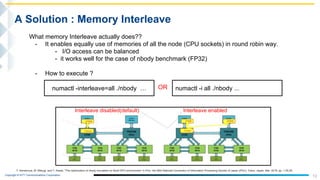
What memory Interleave actually does??
- It enables equally use of memories of all the node (CPU sockets) in round robin way.
- I/O access can be balanced
- it works well for the case of nbody benchmark (FP32)
- How to execute ?
numactl -interleave=all ./nbody … numactl -i all ./nbody ...OR
Interleave disabled(default) Interleave enabled
T. Kamenoue, M. Mitsugi, and Y. Kawai, "The optimization of nbody simulation on Multi-GPU environment” in Proc. the 80th National Convention of Information Processing Society of Japan (IPSJ), Tokyo, Japan, Mar. 2018, pp. 1-25,26.
Copyright © NTT Communications Corporation.
14
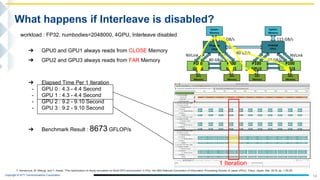
What happens if Interleave is disabled?
T. Kamenoue, M. Mitsugi, and Y. Kawai, "The optimization of nbody simulation on Multi-GPU environment” in Proc. the 80th National Convention of Information Processing Society of Japan (IPSJ), Tokyo, Japan, Mar. 2018, pp. 1-25,26.
workload : FP32, numbodies=2048000, 4GPU, Interleave disabled
➔ GPU0 and GPU1 always reads from CLOSE Memory
➔ GPU2 and GPU3 always reads from FAR Memory
➔ Elapsed Time Per 1 Iteration
- GPU 0 : 4.3 - 4.4 Second
- GPU 1 : 4.3 - 4.4 Second
- GPU 2 : 9.2 - 9.10 Second
- GPU 3 : 9.2 - 9.10 Second
➔ Benchmark Result : 8673 GFLOP/s
1 Iteration
Copyright © NTT Communications Corporation.
15
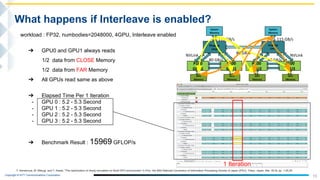
What happens if Interleave is enabled?
T. Kamenoue, M. Mitsugi, and Y. Kawai, "The optimization of nbody simulation on Multi-GPU environment” in Proc. the 80th National Convention of Information Processing Society of Japan (IPSJ), Tokyo, Japan, Mar. 2018, pp. 1-25,26.
workload : FP32, numbodies=2048000, 4GPU, Interleave enabled
➔ GPU0 and GPU1 always reads
1/2 data from CLOSE Memory
1/2 data from FAR Memory
➔ All GPUs read same as above
➔ Elapsed Time Per 1 Iteration
- GPU 0 : 5.2 - 5.3 Second
- GPU 1 : 5.2 - 5.3 Second
- GPU 2 : 5.2 - 5.3 Second
- GPU 3 : 5.2 - 5.3 Second
➔ Benchmark Result : 15969 GFLOP/s
1 Iteration
Copyright © NTT Communications Corporation.
16
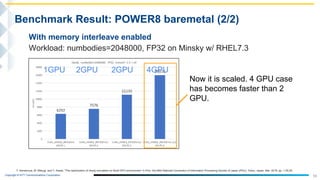
Benchmark Result: POWER8 baremetal (2/2)
T. Kamenoue, M. Mitsugi, and Y. Kawai, "The optimization of nbody simulation on Multi-GPU environment” in Proc. the 80th National Convention of Information Processing Society of Japan (IPSJ), Tokyo, Japan, Mar. 2018, pp. 1-25,26.
Now it is scaled. 4 GPU case
has becomes faster than 2
GPU.
With memory interleave enabled
Workload: numbodies=2048000, FP32 on Minsky w/ RHEL7.3
1GPU 2GPU 2GPU 4GPU
Copyright © NTT Communications Corporation.
17
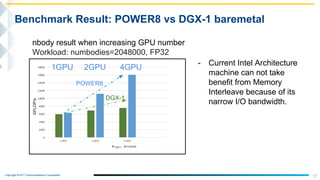
Benchmark Result: POWER8 vs DGX-1 baremetal
- Current Intel Architecture
machine can not take
benefit from Memory
Interleave because of its
narrow I/O bandwidth.
GFLOP/s
POWER8
DGX-1
nbody result when increasing GPU number
Workload: numbodies=2048000, FP32
1GPU 2GPU 4GPU
Copyright © NTT Communications Corporation.
18
Agenda
● Background
○ Our OpenStack GPU cloud
○ Motivation for using POWER server
● Goal
○ Can we boost more performance with POWER?
● Approach
○ Unleash POWER’s full performance as Baremetal server
○ Integrate POWER server into OpenStack Cloud
● Conclusion
● Another choice: Kubernetes
Copyright © NTT Communications Corporation.
19
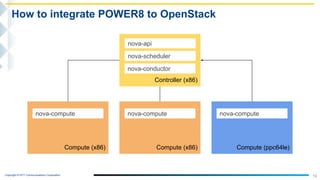
How to integrate POWER8 to OpenStack
Controller (x86)
nova-api
nova-scheduler
nova-conductor
Compute (x86)
nova-compute
Compute (x86)
nova-compute
Compute (ppc64le)
nova-compute
Copyright © NTT Communications Corporation.
20
How to integrate POWER8 to OpenStack
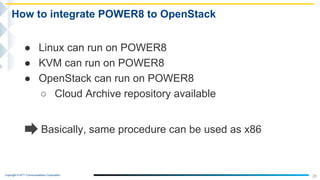
● Linux can run on POWER8
● KVM can run on POWER8
● OpenStack can run on POWER8
○ Cloud Archive repository available
Basically, same procedure can be used as x86
Copyright © NTT Communications Corporation.
21
How to integrate POWER8 to OpenStack
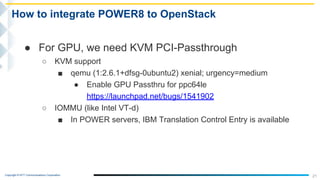
● For GPU, we need KVM PCI-Passthrough
○ KVM support
■ qemu (1:2.6.1+dfsg-0ubuntu2) xenial; urgency=medium
● Enable GPU Passthru for ppc64le
https://launchpad.net/bugs/1541902
○ IOMMU (like Intel VT-d)
■ In POWER servers, IBM Translation Control Entry is available
Copyright © NTT Communications Corporation.
22
How to integrate POWER8 to OpenStack
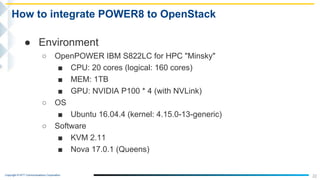
● Environment
○ OpenPOWER IBM S822LC for HPC "Minsky"
■ CPU: 20 cores (logical: 160 cores)
■ MEM: 1TB
■ GPU: NVIDIA P100 * 4 (with NVLink)
○ OS
■ Ubuntu 16.04.4 (kernel: 4.15.0-13-generic)
○ Software
■ KVM 2.11
■ Nova 17.0.1 (Queens)
Copyright © NTT Communications Corporation.
23
How to integrate POWER8 to OpenStack
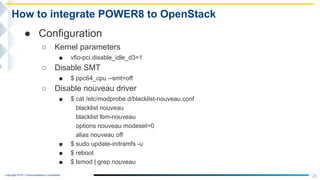
● Configuration
○ Kernel parameters
■ vfio-pci.disable_idle_d3=1
○ Disable SMT
■ $ ppc64_cpu --smt=off
○ Disable nouveau driver
■ $ cat /etc/modprobe.d/blacklist-nouveau.conf
blacklist nouveau
blacklist lbm-nouveau
options nouveau modeset=0
alias nouveau off
■ $ sudo update-initramfs -u
■ $ reboot
■ $ lsmod | grep nouveau
Copyright © NTT Communications Corporation.
24
How to integrate POWER8 to OpenStack
● Nova Configuration
○ Compute node
■ Ensure PCI device id
● $ lspci -nn | grep -i nvidia
0002:01:00.0 3D controller [0302]: NVIDIA Corporation Device [10de:15f9] (rev a1)
■ nova.conf
● [default]
pci_passthrough_whitelist={"vendor_id":"10de","product_id":"15f9"}
○ Controller node
■ nova.conf
● [default]
pci_alias= {"vendor_id":"10de", "product_id":"15f9", "name": "P100"}
● [filter_scheduler]
enabled_filters = …,PciPassthroughFilter
Copyright © NTT Communications Corporation.
25
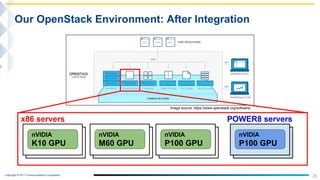
Our OpenStack Environment: After Integration
nVIDIA
K10 GPU
x86 servers POWER8 servers
nVIDIA
M60 GPU
nVIDIA
P100 GPU
Image source: https://www.openstack.org/software/
nVIDIA
P100 GPU
Copyright © NTT Communications Corporation.
26
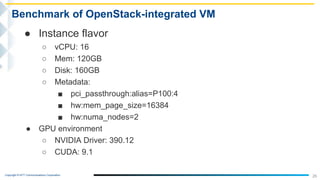
Benchmark of OpenStack-integrated VM
● Instance flavor
○ vCPU: 16
○ Mem: 120GB
○ Disk: 160GB
○ Metadata:
■ pci_passthrough:alias=P100:4
■ hw:mem_page_size=16384
■ hw:numa_nodes=2
● GPU environment
○ NVIDIA Driver: 390.12
○ CUDA: 9.1
Copyright © NTT Communications Corporation.
27
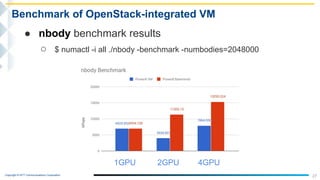
Benchmark of OpenStack-integrated VM
● nbody benchmark results
○ $ numactl -i all ./nbody -benchmark -numbodies=2048000
1GPU 2GPU 4GPU
Copyright © NTT Communications Corporation.
28
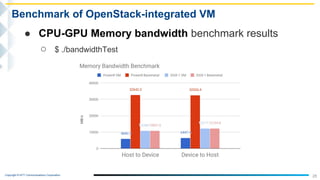
Benchmark of OpenStack-integrated VM
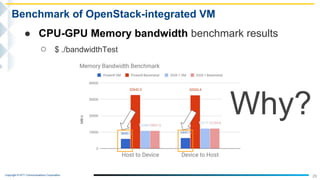
● CPU-GPU Memory bandwidth benchmark results
○ $ ./bandwidthTest
Copyright © NTT Communications Corporation.
29
Benchmark of OpenStack-integrated VM
● CPU-GPU Memory bandwidth benchmark results
○ $ ./bandwidthTest
Why?
Copyright © NTT Communications Corporation.
Linux recognizePhysical
30
Benchmark of OpenStack-integrated VM
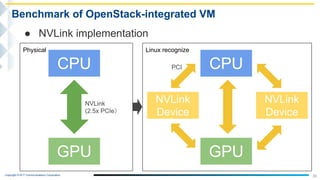
● NVLink implementation
CPU
GPU
NVLink
(2.5x PCIe)
CPU
GPU
NVLink
Device
NVLink
Device
PCI
Copyright © NTT Communications Corporation. 31
Benchmark of OpenStack-integrated VM
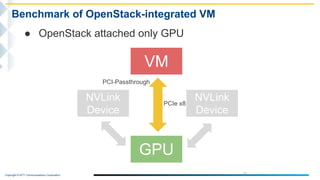
● OpenStack attached only GPU
VM
GPU
NVLink
Device
NVLink
Device
PCI-Passthrough
PCIe x8
Copyright © NTT Communications Corporation. 32
Benchmark of OpenStack-integrated VM
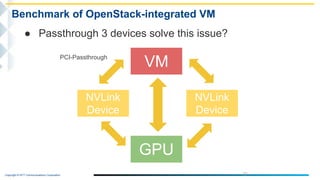
● Passthrough 3 devices solve this issue?
VM
GPU
NVLink
Device
NVLink
Device
PCI-Passthrough
Copyright © NTT Communications Corporation.
33
Benchmark of OpenStack-integrated VM
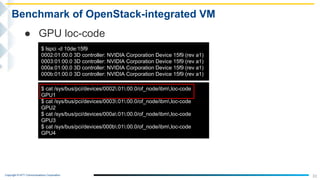
● GPU loc-code
$ lspci -d 10de:15f9
0002:01:00.0 3D controller: NVIDIA Corporation Device 15f9 (rev a1)
0003:01:00.0 3D controller: NVIDIA Corporation Device 15f9 (rev a1)
000a:01:00.0 3D controller: NVIDIA Corporation Device 15f9 (rev a1)
000b:01:00.0 3D controller: NVIDIA Corporation Device 15f9 (rev a1)
$ cat /sys/bus/pci/devices/0002:01:00.0/of_node/ibm,loc-code
GPU1
$ cat /sys/bus/pci/devices/0003:01:00.0/of_node/ibm,loc-code
GPU2
$ cat /sys/bus/pci/devices/000a:01:00.0/of_node/ibm,loc-code
GPU3
$ cat /sys/bus/pci/devices/000b:01:00.0/of_node/ibm,loc-code
GPU4
Copyright © NTT Communications Corporation.
34
Benchmark of OpenStack-integrated VM
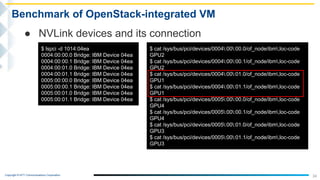
● NVLink devices and its connection
$ lspci -d 1014:04ea
0004:00:00.0 Bridge: IBM Device 04ea
0004:00:00.1 Bridge: IBM Device 04ea
0004:00:01.0 Bridge: IBM Device 04ea
0004:00:01.1 Bridge: IBM Device 04ea
0005:00:00.0 Bridge: IBM Device 04ea
0005:00:00.1 Bridge: IBM Device 04ea
0005:00:01.0 Bridge: IBM Device 04ea
0005:00:01.1 Bridge: IBM Device 04ea
$ cat /sys/bus/pci/devices/0004:00:00.0/of_node/ibm,loc-code
GPU2
$ cat /sys/bus/pci/devices/0004:00:00.1/of_node/ibm,loc-code
GPU2
$ cat /sys/bus/pci/devices/0004:00:01.0/of_node/ibm,loc-code
GPU1
$ cat /sys/bus/pci/devices/0004:00:01.1/of_node/ibm,loc-code
GPU1
$ cat /sys/bus/pci/devices/0005:00:00.0/of_node/ibm,loc-code
GPU4
$ cat /sys/bus/pci/devices/0005:00:00.1/of_node/ibm,loc-code
GPU4
$ cat /sys/bus/pci/devices/0005:00:01.0/of_node/ibm,loc-code
GPU3
$ cat /sys/bus/pci/devices/0005:00:01.1/of_node/ibm,loc-code
GPU3
Copyright © NTT Communications Corporation.
35
Benchmark of OpenStack-integrated VM
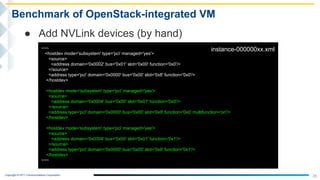
● Add NVLink devices (by hand)
~~~
<hostdev mode='subsystem' type='pci' managed='yes'>
<source>
<address domain='0x0002' bus='0x01' slot='0x00' function='0x0'/>
</source>
<address type='pci' domain='0x0000' bus='0x00' slot='0x8' function='0x0'/>
</hostdev>
<hostdev mode='subsystem' type='pci' managed='yes'>
<source>
<address domain='0x0004' bus='0x00' slot='0x01' function='0x0'/>
</source>
<address type='pci' domain='0x0000' bus='0x00' slot='0x9' function='0x0' multifunction='on'/>
</hostdev>
<hostdev mode='subsystem' type='pci' managed='yes'>
<source>
<address domain='0x0004' bus='0x00' slot='0x01' function='0x1'/>
</source>
<address type='pci' domain='0x0000' bus='0x00' slot='0x9' function='0x1'/>
</hostdev>
~~~
instance-000000xx.xml
Copyright © NTT Communications Corporation.
36
Benchmark of OpenStack-integrated VM
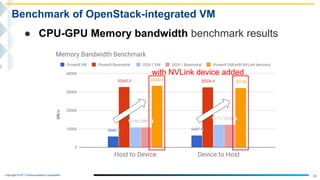
● CPU-GPU Memory bandwidth benchmark results
with NVLink device added
Copyright © NTT Communications Corporation.
37
Benchmark of OpenStack-integrated VM
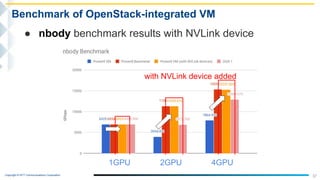
● nbody benchmark results with NVLink device
with NVLink device added
1GPU 2GPU 4GPU
Copyright © NTT Communications Corporation.
1014:04ea pool 10de:15f9 pool
38
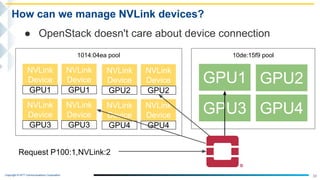
How can we manage NVLink devices?
● OpenStack doesn't care about device connection
NVLink
Device
GPU1
NVLink
Device
GPU1
NVLink
Device
GPU3
NVLink
Device
GPU3
NVLink
Device
GPU2
NVLink
Device
GPU2
NVLink
Device
GPU4
NVLink
Device
GPU4
GPU1
GPU3
GPU2
GPU4
Request P100:1,NVLink:2
Copyright © NTT Communications Corporation.
device_set_p100 pool
39
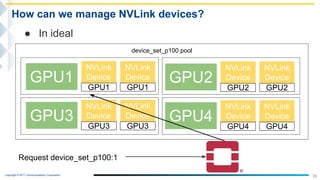
How can we manage NVLink devices?
● In ideal
NVLink
Device
GPU1
NVLink
Device
GPU1
GPU1
Request device_set_p100:1
NVLink
Device
GPU3
NVLink
Device
GPU3
GPU3
NVLink
Device
GPU2
NVLink
Device
GPU2
GPU2
NVLink
Device
GPU4
NVLink
Device
GPU4
GPU4
Copyright © NTT Communications Corporation.
40
How can we manage NVLink devices?
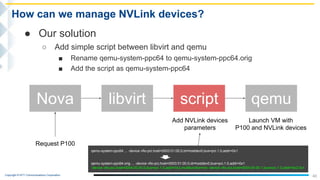
● Our solution
○ Add simple script between libvirt and qemu
■ Rename qemu-system-ppc64 to qemu-system-ppc64.orig
■ Add the script as qemu-system-ppc64
Nova libvirt qemuscript
Add NVLink devices
parameters
Request P100
Launch VM with
P100 and NVLink devices
qemu-system-ppc64 ... -device vfio-pci,host=0003:01:00.0,id=hostdev0,bus=pci.1.0,addr=0x1
qemu-system-ppc64.orig ... -device vfio-pci,host=0003:01:00.0,id=hostdev0,bus=pci.1.0,addr=0x1
-device vfio-pci,host=0004:00:00.0,bus=pci.1.0,addr=0x2,multifunction=on -device vfio-pci,host=0004:00:00.1,bus=pci.1.0,addr=0x2.0x1
Copyright © NTT Communications Corporation.
41
Agenda
● Background
○ Our OpenStack GPU cloud
○ Motivation for using POWER server
● Goal
○ Can we boost more performance with POWER?
● Approach
○ Unleash POWER’s full performance as Baremetal server
○ Integrate POWER server into OpenStack Cloud
● Conclusion
● Another choice: Kubernetes
Copyright © NTT Communications Corporation.
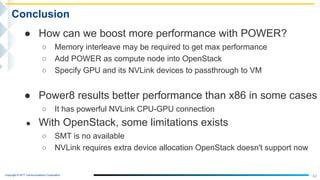
● How can we boost more performance with POWER?
○ Memory interleave may be required to get max performance
○ Add POWER as compute node into OpenStack
○ Specify GPU and its NVLink devices to passthrough to VM
● Power8 results better performance than x86 in some cases
○ It has powerful NVLink CPU-GPU connection
● With OpenStack, some limitations exists
○ SMT is no available
○ NVLink requires extra device allocation OpenStack doesn't support now
42
Conclusion
Copyright © NTT Communications Corporation.
43
Agenda
● Background
○ Our OpenStack GPU cloud
○ Motivation for using POWER server
● Goal
○ Can we boost more performance with POWER?
● Approach
○ Unleash POWER’s full performance as Baremetal server
○ Integrate POWER server into OpenStack Cloud
● Conclusion
● Another choice: Kubernetes
Copyright © NTT Communications Corporation.
44
Another option
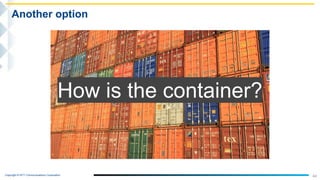
How is the container?
Copyright © NTT Communications Corporation.
45
Another option
● How to manage containers and GPUs
Copyright © NTT Communications Corporation.
46
Another option
● Kubernetes
○ schedules containers
○ can integrate with OpenStack
○ supports GPU scheduler
■ requirements
● NVIDIA drivers ~= 361.93
● Device Plugin feature
● NVIDIA device plugin for Kubernetes
● nvidia-docker
Copyright © NTT Communications Corporation.
47
Another option
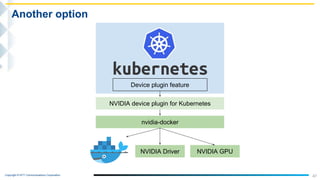
Device plugin feature
NVIDIA device plugin for Kubernetes
nvidia-docker
NVIDIA Driver NVIDIA GPU
Copyright © NTT Communications Corporation.
48
Another option
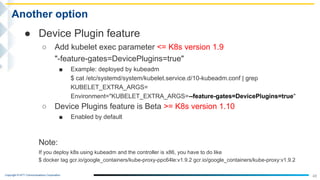
● Device Plugin feature
○ Add kubelet exec parameter <= K8s version 1.9
"-feature-gates=DevicePlugins=true"
■ Example: deployed by kubeadm
$ cat /etc/systemd/system/kubelet.service.d/10-kubeadm.conf | grep
KUBELET_EXTRA_ARGS=
Environment="KUBELET_EXTRA_ARGS=--feature-gates=DevicePlugins=true"
○ Device Plugins feature is Beta >= K8s version 1.10
■ Enabled by default
Note:
If you deploy k8s using kubeadm and the controller is x86, you have to do like
$ docker tag gcr.io/google_containers/kube-proxy-ppc64le:v1.9.2 gcr.io/google_containers/kube-proxy:v1.9.2
Copyright © NTT Communications Corporation.
49
Another option
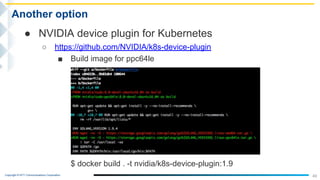
● NVIDIA device plugin for Kubernetes
○ https://github.com/NVIDIA/k8s-device-plugin
■ Build image for ppc64le
$ docker build . -t nvidia/k8s-device-plugin:1.9
Copyright © NTT Communications Corporation.
50
Another option
● nvidia-docker (2.0)
○ supports NVLink devices
○ ppc64le packages are not available yet
○ nvidia-docker depends on following packages
■ libnvidia-container
https://github.com/NVIDIA/libnvidia-container
■ nvidia-container-runtime
https://github.com/NVIDIA/nvidia-container-runtime
○ can be installed using nvidia official repository now
https://nvidia.github.io/nvidia-docker/
Copyright © NTT Communications Corporation.
51
Another option
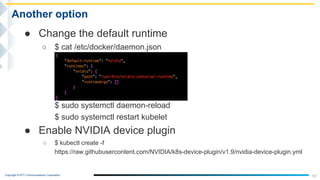
● Change the default runtime
○ $ cat /etc/docker/daemon.json
$ sudo systemctl daemon-reload
$ sudo systemctl restart kubelet
● Enable NVIDIA device plugin
○ $ kubectl create -f
https://raw.githubusercontent.com/NVIDIA/k8s-device-plugin/v1.9/nvidia-device-plugin.yml
Copyright © NTT Communications Corporation.
52
Another option
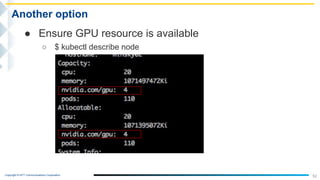
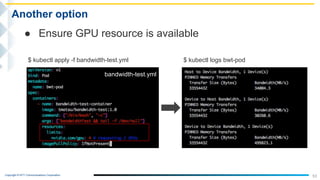
● Ensure GPU resource is available
○ $ kubectl describe node
Copyright © NTT Communications Corporation.
53
Another option
● Ensure GPU resource is available
bandwidth-test.yml
$ kubectl apply -f bandwidth-test.yml $ kubectl logs bwt-pod
Copyright © NTT Communications Corporation.
54
Another option
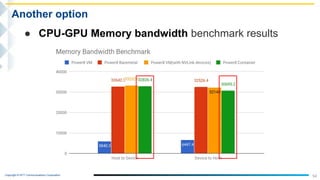
● CPU-GPU Memory bandwidth benchmark results
Copyright © NTT Communications Corporation.
55
Thank you!
Copyright © NTT Communications Corporation.
56
References
● OpenStack Docs: Attaching physical PCI devices to guests
○ https://docs.openstack.org/nova/pike/admin/pci-passthrough.html
● Device Plugins - Kubernetes
○ https://kubernetes.io/docs/concepts/cluster-administration/device-plugins/
● Feature Gates | Kubernetes
○ https://kubernetes.io/docs/reference/feature-gates/
● GitHub - NVIDIA/k8s-device-plugin
○ https://github.com/NVIDIA/k8s-device-plugin
● GitHub - NVIDIA/nvidia-docker
○ https://github.com/NVIDIA/nvidia-docker

Can we boost more HPC performance? Integrate IBM POWER servers with GPUs to OpenStack Environment

  • 1.
    Copyright © NTTCommunications Corporation. Transform your business, transcend expectations with our technologically advanced solutions. Can we boost more HPC performance? Integrate IBM POWER servers with GPUs to OpenStack Environment Ankit Purohit, Takeaki Matsumoto
  • 2.
    Copyright © NTTCommunications Corporation. 1 Self-Introduction Takeaki Matsumoto takeaki.matsumoto@ntt.com NTT Communications Technology Development R&D for OpenStack Ops for Private Cloud Ankit Purohit a.purohit@ntt.com NTT Communications Technology Development High Performance Computing GPU
  • 3.
    Copyright © NTTCommunications Corporation. ● March 19, 2018 at Las Vegas ● OpenPOWER Summit Website: https://openpowerfoundation.org/summit-2018-03-us/ ● Co-speaker : Yutaka Kawai, IBM Japan ● Our Talk’s Video: https://www.youtube.com/watch?v=L4g6SmTGcOU&feature=youtu.be 2 Previous talk at OpenPOWER Summit 2018
  • 4.
    Copyright © NTTCommunications Corporation. 3 Agenda ● Background ○ Our OpenStack GPU cloud ○ Motivation for using POWER server ● Goal ○ Can we boost more performance with POWER? ● Approach ○ Unleash POWER’s full performance as Baremetal server ○ Integrate POWER server into OpenStack Cloud ● Conclusion ● Another choice: Kubernetes
  • 5.
    Copyright © NTTCommunications Corporation. 4 Agenda ● Background ○ Our OpenStack GPU cloud ○ Motivation for using POWER server ● Goal ○ Can we boost more performance with POWER? ● Approach ○ Unleash POWER’s full performance as Baremetal server ○ Integrate POWER server into OpenStack Cloud ● Conclusion ● Another choice: Kubernetes
  • 6.
    Copyright © NTTCommunications Corporation. 5 Background ● NTT Communications ○ The largest Telecommunications company in Japan ○ Subsidiaries and offices in over 110 cities worldwide ○ Part of a Fortune Global 100 company ● Our team provide GPU cloud using OpenStack, for in-house users’ experimental usage. ○ AI communication engine COTOHA http://www.ntt.com/en/services/application/cotoha.html ○ Deep Learning training on customer data (time-series) ○ etc.
  • 7.
    Copyright © NTTCommunications Corporation. 6 Our OpenStack Environment nVIDIA K10 GPU x86 servers (as compute nodes) nVIDIA M60 GPU nVIDIA P100 GPU Image source: https://www.openstack.org/software/
  • 8.
    Copyright © NTTCommunications Corporation. 7 Motivation to try IBM POWER system ➢ Intel based system : DGX-1 - CPU and GPU are connected via PCle (32 GB/s) - Bandwidth between CPU sockets is 64 GB/s - Bandwidth between CPU and memory is 76.8 GB/s ➢ IBM POWER8 system : Minsky - CPU and GPU are connected via NVLink (80 GB/s) - Bandwidth between CPU sockets is 76.8 GB/s - Bandwidth between CPU and memory is 115 GB/s 32 GB/s 64 GB/s 76.8 GB/s76.8 GB/s ● Even with same GPU card... different server architecture brings us better performance? 76.8 GB/s
  • 9.
    Copyright © NTTCommunications Corporation. 8 Goal How can we boost more performance with POWER?
  • 10.
    Copyright © NTTCommunications Corporation. 9 Agenda ● Background ○ Our OpenStack GPU cloud ○ Motivation for using POWER server ● Goal ○ Can we boost more performance with POWER? ● Approach ○ Unleash POWER’s full performance as Baremetal server ○ Integrate POWER server into OpenStack Cloud ● Conclusion ● Another choice: Kubernetes
  • 11.
    Copyright © NTTCommunications Corporation. - nbody is kind of cuda sample program. - This program can calculate single precision and double precision by using GPU and the results are displayed in GFLOPS. - It can be also calculated by CPU only. 10 Benchmark program: nbody $ ./nbody -benchmark -numbodies=2048000 -numdevices=1 -benchmark : (run benchmark to measure performance) -numbodies : (number of bodies (>= 1) to run in simulation) (for GPU benchmark:2048000, for CPU benchmark:20480) -numdevice : (where i=(number of CUDA devices > 0) to use for simulation) -cpu : (run n-body simulation on the CPU)] -fp64 : (use double precision floating point values for simulation)
  • 12.
    Copyright © NTTCommunications Corporation. 11 Benchmark program: nbody Zero-copy CPU GPU1GPU0 Main Memory GPU Memory GPU Memory NVLink(or PCle) ... ● We use nbody to emulate memory intensive workflow ● In nbody, GPU directly access data from host memory (Main memory) many times Bottleneck? nbody data flow
  • 13.
    Copyright © NTTCommunications Corporation. 12 Benchmark Result: POWER8 baremetal (1/2) With default server configuration Workload: numbodies=2048000, FP32 on Minsky w/ RHEL7.3 When using 2 GPUs, specifying different GPUs causes different performance. T. Kamenoue, M. Mitsugi, and Y. Kawai, "The optimization of nbody simulation on Multi-GPU environment” in Proc. the 80th National Convention of Information Processing Society of Japan (IPSJ), Tokyo, Japan, Mar. 2018, pp. 1-25,26. When using 4 GPUs, there is low performance than 2 GPUs because it is not scaled Why?! 1GPU 2GPU 2GPU 4GPU
  • 14.
    Copyright © NTTCommunications Corporation. 13 A Solution : Memory Interleave What memory Interleave actually does?? - It enables equally use of memories of all the node (CPU sockets) in round robin way. - I/O access can be balanced - it works well for the case of nbody benchmark (FP32) - How to execute ? numactl -interleave=all ./nbody … numactl -i all ./nbody ...OR Interleave disabled(default) Interleave enabled T. Kamenoue, M. Mitsugi, and Y. Kawai, "The optimization of nbody simulation on Multi-GPU environment” in Proc. the 80th National Convention of Information Processing Society of Japan (IPSJ), Tokyo, Japan, Mar. 2018, pp. 1-25,26.
  • 15.
    Copyright © NTTCommunications Corporation. 14 What happens if Interleave is disabled? T. Kamenoue, M. Mitsugi, and Y. Kawai, "The optimization of nbody simulation on Multi-GPU environment” in Proc. the 80th National Convention of Information Processing Society of Japan (IPSJ), Tokyo, Japan, Mar. 2018, pp. 1-25,26. workload : FP32, numbodies=2048000, 4GPU, Interleave disabled ➔ GPU0 and GPU1 always reads from CLOSE Memory ➔ GPU2 and GPU3 always reads from FAR Memory ➔ Elapsed Time Per 1 Iteration - GPU 0 : 4.3 - 4.4 Second - GPU 1 : 4.3 - 4.4 Second - GPU 2 : 9.2 - 9.10 Second - GPU 3 : 9.2 - 9.10 Second ➔ Benchmark Result : 8673 GFLOP/s 1 Iteration
  • 16.
    Copyright © NTTCommunications Corporation. 15 What happens if Interleave is enabled? T. Kamenoue, M. Mitsugi, and Y. Kawai, "The optimization of nbody simulation on Multi-GPU environment” in Proc. the 80th National Convention of Information Processing Society of Japan (IPSJ), Tokyo, Japan, Mar. 2018, pp. 1-25,26. workload : FP32, numbodies=2048000, 4GPU, Interleave enabled ➔ GPU0 and GPU1 always reads 1/2 data from CLOSE Memory 1/2 data from FAR Memory ➔ All GPUs read same as above ➔ Elapsed Time Per 1 Iteration - GPU 0 : 5.2 - 5.3 Second - GPU 1 : 5.2 - 5.3 Second - GPU 2 : 5.2 - 5.3 Second - GPU 3 : 5.2 - 5.3 Second ➔ Benchmark Result : 15969 GFLOP/s 1 Iteration
  • 17.
    Copyright © NTTCommunications Corporation. 16 Benchmark Result: POWER8 baremetal (2/2) T. Kamenoue, M. Mitsugi, and Y. Kawai, "The optimization of nbody simulation on Multi-GPU environment” in Proc. the 80th National Convention of Information Processing Society of Japan (IPSJ), Tokyo, Japan, Mar. 2018, pp. 1-25,26. Now it is scaled. 4 GPU case has becomes faster than 2 GPU. With memory interleave enabled Workload: numbodies=2048000, FP32 on Minsky w/ RHEL7.3 1GPU 2GPU 2GPU 4GPU
  • 18.
    Copyright © NTTCommunications Corporation. 17 Benchmark Result: POWER8 vs DGX-1 baremetal - Current Intel Architecture machine can not take benefit from Memory Interleave because of its narrow I/O bandwidth. GFLOP/s POWER8 DGX-1 nbody result when increasing GPU number Workload: numbodies=2048000, FP32 1GPU 2GPU 4GPU
  • 19.
    Copyright © NTTCommunications Corporation. 18 Agenda ● Background ○ Our OpenStack GPU cloud ○ Motivation for using POWER server ● Goal ○ Can we boost more performance with POWER? ● Approach ○ Unleash POWER’s full performance as Baremetal server ○ Integrate POWER server into OpenStack Cloud ● Conclusion ● Another choice: Kubernetes
  • 20.
    Copyright © NTTCommunications Corporation. 19 How to integrate POWER8 to OpenStack Controller (x86) nova-api nova-scheduler nova-conductor Compute (x86) nova-compute Compute (x86) nova-compute Compute (ppc64le) nova-compute
  • 21.
    Copyright © NTTCommunications Corporation. 20 How to integrate POWER8 to OpenStack ● Linux can run on POWER8 ● KVM can run on POWER8 ● OpenStack can run on POWER8 ○ Cloud Archive repository available Basically, same procedure can be used as x86
  • 22.
    Copyright © NTTCommunications Corporation. 21 How to integrate POWER8 to OpenStack ● For GPU, we need KVM PCI-Passthrough ○ KVM support ■ qemu (1:2.6.1+dfsg-0ubuntu2) xenial; urgency=medium ● Enable GPU Passthru for ppc64le https://launchpad.net/bugs/1541902 ○ IOMMU (like Intel VT-d) ■ In POWER servers, IBM Translation Control Entry is available
  • 23.
    Copyright © NTTCommunications Corporation. 22 How to integrate POWER8 to OpenStack ● Environment ○ OpenPOWER IBM S822LC for HPC "Minsky" ■ CPU: 20 cores (logical: 160 cores) ■ MEM: 1TB ■ GPU: NVIDIA P100 * 4 (with NVLink) ○ OS ■ Ubuntu 16.04.4 (kernel: 4.15.0-13-generic) ○ Software ■ KVM 2.11 ■ Nova 17.0.1 (Queens)
  • 24.
    Copyright © NTTCommunications Corporation. 23 How to integrate POWER8 to OpenStack ● Configuration ○ Kernel parameters ■ vfio-pci.disable_idle_d3=1 ○ Disable SMT ■ $ ppc64_cpu --smt=off ○ Disable nouveau driver ■ $ cat /etc/modprobe.d/blacklist-nouveau.conf blacklist nouveau blacklist lbm-nouveau options nouveau modeset=0 alias nouveau off ■ $ sudo update-initramfs -u ■ $ reboot ■ $ lsmod | grep nouveau
  • 25.
    Copyright © NTTCommunications Corporation. 24 How to integrate POWER8 to OpenStack ● Nova Configuration ○ Compute node ■ Ensure PCI device id ● $ lspci -nn | grep -i nvidia 0002:01:00.0 3D controller [0302]: NVIDIA Corporation Device [10de:15f9] (rev a1) ■ nova.conf ● [default] pci_passthrough_whitelist={"vendor_id":"10de","product_id":"15f9"} ○ Controller node ■ nova.conf ● [default] pci_alias= {"vendor_id":"10de", "product_id":"15f9", "name": "P100"} ● [filter_scheduler] enabled_filters = …,PciPassthroughFilter
  • 26.
    Copyright © NTTCommunications Corporation. 25 Our OpenStack Environment: After Integration nVIDIA K10 GPU x86 servers POWER8 servers nVIDIA M60 GPU nVIDIA P100 GPU Image source: https://www.openstack.org/software/ nVIDIA P100 GPU
  • 27.
    Copyright © NTTCommunications Corporation. 26 Benchmark of OpenStack-integrated VM ● Instance flavor ○ vCPU: 16 ○ Mem: 120GB ○ Disk: 160GB ○ Metadata: ■ pci_passthrough:alias=P100:4 ■ hw:mem_page_size=16384 ■ hw:numa_nodes=2 ● GPU environment ○ NVIDIA Driver: 390.12 ○ CUDA: 9.1
  • 28.
    Copyright © NTTCommunications Corporation. 27 Benchmark of OpenStack-integrated VM ● nbody benchmark results ○ $ numactl -i all ./nbody -benchmark -numbodies=2048000 1GPU 2GPU 4GPU
  • 29.
    Copyright © NTTCommunications Corporation. 28 Benchmark of OpenStack-integrated VM ● CPU-GPU Memory bandwidth benchmark results ○ $ ./bandwidthTest
  • 30.
    Copyright © NTTCommunications Corporation. 29 Benchmark of OpenStack-integrated VM ● CPU-GPU Memory bandwidth benchmark results ○ $ ./bandwidthTest Why?
  • 31.
    Copyright © NTTCommunications Corporation. Linux recognizePhysical 30 Benchmark of OpenStack-integrated VM ● NVLink implementation CPU GPU NVLink (2.5x PCIe) CPU GPU NVLink Device NVLink Device PCI
  • 32.
    Copyright © NTTCommunications Corporation. 31 Benchmark of OpenStack-integrated VM ● OpenStack attached only GPU VM GPU NVLink Device NVLink Device PCI-Passthrough PCIe x8
  • 33.
    Copyright © NTTCommunications Corporation. 32 Benchmark of OpenStack-integrated VM ● Passthrough 3 devices solve this issue? VM GPU NVLink Device NVLink Device PCI-Passthrough
  • 34.
    Copyright © NTTCommunications Corporation. 33 Benchmark of OpenStack-integrated VM ● GPU loc-code $ lspci -d 10de:15f9 0002:01:00.0 3D controller: NVIDIA Corporation Device 15f9 (rev a1) 0003:01:00.0 3D controller: NVIDIA Corporation Device 15f9 (rev a1) 000a:01:00.0 3D controller: NVIDIA Corporation Device 15f9 (rev a1) 000b:01:00.0 3D controller: NVIDIA Corporation Device 15f9 (rev a1) $ cat /sys/bus/pci/devices/0002:01:00.0/of_node/ibm,loc-code GPU1 $ cat /sys/bus/pci/devices/0003:01:00.0/of_node/ibm,loc-code GPU2 $ cat /sys/bus/pci/devices/000a:01:00.0/of_node/ibm,loc-code GPU3 $ cat /sys/bus/pci/devices/000b:01:00.0/of_node/ibm,loc-code GPU4
  • 35.
    Copyright © NTTCommunications Corporation. 34 Benchmark of OpenStack-integrated VM ● NVLink devices and its connection $ lspci -d 1014:04ea 0004:00:00.0 Bridge: IBM Device 04ea 0004:00:00.1 Bridge: IBM Device 04ea 0004:00:01.0 Bridge: IBM Device 04ea 0004:00:01.1 Bridge: IBM Device 04ea 0005:00:00.0 Bridge: IBM Device 04ea 0005:00:00.1 Bridge: IBM Device 04ea 0005:00:01.0 Bridge: IBM Device 04ea 0005:00:01.1 Bridge: IBM Device 04ea $ cat /sys/bus/pci/devices/0004:00:00.0/of_node/ibm,loc-code GPU2 $ cat /sys/bus/pci/devices/0004:00:00.1/of_node/ibm,loc-code GPU2 $ cat /sys/bus/pci/devices/0004:00:01.0/of_node/ibm,loc-code GPU1 $ cat /sys/bus/pci/devices/0004:00:01.1/of_node/ibm,loc-code GPU1 $ cat /sys/bus/pci/devices/0005:00:00.0/of_node/ibm,loc-code GPU4 $ cat /sys/bus/pci/devices/0005:00:00.1/of_node/ibm,loc-code GPU4 $ cat /sys/bus/pci/devices/0005:00:01.0/of_node/ibm,loc-code GPU3 $ cat /sys/bus/pci/devices/0005:00:01.1/of_node/ibm,loc-code GPU3
  • 36.
    Copyright © NTTCommunications Corporation. 35 Benchmark of OpenStack-integrated VM ● Add NVLink devices (by hand) ~~~ <hostdev mode='subsystem' type='pci' managed='yes'> <source> <address domain='0x0002' bus='0x01' slot='0x00' function='0x0'/> </source> <address type='pci' domain='0x0000' bus='0x00' slot='0x8' function='0x0'/> </hostdev> <hostdev mode='subsystem' type='pci' managed='yes'> <source> <address domain='0x0004' bus='0x00' slot='0x01' function='0x0'/> </source> <address type='pci' domain='0x0000' bus='0x00' slot='0x9' function='0x0' multifunction='on'/> </hostdev> <hostdev mode='subsystem' type='pci' managed='yes'> <source> <address domain='0x0004' bus='0x00' slot='0x01' function='0x1'/> </source> <address type='pci' domain='0x0000' bus='0x00' slot='0x9' function='0x1'/> </hostdev> ~~~ instance-000000xx.xml
  • 37.
    Copyright © NTTCommunications Corporation. 36 Benchmark of OpenStack-integrated VM ● CPU-GPU Memory bandwidth benchmark results with NVLink device added
  • 38.
    Copyright © NTTCommunications Corporation. 37 Benchmark of OpenStack-integrated VM ● nbody benchmark results with NVLink device with NVLink device added 1GPU 2GPU 4GPU
  • 39.
    Copyright © NTTCommunications Corporation. 1014:04ea pool 10de:15f9 pool 38 How can we manage NVLink devices? ● OpenStack doesn't care about device connection NVLink Device GPU1 NVLink Device GPU1 NVLink Device GPU3 NVLink Device GPU3 NVLink Device GPU2 NVLink Device GPU2 NVLink Device GPU4 NVLink Device GPU4 GPU1 GPU3 GPU2 GPU4 Request P100:1,NVLink:2
  • 40.
    Copyright © NTTCommunications Corporation. device_set_p100 pool 39 How can we manage NVLink devices? ● In ideal NVLink Device GPU1 NVLink Device GPU1 GPU1 Request device_set_p100:1 NVLink Device GPU3 NVLink Device GPU3 GPU3 NVLink Device GPU2 NVLink Device GPU2 GPU2 NVLink Device GPU4 NVLink Device GPU4 GPU4
  • 41.
    Copyright © NTTCommunications Corporation. 40 How can we manage NVLink devices? ● Our solution ○ Add simple script between libvirt and qemu ■ Rename qemu-system-ppc64 to qemu-system-ppc64.orig ■ Add the script as qemu-system-ppc64 Nova libvirt qemuscript Add NVLink devices parameters Request P100 Launch VM with P100 and NVLink devices qemu-system-ppc64 ... -device vfio-pci,host=0003:01:00.0,id=hostdev0,bus=pci.1.0,addr=0x1 qemu-system-ppc64.orig ... -device vfio-pci,host=0003:01:00.0,id=hostdev0,bus=pci.1.0,addr=0x1 -device vfio-pci,host=0004:00:00.0,bus=pci.1.0,addr=0x2,multifunction=on -device vfio-pci,host=0004:00:00.1,bus=pci.1.0,addr=0x2.0x1
  • 42.
    Copyright © NTTCommunications Corporation. 41 Agenda ● Background ○ Our OpenStack GPU cloud ○ Motivation for using POWER server ● Goal ○ Can we boost more performance with POWER? ● Approach ○ Unleash POWER’s full performance as Baremetal server ○ Integrate POWER server into OpenStack Cloud ● Conclusion ● Another choice: Kubernetes
  • 43.
    Copyright © NTTCommunications Corporation. ● How can we boost more performance with POWER? ○ Memory interleave may be required to get max performance ○ Add POWER as compute node into OpenStack ○ Specify GPU and its NVLink devices to passthrough to VM ● Power8 results better performance than x86 in some cases ○ It has powerful NVLink CPU-GPU connection ● With OpenStack, some limitations exists ○ SMT is no available ○ NVLink requires extra device allocation OpenStack doesn't support now 42 Conclusion
  • 44.
    Copyright © NTTCommunications Corporation. 43 Agenda ● Background ○ Our OpenStack GPU cloud ○ Motivation for using POWER server ● Goal ○ Can we boost more performance with POWER? ● Approach ○ Unleash POWER’s full performance as Baremetal server ○ Integrate POWER server into OpenStack Cloud ● Conclusion ● Another choice: Kubernetes
  • 45.
    Copyright © NTTCommunications Corporation. 44 Another option How is the container?
  • 46.
    Copyright © NTTCommunications Corporation. 45 Another option ● How to manage containers and GPUs
  • 47.
    Copyright © NTTCommunications Corporation. 46 Another option ● Kubernetes ○ schedules containers ○ can integrate with OpenStack ○ supports GPU scheduler ■ requirements ● NVIDIA drivers ~= 361.93 ● Device Plugin feature ● NVIDIA device plugin for Kubernetes ● nvidia-docker
  • 48.
    Copyright © NTTCommunications Corporation. 47 Another option Device plugin feature NVIDIA device plugin for Kubernetes nvidia-docker NVIDIA Driver NVIDIA GPU
  • 49.
    Copyright © NTTCommunications Corporation. 48 Another option ● Device Plugin feature ○ Add kubelet exec parameter <= K8s version 1.9 "-feature-gates=DevicePlugins=true" ■ Example: deployed by kubeadm $ cat /etc/systemd/system/kubelet.service.d/10-kubeadm.conf | grep KUBELET_EXTRA_ARGS= Environment="KUBELET_EXTRA_ARGS=--feature-gates=DevicePlugins=true" ○ Device Plugins feature is Beta >= K8s version 1.10 ■ Enabled by default Note: If you deploy k8s using kubeadm and the controller is x86, you have to do like $ docker tag gcr.io/google_containers/kube-proxy-ppc64le:v1.9.2 gcr.io/google_containers/kube-proxy:v1.9.2
  • 50.
    Copyright © NTTCommunications Corporation. 49 Another option ● NVIDIA device plugin for Kubernetes ○ https://github.com/NVIDIA/k8s-device-plugin ■ Build image for ppc64le $ docker build . -t nvidia/k8s-device-plugin:1.9
  • 51.
    Copyright © NTTCommunications Corporation. 50 Another option ● nvidia-docker (2.0) ○ supports NVLink devices ○ ppc64le packages are not available yet ○ nvidia-docker depends on following packages ■ libnvidia-container https://github.com/NVIDIA/libnvidia-container ■ nvidia-container-runtime https://github.com/NVIDIA/nvidia-container-runtime ○ can be installed using nvidia official repository now https://nvidia.github.io/nvidia-docker/
  • 52.
    Copyright © NTTCommunications Corporation. 51 Another option ● Change the default runtime ○ $ cat /etc/docker/daemon.json $ sudo systemctl daemon-reload $ sudo systemctl restart kubelet ● Enable NVIDIA device plugin ○ $ kubectl create -f https://raw.githubusercontent.com/NVIDIA/k8s-device-plugin/v1.9/nvidia-device-plugin.yml
  • 53.
    Copyright © NTTCommunications Corporation. 52 Another option ● Ensure GPU resource is available ○ $ kubectl describe node
  • 54.
    Copyright © NTTCommunications Corporation. 53 Another option ● Ensure GPU resource is available bandwidth-test.yml $ kubectl apply -f bandwidth-test.yml $ kubectl logs bwt-pod
  • 55.
    Copyright © NTTCommunications Corporation. 54 Another option ● CPU-GPU Memory bandwidth benchmark results
  • 56.
    Copyright © NTTCommunications Corporation. 55 Thank you!
  • 57.
    Copyright © NTTCommunications Corporation. 56 References ● OpenStack Docs: Attaching physical PCI devices to guests ○ https://docs.openstack.org/nova/pike/admin/pci-passthrough.html ● Device Plugins - Kubernetes ○ https://kubernetes.io/docs/concepts/cluster-administration/device-plugins/ ● Feature Gates | Kubernetes ○ https://kubernetes.io/docs/reference/feature-gates/ ● GitHub - NVIDIA/k8s-device-plugin ○ https://github.com/NVIDIA/k8s-device-plugin ● GitHub - NVIDIA/nvidia-docker ○ https://github.com/NVIDIA/nvidia-docker