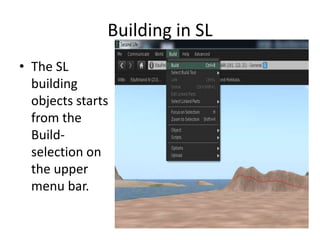
Building in SLThe SL building objects starts from the Build-selection on the upper menu bar.
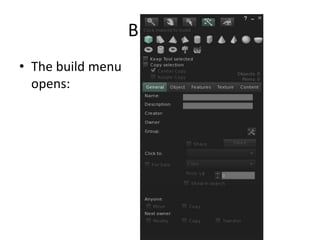
BuildingThe build menu opens:
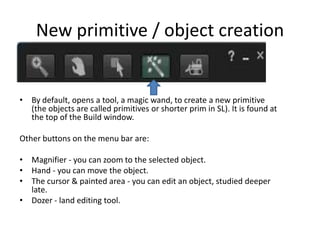
New primitive / object creationBy default, opens a tool, a magic wand, to create a new primitive (the objects are called primitives or shorter prim in SL). It is found at the top of the Build window. Other buttons on the menu bar are: Magnifier - you can zoom to the selected object. Hand - you can move the object. The cursor & painted area - you can edit an object, studied deeper late. Dozer - landeditingtool.
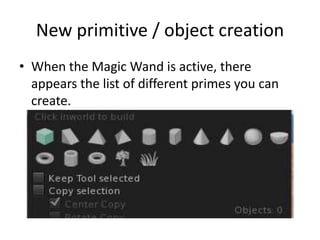
New primitive / object creationWhen the Magic Wand is active, there appears the list of different primes you can create.
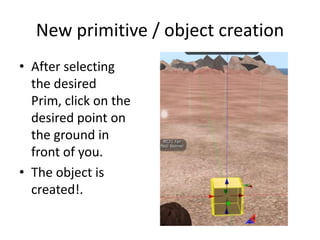
New primitive / object creationAfter selecting the desired Prim, click on the desired point on the ground in front of you. The object is created!.
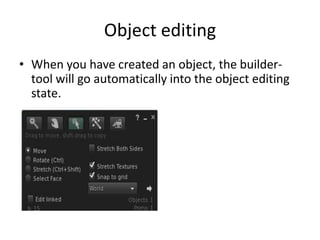
Object editingWhen you have created an object, the builder-tool will go automatically into the object editing state.
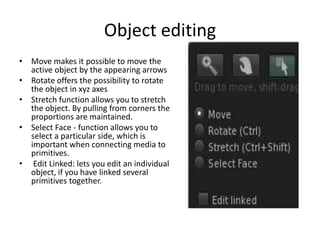
Object editingMove makes it possible to move the active object by the appearing arrowsRotate offers the possibility to rotate the object in xyz axesStretch function allows you to stretch the object. By pulling from corners the proportions are maintained.Select Face - function allows you to select a particular side, which is important when connecting media to primitives. Edit Linked: lets you edit an individual object, if you have linked several primitives together.
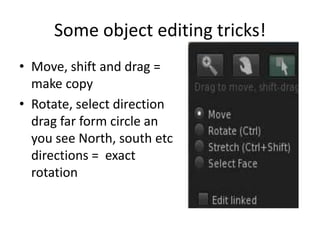
Some object editing tricks!Move, shift and drag = make copyRotate, select direction drag far form circle an you see North, south etc directions =  exact rotation
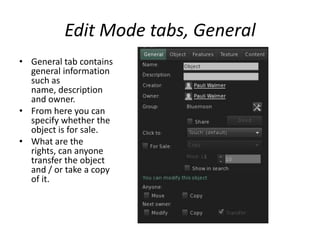
Edit Mode tabs, GeneralGeneral tab contains general information such as name, description and owner. From here you can specify whether the object is for sale. What are the rights, can anyone transfer the object and / or take a copy of it.
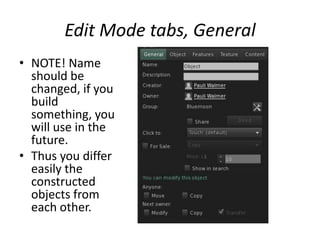
Edit Mode tabs, GeneralNOTE! Name should be changed, if you build something, you will use in the future. Thus you differ easily the constructed objects from each other.
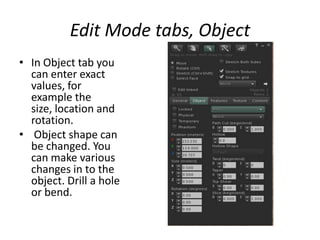
EditModetabs, ObjectIn Object tab you can enter exact values, for example the size, location and rotation. Object shape can be changed. You can make various changes in to the object. Drill a hole or bend.
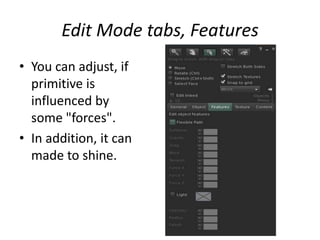
Edit Mode tabs, FeaturesYou can adjust, if primitive is influenced by some "forces". In addition, it can made to shine.
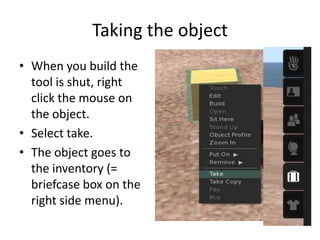
Taking the objectWhen you build the tool is shut, right click the mouse on the object. Select take. The object goes to the inventory (= briefcase box on the right side menu).
LinkobjectIf you have several prims that u want to make to one choose linked parts and then chose link in the menu.

Building in sl esitys EM

  • 1.
    Building in SLTheSL building objects starts from the Build-selection on the upper menu bar.
  • 2.
  • 3.
    New primitive /object creationBy default, opens a tool, a magic wand, to create a new primitive (the objects are called primitives or shorter prim in SL). It is found at the top of the Build window. Other buttons on the menu bar are: Magnifier - you can zoom to the selected object. Hand - you can move the object. The cursor & painted area - you can edit an object, studied deeper late. Dozer - landeditingtool.
  • 4.
    New primitive /object creationWhen the Magic Wand is active, there appears the list of different primes you can create.
  • 5.
    New primitive /object creationAfter selecting the desired Prim, click on the desired point on the ground in front of you. The object is created!.
  • 6.
    Object editingWhen youhave created an object, the builder-tool will go automatically into the object editing state.
  • 7.
    Object editingMove makesit possible to move the active object by the appearing arrowsRotate offers the possibility to rotate the object in xyz axesStretch function allows you to stretch the object. By pulling from corners the proportions are maintained.Select Face - function allows you to select a particular side, which is important when connecting media to primitives. Edit Linked: lets you edit an individual object, if you have linked several primitives together.
  • 8.
    Some object editingtricks!Move, shift and drag = make copyRotate, select direction drag far form circle an you see North, south etc directions = exact rotation
  • 9.
    Edit Mode tabs,GeneralGeneral tab contains general information such as name, description and owner. From here you can specify whether the object is for sale. What are the rights, can anyone transfer the object and / or take a copy of it.
  • 10.
    Edit Mode tabs,GeneralNOTE! Name should be changed, if you build something, you will use in the future. Thus you differ easily the constructed objects from each other.
  • 11.
    EditModetabs, ObjectIn Objecttab you can enter exact values, for example the size, location and rotation. Object shape can be changed. You can make various changes in to the object. Drill a hole or bend.
  • 12.
    Edit Mode tabs,FeaturesYou can adjust, if primitive is influenced by some "forces". In addition, it can made to shine.
  • 13.
    Taking the objectWhenyou build the tool is shut, right click the mouse on the object. Select take. The object goes to the inventory (= briefcase box on the right side menu).
  • 14.
    LinkobjectIf you haveseveral prims that u want to make to one choose linked parts and then chose link in the menu.