Employee Salary Group Summary from Oracle to SQLServer
Ifeanyi I Nwodo
(B.Eng, MCSN,OCA,OCP, MCPD,MCTS,OCJP)
joshuasearch@live.com http://www.facecompete.com
http://alvana.facecompete.com
http://sharepointbi.facecompete.com
In this Article I will show you how to summarise data from an oracle table and store it in a table in
Microsoft SQL Server. I will be achieving this using Microsoft Business Intelligence Studio. I assume
you have some knowledge of Oracle DB, SQL statements, and Microsoft SQL Server.
Microsoft BI Studio is used for designing, developing and maintaining BI solutions which include SQL
Server Integration Services (SSIS), SQL Server Analysis Services (SSAS), and SQL Server Reporting
Services (SSRS).
For this article I will be using the Employees and departments table in the HR schema of oracle
database and SampleIntegrationDB a database I created in microsoft SQLServer 2008r2( Also create
a similar database from your system using the SQL Server management studio). To start:
 Click file, point to new and click on project.
 Click on Integration Project
 Name the Project (I have chosen to name mine Department Summary)
 Click ok
Next we will be creating Data Access Objects in our project to represent the various data pool we
will be utilising in this Integration. In this case it will represent the Oracle DB and Microsoft SQL DB.
To do this:
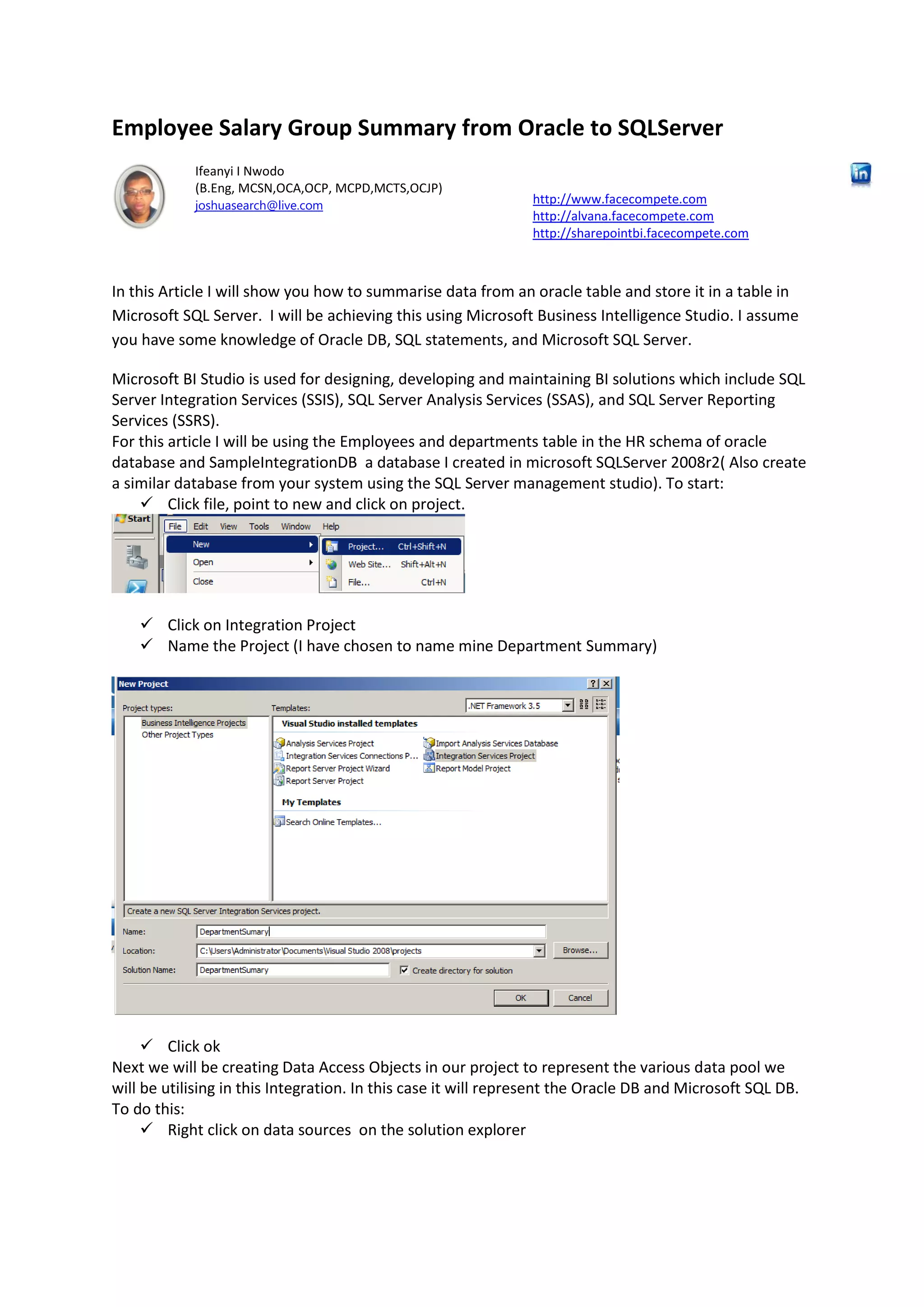
 Right click on data sources on the solution explorer
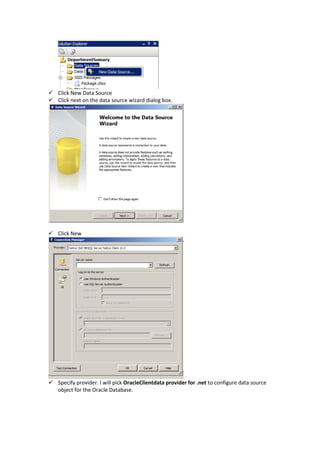
 Click New Data Source
 Click next on the data source wizard dialog box.
 Click New
 Specify provider. I will pick OracleClientdata provider for .net to configure data source
object for the Oracle Database.
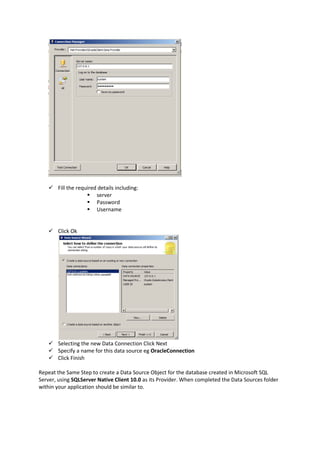
 Fill the required details including:
 server
 Password
 Username
 Click Ok
 Selecting the new Data Connection Click Next
 Specify a name for this data source eg OracleConnection
 Click Finish
Repeat the Same Step to create a Data Source Object for the database created in Microsoft SQL
Server, using SQLServer Native Client 10.0 as its Provider. When completed the Data Sources folder
within your application should be similar to.
Now that we have this Data Sources, we have to make them accessible to our packages, by
associating them with the Connection Manager. To achieve this do:
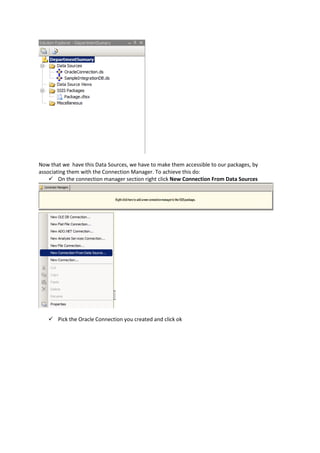
 On the connection manager section right click New Connection From Data Sources
 Pick the Oracle Connection you created and click ok
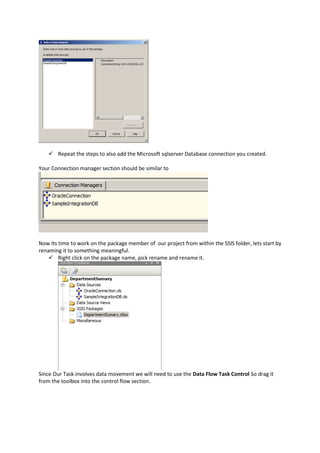
 Repeat the steps to also add the Microsoft sqlserver Database connection you created.
Your Connection manager section should be similar to
Now Its time to work on the package member of our project from within the SSIS folder, lets start by
renaming it to something meaningful.
 Right click on the package name, pick rename and rename it.
Since Our Task involves data movement we will need to use the Data Flow Task Control So drag it
from the toolbox into the control flow section.
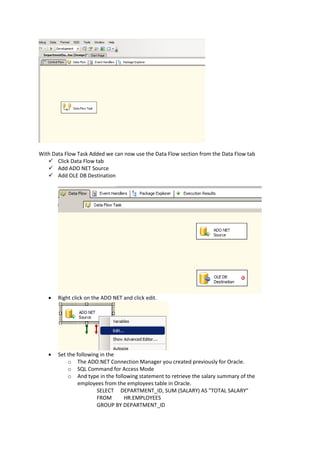
With Data Flow Task Added we can now use the Data Flow section from the Data Flow tab
 Click Data Flow tab
 Add ADO NET Source
 Add OLE DB Destination
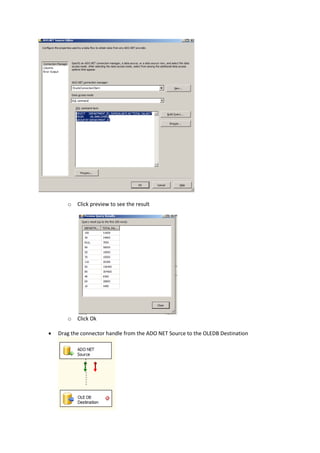
 Right click on the ADO NET and click edit.
 Set the following in the
o The ADO.NET Connection Manager you created previously for Oracle.
o SQL Command for Access Mode
o And type in the following statement to retrieve the salary summary of the
employees from the employees table in Oracle.
SELECT DEPARTMENT_ID, SUM (SALARY) AS "TOTAL SALARY"
FROM HR.EMPLOYEES
GROUP BY DEPARTMENT_ID
o Click preview to see the result
o Click Ok
 Drag the connector handle from the ADO NET Source to the OLEDB Destination
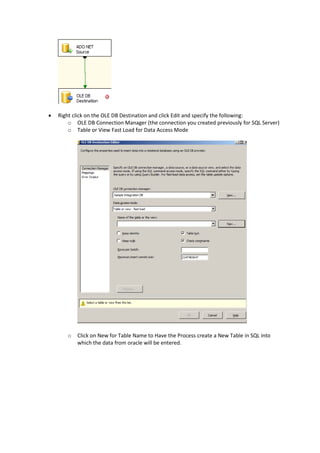
 Right click on the OLE DB Destination and click Edit and specify the following:
o OLE DB Connection Manager (the connection you created previously for SQL Server)
o Table or View Fast Load for Data Access Mode
o Click on New for Table Name to Have the Process create a New Table in SQL into
which the data from oracle will be entered.
o Modify the query statement to create a table with a better name
CREATE TABLE EmpTotalSalary (
[DEPARTMENT_ID] numeric(4,0),
[TOTAL SALARY] nvarchar(40)
)
o Click ok
o
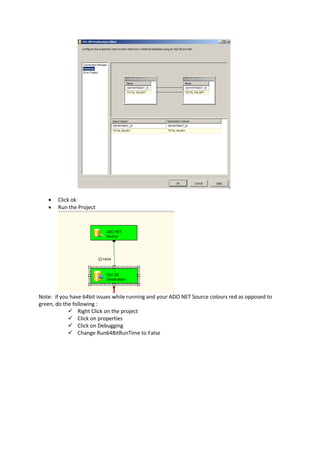
o Click Mappings to map the destination and source appropriately.
Yours should look like
 Click ok
 Run the Project
Note: if you have 64bit issues while running and your ADO NET Source colours red as opposed to
green, do the following :
 Right Click on the project
 Click on properties
 Click on Debugging
 Change Run64BitRunTime to False
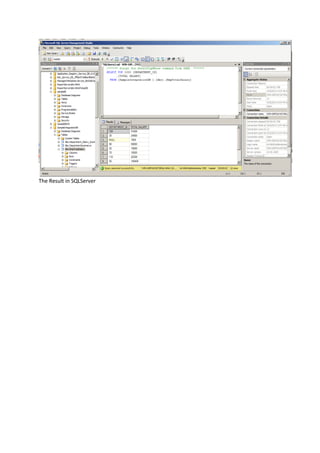
The Result in SQLServer

BI Tutorial (Copying Data from Oracle to Microsoft SQLServer)

  • 1.
    Employee Salary GroupSummary from Oracle to SQLServer Ifeanyi I Nwodo (B.Eng, MCSN,OCA,OCP, MCPD,MCTS,OCJP) joshuasearch@live.com http://www.facecompete.com http://alvana.facecompete.com http://sharepointbi.facecompete.com In this Article I will show you how to summarise data from an oracle table and store it in a table in Microsoft SQL Server. I will be achieving this using Microsoft Business Intelligence Studio. I assume you have some knowledge of Oracle DB, SQL statements, and Microsoft SQL Server. Microsoft BI Studio is used for designing, developing and maintaining BI solutions which include SQL Server Integration Services (SSIS), SQL Server Analysis Services (SSAS), and SQL Server Reporting Services (SSRS). For this article I will be using the Employees and departments table in the HR schema of oracle database and SampleIntegrationDB a database I created in microsoft SQLServer 2008r2( Also create a similar database from your system using the SQL Server management studio). To start:  Click file, point to new and click on project.  Click on Integration Project  Name the Project (I have chosen to name mine Department Summary)  Click ok Next we will be creating Data Access Objects in our project to represent the various data pool we will be utilising in this Integration. In this case it will represent the Oracle DB and Microsoft SQL DB. To do this:  Right click on data sources on the solution explorer
  • 2.
     Click NewData Source  Click next on the data source wizard dialog box.  Click New  Specify provider. I will pick OracleClientdata provider for .net to configure data source object for the Oracle Database.
  • 3.
     Fill therequired details including:  server  Password  Username  Click Ok  Selecting the new Data Connection Click Next  Specify a name for this data source eg OracleConnection  Click Finish Repeat the Same Step to create a Data Source Object for the database created in Microsoft SQL Server, using SQLServer Native Client 10.0 as its Provider. When completed the Data Sources folder within your application should be similar to.
  • 4.
    Now that wehave this Data Sources, we have to make them accessible to our packages, by associating them with the Connection Manager. To achieve this do:  On the connection manager section right click New Connection From Data Sources  Pick the Oracle Connection you created and click ok
  • 5.
     Repeat thesteps to also add the Microsoft sqlserver Database connection you created. Your Connection manager section should be similar to Now Its time to work on the package member of our project from within the SSIS folder, lets start by renaming it to something meaningful.  Right click on the package name, pick rename and rename it. Since Our Task involves data movement we will need to use the Data Flow Task Control So drag it from the toolbox into the control flow section.
  • 6.
    With Data FlowTask Added we can now use the Data Flow section from the Data Flow tab  Click Data Flow tab  Add ADO NET Source  Add OLE DB Destination  Right click on the ADO NET and click edit.  Set the following in the o The ADO.NET Connection Manager you created previously for Oracle. o SQL Command for Access Mode o And type in the following statement to retrieve the salary summary of the employees from the employees table in Oracle. SELECT DEPARTMENT_ID, SUM (SALARY) AS "TOTAL SALARY" FROM HR.EMPLOYEES GROUP BY DEPARTMENT_ID
  • 7.
    o Click previewto see the result o Click Ok  Drag the connector handle from the ADO NET Source to the OLEDB Destination
  • 8.
     Right clickon the OLE DB Destination and click Edit and specify the following: o OLE DB Connection Manager (the connection you created previously for SQL Server) o Table or View Fast Load for Data Access Mode o Click on New for Table Name to Have the Process create a New Table in SQL into which the data from oracle will be entered.
  • 9.
    o Modify thequery statement to create a table with a better name CREATE TABLE EmpTotalSalary ( [DEPARTMENT_ID] numeric(4,0), [TOTAL SALARY] nvarchar(40) ) o Click ok o o Click Mappings to map the destination and source appropriately. Yours should look like
  • 10.
     Click ok Run the Project Note: if you have 64bit issues while running and your ADO NET Source colours red as opposed to green, do the following :  Right Click on the project  Click on properties  Click on Debugging  Change Run64BitRunTime to False
  • 11.
    The Result inSQLServer