Introduction to WordPress
Goal: Become familiar with WordPress, and understand why we use this platform. Also become
comfortable with the admin (back-end) user interface and terms used in common WordPress
development.
Outcomes:
1. Understand Posts and various Post Types
2. Understand Permalinks and basic WordPress settings
3. Become comfortable making changes to WordPress sites
4. Gain an introduction to WordPress development
functions.php, style.css and the Template
Hierarchy
Goal: Understand the purpose of the three files needed to create a WordPress theme, as well as
a basic understanding of the template hierarchy - or how Theme files are structured to present
different types of information.
Outcomes:
1. Learn what is required to create a new WordPress Theme
2. Know what to put in the `functions.php` file and how to properly execute functions
3. Create different template files to present data in different formats
The Admin Dashboard
Outcomes:
1. Become familiar with the Admin Dashboard and different WordPress components
2. Understand the differences between WordPress data types
○ Posts
○ Pages
○ Media
○ Custom Post Types
3. Create, modify, and utilize Posts, Pages, Media, and Custom Fields via the Admin
Dashboard and the Theme code-base
4. Adding Menus and Widgets, and assigning Taxonomies (categories) to Post entries
Why do we use WordPress?
1. Highly flexible, extendable web platform
2. Open-source, with a large community of developers behind it
○ More well-tested
○ Greater amount of resources available
○ Easy to learn and teach
○ Can run on almost any system
3. Written in PHP - unix-based language that conforms to almost all server setups
4. Simple, fast database structure that allows for nearly any type of data/information to be
presented
Why it’s important to understand WordPress
1. We engineer custom WordPress themes, but our users are not engineers or programmers
2. We want to give as much control to the user as possible
3. It trains us to think like a “normal” user, as opposed to thinking like a programmer
4. Giving control to the user increases transparency and accountability from an administrative
perspective, and helps us improve on exercising modularity and data-handling
5. It makes our lives easier
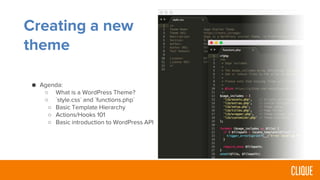
Creating a new
theme
● Agenda:
○ What is a WordPress Theme?
○ `style.css` and `functions.php`
○ Basic Template Hierarchy
○ Actions/Hooks 101
○ Basic introduction to WordPress API
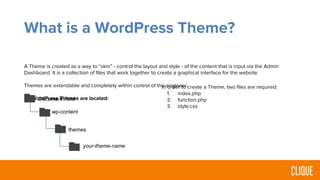
What is a WordPress Theme?
A Theme is created as a way to “skin” - control the layout and style - of the content that is input via the Admin
Dashboard. It is a collection of files that work together to create a graphical interface for the website.
Themes are extendable and completely within control of the engineer.
All WordPress Themes are located:Document Root
wp-content
themes
your-theme-name
In order to create a Theme, two files are required:
1. index.php
2. function.php
3. style.css
style.css
Through `style.css` an engineer Theme is assigned a name, description, and other information that allows it to be
registered by WordPress.
Common information includes:
● Theme Name
● Theme URI
● Description
● Version
● Author
● Author URI
Exercise:
● Change the name and description of the theme being used
○ Open style.css in the “apprentice” directory
○ Alter the information using your text editor
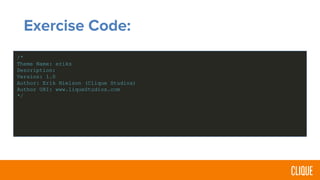
Exercise Code:
/*
Theme Name: eriks
Description:
Version: 1.0
Author: Erik Nielson (Clique Studios)
Author URI: www.liqueStudios.com
*/
functions.php
This file acts as the central location for all custom PHP functions, and methods and classes found in the WordPress
API.
It is used to enqueue scripts and stylesheets
Through the WordPress API, an engineer can enable and disable features of the site in this file.
This file is automatically included in all Theme .php files.
Exercise:
● Print a new stylesheet in the <head> of our Theme.
○ Create a new file, style.css in the dist/styles/ directory
○ In functions.php, create a new function that registers and enqueues that file
■ Use the following API functions:
● wp_register_style
● wp_enqueue_style
■ “Hook” that function into the site
● wp_enqueue_scripts
○ Reload theme and view source to ensure file is references
● Resources:
○ http://codex.wordpress.org/Function_Reference/wp_register_style
○ http://codex.wordpress.org/Function_Reference/wp_enqueue_style
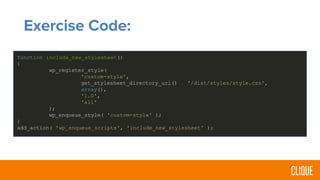
Exercise Code:
function include_new_stylesheet()
{
wp_register_style(
'custom-style',
get_stylesheet_directory_uri() . '/dist/styles/style.css',
array(),
'1.0',
'all'
);
wp_enqueue_style( 'custom-style' );
}
add_action( 'wp_enqueue_scripts', 'include_new_stylesheet' );
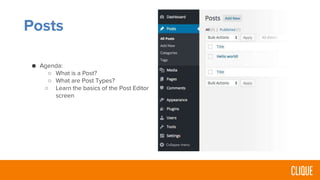
Posts
● Agenda:
○ What is a Post?
○ What are Post Types?
○ Learn the basics of the Post Editor
screen
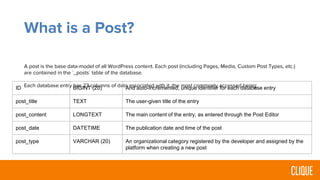
What is a Post?
A post is the base data-model of all WordPress content. Each post (including Pages, Media, Custom Post Types, etc.)
are contained in the `_posts` table of the database.
Each database entry has 23 columns of data associated with it, the most commonly accessed being:ID BIGINT (20) And auto-incremented, unique identifier for each database entry
post_title TEXT The user-given title of the entry
post_content LONGTEXT The main content of the entry, as entered through the Post Editor
post_date DATETIME The publication date and time of the post
post_type VARCHAR (20) An organizational category registered by the developer and assigned by the
platform when creating a new post
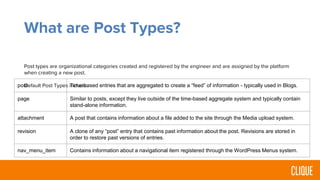
What are Post Types?
Post types are organizational categories created and registered by the engineer and are assigned by the platform
when creating a new post.
Default Post Types include:post Time-based entries that are aggregated to create a “feed” of information - typically used in Blogs.
page Similar to posts, except they live outside of the time-based aggregate system and typically contain
stand-alone information.
attachment A post that contains information about a file added to the site through the Media upload system.

revision A clone of any “post” entry that contains past information about the post. Revisions are stored in
order to restore past versions of entries.
nav_menu_item Contains information about a navigational item registered through the WordPress Menus system.
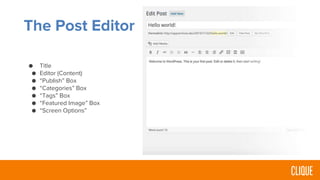
The Post Editor
● Title
● Editor (Content)
● “Publish” Box
● “Categories” Box
● “Tags” Box
● “Featured Image” Box
● “Screen Options”
Exercise:
● Create a new post
○ Give it a unique title
○ Insert content
■ Vary text formats, tags, etc.
■ Include some HTML
■ Add media via the Media uploader
○ Assign the post to a new category
○ Add a featured image
○ Publish the post
○ View on the front-end
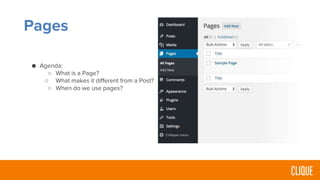
Pages
● Agenda:
○ What is a Page?
○ What makes it different from a Post?
○ When do we use pages?
What is a Page?
A Page is essentially the same as a Post, but used in a different context.
Whereas a Post is used to display singular information as part of an aggregated feed, a Page represents stand-alone
content that is displayed outside of a time-based publication system.
Pages provide structure to the site, and are typically the destination of Navigational Menu Items.
How are Pages different from Posts?
When it comes to engineering/development, Pages can have user-defined Templates applied to them, allowing you to
control the layout and display of information provided by the user.
Pages can be hierarchical, unlike posts - A Page can be a child of another page, affecting sitemap and URL structure.
Pages are not organized into Taxonomy-based categorization (nor are Tags assigned).
page.php vs. single.php
php the content function
getting page content to show up
Exercise 1:
● Create a new Page
○ Give it a unique title, content, etc.
○ Add a featured image
○ Publish the Page
○ View on the front-end
Exercise 2:
● Create a page hierarchy
○ Repeat Exercise 1 to create a new Page
○ Assign this page as a Child of your
previously created page
○ View on the front-end
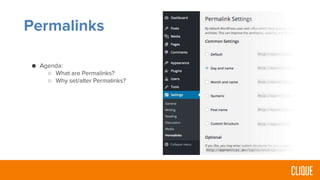
Permalinks
● Agenda:
○ What are Permalinks?
○ Why set/alter Permalinks?
What are Permalinks?
Permalinks represent the URL structure of the website’s content.
By default, WordPress creates query-based strings appended to the URL host, which are ugly and hard to remember.
Why update Permalinks?
“Pretty” Permalinks provides greater SEO value and a better user experience.
Exercise:
● Update the permalink settings on your site:
○ Change from “Default” to “Post Name”
○ View previously-created content on the front-end
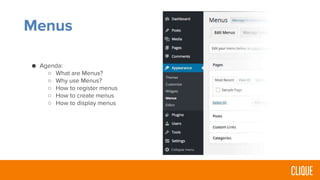
Menus
● Agenda:
○ What are Menus?
○ Why use Menus?
○ How to register menus
○ How to create menus
○ How to display menus
What are Menus?
Menus are structural components that allow a user to easily navigate the website.
Menus are also a Post Type - they are entries saved in the database and have a record of their entry.
Why use Menus?
The question really asks why use WordPress menus instead of hard-coding a navigation element?
Menus allow for user-control over the content and are easily updatable, modular, and extendable via the WordPress
API and Plugins.
It is much easier and faster to update a Menu - especially on a production site - than to create or re-code one that’s
been hard-coded.
Registering Menus:
By default, Menus are not enabled in the WordPress admin editor. In order to create a new menu one must be
registered in the functions.php file.
Menus are registered using the function register_nav_menu of the WordPress API
-- Must be hooked using init hook via add_action
Exercise:
● Create a two new menus
○ In functions.php, create a function to execute when the init hook is called
○ In that function, execute register_nav_menus
○ Return to the Admin Dashboard to ensure Menus were created.
○ Assign new items to the menus
■ Create additional items if necessary
● Resources:
○ http://codex.wordpress.org/Function_Reference/register_nav_menus
Exercise Code:
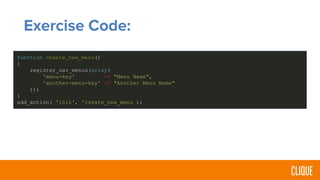
function create_new_menu()
{
register_nav_menus(array(
'menu-key' => "Menu Name",
'another-menu-key' => "Another Menu Name"
));
}
add_action( 'init', 'create_new_menu );
How are Menus displayed?
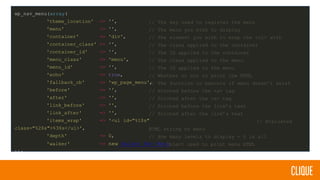
Once a menu is registered and has items assigned to it, it is displayed in the theme using the wp_nav_menu function
of the WordPress API.
The function accepts a single argument, an array of arguments. Example on next slide.
wp_nav_menu(array(
'theme_location' => '',
'menu' => '',
'container' => 'div',
'container_class' => '',
'container_id' => '',
'menu_class' => 'menu',
'menu_id' => '',
'echo' => true,
'fallback_cb' => 'wp_page_menu',
'before' => '',
'after' => '',
'link_before' => '',
'link_after' => '',
'items_wrap' => '<ul id="%1$s"
class="%2$s">%3$s</ul>',
'depth' => 0,
'walker' => new Walker_Nav_Menu
));
// The key used to register the menu
// The menu you wish to display
// The element you wish to wrap the <ul> with
// The class applied to the container
// The ID applied to the container
// The class applied to the menu
// The ID applied to the menu
// Whether or not to print the HTML
// The function to execute if menu doesn’t exist
// Printed before the <a> tag
// Printed after the <a> tag
// Printed before the link’s text
// Printed after the link’s text
// Evaluated
HTML string of menu
// How many levels to display - 0 is all
// Object used to print menu HTML
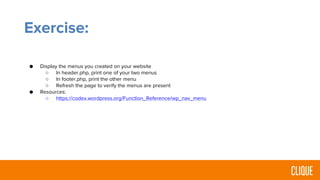
Exercise:
● Display the menus you created on your website
○ In header.php, print one of your two menus
○ In footer.php, print the other menu
○ Refresh the page to verify the menus are present
● Resources:
○ https://codex.wordpress.org/Function_Reference/wp_nav_menu
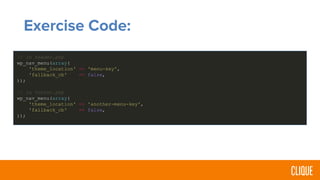
Exercise Code:
// in header.php
wp_nav_menu(array(
'theme_location' => 'menu-key',
'fallback_cb' => false,
));
// in footer.php
wp_nav_menu(array(
'theme_location' => 'another-menu-key',
'fallback_cb' => false,
));
Teach
● Each of you will have until 10 tomorrow morning prepare and lead a 20 minute workshop taking your peers
deeper in one of the following topics
○ Pages
○ Categories
○ Menus
● Key questions to answer:
○ What settings are important and what do they do?
○ What dependencies are impacted? ie when you create a page it pulls in or modify certain resources and
settings.
● Make a copy of the CU template to get started
Resources
Pages:
• https://codex.wordpress.org/Pages
• https://codex.wordpress.org/Template_Tags/wp_list_pages
• https://developer.wordpress.org/themes/template-files-section/page-template-files/page-templates/
Categories:
• https://codex.wordpress.org/Category_Templates
Menu:
• https://www.elegantthemes.com/blog/tips-tricks/how-to-create-custom-menu-structures-in-wordpress
• https://codex.wordpress.org/Function_Reference/wp_create_nav_menu
Advanced Intro to Wordpress

Advanced Intro to Wordpress

  • 2.
    Introduction to WordPress Goal:Become familiar with WordPress, and understand why we use this platform. Also become comfortable with the admin (back-end) user interface and terms used in common WordPress development. Outcomes: 1. Understand Posts and various Post Types 2. Understand Permalinks and basic WordPress settings 3. Become comfortable making changes to WordPress sites 4. Gain an introduction to WordPress development
  • 3.
    functions.php, style.css andthe Template Hierarchy Goal: Understand the purpose of the three files needed to create a WordPress theme, as well as a basic understanding of the template hierarchy - or how Theme files are structured to present different types of information. Outcomes: 1. Learn what is required to create a new WordPress Theme 2. Know what to put in the `functions.php` file and how to properly execute functions 3. Create different template files to present data in different formats
  • 4.
    The Admin Dashboard Outcomes: 1.Become familiar with the Admin Dashboard and different WordPress components 2. Understand the differences between WordPress data types ○ Posts ○ Pages ○ Media ○ Custom Post Types 3. Create, modify, and utilize Posts, Pages, Media, and Custom Fields via the Admin Dashboard and the Theme code-base 4. Adding Menus and Widgets, and assigning Taxonomies (categories) to Post entries
  • 5.
    Why do weuse WordPress? 1. Highly flexible, extendable web platform 2. Open-source, with a large community of developers behind it ○ More well-tested ○ Greater amount of resources available ○ Easy to learn and teach ○ Can run on almost any system 3. Written in PHP - unix-based language that conforms to almost all server setups 4. Simple, fast database structure that allows for nearly any type of data/information to be presented
  • 6.
    Why it’s importantto understand WordPress 1. We engineer custom WordPress themes, but our users are not engineers or programmers 2. We want to give as much control to the user as possible 3. It trains us to think like a “normal” user, as opposed to thinking like a programmer 4. Giving control to the user increases transparency and accountability from an administrative perspective, and helps us improve on exercising modularity and data-handling 5. It makes our lives easier
  • 7.
    Creating a new theme ●Agenda: ○ What is a WordPress Theme? ○ `style.css` and `functions.php` ○ Basic Template Hierarchy ○ Actions/Hooks 101 ○ Basic introduction to WordPress API
  • 8.
    What is aWordPress Theme? A Theme is created as a way to “skin” - control the layout and style - of the content that is input via the Admin Dashboard. It is a collection of files that work together to create a graphical interface for the website. Themes are extendable and completely within control of the engineer. All WordPress Themes are located:Document Root wp-content themes your-theme-name In order to create a Theme, two files are required: 1. index.php 2. function.php 3. style.css
  • 9.
    style.css Through `style.css` anengineer Theme is assigned a name, description, and other information that allows it to be registered by WordPress. Common information includes: ● Theme Name ● Theme URI ● Description ● Version ● Author ● Author URI
  • 10.
    Exercise: ● Change thename and description of the theme being used ○ Open style.css in the “apprentice” directory ○ Alter the information using your text editor
  • 11.
    Exercise Code: /* Theme Name:eriks Description: Version: 1.0 Author: Erik Nielson (Clique Studios) Author URI: www.liqueStudios.com */
  • 12.
    functions.php This file actsas the central location for all custom PHP functions, and methods and classes found in the WordPress API. It is used to enqueue scripts and stylesheets Through the WordPress API, an engineer can enable and disable features of the site in this file. This file is automatically included in all Theme .php files.
  • 13.
    Exercise: ● Print anew stylesheet in the <head> of our Theme. ○ Create a new file, style.css in the dist/styles/ directory ○ In functions.php, create a new function that registers and enqueues that file ■ Use the following API functions: ● wp_register_style ● wp_enqueue_style ■ “Hook” that function into the site ● wp_enqueue_scripts ○ Reload theme and view source to ensure file is references ● Resources: ○ http://codex.wordpress.org/Function_Reference/wp_register_style ○ http://codex.wordpress.org/Function_Reference/wp_enqueue_style
  • 14.
    Exercise Code: function include_new_stylesheet() { wp_register_style( 'custom-style', get_stylesheet_directory_uri(). '/dist/styles/style.css', array(), '1.0', 'all' ); wp_enqueue_style( 'custom-style' ); } add_action( 'wp_enqueue_scripts', 'include_new_stylesheet' );
  • 15.
    Posts ● Agenda: ○ Whatis a Post? ○ What are Post Types? ○ Learn the basics of the Post Editor screen
  • 16.
    What is aPost? A post is the base data-model of all WordPress content. Each post (including Pages, Media, Custom Post Types, etc.) are contained in the `_posts` table of the database. Each database entry has 23 columns of data associated with it, the most commonly accessed being:ID BIGINT (20) And auto-incremented, unique identifier for each database entry post_title TEXT The user-given title of the entry post_content LONGTEXT The main content of the entry, as entered through the Post Editor post_date DATETIME The publication date and time of the post post_type VARCHAR (20) An organizational category registered by the developer and assigned by the platform when creating a new post
  • 17.
    What are PostTypes? Post types are organizational categories created and registered by the engineer and are assigned by the platform when creating a new post. Default Post Types include:post Time-based entries that are aggregated to create a “feed” of information - typically used in Blogs. page Similar to posts, except they live outside of the time-based aggregate system and typically contain stand-alone information. attachment A post that contains information about a file added to the site through the Media upload system. revision A clone of any “post” entry that contains past information about the post. Revisions are stored in order to restore past versions of entries. nav_menu_item Contains information about a navigational item registered through the WordPress Menus system.
  • 18.
    The Post Editor ●Title ● Editor (Content) ● “Publish” Box ● “Categories” Box ● “Tags” Box ● “Featured Image” Box ● “Screen Options”
  • 19.
    Exercise: ● Create anew post ○ Give it a unique title ○ Insert content ■ Vary text formats, tags, etc. ■ Include some HTML ■ Add media via the Media uploader ○ Assign the post to a new category ○ Add a featured image ○ Publish the post ○ View on the front-end
  • 20.
    Pages ● Agenda: ○ Whatis a Page? ○ What makes it different from a Post? ○ When do we use pages?
  • 21.
    What is aPage? A Page is essentially the same as a Post, but used in a different context. Whereas a Post is used to display singular information as part of an aggregated feed, a Page represents stand-alone content that is displayed outside of a time-based publication system. Pages provide structure to the site, and are typically the destination of Navigational Menu Items.
  • 22.
    How are Pagesdifferent from Posts? When it comes to engineering/development, Pages can have user-defined Templates applied to them, allowing you to control the layout and display of information provided by the user. Pages can be hierarchical, unlike posts - A Page can be a child of another page, affecting sitemap and URL structure. Pages are not organized into Taxonomy-based categorization (nor are Tags assigned).
  • 23.
    page.php vs. single.php phpthe content function getting page content to show up
  • 24.
    Exercise 1: ● Createa new Page ○ Give it a unique title, content, etc. ○ Add a featured image ○ Publish the Page ○ View on the front-end Exercise 2: ● Create a page hierarchy ○ Repeat Exercise 1 to create a new Page ○ Assign this page as a Child of your previously created page ○ View on the front-end
  • 25.
    Permalinks ● Agenda: ○ Whatare Permalinks? ○ Why set/alter Permalinks?
  • 26.
    What are Permalinks? Permalinksrepresent the URL structure of the website’s content. By default, WordPress creates query-based strings appended to the URL host, which are ugly and hard to remember. Why update Permalinks? “Pretty” Permalinks provides greater SEO value and a better user experience.
  • 27.
    Exercise: ● Update thepermalink settings on your site: ○ Change from “Default” to “Post Name” ○ View previously-created content on the front-end
  • 28.
    Menus ● Agenda: ○ Whatare Menus? ○ Why use Menus? ○ How to register menus ○ How to create menus ○ How to display menus
  • 29.
    What are Menus? Menusare structural components that allow a user to easily navigate the website. Menus are also a Post Type - they are entries saved in the database and have a record of their entry. Why use Menus? The question really asks why use WordPress menus instead of hard-coding a navigation element? Menus allow for user-control over the content and are easily updatable, modular, and extendable via the WordPress API and Plugins. It is much easier and faster to update a Menu - especially on a production site - than to create or re-code one that’s been hard-coded.
  • 30.
    Registering Menus: By default,Menus are not enabled in the WordPress admin editor. In order to create a new menu one must be registered in the functions.php file. Menus are registered using the function register_nav_menu of the WordPress API -- Must be hooked using init hook via add_action
  • 31.
    Exercise: ● Create atwo new menus ○ In functions.php, create a function to execute when the init hook is called ○ In that function, execute register_nav_menus ○ Return to the Admin Dashboard to ensure Menus were created. ○ Assign new items to the menus ■ Create additional items if necessary ● Resources: ○ http://codex.wordpress.org/Function_Reference/register_nav_menus
  • 32.
    Exercise Code: function create_new_menu() { register_nav_menus(array( 'menu-key'=> "Menu Name", 'another-menu-key' => "Another Menu Name" )); } add_action( 'init', 'create_new_menu );
  • 33.
    How are Menusdisplayed? Once a menu is registered and has items assigned to it, it is displayed in the theme using the wp_nav_menu function of the WordPress API. The function accepts a single argument, an array of arguments. Example on next slide.
  • 34.
    wp_nav_menu(array( 'theme_location' => '', 'menu'=> '', 'container' => 'div', 'container_class' => '', 'container_id' => '', 'menu_class' => 'menu', 'menu_id' => '', 'echo' => true, 'fallback_cb' => 'wp_page_menu', 'before' => '', 'after' => '', 'link_before' => '', 'link_after' => '', 'items_wrap' => '<ul id="%1$s" class="%2$s">%3$s</ul>', 'depth' => 0, 'walker' => new Walker_Nav_Menu )); // The key used to register the menu // The menu you wish to display // The element you wish to wrap the <ul> with // The class applied to the container // The ID applied to the container // The class applied to the menu // The ID applied to the menu // Whether or not to print the HTML // The function to execute if menu doesn’t exist // Printed before the <a> tag // Printed after the <a> tag // Printed before the link’s text // Printed after the link’s text // Evaluated HTML string of menu // How many levels to display - 0 is all // Object used to print menu HTML
  • 35.
    Exercise: ● Display themenus you created on your website ○ In header.php, print one of your two menus ○ In footer.php, print the other menu ○ Refresh the page to verify the menus are present ● Resources: ○ https://codex.wordpress.org/Function_Reference/wp_nav_menu
  • 36.
    Exercise Code: // inheader.php wp_nav_menu(array( 'theme_location' => 'menu-key', 'fallback_cb' => false, )); // in footer.php wp_nav_menu(array( 'theme_location' => 'another-menu-key', 'fallback_cb' => false, ));
  • 37.
    Teach ● Each ofyou will have until 10 tomorrow morning prepare and lead a 20 minute workshop taking your peers deeper in one of the following topics ○ Pages ○ Categories ○ Menus ● Key questions to answer: ○ What settings are important and what do they do? ○ What dependencies are impacted? ie when you create a page it pulls in or modify certain resources and settings. ● Make a copy of the CU template to get started
  • 38.
    Resources Pages: • https://codex.wordpress.org/Pages • https://codex.wordpress.org/Template_Tags/wp_list_pages •https://developer.wordpress.org/themes/template-files-section/page-template-files/page-templates/ Categories: • https://codex.wordpress.org/Category_Templates Menu: • https://www.elegantthemes.com/blog/tips-tricks/how-to-create-custom-menu-structures-in-wordpress • https://codex.wordpress.org/Function_Reference/wp_create_nav_menu

Editor's Notes

  • #6 Tested across many environments
  • #8 Gives them context for this skill Sets expectations for what they should able to do
  • #9 Gives them context for this skill Sets expectations for what they should able to do
  • #10 Gives them context for this skill Sets expectations for what they should able to do
  • #13 Gives them context for this skill Sets expectations for what they should able to do
  • #14 <!DOCTYPE html> <html lang="en"> <head> <meta charset="UTF-8"> <title>Document</title> <?php wp_head(); ?> </head> <body> <h1>Hello!</h1> <?php wp_footer(); ?> </body> </html>
  • #16 Gives them context for this skill Sets expectations for what they should able to do
  • #17 Gives them context for this skill Sets expectations for what they should able to do
  • #21 Gives them context for this skill Sets expectations for what they should able to do
  • #22 Gives them context for this skill Sets expectations for what they should able to do
  • #23 Gives them context for this skill Sets expectations for what they should able to do
  • #24 Gives them context for this skill Sets expectations for what they should able to do
  • #26 Gives them context for this skill Sets expectations for what they should able to do
  • #28 Gives them context for this skill Sets expectations for what they should able to do
  • #29 Gives them context for this skill Sets expectations for what they should able to do
  • #30 Gives them context for this skill Sets expectations for what they should able to do
  • #31 Gives them context for this skill Sets expectations for what they should able to do
  • #32 Gives them context for this skill Sets expectations for what they should able to do
  • #34 Gives them context for this skill Sets expectations for what they should able to do
  • #35 Gives them context for this skill Sets expectations for what they should able to do
  • #36 Gives them context for this skill Sets expectations for what they should able to do