Lesson 4: Basic Skills
Add a shape

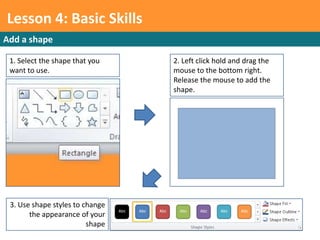
 1. Select the shape that you    2. Left click hold and drag the
 want to use.                    mouse to the bottom right.
                                 Release the mouse to add the
                                 shape.


 3. Use shape styles to change
       the appearance of your
                         shape
Lesson 4: Basic Skills
Add clipart
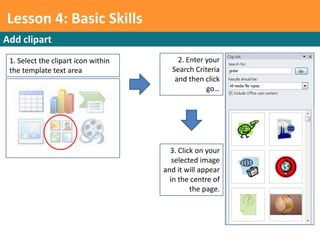
 1. Select the clipart icon within       2. Enter your
 the template text area                Search Criteria
                                        and then click
                                                  go…


                                       3. Click on your
                                        selected image
                                     and it will appear
                                       in the centre of
                                              the page.
Lesson 4: Basic Skills
Edit the Slide Master
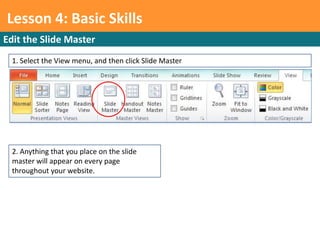
  1. Select the View menu, and then click Slide Master


  2. Anything that you place on the slide
  master will appear on every page
  throughout your website.
Lesson 4: Basic Skills
Your Task – Square and Pentagon

 Create a PowerPoint Presentation ready to tell your
 peers all about you.

 Edit your Master Slide to contain the information
 you want on every slide, and then add titles and
 sub headings to each page.

 Use the internet to collect some images, but
 remember to bring some from home next lesson
 too.
Lesson 4: Basic Skills
Your Task – Triangle

 Download the template file from the website.

 Edit your Master Slide to contain the information
 you want on every slide, and then add titles and
 sub headings to each page.

 Use the internet to collect some images, but
 remember to bring some from home next lesson
 too.

Basic skills

  • 1.
    Lesson 4: BasicSkills Add a shape 1. Select the shape that you 2. Left click hold and drag the want to use. mouse to the bottom right. Release the mouse to add the shape. 3. Use shape styles to change the appearance of your shape
  • 2.
    Lesson 4: BasicSkills Add clipart 1. Select the clipart icon within 2. Enter your the template text area Search Criteria and then click go… 3. Click on your selected image and it will appear in the centre of the page.
  • 3.
    Lesson 4: BasicSkills Edit the Slide Master 1. Select the View menu, and then click Slide Master 2. Anything that you place on the slide master will appear on every page throughout your website.
  • 4.
    Lesson 4: BasicSkills Your Task – Square and Pentagon Create a PowerPoint Presentation ready to tell your peers all about you. Edit your Master Slide to contain the information you want on every slide, and then add titles and sub headings to each page. Use the internet to collect some images, but remember to bring some from home next lesson too.
  • 5.
    Lesson 4: BasicSkills Your Task – Triangle Download the template file from the website. Edit your Master Slide to contain the information you want on every slide, and then add titles and sub headings to each page. Use the internet to collect some images, but remember to bring some from home next lesson too.