POWERPOINT
by Colin Williams, Librarian
based on a presentation by
Serena Vaquilar (Former Librarian)
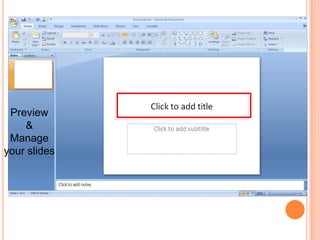
Preview
&
Manage
your slides
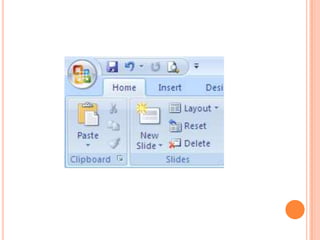
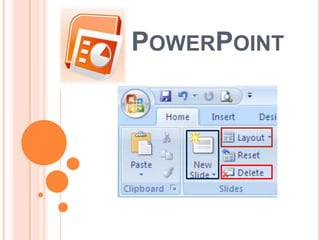
•Adds a slide
•Arrow drops menu down to choose a
layout for your new slide
Changes the
layout of your
current slide
Deletes the
current slide
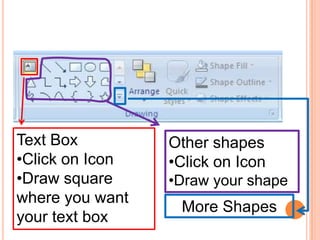
Text Box
•Click on Icon
•Draw square
where you want
your text box
Other shapes
•Click on Icon
•Draw your shape
More Shapes
ADDING IMAGES
Add images/pictures from
many different places:
 From the Internet
 From your own pictures
(that you’ve saved to your
flash drive or disk)
 From Clip Art in
PowerPoint
INTERNET
Add images/pictures from
many different places:
 From the Internet
 From your own pictures
(that you’ve saved to your
flash drive or disk)
 From Clip Art in
PowerPoint
INTERNET
ADDING IMAGES
Add images/pictures from
many different places:
 From the Internet
 From your own pictures
(that you’ve saved to your
flash drive or disk)
 From Clip Art in
PowerPoint
INTERNET
ADDING IMAGES
Add images/pictures from
many different places:
 From the Internet
 From your own pictures
(that you’ve saved to your
flash drive or disk)
 From Clip Art in
PowerPoint
INTERNET
ADDING IMAGES
What is Internet Explorer?
 An Internet Browser.
What can you do with it?
 Access to the World Wide Web
 Medical Information, Images
 Court Cases, Legal Processes
 Kaplan Quad
 Email
 Facebook
What is Internet Explorer?
 Your window/access to the Internet
What can you do with it?
 Look up information
 Look for images/pictures
 Log on to Kaplan Quad to check your
grades after each module
 Check/Send email
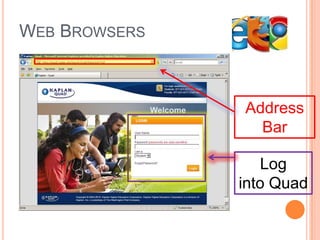
WEB BROWSERS
Address
Bar
Log
into Quad
WEB BROWSERS
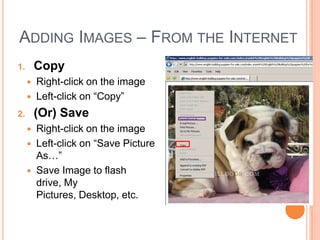
ADDING IMAGES – FROM THE INTERNET
1. Copy
 Right-click on the image
 Left-click on “Copy”
2. (Or) Save
 Right-click on the image
 Left-click on “Save Picture
As…”
 Save Image to flash
drive, My
Pictures, Desktop, etc.
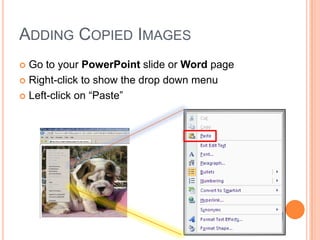
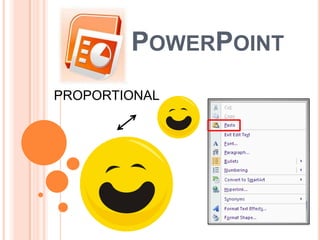
ADDING COPIED IMAGES
 Go to your PowerPoint slide or Word page
 Right-click to show the drop down menu
 Left-click on “Paste”
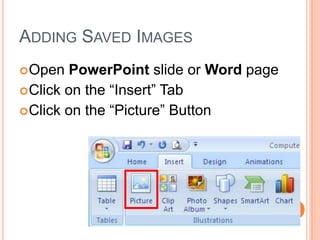
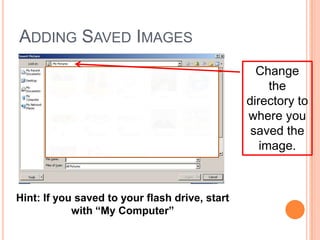
ADDING SAVED IMAGES
Open PowerPoint slide or Word page
Click on the “Insert” Tab
Click on the “Picture” Button
Change
the
directory to
where you
saved the
image.
Hint: If you saved to your flash drive, start
with “My Computer”
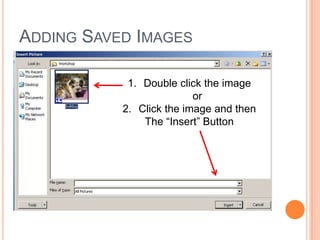
ADDING SAVED IMAGES
1. Double click the image
or
2. Click the image and then
The “Insert” Button
ADDING SAVED IMAGES
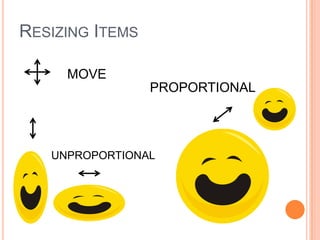
RESIZING ITEMS
MOVE
PROPORTIONAL
UNPROPORTIONAL
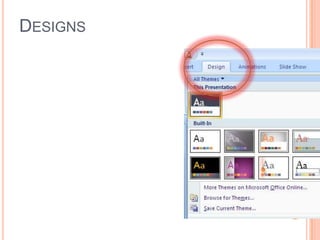
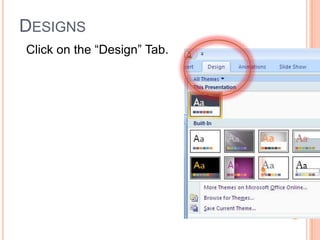
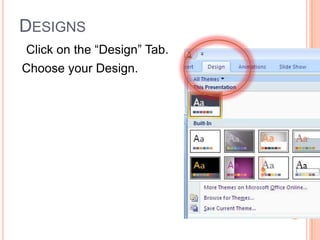
DESIGNS
Click on the “Design” Tab.
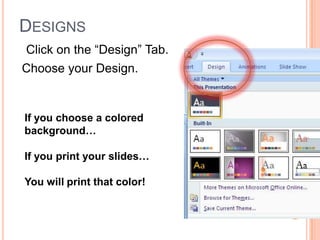
If you choose a colored
background…
If you print your slides…
You will print that color!
Choose your Design.
DESIGNS
Click on the “Design” Tab.
If you choose a colored
background…
If you print your slides…
You will print that color!
Choose your Design.
DESIGNS
Click on the “Design” Tab.
If you choose a colored
background…
If you print your slides…
You will print that color!
Choose your Design.
DESIGNS
Click on the “Design” Tab.
If you choose a colored
background…
If you print your slides…
You will print that color!
Choose your Design.
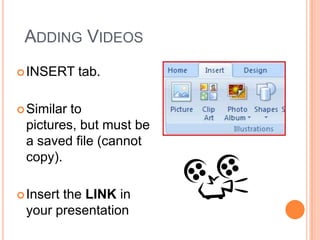
ADDING VIDEOS
INSERT tab.
Similar to
pictures, but must be
a saved file (cannot
copy).
Insert the LINK in
your presentation
LINKING A VIDEO IN YOUR PRESENTATION
1. FIND the video on the internet.
2. COPY the ADDRESS from the ADDRESS BAR
3. PASTE the link into presentation.
IMPORTANT: hit [SPACE BAR] or [ENTER] to make the link
active
LINKING A VIDEO IN YOUR PRESENTATION
1. FIND the video on the internet.
2. COPY the ADDRESS from the ADDRESS BAR
3. PASTE the link into presentation.
IMPORTANT: hit [SPACE BAR] or [ENTER] to make the link
active
http://www.youtube.com/watch?v=y4q4KqWpV_A
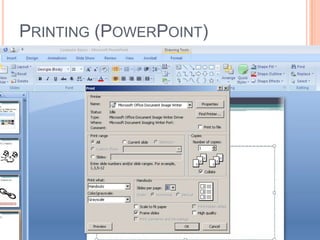
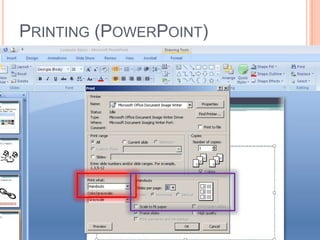
PRINTING (POWERPOINT)
POWERPOINT
REVIEW
POWERPOINT
POWERPOINT
POWERPOINT
What is Internet Explorer?
Your window/access to the Internet
What can you do with it?
Look up information
Look for images/pictures
Log on to Kaplan Quad to check your grades after each module
Check/Send email
POWERPOINT
PROPORTIONAL
POWERPOINT
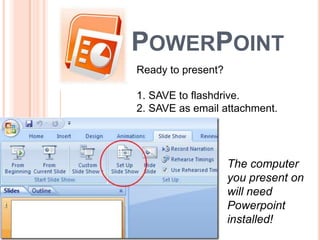
Ready to present?
1. SAVE to flashdrive.
2. SAVE as email attachment.
The computer
you present on
will need
Powerpoint
installed!
HOW TO USE MICROSOFT POWERPOINT

HOW TO USE MICROSOFT POWERPOINT

  • 1.
    POWERPOINT by Colin Williams,Librarian based on a presentation by Serena Vaquilar (Former Librarian)
  • 3.
  • 5.
    •Adds a slide •Arrowdrops menu down to choose a layout for your new slide Changes the layout of your current slide Deletes the current slide
  • 6.
    Text Box •Click onIcon •Draw square where you want your text box Other shapes •Click on Icon •Draw your shape More Shapes
  • 7.
    ADDING IMAGES Add images/picturesfrom many different places:  From the Internet  From your own pictures (that you’ve saved to your flash drive or disk)  From Clip Art in PowerPoint INTERNET
  • 8.
    Add images/pictures from manydifferent places:  From the Internet  From your own pictures (that you’ve saved to your flash drive or disk)  From Clip Art in PowerPoint INTERNET ADDING IMAGES
  • 9.
    Add images/pictures from manydifferent places:  From the Internet  From your own pictures (that you’ve saved to your flash drive or disk)  From Clip Art in PowerPoint INTERNET ADDING IMAGES
  • 10.
    Add images/pictures from manydifferent places:  From the Internet  From your own pictures (that you’ve saved to your flash drive or disk)  From Clip Art in PowerPoint INTERNET ADDING IMAGES
  • 11.
    What is InternetExplorer?  An Internet Browser. What can you do with it?  Access to the World Wide Web  Medical Information, Images  Court Cases, Legal Processes  Kaplan Quad  Email  Facebook
  • 13.
    What is InternetExplorer?  Your window/access to the Internet What can you do with it?  Look up information  Look for images/pictures  Log on to Kaplan Quad to check your grades after each module  Check/Send email WEB BROWSERS
  • 15.
  • 16.
    ADDING IMAGES –FROM THE INTERNET 1. Copy  Right-click on the image  Left-click on “Copy” 2. (Or) Save  Right-click on the image  Left-click on “Save Picture As…”  Save Image to flash drive, My Pictures, Desktop, etc.
  • 17.
    ADDING COPIED IMAGES Go to your PowerPoint slide or Word page  Right-click to show the drop down menu  Left-click on “Paste”
  • 18.
    ADDING SAVED IMAGES OpenPowerPoint slide or Word page Click on the “Insert” Tab Click on the “Picture” Button
  • 19.
    Change the directory to where you savedthe image. Hint: If you saved to your flash drive, start with “My Computer” ADDING SAVED IMAGES
  • 20.
    1. Double clickthe image or 2. Click the image and then The “Insert” Button ADDING SAVED IMAGES
  • 21.
  • 23.
    DESIGNS Click on the“Design” Tab. If you choose a colored background… If you print your slides… You will print that color! Choose your Design.
  • 24.
    DESIGNS Click on the“Design” Tab. If you choose a colored background… If you print your slides… You will print that color! Choose your Design.
  • 25.
    DESIGNS Click on the“Design” Tab. If you choose a colored background… If you print your slides… You will print that color! Choose your Design.
  • 26.
    DESIGNS Click on the“Design” Tab. If you choose a colored background… If you print your slides… You will print that color! Choose your Design.
  • 27.
    ADDING VIDEOS INSERT tab. Similarto pictures, but must be a saved file (cannot copy). Insert the LINK in your presentation
  • 28.
    LINKING A VIDEOIN YOUR PRESENTATION 1. FIND the video on the internet. 2. COPY the ADDRESS from the ADDRESS BAR 3. PASTE the link into presentation. IMPORTANT: hit [SPACE BAR] or [ENTER] to make the link active
  • 29.
    LINKING A VIDEOIN YOUR PRESENTATION 1. FIND the video on the internet. 2. COPY the ADDRESS from the ADDRESS BAR 3. PASTE the link into presentation. IMPORTANT: hit [SPACE BAR] or [ENTER] to make the link active http://www.youtube.com/watch?v=y4q4KqWpV_A
  • 30.
  • 31.
  • 33.
  • 34.
  • 35.
  • 36.
    POWERPOINT What is InternetExplorer? Your window/access to the Internet What can you do with it? Look up information Look for images/pictures Log on to Kaplan Quad to check your grades after each module Check/Send email
  • 37.
  • 38.
    POWERPOINT Ready to present? 1.SAVE to flashdrive. 2. SAVE as email attachment. The computer you present on will need Powerpoint installed!