An ActivEducator’s Tips + Tricks 
 
  ActivBoard: Troubleshooting Tips 

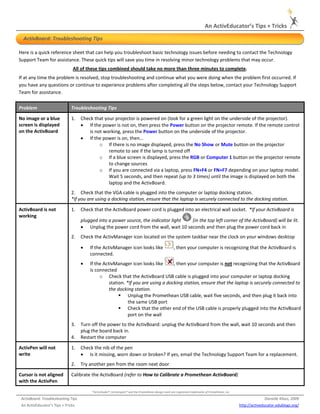
Here is a quick reference sheet that can help you troubleshoot basic technology issues before needing to contact the Technology 
Support Team for assistance. These quick tips will save you time in resolving minor technology problems that may occur.   
                                   All of these tips combined should take no more than three minutes to complete. 
If at any time the problem is resolved, stop troubleshooting and continue what you were doing when the problem first occurred. If 
you have any questions or continue to experience problems after completing all the steps below, contact your Technology Support 
Team for assistance.  

Problem                           Troubleshooting Tips 

No image or a blue                1.    Check that your projector is powered on (look for a green light on the underside of the projector). 
screen is displayed                     • If the power is not on, then press the Power button on the projector remote. If the remote control 
on the ActivBoard                           is not working, press the Power button on the underside of the projector.  
                                        • If the power is on, then… 
                                                 o If there is no image displayed, press the No Show or Mute button on the projector 
                                                     remote to see if the lamp is turned off  
                                                 o If a blue screen is displayed, press the RGB or Computer 1 button on the projector remote 
                                                     to change sources 
                                                 o If you are connected via a laptop, press FN+F4 or FN+F7 depending on your laptop model. 
                                                     Wait 5 seconds, and then repeat (up to 3 times) until the image is displayed on both the 
                                                     laptop and the ActivBoard. 
                                  2. Check that the VGA cable is plugged into the computer or laptop docking station.   
                                  *If you are using a docking station, ensure that the laptop is securely connected to the docking station. 

ActivBoard is not                 1.    Check that the ActivBoard power cord is plugged into an electrical wall socket.  *If your ActivBoard is 
working 
                                        plugged into a power source, the indicator light   (in the top left corner of the ActivBoard) will be lit.  
                                        • Unplug the power cord from the wall, wait 10 seconds and then plug the power cord back in 
                                  2.    Check the ActivManager icon located on the system taskbar near the clock on your windows desktop 

                                        •   If the ActivManager icon looks like                            , then your computer is recognizing that the ActivBoard is 
                                            connected. 
                                        •   If the ActivManager icon looks like       , then your computer is not recognizing that the ActivBoard 
                                            is connected 
                                                 o Check that the ActivBoard USB cable is plugged into your computer or laptop docking 
                                                      station. *If you are using a docking station, ensure that the laptop is securely connected to 
                                                      the docking station. 
                                                                Unplug the Promethean USB cable, wait five seconds, and then plug it back into 
                                                                the same USB port  
                                                                Check that the other end of the USB cable is properly plugged into the ActivBoard 
                                                                port on the wall  
                                  3.    Turn off the power to the ActivBoard: unplug the ActivBoard from the wall, wait 10 seconds and then 
                                        plug the board back in. 
                                  4.    Restart the computer 

ActivPen will not                 1.    Check the nib of the pen 
write                                   • Is it missing, worn down or broken? If yes, email the Technology Support Team for a replacement.  
                                  2.    Try another pen from the room next door

Cursor is not aligned             Calibrate the ActivBoard (refer to How to Calibrate a Promethean ActivBoard) 
with the ActivPen 


                                             *ActivStudio®, ActivInspire® and the Promethean design mark are registered trademarks of Promethean, Inc. 

    ActivBoard: Troubleshooting Tips                                                                                                                                    Danielle Klaus, 2009 
                                                                                                 
 
    An ActivEducator’s Tips + Tricks                                                                                                                      http://activeducator.edublogs.org/

ActivBoard: Troubleshooting Tips

  • 1.
    An ActivEducator’s Tips + Tricks      ActivBoard: Troubleshooting Tips  Here is a quick reference sheet that can help you troubleshoot basic technology issues before needing to contact the Technology  Support Team for assistance. These quick tips will save you time in resolving minor technology problems that may occur.    All of these tips combined should take no more than three minutes to complete.  If at any time the problem is resolved, stop troubleshooting and continue what you were doing when the problem first occurred. If  you have any questions or continue to experience problems after completing all the steps below, contact your Technology Support  Team for assistance.   Problem  Troubleshooting Tips  No image or a blue  1. Check that your projector is powered on (look for a green light on the underside of the projector).  screen is displayed  • If the power is not on, then press the Power button on the projector remote. If the remote control  on the ActivBoard   is not working, press the Power button on the underside of the projector.     • If the power is on, then…  o If there is no image displayed, press the No Show or Mute button on the projector  remote to see if the lamp is turned off   o If a blue screen is displayed, press the RGB or Computer 1 button on the projector remote  to change sources  o If you are connected via a laptop, press FN+F4 or FN+F7 depending on your laptop model.  Wait 5 seconds, and then repeat (up to 3 times) until the image is displayed on both the  laptop and the ActivBoard.  2. Check that the VGA cable is plugged into the computer or laptop docking station.    *If you are using a docking station, ensure that the laptop is securely connected to the docking station.  ActivBoard is not  1. Check that the ActivBoard power cord is plugged into an electrical wall socket.  *If your ActivBoard is  working  plugged into a power source, the indicator light   (in the top left corner of the ActivBoard) will be lit.   • Unplug the power cord from the wall, wait 10 seconds and then plug the power cord back in  2. Check the ActivManager icon located on the system taskbar near the clock on your windows desktop  • If the ActivManager icon looks like  , then your computer is recognizing that the ActivBoard is  connected.  • If the ActivManager icon looks like  , then your computer is not recognizing that the ActivBoard  is connected  o Check that the ActivBoard USB cable is plugged into your computer or laptop docking  station. *If you are using a docking station, ensure that the laptop is securely connected to  the docking station.  Unplug the Promethean USB cable, wait five seconds, and then plug it back into  the same USB port   Check that the other end of the USB cable is properly plugged into the ActivBoard  port on the wall   3. Turn off the power to the ActivBoard: unplug the ActivBoard from the wall, wait 10 seconds and then  plug the board back in.  4. Restart the computer  ActivPen will not  1. Check the nib of the pen  write  • Is it missing, worn down or broken? If yes, email the Technology Support Team for a replacement.   2. Try another pen from the room next door Cursor is not aligned  Calibrate the ActivBoard (refer to How to Calibrate a Promethean ActivBoard)  with the ActivPen    *ActivStudio®, ActivInspire® and the Promethean design mark are registered trademarks of Promethean, Inc.  ActivBoard: Troubleshooting Tips  Danielle Klaus, 2009      An ActivEducator’s Tips + Tricks  http://activeducator.edublogs.org/