Data Director for the High School
Teacher
Derek D’Angelo
derek.dangelo@uticak12.org
Utica Community Schools
DataDirector User Conference
Dearborn, MI
November 9-10, 2010
Now we can get started…
Exam Quick Start Guide
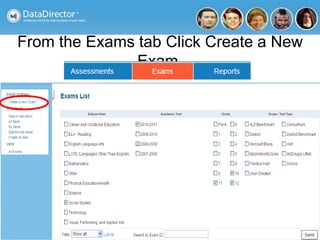
From the Exams tab Click Create a New
Exam.
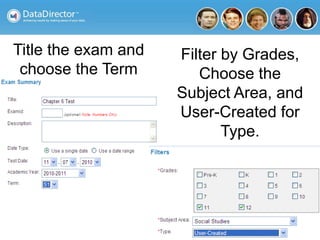
Title the exam and
choose the Term
Filter by Grades,
Choose the
Subject Area, and
User-Created for
Type.
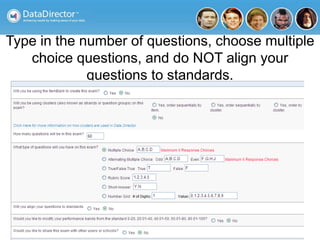
Type in the number of questions, choose multiple
choice questions, and do NOT align your
questions to standards.
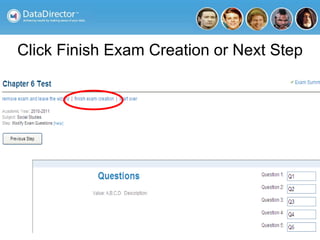
Click Finish Exam Creation or Next Step
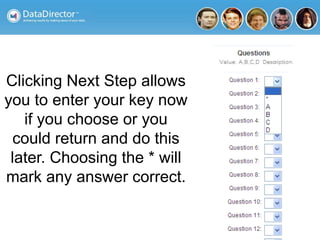
Clicking Next Step allows
you to enter your key now
if you choose or you
could return and do this
later. Choosing the * will
mark any answer correct.
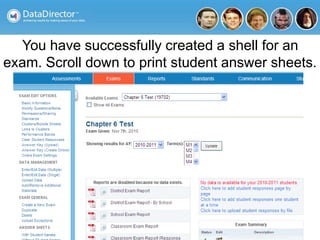
You have successfully created a shell for an
exam. Scroll down to print student answer sheets.
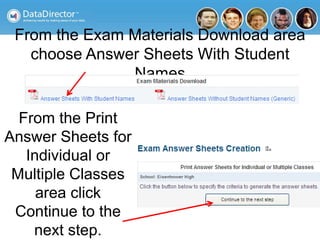
From the Exam Materials Download area
choose Answer Sheets With Student
Names
From the Print
Answer Sheets for
Individual or
Multiple Classes
area click
Continue to the
next step.
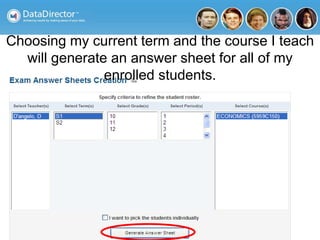
Choosing my current term and the course I teach
will generate an answer sheet for all of my
enrolled students.
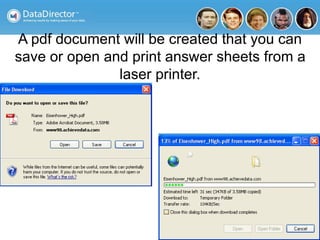
A pdf document will be created that you can
save or open and print answer sheets from a
laser printer.
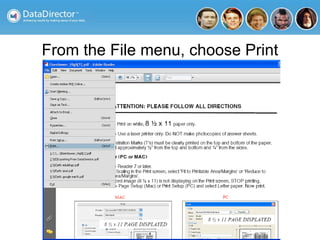
From the File menu, choose Print
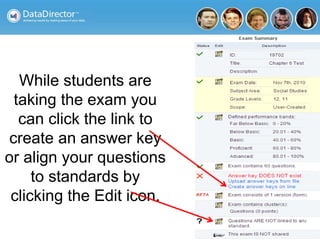
While students are
taking the exam you
can click the link to
create an answer key
or align your questions
to standards by
clicking the Edit icon.
Exam Reports, Grading
Summaries and Statistical
Analysis
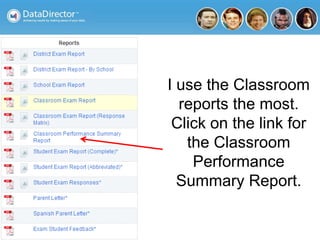
I use the Classroom
reports the most.
Click on the link for
the Classroom
Performance
Summary Report.
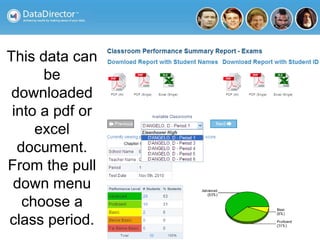
This data can
be
downloaded
into a pdf or
excel
document.
From the pull
down menu
choose a
class period.
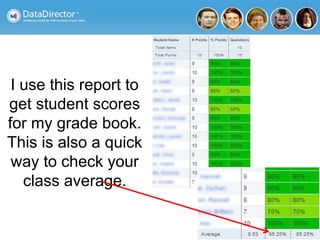
I use this report to
get student scores
for my grade book.
This is also a quick
way to check your
class average.
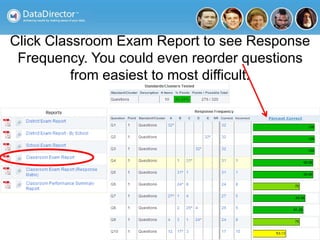
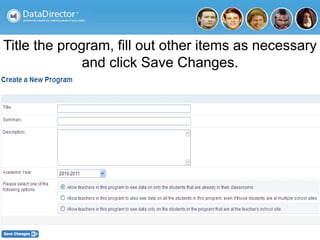
Click Classroom Exam Report to see Response
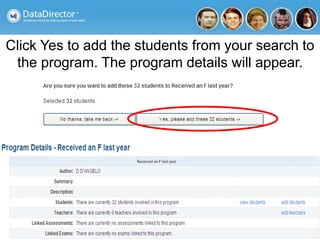
Frequency. You could even reorder questions
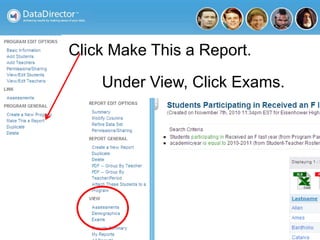
from easiest to most difficult.
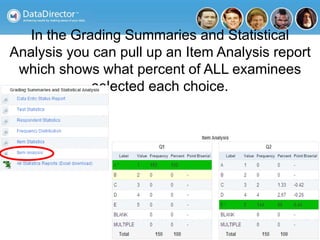
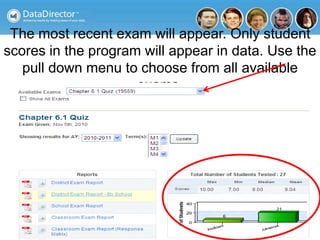
In the Grading Summaries and Statistical
Analysis you can pull up an Item Analysis report
which shows what percent of ALL examinees
selected each choice.
Online Testing
You may need to call California and get this
feature turned on for your district if you do not
see it as a choice under EXAM EDIT OPTIONS.
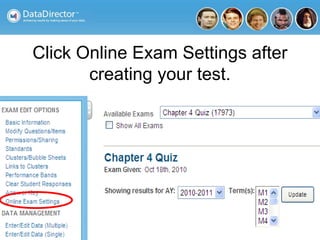
Click Online Exam Settings after
creating your test.
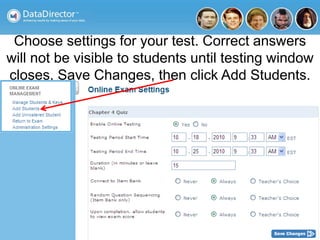
Choose settings for your test. Correct answers
will not be visible to students until testing window
closes. Save Changes, then click Add Students.
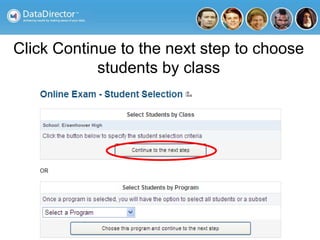
Click Continue to the next step to choose
students by class
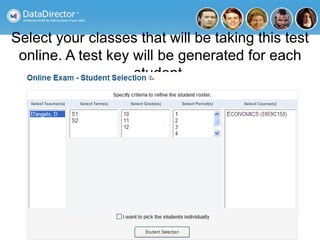
Select your classes that will be taking this test
online. A test key will be generated for each
student.
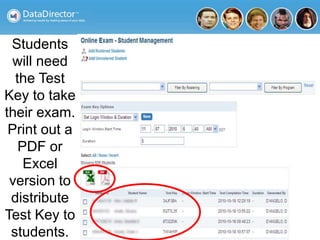
Students
will need
the Test
Key to take
their exam.
Print out a
PDF or
Excel
version to
distribute
Test Key to
students.
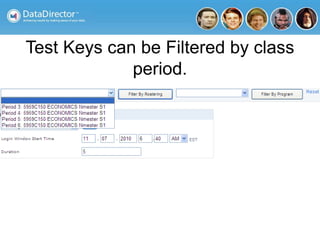
Test Keys can be Filtered by class
period.
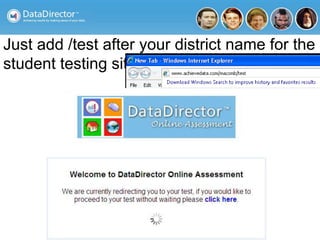
Just add /test after your district name for the
student testing site.
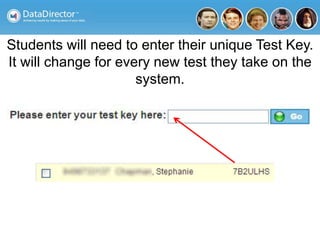
Students will need to enter their unique Test Key.
It will change for every new test they take on the
system.
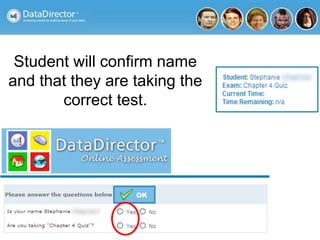
Student will confirm name
and that they are taking the
correct test.
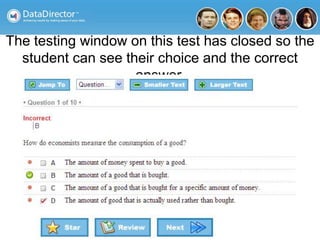
The testing window on this test has closed so the
student can see their choice and the correct
answer.
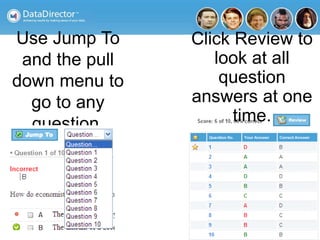
Use Jump To
and the pull
down menu to
go to any
question.
Click Review to
look at all
question
answers at one
time.
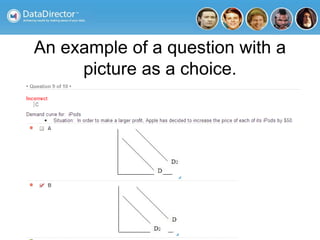
An example of a question with a
picture as a choice.
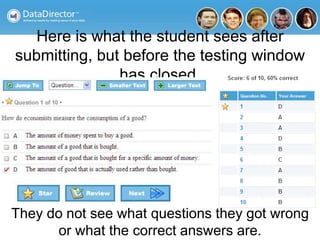
Here is what the student sees after
submitting, but before the testing window
has closed.
They do not see what questions they got wrong
or what the correct answers are.
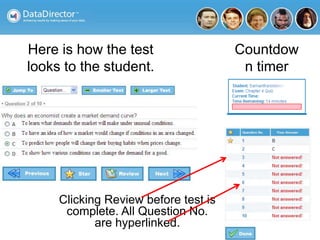
Countdow
n timer
Here is how the test
looks to the student.
Clicking Review before test is
complete. All Question No.
are hyperlinked.
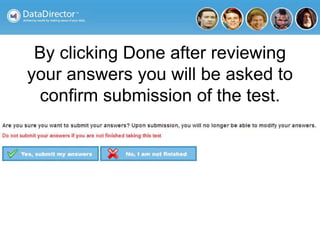
By clicking Done after reviewing
your answers you will be asked to
confirm submission of the test.
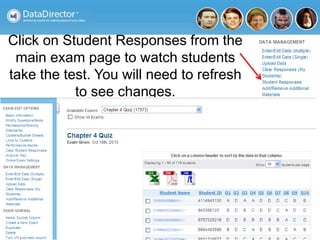
Click on Student Responses from the
main exam page to watch students
take the test. You will need to refresh
to see changes.
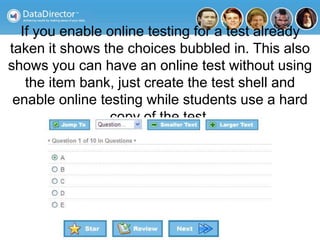
If you enable online testing for a test already
taken it shows the choices bubbled in. This also
shows you can have an online test without using
the item bank, just create the test shell and
enable online testing while students use a hard
copy of the test.
Lessons Learned
• The test result the student sees will be based off the
answer key that exists when the Test Key (code) is
entered. A student needs to retype the Test Key to see
their updated score if there is an answer key change.
• When the test window is open students will only see
their score and what they chose on each question. They
will not see the correct answer and which questions they
got wrong unless the testing window closes.
Lessons Learned
• Make sure tests have been submitted during class time.
• Browser lockdown does not occur.
• If the computer powers down or has an error students
can retype in their test key and pick up where they left
off.
• Although you can give AB as a choice in multiple choice
tests and students can see AB as a choice, if they choose
AB as an answer it will not stay when they move on to
the next question. Only a single letter answer is
recognized.
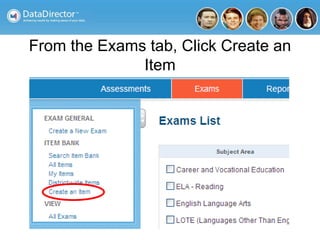
Create an Item
From the Exams tab, Click Create an
Item
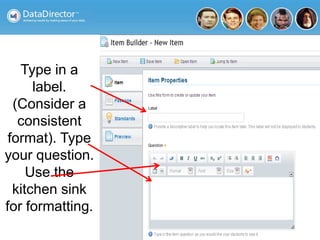
Type in a
label.
(Consider a
consistent
format). Type
your question.
Use the
kitchen sink
for formatting.
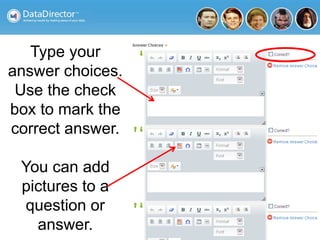
Type your
answer choices.
Use the check
box to mark the
correct answer.
You can add
pictures to a
question or
answer.
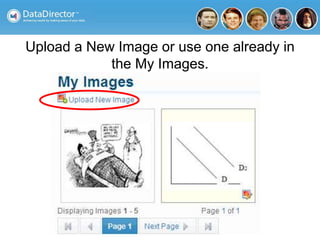
Upload a New Image or use one already in
the My Images.
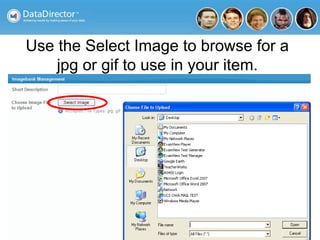
Use the Select Image to browse for a
jpg or gif to use in your item.
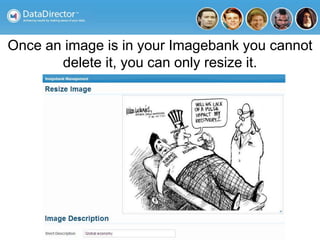
Once an image is in your Imagebank you cannot
delete it, you can only resize it.
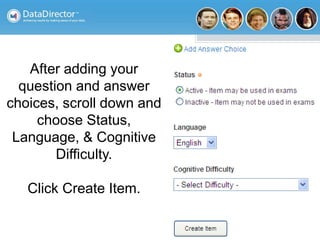
After adding your
question and answer
choices, scroll down and
choose Status,
Language, & Cognitive
Difficulty.
Click Create Item.
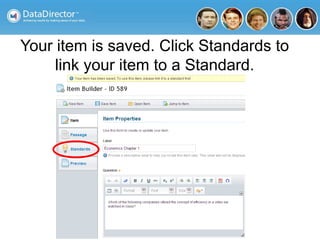
Your item is saved. Click Standards to
link your item to a Standard.
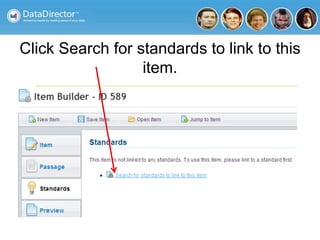
Click Search for standards to link to this
item.
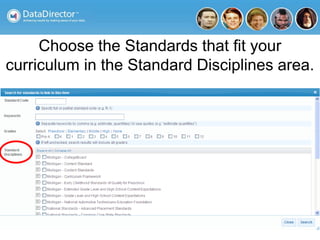
Choose the Standards that fit your
curriculum in the Standard Disciplines area.
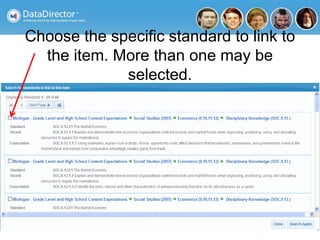
Choose the specific standard to link to
the item. More than one may be
selected.
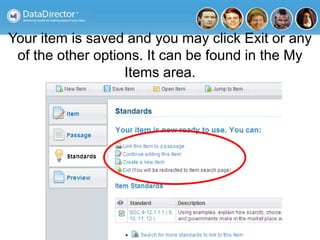
Your item is saved and you may click Exit or any
of the other options. It can be found in the My
Items area.
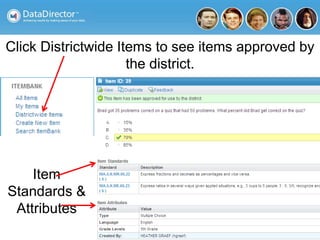
Click Districtwide Items to see items approved by
the district.
Item
Standards &
Attributes
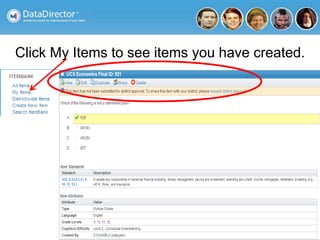
Click My Items to see items you have created.
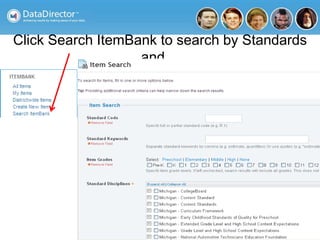
Click Search ItemBank to search by Standards
and…
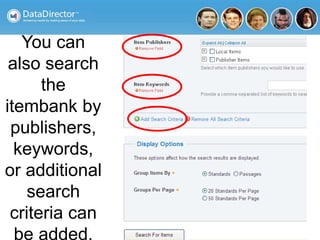
You can
also search
the
itembank by
publishers,
keywords,
or additional
search
criteria can
be added.
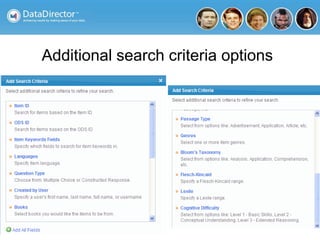
Additional search criteria options
Lessons learned and unresolved issues
• Issues with sharing items districtwide. Districts can actually
be countywide.
• Only way of sharing individual items is to have a district
approval process in place. Content area specialists?
Committee?
• Copyright laws and the republication without permission
would be difficult to police. Need to get publisher
permission.
• Test integrity-Especially using questions shared with an
entire county.
• Alternative-create an exam that is used only as an itembank.
The exam is a dummy exam and will contain all questions for
that chapter from my items. Share the exam with whomever
you want access to your items.
The powers of the STUDENT
tab
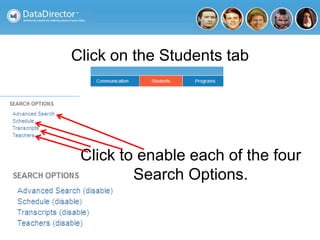
Click on the Students tab
Click to enable each of the four
Search Options.
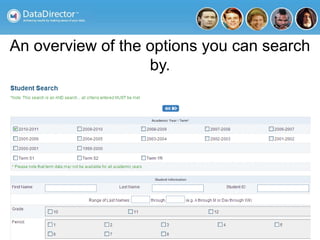
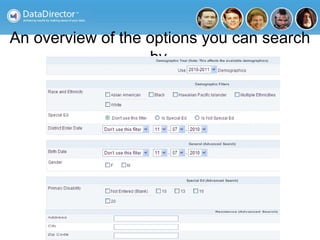
An overview of the options you can search
by.
An overview of the options you can search
by.
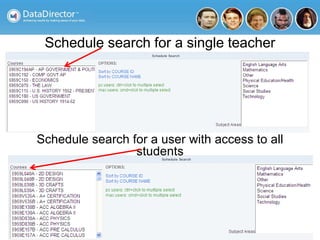
Schedule search for a single teacher
Schedule search for a user with access to all
students
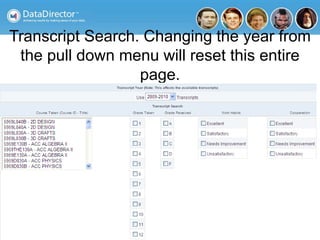
Transcript Search. Changing the year from
the pull down menu will reset this entire
page.
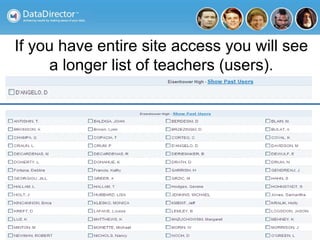
If you have entire site access you will see
a longer list of teachers (users).
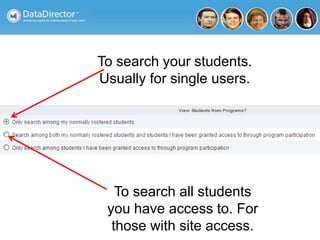
To search your students.
Usually for single users.
To search all students
you have access to. For
those with site access.
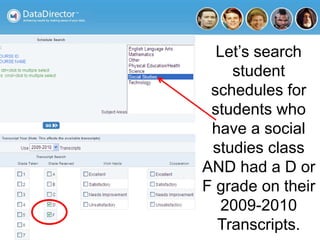
Let’s search
student
schedules for
students who
have a social
studies class
AND had a D or
F grade on their
2009-2010
Transcripts.
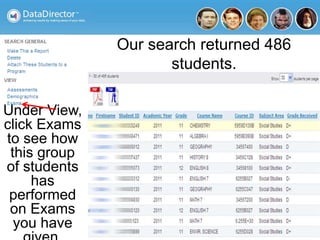
Our search returned 486
students.
Under View,
click Exams
to see how
this group
of students
has
performed
on Exams
you have
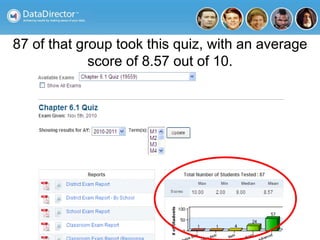
87 of that group took this quiz, with an average
score of 8.57 out of 10.
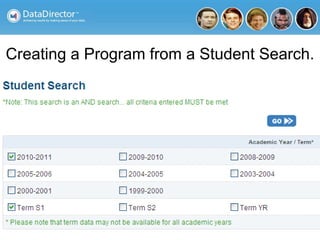
Creating a Program from a Student Search.
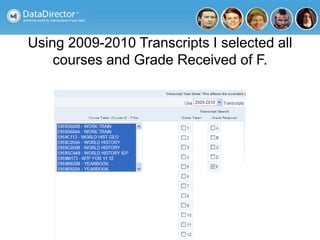
Using 2009-2010 Transcripts I selected all
courses and Grade Received of F.
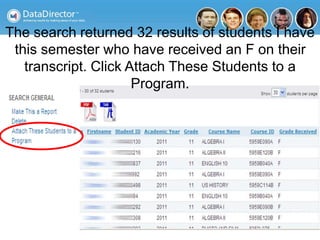
The search returned 32 results of students I have
this semester who have received an F on their
transcript. Click Attach These Students to a
Program.
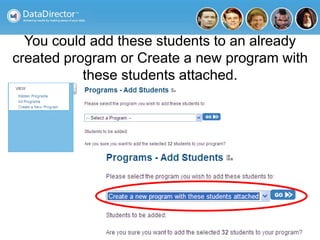
You could add these students to an already
created program or Create a new program with
these students attached.
Title the program, fill out other items as necessary
and click Save Changes.
Click Yes to add the students from your search to
the program. The program details will appear.
Click Make This a Report.
Under View, Click Exams.
The most recent exam will appear. Only student
scores in the program will appear in data. Use the
pull down menu to choose from all available
exams.
Create a New Demographic
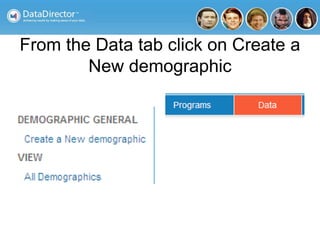
From the Data tab click on Create a
New demographic
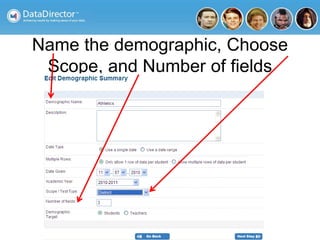
Name the demographic, Choose
Scope, and Number of fields
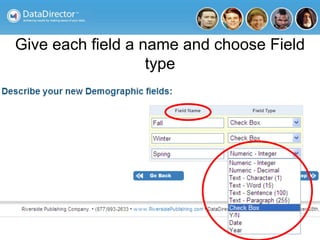
Give each field a name and choose Field
type
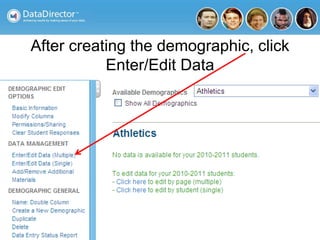
After creating the demographic, click
Enter/Edit Data
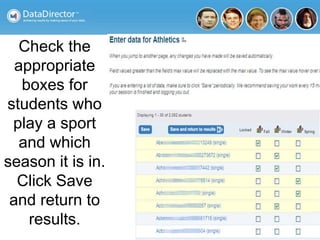
Check the
appropriate
boxes for
students who
play a sport
and which
season it is in.
Click Save
and return to
results.
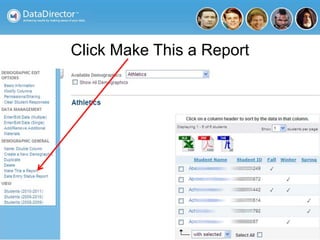
Click Make This a Report
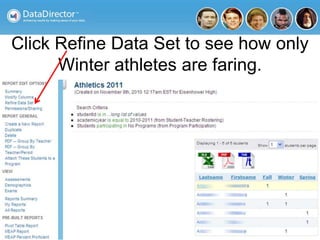
Click Refine Data Set to see how only
Winter athletes are faring.
Create a dummy Exam to use
as an Item Bank and share My
Items with other teachers
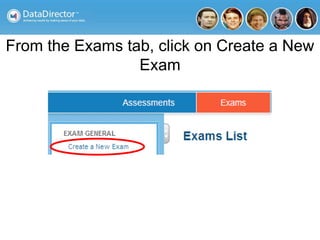
From the Exams tab, click on Create a New
Exam
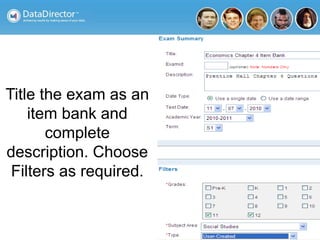
Title the exam as an
item bank and
complete
description. Choose
Filters as required.
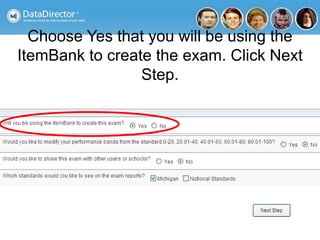
Choose Yes that you will be using the
ItemBank to create the exam. Click Next
Step.
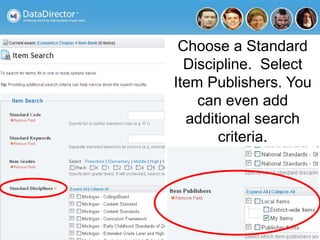
Choose a Standard
Discipline. Select
Item Publishers. You
can even add
additional search
criteria.
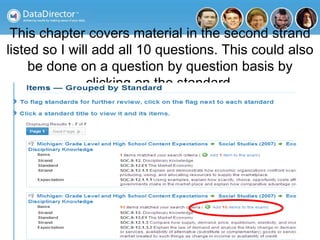
This chapter covers material in the second strand
listed so I will add all 10 questions. This could also
be done on a question by question basis by
clicking on the standard.
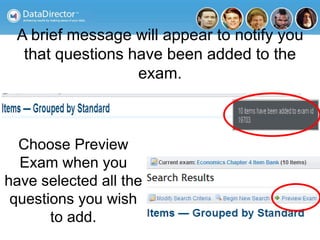
A brief message will appear to notify you
that questions have been added to the
exam.
Choose Preview
Exam when you
have selected all the
questions you wish
to add.
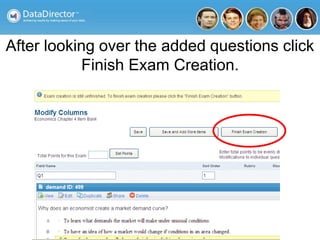
After looking over the added questions click
Finish Exam Creation.
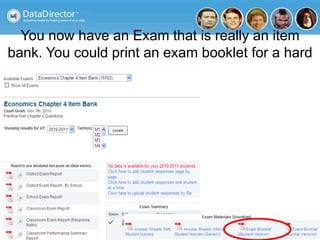
You now have an Exam that is really an item
bank. You could print an exam booklet for a hard
copy.
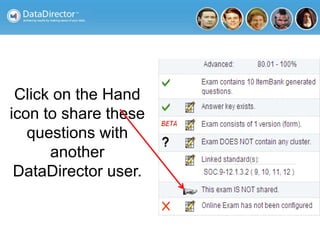
Click on the Hand
icon to share these
questions with
another
DataDirector user.
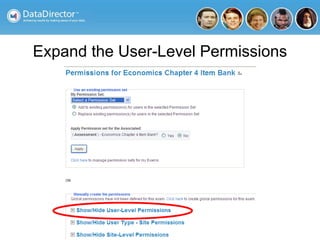
Expand the User-Level Permissions
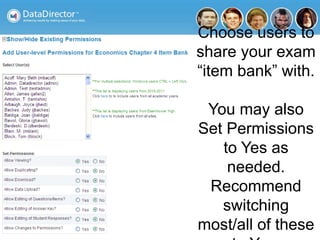
Choose users to
share your exam
“item bank” with.
You may also
Set Permissions
to Yes as
needed.
Recommend
switching
most/all of these
Double Letter Answer Choice
Creation
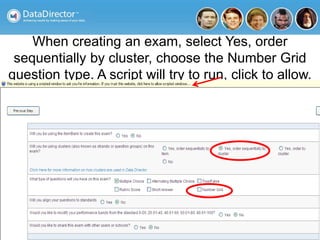
When creating an exam, select Yes, order
sequentially by cluster, choose the Number Grid
question type. A script will try to run, click to allow.
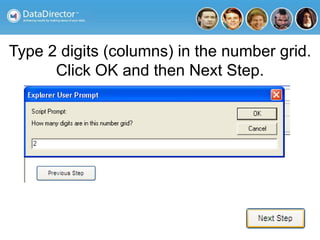
Type 2 digits (columns) in the number grid.
Click OK and then Next Step.
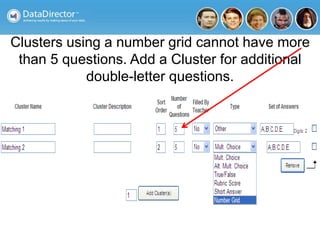
Clusters using a number grid cannot have more
than 5 questions. Add a Cluster for additional
double-letter questions.
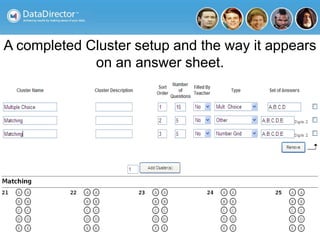
A completed Cluster setup and the way it appears
on an answer sheet.
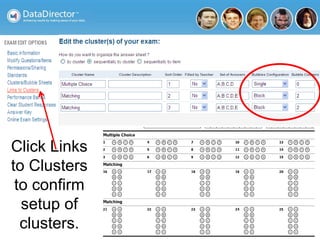
Click Links
to Clusters
to confirm
setup of
clusters.
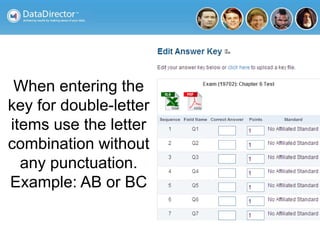
When entering the
key for double-letter
items use the letter
combination without
any punctuation.
Example: AB or BC

Data director wednesday

  • 1.
    Data Director forthe High School Teacher Derek D’Angelo derek.dangelo@uticak12.org Utica Community Schools DataDirector User Conference Dearborn, MI November 9-10, 2010
  • 7.
    Now we canget started…
  • 8.
  • 9.
    From the Examstab Click Create a New Exam.
  • 10.
    Title the examand choose the Term Filter by Grades, Choose the Subject Area, and User-Created for Type.
  • 11.
    Type in thenumber of questions, choose multiple choice questions, and do NOT align your questions to standards.
  • 12.
    Click Finish ExamCreation or Next Step
  • 13.
    Clicking Next Stepallows you to enter your key now if you choose or you could return and do this later. Choosing the * will mark any answer correct.
  • 14.
    You have successfullycreated a shell for an exam. Scroll down to print student answer sheets.
  • 15.
    From the ExamMaterials Download area choose Answer Sheets With Student Names From the Print Answer Sheets for Individual or Multiple Classes area click Continue to the next step.
  • 16.
    Choosing my currentterm and the course I teach will generate an answer sheet for all of my enrolled students.
  • 17.
    A pdf documentwill be created that you can save or open and print answer sheets from a laser printer.
  • 18.
    From the Filemenu, choose Print
  • 19.
    While students are takingthe exam you can click the link to create an answer key or align your questions to standards by clicking the Edit icon.
  • 20.
    Exam Reports, Grading Summariesand Statistical Analysis
  • 21.
    I use theClassroom reports the most. Click on the link for the Classroom Performance Summary Report.
  • 22.
    This data can be downloaded intoa pdf or excel document. From the pull down menu choose a class period.
  • 23.
    I use thisreport to get student scores for my grade book. This is also a quick way to check your class average.
  • 24.
    Click Classroom ExamReport to see Response Frequency. You could even reorder questions from easiest to most difficult.
  • 25.
    In the GradingSummaries and Statistical Analysis you can pull up an Item Analysis report which shows what percent of ALL examinees selected each choice.
  • 26.
    Online Testing You mayneed to call California and get this feature turned on for your district if you do not see it as a choice under EXAM EDIT OPTIONS.
  • 27.
    Click Online ExamSettings after creating your test.
  • 28.
    Choose settings foryour test. Correct answers will not be visible to students until testing window closes. Save Changes, then click Add Students.
  • 29.
    Click Continue tothe next step to choose students by class
  • 30.
    Select your classesthat will be taking this test online. A test key will be generated for each student.
  • 31.
    Students will need the Test Keyto take their exam. Print out a PDF or Excel version to distribute Test Key to students.
  • 32.
    Test Keys canbe Filtered by class period.
  • 33.
    Just add /testafter your district name for the student testing site.
  • 34.
    Students will needto enter their unique Test Key. It will change for every new test they take on the system.
  • 35.
    Student will confirmname and that they are taking the correct test.
  • 36.
    The testing windowon this test has closed so the student can see their choice and the correct answer.
  • 37.
    Use Jump To andthe pull down menu to go to any question. Click Review to look at all question answers at one time.
  • 38.
    An example ofa question with a picture as a choice.
  • 39.
    Here is whatthe student sees after submitting, but before the testing window has closed. They do not see what questions they got wrong or what the correct answers are.
  • 40.
    Countdow n timer Here ishow the test looks to the student. Clicking Review before test is complete. All Question No. are hyperlinked.
  • 41.
    By clicking Doneafter reviewing your answers you will be asked to confirm submission of the test.
  • 42.
    Click on StudentResponses from the main exam page to watch students take the test. You will need to refresh to see changes.
  • 43.
    If you enableonline testing for a test already taken it shows the choices bubbled in. This also shows you can have an online test without using the item bank, just create the test shell and enable online testing while students use a hard copy of the test.
  • 44.
    Lessons Learned • Thetest result the student sees will be based off the answer key that exists when the Test Key (code) is entered. A student needs to retype the Test Key to see their updated score if there is an answer key change. • When the test window is open students will only see their score and what they chose on each question. They will not see the correct answer and which questions they got wrong unless the testing window closes.
  • 45.
    Lessons Learned • Makesure tests have been submitted during class time. • Browser lockdown does not occur. • If the computer powers down or has an error students can retype in their test key and pick up where they left off. • Although you can give AB as a choice in multiple choice tests and students can see AB as a choice, if they choose AB as an answer it will not stay when they move on to the next question. Only a single letter answer is recognized.
  • 46.
  • 47.
    From the Examstab, Click Create an Item
  • 48.
    Type in a label. (Considera consistent format). Type your question. Use the kitchen sink for formatting.
  • 49.
    Type your answer choices. Usethe check box to mark the correct answer. You can add pictures to a question or answer.
  • 50.
    Upload a NewImage or use one already in the My Images.
  • 51.
    Use the SelectImage to browse for a jpg or gif to use in your item.
  • 52.
    Once an imageis in your Imagebank you cannot delete it, you can only resize it.
  • 53.
    After adding your questionand answer choices, scroll down and choose Status, Language, & Cognitive Difficulty. Click Create Item.
  • 54.
    Your item issaved. Click Standards to link your item to a Standard.
  • 55.
    Click Search forstandards to link to this item.
  • 56.
    Choose the Standardsthat fit your curriculum in the Standard Disciplines area.
  • 57.
    Choose the specificstandard to link to the item. More than one may be selected.
  • 58.
    Your item issaved and you may click Exit or any of the other options. It can be found in the My Items area.
  • 59.
    Click Districtwide Itemsto see items approved by the district. Item Standards & Attributes
  • 60.
    Click My Itemsto see items you have created.
  • 61.
    Click Search ItemBankto search by Standards and…
  • 62.
    You can also search the itembankby publishers, keywords, or additional search criteria can be added.
  • 63.
  • 64.
    Lessons learned andunresolved issues • Issues with sharing items districtwide. Districts can actually be countywide. • Only way of sharing individual items is to have a district approval process in place. Content area specialists? Committee? • Copyright laws and the republication without permission would be difficult to police. Need to get publisher permission. • Test integrity-Especially using questions shared with an entire county. • Alternative-create an exam that is used only as an itembank. The exam is a dummy exam and will contain all questions for that chapter from my items. Share the exam with whomever you want access to your items.
  • 65.
    The powers ofthe STUDENT tab
  • 66.
    Click on theStudents tab Click to enable each of the four Search Options.
  • 67.
    An overview ofthe options you can search by.
  • 68.
    An overview ofthe options you can search by.
  • 69.
    Schedule search fora single teacher Schedule search for a user with access to all students
  • 70.
    Transcript Search. Changingthe year from the pull down menu will reset this entire page.
  • 71.
    If you haveentire site access you will see a longer list of teachers (users).
  • 72.
    To search yourstudents. Usually for single users. To search all students you have access to. For those with site access.
  • 73.
    Let’s search student schedules for studentswho have a social studies class AND had a D or F grade on their 2009-2010 Transcripts.
  • 74.
    Our search returned486 students. Under View, click Exams to see how this group of students has performed on Exams you have
  • 75.
    87 of thatgroup took this quiz, with an average score of 8.57 out of 10.
  • 76.
    Creating a Programfrom a Student Search.
  • 77.
    Using 2009-2010 TranscriptsI selected all courses and Grade Received of F.
  • 78.
    The search returned32 results of students I have this semester who have received an F on their transcript. Click Attach These Students to a Program.
  • 79.
    You could addthese students to an already created program or Create a new program with these students attached.
  • 80.
    Title the program,fill out other items as necessary and click Save Changes.
  • 81.
    Click Yes toadd the students from your search to the program. The program details will appear.
  • 82.
    Click Make Thisa Report. Under View, Click Exams.
  • 83.
    The most recentexam will appear. Only student scores in the program will appear in data. Use the pull down menu to choose from all available exams.
  • 84.
    Create a NewDemographic
  • 85.
    From the Datatab click on Create a New demographic
  • 86.
    Name the demographic,Choose Scope, and Number of fields
  • 87.
    Give each fielda name and choose Field type
  • 88.
    After creating thedemographic, click Enter/Edit Data
  • 89.
    Check the appropriate boxes for studentswho play a sport and which season it is in. Click Save and return to results.
  • 90.
  • 91.
    Click Refine DataSet to see how only Winter athletes are faring.
  • 92.
    Create a dummyExam to use as an Item Bank and share My Items with other teachers
  • 93.
    From the Examstab, click on Create a New Exam
  • 94.
    Title the examas an item bank and complete description. Choose Filters as required.
  • 95.
    Choose Yes thatyou will be using the ItemBank to create the exam. Click Next Step.
  • 96.
    Choose a Standard Discipline.Select Item Publishers. You can even add additional search criteria.
  • 97.
    This chapter coversmaterial in the second strand listed so I will add all 10 questions. This could also be done on a question by question basis by clicking on the standard.
  • 98.
    A brief messagewill appear to notify you that questions have been added to the exam. Choose Preview Exam when you have selected all the questions you wish to add.
  • 99.
    After looking overthe added questions click Finish Exam Creation.
  • 100.
    You now havean Exam that is really an item bank. You could print an exam booklet for a hard copy.
  • 101.
    Click on theHand icon to share these questions with another DataDirector user.
  • 102.
  • 103.
    Choose users to shareyour exam “item bank” with. You may also Set Permissions to Yes as needed. Recommend switching most/all of these
  • 104.
    Double Letter AnswerChoice Creation
  • 105.
    When creating anexam, select Yes, order sequentially by cluster, choose the Number Grid question type. A script will try to run, click to allow.
  • 106.
    Type 2 digits(columns) in the number grid. Click OK and then Next Step.
  • 107.
    Clusters using anumber grid cannot have more than 5 questions. Add a Cluster for additional double-letter questions.
  • 108.
    A completed Clustersetup and the way it appears on an answer sheet.
  • 109.
    Click Links to Clusters toconfirm setup of clusters.
  • 110.
    When entering the keyfor double-letter items use the letter combination without any punctuation. Example: AB or BC