

AutoCount Accounting
User Manual
Copyright 


 2006-2009 Auto Count Sdn Bhd. All rights reserved.
Information in this document is subject to changes without notice. The
companies, names and data used in example herein are fictitious unless
otherwise noted. No part of this document may be reproduced or
transmitted in any form or by any means, electronic or mechanical, for
any purpose, without the express written permission from Auto Count
Sdn Bhd.
The word “AutoCount” and AutoCount’s products are registered
trademarks of Auto Count Sdn Bhd.
The following copyright notice applies to the software that accompanies
this documentation:
AutoCount Accounting
Copyright 


 2006-2009 Auto Count Sdn. Bhd. All rights reserved.
Auto Count Sdn. Bhd. (751600-A)
B3-9-2, 2nd Floor, Lorong Batu Nilam 3F, Bandar Bukit Tinggi, 41200, Klang,
Selangor Darul Ehsan, Malaysia.
Tel: (603) 3324 2148, (603) 3323 4555, Fax: (603) 3324 3721
Email: support@autocountsoft.com, Website: http://www.autocountsoft.com
INTRODUCTION
NOTATIONAL CONVENTIONS
This section shows the typographical conventions used in this manual.
Keys
When there is a need to refer to the actual keys on the keyboard, the name of the key will be shown in
small capitals. If the key is not an ordinary letter, it will be shown in angle brackets as shown below:-
Key What it means
<ESC> The Escape key
<ENTER> The Enter key
<F1> The F1 function key
Text
Texts which are supposed to be enter are shown as underlined. For example, to type the letters “C: “, this
will be shown as C:.
For information which you have to supply yourself, for example, to change to the directory which the
program is to be installed to, it will be shown as cddirectory name. The bold italics indicate that you
must use your own directory name. If the program is to be installed in the XYZ directory, type in cdxyz.
Important Notes
This picture indicates that you should take special note and should always read these notes. This notation
is used for tips and notes.
Menu Options
To get into a particular function in the AutoCount system, the menu names will be shown for selection,
which starts from one of the main menus which appear at the top left hand side of the screen. Each option
is separated by “| “and bold. For example, to view accounts on screen, select View | Account Inquiry.
Caution
This picture refers to special warning whenever a specific instruction or a guide that was explains in the
user manual.
HOW TO USE THE BOOK
CHAPTER 1 BEFORE YOU START
This chapter explains the installation
CHAPTER 2 WORKING IN AUTOCOUNT
This section explains AutoCount’s working environment such as screen layout and
menu bar.
CHAPTER 3 SETUP ACCOUNT BOOK
Guidelines on how to setup a new account book in AutoCount.
CHAPTER 4 MAINTENANCE SETUP AND OPENING BALANCE.
Guidelines on how to setup the Charts of Accounts, Debtor’s (Customer’s) and
Creditor’s (Supplier’s ) profile as well as how to enter the opening balances into the
account book.
CHAPTER 5 GENERAL LEDGER (G/L)
This chapter explains the functionality of all the functions and reports under
General Ledger module.
CHAPTER 6 ACCOUNTS RECEIVABLE (A/R)
This chapter explains the functionality of all the functions and reports under
Accounts Receivable module.
CHAPTER 7 ACCOUNTS PAYABLE (A/P)
This chapter explains the functionality of all the functions and reports under
Accounts Payable module.
CHAPTER 8 INQUIRY
This chapter explains the function under Inquiry module.
CHAPTER 9 STOCK
This chapter explains the function under Stock module.
CHAPTER 10 SALES
This chapter explains the function under Sales module.
CHAPTER 11 PURCHASE
This chapter explains the function under Purchase module.
CHAPTER 12 GENERAL MAINTENANCE & TOOLS
Guidelines on how to setup the functions under General Maintenance and Tools
module.
CHAPTER 13 OPTIONAL FEATURE
Guidelines on how to maintain as well as enter transaction related to optional
features in the system such as Multi-currency and Project.
TABLE OF CONTENTS
CHAPTER 1: BEFORE YOU START 1
Package Contents 1
System Installation 2
Starting The Application 10
Product Registration 12
CHAPTER 2: WORKING IN AUTOCOUNT 17
Main Screen Interface 17
Common Function In Transaction Screen 21
Common Function In Report Screen 33
Autocount Accounting Shortcut Keys 36
System Flow 38
Backup Facility 41
How To Change Account Book? 49
How To Edit Company Profile? 49
CHAPTER 3: SETUP ACCOUNT BOOK 51
How To Create New Account Book? 51
How To Setup Fisical Period? 55
CHAPTER 4: MAINTENANCE SETUP AND OPENING BALANCE 61
Charts Of Accounts 61
Account Code Maintenance 63
Debtor And Creditor Maintenance 70
Create Stock Group And Item Code 84
Setup Opening Balance 91
CHAPTER 5: GENERAL LEDGER 101
Cash Book Entry 101
Journal Entry 105
Bank Reconciliation 107
Stock Value Maintenance 110
Reports 111
CHAPTER 6: ACCOUNTS RECEIVABLE 113
A/R Receive Payment 116
A/R Deposit 118
A/R Refund 123
A/R & A/P Contra 125
Reports 127
CHAPTER 7: ACCOUNTS PAYABLE 129
A/P Invoice Entry 129
A/P Payment 131
A/P Deposit 134
A/P Refund 136
Reports 138
CHAPTER 8: INQUIRY 139
Account Inquiry 139
Stock Inquiry 140
CHAPTER 9: STOCK 143
Stock Item Type Maintenance 144
Stock Adjustment 145
Stock Issue 147
Stock Receive 149
Stock Write Off 151
Stock Update Cost 152
Reports 154
CHAPTER 10: SALES 155
Common Features In Sales Transaction Screen 155
How To Enter Transaction In Sales? 167
How To Cancel A Sales Order? 170
How To Enter Cash Sales & Cash Payment? 171
Reports 172
CHAPTER 11: PURCHASE 173
How To Enter Transaction In Purchase? 173
How To Cancel A Purchase Order? 175
How To Enter Goods Return To Supplier? 176
Reports 178
CHAPTER 12: GENERAL MAINTENANCE & TOOLS 179
General Maintenance 179
Tools 194
Report Designer 195
Change An Existing Report 200
How To Save A Report Into A Template File? 201
How To Load Report? 202
Change Code 203
Clear Cache & Criteria Data 204
Open K.I.V Folder 205
Current User Settings 205
Options 206
CHAPTER 13: OPTIONAL FEATURES 225
Multi-Currency 225
Project 229
Department 232
Sales Tax 234
Goods And Service Tax (GST) 236
APPENDIX 243
Appendix A: Account Code Format 243
Appendix B: Account Type 244
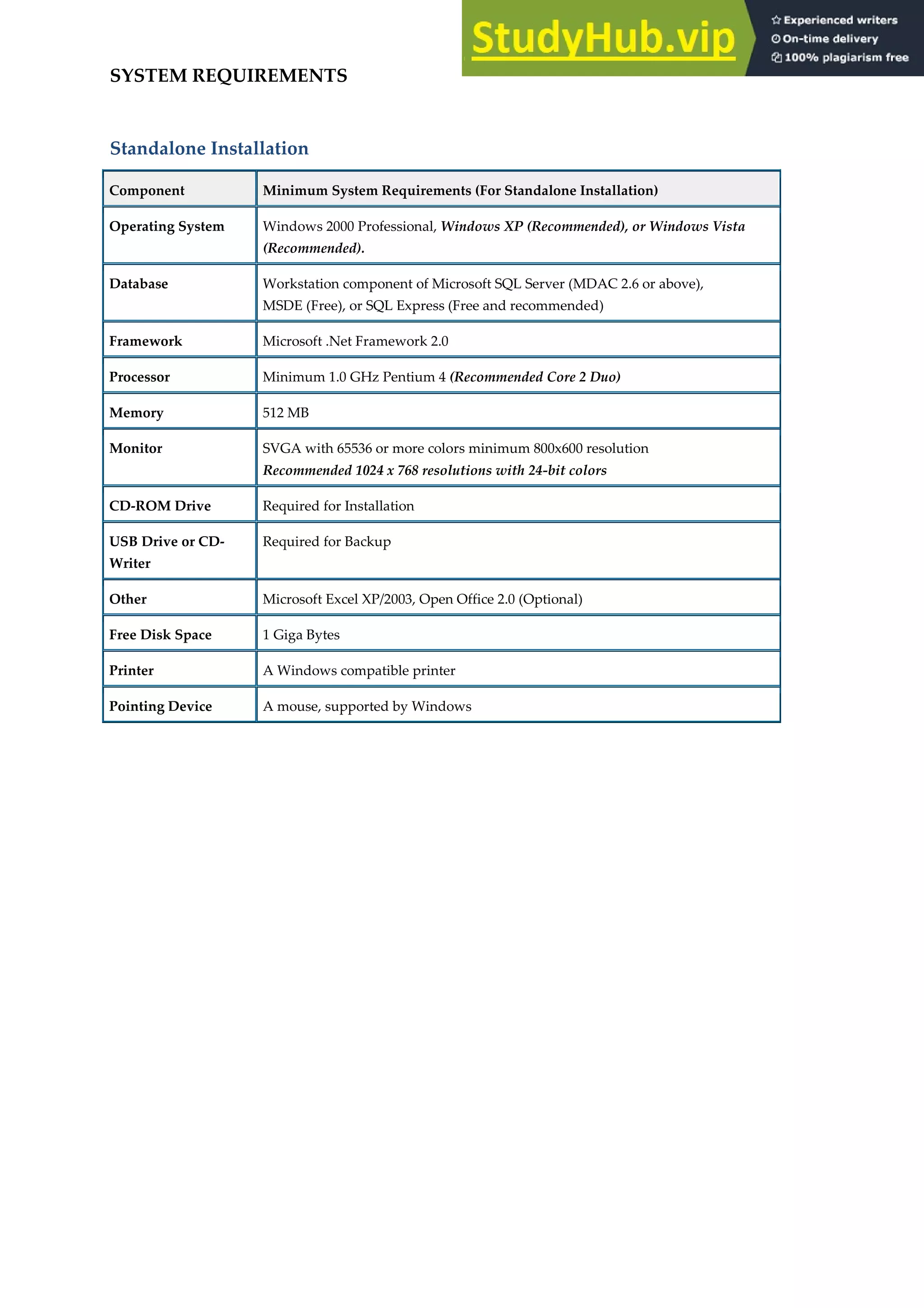
SYSTEM REQUIREMENTS
Standalone Installation
Component Minimum System Requirements (For Standalone Installation)
Operating System Windows 2000 Professional, Windows XP (Recommended), or Windows Vista
(Recommended).
Database Workstation component of Microsoft SQL Server (MDAC 2.6 or above),
MSDE (Free), or SQL Express (Free and recommended)
Framework Microsoft .Net Framework 2.0
Processor Minimum 1.0 GHz Pentium 4 (Recommended Core 2 Duo)
Memory 512 MB
Monitor SVGA with 65536 or more colors minimum 800x600 resolution
Recommended 1024 x 768 resolutions with 24-bit colors
CD-ROM Drive Required for Installation
USB Drive or CD-
Writer
Required for Backup
Other Microsoft Excel XP/2003, Open Office 2.0 (Optional)
Free Disk Space 1 Giga Bytes
Printer A Windows compatible printer
Pointing Device A mouse, supported by Windows
Network Installation
Component Minimum System Requirements (For Client/Server Installation)
Client Workstation Server
Operating System Windows 2000 Professional, or
Windows XP (Recommended), or
Windows Vista (Recommended)
Windows 2000 Professional or Windows
XP (Running SQL Express)
Windows 2000 Server, or
Windows 2000 Advanced Server or
Windows Server 2003 or Windows Server
2008 (Running SQL Server 2005 or SQL
Express)
Database Workstation component of
Microsoft SQL Server (MDAC 2.6 or
above)
Microsoft SQL Server 2005 or SQL Express
(Free)
Framework Microsoft .Net Framework 2.0 Microsoft .Net Framework 2.0
Processor Minimum 1.0 GHz Pentium 4
(Recommended Core 2 Duo)
Pentium 4 2.4 Ghz or above
(Recommended Core 2 Duo)
Memory 512 MB For a 5-user system: 1GB
(More memory will run faster)
Monitor SVGA with 65536 or more colors
minimum 800x600 resolution
(Recommended 1024x768 resolutions
with 24-bit colors)
SVGA with 256 or more colors minimum
800x600 resolution
CD-ROM Drive Required for Installation Required for Installation
USB Drive or CD-
Writer
Required for Backup Required for Backup
Local Area Network Minimum 10 Mbps
(Recommended 100 Mbps)
Minimum 10 Mbps
(Recommended 100 Mbps)
Component Minimum System Requirements (For Client/Server Installation)
Client Workstation Server
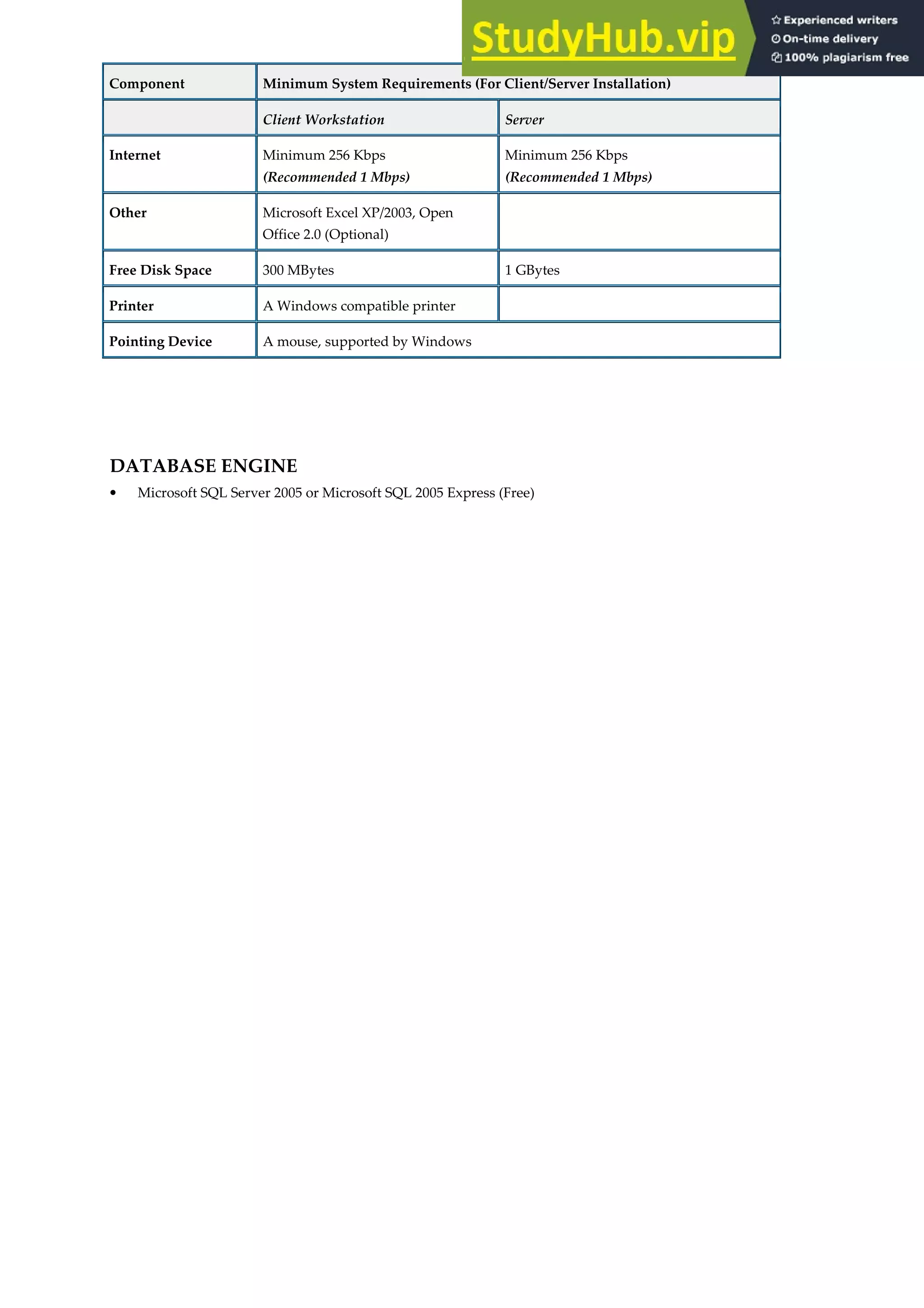
Internet Minimum 256 Kbps
(Recommended 1 Mbps)
Minimum 256 Kbps
(Recommended 1 Mbps)
Other Microsoft Excel XP/2003, Open
Office 2.0 (Optional)
Free Disk Space 300 MBytes 1 GBytes
Printer A Windows compatible printer
Pointing Device A mouse, supported by Windows
DATABASE ENGINE
• Microsoft SQL Server 2005 or Microsoft SQL 2005 Express (Free)
1
CHAPTER 1: BEFORE YOU START
PACKAGE CONTENTS
The package contains the following items:
• Software in CD-ROM
• User Manual
• License Agreement ( This will appear during installation of the software)
If any of these items are missing or damaged, please request from the dealer or distributor immediately.
2
SYSTEM INSTALLATION
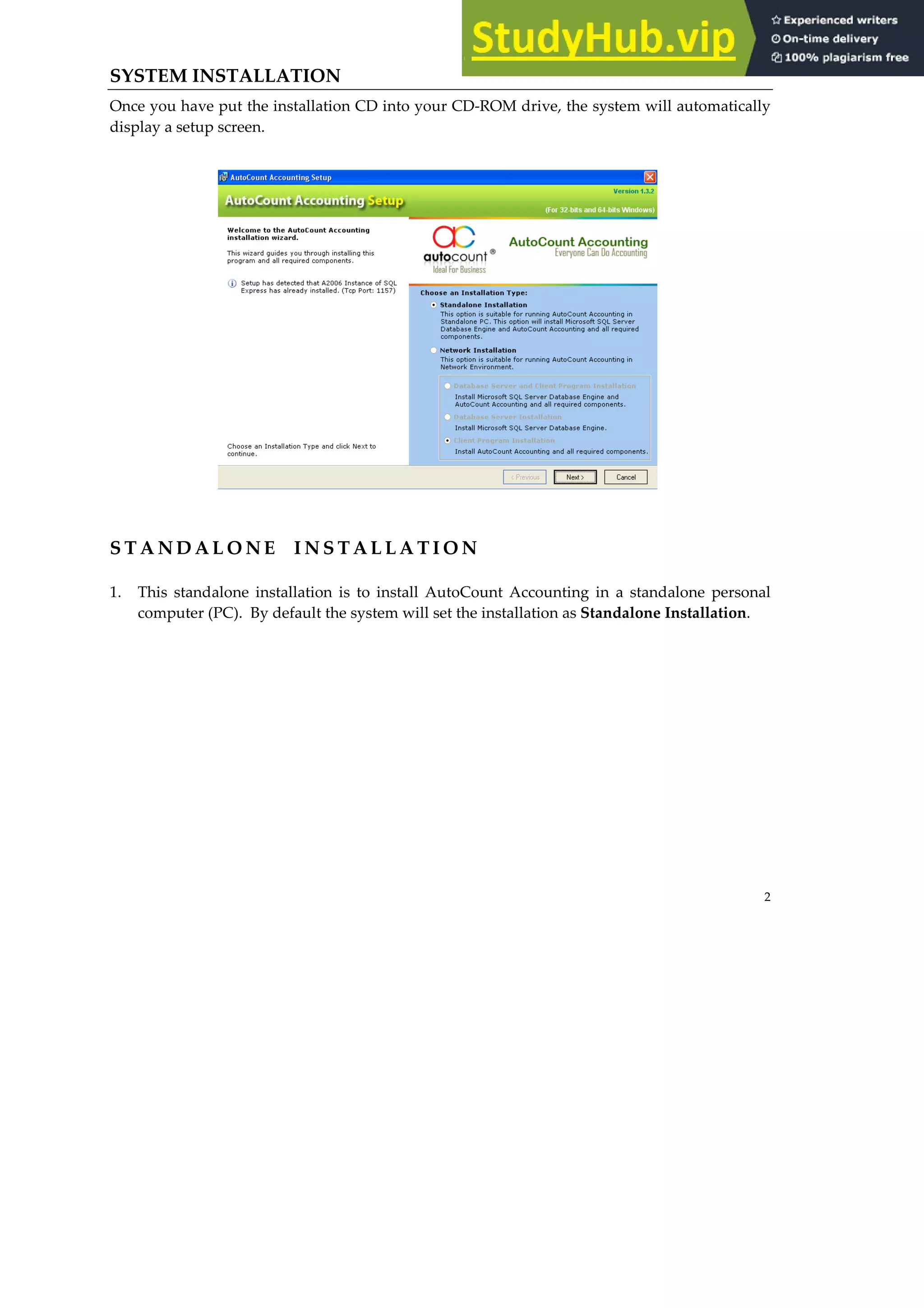
Once you have put the installation CD into your CD-ROM drive, the system will automatically
display a setup screen.
S T A N D A L O N E I N S T A L L A T I O N
1. This standalone installation is to install AutoCount Accounting in a standalone personal
computer (PC). By default the system will set the installation as Standalone Installation.
3
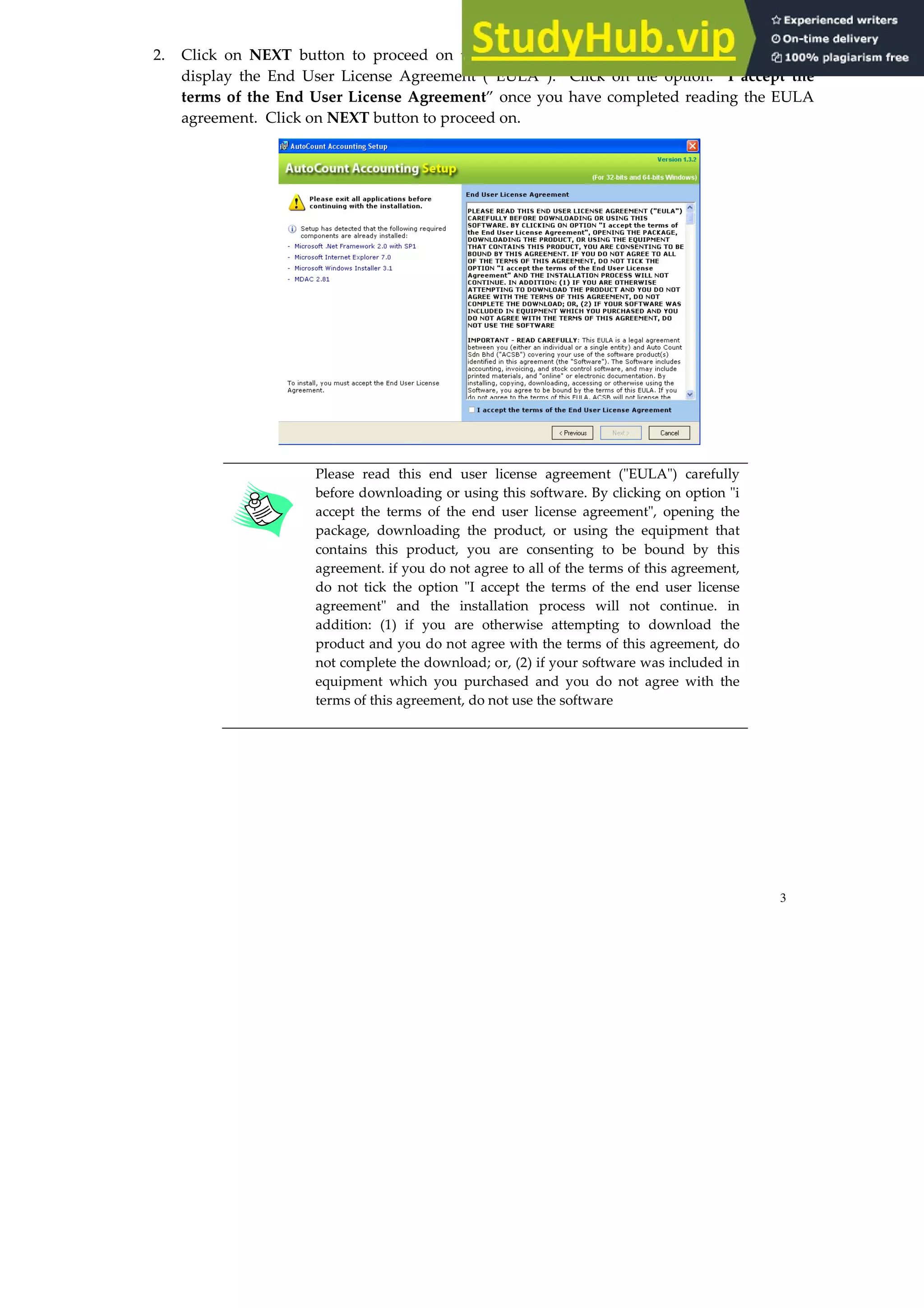
2. Click on NEXT button to proceed on to the next step of installation. The system will
display the End User License Agreement (“EULA”). Click on the option: “I accept the
terms of the End User License Agreement” once you have completed reading the EULA
agreement. Click on NEXT button to proceed on.
Please read this end user license agreement ("EULA") carefully
before downloading or using this software. By clicking on option "i
accept the terms of the end user license agreement", opening the
package, downloading the product, or using the equipment that
contains this product, you are consenting to be bound by this
agreement. if you do not agree to all of the terms of this agreement,
do not tick the option "I accept the terms of the end user license
agreement" and the installation process will not continue. in
addition: (1) if you are otherwise attempting to download the
product and you do not agree with the terms of this agreement, do
not complete the download; or, (2) if your software was included in
equipment which you purchased and you do not agree with the
terms of this agreement, do not use the software
4
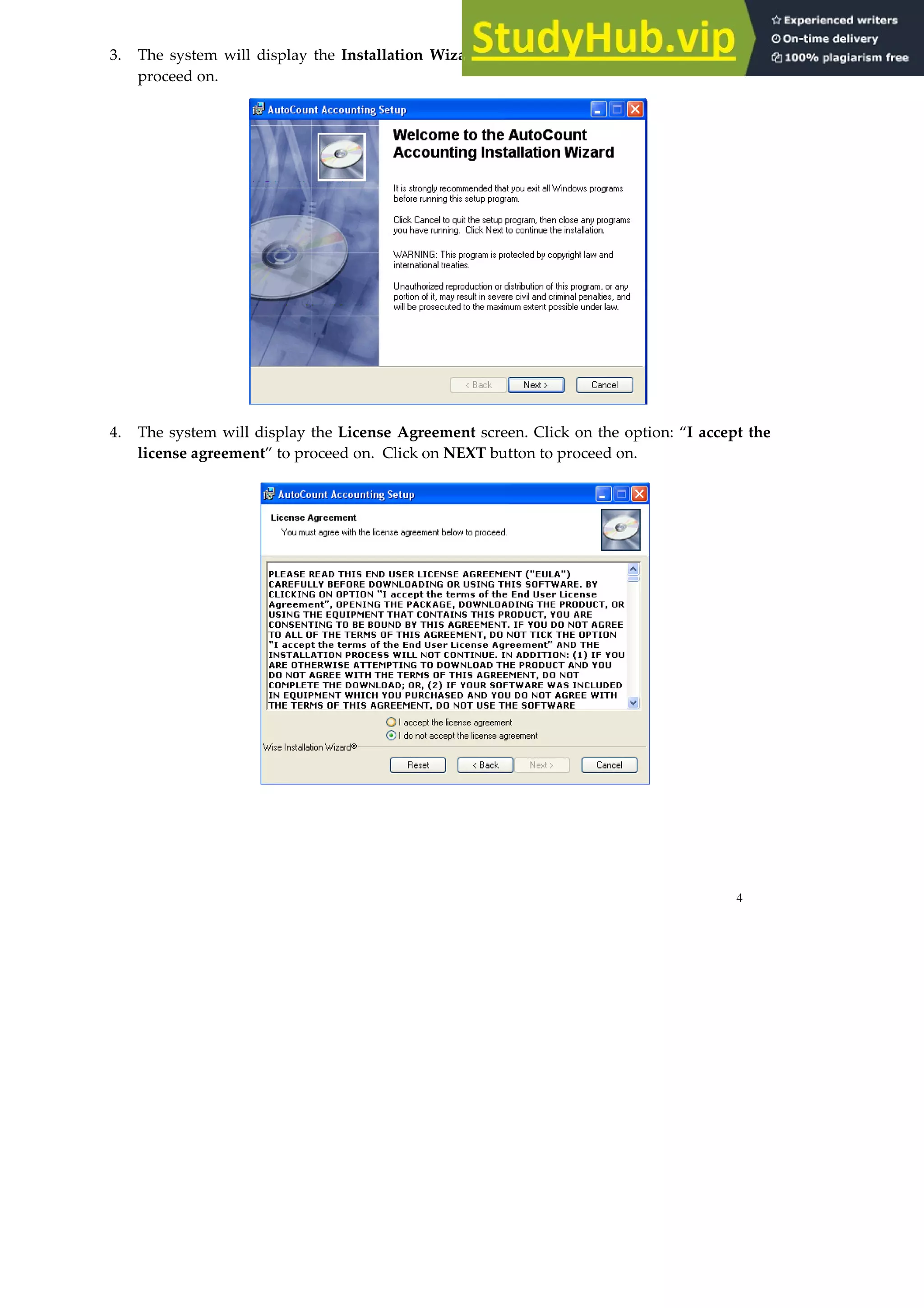
3. The system will display the Installation Wizard setup screen. Click on NEXT button to
proceed on.
4. The system will display the License Agreement screen. Click on the option: “I accept the
license agreement” to proceed on. Click on NEXT button to proceed on.
5
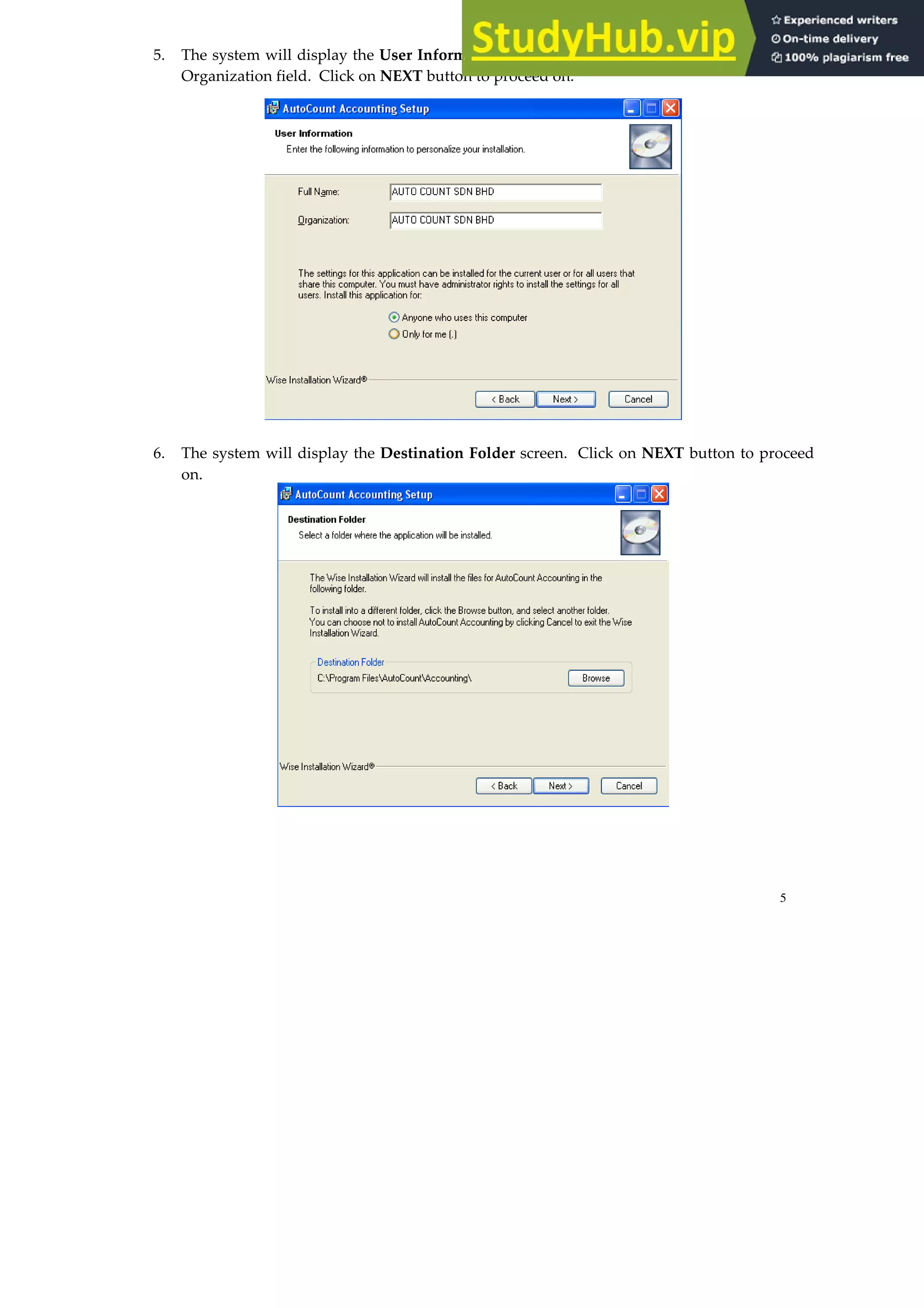
5. The system will display the User Information screen. Enter the company name under the
Organization field. Click on NEXT button to proceed on.
6. The system will display the Destination Folder screen. Click on NEXT button to proceed
on.
6
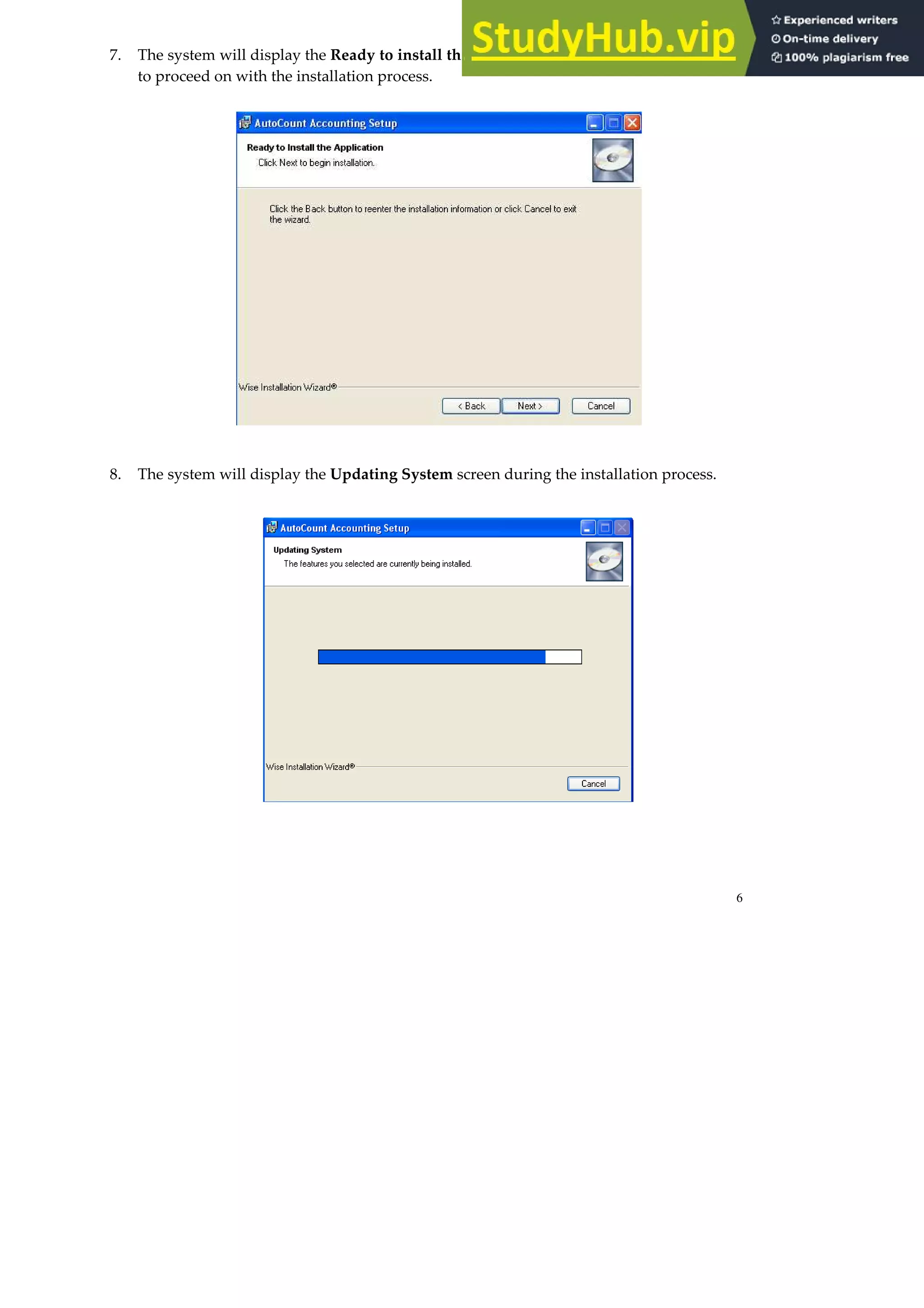
7. The system will display the Ready to install the Application screen. Click on NEXT button
to proceed on with the installation process.
8. The system will display the Updating System screen during the installation process.
7
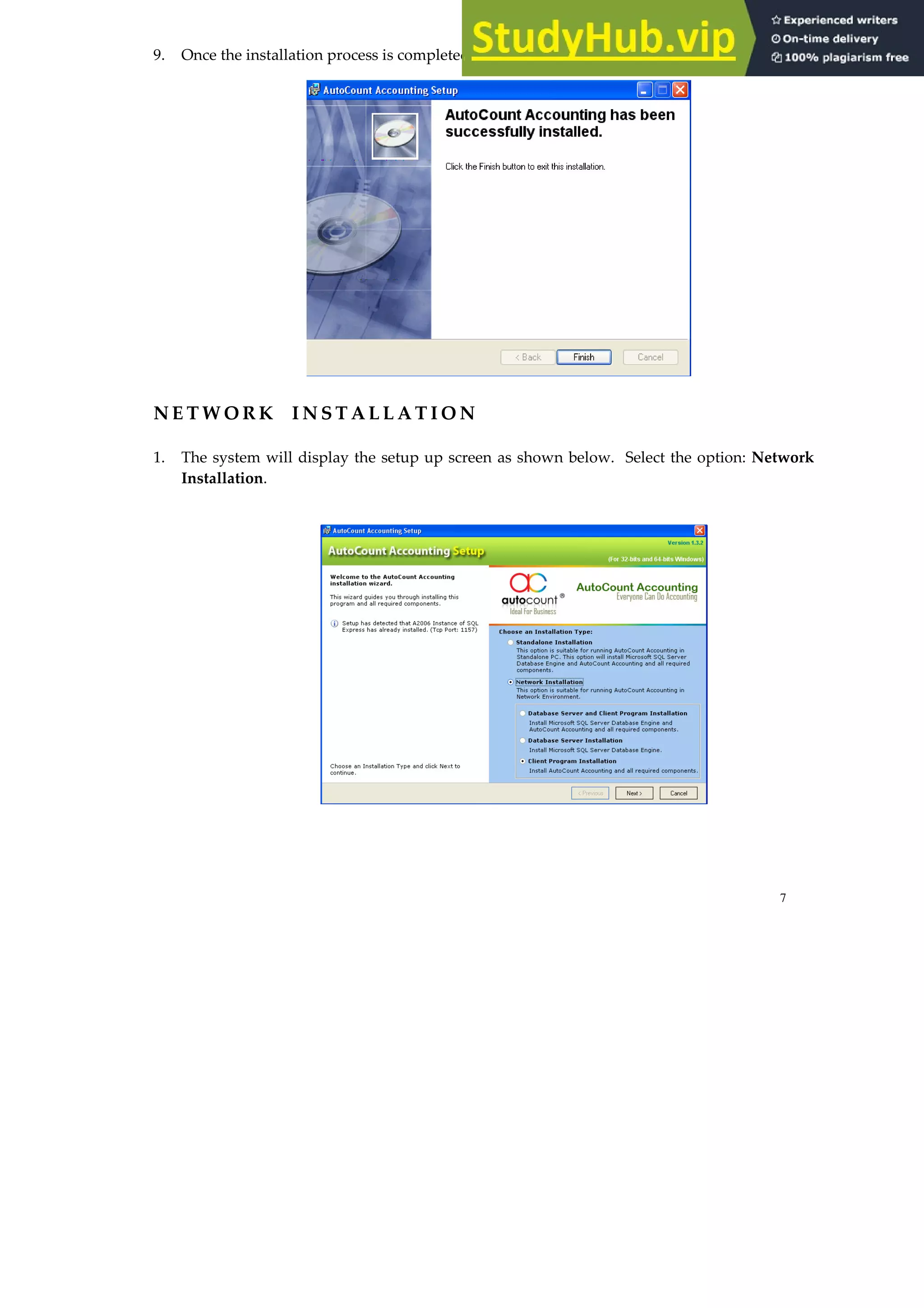
9. Once the installation process is completed, click on FINISH button.
N E T W O R K I N S T A L L A T I O N
1. The system will display the setup up screen as shown below. Select the option: Network
Installation.
8
Installation process for network is divided into 3 steps:-
I. Database Server and Client Program Installation.
The installation step for Database Server and Client Program Installation is the same as
standalone installation. Refer to the step by step installation guide for STANDALONE
INSTALLATION.
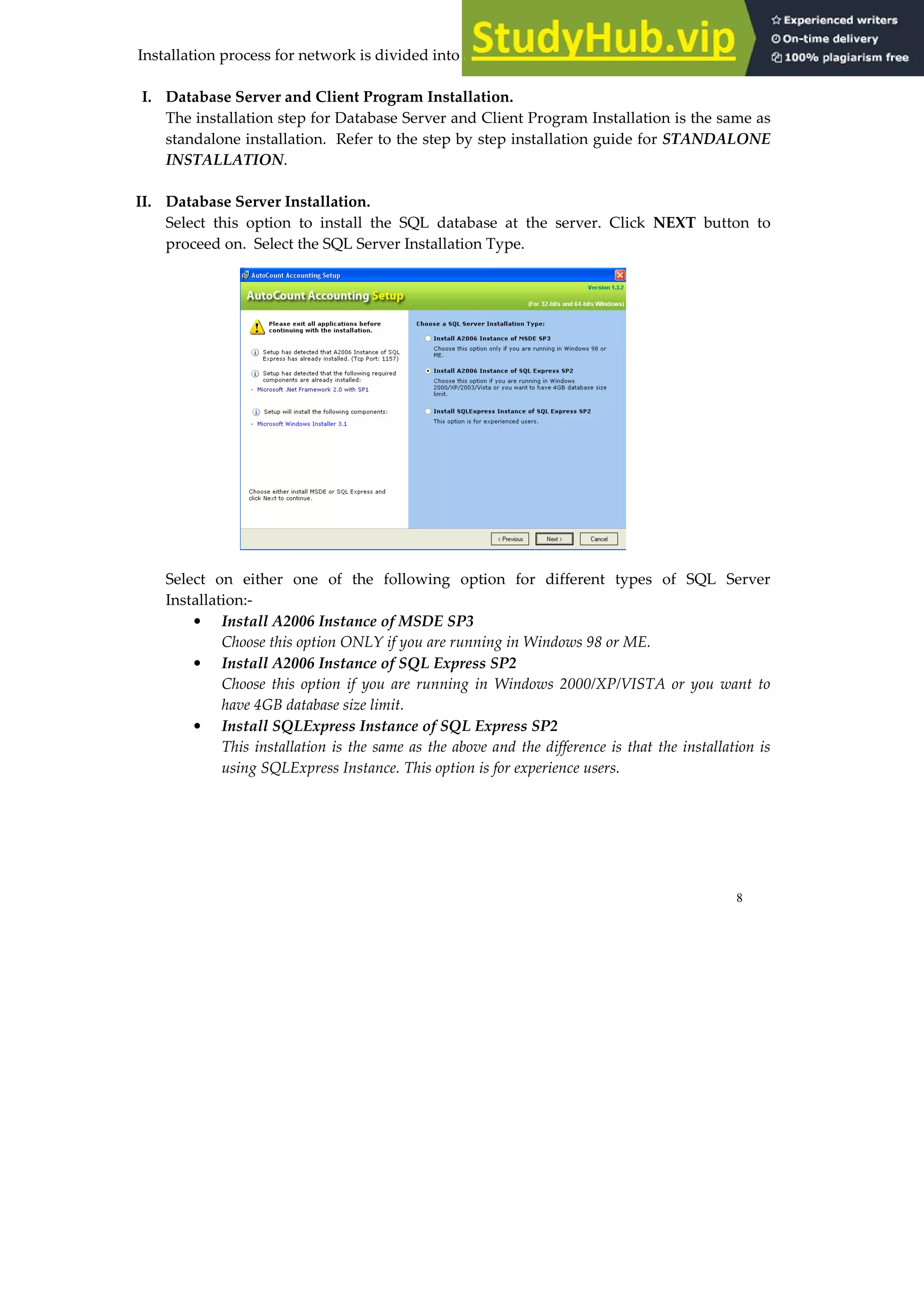
II. Database Server Installation.
Select this option to install the SQL database at the server. Click NEXT button to
proceed on. Select the SQL Server Installation Type.
Select on either one of the following option for different types of SQL Server
Installation:-
• Install A2006 Instance of MSDE SP3
Choose this option ONLY if you are running in Windows 98 or ME.
• Install A2006 Instance of SQL Express SP2
Choose this option if you are running in Windows 2000/XP/VISTA or you want to
have 4GB database size limit.
• Install SQLExpress Instance of SQL Express SP2
This installation is the same as the above and the difference is that the installation is
using SQLExpress Instance. This option is for experience users.
9
III. Client Installation.
The installation step for Client Installation is the same as standalone installation. Refer
to the step by step installation guide for STANDALONE INSTALLATION.
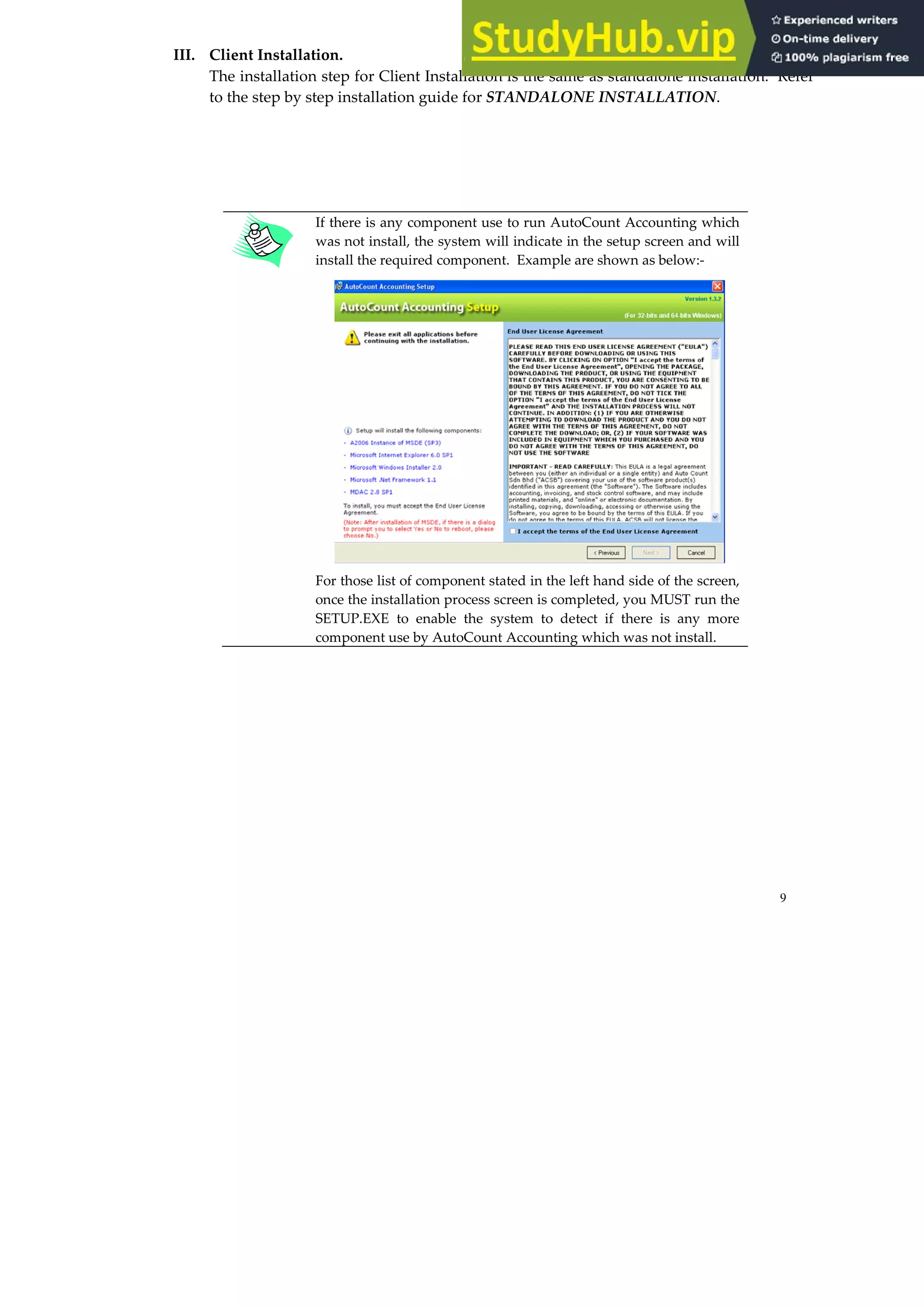
If there is any component use to run AutoCount Accounting which
was not install, the system will indicate in the setup screen and will
install the required component. Example are shown as below:-
For those list of component stated in the left hand side of the screen,
once the installation process screen is completed, you MUST run the
SETUP.EXE to enable the system to detect if there is any more
component use by AutoCount Accounting which was not install.
10
STARTING THE APPLICATION
Once the installation is completed, to run the application, double click on the AutoCount Accounting
short cut icon at the desktop.
The system will ask you to choose a location of Account Book Control File. Account Book Control File
is a file to keep track of all the account books accessed by AutoCount Accounting.
Once you have decided the location of the Account Book Control File, then system will display a First
Time Manage Account Book window, this window is very similar to previous version of First Time
Start.
First Time Start
For first time start AutoCount Accounting in a PC, the system will prompt two options for you to
choose either:
• Create Account Book Control File in the default folder in this machine
Choose this option if you are very likely to run AutoCount Accounting as standalone user.
This is the option which was configured in earlier version of AutoCount Accounting. (Note:
Choosing this option, you still can work in a networking environment, however, you must always use
Attach Account Book to access the account book which was restored or created by other users in other
machines.)
11
• Create or Open Account Book Control File in a network shared folder
Choose this option if you are very likely to run AutoCount Accounting in a networking
environment. Under this option, account books added or deleted by other users will be
available to this machine immediately. You do not need to always use Attach Account Book in
order to access the account book which was restored or created by other users in other
machines.
Scenario 1: If your PC will access to an account book through the internet, then you are advised to
choose this option “Create Account Book Control File in the default folder in this machine”.
FIRST TIME MANAGE ACCOUNT BOOK
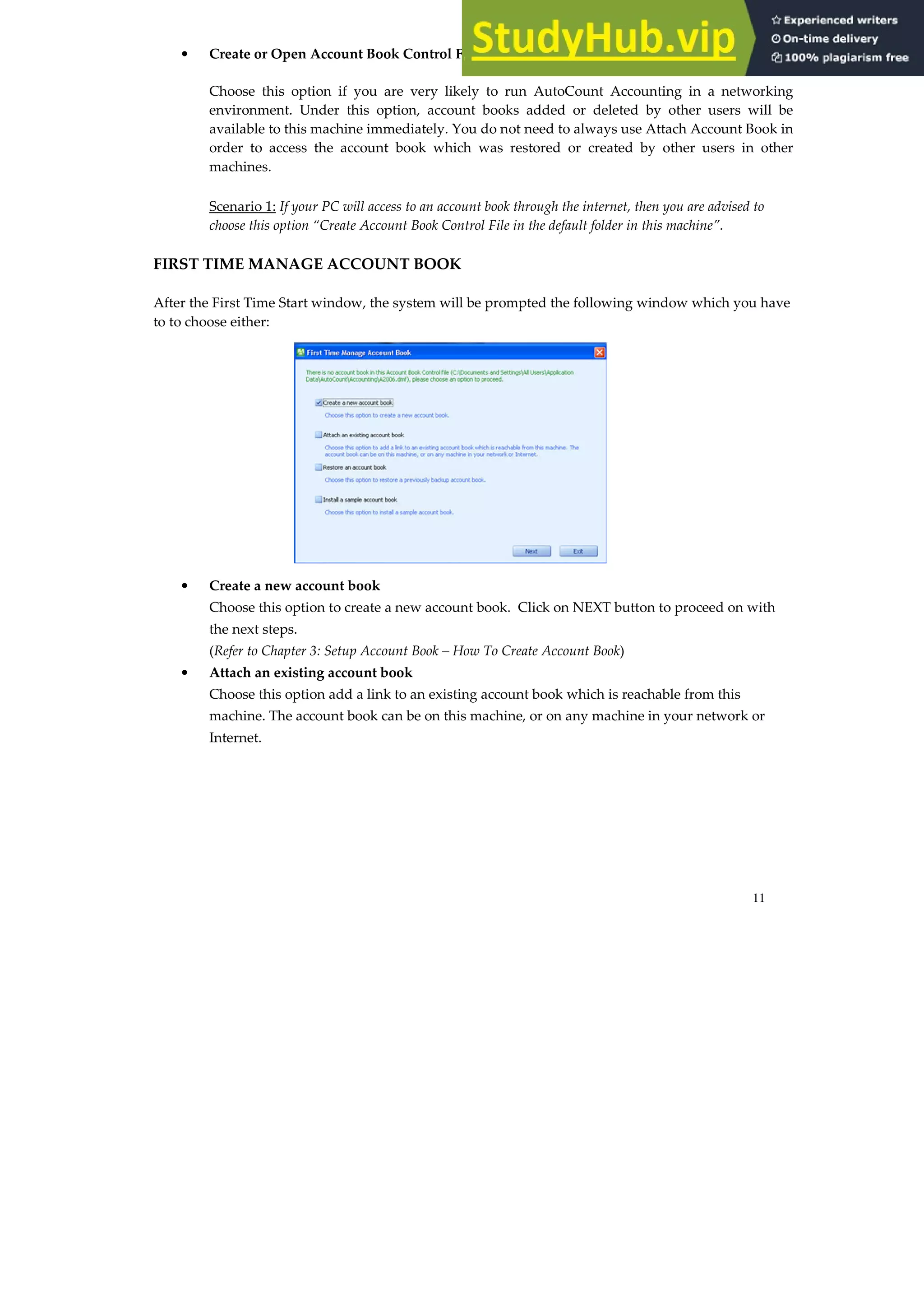
After the First Time Start window, the system will be prompted the following window which you have
to to choose either:
• Create a new account book
Choose this option to create a new account book. Click on NEXT button to proceed on with
the next steps.
(Refer to Chapter 3: Setup Account Book – How To Create Account Book)
• Attach an existing account book
Choose this option add a link to an existing account book which is reachable from this
machine. The account book can be on this machine, or on any machine in your network or
Internet.
12
• Restore an account book.
Choose this option to restore a previously backup account book.
• Install a sample account book.
Choose this option to install a sample account book
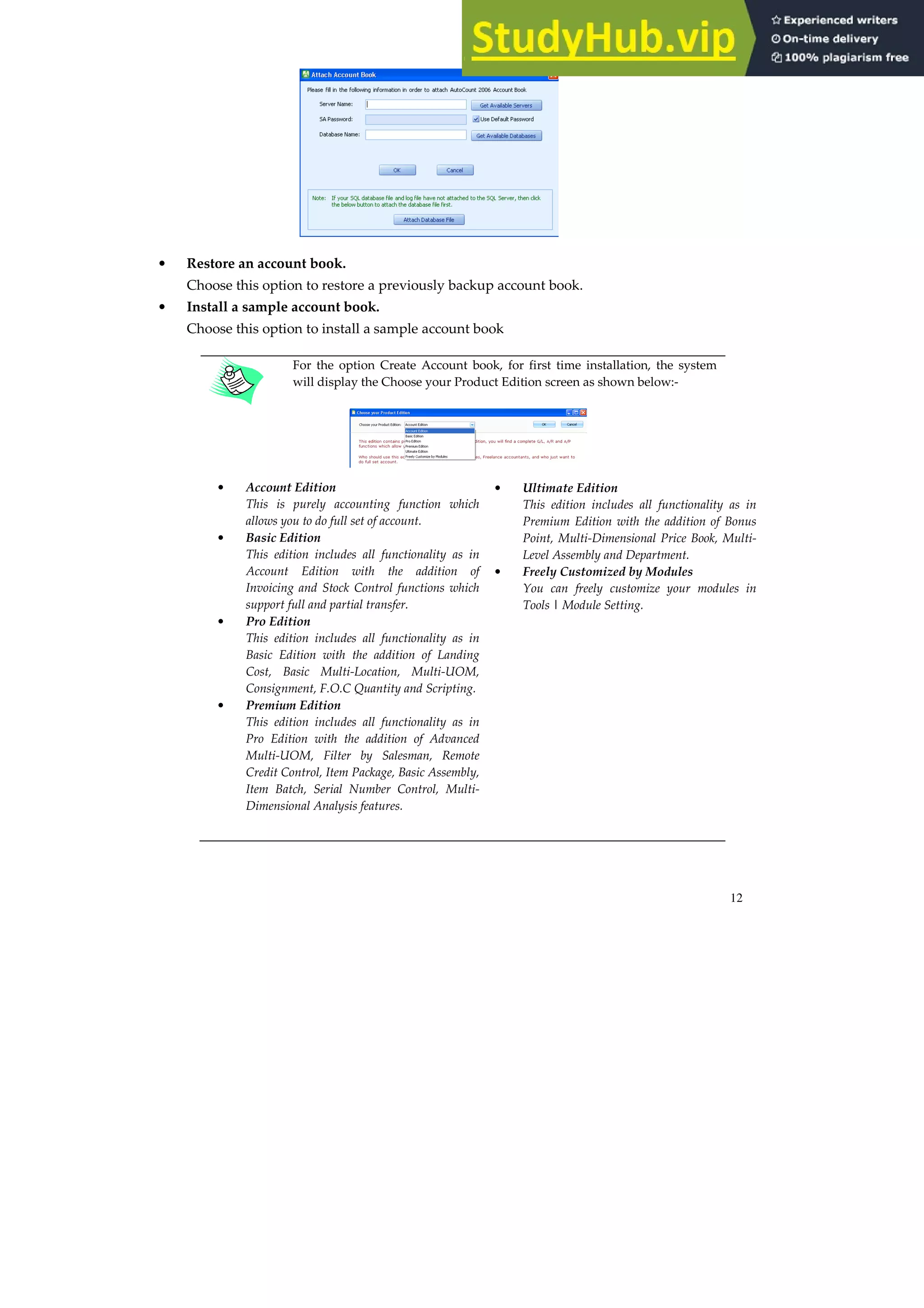
For the option Create Account book, for first time installation, the system
will display the Choose your Product Edition screen as shown below:-
• Account Edition
This is purely accounting function which
allows you to do full set of account.
• Basic Edition
This edition includes all functionality as in
Account Edition with the addition of
Invoicing and Stock Control functions which
support full and partial transfer.
• Pro Edition
This edition includes all functionality as in
Basic Edition with the addition of Landing
Cost, Basic Multi-Location, Multi-UOM,
Consignment, F.O.C Quantity and Scripting.
• Premium Edition
This edition includes all functionality as in
Pro Edition with the addition of Advanced
Multi-UOM, Filter by Salesman, Remote
Credit Control, Item Package, Basic Assembly,
Item Batch, Serial Number Control, Multi-
Dimensional Analysis features.
• Ultimate Edition
This edition includes all functionality as in
Premium Edition with the addition of Bonus
Point, Multi-Dimensional Price Book, Multi-
Level Assembly and Department.
• Freely Customized by Modules
You can freely customize your modules in
Tools | Module Setting.
13
PRODUCT REGISTRATION
AutoCount Accounting has 2 types of license control:-
1. PRODUCT ID LICENSE
The product id is stated inside the CD Cover.
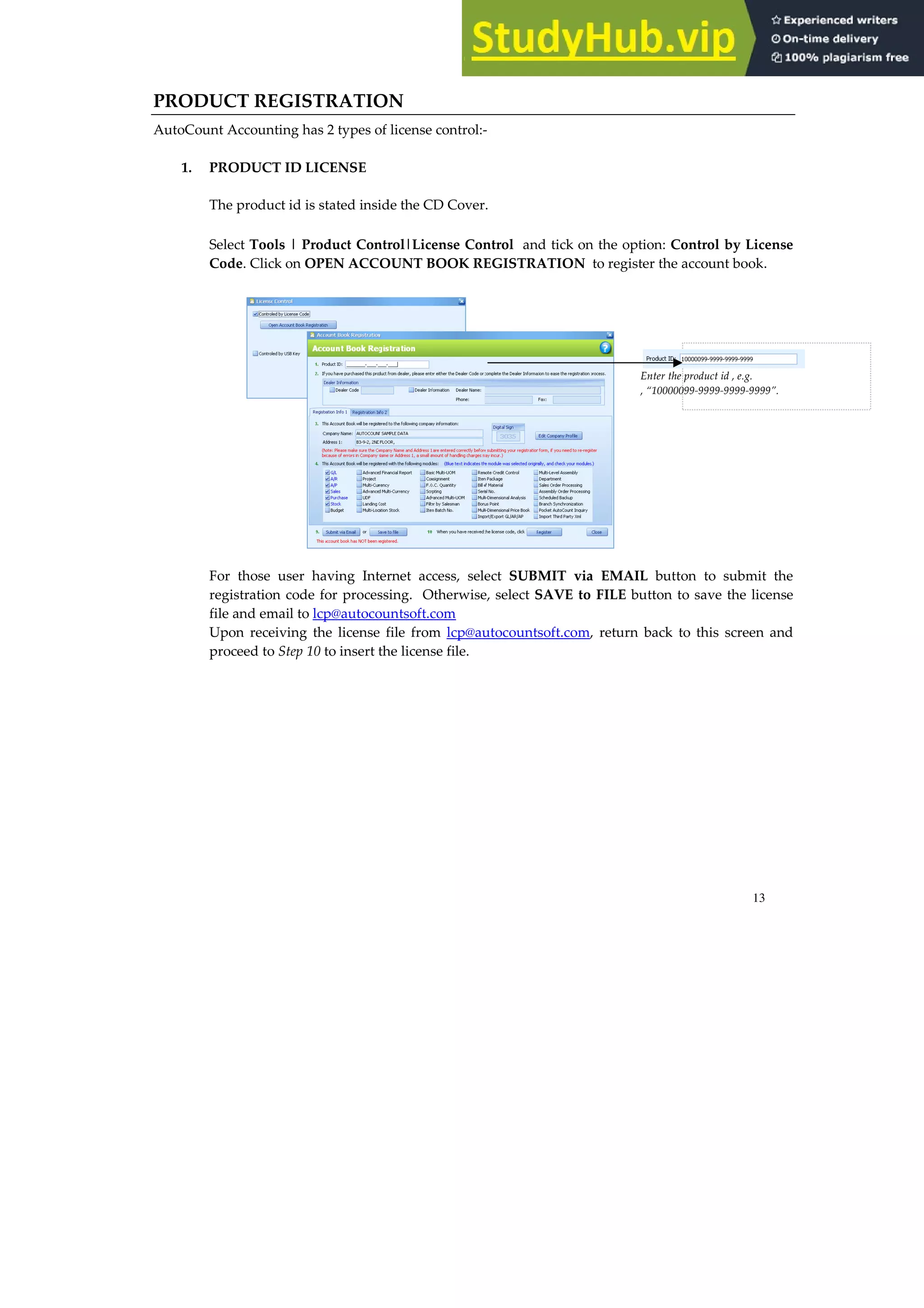
Select Tools | Product Control|License Control and tick on the option: Control by License
Code. Click on OPEN ACCOUNT BOOK REGISTRATION to register the account book.
For those user having Internet access, select SUBMIT via EMAIL button to submit the
registration code for processing. Otherwise, select SAVE to FILE button to save the license
file and email to lcp@autocountsoft.com
Upon receiving the license file from lcp@autocountsoft.com, return back to this screen and
proceed to Step 10 to insert the license file.
Enter the product id , e.g.
, “10000099-9999-9999-9999”.
14
2. CONTROLLED BY USB KEY
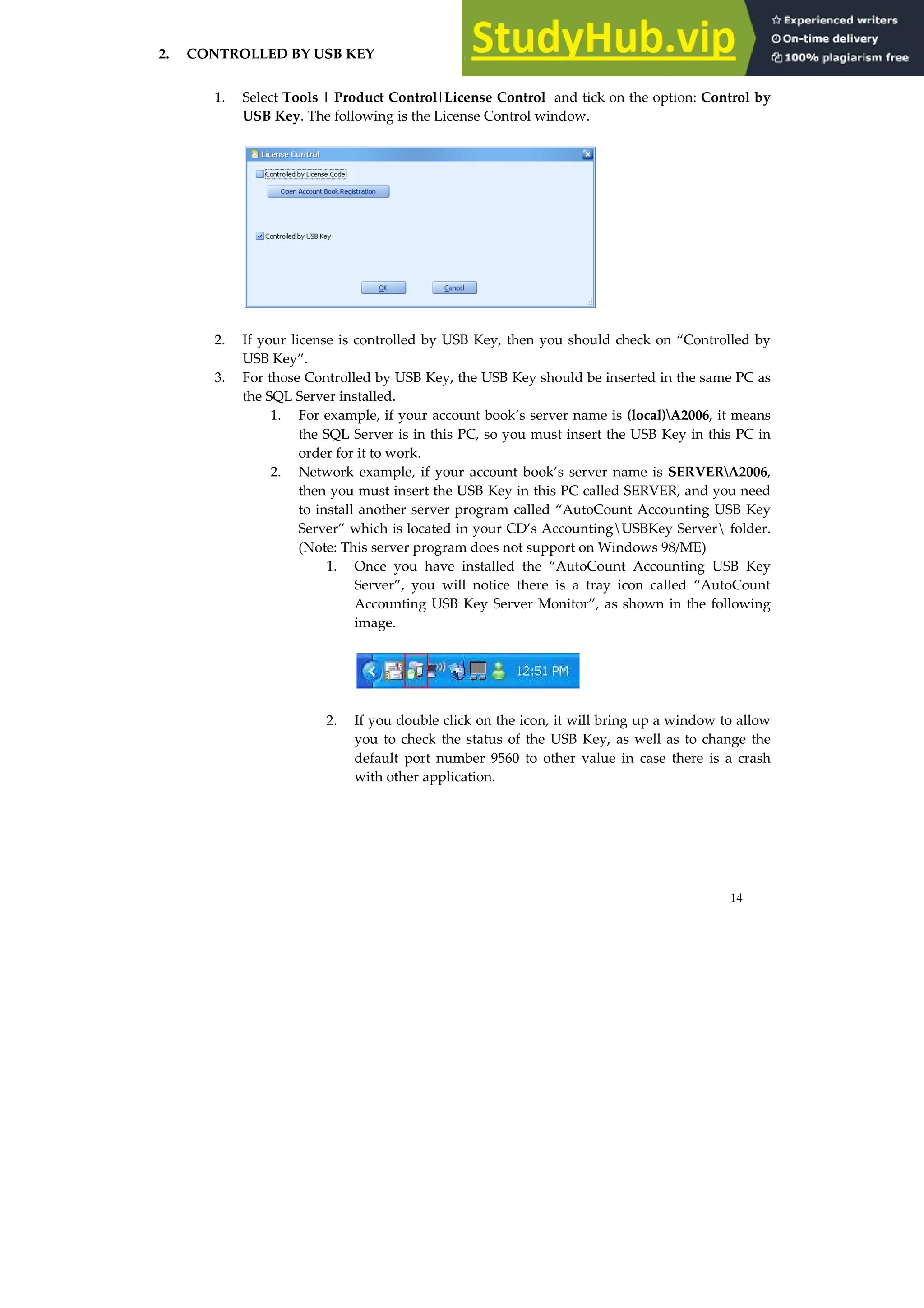
1. Select Tools | Product Control|License Control and tick on the option: Control by
USB Key. The following is the License Control window.
2. If your license is controlled by USB Key, then you should check on “Controlled by
USB Key”.
3. For those Controlled by USB Key, the USB Key should be inserted in the same PC as
the SQL Server installed.
1. For example, if your account book’s server name is (local)A2006, it means
the SQL Server is in this PC, so you must insert the USB Key in this PC in
order for it to work.
2. Network example, if your account book’s server name is SERVERA2006,
then you must insert the USB Key in this PC called SERVER, and you need
to install another server program called “AutoCount Accounting USB Key
Server” which is located in your CD’s AccountingUSBKey Server folder.
(Note: This server program does not support on Windows 98/ME)
1. Once you have installed the “AutoCount Accounting USB Key
Server”, you will notice there is a tray icon called “AutoCount
Accounting USB Key Server Monitor”, as shown in the following
image.
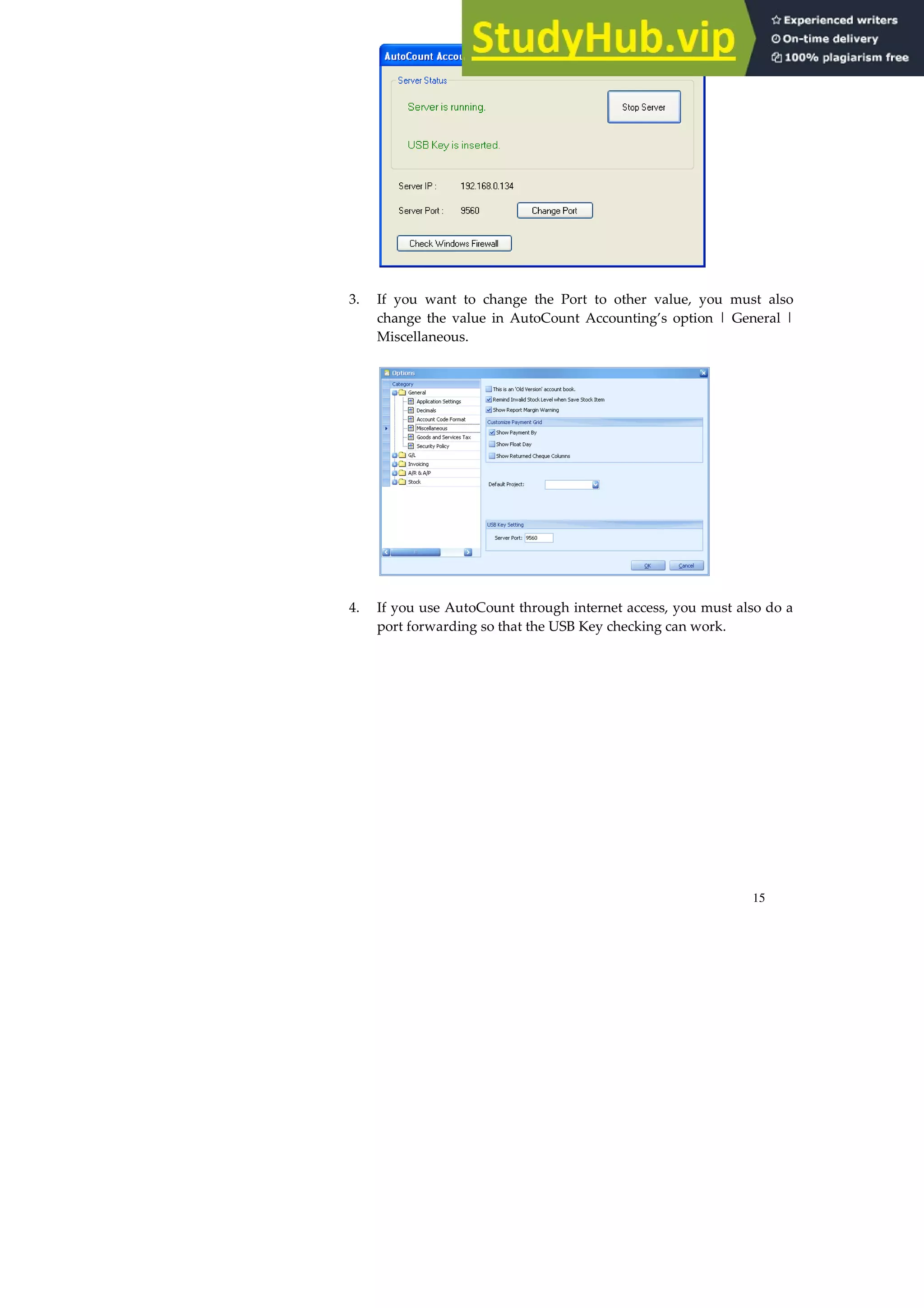
2. If you double click on the icon, it will bring up a window to allow
you to check the status of the USB Key, as well as to change the
default port number 9560 to other value in case there is a crash
with other application.
15
3. If you want to change the Port to other value, you must also
change the value in AutoCount Accounting’s option | General |
Miscellaneous.
4. If you use AutoCount through internet access, you must also do a
port forwarding so that the USB Key checking can work.
16
17
CHAPTER 2: WORKING IN AUTOCOUNT
This chapter introduces you to the AutoCount Interface.
MAIN SCREEN INTERFACE
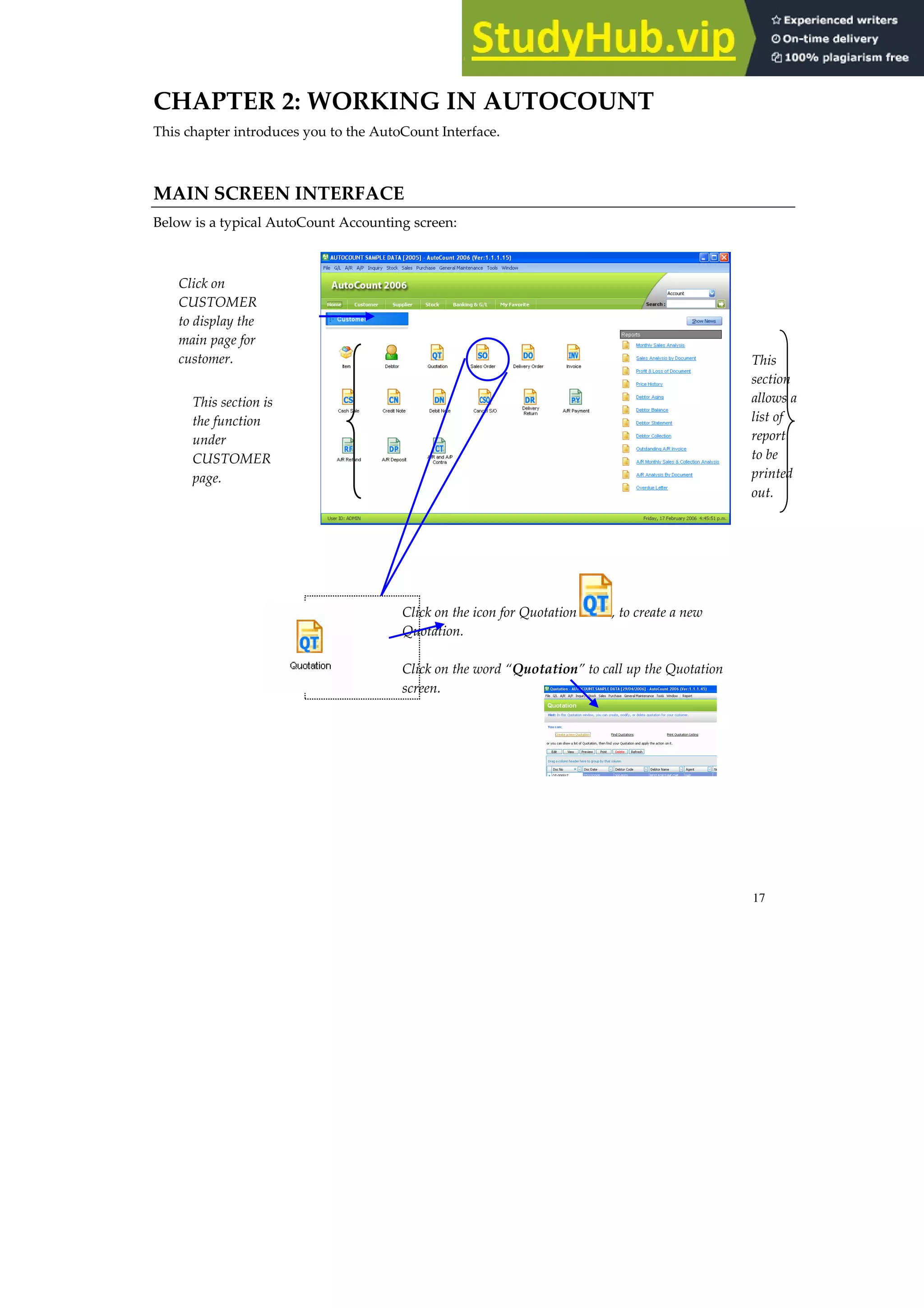
Below is a typical AutoCount Accounting screen:
Click on
CUSTOMER
to display the
main page for
customer.
This section is
the function
under
CUSTOMER
page.
Click on the icon for Quotation , to create a new
Quotation.
Click on the word “Quotation” to call up the Quotation
screen.
This
section
allows a
list of
report
to be
printed
out.
18
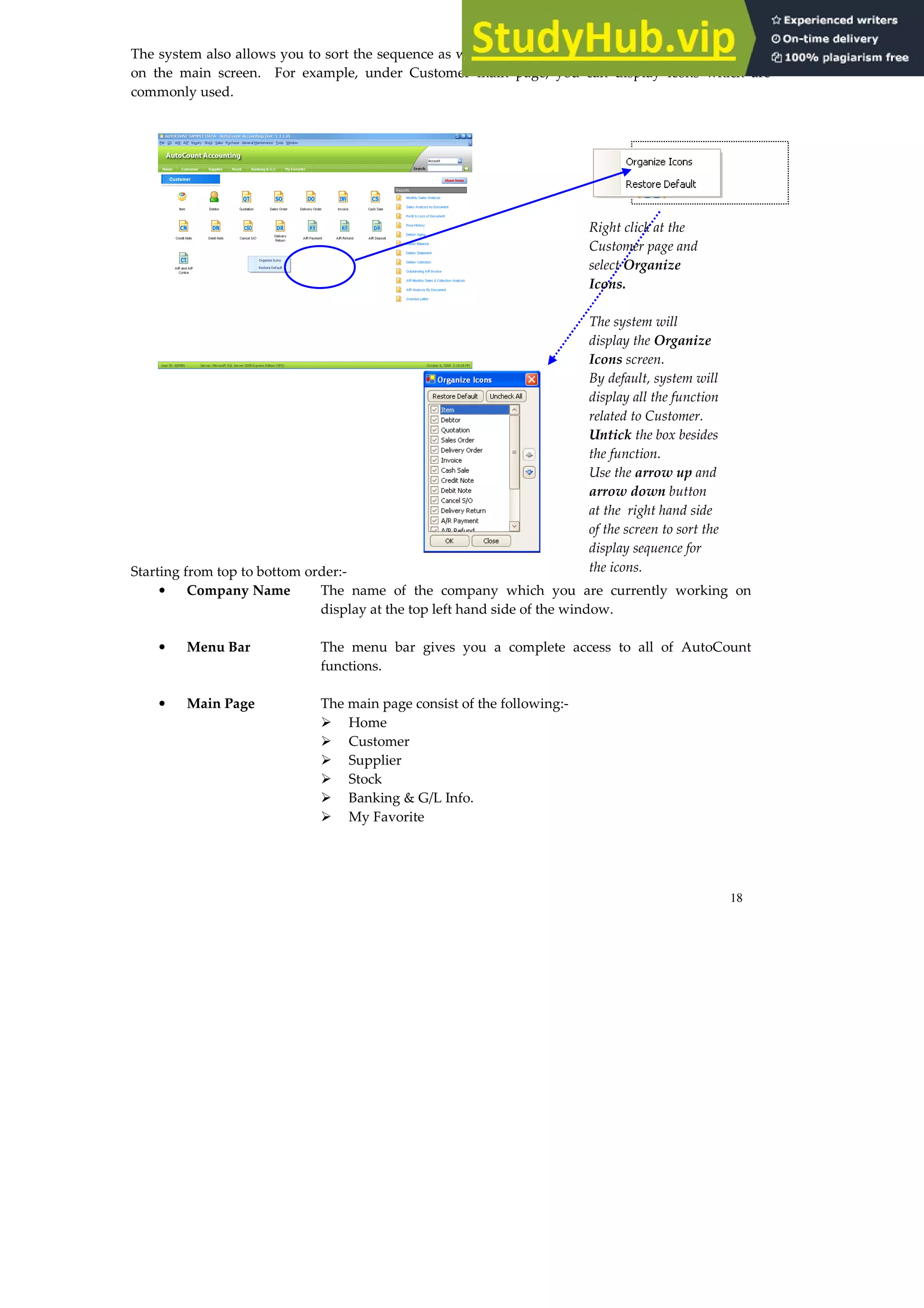
The system also allows you to sort the sequence as well as choose only specific function to be display
on the main screen. For example, under Customer main page, you can display icons which are
commonly used.
Starting from top to bottom order:-
• Company Name The name of the company which you are currently working on
display at the top left hand side of the window.
• Menu Bar The menu bar gives you a complete access to all of AutoCount
functions.
• Main Page The main page consist of the following:-
Home
Customer
Supplier
Stock
Banking & G/L Info.
My Favorite
Right click at the
Customer page and
select Organize
Icons.
The system will
display the Organize
Icons screen.
By default, system will
display all the function
related to Customer.
Untick the box besides
the function.
Use the arrow up and
arrow down button
at the right hand side
of the screen to sort the
display sequence for
the icons.
19
MENU BAR
Each of the main menu option performs a specific type of function.
File This menu allows you to manage your account book such as Create, Attach, Detach, Edit or Delete
an account book.
GL This menu represent the General Ledger module. Here you can create your charts of accounts in
the Account Maintenance, enter the opening balance of the account, enter closing stock figure for end
of each financial period, process cash book, journals as well as reconcile your bank account and
preview or print relevant reports related to General Ledger.
AR This menu represent the Accounts Receivable module. It allows you to maintain the debtor’s
(customer’s) profile as well as enter, edit or delete the transactions such as customer’s invoices, debit
note, credit note, receive payments, customer deposit, contra and preview or print relevant reports
related to Accounts Receivable.
AP This menu represent the Accounts Payable module. It allows you to maintain the creditor’s
(supplier’s) profile as well as enter, edit or delete the transaction such as supplier’s invoices, debit note,
credit note and bills payable as well as preview or print relevant reports related to Accounts Payable.
Inquiry This Inquiry menu lets you perform enquiries which are view on screen. It also allows you to
perform drill-down enquiries.
Stock In the Stock menu you can maintain your inventory items as well as perform processes related
to stock such as stock adjustment as well as preview or print relevant reports related to Stock.
Sales In the Sales menu you can maintain, control as well as print out business document such as
Quotation, Sales Order, Delivery Orders, Invoices, Cash Sales, Credit Notes, Debit Notes, Cancel Sales
Order and Delivery Return as well as preview or print relevant reports related to Sales.
Purchase The Purchase menu allows you to maintain, control as well as print out business document
to your supplier such as Purchase Request, Purchase Order. It also allows you to update your stock
quantity into the system through Goods Received and enter the supplier invoice as well as preview and
print reports related to Purchases.
20
General Maintenance In the General Maintenance menu allows you to setup all the required setting
such as user maintenance (access rights for each user) and currency maintenance before transaction is
being entered into the account book.
Tools Under Tools you can perform task such as backup and restore as well as setup the account book
setting such as financial year.
Windows Under Windows you can switch in between screen or view the list of screen which was
currently still being open.
21
COMMON FUNCTION IN TRANSACTION SCREEN
These are the common task function in the transaction screen.
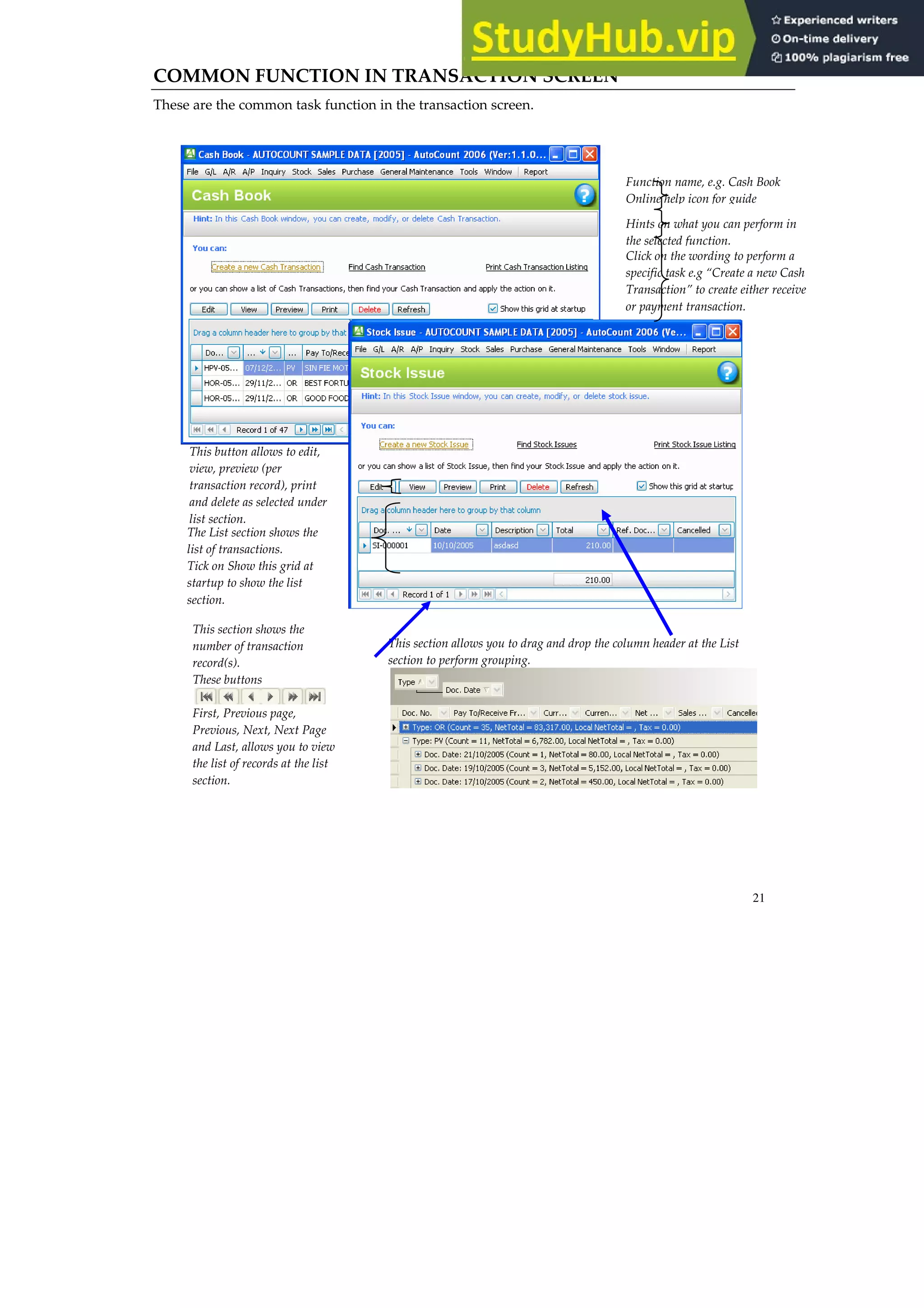
This section shows the
number of transaction
record(s).
These buttons
First, Previous page,
Previous, Next, Next Page
and Last, allows you to view
the list of records at the list
section.
This section allows you to drag and drop the column header at the List
section to perform grouping.
Function name, e.g. Cash Book
Online help icon for guide
Hints on what you can perform in
the selected function.
Click on the wording to perform a
specific task e.g “Create a new Cash
Transaction” to create either receive
or payment transaction.
This button allows to edit,
view, preview (per
transaction record), print
and delete as selected under
list section.
The List section shows the
list of transactions.
Tick on Show this grid at
startup to show the list
section.
22
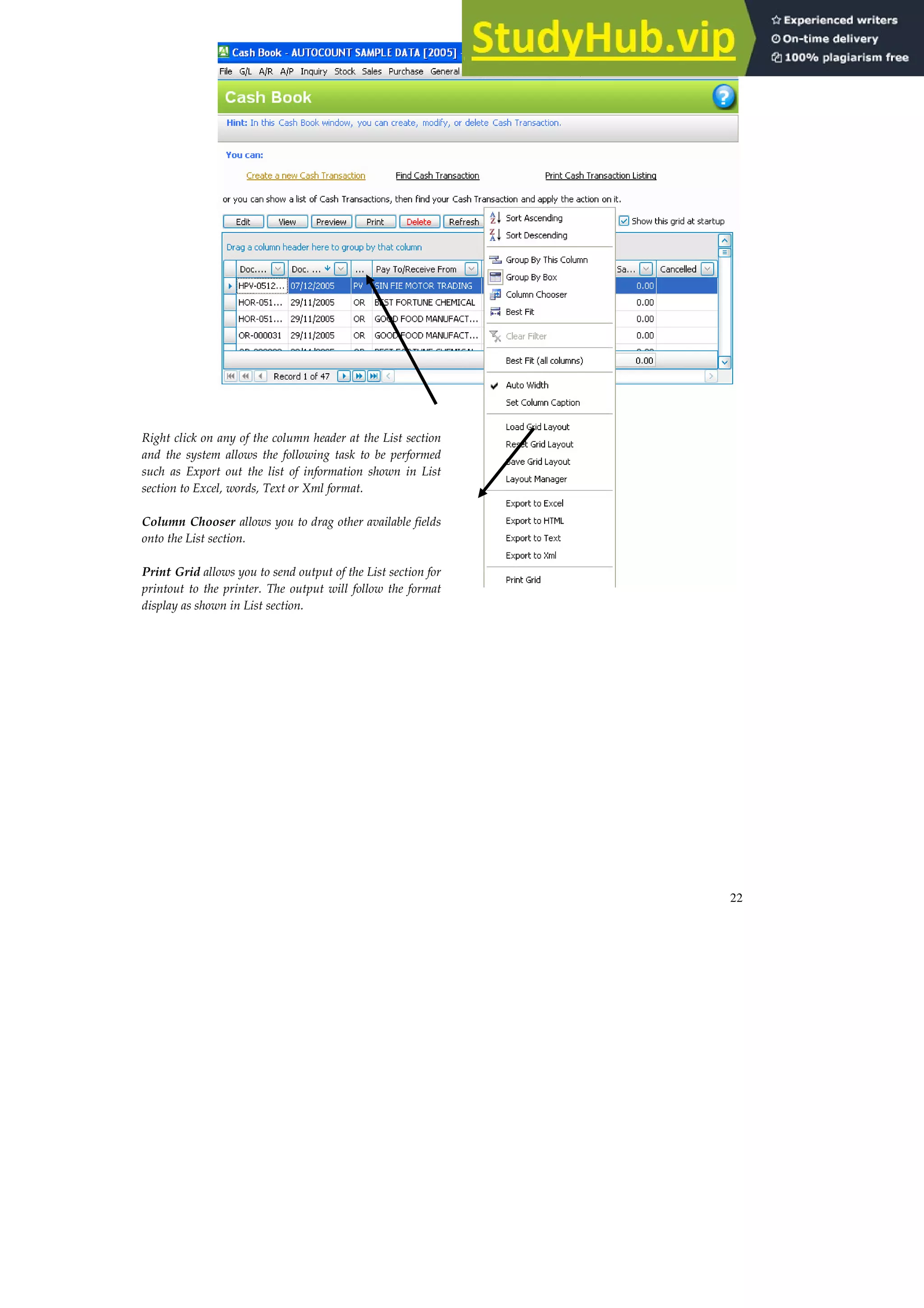
Right click on any of the column header at the List section
and the system allows the following task to be performed
such as Export out the list of information shown in List
section to Excel, words, Text or Xml format.
Column Chooser allows you to drag other available fields
onto the List section.
Print Grid allows you to send output of the List section for
printout to the printer. The output will follow the format
display as shown in List section.
23
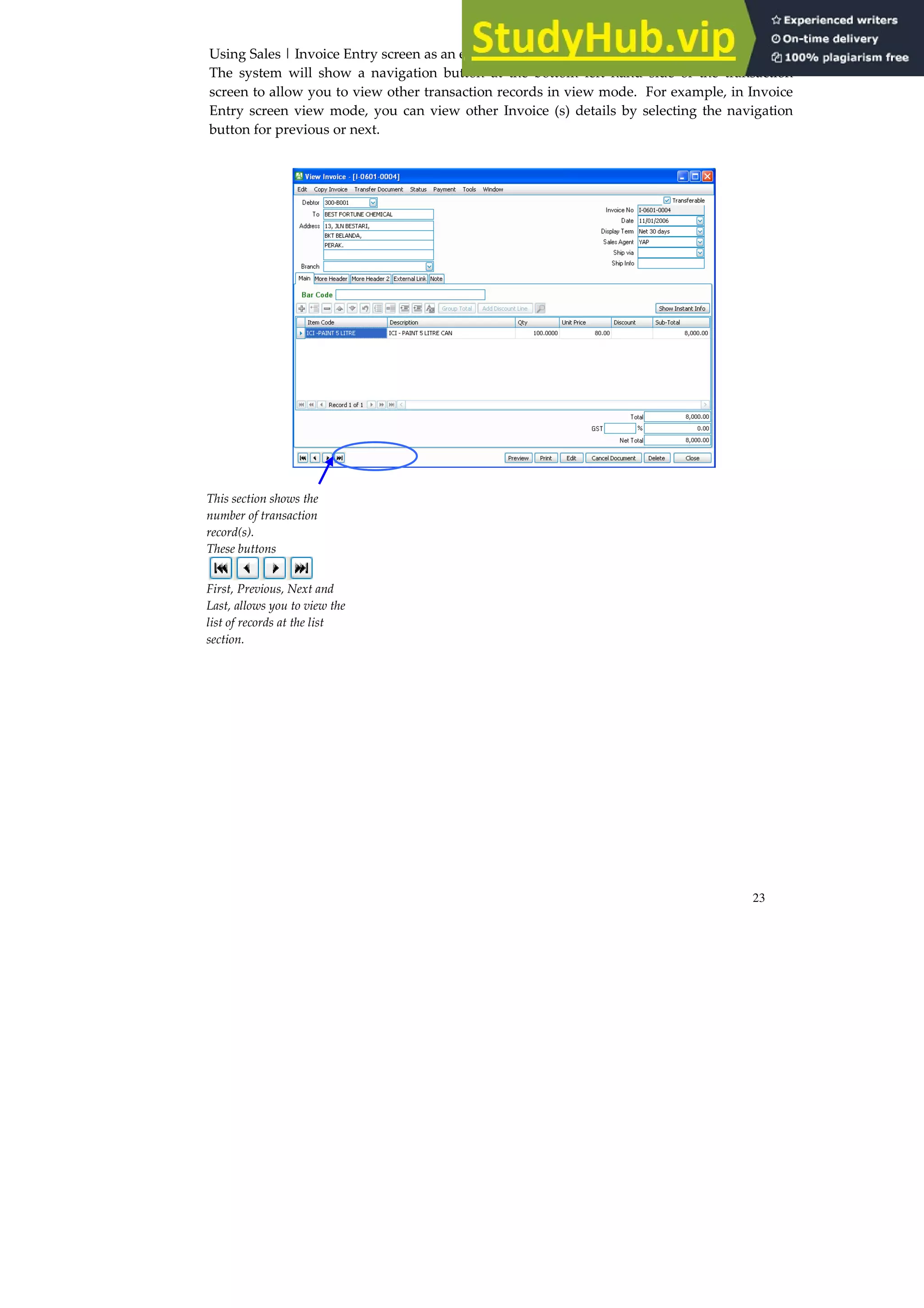
Using Sales | Invoice Entry screen as an example.
The system will show a navigation button at the bottom left hand side of the transaction
screen to allow you to view other transaction records in view mode. For example, in Invoice
Entry screen view mode, you can view other Invoice (s) details by selecting the navigation
button for previous or next.
This section shows the
number of transaction
record(s).
These buttons
First, Previous, Next and
Last, allows you to view the
list of records at the list
section.
24
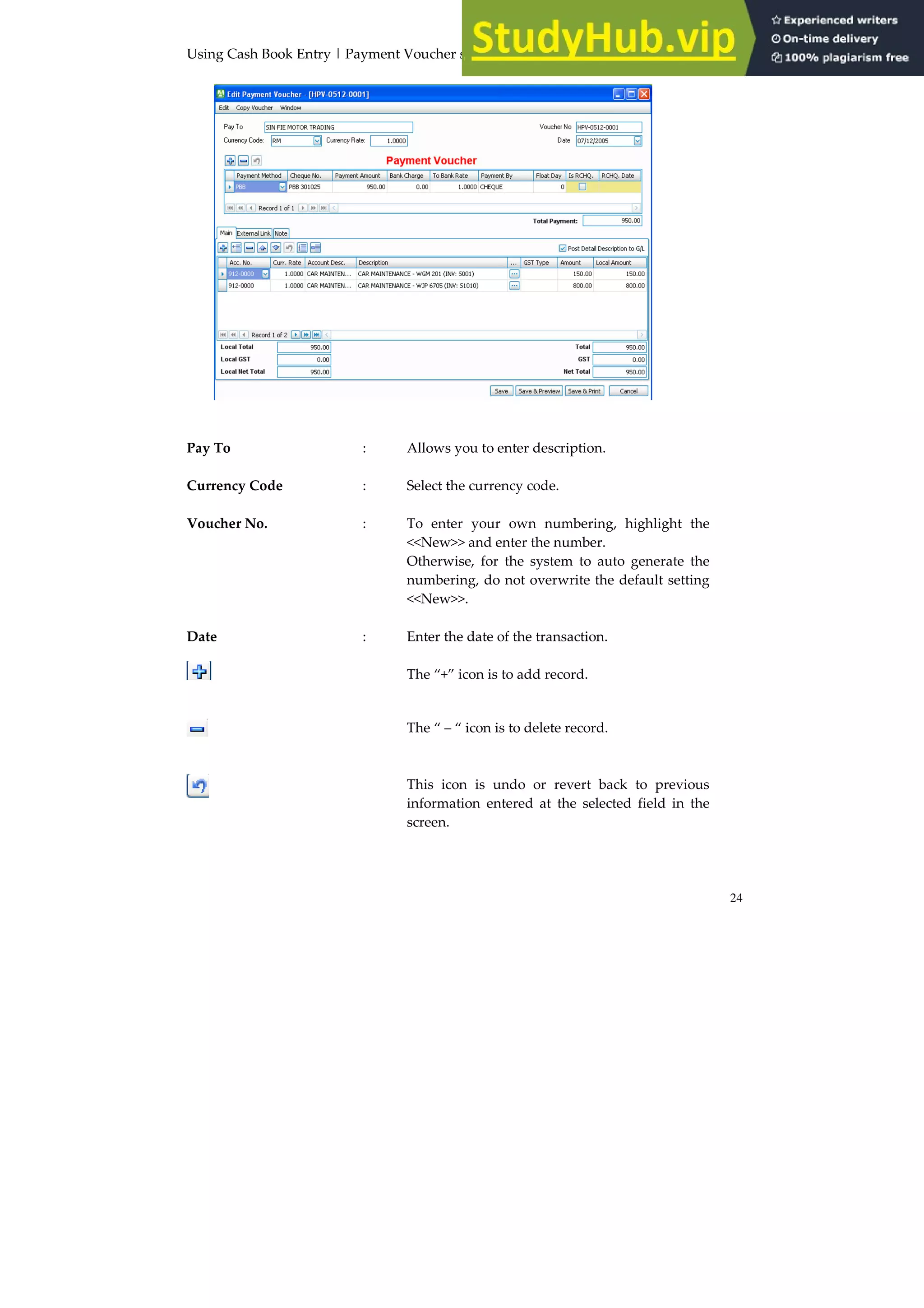
Using Cash Book Entry | Payment Voucher screen as an example.
Pay To : Allows you to enter description.
Currency Code : Select the currency code.
Voucher No. : To enter your own numbering, highlight the
<<New>> and enter the number.
Otherwise, for the system to auto generate the
numbering, do not overwrite the default setting
<<New>>.
Date : Enter the date of the transaction.
The “+” icon is to add record.
The “ – “ icon is to delete record.
This icon is undo or revert back to previous
information entered at the selected field in the
screen.
25
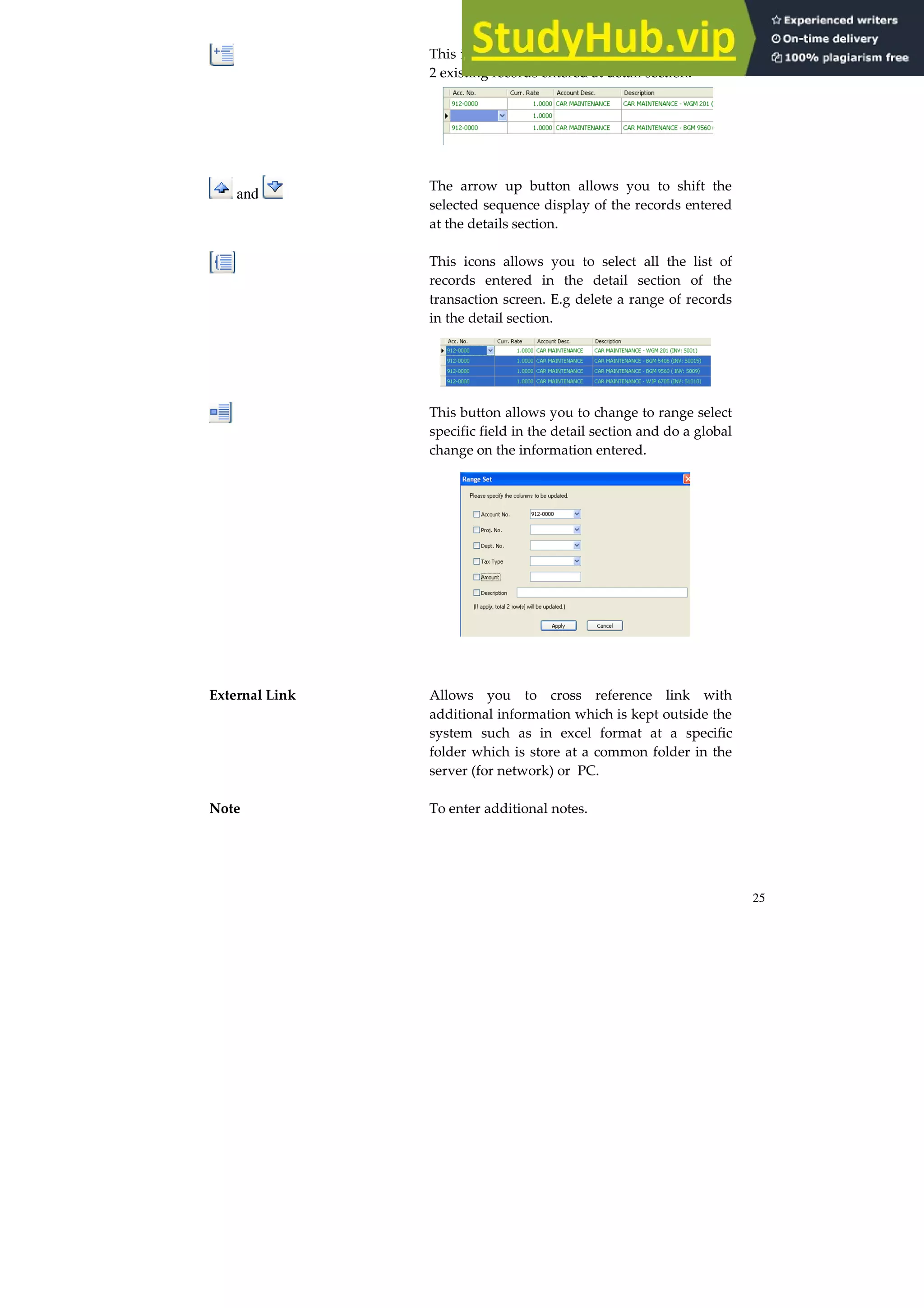
This icon allows you to insert record in between
2 existing records entered at detail section.
and
The arrow up button allows you to shift the
selected sequence display of the records entered
at the details section.
This icons allows you to select all the list of
records entered in the detail section of the
transaction screen. E.g delete a range of records
in the detail section.
This button allows you to change to range select
specific field in the detail section and do a global
change on the information entered.
External Link Allows you to cross reference link with
additional information which is kept outside the
system such as in excel format at a specific
folder which is store at a common folder in the
server (for network) or PC.
Note To enter additional notes.
26
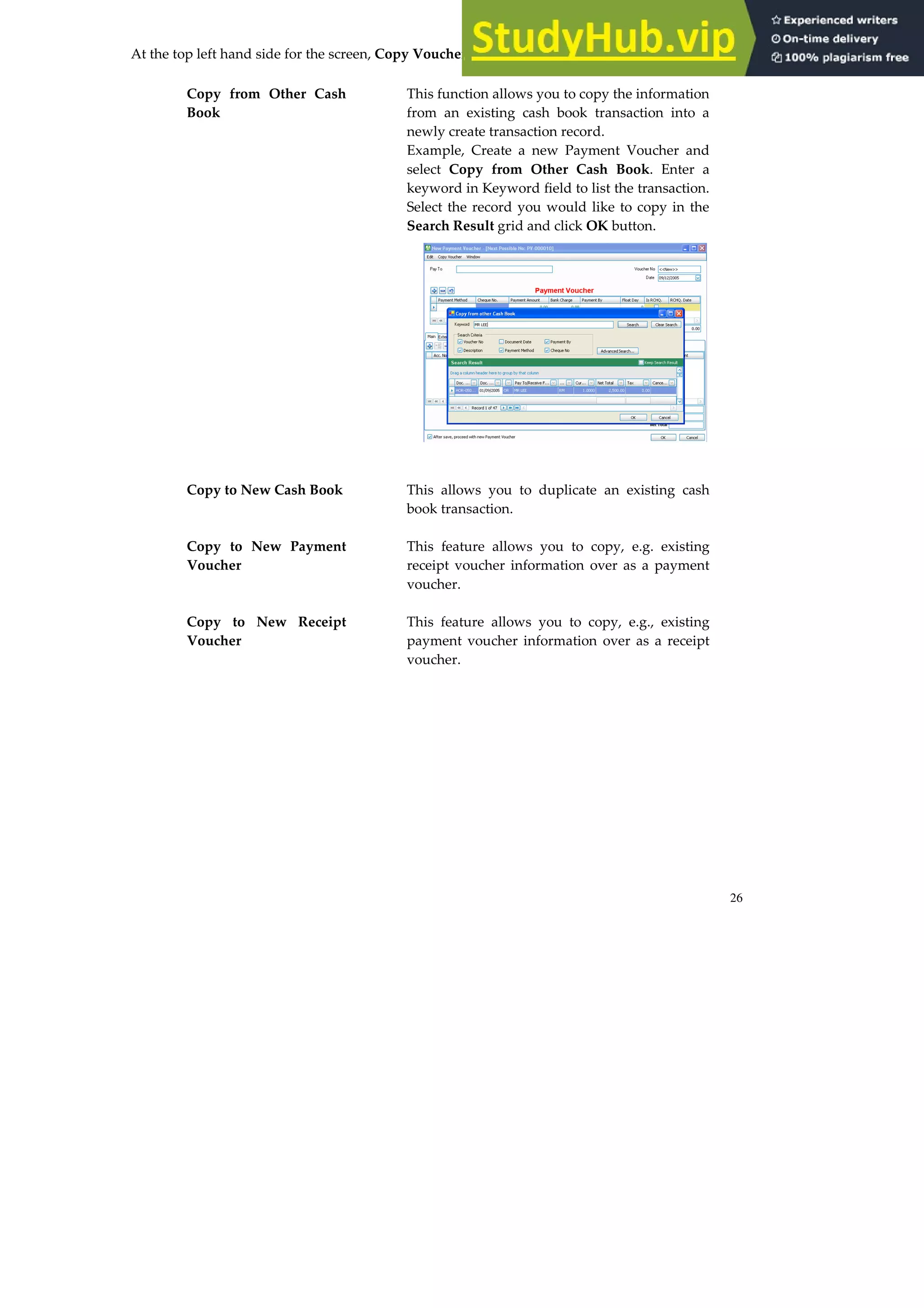
At the top left hand side for the screen, Copy Voucher, these are the following function available:-
Copy from Other Cash
Book
This function allows you to copy the information
from an existing cash book transaction into a
newly create transaction record.
Example, Create a new Payment Voucher and
select Copy from Other Cash Book. Enter a
keyword in Keyword field to list the transaction.
Select the record you would like to copy in the
Search Result grid and click OK button.
Copy to New Cash Book This allows you to duplicate an existing cash
book transaction.
Copy to New Payment
Voucher
This feature allows you to copy, e.g. existing
receipt voucher information over as a payment
voucher.
Copy to New Receipt
Voucher
This feature allows you to copy, e.g., existing
payment voucher information over as a receipt
voucher.
27
At the top left hand side for the screen, Edit, these are the following function available:-
Copy whole document
to Clipboard
Allow you to select an existing document in the
List section in a particular transaction and copy
the whole document’s information and paste it
to another new transaction. Examples, in Cash
Book screen, select and view an existing
payment voucher and select this function to
copy the whole document’s information. Then
create another new payment voucher and paste
the information onto this new payment voucher
by selecting Edit | Paste Whole Document
From Clipboard.
Copy selected details to
Clipboard
Allow you to select an existing document in the
List section in a particular transaction and copy
the whole document’s information and paste it
to another new transaction. Examples, in Cash
Book screen, select and view an existing
payment voucher and select this function to
copy only the details information to paste into
another new transaction.
Examples, in Cash Book screen, select and view
an existing payment voucher and select this
function to copy the details of the document’s
information. Then create another new payment
voucher and paste the information onto this new
payment voucher by selecting Edit | Paste Item
Details Only From Clipboard.
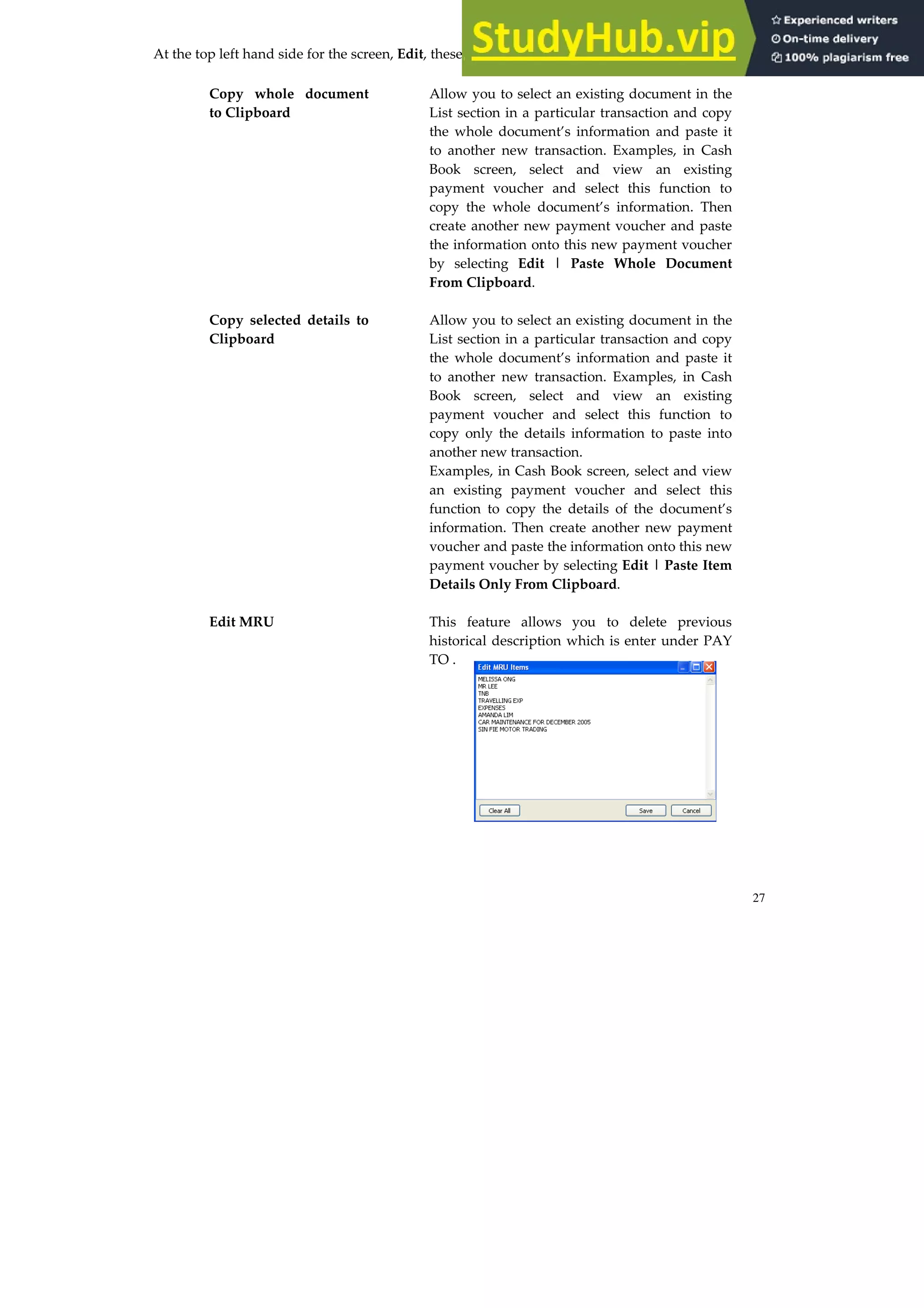
Edit MRU This feature allows you to delete previous
historical description which is enter under PAY
TO .
28
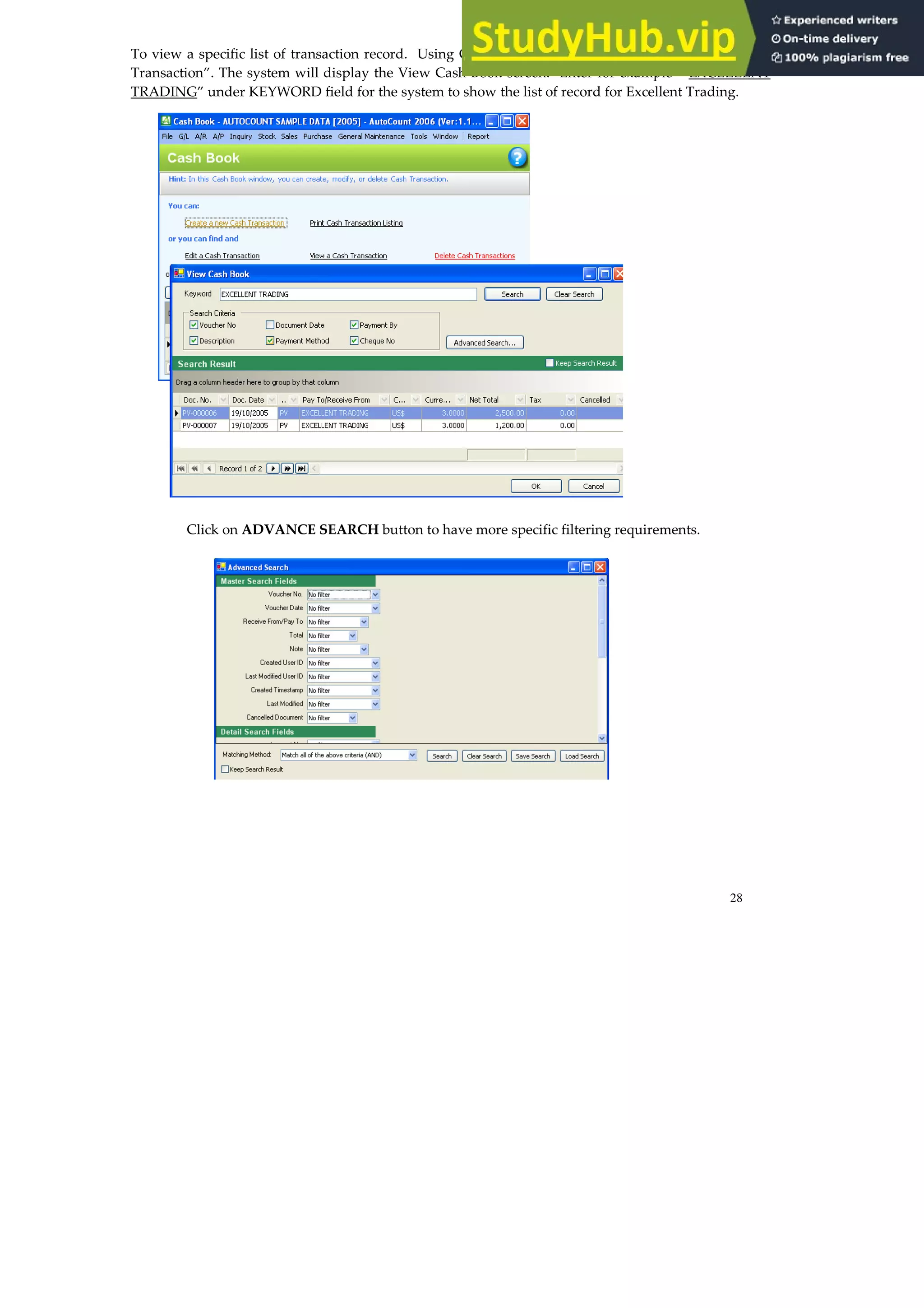
To view a specific list of transaction record. Using Cash Book as an example, click on “View a Cash
Transaction”. The system will display the View Cash Book screen. Enter for example “ EXCELLENT
TRADING” under KEYWORD field for the system to show the list of record for Excellent Trading.
Click on ADVANCE SEARCH button to have more specific filtering requirements.
29
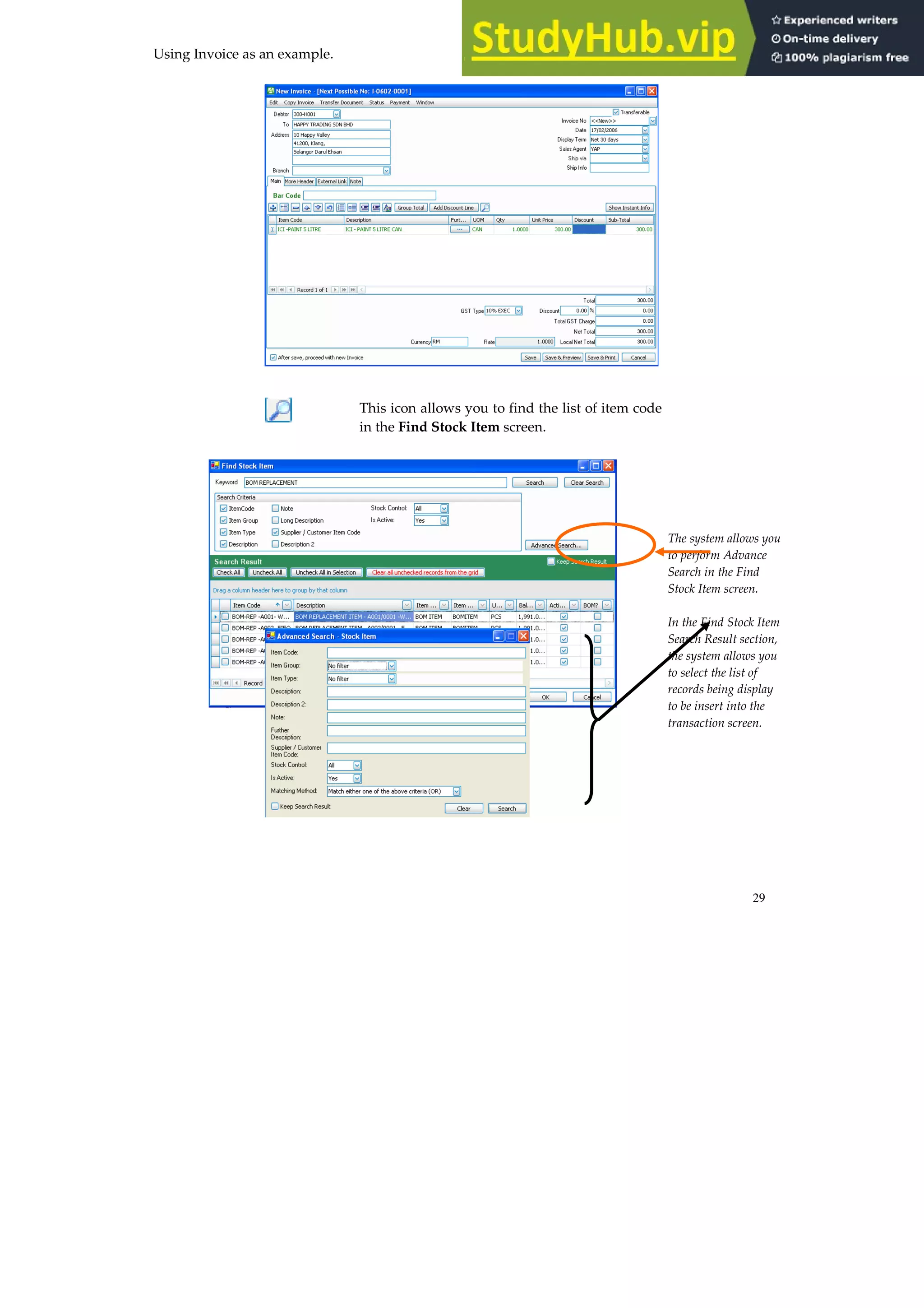
Using Invoice as an example.
This icon allows you to find the list of item code
in the Find Stock Item screen.
The system allows you
to perform Advance
Search in the Find
Stock Item screen.
In the Find Stock Item
Search Result section,
the system allows you
to select the list of
records being display
to be insert into the
transaction screen.
30
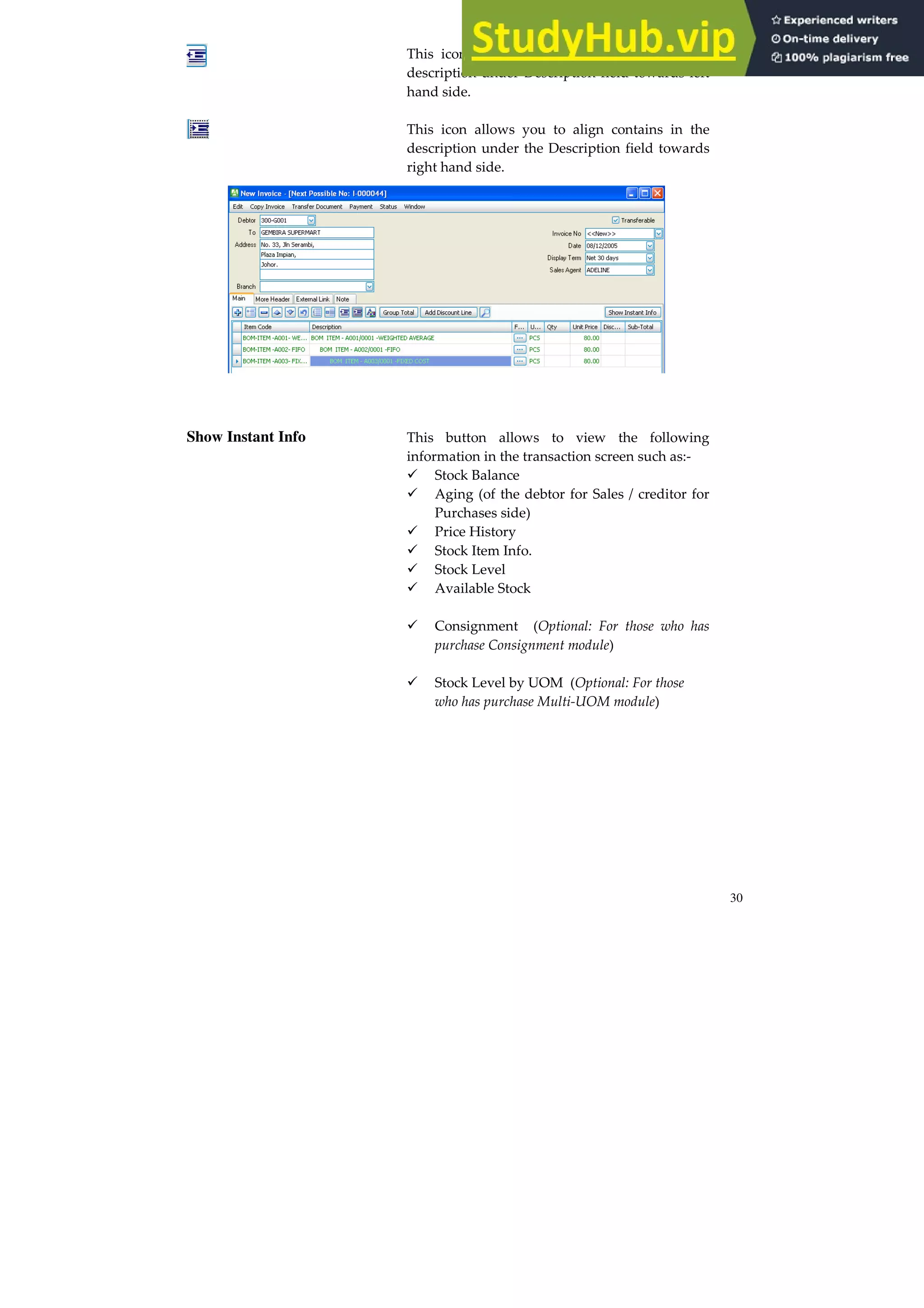
This icon allows you to align contains in the
description under Description field towards left
hand side.
This icon allows you to align contains in the
description under the Description field towards
right hand side.
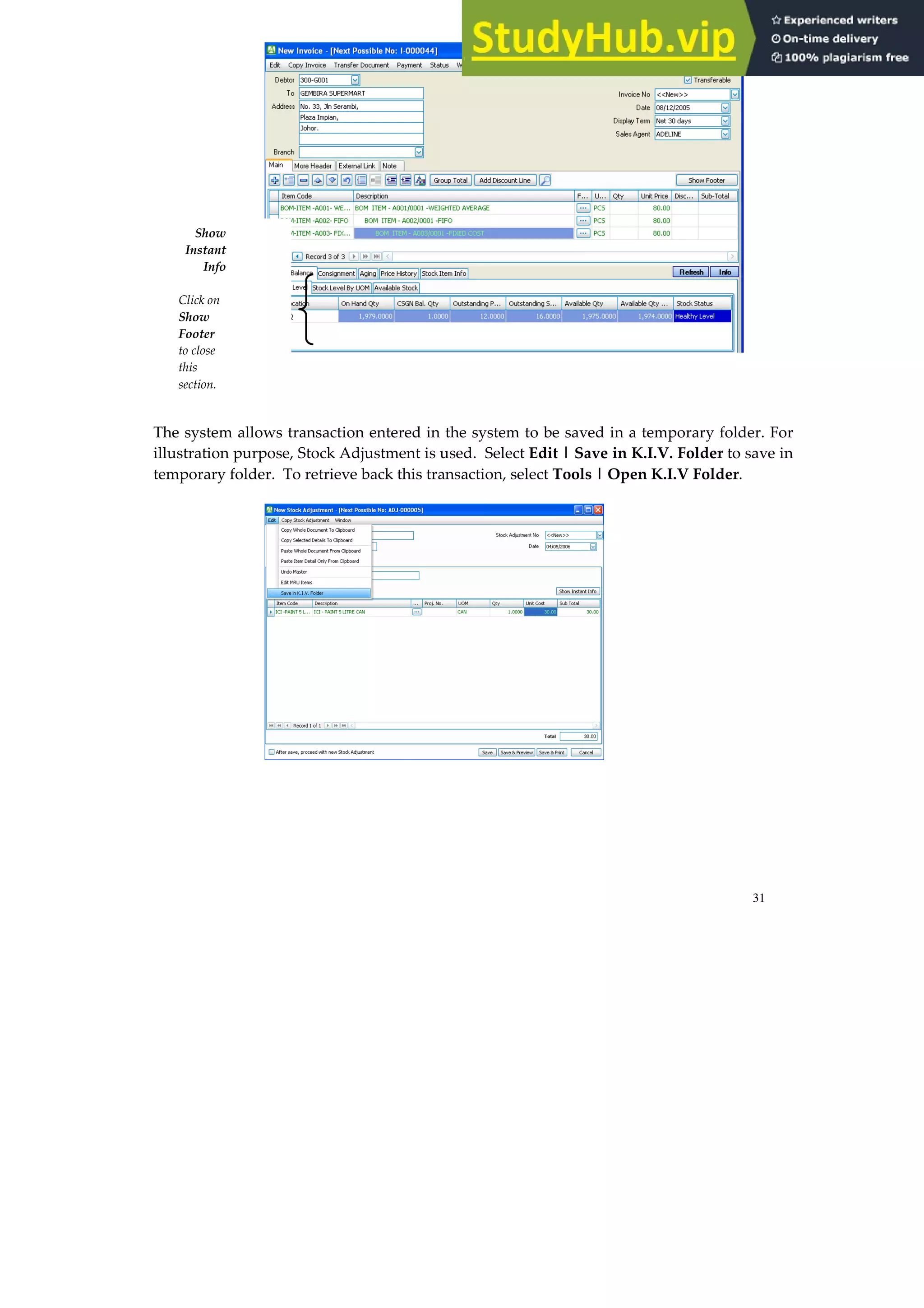
Show Instant Info This button allows to view the following
information in the transaction screen such as:-
Stock Balance
Aging (of the debtor for Sales / creditor for
Purchases side)
Price History
Stock Item Info.
Stock Level
Available Stock
Consignment (Optional: For those who has
purchase Consignment module)
Stock Level by UOM (Optional: For those
who has purchase Multi-UOM module)
31
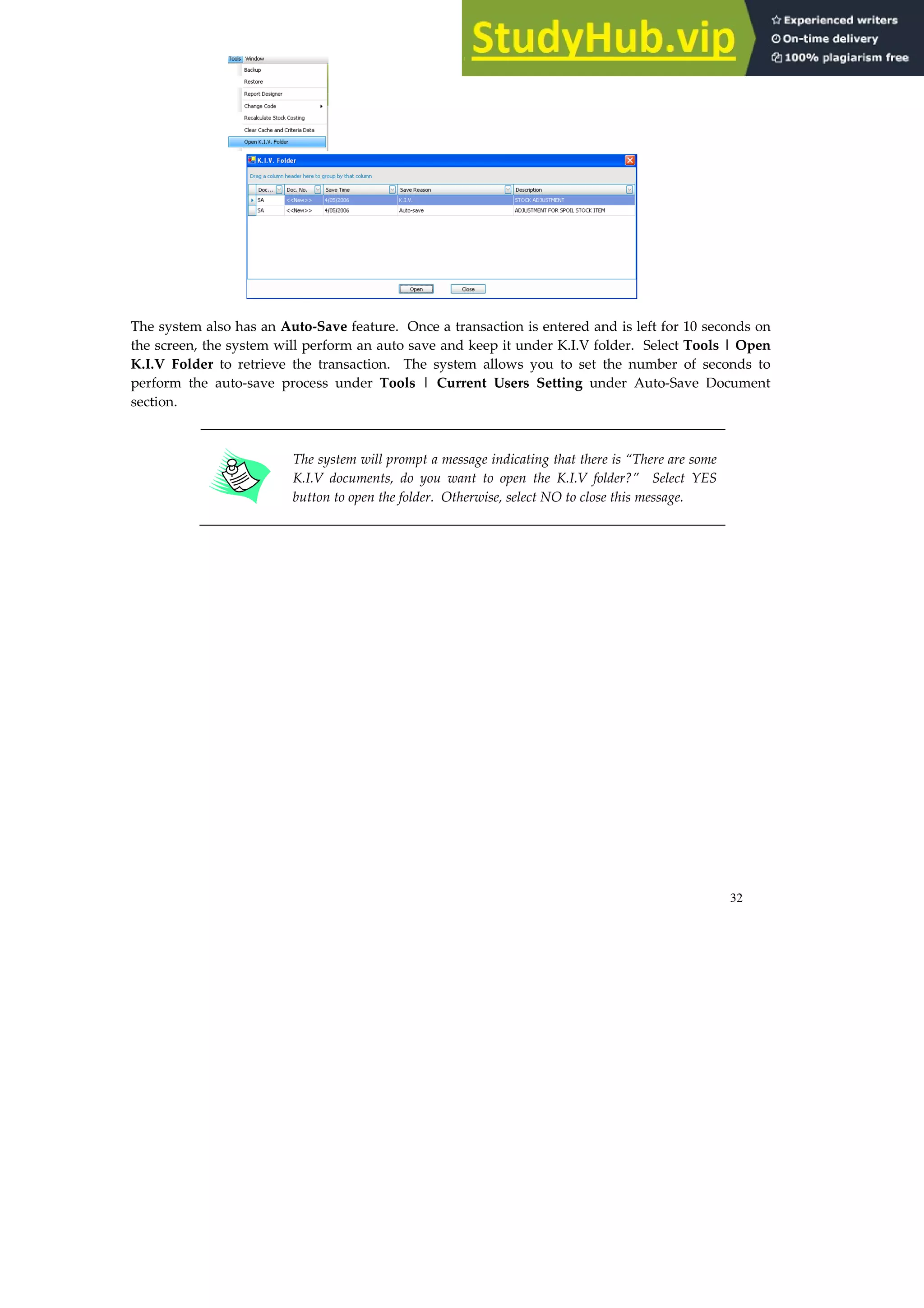
The system allows transaction entered in the system to be saved in a temporary folder. For
illustration purpose, Stock Adjustment is used. Select Edit | Save in K.I.V. Folder to save in
temporary folder. To retrieve back this transaction, select Tools | Open K.I.V Folder.
Show
Instant
Info
Click on
Show
Footer
to close
this
section.
32
The system also has an Auto-Save feature. Once a transaction is entered and is left for 10 seconds on
the screen, the system will perform an auto save and keep it under K.I.V folder. Select Tools | Open
K.I.V Folder to retrieve the transaction. The system allows you to set the number of seconds to
perform the auto-save process under Tools | Current Users Setting under Auto-Save Document
section.
The system will prompt a message indicating that there is “There are some
K.I.V documents, do you want to open the K.I.V folder?” Select YES
button to open the folder. Otherwise, select NO to close this message.
33
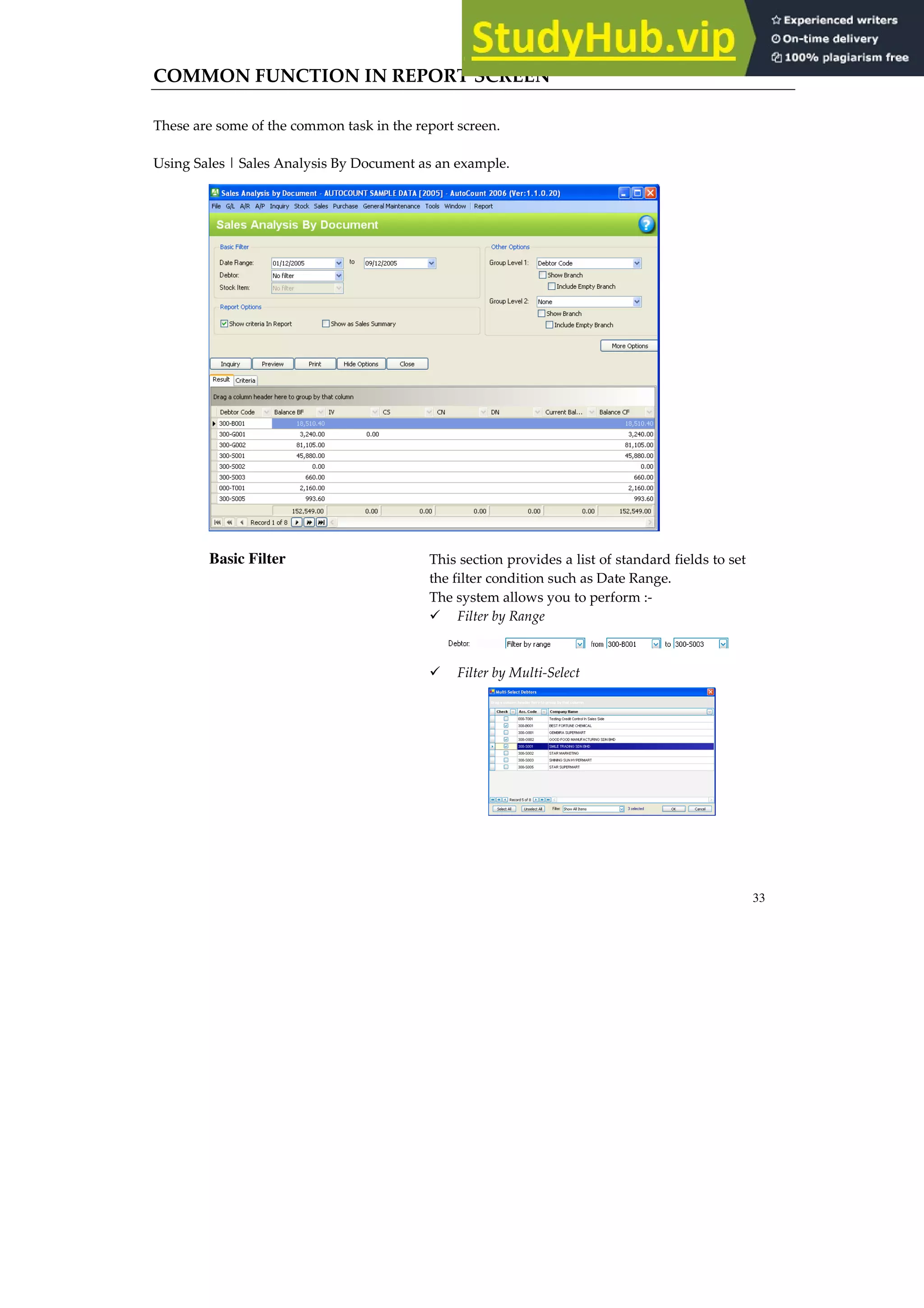
COMMON FUNCTION IN REPORT SCREEN
These are some of the common task in the report screen.
Using Sales | Sales Analysis By Document as an example.
Basic Filter This section provides a list of standard fields to set
the filter condition such as Date Range.
The system allows you to perform :-
Filter by Range
Filter by Multi-Select
34
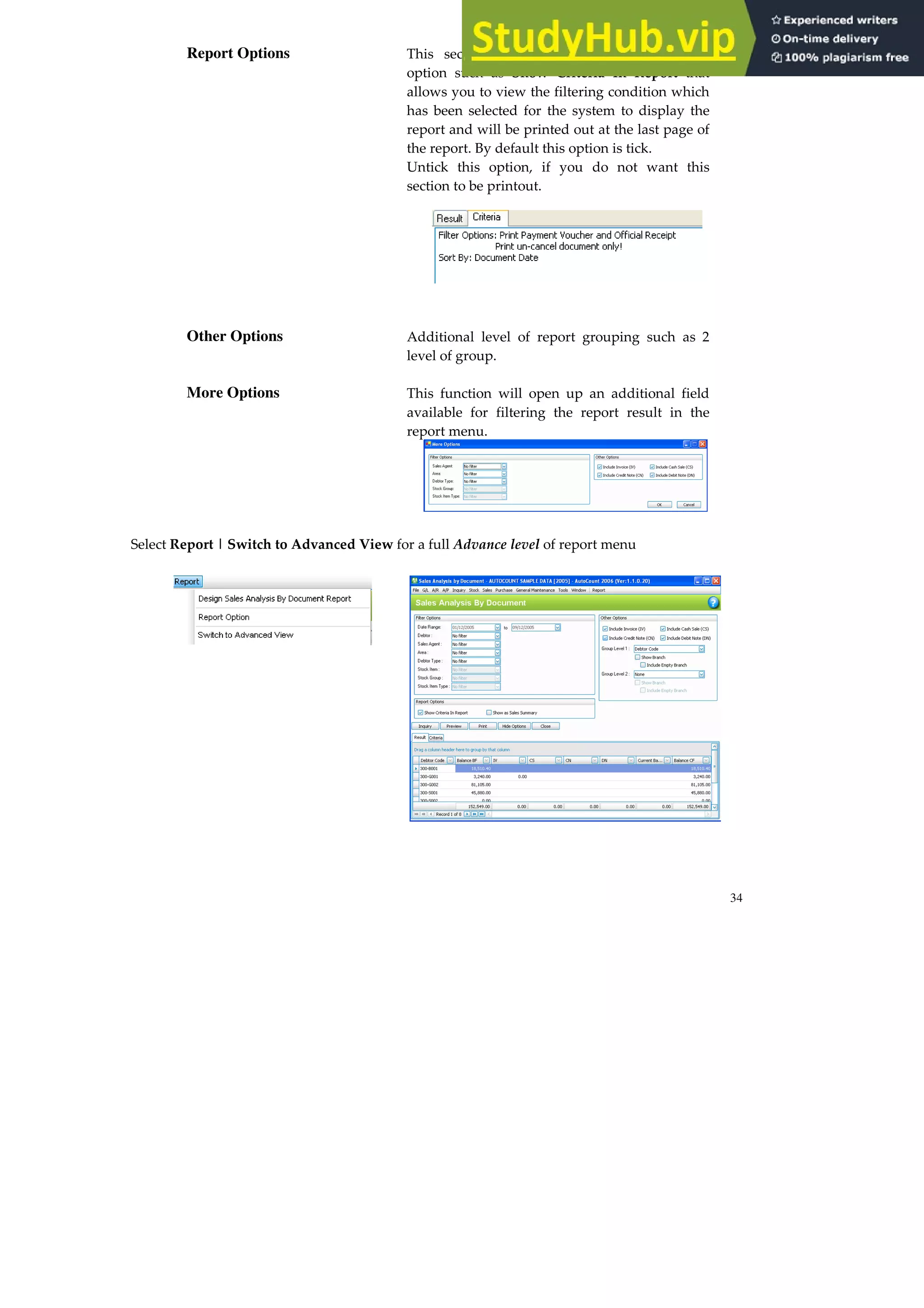
Report Options This section provides you additional report
option such as Show Criteria In Report that
allows you to view the filtering condition which
has been selected for the system to display the
report and will be printed out at the last page of
the report. By default this option is tick.
Untick this option, if you do not want this
section to be printout.
Other Options Additional level of report grouping such as 2
level of group.
More Options This function will open up an additional field
available for filtering the report result in the
report menu.
Select Report | Switch to Advanced View for a full Advance level of report menu
35
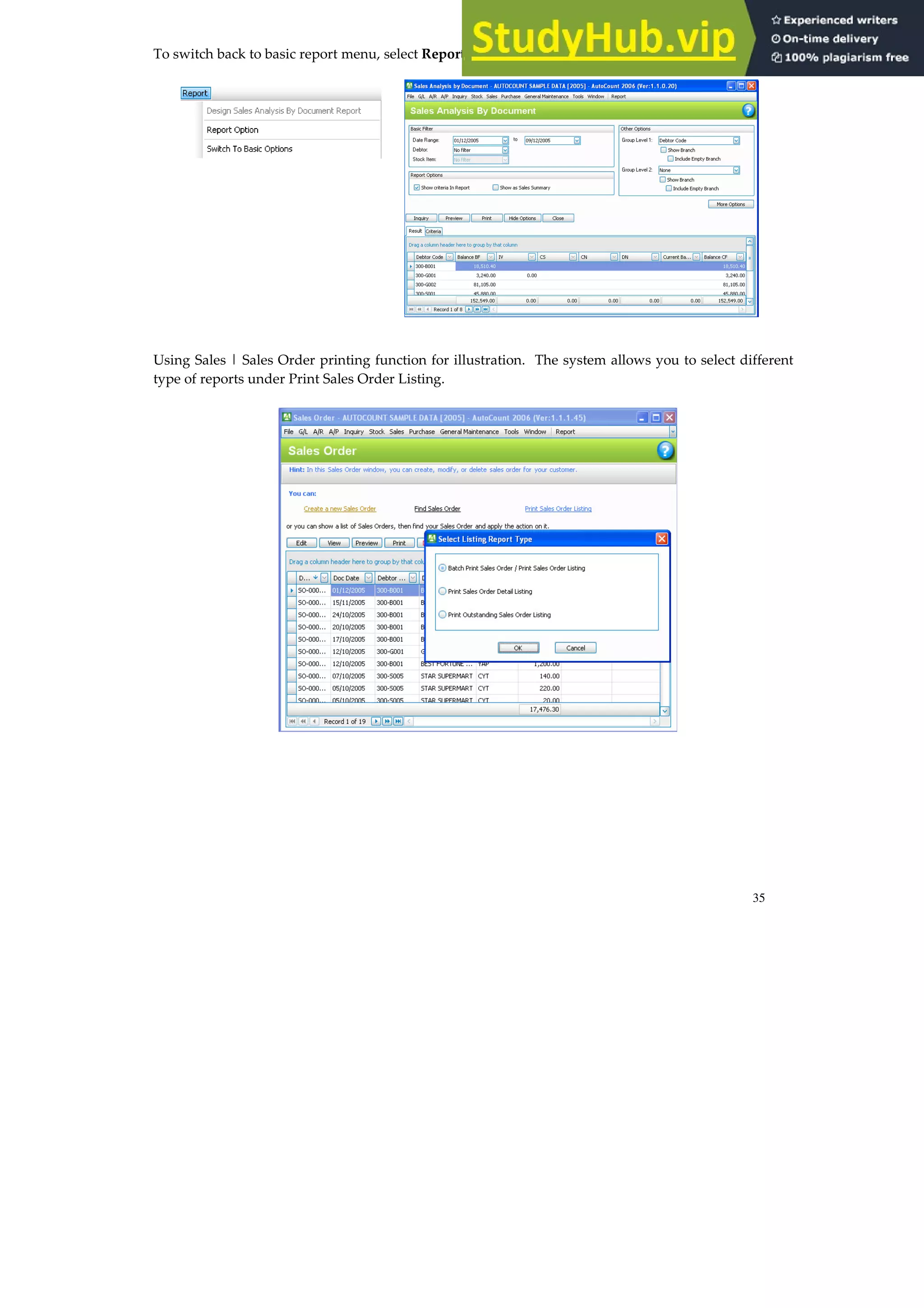
To switch back to basic report menu, select Report | Switch to Basic View
Using Sales | Sales Order printing function for illustration. The system allows you to select different
type of reports under Print Sales Order Listing.
36
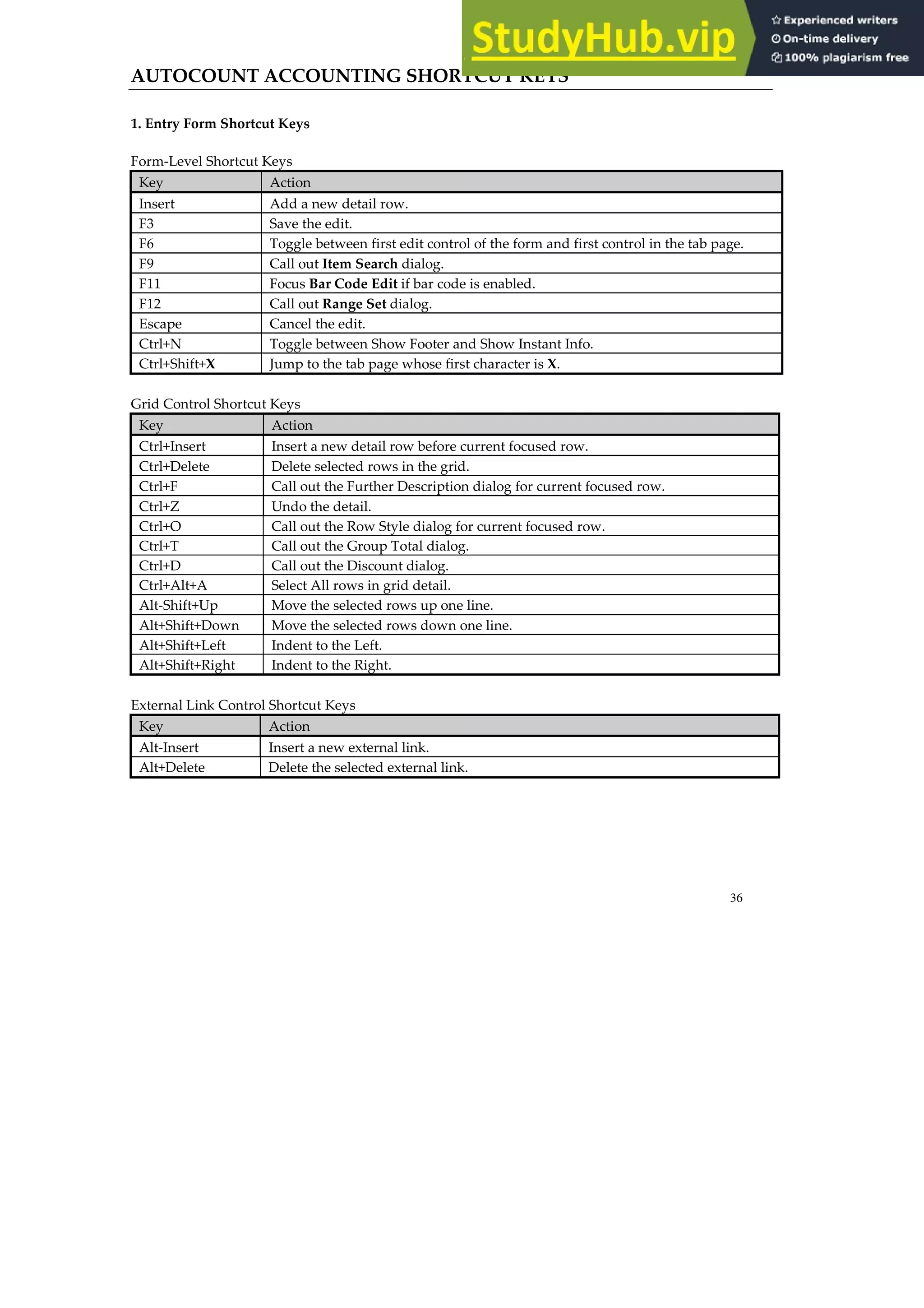
AUTOCOUNT ACCOUNTING SHORTCUT KEYS
1. Entry Form Shortcut Keys
Form-Level Shortcut Keys
Key Action
Insert Add a new detail row.
F3 Save the edit.
F6 Toggle between first edit control of the form and first control in the tab page.
F9 Call out Item Search dialog.
F11 Focus Bar Code Edit if bar code is enabled.
F12 Call out Range Set dialog.
Escape Cancel the edit.
Ctrl+N Toggle between Show Footer and Show Instant Info.
Ctrl+Shift+X Jump to the tab page whose first character is X.
Grid Control Shortcut Keys
Key Action
Ctrl+Insert Insert a new detail row before current focused row.
Ctrl+Delete Delete selected rows in the grid.
Ctrl+F Call out the Further Description dialog for current focused row.
Ctrl+Z Undo the detail.
Ctrl+O Call out the Row Style dialog for current focused row.
Ctrl+T Call out the Group Total dialog.
Ctrl+D Call out the Discount dialog.
Ctrl+Alt+A Select All rows in grid detail.
Alt-Shift+Up Move the selected rows up one line.
Alt+Shift+Down Move the selected rows down one line.
Alt+Shift+Left Indent to the Left.
Alt+Shift+Right Indent to the Right.
External Link Control Shortcut Keys
Key Action
Alt-Insert Insert a new external link.
Alt+Delete Delete the selected external link.
37
2. Item Search Shortcut Keys
Form-Level Shortcut Keys
Key Action
F9 Focus Keyword edit.
Keyword Shortcut Keys
Key Action
Enter Start the search.
Grid Control Shortcut Keys
Key Action
Space Toggle the selection of the focused row.
Enter If no row is selected, then accept current focused row, otherwise, accept the
selected rows.
38
SYSTEM FLOW
GENERAL OVERVIEW
GENERAL
LEDGER
ACCOUNTS
RECEIVABLE
(AR)
ACCOUNTS
PAYABLE
(AP)
STOCK PURCHASE
SALES
Update Sales information
Update Purchases information
Reduce inventory item quantity once
goods is sold
Increase inventory item quantity once
goods is purchase
Stock value is
update
manually for
every end
period to Stock
Value
39
SALES FLOW
PURCHASE FLOW
New Quotation
New Sales Order
New Delivery Order
New Invoice
Cancel Sales Order
Delivery Return
Receive Deposit
Receive Payment
Credit Note
Cash Sales
Request for Quotation
New Purchase Order
New Goods Receive
New Purchase Invoice
Cancel Purchase
Order
Goods Return
Pay Deposit
Pay Bill
New Purchase Return
Cash Purchase
40
BANKING FLOW
Receive Deposit
Receive Payment
New Cash Receive
Bank Reconciliation
Pay Deposit
Pay Bill
New Cash Payment
41
BACKUP FACILITY
Like most of the computer systems, Backup & Restore facility is crucial to a computer system as
it will help users to keep another copy of their data in a safe place.
It is advisable to backup the account book with at least 5 or 6 diskette once all transaction
entries are entered into the account book. In each set of diskettes, user can label it as follow:
Disk Set 1 – Monday
Disk Set 2 - Tuesday
Disk Set 3 – Wednesday
Disk Set 4 – Thursday
Disk Set 5 – Friday
Disk Set 6 – Saturday ( optional- for those working on Saturday)
It is also a good practice to make a permanent monthly backup and yearly backup disk for each
month and year.
HOW TO BACKUP IN AUTOCOUNT Accounting?
I) Running Backup function in the SQL SERVER PC
1. Select Tools | Backup.
42
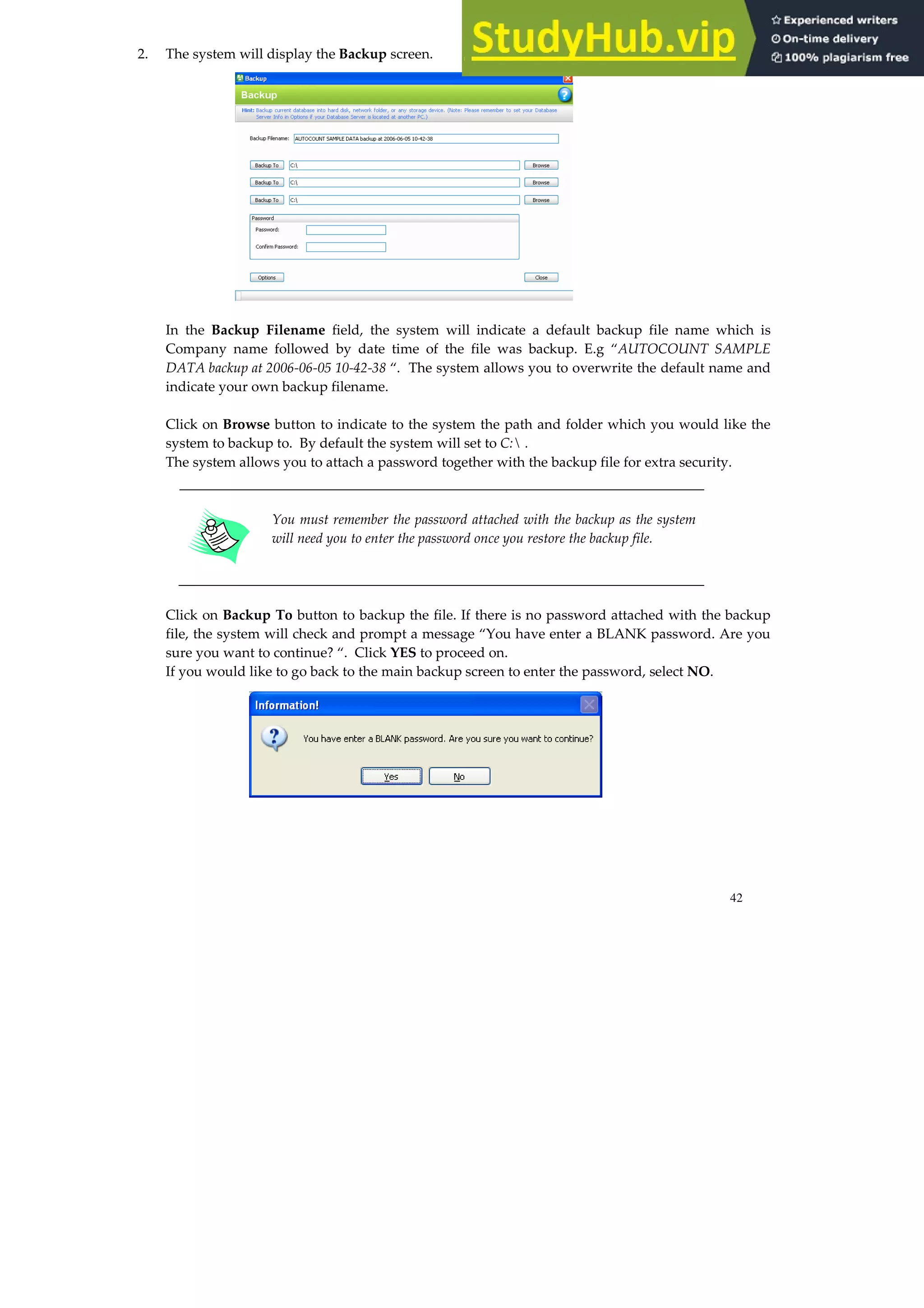
2. The system will display the Backup screen.
In the Backup Filename field, the system will indicate a default backup file name which is
Company name followed by date time of the file was backup. E.g “AUTOCOUNT SAMPLE
DATA backup at 2006-06-05 10-42-38 “. The system allows you to overwrite the default name and
indicate your own backup filename.
Click on Browse button to indicate to the system the path and folder which you would like the
system to backup to. By default the system will set to C: .
The system allows you to attach a password together with the backup file for extra security.
You must remember the password attached with the backup as the system
will need you to enter the password once you restore the backup file.
Click on Backup To button to backup the file. If there is no password attached with the backup
file, the system will check and prompt a message “You have enter a BLANK password. Are you
sure you want to continue? “. Click YES to proceed on.
If you would like to go back to the main backup screen to enter the password, select NO.
43
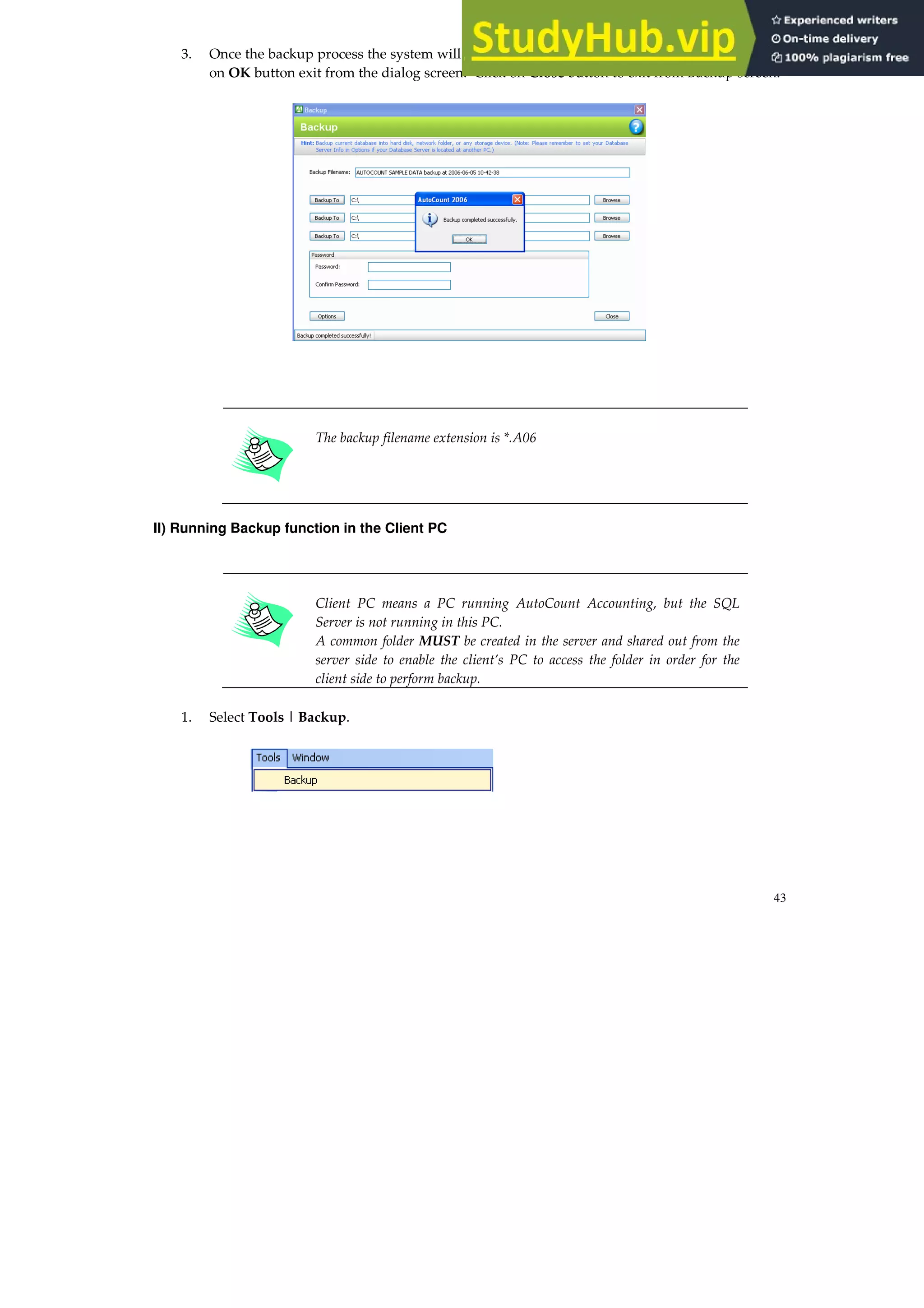
3. Once the backup process the system will prompt a message “Backup completed successfully”. Click
on OK button exit from the dialog screen. Click on Close button to exit from Backup screen.
The backup filename extension is *.A06
II) Running Backup function in the Client PC
Client PC means a PC running AutoCount Accounting, but the SQL
Server is not running in this PC.
A common folder MUST be created in the server and shared out from the
server side to enable the client’s PC to access the folder in order for the
client side to perform backup.
1. Select Tools | Backup.
44
2. In the Backup screen, click on OPTIONS button at the right bottom of the screen.
3. The system will prompt the Backup Option screen to set the relevant backup folder which has
been created at the server side for Server Backup Directory as well as the client backup access
path at Client Access Server Network Folder Path.
E.g:-
The following folder has been created at the server called “shareA2006Backup” and this folder
has been shared out as full read and writes access right.
At Server Backup Directory enter the backup folder path in the following format: path backup
folder name. E.g, “C:shareA2006Backup”
Click on Validate Path to make sure the path entered is valid. Once the path is validate and
found correct, the system will prompt a message “The Server Backup Directory you specify is
correct”
At Client Access Server Network Folder Path enter the backup folder for client side in the
following format: server namebackup folder name. E.g, “Crystal2shareA2006Backup”
Click on Validate Path to make sure the path entered is valid. Once the path is validate and
found correct, the system will prompt a message “The client path you input is correct”
Click on OK button to save the setting.
45
4. The system will proceed back to the Backup screen.
In the Backup Filename field, the system will indicate a default backup file name which is
Company name followed by date time of the file was backup. E.g “AutoCount 2006 Sample [2006]
backup at 2005-10-06 11.30.31“. The system allows you to overwrite the default name and indicate
your own backup filename.
Click on Browse button to indicate to the system the path and folder which you would like the
system to backup to. By default the system will set to C: .
The system allows you to attach a password together with the backup file for extra security.
You MUST remember the password attached with the backup as the system
will need you to enter the password once you restore the backup file. This
applies ONLY if you have attached a password during backup.
Click on Backup To button to backup the file. If there is no password attached with the backup
file, the system will check and prompt a message “You have enter a BLANK password. Are you sure
you want to continue? “Click YES to proceed on.
If you would like to go back to the main backup screen to enter the password, select NO.
46
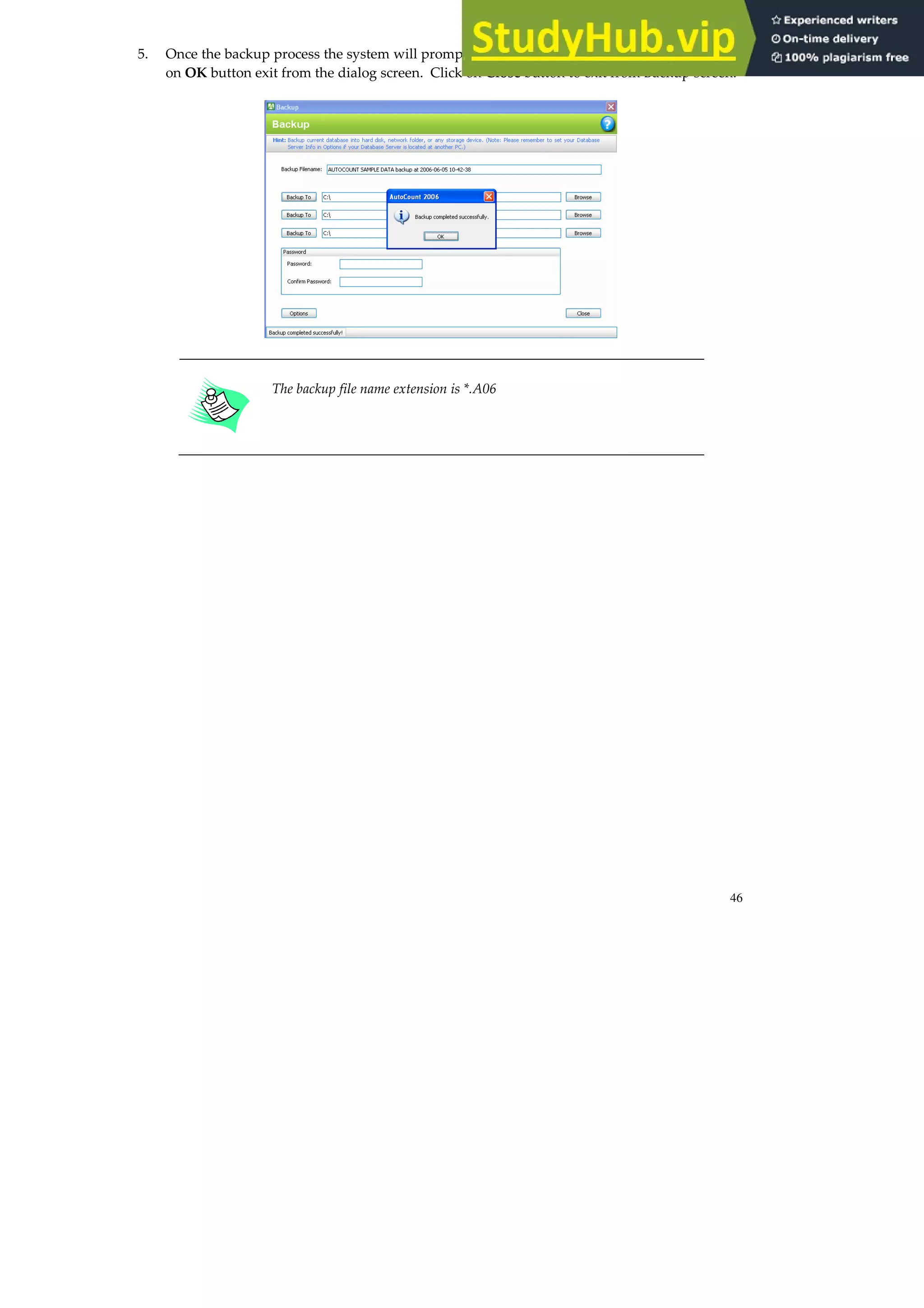
5. Once the backup process the system will prompt a message “Backup completed successfully”. Click
on OK button exit from the dialog screen. Click on Close button to exit from Backup screen.
The backup file name extension is *.A06
47
HOW TO RESTORE IN AUTOCOUNT Accounting?
1. Select Tools | Restore.
2. The system will display the Restore screen as shown below:-
Click on the Browse button at the Restore from field to indicate the location of the backup file. E.g,
“C:AUTOCOUNT 2006 SAMPLE DATA [2006] backup at 2005-10-06 11-32-31_Zip.A06”
48
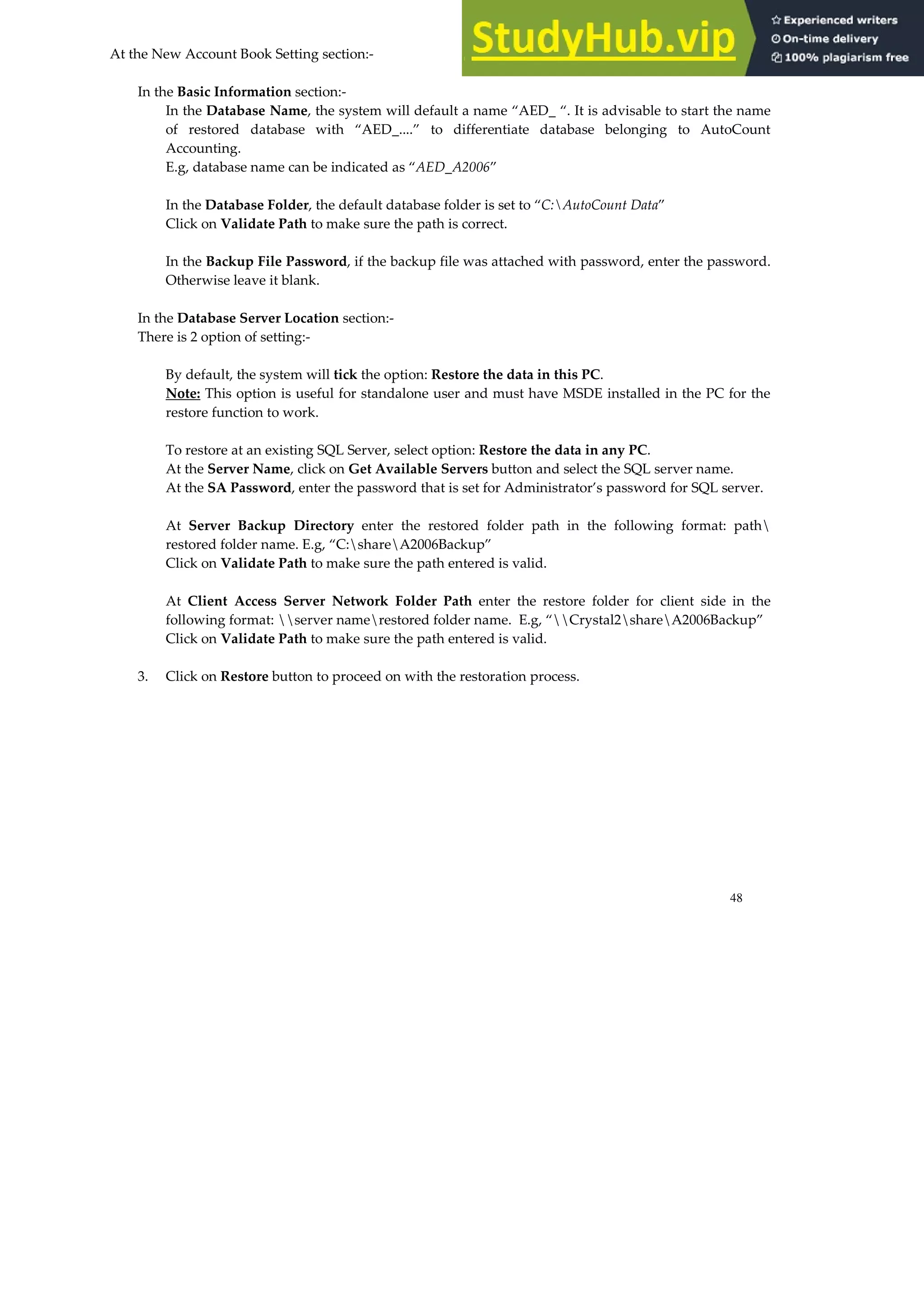
At the New Account Book Setting section:-
In the Basic Information section:-
In the Database Name, the system will default a name “AED_ “. It is advisable to start the name
of restored database with “AED_....” to differentiate database belonging to AutoCount
Accounting.
E.g, database name can be indicated as “AED_A2006”
In the Database Folder, the default database folder is set to “C:AutoCount Data”
Click on Validate Path to make sure the path is correct.
In the Backup File Password, if the backup file was attached with password, enter the password.
Otherwise leave it blank.
In the Database Server Location section:-
There is 2 option of setting:-
By default, the system will tick the option: Restore the data in this PC.
Note: This option is useful for standalone user and must have MSDE installed in the PC for the
restore function to work.
To restore at an existing SQL Server, select option: Restore the data in any PC.
At the Server Name, click on Get Available Servers button and select the SQL server name.
At the SA Password, enter the password that is set for Administrator’s password for SQL server.
At Server Backup Directory enter the restored folder path in the following format: path
restored folder name. E.g, “C:shareA2006Backup”
Click on Validate Path to make sure the path entered is valid.
At Client Access Server Network Folder Path enter the restore folder for client side in the
following format: server namerestored folder name. E.g, “Crystal2shareA2006Backup”
Click on Validate Path to make sure the path entered is valid.
3. Click on Restore button to proceed on with the restoration process.
49
HOW TO CHANGE ACCOUNT BOOK?
If you have more than one account book, you will have to go to File | Exit and Logout to exit from the
system. Double click at the AutoCount Accounting icon and reselect another account book.
HOW TO EDIT COMPANY PROFILE?
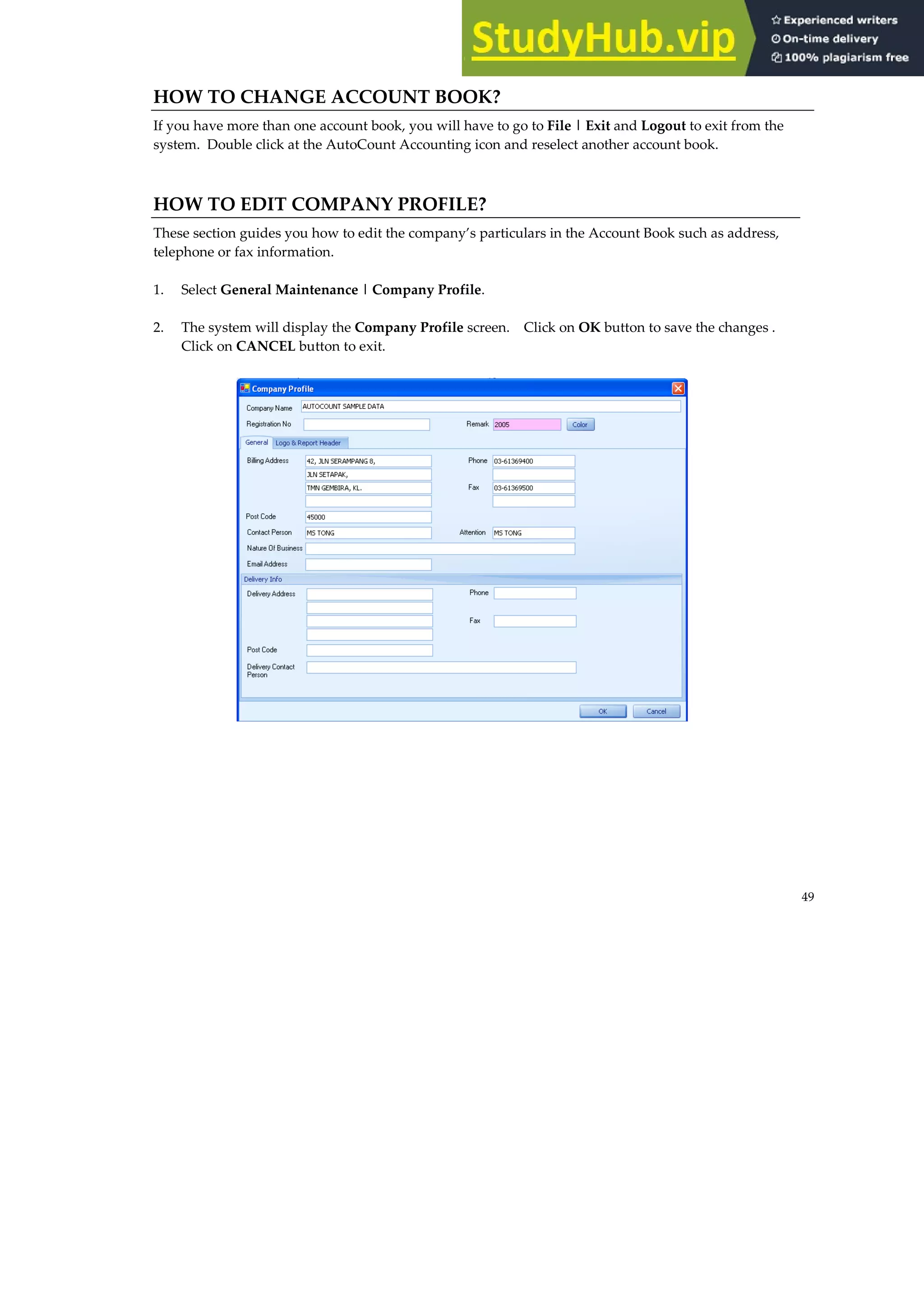
These section guides you how to edit the company’s particulars in the Account Book such as address,
telephone or fax information.
1. Select General Maintenance | Company Profile.
2. The system will display the Company Profile screen. Click on OK button to save the changes .
Click on CANCEL button to exit.
50
51
CHAPTER 3: SETUP ACCOUNT BOOK
This chapter will guide you step by step on how to create a new account book.
HOW TO CREATE NEW ACCOUNT BOOK?
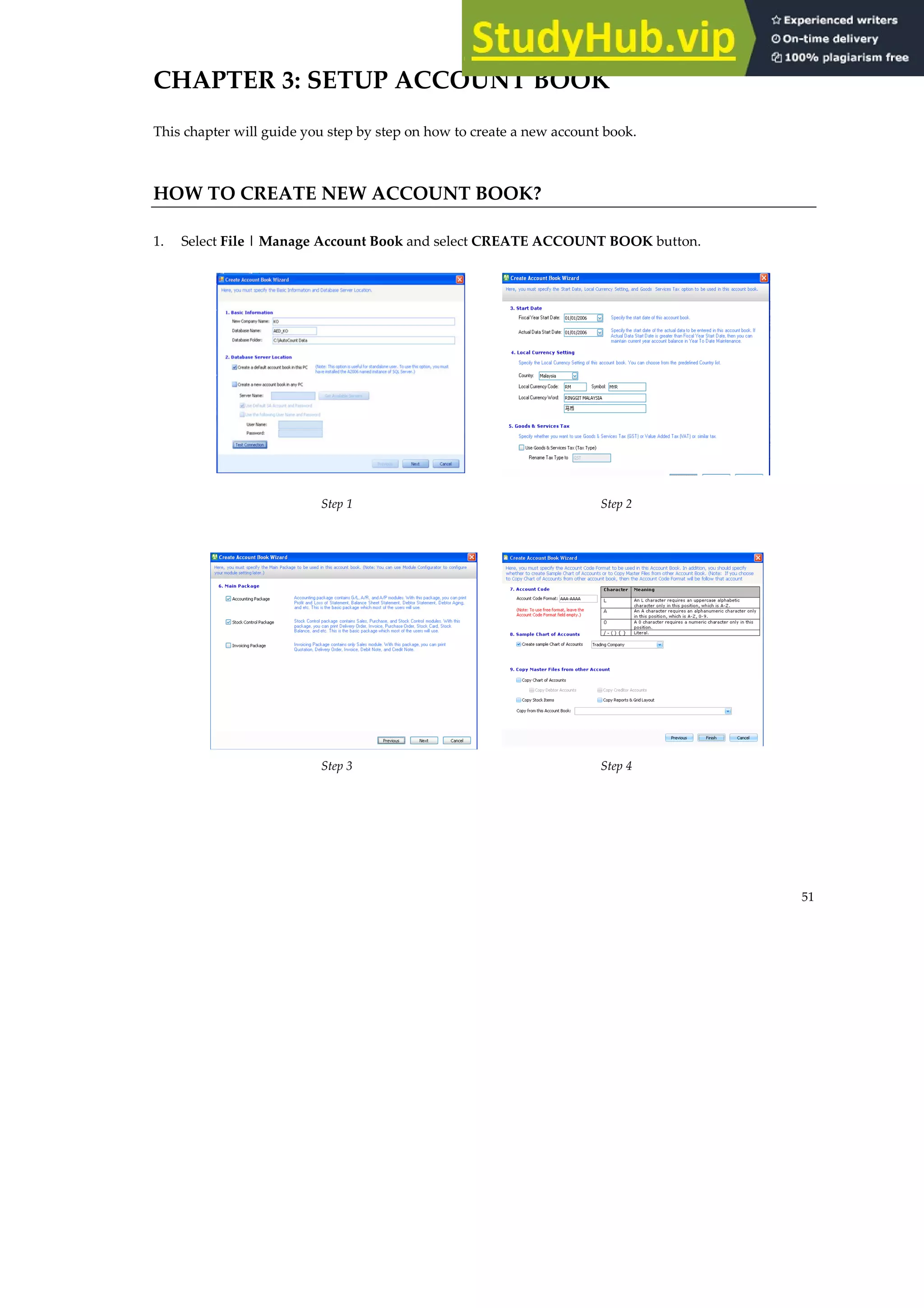
1. Select File | Manage Account Book and select CREATE ACCOUNT BOOK button.
Step 1 Step 2
Step 3 Step 4
52
Step 1: Create Account Book Wizard
Basic Information New Company Name – Enter the company
name for the newly create database.
Database Name – By default the system will
assign a initial name “AED_” and add the first
word that is entered in the new company name
field. You can overwrite and change the default
name.
Database Folder – The default database folder
assign by system is “C:AutoCount Data”
Database Server
Location
Create a default account book in this PC – This
option is for standalone. By default this option is
tick.
Create a new account book in any PC – Select
this option if you would like the account book to
be stored at the server.
Click on Get Available Server button to select
the server.
By default, Use Default Password is tick. Thus,
to enter your own system administrator
password to into SQL Server, Untick this option
and enter the password at the SA Password
field.
Test Connection This button allows you to test whether there is
any connection problem to the SQL server.
53
Step 2: Create Account Book Wizard
Start Date This section allows you to set the following:-
Fiscal Year Start Date:
Actual Data Start Date:
Local Currency Setting This section allows you to set the local currency
of the account book:-
Country: Indicate the country name, e.g.,
“Malaysia”.
Local Currency Code: Indicate the local currency
code, e.g., “RM” to represent Ringgit Malaysia.
Symbol: Indicate the local currency symbol
which is to be display in the report, e.g., “MYR”.
Local Currency Word: Indicate the currency
description, e.g., “RINGGIT MALAYSIA”.
Goods & Service Tax
(GST)
(Optional)
This section allows you to set the sales tax or
GST setting, if applicable.
Step 3: Create Account Book Wizard
Accounting Package Accounting package contains General Ledger
(G/L), Accounts Receivable (A/R) and Accounts
Payable (A/P) modules.
Stock Control Package Stock Control package contains Sales, Purchase
and Stock Control modules.
Invoicing Package Invoicing package contains ONLY Sales module.
54
Step 4: Create Account Book Wizard
Account Code Format Indicate the account code format.
Sample Charts of
Accounts
The system comes with a default sample carts of
accounts for Trading or Manufacturing.
For illustration purpose, select Trading.
Untick the option: Create sample Charts of
Accounts, to create a blank account book.
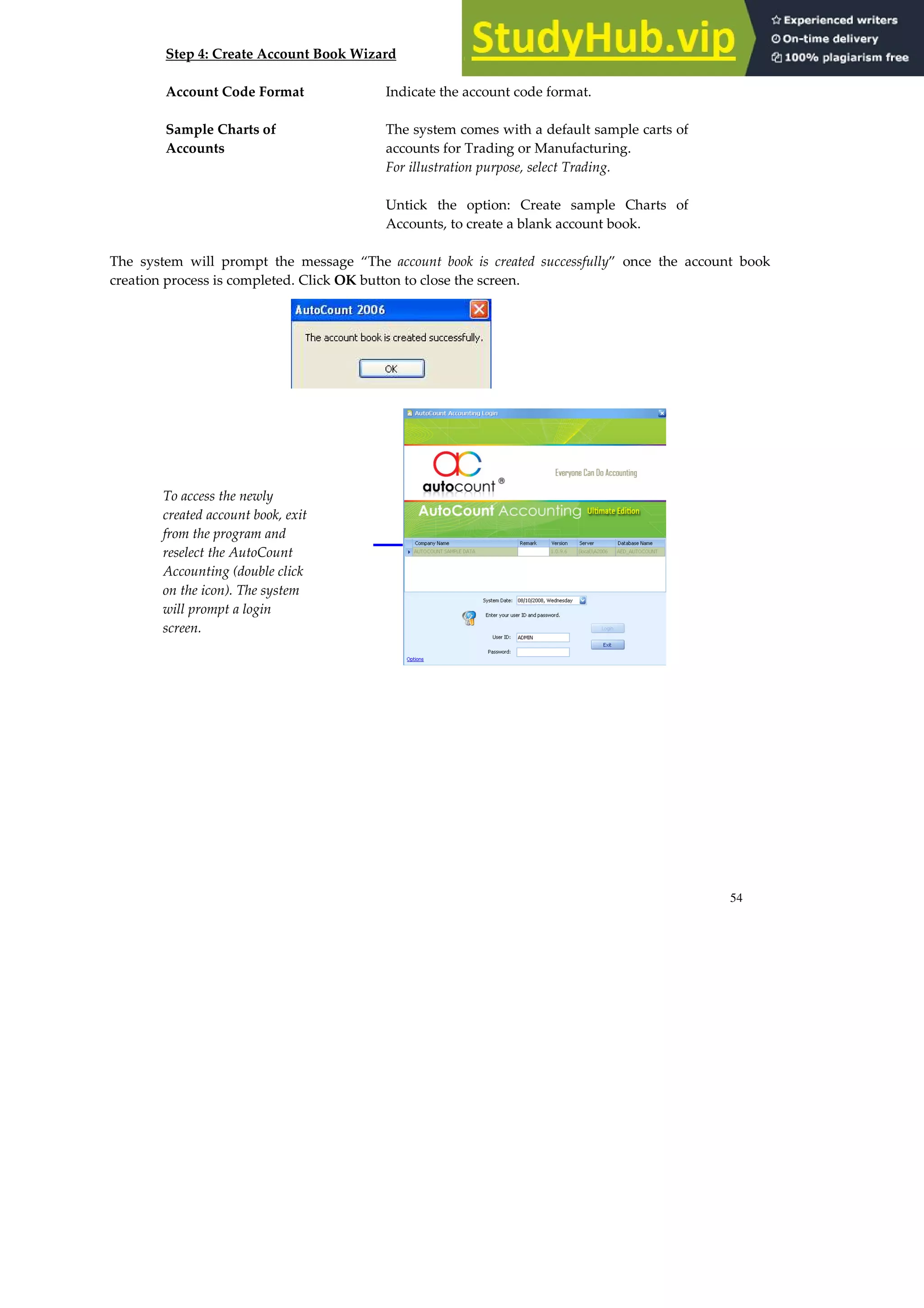
The system will prompt the message “The account book is created successfully” once the account book
creation process is completed. Click OK button to close the screen.
To access the newly
created account book, exit
from the program and
reselect the AutoCount
Accounting (double click
on the icon). The system
will prompt a login
screen.
55
HOW TO SETUP FISICAL PERIOD?
The Fiscal Year in the account book must be set BEFORE you can proceed
on with any transaction entry.
1. Go to Tools | Manage Fiscal Year.
2. Click on Manage Fiscal Year at the bottom of the page. The system will display the Manage
Fiscal Year screen.
56
Fiscal Year Name : This field indicated the fiscal year’s name. E.g,
if the account book is created in the year of
2005, the system will default the name as
“Fiscal Year 2005”.
Start Date : This field indicated the first day of the start
date in the beginning of the fiscal year.
E.g., the start date of fiscal year for 2005 is
“01/01/2005”.
End Date : This field indicated the last day of the end
date at the end of the fiscal year.
E.g., the end date of fiscal year for 2005 is
“31/12/2005”.
Active : This field indicates the current active financial
year.
New Previous Fiscal Year
This function allows you to create previous year’s financial year.
Example: If the current fiscal year is year 2005, the system allows you to create previous year e.g,
“Fiscal Year 2004” to maintain 2004’s Balance Sheet and Profit and Loss figure. By doing so, the
system will be able to provide a comparison figure in the financial report.
New Next Fiscal Year
This function allows you to create the next new financial year.
57
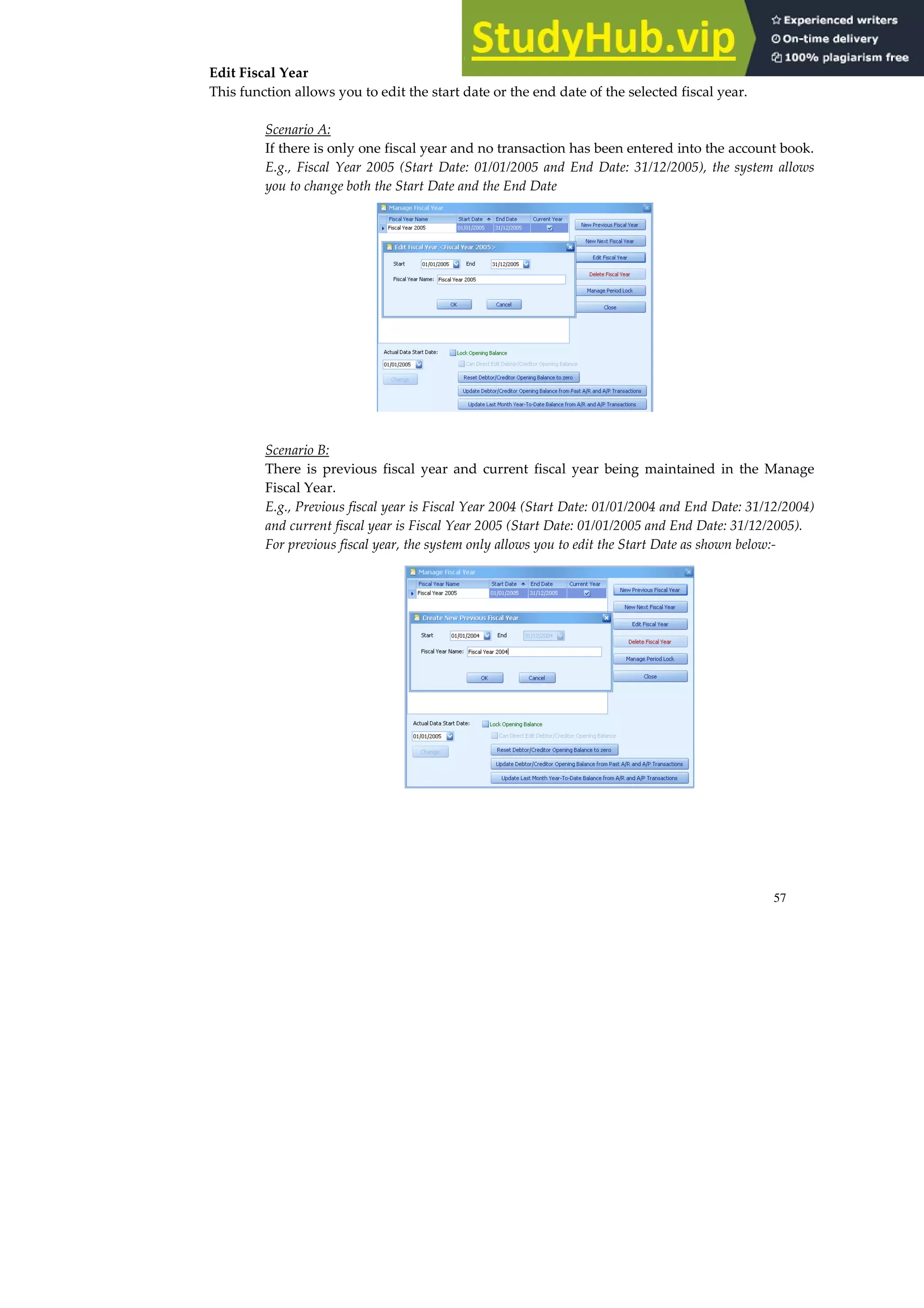
Edit Fiscal Year
This function allows you to edit the start date or the end date of the selected fiscal year.
Scenario A:
If there is only one fiscal year and no transaction has been entered into the account book.
E.g., Fiscal Year 2005 (Start Date: 01/01/2005 and End Date: 31/12/2005), the system allows
you to change both the Start Date and the End Date
Scenario B:
There is previous fiscal year and current fiscal year being maintained in the Manage
Fiscal Year.
E.g., Previous fiscal year is Fiscal Year 2004 (Start Date: 01/01/2004 and End Date: 31/12/2004)
and current fiscal year is Fiscal Year 2005 (Start Date: 01/01/2005 and End Date: 31/12/2005).
For previous fiscal year, the system only allows you to edit the Start Date as shown below:-
58
Edit Fiscal Year
This function allows the fiscal year’s record maintain in the Manage Fiscal Year screen to be
deleted.
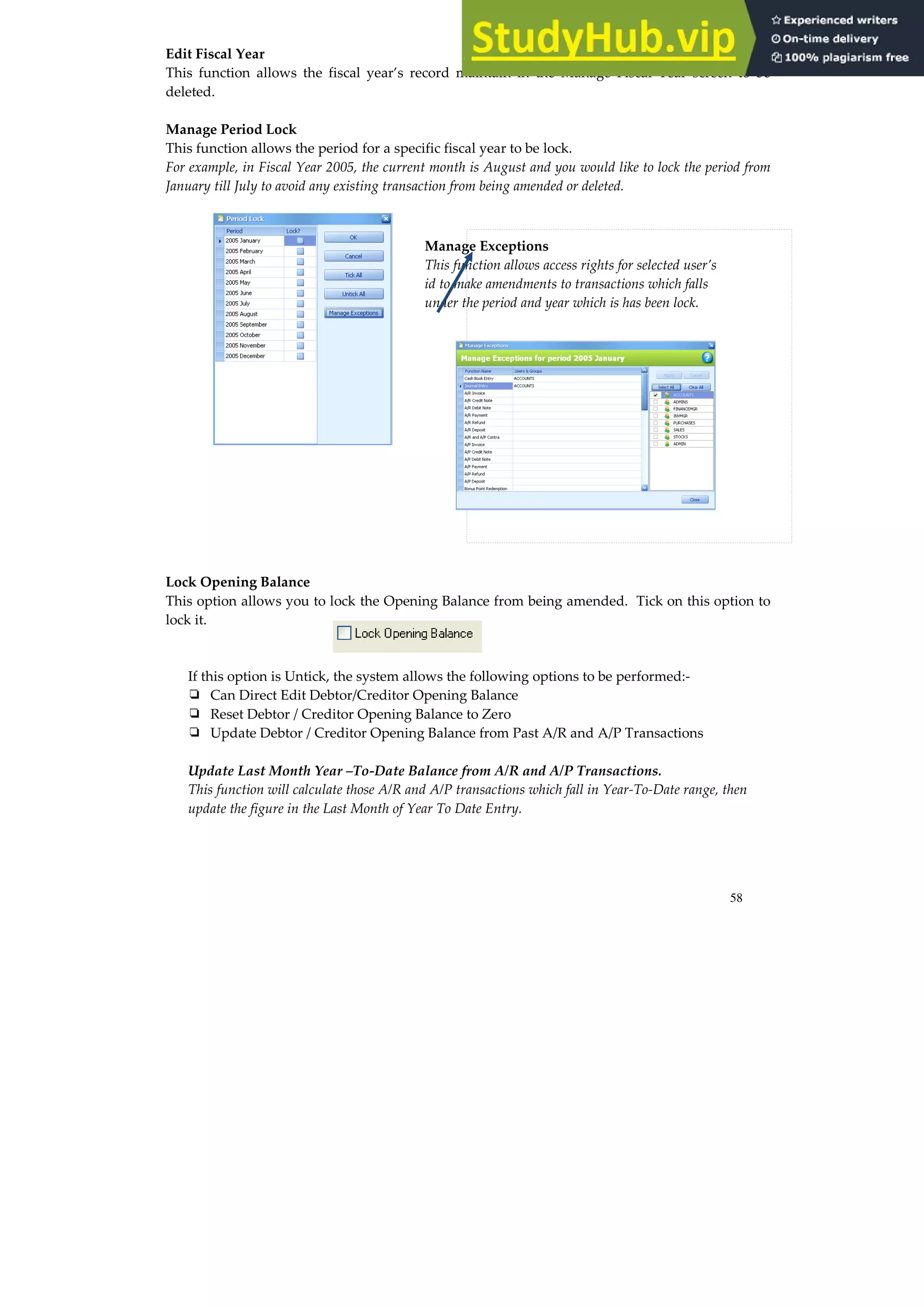
Manage Period Lock
This function allows the period for a specific fiscal year to be lock.
For example, in Fiscal Year 2005, the current month is August and you would like to lock the period from
January till July to avoid any existing transaction from being amended or deleted.
Lock Opening Balance
This option allows you to lock the Opening Balance from being amended. Tick on this option to
lock it.
If this option is Untick, the system allows the following options to be performed:-
❏ Can Direct Edit Debtor/Creditor Opening Balance
❏ Reset Debtor / Creditor Opening Balance to Zero
❏ Update Debtor / Creditor Opening Balance from Past A/R and A/P Transactions
Update Last Month Year –To-Date Balance from A/R and A/P Transactions.
This function will calculate those A/R and A/P transactions which fall in Year-To-Date range, then
update the figure in the Last Month of Year To Date Entry.
Manage Exceptions
This function allows access rights for selected user’s
id to make amendments to transactions which falls
under the period and year which is has been lock.
59
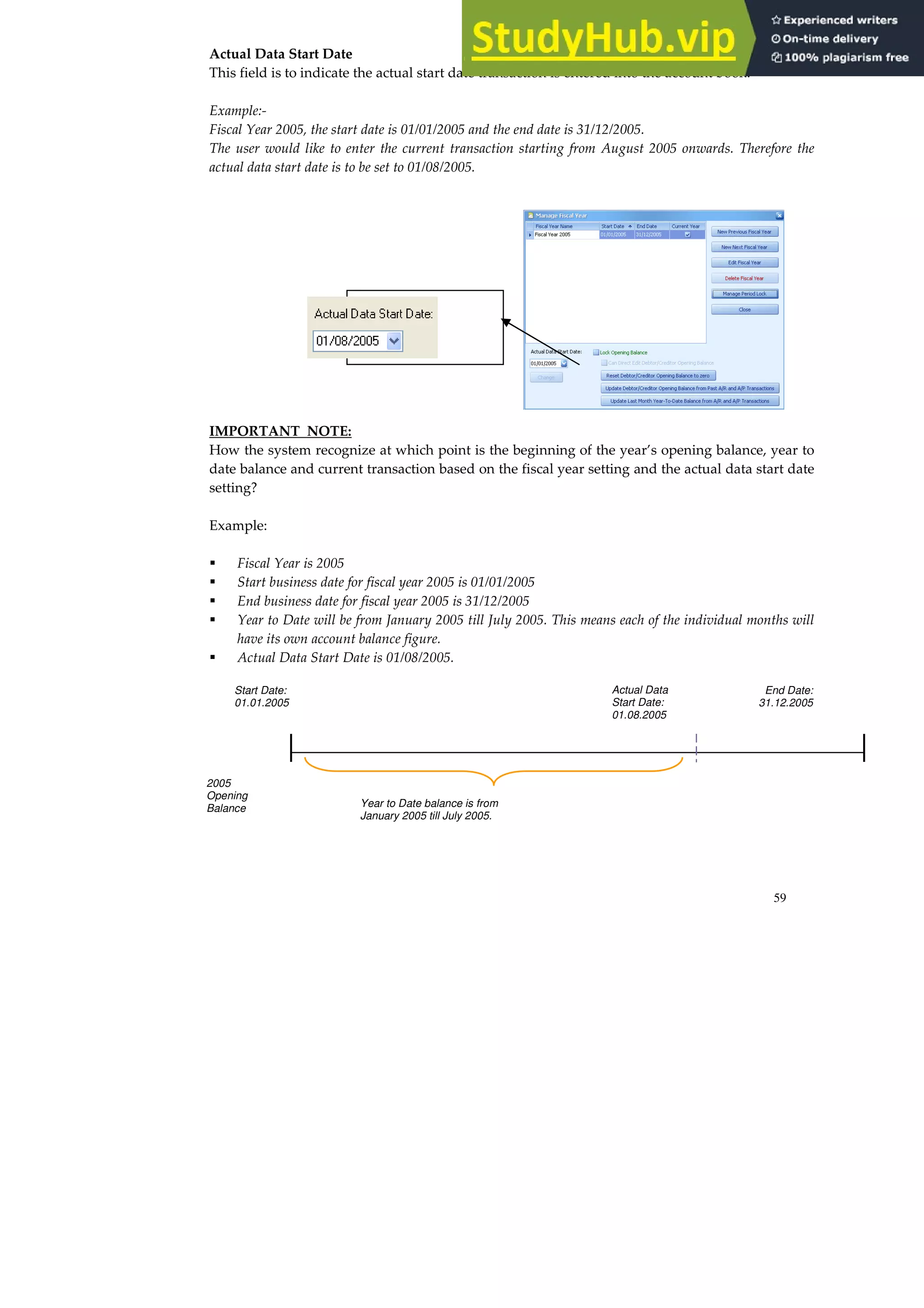
Actual Data Start Date
This field is to indicate the actual start date transaction is entered into the account book.
Example:-
Fiscal Year 2005, the start date is 01/01/2005 and the end date is 31/12/2005.
The user would like to enter the current transaction starting from August 2005 onwards. Therefore the
actual data start date is to be set to 01/08/2005.
IMPORTANT NOTE:
How the system recognize at which point is the beginning of the year’s opening balance, year to
date balance and current transaction based on the fiscal year setting and the actual data start date
setting?
Example:
Fiscal Year is 2005
Start business date for fiscal year 2005 is 01/01/2005
End business date for fiscal year 2005 is 31/12/2005
Year to Date will be from January 2005 till July 2005. This means each of the individual months will
have its own account balance figure.
Actual Data Start Date is 01/08/2005.
2005
Opening
Balance
Start Date:
01.01.2005
End Date:
31.12.2005
Actual Data
Start Date:
01.08.2005
Year to Date balance is from
January 2005 till July 2005.
60
61
CHAPTER 4: MAINTENANCE SETUP AND OPENING
BALANCE
CHARTS OF ACCOUNTS
Large amounts of data are gathered in business transactions. Therefore, in accounting, a filing system
consisting of accounts come into place where you can classify the business transaction into different
category of transactions. The accounts become the storage units for accounting data, which are used to
accumulate amounts from transactions.
When you keep the account books for a business or organization, you would want to keep track of where
the incomes (revenue) comes from, where you put it, what are your expenses for, and what you use to pay
them. All this can be track through a list of accounts called the Charts of Accounts.
AutoCount lays the accounts out in the Account Maintenance. The charts of accounts will be divided into 2
sections:-
Balance Sheet accounts
These accounts track the following:-
What you have (Assets)
What people owe you (Accounts Receivable)
What your company owes to other people (Accounts Payable and other liabilities)
The net worth of your company (Equity)
Below are some explanations of the various types of balance sheet accounts with:-
Balance Sheet Account Type Information
Capital Capital is an investment of money (funds) with the intention of earning
a return.
Retained Earnings Net profit from earlier periods of the business that were carried
forward into the current financial year.
Fixed Asset Depreciable assets owns by a business which is not liquid. Property
owned for use in the business.
E.g., Land, buildings, office equipment.
62
Balance Sheet Account Type Information
Current Asset Takes one of the following forms:-
• Items owned by the business with the intention of turning them
into cash in a short term (usually within one year).
• Cash, including money in the bank, owned by the business.
These assets are ‘current’ in the sense that they are continually flowing
through the business; they are always realizable in the near future.
Current Liabilities These are debts of the business that must be paid within a fairly short
period of time; i.e. they are liabilities that will be liquidated in the near
future.
E.g., Loans repayable within one year, bank overdraft, Trade accounts
payable, bills of exchange (payable by business), taxation payable and
‘accrued charges’.
Long Term Liabilities Liabilities such as loans or mortgages scheduled to be paid over periods
longer than one year.
Income and Expense accounts
The income and expense accounts tracks the source of your income (revenue) and the purpose of each
expense.
Below are some explanations of the various types of income and expense accounts:-
Income & Expense Account
Type
Information
Sales The increase in stockholders’ equity created by delivering goods or
services to customer.
E.g., Happy Merchandise Sdn Bhd uses Sales revenue account for
amount earned by selling merchandise to customers or a Law Firm
providing legal services to clients will use Service revenue.
Cost of Goods Sold This account encompasses all expenses that are direct cost of the sales
of materials for a job or inventory.
Expenses The cost of operating a business. A business needs a separate account
for each type of expense, such as Salary Expense, Rent Expense,
Advertisement Expense and Utilities Expense. Businesses strive to
minimize their expenses and thereby maximize net income
63
ACCOUNT CODE MAINTENANCE
In AutoCount, to create the account code in the charts of accounts, select the Account Maintenance from
the GL menu.
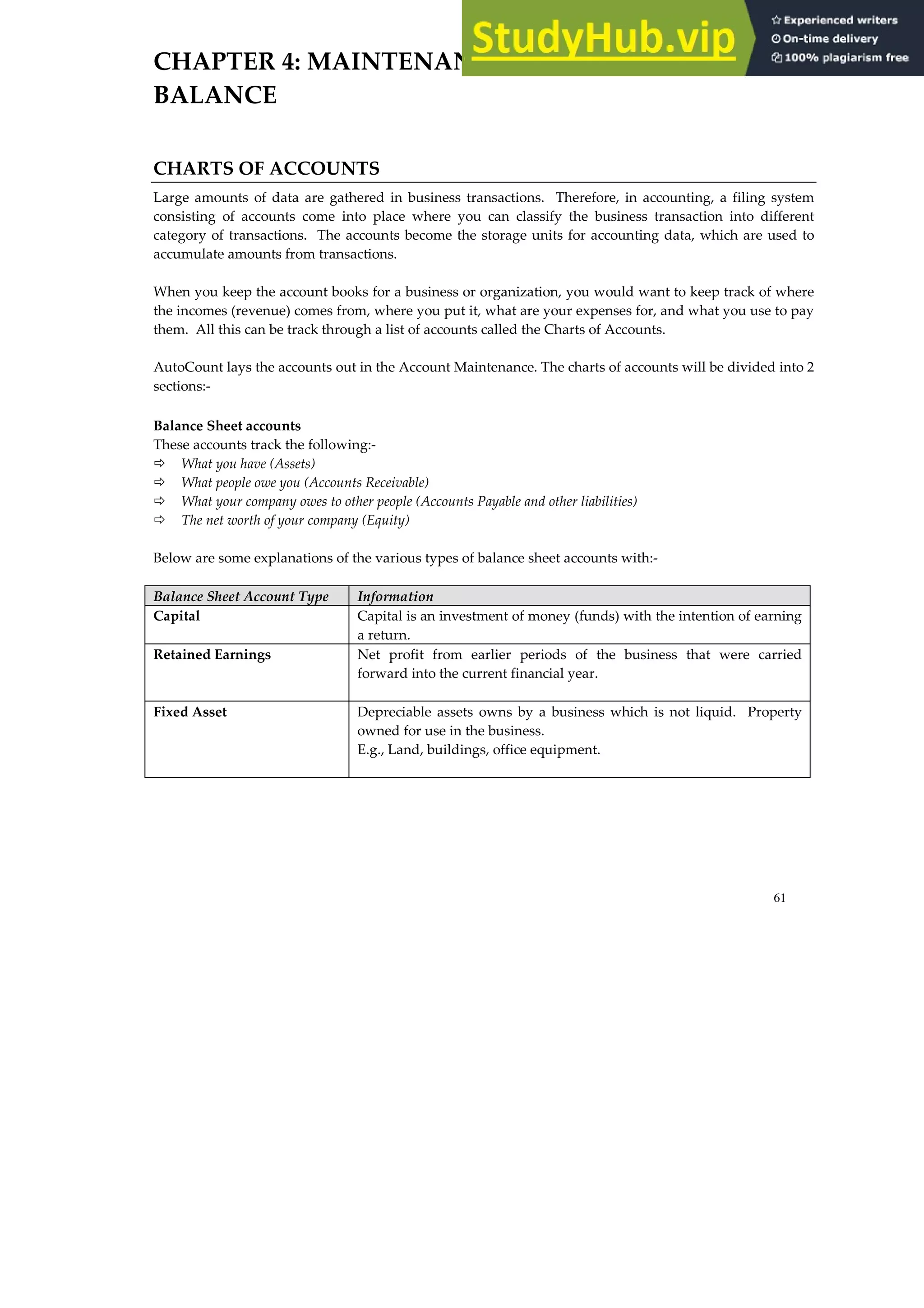
Show All Accounts By default the system will display all the accounts available in the
Charts of Account.
Untick this field if you would like to view only the account code at a
specific Account Type.
Up To Date The system will display the default current system date.
Description This column display the description of the account code
Account Code This column refers to the account code which has been created
Up-to-Date Balance This column reflects the current balance of each of the account code
based on the date specified at the Up To Date field.
Account Maintenance’s Functional button.
New Normal Account This function allows you to create general account such as expenses
account.
Account Type
Left hand
side button
denotes all
the function
able to
perform in
Account
Maintenance
screen.
64
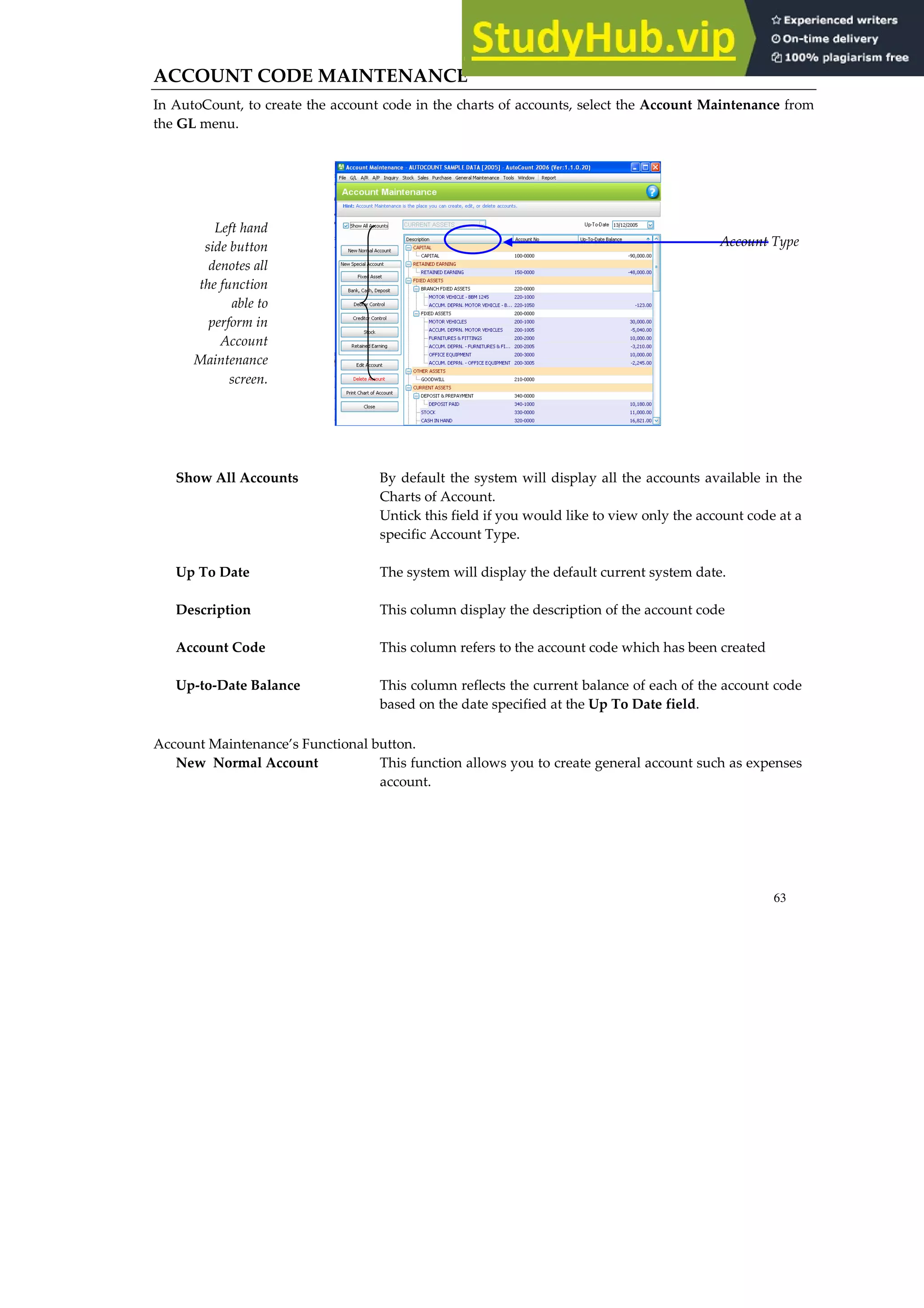
Fixed Assets This function allows you to create fixed assets account.
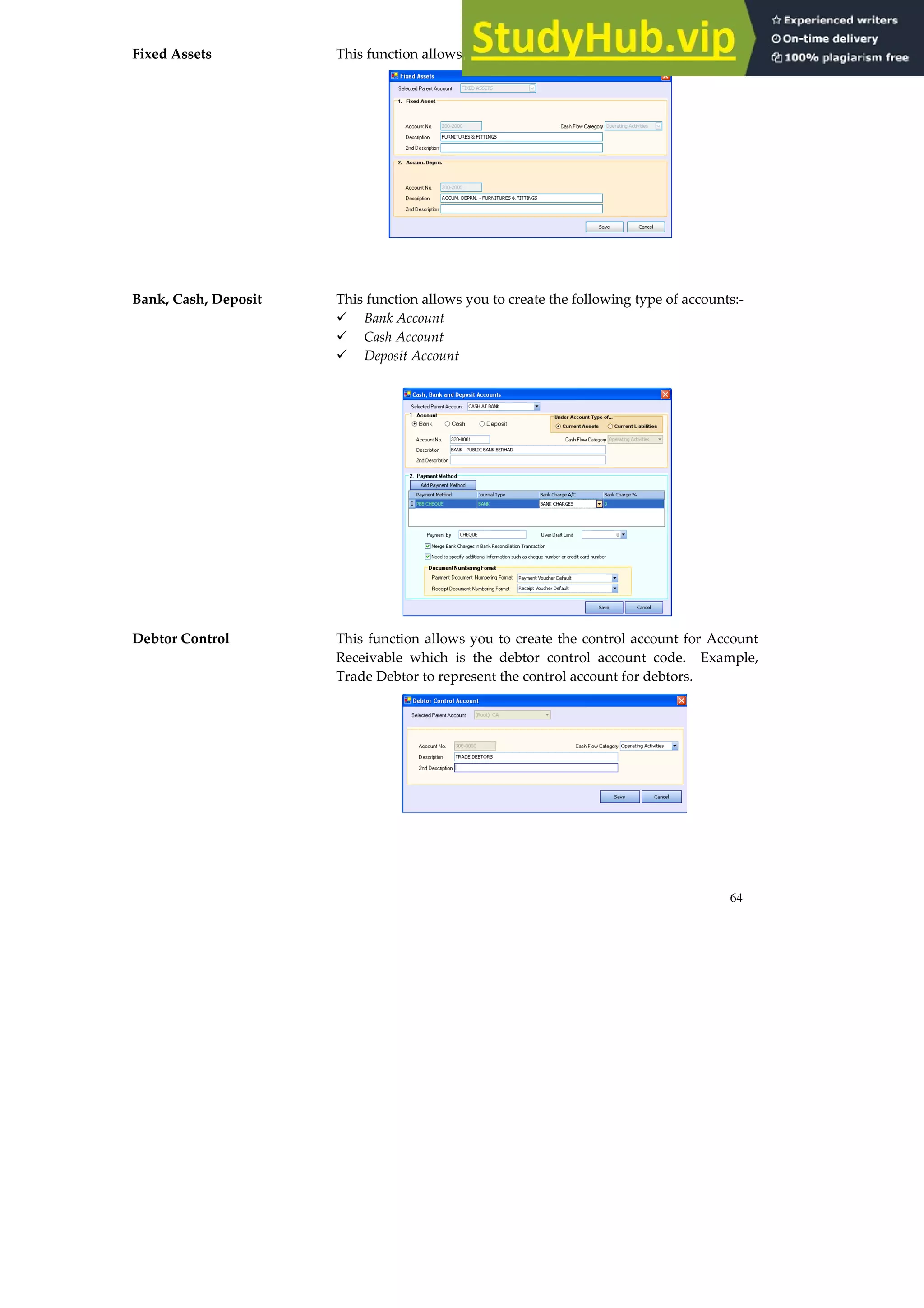
Bank, Cash, Deposit This function allows you to create the following type of accounts:-
Bank Account
Cash Account
Deposit Account
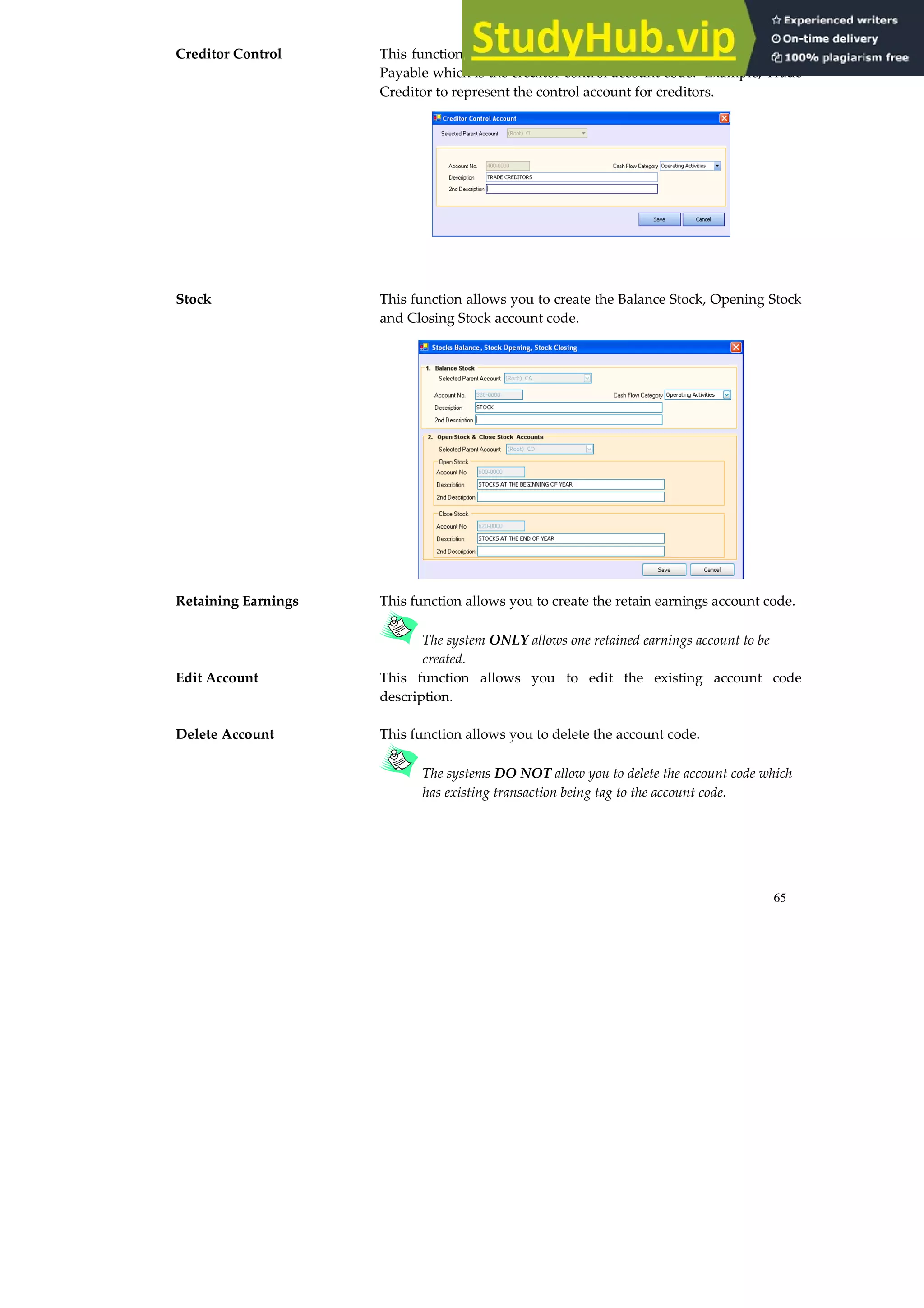
Debtor Control This function allows you to create the control account for Account
Receivable which is the debtor control account code. Example,
Trade Debtor to represent the control account for debtors.
65
Creditor Control This function allows you to create the control account for Account
Payable which is the creditor control account code. Example, Trade
Creditor to represent the control account for creditors.
Stock This function allows you to create the Balance Stock, Opening Stock
and Closing Stock account code.
Retaining Earnings This function allows you to create the retain earnings account code.
The system ONLY allows one retained earnings account to be
created.
Edit Account This function allows you to edit the existing account code
description.
Delete Account This function allows you to delete the account code.
The systems DO NOT allow you to delete the account code which
has existing transaction being tag to the account code.
66
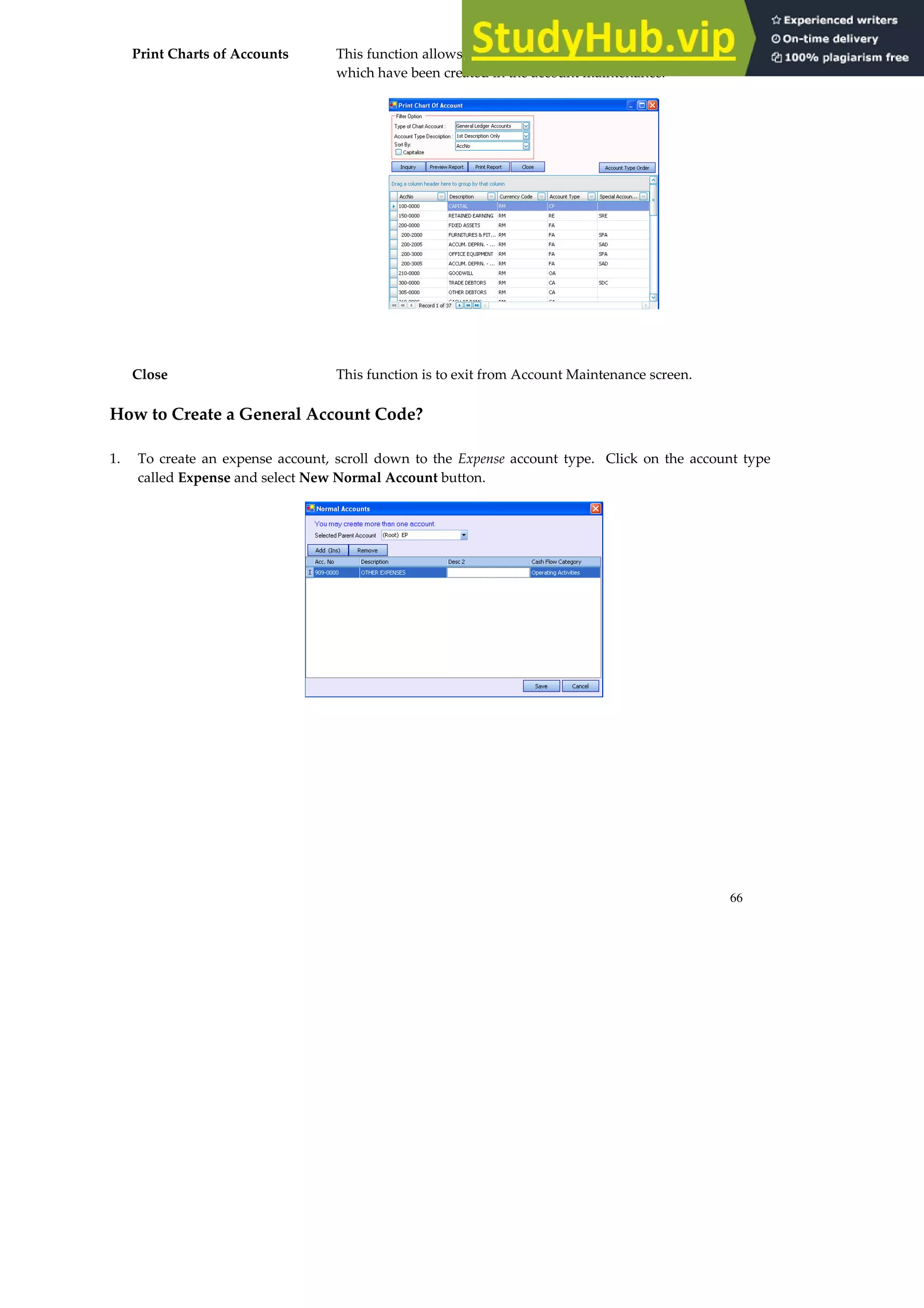
Print Charts of Accounts This function allows you to preview or printout all the account code
which have been created in the account maintenance.
Close This function is to exit from Account Maintenance screen.
How to Create a General Account Code?
1. To create an expense account, scroll down to the Expense account type. Click on the account type
called Expense and select New Normal Account button.
67
Selected Parent Account By default, system will tag to the root of the
Expenses Account Type. ( Root ) EP.
Acc. Code : Enter the account code, 916-000.
Description : Enter the description of the account code,
CLAIMS
.
Desc 2 : Enter a 2nd description of the account code.
(Optional)
Cash Flow Category : The system allows you to specify the account
code which is created belongs to which category
under for cash flow purpose.
The system allows you to tag the accounting to 3
kinds of cash flow categories:-
O - Operating Activities
I – Investing Activities
F – Financing Activities
68
How to Create a Parent and Child related Account Code?
1. The sample chart of account applies the concept of Parent & Child account for Fixed Asset. Therefore,
to add another fixed asset account for branch office, for example, add in “FIXED ASSET – PENANG
BRANCH”.
Click to select account type: FIXED ASSETS and proceed on to click on NEW NORMAL ACCOUNT
button. The system will display the Normal Accounts screen for you to create the account code. Click
on ADD(Ins) button to add a record and enter the following account code to represent the parent
account code for branch office at Penang. For example, “202-0000 FIXED ASSET – PENANG
BRANCH”. Click on SAVE button to save the entry.
69
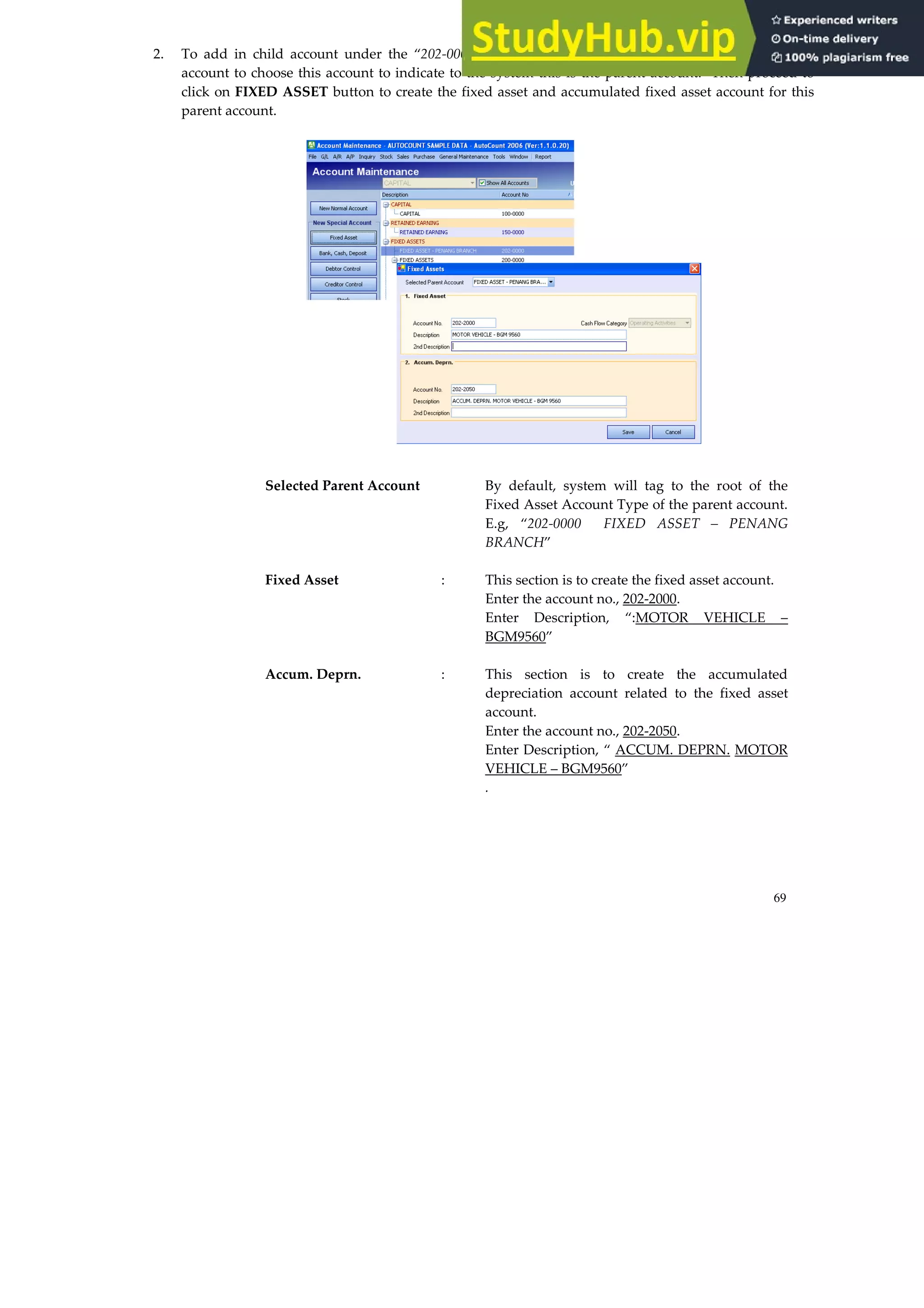
2. To add in child account under the “202-0000 FIXED ASSET – PENANG BRANCH”, click on this
account to choose this account to indicate to the system this is the parent account. Then proceed to
click on FIXED ASSET button to create the fixed asset and accumulated fixed asset account for this
parent account.
Selected Parent Account By default, system will tag to the root of the
Fixed Asset Account Type of the parent account.
E.g, “202-0000 FIXED ASSET – PENANG
BRANCH”
Fixed Asset : This section is to create the fixed asset account.
Enter the account no., 202-2000.
Enter Description, “:MOTOR VEHICLE –
BGM9560”
Accum. Deprn. : This section is to create the accumulated
depreciation account related to the fixed asset
account.
Enter the account no., 202-2050.
Enter Description, “ ACCUM. DEPRN. MOTOR
VEHICLE – BGM9560”
.
70
DEBTOR AND CREDITOR MAINTENANCE
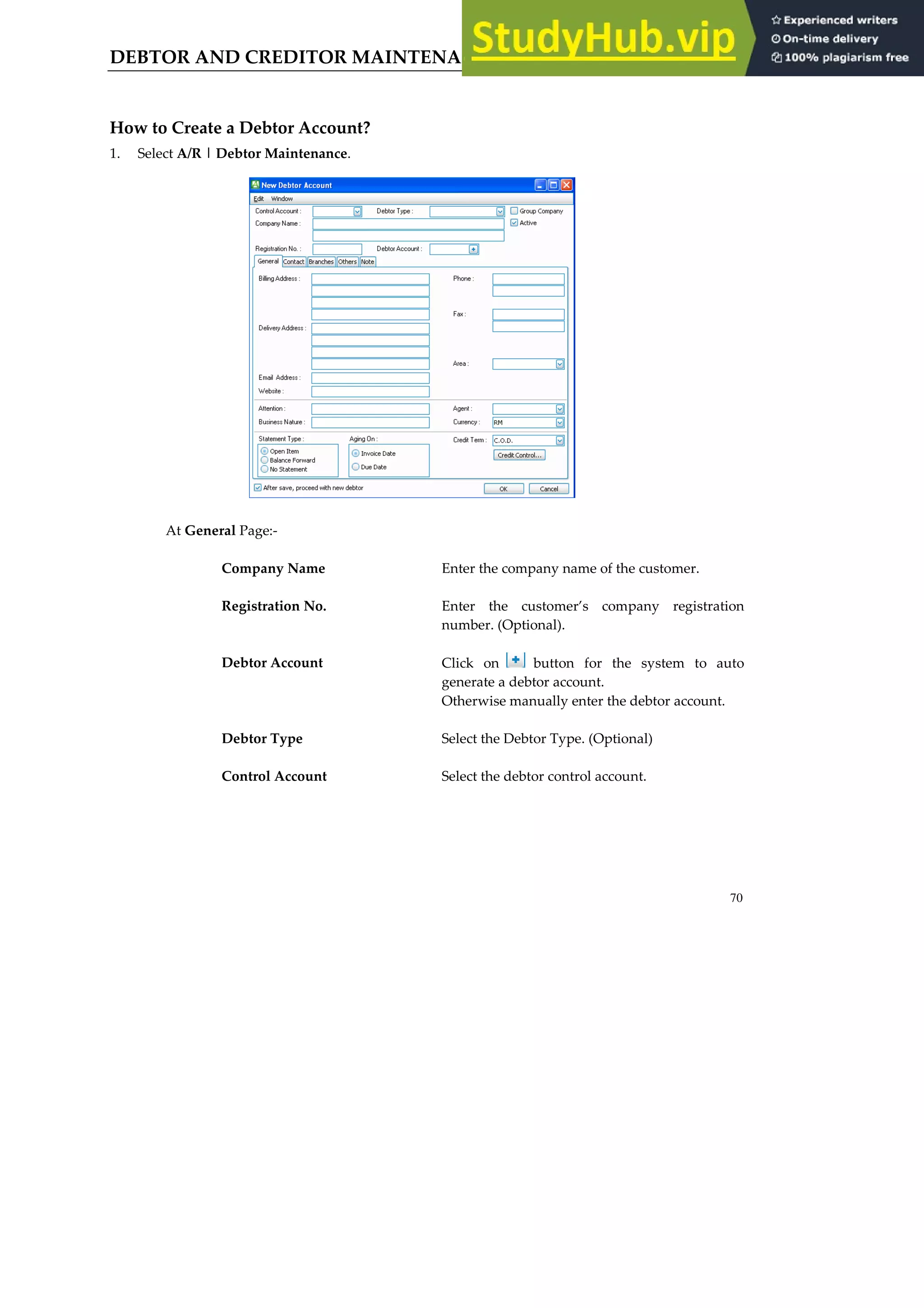
How to Create a Debtor Account?
1. Select A/R | Debtor Maintenance.
At General Page:-
Company Name Enter the company name of the customer.
Registration No. Enter the customer’s company registration
number. (Optional).
Debtor Account Click on button for the system to auto
generate a debtor account.
Otherwise manually enter the debtor account.
Debtor Type Select the Debtor Type. (Optional)
Control Account Select the debtor control account.
71
At General page:-
Billing Address Enter the customer’s billing address.
Email Address Enter the customer’s email address. (Optional)
Website Enter the customer’s website. (Optional)
Phone Enter the customer’s contact number.
Fax Enter the customer’s fax number.
Area Select the area code which the customer’s
belongs to.
Attention Enter the person’s name to whom all
correspondence of letters and document to.
Business Nature Enter the customer’s business nature such as
Trading. (Optional)
Agent Select the sales personnel who is in-charge of
this customer.
Currency Select the currency code which the transaction
will be transact with this customer. The default
local currency is represented by “RM” for
“Ringgit Malaysia”
Statement Type Select either one of the following statement:-
Open Item – This format denotes that all
outstanding transaction will be display one
by one in the statement report.
Balance Brought Forward –This format will
show a brought forward lump sum amount
for all the customer’s outstanding based on
the cut off date stated in the report.
No Statement – Select this option, if no
statement is to be issued to the customer.
Aging On Select either the aging of the customer’s
outstanding transaction is to be due based either
Invoice Date or Due Date.
72
Credit Term Select the credit terms given to the customer.
Credit Control Allows different credit control to be set.
After save, proceed with
new Debtor
Tick on this option, if you would the system to
display a fresh screen once each record of
customer’s being created is saved to proceed on
to the next new record.
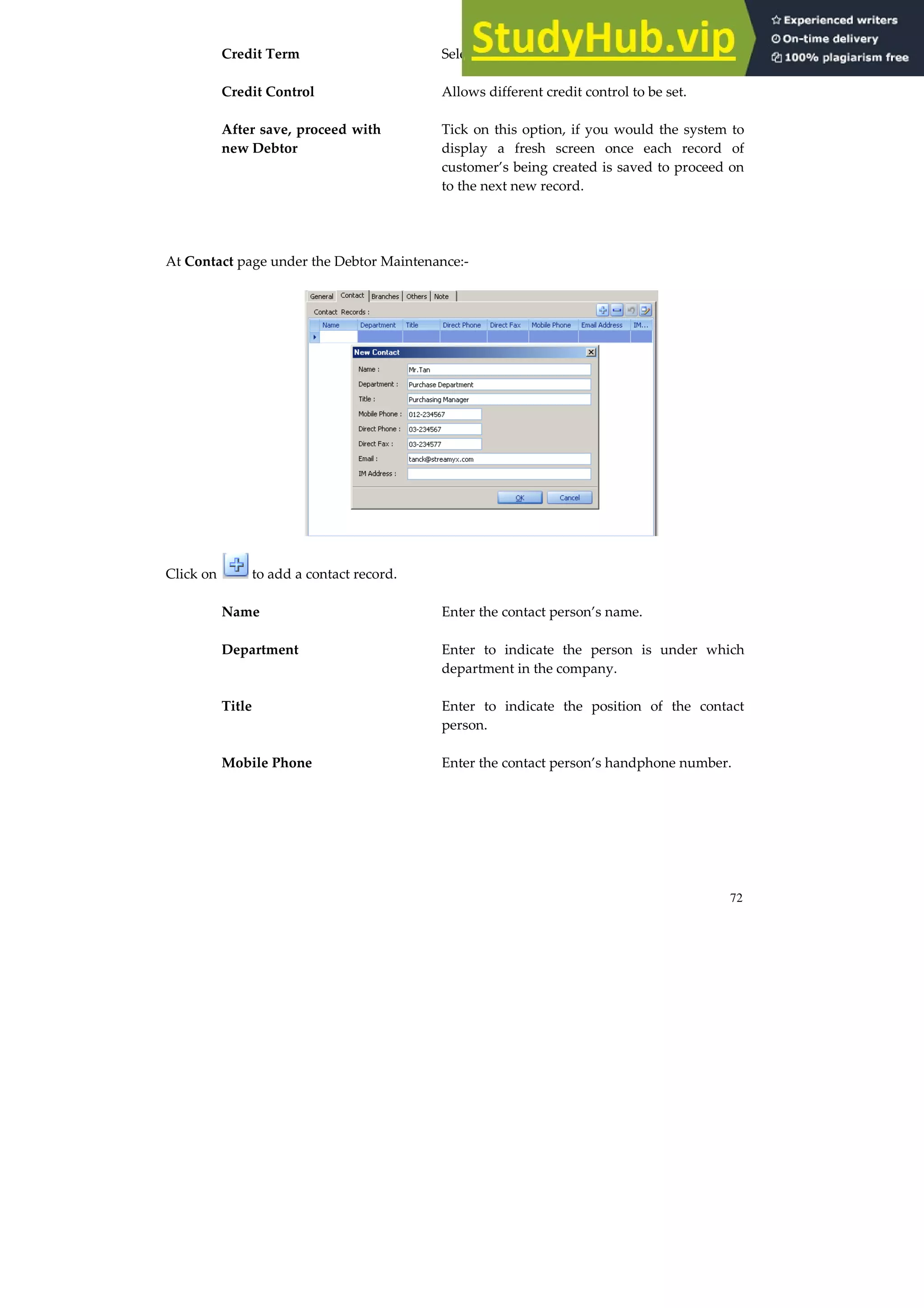
At Contact page under the Debtor Maintenance:-
Click on to add a contact record.
Name Enter the contact person’s name.
Department Enter to indicate the person is under which
department in the company.
Title Enter to indicate the position of the contact
person.
Mobile Phone Enter the contact person’s handphone number.
73
Direct Phone Enter the contact person’s direct phone line in
the company.
Direct Fax Enter the contact person’s direct fax line in the
company.
Email Enter the contact person’s email address.
IM Address Enter the instant messaging address of the
contact person.
At Branch page in Debtor Maintenance:-
Branch Code Enter the branch code to represents the
company’s branch office.
Branch Name Enter the company’s branch name.
Address Enter the branch’s address.
Attention Enter the branch person’s name to whom all
correspondence of letters and document to.
Phone Enter the branch’s telephone number.
Fax Enter the branch’s fax number.
74
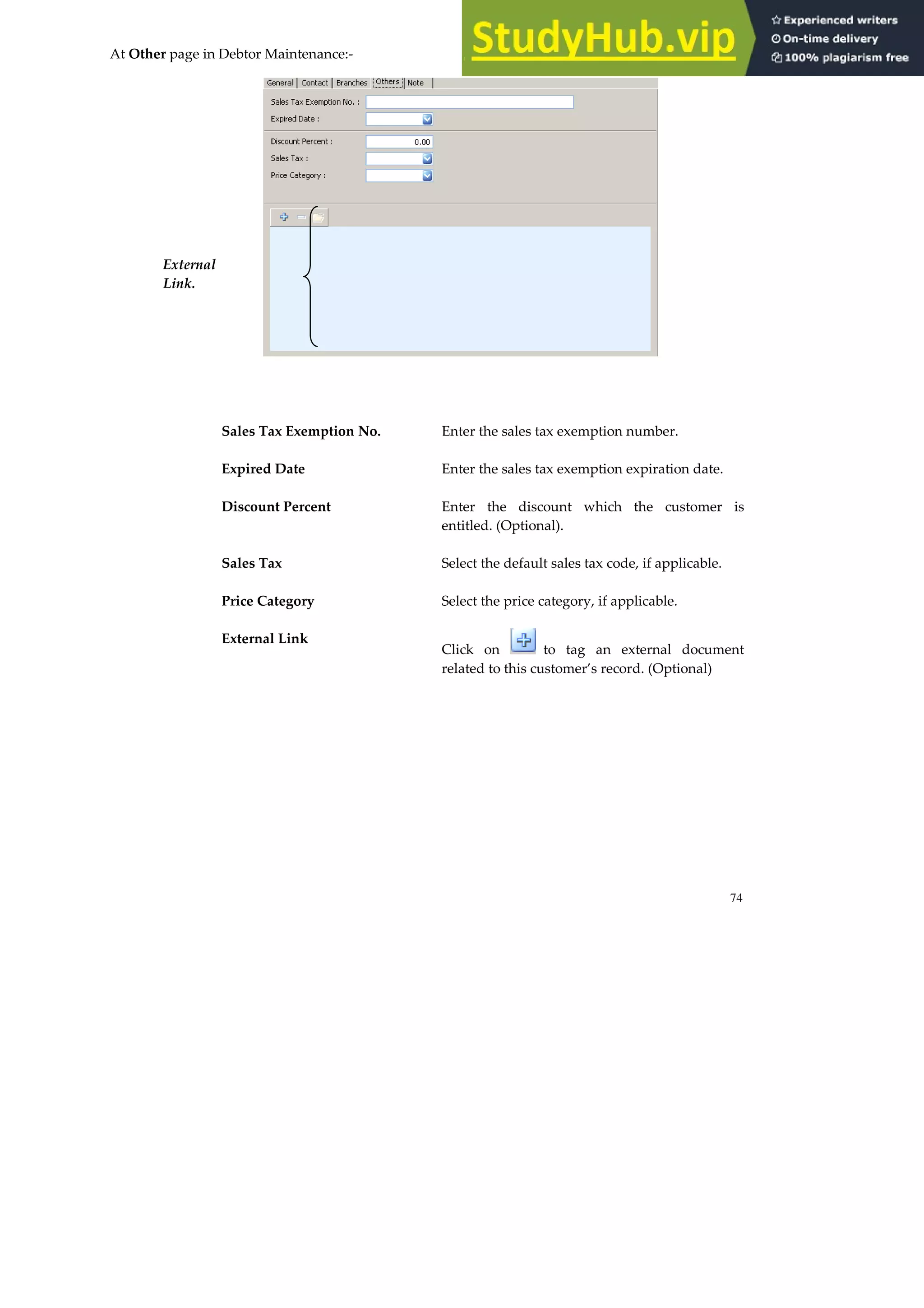
At Other page in Debtor Maintenance:-
Sales Tax Exemption No. Enter the sales tax exemption number.
Expired Date Enter the sales tax exemption expiration date.
Discount Percent Enter the discount which the customer is
entitled. (Optional).
Sales Tax Select the default sales tax code, if applicable.
Price Category Select the price category, if applicable.
External Link
Click on to tag an external document
related to this customer’s record. (Optional)
External
Link.
75
At Note page in Creditor Maintenance:-
Note Enter additional note.
How to Set Credit Control?
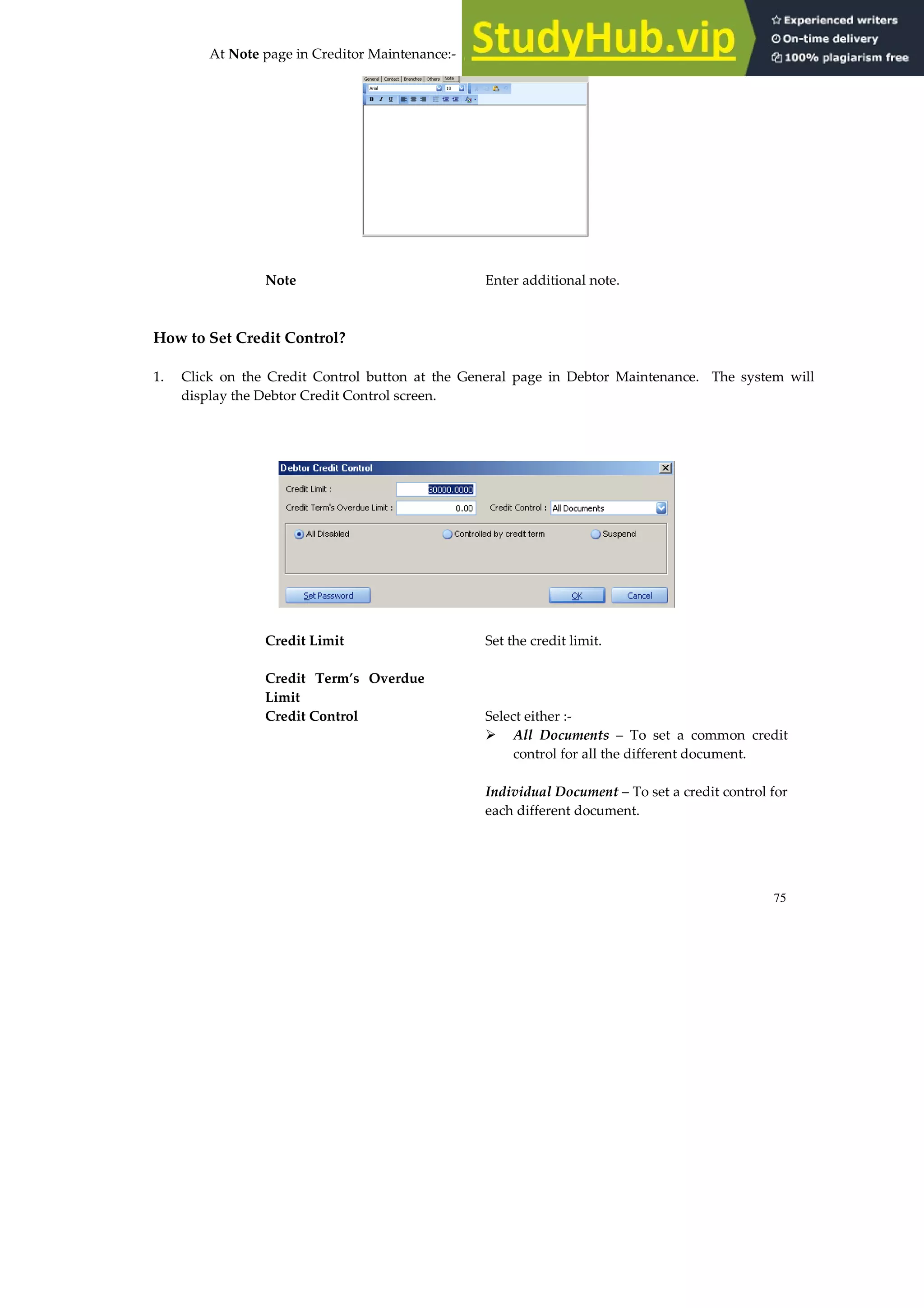
1. Click on the Credit Control button at the General page in Debtor Maintenance. The system will
display the Debtor Credit Control screen.
Credit Limit Set the credit limit.
Credit Term’s Overdue
Limit
Credit Control Select either :-
All Documents – To set a common credit
control for all the different document.
Individual Document – To set a credit control for
each different document.
76
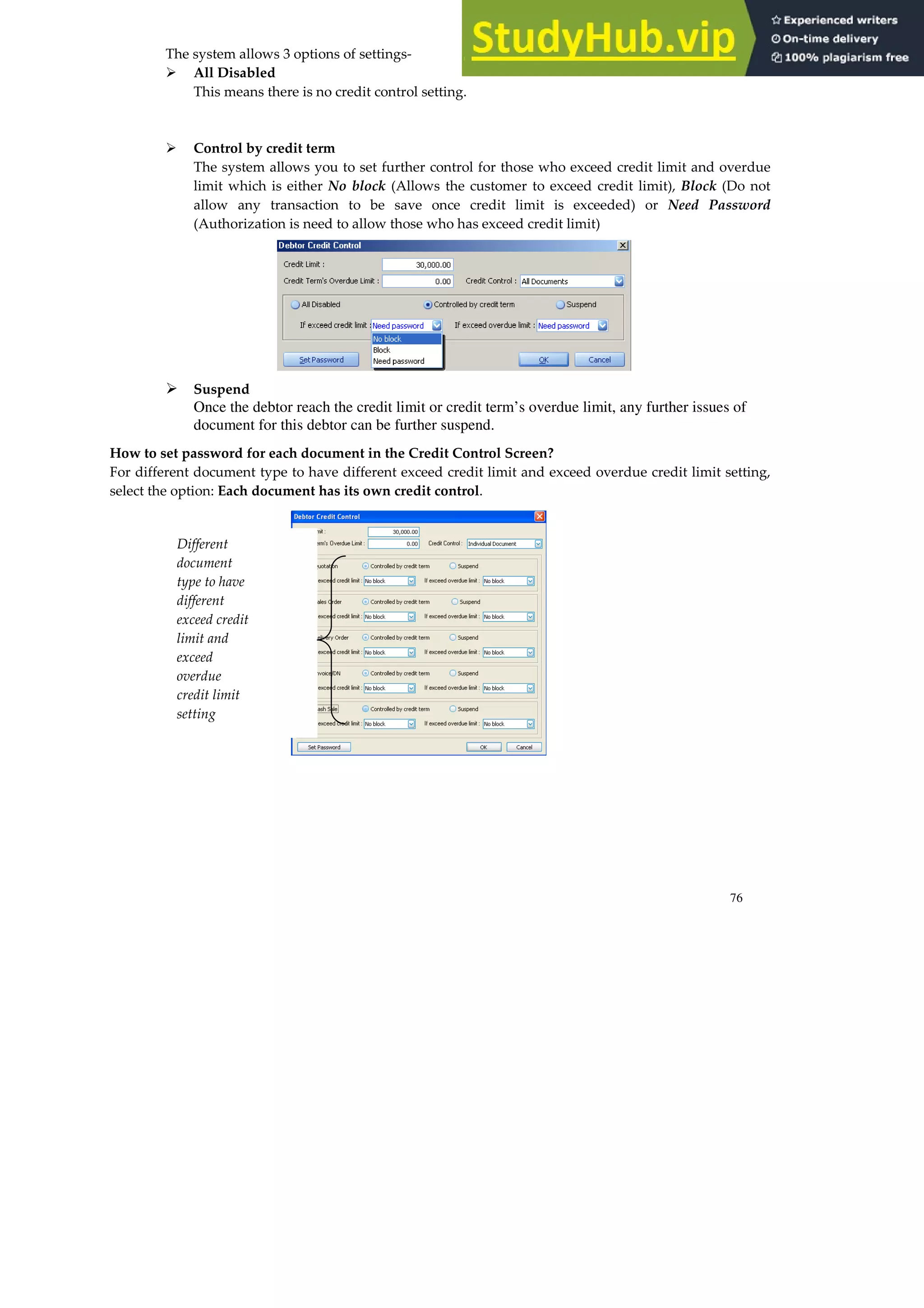
The system allows 3 options of settings-
All Disabled
This means there is no credit control setting.
Control by credit term
The system allows you to set further control for those who exceed credit limit and overdue
limit which is either No block (Allows the customer to exceed credit limit), Block (Do not
allow any transaction to be save once credit limit is exceeded) or Need Password
(Authorization is need to allow those who has exceed credit limit)
Suspend
Once the debtor reach the credit limit or credit term’s overdue limit, any further issues of
document for this debtor can be further suspend.
How to set password for each document in the Credit Control Screen?
For different document type to have different exceed credit limit and exceed overdue credit limit setting,
select the option: Each document has its own credit control.
Different
document
type to have
different
exceed credit
limit and
exceed
overdue
credit limit
setting
77
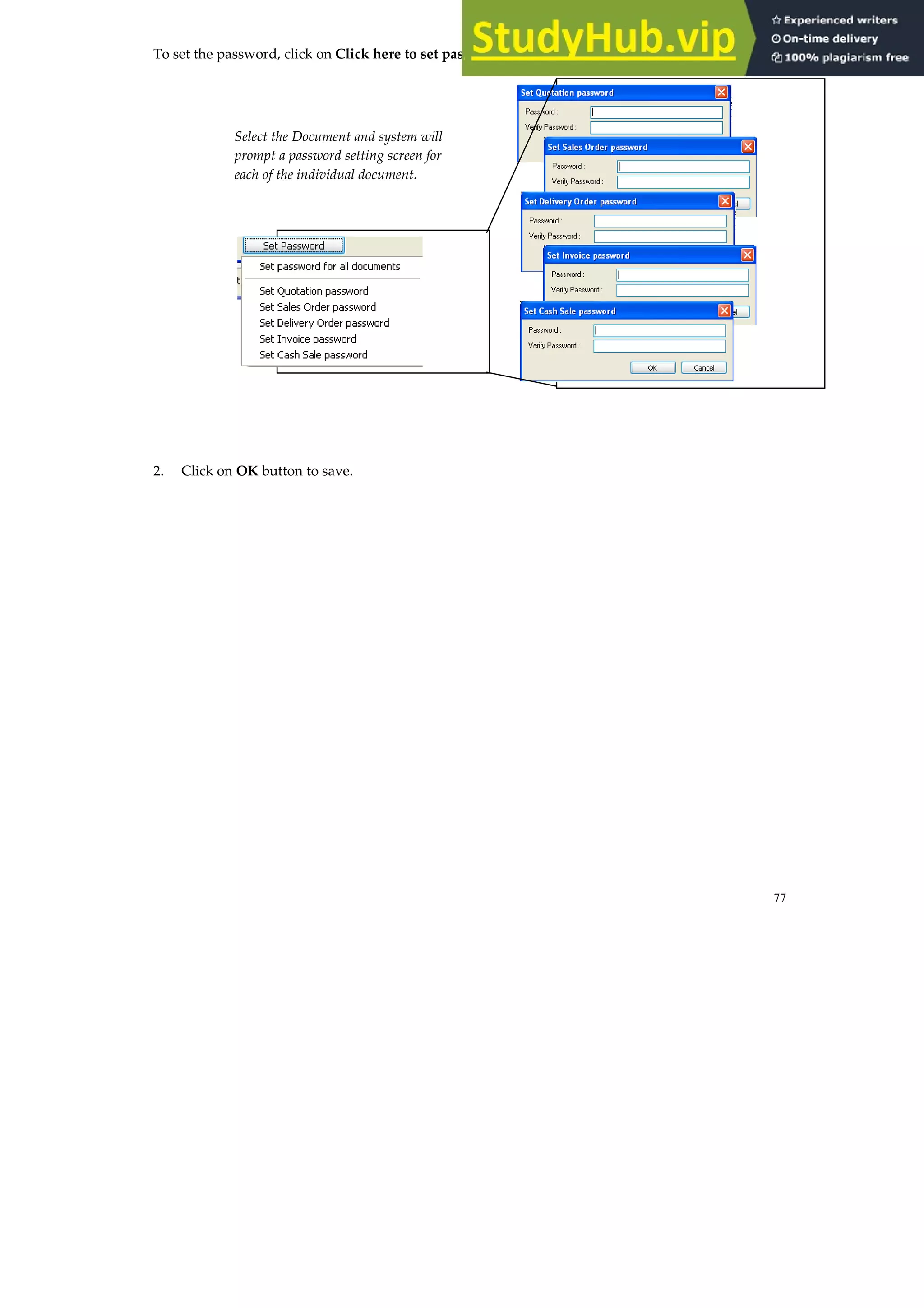
To set the password, click on Click here to set password button.
2. Click on OK button to save.
Select the Document and system will
prompt a password setting screen for
each of the individual document.
78
How to Create Creditor Account?
1. Select A/P| Creditor Maintenance.
At General Page:-
Company Name Enter the company name of the supplier.
Registration No. Enter the supplier’s company registration
number. (Optional).
Debtor Account Click on button for the system to auto
generate a debtor account.
Otherwise manually enter the creditor account.
Creditor Type Select the Creditor Type. (Optional)
Control Account Select the creditor control account.
79
At General page:-
Billing Address Enter the supplier’s billing address.
Email Address Enter the supplier’s email address. (Optional)
Website Enter the supplier’s website. (Optional)
Phone Enter the supplier’s contact number.
Fax Enter the supplier’s fax number.
Area Select the area code which the supplier belongs
to.
Attention Enter the person’s name to whom all
correspondence of letters and document to.
Business Nature Enter the supplier’s business nature such as
Trading. (Optional)
Agent Select the purchasing personnel who is in-charge
of this supplier.
Currency Select the currency code which the transaction
will be transact with this supplier. The default
local currency is represented by “RM” for
“Ringgit Malaysia”
Statement Type Select either one of the following statement:-
Open Item – This format denotes that all
outstanding transaction will be display one
by one in the statement report.
Balance Brought Forward –This format will
show a brought forward lump sum amount
for all the supplier’s outstanding based on
the cut off date stated in the report.
No Statement – Select this option, if no
statement is to be issued to the supplier.
Aging On Select either the aging of the supplier’s
outstanding transaction is to be due based either
Invoice Date or Due Date.
80
Credit Term Select the credit terms given to the supplier.
Credit Control Allows different credit control to be set.
After save, proceed with
new Creditor
Tick on this option, if you would the system to
display a fresh screen once each record of
supplier’s being created is saved to proceed on
to the next new record.
At Contact page under the Creditor Maintenance:-
Click on to add a contact record.
Name Enter the contact person’s name.
Department Enter to indicate the person is under which
department in the company.
Title Enter to indicate the position of the contact
person.
Mobile Phone Enter the contact person’s handphone number.
Direct Phone Enter the contact person’s direct phone line in
the company.
81
Direct Fax Enter the contact person’s direct fax line in the
company.
Email Enter the contact person’s email address.
IM Address Enter the internet messaging address of the
contact person.
At Branch page in Creditor Maintenance:-
Branch Code Enter the branch code to represents the
company’s branch office.
Branch Name Enter the company’s branch name.
Address Enter the branch’s address.
Attention Enter the branch person’s name to whom all
correspondence of letters and document to.
Phone Enter the branch’s telephone number.
Fax Enter the branch’s fax number.
82
At Others page in Creditor Maintenance:-
Sales Tax Exemption No. Enter the sales tax exemption number.
Expired Date Enter the sales tax exemption expiration date.
Discount Percent Enter the discount which the customer is
entitled. (Optional).
Sales Tax Select the default sales tax code, if applicable.
Price Category Select the price category, if applicable.
External Link
Click on to tag an external document
related to this customer’s record. (Optional)
External
Link.
83
At Note page in Creditor Maintenance:-
Note Enter additional note.
2. Click on OK button to save.
The concept to set credit control in Creditor Maintenance is the same as
Debtor Maintenance.
Refer to guide on how to set credit control under How to Create Debtor
Account in this chapter.
84
CREATE STOCK GROUP AND ITEM CODE
How to Create Stock Group?
1. Select Stock | Stock Group Maintenance and select New button.
Item Group Enter the item group code.
Description Enter the description of the item group
Sales Account Code Select the sales account code. The account code
denotes where the sales will be posted when you
key in a sales transaction (such as an invoice and
a debit note).
Cash Sale Account Code Select the cash sale account code. This code
denotes the account where cash sales will be
posted.
Sales Return Account
Code
Select the sales return account code. This code
denotes the account where the sales returns will
be posted to when you record a credit note.
85
Sales Discount Account
Code
Select the sales discount account code. This code
denotes the sales discount account stated in the
transaction (Invoice, Debit Note or Credit Note)
will be posted.
Purchase Account Select the purchase account code. This denotes
the purchases account where the purchases will
be posted.
Purchase Return
Account Code
Select the purchase return (goods return)
account code. This code denotes the account
where the purchase return will be posted to
when you record a creditor credit note.
Purchase Discount
Account Code
Select the purchase discount account code. . This
code denotes the purchase discount received
account stated in the transaction (Invoice, Debit
Note or Credit Note) will be posted.
Note Enter additional remark, if applicable.
(Optional)
2. Click OK button to save.
86
How to Create Item Code?
1. Select Stock | Stock Item Maintenance and click on Create a new item.
At the main top page in the Item Maintenance:-
Item Code Enter the item code.
Group Select the item group which the item code
belongs to
Item Type Select the item code is categorized under which
kind of item type (Optional).
Active By default, this option is tick. This is to indicate
to the system that this item code is still active.
If this item code is no longer being sold, untick
this option.
Description Enter the item code’s description.
Lead Time Enter the estimated time the goods will be
delivered once an order is place with the
Supplier to replenish the stock.
Tax Type Click on arrow down button to select the tax
type, if applicable.
Duty Rate Enter the duty rate for the item code.
87
Stock Control By default, this option is tick. This is to indicate
to the system that this item code is a stock
control item.
For non-stock item code, untick the Stock
Control option. Service Charge, Transportation
Charge and Maintenance Charge are some of the
examples of non-stock item code.
Costing Method Select the item code’s costing method.
At the Detail page in the Item Maintenance:-
UOM Enter the relevant unit of measurement
description for the item code
At the Cost Price Page under Detail page of Item Maintenance:-
Standard Selling Price Enter the standard selling price.
Min. Selling Price Enter the minimum selling price.
Max. Selling Price Enter the maximum selling price.
Min. Purchase Price Enter the minimum purchase price.
Max. Purchase Price Enter the maximum purchase price.
88
Standard Cost Enter the standard cost.
The cost entered in this field is used as a
reference
Real Cost Enter the real cost.
The system will use the cost from this field to
calculate the cost in the stock report.
At the Stock Level Page under Detail page of Item Maintenance:-
Min. Qty Enter the minimum quantity which is kept in the
warehouse.
Re-order Level Enter the quantity that is to be order once the
stock on hand has reached which level
Normal Level Enter the quantity that is normal which is kept
on hand in the warehouse.
Max Qty Enter the maximum quantity which is kept in
the warehouse
Balance Qty This field shows the balance quantity on hand
for a specific item code.
Re-Order Qty Enter the number of quantity that is to be
ordered from the supplier once the stock on
hand has reach the level as stated in the Reorder
Level field.
89
At the Stock Level Page under Detail page of Item Maintenance:-
Shelf Enter the location of the item such as the shelf
number in the warehouse. (Optional).
Bar Code Scan the bar code in for this item code.
At the Opening Balance Page under Detail page of Item Maintenance:-
Click on the “+” sign to create a record to enter
the opening balance.
Quantity Enter the opening balance quantity for the item
code.
Cost Enter the cost for per quantity.
90
At the Image page in the Item Maintenance:-
Image Option Select the option either to stretch or center the
display of the image on the screen.
Load Image Allows you to load the picture of the item code.
At the Further Description page in the Item Maintenance:-
Further Description Enter detail description related to the item code.
(Optional).
At the Note page in the Item Maintenance:-
Note Enter additional remarks or notes related to this
item code. (Optional)
2. Click on OK button to save the entry.
91
SETUP OPENING BALANCE
This section will illustrate on how to setup the opening balance of a new account book. There are two
factors that arise when new users setup the opening balances for the account. These two factors are
related to time.
The first category refers to AutoCount being use on the first month of the financial year. The second
category is when you start on the intermediate month of the financial year when they transfer the account
balance from another accounting system or transfer the details from the manual accounting system.
Category 1 Starts on the first month of the financial
year
User will have to prepare their last year
balance sheet and then enter it into the system.
Category 2 Starts on the intermediate month of the
financial year
User will have to prepare their last month trial
balance report and then enter it into the
system.
In the system there are 4 kinds of opening balance of an account:-
Opening Balance for Debtor Account Prepare last month Debtor Aging report.
Opening Balance for Creditor Account Prepare last month Creditor Aging report.
Opening Balance for Stock Account Prepare last month trial balance sheet.
Opening Balance of General Account Prepare last month trial balance or balance sheet.
The following sub-section will illustrate how the opening balance stated above is being set.
92
Opening Balance for Debtor Account
The opening balance of debtor account is usually the total sum of the debtor’s outstanding invoices.
Therefore, in the system, all the debtor’s outstanding invoices is enter individually in A/R | A/R Invoice
Entry screen.
The invoice date must be entered correctly as the system will base on this
invoice date to determine whether it is a past invoice or current invoice.
All outstanding for a debtor can be lump into one invoice. However, by doing so, you will not be able to
see the detail breakdown of the outstanding transaction in the aging and statement report.
1. Select A/R | A/R Invoice Entry and select Create a new A/R Invoice.
Debtor Select the debtor (customer) code.
Invoice No. Enter the invoice no.
93
Date Enter the date.
The system will automatically detact the setting
set at Actual Data Start Date as set in the
Manage Fiscal Year .
Example:
Follow the original bill date as stated in the
Aging report. If the actual data start date is set
as 01/01/2005, therefore the system automatically
recognized transaction entered before 01/01/2005
is a past invoice.
Terms Enter the credit terms.
Due Date System will automatically display the due date.
Click on “+” sign to add a sales record.
Description Enter the description such as “Sales”.
Amount Enter the amount of the invoice.
2. Click on OK button to save the transaction.
1. If the system is installed in the middle of the financial year, you will
have to prepare last month’s Trial Balance Report and last month’s
Debtor Aging report. The debtors’ opening balance is entered base on
last month total outstanding value as shown in the Trial Balance.
2. If there is a negative amount (credit balance) brought forward from
debtor account, user must enter this amount in the Receive Payment
Entry instead of A/R Invoice Entry.
94
Opening Balance for Creditor Account
The opening balance of creditor account is usually the total sum of the creditor’s outstanding bills
(invoices). Therefore, in the system, all the creditor’s outstanding invoices is enter individually in A/P |
A/P Bill Entry screen.
The invoice date must be entered correctly as the system will base on this
invoice date to determine whether it is a past bill or current bills.
All outstanding for a creditor can be lump into one bill. However, by doing so, you will not be able to see
the detail breakdown of the outstanding transaction in the aging and creditor statement report.
1. Select A/P | A/P Bill Entry and select Create a new A/P Invoice.
Creditor Select the creditor (supplier) code.
Invoice No. Enter the invoice no.
95
Date Enter the date.
The system will automatically detect the setting
set at Actual Data Start Date as set in the
Manage Fiscal Year.
Example:
Follow the original bill date as stated in the
Aging report. If the actual data start date is set
as 01/01/2005, therefore the system automatically
recognized transaction entered before 01/01/2005
is a past invoice.
Terms Enter the credit terms.
Due Date System will automatically display the due date.
Click on “+” sign to add a purchase record.
Description Enter the description such as “Purchase”.
Amount Enter the amount of the invoice.
3. Click on OK button to save the transaction.
If the system is installed in the middle of the financial year, you will have
to prepare last month’s Trial Balance Report and last month’s Creditor
Aging report. The creditors’ opening balance is entered base on last month
total outstanding value as shown in the Trial Balance.
If there is a negative amount (debit balance) brought forward from creditor
account, user must enter this amount in the Pay Bill Entry instead of A/P
Bill Entry.
96
Opening Balance for General Account.
For example, enter the following opening figure for the following account as shown below:-
1. Select G/L | Opening Balance Maintenance. In the Opening Balance screen, click to select the
account code which you would like to enter the opening figure, e.g., for “100-0000 CAPTIAL account
with the opening figure for $20,000.00”. Once you have completed the rest of the account code entry,
click on Save button. Beginning of the financial year opening figure for Stock account is entered in
the Opening Balance Maintenance screen.
97
2. Once the entry is completed, click on the PREVIEW button to preview or PRINT button to print the
B/F Balance Report
3. Click on CANCEL button to exit from this screen.
There are a few kinds of scenario entry of opening balance:-
SCENARIO A:-
Fiscal Year starts from 01/01/2005 and ends at 31/12/2005.
Actual Start Date is 01/01/2005.
Therefore, the closing balance for end of fiscal year 2004 is the opening balance for beginning of year 2005
and will be maintained at G/L | Opening Balance Maintenance.
SCENARIO B:-
Fiscal Year starts from 01/01/2005 and ends at 31/12/2005.
Actual Start Date is 01/11/2005.
Does not want to maintain the opening figure for each of the fiscal period from January 2005 till October
2005, thus opening figure for 01/11/2005 will be the closing balance for end of fiscal year 2004 plus the
closing figure from January2005 till October 2005.
Therefore the opening balance for the year 2005 will be maintained at G/L | Opening Balance
Maintenance.
SCENARIO C:-
Fiscal Year starts from 01/01/2005 and ends at 31/12/2005.
Actual Start Date is 01/11/2005.
Maintain each individual fiscal period’s closing figure from January 2005 till October 2005.
Thus to maintain the above:-
a) Opening Balance for beginning of Year 2005 (closing balance for year 2004) will be maintained at G/L
| Opening Balance Maintenance.
b) Closing figure from January 2005 till October 2005 will be maintained at G/L | Year To Date Balance
Maintenance.
These are the following steps to maintain closing figure from January 2005 till October in the Year To Date
Balance Maintenance screen:-
98
I. Select G/L | Year To Date Balance Maintenance screen. As an example to enter the closing figure
for Trade Debtor: BEST CHEMICAL TRADING.
II. Both the corresponding account has to be enter for total lump sum of outstanding invoices billed to
the customer which is Debit the Trade Debtor’s account : BEST CHEMICAL TRADING and Credit
the Sales account : SALES as shown in the above screen.
Example to enter the Trade Debtor’s account for the closing balance of January 2005, click on the January
2005 column for BEST CHEMICAL TRADING and enter “300”. For the corresponding sales account, click
on the January 2005 column for SALES and enter “ -300”.
Accounting Double Entry:-
Debit Credit
BEST CHEMICAL TRADING 300
SALES - 300
III. Once the entry is completed, click on SAVE button.
IV. Click on PREVIEW button to preview the Year To Date report or PRINT button to printout the
report.
V. Click on CLOSE button to exit.
99
Beginning of the Year Opening Stock.
For example, fiscal year starts from 01/01/2005 till 31/01/2005.
1. Select G/L | Stock Value Maintenance. In the Stock Value Maintenance screen, click on arrow
up button to select year 2004 and enter the closing stock for end of 2004 under Dec 2004 column, e.g.,
“11 000.00”. This will enable the system to reflect the opening figure for beginning of the year in the
Balance Sheet as well as the Profit and Loss report.
If you did not create the financial period for 2004, you will not be able to select the
year 2004 in the Stock Value Maintenance screen. Thus, to be able to do so, proceed
to Tools | Manage Fiscal Year and create the 2004 financial.
100
2. Then proceed on to G/L | Opening Balance Maintenance and enter the opening figure once more in
this screen. Click on the Stock account and enter “11 000.00” and click on SAVE button to save the
entry.
101
CHAPTER 5: GENERAL LEDGER
In AutoCount, journal transaction is posted to general ledger by the system automatically,
unlike manual accounting, whereby the journal transaction are first recorded in the general
journal which is then posted to the general ledger.
The General Ledger provides a systematic function to record the transactions which end in the
result of producing the financial statements.
These are the following functions under General Ledger’s (GL) module:-
Cash Book
Journal Entry
Bank Reconciliation
Stock Value Maintenance
CASH BOOK ENTRY
Cash book is used to record all general cash transaction (cash in cash out) except transaction of received
payment from debtor and payment paid out to creditor. In addition, there is a wide range of cash
transaction, such as, payment for expenses and payment for acquisition for non-current asset such as
purchase of property, plant and equipment to run the business.
How to Enter a General Cash Payment?
1. Select G/L | Cash Book Entry and click on Create a new Cash Transaction. The system will
display “Select a New Cash Transaction Entry” as show below:-
102
2. For example, to create a new Payment Voucher, click on New Payment Voucher.
Pay To Enter the description to indicate what is the
purpose this payment voucher is issued for, e.g.,
“RENTAL FOR DECEMBER 2005”
Voucher No. : To enter your own numbering, highlight the
<<New>> and enter the number.
Otherwise, for the system to auto generate the
numbering, do not overwrite the default setting
<<New>>.
Date : Enter the date of the transaction.
The “+” icon is to add record.
The “ – “ icon is to delete record.
This icon is undo or revert back to previous
information entered at the selected field in the
screen.
Payment
Detail
Section
Transaction
Detail
Section
103
At the Payment Detail section:-
Payment Method Select the payment method.
Cheque No. Enter the cheque number issue out for payment.
Payment Amount Enter the amount of the cheque.
Bank Charge Enter the bank charges, if applicable.
Payment By Enter the payment is made in which mode, e.g.,
“CHEQUE” to indicate payment issue by
cheque.
Float Day Enter the number of float day of the cheque.
IsRCHQ By default, this option is not tick.
If the Cheque is bounced, tick on this option.
RCHQ Date Enter the date of the Cheque was return
(bounced).
At the Transaction detail section:-
This icon allows you to insert record in between
2 existing records entered at detail section.
and
The arrow up button allows you to shift the
selected sequence display of the records entered
at the details section.
This icon allows you to select all the list of
records entered in the detail section of the
transaction screen. E.g. deletes a range of
records in the detail section.
104
This button allows you to change to range select
specific field in the detail section and do a global
change on the information entered.
Acc Code Click to select the account code.
Account Desc. The system will display the selected account
code’s description.
Description Enter your description, e.g., “DEPRECIATION
OF FIXED ASSET”.
Further Description If there is any additional description, you can
enter under this field. (Optional).
Amount Enter the amount paid for the selected account
code.
External Link Allows you to cross reference link with
additional information which is kept outside the
system such as in excel format at a specific
folder which is store at a common folder in the
server (for network) or PC.
Note To enter additional notes.
3. Click SAVE button to save the entry.
105
JOURNAL ENTRY
The Journal Entry is use to enter all the general journal transactions (Adjustment), except for
debtor, creditor and stock control transactions. Accrual account, transfer account and contra
account are some examples of general journal transactions.
How to enter a General Journal Transaction?
1. Select G/L | Journal Entry and click on Create a new Journal Transaction.
`
Description Enter the description to indicate what is the
purpose this journal voucher is issued for, e.g.,
“DEPRECIATION OF FIXED ASSETS”
Journal
Voucher No.
: To enter your own numbering, highlight the
<<New>> and enter the number.
Otherwise, for the system to auto generate the
numbering, do not overwrite the default setting
<<New>>.
106
Date : Enter the date of the transaction.
The “+” icon is to add record.
The “ – “ icon is to delete record.
Acc Code Click to select the account code.
Account
Description.
The system will display the selected account
code’s description.
Description Enter your description, e.g., “DEPRECIATION
OF FIXED ASSET”.
Further
Description
If there is any additional description, you can
enter under this field. (Optional).
DR Enter the debit amount for debit entry
adjustment.
CR Enter the credit amount for credit entry
adjustment.
Total DR The system will automatically sum up all the
debit entry amount.
Total CR The system will automatically sum up all the
credit entry amount.
2. Click on SAVE button to save entry.
107
BANK RECONCILIATION
Bank reconciliation refers to reconciling the bank’s balance as shown in the statement against
the balance shown in the Cash at Bank account in the system. Therefore, to maintain the
accuracy of both records, the standard procedure is to reconcile the bank record. Both records
have to be compared against each other, taking into factors that have caused the variations
referring to supporting documents.
3 main reasons that reports discrepancy between the records are as follows:-
Items that appear on the bank statement but were not recorded in the bank journals – bank
charges and interests.
Items that were recorded in the company’s bank journals but were not recorded in bank
statements such as unpresented or uncredited cheque.
Errors on company records or on the bank statement.
How to enter a Reconcile Bank Account?
1. Select G/L | Bank Reconciliation.
108
2. Click to select the bank account that is to be reconciled. For example, “310-2000 PUBLIC
BANK”. Then proceed to click on NEW button and the system will display the Create a
New Bank Reconciliation screen as shown in Step 1. Proceed to enter the bank statement
date, .eg., “16/12/2005”
Bank Account
No.
The system will display the bank account code which you
have selected.
Description The system will display the bank account code
description.
Currency Code The system will indicate the bank account code is in which
currency.
Bank
Statement
Date
The system will display the bank statement date as
entered in the Step 1.
Reconcile
screen
section
109
At the Filter section:-
Show All Date Tick this option to show all the date of the transaction.
Show Untick
Transaction
Only
Tick on this option to show only transaction which has not
been reconciled.
Show
Transaction
Cleared at
Other Date
Tick on this option to show other transaction which has
been reconciled from previous statement.
Show Date
Range
The system will display the date range starting from
statement date till the last transaction’s date.
At the Reconcile section:-
Tick Tick on this column for those transactions which is
reconciles.
Debit This column displays the credit amount of the transaction.
Credit This column displays the debit amount of the transaction.
Cheque No. This column displays the cheque number issue out for
payment or cheque number for payment received.
Document No. This column displays the transaction document number.
Date This column displays the transaction’s date.
Description This column displays the description of the transaction.
Statement
Date
The system will automatically display the date of the
statement date which the selected transaction is cleared.
Account
Balance
The system will display the bank balance up to the date of
the statement date.
110
Actual Bank
Statement
Balance
This field allows you to enter the amount shown in the
bank statement.
System Bank
Statement
Balance
The system will sum the account balance amount display
in the Account Balance field with the current transaction
which has been cleared.
Difference This field will only show the difference amount if the
amount in system Bank Statement Balance did not match
the amount in Actual Bank Statement Balance.
3. Click on OK button to save.
4. Click on PREVIEW button to preview the statement report or PRINT button to print the statement.
STOCK VALUE MAINTENANCE
In AutoCount, the system derives the stock figure for the Balance Sheet from the stock value entered in the
Stock Value Maintenance. Therefore, every end of the financial period, you must enter the closing stock
value in the Stock Value Maintenance.
1. Select G/L | Stock Value Maintenance.
2. For example, to enter the closing stock balance for January 2005, click on the column January 2005 and
enter “30 000.00”.
3. Click on SAVE button to save the entry and PREVIEW REPORT / PRINT REPORT button to
preview or print the Stock Set Value Listing report.
111
REPORTS
GENERAL REPORTS:-
Charts of Accounts
Balance B/F
Year to Date
Official Receipt and Payment Voucher
Ledger Report
Journal of Transaction Report
Bank Book Analysis
FINANCIAL REPORTS:-
Trial Balance Report
Profit & Loss Statement
Balance Sheet
Account Detail Report
112
113
CHAPTER 6: ACCOUNTS RECEIVABLE
Account Receivable is use to record the invoice billed to customer for service performed or
merchandise (goods) sold on credit.
These are the following functions under Account Receivable (A/R) module:-
A/R Invoice Entry
A/R Debit Note Entry
A/R Credit Note Entry
A/R Receive Payment
A/R Refund Entry
A/R & A/P Contra
A/R Deposit Entry
Using A/R Invoice Entry screen to explain the concept of entry done in A/R Invoice, A/R Debit
Note and A/R Credit Note.
1. Select A/R | A/R Invoice Entry and click on Create a new A/R Invoice.
At the Header section:-
Debtor Click to select the debtor (customer) code.
Header Section
Detail Section
Footer Section
114
Journal Type Select the journal type, e.g., “Sales” for sales
journal.
Agent Select the sales personnel who is responsible for
this debtor.
Invoice No. Enter the invoice no.
Date Enter the transaction date.
Terms Select the credit terms.
Due Date System will automatically display the due date.
At the Detail Section:-
Click on “+” sign to add a sales record.
Sales A/C Select the sales account code.
Description Enter the description such as “Sales”.
Amount Enter the amount of the invoice.
Total The system will automatically calculate the total
amount of the invoice.
Net Total The system will automatically calculate the net
total amount of the invoice.
External Link This page allows you to attach additional
supporting document kept in the server with
this transaction record.
Note This page allows you to enter additional notes or
remark for reference.
115
At the Footer section:-
Description Enter the document’s description, e.g., “SALES”
Outstanding The system will display the selected debtor’s
record outstanding.
After save, proceed on
with new Invoice Entry
By default this option is not tick.
Tick on this option if you would like the system
to provide a fresh screen to proceed on with a
new entry after the current entry is save.
Click on OK button to save the transaction.
The system will automatically perform the double entry posting once the
transaction is saved.
If the following Invoice, Credit Note or Debit Note was created under Sales
module, the system will automatically post this transaction to A/R side
which is Invoice to A/R Invoice, Credit Note to A/R Credit Note and Debit
Note to A/R Debit Note.
116
A/R RECEIVE PAYMENT
The function of Receive Payment is to record the full or partial payment received from customer and is
offset against which particular outstanding invoices which are due.
How to Create Receive Payment?
1. Select A/R | A/R Receive Payment and click on Create a new A/R Payment.
At the Header section:-
Debtor Select the debtor (customer) code.
At the Payment Detail section:-
Paid By The system will automatically display the
debtor’s company name.
Description Enter a description for the payment receive,
e.g.,”BEING PAYMENT FOR ”.
Official Receipt The system will automatically generate official
receipt number.
Otherwise you can overwrite and enter your
own official receipt number manually.
Date Enter the payment received date.
`
Header Section
Payment Detail
Section
Knock Off
Transaction
Section
Tick to
indicatethe
payment is
offset with
which
Invoice /
Debit Note
117
The system allows multiple payment type
receive to be entered in the screen.
Click on “+” sign to enter the payment details.
Payment Method Select the bank account code.
Cheque No. Enter the cheque number if the customer paid by
cheque.
Payment Amount Enter the amount received.
Bank Charges Enter the bank charges, if applicable.
Payment By Enter to indicate the mode of payment, e.g.,
“CHEQUE” to represent payment received in
cheque.
Float Day Enter the number of float day, if applicable.
IsRCHQ Tick on this column if the cheque was bounced
or returned.
RCHQ Date Enter the date which the cheque was bounced or
returned.
Amount The system will calculate the total amount of
payment received.
Unapplied Amount The system will show the balance of the total
amount the payment received which has yet to
be offset against any Invoice or Debit Note.
At the Knock Off Transaction Section:-
Type This column indicates the type of transaction
such as “RI” refers to A/R Invoice and “RD”
refers to A/R Debit Note.
Date This column display the transaction’s date.
No. This column displays the document number.
118
Org. Amt This column displays the original amount of the
transaction.
Outstanding This column displays the balances of
outstanding which has not yet been paid or
settle.
Pay Enter the amount paid.
2. Click OK button to save.
A/R DEPOSIT
This function allows to you enter the deposit amount paid by the debtor (customer).
1. Select A/R | A/R Deposit and click on Create a new A/R Deposit.
At the Header section:-
Deposit Account Select the deposit account code.
Debtor Select the debtor (customer) code.
AR Deposit No. The system will automatically generate a deposit
number. Otherwise you can overwrite and enter
your own deposit number manually.
Header Section
Deposit Detail
Section
119
Date Enter the date the deposit was received.
At the Deposit Detail section:-
The system allows multiple deposit payment
type receive to be entered in the screen.
Click on “+” sign to enter the deposit payment
details.
Payment Method Select the bank account code.
Cheque No. Enter the cheque number if the customer paid by
cheque.
Payment Amount Enter the amount received.
Bank Charges Enter the bank charges, if applicable.
Payment By Enter to indicate the mode of payment, e.g.,
“CHEQUE” to represent payment received in
cheque.
Float Day Enter the number of float day, if applicable.
IsRCHQ Tick on this column if the cheque was bounced
or returned.
RCHQ Date Enter the date which the cheque was bounced or
returned.
Total Payment The system will calculate the total deposit
amount paid.
2. Click on SAVE button to save the entry.
120
How to Refund or Forfeit a Deposit Received?
1. In the A/R Deposit screen, select the deposit transaction and click on VIEW button.
2. Click on FORFEIT & REFUND button. The system will display the Forfeit & Refund page.
121
You can perform both forfeit and refund at the same tick. For example, 50% of the deposit is
forfeited and the remainder of 50% of the deposit is paid back.
3. Click on Save button to save the entry.
4. The system will display the Deposit Receipt document as shown below:-
122
How to Transfer Deposit into Receipt Payment?
1. Select A/R | A/R Receive Payment and click on Create a new A/R Payment. In the A/R Receive
Payment screen, select the debtor code. At the Payment Detail section, click on “+” button to add a
payment record and select “Deposit Received” payment method. The system will display the Select
Deposit screen as shown below:-
For example, to apply OR-000035 dated 17/12/2005 of $500.00 deposit amount. In the payment
section, enter the deposit amount at the Payment Amount and knock off against which Invoice or
Debit Note.
2. Click on OK button to save.
123
A/R REFUND
This function allows you refund the payment received from the debtor (customer) or credit note issued.
1. Select A/R | A/R Refund and click on Create a new A/R Refund.
At the Header section:-
Debtor Select the debtor (customer) code.
At the Payment Detail section:-
Paid To The system will automatically display the
debtor’s company name.
Description Enter a description for the payment receive,
e.g.,” REFUND”.
Payment Voucher No. The system will automatically generate official
receipt number.
Otherwise you can overwrite and enter your
own official receipt number manually.
Date Enter the payment received date.
`
Header Section
Payment Detail
Section
Knock Off
Transaction
Section
124
The system allows multiple payment type
receive to be entered in the screen.
Click on “+” sign to enter the payment details.
Payment Method Select the bank account code.
Cheque No. Enter the cheque number if the customer paid by
cheque.
Payment Amount Enter the amount received.
Bank Charges Enter the bank charges, if applicable.
Payment By Enter to indicate the mode of payment, e.g.,
“CHEQUE” to represent payment received in
cheque.
Float Day Enter the number of float day, if applicable.
IsRCHQ Tick on this column if the cheque was bounced
or returned.
RCHQ Date Enter the date which the cheque was bounced or
returned.
Amount The system will calculate the total amount of
payment received.
Unapplied Amount The system will show the balance of the total
amount the payment received which has yet to
be offset against any Invoice or Credit Note.
At the Knock Off Transaction Section:-
Type This column indicates the type of transaction
such as “RP” refers to received payment.
Date This column display the transaction’s date.
No. This column displays the document number.
125
Unapplied Amount This column displays the amount received.
Outstanding This column displays the balances of
outstanding which has not yet been paid or
settle.
Refund Enter the refund amount.
3. Click OK button to save.
A/R & A/P CONTRA
This function allows you to perform contra transaction between customer and supplier.
1. Select A/R | A/R & A/P Contra and click on Create a new Contra.
At the Header section:-
Debtor Select the debtor (customer) code.
Header section
Knock off A/R
Invoice / Debit
Note
Detail section
for Debtor
Knock off A/P
Invoice / Debit
Note
Detail section
for Creditor
Footer section
126
Creditor Select the creditor (supplier) code.
Journal Type Select the journal type, e.g., “GENERAL”.
Ref. Enter relevant reference information.
Contra Amt Enter the contra amount.
Contra No. The system will automatically generate a contra
number.
Otherwise you can overwrite and enter your
own contra number manually.
Date Enter the contra transaction’s date.
At the Knock off A/R Invoice / Debit Note Detail section for Debtor, select which Invoice / Debit
Note is to be offset against the transaction display at A/P Invoice / Debit Note Detail section for
Creditor.
At the Footer section:-
Description Enter a relevant description.
2. Click on OK button to save.
127
REPORTS
Below are lists of reports available in AR (Account Receivable):-
A/R Invoice
A/R Debit Note
A/R Credit Note
A/R Deposit
Contra Note
Outstanding A/R Invoice Report
Outstanding A/R Deposit Report
Debtor Aging Report
Debtor Balance Report
Debtor Statement Report
Debtor Collection Report
A/R Monthly Sales and Collection Analysis Report
A/R Analysis By Document Report
Overdue Letter Report
128
129
CHAPTER 7: ACCOUNTS PAYABLE
Account Payable is use for transaction that relates to the supplier. It records the bills (supplier’s invoice)
receive from the creditor or supplier for the purchase of goods or service.
These are the following functions under Accounts Payable (AP) modules:-
A/P Invoice
A/P Debit Note
A/P Credit Note
A/P Debit Note
A/P Refund
A/P Deposit
A/P INVOICE ENTRY
The A/P Bill Entry is use to record bill (supplier invoice) transactions (involving purchase with creditors).
How to Create Supplier Invoice?
1. Select A/P | A/P Invoice Entry and click on Create a new A/P Invoice.
As an example, using A/P Invoice Entry screen to explain the concept of entry done in A/P Invoice, A/P
Debit Note and A/P Credit Note.
Header Section
Detail Section
Footer Section
130
At the Header section:-
Creditor Click to select the creditor (supplier) code.
Journal Type Select the journal type, .e.g., “PURCHASE” for
purchase journal.
Agent Select the purchasing personnel who is
responsible for this creditor.
Invoice No. Enter the supplier’s invoice number.
Date Enter the transaction date.
Terms Select the credit terms given by the supplier.
Due Date System will automatically display the due date.
At the Detail Section:-
Click on “+” sign to add a sales record.
Purchase A/C Select the purchase account code.
Description Enter the description such as “Purchase”.
Amount Enter the amount of the invoice.
Total The system will automatically calculate the total
amount of the invoice.
Net Total The system will automatically calculate the net
total amount of the invoice.
External Link This page allows you to attach additional
supporting document kept in the server with
this transaction record.
Note This page allows you to enter additional notes or
remark for reference.
131
At the Footer section:-
Description Enter the document’s description, e.g.,
“PURCHASE”
Outstanding The system will display the selected debtor’s
record outstanding.
After save, proceed on
with new Invoice Entry
By default this option is not tick.
Tick on this option if you would like the system
to provide a fresh screen to proceed on with a
new entry after the current entry is save.
2. Click on OK button to save the transaction.
The system will automatically perform the double entry posting once the
transaction is saved.
If the following Supplier Invoice or Credit Note was created under
Purchase module, the system will automatically post this transaction to
A/P side which is Purchase Invoice to A/P Invoice and Purchase Return to
A/P Credit Note.
A/P PAYMENT
The function of A/P Payment is use to record the payments made to the creditors (suppliers).
How to Create Payment Paid To Creditor?
1. Select A/P | A/P Payment and click on Create a new A/P Payment.
132
At the Header section:-
Creditor Select the creditor (supplier) code.
At the Payment Detail section:-
Paid To The system will automatically display the
creditor’s company name.
Description Enter a description for the payment receive,
e.g.,”BEING PAYMENT FOR ACCOUNT”.
Payment Voucher No. The system will automatically generate payment
voucher number. Otherwise you can overwrite
and enter your own payment voucher number
manually.
Date Enter the payment paid date.
`
The system allows multiple payment type
receive to be entered in the screen.
Click on “+” sign to enter the payment details.
Payment Method Select the bank account code.
Header Section
Payment Detail
Section
Knock Off
Transaction
Section
Tick to
indicatethe
payment is
offset with
which
Invoice /
Debit Note
133
Cheque No. Enter the cheque number if the payment is paid
by cheque.
Payment Amount Enter the amount paid.
Bank Charges Enter the bank charges, if applicable.
Payment By Enter to indicate the mode of payment, e.g.,
“CHEQUE” to represent payment paid in
cheque.
Float Day Enter the number of float day, if applicable.
IsRCHQ Tick on this column if the cheque was bounced
or returned.
RCHQ Date Enter the date which the cheque was bounced or
returned.
Amount The system will calculate the total amount of
payment paid.
Unapplied Amount The system will show the balance of the total
amount the payment received which has yet to
be offset against any Invoice or Debit Note.
At the Knock Off Transaction Section:-
Type This column indicates the type of transaction
such as “PB” refers to A/P Invoice and “PD”
refers to A/P Debit Note.
Date This column display the transaction’s date.
No. This column displays the document number.
Org. Amt This column displays the original amount of the
transaction.
134
Outstanding This column displays the balances of
outstanding which has not yet been paid or
settle.
Pay Enter the amount paid.
4. Click OK button to save.
A/P DEPOSIT
This function allows you enter the deposit amount paid to the creditor (supplier).
1. Select A/P | A/P Deposit and click on Create a new A/P Deposit.
At the Header section:-
Deposit Account Select the deposit account code.
Creditor Select the creditor (supplier) code.
AP Deposit No. The system will automatically generate a deposit
number. Otherwise you can overwrite and enter
your own deposit number manually.
Date Enter the date the deposit was paid.
Header Section
Deposit Detail
Section
135
At the Deposit Detail section:-
The system allows multiple deposit payment
type receive to be entered in the screen.
Click on “+” sign to enter the deposit payment
details.
Payment Method Select the bank account code.
Cheque No. Enter the cheque number if the deposit is paid
by cheque.
Payment Amount Enter the amount paid
Bank Charges Enter the bank charges, if applicable.
Payment By Enter to indicate the mode of payment, e.g.,
“CHEQUE” to represent payment paid in
cheque.
Float Day Enter the number of float day, if applicable.
IsRCHQ Tick on this column if the cheque was bounced
or returned.
RCHQ Date Enter the date which the cheque was bounced or
returned.
Total Payment The system will calculate the total deposit
amount paid.
2. Click on SAVE button to save the entry.
The concept on how to enter Forfeited or Refund Deposit received from
Supplier is the same as guideline explain for A/R Deposit & Refund. (Refer
to Chapter 3: Sales)
136
A/P REFUND
This function allows you enter refunds received from the creditor (supplier) or credit note received.
2. Select A/P | A/P Refund and click on Create a new A/P Refund.
At the Header section:-
Creditor Select the creditor (supplier) code.
At the Payment Detail section:-
Paid By The system will automatically display the
creditor’s company name.
Description Enter a description for the payment receive,
e.g.,” REFUND ON OVERPAID”.
Official Receipt No. The system will automatically generate official
receipt number.
Otherwise you can overwrite and enter the
supplier’s official receipt number manually.
Date Enter the refund received date.
`
Header Section
Payment Detail
Section
Knock Off
Transaction
Section
137
The system allows multiple payment type
receive to be entered in the screen.
Click on “+” sign to enter the payment details.
Payment Method Select the bank account code.
Cheque No. Enter the cheque number if the supplier paid by
cheque.
Payment Amount Enter the amount received.
Bank Charges Enter the bank charges, if applicable.
Payment By Enter to indicate the mode of payment, e.g.,
“CHEQUE” to represent payment received in
cheque.
Float Day Enter the number of float day, if applicable.
IsRCHQ Tick on this column if the cheque was bounced
or returned.
RCHQ Date Enter the date which the cheque was bounced or
returned.
Amount The system will calculate the total amount of
payment received.
Unapplied Amount The system will show the balance of the total
amount the payment received which has yet to
be offset against any A/P Invoice or A/P Credit
Note.
At the Knock Off Transaction Section:-
Type This column indicates the type of transaction
such as “PP” refers to payment paid.
Date This column display the transaction’s date.
No. This column displays the document number.
138
Unapplied Amount This column displays the amount received.
Outstanding This column displays the balances of
outstanding which has not yet been paid or
settle.
Refund Enter the refund amount received.
5. Click OK button to save.
REPORTS
Below are lists of reports available in AR (Account Receivable):-
Outstanding A/P Invoice Report
Outstanding A/P Deposit Report
Creditor Aging Report
Creditor Balance Report
Creditor Statement Report
A/P Monthly Purchase & Payment Analysis Report
A/P Analysis By Document Report
139
CHAPTER 8: INQUIRY
In the Inquiry Menu, the system allows transactions related to accounts, customer or supplier and Stock Item
information to be view from screen.
These are the following functions available in Inquiry:-
Account Inquiry
Stock Inquiry
ACCOUNT INQUIRY
Account Inquiry allows the balance and transactions of general account code as well as the debtor and
creditor’s account to be view on screen. In addition, it also display the debtor’s and creditor’s profile
information on screen. Furthermore, it allows you to do a drill down to view the details of the transaction.
How to View a General Account?
1. Select Inquiry | Account Inquiry.
Date Range Enter the date range.
E.g “01/01/2005” To “ 31/12/2005”
Account Select the account code, e.g, “912-0000 CAR
MAINTENANCE”
140
Show Transaction Description Tick on this option to display the detail contains of each
transaction.
By default this option is not tick.
Show Double Entry Account
Description
Tick on this option to display the detail contains the double
entry description. By default this option is not tick.
ReInquiry Click on this button to indicate to the system to display the
list of transaction based on the information which is change
in either or both Date Range or Account field.
2. Click on at the top left hand side of the screen to exit.
STOCK INQUIRY
This function allows you to inquire information related to stock item code.
How to View Stock Item Inquiry?
1. Select Inquiry | Stock Item Inquiry.
141
Item Code Select an item code to view.
Basic Info This section will display basic information related to
the select item code such as Description, 2nd
Description, the item code belongs to which item
group and item type.
Detail This section will display the item code’s unit of
measurement, rate, located at which shelf, Stock Level,
Pricing and Price History.
Note This section display remarks or notes enter related to
the selected item code.
Further Description This section display further description related to the
selected item code.
Stock Image This section displays the picture of the item code.
142
143
CHAPTER 9: STOCK
OVERVIEW
The system’s Stock Module manages the flow and calculates the cost of each stock item. In AutoCount, you
can have the flexibility to add or modify the documents anytime and at any point of your preference.
AutoCount uses stock groups (also known as inventory grouping) for the following purpose:-
To control stock posting into the General Ledger
To let you categorize your stock items into logical areas.
GENERAL
LEDGER
STOCK PURCHASE
SALES
Reduce inventory item quantity once
goods is sold
Increase inventory item quantity once
goods is purchase
Stock value is update
manually for every end
period to Stock Value
Maintenance
144
These are the following functions under Stock module:-
Stock Group Maintenance
Stock Item Maintenance
Stock Item Type Maintenance
Stock Adjustment
Stock Issue Entry
Stock Receive Entry
Stock Write Off
Stock Update Cost
For Guideline on how to create Stock Group Maintenance and Stock Item
Maintenance, refer to Chapter 4.
STOCK ITEM TYPE MAINTENANCE
This function allows you to categorized or differentiate the stock code to different types of item.
1. Select Stock | Stock Item Type Maintenance. Click on NEW button to create a record.
145
Item Type Enter the item type, e.g., “HARDWARE” for hardware item.
Description Enter the description of the item type.
Note Enter additional remark related to this item type.
2. Click on OK button to save the entry.
STOCK ADJUSTMENT
This function allows you to make changes or update the quantity of the stock to the actual level whenever
there is any stock loss or damaged.
1. Select Stock | Stock Adjustment and click on Create a new Stock Adjustment.
At the Header section:-
Description Enter a description to indicate for what purpose the
adjustment is made, e.g., “ADJUSTMENT FOR SPOIL
STOCK ITEM”.
Header
Section
Detail
Section
Footer
Section
146
Ref. Doc. No. Enter references for this adjustment such as stock card
reference number.
Stock Adjustment No. The system will automatically generate the stock adjustment
number. Otherwise you can enter you own numbering
manually.
Date Enter the adjustment date.
At the Detail section:-
Item Code Select the item code you would like to adjust.
Description The system will automatically display the description of the
selected item code as maintain in the Stock Item
Maintenance.
Further Description Enter additional remark, if applicable.
UOM The system will automatically display the unit of
measurement based on the item code which is selected as
maintained in Stock Item Maintenance for the selected item
code.
Qty Enter the quantity to be adjusted, e.g., “-1” which is
negative 1 to indicate to the system this is for adjustment
out.
Unit Cost Enter the cost for per quantity.
Sub-Total The system will automatically calculate the total cost.
In the Footer section:-
Total : The system will automatically calculate all the Sub-
Total.
2. Click on Save button to save the entry.
3. Click on Close button to exit.
147
1. Enter positive quantity for stock adjustment in. Unit cost should be
provided for adjustment in.
2. Enter negative quantity for stock adjustment out.
STOCK ISSUE
This function is used to record the items that is send to another supplier for further processing or packing,
such as process rubber which is send to another supplier to be converted into types. This function can also
be used to record items that taken out from the warehouse for display purpose in a showroom which is
situated in another location.
1. Select Stock | Stock Issue and click on Create a new Stock Issue.
Header
Section
Detail
Section
Footer
Section
148
Description Enter any relevant description to explain the purpose
of issuing the stock, e.g., FOR SHOWROOM
DISPLAY.
Ref. Doc. No. Enter any relevant document reference, if applicable.
Stock Transfer No. : The system will automatically generate a stock
transfer number.
Otherwise you can enter you own numbering
manually.
Date : Enter the transfer date, e.g., 12/07/2004.
In the Detail Section, enter the following details:-
Item Code : Select the item code.
Description : The system will automatically display the
description based on the item code which is selected
in the Item Code column.
UOM : The system will automatically display the unit of
measurement based on the item code which is
selected.
Qty : Enter the number of quantity which is to be
transferred.
Unit Cost : The system will display the unit cost as maintain in
the Stock | Item Maintenance.
Sub Total Cost : The system will automatically calculate the total cost
for a particular stock item based on Quantity * Unit
Cost.
149
In the Footer Section, enter the following details:-
Total Cost : The system will automatically calculate the total Cost
for all the item code which is stated in the Stock Issue
Entry screen.
STOCK RECEIVE
This function is used to record the items that are received from the supplier which was sent for further
processing or packing, such as process rubber which has been process or packed by the supplier. This
function can also be used to record items that return back to the main branch office.
1. Select Stock | Stock Receive and click on Create a new Stock Receive.
Header
Section
Detail
Section
Footer
Section
150
Description Enter any relevant description to explain the purpose
of receiving the stock, e.g., “RECEIVED GREEN
COLOR PAINT –REMIX”
Ref. Doc. No. Enter any relevant document reference, if applicable.
Stock Receive No. : The system will automatically generate a stock
transfer number.
Otherwise you can enter you own numbering
manually.
Date : Enter the receive date.
In the Detail Section, enter the following details:-
Item Code : Select the item code.
Description : The system will automatically display the
description based on the item code which is selected
in the Item Code column.
UOM : The system will automatically display the unit of
measurement based on the item code which is
selected.
Qty : Enter the number of quantity which was received.
Unit Cost : The system will display the unit cost as maintain in
the Stock | Item Maintenance.
Sub Total Cost : The system will automatically calculate the total cost
for a particular stock item based on Quantity * Unit
Cost.
In the Footer Section, enter the following details:-
Total Cost : The system will automatically calculate the total Cost
for all the item code which is stated in the transaction
entry screen.
4. Click on Save button to save the entry.
5. Click on Close button to exit.
151
STOCK WRITE OFF
This function is used to write off the stock item such as due to damage.
1. Select Stock | Stock Write Off and click on Create a new Stock Write Off.
At the Header section:-
Description Enter any relevant description to explain the purpose
of receiving the stock, e.g., “PAINT HARDEN DUE
TO LEAKAGE”
Ref. Doc. No. Enter any relevant document reference, if applicable.
Stock Write Off No. : The system will automatically generate a stock write
off number.
Otherwise you can enter you own numbering
manually.
Date : Enter the write off date.
Header
Section
Detail
Section
Footer
Section
152
In the Detail Section, enter the following details:-
Item Code : Select the item code.
Description : The system will automatically display the
description based on the item code which is selected
in the Item Code column.
UOM : The system will automatically display the unit of
measurement based on the item code which is
selected.
Qty : Enter the number of quantity to be write off.
Unit Cost : The system will display the unit cost as maintain in
the Stock | Item Maintenance.
Sub Total Cost : The system will automatically calculate the total cost
for a particular stock item based on Quantity * Unit
Cost.
In the Footer Section, enter the following details:-
Total Cost : The system will automatically calculate the total Cost
for all the item code which is stated in the transaction
entry screen.
6. Click on Save button to save the entry.
7. Click on Close button to exit.
STOCK UPDATE COST
This function enables you to update the real cost (actual cost) for a particular stock item code into the Item
Maintenance. Thus, enables you to compare the existing cost with the actual cost.
1. Select Stock | Stock Update Cost and click on Create a new Stock Update Cost.
153
At the Header section:-
Description Enter any relevant description to explain the purpose
of receiving the stock, e.g., “COST ADJUSTMENT”
Stock Update Cost No. : The system will automatically generate a stock
update cost number.
Otherwise you can enter you own numbering
manually.
Date : Enter the adjustment done on which date.
Update To Real Cost By default this option is not tick.
Tick on this option if you would like the system to
update the new cost into the Real Cost field which is
maintain in the Stock Item Maintenance for the
selected item code.
In the Detail Section, enter the following details:-
Item Code : Select the item code.
Description : The system will automatically display the
description based on the item code which is selected
in the Item Code column.
Header
Section
Detail
Section
154
UOM : The system will automatically display the unit of
measurement based on the item code which is
selected.
Old Cost : The system will display the old cost based on the
selected item code.
New Cost : Enter the new cost.
If you would the system to fill in the old cost into the New Cost column,
click on “Fill Blank New Cost with Old Cost”
Auto Update New Cost – Click on this to get the system to display the
latest cost in the New Cost column.
2. Click on Save button to save the entry.
3. Click on Close button to exit.
REPORTS
Below are lists of reports available:-
Stock Group Listing
Stock Item Listing
Stock Item Type Listing
Stock Adjustment
Stock Issue
Stock Receive
Stock Write Off
Stock Update Cost
Stock Card Report
Stock Balance Report
Stock Movement Report
Stock Item Profit Margin Report
Stock Status Report
Reorder Advice Report
Inventory Physical Worksheet
Stock Aging Report
155
CHAPTER 10: SALES
The Sales module allows you to maintain all the transaction related to sales.
These are the following function available:-
Quotation
Sales Order
Delivery Order
Invoice
Cash Sale
Debit Note
Credit Note
Cancel Sales Order
Delivery Return
COMMON FEATURES IN SALES TRANSACTION SCREEN
This section explains the common function that is available in the transaction screen.
As an example Invoice is use to illustrate the common features in Sales module.
COPY FROM OTHER INVOICE
This feature allows you to copy contains from another invoice to a new invoice. Select Copy Invoice | Copy
from other Invoice.
156
The system will prompt a search screen. At the Keyword field, enter a keyword for the system to
search, e.g., “BEST CHEMICAL” Proceed to select the SEARCH button. The system will display
the search result. Click to select which transaction you would like to copy. Proceed on to select OK
button.
The system will copy the information from the selected invoice to the new invoice as shown below:-
In the Invoice screen, click SAVE button to save the entry.
You can change the copied information, if required.
157
COPY TO A NEW INVOICE
This feature allows you to select an existing invoice in the Invoice List section screen and duplicate the
invoice. In the List section in the Invoice screen, click to select an invoice and proceed to select View button.
In the Invoice view mode screen, select Copy Invoice | Copy To a New Invoice.
In the Invoice screen, click SAVE button to save the entry.
You can change the copied information, if required.
Selected
invoice is
copied
over to a
new
invoice.
158
MORE HEADER
This page shows the following information:-
a) Document Information such as description, references and additional remark.
b) Customer Information such as Deliver Address and contact number
c) Sales Tax Exemption information.
EXTERNAL LINK
This page allows you to attached external document as additional reference to the invoice.
Click on to add the attachment or to remove the attachment.
159
TRANSFER DOCUMENT
This feature allows you the transfer the other document such as Quotation, Sales Order or Delivery Order to
the invoice. In addition, the system allows you to perform Full Document Transfer or Partial Item transfer
either by quantity or by value.
I. Full Document Transfer By Quantity
For example, transfer Quotation to an Invoice. At the Full Document Transfer screen, at the Xfer
column, tick on the list of transaction which you would like to transfer.
By default the Full Transfer Option is set to Copy Full Details which means transfer all the details in
the Quotation into the invoice. Click on OK button for the system to proceed on in the transfer
screen.
Click on OK button to save the entry.
160
The system also allows you to the select the following options in the Full Transfer Option such as:-
Copy Full Detail
For example, transfer a Quotation to Invoice. The system will copy the details of the selected
Quotation into the invoice.
One Document into One Item
For example, transfer a Quotation to Invoice. The system will lump all the details in the
selected Quotation into a detail record in the invoice as shown below. The system will
indicate the Quotation number under the description column and the total amount of the
Quotation under the Sub-Total.
161
All Document into One Item
For example, transfer a Quotation to Invoice. The system will lump all the details in the
selected different Quotation into a detail record in the invoice as shown below. The system
will indicate the Quotation number under the further description column and the total
amount of the Quotation under the Sub-Total.
162
The system also allows the partial transfer to be done under Partial Item Transfer page.
Check All This option allows you to select all the list of
transaction listed in the Partial Item Transfer screen.
UnCheck All This option allows you to unselect all the list of
transaction which has been selected in the Partial
Item Transfer screen.
Filter on This Debtor This option allows you to indicate to the system to
filter on specific debtor code’s transaction in the
Partial Item Transfer screen. You will have to select
a debtor code under the Debtor Code column and
proceed to select the Filter on This Debtor button.
Filter on This Doc No. This option allows you to indicate to the system to
filter on a specific document number in the Partial
Item Transfer screen. You will have to select a
document number under the Doc. No. column and
proceed to select the Filter on This Doc. No. button.
Transfer Document
Information
By default this option is tick. This option indicate to
the system to copy the information from the source
document such as information maintain under More
Header, External Link or Note of the source
document to the current document. Example,
information of the More Header in Quotation is
transfer over to the Invoice once it was transfer over.
163
II. Transfer By Value
This option allows you to transfer the value of the original source document. Example, transfer a
Sales Order document into an Invoice using Transfer by Value from Sales Order under Transfer
Document.
The Transfer by Value feature is ONLY applicable for Sales Order which is to be
transfer to Invoice. Once the Sales Order is transferred to Invoice by Value, the
system will allow ONLY the quantity information in Sales Order to be transfer to
Delivery Order document.
The system allows you to transfer by percentage in the value transfer screen.
Examples, to transfer half of the amount value, enter 50 under the Xfer by %
column.
164
III. Discount Line
This option allows you add discount line in the detail section in the transaction screen. For
illustration, Invoice screen is used as an example. The system allows you to indicate the discount is
either By Percentage % or By Value. For discount by percentage, select By Percentage % and enter the
discount in the Discount field, e.g., “10”. The system will automatically insert a description for the
discount line, e.g., “Discount 10 % “. You can overwrite the system default description and enter your
own description. Click on OK button in the Discount screen and the system will insert the discount
line onto the detail section.
165
IV. Group Total
This option allows you to add in a sub-total for a group of item code as shown below.
V. Transfer Status
This option allows you to check the status of a particular document. For example, a Quotation
whether it is fully transfer or partial transfer.
166
VI. More Header
Quotation screen is used as an example for illustration.
Description By default the system will state the type of
Document, “QUOTATION” to indicate the
document is a Quotation.
Ref Enter your own reference number if applicable.
Remark 1 , Remark 2,
Remark 3 & Remark 4
Additional remark.
Ref Doc. Enter the document reference, if applicable.
Attn Indicate the document is attention to whom.
Phone The system will display the contact number as
maintain in the Debtor Maintenance for the selected
debtor code.
Fax The system will display the fax number maintain in
the Debtor Maintenance for the selected debtor code.
Delivery Address The system will display the delivery address as
maintain in the Debtor Maintenance for the selected
debtor code.
167
Sales Tax Exemption This section allows you to enter the sales tax
exemption number and the expiry date, if applicable.
The common feature available in Sales in also available in Purchase
Module transaction screen as well.
HOW TO ENTER TRANSACTION IN SALES?
For illustration purpose, Quotation screen is used as an example.
1. Select Sales | Quotation and click on Create a new Quotation.
At the Header section:-
Debtor Click to select a debtor code.
To The system will automatically display the company
name once the debtor code was selected.
Header
Section
Detail
Section
Footer
Section
168
Address The system will automatically display the company’s
address once the debtor code was selected.
Branch Select branch code, if applicable. If this branch code
is selected, the system will change the delivery
address under More Header.
Validity Enter the valid date / up to number of days from
Quotation date is issue to indicate the validity of the
Quotation being issued.
Delivery Term Enter when the items will be delivered to the
customer upon confirmation of the Quotation.
Your Ref. Enter the customer’s reference number if applicable.
CC Indicate the document issue is to be carbon copy to
whom, if applicable.
Payment Terms Indicate the payment terms.
Quotation No. The system will auto generate a number.
Highlight the word “<<New>>” to enter your own
number manually.
Date The system will display the default based on current
system date. The system allows you to change the
default date.
Display Term Select the credit terms given.
Agent Select the sales personnel.
At the Detail section:-
Item Code Click to select an item code.
Description The system will automatically display the item code
description based on the selected item code which is
maintain in Stock | Item Maintenance.
Further Description Enter additional description, if applicable.
169
UOM The system will automatically display the unit of
measurement based on the selected item code which
is maintain in Stock | Item Maintenance.
Qty Enter the number of quantity.
Unit Price Enter the unit price.
Discount Enter the discount either by value or percentage, if
applicable.
Sub Total The system will automatically calculate the total for
the item.
At the Footer section:-
Total The system will automatically sum up the entire
item’s total as entered in the detail section.
Net Total The system will automatically calculate the net total
of the document.
Currency The system will automatically show the currency for
the selected debtor code which is maintain under
A/R | Debtor Maintenance.
Rate The system allows you to enter the current exchange
rate, for foreign currency debtor code.
Local Net Total The system will convert the foreign currency amount
to local currency amount based on the exchange rate
which is entered in the screen.
2. Click on SAVE button to save the transaction.
170
HOW TO CANCEL A SALES ORDER?
1. Select Sales | Cancel Sales Order and click on Create a new Cancel S/O. In the Cancel S/O screen,
select Transfer Document | Transfer from Sales Order and select which transaction to be canceled.
Click on OK button to proceed on.
2. The system will transfer to select Sales Order transaction which was selected onto the Cancel S/O screen.
3. Click on SAVE button to save the transaction.
171
HOW TO ENTER CASH SALES & CASH PAYMENT?
1. Select Sales | Cash Sale and click on Create a new Cash Sale.
2. Click on SAVE button to save the transaction. The system will display the Enter Payment screen for the
payment details to be entered at the same time. Enter the payment details and click on OK button to
save the entry.
172
REPORTS
Below are lists of reports available:-
Quotation
Quotation Listing
Sales Order
Sales Order Listing
Delivery Order
Delivery Order Listing
Invoice
Invoice Listing
Cash Sale
Cash Sale Listing
Debit Note
Debit Note Listing
Credit Note
Credit Note Listing
Cancel Sales Order
Cancel Sales Order Listing
Delivery Return
Delivery Return Listing
Monthly Sales Analysis Report
Sales Analysis By Document Report
Profit & Loss of Document Report
Price History Report
173
CHAPTER 11: PURCHASE
The Purchase module allows you to maintain all the transaction related to purchases.
These are the following function available:-
Request for Quotation
Purchase Order
Goods Received Note
Cash Purchase
Purchase Return
Cancel Purchase Order
Goods Return
HOW TO ENTER TRANSACTION IN PURCHASE?
For illustration purpose, Request for Quotation screen is used as an example.
1. Select Purchase | Request for Quotatation and click on Create a new Request for Quotation.
At the Header section:-
Creditor Click to select a creditor code.
To The system will automatically display the company
name once the creditor code was selected.
Header
Section
Detail
Section
Footer
Section
174
Address The system will automatically display the company’s
address once the creditor code was selected.
Branch Select branch code, if applicable. If this branch code
is selected, the system will change the delivery
address under More Header.
R/Q No. The system will auto generate a number.
Highlight the word “<<New>>” to enter your own
number manually.
Date The system will display the default based on current
system date. The system allows you to change the
default date.
Display Term Select the credit terms received from supplier.
Agent Select the purchase personnel.
At the Detail section:-
Item Code Click to select an item code.
Description The system will automatically display the item code
description based on the selected item code which is
maintain in Stock | Item Maintenance.
Further Description Enter additional description, if applicable.
UOM The system will automatically display the unit of
measurement based on the selected item code which
is maintain in Stock | Item Maintenance.
Qty Enter the number of quantity.
Unit Price The system will automatically display the unit cost
which is maintained in the Item Maintenance.
Discount Enter the discount either by value or percentage, if
applicable.
Sub Total The system will automatically calculate the total for
the item.
175
At the Footer section:-
Total The system will automatically sum up the entire
item’s total as entered in the detail section.
Net Total The system will automatically calculate the net total
of the document.
Currency The system will automatically show the currency for
the selected creditor code which is maintain under
A/P | Creditor Maintenance.
Rate The system allows you to enter the current exchange
rate, for foreign currency creditor code.
Local Net Total The system will convert the foreign currency amount
to local currency amount based on the exchange rate
which is entered in the screen.
3. Click on SAVE button to save the transaction.
HOW TO CANCEL A PURCHASE ORDER?
1. Select Purchase | Cancel Purchase Order and click on Create a new Cancel P/O. In the Cancel P/O
screen, select Transfer Document | Transfer from Purchase Order and select which transaction to be
canceled. Click on OK button to proceed on.
176
2. The system will transfer to select Purchase Order transaction which was selected onto the Cancel P/O
screen.
3. Click on SAVE button to save the transaction.
HOW TO ENTER GOODS RETURN TO SUPPLIER?
1. Select Purchase | Goods Return and click on Create a new Goods Return. Select a Creditor code and
proceed on to select Transfer Document | Transfer from Goods Received Note. In the Transfer from
Document screen, select Partial Item Transfer to select which item code from which goods received
note is to be return back to the supplier.
177
2. Click on OK button in the transfer screen and the system will transfer the details onto the Goods Return
screen.
3. Click SAVE button to save the transaction.
178
REPORTS
Below are lists of reports available:-
Request for Quotation
Request for Quotation Listing
Purchase Order
Purchase Order Listing
Goods Received Note
Goods Received Note Listing
Cash Purchase
Cash Purchase Listing
Purchase Return
Purchase Return Listing
Cancel Purchase Order
Cancel Purchase Order Listing
Goods Return
Goods Return Listing
Monthly Purchase Analysis Report
Purchase Analysis By Document Report
179
CHAPTER 12: GENERAL MAINTENANCE & TOOLS
This chapter explains the various functions under General Maintenance and Tools.
GENERAL MAINTENANCE
These are the following available function:-
Company Profile
User Maintenance
Set Password
Account Type Maintenance
Journal Type Maintenance
Area Maintenance
Sales Agent Maintenance
Purchase Agent Maintenance
Footer Maintenance
Document Numbering Format
Credit Term Maintenance
Debtor Type Maintenance
Credit Type Maintenance
Payment Method Maintenance
C/N Type Maintenance
D/N Type Maintenance
Price Category Maintenance
I. Company Profile
The Company Profile allows you to maintenance the company details such as company name,
address, delivery address, contact number, fax number and company logo.
180
II. User Maintenance
This function allows you to maintain the user’s information such as login password and access right
given to access the functions which are available in the system.
How to Create a New User Group?
1. Click on user group icon to create a new user group. Click on ADD NEW USER
GROUP button to create a new group.
181
2. System will display the User Group Editor screen as shown below:-
User Group ID Enter a group id, e.g., “SALES”
Description Enter the group description, e.g., “ Salesman
Group”
How to Create a New User ID?
1. Click on User icon and select Add New User button. The system will display User Editor
screen as shown below:-
User Login ID Enter a user id for the new user, e.g., “YAP”
User Name Enter the user’s name, e.g., “ CAREN YAP”
Department Enter the user belongs to which department in the
company such as “SALES” to represent sales
department.
Active By default, this option is tick. This mean the user is
still active.
Note: For those users who have resign, you can edit the
user’s information and Untick this option.
182
At the General Page section:-
Password Enter the password.
Confirm Password Enter the password once more which was entered in
the Password field for reconfirmation.
Email Address Enter the user’s email address, if applicable.
Signature Right click to load the signature which was scan into
a bitmap file format, if applicable.
At the Group Page section:-
Click on ADD button to indicate the user belongs to which group of access right. E.g., select
“SALES” group to indicate this user belongs to sales department.
Click on SAVE button to save the setting.
183
How to Set User Access Right?
At the User & Group section, click to select a user id, e.g., “ADMIN” and proceed to select the
Access Right. The system will display the Access Right Maintenance screen. In this screen, e.g., to
give access right for “ADMIN” to access all function under General Ledger, select Set Group
Access Right button at the right hand side of the screen. In the Set Access Right Group screen,
select ADMIN and click on the arrow down button to select ADD under the Select column. Click
OK button and the system will automatically add in the group for “ADMIN”
The system also allows you to individual set specific function only to add certain user’s id to access
the function. For example, select General Ledger | Cash Book Entry | Delete Cash Transaction
which access right is given only to ADMIN and FINANCEMGR. You can individually tick on this
group at the right hand side of the Set Access Right screen.
184
III. Set Password
This function allows you to reset the password.
IV. Account Type Maintenance
This function allows you to add on additional account type on top the system default account type.
V. Journal Type Maintenance
This function allows you to add on additional journal type on top of the system default journal type.
185
VI. Area Maintenance
This function allows you to create the area code.
VII. Sales Agent Maintenance
This function allows you to create and maintain the sales personnel record. Select on the
COMMISSION button to enter the commission details.
VIII. Purchase Agent Maintenance
This function allows you to create the purchase personnel record.
186
IX. Footer Maintenance
This function allows you add additional field in the transaction screen for Sales and Purchase module.
The system allows you to add 3 different types of field at the bottom of the Sales transaction screen as
well as 3 different types of field at the bottom of the Purchase transaction screen.
As an example, add a discount field at the bottom of the transaction screen for Sales transaction
screen. Select Sales Footer 1 and click on EDIT button.
Enable Tick on this option to indicate to the system to
display this field in the transaction screen.
Footer Name System default footer name is Sales Footer 1.
You can overwrite it with your own description.
Caption Specify a name for the new field, e.g., “Discount” for
discount field.
Formula Enter the formula to indicate to the system how
system what the system should do once the discount
is entered in this field.
Formula: -$ITEMTOTAL*$FOOTER1PARAM/100
Tax Type Select the tax type if the information entered in this
field is subjected to tax.
Post to G/L Account Tick on this option, to indicate to the system, e.g., the
discount amount is to be posted to which account
code.
187
Add this footer value to
Net Total
Tick on this option, to indicate to the system to take
in this figure when net total is being calculated.
Add this footer value for
Sales / Purchase
Analysis
Tick on this option, to indicate to the system show
this include this information when the system
generate the analysis of sales / purchase.
Parameter section:
Visible Tick on this option, to indicate to the system show
this section’s detail.
Caption Display the default caption, e.g., “%” for discount.
Decimal Indicate the decimal places.
Default Value Indicate the default value, if applicable.
Apply Discount Percent
value from Debtor/
Creditor master file
Tick on this option, to indicate to the system to
obtain the discount information which is maintain at
the A/R | Debtor Maintenance for Debtor or A/P |
Creditor Maintenance for Creditor.
188
X. Document Numbering Format Maintenance
This function allows you to set numbering format for each of all the different document type which is
available in the system.
How To Set Numbering Format?
As an example for illustration, select Doc Type: Invoice to set Invoice document numbering format.
The system comes with an Invoice Default format. Click on EDIT button to change the default
invoice format.
Name For system default format, this field is not allowed to
be change.
Default Tick on this option to indicate to the system that this
set of invoice format is a default running number.
189
Document Type Click to select the document type for this set of
numbering format.
Next Number Indicate the next running number to start from to the
system.
Format Indicate the system format.
E.g to show the following sequence format of
numbering:
I to represent Invoice
{@yyMM} to represent Year/Month
<0000> to represent number of digit for invoice number
Format will be entered as such I-{@yyMM}-<0000>.
Sample The system will show a sample of the numbering
based on the format indicate at the format field.
E.g., I-{@yyMM}-<0000> will be shown as I-0601-
0049.
Each month with
different running set
number
Tick on this option if you would like to have each
month in the year to have its own running number.
190
XI. Credit Term Maintenance
This function allows you to create the credit terms given to the customer as well as received from the
supplier.
Click on NEW button to create a new credit term. Example a credit term which is due on specific day
in the month.
Display Term Enter the description of the display term.
Type of Terms These are the following type of terms:-
Cash – There is no credit terms given.
C.O.D – Cash on Delivery
Due in number of days – Indicate credit terms given for
how many days.
Due on days of next month – Indicate the credit terms
given is due on specific day in the next month.
Due on…. Days of next
month
Enter the number of days of credit. This field is only
applicable if you select either Due in number of days
or Due on days of next month.
191
XII. Debtor Type Maintenance
This function allows you to categorized or classify your customer into different type such as oversea
or local customer.
XIII. Creditor Type Maintenance
This function allows you to categorized or classify your supplier into different type such as oversea or
local supplier.
192
XIV. Payment Method Maintenance
This function allows you to create and maintain different payment method.
Payment Method Type The system has 3 different payment method:-
Bank – For cheque payment received or issued.
Deposit – For deposit payment received or paid.
Cash – For cash payment received or issued.
Payment Method Enter a payment method, e.g., PBB to represent
Public Bank Berhad.
Journal Type Indicate the journal type for the payment method,
e.g., Bank for bank journal.
Bank/Cash Account Select the account code for the payment method.
Payment By Enter the payment mode, e.g., “CHEQUE” refer to
cheque issued or received.
Overdraft Limit Enter the overdraft amount, if it is an overdraft.
(Optional)
Need to specify
additional information
such as cheque number
or credit card number
Tick on this option, to indicate to the system to
prompt a reminder to enter the cheque number or
credit card number at the transaction screen, if the
cheque number field is left blank.
193
Bank Charge Account Select the bank charges account code.
Bank Charge Rate Enter the bank charge rate, if applicable.
If the rate is entered, the system will automatically
calculate the bank charges based on the rate set once
the payment method is selected at the transaction
screen.
Merge Bank Charge
Transaction In Bank
Reconciliation
If this option is tick, the system will deduct the bank
charges from the amount paid. E.g., Amount paid is
$50.00 and bank charge is $1.00. The system will display
as $49.00 in the bank reconciliation screen.
Otherwise, if Untick, the amount display in bank
reconciliation will include the bank charges amount.
Payment Document
Numbering Format
Select the payment voucher document format which
was maintained in the Document Numbering Format
Maintenance.
Receipt Document
Numbering Format
Select the official receipt document format which
was maintained in the Document Numbering Format
Maintenance.
XV. C/N Type Maintenance
This function allows you to further classify your credit note, e.g., the credit note issued is for
adjustment purpose, discount given or for goods return.
194
XVI. D/N Type Maintenance
This function allows you to further classify your debit note, e.g., the debit note issued is for
adjustment purpose or correction for under billed invoice.
XVII. Price Category Maintenance
This function allows you to create and maintain different price category.
TOOLS
This module allows you to perform other maintenance in the account book.
The following functions available are:-
Backup
Restore
Report Designer
Change Code
Options
I. REPORT DESIGNER
The AutoCount Report designer all
create new report based on the comp
REPORT DESIGNER ENVIROME
STANDARD CONTROLS
CLASS DE
Subreport
Use
proj
Sub
WinControlContainer
Use
Win
sup
lows you to customize the standard report provided
pany’s reporting requirements.
ENT
ESCRIPTION
ed for inserting subreports into a report. The inserted report should be
oject and assigned to the Subreport.ReportSource property of the S
breports can be used to merge reports and create master-detail reports.
ed for inserting Windows Forms and any third party controls in
nControlContainer object actually serves as a wrapper for the inser
pports its drawing methods.
195
in the system or
e included in the
Subreport object.
.
nto reports. The
rted control and
CLASS DESCRIPTI
XRBarCode
Represents a
XRBarCode.Sym
a report.
XRCheckBox
Represents a ch
true/false or Ch
XRControl
Defines the bas
class to create y
XRLabel
Represents a la
report.
XRLine
Represents a lin
XRPageBreak
Represents the
property instea
XRPageInfo
Represents the
control to displ
XRPanel
Represents a co
together which
XRPictureBox
Represents a pi
control to inser
XRRichTextBox
Represents a co
Use the XRRich
text editor into
XRTable
Represents a ta
XRTableCell
Represents a ce
bound report co
XRTableRow
Represents a r
separately, use
XRZipCode
Represents a co
in reports.
TION
a barcode in reports. Use the XRBarCode.Symbology
mbologyId properties to set the type of the barcode you need to insert
check box in reports. Use this control to allow an end-User to displ
hecked/Unchecked/Indeterminate state.
se class for all the report controls. You can derive a control from this
your own custom control.
abel in reports. Use this control to insert single-line or multi-line text in
ne in reports. Use this control to draw different lines in your report.
e objects used as page delimiters in reports. Use the Band.PageB
ad of this control if you want to break a page just before or after the ban
controls used to display auxiliary information on report pages. Use
lay page numbers, the current date or user information in your report.
ontrol that can contain other controls. Use this control to group con
h makes it easier to manipulate them.
icture box control that can be used to display an image in a report. Use
rt images into your report.
ontrol that can be used to display, enter, and manipulate formatted
hTextBox.LoadFile method to load a rich text file created in any exte
a report.
able in reports.
ell in a table. Bind its XRControl.Text property to a data field or insert
ontrols into a cell.
row in a table. Usually you don't need to work with the table
the table cells instead.
ontrol that displays a zip code in a report. It is used for creating zip c
196
and
t into
lay a
base
nto a
Break
nd.
e this
.
ntrols
e this
text.
ernal
t any
row
codes
197
ALIGN OR SPACE TOOLBAR
The Align or Space Toolbar is useful when components need to be positioned uniformly. For example, it can
align several components so that the tops are all even or it can space components so that they have an equal
amount of space between them. The first component selected determines the position to which the others
will align.
CLASS DESCRIPTION
Align Horizontal Centers
Centers a group of components based on the horizontal center of the first-selected
components.
Align Right Edges
Aligns a group of components with the rightmost position of the first-selected
components.
Align Top Edges
Aligns a group of components with the topmost position of the first-selected component.
Align Vertical Centers
Aligns a group of components based on the vertical center of the first-selected component.
Align Bottom Edges
Aligns a group of components with the bottom most position of the first-selected
component.
Space Horizontally
Spaces a set of components based on the leftmost position of the first-selected component
and the rightmost position of the last-selected component.
Space Vertically
Spaces a set of components based on the topmost position of the first component selected
and the bottommost position of the last component selected.
Center Horizontally in Band
Centers a component horizontally within a band.
Center Vertically in Band
Centers a component vertically within a band.
FORMAT TOOLBAR
Use the Format Toolbar to set the font and colors of text-based components. In addition you can control the
layering of the components with this toolbar.
CLASS DESCRIPTION
Italic
Set the text to Italic.
Underline
Underline text.
198
CLASS DESCRIPTION
Center
Centers text.
Right Justify
Right justifies text.
Justify
Justify text.
Font Color
Sets the text color.
Highlight Color
Sets the background color.
Bring to Front
Brings a component to the front of other components.
Send to Back
Sends a component to the back of the other components.
REPORT BAND TYPES
The report band types are divided into 3 basic bands which are Page Header, Details and PageFooter bands.
CLASS DESCRIPTION
TopMarginBand
Used for placing controls at the top of each report page.
ReportHeaderBand Used for placing controls at the beginning of a report.
PageHeaderBand Used for placing controls at the top of a report page, below the TopMarginBand. Mainly
intended for displaying the header of a table, which has been continued from the
previous page.
199
CLASS DESCRIPTION
GroupHeaderBand Used for placing controls at the beginning of a group of records displayed in the
DetailBand.
DetailBand Used for displaying one record at a time from the bound data source or just for holding
controls (if there is no bound data source).
DetailReportBand Used for creating a master-detail report (this band holds the detail report). The master-
detail relation for this detail report is specified by the XtraReportBase.DataMember
property.
GroupFooterBand Used for placing controls at the end of a group of records displayed in the DetailBand.
PageFooterBand Used for placing controls at the bottom of a report page, above a BottomMarginBand.
Mainly intended for displaying the footer of a table, which is continued on the
following page.
ReportFooterBand Used for placing controls at the end of a report.
BottomMarginBand Used for placing controls at the bottom of each report page.
200
CHANGE AN EXISTING REPORT
This section guide you how to make changes towards an existing report.
For example, insert an item code in Invoice report.
1. Select Sales| Invoice and proceed to select Report | Design Document Style Report.
2. Select File | Save to save the new changes in the report.
3. Click on Preview tab at the bottom left hand side in the report designer screen to view the layout.
4. Select File | Exit to exit from report designer.
The system does not allow you to save the amended report to the same name as the
default report’s name.
Select Label
to add in a text
field at the
Toolbox tab.
Drop the Label field at the
detail band.
At the Field tab, select ITEM
CODE field. Drag and drop
the field onto the label field.
201
HOW TO SAVE A REPORT INTO A TEMPLATE FILE?
This section guides you how to save a report layout into a template file.
For illustration purpose, Invoice report is used as an example.
1. Select Sales| Invoice and proceed to select Report | Design Document Style Report. Select the Invoice
format and proceed on to select File | Save To File in the report designer. The system will display a
Save As screen. Specify a name for the Invoice at File Name, e.g., “Invoice Layout for Pre-printed Form”
2. Click SAVE button to save the report.
202
HOW TO LOAD REPORT?
This section guide you how to load a report.
For illustration purpose, Invoice report is used as an example.
1. Select Sales| Invoice and proceed to select Report | Design Document Style Report. Select an existing
report format and proceed on to select File | Load From File in the report designer. The system will
display a Open screen. Select the report name which you have save from which folder, e.g., “Invoice
Layout for Pre-printed Form” from My Documents folder.
2. Click on OPEN button for the system to load the report layout. Proceed on to File | Save As and
indicate a new name for the report which was loaded in, e.g., “Invoice Layout for Pre-printed Form”. Click
on SAVE button to save the report.
203
You must be very careful in loading a report format. If the report is loaded
in incorrectly, it is possible that the system might not be able to print or
preview the report.
CHANGE CODE
This function allows perform a global change to some of the codes in the maintenance file.
These are the following functions available:-
Change Account Code
Change Branch Code
Change Item Code
Change Item UOM
Change Tax Type
Change Currency Code
Change User ID
For illustration, Change Account Code is use as an example.
1. Select Tools | Change Code | Change Account Code. The system will display the change account code
screen.
Click on “+” sign to add a record.
204
Account Code Select the existing code to change, e.g., “320-0000” for
CASH IN HAND” code is to be change.
New Account Code Enter the new account code, e.g., “320-0001”
2. Click on CHANGE button to proceed on with the changes.
You must be very careful when performing this process.
It is ADVISABLE to backup a copy of the account book BEFORE you
perform this function.
The change code function allows you to add more that one code for changes.
CLEAR CACHE & CRITERIA DATA
The system allows the information stored in the cache to be cleared from the cache memory used by the
system as well as the criteria data.
205
OPEN K.I.V FOLDER
The system allows you to save the transaction entered in the transaction to a temporary folder called K.I.V
folder. The system also stored the auto saved transaction under this folder.
CURRENT USER SETTINGS
The system allows you to set some default setting in the system.
Application Forms This section allows you to set the number of
maximum screen to be open in the system.
Auto-save Document This section allows you to indicate the number of
seconds for the system to activate the auto-save
processing during transaction entry.
Tick on the option: Use Compression for auto-saved
document to indicate to the system to use
compression method to when auto-saved feature is
turn on.
206
OPTIONS
The system also provides an Options function to fine tune the system setting to meet your own requirement
such as document numbering format and display on screen such as decimal places.
The options setting is divided into:-
General
G/L
Invoicing
A/R & A/P
Stock
GENERAL
The general setting is further breakdown into:-
Application Settings
Decimals
Account Code Format
Miscellaneous
Goods and Service Tax
Security Policy
Application Forms section:-
Date Format This field allows the default date format, e.g.,
dd/MM/yy refers to day/month/year date format .
Search Account Mode The systems allows either one of the searching type
such as Smart Search, Always Search by Account No.
or Always Search by Account Description.
207
Apply Filter by Agent in
Lookup Editor
The option allows the Filter by Agent to be available
in the Lookup Editor.
Set New Document Date
to Maximum Value in
all G/L, A/R, A/P Edit
This option when tick, it will force the user to enter
the document date every time when a new document
is created. This feature is useful when doing backlog
account transactions.
Use Live Stock Balance
in all Financial Reports
If this feature is turned on, then the stock balance
amount captured in all financial report will be taken
from direct calculation from Stock Balance Report
instead of get from Stock Value Maintenance.
Decimal section:-
Search Command
Timeout
By default the setting is set to 600 seconds.
This option is to indicate time period allow for the
system to search in the search screen.
Quantity Decimal Indicate the number of decimal places for quantity.
Currency Decimal Indicate the number of decimal places for currency.
Unit Price Decimal Indicate the number of decimal places for unit price.
Currency Rate Decimal Indicate the number of decimal places for currency
rate.
208
Sales Unit Price Decimal Indicate the number of decimal places for sales unit
price.
Purchase Unit Price
Decimal
Indicate the number of decimal places for purchase
unit price.
Percentage Indicate the number of decimal places in percentage.
Cost Decimal Indicate the number of decimal places for cost.
Volumn Decimal Indicate the number of decimal places for volumn.
Weight Decimal Indicate the number of decimal places for weight.
Negative Currency
Format
Indicate the number of decimal places for negative
currency format.
Rounding Method section:-
The system allows either one of the following rounding method:-
❏ User Banker Rounding when rounding number.
This means the value is rounded to the nearest even number.
❏ Use Standard Rounding when rounding number
This value is rounded to the nearest number.
For example:-
209
Account Code Format section:-
Account Code Format This field allows you to define the account code
format.
The default setting is set to AAA-AAAA
Automatic Generate
Debtor Code
This field allows you to define the debtor code
format which is maintain in the A/R | Debtor
Maintenance.
The default setting is set as PPP-F000.
Automatic Generate
Creditor Code
This field allows you to define the creditor code
format which is maintain in the A/P | Creditor
Maintenance.
The default setting is set as PPP-F000.
210
Miscellaneous section:-
This is an ‘Old Version’
account book
If an account book is marked as 'Old Version', then
only certain user with access right are allowed to
login, and during login time, the system will prompt
a dialog to remind the user he or she is working on
an 'Old Version' a/c book. This feature is to remind
user not to work on old version of account book.
Remind Invalid Stock
Level when Save Stock
Item
Tick on this option, if you would like the system to
prompt a reminder if stock level is below quantity on
hand when each transaction saves.
Show Report Margin
Warning
By default this option is tick.
This option when turn on, the system will prompt a
message notifying the user that the selected report
printed out to the printer will be out of margin.
Customize Payment
Grid
This section allows the following information to be
shown in Payment Grid layout:-
Show Payment By
Show Float Day
Show Returned Cheque Columns
211
Goods & Service Tax section:-
Use Goods & services
Tax (Tax Type)
This option allows you to on the Sales / Goods
Service Tax field to be shown in the transaction
screen.
The system allows you to indicate your own tax type
description, e.g., you can overwrite the system
default tax description in the Rename Tax Type to
field.
The following option allows tax to be calculated in different transaction type:-
❏ Calculate Tax in Quotation
❏ Calculate Tax in Sales Order
❏ Calculate Tax in Delivery Order
❏ Calculate Tax in Delivery Return
❏ Calculate Tax in Cancel S/O
❏ Calculate Tax in Request Quotation
❏ Calculate Tax in Purchase Order
❏ Calculate Tax in Goods Received Note
❏ Calculate Tax in Goods Return
❏ Calculate Tax in Cancel P/O
212
Security Policy section:-
Maximum Password
Characters
The system allows you to indicate the number of
minimum character for password.
Login Window Expired
Time
This expired time is used to control if the login
window is show for exceed the expired time. Once
exceed, it will automatically exit the program.
Maximum Login Tries The system allows you to indicate the maximum
number of attempts to login.
Password Strength The system allows you to set the controls of the
password such as :-
Weak - A password which follows the minimum
password character setting and is case- insensitive, and
there is no other restriction.
Medium – A password with at least 8 characters, case-
sensitive, and at least 1 characters from each of the
following groups:- Group 1: A-Z ; Group 2: a-z and
Group 3: 0-9
Strong – A password with at least 8 characters, case-
sensitive, and at least 1 characters from each of the
following groups:- Group 1: A-Z ; Group 2: a-z ; Group 3:
0-9 and Group 4: Other characters other than Letters and
Numerals.
213
G/L
The G/L setting is further breakdown into:-
Default Account
Default Journal
G/L Posting
Default Account section:-
Sales Account Tag a default sales account.
Cash Sales Account Tag a default cash sales account.
Sales Return Account Tag a default sales return account.
Sales Discount Account Tag a default sales discount account.
Purchase Account Tag a default purchase account.
Purchase Return
Account
Tag a default purchase return account.
Purchase Discount
Account
Tag a default purchase discount account.
A/R Forfeited Account Tag a default forfeited account for A/R for forfeited
deposit.
A/P Forfeited Account Tag a default forfeited account for A/P for forfeited
deposit.
A/R & A/P Temporary
Contra Account
Tag a default contra account for contra transaction
done between A/R and A/P.
214
Default Journals section:-
Invoice Journal Type Indicate the journal type for invoice.
Cash Sales Journal Type Indicate the journal type for cash sale.
Credit Note Journal
Type
Indicate the journal type for credit note.
Debit Note Journal Type Indicate the journal type for debit note.
A/P Invoice Journal
Type
Indicate the journal type for A/P Invoice.
A/P Credit Note Journal
Type
Indicate the journal type for A/P Credit Note.
A/P Debit Note Journal
Type
Indicate the journal type for A/P Debit Note.
Journal Entry Journal
Type
Indicate the journal type for Journal.
215
G/L Posting section:-
Always Post Detail
Description to G/L in
Cash Book Entry
By default, this option is tick.
When this option is turn on, the system will post the
description as stated in the Cash Book Entry screen
to G/L.
Always Post Detail
Description to G/L in
Journal Entry
By default, this option is tick.
When this option is turn on, the system will post the
description as stated in the Journal Entry screen to
G/L.
Receipt Voucher
Number follows First
Payment Method
By default, this option is Tick.
This feature allows the receipt voucher number to
follow the First Payment Method
Payment Voucher
Number follows First
Payment Method
By default, this option is Tick.
This feature allows the payment voucher number to
follow the First Payment Method
Enable Auto Update
First Payment Amount
In Cash Book Entry
By default, this option is Tick.
This feature allows the first payment amount to be
automatically updated in the Cash Book Entry.
216
INVOICING
The Invoicing setting is further breakdown into:-
Auto Price
Customize Invoicing
Customize Invoicing 2
Document Transfer
Document Control
Cash Sale
Auto Price section:-
Sales Auto Price The system allows you to choose the option to
indicate to follow which price option for Sales such
as :-
• Use Last Invoice/Cash Sales Price
• Use Last Quotation Price
• Use Last Sales Order Price
• Use Price Book
Purchase Auto Price The system allows you to choose the option to
indicate to follow which price option for Purchase
such as :-
• Use Last Purchase Invoice/Cash Purchase Price
• Use Last Purchase Order Price
• Use Price Book
• User Last Purchase Invoice / Cash Purchase Price
217
Customize Invoicing section:-
Edit Column Lock This option allows you to lock certain fields in the
transaction screen which in turn do not allow any
amendments done to it.
Customize Remark The system allows you to change the description of
the remarks in the transaction screen for all the
different document type in the system.
218
Line Discount Post to
separate Account
Tick on this option, if you would like to discount in
the transaction entry to be posted to another account
code.
Automatic Convert
Discount to Percentage
Tick on this option, if you would the system to
automatically convert discount to percentage.
Automatic Show Total
Cost Dialog when no
Item Code
Tick on this option, for the system to automatically
prompt the Show Total Cost Dialog when there is no
item code being selected in the transaction screen.
Use Font Style in
Invoicing
This option allows you to apply the font style.
Calculate Aging in
Invoicing Report
This option allows aging to be calculated in the
invoicing report.
Over Transfer of
Quantity in Partial
Transfer
This options all you to indicate to the system which
document type the original quantity is allow to
exceed as entered in the source document once it was
transferred into another document type.
E.g. Quantity entered in Delivery Order is allowed to
exceed once it is transfer over to an Invoice.
Color Indication This option allows you to indicate to the system to
display the text in color for Minimum Sales Price.
Maximum Sales Price, Minimum Purchase Price and
Maximum Purchase Price Color.
219
Customize Invoicing 2 section:-
Warn on Zero NetTotal By default, this option is tick.
The system will prompt a message to notify that the
transaction entered, the net total amount is zero.
Notification on Product
Received
This section has the following options:-
a) Do Not Notify – By default is not tick, which
means when a product is received, the system
will send a notification message to notify the
correct users.
b) Notify of Sales Orders that has this product –
c) Notify, the correct Sales Orders that has this
product (For Business Flow Module)
Document Transfer section:-
220
Document Transfer
Control
The system allows the following setting to be set:-
• Use Transferred Document Date
• Use Transferred D/O Date
• Transfer D/O No. to Invoice No.
Payment from Cash Sale
follows Cash Sales No.
By default, this option is turn on.
When this option is turn on, payment entry done in
Sales | Cash Sale screen, the numbering will be the
same as the cash sales number as allocated by the
system when the transaction is save.
Payment from Invoice
follows Invoice No.
By default, this option is turn on.
When this option is turn on, payment entry done in
Sales | Invoice screen, the numbering will be the
same as the cash sales number as allocated by the
system when the transaction is save.
Copy Debtor Note to
Sales Document Note
When this option is turn on, the notes maintain at the
Debtor Maintenance for each individual debtor code
will be copied by the system into the sales document
note once the debtor code is being selected at the
transaction screen.
Copy Creditor Note to
Purchase Document
Note
When this option is turn on, the notes maintain at the
Creditor Maintenance for each individual creditor
code will be copied by the system into the sales
document note once the creditor code is being
selected at the transaction screen.
221
A/R & A/P
The A/R & A/P setting is further breakdown into:-
Aging and Statement
Default Debtor & Creditor
Aging and Statement section:-
Aging Format This option allows you to set the Aging format.
Message appear at the
bottom of
Debtor/Creditor
Statement
This section allows you to enter the notes which will
appear at the bottom of the Debtor / Creditor’s
statement.
Return Cheque
Description
This field allows you indicate your own description
for return cheque transaction to be display in the
Aging and Statement report.
Default Debtor & Creditor section:-
222
Default Debtor This section allows you to set the default setting for
Debtor Maintenance such as Credit Limit and credit
Term whenever a new debtor record is created.
Default Creditor This section allows you to set the default setting for
Creditor Maintenance such as Credit Limit and
Credit Term received from supplier whenever a new
creditor record is created.
STOCK
The Stock setting is further breakdown into:-
General Stock Setting
Bar Code
General Stock Setting section:-
Default Costing Method This option allows you to define the costing method
use to calculate the stock costing.
The system allows you to choose from either one of
the following costing method:-
Fixed Cost
Weighted Average
FIFO
LIFO
Most Recently
Automatic Generation of
Item Code Format
This feature allows you to set the format numbering
for the system to generate when an item record is
created under Stock | Stock Maintenance.
223
Stock Costing section:-
Enable Bar Code Input Tick on this option to enable the bar code feature.
Recognize the input
string as
The system allows you to indicate to the system
what to recognize when scanning process is done
such as either:-
Bar Code and Item Code
Item Code
Bar Code
Quantity Separator This is to indicate to the system how to recognize
the quantity information in the bar code.
Note: Quantity is a single character to separate the
quantity and the bar code string. Thus, if you do
not wish to apply this feature, leave this field
blank.
E.g.: If the quantity separator is stated as “ * “, when
the following code: 12*A100123 is scan, the system will
recognize the bar code as A100123 with quantity 12.
Allow Partial Matching Tick on this option, for the system to match only
partial of the bar code.
224
225
CHAPTER 13: OPTIONAL FEATURES
This chapter explains the features which are available but optional if not applicable.
MULTI-CURRENCY
OVERVIEW
AutoCount allows daily business transaction in different types of currency and exchange rate to be
entered into the system. Thus, with multi-currency, daily transaction can be done with ease for gain or
loss calculation caused by currency rate fluctuation. The system automatically calculates the amount of
gain/loss of currency and post to gain/loss on foreign currency account.
DATA ENTRY
How to Maintain Foreign Currency?
Firstly, foreign currency must be maintained in the system, before any transaction in foreign
currency is entered into the system. The system allows unlimited types of currency with a
standard rate as well as previous exchange rate.
1. Select Housekeeping | General Maintenance | Currency Maintenance. In the Currency
Maintenance screen, click on NEW button to create a new currency record.
Currency Code Enter a currency code. E.g., “SGD” to represent
Singapore Dollar.
226
Currency Symbol Enter a currency symbol. E.g., “SGD” to represent
Singapore Dollar.
Currency Word Enter the currency description for currency code,
e.g., “SINGAPORE DOLLAR”.
Currency Word2 (Optional). If applicable, enter the 2nd currency
description.
Bank Buy Rate Enter the purchase bank rate for the foreign
currency.
Bank Selling Rate Enter the bank selling rate for the foreign currency.
Account and Journal Type Setting for Currency Exchange Gain / Loss section:-
Exchange Gain Account Select the account code for gain on foreign currency
code.
Exchange Loss Account Select the account code for loss on foreign currency
code.
Exchange Gain/Loss
Journal
Select the account journal type for foreign currency
gain / loss, e.g., “GENERAL”
2. Click on OK button to save.
Foreign Currency Transaction
The system allows transaction for invoices, bills received, cash received or payments and journal
transaction to be entered in foreign currency.
For foreign currency transactions related to debtor (customer) or creditor (supplier), firstly the debtor’s
or creditor’s record must be tag with a foreign currency.
For example, create a foreign debtor record in A/R | Debtor Maintenance, e.g., 300-S003
SHINNINGS SUN HYPERMART.
227
Sales | Invoice is being use as an example to illustrate how foreign currency transaction is
entered.
1. Select Sales | Invoice and click on Create a new Invoice.
2. In the Debtor field, click on to select debtor code: 300-S003 SHINNINGS SUN
HYPERMART. The system will display the default exchange which is maintained at the
Foreign Currency Maintenance for Singapore Dollar.
228
GL | Cash Book Entry is used as an example, on how to enter receipt done or payment made
in foreign currency.
1. Select GL | Cash Book Entry. Select Payment Voucher to make payment for
advertisement post at a Website provider.
229
PROJECT
Project Accounting arises when a company sells goods or services based on project. For example, in
Construction company. Thus, tracking is needed to know the performance and progress of each
individual or all the projects. Therefore, AutoCount provides relevant project reports to assist in
decision making, such as, project profit margin report.
Under project menu, you can create unlimited projects under Project Maintenance. During transaction
entries, tag the respective transaction to indicate the transaction belongs to which sub-project.
How to maintain a Project?
Before any transaction can be tag with a Project and Sub-project, the project and sub-project must be
created under Project Maintenance.
1. Select General Maintenance| Project Maintenance. In the Project Maintenance screen, click on
Add New to create a project code.
Project Code Enter a project code, e.g.,: “P001”.
Active By default this option is tick. This indicates the
project is still active.
Description Enter the description for project code, e.g.,” BUKIT
TINGGI HOUSING PROJECT – SELANGOR”
2nd Description (Optional) If applicable, enter the 2nd description for
the project code.
2. Click on SAVE button to save the project code.
230
How to Create a Sub-Project under a main Project?
In the Project Maintenance, the system allows you to create different jobs and tag it under a specific
project.
1. Select General Maintenance | Project Maintenance. In the Project Maintenance screen, select the
project code which you would like to add the job, e.g., “P001”. Proceed to select ADD SUB button.
2. Click on SAVE button to save the entry.
DATA ENTRY
In the transaction entry screen, the system allows the transaction to be tag under which Sub-project.
Thus, these enable you to keep track of all the transactions connected to various projects performance.
In the transaction entry screen, there is a section called Project.
231
For illustration purpose, Invoice screen is use as an example. At the detail sections of the invoice, under
the Proj No. column, select sub-project “J001” which refers to sub-project code: J001 which was tag
under Project Code: P001 in the Project Maintenance.
All Project and sub-project code maintain in the system under Project
Maintenance must be unique.
232
DEPARTMENT
OVERVIEW
The system allows you to further define your transaction based on departmental to track branches or
departmental performances and progress. With entries of transactions taking place between the
branches or departmental, eventually, the system is able to gather the transactions based on either
branches or departmental and present this information in the relevant reports.
1. Select General Maintenance | Department Maintenance and click on ADD NEW button to create a
department code.
Department Code Enter a department code, e.g.,: “MARKETING”.
Active By default this option is tick. This indicates the
department is still active.
Description Enter the description for project code, e.g.,”
MARKETING DEPARTMENT”
2nd Description (Optional) If applicable, enter the 2nd description for
the department code.
2. Click on SAVE button to save the entry.
233
DATA ENTRY
In the transaction entry screen, the system allows the transaction to be tag under which Department.
Thus, these enable you to keep track of all the transactions connected to various departments’
performance.
For illustration purpose, Invoice screen is use as an example. At the detail sections of the invoice, under
the Dept. No. column, select “MARKETING” which refers to Marketing Department.
234
SALES TAX
These are the following steps to on how to setup and maintain sales tax which is practice in Malaysia.
MAINTAIN SALES TAX SETTING
Before any transactions related to sales tax are entered, the sales tax and account code must be setup.
Assumption: In the Charts of Account, you have created the relevant sales tax account.
1. Select General Maintenance | Options and proceed to General | Miscellaneous page. Tick on the
option: Use Goods & Services Tax (Tax Type). In the Rename Tax Type to field, the default name
” Sales Tax. Click OK button to save the settings.
2. Proceed on to General Maintenance | Tax Type Maintenance to create the sales tax.
235
Tax Type Enter the tax type code, e.g., “SALES TAX” to
represent Sales Tax.
Active This option by default is tick. This means the tax
type is active and still currently in use in the system.
Tax Type Account Select the tax type account code.
Description Enter the description of the tax type, e.g., “SALES
TAX”.
Tax Percentage Enter the tax percentage, e.g., “10” to represent 10%
tax.
Tax Calculation Method Select either one of the following option:-
• Inclusive
• Exclusive
Click on OK button to save the entry.
DATA ENTRY
AutoCount allows you to record the sales tax for goods and services. Thus, you will be able to keep the
record as required for businesses registered for sales tax.
For illustration purpose, Sales | Invoice is used as an example.
1. Select Sales | Invoice and click on Create a new Invoice. Select the sales tax code under the Sales
Tax Type column at the detail section in the Invoice screen. Click on OK button to save.
236
GOODS AND SERVICE TAX (GST)
OVERVIEW
Goods and Service Tax (GST) is a tax on supply of goods and services made in Singapore by a taxable
person in the course or furtherance of any business carried on by him and on the importation of goods
into Singapore.
A GST account is a summary of the input and output tax.
At regular intervals, you should add up the GST in your records and put the totals in the GST account.
GST Deductible GST Payable
Input tax on: Output tax on:
Purchases
Imports
Sales
Other deemed supplies (e.g. business
taken out for private use)
Bad debt relief Bad debt recovered
At the end of each accounting period, the total of input tax is to be subtracted from the total of output
tax and the difference is to be recorded. This figure will then be used to fill in the GST return form.
GST is charged and accounted for at a rate of 5% (Note: This rate is subjected to change by the Singapore’s
government)
All goods and service are taxable except for those which have been specifically exempted by the Act.
The main exempt items are financial services and sales and lease of residential properties.
237
Types of GST Supply:-
NON TAXABLE SUPPLY TAXABLE SUPPLY
1. Out of Scope
• Transfer of a Going Concern
• Private Transactions
• Third Country Sales
• Sales made within Bonded Ware house
3. Zero Rated (0%)
• Export of Goods
• International Services
2. Exempt
• Residential Properties
• International Services
• Financial Services
4. Standard-rated (5%)
• All others
MAINTAIN GST SETTING
Before any transactions related to GST are entered, the GST rate and account code must be setup.
Assumption: In the Charts of Account, you have created the relevant GST account.
2. Select General Maintenance | Options and proceed to General | Miscellaneous page. Tick on the
option: Use Goods & Services Tax (Tax Type). In the Rename Tax Type to field, change the default
name” Sales Tax” to “GST”. Click OK button to save the settings.
238
3. Proceed on to General Maintenance | Tax Type Maintenance to create the tax.
Tax Type Enter the tax type code, e.g., “STANDARD” to
represent GST Standard Rated.
Active This option by default is tick. This means the tax
type is active and still currently in use in the system.
Tax Type Account Select the tax type account code.
Description Enter the description of the tax type, e.g.,
“STANDARD RATED”.
Tax Percentage Enter the tax percentage, e.g., “5” to represent 5%
tax.
Tax Calculation Method Select either one of the following option:-
• Inclusive
• Exclusive
Click on OK button to save the entry.
DATA ENTRY
AutoCount allows you to record the GST for supply of goods and services as well as payment for goods
and services. Thus, you will be able to keep the record as required for businesses registered for GST.
239
How to Enter GST transaction in GL, AR and AP?
1. Select AR | A/R Invoice Entry as an example to create invoice in Accounts Receivable (A/R).
At the detail section of the invoice screen, select the GST Type, e.g., “STANDARD”. The system will
automatically calculate the GST amount and add on to the Net Total of the amount. Click on OK
button to save the transaction.
• In the detail section, select the sales account code and the select the GST Type, e.g.,
“STANDARD”. The system will automatically generate the GST amount and is display at the
bottom right hand side of the screen under GST field.
• Click on OK button to save the entry.
2. Select G/L | Journal Entry, as an example, to enter accrual of office rental.
240
• In Journal Entry and click on Create a new Journal Entry.
• In the Journal Entry screen, at the Description field, enter “RENTAL OFFICE FOR DECEMBER
2005 ”.
• Enter the following details:-
410-0000 Accruals 4200.00
910-0000 Rental 4200.00
• In the Rental account entry, enter 4000.00 under DR column. In the GST Type column, select
Standard Rated and the system will auto calculate the GST amount field and compute the
amount of 200.00 for GST. Thus the Total DR will be 4200.00.
• Click on OK button to save the entry.
3. Select A/P | A/P Invoice Entry as an example to create invoice in Accounts Payable (A/P).
At the detail section of the invoice screen, select the GST Type, e.g., “STANDARD”. The system will
automatically calculate the GST amount and add on to the Net Total of the amount. Click on OK
button to save the transaction.
• In the detail section, select the purchase account code and the select the GST Type, e.g.,
“STANDARD”. The system will automatically generate the GST amount and is display at the
bottom right hand side of the screen under GST field.
• Click on OK button to save the entry.
241
How to Enter GST transaction in Sales Module?
1. Select Sales | Invoice Entry, as an example.
• In the detail section, at the item code entry record, select the GST Type, e.g., “STANDARD”.
The system will automatically generate the GST amount and is display at the bottom right
hand side of the screen under Total GST Charge field.
• Click OK button to save the entry.
242
Types of GST :-
N- No GST : There is no GST.
S- Standard-rated GST Exclusive: The amount is added up with GST
amount.
I – Standard-rated GST Inclusive : The amount is minus from
the GST amount
X- Exempted GST: GST will not be charge on exempted items or
services. Generally exempted supplies cannot be claimed as input
tax.
Z- Zero-rated GST: GST is zero.
O– Other GST: These GST is that is out of the standard rate which
is set in Singapore. Thus, GST is not chargeable to the amount.
GST transaction for purchasing at Purchase Module has the same
mechanism as how GST transaction is entered at Sales Module.
The system provides 2 types of report related to GST which is in Summary and Detail Listing.
The GST report provided in AutoCount is for your own reference.
You are to refer to the appropriate report and extract the
appropriate GST related information and fill in the GST form
manually.
243
APPENDIX
APPENDIX A: ACCOUNT CODE FORMAT
Before setting up a new account book, user should determine the account code format to be use in the
accounting system. The maximum number of characters allowed by the system is 12.
By default, when you create a new account book, the system will give you a formatted account code in this
format AAA-AAAA.
1. Formatted Account Code
You can define a formatted account code format using the characters below.
Character Meaning
L An L character requires an uppercase alphabetic character only in this position, which is A-Z.
A An A character requires an uppercase alphanumeric character only in this position, which is
A-Z, 0-9.
0 A 0 character requires a number character only in this position, which is 0-9.
/ - ( ) { } Literal
2. Free Format Account Code
Just put an empty string in the Account Code Format field.
244
APPENDIX B: ACCOUNT TYPE
The system follows the standard account type that is broadly used in Malaysia.
Basically, there are two types of Account Type:
BALANCE SHEET ACCOUNT TYPE
Accounts that belong to the Balance Sheet Account Type will appear on the Balance Sheet Statement.
Acronym Account Type
CP Capital
CA Current Assets
CL Current Liabilities
FA Fixed Assets
LL Long Term Liabilities
OA Other Assets
OL Other Liabilities
RE Retained Earnings
PROFIT & LOSS ACCOUNT TYPE
Accounts that belong to the Profit & Loss Account Type will appear in the Profit & Loss Statement.
Acronym Account Type
SL Sales
SA Sales Adjustments
OI Other Incomes
CO Cost of goods sold
EP Expenses
TX Taxation
EI Extra Ordinary Income
AP Appropriation Account
245
INDEXES
A
A/P Deposit, 135
A/P Payment, 132
A/P Refund, 137
A/R & A/P Contra, 126
A/R Deposit, 119
A/R Invoice Entry, 114
A/R Receive Payment, 117
A/R Refund, 124
Account Code Format, 244
Account Code Maintenance, 64
Account Inquiry, 140
Account Type, 245
Auto Count Sdn Bhd, 2
AutoCount Accountng Shortcut Keys, 37
Auto-Save, 32
B
Backup Facility, 42
Bank Reconciliation, 108
C
Cancel A Purchase Order, 176
Cancel Sales Order, 171
Cash Book Entry, 102
Charts of Accounts, 62
Client Installation, 9
Client Installation., 8
Common Function In Report Screen, 33
Common Function In Transaction Screen, 21
Company Profile, 50
Copy From Other Invoice, 156
Copy To A New Invoice, 158
Copyright, 2
Create a Debtor Account, 71
Create a General Account Code, 67
Create Creditor Account, 79
Create Item Code, 87
Create New Account Book, 52
Create Stock Group, 85
Create Supplier Invoice, 130
D
Department, 233
Discount Line, 165
E
Enter Cash Sales & Cash Payment, 172
Enter Transaction In Purchase, 174
Enter Transaction In Sales, 168
External Link, 159
F
Find Stock Item, 29
G
General Ledger, 102
General Maintenance, 180
Goods Return To Supplier, 177
GoodsAnd Service Tax (GST), 237
Group Total, 166
I
Inquiry, 140
J
Journal Entry, 106
M
Main Screen Interface, 17
Menu Bar, 19
More Header, 167
Multi-Currency, 226
246
N
N e t w o r k I n s t a l l a t i o n , 7
Notational Conventions, 3
O
Open K.I.V Folder, 206
Options, 207
P
Package Contents, 1
Project, 230
Purchase, 174
R
Refund or Forfeit a Deposit Received, 121
Report Designer, 196
Restore, 48
S
Sales, 156
Server Installation., 8
Set Credit Control, 76
Setup Fisical Period, 56
Setup Opening Balance, 92
Show Instant Info, 30
S t a n d a l o n e I n s t a l l a t i o n , 2
Stock, 144
Stock Adjustment, 146
Stock Inquiry, 141
Stock Issue, 148
Stock Item Type Maintenance, 145
Stock Receive, 150
Stock Update Cost, 153
Stock Write Off, 152
System Flow, 39
System Installation, 2
System Requirements, 10
T
Tools, 195
Transfer Deposit, 123
Transfer Document, 160
Transfer Status, 166
W
Working In AutoCount, 17

AutoCount Accounting User Manual

  • 1.
  • 2.
    Copyright     2006-2009Auto Count Sdn Bhd. All rights reserved. Information in this document is subject to changes without notice. The companies, names and data used in example herein are fictitious unless otherwise noted. No part of this document may be reproduced or transmitted in any form or by any means, electronic or mechanical, for any purpose, without the express written permission from Auto Count Sdn Bhd. The word “AutoCount” and AutoCount’s products are registered trademarks of Auto Count Sdn Bhd. The following copyright notice applies to the software that accompanies this documentation: AutoCount Accounting Copyright     2006-2009 Auto Count Sdn. Bhd. All rights reserved. Auto Count Sdn. Bhd. (751600-A) B3-9-2, 2nd Floor, Lorong Batu Nilam 3F, Bandar Bukit Tinggi, 41200, Klang, Selangor Darul Ehsan, Malaysia. Tel: (603) 3324 2148, (603) 3323 4555, Fax: (603) 3324 3721 Email: support@autocountsoft.com, Website: http://www.autocountsoft.com
  • 3.
    INTRODUCTION NOTATIONAL CONVENTIONS This sectionshows the typographical conventions used in this manual. Keys When there is a need to refer to the actual keys on the keyboard, the name of the key will be shown in small capitals. If the key is not an ordinary letter, it will be shown in angle brackets as shown below:- Key What it means <ESC> The Escape key <ENTER> The Enter key <F1> The F1 function key Text Texts which are supposed to be enter are shown as underlined. For example, to type the letters “C: “, this will be shown as C:. For information which you have to supply yourself, for example, to change to the directory which the program is to be installed to, it will be shown as cddirectory name. The bold italics indicate that you must use your own directory name. If the program is to be installed in the XYZ directory, type in cdxyz. Important Notes This picture indicates that you should take special note and should always read these notes. This notation is used for tips and notes.
  • 4.
    Menu Options To getinto a particular function in the AutoCount system, the menu names will be shown for selection, which starts from one of the main menus which appear at the top left hand side of the screen. Each option is separated by “| “and bold. For example, to view accounts on screen, select View | Account Inquiry. Caution This picture refers to special warning whenever a specific instruction or a guide that was explains in the user manual.
  • 5.
    HOW TO USETHE BOOK CHAPTER 1 BEFORE YOU START This chapter explains the installation CHAPTER 2 WORKING IN AUTOCOUNT This section explains AutoCount’s working environment such as screen layout and menu bar. CHAPTER 3 SETUP ACCOUNT BOOK Guidelines on how to setup a new account book in AutoCount. CHAPTER 4 MAINTENANCE SETUP AND OPENING BALANCE. Guidelines on how to setup the Charts of Accounts, Debtor’s (Customer’s) and Creditor’s (Supplier’s ) profile as well as how to enter the opening balances into the account book. CHAPTER 5 GENERAL LEDGER (G/L) This chapter explains the functionality of all the functions and reports under General Ledger module. CHAPTER 6 ACCOUNTS RECEIVABLE (A/R) This chapter explains the functionality of all the functions and reports under Accounts Receivable module. CHAPTER 7 ACCOUNTS PAYABLE (A/P) This chapter explains the functionality of all the functions and reports under Accounts Payable module.
  • 6.
    CHAPTER 8 INQUIRY Thischapter explains the function under Inquiry module. CHAPTER 9 STOCK This chapter explains the function under Stock module. CHAPTER 10 SALES This chapter explains the function under Sales module. CHAPTER 11 PURCHASE This chapter explains the function under Purchase module. CHAPTER 12 GENERAL MAINTENANCE & TOOLS Guidelines on how to setup the functions under General Maintenance and Tools module. CHAPTER 13 OPTIONAL FEATURE Guidelines on how to maintain as well as enter transaction related to optional features in the system such as Multi-currency and Project.
  • 7.
    TABLE OF CONTENTS CHAPTER1: BEFORE YOU START 1 Package Contents 1 System Installation 2 Starting The Application 10 Product Registration 12 CHAPTER 2: WORKING IN AUTOCOUNT 17 Main Screen Interface 17 Common Function In Transaction Screen 21 Common Function In Report Screen 33 Autocount Accounting Shortcut Keys 36 System Flow 38 Backup Facility 41 How To Change Account Book? 49 How To Edit Company Profile? 49 CHAPTER 3: SETUP ACCOUNT BOOK 51 How To Create New Account Book? 51 How To Setup Fisical Period? 55 CHAPTER 4: MAINTENANCE SETUP AND OPENING BALANCE 61 Charts Of Accounts 61 Account Code Maintenance 63 Debtor And Creditor Maintenance 70 Create Stock Group And Item Code 84 Setup Opening Balance 91 CHAPTER 5: GENERAL LEDGER 101 Cash Book Entry 101 Journal Entry 105 Bank Reconciliation 107 Stock Value Maintenance 110 Reports 111 CHAPTER 6: ACCOUNTS RECEIVABLE 113 A/R Receive Payment 116 A/R Deposit 118 A/R Refund 123 A/R & A/P Contra 125 Reports 127
  • 8.
    CHAPTER 7: ACCOUNTSPAYABLE 129 A/P Invoice Entry 129 A/P Payment 131 A/P Deposit 134 A/P Refund 136 Reports 138 CHAPTER 8: INQUIRY 139 Account Inquiry 139 Stock Inquiry 140 CHAPTER 9: STOCK 143 Stock Item Type Maintenance 144 Stock Adjustment 145 Stock Issue 147 Stock Receive 149 Stock Write Off 151 Stock Update Cost 152 Reports 154 CHAPTER 10: SALES 155 Common Features In Sales Transaction Screen 155 How To Enter Transaction In Sales? 167 How To Cancel A Sales Order? 170 How To Enter Cash Sales & Cash Payment? 171 Reports 172 CHAPTER 11: PURCHASE 173 How To Enter Transaction In Purchase? 173 How To Cancel A Purchase Order? 175 How To Enter Goods Return To Supplier? 176 Reports 178 CHAPTER 12: GENERAL MAINTENANCE & TOOLS 179 General Maintenance 179 Tools 194 Report Designer 195 Change An Existing Report 200 How To Save A Report Into A Template File? 201 How To Load Report? 202 Change Code 203
  • 9.
    Clear Cache &Criteria Data 204 Open K.I.V Folder 205 Current User Settings 205 Options 206 CHAPTER 13: OPTIONAL FEATURES 225 Multi-Currency 225 Project 229 Department 232 Sales Tax 234 Goods And Service Tax (GST) 236 APPENDIX 243 Appendix A: Account Code Format 243 Appendix B: Account Type 244
  • 10.
    SYSTEM REQUIREMENTS Standalone Installation ComponentMinimum System Requirements (For Standalone Installation) Operating System Windows 2000 Professional, Windows XP (Recommended), or Windows Vista (Recommended). Database Workstation component of Microsoft SQL Server (MDAC 2.6 or above), MSDE (Free), or SQL Express (Free and recommended) Framework Microsoft .Net Framework 2.0 Processor Minimum 1.0 GHz Pentium 4 (Recommended Core 2 Duo) Memory 512 MB Monitor SVGA with 65536 or more colors minimum 800x600 resolution Recommended 1024 x 768 resolutions with 24-bit colors CD-ROM Drive Required for Installation USB Drive or CD- Writer Required for Backup Other Microsoft Excel XP/2003, Open Office 2.0 (Optional) Free Disk Space 1 Giga Bytes Printer A Windows compatible printer Pointing Device A mouse, supported by Windows
  • 11.
    Network Installation Component MinimumSystem Requirements (For Client/Server Installation) Client Workstation Server Operating System Windows 2000 Professional, or Windows XP (Recommended), or Windows Vista (Recommended) Windows 2000 Professional or Windows XP (Running SQL Express) Windows 2000 Server, or Windows 2000 Advanced Server or Windows Server 2003 or Windows Server 2008 (Running SQL Server 2005 or SQL Express) Database Workstation component of Microsoft SQL Server (MDAC 2.6 or above) Microsoft SQL Server 2005 or SQL Express (Free) Framework Microsoft .Net Framework 2.0 Microsoft .Net Framework 2.0 Processor Minimum 1.0 GHz Pentium 4 (Recommended Core 2 Duo) Pentium 4 2.4 Ghz or above (Recommended Core 2 Duo) Memory 512 MB For a 5-user system: 1GB (More memory will run faster) Monitor SVGA with 65536 or more colors minimum 800x600 resolution (Recommended 1024x768 resolutions with 24-bit colors) SVGA with 256 or more colors minimum 800x600 resolution CD-ROM Drive Required for Installation Required for Installation USB Drive or CD- Writer Required for Backup Required for Backup Local Area Network Minimum 10 Mbps (Recommended 100 Mbps) Minimum 10 Mbps (Recommended 100 Mbps)
  • 12.
    Component Minimum SystemRequirements (For Client/Server Installation) Client Workstation Server Internet Minimum 256 Kbps (Recommended 1 Mbps) Minimum 256 Kbps (Recommended 1 Mbps) Other Microsoft Excel XP/2003, Open Office 2.0 (Optional) Free Disk Space 300 MBytes 1 GBytes Printer A Windows compatible printer Pointing Device A mouse, supported by Windows DATABASE ENGINE • Microsoft SQL Server 2005 or Microsoft SQL 2005 Express (Free)
  • 13.
    1 CHAPTER 1: BEFOREYOU START PACKAGE CONTENTS The package contains the following items: • Software in CD-ROM • User Manual • License Agreement ( This will appear during installation of the software) If any of these items are missing or damaged, please request from the dealer or distributor immediately.
  • 14.
    2 SYSTEM INSTALLATION Once youhave put the installation CD into your CD-ROM drive, the system will automatically display a setup screen. S T A N D A L O N E I N S T A L L A T I O N 1. This standalone installation is to install AutoCount Accounting in a standalone personal computer (PC). By default the system will set the installation as Standalone Installation.
  • 15.
    3 2. Click onNEXT button to proceed on to the next step of installation. The system will display the End User License Agreement (“EULA”). Click on the option: “I accept the terms of the End User License Agreement” once you have completed reading the EULA agreement. Click on NEXT button to proceed on. Please read this end user license agreement ("EULA") carefully before downloading or using this software. By clicking on option "i accept the terms of the end user license agreement", opening the package, downloading the product, or using the equipment that contains this product, you are consenting to be bound by this agreement. if you do not agree to all of the terms of this agreement, do not tick the option "I accept the terms of the end user license agreement" and the installation process will not continue. in addition: (1) if you are otherwise attempting to download the product and you do not agree with the terms of this agreement, do not complete the download; or, (2) if your software was included in equipment which you purchased and you do not agree with the terms of this agreement, do not use the software
  • 16.
    4 3. The systemwill display the Installation Wizard setup screen. Click on NEXT button to proceed on. 4. The system will display the License Agreement screen. Click on the option: “I accept the license agreement” to proceed on. Click on NEXT button to proceed on.
  • 17.
    5 5. The systemwill display the User Information screen. Enter the company name under the Organization field. Click on NEXT button to proceed on. 6. The system will display the Destination Folder screen. Click on NEXT button to proceed on.
  • 18.
    6 7. The systemwill display the Ready to install the Application screen. Click on NEXT button to proceed on with the installation process. 8. The system will display the Updating System screen during the installation process.
  • 19.
    7 9. Once theinstallation process is completed, click on FINISH button. N E T W O R K I N S T A L L A T I O N 1. The system will display the setup up screen as shown below. Select the option: Network Installation.
  • 20.
    8 Installation process fornetwork is divided into 3 steps:- I. Database Server and Client Program Installation. The installation step for Database Server and Client Program Installation is the same as standalone installation. Refer to the step by step installation guide for STANDALONE INSTALLATION. II. Database Server Installation. Select this option to install the SQL database at the server. Click NEXT button to proceed on. Select the SQL Server Installation Type. Select on either one of the following option for different types of SQL Server Installation:- • Install A2006 Instance of MSDE SP3 Choose this option ONLY if you are running in Windows 98 or ME. • Install A2006 Instance of SQL Express SP2 Choose this option if you are running in Windows 2000/XP/VISTA or you want to have 4GB database size limit. • Install SQLExpress Instance of SQL Express SP2 This installation is the same as the above and the difference is that the installation is using SQLExpress Instance. This option is for experience users.
  • 21.
    9 III. Client Installation. Theinstallation step for Client Installation is the same as standalone installation. Refer to the step by step installation guide for STANDALONE INSTALLATION. If there is any component use to run AutoCount Accounting which was not install, the system will indicate in the setup screen and will install the required component. Example are shown as below:- For those list of component stated in the left hand side of the screen, once the installation process screen is completed, you MUST run the SETUP.EXE to enable the system to detect if there is any more component use by AutoCount Accounting which was not install.
  • 22.
    10 STARTING THE APPLICATION Oncethe installation is completed, to run the application, double click on the AutoCount Accounting short cut icon at the desktop. The system will ask you to choose a location of Account Book Control File. Account Book Control File is a file to keep track of all the account books accessed by AutoCount Accounting. Once you have decided the location of the Account Book Control File, then system will display a First Time Manage Account Book window, this window is very similar to previous version of First Time Start. First Time Start For first time start AutoCount Accounting in a PC, the system will prompt two options for you to choose either: • Create Account Book Control File in the default folder in this machine Choose this option if you are very likely to run AutoCount Accounting as standalone user. This is the option which was configured in earlier version of AutoCount Accounting. (Note: Choosing this option, you still can work in a networking environment, however, you must always use Attach Account Book to access the account book which was restored or created by other users in other machines.)
  • 23.
    11 • Create orOpen Account Book Control File in a network shared folder Choose this option if you are very likely to run AutoCount Accounting in a networking environment. Under this option, account books added or deleted by other users will be available to this machine immediately. You do not need to always use Attach Account Book in order to access the account book which was restored or created by other users in other machines. Scenario 1: If your PC will access to an account book through the internet, then you are advised to choose this option “Create Account Book Control File in the default folder in this machine”. FIRST TIME MANAGE ACCOUNT BOOK After the First Time Start window, the system will be prompted the following window which you have to to choose either: • Create a new account book Choose this option to create a new account book. Click on NEXT button to proceed on with the next steps. (Refer to Chapter 3: Setup Account Book – How To Create Account Book) • Attach an existing account book Choose this option add a link to an existing account book which is reachable from this machine. The account book can be on this machine, or on any machine in your network or Internet.
  • 24.
    12 • Restore anaccount book. Choose this option to restore a previously backup account book. • Install a sample account book. Choose this option to install a sample account book For the option Create Account book, for first time installation, the system will display the Choose your Product Edition screen as shown below:- • Account Edition This is purely accounting function which allows you to do full set of account. • Basic Edition This edition includes all functionality as in Account Edition with the addition of Invoicing and Stock Control functions which support full and partial transfer. • Pro Edition This edition includes all functionality as in Basic Edition with the addition of Landing Cost, Basic Multi-Location, Multi-UOM, Consignment, F.O.C Quantity and Scripting. • Premium Edition This edition includes all functionality as in Pro Edition with the addition of Advanced Multi-UOM, Filter by Salesman, Remote Credit Control, Item Package, Basic Assembly, Item Batch, Serial Number Control, Multi- Dimensional Analysis features. • Ultimate Edition This edition includes all functionality as in Premium Edition with the addition of Bonus Point, Multi-Dimensional Price Book, Multi- Level Assembly and Department. • Freely Customized by Modules You can freely customize your modules in Tools | Module Setting.
  • 25.
    13 PRODUCT REGISTRATION AutoCount Accountinghas 2 types of license control:- 1. PRODUCT ID LICENSE The product id is stated inside the CD Cover. Select Tools | Product Control|License Control and tick on the option: Control by License Code. Click on OPEN ACCOUNT BOOK REGISTRATION to register the account book. For those user having Internet access, select SUBMIT via EMAIL button to submit the registration code for processing. Otherwise, select SAVE to FILE button to save the license file and email to lcp@autocountsoft.com Upon receiving the license file from lcp@autocountsoft.com, return back to this screen and proceed to Step 10 to insert the license file. Enter the product id , e.g. , “10000099-9999-9999-9999”.
  • 26.
    14 2. CONTROLLED BYUSB KEY 1. Select Tools | Product Control|License Control and tick on the option: Control by USB Key. The following is the License Control window. 2. If your license is controlled by USB Key, then you should check on “Controlled by USB Key”. 3. For those Controlled by USB Key, the USB Key should be inserted in the same PC as the SQL Server installed. 1. For example, if your account book’s server name is (local)A2006, it means the SQL Server is in this PC, so you must insert the USB Key in this PC in order for it to work. 2. Network example, if your account book’s server name is SERVERA2006, then you must insert the USB Key in this PC called SERVER, and you need to install another server program called “AutoCount Accounting USB Key Server” which is located in your CD’s AccountingUSBKey Server folder. (Note: This server program does not support on Windows 98/ME) 1. Once you have installed the “AutoCount Accounting USB Key Server”, you will notice there is a tray icon called “AutoCount Accounting USB Key Server Monitor”, as shown in the following image. 2. If you double click on the icon, it will bring up a window to allow you to check the status of the USB Key, as well as to change the default port number 9560 to other value in case there is a crash with other application.
  • 27.
    15 3. If youwant to change the Port to other value, you must also change the value in AutoCount Accounting’s option | General | Miscellaneous. 4. If you use AutoCount through internet access, you must also do a port forwarding so that the USB Key checking can work.
  • 28.
  • 29.
    17 CHAPTER 2: WORKINGIN AUTOCOUNT This chapter introduces you to the AutoCount Interface. MAIN SCREEN INTERFACE Below is a typical AutoCount Accounting screen: Click on CUSTOMER to display the main page for customer. This section is the function under CUSTOMER page. Click on the icon for Quotation , to create a new Quotation. Click on the word “Quotation” to call up the Quotation screen. This section allows a list of report to be printed out.
  • 30.
    18 The system alsoallows you to sort the sequence as well as choose only specific function to be display on the main screen. For example, under Customer main page, you can display icons which are commonly used. Starting from top to bottom order:- • Company Name The name of the company which you are currently working on display at the top left hand side of the window. • Menu Bar The menu bar gives you a complete access to all of AutoCount functions. • Main Page The main page consist of the following:- Home Customer Supplier Stock Banking & G/L Info. My Favorite Right click at the Customer page and select Organize Icons. The system will display the Organize Icons screen. By default, system will display all the function related to Customer. Untick the box besides the function. Use the arrow up and arrow down button at the right hand side of the screen to sort the display sequence for the icons.
  • 31.
    19 MENU BAR Each ofthe main menu option performs a specific type of function. File This menu allows you to manage your account book such as Create, Attach, Detach, Edit or Delete an account book. GL This menu represent the General Ledger module. Here you can create your charts of accounts in the Account Maintenance, enter the opening balance of the account, enter closing stock figure for end of each financial period, process cash book, journals as well as reconcile your bank account and preview or print relevant reports related to General Ledger. AR This menu represent the Accounts Receivable module. It allows you to maintain the debtor’s (customer’s) profile as well as enter, edit or delete the transactions such as customer’s invoices, debit note, credit note, receive payments, customer deposit, contra and preview or print relevant reports related to Accounts Receivable. AP This menu represent the Accounts Payable module. It allows you to maintain the creditor’s (supplier’s) profile as well as enter, edit or delete the transaction such as supplier’s invoices, debit note, credit note and bills payable as well as preview or print relevant reports related to Accounts Payable. Inquiry This Inquiry menu lets you perform enquiries which are view on screen. It also allows you to perform drill-down enquiries. Stock In the Stock menu you can maintain your inventory items as well as perform processes related to stock such as stock adjustment as well as preview or print relevant reports related to Stock. Sales In the Sales menu you can maintain, control as well as print out business document such as Quotation, Sales Order, Delivery Orders, Invoices, Cash Sales, Credit Notes, Debit Notes, Cancel Sales Order and Delivery Return as well as preview or print relevant reports related to Sales. Purchase The Purchase menu allows you to maintain, control as well as print out business document to your supplier such as Purchase Request, Purchase Order. It also allows you to update your stock quantity into the system through Goods Received and enter the supplier invoice as well as preview and print reports related to Purchases.
  • 32.
    20 General Maintenance Inthe General Maintenance menu allows you to setup all the required setting such as user maintenance (access rights for each user) and currency maintenance before transaction is being entered into the account book. Tools Under Tools you can perform task such as backup and restore as well as setup the account book setting such as financial year. Windows Under Windows you can switch in between screen or view the list of screen which was currently still being open.
  • 33.
    21 COMMON FUNCTION INTRANSACTION SCREEN These are the common task function in the transaction screen. This section shows the number of transaction record(s). These buttons First, Previous page, Previous, Next, Next Page and Last, allows you to view the list of records at the list section. This section allows you to drag and drop the column header at the List section to perform grouping. Function name, e.g. Cash Book Online help icon for guide Hints on what you can perform in the selected function. Click on the wording to perform a specific task e.g “Create a new Cash Transaction” to create either receive or payment transaction. This button allows to edit, view, preview (per transaction record), print and delete as selected under list section. The List section shows the list of transactions. Tick on Show this grid at startup to show the list section.
  • 34.
    22 Right click onany of the column header at the List section and the system allows the following task to be performed such as Export out the list of information shown in List section to Excel, words, Text or Xml format. Column Chooser allows you to drag other available fields onto the List section. Print Grid allows you to send output of the List section for printout to the printer. The output will follow the format display as shown in List section.
  • 35.
    23 Using Sales |Invoice Entry screen as an example. The system will show a navigation button at the bottom left hand side of the transaction screen to allow you to view other transaction records in view mode. For example, in Invoice Entry screen view mode, you can view other Invoice (s) details by selecting the navigation button for previous or next. This section shows the number of transaction record(s). These buttons First, Previous, Next and Last, allows you to view the list of records at the list section.
  • 36.
    24 Using Cash BookEntry | Payment Voucher screen as an example. Pay To : Allows you to enter description. Currency Code : Select the currency code. Voucher No. : To enter your own numbering, highlight the <<New>> and enter the number. Otherwise, for the system to auto generate the numbering, do not overwrite the default setting <<New>>. Date : Enter the date of the transaction. The “+” icon is to add record. The “ – “ icon is to delete record. This icon is undo or revert back to previous information entered at the selected field in the screen.
  • 37.
    25 This icon allowsyou to insert record in between 2 existing records entered at detail section. and The arrow up button allows you to shift the selected sequence display of the records entered at the details section. This icons allows you to select all the list of records entered in the detail section of the transaction screen. E.g delete a range of records in the detail section. This button allows you to change to range select specific field in the detail section and do a global change on the information entered. External Link Allows you to cross reference link with additional information which is kept outside the system such as in excel format at a specific folder which is store at a common folder in the server (for network) or PC. Note To enter additional notes.
  • 38.
    26 At the topleft hand side for the screen, Copy Voucher, these are the following function available:- Copy from Other Cash Book This function allows you to copy the information from an existing cash book transaction into a newly create transaction record. Example, Create a new Payment Voucher and select Copy from Other Cash Book. Enter a keyword in Keyword field to list the transaction. Select the record you would like to copy in the Search Result grid and click OK button. Copy to New Cash Book This allows you to duplicate an existing cash book transaction. Copy to New Payment Voucher This feature allows you to copy, e.g. existing receipt voucher information over as a payment voucher. Copy to New Receipt Voucher This feature allows you to copy, e.g., existing payment voucher information over as a receipt voucher.
  • 39.
    27 At the topleft hand side for the screen, Edit, these are the following function available:- Copy whole document to Clipboard Allow you to select an existing document in the List section in a particular transaction and copy the whole document’s information and paste it to another new transaction. Examples, in Cash Book screen, select and view an existing payment voucher and select this function to copy the whole document’s information. Then create another new payment voucher and paste the information onto this new payment voucher by selecting Edit | Paste Whole Document From Clipboard. Copy selected details to Clipboard Allow you to select an existing document in the List section in a particular transaction and copy the whole document’s information and paste it to another new transaction. Examples, in Cash Book screen, select and view an existing payment voucher and select this function to copy only the details information to paste into another new transaction. Examples, in Cash Book screen, select and view an existing payment voucher and select this function to copy the details of the document’s information. Then create another new payment voucher and paste the information onto this new payment voucher by selecting Edit | Paste Item Details Only From Clipboard. Edit MRU This feature allows you to delete previous historical description which is enter under PAY TO .
  • 40.
    28 To view aspecific list of transaction record. Using Cash Book as an example, click on “View a Cash Transaction”. The system will display the View Cash Book screen. Enter for example “ EXCELLENT TRADING” under KEYWORD field for the system to show the list of record for Excellent Trading. Click on ADVANCE SEARCH button to have more specific filtering requirements.
  • 41.
    29 Using Invoice asan example. This icon allows you to find the list of item code in the Find Stock Item screen. The system allows you to perform Advance Search in the Find Stock Item screen. In the Find Stock Item Search Result section, the system allows you to select the list of records being display to be insert into the transaction screen.
  • 42.
    30 This icon allowsyou to align contains in the description under Description field towards left hand side. This icon allows you to align contains in the description under the Description field towards right hand side. Show Instant Info This button allows to view the following information in the transaction screen such as:- Stock Balance Aging (of the debtor for Sales / creditor for Purchases side) Price History Stock Item Info. Stock Level Available Stock Consignment (Optional: For those who has purchase Consignment module) Stock Level by UOM (Optional: For those who has purchase Multi-UOM module)
  • 43.
    31 The system allowstransaction entered in the system to be saved in a temporary folder. For illustration purpose, Stock Adjustment is used. Select Edit | Save in K.I.V. Folder to save in temporary folder. To retrieve back this transaction, select Tools | Open K.I.V Folder. Show Instant Info Click on Show Footer to close this section.
  • 44.
    32 The system alsohas an Auto-Save feature. Once a transaction is entered and is left for 10 seconds on the screen, the system will perform an auto save and keep it under K.I.V folder. Select Tools | Open K.I.V Folder to retrieve the transaction. The system allows you to set the number of seconds to perform the auto-save process under Tools | Current Users Setting under Auto-Save Document section. The system will prompt a message indicating that there is “There are some K.I.V documents, do you want to open the K.I.V folder?” Select YES button to open the folder. Otherwise, select NO to close this message.
  • 45.
    33 COMMON FUNCTION INREPORT SCREEN These are some of the common task in the report screen. Using Sales | Sales Analysis By Document as an example. Basic Filter This section provides a list of standard fields to set the filter condition such as Date Range. The system allows you to perform :- Filter by Range Filter by Multi-Select
  • 46.
    34 Report Options Thissection provides you additional report option such as Show Criteria In Report that allows you to view the filtering condition which has been selected for the system to display the report and will be printed out at the last page of the report. By default this option is tick. Untick this option, if you do not want this section to be printout. Other Options Additional level of report grouping such as 2 level of group. More Options This function will open up an additional field available for filtering the report result in the report menu. Select Report | Switch to Advanced View for a full Advance level of report menu
  • 47.
    35 To switch backto basic report menu, select Report | Switch to Basic View Using Sales | Sales Order printing function for illustration. The system allows you to select different type of reports under Print Sales Order Listing.
  • 48.
    36 AUTOCOUNT ACCOUNTING SHORTCUTKEYS 1. Entry Form Shortcut Keys Form-Level Shortcut Keys Key Action Insert Add a new detail row. F3 Save the edit. F6 Toggle between first edit control of the form and first control in the tab page. F9 Call out Item Search dialog. F11 Focus Bar Code Edit if bar code is enabled. F12 Call out Range Set dialog. Escape Cancel the edit. Ctrl+N Toggle between Show Footer and Show Instant Info. Ctrl+Shift+X Jump to the tab page whose first character is X. Grid Control Shortcut Keys Key Action Ctrl+Insert Insert a new detail row before current focused row. Ctrl+Delete Delete selected rows in the grid. Ctrl+F Call out the Further Description dialog for current focused row. Ctrl+Z Undo the detail. Ctrl+O Call out the Row Style dialog for current focused row. Ctrl+T Call out the Group Total dialog. Ctrl+D Call out the Discount dialog. Ctrl+Alt+A Select All rows in grid detail. Alt-Shift+Up Move the selected rows up one line. Alt+Shift+Down Move the selected rows down one line. Alt+Shift+Left Indent to the Left. Alt+Shift+Right Indent to the Right. External Link Control Shortcut Keys Key Action Alt-Insert Insert a new external link. Alt+Delete Delete the selected external link.
  • 49.
    37 2. Item SearchShortcut Keys Form-Level Shortcut Keys Key Action F9 Focus Keyword edit. Keyword Shortcut Keys Key Action Enter Start the search. Grid Control Shortcut Keys Key Action Space Toggle the selection of the focused row. Enter If no row is selected, then accept current focused row, otherwise, accept the selected rows.
  • 50.
    38 SYSTEM FLOW GENERAL OVERVIEW GENERAL LEDGER ACCOUNTS RECEIVABLE (AR) ACCOUNTS PAYABLE (AP) STOCKPURCHASE SALES Update Sales information Update Purchases information Reduce inventory item quantity once goods is sold Increase inventory item quantity once goods is purchase Stock value is update manually for every end period to Stock Value
  • 51.
    39 SALES FLOW PURCHASE FLOW NewQuotation New Sales Order New Delivery Order New Invoice Cancel Sales Order Delivery Return Receive Deposit Receive Payment Credit Note Cash Sales Request for Quotation New Purchase Order New Goods Receive New Purchase Invoice Cancel Purchase Order Goods Return Pay Deposit Pay Bill New Purchase Return Cash Purchase
  • 52.
    40 BANKING FLOW Receive Deposit ReceivePayment New Cash Receive Bank Reconciliation Pay Deposit Pay Bill New Cash Payment
  • 53.
    41 BACKUP FACILITY Like mostof the computer systems, Backup & Restore facility is crucial to a computer system as it will help users to keep another copy of their data in a safe place. It is advisable to backup the account book with at least 5 or 6 diskette once all transaction entries are entered into the account book. In each set of diskettes, user can label it as follow: Disk Set 1 – Monday Disk Set 2 - Tuesday Disk Set 3 – Wednesday Disk Set 4 – Thursday Disk Set 5 – Friday Disk Set 6 – Saturday ( optional- for those working on Saturday) It is also a good practice to make a permanent monthly backup and yearly backup disk for each month and year. HOW TO BACKUP IN AUTOCOUNT Accounting? I) Running Backup function in the SQL SERVER PC 1. Select Tools | Backup.
  • 54.
    42 2. The systemwill display the Backup screen. In the Backup Filename field, the system will indicate a default backup file name which is Company name followed by date time of the file was backup. E.g “AUTOCOUNT SAMPLE DATA backup at 2006-06-05 10-42-38 “. The system allows you to overwrite the default name and indicate your own backup filename. Click on Browse button to indicate to the system the path and folder which you would like the system to backup to. By default the system will set to C: . The system allows you to attach a password together with the backup file for extra security. You must remember the password attached with the backup as the system will need you to enter the password once you restore the backup file. Click on Backup To button to backup the file. If there is no password attached with the backup file, the system will check and prompt a message “You have enter a BLANK password. Are you sure you want to continue? “. Click YES to proceed on. If you would like to go back to the main backup screen to enter the password, select NO.
  • 55.
    43 3. Once thebackup process the system will prompt a message “Backup completed successfully”. Click on OK button exit from the dialog screen. Click on Close button to exit from Backup screen. The backup filename extension is *.A06 II) Running Backup function in the Client PC Client PC means a PC running AutoCount Accounting, but the SQL Server is not running in this PC. A common folder MUST be created in the server and shared out from the server side to enable the client’s PC to access the folder in order for the client side to perform backup. 1. Select Tools | Backup.
  • 56.
    44 2. In theBackup screen, click on OPTIONS button at the right bottom of the screen. 3. The system will prompt the Backup Option screen to set the relevant backup folder which has been created at the server side for Server Backup Directory as well as the client backup access path at Client Access Server Network Folder Path. E.g:- The following folder has been created at the server called “shareA2006Backup” and this folder has been shared out as full read and writes access right. At Server Backup Directory enter the backup folder path in the following format: path backup folder name. E.g, “C:shareA2006Backup” Click on Validate Path to make sure the path entered is valid. Once the path is validate and found correct, the system will prompt a message “The Server Backup Directory you specify is correct” At Client Access Server Network Folder Path enter the backup folder for client side in the following format: server namebackup folder name. E.g, “Crystal2shareA2006Backup” Click on Validate Path to make sure the path entered is valid. Once the path is validate and found correct, the system will prompt a message “The client path you input is correct” Click on OK button to save the setting.
  • 57.
    45 4. The systemwill proceed back to the Backup screen. In the Backup Filename field, the system will indicate a default backup file name which is Company name followed by date time of the file was backup. E.g “AutoCount 2006 Sample [2006] backup at 2005-10-06 11.30.31“. The system allows you to overwrite the default name and indicate your own backup filename. Click on Browse button to indicate to the system the path and folder which you would like the system to backup to. By default the system will set to C: . The system allows you to attach a password together with the backup file for extra security. You MUST remember the password attached with the backup as the system will need you to enter the password once you restore the backup file. This applies ONLY if you have attached a password during backup. Click on Backup To button to backup the file. If there is no password attached with the backup file, the system will check and prompt a message “You have enter a BLANK password. Are you sure you want to continue? “Click YES to proceed on. If you would like to go back to the main backup screen to enter the password, select NO.
  • 58.
    46 5. Once thebackup process the system will prompt a message “Backup completed successfully”. Click on OK button exit from the dialog screen. Click on Close button to exit from Backup screen. The backup file name extension is *.A06
  • 59.
    47 HOW TO RESTOREIN AUTOCOUNT Accounting? 1. Select Tools | Restore. 2. The system will display the Restore screen as shown below:- Click on the Browse button at the Restore from field to indicate the location of the backup file. E.g, “C:AUTOCOUNT 2006 SAMPLE DATA [2006] backup at 2005-10-06 11-32-31_Zip.A06”
  • 60.
    48 At the NewAccount Book Setting section:- In the Basic Information section:- In the Database Name, the system will default a name “AED_ “. It is advisable to start the name of restored database with “AED_....” to differentiate database belonging to AutoCount Accounting. E.g, database name can be indicated as “AED_A2006” In the Database Folder, the default database folder is set to “C:AutoCount Data” Click on Validate Path to make sure the path is correct. In the Backup File Password, if the backup file was attached with password, enter the password. Otherwise leave it blank. In the Database Server Location section:- There is 2 option of setting:- By default, the system will tick the option: Restore the data in this PC. Note: This option is useful for standalone user and must have MSDE installed in the PC for the restore function to work. To restore at an existing SQL Server, select option: Restore the data in any PC. At the Server Name, click on Get Available Servers button and select the SQL server name. At the SA Password, enter the password that is set for Administrator’s password for SQL server. At Server Backup Directory enter the restored folder path in the following format: path restored folder name. E.g, “C:shareA2006Backup” Click on Validate Path to make sure the path entered is valid. At Client Access Server Network Folder Path enter the restore folder for client side in the following format: server namerestored folder name. E.g, “Crystal2shareA2006Backup” Click on Validate Path to make sure the path entered is valid. 3. Click on Restore button to proceed on with the restoration process.
  • 61.
    49 HOW TO CHANGEACCOUNT BOOK? If you have more than one account book, you will have to go to File | Exit and Logout to exit from the system. Double click at the AutoCount Accounting icon and reselect another account book. HOW TO EDIT COMPANY PROFILE? These section guides you how to edit the company’s particulars in the Account Book such as address, telephone or fax information. 1. Select General Maintenance | Company Profile. 2. The system will display the Company Profile screen. Click on OK button to save the changes . Click on CANCEL button to exit.
  • 62.
  • 63.
    51 CHAPTER 3: SETUPACCOUNT BOOK This chapter will guide you step by step on how to create a new account book. HOW TO CREATE NEW ACCOUNT BOOK? 1. Select File | Manage Account Book and select CREATE ACCOUNT BOOK button. Step 1 Step 2 Step 3 Step 4
  • 64.
    52 Step 1: CreateAccount Book Wizard Basic Information New Company Name – Enter the company name for the newly create database. Database Name – By default the system will assign a initial name “AED_” and add the first word that is entered in the new company name field. You can overwrite and change the default name. Database Folder – The default database folder assign by system is “C:AutoCount Data” Database Server Location Create a default account book in this PC – This option is for standalone. By default this option is tick. Create a new account book in any PC – Select this option if you would like the account book to be stored at the server. Click on Get Available Server button to select the server. By default, Use Default Password is tick. Thus, to enter your own system administrator password to into SQL Server, Untick this option and enter the password at the SA Password field. Test Connection This button allows you to test whether there is any connection problem to the SQL server.
  • 65.
    53 Step 2: CreateAccount Book Wizard Start Date This section allows you to set the following:- Fiscal Year Start Date: Actual Data Start Date: Local Currency Setting This section allows you to set the local currency of the account book:- Country: Indicate the country name, e.g., “Malaysia”. Local Currency Code: Indicate the local currency code, e.g., “RM” to represent Ringgit Malaysia. Symbol: Indicate the local currency symbol which is to be display in the report, e.g., “MYR”. Local Currency Word: Indicate the currency description, e.g., “RINGGIT MALAYSIA”. Goods & Service Tax (GST) (Optional) This section allows you to set the sales tax or GST setting, if applicable. Step 3: Create Account Book Wizard Accounting Package Accounting package contains General Ledger (G/L), Accounts Receivable (A/R) and Accounts Payable (A/P) modules. Stock Control Package Stock Control package contains Sales, Purchase and Stock Control modules. Invoicing Package Invoicing package contains ONLY Sales module.
  • 66.
    54 Step 4: CreateAccount Book Wizard Account Code Format Indicate the account code format. Sample Charts of Accounts The system comes with a default sample carts of accounts for Trading or Manufacturing. For illustration purpose, select Trading. Untick the option: Create sample Charts of Accounts, to create a blank account book. The system will prompt the message “The account book is created successfully” once the account book creation process is completed. Click OK button to close the screen. To access the newly created account book, exit from the program and reselect the AutoCount Accounting (double click on the icon). The system will prompt a login screen.
  • 67.
    55 HOW TO SETUPFISICAL PERIOD? The Fiscal Year in the account book must be set BEFORE you can proceed on with any transaction entry. 1. Go to Tools | Manage Fiscal Year. 2. Click on Manage Fiscal Year at the bottom of the page. The system will display the Manage Fiscal Year screen.
  • 68.
    56 Fiscal Year Name: This field indicated the fiscal year’s name. E.g, if the account book is created in the year of 2005, the system will default the name as “Fiscal Year 2005”. Start Date : This field indicated the first day of the start date in the beginning of the fiscal year. E.g., the start date of fiscal year for 2005 is “01/01/2005”. End Date : This field indicated the last day of the end date at the end of the fiscal year. E.g., the end date of fiscal year for 2005 is “31/12/2005”. Active : This field indicates the current active financial year. New Previous Fiscal Year This function allows you to create previous year’s financial year. Example: If the current fiscal year is year 2005, the system allows you to create previous year e.g, “Fiscal Year 2004” to maintain 2004’s Balance Sheet and Profit and Loss figure. By doing so, the system will be able to provide a comparison figure in the financial report. New Next Fiscal Year This function allows you to create the next new financial year.
  • 69.
    57 Edit Fiscal Year Thisfunction allows you to edit the start date or the end date of the selected fiscal year. Scenario A: If there is only one fiscal year and no transaction has been entered into the account book. E.g., Fiscal Year 2005 (Start Date: 01/01/2005 and End Date: 31/12/2005), the system allows you to change both the Start Date and the End Date Scenario B: There is previous fiscal year and current fiscal year being maintained in the Manage Fiscal Year. E.g., Previous fiscal year is Fiscal Year 2004 (Start Date: 01/01/2004 and End Date: 31/12/2004) and current fiscal year is Fiscal Year 2005 (Start Date: 01/01/2005 and End Date: 31/12/2005). For previous fiscal year, the system only allows you to edit the Start Date as shown below:-
  • 70.
    58 Edit Fiscal Year Thisfunction allows the fiscal year’s record maintain in the Manage Fiscal Year screen to be deleted. Manage Period Lock This function allows the period for a specific fiscal year to be lock. For example, in Fiscal Year 2005, the current month is August and you would like to lock the period from January till July to avoid any existing transaction from being amended or deleted. Lock Opening Balance This option allows you to lock the Opening Balance from being amended. Tick on this option to lock it. If this option is Untick, the system allows the following options to be performed:- ❏ Can Direct Edit Debtor/Creditor Opening Balance ❏ Reset Debtor / Creditor Opening Balance to Zero ❏ Update Debtor / Creditor Opening Balance from Past A/R and A/P Transactions Update Last Month Year –To-Date Balance from A/R and A/P Transactions. This function will calculate those A/R and A/P transactions which fall in Year-To-Date range, then update the figure in the Last Month of Year To Date Entry. Manage Exceptions This function allows access rights for selected user’s id to make amendments to transactions which falls under the period and year which is has been lock.
  • 71.
    59 Actual Data StartDate This field is to indicate the actual start date transaction is entered into the account book. Example:- Fiscal Year 2005, the start date is 01/01/2005 and the end date is 31/12/2005. The user would like to enter the current transaction starting from August 2005 onwards. Therefore the actual data start date is to be set to 01/08/2005. IMPORTANT NOTE: How the system recognize at which point is the beginning of the year’s opening balance, year to date balance and current transaction based on the fiscal year setting and the actual data start date setting? Example: Fiscal Year is 2005 Start business date for fiscal year 2005 is 01/01/2005 End business date for fiscal year 2005 is 31/12/2005 Year to Date will be from January 2005 till July 2005. This means each of the individual months will have its own account balance figure. Actual Data Start Date is 01/08/2005. 2005 Opening Balance Start Date: 01.01.2005 End Date: 31.12.2005 Actual Data Start Date: 01.08.2005 Year to Date balance is from January 2005 till July 2005.
  • 72.
  • 73.
    61 CHAPTER 4: MAINTENANCESETUP AND OPENING BALANCE CHARTS OF ACCOUNTS Large amounts of data are gathered in business transactions. Therefore, in accounting, a filing system consisting of accounts come into place where you can classify the business transaction into different category of transactions. The accounts become the storage units for accounting data, which are used to accumulate amounts from transactions. When you keep the account books for a business or organization, you would want to keep track of where the incomes (revenue) comes from, where you put it, what are your expenses for, and what you use to pay them. All this can be track through a list of accounts called the Charts of Accounts. AutoCount lays the accounts out in the Account Maintenance. The charts of accounts will be divided into 2 sections:- Balance Sheet accounts These accounts track the following:- What you have (Assets) What people owe you (Accounts Receivable) What your company owes to other people (Accounts Payable and other liabilities) The net worth of your company (Equity) Below are some explanations of the various types of balance sheet accounts with:- Balance Sheet Account Type Information Capital Capital is an investment of money (funds) with the intention of earning a return. Retained Earnings Net profit from earlier periods of the business that were carried forward into the current financial year. Fixed Asset Depreciable assets owns by a business which is not liquid. Property owned for use in the business. E.g., Land, buildings, office equipment.
  • 74.
    62 Balance Sheet AccountType Information Current Asset Takes one of the following forms:- • Items owned by the business with the intention of turning them into cash in a short term (usually within one year). • Cash, including money in the bank, owned by the business. These assets are ‘current’ in the sense that they are continually flowing through the business; they are always realizable in the near future. Current Liabilities These are debts of the business that must be paid within a fairly short period of time; i.e. they are liabilities that will be liquidated in the near future. E.g., Loans repayable within one year, bank overdraft, Trade accounts payable, bills of exchange (payable by business), taxation payable and ‘accrued charges’. Long Term Liabilities Liabilities such as loans or mortgages scheduled to be paid over periods longer than one year. Income and Expense accounts The income and expense accounts tracks the source of your income (revenue) and the purpose of each expense. Below are some explanations of the various types of income and expense accounts:- Income & Expense Account Type Information Sales The increase in stockholders’ equity created by delivering goods or services to customer. E.g., Happy Merchandise Sdn Bhd uses Sales revenue account for amount earned by selling merchandise to customers or a Law Firm providing legal services to clients will use Service revenue. Cost of Goods Sold This account encompasses all expenses that are direct cost of the sales of materials for a job or inventory. Expenses The cost of operating a business. A business needs a separate account for each type of expense, such as Salary Expense, Rent Expense, Advertisement Expense and Utilities Expense. Businesses strive to minimize their expenses and thereby maximize net income
  • 75.
    63 ACCOUNT CODE MAINTENANCE InAutoCount, to create the account code in the charts of accounts, select the Account Maintenance from the GL menu. Show All Accounts By default the system will display all the accounts available in the Charts of Account. Untick this field if you would like to view only the account code at a specific Account Type. Up To Date The system will display the default current system date. Description This column display the description of the account code Account Code This column refers to the account code which has been created Up-to-Date Balance This column reflects the current balance of each of the account code based on the date specified at the Up To Date field. Account Maintenance’s Functional button. New Normal Account This function allows you to create general account such as expenses account. Account Type Left hand side button denotes all the function able to perform in Account Maintenance screen.
  • 76.
    64 Fixed Assets Thisfunction allows you to create fixed assets account. Bank, Cash, Deposit This function allows you to create the following type of accounts:- Bank Account Cash Account Deposit Account Debtor Control This function allows you to create the control account for Account Receivable which is the debtor control account code. Example, Trade Debtor to represent the control account for debtors.
  • 77.
    65 Creditor Control Thisfunction allows you to create the control account for Account Payable which is the creditor control account code. Example, Trade Creditor to represent the control account for creditors. Stock This function allows you to create the Balance Stock, Opening Stock and Closing Stock account code. Retaining Earnings This function allows you to create the retain earnings account code. The system ONLY allows one retained earnings account to be created. Edit Account This function allows you to edit the existing account code description. Delete Account This function allows you to delete the account code. The systems DO NOT allow you to delete the account code which has existing transaction being tag to the account code.
  • 78.
    66 Print Charts ofAccounts This function allows you to preview or printout all the account code which have been created in the account maintenance. Close This function is to exit from Account Maintenance screen. How to Create a General Account Code? 1. To create an expense account, scroll down to the Expense account type. Click on the account type called Expense and select New Normal Account button.
  • 79.
    67 Selected Parent AccountBy default, system will tag to the root of the Expenses Account Type. ( Root ) EP. Acc. Code : Enter the account code, 916-000. Description : Enter the description of the account code, CLAIMS . Desc 2 : Enter a 2nd description of the account code. (Optional) Cash Flow Category : The system allows you to specify the account code which is created belongs to which category under for cash flow purpose. The system allows you to tag the accounting to 3 kinds of cash flow categories:- O - Operating Activities I – Investing Activities F – Financing Activities
  • 80.
    68 How to Createa Parent and Child related Account Code? 1. The sample chart of account applies the concept of Parent & Child account for Fixed Asset. Therefore, to add another fixed asset account for branch office, for example, add in “FIXED ASSET – PENANG BRANCH”. Click to select account type: FIXED ASSETS and proceed on to click on NEW NORMAL ACCOUNT button. The system will display the Normal Accounts screen for you to create the account code. Click on ADD(Ins) button to add a record and enter the following account code to represent the parent account code for branch office at Penang. For example, “202-0000 FIXED ASSET – PENANG BRANCH”. Click on SAVE button to save the entry.
  • 81.
    69 2. To addin child account under the “202-0000 FIXED ASSET – PENANG BRANCH”, click on this account to choose this account to indicate to the system this is the parent account. Then proceed to click on FIXED ASSET button to create the fixed asset and accumulated fixed asset account for this parent account. Selected Parent Account By default, system will tag to the root of the Fixed Asset Account Type of the parent account. E.g, “202-0000 FIXED ASSET – PENANG BRANCH” Fixed Asset : This section is to create the fixed asset account. Enter the account no., 202-2000. Enter Description, “:MOTOR VEHICLE – BGM9560” Accum. Deprn. : This section is to create the accumulated depreciation account related to the fixed asset account. Enter the account no., 202-2050. Enter Description, “ ACCUM. DEPRN. MOTOR VEHICLE – BGM9560” .
  • 82.
    70 DEBTOR AND CREDITORMAINTENANCE How to Create a Debtor Account? 1. Select A/R | Debtor Maintenance. At General Page:- Company Name Enter the company name of the customer. Registration No. Enter the customer’s company registration number. (Optional). Debtor Account Click on button for the system to auto generate a debtor account. Otherwise manually enter the debtor account. Debtor Type Select the Debtor Type. (Optional) Control Account Select the debtor control account.
  • 83.
    71 At General page:- BillingAddress Enter the customer’s billing address. Email Address Enter the customer’s email address. (Optional) Website Enter the customer’s website. (Optional) Phone Enter the customer’s contact number. Fax Enter the customer’s fax number. Area Select the area code which the customer’s belongs to. Attention Enter the person’s name to whom all correspondence of letters and document to. Business Nature Enter the customer’s business nature such as Trading. (Optional) Agent Select the sales personnel who is in-charge of this customer. Currency Select the currency code which the transaction will be transact with this customer. The default local currency is represented by “RM” for “Ringgit Malaysia” Statement Type Select either one of the following statement:- Open Item – This format denotes that all outstanding transaction will be display one by one in the statement report. Balance Brought Forward –This format will show a brought forward lump sum amount for all the customer’s outstanding based on the cut off date stated in the report. No Statement – Select this option, if no statement is to be issued to the customer. Aging On Select either the aging of the customer’s outstanding transaction is to be due based either Invoice Date or Due Date.
  • 84.
    72 Credit Term Selectthe credit terms given to the customer. Credit Control Allows different credit control to be set. After save, proceed with new Debtor Tick on this option, if you would the system to display a fresh screen once each record of customer’s being created is saved to proceed on to the next new record. At Contact page under the Debtor Maintenance:- Click on to add a contact record. Name Enter the contact person’s name. Department Enter to indicate the person is under which department in the company. Title Enter to indicate the position of the contact person. Mobile Phone Enter the contact person’s handphone number.
  • 85.
    73 Direct Phone Enterthe contact person’s direct phone line in the company. Direct Fax Enter the contact person’s direct fax line in the company. Email Enter the contact person’s email address. IM Address Enter the instant messaging address of the contact person. At Branch page in Debtor Maintenance:- Branch Code Enter the branch code to represents the company’s branch office. Branch Name Enter the company’s branch name. Address Enter the branch’s address. Attention Enter the branch person’s name to whom all correspondence of letters and document to. Phone Enter the branch’s telephone number. Fax Enter the branch’s fax number.
  • 86.
    74 At Other pagein Debtor Maintenance:- Sales Tax Exemption No. Enter the sales tax exemption number. Expired Date Enter the sales tax exemption expiration date. Discount Percent Enter the discount which the customer is entitled. (Optional). Sales Tax Select the default sales tax code, if applicable. Price Category Select the price category, if applicable. External Link Click on to tag an external document related to this customer’s record. (Optional) External Link.
  • 87.
    75 At Note pagein Creditor Maintenance:- Note Enter additional note. How to Set Credit Control? 1. Click on the Credit Control button at the General page in Debtor Maintenance. The system will display the Debtor Credit Control screen. Credit Limit Set the credit limit. Credit Term’s Overdue Limit Credit Control Select either :- All Documents – To set a common credit control for all the different document. Individual Document – To set a credit control for each different document.
  • 88.
    76 The system allows3 options of settings- All Disabled This means there is no credit control setting. Control by credit term The system allows you to set further control for those who exceed credit limit and overdue limit which is either No block (Allows the customer to exceed credit limit), Block (Do not allow any transaction to be save once credit limit is exceeded) or Need Password (Authorization is need to allow those who has exceed credit limit) Suspend Once the debtor reach the credit limit or credit term’s overdue limit, any further issues of document for this debtor can be further suspend. How to set password for each document in the Credit Control Screen? For different document type to have different exceed credit limit and exceed overdue credit limit setting, select the option: Each document has its own credit control. Different document type to have different exceed credit limit and exceed overdue credit limit setting
  • 89.
    77 To set thepassword, click on Click here to set password button. 2. Click on OK button to save. Select the Document and system will prompt a password setting screen for each of the individual document.
  • 90.
    78 How to CreateCreditor Account? 1. Select A/P| Creditor Maintenance. At General Page:- Company Name Enter the company name of the supplier. Registration No. Enter the supplier’s company registration number. (Optional). Debtor Account Click on button for the system to auto generate a debtor account. Otherwise manually enter the creditor account. Creditor Type Select the Creditor Type. (Optional) Control Account Select the creditor control account.
  • 91.
    79 At General page:- BillingAddress Enter the supplier’s billing address. Email Address Enter the supplier’s email address. (Optional) Website Enter the supplier’s website. (Optional) Phone Enter the supplier’s contact number. Fax Enter the supplier’s fax number. Area Select the area code which the supplier belongs to. Attention Enter the person’s name to whom all correspondence of letters and document to. Business Nature Enter the supplier’s business nature such as Trading. (Optional) Agent Select the purchasing personnel who is in-charge of this supplier. Currency Select the currency code which the transaction will be transact with this supplier. The default local currency is represented by “RM” for “Ringgit Malaysia” Statement Type Select either one of the following statement:- Open Item – This format denotes that all outstanding transaction will be display one by one in the statement report. Balance Brought Forward –This format will show a brought forward lump sum amount for all the supplier’s outstanding based on the cut off date stated in the report. No Statement – Select this option, if no statement is to be issued to the supplier. Aging On Select either the aging of the supplier’s outstanding transaction is to be due based either Invoice Date or Due Date.
  • 92.
    80 Credit Term Selectthe credit terms given to the supplier. Credit Control Allows different credit control to be set. After save, proceed with new Creditor Tick on this option, if you would the system to display a fresh screen once each record of supplier’s being created is saved to proceed on to the next new record. At Contact page under the Creditor Maintenance:- Click on to add a contact record. Name Enter the contact person’s name. Department Enter to indicate the person is under which department in the company. Title Enter to indicate the position of the contact person. Mobile Phone Enter the contact person’s handphone number. Direct Phone Enter the contact person’s direct phone line in the company.
  • 93.
    81 Direct Fax Enterthe contact person’s direct fax line in the company. Email Enter the contact person’s email address. IM Address Enter the internet messaging address of the contact person. At Branch page in Creditor Maintenance:- Branch Code Enter the branch code to represents the company’s branch office. Branch Name Enter the company’s branch name. Address Enter the branch’s address. Attention Enter the branch person’s name to whom all correspondence of letters and document to. Phone Enter the branch’s telephone number. Fax Enter the branch’s fax number.
  • 94.
    82 At Others pagein Creditor Maintenance:- Sales Tax Exemption No. Enter the sales tax exemption number. Expired Date Enter the sales tax exemption expiration date. Discount Percent Enter the discount which the customer is entitled. (Optional). Sales Tax Select the default sales tax code, if applicable. Price Category Select the price category, if applicable. External Link Click on to tag an external document related to this customer’s record. (Optional) External Link.
  • 95.
    83 At Note pagein Creditor Maintenance:- Note Enter additional note. 2. Click on OK button to save. The concept to set credit control in Creditor Maintenance is the same as Debtor Maintenance. Refer to guide on how to set credit control under How to Create Debtor Account in this chapter.
  • 96.
    84 CREATE STOCK GROUPAND ITEM CODE How to Create Stock Group? 1. Select Stock | Stock Group Maintenance and select New button. Item Group Enter the item group code. Description Enter the description of the item group Sales Account Code Select the sales account code. The account code denotes where the sales will be posted when you key in a sales transaction (such as an invoice and a debit note). Cash Sale Account Code Select the cash sale account code. This code denotes the account where cash sales will be posted. Sales Return Account Code Select the sales return account code. This code denotes the account where the sales returns will be posted to when you record a credit note.
  • 97.
    85 Sales Discount Account Code Selectthe sales discount account code. This code denotes the sales discount account stated in the transaction (Invoice, Debit Note or Credit Note) will be posted. Purchase Account Select the purchase account code. This denotes the purchases account where the purchases will be posted. Purchase Return Account Code Select the purchase return (goods return) account code. This code denotes the account where the purchase return will be posted to when you record a creditor credit note. Purchase Discount Account Code Select the purchase discount account code. . This code denotes the purchase discount received account stated in the transaction (Invoice, Debit Note or Credit Note) will be posted. Note Enter additional remark, if applicable. (Optional) 2. Click OK button to save.
  • 98.
    86 How to CreateItem Code? 1. Select Stock | Stock Item Maintenance and click on Create a new item. At the main top page in the Item Maintenance:- Item Code Enter the item code. Group Select the item group which the item code belongs to Item Type Select the item code is categorized under which kind of item type (Optional). Active By default, this option is tick. This is to indicate to the system that this item code is still active. If this item code is no longer being sold, untick this option. Description Enter the item code’s description. Lead Time Enter the estimated time the goods will be delivered once an order is place with the Supplier to replenish the stock. Tax Type Click on arrow down button to select the tax type, if applicable. Duty Rate Enter the duty rate for the item code.
  • 99.
    87 Stock Control Bydefault, this option is tick. This is to indicate to the system that this item code is a stock control item. For non-stock item code, untick the Stock Control option. Service Charge, Transportation Charge and Maintenance Charge are some of the examples of non-stock item code. Costing Method Select the item code’s costing method. At the Detail page in the Item Maintenance:- UOM Enter the relevant unit of measurement description for the item code At the Cost Price Page under Detail page of Item Maintenance:- Standard Selling Price Enter the standard selling price. Min. Selling Price Enter the minimum selling price. Max. Selling Price Enter the maximum selling price. Min. Purchase Price Enter the minimum purchase price. Max. Purchase Price Enter the maximum purchase price.
  • 100.
    88 Standard Cost Enterthe standard cost. The cost entered in this field is used as a reference Real Cost Enter the real cost. The system will use the cost from this field to calculate the cost in the stock report. At the Stock Level Page under Detail page of Item Maintenance:- Min. Qty Enter the minimum quantity which is kept in the warehouse. Re-order Level Enter the quantity that is to be order once the stock on hand has reached which level Normal Level Enter the quantity that is normal which is kept on hand in the warehouse. Max Qty Enter the maximum quantity which is kept in the warehouse Balance Qty This field shows the balance quantity on hand for a specific item code. Re-Order Qty Enter the number of quantity that is to be ordered from the supplier once the stock on hand has reach the level as stated in the Reorder Level field.
  • 101.
    89 At the StockLevel Page under Detail page of Item Maintenance:- Shelf Enter the location of the item such as the shelf number in the warehouse. (Optional). Bar Code Scan the bar code in for this item code. At the Opening Balance Page under Detail page of Item Maintenance:- Click on the “+” sign to create a record to enter the opening balance. Quantity Enter the opening balance quantity for the item code. Cost Enter the cost for per quantity.
  • 102.
    90 At the Imagepage in the Item Maintenance:- Image Option Select the option either to stretch or center the display of the image on the screen. Load Image Allows you to load the picture of the item code. At the Further Description page in the Item Maintenance:- Further Description Enter detail description related to the item code. (Optional). At the Note page in the Item Maintenance:- Note Enter additional remarks or notes related to this item code. (Optional) 2. Click on OK button to save the entry.
  • 103.
    91 SETUP OPENING BALANCE Thissection will illustrate on how to setup the opening balance of a new account book. There are two factors that arise when new users setup the opening balances for the account. These two factors are related to time. The first category refers to AutoCount being use on the first month of the financial year. The second category is when you start on the intermediate month of the financial year when they transfer the account balance from another accounting system or transfer the details from the manual accounting system. Category 1 Starts on the first month of the financial year User will have to prepare their last year balance sheet and then enter it into the system. Category 2 Starts on the intermediate month of the financial year User will have to prepare their last month trial balance report and then enter it into the system. In the system there are 4 kinds of opening balance of an account:- Opening Balance for Debtor Account Prepare last month Debtor Aging report. Opening Balance for Creditor Account Prepare last month Creditor Aging report. Opening Balance for Stock Account Prepare last month trial balance sheet. Opening Balance of General Account Prepare last month trial balance or balance sheet. The following sub-section will illustrate how the opening balance stated above is being set.
  • 104.
    92 Opening Balance forDebtor Account The opening balance of debtor account is usually the total sum of the debtor’s outstanding invoices. Therefore, in the system, all the debtor’s outstanding invoices is enter individually in A/R | A/R Invoice Entry screen. The invoice date must be entered correctly as the system will base on this invoice date to determine whether it is a past invoice or current invoice. All outstanding for a debtor can be lump into one invoice. However, by doing so, you will not be able to see the detail breakdown of the outstanding transaction in the aging and statement report. 1. Select A/R | A/R Invoice Entry and select Create a new A/R Invoice. Debtor Select the debtor (customer) code. Invoice No. Enter the invoice no.
  • 105.
    93 Date Enter thedate. The system will automatically detact the setting set at Actual Data Start Date as set in the Manage Fiscal Year . Example: Follow the original bill date as stated in the Aging report. If the actual data start date is set as 01/01/2005, therefore the system automatically recognized transaction entered before 01/01/2005 is a past invoice. Terms Enter the credit terms. Due Date System will automatically display the due date. Click on “+” sign to add a sales record. Description Enter the description such as “Sales”. Amount Enter the amount of the invoice. 2. Click on OK button to save the transaction. 1. If the system is installed in the middle of the financial year, you will have to prepare last month’s Trial Balance Report and last month’s Debtor Aging report. The debtors’ opening balance is entered base on last month total outstanding value as shown in the Trial Balance. 2. If there is a negative amount (credit balance) brought forward from debtor account, user must enter this amount in the Receive Payment Entry instead of A/R Invoice Entry.
  • 106.
    94 Opening Balance forCreditor Account The opening balance of creditor account is usually the total sum of the creditor’s outstanding bills (invoices). Therefore, in the system, all the creditor’s outstanding invoices is enter individually in A/P | A/P Bill Entry screen. The invoice date must be entered correctly as the system will base on this invoice date to determine whether it is a past bill or current bills. All outstanding for a creditor can be lump into one bill. However, by doing so, you will not be able to see the detail breakdown of the outstanding transaction in the aging and creditor statement report. 1. Select A/P | A/P Bill Entry and select Create a new A/P Invoice. Creditor Select the creditor (supplier) code. Invoice No. Enter the invoice no.
  • 107.
    95 Date Enter thedate. The system will automatically detect the setting set at Actual Data Start Date as set in the Manage Fiscal Year. Example: Follow the original bill date as stated in the Aging report. If the actual data start date is set as 01/01/2005, therefore the system automatically recognized transaction entered before 01/01/2005 is a past invoice. Terms Enter the credit terms. Due Date System will automatically display the due date. Click on “+” sign to add a purchase record. Description Enter the description such as “Purchase”. Amount Enter the amount of the invoice. 3. Click on OK button to save the transaction. If the system is installed in the middle of the financial year, you will have to prepare last month’s Trial Balance Report and last month’s Creditor Aging report. The creditors’ opening balance is entered base on last month total outstanding value as shown in the Trial Balance. If there is a negative amount (debit balance) brought forward from creditor account, user must enter this amount in the Pay Bill Entry instead of A/P Bill Entry.
  • 108.
    96 Opening Balance forGeneral Account. For example, enter the following opening figure for the following account as shown below:- 1. Select G/L | Opening Balance Maintenance. In the Opening Balance screen, click to select the account code which you would like to enter the opening figure, e.g., for “100-0000 CAPTIAL account with the opening figure for $20,000.00”. Once you have completed the rest of the account code entry, click on Save button. Beginning of the financial year opening figure for Stock account is entered in the Opening Balance Maintenance screen.
  • 109.
    97 2. Once theentry is completed, click on the PREVIEW button to preview or PRINT button to print the B/F Balance Report 3. Click on CANCEL button to exit from this screen. There are a few kinds of scenario entry of opening balance:- SCENARIO A:- Fiscal Year starts from 01/01/2005 and ends at 31/12/2005. Actual Start Date is 01/01/2005. Therefore, the closing balance for end of fiscal year 2004 is the opening balance for beginning of year 2005 and will be maintained at G/L | Opening Balance Maintenance. SCENARIO B:- Fiscal Year starts from 01/01/2005 and ends at 31/12/2005. Actual Start Date is 01/11/2005. Does not want to maintain the opening figure for each of the fiscal period from January 2005 till October 2005, thus opening figure for 01/11/2005 will be the closing balance for end of fiscal year 2004 plus the closing figure from January2005 till October 2005. Therefore the opening balance for the year 2005 will be maintained at G/L | Opening Balance Maintenance. SCENARIO C:- Fiscal Year starts from 01/01/2005 and ends at 31/12/2005. Actual Start Date is 01/11/2005. Maintain each individual fiscal period’s closing figure from January 2005 till October 2005. Thus to maintain the above:- a) Opening Balance for beginning of Year 2005 (closing balance for year 2004) will be maintained at G/L | Opening Balance Maintenance. b) Closing figure from January 2005 till October 2005 will be maintained at G/L | Year To Date Balance Maintenance. These are the following steps to maintain closing figure from January 2005 till October in the Year To Date Balance Maintenance screen:-
  • 110.
    98 I. Select G/L| Year To Date Balance Maintenance screen. As an example to enter the closing figure for Trade Debtor: BEST CHEMICAL TRADING. II. Both the corresponding account has to be enter for total lump sum of outstanding invoices billed to the customer which is Debit the Trade Debtor’s account : BEST CHEMICAL TRADING and Credit the Sales account : SALES as shown in the above screen. Example to enter the Trade Debtor’s account for the closing balance of January 2005, click on the January 2005 column for BEST CHEMICAL TRADING and enter “300”. For the corresponding sales account, click on the January 2005 column for SALES and enter “ -300”. Accounting Double Entry:- Debit Credit BEST CHEMICAL TRADING 300 SALES - 300 III. Once the entry is completed, click on SAVE button. IV. Click on PREVIEW button to preview the Year To Date report or PRINT button to printout the report. V. Click on CLOSE button to exit.
  • 111.
    99 Beginning of theYear Opening Stock. For example, fiscal year starts from 01/01/2005 till 31/01/2005. 1. Select G/L | Stock Value Maintenance. In the Stock Value Maintenance screen, click on arrow up button to select year 2004 and enter the closing stock for end of 2004 under Dec 2004 column, e.g., “11 000.00”. This will enable the system to reflect the opening figure for beginning of the year in the Balance Sheet as well as the Profit and Loss report. If you did not create the financial period for 2004, you will not be able to select the year 2004 in the Stock Value Maintenance screen. Thus, to be able to do so, proceed to Tools | Manage Fiscal Year and create the 2004 financial.
  • 112.
    100 2. Then proceedon to G/L | Opening Balance Maintenance and enter the opening figure once more in this screen. Click on the Stock account and enter “11 000.00” and click on SAVE button to save the entry.
  • 113.
    101 CHAPTER 5: GENERALLEDGER In AutoCount, journal transaction is posted to general ledger by the system automatically, unlike manual accounting, whereby the journal transaction are first recorded in the general journal which is then posted to the general ledger. The General Ledger provides a systematic function to record the transactions which end in the result of producing the financial statements. These are the following functions under General Ledger’s (GL) module:- Cash Book Journal Entry Bank Reconciliation Stock Value Maintenance CASH BOOK ENTRY Cash book is used to record all general cash transaction (cash in cash out) except transaction of received payment from debtor and payment paid out to creditor. In addition, there is a wide range of cash transaction, such as, payment for expenses and payment for acquisition for non-current asset such as purchase of property, plant and equipment to run the business. How to Enter a General Cash Payment? 1. Select G/L | Cash Book Entry and click on Create a new Cash Transaction. The system will display “Select a New Cash Transaction Entry” as show below:-
  • 114.
    102 2. For example,to create a new Payment Voucher, click on New Payment Voucher. Pay To Enter the description to indicate what is the purpose this payment voucher is issued for, e.g., “RENTAL FOR DECEMBER 2005” Voucher No. : To enter your own numbering, highlight the <<New>> and enter the number. Otherwise, for the system to auto generate the numbering, do not overwrite the default setting <<New>>. Date : Enter the date of the transaction. The “+” icon is to add record. The “ – “ icon is to delete record. This icon is undo or revert back to previous information entered at the selected field in the screen. Payment Detail Section Transaction Detail Section
  • 115.
    103 At the PaymentDetail section:- Payment Method Select the payment method. Cheque No. Enter the cheque number issue out for payment. Payment Amount Enter the amount of the cheque. Bank Charge Enter the bank charges, if applicable. Payment By Enter the payment is made in which mode, e.g., “CHEQUE” to indicate payment issue by cheque. Float Day Enter the number of float day of the cheque. IsRCHQ By default, this option is not tick. If the Cheque is bounced, tick on this option. RCHQ Date Enter the date of the Cheque was return (bounced). At the Transaction detail section:- This icon allows you to insert record in between 2 existing records entered at detail section. and The arrow up button allows you to shift the selected sequence display of the records entered at the details section. This icon allows you to select all the list of records entered in the detail section of the transaction screen. E.g. deletes a range of records in the detail section.
  • 116.
    104 This button allowsyou to change to range select specific field in the detail section and do a global change on the information entered. Acc Code Click to select the account code. Account Desc. The system will display the selected account code’s description. Description Enter your description, e.g., “DEPRECIATION OF FIXED ASSET”. Further Description If there is any additional description, you can enter under this field. (Optional). Amount Enter the amount paid for the selected account code. External Link Allows you to cross reference link with additional information which is kept outside the system such as in excel format at a specific folder which is store at a common folder in the server (for network) or PC. Note To enter additional notes. 3. Click SAVE button to save the entry.
  • 117.
    105 JOURNAL ENTRY The JournalEntry is use to enter all the general journal transactions (Adjustment), except for debtor, creditor and stock control transactions. Accrual account, transfer account and contra account are some examples of general journal transactions. How to enter a General Journal Transaction? 1. Select G/L | Journal Entry and click on Create a new Journal Transaction. ` Description Enter the description to indicate what is the purpose this journal voucher is issued for, e.g., “DEPRECIATION OF FIXED ASSETS” Journal Voucher No. : To enter your own numbering, highlight the <<New>> and enter the number. Otherwise, for the system to auto generate the numbering, do not overwrite the default setting <<New>>.
  • 118.
    106 Date : Enterthe date of the transaction. The “+” icon is to add record. The “ – “ icon is to delete record. Acc Code Click to select the account code. Account Description. The system will display the selected account code’s description. Description Enter your description, e.g., “DEPRECIATION OF FIXED ASSET”. Further Description If there is any additional description, you can enter under this field. (Optional). DR Enter the debit amount for debit entry adjustment. CR Enter the credit amount for credit entry adjustment. Total DR The system will automatically sum up all the debit entry amount. Total CR The system will automatically sum up all the credit entry amount. 2. Click on SAVE button to save entry.
  • 119.
    107 BANK RECONCILIATION Bank reconciliationrefers to reconciling the bank’s balance as shown in the statement against the balance shown in the Cash at Bank account in the system. Therefore, to maintain the accuracy of both records, the standard procedure is to reconcile the bank record. Both records have to be compared against each other, taking into factors that have caused the variations referring to supporting documents. 3 main reasons that reports discrepancy between the records are as follows:- Items that appear on the bank statement but were not recorded in the bank journals – bank charges and interests. Items that were recorded in the company’s bank journals but were not recorded in bank statements such as unpresented or uncredited cheque. Errors on company records or on the bank statement. How to enter a Reconcile Bank Account? 1. Select G/L | Bank Reconciliation.
  • 120.
    108 2. Click toselect the bank account that is to be reconciled. For example, “310-2000 PUBLIC BANK”. Then proceed to click on NEW button and the system will display the Create a New Bank Reconciliation screen as shown in Step 1. Proceed to enter the bank statement date, .eg., “16/12/2005” Bank Account No. The system will display the bank account code which you have selected. Description The system will display the bank account code description. Currency Code The system will indicate the bank account code is in which currency. Bank Statement Date The system will display the bank statement date as entered in the Step 1. Reconcile screen section
  • 121.
    109 At the Filtersection:- Show All Date Tick this option to show all the date of the transaction. Show Untick Transaction Only Tick on this option to show only transaction which has not been reconciled. Show Transaction Cleared at Other Date Tick on this option to show other transaction which has been reconciled from previous statement. Show Date Range The system will display the date range starting from statement date till the last transaction’s date. At the Reconcile section:- Tick Tick on this column for those transactions which is reconciles. Debit This column displays the credit amount of the transaction. Credit This column displays the debit amount of the transaction. Cheque No. This column displays the cheque number issue out for payment or cheque number for payment received. Document No. This column displays the transaction document number. Date This column displays the transaction’s date. Description This column displays the description of the transaction. Statement Date The system will automatically display the date of the statement date which the selected transaction is cleared. Account Balance The system will display the bank balance up to the date of the statement date.
  • 122.
    110 Actual Bank Statement Balance This fieldallows you to enter the amount shown in the bank statement. System Bank Statement Balance The system will sum the account balance amount display in the Account Balance field with the current transaction which has been cleared. Difference This field will only show the difference amount if the amount in system Bank Statement Balance did not match the amount in Actual Bank Statement Balance. 3. Click on OK button to save. 4. Click on PREVIEW button to preview the statement report or PRINT button to print the statement. STOCK VALUE MAINTENANCE In AutoCount, the system derives the stock figure for the Balance Sheet from the stock value entered in the Stock Value Maintenance. Therefore, every end of the financial period, you must enter the closing stock value in the Stock Value Maintenance. 1. Select G/L | Stock Value Maintenance. 2. For example, to enter the closing stock balance for January 2005, click on the column January 2005 and enter “30 000.00”. 3. Click on SAVE button to save the entry and PREVIEW REPORT / PRINT REPORT button to preview or print the Stock Set Value Listing report.
  • 123.
    111 REPORTS GENERAL REPORTS:- Charts ofAccounts Balance B/F Year to Date Official Receipt and Payment Voucher Ledger Report Journal of Transaction Report Bank Book Analysis FINANCIAL REPORTS:- Trial Balance Report Profit & Loss Statement Balance Sheet Account Detail Report
  • 124.
  • 125.
    113 CHAPTER 6: ACCOUNTSRECEIVABLE Account Receivable is use to record the invoice billed to customer for service performed or merchandise (goods) sold on credit. These are the following functions under Account Receivable (A/R) module:- A/R Invoice Entry A/R Debit Note Entry A/R Credit Note Entry A/R Receive Payment A/R Refund Entry A/R & A/P Contra A/R Deposit Entry Using A/R Invoice Entry screen to explain the concept of entry done in A/R Invoice, A/R Debit Note and A/R Credit Note. 1. Select A/R | A/R Invoice Entry and click on Create a new A/R Invoice. At the Header section:- Debtor Click to select the debtor (customer) code. Header Section Detail Section Footer Section
  • 126.
    114 Journal Type Selectthe journal type, e.g., “Sales” for sales journal. Agent Select the sales personnel who is responsible for this debtor. Invoice No. Enter the invoice no. Date Enter the transaction date. Terms Select the credit terms. Due Date System will automatically display the due date. At the Detail Section:- Click on “+” sign to add a sales record. Sales A/C Select the sales account code. Description Enter the description such as “Sales”. Amount Enter the amount of the invoice. Total The system will automatically calculate the total amount of the invoice. Net Total The system will automatically calculate the net total amount of the invoice. External Link This page allows you to attach additional supporting document kept in the server with this transaction record. Note This page allows you to enter additional notes or remark for reference.
  • 127.
    115 At the Footersection:- Description Enter the document’s description, e.g., “SALES” Outstanding The system will display the selected debtor’s record outstanding. After save, proceed on with new Invoice Entry By default this option is not tick. Tick on this option if you would like the system to provide a fresh screen to proceed on with a new entry after the current entry is save. Click on OK button to save the transaction. The system will automatically perform the double entry posting once the transaction is saved. If the following Invoice, Credit Note or Debit Note was created under Sales module, the system will automatically post this transaction to A/R side which is Invoice to A/R Invoice, Credit Note to A/R Credit Note and Debit Note to A/R Debit Note.
  • 128.
    116 A/R RECEIVE PAYMENT Thefunction of Receive Payment is to record the full or partial payment received from customer and is offset against which particular outstanding invoices which are due. How to Create Receive Payment? 1. Select A/R | A/R Receive Payment and click on Create a new A/R Payment. At the Header section:- Debtor Select the debtor (customer) code. At the Payment Detail section:- Paid By The system will automatically display the debtor’s company name. Description Enter a description for the payment receive, e.g.,”BEING PAYMENT FOR ”. Official Receipt The system will automatically generate official receipt number. Otherwise you can overwrite and enter your own official receipt number manually. Date Enter the payment received date. ` Header Section Payment Detail Section Knock Off Transaction Section Tick to indicatethe payment is offset with which Invoice / Debit Note
  • 129.
    117 The system allowsmultiple payment type receive to be entered in the screen. Click on “+” sign to enter the payment details. Payment Method Select the bank account code. Cheque No. Enter the cheque number if the customer paid by cheque. Payment Amount Enter the amount received. Bank Charges Enter the bank charges, if applicable. Payment By Enter to indicate the mode of payment, e.g., “CHEQUE” to represent payment received in cheque. Float Day Enter the number of float day, if applicable. IsRCHQ Tick on this column if the cheque was bounced or returned. RCHQ Date Enter the date which the cheque was bounced or returned. Amount The system will calculate the total amount of payment received. Unapplied Amount The system will show the balance of the total amount the payment received which has yet to be offset against any Invoice or Debit Note. At the Knock Off Transaction Section:- Type This column indicates the type of transaction such as “RI” refers to A/R Invoice and “RD” refers to A/R Debit Note. Date This column display the transaction’s date. No. This column displays the document number.
  • 130.
    118 Org. Amt Thiscolumn displays the original amount of the transaction. Outstanding This column displays the balances of outstanding which has not yet been paid or settle. Pay Enter the amount paid. 2. Click OK button to save. A/R DEPOSIT This function allows to you enter the deposit amount paid by the debtor (customer). 1. Select A/R | A/R Deposit and click on Create a new A/R Deposit. At the Header section:- Deposit Account Select the deposit account code. Debtor Select the debtor (customer) code. AR Deposit No. The system will automatically generate a deposit number. Otherwise you can overwrite and enter your own deposit number manually. Header Section Deposit Detail Section
  • 131.
    119 Date Enter thedate the deposit was received. At the Deposit Detail section:- The system allows multiple deposit payment type receive to be entered in the screen. Click on “+” sign to enter the deposit payment details. Payment Method Select the bank account code. Cheque No. Enter the cheque number if the customer paid by cheque. Payment Amount Enter the amount received. Bank Charges Enter the bank charges, if applicable. Payment By Enter to indicate the mode of payment, e.g., “CHEQUE” to represent payment received in cheque. Float Day Enter the number of float day, if applicable. IsRCHQ Tick on this column if the cheque was bounced or returned. RCHQ Date Enter the date which the cheque was bounced or returned. Total Payment The system will calculate the total deposit amount paid. 2. Click on SAVE button to save the entry.
  • 132.
    120 How to Refundor Forfeit a Deposit Received? 1. In the A/R Deposit screen, select the deposit transaction and click on VIEW button. 2. Click on FORFEIT & REFUND button. The system will display the Forfeit & Refund page.
  • 133.
    121 You can performboth forfeit and refund at the same tick. For example, 50% of the deposit is forfeited and the remainder of 50% of the deposit is paid back. 3. Click on Save button to save the entry. 4. The system will display the Deposit Receipt document as shown below:-
  • 134.
    122 How to TransferDeposit into Receipt Payment? 1. Select A/R | A/R Receive Payment and click on Create a new A/R Payment. In the A/R Receive Payment screen, select the debtor code. At the Payment Detail section, click on “+” button to add a payment record and select “Deposit Received” payment method. The system will display the Select Deposit screen as shown below:- For example, to apply OR-000035 dated 17/12/2005 of $500.00 deposit amount. In the payment section, enter the deposit amount at the Payment Amount and knock off against which Invoice or Debit Note. 2. Click on OK button to save.
  • 135.
    123 A/R REFUND This functionallows you refund the payment received from the debtor (customer) or credit note issued. 1. Select A/R | A/R Refund and click on Create a new A/R Refund. At the Header section:- Debtor Select the debtor (customer) code. At the Payment Detail section:- Paid To The system will automatically display the debtor’s company name. Description Enter a description for the payment receive, e.g.,” REFUND”. Payment Voucher No. The system will automatically generate official receipt number. Otherwise you can overwrite and enter your own official receipt number manually. Date Enter the payment received date. ` Header Section Payment Detail Section Knock Off Transaction Section
  • 136.
    124 The system allowsmultiple payment type receive to be entered in the screen. Click on “+” sign to enter the payment details. Payment Method Select the bank account code. Cheque No. Enter the cheque number if the customer paid by cheque. Payment Amount Enter the amount received. Bank Charges Enter the bank charges, if applicable. Payment By Enter to indicate the mode of payment, e.g., “CHEQUE” to represent payment received in cheque. Float Day Enter the number of float day, if applicable. IsRCHQ Tick on this column if the cheque was bounced or returned. RCHQ Date Enter the date which the cheque was bounced or returned. Amount The system will calculate the total amount of payment received. Unapplied Amount The system will show the balance of the total amount the payment received which has yet to be offset against any Invoice or Credit Note. At the Knock Off Transaction Section:- Type This column indicates the type of transaction such as “RP” refers to received payment. Date This column display the transaction’s date. No. This column displays the document number.
  • 137.
    125 Unapplied Amount Thiscolumn displays the amount received. Outstanding This column displays the balances of outstanding which has not yet been paid or settle. Refund Enter the refund amount. 3. Click OK button to save. A/R & A/P CONTRA This function allows you to perform contra transaction between customer and supplier. 1. Select A/R | A/R & A/P Contra and click on Create a new Contra. At the Header section:- Debtor Select the debtor (customer) code. Header section Knock off A/R Invoice / Debit Note Detail section for Debtor Knock off A/P Invoice / Debit Note Detail section for Creditor Footer section
  • 138.
    126 Creditor Select thecreditor (supplier) code. Journal Type Select the journal type, e.g., “GENERAL”. Ref. Enter relevant reference information. Contra Amt Enter the contra amount. Contra No. The system will automatically generate a contra number. Otherwise you can overwrite and enter your own contra number manually. Date Enter the contra transaction’s date. At the Knock off A/R Invoice / Debit Note Detail section for Debtor, select which Invoice / Debit Note is to be offset against the transaction display at A/P Invoice / Debit Note Detail section for Creditor. At the Footer section:- Description Enter a relevant description. 2. Click on OK button to save.
  • 139.
    127 REPORTS Below are listsof reports available in AR (Account Receivable):- A/R Invoice A/R Debit Note A/R Credit Note A/R Deposit Contra Note Outstanding A/R Invoice Report Outstanding A/R Deposit Report Debtor Aging Report Debtor Balance Report Debtor Statement Report Debtor Collection Report A/R Monthly Sales and Collection Analysis Report A/R Analysis By Document Report Overdue Letter Report
  • 140.
  • 141.
    129 CHAPTER 7: ACCOUNTSPAYABLE Account Payable is use for transaction that relates to the supplier. It records the bills (supplier’s invoice) receive from the creditor or supplier for the purchase of goods or service. These are the following functions under Accounts Payable (AP) modules:- A/P Invoice A/P Debit Note A/P Credit Note A/P Debit Note A/P Refund A/P Deposit A/P INVOICE ENTRY The A/P Bill Entry is use to record bill (supplier invoice) transactions (involving purchase with creditors). How to Create Supplier Invoice? 1. Select A/P | A/P Invoice Entry and click on Create a new A/P Invoice. As an example, using A/P Invoice Entry screen to explain the concept of entry done in A/P Invoice, A/P Debit Note and A/P Credit Note. Header Section Detail Section Footer Section
  • 142.
    130 At the Headersection:- Creditor Click to select the creditor (supplier) code. Journal Type Select the journal type, .e.g., “PURCHASE” for purchase journal. Agent Select the purchasing personnel who is responsible for this creditor. Invoice No. Enter the supplier’s invoice number. Date Enter the transaction date. Terms Select the credit terms given by the supplier. Due Date System will automatically display the due date. At the Detail Section:- Click on “+” sign to add a sales record. Purchase A/C Select the purchase account code. Description Enter the description such as “Purchase”. Amount Enter the amount of the invoice. Total The system will automatically calculate the total amount of the invoice. Net Total The system will automatically calculate the net total amount of the invoice. External Link This page allows you to attach additional supporting document kept in the server with this transaction record. Note This page allows you to enter additional notes or remark for reference.
  • 143.
    131 At the Footersection:- Description Enter the document’s description, e.g., “PURCHASE” Outstanding The system will display the selected debtor’s record outstanding. After save, proceed on with new Invoice Entry By default this option is not tick. Tick on this option if you would like the system to provide a fresh screen to proceed on with a new entry after the current entry is save. 2. Click on OK button to save the transaction. The system will automatically perform the double entry posting once the transaction is saved. If the following Supplier Invoice or Credit Note was created under Purchase module, the system will automatically post this transaction to A/P side which is Purchase Invoice to A/P Invoice and Purchase Return to A/P Credit Note. A/P PAYMENT The function of A/P Payment is use to record the payments made to the creditors (suppliers). How to Create Payment Paid To Creditor? 1. Select A/P | A/P Payment and click on Create a new A/P Payment.
  • 144.
    132 At the Headersection:- Creditor Select the creditor (supplier) code. At the Payment Detail section:- Paid To The system will automatically display the creditor’s company name. Description Enter a description for the payment receive, e.g.,”BEING PAYMENT FOR ACCOUNT”. Payment Voucher No. The system will automatically generate payment voucher number. Otherwise you can overwrite and enter your own payment voucher number manually. Date Enter the payment paid date. ` The system allows multiple payment type receive to be entered in the screen. Click on “+” sign to enter the payment details. Payment Method Select the bank account code. Header Section Payment Detail Section Knock Off Transaction Section Tick to indicatethe payment is offset with which Invoice / Debit Note
  • 145.
    133 Cheque No. Enterthe cheque number if the payment is paid by cheque. Payment Amount Enter the amount paid. Bank Charges Enter the bank charges, if applicable. Payment By Enter to indicate the mode of payment, e.g., “CHEQUE” to represent payment paid in cheque. Float Day Enter the number of float day, if applicable. IsRCHQ Tick on this column if the cheque was bounced or returned. RCHQ Date Enter the date which the cheque was bounced or returned. Amount The system will calculate the total amount of payment paid. Unapplied Amount The system will show the balance of the total amount the payment received which has yet to be offset against any Invoice or Debit Note. At the Knock Off Transaction Section:- Type This column indicates the type of transaction such as “PB” refers to A/P Invoice and “PD” refers to A/P Debit Note. Date This column display the transaction’s date. No. This column displays the document number. Org. Amt This column displays the original amount of the transaction.
  • 146.
    134 Outstanding This columndisplays the balances of outstanding which has not yet been paid or settle. Pay Enter the amount paid. 4. Click OK button to save. A/P DEPOSIT This function allows you enter the deposit amount paid to the creditor (supplier). 1. Select A/P | A/P Deposit and click on Create a new A/P Deposit. At the Header section:- Deposit Account Select the deposit account code. Creditor Select the creditor (supplier) code. AP Deposit No. The system will automatically generate a deposit number. Otherwise you can overwrite and enter your own deposit number manually. Date Enter the date the deposit was paid. Header Section Deposit Detail Section
  • 147.
    135 At the DepositDetail section:- The system allows multiple deposit payment type receive to be entered in the screen. Click on “+” sign to enter the deposit payment details. Payment Method Select the bank account code. Cheque No. Enter the cheque number if the deposit is paid by cheque. Payment Amount Enter the amount paid Bank Charges Enter the bank charges, if applicable. Payment By Enter to indicate the mode of payment, e.g., “CHEQUE” to represent payment paid in cheque. Float Day Enter the number of float day, if applicable. IsRCHQ Tick on this column if the cheque was bounced or returned. RCHQ Date Enter the date which the cheque was bounced or returned. Total Payment The system will calculate the total deposit amount paid. 2. Click on SAVE button to save the entry. The concept on how to enter Forfeited or Refund Deposit received from Supplier is the same as guideline explain for A/R Deposit & Refund. (Refer to Chapter 3: Sales)
  • 148.
    136 A/P REFUND This functionallows you enter refunds received from the creditor (supplier) or credit note received. 2. Select A/P | A/P Refund and click on Create a new A/P Refund. At the Header section:- Creditor Select the creditor (supplier) code. At the Payment Detail section:- Paid By The system will automatically display the creditor’s company name. Description Enter a description for the payment receive, e.g.,” REFUND ON OVERPAID”. Official Receipt No. The system will automatically generate official receipt number. Otherwise you can overwrite and enter the supplier’s official receipt number manually. Date Enter the refund received date. ` Header Section Payment Detail Section Knock Off Transaction Section
  • 149.
    137 The system allowsmultiple payment type receive to be entered in the screen. Click on “+” sign to enter the payment details. Payment Method Select the bank account code. Cheque No. Enter the cheque number if the supplier paid by cheque. Payment Amount Enter the amount received. Bank Charges Enter the bank charges, if applicable. Payment By Enter to indicate the mode of payment, e.g., “CHEQUE” to represent payment received in cheque. Float Day Enter the number of float day, if applicable. IsRCHQ Tick on this column if the cheque was bounced or returned. RCHQ Date Enter the date which the cheque was bounced or returned. Amount The system will calculate the total amount of payment received. Unapplied Amount The system will show the balance of the total amount the payment received which has yet to be offset against any A/P Invoice or A/P Credit Note. At the Knock Off Transaction Section:- Type This column indicates the type of transaction such as “PP” refers to payment paid. Date This column display the transaction’s date. No. This column displays the document number.
  • 150.
    138 Unapplied Amount Thiscolumn displays the amount received. Outstanding This column displays the balances of outstanding which has not yet been paid or settle. Refund Enter the refund amount received. 5. Click OK button to save. REPORTS Below are lists of reports available in AR (Account Receivable):- Outstanding A/P Invoice Report Outstanding A/P Deposit Report Creditor Aging Report Creditor Balance Report Creditor Statement Report A/P Monthly Purchase & Payment Analysis Report A/P Analysis By Document Report
  • 151.
    139 CHAPTER 8: INQUIRY Inthe Inquiry Menu, the system allows transactions related to accounts, customer or supplier and Stock Item information to be view from screen. These are the following functions available in Inquiry:- Account Inquiry Stock Inquiry ACCOUNT INQUIRY Account Inquiry allows the balance and transactions of general account code as well as the debtor and creditor’s account to be view on screen. In addition, it also display the debtor’s and creditor’s profile information on screen. Furthermore, it allows you to do a drill down to view the details of the transaction. How to View a General Account? 1. Select Inquiry | Account Inquiry. Date Range Enter the date range. E.g “01/01/2005” To “ 31/12/2005” Account Select the account code, e.g, “912-0000 CAR MAINTENANCE”
  • 152.
    140 Show Transaction DescriptionTick on this option to display the detail contains of each transaction. By default this option is not tick. Show Double Entry Account Description Tick on this option to display the detail contains the double entry description. By default this option is not tick. ReInquiry Click on this button to indicate to the system to display the list of transaction based on the information which is change in either or both Date Range or Account field. 2. Click on at the top left hand side of the screen to exit. STOCK INQUIRY This function allows you to inquire information related to stock item code. How to View Stock Item Inquiry? 1. Select Inquiry | Stock Item Inquiry.
  • 153.
    141 Item Code Selectan item code to view. Basic Info This section will display basic information related to the select item code such as Description, 2nd Description, the item code belongs to which item group and item type. Detail This section will display the item code’s unit of measurement, rate, located at which shelf, Stock Level, Pricing and Price History. Note This section display remarks or notes enter related to the selected item code. Further Description This section display further description related to the selected item code. Stock Image This section displays the picture of the item code.
  • 154.
  • 155.
    143 CHAPTER 9: STOCK OVERVIEW Thesystem’s Stock Module manages the flow and calculates the cost of each stock item. In AutoCount, you can have the flexibility to add or modify the documents anytime and at any point of your preference. AutoCount uses stock groups (also known as inventory grouping) for the following purpose:- To control stock posting into the General Ledger To let you categorize your stock items into logical areas. GENERAL LEDGER STOCK PURCHASE SALES Reduce inventory item quantity once goods is sold Increase inventory item quantity once goods is purchase Stock value is update manually for every end period to Stock Value Maintenance
  • 156.
    144 These are thefollowing functions under Stock module:- Stock Group Maintenance Stock Item Maintenance Stock Item Type Maintenance Stock Adjustment Stock Issue Entry Stock Receive Entry Stock Write Off Stock Update Cost For Guideline on how to create Stock Group Maintenance and Stock Item Maintenance, refer to Chapter 4. STOCK ITEM TYPE MAINTENANCE This function allows you to categorized or differentiate the stock code to different types of item. 1. Select Stock | Stock Item Type Maintenance. Click on NEW button to create a record.
  • 157.
    145 Item Type Enterthe item type, e.g., “HARDWARE” for hardware item. Description Enter the description of the item type. Note Enter additional remark related to this item type. 2. Click on OK button to save the entry. STOCK ADJUSTMENT This function allows you to make changes or update the quantity of the stock to the actual level whenever there is any stock loss or damaged. 1. Select Stock | Stock Adjustment and click on Create a new Stock Adjustment. At the Header section:- Description Enter a description to indicate for what purpose the adjustment is made, e.g., “ADJUSTMENT FOR SPOIL STOCK ITEM”. Header Section Detail Section Footer Section
  • 158.
    146 Ref. Doc. No.Enter references for this adjustment such as stock card reference number. Stock Adjustment No. The system will automatically generate the stock adjustment number. Otherwise you can enter you own numbering manually. Date Enter the adjustment date. At the Detail section:- Item Code Select the item code you would like to adjust. Description The system will automatically display the description of the selected item code as maintain in the Stock Item Maintenance. Further Description Enter additional remark, if applicable. UOM The system will automatically display the unit of measurement based on the item code which is selected as maintained in Stock Item Maintenance for the selected item code. Qty Enter the quantity to be adjusted, e.g., “-1” which is negative 1 to indicate to the system this is for adjustment out. Unit Cost Enter the cost for per quantity. Sub-Total The system will automatically calculate the total cost. In the Footer section:- Total : The system will automatically calculate all the Sub- Total. 2. Click on Save button to save the entry. 3. Click on Close button to exit.
  • 159.
    147 1. Enter positivequantity for stock adjustment in. Unit cost should be provided for adjustment in. 2. Enter negative quantity for stock adjustment out. STOCK ISSUE This function is used to record the items that is send to another supplier for further processing or packing, such as process rubber which is send to another supplier to be converted into types. This function can also be used to record items that taken out from the warehouse for display purpose in a showroom which is situated in another location. 1. Select Stock | Stock Issue and click on Create a new Stock Issue. Header Section Detail Section Footer Section
  • 160.
    148 Description Enter anyrelevant description to explain the purpose of issuing the stock, e.g., FOR SHOWROOM DISPLAY. Ref. Doc. No. Enter any relevant document reference, if applicable. Stock Transfer No. : The system will automatically generate a stock transfer number. Otherwise you can enter you own numbering manually. Date : Enter the transfer date, e.g., 12/07/2004. In the Detail Section, enter the following details:- Item Code : Select the item code. Description : The system will automatically display the description based on the item code which is selected in the Item Code column. UOM : The system will automatically display the unit of measurement based on the item code which is selected. Qty : Enter the number of quantity which is to be transferred. Unit Cost : The system will display the unit cost as maintain in the Stock | Item Maintenance. Sub Total Cost : The system will automatically calculate the total cost for a particular stock item based on Quantity * Unit Cost.
  • 161.
    149 In the FooterSection, enter the following details:- Total Cost : The system will automatically calculate the total Cost for all the item code which is stated in the Stock Issue Entry screen. STOCK RECEIVE This function is used to record the items that are received from the supplier which was sent for further processing or packing, such as process rubber which has been process or packed by the supplier. This function can also be used to record items that return back to the main branch office. 1. Select Stock | Stock Receive and click on Create a new Stock Receive. Header Section Detail Section Footer Section
  • 162.
    150 Description Enter anyrelevant description to explain the purpose of receiving the stock, e.g., “RECEIVED GREEN COLOR PAINT –REMIX” Ref. Doc. No. Enter any relevant document reference, if applicable. Stock Receive No. : The system will automatically generate a stock transfer number. Otherwise you can enter you own numbering manually. Date : Enter the receive date. In the Detail Section, enter the following details:- Item Code : Select the item code. Description : The system will automatically display the description based on the item code which is selected in the Item Code column. UOM : The system will automatically display the unit of measurement based on the item code which is selected. Qty : Enter the number of quantity which was received. Unit Cost : The system will display the unit cost as maintain in the Stock | Item Maintenance. Sub Total Cost : The system will automatically calculate the total cost for a particular stock item based on Quantity * Unit Cost. In the Footer Section, enter the following details:- Total Cost : The system will automatically calculate the total Cost for all the item code which is stated in the transaction entry screen. 4. Click on Save button to save the entry. 5. Click on Close button to exit.
  • 163.
    151 STOCK WRITE OFF Thisfunction is used to write off the stock item such as due to damage. 1. Select Stock | Stock Write Off and click on Create a new Stock Write Off. At the Header section:- Description Enter any relevant description to explain the purpose of receiving the stock, e.g., “PAINT HARDEN DUE TO LEAKAGE” Ref. Doc. No. Enter any relevant document reference, if applicable. Stock Write Off No. : The system will automatically generate a stock write off number. Otherwise you can enter you own numbering manually. Date : Enter the write off date. Header Section Detail Section Footer Section
  • 164.
    152 In the DetailSection, enter the following details:- Item Code : Select the item code. Description : The system will automatically display the description based on the item code which is selected in the Item Code column. UOM : The system will automatically display the unit of measurement based on the item code which is selected. Qty : Enter the number of quantity to be write off. Unit Cost : The system will display the unit cost as maintain in the Stock | Item Maintenance. Sub Total Cost : The system will automatically calculate the total cost for a particular stock item based on Quantity * Unit Cost. In the Footer Section, enter the following details:- Total Cost : The system will automatically calculate the total Cost for all the item code which is stated in the transaction entry screen. 6. Click on Save button to save the entry. 7. Click on Close button to exit. STOCK UPDATE COST This function enables you to update the real cost (actual cost) for a particular stock item code into the Item Maintenance. Thus, enables you to compare the existing cost with the actual cost. 1. Select Stock | Stock Update Cost and click on Create a new Stock Update Cost.
  • 165.
    153 At the Headersection:- Description Enter any relevant description to explain the purpose of receiving the stock, e.g., “COST ADJUSTMENT” Stock Update Cost No. : The system will automatically generate a stock update cost number. Otherwise you can enter you own numbering manually. Date : Enter the adjustment done on which date. Update To Real Cost By default this option is not tick. Tick on this option if you would like the system to update the new cost into the Real Cost field which is maintain in the Stock Item Maintenance for the selected item code. In the Detail Section, enter the following details:- Item Code : Select the item code. Description : The system will automatically display the description based on the item code which is selected in the Item Code column. Header Section Detail Section
  • 166.
    154 UOM : Thesystem will automatically display the unit of measurement based on the item code which is selected. Old Cost : The system will display the old cost based on the selected item code. New Cost : Enter the new cost. If you would the system to fill in the old cost into the New Cost column, click on “Fill Blank New Cost with Old Cost” Auto Update New Cost – Click on this to get the system to display the latest cost in the New Cost column. 2. Click on Save button to save the entry. 3. Click on Close button to exit. REPORTS Below are lists of reports available:- Stock Group Listing Stock Item Listing Stock Item Type Listing Stock Adjustment Stock Issue Stock Receive Stock Write Off Stock Update Cost Stock Card Report Stock Balance Report Stock Movement Report Stock Item Profit Margin Report Stock Status Report Reorder Advice Report Inventory Physical Worksheet Stock Aging Report
  • 167.
    155 CHAPTER 10: SALES TheSales module allows you to maintain all the transaction related to sales. These are the following function available:- Quotation Sales Order Delivery Order Invoice Cash Sale Debit Note Credit Note Cancel Sales Order Delivery Return COMMON FEATURES IN SALES TRANSACTION SCREEN This section explains the common function that is available in the transaction screen. As an example Invoice is use to illustrate the common features in Sales module. COPY FROM OTHER INVOICE This feature allows you to copy contains from another invoice to a new invoice. Select Copy Invoice | Copy from other Invoice.
  • 168.
    156 The system willprompt a search screen. At the Keyword field, enter a keyword for the system to search, e.g., “BEST CHEMICAL” Proceed to select the SEARCH button. The system will display the search result. Click to select which transaction you would like to copy. Proceed on to select OK button. The system will copy the information from the selected invoice to the new invoice as shown below:- In the Invoice screen, click SAVE button to save the entry. You can change the copied information, if required.
  • 169.
    157 COPY TO ANEW INVOICE This feature allows you to select an existing invoice in the Invoice List section screen and duplicate the invoice. In the List section in the Invoice screen, click to select an invoice and proceed to select View button. In the Invoice view mode screen, select Copy Invoice | Copy To a New Invoice. In the Invoice screen, click SAVE button to save the entry. You can change the copied information, if required. Selected invoice is copied over to a new invoice.
  • 170.
    158 MORE HEADER This pageshows the following information:- a) Document Information such as description, references and additional remark. b) Customer Information such as Deliver Address and contact number c) Sales Tax Exemption information. EXTERNAL LINK This page allows you to attached external document as additional reference to the invoice. Click on to add the attachment or to remove the attachment.
  • 171.
    159 TRANSFER DOCUMENT This featureallows you the transfer the other document such as Quotation, Sales Order or Delivery Order to the invoice. In addition, the system allows you to perform Full Document Transfer or Partial Item transfer either by quantity or by value. I. Full Document Transfer By Quantity For example, transfer Quotation to an Invoice. At the Full Document Transfer screen, at the Xfer column, tick on the list of transaction which you would like to transfer. By default the Full Transfer Option is set to Copy Full Details which means transfer all the details in the Quotation into the invoice. Click on OK button for the system to proceed on in the transfer screen. Click on OK button to save the entry.
  • 172.
    160 The system alsoallows you to the select the following options in the Full Transfer Option such as:- Copy Full Detail For example, transfer a Quotation to Invoice. The system will copy the details of the selected Quotation into the invoice. One Document into One Item For example, transfer a Quotation to Invoice. The system will lump all the details in the selected Quotation into a detail record in the invoice as shown below. The system will indicate the Quotation number under the description column and the total amount of the Quotation under the Sub-Total.
  • 173.
    161 All Document intoOne Item For example, transfer a Quotation to Invoice. The system will lump all the details in the selected different Quotation into a detail record in the invoice as shown below. The system will indicate the Quotation number under the further description column and the total amount of the Quotation under the Sub-Total.
  • 174.
    162 The system alsoallows the partial transfer to be done under Partial Item Transfer page. Check All This option allows you to select all the list of transaction listed in the Partial Item Transfer screen. UnCheck All This option allows you to unselect all the list of transaction which has been selected in the Partial Item Transfer screen. Filter on This Debtor This option allows you to indicate to the system to filter on specific debtor code’s transaction in the Partial Item Transfer screen. You will have to select a debtor code under the Debtor Code column and proceed to select the Filter on This Debtor button. Filter on This Doc No. This option allows you to indicate to the system to filter on a specific document number in the Partial Item Transfer screen. You will have to select a document number under the Doc. No. column and proceed to select the Filter on This Doc. No. button. Transfer Document Information By default this option is tick. This option indicate to the system to copy the information from the source document such as information maintain under More Header, External Link or Note of the source document to the current document. Example, information of the More Header in Quotation is transfer over to the Invoice once it was transfer over.
  • 175.
    163 II. Transfer ByValue This option allows you to transfer the value of the original source document. Example, transfer a Sales Order document into an Invoice using Transfer by Value from Sales Order under Transfer Document. The Transfer by Value feature is ONLY applicable for Sales Order which is to be transfer to Invoice. Once the Sales Order is transferred to Invoice by Value, the system will allow ONLY the quantity information in Sales Order to be transfer to Delivery Order document. The system allows you to transfer by percentage in the value transfer screen. Examples, to transfer half of the amount value, enter 50 under the Xfer by % column.
  • 176.
    164 III. Discount Line Thisoption allows you add discount line in the detail section in the transaction screen. For illustration, Invoice screen is used as an example. The system allows you to indicate the discount is either By Percentage % or By Value. For discount by percentage, select By Percentage % and enter the discount in the Discount field, e.g., “10”. The system will automatically insert a description for the discount line, e.g., “Discount 10 % “. You can overwrite the system default description and enter your own description. Click on OK button in the Discount screen and the system will insert the discount line onto the detail section.
  • 177.
    165 IV. Group Total Thisoption allows you to add in a sub-total for a group of item code as shown below. V. Transfer Status This option allows you to check the status of a particular document. For example, a Quotation whether it is fully transfer or partial transfer.
  • 178.
    166 VI. More Header Quotationscreen is used as an example for illustration. Description By default the system will state the type of Document, “QUOTATION” to indicate the document is a Quotation. Ref Enter your own reference number if applicable. Remark 1 , Remark 2, Remark 3 & Remark 4 Additional remark. Ref Doc. Enter the document reference, if applicable. Attn Indicate the document is attention to whom. Phone The system will display the contact number as maintain in the Debtor Maintenance for the selected debtor code. Fax The system will display the fax number maintain in the Debtor Maintenance for the selected debtor code. Delivery Address The system will display the delivery address as maintain in the Debtor Maintenance for the selected debtor code.
  • 179.
    167 Sales Tax ExemptionThis section allows you to enter the sales tax exemption number and the expiry date, if applicable. The common feature available in Sales in also available in Purchase Module transaction screen as well. HOW TO ENTER TRANSACTION IN SALES? For illustration purpose, Quotation screen is used as an example. 1. Select Sales | Quotation and click on Create a new Quotation. At the Header section:- Debtor Click to select a debtor code. To The system will automatically display the company name once the debtor code was selected. Header Section Detail Section Footer Section
  • 180.
    168 Address The systemwill automatically display the company’s address once the debtor code was selected. Branch Select branch code, if applicable. If this branch code is selected, the system will change the delivery address under More Header. Validity Enter the valid date / up to number of days from Quotation date is issue to indicate the validity of the Quotation being issued. Delivery Term Enter when the items will be delivered to the customer upon confirmation of the Quotation. Your Ref. Enter the customer’s reference number if applicable. CC Indicate the document issue is to be carbon copy to whom, if applicable. Payment Terms Indicate the payment terms. Quotation No. The system will auto generate a number. Highlight the word “<<New>>” to enter your own number manually. Date The system will display the default based on current system date. The system allows you to change the default date. Display Term Select the credit terms given. Agent Select the sales personnel. At the Detail section:- Item Code Click to select an item code. Description The system will automatically display the item code description based on the selected item code which is maintain in Stock | Item Maintenance. Further Description Enter additional description, if applicable.
  • 181.
    169 UOM The systemwill automatically display the unit of measurement based on the selected item code which is maintain in Stock | Item Maintenance. Qty Enter the number of quantity. Unit Price Enter the unit price. Discount Enter the discount either by value or percentage, if applicable. Sub Total The system will automatically calculate the total for the item. At the Footer section:- Total The system will automatically sum up the entire item’s total as entered in the detail section. Net Total The system will automatically calculate the net total of the document. Currency The system will automatically show the currency for the selected debtor code which is maintain under A/R | Debtor Maintenance. Rate The system allows you to enter the current exchange rate, for foreign currency debtor code. Local Net Total The system will convert the foreign currency amount to local currency amount based on the exchange rate which is entered in the screen. 2. Click on SAVE button to save the transaction.
  • 182.
    170 HOW TO CANCELA SALES ORDER? 1. Select Sales | Cancel Sales Order and click on Create a new Cancel S/O. In the Cancel S/O screen, select Transfer Document | Transfer from Sales Order and select which transaction to be canceled. Click on OK button to proceed on. 2. The system will transfer to select Sales Order transaction which was selected onto the Cancel S/O screen. 3. Click on SAVE button to save the transaction.
  • 183.
    171 HOW TO ENTERCASH SALES & CASH PAYMENT? 1. Select Sales | Cash Sale and click on Create a new Cash Sale. 2. Click on SAVE button to save the transaction. The system will display the Enter Payment screen for the payment details to be entered at the same time. Enter the payment details and click on OK button to save the entry.
  • 184.
    172 REPORTS Below are listsof reports available:- Quotation Quotation Listing Sales Order Sales Order Listing Delivery Order Delivery Order Listing Invoice Invoice Listing Cash Sale Cash Sale Listing Debit Note Debit Note Listing Credit Note Credit Note Listing Cancel Sales Order Cancel Sales Order Listing Delivery Return Delivery Return Listing Monthly Sales Analysis Report Sales Analysis By Document Report Profit & Loss of Document Report Price History Report
  • 185.
    173 CHAPTER 11: PURCHASE ThePurchase module allows you to maintain all the transaction related to purchases. These are the following function available:- Request for Quotation Purchase Order Goods Received Note Cash Purchase Purchase Return Cancel Purchase Order Goods Return HOW TO ENTER TRANSACTION IN PURCHASE? For illustration purpose, Request for Quotation screen is used as an example. 1. Select Purchase | Request for Quotatation and click on Create a new Request for Quotation. At the Header section:- Creditor Click to select a creditor code. To The system will automatically display the company name once the creditor code was selected. Header Section Detail Section Footer Section
  • 186.
    174 Address The systemwill automatically display the company’s address once the creditor code was selected. Branch Select branch code, if applicable. If this branch code is selected, the system will change the delivery address under More Header. R/Q No. The system will auto generate a number. Highlight the word “<<New>>” to enter your own number manually. Date The system will display the default based on current system date. The system allows you to change the default date. Display Term Select the credit terms received from supplier. Agent Select the purchase personnel. At the Detail section:- Item Code Click to select an item code. Description The system will automatically display the item code description based on the selected item code which is maintain in Stock | Item Maintenance. Further Description Enter additional description, if applicable. UOM The system will automatically display the unit of measurement based on the selected item code which is maintain in Stock | Item Maintenance. Qty Enter the number of quantity. Unit Price The system will automatically display the unit cost which is maintained in the Item Maintenance. Discount Enter the discount either by value or percentage, if applicable. Sub Total The system will automatically calculate the total for the item.
  • 187.
    175 At the Footersection:- Total The system will automatically sum up the entire item’s total as entered in the detail section. Net Total The system will automatically calculate the net total of the document. Currency The system will automatically show the currency for the selected creditor code which is maintain under A/P | Creditor Maintenance. Rate The system allows you to enter the current exchange rate, for foreign currency creditor code. Local Net Total The system will convert the foreign currency amount to local currency amount based on the exchange rate which is entered in the screen. 3. Click on SAVE button to save the transaction. HOW TO CANCEL A PURCHASE ORDER? 1. Select Purchase | Cancel Purchase Order and click on Create a new Cancel P/O. In the Cancel P/O screen, select Transfer Document | Transfer from Purchase Order and select which transaction to be canceled. Click on OK button to proceed on.
  • 188.
    176 2. The systemwill transfer to select Purchase Order transaction which was selected onto the Cancel P/O screen. 3. Click on SAVE button to save the transaction. HOW TO ENTER GOODS RETURN TO SUPPLIER? 1. Select Purchase | Goods Return and click on Create a new Goods Return. Select a Creditor code and proceed on to select Transfer Document | Transfer from Goods Received Note. In the Transfer from Document screen, select Partial Item Transfer to select which item code from which goods received note is to be return back to the supplier.
  • 189.
    177 2. Click onOK button in the transfer screen and the system will transfer the details onto the Goods Return screen. 3. Click SAVE button to save the transaction.
  • 190.
    178 REPORTS Below are listsof reports available:- Request for Quotation Request for Quotation Listing Purchase Order Purchase Order Listing Goods Received Note Goods Received Note Listing Cash Purchase Cash Purchase Listing Purchase Return Purchase Return Listing Cancel Purchase Order Cancel Purchase Order Listing Goods Return Goods Return Listing Monthly Purchase Analysis Report Purchase Analysis By Document Report
  • 191.
    179 CHAPTER 12: GENERALMAINTENANCE & TOOLS This chapter explains the various functions under General Maintenance and Tools. GENERAL MAINTENANCE These are the following available function:- Company Profile User Maintenance Set Password Account Type Maintenance Journal Type Maintenance Area Maintenance Sales Agent Maintenance Purchase Agent Maintenance Footer Maintenance Document Numbering Format Credit Term Maintenance Debtor Type Maintenance Credit Type Maintenance Payment Method Maintenance C/N Type Maintenance D/N Type Maintenance Price Category Maintenance I. Company Profile The Company Profile allows you to maintenance the company details such as company name, address, delivery address, contact number, fax number and company logo.
  • 192.
    180 II. User Maintenance Thisfunction allows you to maintain the user’s information such as login password and access right given to access the functions which are available in the system. How to Create a New User Group? 1. Click on user group icon to create a new user group. Click on ADD NEW USER GROUP button to create a new group.
  • 193.
    181 2. System willdisplay the User Group Editor screen as shown below:- User Group ID Enter a group id, e.g., “SALES” Description Enter the group description, e.g., “ Salesman Group” How to Create a New User ID? 1. Click on User icon and select Add New User button. The system will display User Editor screen as shown below:- User Login ID Enter a user id for the new user, e.g., “YAP” User Name Enter the user’s name, e.g., “ CAREN YAP” Department Enter the user belongs to which department in the company such as “SALES” to represent sales department. Active By default, this option is tick. This mean the user is still active. Note: For those users who have resign, you can edit the user’s information and Untick this option.
  • 194.
    182 At the GeneralPage section:- Password Enter the password. Confirm Password Enter the password once more which was entered in the Password field for reconfirmation. Email Address Enter the user’s email address, if applicable. Signature Right click to load the signature which was scan into a bitmap file format, if applicable. At the Group Page section:- Click on ADD button to indicate the user belongs to which group of access right. E.g., select “SALES” group to indicate this user belongs to sales department. Click on SAVE button to save the setting.
  • 195.
    183 How to SetUser Access Right? At the User & Group section, click to select a user id, e.g., “ADMIN” and proceed to select the Access Right. The system will display the Access Right Maintenance screen. In this screen, e.g., to give access right for “ADMIN” to access all function under General Ledger, select Set Group Access Right button at the right hand side of the screen. In the Set Access Right Group screen, select ADMIN and click on the arrow down button to select ADD under the Select column. Click OK button and the system will automatically add in the group for “ADMIN” The system also allows you to individual set specific function only to add certain user’s id to access the function. For example, select General Ledger | Cash Book Entry | Delete Cash Transaction which access right is given only to ADMIN and FINANCEMGR. You can individually tick on this group at the right hand side of the Set Access Right screen.
  • 196.
    184 III. Set Password Thisfunction allows you to reset the password. IV. Account Type Maintenance This function allows you to add on additional account type on top the system default account type. V. Journal Type Maintenance This function allows you to add on additional journal type on top of the system default journal type.
  • 197.
    185 VI. Area Maintenance Thisfunction allows you to create the area code. VII. Sales Agent Maintenance This function allows you to create and maintain the sales personnel record. Select on the COMMISSION button to enter the commission details. VIII. Purchase Agent Maintenance This function allows you to create the purchase personnel record.
  • 198.
    186 IX. Footer Maintenance Thisfunction allows you add additional field in the transaction screen for Sales and Purchase module. The system allows you to add 3 different types of field at the bottom of the Sales transaction screen as well as 3 different types of field at the bottom of the Purchase transaction screen. As an example, add a discount field at the bottom of the transaction screen for Sales transaction screen. Select Sales Footer 1 and click on EDIT button. Enable Tick on this option to indicate to the system to display this field in the transaction screen. Footer Name System default footer name is Sales Footer 1. You can overwrite it with your own description. Caption Specify a name for the new field, e.g., “Discount” for discount field. Formula Enter the formula to indicate to the system how system what the system should do once the discount is entered in this field. Formula: -$ITEMTOTAL*$FOOTER1PARAM/100 Tax Type Select the tax type if the information entered in this field is subjected to tax. Post to G/L Account Tick on this option, to indicate to the system, e.g., the discount amount is to be posted to which account code.
  • 199.
    187 Add this footervalue to Net Total Tick on this option, to indicate to the system to take in this figure when net total is being calculated. Add this footer value for Sales / Purchase Analysis Tick on this option, to indicate to the system show this include this information when the system generate the analysis of sales / purchase. Parameter section: Visible Tick on this option, to indicate to the system show this section’s detail. Caption Display the default caption, e.g., “%” for discount. Decimal Indicate the decimal places. Default Value Indicate the default value, if applicable. Apply Discount Percent value from Debtor/ Creditor master file Tick on this option, to indicate to the system to obtain the discount information which is maintain at the A/R | Debtor Maintenance for Debtor or A/P | Creditor Maintenance for Creditor.
  • 200.
    188 X. Document NumberingFormat Maintenance This function allows you to set numbering format for each of all the different document type which is available in the system. How To Set Numbering Format? As an example for illustration, select Doc Type: Invoice to set Invoice document numbering format. The system comes with an Invoice Default format. Click on EDIT button to change the default invoice format. Name For system default format, this field is not allowed to be change. Default Tick on this option to indicate to the system that this set of invoice format is a default running number.
  • 201.
    189 Document Type Clickto select the document type for this set of numbering format. Next Number Indicate the next running number to start from to the system. Format Indicate the system format. E.g to show the following sequence format of numbering: I to represent Invoice {@yyMM} to represent Year/Month <0000> to represent number of digit for invoice number Format will be entered as such I-{@yyMM}-<0000>. Sample The system will show a sample of the numbering based on the format indicate at the format field. E.g., I-{@yyMM}-<0000> will be shown as I-0601- 0049. Each month with different running set number Tick on this option if you would like to have each month in the year to have its own running number.
  • 202.
    190 XI. Credit TermMaintenance This function allows you to create the credit terms given to the customer as well as received from the supplier. Click on NEW button to create a new credit term. Example a credit term which is due on specific day in the month. Display Term Enter the description of the display term. Type of Terms These are the following type of terms:- Cash – There is no credit terms given. C.O.D – Cash on Delivery Due in number of days – Indicate credit terms given for how many days. Due on days of next month – Indicate the credit terms given is due on specific day in the next month. Due on…. Days of next month Enter the number of days of credit. This field is only applicable if you select either Due in number of days or Due on days of next month.
  • 203.
    191 XII. Debtor TypeMaintenance This function allows you to categorized or classify your customer into different type such as oversea or local customer. XIII. Creditor Type Maintenance This function allows you to categorized or classify your supplier into different type such as oversea or local supplier.
  • 204.
    192 XIV. Payment MethodMaintenance This function allows you to create and maintain different payment method. Payment Method Type The system has 3 different payment method:- Bank – For cheque payment received or issued. Deposit – For deposit payment received or paid. Cash – For cash payment received or issued. Payment Method Enter a payment method, e.g., PBB to represent Public Bank Berhad. Journal Type Indicate the journal type for the payment method, e.g., Bank for bank journal. Bank/Cash Account Select the account code for the payment method. Payment By Enter the payment mode, e.g., “CHEQUE” refer to cheque issued or received. Overdraft Limit Enter the overdraft amount, if it is an overdraft. (Optional) Need to specify additional information such as cheque number or credit card number Tick on this option, to indicate to the system to prompt a reminder to enter the cheque number or credit card number at the transaction screen, if the cheque number field is left blank.
  • 205.
    193 Bank Charge AccountSelect the bank charges account code. Bank Charge Rate Enter the bank charge rate, if applicable. If the rate is entered, the system will automatically calculate the bank charges based on the rate set once the payment method is selected at the transaction screen. Merge Bank Charge Transaction In Bank Reconciliation If this option is tick, the system will deduct the bank charges from the amount paid. E.g., Amount paid is $50.00 and bank charge is $1.00. The system will display as $49.00 in the bank reconciliation screen. Otherwise, if Untick, the amount display in bank reconciliation will include the bank charges amount. Payment Document Numbering Format Select the payment voucher document format which was maintained in the Document Numbering Format Maintenance. Receipt Document Numbering Format Select the official receipt document format which was maintained in the Document Numbering Format Maintenance. XV. C/N Type Maintenance This function allows you to further classify your credit note, e.g., the credit note issued is for adjustment purpose, discount given or for goods return.
  • 206.
    194 XVI. D/N TypeMaintenance This function allows you to further classify your debit note, e.g., the debit note issued is for adjustment purpose or correction for under billed invoice. XVII. Price Category Maintenance This function allows you to create and maintain different price category. TOOLS This module allows you to perform other maintenance in the account book. The following functions available are:- Backup Restore Report Designer Change Code Options
  • 207.
    I. REPORT DESIGNER TheAutoCount Report designer all create new report based on the comp REPORT DESIGNER ENVIROME STANDARD CONTROLS CLASS DE Subreport Use proj Sub WinControlContainer Use Win sup lows you to customize the standard report provided pany’s reporting requirements. ENT ESCRIPTION ed for inserting subreports into a report. The inserted report should be oject and assigned to the Subreport.ReportSource property of the S breports can be used to merge reports and create master-detail reports. ed for inserting Windows Forms and any third party controls in nControlContainer object actually serves as a wrapper for the inser pports its drawing methods. 195 in the system or e included in the Subreport object. . nto reports. The rted control and
  • 208.
    CLASS DESCRIPTI XRBarCode Represents a XRBarCode.Sym areport. XRCheckBox Represents a ch true/false or Ch XRControl Defines the bas class to create y XRLabel Represents a la report. XRLine Represents a lin XRPageBreak Represents the property instea XRPageInfo Represents the control to displ XRPanel Represents a co together which XRPictureBox Represents a pi control to inser XRRichTextBox Represents a co Use the XRRich text editor into XRTable Represents a ta XRTableCell Represents a ce bound report co XRTableRow Represents a r separately, use XRZipCode Represents a co in reports. TION a barcode in reports. Use the XRBarCode.Symbology mbologyId properties to set the type of the barcode you need to insert check box in reports. Use this control to allow an end-User to displ hecked/Unchecked/Indeterminate state. se class for all the report controls. You can derive a control from this your own custom control. abel in reports. Use this control to insert single-line or multi-line text in ne in reports. Use this control to draw different lines in your report. e objects used as page delimiters in reports. Use the Band.PageB ad of this control if you want to break a page just before or after the ban controls used to display auxiliary information on report pages. Use lay page numbers, the current date or user information in your report. ontrol that can contain other controls. Use this control to group con h makes it easier to manipulate them. icture box control that can be used to display an image in a report. Use rt images into your report. ontrol that can be used to display, enter, and manipulate formatted hTextBox.LoadFile method to load a rich text file created in any exte a report. able in reports. ell in a table. Bind its XRControl.Text property to a data field or insert ontrols into a cell. row in a table. Usually you don't need to work with the table the table cells instead. ontrol that displays a zip code in a report. It is used for creating zip c 196 and t into lay a base nto a Break nd. e this . ntrols e this text. ernal t any row codes
  • 209.
    197 ALIGN OR SPACETOOLBAR The Align or Space Toolbar is useful when components need to be positioned uniformly. For example, it can align several components so that the tops are all even or it can space components so that they have an equal amount of space between them. The first component selected determines the position to which the others will align. CLASS DESCRIPTION Align Horizontal Centers Centers a group of components based on the horizontal center of the first-selected components. Align Right Edges Aligns a group of components with the rightmost position of the first-selected components. Align Top Edges Aligns a group of components with the topmost position of the first-selected component. Align Vertical Centers Aligns a group of components based on the vertical center of the first-selected component. Align Bottom Edges Aligns a group of components with the bottom most position of the first-selected component. Space Horizontally Spaces a set of components based on the leftmost position of the first-selected component and the rightmost position of the last-selected component. Space Vertically Spaces a set of components based on the topmost position of the first component selected and the bottommost position of the last component selected. Center Horizontally in Band Centers a component horizontally within a band. Center Vertically in Band Centers a component vertically within a band. FORMAT TOOLBAR Use the Format Toolbar to set the font and colors of text-based components. In addition you can control the layering of the components with this toolbar. CLASS DESCRIPTION Italic Set the text to Italic. Underline Underline text.
  • 210.
    198 CLASS DESCRIPTION Center Centers text. RightJustify Right justifies text. Justify Justify text. Font Color Sets the text color. Highlight Color Sets the background color. Bring to Front Brings a component to the front of other components. Send to Back Sends a component to the back of the other components. REPORT BAND TYPES The report band types are divided into 3 basic bands which are Page Header, Details and PageFooter bands. CLASS DESCRIPTION TopMarginBand Used for placing controls at the top of each report page. ReportHeaderBand Used for placing controls at the beginning of a report. PageHeaderBand Used for placing controls at the top of a report page, below the TopMarginBand. Mainly intended for displaying the header of a table, which has been continued from the previous page.
  • 211.
    199 CLASS DESCRIPTION GroupHeaderBand Usedfor placing controls at the beginning of a group of records displayed in the DetailBand. DetailBand Used for displaying one record at a time from the bound data source or just for holding controls (if there is no bound data source). DetailReportBand Used for creating a master-detail report (this band holds the detail report). The master- detail relation for this detail report is specified by the XtraReportBase.DataMember property. GroupFooterBand Used for placing controls at the end of a group of records displayed in the DetailBand. PageFooterBand Used for placing controls at the bottom of a report page, above a BottomMarginBand. Mainly intended for displaying the footer of a table, which is continued on the following page. ReportFooterBand Used for placing controls at the end of a report. BottomMarginBand Used for placing controls at the bottom of each report page.
  • 212.
    200 CHANGE AN EXISTINGREPORT This section guide you how to make changes towards an existing report. For example, insert an item code in Invoice report. 1. Select Sales| Invoice and proceed to select Report | Design Document Style Report. 2. Select File | Save to save the new changes in the report. 3. Click on Preview tab at the bottom left hand side in the report designer screen to view the layout. 4. Select File | Exit to exit from report designer. The system does not allow you to save the amended report to the same name as the default report’s name. Select Label to add in a text field at the Toolbox tab. Drop the Label field at the detail band. At the Field tab, select ITEM CODE field. Drag and drop the field onto the label field.
  • 213.
    201 HOW TO SAVEA REPORT INTO A TEMPLATE FILE? This section guides you how to save a report layout into a template file. For illustration purpose, Invoice report is used as an example. 1. Select Sales| Invoice and proceed to select Report | Design Document Style Report. Select the Invoice format and proceed on to select File | Save To File in the report designer. The system will display a Save As screen. Specify a name for the Invoice at File Name, e.g., “Invoice Layout for Pre-printed Form” 2. Click SAVE button to save the report.
  • 214.
    202 HOW TO LOADREPORT? This section guide you how to load a report. For illustration purpose, Invoice report is used as an example. 1. Select Sales| Invoice and proceed to select Report | Design Document Style Report. Select an existing report format and proceed on to select File | Load From File in the report designer. The system will display a Open screen. Select the report name which you have save from which folder, e.g., “Invoice Layout for Pre-printed Form” from My Documents folder. 2. Click on OPEN button for the system to load the report layout. Proceed on to File | Save As and indicate a new name for the report which was loaded in, e.g., “Invoice Layout for Pre-printed Form”. Click on SAVE button to save the report.
  • 215.
    203 You must bevery careful in loading a report format. If the report is loaded in incorrectly, it is possible that the system might not be able to print or preview the report. CHANGE CODE This function allows perform a global change to some of the codes in the maintenance file. These are the following functions available:- Change Account Code Change Branch Code Change Item Code Change Item UOM Change Tax Type Change Currency Code Change User ID For illustration, Change Account Code is use as an example. 1. Select Tools | Change Code | Change Account Code. The system will display the change account code screen. Click on “+” sign to add a record.
  • 216.
    204 Account Code Selectthe existing code to change, e.g., “320-0000” for CASH IN HAND” code is to be change. New Account Code Enter the new account code, e.g., “320-0001” 2. Click on CHANGE button to proceed on with the changes. You must be very careful when performing this process. It is ADVISABLE to backup a copy of the account book BEFORE you perform this function. The change code function allows you to add more that one code for changes. CLEAR CACHE & CRITERIA DATA The system allows the information stored in the cache to be cleared from the cache memory used by the system as well as the criteria data.
  • 217.
    205 OPEN K.I.V FOLDER Thesystem allows you to save the transaction entered in the transaction to a temporary folder called K.I.V folder. The system also stored the auto saved transaction under this folder. CURRENT USER SETTINGS The system allows you to set some default setting in the system. Application Forms This section allows you to set the number of maximum screen to be open in the system. Auto-save Document This section allows you to indicate the number of seconds for the system to activate the auto-save processing during transaction entry. Tick on the option: Use Compression for auto-saved document to indicate to the system to use compression method to when auto-saved feature is turn on.
  • 218.
    206 OPTIONS The system alsoprovides an Options function to fine tune the system setting to meet your own requirement such as document numbering format and display on screen such as decimal places. The options setting is divided into:- General G/L Invoicing A/R & A/P Stock GENERAL The general setting is further breakdown into:- Application Settings Decimals Account Code Format Miscellaneous Goods and Service Tax Security Policy Application Forms section:- Date Format This field allows the default date format, e.g., dd/MM/yy refers to day/month/year date format . Search Account Mode The systems allows either one of the searching type such as Smart Search, Always Search by Account No. or Always Search by Account Description.
  • 219.
    207 Apply Filter byAgent in Lookup Editor The option allows the Filter by Agent to be available in the Lookup Editor. Set New Document Date to Maximum Value in all G/L, A/R, A/P Edit This option when tick, it will force the user to enter the document date every time when a new document is created. This feature is useful when doing backlog account transactions. Use Live Stock Balance in all Financial Reports If this feature is turned on, then the stock balance amount captured in all financial report will be taken from direct calculation from Stock Balance Report instead of get from Stock Value Maintenance. Decimal section:- Search Command Timeout By default the setting is set to 600 seconds. This option is to indicate time period allow for the system to search in the search screen. Quantity Decimal Indicate the number of decimal places for quantity. Currency Decimal Indicate the number of decimal places for currency. Unit Price Decimal Indicate the number of decimal places for unit price. Currency Rate Decimal Indicate the number of decimal places for currency rate.
  • 220.
    208 Sales Unit PriceDecimal Indicate the number of decimal places for sales unit price. Purchase Unit Price Decimal Indicate the number of decimal places for purchase unit price. Percentage Indicate the number of decimal places in percentage. Cost Decimal Indicate the number of decimal places for cost. Volumn Decimal Indicate the number of decimal places for volumn. Weight Decimal Indicate the number of decimal places for weight. Negative Currency Format Indicate the number of decimal places for negative currency format. Rounding Method section:- The system allows either one of the following rounding method:- ❏ User Banker Rounding when rounding number. This means the value is rounded to the nearest even number. ❏ Use Standard Rounding when rounding number This value is rounded to the nearest number. For example:-
  • 221.
    209 Account Code Formatsection:- Account Code Format This field allows you to define the account code format. The default setting is set to AAA-AAAA Automatic Generate Debtor Code This field allows you to define the debtor code format which is maintain in the A/R | Debtor Maintenance. The default setting is set as PPP-F000. Automatic Generate Creditor Code This field allows you to define the creditor code format which is maintain in the A/P | Creditor Maintenance. The default setting is set as PPP-F000.
  • 222.
    210 Miscellaneous section:- This isan ‘Old Version’ account book If an account book is marked as 'Old Version', then only certain user with access right are allowed to login, and during login time, the system will prompt a dialog to remind the user he or she is working on an 'Old Version' a/c book. This feature is to remind user not to work on old version of account book. Remind Invalid Stock Level when Save Stock Item Tick on this option, if you would like the system to prompt a reminder if stock level is below quantity on hand when each transaction saves. Show Report Margin Warning By default this option is tick. This option when turn on, the system will prompt a message notifying the user that the selected report printed out to the printer will be out of margin. Customize Payment Grid This section allows the following information to be shown in Payment Grid layout:- Show Payment By Show Float Day Show Returned Cheque Columns
  • 223.
    211 Goods & ServiceTax section:- Use Goods & services Tax (Tax Type) This option allows you to on the Sales / Goods Service Tax field to be shown in the transaction screen. The system allows you to indicate your own tax type description, e.g., you can overwrite the system default tax description in the Rename Tax Type to field. The following option allows tax to be calculated in different transaction type:- ❏ Calculate Tax in Quotation ❏ Calculate Tax in Sales Order ❏ Calculate Tax in Delivery Order ❏ Calculate Tax in Delivery Return ❏ Calculate Tax in Cancel S/O ❏ Calculate Tax in Request Quotation ❏ Calculate Tax in Purchase Order ❏ Calculate Tax in Goods Received Note ❏ Calculate Tax in Goods Return ❏ Calculate Tax in Cancel P/O
  • 224.
    212 Security Policy section:- MaximumPassword Characters The system allows you to indicate the number of minimum character for password. Login Window Expired Time This expired time is used to control if the login window is show for exceed the expired time. Once exceed, it will automatically exit the program. Maximum Login Tries The system allows you to indicate the maximum number of attempts to login. Password Strength The system allows you to set the controls of the password such as :- Weak - A password which follows the minimum password character setting and is case- insensitive, and there is no other restriction. Medium – A password with at least 8 characters, case- sensitive, and at least 1 characters from each of the following groups:- Group 1: A-Z ; Group 2: a-z and Group 3: 0-9 Strong – A password with at least 8 characters, case- sensitive, and at least 1 characters from each of the following groups:- Group 1: A-Z ; Group 2: a-z ; Group 3: 0-9 and Group 4: Other characters other than Letters and Numerals.
  • 225.
    213 G/L The G/L settingis further breakdown into:- Default Account Default Journal G/L Posting Default Account section:- Sales Account Tag a default sales account. Cash Sales Account Tag a default cash sales account. Sales Return Account Tag a default sales return account. Sales Discount Account Tag a default sales discount account. Purchase Account Tag a default purchase account. Purchase Return Account Tag a default purchase return account. Purchase Discount Account Tag a default purchase discount account. A/R Forfeited Account Tag a default forfeited account for A/R for forfeited deposit. A/P Forfeited Account Tag a default forfeited account for A/P for forfeited deposit. A/R & A/P Temporary Contra Account Tag a default contra account for contra transaction done between A/R and A/P.
  • 226.
    214 Default Journals section:- InvoiceJournal Type Indicate the journal type for invoice. Cash Sales Journal Type Indicate the journal type for cash sale. Credit Note Journal Type Indicate the journal type for credit note. Debit Note Journal Type Indicate the journal type for debit note. A/P Invoice Journal Type Indicate the journal type for A/P Invoice. A/P Credit Note Journal Type Indicate the journal type for A/P Credit Note. A/P Debit Note Journal Type Indicate the journal type for A/P Debit Note. Journal Entry Journal Type Indicate the journal type for Journal.
  • 227.
    215 G/L Posting section:- AlwaysPost Detail Description to G/L in Cash Book Entry By default, this option is tick. When this option is turn on, the system will post the description as stated in the Cash Book Entry screen to G/L. Always Post Detail Description to G/L in Journal Entry By default, this option is tick. When this option is turn on, the system will post the description as stated in the Journal Entry screen to G/L. Receipt Voucher Number follows First Payment Method By default, this option is Tick. This feature allows the receipt voucher number to follow the First Payment Method Payment Voucher Number follows First Payment Method By default, this option is Tick. This feature allows the payment voucher number to follow the First Payment Method Enable Auto Update First Payment Amount In Cash Book Entry By default, this option is Tick. This feature allows the first payment amount to be automatically updated in the Cash Book Entry.
  • 228.
    216 INVOICING The Invoicing settingis further breakdown into:- Auto Price Customize Invoicing Customize Invoicing 2 Document Transfer Document Control Cash Sale Auto Price section:- Sales Auto Price The system allows you to choose the option to indicate to follow which price option for Sales such as :- • Use Last Invoice/Cash Sales Price • Use Last Quotation Price • Use Last Sales Order Price • Use Price Book Purchase Auto Price The system allows you to choose the option to indicate to follow which price option for Purchase such as :- • Use Last Purchase Invoice/Cash Purchase Price • Use Last Purchase Order Price • Use Price Book • User Last Purchase Invoice / Cash Purchase Price
  • 229.
    217 Customize Invoicing section:- EditColumn Lock This option allows you to lock certain fields in the transaction screen which in turn do not allow any amendments done to it. Customize Remark The system allows you to change the description of the remarks in the transaction screen for all the different document type in the system.
  • 230.
    218 Line Discount Postto separate Account Tick on this option, if you would like to discount in the transaction entry to be posted to another account code. Automatic Convert Discount to Percentage Tick on this option, if you would the system to automatically convert discount to percentage. Automatic Show Total Cost Dialog when no Item Code Tick on this option, for the system to automatically prompt the Show Total Cost Dialog when there is no item code being selected in the transaction screen. Use Font Style in Invoicing This option allows you to apply the font style. Calculate Aging in Invoicing Report This option allows aging to be calculated in the invoicing report. Over Transfer of Quantity in Partial Transfer This options all you to indicate to the system which document type the original quantity is allow to exceed as entered in the source document once it was transferred into another document type. E.g. Quantity entered in Delivery Order is allowed to exceed once it is transfer over to an Invoice. Color Indication This option allows you to indicate to the system to display the text in color for Minimum Sales Price. Maximum Sales Price, Minimum Purchase Price and Maximum Purchase Price Color.
  • 231.
    219 Customize Invoicing 2section:- Warn on Zero NetTotal By default, this option is tick. The system will prompt a message to notify that the transaction entered, the net total amount is zero. Notification on Product Received This section has the following options:- a) Do Not Notify – By default is not tick, which means when a product is received, the system will send a notification message to notify the correct users. b) Notify of Sales Orders that has this product – c) Notify, the correct Sales Orders that has this product (For Business Flow Module) Document Transfer section:-
  • 232.
    220 Document Transfer Control The systemallows the following setting to be set:- • Use Transferred Document Date • Use Transferred D/O Date • Transfer D/O No. to Invoice No. Payment from Cash Sale follows Cash Sales No. By default, this option is turn on. When this option is turn on, payment entry done in Sales | Cash Sale screen, the numbering will be the same as the cash sales number as allocated by the system when the transaction is save. Payment from Invoice follows Invoice No. By default, this option is turn on. When this option is turn on, payment entry done in Sales | Invoice screen, the numbering will be the same as the cash sales number as allocated by the system when the transaction is save. Copy Debtor Note to Sales Document Note When this option is turn on, the notes maintain at the Debtor Maintenance for each individual debtor code will be copied by the system into the sales document note once the debtor code is being selected at the transaction screen. Copy Creditor Note to Purchase Document Note When this option is turn on, the notes maintain at the Creditor Maintenance for each individual creditor code will be copied by the system into the sales document note once the creditor code is being selected at the transaction screen.
  • 233.
    221 A/R & A/P TheA/R & A/P setting is further breakdown into:- Aging and Statement Default Debtor & Creditor Aging and Statement section:- Aging Format This option allows you to set the Aging format. Message appear at the bottom of Debtor/Creditor Statement This section allows you to enter the notes which will appear at the bottom of the Debtor / Creditor’s statement. Return Cheque Description This field allows you indicate your own description for return cheque transaction to be display in the Aging and Statement report. Default Debtor & Creditor section:-
  • 234.
    222 Default Debtor Thissection allows you to set the default setting for Debtor Maintenance such as Credit Limit and credit Term whenever a new debtor record is created. Default Creditor This section allows you to set the default setting for Creditor Maintenance such as Credit Limit and Credit Term received from supplier whenever a new creditor record is created. STOCK The Stock setting is further breakdown into:- General Stock Setting Bar Code General Stock Setting section:- Default Costing Method This option allows you to define the costing method use to calculate the stock costing. The system allows you to choose from either one of the following costing method:- Fixed Cost Weighted Average FIFO LIFO Most Recently Automatic Generation of Item Code Format This feature allows you to set the format numbering for the system to generate when an item record is created under Stock | Stock Maintenance.
  • 235.
    223 Stock Costing section:- EnableBar Code Input Tick on this option to enable the bar code feature. Recognize the input string as The system allows you to indicate to the system what to recognize when scanning process is done such as either:- Bar Code and Item Code Item Code Bar Code Quantity Separator This is to indicate to the system how to recognize the quantity information in the bar code. Note: Quantity is a single character to separate the quantity and the bar code string. Thus, if you do not wish to apply this feature, leave this field blank. E.g.: If the quantity separator is stated as “ * “, when the following code: 12*A100123 is scan, the system will recognize the bar code as A100123 with quantity 12. Allow Partial Matching Tick on this option, for the system to match only partial of the bar code.
  • 236.
  • 237.
    225 CHAPTER 13: OPTIONALFEATURES This chapter explains the features which are available but optional if not applicable. MULTI-CURRENCY OVERVIEW AutoCount allows daily business transaction in different types of currency and exchange rate to be entered into the system. Thus, with multi-currency, daily transaction can be done with ease for gain or loss calculation caused by currency rate fluctuation. The system automatically calculates the amount of gain/loss of currency and post to gain/loss on foreign currency account. DATA ENTRY How to Maintain Foreign Currency? Firstly, foreign currency must be maintained in the system, before any transaction in foreign currency is entered into the system. The system allows unlimited types of currency with a standard rate as well as previous exchange rate. 1. Select Housekeeping | General Maintenance | Currency Maintenance. In the Currency Maintenance screen, click on NEW button to create a new currency record. Currency Code Enter a currency code. E.g., “SGD” to represent Singapore Dollar.
  • 238.
    226 Currency Symbol Entera currency symbol. E.g., “SGD” to represent Singapore Dollar. Currency Word Enter the currency description for currency code, e.g., “SINGAPORE DOLLAR”. Currency Word2 (Optional). If applicable, enter the 2nd currency description. Bank Buy Rate Enter the purchase bank rate for the foreign currency. Bank Selling Rate Enter the bank selling rate for the foreign currency. Account and Journal Type Setting for Currency Exchange Gain / Loss section:- Exchange Gain Account Select the account code for gain on foreign currency code. Exchange Loss Account Select the account code for loss on foreign currency code. Exchange Gain/Loss Journal Select the account journal type for foreign currency gain / loss, e.g., “GENERAL” 2. Click on OK button to save. Foreign Currency Transaction The system allows transaction for invoices, bills received, cash received or payments and journal transaction to be entered in foreign currency. For foreign currency transactions related to debtor (customer) or creditor (supplier), firstly the debtor’s or creditor’s record must be tag with a foreign currency. For example, create a foreign debtor record in A/R | Debtor Maintenance, e.g., 300-S003 SHINNINGS SUN HYPERMART.
  • 239.
    227 Sales | Invoiceis being use as an example to illustrate how foreign currency transaction is entered. 1. Select Sales | Invoice and click on Create a new Invoice. 2. In the Debtor field, click on to select debtor code: 300-S003 SHINNINGS SUN HYPERMART. The system will display the default exchange which is maintained at the Foreign Currency Maintenance for Singapore Dollar.
  • 240.
    228 GL | CashBook Entry is used as an example, on how to enter receipt done or payment made in foreign currency. 1. Select GL | Cash Book Entry. Select Payment Voucher to make payment for advertisement post at a Website provider.
  • 241.
    229 PROJECT Project Accounting ariseswhen a company sells goods or services based on project. For example, in Construction company. Thus, tracking is needed to know the performance and progress of each individual or all the projects. Therefore, AutoCount provides relevant project reports to assist in decision making, such as, project profit margin report. Under project menu, you can create unlimited projects under Project Maintenance. During transaction entries, tag the respective transaction to indicate the transaction belongs to which sub-project. How to maintain a Project? Before any transaction can be tag with a Project and Sub-project, the project and sub-project must be created under Project Maintenance. 1. Select General Maintenance| Project Maintenance. In the Project Maintenance screen, click on Add New to create a project code. Project Code Enter a project code, e.g.,: “P001”. Active By default this option is tick. This indicates the project is still active. Description Enter the description for project code, e.g.,” BUKIT TINGGI HOUSING PROJECT – SELANGOR” 2nd Description (Optional) If applicable, enter the 2nd description for the project code. 2. Click on SAVE button to save the project code.
  • 242.
    230 How to Createa Sub-Project under a main Project? In the Project Maintenance, the system allows you to create different jobs and tag it under a specific project. 1. Select General Maintenance | Project Maintenance. In the Project Maintenance screen, select the project code which you would like to add the job, e.g., “P001”. Proceed to select ADD SUB button. 2. Click on SAVE button to save the entry. DATA ENTRY In the transaction entry screen, the system allows the transaction to be tag under which Sub-project. Thus, these enable you to keep track of all the transactions connected to various projects performance. In the transaction entry screen, there is a section called Project.
  • 243.
    231 For illustration purpose,Invoice screen is use as an example. At the detail sections of the invoice, under the Proj No. column, select sub-project “J001” which refers to sub-project code: J001 which was tag under Project Code: P001 in the Project Maintenance. All Project and sub-project code maintain in the system under Project Maintenance must be unique.
  • 244.
    232 DEPARTMENT OVERVIEW The system allowsyou to further define your transaction based on departmental to track branches or departmental performances and progress. With entries of transactions taking place between the branches or departmental, eventually, the system is able to gather the transactions based on either branches or departmental and present this information in the relevant reports. 1. Select General Maintenance | Department Maintenance and click on ADD NEW button to create a department code. Department Code Enter a department code, e.g.,: “MARKETING”. Active By default this option is tick. This indicates the department is still active. Description Enter the description for project code, e.g.,” MARKETING DEPARTMENT” 2nd Description (Optional) If applicable, enter the 2nd description for the department code. 2. Click on SAVE button to save the entry.
  • 245.
    233 DATA ENTRY In thetransaction entry screen, the system allows the transaction to be tag under which Department. Thus, these enable you to keep track of all the transactions connected to various departments’ performance. For illustration purpose, Invoice screen is use as an example. At the detail sections of the invoice, under the Dept. No. column, select “MARKETING” which refers to Marketing Department.
  • 246.
    234 SALES TAX These arethe following steps to on how to setup and maintain sales tax which is practice in Malaysia. MAINTAIN SALES TAX SETTING Before any transactions related to sales tax are entered, the sales tax and account code must be setup. Assumption: In the Charts of Account, you have created the relevant sales tax account. 1. Select General Maintenance | Options and proceed to General | Miscellaneous page. Tick on the option: Use Goods & Services Tax (Tax Type). In the Rename Tax Type to field, the default name ” Sales Tax. Click OK button to save the settings. 2. Proceed on to General Maintenance | Tax Type Maintenance to create the sales tax.
  • 247.
    235 Tax Type Enterthe tax type code, e.g., “SALES TAX” to represent Sales Tax. Active This option by default is tick. This means the tax type is active and still currently in use in the system. Tax Type Account Select the tax type account code. Description Enter the description of the tax type, e.g., “SALES TAX”. Tax Percentage Enter the tax percentage, e.g., “10” to represent 10% tax. Tax Calculation Method Select either one of the following option:- • Inclusive • Exclusive Click on OK button to save the entry. DATA ENTRY AutoCount allows you to record the sales tax for goods and services. Thus, you will be able to keep the record as required for businesses registered for sales tax. For illustration purpose, Sales | Invoice is used as an example. 1. Select Sales | Invoice and click on Create a new Invoice. Select the sales tax code under the Sales Tax Type column at the detail section in the Invoice screen. Click on OK button to save.
  • 248.
    236 GOODS AND SERVICETAX (GST) OVERVIEW Goods and Service Tax (GST) is a tax on supply of goods and services made in Singapore by a taxable person in the course or furtherance of any business carried on by him and on the importation of goods into Singapore. A GST account is a summary of the input and output tax. At regular intervals, you should add up the GST in your records and put the totals in the GST account. GST Deductible GST Payable Input tax on: Output tax on: Purchases Imports Sales Other deemed supplies (e.g. business taken out for private use) Bad debt relief Bad debt recovered At the end of each accounting period, the total of input tax is to be subtracted from the total of output tax and the difference is to be recorded. This figure will then be used to fill in the GST return form. GST is charged and accounted for at a rate of 5% (Note: This rate is subjected to change by the Singapore’s government) All goods and service are taxable except for those which have been specifically exempted by the Act. The main exempt items are financial services and sales and lease of residential properties.
  • 249.
    237 Types of GSTSupply:- NON TAXABLE SUPPLY TAXABLE SUPPLY 1. Out of Scope • Transfer of a Going Concern • Private Transactions • Third Country Sales • Sales made within Bonded Ware house 3. Zero Rated (0%) • Export of Goods • International Services 2. Exempt • Residential Properties • International Services • Financial Services 4. Standard-rated (5%) • All others MAINTAIN GST SETTING Before any transactions related to GST are entered, the GST rate and account code must be setup. Assumption: In the Charts of Account, you have created the relevant GST account. 2. Select General Maintenance | Options and proceed to General | Miscellaneous page. Tick on the option: Use Goods & Services Tax (Tax Type). In the Rename Tax Type to field, change the default name” Sales Tax” to “GST”. Click OK button to save the settings.
  • 250.
    238 3. Proceed onto General Maintenance | Tax Type Maintenance to create the tax. Tax Type Enter the tax type code, e.g., “STANDARD” to represent GST Standard Rated. Active This option by default is tick. This means the tax type is active and still currently in use in the system. Tax Type Account Select the tax type account code. Description Enter the description of the tax type, e.g., “STANDARD RATED”. Tax Percentage Enter the tax percentage, e.g., “5” to represent 5% tax. Tax Calculation Method Select either one of the following option:- • Inclusive • Exclusive Click on OK button to save the entry. DATA ENTRY AutoCount allows you to record the GST for supply of goods and services as well as payment for goods and services. Thus, you will be able to keep the record as required for businesses registered for GST.
  • 251.
    239 How to EnterGST transaction in GL, AR and AP? 1. Select AR | A/R Invoice Entry as an example to create invoice in Accounts Receivable (A/R). At the detail section of the invoice screen, select the GST Type, e.g., “STANDARD”. The system will automatically calculate the GST amount and add on to the Net Total of the amount. Click on OK button to save the transaction. • In the detail section, select the sales account code and the select the GST Type, e.g., “STANDARD”. The system will automatically generate the GST amount and is display at the bottom right hand side of the screen under GST field. • Click on OK button to save the entry. 2. Select G/L | Journal Entry, as an example, to enter accrual of office rental.
  • 252.
    240 • In JournalEntry and click on Create a new Journal Entry. • In the Journal Entry screen, at the Description field, enter “RENTAL OFFICE FOR DECEMBER 2005 ”. • Enter the following details:- 410-0000 Accruals 4200.00 910-0000 Rental 4200.00 • In the Rental account entry, enter 4000.00 under DR column. In the GST Type column, select Standard Rated and the system will auto calculate the GST amount field and compute the amount of 200.00 for GST. Thus the Total DR will be 4200.00. • Click on OK button to save the entry. 3. Select A/P | A/P Invoice Entry as an example to create invoice in Accounts Payable (A/P). At the detail section of the invoice screen, select the GST Type, e.g., “STANDARD”. The system will automatically calculate the GST amount and add on to the Net Total of the amount. Click on OK button to save the transaction. • In the detail section, select the purchase account code and the select the GST Type, e.g., “STANDARD”. The system will automatically generate the GST amount and is display at the bottom right hand side of the screen under GST field. • Click on OK button to save the entry.
  • 253.
    241 How to EnterGST transaction in Sales Module? 1. Select Sales | Invoice Entry, as an example. • In the detail section, at the item code entry record, select the GST Type, e.g., “STANDARD”. The system will automatically generate the GST amount and is display at the bottom right hand side of the screen under Total GST Charge field. • Click OK button to save the entry.
  • 254.
    242 Types of GST:- N- No GST : There is no GST. S- Standard-rated GST Exclusive: The amount is added up with GST amount. I – Standard-rated GST Inclusive : The amount is minus from the GST amount X- Exempted GST: GST will not be charge on exempted items or services. Generally exempted supplies cannot be claimed as input tax. Z- Zero-rated GST: GST is zero. O– Other GST: These GST is that is out of the standard rate which is set in Singapore. Thus, GST is not chargeable to the amount. GST transaction for purchasing at Purchase Module has the same mechanism as how GST transaction is entered at Sales Module. The system provides 2 types of report related to GST which is in Summary and Detail Listing. The GST report provided in AutoCount is for your own reference. You are to refer to the appropriate report and extract the appropriate GST related information and fill in the GST form manually.
  • 255.
    243 APPENDIX APPENDIX A: ACCOUNTCODE FORMAT Before setting up a new account book, user should determine the account code format to be use in the accounting system. The maximum number of characters allowed by the system is 12. By default, when you create a new account book, the system will give you a formatted account code in this format AAA-AAAA. 1. Formatted Account Code You can define a formatted account code format using the characters below. Character Meaning L An L character requires an uppercase alphabetic character only in this position, which is A-Z. A An A character requires an uppercase alphanumeric character only in this position, which is A-Z, 0-9. 0 A 0 character requires a number character only in this position, which is 0-9. / - ( ) { } Literal 2. Free Format Account Code Just put an empty string in the Account Code Format field.
  • 256.
    244 APPENDIX B: ACCOUNTTYPE The system follows the standard account type that is broadly used in Malaysia. Basically, there are two types of Account Type: BALANCE SHEET ACCOUNT TYPE Accounts that belong to the Balance Sheet Account Type will appear on the Balance Sheet Statement. Acronym Account Type CP Capital CA Current Assets CL Current Liabilities FA Fixed Assets LL Long Term Liabilities OA Other Assets OL Other Liabilities RE Retained Earnings PROFIT & LOSS ACCOUNT TYPE Accounts that belong to the Profit & Loss Account Type will appear in the Profit & Loss Statement. Acronym Account Type SL Sales SA Sales Adjustments OI Other Incomes CO Cost of goods sold EP Expenses TX Taxation EI Extra Ordinary Income AP Appropriation Account
  • 257.
    245 INDEXES A A/P Deposit, 135 A/PPayment, 132 A/P Refund, 137 A/R & A/P Contra, 126 A/R Deposit, 119 A/R Invoice Entry, 114 A/R Receive Payment, 117 A/R Refund, 124 Account Code Format, 244 Account Code Maintenance, 64 Account Inquiry, 140 Account Type, 245 Auto Count Sdn Bhd, 2 AutoCount Accountng Shortcut Keys, 37 Auto-Save, 32 B Backup Facility, 42 Bank Reconciliation, 108 C Cancel A Purchase Order, 176 Cancel Sales Order, 171 Cash Book Entry, 102 Charts of Accounts, 62 Client Installation, 9 Client Installation., 8 Common Function In Report Screen, 33 Common Function In Transaction Screen, 21 Company Profile, 50 Copy From Other Invoice, 156 Copy To A New Invoice, 158 Copyright, 2 Create a Debtor Account, 71 Create a General Account Code, 67 Create Creditor Account, 79 Create Item Code, 87 Create New Account Book, 52 Create Stock Group, 85 Create Supplier Invoice, 130 D Department, 233 Discount Line, 165 E Enter Cash Sales & Cash Payment, 172 Enter Transaction In Purchase, 174 Enter Transaction In Sales, 168 External Link, 159 F Find Stock Item, 29 G General Ledger, 102 General Maintenance, 180 Goods Return To Supplier, 177 GoodsAnd Service Tax (GST), 237 Group Total, 166 I Inquiry, 140 J Journal Entry, 106 M Main Screen Interface, 17 Menu Bar, 19 More Header, 167 Multi-Currency, 226
  • 258.
    246 N N e tw o r k I n s t a l l a t i o n , 7 Notational Conventions, 3 O Open K.I.V Folder, 206 Options, 207 P Package Contents, 1 Project, 230 Purchase, 174 R Refund or Forfeit a Deposit Received, 121 Report Designer, 196 Restore, 48 S Sales, 156 Server Installation., 8 Set Credit Control, 76 Setup Fisical Period, 56 Setup Opening Balance, 92 Show Instant Info, 30 S t a n d a l o n e I n s t a l l a t i o n , 2 Stock, 144 Stock Adjustment, 146 Stock Inquiry, 141 Stock Issue, 148 Stock Item Type Maintenance, 145 Stock Receive, 150 Stock Update Cost, 153 Stock Write Off, 152 System Flow, 39 System Installation, 2 System Requirements, 10 T Tools, 195 Transfer Deposit, 123 Transfer Document, 160 Transfer Status, 166 W Working In AutoCount, 17