RAJKIYA ENGINEERING COLLEGE
Contents
1. Introduction To AutoCAD
2. Interface, Drawing Aids & Basic Objects
i. Introduction to Interface of AutoCAD
ii. Units and Limits
iii. Creating lines
iv. Points, Circle and Arc
v. Precision
vi. Selecting Object On Screen
AutoCAD
1. Introduction to Auto CAD
• The Word AutoCAD is made up of two words “Auto(logo of company)”and CAD “(computer aided design)”.
• AutoCAD is 2D and 3D modeling software.
• It is developed by Autodesk company.
• Autodesk is an U.S.A based company.
• It is widely used in industry for 2D drawing and 3D modeling.
• In another way we can say that AutoCAD is a designing course, which is performed by the help of computer.
Source:- Google Image Search
There are huge benefits of AutoCAD for engineers, who really want shape there work from paper to Enhanced
Graphical Capabilities in 2D or 3D. Using AutoCAD it is highly precise with no error.
There are some benefits that are listed:
• Improved productivity in drafting.
• Shorter preparation time for drawing.
• Reduced manpower requirements.
• Customer modifications in drawing are easier.
• More efficient operation in drafting.
• Low wastage in drawing.
• Minimized transcription errors in drawing.
• Improved accuracy of drawing.
• Assistance in preparation of documentation
• Better designs can be evolved.
• Revisions are possible.
• Colures can be used to customize the product.
• Production of orthographic projections with dimensions and tolerances.
Source:- Google Images Search
• Hatching of all sections with different filling patterns.
• Preparation of assembly or sub-assembly drawings.
• Preparation of part list.
• Machining and tolerance symbols at the required surfaces.
• Hydraulic and pneumatic circuit diagrams with symbols.
• Isometric views.
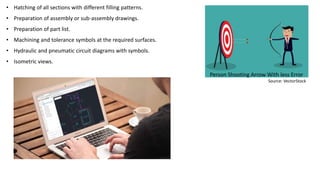
Person Shooting Arrow With less Error
Source: VectorStock
2. Interface, Drawing Aids & Basic Objects
In this section, introduction to user interface of AutoCAD. and how to draw basic objects like line, circle and arc.
i. Introduction to Interface of AutoCAD
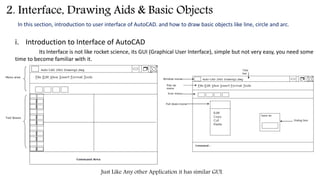
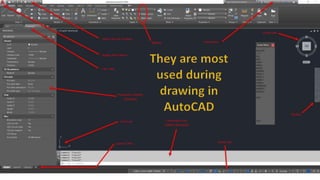
Its Interface is not like rocket science, its GUI (Graphical User Interface), simple but not very easy, you need some
time to become familiar with it.
Just Like Any other Application it has similar GUI.
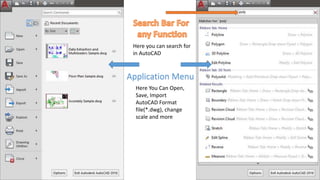
Application Menu
Here You Can Open,
Save, Import
AutoCAD Format
file(*.dwg), change
scale and more
Here you can search for
in AutoCAD
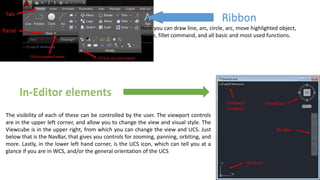
Ribbon
Here you can draw line, arc, circle, arc, move highlighted object,
rotate, fillet command, and all basic and most used functions.
The visibility of each of these can be controlled by the user. The viewport controls
are in the upper left corner, and allow you to change the view and visual style. The
Viewcube is in the upper right, from which you can change the view and UCS. Just
below that is the NavBar, that gives you controls for zooming, panning, orbiting, and
more. Lastly, in the lower left hand corner, is the UCS icon, which can tell you at a
glance if you are in WCS, and/or the general orientation of the UCS
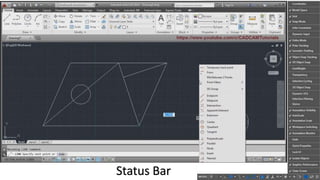
Status Bar
ii. Units and Limits
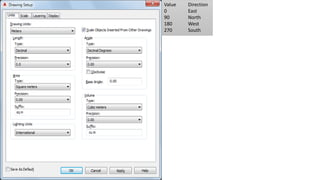
Limits and units can be set in AutoCAD. As well as direction.
Under Drawing Units, select the desired units.
Various imperial and metric units are available. The units that you select determine the unit of measurement that each
unit in your drawing represents. For example, if you select Inches, each drawing unit equals one inch.
To scale objects that you insert into the current drawing from drawings with different drawing units, select Scale Objects
Inserted from Other Drawings.
Clear this option to insert objects at their original size without scaling. For example, if an item that is one inch long were
inserted into a drawing set to millimeters, this setting would scale the item to 25.4 mm in length when enabled. With
this setting disabled, it would remain one unit long (which would now be only one millimeter rather than one inch).
Under Length, select a unit type and desired precision.
Under Angle, select an angle type and desired precision.
If you want to measure angles clockwise instead of counterclockwise, select Clockwise.
Under Base Angle, enter a value for the default 0 angle direction. The default is 0 degrees (East) and a counter-clockwise
direction.
Imported survey drawings may include drafting instructions where changing the base angle might be desirable to
properly orient the data.
Value Direction
0 East
90 North
180 West
270 South
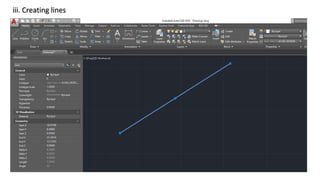
iii. Creating lines
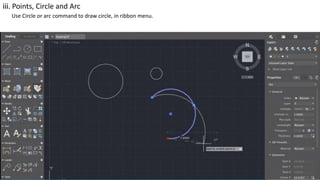
iii. Points, Circle and Arc
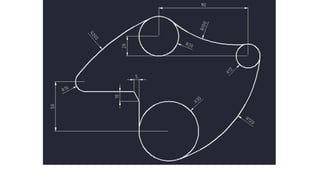
Use Circle or arc command to draw circle, in ribbon menu.
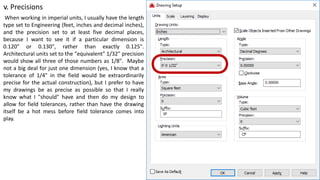
v. Precisions
When working in imperial units, I usually have the length
type set to Engineering (feet, inches and decimal inches),
and the precision set to at least five decimal places,
because I want to see it if a particular dimension is
0.120" or 0.130", rather than exactly 0.125".
Architectural units set to the "equivalent" 1/32" precision
would show all three of those numbers as 1/8". Maybe
not a big deal for just one dimension (yes, I know that a
tolerance of 1/4" in the field would be extraordinarily
precise for the actual construction), but I prefer to have
my drawings be as precise as possible so that I really
know what I "should" have and then do my design to
allow for field tolerances, rather than have the drawing
itself be a hot mess before field tolerance comes into
play.
Selecting Object On Screen

Autocad Presentation

  • 1.
  • 3.
    Contents 1. Introduction ToAutoCAD 2. Interface, Drawing Aids & Basic Objects i. Introduction to Interface of AutoCAD ii. Units and Limits iii. Creating lines iv. Points, Circle and Arc v. Precision vi. Selecting Object On Screen AutoCAD
  • 4.
    1. Introduction toAuto CAD • The Word AutoCAD is made up of two words “Auto(logo of company)”and CAD “(computer aided design)”. • AutoCAD is 2D and 3D modeling software. • It is developed by Autodesk company. • Autodesk is an U.S.A based company. • It is widely used in industry for 2D drawing and 3D modeling. • In another way we can say that AutoCAD is a designing course, which is performed by the help of computer. Source:- Google Image Search
  • 5.
    There are hugebenefits of AutoCAD for engineers, who really want shape there work from paper to Enhanced Graphical Capabilities in 2D or 3D. Using AutoCAD it is highly precise with no error. There are some benefits that are listed: • Improved productivity in drafting. • Shorter preparation time for drawing. • Reduced manpower requirements. • Customer modifications in drawing are easier. • More efficient operation in drafting. • Low wastage in drawing. • Minimized transcription errors in drawing. • Improved accuracy of drawing. • Assistance in preparation of documentation • Better designs can be evolved. • Revisions are possible. • Colures can be used to customize the product. • Production of orthographic projections with dimensions and tolerances. Source:- Google Images Search
  • 6.
    • Hatching ofall sections with different filling patterns. • Preparation of assembly or sub-assembly drawings. • Preparation of part list. • Machining and tolerance symbols at the required surfaces. • Hydraulic and pneumatic circuit diagrams with symbols. • Isometric views. Person Shooting Arrow With less Error Source: VectorStock
  • 7.
    2. Interface, DrawingAids & Basic Objects In this section, introduction to user interface of AutoCAD. and how to draw basic objects like line, circle and arc. i. Introduction to Interface of AutoCAD Its Interface is not like rocket science, its GUI (Graphical User Interface), simple but not very easy, you need some time to become familiar with it. Just Like Any other Application it has similar GUI.
  • 9.
    Application Menu Here YouCan Open, Save, Import AutoCAD Format file(*.dwg), change scale and more Here you can search for in AutoCAD
  • 10.
    Ribbon Here you candraw line, arc, circle, arc, move highlighted object, rotate, fillet command, and all basic and most used functions. The visibility of each of these can be controlled by the user. The viewport controls are in the upper left corner, and allow you to change the view and visual style. The Viewcube is in the upper right, from which you can change the view and UCS. Just below that is the NavBar, that gives you controls for zooming, panning, orbiting, and more. Lastly, in the lower left hand corner, is the UCS icon, which can tell you at a glance if you are in WCS, and/or the general orientation of the UCS
  • 11.
  • 12.
    ii. Units andLimits Limits and units can be set in AutoCAD. As well as direction. Under Drawing Units, select the desired units. Various imperial and metric units are available. The units that you select determine the unit of measurement that each unit in your drawing represents. For example, if you select Inches, each drawing unit equals one inch. To scale objects that you insert into the current drawing from drawings with different drawing units, select Scale Objects Inserted from Other Drawings. Clear this option to insert objects at their original size without scaling. For example, if an item that is one inch long were inserted into a drawing set to millimeters, this setting would scale the item to 25.4 mm in length when enabled. With this setting disabled, it would remain one unit long (which would now be only one millimeter rather than one inch). Under Length, select a unit type and desired precision. Under Angle, select an angle type and desired precision. If you want to measure angles clockwise instead of counterclockwise, select Clockwise. Under Base Angle, enter a value for the default 0 angle direction. The default is 0 degrees (East) and a counter-clockwise direction. Imported survey drawings may include drafting instructions where changing the base angle might be desirable to properly orient the data.
  • 13.
    Value Direction 0 East 90North 180 West 270 South
  • 14.
  • 15.
    iii. Points, Circleand Arc Use Circle or arc command to draw circle, in ribbon menu.
  • 17.
    v. Precisions When workingin imperial units, I usually have the length type set to Engineering (feet, inches and decimal inches), and the precision set to at least five decimal places, because I want to see it if a particular dimension is 0.120" or 0.130", rather than exactly 0.125". Architectural units set to the "equivalent" 1/32" precision would show all three of those numbers as 1/8". Maybe not a big deal for just one dimension (yes, I know that a tolerance of 1/4" in the field would be extraordinarily precise for the actual construction), but I prefer to have my drawings be as precise as possible so that I really know what I "should" have and then do my design to allow for field tolerances, rather than have the drawing itself be a hot mess before field tolerance comes into play.
  • 18.