BY-PUSHPENDRA MEENA
• Introduction of AutoCAD
• Giving Commands
• Object snap
• Zooming and panning
• Drawing 2D shapes
• Drawing 3D shapes
• Editing
• UCS
INTRODUCTION OF AUTOCAD
• The computer-aided drafting program, AutoCAD,
is the most common such program. It has many
aids to drawing construction plans and detail
drawings. If changes are later made in the design,
it is quick and easy to change the drawing in
AutoCAD.
• A considerable amount of time and money as
compared to traditional prototyping, as well as
facilitating communication and testing.
• Drawing is the language of engineers
 The AutoCAD or computer aided design
machine has been a great help to engineers and
also for several architectures that are finding it
impossible to deal with drawings and plans of
the project engineering work and the bring on
the verge of perfection.
 Autocad or commonly known as computer
aided design is a software application for
writing and design 2D and 3D. He came on
stage during the month of December nineteen
hundred and eighty two.
 AutoCAD is a software application for both 2D
and 3D computer-aided design (CAD) and
drafting — available since 1982 as a desktop
application and since 2010 as a mobile web- and
cloud-based app, currently marketed as Autocad
360.
 Developed and marketed by Autodesk, Inc.,
Autocad was first released in December 1982 —
have been purchased a year prior in its original
form by Autodesk founder John Walker. The
software is currently marketed in its eighteenth
generation.
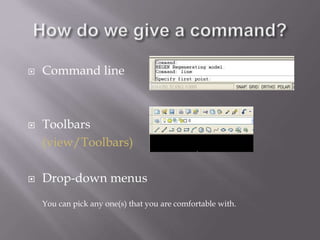
 Command line
 Toolbars
(view/Toolbars)
 Drop-down menus
You can pick any one(s) that you are comfortable with.
 Osnap (Object Snap) settings make it easier to
select a 2d object’s points
 Endpoint
 Midpoint
 Perpendicular
 Center
 İntersection
 Osnap will be active when
AutoCAD is expecting you to
pick a point on the working area
 Type osnap on your
command window:
 You will need to zoom in and out while drawing with
AutoCAD. This doesn’t change your objects or UCS,
only the way you see your working space. This can be
done in many ways:
1. Scroll bars
2. Typing z or zoom in your command window.
 All
 Center
 Dynamic
 Extents
 Previous
 Scale
 Window
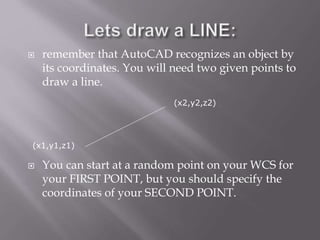
 remember that AutoCAD recognizes an object by
its coordinates. You will need two given points to
draw a line.
 You can start at a random point on your WCS for
your FIRST POINT, but you should specify the
coordinates of your SECOND POINT.
(x1,y1,z1)
(x2,y2,z2)
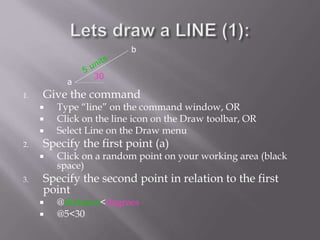
1. Give the command
 Type “line” on the command window, OR
 Click on the line icon on the Draw toolbar, OR
 Select Line on the Draw menu
2. Specify the first point (a)
 Click on a random point on your working area (black
space)
3. Specify the second point in relation to the first
point
 @distance<degrees
 @5<30
30
a
b
1. Hit F8 (ortho on)
2. Give the command
3. Specify the first point
4. Specify the second point in relation to the first
point
 Point the cursor to the left hand side. You will see that
the cursor snaps only to 0o
-90o
-180o
-270o
 Type 7 and hit enter
a b
7 units
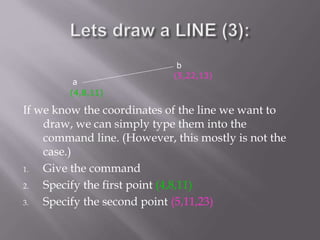
If we know the coordinates of the line we want to
draw, we can simply type them into the
command line. (However, this mostly is not the
case.)
1. Give the command
2. Specify the first point (4,8,11)
3. Specify the second point (5,11,23)
a
b
(4,8,11)
(5,22,13)
 Rectangle: two diagonal lines
(pick first point, select the second one with
relation to the first. @5<-33)
 Circle/Arc: center and radius
 Polygon: specify the number of edges
and length of a side
A small tip: you can use the EXPLODE command for the tool
to split the object into its components or lines
a
b
a
d
d
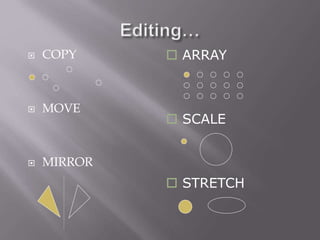
 COPY
 MOVE
 MIRROR
 ARRAY
 SCALE
 STRETCH
 STRETCH
 EXPLODE
 OFFSET
 ROTATE
 ERASE
 The PLINE command creates a chain line with
multiple vertexes and straight or circular
segments between the vertexes
 Draw a closed shape with the pline command:
 Then type PEDIT (polyline edit) on the
command line and see what you can do with
it:
Enter an option [Close/Join/Width/Edit
vertex/Fit/Spline/Decurve/Ltype gen/Undo]:
Try Width and Spline
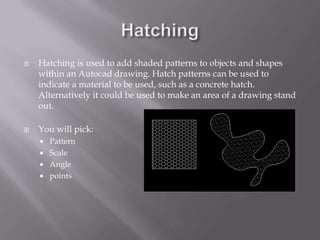
 Hatching is used to add shaded patterns to objects and shapes
within an Autocad drawing. Hatch patterns can be used to
indicate a material to be used, such as a concrete hatch.
Alternatively it could be used to make an area of a drawing stand
out.
 You will pick:
 Pattern
 Scale
 Angle
 points
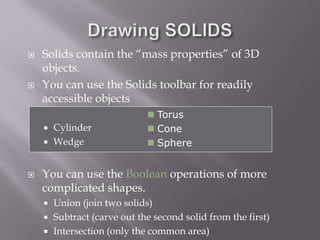
 Solids contain the “mass properties” of 3D
objects.
 You can use the Solids toolbar for readily
accessible objects
 Cylinder
 Wedge
 You can use the Boolean operations of more
complicated shapes.
 Union (join two solids)
 Subtract (carve out the second solid from the first)
 Intersection (only the common area)
 Torus
 Cone
 Sphere
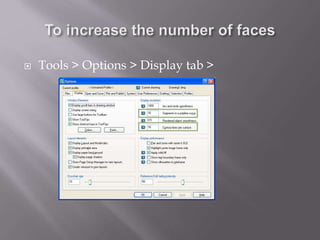
 Tools > Options > Display tab >
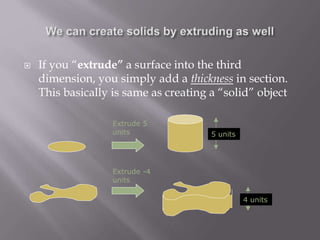
 If you “extrude” a surface into the third
dimension, you simply add a thickness in section.
This basically is same as creating a “solid” object
Extrude 5
units 5 units
Extrude -4
units
4 units
 The AutoCAD world is 3 dimensional. However, if we want to
draw a 2d object, such as a plan or a section, we will use only 2
dimensions (x and y).
 WCS (world coordinate system) is the imaginary plane that is
parallel to the ground. It is the default coordinate system.
 Modifications made to the World Coordinate System (WCS)
result in a User Coordinate System (UCS). It is the plane that
you work on. It enables the user to draw 3 dimensional objects.
 To create a new UCS, type ucs on the command window, then
say New and specify 3 points on your new UCS plane.
 Control+R to cycle through all of your viewports
 Control+A to select all the objects in your drawing
 Control to cycle through objects
 Tab to cycle through object snaps
 Navigate through layouts with Control+PageUp and Control+PageDown
 Hold down right mouse button to clear grips
 Shift for more than one hot grip
 Arrow up and down through commands
 Control+Tab to cycle through open drawings
 OSNAP Tracking to find the center of a box
 M2P or MTP to find the midpoint between two points
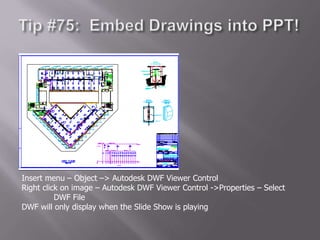
Insert menu – Object –> Autodesk DWF Viewer Control
Right click on image – Autodesk DWF Viewer Control ->Properties – Select
DWF File
DWF will only display when the Slide Show is playing
 A master bedroom with wc, bath and dressing
area that is very big
 Madam’s bedroom with a door to the master
bedroom
 Kitchen and store
 2 private lounges
 Dining room
 Study room
 Plat room
 A big verandah
• Working drawing
It is 2 or 3 dimensional drawing showing all
the works and duties that will be done from
the beginning of the project to the
completion stage. They are used on site
during the phase of a building project. They
include the plan, elevation, section, bending
schedule.
 They are drawings that have to be with
engineer at all times during a construction
project because engineers refers to these
drawings to get measurements on site. This is
called production drawing. It is used for
conveying constructional information for the
quantity surveyors and engineers. It is the
ultimate thing unlike the presentation drawing.
 Z enter
 S enter
 N enter
 Choose your scale 1:100
 P enter
 Drawings encompass the architectural, civil,
structural, and mechanical professions, and they
are the means of conveying diagrammatic detailed
aspects of the design components of a structure.
 Architectural drawings convey the aesthetic and
functional aspects of the project and include the
fire-rated classification of the structure,
occupancy, exiting requirements, and
conformance to code of conduct.
 Mechanical Drawing - Mechanical drawings
designate the heating, ventilating, and air-
conditioning (HVAC) systems; electrical
distribution requirements; fire and security
systems; sprinklers and the necessary plumbing
requirements.
 These drawings generally contain the ductwork
sizes and locations and designate required
openings in the structure for their paths.
 Flowcharts and riser diagrams are produced for
electric conduit runs and plumbing lines
including sprinkler-piping systems. Drawings
are prepared for the mechanical equipment
rooms indicating the selected equipment, the
operating weights of the machinery, and weights
of heavy piping which are detailed to be hung or
floor-mounted.
Thank You

autocad.ppt

  • 1.
  • 2.
    • Introduction ofAutoCAD • Giving Commands • Object snap • Zooming and panning • Drawing 2D shapes • Drawing 3D shapes • Editing • UCS
  • 3.
    INTRODUCTION OF AUTOCAD •The computer-aided drafting program, AutoCAD, is the most common such program. It has many aids to drawing construction plans and detail drawings. If changes are later made in the design, it is quick and easy to change the drawing in AutoCAD. • A considerable amount of time and money as compared to traditional prototyping, as well as facilitating communication and testing. • Drawing is the language of engineers
  • 4.
     The AutoCADor computer aided design machine has been a great help to engineers and also for several architectures that are finding it impossible to deal with drawings and plans of the project engineering work and the bring on the verge of perfection.  Autocad or commonly known as computer aided design is a software application for writing and design 2D and 3D. He came on stage during the month of December nineteen hundred and eighty two.
  • 5.
     AutoCAD isa software application for both 2D and 3D computer-aided design (CAD) and drafting — available since 1982 as a desktop application and since 2010 as a mobile web- and cloud-based app, currently marketed as Autocad 360.  Developed and marketed by Autodesk, Inc., Autocad was first released in December 1982 — have been purchased a year prior in its original form by Autodesk founder John Walker. The software is currently marketed in its eighteenth generation.
  • 6.
     Command line Toolbars (view/Toolbars)  Drop-down menus You can pick any one(s) that you are comfortable with.
  • 7.
     Osnap (ObjectSnap) settings make it easier to select a 2d object’s points  Endpoint  Midpoint  Perpendicular  Center  İntersection  Osnap will be active when AutoCAD is expecting you to pick a point on the working area  Type osnap on your command window:
  • 8.
     You willneed to zoom in and out while drawing with AutoCAD. This doesn’t change your objects or UCS, only the way you see your working space. This can be done in many ways: 1. Scroll bars 2. Typing z or zoom in your command window.  All  Center  Dynamic  Extents  Previous  Scale  Window
  • 9.
     remember thatAutoCAD recognizes an object by its coordinates. You will need two given points to draw a line.  You can start at a random point on your WCS for your FIRST POINT, but you should specify the coordinates of your SECOND POINT. (x1,y1,z1) (x2,y2,z2)
  • 10.
    1. Give thecommand  Type “line” on the command window, OR  Click on the line icon on the Draw toolbar, OR  Select Line on the Draw menu 2. Specify the first point (a)  Click on a random point on your working area (black space) 3. Specify the second point in relation to the first point  @distance<degrees  @5<30 30 a b
  • 11.
    1. Hit F8(ortho on) 2. Give the command 3. Specify the first point 4. Specify the second point in relation to the first point  Point the cursor to the left hand side. You will see that the cursor snaps only to 0o -90o -180o -270o  Type 7 and hit enter a b 7 units
  • 12.
    If we knowthe coordinates of the line we want to draw, we can simply type them into the command line. (However, this mostly is not the case.) 1. Give the command 2. Specify the first point (4,8,11) 3. Specify the second point (5,11,23) a b (4,8,11) (5,22,13)
  • 13.
     Rectangle: twodiagonal lines (pick first point, select the second one with relation to the first. @5<-33)  Circle/Arc: center and radius  Polygon: specify the number of edges and length of a side A small tip: you can use the EXPLODE command for the tool to split the object into its components or lines a b a d d
  • 14.
     COPY  MOVE MIRROR  ARRAY  SCALE  STRETCH
  • 15.
     STRETCH  EXPLODE OFFSET  ROTATE  ERASE
  • 16.
     The PLINEcommand creates a chain line with multiple vertexes and straight or circular segments between the vertexes  Draw a closed shape with the pline command:  Then type PEDIT (polyline edit) on the command line and see what you can do with it: Enter an option [Close/Join/Width/Edit vertex/Fit/Spline/Decurve/Ltype gen/Undo]: Try Width and Spline
  • 17.
     Hatching isused to add shaded patterns to objects and shapes within an Autocad drawing. Hatch patterns can be used to indicate a material to be used, such as a concrete hatch. Alternatively it could be used to make an area of a drawing stand out.  You will pick:  Pattern  Scale  Angle  points
  • 18.
     Solids containthe “mass properties” of 3D objects.  You can use the Solids toolbar for readily accessible objects  Cylinder  Wedge  You can use the Boolean operations of more complicated shapes.  Union (join two solids)  Subtract (carve out the second solid from the first)  Intersection (only the common area)  Torus  Cone  Sphere
  • 19.
     Tools >Options > Display tab >
  • 20.
     If you“extrude” a surface into the third dimension, you simply add a thickness in section. This basically is same as creating a “solid” object Extrude 5 units 5 units Extrude -4 units 4 units
  • 21.
     The AutoCADworld is 3 dimensional. However, if we want to draw a 2d object, such as a plan or a section, we will use only 2 dimensions (x and y).  WCS (world coordinate system) is the imaginary plane that is parallel to the ground. It is the default coordinate system.  Modifications made to the World Coordinate System (WCS) result in a User Coordinate System (UCS). It is the plane that you work on. It enables the user to draw 3 dimensional objects.  To create a new UCS, type ucs on the command window, then say New and specify 3 points on your new UCS plane.
  • 22.
     Control+R tocycle through all of your viewports  Control+A to select all the objects in your drawing  Control to cycle through objects  Tab to cycle through object snaps  Navigate through layouts with Control+PageUp and Control+PageDown  Hold down right mouse button to clear grips  Shift for more than one hot grip  Arrow up and down through commands  Control+Tab to cycle through open drawings  OSNAP Tracking to find the center of a box  M2P or MTP to find the midpoint between two points
  • 23.
    Insert menu –Object –> Autodesk DWF Viewer Control Right click on image – Autodesk DWF Viewer Control ->Properties – Select DWF File DWF will only display when the Slide Show is playing
  • 24.
     A masterbedroom with wc, bath and dressing area that is very big  Madam’s bedroom with a door to the master bedroom  Kitchen and store  2 private lounges  Dining room  Study room  Plat room  A big verandah
  • 25.
    • Working drawing Itis 2 or 3 dimensional drawing showing all the works and duties that will be done from the beginning of the project to the completion stage. They are used on site during the phase of a building project. They include the plan, elevation, section, bending schedule.
  • 26.
     They aredrawings that have to be with engineer at all times during a construction project because engineers refers to these drawings to get measurements on site. This is called production drawing. It is used for conveying constructional information for the quantity surveyors and engineers. It is the ultimate thing unlike the presentation drawing.
  • 27.
     Z enter S enter  N enter  Choose your scale 1:100  P enter
  • 28.
     Drawings encompassthe architectural, civil, structural, and mechanical professions, and they are the means of conveying diagrammatic detailed aspects of the design components of a structure.  Architectural drawings convey the aesthetic and functional aspects of the project and include the fire-rated classification of the structure, occupancy, exiting requirements, and conformance to code of conduct.
  • 29.
     Mechanical Drawing- Mechanical drawings designate the heating, ventilating, and air- conditioning (HVAC) systems; electrical distribution requirements; fire and security systems; sprinklers and the necessary plumbing requirements.  These drawings generally contain the ductwork sizes and locations and designate required openings in the structure for their paths.
  • 30.
     Flowcharts andriser diagrams are produced for electric conduit runs and plumbing lines including sprinkler-piping systems. Drawings are prepared for the mechanical equipment rooms indicating the selected equipment, the operating weights of the machinery, and weights of heavy piping which are detailed to be hung or floor-mounted.
  • 31.