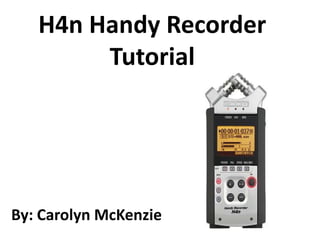
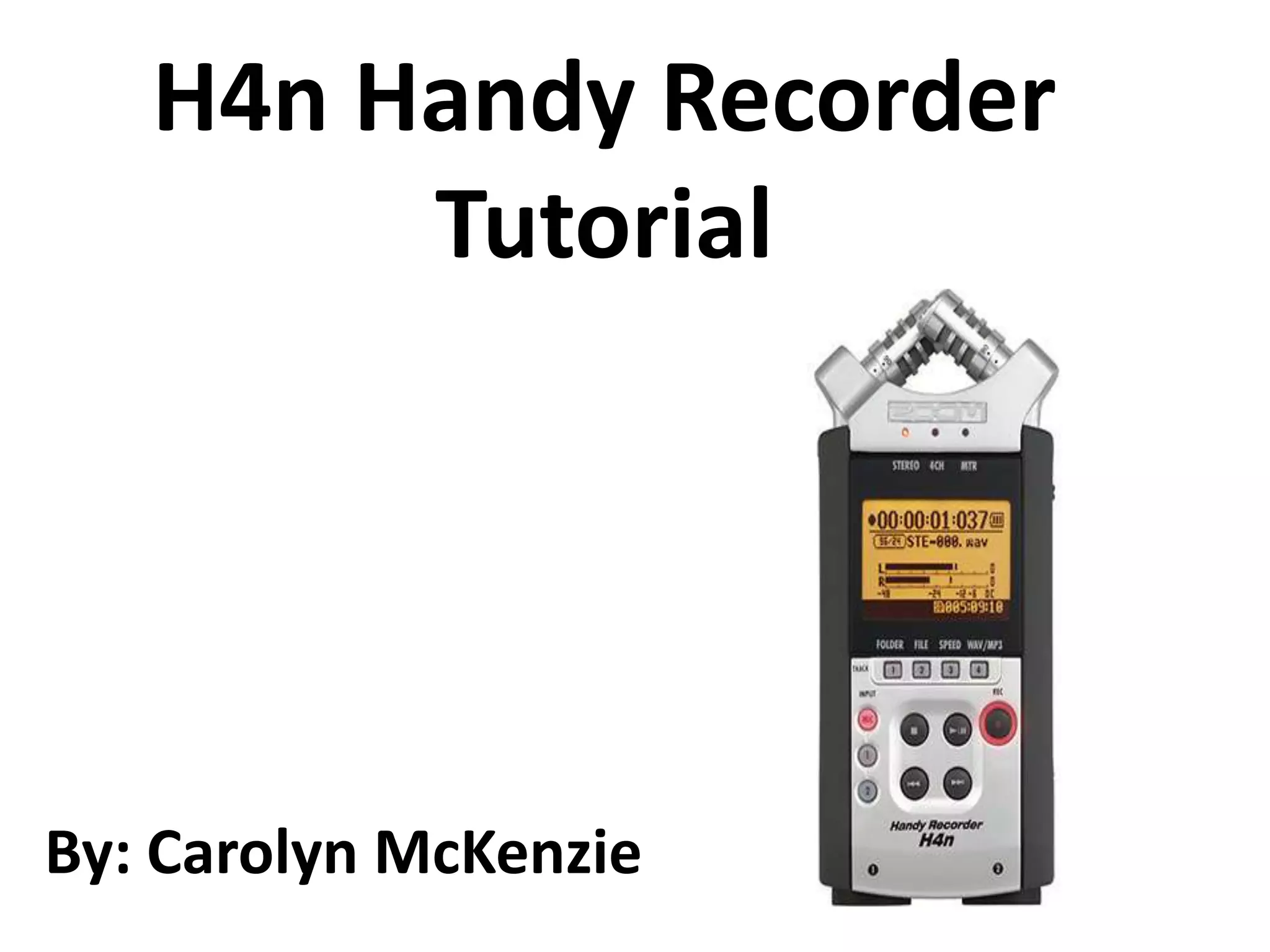
H4n Handy Recorder
        Tutorial


By: Carolyn McKenzie
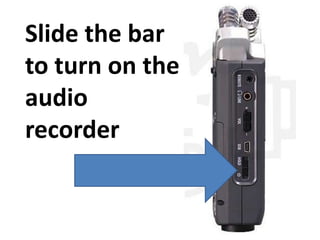
Slide the bar
to turn on the
audio
recorder
Decide which mode is
appropriate for your
      project.
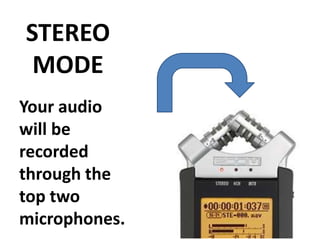
STEREO
 MODE
Your audio
will be
recorded
through the
top two
microphones.
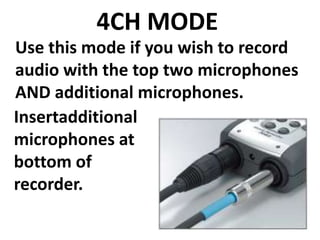
4CH MODE
Use this mode if you wish to record
audio with the top two microphones
AND additional microphones.
Insertadditional
microphones at
bottom of
recorder.
MTR MODE
You can record using effects,
overdubbing, and mixing track
levels after recording.

Warning: Extremely complicated
and probably not what you need.
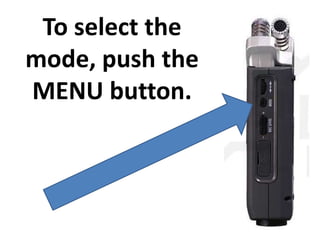
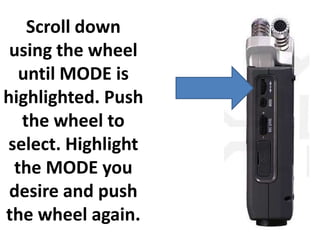
To select the
mode, push the
MENU button.
Scroll down
 using the wheel
  until MODE is
highlighted. Push
  the wheel to
select. Highlight
 the MODE you
 desire and push
the wheel again.
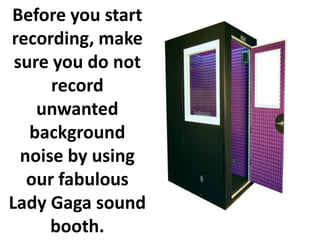
Before you start
recording, make
 sure you do not
      record
    unwanted
   background
  noise by using
   our fabulous
Lady Gaga sound
      booth.
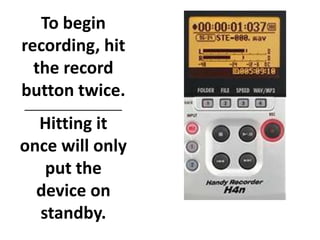
To begin
recording, hit
  the record
button twice.
______________________

  Hitting it
once will only
   put the
  device on
  standby.
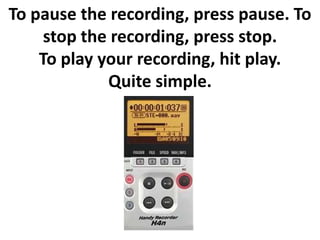
To pause the recording, press pause. To
     stop the recording, press stop.
    To play your recording, hit play.
             Quite simple.
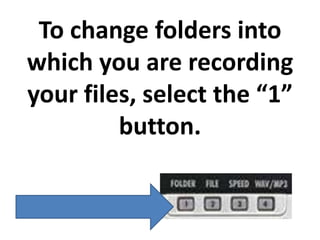
To change folders into
which you are recording
your files, select the “1”
         button.
To view individual files in that
   folder, select the “2” button.

 To delete, rename, encode, or get
information about a file, select the
  file name by pushing the wheel.

  MENU will serve as the “back”
            button.
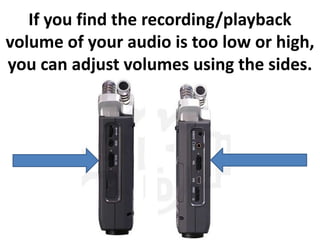
If you find the recording/playback
volume of your audio is too low or high,
you can adjust volumes using the sides.
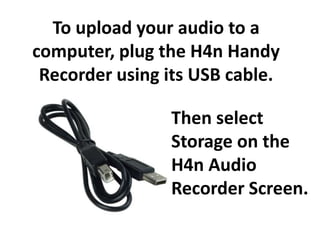
To upload your audio to a
computer, plug the H4n Handy
 Recorder using its USB cable.

                Then select
                Storage on the
                H4n Audio
                Recorder Screen.
First, for PC Users….
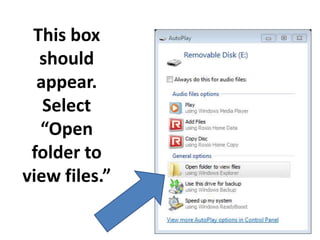
This box
  should
  appear.
   Select
  “Open
 folder to
view files.”
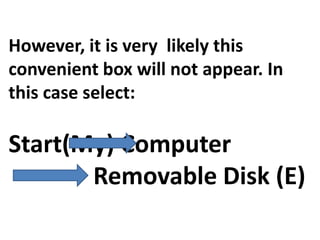
However, it is very likely this
convenient box will not appear. In
this case select:

Start(My) Computer
       Removable Disk (E)
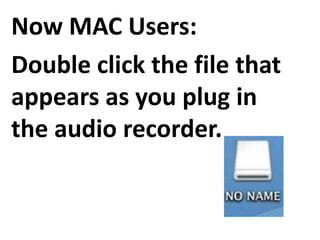
Now MAC Users:
Double click the file that
appears as you plug in
the audio recorder.
All together now!
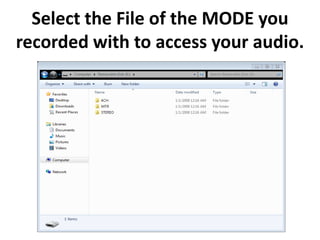
Select the File of the MODE you
recorded with to access your audio.
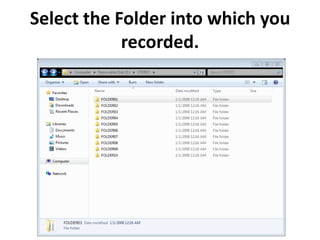
Select the Folder into which you
            recorded.
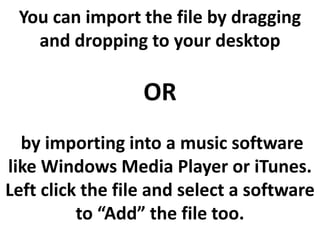
You can import the file by dragging
   and dropping to your desktop

                  OR
  by importing into a music software
like Windows Media Player or iTunes.
Left click the file and select a software
          to “Add” the file too.
Now, your audio recording is an
accessible file on your computer.

               Enjoy!
For further assistance ask a member
of the eStudio staff.
Image Sources
•   http://www.google.com/imgres?q=h4n+handy+recorder&um=1&hl=en&sa=N&biw=1096&bih=634&tbm=isch&tbnid=t8jIYHaeZCVsEM:
    &imgrefurl=http://winarco.com/zoom-h4n-handy-recorder-now-available-at-best-buy-for-299-
    99/&docid=V3QC_3ouzr7gGM&imgurl=http://winarco.com/wp-content/uploads/2011/04/zoom-h4n-handy-recorder-
    02.jpg&w=500&h=432&ei=sgkXT4mpNqTc0QHu3uyJAw&zoom=1&iact=rc&dur=351&sig=111807055498166298443&page=1&tbnh=16
    0&tbnw=185&start=0&ndsp=10&ved=1t:429,r:8,s:0&tx=73&ty=81

•   http://www.google.com/imgres?q=h4n+handy+recorder&um=1&hl=en&biw=1096&bih=757&tbm=isch&tbnid=Jc78CStmZ-
    uUSM:&imgrefurl=http://www.mldvideo.com/Rentals/Audio/Recorders/Zoom%2BH4n%2BHandy%2BRecorder&docid=6kHRzadopjI71
    M&imgurl=http://www.mldvideo.com/wms/api/image/product/1450/2059/600/600/image.jpg&w=464&h=464&ei=4hIXT-zrE4-
    y0AGg0oXLAg&zoom=1&iact=hc&vpx=828&vpy=119&dur=13&hovh=225&hovw=225&tx=169&ty=119&sig=111807055498166298443
    &page=2&tbnh=128&tbnw=128&start=17&ndsp=31&ved=1t:429,r:11,s:17

•   http://www.google.com/imgres?q=h4n+handy+recorder+microphones&um=1&hl=en&biw=1096&bih=757&tbm=isch&tbnid=bqu3cNm
    RyEXJDM:&imgrefurl=http://www.zoom.co.jp/english/products/h4n/&docid=N2nzykTDWcrYqM&imgurl=http://www.zoom.co.jp/engli
    sh/products/h4n/h4n_09.jpg&w=190&h=144&ei=6RAXT_TUFOuq0AHf4JmRAw&zoom=1&iact=hc&vpx=147&vpy=463&dur=1987&hov
    h=115&hovw=152&tx=118&ty=71&sig=111807055498166298443&page=3&tbnh=115&tbnw=152&start=46&ndsp=28&ved=1t:429,r:1
    1,s:46

•   http://www.google.com/search?hl=en&sugexp=pfwl&cp=5&gs_id=h&xhr=t&q=h4n+handy+recorder&gs_sm=&gs_upl=&bav=on.2,or.r
    _gc.r_pw.,cf.osb&biw=1096&bih=757&wrapid=tljp132691259549608&um=1&ie=UTF-
    8&tbm=isch&source=og&sa=N&tab=wi&ei=WBQXT4uCEobn0QHIz4HkAg#um=1&hl=en&tbm=isch&sa=1&q=h4n+handy+recorder+mod
    e+&oq=h4n+handy+recorder+mode+&aq=f&aqi=&aql=&gs_sm=e&gs_upl=16917l18023l0l18237l6l6l0l0l0l0l205l842l1.4.1l6l0&bav=on.
    2,or.r_gc.r_pw.,cf.osb&fp=f49c06cebf450a0e&biw=1096&bih=757
Image Sources
•   http://www.google.com/imgres?q=usb+cab&um=1&hl=en&sa=N&biw=1096&bih=697&tbm=isch&tbnid=F1K__IQlN-
    EaaM:&imgrefurl=http://www.tron-
    sector.com/forums/default.aspx%3Fa%3Dtop%26id%3D438169%26pg%3D3&docid=oagoaNhdtDfkqM&imgurl=http://toodif
    ficult.com/wp-content/uploads/2010/11/usb-cable.jpg&w=1511&h=1187&ei=-
    B8XT5bREaPb0QGFotzSAg&zoom=1&iact=hc&vpx=481&vpy=153&dur=1582&hovh=199&hovw=253&tx=111&ty=100&sig=1
    11807055498166298443&page=1&tbnh=150&tbnw=172&start=0&ndsp=15&ved=1t:429,r:2,s:0

•   http://www.google.com/imgres?q=lady+gaga+sound+booth&um=1&hl=en&sa=N&biw=1096&bih=697&tbm=isch&tbnid=gv
    IrvgX3KAuFsM:&imgrefurl=http://www.vocalbooth.com/634/lady-gaga-takes-purple-vocalbooth-on-
    tour/&docid=4z3XApY5k24waM&imgurl=http://www.vocalbooth.com/images/gold-series/4x6-gold-vocal-booth-purple-
    exterior.jpg&w=398&h=400&ei=eC8XT_CCCKev0AHW74ztAg&zoom=1&iact=hc&vpx=426&vpy=125&dur=1461&hovh=225&
    hovw=224&tx=97&ty=88&sig=111807055498166298443&page=1&tbnh=170&tbnw=167&start=0&ndsp=14&ved=1t:429,r:
    11,s:0

revised tutorial

  • 1.
    H4n Handy Recorder Tutorial By: Carolyn McKenzie
  • 2.
    Slide the bar toturn on the audio recorder
  • 3.
    Decide which modeis appropriate for your project.
  • 4.
    STEREO MODE Your audio willbe recorded through the top two microphones.
  • 5.
    4CH MODE Use thismode if you wish to record audio with the top two microphones AND additional microphones. Insertadditional microphones at bottom of recorder.
  • 6.
    MTR MODE You canrecord using effects, overdubbing, and mixing track levels after recording. Warning: Extremely complicated and probably not what you need.
  • 7.
    To select the mode,push the MENU button.
  • 8.
    Scroll down usingthe wheel until MODE is highlighted. Push the wheel to select. Highlight the MODE you desire and push the wheel again.
  • 9.
    Before you start recording,make sure you do not record unwanted background noise by using our fabulous Lady Gaga sound booth.
  • 10.
    To begin recording, hit the record button twice. ______________________ Hitting it once will only put the device on standby.
  • 11.
    To pause therecording, press pause. To stop the recording, press stop. To play your recording, hit play. Quite simple.
  • 12.
    To change foldersinto which you are recording your files, select the “1” button.
  • 13.
    To view individualfiles in that folder, select the “2” button. To delete, rename, encode, or get information about a file, select the file name by pushing the wheel. MENU will serve as the “back” button.
  • 14.
    If you findthe recording/playback volume of your audio is too low or high, you can adjust volumes using the sides.
  • 15.
    To upload youraudio to a computer, plug the H4n Handy Recorder using its USB cable. Then select Storage on the H4n Audio Recorder Screen.
  • 16.
    First, for PCUsers….
  • 17.
    This box should appear. Select “Open folder to view files.”
  • 18.
    However, it isvery likely this convenient box will not appear. In this case select: Start(My) Computer Removable Disk (E)
  • 19.
    Now MAC Users: Doubleclick the file that appears as you plug in the audio recorder.
  • 20.
  • 21.
    Select the Fileof the MODE you recorded with to access your audio.
  • 22.
    Select the Folderinto which you recorded.
  • 23.
    You can importthe file by dragging and dropping to your desktop OR by importing into a music software like Windows Media Player or iTunes. Left click the file and select a software to “Add” the file too.
  • 24.
    Now, your audiorecording is an accessible file on your computer. Enjoy! For further assistance ask a member of the eStudio staff.
  • 25.
    Image Sources • http://www.google.com/imgres?q=h4n+handy+recorder&um=1&hl=en&sa=N&biw=1096&bih=634&tbm=isch&tbnid=t8jIYHaeZCVsEM: &imgrefurl=http://winarco.com/zoom-h4n-handy-recorder-now-available-at-best-buy-for-299- 99/&docid=V3QC_3ouzr7gGM&imgurl=http://winarco.com/wp-content/uploads/2011/04/zoom-h4n-handy-recorder- 02.jpg&w=500&h=432&ei=sgkXT4mpNqTc0QHu3uyJAw&zoom=1&iact=rc&dur=351&sig=111807055498166298443&page=1&tbnh=16 0&tbnw=185&start=0&ndsp=10&ved=1t:429,r:8,s:0&tx=73&ty=81 • http://www.google.com/imgres?q=h4n+handy+recorder&um=1&hl=en&biw=1096&bih=757&tbm=isch&tbnid=Jc78CStmZ- uUSM:&imgrefurl=http://www.mldvideo.com/Rentals/Audio/Recorders/Zoom%2BH4n%2BHandy%2BRecorder&docid=6kHRzadopjI71 M&imgurl=http://www.mldvideo.com/wms/api/image/product/1450/2059/600/600/image.jpg&w=464&h=464&ei=4hIXT-zrE4- y0AGg0oXLAg&zoom=1&iact=hc&vpx=828&vpy=119&dur=13&hovh=225&hovw=225&tx=169&ty=119&sig=111807055498166298443 &page=2&tbnh=128&tbnw=128&start=17&ndsp=31&ved=1t:429,r:11,s:17 • http://www.google.com/imgres?q=h4n+handy+recorder+microphones&um=1&hl=en&biw=1096&bih=757&tbm=isch&tbnid=bqu3cNm RyEXJDM:&imgrefurl=http://www.zoom.co.jp/english/products/h4n/&docid=N2nzykTDWcrYqM&imgurl=http://www.zoom.co.jp/engli sh/products/h4n/h4n_09.jpg&w=190&h=144&ei=6RAXT_TUFOuq0AHf4JmRAw&zoom=1&iact=hc&vpx=147&vpy=463&dur=1987&hov h=115&hovw=152&tx=118&ty=71&sig=111807055498166298443&page=3&tbnh=115&tbnw=152&start=46&ndsp=28&ved=1t:429,r:1 1,s:46 • http://www.google.com/search?hl=en&sugexp=pfwl&cp=5&gs_id=h&xhr=t&q=h4n+handy+recorder&gs_sm=&gs_upl=&bav=on.2,or.r _gc.r_pw.,cf.osb&biw=1096&bih=757&wrapid=tljp132691259549608&um=1&ie=UTF- 8&tbm=isch&source=og&sa=N&tab=wi&ei=WBQXT4uCEobn0QHIz4HkAg#um=1&hl=en&tbm=isch&sa=1&q=h4n+handy+recorder+mod e+&oq=h4n+handy+recorder+mode+&aq=f&aqi=&aql=&gs_sm=e&gs_upl=16917l18023l0l18237l6l6l0l0l0l0l205l842l1.4.1l6l0&bav=on. 2,or.r_gc.r_pw.,cf.osb&fp=f49c06cebf450a0e&biw=1096&bih=757
  • 26.
    Image Sources • http://www.google.com/imgres?q=usb+cab&um=1&hl=en&sa=N&biw=1096&bih=697&tbm=isch&tbnid=F1K__IQlN- EaaM:&imgrefurl=http://www.tron- sector.com/forums/default.aspx%3Fa%3Dtop%26id%3D438169%26pg%3D3&docid=oagoaNhdtDfkqM&imgurl=http://toodif ficult.com/wp-content/uploads/2010/11/usb-cable.jpg&w=1511&h=1187&ei=- B8XT5bREaPb0QGFotzSAg&zoom=1&iact=hc&vpx=481&vpy=153&dur=1582&hovh=199&hovw=253&tx=111&ty=100&sig=1 11807055498166298443&page=1&tbnh=150&tbnw=172&start=0&ndsp=15&ved=1t:429,r:2,s:0 • http://www.google.com/imgres?q=lady+gaga+sound+booth&um=1&hl=en&sa=N&biw=1096&bih=697&tbm=isch&tbnid=gv IrvgX3KAuFsM:&imgrefurl=http://www.vocalbooth.com/634/lady-gaga-takes-purple-vocalbooth-on- tour/&docid=4z3XApY5k24waM&imgurl=http://www.vocalbooth.com/images/gold-series/4x6-gold-vocal-booth-purple- exterior.jpg&w=398&h=400&ei=eC8XT_CCCKev0AHW74ztAg&zoom=1&iact=hc&vpx=426&vpy=125&dur=1461&hovh=225& hovw=224&tx=97&ty=88&sig=111807055498166298443&page=1&tbnh=170&tbnw=167&start=0&ndsp=14&ved=1t:429,r: 11,s:0