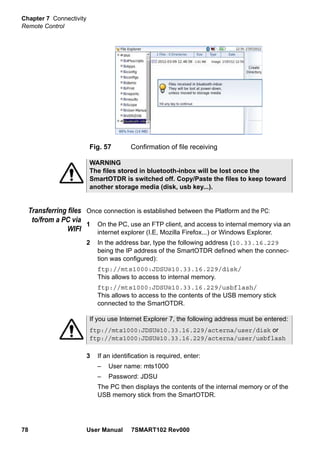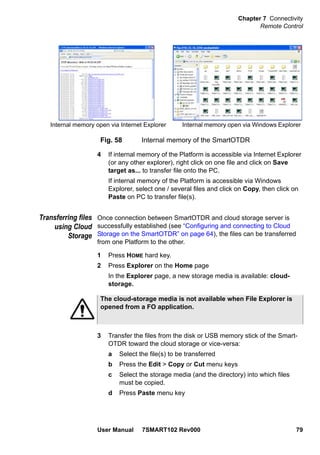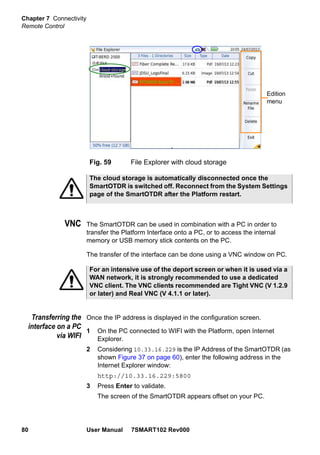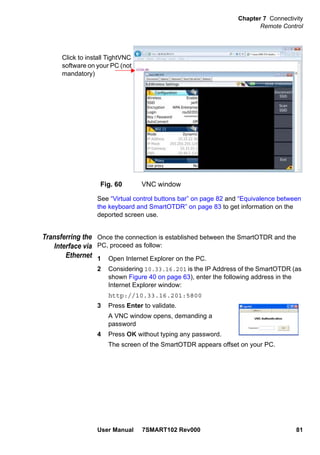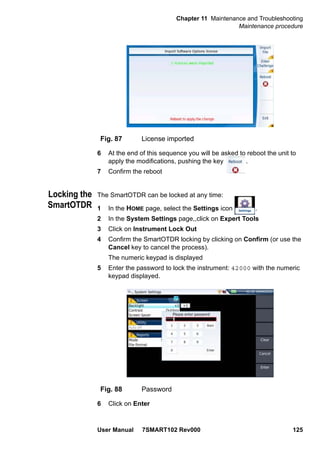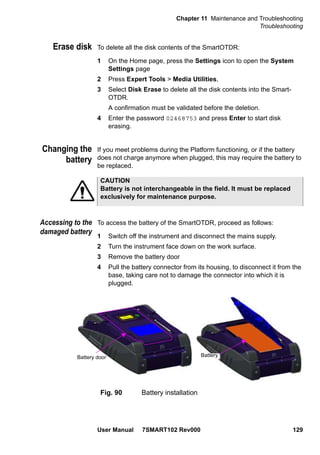



SmartOTDR 100 Mainframe
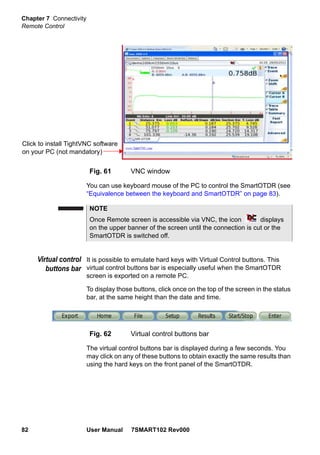
HandheldOTDR,designedfortheconstruction,turn-upandmaintenanceof
fiber networks
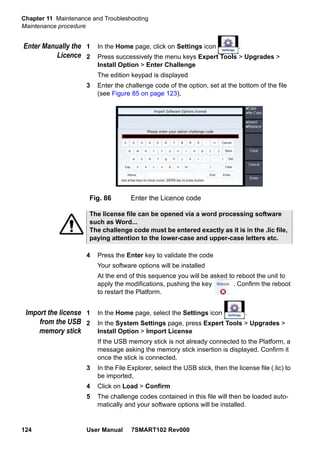
User Manual
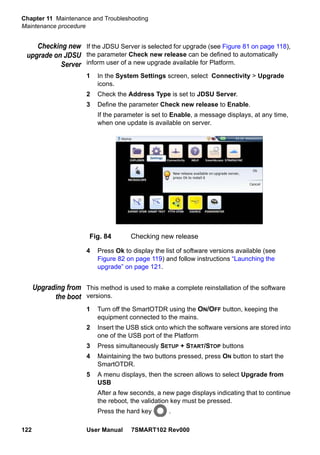
SmartOTDR 100 Mainframe
HandheldOTDR,designedfortheconstruction,turn-upandmaintenanceof
fiber networks
User Manual
User Manual 7SMART102 Rev000 v
Notice Every effort was made to ensure that the information in this document
was accurate at the time of printing. However, information is subject to
change without notice, and JDSU reserves the right to provide an
addendum to this document with information not available at the time that
this document was created.
Copyright © Copyright 2015 JDSU, LLC. All rights reserved. JDSU, Enabling
Broadband and Optical Innovation, and its logo are trademarks of JDSU,
LLC. All other trademarks and registered trademarks are the property of
their respective owners. No part of this guide may be reproduced or
transmitted electronically or otherwise without written permission of the
publisher.
Trademarks JDSU and SmartOTDR are trademarks or registered trademarks of
JDSU in the United States and/or other countries.
Microsoft, Windows and Microsoft Internet Explorer are either trade-
marks or registered trademarks of Microsoft Corporation in the United
States and/or other countries.
Specifications, terms, and conditions are subject to change without
notice. All trademarks and registered trademarks are the property of their
respective companies.
WEEE Directive
Compliance
JDSU has established processes in compliance with the Waste Electrical
and Electronic Equipment (WEEE) Directive, 2002/96/EC.
This product should not be disposed of as unsorted municipal waste and
should be collected separately and disposed of according to your
national regulations. In the European Union, all equipment purchased
from JDSU after 2005-08-13 can be returned for disposal at the end of
its useful life. JDSU will ensure that all waste equipment returned is
reused, recycled, or disposed of in an environmentally friendly manner,
and in compliance with all applicable national and international waste
legislation.
It is the responsibility of the equipment owner to return the equipment to
JDSU for appropriate disposal. If the equipment was imported by a
reseller whose name or logo is marked on the equipment, then the owner
should return the equipment directly to the reseller.
vi User Manual 7SMART102 Rev000
Instructions for returning waste equipment to JDSU can be found in the
Environmental section of JDSU’s web site at www.jdsu.com. If you have
questions concerning disposal of your equipment, contact JDSU’s
WEEE Program Management team at WEEE.EMEA@jdsu.com.
User Manual 7SMART102 Rev000 vii
Table of Contents
About This Guide xv
Purpose and scope. . . . . . . . . . . . . . . . . . . . . . . . . . . . . . xvi
Assumptions. . . . . . . . . . . . . . . . . . . . . . . . . . . . . . . . . . . xvi
Technical assistance . . . . . . . . . . . . . . . . . . . . . . . . . . . . xvi
Conventions . . . . . . . . . . . . . . . . . . . . . . . . . . . . . . . . . . .xvii
Chapter 1 Safety information 1
Battery and AC/DC safety information . . . . . . . . . . . . . . . . .2
Precautions relating to optical connections . . . . . . . . . . . .2
Laser Safety instructions . . . . . . . . . . . . . . . . . . . . . . . . . . .3
Laser classes . . . . . . . . . . . . . . . . . . . . . . . . . . . . . . . . . .3
Warning labels for the laser classes. . . . . . . . . . . . . . . . . . .3
Chapter 2 Introducing the SmartOTDR mainframe 5
Unpacking the instrument . . . . . . . . . . . . . . . . . . . . . . . . . .6
Main features . . . . . . . . . . . . . . . . . . . . . . . . . . . . . . . . . . . .6
Hard keys and Indicators . . . . . . . . . . . . . . . . . . . . . . . . . . .8
Front panel hard keys . . . . . . . . . . . . . . . . . . . . . . . . . . . .8
Front panel indicators. . . . . . . . . . . . . . . . . . . . . . . . . . . . .9
Power Supply . . . . . . . . . . . . . . . . . . . . . . . . . . . . . . . . . . .10
Table of Contents
User Manual 7SMART102 Rev000 viii
Chapter 3 Starting up 11
Setting the adaptable plug to the mains adapter . . . . . . . .12
Charging the battery. . . . . . . . . . . . . . . . . . . . . . . . . . . . . .13
Connecting the mains adapter. . . . . . . . . . . . . . . . . . . . . .13
First use of the battery . . . . . . . . . . . . . . . . . . . . . . . . . . .13
Charging the battery . . . . . . . . . . . . . . . . . . . . . . . . . . . .13
Battery charging time . . . . . . . . . . . . . . . . . . . . . . . . . . . .14
Battery charge level display . . . . . . . . . . . . . . . . . . . . . . .14
Switching the SmartOTDR on and off . . . . . . . . . . . . . . . .14
Switching on the SmartOTDR . . . . . . . . . . . . . . . . . . . . . .14
Switching off the SmartOTDR . . . . . . . . . . . . . . . . . . . . . .15
Resetting the SmartOTDR . . . . . . . . . . . . . . . . . . . . . . . .15
Choosing the position of the instrument on the work
surface . . . . . . . . . . . . . . . . . . . . . . . . . . . . . . . . . . . . . . . .15
First start: configuring your regional settings. . . . . . . . . .16
Chapter 4 Configuring the SmartOTDR 19
Displaying the System Settings screen . . . . . . . . . . . . . . .20
Defining the screen parameters of the SmartOTDR. . . . . .20
Backlight. . . . . . . . . . . . . . . . . . . . . . . . . . . . . . . . . . . . .21
Contrast . . . . . . . . . . . . . . . . . . . . . . . . . . . . . . . . . . . . .21
Screen Saver . . . . . . . . . . . . . . . . . . . . . . . . . . . . . . . . .21
Defining the Automatic shutdown of the SmartOTDR . . . .22
Chapter 5 Power meter & VFL (Visual Fault Locator) 23
Connection to the power meter and VFL . . . . . . . . . . . . . .24
Using the Power meter via USB port . . . . . . . . . . . . . . . . .24
Configuring the parameters of the power meter . . . . . . . . .24
Configuring the alarm parameters . . . . . . . . . . . . . . . . .25
Configuring the Measurement parameters. . . . . . . . . . . .25
Configuring the Link parameters . . . . . . . . . . . . . . . . . .26
Configuring the File parameters . . . . . . . . . . . . . . . . . .31
Display of results and commands . . . . . . . . . . . . . . . . . . .32
Result of the measurement in progress. . . . . . . . . . . . . .32
Table of results. . . . . . . . . . . . . . . . . . . . . . . . . . . . . .33
Commands of the power meter parameters. . . . . . . . . . .33
Table of Contents
User Manual 7SMART102 Rev000 ix
Performing a measurement . . . . . . . . . . . . . . . . . . . . . . .34
Power measurement . . . . . . . . . . . . . . . . . . . . . . . . . .34
Optical link loss . . . . . . . . . . . . . . . . . . . . . . . . . . . . .34
VFL Function . . . . . . . . . . . . . . . . . . . . . . . . . . . . . . . . . . .35
VFL connector. . . . . . . . . . . . . . . . . . . . . . . . . . . . . . . . .35
Visual Fault Locator function (VFL) . . . . . . . . . . . . . . . . . .36
Storing and reloading results. . . . . . . . . . . . . . . . . . . . . . .36
File Setup . . . . . . . . . . . . . . . . . . . . . . . . . . . . . . . . . . . .36
Storing results . . . . . . . . . . . . . . . . . . . . . . . . . . . . . . . . .36
Loading results . . . . . . . . . . . . . . . . . . . . . . . . . . . . . . . .36
Chapter 6 Scope 37
Scope feature . . . . . . . . . . . . . . . . . . . . . . . . . . . . . . . . . . .38
Overview . . . . . . . . . . . . . . . . . . . . . . . . . . . . . . . . . . . .38
Installation of tips . . . . . . . . . . . . . . . . . . . . . . . . . . . . . . . .38
Configuring the P5000i Scope . . . . . . . . . . . . . . . . . . . . . .39
Scope connection . . . . . . . . . . . . . . . . . . . . . . . . . . . . . .39
Configuring the Scope . . . . . . . . . . . . . . . . . . . . . . . . . . .39
Analysis . . . . . . . . . . . . . . . . . . . . . . . . . . . . . . . . . .39
Link . . . . . . . . . . . . . . . . . . . . . . . . . . . . . . . . . . . . .40
File . . . . . . . . . . . . . . . . . . . . . . . . . . . . . . . . . . . . .41
Adding a new profile . . . . . . . . . . . . . . . . . . . . . . . . . . . .42
About page . . . . . . . . . . . . . . . . . . . . . . . . . . . . . . . . . . .42
Starting up with the scope . . . . . . . . . . . . . . . . . . . . . . . . .43
Freeze mode. . . . . . . . . . . . . . . . . . . . . . . . . . . . . . . . . .44
High Mag. / Low Mag. . . . . . . . . . . . . . . . . . . . . . . . . . . .44
Live mode. . . . . . . . . . . . . . . . . . . . . . . . . . . . . . . . . . . .44
Launching a test of the connector and fiber end-face. . . .44
Launching a test of the connector and fiber end-face. . . . . .44
Overlay. . . . . . . . . . . . . . . . . . . . . . . . . . . . . . . . . . . . . .45
Mosaic Mode . . . . . . . . . . . . . . . . . . . . . . . . . . . . . . . . .46
Loading a picture. . . . . . . . . . . . . . . . . . . . . . . . . . . . . . .47
File menu . . . . . . . . . . . . . . . . . . . . . . . . . . . . . . . . . . . . . .48
Saving the test result in a jpg file and / or in a report . . . . . .48
Chapter 7 Connectivity 51
Establishing connection. . . . . . . . . . . . . . . . . . . . . . . . . . .52
Table of Contents
User Manual 7SMART102 Rev000 x
Via Bluetooth. . . . . . . . . . . . . . . . . . . . . . . . . . . . . . . . . .52
Installing the Bluetooth option onto the SmartOTDR . . . . .52
Pairing the Platform with a device . . . . . . . . . . . . . . . . .53
Searching new devices to be paired with the Platform . . . .55
Removing the Pairing . . . . . . . . . . . . . . . . . . . . . . . . .56
Via Wifi. . . . . . . . . . . . . . . . . . . . . . . . . . . . . . . . . . . . . .56
Installation of the WIFI option in the Platform . . . . . . . . . .56
Configuring the WIFI access. . . . . . . . . . . . . . . . . . . . .57
Connection to SSID . . . . . . . . . . . . . . . . . . . . . . . . . .59
Configuring the WIFI mode to which the Platform is connected
59
Via Ethernet . . . . . . . . . . . . . . . . . . . . . . . . . . . . . . . . . .60
Connecting the SmartOTDR and the PC. . . . . . . . . . . . .60
Configuring the SmartOTDR via Ethernet . . . . . . . . . . . .61
Via Cloud Storage . . . . . . . . . . . . . . . . . . . . . . . . . . . . . .63
Principle and prerequisites of the Cloud Storage . . . . . . .63
Configuring and connecting to Cloud Storage on the SmartOT-
DR. . . . . . . . . . . . . . . . . . . . . . . . . . . . . . . . . . . . . .64
Remote Control. . . . . . . . . . . . . . . . . . . . . . . . . . . . . . . . . .65
Smart Access Anywhere . . . . . . . . . . . . . . . . . . . . . . . . .65
Connection modes . . . . . . . . . . . . . . . . . . . . . . . . . . .66
Pre-requisite for using the Smart Access Anywhere Application
67
Downloading the JDSU application on PC. . . . . . . . . . . .68
Launching the SmartAccess Anywhere application . . . . . .69
Using Remote screen and File Transfer applications. . . . .71
Working with files and directories on SmartOTDR. . . . . . .74
Connection information and settings . . . . . . . . . . . . . . .74
Data Transfer . . . . . . . . . . . . . . . . . . . . . . . . . . . . . . . . .77
Transferring files via Bluetooth . . . . . . . . . . . . . . . . . . .77
Transferring files to/from a PC via WIFI . . . . . . . . . . . . .78
Transferring files using Cloud Storage . . . . . . . . . . . . . .79
VNC. . . . . . . . . . . . . . . . . . . . . . . . . . . . . . . . . . . . . . . .80
Transferring the interface on a PC via WIFI . . . . . . . . . . .80
Transferring the Interface via Ethernet . . . . . . . . . . . . . .81
Virtual control buttons bar . . . . . . . . . . . . . . . . . . . . . .82
Equivalence between the keyboard and SmartOTDR . . . .83
Stratasync. . . . . . . . . . . . . . . . . . . . . . . . . . . . . . . . . . . . . .83
Principle and prerequisites of the Stratasync. . . . . . . . . . . .83
Configuring and synchronizing the SmartOTDR . . . . . . . . .84
Connecting the SmartOTDR to Stratasync . . . . . . . . . . . . .85
Table of Contents
User Manual 7SMART102 Rev000 xi
Chapter 8 File management 87
File Explorer Overview . . . . . . . . . . . . . . . . . . . . . . . . . . . .88
Directories and Files selections. . . . . . . . . . . . . . . . . . . . .88
Directory selection . . . . . . . . . . . . . . . . . . . . . . . . . . . . . .88
Files selection . . . . . . . . . . . . . . . . . . . . . . . . . . . . . . . . .89
Directories & Files editing functions . . . . . . . . . . . . . . . . .89
Copy/Cut & Paste files/directories . . . . . . . . . . . . . . . . . . .89
Renaming a directory / file . . . . . . . . . . . . . . . . . . . . . . . .90
Deleting a directory / file. . . . . . . . . . . . . . . . . . . . . . . . . .90
Working with directories and files from the explorer. . . . .90
Creating a directory . . . . . . . . . . . . . . . . . . . . . . . . . . . . .90
Opening files. . . . . . . . . . . . . . . . . . . . . . . . . . . . . . . . . .91
File Types . . . . . . . . . . . . . . . . . . . . . . . . . . . . . . . . .91
Sorting files. . . . . . . . . . . . . . . . . . . . . . . . . . . . . . . . . . .91
Transferring files between two SmartOTDR . . . . . . . . . . . .92
Establishing connection between two SmartOTDR . . . . . .92
Transferring files. . . . . . . . . . . . . . . . . . . . . . . . . . . . .93
Cancelling the connection . . . . . . . . . . . . . . . . . . . . . .93
Transferring files to a PC with the USB cable . . . . . . . . . . .93
Establishing connection SmartOTDR <-> PC. . . . . . . . . .94
Transferring files onto the PC . . . . . . . . . . . . . . . . . . . .95
Cancelling the connection . . . . . . . . . . . . . . . . . . . . . .95
Creating a screenshot . . . . . . . . . . . . . . . . . . . . . . . . . . . .96
Taking a screenshot. . . . . . . . . . . . . . . . . . . . . . . . . . . . .96
Name of the screenshots files . . . . . . . . . . . . . . . . . . . . . .96
Merging pdf or txt files . . . . . . . . . . . . . . . . . . . . . . . . . . . .97
Storage media. . . . . . . . . . . . . . . . . . . . . . . . . . . . . . . . . . .98
Storage media built into the SmartOTDR . . . . . . . . . . . . . .98
External USB storage media. . . . . . . . . . . . . . . . . . . . . . .98
USB memory stick connection . . . . . . . . . . . . . . . . . . .98
USB memory stick disconnection . . . . . . . . . . . . . . . . .98
Abbreviations for storage media . . . . . . . . . . . . . . . . . . . .99
Chapter 9 Technical specifications (preliminary) 101
General specifications . . . . . . . . . . . . . . . . . . . . . . . . . . .102
Display specifications. . . . . . . . . . . . . . . . . . . . . . . . . . .102
Memory . . . . . . . . . . . . . . . . . . . . . . . . . . . . . . . . . . . .102
Input/Output . . . . . . . . . . . . . . . . . . . . . . . . . . . . . . . . .102
Battery . . . . . . . . . . . . . . . . . . . . . . . . . . . . . . . . . . . . .102
Table of Contents
User Manual 7SMART102 Rev000 xii
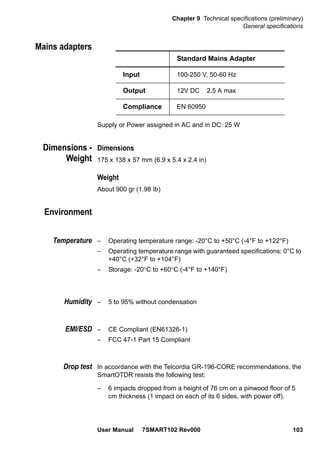
Mains adapters . . . . . . . . . . . . . . . . . . . . . . . . . . . . . . .103
Dimensions - Weight . . . . . . . . . . . . . . . . . . . . . . . . . . .103
Environment . . . . . . . . . . . . . . . . . . . . . . . . . . . . . . . . .103
Temperature . . . . . . . . . . . . . . . . . . . . . . . . . . . . . .103
Humidity . . . . . . . . . . . . . . . . . . . . . . . . . . . . . . . . .103
EMI/ESD. . . . . . . . . . . . . . . . . . . . . . . . . . . . . . . . .103
Drop test. . . . . . . . . . . . . . . . . . . . . . . . . . . . . . . . .103
Shocks . . . . . . . . . . . . . . . . . . . . . . . . . . . . . . . . . .104
Bumps . . . . . . . . . . . . . . . . . . . . . . . . . . . . . . . . . .104
Vibration . . . . . . . . . . . . . . . . . . . . . . . . . . . . . . . . .104
Flammability . . . . . . . . . . . . . . . . . . . . . . . . . . . . . .104
Characteristics of the Source (standard) and Power Meter
(optional). . . . . . . . . . . . . . . . . . . . . . . . . . . . . . . . . . . . . .104
Source . . . . . . . . . . . . . . . . . . . . . . . . . . . . . . . . . . . . .104
Power meter (through OTDR port). . . . . . . . . . . . . . . . . .104
Characteristics of the options . . . . . . . . . . . . . . . . . . . . .105
VFL . . . . . . . . . . . . . . . . . . . . . . . . . . . . . . . . . . . . . . .105
Bluetooth and WIFI . . . . . . . . . . . . . . . . . . . . . . . . . . . .105
Characteristics of the OTDR. . . . . . . . . . . . . . . . . . . . . . .105
OTDR Optical Interfaces . . . . . . . . . . . . . . . . . . . . . . . .105
OTDR Optical characteristics . . . . . . . . . . . . . . . . . . . . .105
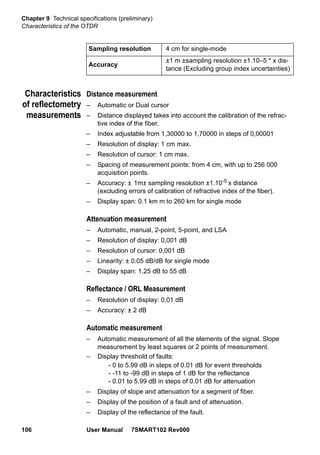
Characteristics of reflectometry measurements. . . . . . . . .106
Manual Measurement . . . . . . . . . . . . . . . . . . . . . . . .107
Typical specifications . . . . . . . . . . . . . . . . . . . . . . . . . . .107
Chapter 10 Options and accessories 109
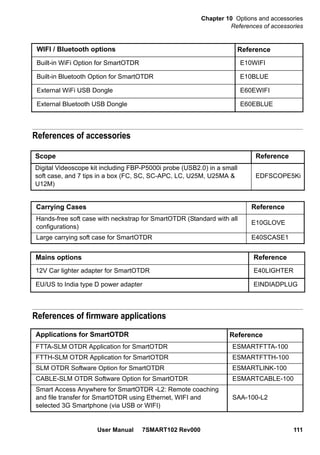
References of the SmartOTDR . . . . . . . . . . . . . . . . . . . . .110
References of accessories . . . . . . . . . . . . . . . . . . . . . . . . 111
References of firmware applications . . . . . . . . . . . . . . . . 111
Chapter 11 Maintenance and Troubleshooting 113
Maintenance procedure . . . . . . . . . . . . . . . . . . . . . . . . . .114
Cleaning. . . . . . . . . . . . . . . . . . . . . . . . . . . . . . . . . . . .114
Cleaning plates and housings . . . . . . . . . . . . . . . . . . .114
Cleaning the screen . . . . . . . . . . . . . . . . . . . . . . . . .114
Cleaning the optical cable connector . . . . . . . . . . . . . .114
Cleaning the optical connections of the SmartOTDR . . . .115
Table of Contents
User Manual 7SMART102 Rev000 xiii
Accessing to the SmartOTDR information . . . . . . . . . . . .115
General page. . . . . . . . . . . . . . . . . . . . . . . . . . . . . .115
Software options page. . . . . . . . . . . . . . . . . . . . . . . .116
Services Data page. . . . . . . . . . . . . . . . . . . . . . . . . .116
Installing a new version of the software . . . . . . . . . . . . . .117
Downloading from Internet . . . . . . . . . . . . . . . . . . . . .117
Installation from JDSU Server . . . . . . . . . . . . . . . . . . .117
Installation from another server . . . . . . . . . . . . . . . . . .119
Installation from a USB memory stick . . . . . . . . . . . . . .120
Launching the upgrade . . . . . . . . . . . . . . . . . . . . . . .121
Checking new upgrade on JDSU Server. . . . . . . . . . . .122
Upgrading from the boot . . . . . . . . . . . . . . . . . . . . . .122
Install Software License . . . . . . . . . . . . . . . . . . . . . . . . .123
Enter Manually the Licence . . . . . . . . . . . . . . . . . . . .124
Import the license from the USB memory stick . . . . . . . .124
Locking the SmartOTDR . . . . . . . . . . . . . . . . . . . . . . . .125
Returning an instrument . . . . . . . . . . . . . . . . . . . . . . . . .126
Guarantee conditions. . . . . . . . . . . . . . . . . . . . . . . . . . .126
Recycling Information . . . . . . . . . . . . . . . . . . . . . . . . . . .127
Troubleshooting . . . . . . . . . . . . . . . . . . . . . . . . . . . . . . . .127
Interpreting alarms. . . . . . . . . . . . . . . . . . . . . . . . . . . . .127
Formatting the USB memory stick onto the SmartOTDR . .128
Erase disk. . . . . . . . . . . . . . . . . . . . . . . . . . . . . . . . . . .129
Changing the battery . . . . . . . . . . . . . . . . . . . . . . . . . . .129
Accessing to the damaged battery. . . . . . . . . . . . . . . .129
Installing a new battery . . . . . . . . . . . . . . . . . . . . . . .130
General information on warranty . . . . . . . . . . . . . . . . . . .131
Hardware Warranty . . . . . . . . . . . . . . . . . . . . . . . . . . . .131
Warranty disclaimer . . . . . . . . . . . . . . . . . . . . . . . . . . . .132
Index 133
Table of Contents
xiv User Manual 7SMART102 Rev000
User Manual 7SMART102 Rev000 xv
About This Guide
The SmartOTDR of JDSU provides a handheld OTDR designed for the
construction, turn-up and maintenance of fiber networks.
The topics discussed in this chapter are as follows:
– “Purpose and scope” on page xvi
– “Assumptions” on page xvi
– “Technical assistance” on page xvi
– “Conventions” on page xvii
About This Guide
Purpose and scope
xvi User Manual 7SMART102 Rev000
Purpose and scope
The purpose of this guide is to help you successfully use the SmartOTDR
features and capabilities. This guide includes task-based instructions
that describe how to install, configure, use, and troubleshoot the Smart-
OTDR.
Additionally, this guide provides a complete description of JDSU’s
warranty, services, and repair information, including terms and condi-
tions of the licensing agreement.
Assumptions
This guide is intended for novice, intermediate, and experienced users
who want to use the SmartOTDR effectively and efficiently. We are
assuming that you have basic computer and mouse/track ball experience
and are familiar with basic telecommunication concepts and terminology.
Technical assistance
If you need assistance or have questions related to the use of this
product, call or e-mail JDSU’s Technical Assistance Center for customer
support.
Table 1 Technical assistance centers
Region Phone Number
Americas
Telecom Products
866 228 3762
World Wide: 301 353 1550
tac@jdsu.com
Europe, Africa, and
Mid-East
+49 (0) 7121 86 1345
(Europe)
hotline.europe@jdsu.com
+33 (0) 1 30 81 50 60
(JDSU France)
support.france@jdsu.com
Asia and the Pacific
Southeast Asia, Aus-
tralia, and New Zea-
land
+852 2892 0990
(Hong Kong)
+86 10 6833 7477
(Beijing-China)
All others 866 228 3762 tac@jdsu.com
About This Guide
Conventions
User Manual 7SMART102 Rev000 xvii
During off-hours, you can request assistance by doing one of the
following:
– leave a voice mail message at the Technical Assistance number in
your region
– e-mail North American Technical Assistance Center, tac@jdsu.com,
or European Technical Assistance Center, support.uk@jdsu.com
– submit your question using our online Technical Assistance Request
form at www.jdsu.com.
Conventions
This guide uses naming conventions and symbols, as described in the
following tables.
Table 2 Typographical conventions
Description Example
User interface actions appear in
this typeface.
On the Status bar, click Start.
Buttons or switches that you
press on a unit appear in this
TYPEFACE.
Press the ON switch.
Code and output messages
appear in this typeface.
All results okay
Text you must type exactly as
shown appears in this type-
face.
Type: a:set.exe in the dia-
log box
Variables appear in this type-
face.
Type the new hostname
Book references appear in this
typeface.
Refer to Newton’s Telecom
Dictionary
A vertical bar | means “or”: only
one option can appear in a sin-
gle command.
platform [a|b|e]
Square brackets [ ] indicate an
optional argument.
login [platform name]
Slanted brackets < > group
required arguments.
<password>
About This Guide
Conventions
xviii User Manual 7SMART102 Rev000
Table 4 Symbol conventions
Table 5 Safety definitions
Table 3 Keyboard and menu conventions
Description Example
A plus sign + indicates simulta-
neous keystrokes.
Press Ctrl+s
A comma indicates consecutive
key strokes.
Press Alt+f,s
A slanted bracket indicates
choosing a submenu from
menu.
On the menu bar, click
Start > Program Files.
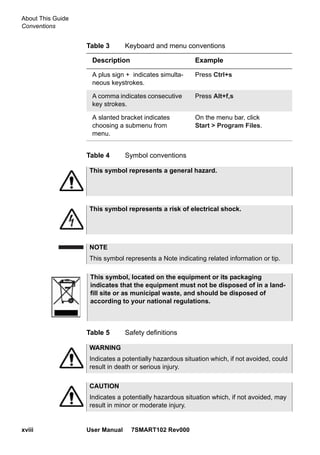
This symbol represents a general hazard.
This symbol represents a risk of electrical shock.
NOTE
This symbol represents a Note indicating related information or tip.
This symbol, located on the equipment or its packaging
indicates that the equipment must not be disposed of in a land-
fill site or as municipal waste, and should be disposed of
according to your national regulations.
WARNING
Indicates a potentially hazardous situation which, if not avoided, could
result in death or serious injury.
CAUTION
Indicates a potentially hazardous situation which, if not avoided, may
result in minor or moderate injury.
1
User Manual 7SMART102 Rev000 1
Chapter 1 Safety information
This chapter gives the main information on the safety conditions when
using the SmartOTDR:
– “Battery and AC/DC safety information” on page 2
– “Precautions relating to optical connections” on page 2
– “Laser Safety instructions” on page 3
Chapter 1 Safety information
Battery and AC/DC safety information
2 User Manual 7SMART102 Rev000
Battery and AC/DC safety information
– The Li-Polymer battery is designed for maximum safety.
In particular, each cell is provided with a safety valve to prevent exces-
sive internal pressure in the event of overcharging or exposure to very
high temperatures.
– Battery supplied by JDSU incorporate protection means.
Do not use any mains adaptor or battery other than those supplied with
the instrument, or supplied by JDSU as an option for this instrument.
If another adapter or battery is used, it may damage the SmartOTDR
itself.
Using the SmartOTDR with a battery other than the one supplied by the
manufacturer of the SmartOTDR may entail risks of fire or explosion.
The battery may explode, leak or catch fire:
– if it is exposed to high temperature or fire
– if it is opened or dismantled.
Other basic safety precautions are as follows:
– Do not use AC/Adapter/Charger outdoors or in wet or damp loca-
tions
– Connect the AC/Adapter/Charger to the correct mains voltage, as
indicated on the ratings label.
– Do not allow anything to rest on the power cord, and do not locate
the product where people can walk on the power cord.
– Avoid using this product during an electrical storm. There may be a
remote risk of electric chock from lightning.
– Do not use this product in the vicinity of a gas leak or in any explo-
sive environment.
– Do not attempt to service this product yourself, as opening or
removing covers may expose you to dangerous, high voltage points
and other hazards. Contact qualified service personnel for all
service.
Precautions relating to optical connections
– The normal operating life of an optical connector is usually of the
order of a few hundred manipulations. It is then advisable to manip-
ulate the optical connections of the Platform as rarely as possible.
– The proper operation of the instrument and its accuracy of measure-
Chapter 1 Safety information
Laser Safety instructions
User Manual 7SMART102 Rev000 3
ment are dependent on the cleanliness of the environment and the
optical connectors as well as the care taken in its manipulation.
– The optical connectors must therefore be clean and dust-free. If the
optical connection is not being used, protect the connections of
SmartOTDR using the protective caps.
Laser Safety instructions
The provisions contained in two standards define the safety procedures
to be observed both by users and by manufacturers when utilizing laser
products:
– EN 60825-1: 2001 - Safety of laser products – Part 1: Classification
of products, requirements and user guidelines.
– FDA 21 CFR § 1040.10 - Performance standards for light-emitting
products - Laser products.
Due to the range of possible wavelengths, power values and injection
characteristics of a laser beam, the risks inherent in its usage vary. The
laser classes form groups representing different safety thresholds.
Laser classes Standards EN 60825-1, Edition 1.2, 2001-08 and FDA21CFR§1040.10:
– VFL option: Class 2.
Warning labels
for the laser
classes
Due to the reduced dimensions of the optical modules, it is not possible
to attach the required warning labels to them. In line with the provisions
of Article 5.1 of the EN 60825-1 standard, the laser class identification
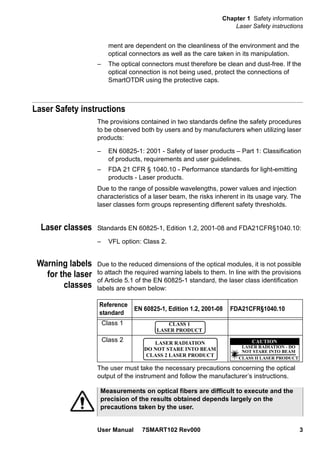
labels are shown below:
The user must take the necessary precautions concerning the optical
output of the instrument and follow the manufacturer’s instructions.
Reference
standard
EN 60825-1, Edition 1.2, 2001-08 FDA21CFR§1040.10
Class 1
Class 2
CLASS 1
LASER PRODUCT
LASER RADIATION
DO NOT STARE INTO BEAM
CLASS 2 LASER PRODUCT
LASER RADIATION - DO
NOT STARE INTO BEAM
CLASS II LASER PRODUCT
CAUTION
Measurements on optical fibers are difficult to execute and the
precision of the results obtained depends largely on the
precautions taken by the user.
Chapter 1 Safety information
Laser Safety instructions
4 User Manual 7SMART102 Rev000
2
User Manual 7SMART102 Rev000 5
Chapter 2 Introducing the SmartOTDR
mainframe
This chapter provides a general description of the SmartOTDR.
Topics discussed in this chapter include the following:
– “Unpacking the instrument” on page 6
– “Main features” on page 6
– “Hard keys and Indicators” on page 8
– “Power Supply” on page 10
Chapter 2 Introducing the SmartOTDR mainframe
Unpacking the instrument
6 User Manual 7SMART102 Rev000
Unpacking the instrument
1 Remove the SmartOTDR and its accessories from the packing
case.
2 Check that the correct model and accessories ordered are all there.
If any part is missing or damaged please contact your local JDSU agent.
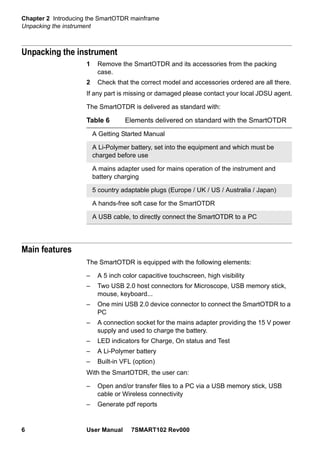
The SmartOTDR is delivered as standard with:
Main features
The SmartOTDR is equipped with the following elements:
– A 5 inch color capacitive touchscreen, high visibility
– Two USB 2.0 host connectors for Microscope, USB memory stick,
mouse, keyboard...
– One mini USB 2.0 device connector to connect the SmartOTDR to a
PC
– A connection socket for the mains adapter providing the 15 V power
supply and used to charge the battery.
– LED indicators for Charge, On status and Test
– A Li-Polymer battery
– Built-in VFL (option)
With the SmartOTDR, the user can:
– Open and/or transfer files to a PC via a USB memory stick, USB
cable or Wireless connectivity
– Generate pdf reports
Table 6 Elements delivered on standard with the SmartOTDR
A Getting Started Manual
A Li-Polymer battery, set into the equipment and which must be
charged before use
A mains adapter used for mains operation of the instrument and
battery charging
5 country adaptable plugs (Europe / UK / US / Australia / Japan)
A hands-free soft case for the SmartOTDR
A USB cable, to directly connect the SmartOTDR to a PC
Chapter 2 Introducing the SmartOTDR mainframe
Main features
User Manual 7SMART102 Rev000 7
– Open all user documentations included into the SmartOTDR
– Update the SmartOTDR firmware
– Remote the screen of the SmartOTDR onto a PC and issue
commands from the keyboard of the PC
– ...
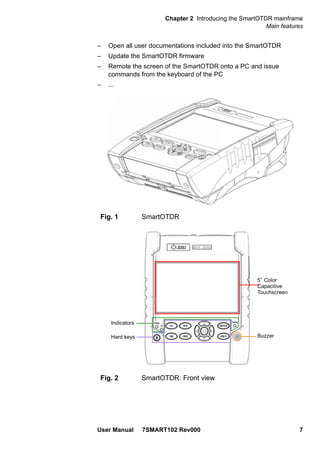
Fig. 1 SmartOTDR
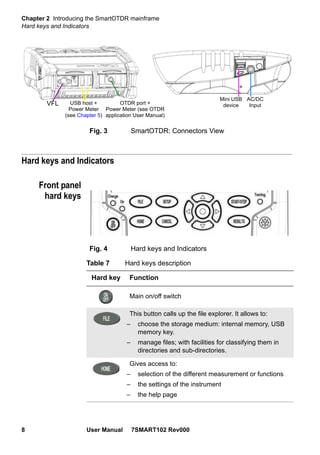
Fig. 2 SmartOTDR: Front view
Hard keys
Indicators
Buzzer
5’’ Color
Capacitive
Touchscreen
Chapter 2 Introducing the SmartOTDR mainframe
Hard keys and Indicators
8 User Manual 7SMART102 Rev000
Hard keys and Indicators
Front panel
hard keys
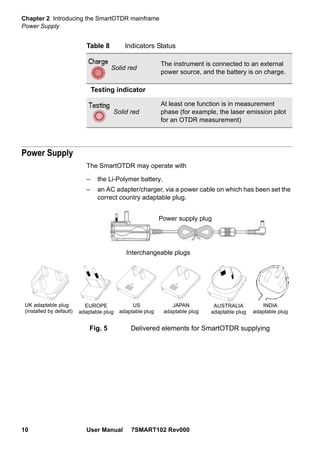
Fig. 3 SmartOTDR: Connectors View
USB host +
Power Meter
(see Chapter 5)
OTDR port +
Power Meter (see OTDR
application User Manual)
VFL
Mini USB
device
AC/DC
Input
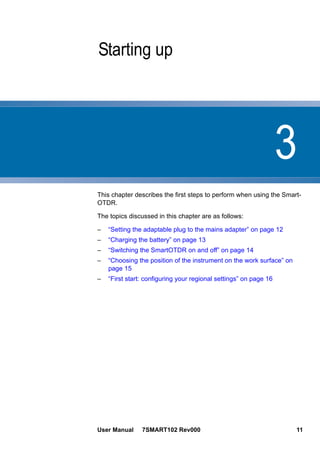
Fig. 4 Hard keys and Indicators
Table 7 Hard keys description
Hard key Function
Main on/off switch
This button calls up the file explorer. It allows to:
– choose the storage medium: internal memory, USB
memory key.
– manage files; with facilities for classifying them in
directories and sub-directories.
Gives access to:
– selection of the different measurement or functions
– the settings of the instrument
– the help page
Chapter 2 Introducing the SmartOTDR mainframe
Hard keys and Indicators
User Manual 7SMART102 Rev000 9
The direction keys have two principal functions:
Front panel
indicators
The SmartOTDR is equipped with three indicators, lit into a different color
according to the status of the unit.
This button calls up the measurement configuration
menu. This menu depends on the function in use.
This button allows to deselect a function or escape a
menu
Starts and stops the measurement.
This button calls up the results page (e.g. with OTDR
module: reflectometry trace and table of results).
Table 7 Hard keys description
Hard key Function
– on the Results page, they are used to move the cursors or
modify the zoom factor.
– on the set-up pages, they are used to scroll through the
menus, the central button serving to select or confirm the
parameter chosen.
Table 8 Indicators Status
On indicator
Blinking green
The instrument, though connected to an
external power source, is switched off.
Solid green
The instrument is operating, either by battery
or on an external power supply.
Charge indicator
Solid green
The instrument is connected to an external
power source and the battery is fully
charged.
Chapter 2 Introducing the SmartOTDR mainframe
Power Supply
10 User Manual 7SMART102 Rev000
Power Supply
The SmartOTDR may operate with
– the Li-Polymer battery.
– an AC adapter/charger, via a power cable on which has been set the
correct country adaptable plug.
Solid red
The instrument is connected to an external
power source, and the battery is on charge.
Testing indicator
Solid red
At least one function is in measurement
phase (for example, the laser emission pilot
for an OTDR measurement)
Table 8 Indicators Status
Fig. 5 Delivered elements for SmartOTDR supplying
Interchangeable plugs
Power supply plug
UK adaptable plug
(installed by default)
EUROPE
adaptable plug
US
adaptable plug
JAPAN
adaptable plug
AUSTRALIA
adaptable plug
INDIA
adaptable plug
3
User Manual 7SMART102 Rev000 11
Chapter 3 Starting up
This chapter describes the first steps to perform when using the Smart-
OTDR.
The topics discussed in this chapter are as follows:
– “Setting the adaptable plug to the mains adapter” on page 12
– “Charging the battery” on page 13
– “Switching the SmartOTDR on and off” on page 14
– “Choosing the position of the instrument on the work surface” on
page 15
– “First start: configuring your regional settings” on page 16
Chapter 3 Starting up
Setting the adaptable plug to the mains adapter
12 User Manual 7SMART102 Rev000
Setting the adaptable plug to the mains adapter
The SmartOTDR is supplied as standard with a mains adapter and 5
country adaptable plugs (Europe / UK / US / Australia/Japan).
To set the correct plug to the mains adapter:
1 Make flush the connector onto the mains adapter with the adaptable
plug slots.
2 Push the adaptable plug until it stops.
Fig. 6 Setting the adaptable plug onto the mains adapter
1
2 3
If the adapter plug is not correctly set onto the mains adapter,
the connector may be damaged.
Chapter 3 Starting up
Charging the battery
User Manual 7SMART102 Rev000 13
Charging the battery
Connecting the
mains adapter
1 Set the appropriate adaptable plug to the power supply cable,
according to your country (see page 12).
2 At the right side of the SmartOTDR, lift up the power supply socket
protector and plug in the mains adapter.
3 Connect the adapter to the mains.
The On indicator lamp starts to blink in green.
First use of the
battery
At the delivery, the battery is already set into the equipment, but its
charge level is not «recognized» by the equipment.
The icon is displayed on the upper banner of the screen.
To get a valid indication of the battery, and be able to use correctly the
Platform:
1 Charge fully the battery
2 Once fully charged, discharge the battery by keeping the Platform
switched on, but not plugged to mains.
3 The battery can then be charged, and the Platform used simultane-
ously.
Charging the
battery
On connection to the mains:
– if the user does not press ON, the battery will start the charge. In this
case, the Charge indicator will be lit in red.
– when the user presses the ON key, the instrument starts up and the
battery will charge during use (Charge indicator in solid red).
Once the battery is fully charged, the Charge indicator is lit in solid green.
When the Charge indicator is blinking red, this mean the power supply is
not compatible with the battery used. Charge is disabled.
Use only the mains adapter supplied with the SmartOTDR. The
adapter for some other electronic device may appear to be
identical, but entails a risk of damage to the SmartOTDR.
It is essential to wait until charging is complete to ensure
maximum independent operating time, which may otherwise be
considerably reduced.
Chapter 3 Starting up
Switching the SmartOTDR on and off
14 User Manual 7SMART102 Rev000
Battery
charging time
If the battery is completely discharged, the time taken to recharge is:
– approximately 5 hours, if the apparatus is not in use (Charge indi-
cator solid red)
– about 10.5 hours if the instrument is used during charging (On indi-
cator lit in fix green, Charge indicator lit in solid red).
Battery charge
level display
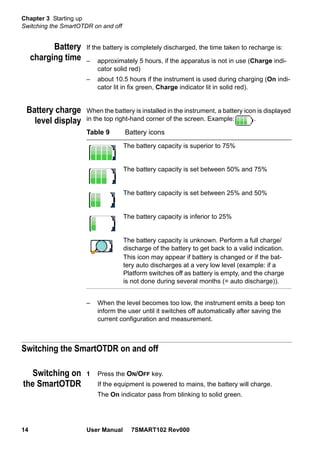
When the battery is installed in the instrument, a battery icon is displayed
in the top right-hand corner of the screen. Example: .
– When the level becomes too low, the instrument emits a beep ton
inform the user until it switches off automatically after saving the
current configuration and measurement.
Switching the SmartOTDR on and off
Switching on
the SmartOTDR
1 Press the ON/OFF key.
If the equipment is powered to mains, the battery will charge.
The On indicator pass from blinking to solid green.
Table 9 Battery icons
The battery capacity is superior to 75%
The battery capacity is set between 50% and 75%
The battery capacity is set between 25% and 50%
The battery capacity is inferior to 25%
The battery capacity is unknown. Perform a full charge/
discharge of the battery to get back to a valid indication.
This icon may appear if battery is changed or if the bat-
tery auto discharges at a very low level (example: if a
Platform switches off as battery is empty, and the charge
is not done during several months (= auto discharge)).
Chapter 3 Starting up
Choosing the position of the instrument on the work surface
User Manual 7SMART102 Rev000 15
The JDSU logo appears on the screen briefly, then an auto test is
carried out.
The equipment is ready to be used once all the applications are
installed.
Switching off
the SmartOTDR
While the SmartOTDR is operating, press the ON/OFF button to switch it
off.
Resetting the
SmartOTDR
If the SmartOTDR freezes, prolonged pressure (about 4 s.) on the ON/
OFF key will reset the instrument.
Choosing the position of the instrument on the work surface
Depending on the conditions of use of the Platform 8000, the instrument
may be placed on a flat surface or held in the hand.
When used on a work surface, the SmartOTDR should be supported on
its stay, which can be set in either of two positions, depending on whether
the user is standing or sitting.
To change the stay from “seated user” position to “standing user” posi-
tion, pull the stand outside of its housing until the stop.
Push the stand to return to «seated user» position.
NOTE
It is possible to switch over from battery to mains operation, or vice
versa, without loss of data.
In the event of an unexpected mains power cut, if there is no
battery, the current results and configuration will not be saved.
Next time the instrument is switched on, it will return to its initial
configuration.
NOTE
When the instrument is switched off using the ON/OFF button, current
results and configuration are saved. Next time the ON/OFF key is
pressed, they are recalled.
Chapter 3 Starting up
First start: configuring your regional settings
16 User Manual 7SMART102 Rev000
First start: configuring your regional settings
Once the SmartOTDR is switched on, the first screen displayed allows to
configure the regional settings.
Those settings will be kept in memory and automatically applied on the
instrument each time it is restarted.
1 Click on Language and select the language to be used for the
equipment.
Fig. 7 SmartOTDR «seated» and «standing» user
positions
Stand
Pull to lift
the stand
Fig. 8 Regional Settings
Chapter 3 Starting up
First start: configuring your regional settings
User Manual 7SMART102 Rev000 17
2 Click on Date and enter the current date, using the numeric keypad
displayed using the menu key Edit Number.
3 Click on Time and enter the current time, using the numeric keypad
displayed using the menu key Edit Number.
The date and time are displayed on the upper right side of the
screen.
4 Click on Date Time Format and configure the following parameters:
– Date format: select one of the option dd/mm/yy or mm/dd/yy.
– Time format: select one of the option 24 hour clock or 12 hour
clock.
5 Once all parameters have been defined, press Exit menu key to
return to System Settings page.
Chapter 3 Starting up
First start: configuring your regional settings
18 User Manual 7SMART102 Rev000
4
User Manual 7SMART102 Rev000 19
Chapter 4 Configuring the SmartOTDR
This chapter describes the operations for configuring the instrument.
The topics discussed in this chapter are as follows:
– “Displaying the System Settings screen” on page 20
– “Defining the screen parameters of the SmartOTDR” on page 20
– “Defining the Automatic shutdown of the SmartOTDR” on page 22
Chapter 4 Configuring the SmartOTDR
Displaying the System Settings screen
20 User Manual 7SMART102 Rev000
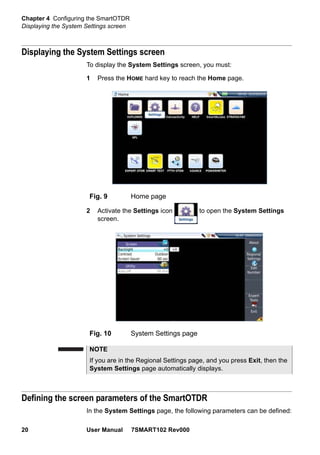
Displaying the System Settings screen
To display the System Settings screen, you must:
1 Press the HOME hard key to reach the Home page.
2 Activate the Settings icon to open the System Settings
screen.
Defining the screen parameters of the SmartOTDR
In the System Settings page, the following parameters can be defined:
Fig. 9 Home page
Fig. 10 System Settings page
NOTE
If you are in the Regional Settings page, and you press Exit, then the
System Settings page automatically displays.
Chapter 4 Configuring the SmartOTDR
Defining the screen parameters of the SmartOTDR
User Manual 7SMART102 Rev000 21
Backlight 1 Click on Backlight
2 Define the backlight level of the screen, using the left and right
direction keys, or clicking on Edit Number softkey and using the
keypad displayed.
– Min backlight level: -5
– Max backlight level: +5
Contrast 1 Click on Contrast
2 Select the type of environment into which the instrument is used:
– Indoor: to be selected when the instrument is used inside (see
Figure 10 on page 20)
– Outdoor: to be selected in order to optimize the readability of
the screen for an outside use.
Screen Saver Click on Screen Saver if you wish to activate a screen saver to the equip-
ment, to extend the life of the battery, in case the SmartOTDR is not used
for some time.
Instead of the normal screen, a small animated picture of the Smart-
OTDR is displayed on the blackened screen.
To configure the screen saver:
1 Click on Delay and select the time of inactivity before the screen
saver starts: 60s, 3 min, 5 min.
The parameter No deactivates the screen saver function.
If the SmartOTDR is operating on battery or , it is advisable to
choose a minimum lighting level, acceptable for the user, to keep
endurance as long as possible.
Fig. 11 Example of indoor contrast
Chapter 4 Configuring the SmartOTDR
Defining the Automatic shutdown of the SmartOTDR
22 User Manual 7SMART102 Rev000
Defining the Automatic shutdown of the SmartOTDR
The automatic shutdown function switches off the SmartOTDR automat-
ically if no operation has been performed and no key actuated for a
period selected from this menu. Work in progress is automatically saved.
1 In the Utility box, click on Auto off parameter.
2 Choose a time after which the SmartOTDR will be switched off auto-
matically, if no action has been done for that period: 5, 10 or 30
minutes.
Select No if the SmartOTDR must not be switched off, even if there is
inactivity on the equipment.
The function for automatically switching off the SmartOTDR is
available only on battery operation, to save the battery.
5
User Manual 7SMART102 Rev000 23
Chapter 5 Power meter & VFL (Visual
Fault Locator)
A variety of built-in optical options are available when ordering. See
references in Chapter 10 “Options and accessories”, for details.
The topics discussed in this chapter are as follows:
– “Connection to the power meter and VFL” on page 24
– “Using the Power meter via USB port” on page 24
– “VFL Function” on page 35
– “Storing and reloading results” on page 36
Chapter 5 Power meter & VFL (Visual Fault Locator)
Connection to the power meter and VFL
24 User Manual 7SMART102 Rev000
Connection to the power meter and VFL
The type of optical connector used for the power meter is UPP (Universal
Push Pull), which is compatible with all diameter 2.5 mm connectors (FC,
SC, ST, DIN, E2000, etc.)
Using the Power meter via USB port
The power meter function is an option chosen at the time of order and
incorporated into the SmartOTDR in the factory.
To activate the function:
1 Press the HOME button
2 Activate the power meter icon of the Mainframe .
The effect of this action will to be to bring the power meter into use
and to display the Results page for Power Meter.
Configuring the
parameters of
the power
meter
The powermeter parameters can be accessed with the SETUP key.
Fig. 12 Optical connectors
Power meter optical
connection via OTDR
port (see OTDR User
Manual)
VFL Power meter optical connec-
tion via USB (see below)
Accuracy of measurements
A high degree of accuracy is often required. It is then necessary to
perform a preliminary calibration without the fiber under test to elimi-
nate the losses due to connections as far as this is possible. To do
this, use the «Reference Value» function.
Chapter 5 Power meter & VFL (Visual Fault Locator)
Using the Power meter via USB port
User Manual 7SMART102 Rev000 25
Configuring the
alarm parameters
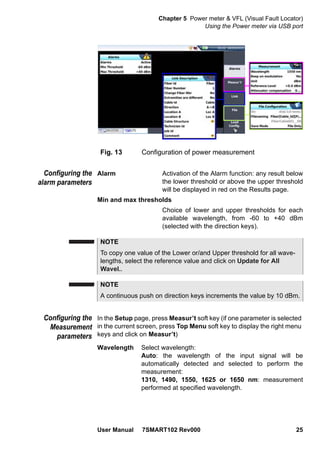
Alarm Activation of the Alarm function: any result below
the lower threshold or above the upper threshold
will be displayed in red on the Results page.
Min and max thresholds
Choice of lower and upper thresholds for each
available wavelength, from -60 to +40 dBm
(selected with the direction keys).
Configuring the
Measurement
parameters
In the Setup page, press Measur’t soft key (if one parameter is selected
in the current screen, press Top Menu soft key to display the right menu
keys and click on Measur’t)
Wavelength Select wavelength:
Auto: the wavelength of the input signal will be
automatically detected and selected to perform the
measurement:
1310, 1490, 1550, 1625 or 1650 nm: measurement
performed at specified wavelength.
Fig. 13 Configuration of power measurement
NOTE
To copy one value of the Lower or/and Upper threshold for all wave-
lengths, select the reference value and click on Update for All
Wavel..
NOTE
A continuous push on direction keys increments the value by 10 dBm.
Chapter 5 Power meter & VFL (Visual Fault Locator)
Using the Power meter via USB port
26 User Manual 7SMART102 Rev000
Beep on modulation
Select if a sound must be heard when a modulation
occurs (Yes / No)
Unit Unit of power displayed:
Watt, dBm for displaying absolute power
dB for displaying a result relative to a reference (link
loss)
Reference level
If dB units were chosen in the previous line, selection of
the reference value for the wavelength selected. Using
the direction keys, first choose the wavelength, then
press the > key to access choice of the value
(+XXX.XX), then confirm this value with the ENTER key.
This reference is also automatically available, in the
Results page, using the Set as Reference key.
Attenuator compensation
Choice of level to be applied to the wavelength chosen
for measurement to compensate for the loss due to the
external attenuator (+XX.XX dB). First use the direction
keys to choose the wavelength, then press to access
choice of value, then confirm this value pressing ENTER.
Configuring the
Link parameters
In the Setup page, press Link soft key (if one parameter is selected in
the current screen, press Top Menu soft key to display the right menu
keys and click on Link).
NOTE
Using MP 60 or MP80 power meter, set manually to Auto the Lambda
to automatically detect the wavelength: in results page, press Power
Config. > Wavelength key multiple times until Auto is displayed.
NOTE
To copy a Reference Level/Attenuator Compensator on all wave-
lengths, select the reference wavelength and click on Update for All
Wavel..
NOTE
The softkey Copy File/Link To all is displayed when one parameter
is selected in the Link or File Setup page and when the Powermeter
or Source function is active.
It allows to apply the Link and File configuration parameters of the
current applications to all the other active Fiber Optic applications
(powermeter and source).
Chapter 5 Power meter & VFL (Visual Fault Locator)
Using the Power meter via USB port
User Manual 7SMART102 Rev000 27
The information entered in the Link Description window concerns the
editing and/or the modifications of the cable and fiber parameters. When
a trace is recalled without recall of the configuration, the parameters of
this trace will be present only in its signature.
Fiber ID
Select the parameter Fiber Id and enter a name for the fiber, using the
edition keypad.
Fiber Number / Fiber Code
The parameter Fiber Number becomes Fiber Code if, in the Cable
Structure window, the Cable Content parameter is defined on another
parameter than Fiber (Ribbon/Fiber, Tube/Fiber or Tube/Ribbon/
Fiber). See page 30.
The fiber code corresponds to the fiber number if, in the Cable Struc-
ture, the parameter Color coding is defined on No.
The fiber code corresponds to the fiber color if, in the Cable Structure,
the parameter Color coding is defined on Yes.
Select the parameter Fiber Number/Fiber Code and modify the param-
eter using the left and right direction keys.
The fiber number can be automatically incremented/decremented at
each new file save if it has been configured in the File Setup page
(see "Change Fiber Nbr" page 28).
NOTE
The Fiber Code and the fiber number concatenated with Fiber Name
are interdependent: they are incremented or decremented at the
same time. However, the fiber number remains a number only, while
the fiber code is alphanumerical. Whether it includes a color code or
not (see "Cable structure" page 29), it may be composed of one, two
or three parts (see figure Table 14 on page 28).
Chapter 5 Power meter & VFL (Visual Fault Locator)
Using the Power meter via USB port
28 User Manual 7SMART102 Rev000
Fig. 14 Example of incrementation of fiber code
Change Fiber Nbr
Increment the fiber number is automatically incremented at each
new file-save.
Decrement the fiber number is automatically decremented at
each new file-save
User defined Use Edit Number softkey to enter the increment/
decrement value for fiber number.
Note: to decrement the number, enter the sign «-» before the
number. Example: -1.
Min: -999 / Max: 999 / Auto: 0
No the Fiber number must not automatically modified.
Extremities are different
In some cases, it is interesting to save different information for the origin
and the extremity of the cable.
If this option is validated, it is possible, after selecting the extremity to be
edited in the Cable Structure menu, to modify the values specific to the
cable (cable name, color coding, content of the coding), for each of these
extremities. See chapter "Cable structure" page 29)
To display/modify the data specific to the fiber (name and code), it is
necessary to change direction temporarily. In the "O->E" direction, the
information on the origin can be edited, and in the "E->O" direction, that
on the extremity.
Cable Id
This parameter allows to enter an identification of the cable, using the
Edition menu.
Fiber and cable parameters used in the example:
Fiber Name: ’Fiberx’
Cable Content: ’Tube/Fiber’
Max Tube: 12
Max Fiber: 24
Coding used for the fiber and the tube: TIA
Fiber N Fiber N+1
Color Code Yes No Yes No
<Fiber Name> Fiberx24 Fiberx24 Fiberx25 Fiberx25
<Fiber Code> Bl/Aq- 1/24 Gold/Bl 2/1
Chapter 5 Power meter & VFL (Visual Fault Locator)
Using the Power meter via USB port
User Manual 7SMART102 Rev000 29
Direction
The direction shows if the acquisition has been made from the origin to
the extremity (A->B) or from the extremity to the origin (B->A). Changing
direction makes it possible, when different extremities are handled, to
see the parameters of the fiber for the other extremity.
Location A
The name of the Location A of the link may be entered here.
Location B
The name of the Location B of the link may be entered here.
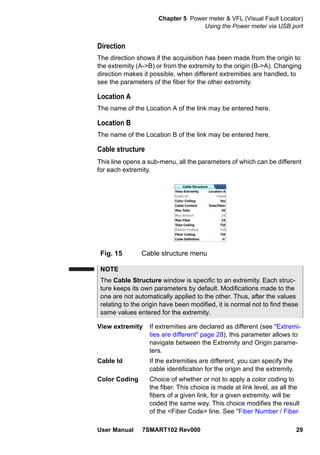
Cable structure
This line opens a sub-menu, all the parameters of which can be different
for each extremity.
View extremity If extremities are declared as different (see "Extremi-
ties are different" page 28), this parameter allows to
navigate between the Extremity and Origin parame-
ters.
Cable Id If the extremities are different, you can specify the
cable identification for the origin and the extremity.
Color Coding Choice of whether or not to apply a color coding to
the fiber. This choice is made at link level, as all the
fibers of a given link, for a given extremity, will be
coded the same way. This choice modifies the result
of the <Fiber Code> line. See "Fiber Number / Fiber
Fig. 15 Cable structure menu
NOTE
The Cable Structure window is specific to an extremity. Each struc-
ture keeps its own parameters by default. Modifications made to the
one are not automatically applied to the other. Thus, after the values
relating to the origin have been modified, it is normal not to find these
same values entered for the extremity.
Chapter 5 Power meter & VFL (Visual Fault Locator)
Using the Power meter via USB port
30 User Manual 7SMART102 Rev000
Code" page 27.
Cable content Shows how the color code is to be used (see figure
"Cable structure menu" page 29):
– Fiber Only the color code of the fiber is proposed
(example: «Gold»)
– Ribbon/Fiber The color code of the fiber is preceded by that
of the ribbon, and separated by a ’/’ (example:
’Bl/Or’)
– Tube/Fiber The color code of the fiber is preceded by that
of the tube, and separated by a ’/’ (example: ’Br/
Or’)
– Tube/Ribbon/Fiber
The color code of the fiber is preceded by that
of the tube, then by that of the ribbon; the three
being separated by a ’/’ (example: ’Br/Bl/Or’).
See "Fiber Number / Fiber Code" page 27.
Max tube Shows the maximum number of tubes in the cable for
the extremity selected. This information influences
the automatic coding of the fiber. See "Fiber Number /
Fiber Code" page 27.
Max ribbon Shows the maximum number of ribbons in the cable
for the extremity selected. This information influences
the automatic coding of the fiber. See "Fiber Number /
Fiber Code" page 27.
Max fiber Shows the maximum number of fibers in the cable for
the extremity selected. This information influences
the automatic coding of the fiber. See "Fiber Number /
Fiber Code" page 27.
Tube Coding, Ribbon Coding, Fiber Coding
The lines Tube Coding, Ribbon Coding and Fiber
Coding enable selection of the color coding of the
tube, the ribbon and the fiber from 5 different codes
described below: TIA, USER 1, USER 2, USER 3 and
USER 4.
Code Definition The Code Definition line opens a sub-menu, with
which the different color codes possible on the instru-
ment can be displayed and modified.
NOTE
Some parameters are not valid in the configuration selected. Thus, if
no tube is selected in Cable Content, all the lines relating to the tube
concept will be deactivated (grayed out in the menu).
Chapter 5 Power meter & VFL (Visual Fault Locator)
Using the Power meter via USB port
User Manual 7SMART102 Rev000 31
Five different codes can be managed by the SmartOTDR, including a
standard code.
The standard code (TIA) may be displayed but it cannot be modified.
The other codes, called by default USER1, USER2, USER3 and USER4,
can be entirely personalized.
– Edited code selects the code for display or modification.
– Code name to give a new name to the code selected, press
the key, which calls up the edit menu.
– View codes displays the color codes 1 to 12, 13 to 24 or 25
to 36.
– Code 1...23 Use the arrow to modify the codes if neces-
sary.
Operator
Use the arrow to enter the name of the operator carrying out the
measurement.
Comment
In contrast to the other data in this menu, the comment is specific to a
fiber. This line is thus used to enter a new comment and not to display it.
The comment appears at the top of the screen, with the other parameters
of the fiber.
This comment will remain available for the next acquisition, unless it is
deleted. It is also saved when a trace is saved with a comment.
Configuring the
File parameters
The File storage parameters must be also configured, in order to define
how the results will be saved on to the SmartOTDR.
In the Setup page, press File soft key (if one parameter is selected in the
current screen, press Top Menu soft key to display the right menu keys
and click on File).
Dir
This parameter cannot be configured, and display the directory selected
by default into which the file(s) will be saved (the last directory selected).
To modify the directory, go to the Explorer page and select another
directory.
Filenaming
Select Filenaming parameter and press the right arrow key to modify the
name of the file for the result trace.
Chapter 5 Power meter & VFL (Visual Fault Locator)
Using the Power meter via USB port
32 User Manual 7SMART102 Rev000
In the edition keypad, enter a name manually for the file and/or use
the predefined parameters available (Cable_Id, Fiber_Num...).
Then, press Enter to validate.
or
Press Default Filename to apply the name by default to the file:
Fiber[Cable_Id][Fiber_Num]_[Lambda]_[Direction]
The name of the file is displayed in grey under Filenaming parameter
Save Mode
When a trace or more is displayed, in the parameter Save Mode, you can
select three types of methods for storing traces:
File Only only the trace(s) is/are stored in one/several file(s),
with its extension (.sor, .msor)
File + txt the trace(s) is/are stored in one/several file(s), with its
extension and one txt file is also generated.
Display of
results and
commands
The results page called up by the RESULTS button, gives the information
relating to the measurement in progress, results previously saved and
the commands available for measurement and saving.
Result of the
measurement in
progress
The power measured by the power meter is displayed in large charac-
ters, in the units selected in the SETUP menu, together with:
– the mode of transmission of the signal measured: continuous (CW)
or modulated to a frequency of 270Hz, 330Hz, 1KHz, or 2KHz.
– the wavelength of the signal measured.
– the reference level expressed in dB.
– the level of Attenuation Compensation.
Fig. 16 Filenaming - Edition keypad
Predefined
parametersfor
naming files
Chapter 5 Power meter & VFL (Visual Fault Locator)
Using the Power meter via USB port
User Manual 7SMART102 Rev000 33
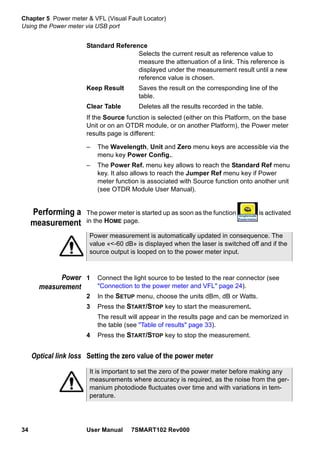
Table of results For one and the same fiber, the power meter displays a table of 9 results
corresponding to the different possible wavelengths. The first 4 results
are displayed on the screen; to scroll through the other results, use the
direction key or touchscreen. The table shows the power measured
in dBm, the relative power (in dB) and the reference level in dBm (if units
= dB), together with the mode.
– A measurement result is displayed in the table when the Keep
Result soft key is pressed.
– The Clear Table soft key orders deletion of all the results displayed
in the table.
– If the Alarm function has been activated, any result that exceeds the
selected thresholds appears in red in the table. Otherwise, results
are shown in the table in green.
– When the instrument is switched off, results present in the table are
saved.
Commands of the
power meter
parameters
When the Powermeter function is selected, the following softkeys are
available on the results page:
The different configuration buttons are displayed:
Wavelength selection of the wavelength
Unit choice of the unit
Zero Adjustment of the Zero value when the power meter’s
optical input is closed with a plug (a validation is
required).
On the results page, the following actions are available:
Fig. 17 Results and commands of the power meter
Results of the
powermeter
Chapter 5 Power meter & VFL (Visual Fault Locator)
Using the Power meter via USB port
34 User Manual 7SMART102 Rev000
Standard Reference
Selects the current result as reference value to
measure the attenuation of a link. This reference is
displayed under the measurement result until a new
reference value is chosen.
Keep Result Saves the result on the corresponding line of the
table.
Clear Table Deletes all the results recorded in the table.
If the Source function is selected (either on this Platform, on the base
Unit or on an OTDR module, or on another Platform), the Power meter
results page is different:
– The Wavelength, Unit and Zero menu keys are accessible via the
menu key Power Config..
– The Power Ref. menu key allows to reach the Standard Ref menu
key. It also allows to reach the Jumper Ref menu key if Power
meter function is associated with Source function onto another unit
(see OTDR Module User Manual).
Performing a
measurement
The power meter is started up as soon as the function is activated
in the HOME page.
Power
measurement
1 Connect the light source to be tested to the rear connector (see
"Connection to the power meter and VFL" page 24).
2 In the SETUP menu, choose the units dBm, dB or Watts.
3 Press the START/STOP key to start the measurement.
The result will appear in the results page and can be memorized in
the table (see "Table of results" page 33).
4 Press the START/STOP key to stop the measurement.
Optical link loss Setting the zero value of the power meter
Power measurement is automatically updated in consequence. The
value «<-60 dB» is displayed when the laser is switched off and if the
source output is looped on to the power meter input.
It is important to set the zero of the power meter before making any
measurements where accuracy is required, as the noise from the ger-
manium photodiode fluctuates over time and with variations in tem-
perature.
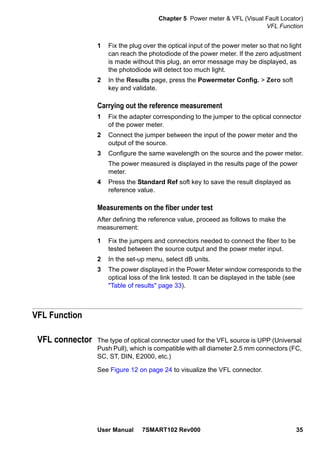
Chapter 5 Power meter & VFL (Visual Fault Locator)
VFL Function
User Manual 7SMART102 Rev000 35
1 Fix the plug over the optical input of the power meter so that no light
can reach the photodiode of the power meter. If the zero adjustment
is made without this plug, an error message may be displayed, as
the photodiode will detect too much light.
2 In the Results page, press the Powermeter Config. > Zero soft
key and validate.
Carrying out the reference measurement
1 Fix the adapter corresponding to the jumper to the optical connector
of the power meter.
2 Connect the jumper between the input of the power meter and the
output of the source.
3 Configure the same wavelength on the source and the power meter.
The power measured is displayed in the results page of the power
meter.
4 Press the Standard Ref soft key to save the result displayed as
reference value.
Measurements on the fiber under test
After defining the reference value, proceed as follows to make the
measurement:
1 Fix the jumpers and connectors needed to connect the fiber to be
tested between the source output and the power meter input.
2 In the set-up menu, select dB units.
3 The power displayed in the Power Meter window corresponds to the
optical loss of the link tested. It can be displayed in the table (see
"Table of results" page 33).
VFL Function
VFL connector The type of optical connector used for the VFL source is UPP (Universal
Push Pull), which is compatible with all diameter 2.5 mm connectors (FC,
SC, ST, DIN, E2000, etc.)
See Figure 12 on page 24 to visualize the VFL connector.
Chapter 5 Power meter & VFL (Visual Fault Locator)
Storing and reloading results
36 User Manual 7SMART102 Rev000
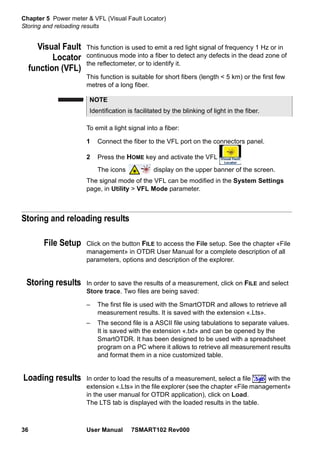
Visual Fault
Locator
function (VFL)
This function is used to emit a red light signal of frequency 1 Hz or in
continuous mode into a fiber to detect any defects in the dead zone of
the reflectometer, or to identify it.
This function is suitable for short fibers (length < 5 km) or the first few
metres of a long fiber.
To emit a light signal into a fiber:
1 Connect the fiber to the VFL port on the connectors panel.
2 Press the HOME key and activate the VFL
The icons display on the upper banner of the screen.
The signal mode of the VFL can be modified in the System Settings
page, in Utility > VFL Mode parameter.
Storing and reloading results
File Setup Click on the button FILE to access the File setup. See the chapter «File
management» in OTDR User Manual for a complete description of all
parameters, options and description of the explorer.
Storing results In order to save the results of a measurement, click on FILE and select
Store trace. Two files are being saved:
– The first file is used with the SmartOTDR and allows to retrieve all
measurement results. It is saved with the extension «.Lts».
– The second file is a ASCII file using tabulations to separate values.
It is saved with the extension «.txt» and can be opened by the
SmartOTDR. It has been designed to be used with a spreadsheet
program on a PC where it allows to retrieve all measurement results
and format them in a nice customized table.
Loading results In order to load the results of a measurement, select a file with the
extension «.Lts» in the file explorer (see the chapter «File management»
in the user manual for OTDR application), click on Load.
The LTS tab is displayed with the loaded results in the table.
NOTE
Identification is facilitated by the blinking of light in the fiber.
6
User Manual 7SMART102 Rev000 37
Chapter 6 Scope
The scope function is a hot-plug feature enabled directly when inserting
a JDSU scope supplied as an accessory (see Chapter 10):
The topics discussed in this chapter are as follows:
– “Scope feature” on page 38
– “Installation of tips” on page 38
– “Configuring the P5000i Scope” on page 39
– “Starting up with the scope” on page 43
– “Launching a test of the connector and fiber end-face” on page 44
– “File menu” on page 48
Chapter 6 Scope
Scope feature
38 User Manual 7SMART102 Rev000
Scope feature
Overview This feature enables you to verify that your optical connectors are in
perfect shape and very clean condition.
The P5000i Digital Probe Microscope is a portable handheld microscope
used to view and inspect both the bulkhead (female) and patch cord
(male) sides of fiber connectors as well as other optical devices, such as
transceivers.
The P5000i requires an FBPT inspection tip and is connected to the
SmartOTDR with a USB 2.0 connector.
Installation of tips
The Pass/Fail analysis function on the SmartOTDR can only be used
with certain inspection tips mounted on the P5000i.
Seven tips, patchcords and bulkheads types, are delivered with the
Videoscope Kit (EDFSCOPE5KI) but many others can be used.
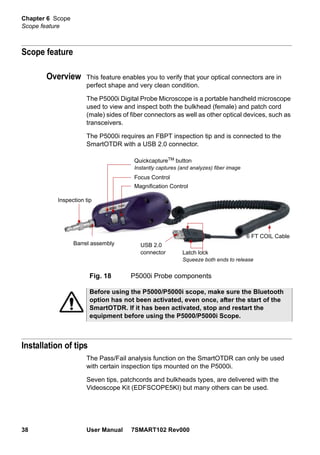
Fig. 18 P5000i Probe components
QuickcaptureTM button
Instantly captures (and analyzes) fiber image
Focus Control
Latch lock
Squeeze both ends to release
Barrel assembly USB 2.0
connector
6 FT COIL Cable
Inspection tip
Magnification Control
Before using the P5000/P5000i scope, make sure the Bluetooth
option has not been activated, even once, after the start of the
SmartOTDR. If it has been activated, stop and restart the
equipment before using the P5000/P5000i Scope.
Chapter 6 Scope
Configuring the P5000i Scope
User Manual 7SMART102 Rev000 39
Configuring the P5000i Scope
Scope
connection
1 Plug in your JDSU scope into a USB port from the SmartOTDR.
2 Push the button Home
3 Validate the Scope function .
4 Connect probe with the fiber being inspected.
You may select this option while other options are already selected (e.g.
OTDR).
Configuring the
Scope
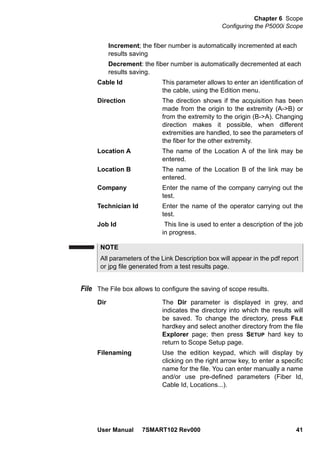
1 Press SETUP key to configure the test.
The following screen displays:
Analysis Profile
On the line Profile, select the Profile which will be used for the test of
fiber connector:
– SM_UPC: Pass/Fail criteria for single-mode UPC connectors from
IEC 61300-3-35 standard.
– SM_APC: Pass/Fail criteria for singlemode APC connectors from
IEC 61300-3-35 standard.
– SM_PC: Pass/Fail criteria for singlemode PC connectors from IEC
61300-3-35 standard.
– MM_: Pass/Fail criteria for multimode connectors from IEC 61300-3-
35 standard.
Fig. 19 P5000i Scope Setup
Chapter 6 Scope
Configuring the P5000i Scope
40 User Manual 7SMART102 Rev000
– Ribbon, SM_APC: Pass/Fail criteria for ribbon singlemode APC
connectors
Profiles contain the analysis parameters by which PASS/FAIL criteria are
determined.
Once the line is selected, you can also add a new profile, clicking on the
Add Button (see “Adding a new profile” on page 42).
Tip
On the line Tip, select the tip set onto the scope to connect fiber for
inspection.
Capture button
This parameter allows to select the action of the Quick Capture button
onto the Scope (see Figure 18 on page 38):
Freeze & Test pressing the button will automatically perform a
test of fiber and freeze the result
Freeze image pressing the button onto the Scope will
automatically freeze the live image.
Auto Center
This parameter allows to select if the scope image must be centered on
screen (select Yes) or not (select No).
Advanced focus
This parameter allows to define if the advanced focus must be used
(Yes) or not (No).
Link In the Setup page, press Link softkey (if one parameter is selected in the
current screen, press Top Menu soft key to display the right menu keys
and click on Link).
The information entered in the Link window concerns the editing and/or
the modifications of the cable and fiber parameters.
Fiber Id Use the edition keypad, which will display by
clicking on the right arrow key, to enter a specific
name for the fiber.
Fiber Number Use the numeric keypad, which will display by
clicking on the right arrow key, to enter the fiber
number.
Change fiber Nbr Select if the fiber number must be modified after
each results saving:
No: the fiber number is not modified at each saving
Chapter 6 Scope
Configuring the P5000i Scope
User Manual 7SMART102 Rev000 41
Increment; the fiber number is automatically incremented at each
results saving
Decrement: the fiber number is automatically decremented at each
results saving.
Cable Id This parameter allows to enter an identification of
the cable, using the Edition menu.
Direction The direction shows if the acquisition has been
made from the origin to the extremity (A->B) or
from the extremity to the origin (B->A). Changing
direction makes it possible, when different
extremities are handled, to see the parameters of
the fiber for the other extremity.
Location A The name of the Location A of the link may be
entered.
Location B The name of the Location B of the link may be
entered.
Company Enter the name of the company carrying out the
test.
Technician Id Enter the name of the operator carrying out the
test.
Job Id This line is used to enter a description of the job
in progress.
File The File box allows to configure the saving of scope results.
Dir The Dir parameter is displayed in grey, and
indicates the directory into which the results will
be saved. To change the directory, press FILE
hardkey and select another directory from the file
Explorer page; then press SETUP hard key to
return to Scope Setup page.
Filenaming Use the edition keypad, which will display by
clicking on the right arrow key, to enter a specific
name for the file. You can enter manually a name
and/or use pre-defined parameters (Fiber Id,
Cable Id, Locations...).
NOTE
All parameters of the Link Description box will appear in the pdf report
or jpg file generated from a test results page.
Chapter 6 Scope
Configuring the P5000i Scope
42 User Manual 7SMART102 Rev000
The line below Filenaming shows the name of the file according to the
parameters entered.
Logo Click on right arrow key and select in the
Explorer a JPG file which will represent the Logo
displayed on the upper left part of the report
Save mode Select if the test results must be saved only in an
Image, only in a pdf Report or in an image + a
pdf report (Image + Report).
Auto Store Select Yes if the saving must be done
automatically after a test, or No if the saving
must not be done automatically.
Adding a new
profile
Once the Setup screen of the scope is displayed, you can add a specific
profile which will be used for the test.
The profile must be created via FiberChek2TM, and stored on one
storage media of the SmartOTDR (disk, or USB memory stick).
1 On the Setup screen, select Profile and press Add key.
2 On the explorer, select the file which will be used as profile (icon
; extension: .PRO)
3 Press Load.
Once loaded, the display goes back automatically to Setup screen.
4 Select the profile just loaded.
Removing a profile
1 In the Profile list, select the profile to be deleted.
2 Press Remove key, then Exit.
About page On the Setup screen, the softkey About, on the right of the screen,
allows to display information on scope and current test result displayed
(in Full Screen mode or mosaic mode - see “Mosaic Mode” on page 46).
Fig. 20 Edition keypad for filenaming
Pre-defined
parameters
for filenaming
Chapter 6 Scope
Starting up with the scope
User Manual 7SMART102 Rev000 43
1 Press About softkey to display a page as the following one:
Starting up with the scope
Once the FiberScope icon is validated:
1 Press RESULTS hard key
Use the Focus Control button onto the P5000i scope (see Figure 18 on
page 38) to adjust the image quality and sharpness.
Fig. 21 P5000i Scope: About page
Information on
scope used
Information on
active snapshot
Fig. 22 Example of the result using the P5000i scope
Sharpness
level
NOTE
To switch from Scope page to FO results page and vice-versa, press
the RESULTS hard key for about 2 seconds (a beep is emitted).
Chapter 6 Scope
Launching a test of the connector and fiber end-face
44 User Manual 7SMART102 Rev000
Freeze mode Once the image is acceptable, you may freeze the picture. This feature
allows to store in memory the resulting picture.
High Mag. / Low
Mag.
The High Mag./Low Mag. menu key allows to switch the display from
High to Low magnification and vice-versa.
This function is also available pressing the button directly on the P5000i
(see Figure 18 on page 38).
Live mode If you are in Freeze mode, or in Mosaic mode, with a picture selected
(see “Mosaic Mode” on page 59), press Live menu key to return to live
camera picture.
Launching a test of the connector and fiber end-face
Launching a
test of the
connector and
fiber end-face
Once the display is correctly adjusted (magnification, sharpness...), a
test of fiber connector can be launched.
To launch the test:
1 Press Test key to launch the test of plugged fiber connector.
The test is completed:
– once the Led Testing is no more lit in red
– once the icon is no more displayed on the upper banner
– once a screen as the following one displays:
Freezing a scope result does not store the picture in a file (see
“File menu” on page 48). The result will be lost if the instrument
is shut off, or if more than 3 pictures are frozen (see “Mosaic
Mode” on page 46)
NOTE
The button set on the lead, or the QuickCapture™ on the P5000i
allows to freeze the picture or to take a snapshot.
Use the focus control to adjust the focus of the image
NOTE
To configure Pass/Fail criteria, see "Configuring the Scope" page 39.
Chapter 6 Scope
Launching a test of the connector and fiber end-face
User Manual 7SMART102 Rev000 45
A summary of test results is displayed on the right, upper part of the
screen.
– Zone A: Core zone: it is the area
surrounding the core
– Zone B: Cladding zone. It surrounds the
majority of the fiber cladding.
– Zone C: Epoxy ring.
– Zone D: Ferrule/Contact zone: it identi-
fies a portion of the ferrule near and
around the fiber
Overlay The Overlay key allows, when selected, to display the limits of each zone
and to display with colors the defaults on the image.
When the key is deselected, the zones and defaults are not graphically
identified.
This function is also available in Mosaic Mode (see “Mosaic Mode” on
page 46).
Fig. 23 Test results
Test result in
High mag.
Profile selected
in the Setup page Summary of
Test results
Zone C
Zone B
Zone A
Zone D
NOTE
To return to a Live Camera image, press the Camera key; or press
the Full Screen/Mosaic key view both the live image and a test result
simultaneously.
In Mosaic mode (see "Mosaic Mode" page 46), the result of the test
only displays Pass or Fail information; the status of each zone is dis-
played only in full screen mode.
Chapter 6 Scope
Launching a test of the connector and fiber end-face
46 User Manual 7SMART102 Rev000
Mosaic Mode It is possible to display only one picture in full screen (640 * 390 pixels)
or up to four pictures (320*180 pixels each, including the live camera
picture) in mosaic mode. Use the key Full scr./Mosaic to switch from
one mode to another.
– You may select one of the pictures by clicking on it.
The selected picture is framed in green.
The tool bar on the right varies according to which picture is selected
(camera, or static picture):
Picture selected: Camera
Test Allows to launch a (new) test of the connector
(see “Launching a test of the connector and
fiber end-face” on page 44)
Freeze The live picture from the camera is frozen but
does not replace the live picture at position 1.
The new snapshot is placed at the second
position, and all existing pictures are pushed to
the next position.
Fig. 24 Mosaic mode
Position 1 :
LIVE CAMERA
Position 2:
File saved on disk
Selected picture
If all positions were taken, the picture that was once at the fourth posi-
tion is unloaded from memory. Frozen pictures and snapshots are
lost, unless they were saved on the internal memory.
Chapter 6 Scope
Launching a test of the connector and fiber end-face
User Manual 7SMART102 Rev000 47
High mag./Low mag. allows to modify the live display from high to
low magnification and vice-versa
Picture selected: Image
Save Image allows to save the selected picture in the
directory Scope, in the disk of the Platfom.
Press Save key, enter a name for the jpg file
and validate. This key is not available with jpg
files other than those resulting from scope
application.
Comment allows to add a comment to the selected
picture (see “Adding a comment” on page 47)
Overlay The Overlay key allows, when selected to
display with colors the defaults on the image.
When the key is deselected, the zones and
defaults are not graphically identified.
High mag./Low mag. allows to switch all the images from scope test
results from high to low magnification and vice-
versa.
Adding a comment
The key Comment allows you to enter/modify a comment to your picture
if necessary. This comment appears at the bottom left of the picture.
The right bottom of the frozen picture also contains the date of the acqui-
sition (where the picture was frozen).
Loading a
picture
It is possible to retrieve and load a picture stored in the Scope directory
and display it in the Scope page.
1 Press the FILE button.
2 Select the JPEG file to be loaded via the Explorer
3 Click on Load
Recognized pictures are images resulting from the Scope option and
saved on disk via the SmartOTDR.
NOTE
Both the comment and the date will be saved with the picture.
Chapter 6 Scope
File menu
48 User Manual 7SMART102 Rev000
Even though the JPG editor of the Scope function has been designed to
display Scope pictures in black & white, it is also possible to open any
JPG valid file and display in color the corresponding picture. That picture
is enlarged or shrunk to the size of the display (full screen or mosaic,
see."Mosaic Mode" page 46).
File menu
Saving the test
result in a jpg
file and / or in a
report
Once the test has been performed, and the result is displayed on the
SmartOTDR screen:
1 Click on Save Image soft key to save a jpg file and / or a pdf report
of the test result on the disk of the SmartOTDR.
2 On the edition keypad, enter the name of the file(s)
3 Press Enter to validate.
The file is automatically saved on the disk, in the directory Scope
(icon for jpg file, icon for report).
Display of the report
Once the report has been generated:
1 Press FILE hard key.
2 On the right menu keys, press Explorer soft key.
3 In the File Explorer, select the pdf report just created.
4 Press Load.
Some pictures resulting from the Scope option may appear
nevertheless unrecognized, if they have been stored with a
different Scope application, or if the JPG file has been opened
and modified under another JPG editor.
Chapter 6 Scope
File menu
User Manual 7SMART102 Rev000 49
Fig. 25 PDF report of Scope test result
Logo, company &
parameters selected in
the Setup page (see
“Configuring the
Scope” on page 39)
Chapter 6 Scope
File menu
50 User Manual 7SMART102 Rev000
7
User Manual 7SMART102 Rev000 51
Chapter 7 Connectivity
This chapter describes the different ways to access to the SmartOTDR
interface or content using different connection modes.
Topics described in this chapter are as follows:
– “Establishing connection” on page 52
– “Remote Control” on page 65
– “Stratasync” on page 83
Chapter 7 Connectivity
Establishing connection
52 User Manual 7SMART102 Rev000
Establishing connection
Via Bluetooth The Bluetooth interface allows interface and file transfers.
It is an option that must be installed at the factory.
Installing the
Bluetooth option
onto the
SmartOTDR
The Bluetooth option is delivered on a USB dongle to be connected to
the board which will be inserted into the SmartOTDR.
To install the Bluetooth option onto the equipment:
1 Switch off the SmartOTDR and, if necessary, unplug it from mains.
2 Remove the cover on the underside of the Platform, unscrewing the
two screws.
If the board is already set into the Platform, follow instructions on
step 4.
3 Insert the board, pressing it gently but firmly, taking care to the
connectors.
The product is approved in accordance to R&TTE directive
concerning transmitter module marked by CE0678. It is
manufactured by MITSUMI and it is an OEM product.
This device complies with Part 15 of the FCC Rules. Operation is
subject to the following two conditions: (1) this device may not
cause harmful interference, and (2) this device must accept any
interference received, including interference that may cause
undesired operation. This device contains FCC-ID: POOWML-
C40.
Fig. 26 View board and connectors
Chapter 7 Connectivity
Establishing connection
User Manual 7SMART102 Rev000 53
4 Insert the Bluetooth into the connector of the board.
5 Screw back the cover onto the Platform
6 Restart the SmartOTDR, pressing ON button.
The Bluetooth option can be launched.
Pairing the
Platform with a
device
1 On the Home page, press Connectivity key
2 Under Connectivity page, select Bluetooth
The following screen displays
3 Press the menu key Bluetooth to enable the Bluetooth inter-
face.
The icon is displayed on the upper banner of the screen
The Paired Bluetooth Devices screen appears
4 Press the Become Pairable soft key to wait for another device to
initiate the connection to the SmartOTDR.
Fig. 27 Bluetooth set into the Platform
An external USB dongle is also available (reference E60EBLUE).
Fig. 28 Bluetooth disabled
Chapter 7 Connectivity
Establishing connection
54 User Manual 7SMART102 Rev000
A screen as the following one displays:
5 Activate Bluetooth on the equipment which need to be paired with
the Platform
6 If you are asked to, enter a pairing code on the equipment.
7 In this case, once the pairing code is validated on the equipment,
enter the same pairing code on the Platform to validate the connec-
tion:
8 Press Enter to validate.
Both equipment are now paired:
Fig. 29 Waiting for pairing
Fig. 30 Enter Pairing code
Chapter 7 Connectivity
Establishing connection
User Manual 7SMART102 Rev000 55
The icon has a blue background when paired with a device ,
versus no background when not paired .
Searching new
devices to be
paired with the
Platform
1 If the desired device is not displayed on the screen, or if no devices
are detected, press the Search Devices soft key.
The SmartOTDR is searching for the devices which could be used
via Bluetooth with the equipment.
A baragraph is displayed during research
Once the research is completed, a list of the available devices is
displayed, with the level of detection of the SmartOTDR
Fig. 31 Platform paired with one equipment
REMINDER
You may need to activate bluetooth on the other device to allow
pairing.
Fig. 32 List of devices found
Chapter 7 Connectivity
Establishing connection
56 User Manual 7SMART102 Rev000
a Select the device to be paired with the Platform
It will be underlined in blue
b Push the Pair key to connect the device to the Platform
2 If prompted, enter a pairing code. The code must be identical on the
SmartOTDR and the device.
3 Once the bluetooth device and the Platform are paired, a screen is
displayed with the description of the device (see Figure 31 on
page 55).
The icon has a blue background when paired with a device ,
versus no background when not paired .
You can now go to the file explorer and transfer files from the Smart-
OTDR toward the bluetooth device and vice versa (see “Transferring files
via Bluetooth” on page 77) or transfer the Platform interface on VNC via
Bluetooth (see “Transferring files to/from a PC via WIFI” on page 78).
Removing the
Pairing
1 To remove the pairing between the two equipments
2 From the Home page, press Connectivity > Bluetooth.
3 Push the Remove pairing key
The icon on the upper banner of the screen becomes showing the
Platform is no more connected to a bluetooth device, but the Bluetooth
option is still active.
To deactivate the bluetooth onto the Platform, press Bluetooth menu key
to disable the interface.
Via Wifi The WIFI application is available on option with the SmartOTDR, ref
E10WIFI.
Installation of the
WIFI option in the
Platform
The WIFI option is delivered on a USB key to be connected to the WIFI
board which will be inserted into the SmartOTDR.
To install the WIFI option onto the Platform:
1 Switch off the SmartOTDR and, if necessary, unplug it from mains.
2 Remove the cover on the underside of the Platform, unscrewing the
two screws.
If the board is already set into the Platform, follow instructions on
step 4.
3 Insert the board, pressing it gently but firmly, taking care to the
connectors.
Chapter 7 Connectivity
Establishing connection
User Manual 7SMART102 Rev000 57
4 Insert the WIFI USB key into the connector of the board.
5 Screw back the cover onto the Platform.
Configuring the
WIFI access
1 Restart the SmartOTDR, pressing ON button.
2 On the Home page, press Connectivity .
The Connectivity page opens.
3 In the new page, select the WIFI icon .
The WIFI Setup screen displays.
4 Press Wireless menu key to enable the Wifi interface.
The icon is displayed on the upper banner.
Fig. 33 View board and connectors
Fig. 34 WIFI USB set into the Platform
An external USB dongle is also available (reference E60EWIFI).
Chapter 7 Connectivity
Establishing connection
58 User Manual 7SMART102 Rev000
Once the Setup screen is displayed, configure the WIFI connection:
5 Press Scan SSID menu key to scan for Service Set Identifiers
(SSIDs) in the area.
6 Wait for the list of SSIDs to be displayed.
7 Select the desired network to connect to.
8 Press Select menu key to validated the connection.
The display goes back to Setup screen.
The SSID parameter is automatically configured with the one
selected.
9 In Encryption parameter, select the type of encryption wished:
None, WEP Static, WPA Personal, WPA Enterprise.
10 According to encryption type selected, enter Login (if any needed)
and Key/Password.
Fig. 35 WIFI Setup screen
Fig. 36 List of SSIDs found
Chapter 7 Connectivity
Establishing connection
User Manual 7SMART102 Rev000 59
11 In the AutoConnect parameter, select if the connection to SSID
selected must be done automatically (On) or not (Off).
Connection to
SSID
Once configuration is valid, connect the SmartOTDR to the Wireless
network:
1 In the Setup screen, press Connect SSID menu key.
or
If AutoConnect is defined to On, the connection is launched auto-
matically.
Once association of Platform with SSID is established, the icon
becomes to indicate the connection is active.
Configuring the
WIFI mode to
which the Platform
is connected
To work on WIFI with the Platform, configure the 802.11 parameter on
the WIFI Setup screen.
1 Select the mode of connection:
Config 1 to 4 static mode enabling input of the configuration of
4 sites. If this parameter is selected, the following
parameters must be entered:
– Site Name the user can enter the name of the site in the Edit
menu.
– IP Address IP address of the SmartOTDR
– IP Mask address of the mask of the sub-network
– IP Gateway IP address of the machine enabling access
outside the sub-network.
– DNS (Domain Name Server) IP address of the
machine providing the IP address on the basis of
the name
– Domain name name of the local network to which the Smart-
OTDR is connected.
Dynamic in this mode, which requires a DHCP server, the
SmartOTDR requests an IP address from this
server which will be allocated dynamically if
dynamic host configuration is activated on the
local network.
After selecting this mode or after power-on, the
SmartOTDR tries to establish a connection to
NOTE
Login and Password are kept in memory, even if the WIFI is deacti-
vated or the SmartOTDR switch off and restarted.
Chapter 7 Connectivity
Establishing connection
60 User Manual 7SMART102 Rev000
obtain an address from a DHCP server. If for any
reason, this process fails, the SmartOTDR
reverses to static IP address mode with User1 IP
address.
Note the IP address of the Platform, to be able to remote screen on PC
or to transfer files.
2 Configure the Proxy dialog box:
In the Use proxy parameter
– Select No if no proxy is used.
– Select Manual to enter manually the Proxy address
– Select Auto and enter the Pac address.
Via Ethernet The connection between SmartOTDR and the PC can be done directly,
or via a local network.
Connecting the
SmartOTDR and
the PC
1 Connect the SmartOTDR to the PC via an Ethernet cable, using the
USB Ethernet - adapter and an ethernet cable.
2 Make sure the network configuration onto the PC is set to the
Dynamic mode:
Fig. 37 WIFI connection in Dynamic mode
Note IP
Address
Fig. 38 Connection SmartOTDR and PC
Chapter 7 Connectivity
Establishing connection
User Manual 7SMART102 Rev000 61
a Click on Start > Control Panel.
b Double click on Network Connection.
c Double click on Local Area Connection.
d In the dialog box, click on Properties.
e Check the parameter Internet Protocol (TCP/IP) is selected
( ) and click once on it (underlined in blue)
f Click on Properties button.
g On the tab General, check the parameter Obtain an IP address
automatically is selected ( ); if not, click to select it.
h Click on Ok and close all the dialog boxes opened onto the PC.
Configuring the
SmartOTDR via
Ethernet
1 In the Home page, validate the Connectivity icon.
2 In the connectivity page, validate the Ethernet icon
3 In the I/O Interfaces box, configure the following parameters:
Remote Screen
Remote screen = Session or Permanent must be confirmed in both
cases, in the Interface E/S window.
No the screen cannot be remote on to a PC
or on to another SmartOTDR.
Session Mode the Remote screen function is inactive
once the SmartOTDR is switched off.
Permanent Mode the Remote screen function is still active
when the SmartOTDR is switched off and
restarted.
Permanent with password same function as the Permanent mode,
with an access to the equipment via VNC
protected by a password: 42000
Fig. 39 Internet Protocol
Chapter 7 Connectivity
Establishing connection
62 User Manual 7SMART102 Rev000
The password to access VNC can be modified:
1 Click on the menu key Change password.
2 Enter the current password in the Edition keypad and press Enter to
validate.
3 Enter the new password and press Enter to validate.
Ethernet > Mode
Parameters of the local Ethernet network to which the SmartOTDR is
connected:
Config 1 to 4 static mode enabling input of the configuration of
4 sites. If this parameter is selected, the following
parameters must be entered:
– Site Name the user can enter the name of the site in the Edit
menu.
– IP Address IP address of the SmartOTDR
– IP Mask address of the mask of the sub-network
– IP Gateway IP address of the machine enabling access outside
the sub-network.
– DNS1
IP address of the machine providing the IP
address on the basis of the name
– Domain name name of the local network to which the Smart-
OTDR is connected.
Dynamic in this mode, which requires a DHCP server, the
SmartOTDR requests an IP address from this
server which will be allocated dynamically if
dynamic host configuration is activated on the
local network.
After selecting this mode or after power-on, the
SmartOTDR tries to establish a connection to
obtain an address from a DHCP server. If for any
reason, this process fails, the SmartOTDR
reverses to static IP address mode with User1 IP
address.
1.Domain Name Server
NOTE
Once the SmartOTDR is connected to the network, the icon
indicates the connection is working.
Chapter 7 Connectivity
Establishing connection
User Manual 7SMART102 Rev000 63
Proxy > Use proxy
1 Select No if no proxy is used.
2 If Manual has been selected, enter the Proxy Address.
3 If Auto has been selected, enter the Pac Address.
4 Note the IP Address.
5 Wait about 10 seconds the connection is established.
The SmartOTDR Interface can now be transferred onto the PC, or the
internal memory or USB key contents can be transferred on PC.
Via Cloud
Storage
Principle and
prerequisites of
the Cloud Storage
The Cloud storage defined the outsourcing of data on distant servers,
which avoid the data storage on a local workstation.
The cloud storage onto a SmartOTDR allows to transfer the files from the
Platform toward a distant server and vice-versa.
Before configuring the Cloud Storage on Platform, you must first create
an account on a Cloud Platform on internet.
The Cloud storage function onto the SmartOTDR works exclusively
with sites using the WebDav technology such as CloudSafe (https:/
/secure.cloudsafe.com/pages/index.html) or Box (https://
www.box.com/pricing/).
Once account is created, with WevDav configuration, you get the
following information for connection:
– URL
– Login Name
– Login Password
Fig. 40 Example of configuration for I/O Interfaces box
Note the SmartOTDR
IP Address
Chapter 7 Connectivity
Establishing connection
64 User Manual 7SMART102 Rev000
Configuring and
connecting to
Cloud Storage on
the SmartOTDR
Configuring the SmartOTDR
Once an account has been created on the Cloud site, configure the
SmartOTDR before establishing the connection:
1 On the Home page, press Connectivity.
2 In the Connectivity windows, press Cloud/File Storage .
A new page opens
3 In the Url parameter, enter the URL define for the Cloud server
created on internet
4 In the User parameter, enter your Login created on your account
5 In the Key / Password, enter the password attributed by the Cloud
server.
Connecting Cloud Storage
Once configuration has been established on the SmartOTDR, it is ready
to be connected with Cloud server:
1 Select one parameter of the Cloud Storage window on SmartOTDR
2 Press Connect Cloud Storage menu key .
The connection launches
Before configuring the Cloud Storage, make sure the
configuration for Ethernet parameters and Proxy parameters are
correctly configured.
See “Ethernet > Mode” on page 62 and “Proxy > Use proxy” on
page 63.
Fig. 41 Example of configuration
Configuration on Cloud server
(example with CloudSafe)
Configuration on SmartOTDR
Chapter 7 Connectivity
Remote Control
User Manual 7SMART102 Rev000 65
3 Once connection is established, a message displays in the window
4 Press any key to continue, and start files transfer.
The icon is displayed on the upper banner as long as the connec-
tion is active.
Disconnecting from Cloud storage
To disconnect the SmartOTDR from Cloud storage:
1 Press HOME hard key.
2 Select a parameter of the Cloud Storage window.
3 Press Disconnect Cloud Storage menu key.
Remote Control
Smart Access
Anywhere
The SmartOTDR can be accessible to any network test locations, using
a specific function: Smart Access Anywhere.
This function allows one distant user, on a PC, to transfer the Platform
Interface and work on SmartOTDR or to access the internal memory /
USB memory stick contents on the PC and perform files transfer from
SmartOTDR to PC and vice-versa.
This feature does not need any licence code if the user wants assistance
from a JDSU person located within the JDSU network.
This feature requires a licence code into the unit if the user wants any
other assistance/support (“company A” willing to be remotely controlled
by “company A or B”).
The license E10SAA-L2 is used for SmartAccessAnywhere using
Ethernet, wifi hostpot connection, or USB / Wifi connection through 3G
smartphone
The SmartOTDR can be used in combination with a PC in order to
transfer the Platform Interface onto a PC, or to access the internal
memory or USB memory stick contents on the PC.
Chapter 7 Connectivity
Remote Control
66 User Manual 7SMART102 Rev000
Connection modes Different kinds of connection are available to access to a distant Smart-
OTDR.
According to the connection type used, specific requirements are
mandatory.
Ethernet or WIFI connection
1 Using the Ethernet connection, no specific requirement is needed.
The SmartOTDR is directly connected to Internet via an Ethernet
Cable.
2 The WIFI connection can be used to access to SmartOTDR from
any location.
This connection is available exclusively if the WIFI option is
installed onto the SmartOTDR which will be seen remotely.
Fig. 42 Ethernet connection
Fig. 43 WIFI connection
Chapter 7 Connectivity
Remote Control
User Manual 7SMART102 Rev000 67
USB/WIFI connection through 3G Smartphone
To access to a SmartOTDR remotely, the connection between the unit
and the JDSU application can be established via a USB cable or WIFI,
and through a 3G Smartphone, having Internet Sharing capability via
USB or WIFI.
1 To establish connection between SmartOTDR and Smartphone
using USB, connect the USB cable on SmartOTDR and on 3G
Smartphone connector.
2 To establish connection between the SmartOTDR and 3G Smart-
phone using WIFI, the WIFI option must be installed onto the
SmartOTDR.
Pre-requisite for
using the Smart
Access Anywhere
Application
To access to a SmartOTDR from any locations, specific requirements
are mandatory:
– a licence installed on SmartOTDR which will be accessible from any
locations.
Fig. 44 USB connection through 3G Smartphone
Fig. 45 WIFI connection through 3G Smartphone
Chapter 7 Connectivity
Remote Control
68 User Manual 7SMART102 Rev000
– an Ethernet connection (the Platform must have an IP address - see
“Ethernet > Mode” on page 53) and, if the network uses a proxy, this
proxy must be configured (see “Proxy > Use proxy” on page 54).
– the JDSU application, delivered on a USB memory stick or down-
loaded for free at the address «http://smartaccess.update-
myunit.net».
– port 22 (SSH) or 443 (HTTS) output opened
– according to connection mode selected:
– the WIFI option installed on SmartOTDR
– a USB cable to connect SmartOTDR with 3G Smartphone
– a 3G Smartphone from given list and having appropriate basic
subscription for internet connection sharing
Downloading the
JDSU application
on PC
The JDSU application Smart Access Anywhere must be downloaded
on the PC which will be connected to the SmartOTDR remotely.
1 On PC, open an internet explorer and type the following address:
http://smartaccess.updatemyunit.net
2 Click on the link SmartAccessAnywhere_Vxx.xx.xx.zip
3 Select Save in the dialog box.
4 Open the directory into which has been save the zip file and unzip
files into a directory
5 Open the directory and double click on SmartAccessAny-
where.exe
The Smart Access Anywhere application opens:
NOTE
It is not necessary to have administrator privileges to install the JDSU
application on PC. This application is just saved on PC.
Chapter 7 Connectivity
Remote Control
User Manual 7SMART102 Rev000 69
If the software version is not the last one available, a message displays,
on the upper part of the screen to indicate the latest version available can
be downloaded at the address: http://smartaccess.updatemyunit.net.
Launching the
SmartAccess
Anywhere
application
Once connection is configured, the SmartAccess Anywhere application
can be launched
On SmartOTDR
1 On the Home page, select the SmartAccess icon
As soon as the icon is selected, the SmartOTDR begin to connect to
SmartAccessAnywhere Server.
2 Once connection is established with the server, the SmartOTDR
displays a message with the code to be used to access to the equip-
ment remotely.
Fig. 46 Smart Access Anywhere: Connection page
Fig. 47 Warning message of a new version available
Enter Access Code
(see step 3 on page 70)
Chapter 7 Connectivity
Remote Control
70 User Manual 7SMART102 Rev000
3 Note this access code and transfer it to the distant user, who will
access the unit remotely.
4 Press OK to hide the message.
On the distant PC
1 On the PC of the distant user, once the application is launched,
enter the Access Number on the upper part of the screen.
2 Click on Connect to validate
The following screen displays:
Fig. 48 Access code displayed
Fig. 49 Smart Access Anywhere: Home page
Information on
connection
Chapter 7 Connectivity
Remote Control
User Manual 7SMART102 Rev000 71
Using Remote
screen and File
Transfer
applications
Once the Introduction page is displayed, the user can work on distant
SmartOTDR:
– transfer the interface to work on the unit (perform acquisition,
configure the equipment...)
– transfer files from the equipment toward the PC, and vice-versa.
Transferring the interface onto the PC
To display the remote SmartOTDR onto the PC:
1 On the Introduction page, click on
or
On the left menu, click on
2 Click on Start Remote Screen! button
The current screen of the SmartOTDR displays:
The VNC icon on the upper banner of the unit indicates the
remote screen is active.
3 On the upper part of the screen, the virtual control buttons bar is
permanently dipslayed and allows to emulate hard keys.
After remote upgrade or reboot, please wait for more than 2
minutes before re-starting the link between the PC and the unit
with SmartAccessAnywhere.
Fig. 50 Smart Access Anywhere: Remote screen
Virtual control buttons bar
Chapter 7 Connectivity
Remote Control
72 User Manual 7SMART102 Rev000
You may click on any of these buttons to obtain exactly the same
results than using the hard keys on the front panel of the Smart-
OTDR.
4 You can use keyboard mouse of the PC to control the SmartOTDR
(see “Equivalence between the keyboard and SmartOTDR” on
page 83).
Transferring files
To work on files (onto PC and onto unit):
1 On the Introduction page, click on .
or
On the left menu, click on .
2 Click on Start Transfer Tool! button
The file Explorer on PC and the one of the SmartOTDR displays:
3 Double-click on one directory/storage media to display the contents
(directories / sub-directories / files)
Navigation buttons
Fig. 51 File Transfer page
Return to the Home directory
PC
Directories and files
SmartOTDR
Storage media available
Chapter 7 Connectivity
Remote Control
User Manual 7SMART102 Rev000 73
Transferring files from PC to SmartOTDR
1 On the SmartOTDR explorer, select the storage media, and if
wished the (sub-)directory into which file will be transferred.
2 On the PC file explorer, select the file to be transferred
3 Click on the button Upload .
At the bottom of the screen, a new banner displays with information
on file transfer:
Once transfer is completed, the banner disappears and the transferred
file is underlined in blue on SmartOTDR explorer.
Transferring files from SmartOTDR to PC
1 On the PC explorer, select the storage media, and if wished the
(sub-)directory into which file will be transferred.
2 On the file explorer of the SmartOTDR, select the file to be trans-
ferred.
3 Click on the button Download .
A dialog box open, allowing to modify the location on PC of the file.
4 Select the directory into which file will be saved.
5 Press Save to start the transfer
Select the PC drive in the list
Access to parent directory
Fig. 52 Information on file transfer
click
1
2
3
4
1: location of the uploaded file on PC 3: level of transferred data
2: location of the file on SmartOTDR
once transfer is completed
4: bar graph of the transfer
in progress
Only one file can be uploaded from PC to SmartOTDR at the
same time.
Chapter 7 Connectivity
Remote Control
74 User Manual 7SMART102 Rev000
Under both file explorers, a new banner displays with information on
file transfer (see Figure 52 on page 73).
Once transfer is completed, the banner disappears and the transferred
file is underlined in blue on PC explorer.
Working with files
and directories on
SmartOTDR
Renaming file or directory
1 Select a file/directory stored on the SmartOTDR hard disk or USB
key.
2 Click on .
3 In the new dialog box opened, enter a new name
for the file/directory, keeping the file extension.
4 Press OK to validate.
Deleting file
1 Select a file stored on the SmartOTDR hard disk or USB key.
2 Click on .
3 In the new dialog box opened, press Yes to
confirm the deletion (or No to keep the file).
Creating a new directory
1 Select the storage and, if wished, the directory into which the new
directory will be stored.
2 Click on .
3 In the new dialog box opened, enter a name for
the new directory (newdir is given by default).
4 Press OK to validate.
The new directory is automatically created at the
location selected.
Connection
information and
settings
Displaying session information
At any time during application use, the information about the session in
progress can be displayed.
1 Press Session menu key on left of the screen .
A screen as the following one displays:
Chapter 7 Connectivity
Remote Control
User Manual 7SMART102 Rev000 75
This page gives information on connection «in real time».
Modifying connection settings
To modify the settings for connection to internet:
1 Press Session menu key on left of the screen .
2 Disconnect from application pressing
3 On the session screen (see Figure 53 on page 75), press button
.
The following screen displays:
By default, the connection is defined to Smart-guess (default).
Fig. 53 Session page
Fig. 54 Connection settings
Chapter 7 Connectivity
Remote Control
76 User Manual 7SMART102 Rev000
4 To modify the current parameters, select Forced settings.
The parameters for Port configurations turn automatically active.
5 Modify, if necessary, the port used: Default port (22) is selected by
default
6 Select Alternative port (443) if necessary
7 If the parameter Alternative port (443) is selected, you can defined
if the proxy is used or not in the following parameter.
The Internet proxy configuration is available exclusively if the port
selected is Alternative port (443) and if the Proxy is selected..
8 Once configuration is completed, press .
The Home page displays (see Figure 49 on page 70).
Testing connection
Before entering the Access code to activate the application, the connec-
tion to internet can be tested from displayed screen.
1 Open the Smart Access Anywhere application on PC
2 Press button
The test is automatically launched
3 Press to display logs in real time
Once completed, the results for connection display:
It is recommended to configure parameters of connection with
your local network administrator, if the default parameters need
to be modified.
Fig. 55 Test results
Chapter 7 Connectivity
Remote Control
User Manual 7SMART102 Rev000 77
The screen displays, in two different tables:
– the Upload and Download speed (in Kbyte/s) from Device to server.
– the Latency between Device and server (in ms).
4 Press to delete the current table, and retest connection
if wished.
5 If connection is valid, enter the access code and establish connec-
tion (see “Launching the SmartAccess Anywhere application” on
page 69 - “On the distant PC” on page 70).
Data Transfer The SmartOTDR enables to transfer files, from or toward the product
using Wifi, Bluetooth or Ethernet connection, or connecting two Smart-
OTDR together.
Transferring files
via Bluetooth
Once the connection has been established with a bluetooth device:
1 On the Home page, press File Explorer key to go in the File
Explorer.
2 Select the file(s) to be transferred from the Platform toward the PC.
3 Push Export > Send by Bluetooth menu keys .
A confirmation message displays once the transfer is completed.
You can also transfer file(s) from the bluetooth device toward the Plat-
form.
In this case, the files received will be stored in a storage media created
automatically on the Platform: bluetooth-inbox.
Fig. 56 Confirmation of files sending
Chapter 7 Connectivity
Remote Control
78 User Manual 7SMART102 Rev000
Transferring files
to/from a PC via
WIFI
Once connection is established between the Platform and the PC:
1 On the PC, use an FTP client, and access to internal memory via an
internet explorer (I.E, Mozilla Firefox...) or Windows Explorer.
2 In the address bar, type the following address (10.33.16.229
being the IP address of the SmartOTDR defined when the connec-
tion was configured):
ftp://mts1000:JDSU@10.33.16.229/disk/
This allows to access to internal memory.
ftp://mts1000:JDSU@10.33.16.229/usbflash/
This allows to access to the contents of the USB memory stick
connected to the SmartOTDR.
3 If an identification is required, enter:
– User name: mts1000
– Password: JDSU
The PC then displays the contents of the internal memory or of the
USB memory stick from the SmartOTDR.
Fig. 57 Confirmation of file receiving
WARNING
The files stored in bluetooth-inbox will be lost once the
SmartOTDR is switched off. Copy/Paste the files to keep toward
another storage media (disk, usb key...).
If you use Internet Explorer 7, the following address must be entered:
ftp://mts1000:JDSU@10.33.16.229/acterna/user/disk or
ftp://mts1000:JDSU@10.33.16.229/acterna/user/usbflash
Chapter 7 Connectivity
Remote Control
User Manual 7SMART102 Rev000 79
4 If internal memory of the Platform is accessible via Internet Explorer
(or any other explorer), right click on one file and click on Save
target as... to transfer file onto the PC.
If internal memory of the Platform is accessible via Windows
Explorer, select one / several files and click on Copy, then click on
Paste on PC to transfer file(s).
Transferring files
using Cloud
Storage
Once connection between SmartOTDR and cloud storage server is
successfully established (see “Configuring and connecting to Cloud
Storage on the SmartOTDR” on page 64), the files can be transferred
from one Platform to the other.
1 Press HOME hard key.
2 Press Explorer on the Home page
In the Explorer page, a new storage media is available: cloud-
storage.
3 Transfer the files from the disk or USB memory stick of the Smart-
OTDR toward the cloud storage or vice-versa:
a Select the file(s) to be transferred
b Press the Edit > Copy or Cut menu keys
c Select the storage media (and the directory) into which files
must be copied.
d Press Paste menu key
Fig. 58 Internal memory of the SmartOTDR
Internal memory open via Internet Explorer Internal memory open via Windows Explorer
The cloud-storage media is not available when File Explorer is
opened from a FO application.
Chapter 7 Connectivity
Remote Control
80 User Manual 7SMART102 Rev000
VNC The SmartOTDR can be used in combination with a PC in order to
transfer the Platform Interface onto a PC, or to access the internal
memory or USB memory stick contents on the PC.
The transfer of the interface can be done using a VNC window on PC.
Transferring the
interface on a PC
via WIFI
Once the IP address is displayed in the configuration screen.
1 On the PC connected to WIFI with the Platform, open Internet
Explorer.
2 Considering 10.33.16.229 is the IP Address of the SmartOTDR (as
shown Figure 37 on page 60), enter the following address in the
Internet Explorer window:
http://10.33.16.229:5800
3 Press Enter to validate.
The screen of the SmartOTDR appears offset on your PC.
Fig. 59 File Explorer with cloud storage
Edition
menu
The cloud storage is automatically disconnected once the
SmartOTDR is switched off. Reconnect from the System Settings
page of the SmartOTDR after the Platform restart.
For an intensive use of the deport screen or when it is used via a
WAN network, it is strongly recommended to use a dedicated
VNC client. The VNC clients recommended are Tight VNC (V 1.2.9
or later) and Real VNC (V 4.1.1 or later).
Chapter 7 Connectivity
Remote Control
User Manual 7SMART102 Rev000 81
See “Virtual control buttons bar” on page 82 and “Equivalence between
the keyboard and SmartOTDR” on page 83 to get information on the
deported screen use.
Transferring the
Interface via
Ethernet
Once the connection is established between the SmartOTDR and the
PC, proceed as follow:
1 Open Internet Explorer on the PC.
2 Considering 10.33.16.201 is the IP Address of the SmartOTDR (as
shown Figure 40 on page 63), enter the following address in the
Internet Explorer window:
http://10.33.16.201:5800
3 Press Enter to validate.
A VNC window opens, demanding a
password
4 Press OK without typing any password.
The screen of the SmartOTDR appears offset on your PC.
Fig. 60 VNC window
Click to install TightVNC
software on your PC (not
mandatory)
Chapter 7 Connectivity
Remote Control
82 User Manual 7SMART102 Rev000
You can use keyboard mouse of the PC to control the SmartOTDR (see
“Equivalence between the keyboard and SmartOTDR” on page 83).
Virtual control
buttons bar
It is possible to emulate hard keys with Virtual Control buttons. This
virtual control buttons bar is especially useful when the SmartOTDR
screen is exported on a remote PC.
To display those buttons, click once on the top of the screen in the status
bar, at the same height than the date and time.
The virtual control buttons bar is displayed during a few seconds. You
may click on any of these buttons to obtain exactly the same results than
using the hard keys on the front panel of the SmartOTDR.
Fig. 61 VNC window
Click to install TightVNC software
on your PC (not mandatory)
NOTE
Once Remote screen is accessible via VNC, the icon displays
on the upper banner of the screen until the connection is cut or the
SmartOTDR is switched off.
Fig. 62 Virtual control buttons bar
Chapter 7 Connectivity
Stratasync
User Manual 7SMART102 Rev000 83
Equivalence
between the
keyboard and
SmartOTDR
The PC keyboard can replaced all the buttons and keys of the Smart-
OTDR except the ON/OFF button:
– The menu keys to the right of the screen are replaced by the func-
tion keys F1 to F6.
– The buttons below the screen are equivalent to Ctrl + a letter (see
table below).
– The direction keys have the same function on the external keyboard
and on the SmartOTDR.
Stratasync
Principle and
prerequisites of
the Stratasync
Stratasync is a new solution that provides network operators with an
agile and centralized way to manage and analyze data from thousands
of deployed JDSU test instruments directly from the cloud.
StrataSync is a hosted, cloud-based software application that provides
JDSU instrument asset, configuration, and test-date management.
Function on the SmartOTDR Externalkeyboard
HOME Ctrl + H
SET-UP Ctrl + U
FILE Ctrl + F
RESULTS Ctrl + R
START/STOP Ctrl + S
EXPORT Ctrl + Pa
a. The Export function is available directly on the SmartOTDR pushing
simultaneously the left and right arrow keys.
← ↑ → ↓
Menu keys 1 to 6 (from top to bottom) F1 → F6
ABOUT F11
Save and quit (Exit) Entrée/Enter
Quit without saving (Abort) Escape/Echap.
NOTE
Those equivalences are also valid with a keyboard directly connected
to the SmartOTDR via one USB port.
Chapter 7 Connectivity
Stratasync
84 User Manual 7SMART102 Rev000
StrataSync improves technician and instrument efficiency.
StrataSync allows to:
– Manages and tracks test instruments
– Collects and analyzes results from the entire network
– Informs and trains the workforce
Pre-requisites for using the Stratasync with the SmartOTDR
The user must have subscribed to Stratasync, and by consequence, he
must have acquired an account Identifier and a password.
The Ethernet and Proxy parameters must have been correctly configured
in the System Settings page of the SmartOTDR (see “Ethernet > Mode”
on page 62 and “Proxy > Use proxy” on page 63).
Configuring
and
synchronizing
the SmartOTDR
The SmartOTDR can be configured to be synchronized with the Strata-
sync.
1 On the Home page, press Connectivity.
2 Check the configuration of the Ethernet and Proxy parameters (see
“Configuring the SmartOTDR via Ethernet” on page 61
3 In the Connectivity windows, press Stratasync .
4 Configure the Stratasync parameters:
a In the Server Type parameter, the JDSU Server is selected by
default and it is recommended to keep this parameter.
However, the user can select if necessary the Server Name
Fig. 63 Principle of the Stratasync application
Instruments are dialed in:
the latest configurations
and software
Techs are empowered:
“right the first time” with
the latest test instruction
Visibility throughout
the entire network: all
results are immediately
useful
Lots of data in
Simple
data out
Chapter 7 Connectivity
Stratasync
User Manual 7SMART102 Rev000 85
parameter and enter the name in the following parameter.
b In the Account ID parameter, enter the same identifier as the
one used to access to Stratasync.
c The Technician ID parameter is automatically fulfilled after
synchronization (if it has been defined by the administrator of
the Stratasync)
d To upload the files from a directory onto the SmartOTDR toward
Stratasync, select the parameter Upload from and press right
arrow key to enter the directory path (example: disk/Strata-
sync). The directory Stratasync is defined by default.
Connecting the
SmartOTDR to
Stratasync
Once SmartOTDR is configured in the System Settings page:
1 In Home page, press Stratasync icon .
The synchronization with Stratasync starts
The icon displays on the upper banner of the SmartOTDR
during synchronization.
Once the icon is no more displayed, this mean that the synchroniza-
tion is completed.
2 For the first synchronization only, a message displays on the Smart-
OTDR to indicate the addition of the equipment in Stratasync.
The SmartOTDR is now available in Stratasync.
Fig. 64 Stratasync configuration
Fig. 65 First synchronization - Message on SmartOTDR
Chapter 7 Connectivity
Stratasync
86 User Manual 7SMART102 Rev000
8
User Manual 7SMART102 Rev000 87
Chapter 8 File management
This chapter describes the files management using a SmartOTDR.
The topics discussed in this chapter are as follows:
– “File Explorer Overview” on page 88
– “Directories and Files selections” on page 88
– “Directories & Files editing functions” on page 89
– “Working with directories and files from the explorer” on page 90
– “Creating a screenshot” on page 96
– “Merging pdf or txt files” on page 97
– “Storage media” on page 98
Chapter 8 File management
File Explorer Overview
88 User Manual 7SMART102 Rev000
File Explorer Overview
To reach the File Explorer page
– On the Home page, select the File Explorer icon.
The File Explorer page appears.
Directories and Files selections
Directory
selection
To select a directory from the explorer page:
1 Press on the directory that must be selected on the left of the
screen.
The list of files the directory contains displays on the right side of the
screen
The selected directory is underlined in blue
2 Click on the arrow at the left of the directory name, or press valida-
tion hard key , to display the sub-directories if any.
Fig. 66 File Explorer page
Fig. 67 Directory selection
Selected directory
Sub-directory
Access to
sub-directory
Chapter 8 File management
Directories & Files editing functions
User Manual 7SMART102 Rev000 89
Files selection To select one or several files from the explorer page:
1 Press on files that must be selected.
or
To select a list of files using the keys of the Platform:
a Select and validate the first file of the list (underlined in red)
b Set the cursor on the last file of the list (underlined in blue)
c Maintain the right direction key pushed until all the files are
selected.
or
Click on Select all menu key to select all files into the directory.
Directories & Files editing functions
Copy/Cut &
Paste files/
directories
To copy (cut) one or several files, or one directory, and paste them in
another place:
1 Select the directory / the file(s) (see “Directories and Files selec-
tions” on page 88).
2 Press Edit menu key
3 Press Copy to keep the directory / file(s) to their initial location.
NOTE
The last selected file is underlined in red and the previous one(s)
selected is/are underlined in blue.
Fig. 68 Example of files selection
Selected files
Selected
directory
Chapter 8 File management
Working with directories and files from the explorer
90 User Manual 7SMART102 Rev000
or
Press Cut to delete the directory / file(s) from their initial location
4 On the left of the screen, select the directory; or select the new
storage media.
5 Click on Paste menu key.
Renaming a
directory / file
1 Select the directory / file to be renamed (see “Directories and Files
selections” on page 88).
2 Press Edit > Rename Directory or Rename File.
The Edition keypad displays.
3 Press Clear if you wish to delete the entire name
4 Enter a new name for the directory / file.
5 Click on Enter to validate the new name.
Deleting a
directory / file
1 Select the directory or file(s) to be deleted (see “Directories and
Files selections” on page 88).
2 Press Edit > Delete.
A confirmation dialog box displays.
3 Press Yes to delete the selected directory or file(s).
Press No to cancel the deletion.
Working with directories and files from the explorer
Creating a
directory
To create a new directory from the explorer page:
1 Check the cursor is set on the left of the screen
2 Select the storage media into which the directory must be created
Fig. 69 Edition keypad for renaming file
Chapter 8 File management
Working with directories and files from the explorer
User Manual 7SMART102 Rev000 91
3 If you want to create a sub-directory, select the directory into which it
must be created.
4 Press the right menu key Create Directory.
The edition keypad displays
5 Enter a name for this directory
6 Press Enter key to validate the new directory
Opening files Once a file is selected, press Load menu key.
File Types For files recognized by the SmartOTDR, the types are symbolized by
icons. E.g.
Sorting files Wether files are selected or not, the key Sort allows to access to a sub-
menu allowing to sort the file according to pre-defined parameters:
Opening several files at the same time can be done exclusively
with trace files (example: all OTDR trace files if a reference trace
has been defined). Other type of files (PDF, TXT...) must be open
one by one.
If different types of files have been selected in the Explorer, only
the last one selected will open.
Icon Type of FO file
OTDR file (.SOR extension)
Multi OTDR file (.MSOR extension)
Power Meter file (.LTS extension)
Icon Type of file
PDF File (.PDF extension)
Text file (.TXT extension)
License file (.LIC extension)
CSV file (.CSV extension)
Chapter 8 File management
Working with directories and files from the explorer
92 User Manual 7SMART102 Rev000
– Sort by name: the files display in an ascending order (from A to Z).
If you click once again on the key, the files display in a descending
order (from Z to A).
– Sort by size: by clicking once on this key, the files display from the
smallest to the heaviest one. Clicking a second time allows to sort
the files in opposite order.
– Sort by type: clicking once on this key; the SmartOTDR displays
files in an ascending order (the file type A to file type W). By clicking
again, the SmartOTDR displays the files in opposite order.
– Sort by date: clicking once on this key; the SmartOTDR displays
files from the more recent to the less one. By clicking again on key,
the Platform displays files from the older to the more recent one.
Transferring
files between
two SmartOTDR
If some Results traces or other kinds of file need to be transferred to
another mainframe, or if files from another mainframe must be trans-
ferred to the SmartOTDR, this can be easily done using the USB cable
delivered on standard with the equipment.
Establishing
connection
between two
SmartOTDR
1 Connect the SmartOTDR to another one, plugging the USB cable
on the mini USB port of the Platform toward a USB port on the other
Platform.
2 Once connection is established, confirm that you wish to activate
the USB link in the pop-up window on the SmartOTDR.
NOTE
You can also sort files clicking on the column titles in the files list
Fig. 70 Direct connection SmartOTDR <-> SmartOTDR
Mini USB Port on
the SmartOTDR
USB port on
the Mainframe
USB cable
Chapter 8 File management
Working with directories and files from the explorer
User Manual 7SMART102 Rev000 93
Transferring files 1 On the distant Platform, open the File Explorer page
The usbflash driver appears on the left side of the
screen.
2 Select the file(s) to be transferred from one Platform.
3 Press Edit > Copy or Cut softkeys.
4 Select on the left of the screen, the directory on the other Platform,
into which file(s) must be transferred.
5 Press Paste softkey.
File(s) is/are transferred.
Cancelling the
connection
Once all desired files have been transferred, connection between both
SmartOTDRs can be removed:
1 On the distant platform, press Eject USB key before removing USB
plug from connector.
2 On the SmartOTDR, remove the mini USB plug from its connector.
The screen displays the results trace of the active function, or
returns to the Home page if no function is active.
Transferring
files to a PC
with the USB
cable
If some Results traces or other kinds of file need to be transferred to the
PC, this can be easily done using the USB cable delivered on standard
with the SmartOTDR.
Fig. 71 Confirmation of files export via USB cable
Chapter 8 File management
Working with directories and files from the explorer
94 User Manual 7SMART102 Rev000
Establishing
connection
SmartOTDR <-> PC
1 Connect the SmartOTDR to a PC, plugging the USB cable on the
mini USB port of the Platform toward a USB port on the PC.
2 Once connection is established, confirm that you wish to activate
the USB link in the pop-up window on the SmartOTDR.
A message displays on the bottom right side of the PC informing a
new hardware is detected.
Fig. 72 Direct connection SmartOTDR <-> PC
Fig. 73 Confirmation of files export via USB cable
Mini USB Port on
the SmartOTDR
USB port on the PC
USB cable
Chapter 8 File management
Working with directories and files from the explorer
User Manual 7SMART102 Rev000 95
3 Click on the message and select «Open folder to view files» in the
dialog box JDSUDISK (F:) («F:» is an example, it can be different
according to your PC and to the USB port used).
The SmartOTDR disk content opens onto the PC.
Transferring files
onto the PC
1 Select the file(s) from the SmartOTDR to be transferred onto the PC
2 Press Ctrl + C, or right click and select Copy.
3 On the PC, select the directory in which file(s) will be transferred.
4 Press Ctrl + V, or right click and select Paste.
Cancelling the
connection
Once all desired files have been transfer onto the PC, connection
between SmartOTDR and PC can be removed:
1 On the PC, use the appropriate method to safely remove the USB
cable from the USB port.
The screen displays the results trace of the active function, or
returns to the Home page if no function is active.
2 Remove the mini USB plug from the SmartOTDR USB port.
Fig. 74 Open SmartOTDR disk content
Fig. 75 Files selection from the SmartOTDR
Chapter 8 File management
Creating a screenshot
96 User Manual 7SMART102 Rev000
Creating a screenshot
You can create captures of what is displayed on the screen, directly from
the SmartOTDR and save it into a pdf file.
Taking a
screenshot
Once the screenshot parameters are configured:
1 Reach the display which will be saved as a screenshot in a file.
2 If necessary, make modifications on this display (example: zoom on
trace...)
3 Press simultaneously the left and right arrow keys for about
5 seconds
or
Click on the upper banner of the screen and, in the virtual control
buttons bar, press Export key
The icon displays until the end of process.
4 Press the FILE key to find the PDF file in the Explorer
Name of the
screenshots
files
The screenshot is saved in a file, which is automatically named as follow:
– Print_date (year/month/day)_time (hour/minute/second).pdf
The file is saved in the directory Print, on the storage media disk.
Fig. 76 Example of screenshot, open on the SmartOTDR
Chapter 8 File management
Merging pdf or txt files
User Manual 7SMART102 Rev000 97
Merging pdf or txt files
In the Explorer page, two pdf/txt files or more, generated via the results
traces can be merged in one pdf file.
– The pdf files that can be merged are those generated via the Fast
Report key on trace results page or via the Export key on the upper
banner (or left and right arrow keys).
– The txt files that can be merged are those saved with the results
trace (see OTDR Application User Manual).
1 In the Explorer, select the two or more pdf/txt files generated
2 Press Export menu key
3 Press Merge key
The icon is displayed during merging process.
After a few seconds, the files are merged in one pdf/txt file, which name
by default is: merged_year_month_date__hour_min_sec.pdf
The file is automatically saved in the same directory as the one where
files have been selected.
It gathers all results from pdf/txt files selected (and traces for pdf file), in
one single pdf file of several pages (1 results screen per page, if the
results table does not exceed one page).
Fig. 77 Files selection and Merge key
NOTE
Once merged file is saved, it can be renamed in the Explorer (see
“Renaming a directory / file” on page 90).
Chapter 8 File management
Storage media
98 User Manual 7SMART102 Rev000
Storage media
For saving or recalling data, the SmartOTDR offers a wide choice of
media, both built-in and external.
Free space on selected media is clearly displayed at the bottom of the
left panel.
Storage media
built into the
SmartOTDR
The SmartOTDR is delivered with an internal memory, which maximum
capacity is of 2GB (with a minimum of about 128 Mb are available for
data storage).
External USB
storage media
The SmartOTDR is equipped with 2 USB ports as standard. One of these
can be used to connect an external storage medium, in particular a USB
memory stick.
USB memory stick
connection
1 Insert the USB memory stick in one of the SmartOTDR's USB port.
A sound is emitted to confirm the successful insertion and recogni-
tion of a USB memory stick.
Then, the icon is displayed in the upper banner to inform the
user the USB stick is ready to be used.
USB memory stick
disconnection
1 Before disconnecting the USB memory stick, always select a
storage device different from usbflash (select disk for example) in
the explorer.
2 Make sure you no longer have any running applications using the
usbflash storage media.
3 The user must push the EJECT USB key, available in File Explorer.
The icon becomes to indicate it can be removed safely. In this
state, the USB stick cannot be used anymore
NOTE
Although two USB ports are present, it is not possible to use simulta-
neously more than one external USB storage medium.
When a file is moved in the explorer of the Platform, the end of
the move on the screen does not mean that writing of data into
the memory is complete. Some data may still be in a writing
process if the storage unit is removed prematurely.
Chapter 8 File management
Storage media
User Manual 7SMART102 Rev000 99
The USB memory stick can then be disconnected from the Platform USB
port.
See Chapter 11 “Maintenance and Troubleshooting” if any problem
occurs with the USB memory stick
Abbreviations
for storage
media
The abbreviations used in the explorer for the different storage media
are:
NOTE
The USB memory stick can also be removed using the Expert Tools
> Media Utilities menu, accessible via the System Settings page.
Abbreviation Storage medium
disk Internal flash memory
usbflash USB memory stick
bluetooth-inbox Bluetooth storage media (option)a
a. The files stored in bluetooth-inbox are lost when the Smart-
OTDR is switched off.
cloud-storage Cloud storage media available on PC
Chapter 8 File management
Storage media
100 User Manual 7SMART102 Rev000
9
User Manual 7SMART102 Rev000 101
Chapter 9 Technical specifications
(preliminary)
This chapter contains the technical specifications of the SmartOTDR
mainframe.
The topics discussed in this chapter are as follows:
– “General specifications” on page 102
– “Characteristics of the Source (standard) and Power Meter
(optional)” on page 104
– “Characteristics of the options” on page 105
– “Characteristics of the OTDR” on page 105
Chapter 9 Technical specifications (preliminary)
General specifications
102 User Manual 7SMART102 Rev000
General specifications
Display
specifications
Screen
– Backlight high visibility color capacitive touchscreen
– Size: 5 inches
Resolution
– 800 x 480 pixels
Memory Standard memory: internal memory, with a capacity of 2GB (with a
minimum of about 125 Mb are available for data storage).
Input/Output – Two USB 2.0 host ports.
– One Mini USB 2.0 device
– Built-in buzzer
– Built-in WIFI (optional)
– Built-in Bluetooth (optional)
Battery The instrument can be supplied with one Li-Polymer battery.
Endurance of the SmartOTDR with battery
Measurement conditions:
– at +25 °C,
– at full battery capacity (4.8 Ah),
Endurance
Conditions of use Li-Polymer battery
According to Telcordia GR-196-CORE recommendation:
Normal conditions, with normal backlight, 3 acquisition of
30 seconds per quarter of hour, auto off
up to 20 hours
Under continuous acquisition, with high screen backlight:
with a E136FB SmartOTDR
Up to 6h
Chapter 9 Technical specifications (preliminary)
General specifications
User Manual 7SMART102 Rev000 103
Mains adapters
Supply or Power assigned in AC and in DC: 25 W
Dimensions -
Weight
Dimensions
175 x 138 x 57 mm (6.9 x 5.4 x 2.4 in)
Weight
About 900 gr (1.98 Ib)
Environment
Temperature – Operating temperature range: -20°C to +50°C (-4°F to +122°F)
– Operating temperature range with guaranteed specifications: 0°C to
+40°C (+32°F to +104°F)
– Storage: -20°C to +60°C (-4°F to +140°F)
Humidity – 5 to 95% without condensation
EMI/ESD – CE Compliant (EN61326-1)
– FCC 47-1 Part 15 Compliant
Drop test In accordance with the Telcordia GR-196-CORE recommendations, the
SmartOTDR resists the following test:
– 6 impacts dropped from a height of 76 cm on a pinwood floor of 5
cm thickness (1 impact on each of its 6 sides, with power off).
Standard Mains Adapter
Input 100-250 V, 50-60 Hz
Output 12V DC 2.5 A max
Compliance EN 60950
Chapter 9 Technical specifications (preliminary)
Characteristics of the Source (standard) and Power Meter (optional)
104 User Manual 7SMART102 Rev000
Shocks The SmartOTDR resists the following test:
– 3 shocks per axis along each of the 3 axes, with power off.
– Impacts of 15g, 1/2 sine, duration 11 ms, at 10 second intervals.
Bumps The SmartOTDR resists the following test:
– 1,000 bumps per axis along each of the 3 axes, with power off.
– Jolts of 15g, 1/2 sine, duration 6 ms, at 1 second intervals.
Vibration The SmartOTDR resists the following vibration tests:
– Complete test comprising 6 cycles along each of the x, y and z axes.
– One cycle of 5 to 200 Hz and back to 5 Hz with a sweep duration of
one minute/octave.
– 3 mm amplitude displacement test, for the range 5 Hz to 15 Hz.
– 3g acceleration test for the range 16 Hz to 200 Hz.
Flammability The SmartOTDR housing (in ABS, type V0) does not propagate fire.
Characteristics of the Source (standard) and Power Meter (optional)
Source – Output Power Level1
: -3.5 dBm
– Stability long term (8h): +/- 0.05 dB2
Power meter
(through OTDR
port)
Specifications given for 25°C, after 20 minutes stabilization time and
after zero setting.
– Calibrated wavelengths: 1310 / 1490 / 1550 / 1625 / 1650 nm
– Accuracy at calibrated wavelengths: ± 0.5 dB (at -30 dBm)
– Input power range: -60 dBm to +10 dBm
– Maximum resolution: 0.01 dB / 0.01nW
– Measurement range:0 to -55 dBm
1.+/- 1 dB
2.After 30min light source stabilization time
Chapter 9 Technical specifications (preliminary)
Characteristics of the options
User Manual 7SMART102 Rev000 105
– Linearity: ± 0.5 dB3
Characteristics of the options
VFL – Wavelength: 650 nm
– Length of fiber: up to 5 km
– Class 2 laser (standards EN60825-1 and FDA21 CFR Part
1040.10).
Bluetooth and
WIFI
– WIFI: standard IEEE802.11n
– Bluetooth Option
– Class 2
– Range: up to 20 meters
– Bluetooth V2.1 + EDR
Characteristics of the OTDR
OTDR Optical
Interfaces
Interchangeable optical connectors: FC, SC4
OTDR Optical
characteristics
3.from -5 dBm to -50 dBm
4.SC mandatory for E136FB configuration
Laser safety class
(21 CFR)
Class 1
Distance units Kilometer, meter, feet, and miles
Group index range 1.300000 to 1.700000 in 0.00001 steps
Number of data points Up to 256,000 data points
Distance measurement Automatic or dual cursor
Display range 0.1 km to 260 km for single-mode
Cursor resolution 1 cm
Chapter 9 Technical specifications (preliminary)
Characteristics of the OTDR
106 User Manual 7SMART102 Rev000
Characteristics
of reflectometry
measurements
Distance measurement
– Automatic or Dual cursor
– Distance displayed takes into account the calibration of the refrac-
tive index of the fiber.
– Index adjustable from 1,30000 to 1,70000 in steps of 0,00001
– Resolution of display: 1 cm max.
– Resolution of cursor: 1 cm max.
– Spacing of measurement points: from 4 cm, with up to 256 000
acquisition points.
– Accuracy: ± 1m± sampling resolution ±1.10-5 x distance
(excluding errors of calibration of refractive index of the fiber).
– Display span: 0.1 km m to 260 km for single mode
Attenuation measurement
– Automatic, manual, 2-point, 5-point, and LSA
– Resolution of display: 0,001 dB
– Resolution of cursor: 0,001 dB
– Linearity: ± 0.05 dB/dB for single mode
– Display span: 1.25 dB to 55 dB
Reflectance / ORL Measurement
– Resolution of display: 0,01 dB
– Accuracy: ± 2 dB
Automatic measurement
– Automatic measurement of all the elements of the signal. Slope
measurement by least squares or 2 points of measurement.
– Display threshold of faults:
- 0 to 5.99 dB in steps of 0.01 dB for event thresholds
- -11 to -99 dB in steps of 1 dB for the reflectance
- 0.01 to 5.99 dB in steps of 0.01 dB for attenuation
– Display of slope and attenuation for a segment of fiber.
– Display of the position of a fault and of attenuation.
– Display of the reflectance of the fault.
Sampling resolution 4 cm for single-mode
Accuracy
±1 m ±sampling resolution ±1.10–5 * x dis-
tance (Excluding group index uncertainties)
Chapter 9 Technical specifications (preliminary)
Characteristics of the OTDR
User Manual 7SMART102 Rev000 107
– Display of ORL
Manual
Measurement
– Measurement of slope between the cursors.
– Measurement of attenuation between two segments of fiber.
– Measurement of reflectance of a reflecting element.
– Measurement of ORL between the two cursors.
– Measurement of splice by 2 or 5 points method
Typical
specifications
Typical values, measured at 25°C unless specified.
E136FB (2 ports) E126A
Central Wavelengtha
1310 +/- 20nm
1550+/- 20nm
filtered 1625 nm +/- 20nm
1310 nm +/- 20nm
1550 nm +/- 20nm
Typical RMS Dynamic Rangeb
40 / 40 / 41 dB 34 / 33 dB
Distance Rangec
Up to 150 km Up to 100 km
Pulse width 3 ns to 20µs 5 ns to 20µs
Event Dead Zoned
0.90 m 1.35 m
Attenuation Dead Zonee
2.5 m 4.5 m
Splitter Attenuation Dead Zone 45 m after 15dB splitter loss N/A
a. Laser, at 25° C and measured at 10 µs
b. Typical value corresponding to the one-way difference (in dB) between the extrapolated backscattering level at the
beginning of the fiber and the RMS (SNR = 1) noise level, after 3 minutes averaging, using the largest pulse width.
c. At 1550 nm
d. EDZ measured at +/- 1.5 dB below the peak of a unsaturated reflective event using the shortest pulse width.
e. ADZ measured at +/- 0.5 dB from the linear regression, using a FC/UPC- type reflectance, at shortest pulse width.
Chapter 9 Technical specifications (preliminary)
Characteristics of the OTDR
108 User Manual 7SMART102 Rev000
10
User Manual 7SMART102 Rev000 109
Chapter 10 Options and accessories
This chapter shows the references of the options and accessories of the
SmartOTDR.
The topics discussed in this chapter are as follows:
– “References of the SmartOTDR” on page 110
– “References of accessories” on page 111
– “References of firmware applications” on page 111
Chapter 10 Options and accessories
References of the SmartOTDR
110 User Manual 7SMART102 Rev000
References of the SmartOTDR
OTDR Configurationsa
Reference
SmartOTDR 1550nm A Range Handheld Tester With Continuous
Light Source & PC Connector
E100A-PC
SmartOTDR 1550nm A Range Handheld Tester With Continuous
Light Source & APC Connector
E100A-APC
SmartOTDR 1310/1550nm A Range Handheld Tester With Continu-
ous Light Source & PC Connector
E126A-PC
SmartOTDR 1310/1550nm A Range Handheld Tester With Continu-
ous Light Source & APC Connector
E126A-APC
SmartOTDR 1310/1550nm & Filtered 1625nm B Range Handheld
Tester With Continuous Light Source & PC Connectorb E136FB-PC
SmartOTDR 1310/1550nm & Filtered 1625nm B Range Handheld
Tester With Continuous Light Source & APC Connector
E136FB-APC
a. Comes with AC/DC converter/adapter, hands-free carrying case, stylus and getting started
manual.
OTDR connector adapter and battery type (LiPo mandatory for E126A and E136FB) are not
included.
b. available with SC OTDR connector adapter (EUSCADS) only
OTDR Connector Adapters Reference
SC Universal Adapter EUSCADS
FC Universal Adapter EUFCADS
Battery Reference
Lithium Polymer battery for SmartOTDR (tray + batteries) (see
“Changing the battery” on page 129)
E10LIPO
Power Meter / VFL options Reference
Built-in VFL option with UPP 2,5 & 1,25 mm connectors for SmartOTDR E10VFL
Optical power meter option for SmartOTDR (same port as OTDR) E10PM
MP-60A;USB Optical power meter with accessories MP-60A
MP-80A;USB Optical power meter high power with accessories MP-80A
Chapter 10 Options and accessories
References of accessories
User Manual 7SMART102 Rev000 111
References of accessories
References of firmware applications
WIFI / Bluetooth options Reference
Built-in WiFi Option for SmartOTDR E10WIFI
Built-in Bluetooth Option for SmartOTDR E10BLUE
External WiFi USB Dongle E60EWIFI
External Bluetooth USB Dongle E60EBLUE
Scope Reference
Digital Videoscope kit including FBP-P5000i probe (USB2.0) in a small
soft case, and 7 tips in a box (FC, SC, SC-APC, LC, U25M, U25MA &
U12M)
EDFSCOPE5Ki
Carrying Cases Reference
Hands-free soft case with neckstrap for SmartOTDR (Standard with all
configurations)
E10GLOVE
Large carrying soft case for SmartOTDR E40SCASE1
Mains options Reference
12V Car lighter adapter for SmartOTDR E40LIGHTER
EU/US to India type D power adapter EINDIADPLUG
Applications for SmartOTDR Reference
FTTA-SLM OTDR Application for SmartOTDR ESMARTFTTA-100
FTTH-SLM OTDR Application for SmartOTDR ESMARTFTTH-100
SLM OTDR Software Option for SmartOTDR ESMARTLINK-100
CABLE-SLM OTDR Software Option for SmartOTDR ESMARTCABLE-100
Smart Access Anywhere for SmartOTDR -L2: Remote coaching
and file transfer for SmartOTDR using Ethernet, WIFI and
selected 3G Smartphone (via USB or WIFI)
SAA-100-L2
Chapter 10 Options and accessories
References of firmware applications
112 User Manual 7SMART102 Rev000
11
User Manual 7SMART102 Rev000 113
Chapter 11 Maintenance and
Troubleshooting
This chapter describes how to maintain your unit and identify and correct
problems related to the SmartOTDR.
The topics discussed in this chapter are as follows:
– “Maintenance procedure” on page 114
– “Recycling Information” on page 127
– “Troubleshooting” on page 127
– “General information on warranty” on page 131
Chapter 11 Maintenance and Troubleshooting
Maintenance procedure
114 User Manual 7SMART102 Rev000
Maintenance procedure
Maintenance work on this instrument must only be undertaken by
qualified personnel using suitable equipment.
In most cases, it is advisable to contact the nearest JDSU Service
Centre, which will undertake the appropriate troubleshooting and repair
work.
The performance and technical complexity of the SmartOTDR class this
instrument in a new generation of equipment, for which JDSU has laid
down a maintenance policy based on the principle of standard module
replacement.
In implementation of this policy, we have set up powerful card trouble-
shooting test resources in our factories and a rapid dispatch system
operating between our factories and branches.
Only by this procedure can the high quality of the instrument continue to
be ensured after repair work. This procedure also has the advantage of
reducing repair costs and time.
In the interests of quality and efficiency, we strongly recommend adop-
tion of the following procedure in the event of a fault, before any other
steps are taken:
– Verify that the instrument is plugged in.
– Check the connections of any peripheral equipment to the Platform.
– If a fault is detected, or in case of doubt, it is advisable to contact the
nearest JDSU Service Centre, which will undertake the appropriate
repair work.
Cleaning
Cleaning plates
and housings
The front and rear plates and the housings may become tarnished with
handling. To clean them, use only a rag moistened with soapy water.
Never use any product containing acetone, trichlorethylene, benzine or
alcohol, as these will attack the printed markings.
Cleaning the
screen
To clean the screen, use an antistatic product.
Cleaning the
optical cable
connector
– Use a non-fluffy type of paper, such as Joseph paper, soaked in
isopropylic alcohol.
Chapter 11 Maintenance and Troubleshooting
Maintenance procedure
User Manual 7SMART102 Rev000 115
– Pay particular attention to the polished face of the fiber, rubbing it in
a direction perpendicular to the axis of the fiber.
Cleaning the
optical
connections of the
SmartOTDR
– Squirt a highly volatile solvent (such as isopropylic alcohol) into the
connector.
– Blow out the connector using a clean dry air supply from an aerosol
can fitted with an extension.
Accessing to
the SmartOTDR
information
On the SmartOTDR, some screens allows to display information on
different elements of the equipment.
To display the information on the SmartOTDR
1 On the Home page, validate Settings icon to reach the System
Settings page.
2 On the right menu keys, press About to display the presentation
screen of the SmartOTDR.
General page The General page is displayed by default, and allows to display the
presentation screen, with all the information concerning the software
versions, the hardware options and the OTDR module.
This page shows:
– The software version information
NOTE
If your equipment has a universal connector, unscrew its adaptor to
access the ferule.
Fig. 78 General page
Chapter 11 Maintenance and Troubleshooting
Maintenance procedure
116 User Manual 7SMART102 Rev000
– The product contents: base, optical options, battery type, touch-
screen used, module type and date of calibration for options.
The options set into the SmartOTDR are marked with a green tick.
Software options
page
This page allows to visualize the software options available on the Smart-
OTDR.
1 Once on the About screen, press Software Options menu key to
display the list of software options available on your SmartOTDR.
Services Data page This page allows to display information about the elements inside the
SmartOTDR (CPU, Memory, hardware revision, screen reference...).
1 Once on the About screen, press Services Data menu key to
display the list of elements contained on your SmartOTDR.
Fig. 79 Software Options page
Fig. 80 Services Data page
Chapter 11 Maintenance and Troubleshooting
Maintenance procedure
User Manual 7SMART102 Rev000 117
Installing a new
version of the
software
Downloading from
Internet
When the software is obtained from the Internet, it must be saved on a
storage medium before the software upgrade of the product can be
carried out. To do this:
1 Open Internet Explorer
2 Enter the internet address http://www.updatemyunit.net,
which will give access to the installation portals for all JDSU prod-
ucts.
3 Click on the link SmartOTDR.
4 According to your region, click on the one of the following icon to
download the archive.
Download from European server
Download from North American server
Download from Singapore server
5 In the new dialog box displayed, click on Save to save the exe file
on the PC.
6 Once completed, connect the USB memory stick to the PC and
follow the instructions chapter “Installation from a USB memory
stick” on page 120, from step 2.
Installation from
JDSU Server
The update can be performed directly onto the equipment, using the
JDSU server.
1 Connect the SmartOTDR to a PC via the USB <-> Ethernet adapter
and an Ethernet link.
2 On the Home page, press Connectivity icon .
When a new software version is loaded, there is a risk of re-initializa-
tion of the internal memory. Before installing the new software, it is
therefore advisable to save the results in the memory, using the Save
function called up by the FILE button.
Do not interrupt the installation process, as this could damage the
instrument.
To avoid any interruption of the installation procedure, the Smart-
OTDR must be operating on the mains: if the procedure is started
while operating on battery, a message indicates that the instrument
must be connected to the mains.
Chapter 11 Maintenance and Troubleshooting
Maintenance procedure
118 User Manual 7SMART102 Rev000
3 Press Upgrade icon .
4 In the Upgrade Server box:
– On the line Address Type, select JDSU Server
The address smartotdr.updatemyunit.net is automatically
displayed.
5 Select if the new release for SmartOTDR must be automatically
detected (Enable) or not (Disable). See “Checking new upgrade on
JDSU Server” on page 122.
6 Press Exit to return to Connectivity page.
7 Press Ethernet icon.
8 In the line Ethernet, select Mode: Dynamic.
9 In the Proxy box, on the line Use proxy, select No, Manual or Auto
wether a proxy is used or not.
10 Press Exit twice to return to Home page.
11 Press Settings icon .
12 Press, in succession the menu keys: Expert Tools > Upgrades >
Software Upgrade > Upgrade via Ethernet.
The message Verify IP address of PC server appears.
13 Click on Continue.
The list of the software versions available on the PC is displayed
next to the versions installed on the SmartOTDR.
Fig. 81 Configuration of the JDSU Server
Chapter 11 Maintenance and Troubleshooting
Maintenance procedure
User Manual 7SMART102 Rev000 119
Installation from
another server
Before starting the software upgrade via Ethernet, make sure the IP
address of the PC server.
The update can be performed directly onto the equipment, using an http
address.
1 Connect the SmartOTDR to a PC via an Ethernet link.
2 On the Home page, press Connectivity > Ethernet icons.
3 On the line Ethernet, select Mode: Dynamic.
4 Press Exit to return to Connectivity page
5 Press Upgrade icon
6 In the Upgrade Server box:
– On the line Address Type, select Server Name or IP Address.
– Enter the Server Name (if Server Name has been previously
selected) or the Server Address (if IP Address has been previ-
ously selected)
7 Press Exit to return to Connectivity page
8 Press Ethernet icon
9 On the line Use proxy, select No, Manual or Auto wether a proxy is
used or not.
10 Press Exit twice to return to Home page.
11 Press Settings icon .
12 Press, in succession, Expert Tools > Upgrades > Software
Upgrade > Upgrade via Ethernet.
The message Verify IP address of PC server appears.
Fig. 82 List of software versions (current and new)
Software versions
installed on Platform
Software versions
available on selected
media for update
Chapter 11 Maintenance and Troubleshooting
Maintenance procedure
120 User Manual 7SMART102 Rev000
13 Click on Continue.
The list of the software versions available on the PC is displayed
next to the versions installed on the SmartOTDR (see Figure 82 on
page 119).
Installation from a
USB memory stick
You must be equipped with a USB memory stick with a minimum
capacity of 128 Mo.
Before installing the upgrade, you must format the USB memory stick
(see “Formatting the USB memory stick onto the SmartOTDR” on
page 128).
1 Once formatted, disconnect the USB memory stick from the Smart-
OTDR using the key Eject USB in the Media Utilities page.
2 Connect the USB memory stick to the PC
3 Unzip the upgrade files on the PC and transfer it to the USB memory
stick:
a Download and save on your PC the.exe upgrade file that you
can get from the web ( http://updatemyunit.net see “Down-
loading from Internet” on page 117).
b Once the transfer is completed, double click on the.exe file: A
window will appear. Check that the folder is correct i.e. the USB
memory stick driver is appearing in the line at the bottom of the
dialog box then press OK. If not, click on the icon in order to
select the right USB drive.
c Press OK and wait for the end of loading.
4 Then remove the USB memory stick, using the appropriate proce-
dure, from your PC
As for any media formatting, please note that all data present on the
USB memory stick will be irremediably lost.
Fig. 83 List of software update
Chapter 11 Maintenance and Troubleshooting
Maintenance procedure
User Manual 7SMART102 Rev000 121
5 Insert the memory stick into one of the USB ports on the product.
6 On the Home page, press Settings icon .
7 Press successively Expert Tools > Upgrades > Software
Upgrade > Upgrade from USB.
The message Are you sure? is displayed
8 Click on Confirm.
The list of the software versions available on the USB stick is
displayed next to the versions installed on the SmartOTDR (see
Figure 82 on page 119).
Launching the
upgrade
Whatever is the method selected for upgrade (Server, USB key...) and
once the list of the software versions available is displayed next to the
versions installed on the SmartOTDR (see Figure 82 on page 119),
follow these instructions to launch the upgrade:
1 Click on Show Prev choice or Show Next Choice to display the
previous and next versions available.
2 Click on Confirm this Choice to start the upgrade of the selected
software(s).
or
Click on Confirm All Choices to upgrade all versions.
Upgrading begins. The SmartOTDR is automatically rebooted.
Upgrading takes several minutes. Finally, the SmartOTDR is auto-
matically restarted.
NOTE
A bip is emitted each time the USB memory stick is inserted or
removed from the USB port.
NOTE
The software versions list does not always appear (cf previous ver-
sions) as well as the Previous / Next Choice buttons and the Con-
firm/Continue key. In this case, the upgrading starts automatically.
During the upgrade, the Testing indicator is lit in red. Do not
push any button or remove the USB memory stick while the
indicator is lit. The USB stick can be removed if necessary once
the Testing indicator is off.
Chapter 11 Maintenance and Troubleshooting
Maintenance procedure
122 User Manual 7SMART102 Rev000
Checking new
upgrade on JDSU
Server
If the JDSU Server is selected for upgrade (see Figure 81 on page 118),
the parameter Check new release can be defined to automatically
inform user of a new upgrade available for Platform.
1 In the System Settings screen, select Connectivity > Upgrade
icons.
2 Check the Address Type is set to JDSU Server.
3 Define the parameter Check new release to Enable.
If the parameter is set to Enable, a message displays, at any time,
when one update is available on server.
4 Press Ok to display the list of software versions available (see
Figure 82 on page 119) and follow instructions “Launching the
upgrade” on page 121.
Upgrading from
the boot
This method is used to make a complete reinstallation of the software
versions.
1 Turn off the SmartOTDR using the ON/OFF button, keeping the
equipment connected to the mains.
2 Insert the USB stick onto which the software versions are stored into
one of the USB port of the Platform
3 Press simultaneously SETUP + START/STOP buttons
4 Maintaining the two buttons pressed, press ON button to start the
SmartOTDR.
5 A menu displays, then the screen allows to select Upgrade from
USB
After a few seconds, a new page displays indicating that to continue
the reboot, the validation key must be pressed.
Press the hard key .
Fig. 84 Checking new release
Chapter 11 Maintenance and Troubleshooting
Maintenance procedure
User Manual 7SMART102 Rev000 123
The reboot starts automatically.
Once the upgrade is completed, the SmartOTDR will automatically
turns on and display the Home page.
Install Software
License
This page allows to import the licence to get a software option.
To import the license, you can either enter manually the licence code,
given in the license file, (.lic file) or import this file with a USB memory
stick connected to the SmartOTDR.
The Testing indicator will be lit in red during upgrade. Do not
push any key or remove the USB memory stick until the lit turns
off.
Fig. 85 Example of a License file (.lic)
Licence Code
It is strongly recommended to perform the installation using the
importation of Licence via a USB memory stick.
Chapter 11 Maintenance and Troubleshooting
Maintenance procedure
124 User Manual 7SMART102 Rev000
Enter Manually the
Licence
1 In the Home page, click on Settings icon .
2 Press successively the menu keys Expert Tools > Upgrades >
Install Option > Enter Challenge
The edition keypad is displayed
3 Enter the challenge code of the option, set at the bottom of the file
(see Figure 85 on page 123),
4 Press the Enter key to validate the code
Your software options will be installed
At the end of this sequence you will be asked to reboot the unit to
apply the modifications, pushing the key . Confirm the reboot
to restart the Platform.
Import the license
from the USB
memory stick
1 In the Home page, select the Settings icon .
2 In the System Settings page, press Expert Tools > Upgrades >
Install Option > Import License
If the USB memory stick is not already connected to the Platform, a
message asking the memory stick insertion is displayed. Confirm it
once the stick is connected.
3 In the File Explorer, select the USB stick, then the license file (.lic) to
be imported,
4 Click on Load > Confirm
5 The challenge codes contained in this file will then be loaded auto-
matically and your software options will be installed.
Fig. 86 Enter the Licence code
The license file can be opened via a word processing software
such as Word...
The challenge code must be entered exactly as it is in the .lic file,
paying attention to the lower-case and upper-case letters etc.
Chapter 11 Maintenance and Troubleshooting
Maintenance procedure
User Manual 7SMART102 Rev000 125
6 At the end of this sequence you will be asked to reboot the unit to
apply the modifications, pushing the key .
7 Confirm the reboot
Locking the
SmartOTDR
The SmartOTDR can be locked at any time:
1 In the HOME page, select the Settings icon .
2 In the System Settings page,,click on Expert Tools
3 Click on Instrument Lock Out
4 Confirm the SmartOTDR locking by clicking on Confirm (or use the
Cancel key to cancel the process).
The numeric keypad is displayed
5 Enter the password to lock the instrument: 42000 with the numeric
keypad displayed.
6 Click on Enter
Fig. 87 License imported
Fig. 88 Password
Chapter 11 Maintenance and Troubleshooting
Maintenance procedure
126 User Manual 7SMART102 Rev000
The SmartOTDR locking screen is displayed.
Click on the Notepad Message key to add a message using the text
edition.
Unlocking the SmartOTDR
1 Once the locking screen is displayed, click on the key Unlock
Instrument.
2 Press confirm to confirm the Platform must be unlocked.
3 Enter the password 42000 using the numeric keypad displayed and
validate.
The screen automatically displays the HOME page.
Returning an
instrument
When returning an instrument, it is essential to indicate the following
minimum information:
– the type and serial number of the instrument (on the identification
label) and the configuration code (under the bar code)
– a description of the fault found on the instrument.
The returned instrument will then be repaired and calibrated.
Guarantee
conditions
Any repair operation supervening within the guarantee period of the
instrument will be carried out at the expense of JDSU. However, for any
sub-assembly upon which work has been carried out otherwise than by
JDSU Service Centers, the cost of a replacement sub-assembly will be
invoiced.
Fig. 89 Locking screen
Chapter 11 Maintenance and Troubleshooting
Recycling Information
User Manual 7SMART102 Rev000 127
Recycling Information
JDSU recommends that customers dispose of their instruments and
peripherals in an environmentally sound manner. Potential methods
include reuse of parts or whole products and recycling of products
components, and/or materials.
Waste Electrical and electronic Equipment (WEEE) Directive
In the European Union, this label indicates that this product should not
be disposed of with household waste. Il should be deposited at an appro-
priate facility to enable recovery and recycling.
Troubleshooting
Interpreting
alarms
Troubleshooting Solution
Nothing happens when the ON/
OFF key is pressed.
- Make sure that the battery is present or charged; or
the mains adapter is properly connected (see “Con-
necting the mains adapter” on page 13).
Nothing happens on screen,
whatever is the action done
(menu key or hard key pressed...)
- The Platform must be rebooted.
See “Resetting the SmartOTDR” on page 15.
You are using the SmartOTDR in
the ordinary way when it suddenly
switches off.
- Check the instrument is not configured to Auto off.
See “Defining the Automatic shutdown of the Smart-
OTDR” on page 22).
- Check the battery charge level.
See “Charging the battery” on page 13.
The battery refuses to charge (the
Charge indicator does not go on
when the instrument is connected
to the mains and is not operating).
- There is no battery in the instrument.
- The temperature level of the equipment does not
allow the battery charging for safety reasons. Wait
the equipment cools down.
- The battery needs to be changed.
See “Changing the battery” on page 129.
Chapter 11 Maintenance and Troubleshooting
Troubleshooting
128 User Manual 7SMART102 Rev000
Formatting the
USB memory
stick onto the
SmartOTDR
If the USB icon is displayed on the upper banner of the screen,
when a USB memory stick is connected to the SmartOTDR, this may
means the memory stick must be formatted.
If the stick needs to be formatted, proceed as follows:
1 Insert the memory stick into one of the USB port on the top of the
SmartOTDR.
2 Press the HOME button
3 Validate the Settings icon to open the System Settings page.
4 On the right menu keys, successively select Expert tools > Media
utilities > Usbflash Format.
5 Confirm your choice to actually format the USB memory stick.
Error message when USB has
been disconnected
- The USB disconnection has not been done prop-
erly (see “USB memory stick disconnection” on
page 98)
- The data transfer was not completed when USB
key was disconnected.
No beep is emitted when the USB
memory stick is connected
- A previous USB memory stick has not been prop-
erly disconnected (see “USB memory stick discon-
nection” on page 98).
- The USB memory stick is not detected by the
SmartOTDR: use another memory stick, or another
storage media; or transfer data via USB cable (see
“Transferring files to a PC with the USB cable” on
page 93).
Error message when upgrade via
Ethernet is confirmed
- Check the Server Name is correctly entered (see
“Installation from another server” on page 119)
Error message when upgrade via
USB key is confirmed
Check the USB key is correctly connected (see
“USB memory stick connection” on page 98)
Error message when unlocking
the instrument
- The password is not the correct one (see “Locking
the SmartOTDR” on page 125).
Troubleshooting Solution
As for any media formatting, please note that all data present on
the USB memory stick will be irremediably lost.
Chapter 11 Maintenance and Troubleshooting
Troubleshooting
User Manual 7SMART102 Rev000 129
Erase disk To delete all the disk contents of the SmartOTDR:
1 On the Home page, press the Settings icon to open the System
Settings page
2 Press Expert Tools > Media Utilities,
3 Select Disk Erase to delete all the disk contents into the Smart-
OTDR.
A confirmation must be validated before the deletion.
4 Enter the password 02468753 and press Enter to start disk
erasing.
Changing the
battery
If you meet problems during the Platform functioning, or if the battery
does not charge anymore when plugged, this may require the battery to
be replaced.
Accessing to the
damaged battery
To access the battery of the SmartOTDR, proceed as follows:
1 Switch off the instrument and disconnect the mains supply.
2 Turn the instrument face down on the work surface.
3 Remove the battery door
4 Pull the battery connector from its housing, to disconnect it from the
base, taking care not to damage the connector into which it is
plugged.
CAUTION
Battery is not interchangeable in the field. It must be replaced
exclusively for maintenance purpose.
Fig. 90 Battery installation
Battery door Battery
Chapter 11 Maintenance and Troubleshooting
Troubleshooting
130 User Manual 7SMART102 Rev000
Installing a new
battery
1 Set the battery into the Platform
2 Connect the new battery in the connector of the SmartOTDR, in the
right way using the location notch.
3 Close the battery door
The instrument can be restarted.
Contact JDSU local Sales Service to get a new battery.
Date and Time parameters will be lost when battery is
disconnected.
Fig. 91 Setting a new battery
NOTE
Take care to set the connector of the battery in the right way on the
plug of the base!
Do not forget the black foam to wedge the battery.
When putting a battery back into its seating, make sure that its
connector engages correctly with the one of the base and that
the door is correctly closed.
Chapter 11 Maintenance and Troubleshooting
General information on warranty
User Manual 7SMART102 Rev000 131
General information on warranty
The warranties described herein shall apply to all commercially available
JDSU products. Any additional or different warranties shall apply only if
agreed to by JDSU in writing. These warranties are not transferable
without the express written consent of JDSU.
Hardware
Warranty
JDSU warrants that Hardware Product sold to customer shall, under
normal use and service, be free from defects in materials and workman-
ship. Information regarding the specific warranty period for this product
can be obtained by contacting your local JDSU Customer Service Repre-
sentative, or at our web site www.jdsu.com. If installation services have
been ordered, the warranty period shall begin on the earlier of (1)
completion of installation, or (2) thirty (30) days after shipment to
customer. If Installation Services have not been ordered, the warranty
period shall begin upon shipment to Customer. Hereafter these periods
of time shall be collectively referred to as the Initial Warranty Period.
JDSU ’s obligation and customer’s sole remedy under this Hardware
Warranty is limited to the repair or replacement, at Acterna’s option, of
the defective product. JDSU shall have no obligation to remedy any such
defect if it can be shown: (a) that the Product was altered, repaired, or
reworked by any party other than JDSU without JDSU’s written consent;
(b) that such defects were the result of customer’s improper storage,
mishandling, abuse, or misuse of Product; (c) that such defects were the
result of customer’s use of Product in conjunction with equipment elec-
tronically or mechanically incompatible or of an inferior quality; or (d) that
the defect was the result of damage by fire, explosion, power failure, or
any act of nature.
JDSU performed repairs shall be warranted from defective material and
workmanship for a period of ninety (90) days, or until the end of the Initial
Warranty Period, whichever is longer. Risk of loss or damage to Product
returned to JDSU for repair or replacement shall be borne by customer
until delivery to JDSU.
Upon delivery of such product, JDSU shall assume the risk of loss or
damage until that time that the product being repaired or replaced is
returned and delivered to customer. Customer shall pay all transportation
Do not use any battery other than the one supplied with the
instrument, or supplied by JDSU.
Chapter 11 Maintenance and Troubleshooting
General information on warranty
132 User Manual 7SMART102 Rev000
costs for equipment or software shipped to JDSU for repair or replace-
ment. JDSU shall pay all transportation costs associated with returning
repaired or replaced product to customer.
Warranty
disclaimer
For hardware and/or services furnished by JDSU, the foregoing warran-
ties are in lieu of all other warrantees and conditions, express or implied.
JDSU specifically disclaims all other warranties, either express or
implied, on any hardware, documentation or services including but not
limited to warranties relating to quality, performance, noninfringement,
merchantability or fitness for a particular purpose, as well as those arising
from any course of dealing, usage or trade practice. under no circum-
stances will JDSU be liable for any indirect or consequential damages
related to breach of this warranty.
User Manual 7SMART102 Rev000 133
Index
A
About page 115
Accessories 109
Adapter
specifications 103
Attenuation
accuracy of measurement 24
Specifications 106
B
Battery
charging time 14
specifications 102
Bluetooth
pairing 53
remove pairing 56
search devices 55
specifications 105
C
Cleaning
optical connectors 2
plates, housings and screen 114
Connectors
cleaning 114
CSV file 91
Cursor
Resolution 106
D
Distance
Specif. OTDR measurement 106
F
File
storage media 98
transfer
connection for 92, 94
process 95
File Transfer
Bluetooth 77
WIFI 78
G
Guarantee conditions 126
I
Indicators 8
Index
User Manual 7SMART102 Rev000 134
IOR
Specifications 106
L
License
enter manually 124
import from USB 124
License file 91, 123
M
Measurement
Distance (specif.) 106
Reflectance (specif.) 106
Memory
capacity 102
MSOR file 91
O
Optical connectors
precautions 2
OTDR
Results parameters 31
Specif. measurement 106
OTDR file 91
P
PDF File 91
Platform
indicators 8
locking 125
reset 15
switching off 15
switching on 14
troubleshooting 127
Power meter
Alarms 25
Attenuator 26
Configuration 24
connection 24
file management 36
measurement 35
reference measurement 35
results 32
specifications 104
zero value 34
Power Meter file 91
R
Reflectance
Specifications 106
S
Scope
comment 47
load picture 47
mosaic 46
report display 48
Screen
specifications 102
Screenshot 96
Services data 116
Software update
via Ethernet 117
via Internet 117
via USB 120
Storage media 98
abbreviations 99
T
Text file 91
Transfer interface
ethernet Mode 62
proxy config. 63
remote screen 61
WIFI 80
U
Units 31
Unpacking the instrument 6
USB
connection 98
disconnection 98
upgrade via 120
Index
User Manual 7SMART102 Rev000 135
V
VFL
connection 24
emission of light 36
function 36
specifications 105
W
WIFI
configuration 59
Index
User Manual 7SMART102 Rev000 136
ss
Test and Measurement Regional Sales
North America
Toll Free: 1 800 638 2049
Tel: +1 240 404 2999
Fax:+1 240 404 2195
Latin America
Tel: +55 11 5503 3800
Fax:+55 11 5505 1598
Asia Pacific
Tel: +852 2892 0990
Fax:+852 2892 0770
EMEA
Tel: +49 7121 86 2222
Fax:+49 7121 86 1222
www.jdsu.com
7SMART102 rev000/UM/OPT/04-15/AE
Rev 000, 04-15
English

Smart otdr JDSU

  • 1.
  • 3.
  • 5.
    User Manual 7SMART102Rev000 v Notice Every effort was made to ensure that the information in this document was accurate at the time of printing. However, information is subject to change without notice, and JDSU reserves the right to provide an addendum to this document with information not available at the time that this document was created. Copyright © Copyright 2015 JDSU, LLC. All rights reserved. JDSU, Enabling Broadband and Optical Innovation, and its logo are trademarks of JDSU, LLC. All other trademarks and registered trademarks are the property of their respective owners. No part of this guide may be reproduced or transmitted electronically or otherwise without written permission of the publisher. Trademarks JDSU and SmartOTDR are trademarks or registered trademarks of JDSU in the United States and/or other countries. Microsoft, Windows and Microsoft Internet Explorer are either trade- marks or registered trademarks of Microsoft Corporation in the United States and/or other countries. Specifications, terms, and conditions are subject to change without notice. All trademarks and registered trademarks are the property of their respective companies. WEEE Directive Compliance JDSU has established processes in compliance with the Waste Electrical and Electronic Equipment (WEEE) Directive, 2002/96/EC. This product should not be disposed of as unsorted municipal waste and should be collected separately and disposed of according to your national regulations. In the European Union, all equipment purchased from JDSU after 2005-08-13 can be returned for disposal at the end of its useful life. JDSU will ensure that all waste equipment returned is reused, recycled, or disposed of in an environmentally friendly manner, and in compliance with all applicable national and international waste legislation. It is the responsibility of the equipment owner to return the equipment to JDSU for appropriate disposal. If the equipment was imported by a reseller whose name or logo is marked on the equipment, then the owner should return the equipment directly to the reseller.
  • 6.
    vi User Manual7SMART102 Rev000 Instructions for returning waste equipment to JDSU can be found in the Environmental section of JDSU’s web site at www.jdsu.com. If you have questions concerning disposal of your equipment, contact JDSU’s WEEE Program Management team at WEEE.EMEA@jdsu.com.
  • 7.
    User Manual 7SMART102Rev000 vii Table of Contents About This Guide xv Purpose and scope. . . . . . . . . . . . . . . . . . . . . . . . . . . . . . xvi Assumptions. . . . . . . . . . . . . . . . . . . . . . . . . . . . . . . . . . . xvi Technical assistance . . . . . . . . . . . . . . . . . . . . . . . . . . . . xvi Conventions . . . . . . . . . . . . . . . . . . . . . . . . . . . . . . . . . . .xvii Chapter 1 Safety information 1 Battery and AC/DC safety information . . . . . . . . . . . . . . . . .2 Precautions relating to optical connections . . . . . . . . . . . .2 Laser Safety instructions . . . . . . . . . . . . . . . . . . . . . . . . . . .3 Laser classes . . . . . . . . . . . . . . . . . . . . . . . . . . . . . . . . . .3 Warning labels for the laser classes. . . . . . . . . . . . . . . . . . .3 Chapter 2 Introducing the SmartOTDR mainframe 5 Unpacking the instrument . . . . . . . . . . . . . . . . . . . . . . . . . .6 Main features . . . . . . . . . . . . . . . . . . . . . . . . . . . . . . . . . . . .6 Hard keys and Indicators . . . . . . . . . . . . . . . . . . . . . . . . . . .8 Front panel hard keys . . . . . . . . . . . . . . . . . . . . . . . . . . . .8 Front panel indicators. . . . . . . . . . . . . . . . . . . . . . . . . . . . .9 Power Supply . . . . . . . . . . . . . . . . . . . . . . . . . . . . . . . . . . .10
  • 8.
    Table of Contents UserManual 7SMART102 Rev000 viii Chapter 3 Starting up 11 Setting the adaptable plug to the mains adapter . . . . . . . .12 Charging the battery. . . . . . . . . . . . . . . . . . . . . . . . . . . . . .13 Connecting the mains adapter. . . . . . . . . . . . . . . . . . . . . .13 First use of the battery . . . . . . . . . . . . . . . . . . . . . . . . . . .13 Charging the battery . . . . . . . . . . . . . . . . . . . . . . . . . . . .13 Battery charging time . . . . . . . . . . . . . . . . . . . . . . . . . . . .14 Battery charge level display . . . . . . . . . . . . . . . . . . . . . . .14 Switching the SmartOTDR on and off . . . . . . . . . . . . . . . .14 Switching on the SmartOTDR . . . . . . . . . . . . . . . . . . . . . .14 Switching off the SmartOTDR . . . . . . . . . . . . . . . . . . . . . .15 Resetting the SmartOTDR . . . . . . . . . . . . . . . . . . . . . . . .15 Choosing the position of the instrument on the work surface . . . . . . . . . . . . . . . . . . . . . . . . . . . . . . . . . . . . . . . .15 First start: configuring your regional settings. . . . . . . . . .16 Chapter 4 Configuring the SmartOTDR 19 Displaying the System Settings screen . . . . . . . . . . . . . . .20 Defining the screen parameters of the SmartOTDR. . . . . .20 Backlight. . . . . . . . . . . . . . . . . . . . . . . . . . . . . . . . . . . . .21 Contrast . . . . . . . . . . . . . . . . . . . . . . . . . . . . . . . . . . . . .21 Screen Saver . . . . . . . . . . . . . . . . . . . . . . . . . . . . . . . . .21 Defining the Automatic shutdown of the SmartOTDR . . . .22 Chapter 5 Power meter & VFL (Visual Fault Locator) 23 Connection to the power meter and VFL . . . . . . . . . . . . . .24 Using the Power meter via USB port . . . . . . . . . . . . . . . . .24 Configuring the parameters of the power meter . . . . . . . . .24 Configuring the alarm parameters . . . . . . . . . . . . . . . . .25 Configuring the Measurement parameters. . . . . . . . . . . .25 Configuring the Link parameters . . . . . . . . . . . . . . . . . .26 Configuring the File parameters . . . . . . . . . . . . . . . . . .31 Display of results and commands . . . . . . . . . . . . . . . . . . .32 Result of the measurement in progress. . . . . . . . . . . . . .32 Table of results. . . . . . . . . . . . . . . . . . . . . . . . . . . . . .33 Commands of the power meter parameters. . . . . . . . . . .33
  • 9.
    Table of Contents UserManual 7SMART102 Rev000 ix Performing a measurement . . . . . . . . . . . . . . . . . . . . . . .34 Power measurement . . . . . . . . . . . . . . . . . . . . . . . . . .34 Optical link loss . . . . . . . . . . . . . . . . . . . . . . . . . . . . .34 VFL Function . . . . . . . . . . . . . . . . . . . . . . . . . . . . . . . . . . .35 VFL connector. . . . . . . . . . . . . . . . . . . . . . . . . . . . . . . . .35 Visual Fault Locator function (VFL) . . . . . . . . . . . . . . . . . .36 Storing and reloading results. . . . . . . . . . . . . . . . . . . . . . .36 File Setup . . . . . . . . . . . . . . . . . . . . . . . . . . . . . . . . . . . .36 Storing results . . . . . . . . . . . . . . . . . . . . . . . . . . . . . . . . .36 Loading results . . . . . . . . . . . . . . . . . . . . . . . . . . . . . . . .36 Chapter 6 Scope 37 Scope feature . . . . . . . . . . . . . . . . . . . . . . . . . . . . . . . . . . .38 Overview . . . . . . . . . . . . . . . . . . . . . . . . . . . . . . . . . . . .38 Installation of tips . . . . . . . . . . . . . . . . . . . . . . . . . . . . . . . .38 Configuring the P5000i Scope . . . . . . . . . . . . . . . . . . . . . .39 Scope connection . . . . . . . . . . . . . . . . . . . . . . . . . . . . . .39 Configuring the Scope . . . . . . . . . . . . . . . . . . . . . . . . . . .39 Analysis . . . . . . . . . . . . . . . . . . . . . . . . . . . . . . . . . .39 Link . . . . . . . . . . . . . . . . . . . . . . . . . . . . . . . . . . . . .40 File . . . . . . . . . . . . . . . . . . . . . . . . . . . . . . . . . . . . .41 Adding a new profile . . . . . . . . . . . . . . . . . . . . . . . . . . . .42 About page . . . . . . . . . . . . . . . . . . . . . . . . . . . . . . . . . . .42 Starting up with the scope . . . . . . . . . . . . . . . . . . . . . . . . .43 Freeze mode. . . . . . . . . . . . . . . . . . . . . . . . . . . . . . . . . .44 High Mag. / Low Mag. . . . . . . . . . . . . . . . . . . . . . . . . . . .44 Live mode. . . . . . . . . . . . . . . . . . . . . . . . . . . . . . . . . . . .44 Launching a test of the connector and fiber end-face. . . .44 Launching a test of the connector and fiber end-face. . . . . .44 Overlay. . . . . . . . . . . . . . . . . . . . . . . . . . . . . . . . . . . . . .45 Mosaic Mode . . . . . . . . . . . . . . . . . . . . . . . . . . . . . . . . .46 Loading a picture. . . . . . . . . . . . . . . . . . . . . . . . . . . . . . .47 File menu . . . . . . . . . . . . . . . . . . . . . . . . . . . . . . . . . . . . . .48 Saving the test result in a jpg file and / or in a report . . . . . .48 Chapter 7 Connectivity 51 Establishing connection. . . . . . . . . . . . . . . . . . . . . . . . . . .52
  • 10.
    Table of Contents UserManual 7SMART102 Rev000 x Via Bluetooth. . . . . . . . . . . . . . . . . . . . . . . . . . . . . . . . . .52 Installing the Bluetooth option onto the SmartOTDR . . . . .52 Pairing the Platform with a device . . . . . . . . . . . . . . . . .53 Searching new devices to be paired with the Platform . . . .55 Removing the Pairing . . . . . . . . . . . . . . . . . . . . . . . . .56 Via Wifi. . . . . . . . . . . . . . . . . . . . . . . . . . . . . . . . . . . . . .56 Installation of the WIFI option in the Platform . . . . . . . . . .56 Configuring the WIFI access. . . . . . . . . . . . . . . . . . . . .57 Connection to SSID . . . . . . . . . . . . . . . . . . . . . . . . . .59 Configuring the WIFI mode to which the Platform is connected 59 Via Ethernet . . . . . . . . . . . . . . . . . . . . . . . . . . . . . . . . . .60 Connecting the SmartOTDR and the PC. . . . . . . . . . . . .60 Configuring the SmartOTDR via Ethernet . . . . . . . . . . . .61 Via Cloud Storage . . . . . . . . . . . . . . . . . . . . . . . . . . . . . .63 Principle and prerequisites of the Cloud Storage . . . . . . .63 Configuring and connecting to Cloud Storage on the SmartOT- DR. . . . . . . . . . . . . . . . . . . . . . . . . . . . . . . . . . . . . .64 Remote Control. . . . . . . . . . . . . . . . . . . . . . . . . . . . . . . . . .65 Smart Access Anywhere . . . . . . . . . . . . . . . . . . . . . . . . .65 Connection modes . . . . . . . . . . . . . . . . . . . . . . . . . . .66 Pre-requisite for using the Smart Access Anywhere Application 67 Downloading the JDSU application on PC. . . . . . . . . . . .68 Launching the SmartAccess Anywhere application . . . . . .69 Using Remote screen and File Transfer applications. . . . .71 Working with files and directories on SmartOTDR. . . . . . .74 Connection information and settings . . . . . . . . . . . . . . .74 Data Transfer . . . . . . . . . . . . . . . . . . . . . . . . . . . . . . . . .77 Transferring files via Bluetooth . . . . . . . . . . . . . . . . . . .77 Transferring files to/from a PC via WIFI . . . . . . . . . . . . .78 Transferring files using Cloud Storage . . . . . . . . . . . . . .79 VNC. . . . . . . . . . . . . . . . . . . . . . . . . . . . . . . . . . . . . . . .80 Transferring the interface on a PC via WIFI . . . . . . . . . . .80 Transferring the Interface via Ethernet . . . . . . . . . . . . . .81 Virtual control buttons bar . . . . . . . . . . . . . . . . . . . . . .82 Equivalence between the keyboard and SmartOTDR . . . .83 Stratasync. . . . . . . . . . . . . . . . . . . . . . . . . . . . . . . . . . . . . .83 Principle and prerequisites of the Stratasync. . . . . . . . . . . .83 Configuring and synchronizing the SmartOTDR . . . . . . . . .84 Connecting the SmartOTDR to Stratasync . . . . . . . . . . . . .85
  • 11.
    Table of Contents UserManual 7SMART102 Rev000 xi Chapter 8 File management 87 File Explorer Overview . . . . . . . . . . . . . . . . . . . . . . . . . . . .88 Directories and Files selections. . . . . . . . . . . . . . . . . . . . .88 Directory selection . . . . . . . . . . . . . . . . . . . . . . . . . . . . . .88 Files selection . . . . . . . . . . . . . . . . . . . . . . . . . . . . . . . . .89 Directories & Files editing functions . . . . . . . . . . . . . . . . .89 Copy/Cut & Paste files/directories . . . . . . . . . . . . . . . . . . .89 Renaming a directory / file . . . . . . . . . . . . . . . . . . . . . . . .90 Deleting a directory / file. . . . . . . . . . . . . . . . . . . . . . . . . .90 Working with directories and files from the explorer. . . . .90 Creating a directory . . . . . . . . . . . . . . . . . . . . . . . . . . . . .90 Opening files. . . . . . . . . . . . . . . . . . . . . . . . . . . . . . . . . .91 File Types . . . . . . . . . . . . . . . . . . . . . . . . . . . . . . . . .91 Sorting files. . . . . . . . . . . . . . . . . . . . . . . . . . . . . . . . . . .91 Transferring files between two SmartOTDR . . . . . . . . . . . .92 Establishing connection between two SmartOTDR . . . . . .92 Transferring files. . . . . . . . . . . . . . . . . . . . . . . . . . . . .93 Cancelling the connection . . . . . . . . . . . . . . . . . . . . . .93 Transferring files to a PC with the USB cable . . . . . . . . . . .93 Establishing connection SmartOTDR <-> PC. . . . . . . . . .94 Transferring files onto the PC . . . . . . . . . . . . . . . . . . . .95 Cancelling the connection . . . . . . . . . . . . . . . . . . . . . .95 Creating a screenshot . . . . . . . . . . . . . . . . . . . . . . . . . . . .96 Taking a screenshot. . . . . . . . . . . . . . . . . . . . . . . . . . . . .96 Name of the screenshots files . . . . . . . . . . . . . . . . . . . . . .96 Merging pdf or txt files . . . . . . . . . . . . . . . . . . . . . . . . . . . .97 Storage media. . . . . . . . . . . . . . . . . . . . . . . . . . . . . . . . . . .98 Storage media built into the SmartOTDR . . . . . . . . . . . . . .98 External USB storage media. . . . . . . . . . . . . . . . . . . . . . .98 USB memory stick connection . . . . . . . . . . . . . . . . . . .98 USB memory stick disconnection . . . . . . . . . . . . . . . . .98 Abbreviations for storage media . . . . . . . . . . . . . . . . . . . .99 Chapter 9 Technical specifications (preliminary) 101 General specifications . . . . . . . . . . . . . . . . . . . . . . . . . . .102 Display specifications. . . . . . . . . . . . . . . . . . . . . . . . . . .102 Memory . . . . . . . . . . . . . . . . . . . . . . . . . . . . . . . . . . . .102 Input/Output . . . . . . . . . . . . . . . . . . . . . . . . . . . . . . . . .102 Battery . . . . . . . . . . . . . . . . . . . . . . . . . . . . . . . . . . . . .102
  • 12.
    Table of Contents UserManual 7SMART102 Rev000 xii Mains adapters . . . . . . . . . . . . . . . . . . . . . . . . . . . . . . .103 Dimensions - Weight . . . . . . . . . . . . . . . . . . . . . . . . . . .103 Environment . . . . . . . . . . . . . . . . . . . . . . . . . . . . . . . . .103 Temperature . . . . . . . . . . . . . . . . . . . . . . . . . . . . . .103 Humidity . . . . . . . . . . . . . . . . . . . . . . . . . . . . . . . . .103 EMI/ESD. . . . . . . . . . . . . . . . . . . . . . . . . . . . . . . . .103 Drop test. . . . . . . . . . . . . . . . . . . . . . . . . . . . . . . . .103 Shocks . . . . . . . . . . . . . . . . . . . . . . . . . . . . . . . . . .104 Bumps . . . . . . . . . . . . . . . . . . . . . . . . . . . . . . . . . .104 Vibration . . . . . . . . . . . . . . . . . . . . . . . . . . . . . . . . .104 Flammability . . . . . . . . . . . . . . . . . . . . . . . . . . . . . .104 Characteristics of the Source (standard) and Power Meter (optional). . . . . . . . . . . . . . . . . . . . . . . . . . . . . . . . . . . . . .104 Source . . . . . . . . . . . . . . . . . . . . . . . . . . . . . . . . . . . . .104 Power meter (through OTDR port). . . . . . . . . . . . . . . . . .104 Characteristics of the options . . . . . . . . . . . . . . . . . . . . .105 VFL . . . . . . . . . . . . . . . . . . . . . . . . . . . . . . . . . . . . . . .105 Bluetooth and WIFI . . . . . . . . . . . . . . . . . . . . . . . . . . . .105 Characteristics of the OTDR. . . . . . . . . . . . . . . . . . . . . . .105 OTDR Optical Interfaces . . . . . . . . . . . . . . . . . . . . . . . .105 OTDR Optical characteristics . . . . . . . . . . . . . . . . . . . . .105 Characteristics of reflectometry measurements. . . . . . . . .106 Manual Measurement . . . . . . . . . . . . . . . . . . . . . . . .107 Typical specifications . . . . . . . . . . . . . . . . . . . . . . . . . . .107 Chapter 10 Options and accessories 109 References of the SmartOTDR . . . . . . . . . . . . . . . . . . . . .110 References of accessories . . . . . . . . . . . . . . . . . . . . . . . . 111 References of firmware applications . . . . . . . . . . . . . . . . 111 Chapter 11 Maintenance and Troubleshooting 113 Maintenance procedure . . . . . . . . . . . . . . . . . . . . . . . . . .114 Cleaning. . . . . . . . . . . . . . . . . . . . . . . . . . . . . . . . . . . .114 Cleaning plates and housings . . . . . . . . . . . . . . . . . . .114 Cleaning the screen . . . . . . . . . . . . . . . . . . . . . . . . .114 Cleaning the optical cable connector . . . . . . . . . . . . . .114 Cleaning the optical connections of the SmartOTDR . . . .115
  • 13.
    Table of Contents UserManual 7SMART102 Rev000 xiii Accessing to the SmartOTDR information . . . . . . . . . . . .115 General page. . . . . . . . . . . . . . . . . . . . . . . . . . . . . .115 Software options page. . . . . . . . . . . . . . . . . . . . . . . .116 Services Data page. . . . . . . . . . . . . . . . . . . . . . . . . .116 Installing a new version of the software . . . . . . . . . . . . . .117 Downloading from Internet . . . . . . . . . . . . . . . . . . . . .117 Installation from JDSU Server . . . . . . . . . . . . . . . . . . .117 Installation from another server . . . . . . . . . . . . . . . . . .119 Installation from a USB memory stick . . . . . . . . . . . . . .120 Launching the upgrade . . . . . . . . . . . . . . . . . . . . . . .121 Checking new upgrade on JDSU Server. . . . . . . . . . . .122 Upgrading from the boot . . . . . . . . . . . . . . . . . . . . . .122 Install Software License . . . . . . . . . . . . . . . . . . . . . . . . .123 Enter Manually the Licence . . . . . . . . . . . . . . . . . . . .124 Import the license from the USB memory stick . . . . . . . .124 Locking the SmartOTDR . . . . . . . . . . . . . . . . . . . . . . . .125 Returning an instrument . . . . . . . . . . . . . . . . . . . . . . . . .126 Guarantee conditions. . . . . . . . . . . . . . . . . . . . . . . . . . .126 Recycling Information . . . . . . . . . . . . . . . . . . . . . . . . . . .127 Troubleshooting . . . . . . . . . . . . . . . . . . . . . . . . . . . . . . . .127 Interpreting alarms. . . . . . . . . . . . . . . . . . . . . . . . . . . . .127 Formatting the USB memory stick onto the SmartOTDR . .128 Erase disk. . . . . . . . . . . . . . . . . . . . . . . . . . . . . . . . . . .129 Changing the battery . . . . . . . . . . . . . . . . . . . . . . . . . . .129 Accessing to the damaged battery. . . . . . . . . . . . . . . .129 Installing a new battery . . . . . . . . . . . . . . . . . . . . . . .130 General information on warranty . . . . . . . . . . . . . . . . . . .131 Hardware Warranty . . . . . . . . . . . . . . . . . . . . . . . . . . . .131 Warranty disclaimer . . . . . . . . . . . . . . . . . . . . . . . . . . . .132 Index 133
  • 14.
    Table of Contents xivUser Manual 7SMART102 Rev000
  • 15.
    User Manual 7SMART102Rev000 xv About This Guide The SmartOTDR of JDSU provides a handheld OTDR designed for the construction, turn-up and maintenance of fiber networks. The topics discussed in this chapter are as follows: – “Purpose and scope” on page xvi – “Assumptions” on page xvi – “Technical assistance” on page xvi – “Conventions” on page xvii
  • 16.
    About This Guide Purposeand scope xvi User Manual 7SMART102 Rev000 Purpose and scope The purpose of this guide is to help you successfully use the SmartOTDR features and capabilities. This guide includes task-based instructions that describe how to install, configure, use, and troubleshoot the Smart- OTDR. Additionally, this guide provides a complete description of JDSU’s warranty, services, and repair information, including terms and condi- tions of the licensing agreement. Assumptions This guide is intended for novice, intermediate, and experienced users who want to use the SmartOTDR effectively and efficiently. We are assuming that you have basic computer and mouse/track ball experience and are familiar with basic telecommunication concepts and terminology. Technical assistance If you need assistance or have questions related to the use of this product, call or e-mail JDSU’s Technical Assistance Center for customer support. Table 1 Technical assistance centers Region Phone Number Americas Telecom Products 866 228 3762 World Wide: 301 353 1550 tac@jdsu.com Europe, Africa, and Mid-East +49 (0) 7121 86 1345 (Europe) hotline.europe@jdsu.com +33 (0) 1 30 81 50 60 (JDSU France) support.france@jdsu.com Asia and the Pacific Southeast Asia, Aus- tralia, and New Zea- land +852 2892 0990 (Hong Kong) +86 10 6833 7477 (Beijing-China) All others 866 228 3762 tac@jdsu.com
  • 17.
    About This Guide Conventions UserManual 7SMART102 Rev000 xvii During off-hours, you can request assistance by doing one of the following: – leave a voice mail message at the Technical Assistance number in your region – e-mail North American Technical Assistance Center, tac@jdsu.com, or European Technical Assistance Center, support.uk@jdsu.com – submit your question using our online Technical Assistance Request form at www.jdsu.com. Conventions This guide uses naming conventions and symbols, as described in the following tables. Table 2 Typographical conventions Description Example User interface actions appear in this typeface. On the Status bar, click Start. Buttons or switches that you press on a unit appear in this TYPEFACE. Press the ON switch. Code and output messages appear in this typeface. All results okay Text you must type exactly as shown appears in this type- face. Type: a:set.exe in the dia- log box Variables appear in this type- face. Type the new hostname Book references appear in this typeface. Refer to Newton’s Telecom Dictionary A vertical bar | means “or”: only one option can appear in a sin- gle command. platform [a|b|e] Square brackets [ ] indicate an optional argument. login [platform name] Slanted brackets < > group required arguments. <password>
  • 18.
    About This Guide Conventions xviiiUser Manual 7SMART102 Rev000 Table 4 Symbol conventions Table 5 Safety definitions Table 3 Keyboard and menu conventions Description Example A plus sign + indicates simulta- neous keystrokes. Press Ctrl+s A comma indicates consecutive key strokes. Press Alt+f,s A slanted bracket indicates choosing a submenu from menu. On the menu bar, click Start > Program Files. This symbol represents a general hazard. This symbol represents a risk of electrical shock. NOTE This symbol represents a Note indicating related information or tip. This symbol, located on the equipment or its packaging indicates that the equipment must not be disposed of in a land- fill site or as municipal waste, and should be disposed of according to your national regulations. WARNING Indicates a potentially hazardous situation which, if not avoided, could result in death or serious injury. CAUTION Indicates a potentially hazardous situation which, if not avoided, may result in minor or moderate injury.
  • 19.
    1 User Manual 7SMART102Rev000 1 Chapter 1 Safety information This chapter gives the main information on the safety conditions when using the SmartOTDR: – “Battery and AC/DC safety information” on page 2 – “Precautions relating to optical connections” on page 2 – “Laser Safety instructions” on page 3
  • 20.
    Chapter 1 Safetyinformation Battery and AC/DC safety information 2 User Manual 7SMART102 Rev000 Battery and AC/DC safety information – The Li-Polymer battery is designed for maximum safety. In particular, each cell is provided with a safety valve to prevent exces- sive internal pressure in the event of overcharging or exposure to very high temperatures. – Battery supplied by JDSU incorporate protection means. Do not use any mains adaptor or battery other than those supplied with the instrument, or supplied by JDSU as an option for this instrument. If another adapter or battery is used, it may damage the SmartOTDR itself. Using the SmartOTDR with a battery other than the one supplied by the manufacturer of the SmartOTDR may entail risks of fire or explosion. The battery may explode, leak or catch fire: – if it is exposed to high temperature or fire – if it is opened or dismantled. Other basic safety precautions are as follows: – Do not use AC/Adapter/Charger outdoors or in wet or damp loca- tions – Connect the AC/Adapter/Charger to the correct mains voltage, as indicated on the ratings label. – Do not allow anything to rest on the power cord, and do not locate the product where people can walk on the power cord. – Avoid using this product during an electrical storm. There may be a remote risk of electric chock from lightning. – Do not use this product in the vicinity of a gas leak or in any explo- sive environment. – Do not attempt to service this product yourself, as opening or removing covers may expose you to dangerous, high voltage points and other hazards. Contact qualified service personnel for all service. Precautions relating to optical connections – The normal operating life of an optical connector is usually of the order of a few hundred manipulations. It is then advisable to manip- ulate the optical connections of the Platform as rarely as possible. – The proper operation of the instrument and its accuracy of measure-
  • 21.
    Chapter 1 Safetyinformation Laser Safety instructions User Manual 7SMART102 Rev000 3 ment are dependent on the cleanliness of the environment and the optical connectors as well as the care taken in its manipulation. – The optical connectors must therefore be clean and dust-free. If the optical connection is not being used, protect the connections of SmartOTDR using the protective caps. Laser Safety instructions The provisions contained in two standards define the safety procedures to be observed both by users and by manufacturers when utilizing laser products: – EN 60825-1: 2001 - Safety of laser products – Part 1: Classification of products, requirements and user guidelines. – FDA 21 CFR § 1040.10 - Performance standards for light-emitting products - Laser products. Due to the range of possible wavelengths, power values and injection characteristics of a laser beam, the risks inherent in its usage vary. The laser classes form groups representing different safety thresholds. Laser classes Standards EN 60825-1, Edition 1.2, 2001-08 and FDA21CFR§1040.10: – VFL option: Class 2. Warning labels for the laser classes Due to the reduced dimensions of the optical modules, it is not possible to attach the required warning labels to them. In line with the provisions of Article 5.1 of the EN 60825-1 standard, the laser class identification labels are shown below: The user must take the necessary precautions concerning the optical output of the instrument and follow the manufacturer’s instructions. Reference standard EN 60825-1, Edition 1.2, 2001-08 FDA21CFR§1040.10 Class 1 Class 2 CLASS 1 LASER PRODUCT LASER RADIATION DO NOT STARE INTO BEAM CLASS 2 LASER PRODUCT LASER RADIATION - DO NOT STARE INTO BEAM CLASS II LASER PRODUCT CAUTION Measurements on optical fibers are difficult to execute and the precision of the results obtained depends largely on the precautions taken by the user.
  • 22.
    Chapter 1 Safetyinformation Laser Safety instructions 4 User Manual 7SMART102 Rev000
  • 23.
    2 User Manual 7SMART102Rev000 5 Chapter 2 Introducing the SmartOTDR mainframe This chapter provides a general description of the SmartOTDR. Topics discussed in this chapter include the following: – “Unpacking the instrument” on page 6 – “Main features” on page 6 – “Hard keys and Indicators” on page 8 – “Power Supply” on page 10
  • 24.
    Chapter 2 Introducingthe SmartOTDR mainframe Unpacking the instrument 6 User Manual 7SMART102 Rev000 Unpacking the instrument 1 Remove the SmartOTDR and its accessories from the packing case. 2 Check that the correct model and accessories ordered are all there. If any part is missing or damaged please contact your local JDSU agent. The SmartOTDR is delivered as standard with: Main features The SmartOTDR is equipped with the following elements: – A 5 inch color capacitive touchscreen, high visibility – Two USB 2.0 host connectors for Microscope, USB memory stick, mouse, keyboard... – One mini USB 2.0 device connector to connect the SmartOTDR to a PC – A connection socket for the mains adapter providing the 15 V power supply and used to charge the battery. – LED indicators for Charge, On status and Test – A Li-Polymer battery – Built-in VFL (option) With the SmartOTDR, the user can: – Open and/or transfer files to a PC via a USB memory stick, USB cable or Wireless connectivity – Generate pdf reports Table 6 Elements delivered on standard with the SmartOTDR A Getting Started Manual A Li-Polymer battery, set into the equipment and which must be charged before use A mains adapter used for mains operation of the instrument and battery charging 5 country adaptable plugs (Europe / UK / US / Australia / Japan) A hands-free soft case for the SmartOTDR A USB cable, to directly connect the SmartOTDR to a PC
  • 25.
    Chapter 2 Introducingthe SmartOTDR mainframe Main features User Manual 7SMART102 Rev000 7 – Open all user documentations included into the SmartOTDR – Update the SmartOTDR firmware – Remote the screen of the SmartOTDR onto a PC and issue commands from the keyboard of the PC – ... Fig. 1 SmartOTDR Fig. 2 SmartOTDR: Front view Hard keys Indicators Buzzer 5’’ Color Capacitive Touchscreen
  • 26.
    Chapter 2 Introducingthe SmartOTDR mainframe Hard keys and Indicators 8 User Manual 7SMART102 Rev000 Hard keys and Indicators Front panel hard keys Fig. 3 SmartOTDR: Connectors View USB host + Power Meter (see Chapter 5) OTDR port + Power Meter (see OTDR application User Manual) VFL Mini USB device AC/DC Input Fig. 4 Hard keys and Indicators Table 7 Hard keys description Hard key Function Main on/off switch This button calls up the file explorer. It allows to: – choose the storage medium: internal memory, USB memory key. – manage files; with facilities for classifying them in directories and sub-directories. Gives access to: – selection of the different measurement or functions – the settings of the instrument – the help page
  • 27.
    Chapter 2 Introducingthe SmartOTDR mainframe Hard keys and Indicators User Manual 7SMART102 Rev000 9 The direction keys have two principal functions: Front panel indicators The SmartOTDR is equipped with three indicators, lit into a different color according to the status of the unit. This button calls up the measurement configuration menu. This menu depends on the function in use. This button allows to deselect a function or escape a menu Starts and stops the measurement. This button calls up the results page (e.g. with OTDR module: reflectometry trace and table of results). Table 7 Hard keys description Hard key Function – on the Results page, they are used to move the cursors or modify the zoom factor. – on the set-up pages, they are used to scroll through the menus, the central button serving to select or confirm the parameter chosen. Table 8 Indicators Status On indicator Blinking green The instrument, though connected to an external power source, is switched off. Solid green The instrument is operating, either by battery or on an external power supply. Charge indicator Solid green The instrument is connected to an external power source and the battery is fully charged.
  • 28.
    Chapter 2 Introducingthe SmartOTDR mainframe Power Supply 10 User Manual 7SMART102 Rev000 Power Supply The SmartOTDR may operate with – the Li-Polymer battery. – an AC adapter/charger, via a power cable on which has been set the correct country adaptable plug. Solid red The instrument is connected to an external power source, and the battery is on charge. Testing indicator Solid red At least one function is in measurement phase (for example, the laser emission pilot for an OTDR measurement) Table 8 Indicators Status Fig. 5 Delivered elements for SmartOTDR supplying Interchangeable plugs Power supply plug UK adaptable plug (installed by default) EUROPE adaptable plug US adaptable plug JAPAN adaptable plug AUSTRALIA adaptable plug INDIA adaptable plug
  • 29.
    3 User Manual 7SMART102Rev000 11 Chapter 3 Starting up This chapter describes the first steps to perform when using the Smart- OTDR. The topics discussed in this chapter are as follows: – “Setting the adaptable plug to the mains adapter” on page 12 – “Charging the battery” on page 13 – “Switching the SmartOTDR on and off” on page 14 – “Choosing the position of the instrument on the work surface” on page 15 – “First start: configuring your regional settings” on page 16
  • 30.
    Chapter 3 Startingup Setting the adaptable plug to the mains adapter 12 User Manual 7SMART102 Rev000 Setting the adaptable plug to the mains adapter The SmartOTDR is supplied as standard with a mains adapter and 5 country adaptable plugs (Europe / UK / US / Australia/Japan). To set the correct plug to the mains adapter: 1 Make flush the connector onto the mains adapter with the adaptable plug slots. 2 Push the adaptable plug until it stops. Fig. 6 Setting the adaptable plug onto the mains adapter 1 2 3 If the adapter plug is not correctly set onto the mains adapter, the connector may be damaged.
  • 31.
    Chapter 3 Startingup Charging the battery User Manual 7SMART102 Rev000 13 Charging the battery Connecting the mains adapter 1 Set the appropriate adaptable plug to the power supply cable, according to your country (see page 12). 2 At the right side of the SmartOTDR, lift up the power supply socket protector and plug in the mains adapter. 3 Connect the adapter to the mains. The On indicator lamp starts to blink in green. First use of the battery At the delivery, the battery is already set into the equipment, but its charge level is not «recognized» by the equipment. The icon is displayed on the upper banner of the screen. To get a valid indication of the battery, and be able to use correctly the Platform: 1 Charge fully the battery 2 Once fully charged, discharge the battery by keeping the Platform switched on, but not plugged to mains. 3 The battery can then be charged, and the Platform used simultane- ously. Charging the battery On connection to the mains: – if the user does not press ON, the battery will start the charge. In this case, the Charge indicator will be lit in red. – when the user presses the ON key, the instrument starts up and the battery will charge during use (Charge indicator in solid red). Once the battery is fully charged, the Charge indicator is lit in solid green. When the Charge indicator is blinking red, this mean the power supply is not compatible with the battery used. Charge is disabled. Use only the mains adapter supplied with the SmartOTDR. The adapter for some other electronic device may appear to be identical, but entails a risk of damage to the SmartOTDR. It is essential to wait until charging is complete to ensure maximum independent operating time, which may otherwise be considerably reduced.
  • 32.
    Chapter 3 Startingup Switching the SmartOTDR on and off 14 User Manual 7SMART102 Rev000 Battery charging time If the battery is completely discharged, the time taken to recharge is: – approximately 5 hours, if the apparatus is not in use (Charge indi- cator solid red) – about 10.5 hours if the instrument is used during charging (On indi- cator lit in fix green, Charge indicator lit in solid red). Battery charge level display When the battery is installed in the instrument, a battery icon is displayed in the top right-hand corner of the screen. Example: . – When the level becomes too low, the instrument emits a beep ton inform the user until it switches off automatically after saving the current configuration and measurement. Switching the SmartOTDR on and off Switching on the SmartOTDR 1 Press the ON/OFF key. If the equipment is powered to mains, the battery will charge. The On indicator pass from blinking to solid green. Table 9 Battery icons The battery capacity is superior to 75% The battery capacity is set between 50% and 75% The battery capacity is set between 25% and 50% The battery capacity is inferior to 25% The battery capacity is unknown. Perform a full charge/ discharge of the battery to get back to a valid indication. This icon may appear if battery is changed or if the bat- tery auto discharges at a very low level (example: if a Platform switches off as battery is empty, and the charge is not done during several months (= auto discharge)).
  • 33.
    Chapter 3 Startingup Choosing the position of the instrument on the work surface User Manual 7SMART102 Rev000 15 The JDSU logo appears on the screen briefly, then an auto test is carried out. The equipment is ready to be used once all the applications are installed. Switching off the SmartOTDR While the SmartOTDR is operating, press the ON/OFF button to switch it off. Resetting the SmartOTDR If the SmartOTDR freezes, prolonged pressure (about 4 s.) on the ON/ OFF key will reset the instrument. Choosing the position of the instrument on the work surface Depending on the conditions of use of the Platform 8000, the instrument may be placed on a flat surface or held in the hand. When used on a work surface, the SmartOTDR should be supported on its stay, which can be set in either of two positions, depending on whether the user is standing or sitting. To change the stay from “seated user” position to “standing user” posi- tion, pull the stand outside of its housing until the stop. Push the stand to return to «seated user» position. NOTE It is possible to switch over from battery to mains operation, or vice versa, without loss of data. In the event of an unexpected mains power cut, if there is no battery, the current results and configuration will not be saved. Next time the instrument is switched on, it will return to its initial configuration. NOTE When the instrument is switched off using the ON/OFF button, current results and configuration are saved. Next time the ON/OFF key is pressed, they are recalled.
  • 34.
    Chapter 3 Startingup First start: configuring your regional settings 16 User Manual 7SMART102 Rev000 First start: configuring your regional settings Once the SmartOTDR is switched on, the first screen displayed allows to configure the regional settings. Those settings will be kept in memory and automatically applied on the instrument each time it is restarted. 1 Click on Language and select the language to be used for the equipment. Fig. 7 SmartOTDR «seated» and «standing» user positions Stand Pull to lift the stand Fig. 8 Regional Settings
  • 35.
    Chapter 3 Startingup First start: configuring your regional settings User Manual 7SMART102 Rev000 17 2 Click on Date and enter the current date, using the numeric keypad displayed using the menu key Edit Number. 3 Click on Time and enter the current time, using the numeric keypad displayed using the menu key Edit Number. The date and time are displayed on the upper right side of the screen. 4 Click on Date Time Format and configure the following parameters: – Date format: select one of the option dd/mm/yy or mm/dd/yy. – Time format: select one of the option 24 hour clock or 12 hour clock. 5 Once all parameters have been defined, press Exit menu key to return to System Settings page.
  • 36.
    Chapter 3 Startingup First start: configuring your regional settings 18 User Manual 7SMART102 Rev000
  • 37.
    4 User Manual 7SMART102Rev000 19 Chapter 4 Configuring the SmartOTDR This chapter describes the operations for configuring the instrument. The topics discussed in this chapter are as follows: – “Displaying the System Settings screen” on page 20 – “Defining the screen parameters of the SmartOTDR” on page 20 – “Defining the Automatic shutdown of the SmartOTDR” on page 22
  • 38.
    Chapter 4 Configuringthe SmartOTDR Displaying the System Settings screen 20 User Manual 7SMART102 Rev000 Displaying the System Settings screen To display the System Settings screen, you must: 1 Press the HOME hard key to reach the Home page. 2 Activate the Settings icon to open the System Settings screen. Defining the screen parameters of the SmartOTDR In the System Settings page, the following parameters can be defined: Fig. 9 Home page Fig. 10 System Settings page NOTE If you are in the Regional Settings page, and you press Exit, then the System Settings page automatically displays.
  • 39.
    Chapter 4 Configuringthe SmartOTDR Defining the screen parameters of the SmartOTDR User Manual 7SMART102 Rev000 21 Backlight 1 Click on Backlight 2 Define the backlight level of the screen, using the left and right direction keys, or clicking on Edit Number softkey and using the keypad displayed. – Min backlight level: -5 – Max backlight level: +5 Contrast 1 Click on Contrast 2 Select the type of environment into which the instrument is used: – Indoor: to be selected when the instrument is used inside (see Figure 10 on page 20) – Outdoor: to be selected in order to optimize the readability of the screen for an outside use. Screen Saver Click on Screen Saver if you wish to activate a screen saver to the equip- ment, to extend the life of the battery, in case the SmartOTDR is not used for some time. Instead of the normal screen, a small animated picture of the Smart- OTDR is displayed on the blackened screen. To configure the screen saver: 1 Click on Delay and select the time of inactivity before the screen saver starts: 60s, 3 min, 5 min. The parameter No deactivates the screen saver function. If the SmartOTDR is operating on battery or , it is advisable to choose a minimum lighting level, acceptable for the user, to keep endurance as long as possible. Fig. 11 Example of indoor contrast
  • 40.
    Chapter 4 Configuringthe SmartOTDR Defining the Automatic shutdown of the SmartOTDR 22 User Manual 7SMART102 Rev000 Defining the Automatic shutdown of the SmartOTDR The automatic shutdown function switches off the SmartOTDR automat- ically if no operation has been performed and no key actuated for a period selected from this menu. Work in progress is automatically saved. 1 In the Utility box, click on Auto off parameter. 2 Choose a time after which the SmartOTDR will be switched off auto- matically, if no action has been done for that period: 5, 10 or 30 minutes. Select No if the SmartOTDR must not be switched off, even if there is inactivity on the equipment. The function for automatically switching off the SmartOTDR is available only on battery operation, to save the battery.
  • 41.
    5 User Manual 7SMART102Rev000 23 Chapter 5 Power meter & VFL (Visual Fault Locator) A variety of built-in optical options are available when ordering. See references in Chapter 10 “Options and accessories”, for details. The topics discussed in this chapter are as follows: – “Connection to the power meter and VFL” on page 24 – “Using the Power meter via USB port” on page 24 – “VFL Function” on page 35 – “Storing and reloading results” on page 36
  • 42.
    Chapter 5 Powermeter & VFL (Visual Fault Locator) Connection to the power meter and VFL 24 User Manual 7SMART102 Rev000 Connection to the power meter and VFL The type of optical connector used for the power meter is UPP (Universal Push Pull), which is compatible with all diameter 2.5 mm connectors (FC, SC, ST, DIN, E2000, etc.) Using the Power meter via USB port The power meter function is an option chosen at the time of order and incorporated into the SmartOTDR in the factory. To activate the function: 1 Press the HOME button 2 Activate the power meter icon of the Mainframe . The effect of this action will to be to bring the power meter into use and to display the Results page for Power Meter. Configuring the parameters of the power meter The powermeter parameters can be accessed with the SETUP key. Fig. 12 Optical connectors Power meter optical connection via OTDR port (see OTDR User Manual) VFL Power meter optical connec- tion via USB (see below) Accuracy of measurements A high degree of accuracy is often required. It is then necessary to perform a preliminary calibration without the fiber under test to elimi- nate the losses due to connections as far as this is possible. To do this, use the «Reference Value» function.
  • 43.
    Chapter 5 Powermeter & VFL (Visual Fault Locator) Using the Power meter via USB port User Manual 7SMART102 Rev000 25 Configuring the alarm parameters Alarm Activation of the Alarm function: any result below the lower threshold or above the upper threshold will be displayed in red on the Results page. Min and max thresholds Choice of lower and upper thresholds for each available wavelength, from -60 to +40 dBm (selected with the direction keys). Configuring the Measurement parameters In the Setup page, press Measur’t soft key (if one parameter is selected in the current screen, press Top Menu soft key to display the right menu keys and click on Measur’t) Wavelength Select wavelength: Auto: the wavelength of the input signal will be automatically detected and selected to perform the measurement: 1310, 1490, 1550, 1625 or 1650 nm: measurement performed at specified wavelength. Fig. 13 Configuration of power measurement NOTE To copy one value of the Lower or/and Upper threshold for all wave- lengths, select the reference value and click on Update for All Wavel.. NOTE A continuous push on direction keys increments the value by 10 dBm.
  • 44.
    Chapter 5 Powermeter & VFL (Visual Fault Locator) Using the Power meter via USB port 26 User Manual 7SMART102 Rev000 Beep on modulation Select if a sound must be heard when a modulation occurs (Yes / No) Unit Unit of power displayed: Watt, dBm for displaying absolute power dB for displaying a result relative to a reference (link loss) Reference level If dB units were chosen in the previous line, selection of the reference value for the wavelength selected. Using the direction keys, first choose the wavelength, then press the > key to access choice of the value (+XXX.XX), then confirm this value with the ENTER key. This reference is also automatically available, in the Results page, using the Set as Reference key. Attenuator compensation Choice of level to be applied to the wavelength chosen for measurement to compensate for the loss due to the external attenuator (+XX.XX dB). First use the direction keys to choose the wavelength, then press to access choice of value, then confirm this value pressing ENTER. Configuring the Link parameters In the Setup page, press Link soft key (if one parameter is selected in the current screen, press Top Menu soft key to display the right menu keys and click on Link). NOTE Using MP 60 or MP80 power meter, set manually to Auto the Lambda to automatically detect the wavelength: in results page, press Power Config. > Wavelength key multiple times until Auto is displayed. NOTE To copy a Reference Level/Attenuator Compensator on all wave- lengths, select the reference wavelength and click on Update for All Wavel.. NOTE The softkey Copy File/Link To all is displayed when one parameter is selected in the Link or File Setup page and when the Powermeter or Source function is active. It allows to apply the Link and File configuration parameters of the current applications to all the other active Fiber Optic applications (powermeter and source).
  • 45.
    Chapter 5 Powermeter & VFL (Visual Fault Locator) Using the Power meter via USB port User Manual 7SMART102 Rev000 27 The information entered in the Link Description window concerns the editing and/or the modifications of the cable and fiber parameters. When a trace is recalled without recall of the configuration, the parameters of this trace will be present only in its signature. Fiber ID Select the parameter Fiber Id and enter a name for the fiber, using the edition keypad. Fiber Number / Fiber Code The parameter Fiber Number becomes Fiber Code if, in the Cable Structure window, the Cable Content parameter is defined on another parameter than Fiber (Ribbon/Fiber, Tube/Fiber or Tube/Ribbon/ Fiber). See page 30. The fiber code corresponds to the fiber number if, in the Cable Struc- ture, the parameter Color coding is defined on No. The fiber code corresponds to the fiber color if, in the Cable Structure, the parameter Color coding is defined on Yes. Select the parameter Fiber Number/Fiber Code and modify the param- eter using the left and right direction keys. The fiber number can be automatically incremented/decremented at each new file save if it has been configured in the File Setup page (see "Change Fiber Nbr" page 28). NOTE The Fiber Code and the fiber number concatenated with Fiber Name are interdependent: they are incremented or decremented at the same time. However, the fiber number remains a number only, while the fiber code is alphanumerical. Whether it includes a color code or not (see "Cable structure" page 29), it may be composed of one, two or three parts (see figure Table 14 on page 28).
  • 46.
    Chapter 5 Powermeter & VFL (Visual Fault Locator) Using the Power meter via USB port 28 User Manual 7SMART102 Rev000 Fig. 14 Example of incrementation of fiber code Change Fiber Nbr Increment the fiber number is automatically incremented at each new file-save. Decrement the fiber number is automatically decremented at each new file-save User defined Use Edit Number softkey to enter the increment/ decrement value for fiber number. Note: to decrement the number, enter the sign «-» before the number. Example: -1. Min: -999 / Max: 999 / Auto: 0 No the Fiber number must not automatically modified. Extremities are different In some cases, it is interesting to save different information for the origin and the extremity of the cable. If this option is validated, it is possible, after selecting the extremity to be edited in the Cable Structure menu, to modify the values specific to the cable (cable name, color coding, content of the coding), for each of these extremities. See chapter "Cable structure" page 29) To display/modify the data specific to the fiber (name and code), it is necessary to change direction temporarily. In the "O->E" direction, the information on the origin can be edited, and in the "E->O" direction, that on the extremity. Cable Id This parameter allows to enter an identification of the cable, using the Edition menu. Fiber and cable parameters used in the example: Fiber Name: ’Fiberx’ Cable Content: ’Tube/Fiber’ Max Tube: 12 Max Fiber: 24 Coding used for the fiber and the tube: TIA Fiber N Fiber N+1 Color Code Yes No Yes No <Fiber Name> Fiberx24 Fiberx24 Fiberx25 Fiberx25 <Fiber Code> Bl/Aq- 1/24 Gold/Bl 2/1
  • 47.
    Chapter 5 Powermeter & VFL (Visual Fault Locator) Using the Power meter via USB port User Manual 7SMART102 Rev000 29 Direction The direction shows if the acquisition has been made from the origin to the extremity (A->B) or from the extremity to the origin (B->A). Changing direction makes it possible, when different extremities are handled, to see the parameters of the fiber for the other extremity. Location A The name of the Location A of the link may be entered here. Location B The name of the Location B of the link may be entered here. Cable structure This line opens a sub-menu, all the parameters of which can be different for each extremity. View extremity If extremities are declared as different (see "Extremi- ties are different" page 28), this parameter allows to navigate between the Extremity and Origin parame- ters. Cable Id If the extremities are different, you can specify the cable identification for the origin and the extremity. Color Coding Choice of whether or not to apply a color coding to the fiber. This choice is made at link level, as all the fibers of a given link, for a given extremity, will be coded the same way. This choice modifies the result of the <Fiber Code> line. See "Fiber Number / Fiber Fig. 15 Cable structure menu NOTE The Cable Structure window is specific to an extremity. Each struc- ture keeps its own parameters by default. Modifications made to the one are not automatically applied to the other. Thus, after the values relating to the origin have been modified, it is normal not to find these same values entered for the extremity.
  • 48.
    Chapter 5 Powermeter & VFL (Visual Fault Locator) Using the Power meter via USB port 30 User Manual 7SMART102 Rev000 Code" page 27. Cable content Shows how the color code is to be used (see figure "Cable structure menu" page 29): – Fiber Only the color code of the fiber is proposed (example: «Gold») – Ribbon/Fiber The color code of the fiber is preceded by that of the ribbon, and separated by a ’/’ (example: ’Bl/Or’) – Tube/Fiber The color code of the fiber is preceded by that of the tube, and separated by a ’/’ (example: ’Br/ Or’) – Tube/Ribbon/Fiber The color code of the fiber is preceded by that of the tube, then by that of the ribbon; the three being separated by a ’/’ (example: ’Br/Bl/Or’). See "Fiber Number / Fiber Code" page 27. Max tube Shows the maximum number of tubes in the cable for the extremity selected. This information influences the automatic coding of the fiber. See "Fiber Number / Fiber Code" page 27. Max ribbon Shows the maximum number of ribbons in the cable for the extremity selected. This information influences the automatic coding of the fiber. See "Fiber Number / Fiber Code" page 27. Max fiber Shows the maximum number of fibers in the cable for the extremity selected. This information influences the automatic coding of the fiber. See "Fiber Number / Fiber Code" page 27. Tube Coding, Ribbon Coding, Fiber Coding The lines Tube Coding, Ribbon Coding and Fiber Coding enable selection of the color coding of the tube, the ribbon and the fiber from 5 different codes described below: TIA, USER 1, USER 2, USER 3 and USER 4. Code Definition The Code Definition line opens a sub-menu, with which the different color codes possible on the instru- ment can be displayed and modified. NOTE Some parameters are not valid in the configuration selected. Thus, if no tube is selected in Cable Content, all the lines relating to the tube concept will be deactivated (grayed out in the menu).
  • 49.
    Chapter 5 Powermeter & VFL (Visual Fault Locator) Using the Power meter via USB port User Manual 7SMART102 Rev000 31 Five different codes can be managed by the SmartOTDR, including a standard code. The standard code (TIA) may be displayed but it cannot be modified. The other codes, called by default USER1, USER2, USER3 and USER4, can be entirely personalized. – Edited code selects the code for display or modification. – Code name to give a new name to the code selected, press the key, which calls up the edit menu. – View codes displays the color codes 1 to 12, 13 to 24 or 25 to 36. – Code 1...23 Use the arrow to modify the codes if neces- sary. Operator Use the arrow to enter the name of the operator carrying out the measurement. Comment In contrast to the other data in this menu, the comment is specific to a fiber. This line is thus used to enter a new comment and not to display it. The comment appears at the top of the screen, with the other parameters of the fiber. This comment will remain available for the next acquisition, unless it is deleted. It is also saved when a trace is saved with a comment. Configuring the File parameters The File storage parameters must be also configured, in order to define how the results will be saved on to the SmartOTDR. In the Setup page, press File soft key (if one parameter is selected in the current screen, press Top Menu soft key to display the right menu keys and click on File). Dir This parameter cannot be configured, and display the directory selected by default into which the file(s) will be saved (the last directory selected). To modify the directory, go to the Explorer page and select another directory. Filenaming Select Filenaming parameter and press the right arrow key to modify the name of the file for the result trace.
  • 50.
    Chapter 5 Powermeter & VFL (Visual Fault Locator) Using the Power meter via USB port 32 User Manual 7SMART102 Rev000 In the edition keypad, enter a name manually for the file and/or use the predefined parameters available (Cable_Id, Fiber_Num...). Then, press Enter to validate. or Press Default Filename to apply the name by default to the file: Fiber[Cable_Id][Fiber_Num]_[Lambda]_[Direction] The name of the file is displayed in grey under Filenaming parameter Save Mode When a trace or more is displayed, in the parameter Save Mode, you can select three types of methods for storing traces: File Only only the trace(s) is/are stored in one/several file(s), with its extension (.sor, .msor) File + txt the trace(s) is/are stored in one/several file(s), with its extension and one txt file is also generated. Display of results and commands The results page called up by the RESULTS button, gives the information relating to the measurement in progress, results previously saved and the commands available for measurement and saving. Result of the measurement in progress The power measured by the power meter is displayed in large charac- ters, in the units selected in the SETUP menu, together with: – the mode of transmission of the signal measured: continuous (CW) or modulated to a frequency of 270Hz, 330Hz, 1KHz, or 2KHz. – the wavelength of the signal measured. – the reference level expressed in dB. – the level of Attenuation Compensation. Fig. 16 Filenaming - Edition keypad Predefined parametersfor naming files
  • 51.
    Chapter 5 Powermeter & VFL (Visual Fault Locator) Using the Power meter via USB port User Manual 7SMART102 Rev000 33 Table of results For one and the same fiber, the power meter displays a table of 9 results corresponding to the different possible wavelengths. The first 4 results are displayed on the screen; to scroll through the other results, use the direction key or touchscreen. The table shows the power measured in dBm, the relative power (in dB) and the reference level in dBm (if units = dB), together with the mode. – A measurement result is displayed in the table when the Keep Result soft key is pressed. – The Clear Table soft key orders deletion of all the results displayed in the table. – If the Alarm function has been activated, any result that exceeds the selected thresholds appears in red in the table. Otherwise, results are shown in the table in green. – When the instrument is switched off, results present in the table are saved. Commands of the power meter parameters When the Powermeter function is selected, the following softkeys are available on the results page: The different configuration buttons are displayed: Wavelength selection of the wavelength Unit choice of the unit Zero Adjustment of the Zero value when the power meter’s optical input is closed with a plug (a validation is required). On the results page, the following actions are available: Fig. 17 Results and commands of the power meter Results of the powermeter
  • 52.
    Chapter 5 Powermeter & VFL (Visual Fault Locator) Using the Power meter via USB port 34 User Manual 7SMART102 Rev000 Standard Reference Selects the current result as reference value to measure the attenuation of a link. This reference is displayed under the measurement result until a new reference value is chosen. Keep Result Saves the result on the corresponding line of the table. Clear Table Deletes all the results recorded in the table. If the Source function is selected (either on this Platform, on the base Unit or on an OTDR module, or on another Platform), the Power meter results page is different: – The Wavelength, Unit and Zero menu keys are accessible via the menu key Power Config.. – The Power Ref. menu key allows to reach the Standard Ref menu key. It also allows to reach the Jumper Ref menu key if Power meter function is associated with Source function onto another unit (see OTDR Module User Manual). Performing a measurement The power meter is started up as soon as the function is activated in the HOME page. Power measurement 1 Connect the light source to be tested to the rear connector (see "Connection to the power meter and VFL" page 24). 2 In the SETUP menu, choose the units dBm, dB or Watts. 3 Press the START/STOP key to start the measurement. The result will appear in the results page and can be memorized in the table (see "Table of results" page 33). 4 Press the START/STOP key to stop the measurement. Optical link loss Setting the zero value of the power meter Power measurement is automatically updated in consequence. The value «<-60 dB» is displayed when the laser is switched off and if the source output is looped on to the power meter input. It is important to set the zero of the power meter before making any measurements where accuracy is required, as the noise from the ger- manium photodiode fluctuates over time and with variations in tem- perature.
  • 53.
    Chapter 5 Powermeter & VFL (Visual Fault Locator) VFL Function User Manual 7SMART102 Rev000 35 1 Fix the plug over the optical input of the power meter so that no light can reach the photodiode of the power meter. If the zero adjustment is made without this plug, an error message may be displayed, as the photodiode will detect too much light. 2 In the Results page, press the Powermeter Config. > Zero soft key and validate. Carrying out the reference measurement 1 Fix the adapter corresponding to the jumper to the optical connector of the power meter. 2 Connect the jumper between the input of the power meter and the output of the source. 3 Configure the same wavelength on the source and the power meter. The power measured is displayed in the results page of the power meter. 4 Press the Standard Ref soft key to save the result displayed as reference value. Measurements on the fiber under test After defining the reference value, proceed as follows to make the measurement: 1 Fix the jumpers and connectors needed to connect the fiber to be tested between the source output and the power meter input. 2 In the set-up menu, select dB units. 3 The power displayed in the Power Meter window corresponds to the optical loss of the link tested. It can be displayed in the table (see "Table of results" page 33). VFL Function VFL connector The type of optical connector used for the VFL source is UPP (Universal Push Pull), which is compatible with all diameter 2.5 mm connectors (FC, SC, ST, DIN, E2000, etc.) See Figure 12 on page 24 to visualize the VFL connector.
  • 54.
    Chapter 5 Powermeter & VFL (Visual Fault Locator) Storing and reloading results 36 User Manual 7SMART102 Rev000 Visual Fault Locator function (VFL) This function is used to emit a red light signal of frequency 1 Hz or in continuous mode into a fiber to detect any defects in the dead zone of the reflectometer, or to identify it. This function is suitable for short fibers (length < 5 km) or the first few metres of a long fiber. To emit a light signal into a fiber: 1 Connect the fiber to the VFL port on the connectors panel. 2 Press the HOME key and activate the VFL The icons display on the upper banner of the screen. The signal mode of the VFL can be modified in the System Settings page, in Utility > VFL Mode parameter. Storing and reloading results File Setup Click on the button FILE to access the File setup. See the chapter «File management» in OTDR User Manual for a complete description of all parameters, options and description of the explorer. Storing results In order to save the results of a measurement, click on FILE and select Store trace. Two files are being saved: – The first file is used with the SmartOTDR and allows to retrieve all measurement results. It is saved with the extension «.Lts». – The second file is a ASCII file using tabulations to separate values. It is saved with the extension «.txt» and can be opened by the SmartOTDR. It has been designed to be used with a spreadsheet program on a PC where it allows to retrieve all measurement results and format them in a nice customized table. Loading results In order to load the results of a measurement, select a file with the extension «.Lts» in the file explorer (see the chapter «File management» in the user manual for OTDR application), click on Load. The LTS tab is displayed with the loaded results in the table. NOTE Identification is facilitated by the blinking of light in the fiber.
  • 55.
    6 User Manual 7SMART102Rev000 37 Chapter 6 Scope The scope function is a hot-plug feature enabled directly when inserting a JDSU scope supplied as an accessory (see Chapter 10): The topics discussed in this chapter are as follows: – “Scope feature” on page 38 – “Installation of tips” on page 38 – “Configuring the P5000i Scope” on page 39 – “Starting up with the scope” on page 43 – “Launching a test of the connector and fiber end-face” on page 44 – “File menu” on page 48
  • 56.
    Chapter 6 Scope Scopefeature 38 User Manual 7SMART102 Rev000 Scope feature Overview This feature enables you to verify that your optical connectors are in perfect shape and very clean condition. The P5000i Digital Probe Microscope is a portable handheld microscope used to view and inspect both the bulkhead (female) and patch cord (male) sides of fiber connectors as well as other optical devices, such as transceivers. The P5000i requires an FBPT inspection tip and is connected to the SmartOTDR with a USB 2.0 connector. Installation of tips The Pass/Fail analysis function on the SmartOTDR can only be used with certain inspection tips mounted on the P5000i. Seven tips, patchcords and bulkheads types, are delivered with the Videoscope Kit (EDFSCOPE5KI) but many others can be used. Fig. 18 P5000i Probe components QuickcaptureTM button Instantly captures (and analyzes) fiber image Focus Control Latch lock Squeeze both ends to release Barrel assembly USB 2.0 connector 6 FT COIL Cable Inspection tip Magnification Control Before using the P5000/P5000i scope, make sure the Bluetooth option has not been activated, even once, after the start of the SmartOTDR. If it has been activated, stop and restart the equipment before using the P5000/P5000i Scope.
  • 57.
    Chapter 6 Scope Configuringthe P5000i Scope User Manual 7SMART102 Rev000 39 Configuring the P5000i Scope Scope connection 1 Plug in your JDSU scope into a USB port from the SmartOTDR. 2 Push the button Home 3 Validate the Scope function . 4 Connect probe with the fiber being inspected. You may select this option while other options are already selected (e.g. OTDR). Configuring the Scope 1 Press SETUP key to configure the test. The following screen displays: Analysis Profile On the line Profile, select the Profile which will be used for the test of fiber connector: – SM_UPC: Pass/Fail criteria for single-mode UPC connectors from IEC 61300-3-35 standard. – SM_APC: Pass/Fail criteria for singlemode APC connectors from IEC 61300-3-35 standard. – SM_PC: Pass/Fail criteria for singlemode PC connectors from IEC 61300-3-35 standard. – MM_: Pass/Fail criteria for multimode connectors from IEC 61300-3- 35 standard. Fig. 19 P5000i Scope Setup
  • 58.
    Chapter 6 Scope Configuringthe P5000i Scope 40 User Manual 7SMART102 Rev000 – Ribbon, SM_APC: Pass/Fail criteria for ribbon singlemode APC connectors Profiles contain the analysis parameters by which PASS/FAIL criteria are determined. Once the line is selected, you can also add a new profile, clicking on the Add Button (see “Adding a new profile” on page 42). Tip On the line Tip, select the tip set onto the scope to connect fiber for inspection. Capture button This parameter allows to select the action of the Quick Capture button onto the Scope (see Figure 18 on page 38): Freeze & Test pressing the button will automatically perform a test of fiber and freeze the result Freeze image pressing the button onto the Scope will automatically freeze the live image. Auto Center This parameter allows to select if the scope image must be centered on screen (select Yes) or not (select No). Advanced focus This parameter allows to define if the advanced focus must be used (Yes) or not (No). Link In the Setup page, press Link softkey (if one parameter is selected in the current screen, press Top Menu soft key to display the right menu keys and click on Link). The information entered in the Link window concerns the editing and/or the modifications of the cable and fiber parameters. Fiber Id Use the edition keypad, which will display by clicking on the right arrow key, to enter a specific name for the fiber. Fiber Number Use the numeric keypad, which will display by clicking on the right arrow key, to enter the fiber number. Change fiber Nbr Select if the fiber number must be modified after each results saving: No: the fiber number is not modified at each saving
  • 59.
    Chapter 6 Scope Configuringthe P5000i Scope User Manual 7SMART102 Rev000 41 Increment; the fiber number is automatically incremented at each results saving Decrement: the fiber number is automatically decremented at each results saving. Cable Id This parameter allows to enter an identification of the cable, using the Edition menu. Direction The direction shows if the acquisition has been made from the origin to the extremity (A->B) or from the extremity to the origin (B->A). Changing direction makes it possible, when different extremities are handled, to see the parameters of the fiber for the other extremity. Location A The name of the Location A of the link may be entered. Location B The name of the Location B of the link may be entered. Company Enter the name of the company carrying out the test. Technician Id Enter the name of the operator carrying out the test. Job Id This line is used to enter a description of the job in progress. File The File box allows to configure the saving of scope results. Dir The Dir parameter is displayed in grey, and indicates the directory into which the results will be saved. To change the directory, press FILE hardkey and select another directory from the file Explorer page; then press SETUP hard key to return to Scope Setup page. Filenaming Use the edition keypad, which will display by clicking on the right arrow key, to enter a specific name for the file. You can enter manually a name and/or use pre-defined parameters (Fiber Id, Cable Id, Locations...). NOTE All parameters of the Link Description box will appear in the pdf report or jpg file generated from a test results page.
  • 60.
    Chapter 6 Scope Configuringthe P5000i Scope 42 User Manual 7SMART102 Rev000 The line below Filenaming shows the name of the file according to the parameters entered. Logo Click on right arrow key and select in the Explorer a JPG file which will represent the Logo displayed on the upper left part of the report Save mode Select if the test results must be saved only in an Image, only in a pdf Report or in an image + a pdf report (Image + Report). Auto Store Select Yes if the saving must be done automatically after a test, or No if the saving must not be done automatically. Adding a new profile Once the Setup screen of the scope is displayed, you can add a specific profile which will be used for the test. The profile must be created via FiberChek2TM, and stored on one storage media of the SmartOTDR (disk, or USB memory stick). 1 On the Setup screen, select Profile and press Add key. 2 On the explorer, select the file which will be used as profile (icon ; extension: .PRO) 3 Press Load. Once loaded, the display goes back automatically to Setup screen. 4 Select the profile just loaded. Removing a profile 1 In the Profile list, select the profile to be deleted. 2 Press Remove key, then Exit. About page On the Setup screen, the softkey About, on the right of the screen, allows to display information on scope and current test result displayed (in Full Screen mode or mosaic mode - see “Mosaic Mode” on page 46). Fig. 20 Edition keypad for filenaming Pre-defined parameters for filenaming
  • 61.
    Chapter 6 Scope Startingup with the scope User Manual 7SMART102 Rev000 43 1 Press About softkey to display a page as the following one: Starting up with the scope Once the FiberScope icon is validated: 1 Press RESULTS hard key Use the Focus Control button onto the P5000i scope (see Figure 18 on page 38) to adjust the image quality and sharpness. Fig. 21 P5000i Scope: About page Information on scope used Information on active snapshot Fig. 22 Example of the result using the P5000i scope Sharpness level NOTE To switch from Scope page to FO results page and vice-versa, press the RESULTS hard key for about 2 seconds (a beep is emitted).
  • 62.
    Chapter 6 Scope Launchinga test of the connector and fiber end-face 44 User Manual 7SMART102 Rev000 Freeze mode Once the image is acceptable, you may freeze the picture. This feature allows to store in memory the resulting picture. High Mag. / Low Mag. The High Mag./Low Mag. menu key allows to switch the display from High to Low magnification and vice-versa. This function is also available pressing the button directly on the P5000i (see Figure 18 on page 38). Live mode If you are in Freeze mode, or in Mosaic mode, with a picture selected (see “Mosaic Mode” on page 59), press Live menu key to return to live camera picture. Launching a test of the connector and fiber end-face Launching a test of the connector and fiber end-face Once the display is correctly adjusted (magnification, sharpness...), a test of fiber connector can be launched. To launch the test: 1 Press Test key to launch the test of plugged fiber connector. The test is completed: – once the Led Testing is no more lit in red – once the icon is no more displayed on the upper banner – once a screen as the following one displays: Freezing a scope result does not store the picture in a file (see “File menu” on page 48). The result will be lost if the instrument is shut off, or if more than 3 pictures are frozen (see “Mosaic Mode” on page 46) NOTE The button set on the lead, or the QuickCapture™ on the P5000i allows to freeze the picture or to take a snapshot. Use the focus control to adjust the focus of the image NOTE To configure Pass/Fail criteria, see "Configuring the Scope" page 39.
  • 63.
    Chapter 6 Scope Launchinga test of the connector and fiber end-face User Manual 7SMART102 Rev000 45 A summary of test results is displayed on the right, upper part of the screen. – Zone A: Core zone: it is the area surrounding the core – Zone B: Cladding zone. It surrounds the majority of the fiber cladding. – Zone C: Epoxy ring. – Zone D: Ferrule/Contact zone: it identi- fies a portion of the ferrule near and around the fiber Overlay The Overlay key allows, when selected, to display the limits of each zone and to display with colors the defaults on the image. When the key is deselected, the zones and defaults are not graphically identified. This function is also available in Mosaic Mode (see “Mosaic Mode” on page 46). Fig. 23 Test results Test result in High mag. Profile selected in the Setup page Summary of Test results Zone C Zone B Zone A Zone D NOTE To return to a Live Camera image, press the Camera key; or press the Full Screen/Mosaic key view both the live image and a test result simultaneously. In Mosaic mode (see "Mosaic Mode" page 46), the result of the test only displays Pass or Fail information; the status of each zone is dis- played only in full screen mode.
  • 64.
    Chapter 6 Scope Launchinga test of the connector and fiber end-face 46 User Manual 7SMART102 Rev000 Mosaic Mode It is possible to display only one picture in full screen (640 * 390 pixels) or up to four pictures (320*180 pixels each, including the live camera picture) in mosaic mode. Use the key Full scr./Mosaic to switch from one mode to another. – You may select one of the pictures by clicking on it. The selected picture is framed in green. The tool bar on the right varies according to which picture is selected (camera, or static picture): Picture selected: Camera Test Allows to launch a (new) test of the connector (see “Launching a test of the connector and fiber end-face” on page 44) Freeze The live picture from the camera is frozen but does not replace the live picture at position 1. The new snapshot is placed at the second position, and all existing pictures are pushed to the next position. Fig. 24 Mosaic mode Position 1 : LIVE CAMERA Position 2: File saved on disk Selected picture If all positions were taken, the picture that was once at the fourth posi- tion is unloaded from memory. Frozen pictures and snapshots are lost, unless they were saved on the internal memory.
  • 65.
    Chapter 6 Scope Launchinga test of the connector and fiber end-face User Manual 7SMART102 Rev000 47 High mag./Low mag. allows to modify the live display from high to low magnification and vice-versa Picture selected: Image Save Image allows to save the selected picture in the directory Scope, in the disk of the Platfom. Press Save key, enter a name for the jpg file and validate. This key is not available with jpg files other than those resulting from scope application. Comment allows to add a comment to the selected picture (see “Adding a comment” on page 47) Overlay The Overlay key allows, when selected to display with colors the defaults on the image. When the key is deselected, the zones and defaults are not graphically identified. High mag./Low mag. allows to switch all the images from scope test results from high to low magnification and vice- versa. Adding a comment The key Comment allows you to enter/modify a comment to your picture if necessary. This comment appears at the bottom left of the picture. The right bottom of the frozen picture also contains the date of the acqui- sition (where the picture was frozen). Loading a picture It is possible to retrieve and load a picture stored in the Scope directory and display it in the Scope page. 1 Press the FILE button. 2 Select the JPEG file to be loaded via the Explorer 3 Click on Load Recognized pictures are images resulting from the Scope option and saved on disk via the SmartOTDR. NOTE Both the comment and the date will be saved with the picture.
  • 66.
    Chapter 6 Scope Filemenu 48 User Manual 7SMART102 Rev000 Even though the JPG editor of the Scope function has been designed to display Scope pictures in black & white, it is also possible to open any JPG valid file and display in color the corresponding picture. That picture is enlarged or shrunk to the size of the display (full screen or mosaic, see."Mosaic Mode" page 46). File menu Saving the test result in a jpg file and / or in a report Once the test has been performed, and the result is displayed on the SmartOTDR screen: 1 Click on Save Image soft key to save a jpg file and / or a pdf report of the test result on the disk of the SmartOTDR. 2 On the edition keypad, enter the name of the file(s) 3 Press Enter to validate. The file is automatically saved on the disk, in the directory Scope (icon for jpg file, icon for report). Display of the report Once the report has been generated: 1 Press FILE hard key. 2 On the right menu keys, press Explorer soft key. 3 In the File Explorer, select the pdf report just created. 4 Press Load. Some pictures resulting from the Scope option may appear nevertheless unrecognized, if they have been stored with a different Scope application, or if the JPG file has been opened and modified under another JPG editor.
  • 67.
    Chapter 6 Scope Filemenu User Manual 7SMART102 Rev000 49 Fig. 25 PDF report of Scope test result Logo, company & parameters selected in the Setup page (see “Configuring the Scope” on page 39)
  • 68.
    Chapter 6 Scope Filemenu 50 User Manual 7SMART102 Rev000
  • 69.
    7 User Manual 7SMART102Rev000 51 Chapter 7 Connectivity This chapter describes the different ways to access to the SmartOTDR interface or content using different connection modes. Topics described in this chapter are as follows: – “Establishing connection” on page 52 – “Remote Control” on page 65 – “Stratasync” on page 83
  • 70.
    Chapter 7 Connectivity Establishingconnection 52 User Manual 7SMART102 Rev000 Establishing connection Via Bluetooth The Bluetooth interface allows interface and file transfers. It is an option that must be installed at the factory. Installing the Bluetooth option onto the SmartOTDR The Bluetooth option is delivered on a USB dongle to be connected to the board which will be inserted into the SmartOTDR. To install the Bluetooth option onto the equipment: 1 Switch off the SmartOTDR and, if necessary, unplug it from mains. 2 Remove the cover on the underside of the Platform, unscrewing the two screws. If the board is already set into the Platform, follow instructions on step 4. 3 Insert the board, pressing it gently but firmly, taking care to the connectors. The product is approved in accordance to R&TTE directive concerning transmitter module marked by CE0678. It is manufactured by MITSUMI and it is an OEM product. This device complies with Part 15 of the FCC Rules. Operation is subject to the following two conditions: (1) this device may not cause harmful interference, and (2) this device must accept any interference received, including interference that may cause undesired operation. This device contains FCC-ID: POOWML- C40. Fig. 26 View board and connectors
  • 71.
    Chapter 7 Connectivity Establishingconnection User Manual 7SMART102 Rev000 53 4 Insert the Bluetooth into the connector of the board. 5 Screw back the cover onto the Platform 6 Restart the SmartOTDR, pressing ON button. The Bluetooth option can be launched. Pairing the Platform with a device 1 On the Home page, press Connectivity key 2 Under Connectivity page, select Bluetooth The following screen displays 3 Press the menu key Bluetooth to enable the Bluetooth inter- face. The icon is displayed on the upper banner of the screen The Paired Bluetooth Devices screen appears 4 Press the Become Pairable soft key to wait for another device to initiate the connection to the SmartOTDR. Fig. 27 Bluetooth set into the Platform An external USB dongle is also available (reference E60EBLUE). Fig. 28 Bluetooth disabled
  • 72.
    Chapter 7 Connectivity Establishingconnection 54 User Manual 7SMART102 Rev000 A screen as the following one displays: 5 Activate Bluetooth on the equipment which need to be paired with the Platform 6 If you are asked to, enter a pairing code on the equipment. 7 In this case, once the pairing code is validated on the equipment, enter the same pairing code on the Platform to validate the connec- tion: 8 Press Enter to validate. Both equipment are now paired: Fig. 29 Waiting for pairing Fig. 30 Enter Pairing code
  • 73.
    Chapter 7 Connectivity Establishingconnection User Manual 7SMART102 Rev000 55 The icon has a blue background when paired with a device , versus no background when not paired . Searching new devices to be paired with the Platform 1 If the desired device is not displayed on the screen, or if no devices are detected, press the Search Devices soft key. The SmartOTDR is searching for the devices which could be used via Bluetooth with the equipment. A baragraph is displayed during research Once the research is completed, a list of the available devices is displayed, with the level of detection of the SmartOTDR Fig. 31 Platform paired with one equipment REMINDER You may need to activate bluetooth on the other device to allow pairing. Fig. 32 List of devices found
  • 74.
    Chapter 7 Connectivity Establishingconnection 56 User Manual 7SMART102 Rev000 a Select the device to be paired with the Platform It will be underlined in blue b Push the Pair key to connect the device to the Platform 2 If prompted, enter a pairing code. The code must be identical on the SmartOTDR and the device. 3 Once the bluetooth device and the Platform are paired, a screen is displayed with the description of the device (see Figure 31 on page 55). The icon has a blue background when paired with a device , versus no background when not paired . You can now go to the file explorer and transfer files from the Smart- OTDR toward the bluetooth device and vice versa (see “Transferring files via Bluetooth” on page 77) or transfer the Platform interface on VNC via Bluetooth (see “Transferring files to/from a PC via WIFI” on page 78). Removing the Pairing 1 To remove the pairing between the two equipments 2 From the Home page, press Connectivity > Bluetooth. 3 Push the Remove pairing key The icon on the upper banner of the screen becomes showing the Platform is no more connected to a bluetooth device, but the Bluetooth option is still active. To deactivate the bluetooth onto the Platform, press Bluetooth menu key to disable the interface. Via Wifi The WIFI application is available on option with the SmartOTDR, ref E10WIFI. Installation of the WIFI option in the Platform The WIFI option is delivered on a USB key to be connected to the WIFI board which will be inserted into the SmartOTDR. To install the WIFI option onto the Platform: 1 Switch off the SmartOTDR and, if necessary, unplug it from mains. 2 Remove the cover on the underside of the Platform, unscrewing the two screws. If the board is already set into the Platform, follow instructions on step 4. 3 Insert the board, pressing it gently but firmly, taking care to the connectors.
  • 75.
    Chapter 7 Connectivity Establishingconnection User Manual 7SMART102 Rev000 57 4 Insert the WIFI USB key into the connector of the board. 5 Screw back the cover onto the Platform. Configuring the WIFI access 1 Restart the SmartOTDR, pressing ON button. 2 On the Home page, press Connectivity . The Connectivity page opens. 3 In the new page, select the WIFI icon . The WIFI Setup screen displays. 4 Press Wireless menu key to enable the Wifi interface. The icon is displayed on the upper banner. Fig. 33 View board and connectors Fig. 34 WIFI USB set into the Platform An external USB dongle is also available (reference E60EWIFI).
  • 76.
    Chapter 7 Connectivity Establishingconnection 58 User Manual 7SMART102 Rev000 Once the Setup screen is displayed, configure the WIFI connection: 5 Press Scan SSID menu key to scan for Service Set Identifiers (SSIDs) in the area. 6 Wait for the list of SSIDs to be displayed. 7 Select the desired network to connect to. 8 Press Select menu key to validated the connection. The display goes back to Setup screen. The SSID parameter is automatically configured with the one selected. 9 In Encryption parameter, select the type of encryption wished: None, WEP Static, WPA Personal, WPA Enterprise. 10 According to encryption type selected, enter Login (if any needed) and Key/Password. Fig. 35 WIFI Setup screen Fig. 36 List of SSIDs found
  • 77.
    Chapter 7 Connectivity Establishingconnection User Manual 7SMART102 Rev000 59 11 In the AutoConnect parameter, select if the connection to SSID selected must be done automatically (On) or not (Off). Connection to SSID Once configuration is valid, connect the SmartOTDR to the Wireless network: 1 In the Setup screen, press Connect SSID menu key. or If AutoConnect is defined to On, the connection is launched auto- matically. Once association of Platform with SSID is established, the icon becomes to indicate the connection is active. Configuring the WIFI mode to which the Platform is connected To work on WIFI with the Platform, configure the 802.11 parameter on the WIFI Setup screen. 1 Select the mode of connection: Config 1 to 4 static mode enabling input of the configuration of 4 sites. If this parameter is selected, the following parameters must be entered: – Site Name the user can enter the name of the site in the Edit menu. – IP Address IP address of the SmartOTDR – IP Mask address of the mask of the sub-network – IP Gateway IP address of the machine enabling access outside the sub-network. – DNS (Domain Name Server) IP address of the machine providing the IP address on the basis of the name – Domain name name of the local network to which the Smart- OTDR is connected. Dynamic in this mode, which requires a DHCP server, the SmartOTDR requests an IP address from this server which will be allocated dynamically if dynamic host configuration is activated on the local network. After selecting this mode or after power-on, the SmartOTDR tries to establish a connection to NOTE Login and Password are kept in memory, even if the WIFI is deacti- vated or the SmartOTDR switch off and restarted.
  • 78.
    Chapter 7 Connectivity Establishingconnection 60 User Manual 7SMART102 Rev000 obtain an address from a DHCP server. If for any reason, this process fails, the SmartOTDR reverses to static IP address mode with User1 IP address. Note the IP address of the Platform, to be able to remote screen on PC or to transfer files. 2 Configure the Proxy dialog box: In the Use proxy parameter – Select No if no proxy is used. – Select Manual to enter manually the Proxy address – Select Auto and enter the Pac address. Via Ethernet The connection between SmartOTDR and the PC can be done directly, or via a local network. Connecting the SmartOTDR and the PC 1 Connect the SmartOTDR to the PC via an Ethernet cable, using the USB Ethernet - adapter and an ethernet cable. 2 Make sure the network configuration onto the PC is set to the Dynamic mode: Fig. 37 WIFI connection in Dynamic mode Note IP Address Fig. 38 Connection SmartOTDR and PC
  • 79.
    Chapter 7 Connectivity Establishingconnection User Manual 7SMART102 Rev000 61 a Click on Start > Control Panel. b Double click on Network Connection. c Double click on Local Area Connection. d In the dialog box, click on Properties. e Check the parameter Internet Protocol (TCP/IP) is selected ( ) and click once on it (underlined in blue) f Click on Properties button. g On the tab General, check the parameter Obtain an IP address automatically is selected ( ); if not, click to select it. h Click on Ok and close all the dialog boxes opened onto the PC. Configuring the SmartOTDR via Ethernet 1 In the Home page, validate the Connectivity icon. 2 In the connectivity page, validate the Ethernet icon 3 In the I/O Interfaces box, configure the following parameters: Remote Screen Remote screen = Session or Permanent must be confirmed in both cases, in the Interface E/S window. No the screen cannot be remote on to a PC or on to another SmartOTDR. Session Mode the Remote screen function is inactive once the SmartOTDR is switched off. Permanent Mode the Remote screen function is still active when the SmartOTDR is switched off and restarted. Permanent with password same function as the Permanent mode, with an access to the equipment via VNC protected by a password: 42000 Fig. 39 Internet Protocol
  • 80.
    Chapter 7 Connectivity Establishingconnection 62 User Manual 7SMART102 Rev000 The password to access VNC can be modified: 1 Click on the menu key Change password. 2 Enter the current password in the Edition keypad and press Enter to validate. 3 Enter the new password and press Enter to validate. Ethernet > Mode Parameters of the local Ethernet network to which the SmartOTDR is connected: Config 1 to 4 static mode enabling input of the configuration of 4 sites. If this parameter is selected, the following parameters must be entered: – Site Name the user can enter the name of the site in the Edit menu. – IP Address IP address of the SmartOTDR – IP Mask address of the mask of the sub-network – IP Gateway IP address of the machine enabling access outside the sub-network. – DNS1 IP address of the machine providing the IP address on the basis of the name – Domain name name of the local network to which the Smart- OTDR is connected. Dynamic in this mode, which requires a DHCP server, the SmartOTDR requests an IP address from this server which will be allocated dynamically if dynamic host configuration is activated on the local network. After selecting this mode or after power-on, the SmartOTDR tries to establish a connection to obtain an address from a DHCP server. If for any reason, this process fails, the SmartOTDR reverses to static IP address mode with User1 IP address. 1.Domain Name Server NOTE Once the SmartOTDR is connected to the network, the icon indicates the connection is working.
  • 81.
    Chapter 7 Connectivity Establishingconnection User Manual 7SMART102 Rev000 63 Proxy > Use proxy 1 Select No if no proxy is used. 2 If Manual has been selected, enter the Proxy Address. 3 If Auto has been selected, enter the Pac Address. 4 Note the IP Address. 5 Wait about 10 seconds the connection is established. The SmartOTDR Interface can now be transferred onto the PC, or the internal memory or USB key contents can be transferred on PC. Via Cloud Storage Principle and prerequisites of the Cloud Storage The Cloud storage defined the outsourcing of data on distant servers, which avoid the data storage on a local workstation. The cloud storage onto a SmartOTDR allows to transfer the files from the Platform toward a distant server and vice-versa. Before configuring the Cloud Storage on Platform, you must first create an account on a Cloud Platform on internet. The Cloud storage function onto the SmartOTDR works exclusively with sites using the WebDav technology such as CloudSafe (https:/ /secure.cloudsafe.com/pages/index.html) or Box (https:// www.box.com/pricing/). Once account is created, with WevDav configuration, you get the following information for connection: – URL – Login Name – Login Password Fig. 40 Example of configuration for I/O Interfaces box Note the SmartOTDR IP Address
  • 82.
    Chapter 7 Connectivity Establishingconnection 64 User Manual 7SMART102 Rev000 Configuring and connecting to Cloud Storage on the SmartOTDR Configuring the SmartOTDR Once an account has been created on the Cloud site, configure the SmartOTDR before establishing the connection: 1 On the Home page, press Connectivity. 2 In the Connectivity windows, press Cloud/File Storage . A new page opens 3 In the Url parameter, enter the URL define for the Cloud server created on internet 4 In the User parameter, enter your Login created on your account 5 In the Key / Password, enter the password attributed by the Cloud server. Connecting Cloud Storage Once configuration has been established on the SmartOTDR, it is ready to be connected with Cloud server: 1 Select one parameter of the Cloud Storage window on SmartOTDR 2 Press Connect Cloud Storage menu key . The connection launches Before configuring the Cloud Storage, make sure the configuration for Ethernet parameters and Proxy parameters are correctly configured. See “Ethernet > Mode” on page 62 and “Proxy > Use proxy” on page 63. Fig. 41 Example of configuration Configuration on Cloud server (example with CloudSafe) Configuration on SmartOTDR
  • 83.
    Chapter 7 Connectivity RemoteControl User Manual 7SMART102 Rev000 65 3 Once connection is established, a message displays in the window 4 Press any key to continue, and start files transfer. The icon is displayed on the upper banner as long as the connec- tion is active. Disconnecting from Cloud storage To disconnect the SmartOTDR from Cloud storage: 1 Press HOME hard key. 2 Select a parameter of the Cloud Storage window. 3 Press Disconnect Cloud Storage menu key. Remote Control Smart Access Anywhere The SmartOTDR can be accessible to any network test locations, using a specific function: Smart Access Anywhere. This function allows one distant user, on a PC, to transfer the Platform Interface and work on SmartOTDR or to access the internal memory / USB memory stick contents on the PC and perform files transfer from SmartOTDR to PC and vice-versa. This feature does not need any licence code if the user wants assistance from a JDSU person located within the JDSU network. This feature requires a licence code into the unit if the user wants any other assistance/support (“company A” willing to be remotely controlled by “company A or B”). The license E10SAA-L2 is used for SmartAccessAnywhere using Ethernet, wifi hostpot connection, or USB / Wifi connection through 3G smartphone The SmartOTDR can be used in combination with a PC in order to transfer the Platform Interface onto a PC, or to access the internal memory or USB memory stick contents on the PC.
  • 84.
    Chapter 7 Connectivity RemoteControl 66 User Manual 7SMART102 Rev000 Connection modes Different kinds of connection are available to access to a distant Smart- OTDR. According to the connection type used, specific requirements are mandatory. Ethernet or WIFI connection 1 Using the Ethernet connection, no specific requirement is needed. The SmartOTDR is directly connected to Internet via an Ethernet Cable. 2 The WIFI connection can be used to access to SmartOTDR from any location. This connection is available exclusively if the WIFI option is installed onto the SmartOTDR which will be seen remotely. Fig. 42 Ethernet connection Fig. 43 WIFI connection
  • 85.
    Chapter 7 Connectivity RemoteControl User Manual 7SMART102 Rev000 67 USB/WIFI connection through 3G Smartphone To access to a SmartOTDR remotely, the connection between the unit and the JDSU application can be established via a USB cable or WIFI, and through a 3G Smartphone, having Internet Sharing capability via USB or WIFI. 1 To establish connection between SmartOTDR and Smartphone using USB, connect the USB cable on SmartOTDR and on 3G Smartphone connector. 2 To establish connection between the SmartOTDR and 3G Smart- phone using WIFI, the WIFI option must be installed onto the SmartOTDR. Pre-requisite for using the Smart Access Anywhere Application To access to a SmartOTDR from any locations, specific requirements are mandatory: – a licence installed on SmartOTDR which will be accessible from any locations. Fig. 44 USB connection through 3G Smartphone Fig. 45 WIFI connection through 3G Smartphone
  • 86.
    Chapter 7 Connectivity RemoteControl 68 User Manual 7SMART102 Rev000 – an Ethernet connection (the Platform must have an IP address - see “Ethernet > Mode” on page 53) and, if the network uses a proxy, this proxy must be configured (see “Proxy > Use proxy” on page 54). – the JDSU application, delivered on a USB memory stick or down- loaded for free at the address «http://smartaccess.update- myunit.net». – port 22 (SSH) or 443 (HTTS) output opened – according to connection mode selected: – the WIFI option installed on SmartOTDR – a USB cable to connect SmartOTDR with 3G Smartphone – a 3G Smartphone from given list and having appropriate basic subscription for internet connection sharing Downloading the JDSU application on PC The JDSU application Smart Access Anywhere must be downloaded on the PC which will be connected to the SmartOTDR remotely. 1 On PC, open an internet explorer and type the following address: http://smartaccess.updatemyunit.net 2 Click on the link SmartAccessAnywhere_Vxx.xx.xx.zip 3 Select Save in the dialog box. 4 Open the directory into which has been save the zip file and unzip files into a directory 5 Open the directory and double click on SmartAccessAny- where.exe The Smart Access Anywhere application opens: NOTE It is not necessary to have administrator privileges to install the JDSU application on PC. This application is just saved on PC.
  • 87.
    Chapter 7 Connectivity RemoteControl User Manual 7SMART102 Rev000 69 If the software version is not the last one available, a message displays, on the upper part of the screen to indicate the latest version available can be downloaded at the address: http://smartaccess.updatemyunit.net. Launching the SmartAccess Anywhere application Once connection is configured, the SmartAccess Anywhere application can be launched On SmartOTDR 1 On the Home page, select the SmartAccess icon As soon as the icon is selected, the SmartOTDR begin to connect to SmartAccessAnywhere Server. 2 Once connection is established with the server, the SmartOTDR displays a message with the code to be used to access to the equip- ment remotely. Fig. 46 Smart Access Anywhere: Connection page Fig. 47 Warning message of a new version available Enter Access Code (see step 3 on page 70)
  • 88.
    Chapter 7 Connectivity RemoteControl 70 User Manual 7SMART102 Rev000 3 Note this access code and transfer it to the distant user, who will access the unit remotely. 4 Press OK to hide the message. On the distant PC 1 On the PC of the distant user, once the application is launched, enter the Access Number on the upper part of the screen. 2 Click on Connect to validate The following screen displays: Fig. 48 Access code displayed Fig. 49 Smart Access Anywhere: Home page Information on connection
  • 89.
    Chapter 7 Connectivity RemoteControl User Manual 7SMART102 Rev000 71 Using Remote screen and File Transfer applications Once the Introduction page is displayed, the user can work on distant SmartOTDR: – transfer the interface to work on the unit (perform acquisition, configure the equipment...) – transfer files from the equipment toward the PC, and vice-versa. Transferring the interface onto the PC To display the remote SmartOTDR onto the PC: 1 On the Introduction page, click on or On the left menu, click on 2 Click on Start Remote Screen! button The current screen of the SmartOTDR displays: The VNC icon on the upper banner of the unit indicates the remote screen is active. 3 On the upper part of the screen, the virtual control buttons bar is permanently dipslayed and allows to emulate hard keys. After remote upgrade or reboot, please wait for more than 2 minutes before re-starting the link between the PC and the unit with SmartAccessAnywhere. Fig. 50 Smart Access Anywhere: Remote screen Virtual control buttons bar
  • 90.
    Chapter 7 Connectivity RemoteControl 72 User Manual 7SMART102 Rev000 You may click on any of these buttons to obtain exactly the same results than using the hard keys on the front panel of the Smart- OTDR. 4 You can use keyboard mouse of the PC to control the SmartOTDR (see “Equivalence between the keyboard and SmartOTDR” on page 83). Transferring files To work on files (onto PC and onto unit): 1 On the Introduction page, click on . or On the left menu, click on . 2 Click on Start Transfer Tool! button The file Explorer on PC and the one of the SmartOTDR displays: 3 Double-click on one directory/storage media to display the contents (directories / sub-directories / files) Navigation buttons Fig. 51 File Transfer page Return to the Home directory PC Directories and files SmartOTDR Storage media available
  • 91.
    Chapter 7 Connectivity RemoteControl User Manual 7SMART102 Rev000 73 Transferring files from PC to SmartOTDR 1 On the SmartOTDR explorer, select the storage media, and if wished the (sub-)directory into which file will be transferred. 2 On the PC file explorer, select the file to be transferred 3 Click on the button Upload . At the bottom of the screen, a new banner displays with information on file transfer: Once transfer is completed, the banner disappears and the transferred file is underlined in blue on SmartOTDR explorer. Transferring files from SmartOTDR to PC 1 On the PC explorer, select the storage media, and if wished the (sub-)directory into which file will be transferred. 2 On the file explorer of the SmartOTDR, select the file to be trans- ferred. 3 Click on the button Download . A dialog box open, allowing to modify the location on PC of the file. 4 Select the directory into which file will be saved. 5 Press Save to start the transfer Select the PC drive in the list Access to parent directory Fig. 52 Information on file transfer click 1 2 3 4 1: location of the uploaded file on PC 3: level of transferred data 2: location of the file on SmartOTDR once transfer is completed 4: bar graph of the transfer in progress Only one file can be uploaded from PC to SmartOTDR at the same time.
  • 92.
    Chapter 7 Connectivity RemoteControl 74 User Manual 7SMART102 Rev000 Under both file explorers, a new banner displays with information on file transfer (see Figure 52 on page 73). Once transfer is completed, the banner disappears and the transferred file is underlined in blue on PC explorer. Working with files and directories on SmartOTDR Renaming file or directory 1 Select a file/directory stored on the SmartOTDR hard disk or USB key. 2 Click on . 3 In the new dialog box opened, enter a new name for the file/directory, keeping the file extension. 4 Press OK to validate. Deleting file 1 Select a file stored on the SmartOTDR hard disk or USB key. 2 Click on . 3 In the new dialog box opened, press Yes to confirm the deletion (or No to keep the file). Creating a new directory 1 Select the storage and, if wished, the directory into which the new directory will be stored. 2 Click on . 3 In the new dialog box opened, enter a name for the new directory (newdir is given by default). 4 Press OK to validate. The new directory is automatically created at the location selected. Connection information and settings Displaying session information At any time during application use, the information about the session in progress can be displayed. 1 Press Session menu key on left of the screen . A screen as the following one displays:
  • 93.
    Chapter 7 Connectivity RemoteControl User Manual 7SMART102 Rev000 75 This page gives information on connection «in real time». Modifying connection settings To modify the settings for connection to internet: 1 Press Session menu key on left of the screen . 2 Disconnect from application pressing 3 On the session screen (see Figure 53 on page 75), press button . The following screen displays: By default, the connection is defined to Smart-guess (default). Fig. 53 Session page Fig. 54 Connection settings
  • 94.
    Chapter 7 Connectivity RemoteControl 76 User Manual 7SMART102 Rev000 4 To modify the current parameters, select Forced settings. The parameters for Port configurations turn automatically active. 5 Modify, if necessary, the port used: Default port (22) is selected by default 6 Select Alternative port (443) if necessary 7 If the parameter Alternative port (443) is selected, you can defined if the proxy is used or not in the following parameter. The Internet proxy configuration is available exclusively if the port selected is Alternative port (443) and if the Proxy is selected.. 8 Once configuration is completed, press . The Home page displays (see Figure 49 on page 70). Testing connection Before entering the Access code to activate the application, the connec- tion to internet can be tested from displayed screen. 1 Open the Smart Access Anywhere application on PC 2 Press button The test is automatically launched 3 Press to display logs in real time Once completed, the results for connection display: It is recommended to configure parameters of connection with your local network administrator, if the default parameters need to be modified. Fig. 55 Test results
  • 95.
    Chapter 7 Connectivity RemoteControl User Manual 7SMART102 Rev000 77 The screen displays, in two different tables: – the Upload and Download speed (in Kbyte/s) from Device to server. – the Latency between Device and server (in ms). 4 Press to delete the current table, and retest connection if wished. 5 If connection is valid, enter the access code and establish connec- tion (see “Launching the SmartAccess Anywhere application” on page 69 - “On the distant PC” on page 70). Data Transfer The SmartOTDR enables to transfer files, from or toward the product using Wifi, Bluetooth or Ethernet connection, or connecting two Smart- OTDR together. Transferring files via Bluetooth Once the connection has been established with a bluetooth device: 1 On the Home page, press File Explorer key to go in the File Explorer. 2 Select the file(s) to be transferred from the Platform toward the PC. 3 Push Export > Send by Bluetooth menu keys . A confirmation message displays once the transfer is completed. You can also transfer file(s) from the bluetooth device toward the Plat- form. In this case, the files received will be stored in a storage media created automatically on the Platform: bluetooth-inbox. Fig. 56 Confirmation of files sending
  • 96.
    Chapter 7 Connectivity RemoteControl 78 User Manual 7SMART102 Rev000 Transferring files to/from a PC via WIFI Once connection is established between the Platform and the PC: 1 On the PC, use an FTP client, and access to internal memory via an internet explorer (I.E, Mozilla Firefox...) or Windows Explorer. 2 In the address bar, type the following address (10.33.16.229 being the IP address of the SmartOTDR defined when the connec- tion was configured): ftp://mts1000:JDSU@10.33.16.229/disk/ This allows to access to internal memory. ftp://mts1000:JDSU@10.33.16.229/usbflash/ This allows to access to the contents of the USB memory stick connected to the SmartOTDR. 3 If an identification is required, enter: – User name: mts1000 – Password: JDSU The PC then displays the contents of the internal memory or of the USB memory stick from the SmartOTDR. Fig. 57 Confirmation of file receiving WARNING The files stored in bluetooth-inbox will be lost once the SmartOTDR is switched off. Copy/Paste the files to keep toward another storage media (disk, usb key...). If you use Internet Explorer 7, the following address must be entered: ftp://mts1000:JDSU@10.33.16.229/acterna/user/disk or ftp://mts1000:JDSU@10.33.16.229/acterna/user/usbflash
  • 97.
    Chapter 7 Connectivity RemoteControl User Manual 7SMART102 Rev000 79 4 If internal memory of the Platform is accessible via Internet Explorer (or any other explorer), right click on one file and click on Save target as... to transfer file onto the PC. If internal memory of the Platform is accessible via Windows Explorer, select one / several files and click on Copy, then click on Paste on PC to transfer file(s). Transferring files using Cloud Storage Once connection between SmartOTDR and cloud storage server is successfully established (see “Configuring and connecting to Cloud Storage on the SmartOTDR” on page 64), the files can be transferred from one Platform to the other. 1 Press HOME hard key. 2 Press Explorer on the Home page In the Explorer page, a new storage media is available: cloud- storage. 3 Transfer the files from the disk or USB memory stick of the Smart- OTDR toward the cloud storage or vice-versa: a Select the file(s) to be transferred b Press the Edit > Copy or Cut menu keys c Select the storage media (and the directory) into which files must be copied. d Press Paste menu key Fig. 58 Internal memory of the SmartOTDR Internal memory open via Internet Explorer Internal memory open via Windows Explorer The cloud-storage media is not available when File Explorer is opened from a FO application.
  • 98.
    Chapter 7 Connectivity RemoteControl 80 User Manual 7SMART102 Rev000 VNC The SmartOTDR can be used in combination with a PC in order to transfer the Platform Interface onto a PC, or to access the internal memory or USB memory stick contents on the PC. The transfer of the interface can be done using a VNC window on PC. Transferring the interface on a PC via WIFI Once the IP address is displayed in the configuration screen. 1 On the PC connected to WIFI with the Platform, open Internet Explorer. 2 Considering 10.33.16.229 is the IP Address of the SmartOTDR (as shown Figure 37 on page 60), enter the following address in the Internet Explorer window: http://10.33.16.229:5800 3 Press Enter to validate. The screen of the SmartOTDR appears offset on your PC. Fig. 59 File Explorer with cloud storage Edition menu The cloud storage is automatically disconnected once the SmartOTDR is switched off. Reconnect from the System Settings page of the SmartOTDR after the Platform restart. For an intensive use of the deport screen or when it is used via a WAN network, it is strongly recommended to use a dedicated VNC client. The VNC clients recommended are Tight VNC (V 1.2.9 or later) and Real VNC (V 4.1.1 or later).
  • 99.
    Chapter 7 Connectivity RemoteControl User Manual 7SMART102 Rev000 81 See “Virtual control buttons bar” on page 82 and “Equivalence between the keyboard and SmartOTDR” on page 83 to get information on the deported screen use. Transferring the Interface via Ethernet Once the connection is established between the SmartOTDR and the PC, proceed as follow: 1 Open Internet Explorer on the PC. 2 Considering 10.33.16.201 is the IP Address of the SmartOTDR (as shown Figure 40 on page 63), enter the following address in the Internet Explorer window: http://10.33.16.201:5800 3 Press Enter to validate. A VNC window opens, demanding a password 4 Press OK without typing any password. The screen of the SmartOTDR appears offset on your PC. Fig. 60 VNC window Click to install TightVNC software on your PC (not mandatory)
  • 100.
    Chapter 7 Connectivity RemoteControl 82 User Manual 7SMART102 Rev000 You can use keyboard mouse of the PC to control the SmartOTDR (see “Equivalence between the keyboard and SmartOTDR” on page 83). Virtual control buttons bar It is possible to emulate hard keys with Virtual Control buttons. This virtual control buttons bar is especially useful when the SmartOTDR screen is exported on a remote PC. To display those buttons, click once on the top of the screen in the status bar, at the same height than the date and time. The virtual control buttons bar is displayed during a few seconds. You may click on any of these buttons to obtain exactly the same results than using the hard keys on the front panel of the SmartOTDR. Fig. 61 VNC window Click to install TightVNC software on your PC (not mandatory) NOTE Once Remote screen is accessible via VNC, the icon displays on the upper banner of the screen until the connection is cut or the SmartOTDR is switched off. Fig. 62 Virtual control buttons bar
  • 101.
    Chapter 7 Connectivity Stratasync UserManual 7SMART102 Rev000 83 Equivalence between the keyboard and SmartOTDR The PC keyboard can replaced all the buttons and keys of the Smart- OTDR except the ON/OFF button: – The menu keys to the right of the screen are replaced by the func- tion keys F1 to F6. – The buttons below the screen are equivalent to Ctrl + a letter (see table below). – The direction keys have the same function on the external keyboard and on the SmartOTDR. Stratasync Principle and prerequisites of the Stratasync Stratasync is a new solution that provides network operators with an agile and centralized way to manage and analyze data from thousands of deployed JDSU test instruments directly from the cloud. StrataSync is a hosted, cloud-based software application that provides JDSU instrument asset, configuration, and test-date management. Function on the SmartOTDR Externalkeyboard HOME Ctrl + H SET-UP Ctrl + U FILE Ctrl + F RESULTS Ctrl + R START/STOP Ctrl + S EXPORT Ctrl + Pa a. The Export function is available directly on the SmartOTDR pushing simultaneously the left and right arrow keys. ← ↑ → ↓ Menu keys 1 to 6 (from top to bottom) F1 → F6 ABOUT F11 Save and quit (Exit) Entrée/Enter Quit without saving (Abort) Escape/Echap. NOTE Those equivalences are also valid with a keyboard directly connected to the SmartOTDR via one USB port.
  • 102.
    Chapter 7 Connectivity Stratasync 84User Manual 7SMART102 Rev000 StrataSync improves technician and instrument efficiency. StrataSync allows to: – Manages and tracks test instruments – Collects and analyzes results from the entire network – Informs and trains the workforce Pre-requisites for using the Stratasync with the SmartOTDR The user must have subscribed to Stratasync, and by consequence, he must have acquired an account Identifier and a password. The Ethernet and Proxy parameters must have been correctly configured in the System Settings page of the SmartOTDR (see “Ethernet > Mode” on page 62 and “Proxy > Use proxy” on page 63). Configuring and synchronizing the SmartOTDR The SmartOTDR can be configured to be synchronized with the Strata- sync. 1 On the Home page, press Connectivity. 2 Check the configuration of the Ethernet and Proxy parameters (see “Configuring the SmartOTDR via Ethernet” on page 61 3 In the Connectivity windows, press Stratasync . 4 Configure the Stratasync parameters: a In the Server Type parameter, the JDSU Server is selected by default and it is recommended to keep this parameter. However, the user can select if necessary the Server Name Fig. 63 Principle of the Stratasync application Instruments are dialed in: the latest configurations and software Techs are empowered: “right the first time” with the latest test instruction Visibility throughout the entire network: all results are immediately useful Lots of data in Simple data out
  • 103.
    Chapter 7 Connectivity Stratasync UserManual 7SMART102 Rev000 85 parameter and enter the name in the following parameter. b In the Account ID parameter, enter the same identifier as the one used to access to Stratasync. c The Technician ID parameter is automatically fulfilled after synchronization (if it has been defined by the administrator of the Stratasync) d To upload the files from a directory onto the SmartOTDR toward Stratasync, select the parameter Upload from and press right arrow key to enter the directory path (example: disk/Strata- sync). The directory Stratasync is defined by default. Connecting the SmartOTDR to Stratasync Once SmartOTDR is configured in the System Settings page: 1 In Home page, press Stratasync icon . The synchronization with Stratasync starts The icon displays on the upper banner of the SmartOTDR during synchronization. Once the icon is no more displayed, this mean that the synchroniza- tion is completed. 2 For the first synchronization only, a message displays on the Smart- OTDR to indicate the addition of the equipment in Stratasync. The SmartOTDR is now available in Stratasync. Fig. 64 Stratasync configuration Fig. 65 First synchronization - Message on SmartOTDR
  • 104.
    Chapter 7 Connectivity Stratasync 86User Manual 7SMART102 Rev000
  • 105.
    8 User Manual 7SMART102Rev000 87 Chapter 8 File management This chapter describes the files management using a SmartOTDR. The topics discussed in this chapter are as follows: – “File Explorer Overview” on page 88 – “Directories and Files selections” on page 88 – “Directories & Files editing functions” on page 89 – “Working with directories and files from the explorer” on page 90 – “Creating a screenshot” on page 96 – “Merging pdf or txt files” on page 97 – “Storage media” on page 98
  • 106.
    Chapter 8 Filemanagement File Explorer Overview 88 User Manual 7SMART102 Rev000 File Explorer Overview To reach the File Explorer page – On the Home page, select the File Explorer icon. The File Explorer page appears. Directories and Files selections Directory selection To select a directory from the explorer page: 1 Press on the directory that must be selected on the left of the screen. The list of files the directory contains displays on the right side of the screen The selected directory is underlined in blue 2 Click on the arrow at the left of the directory name, or press valida- tion hard key , to display the sub-directories if any. Fig. 66 File Explorer page Fig. 67 Directory selection Selected directory Sub-directory Access to sub-directory
  • 107.
    Chapter 8 Filemanagement Directories & Files editing functions User Manual 7SMART102 Rev000 89 Files selection To select one or several files from the explorer page: 1 Press on files that must be selected. or To select a list of files using the keys of the Platform: a Select and validate the first file of the list (underlined in red) b Set the cursor on the last file of the list (underlined in blue) c Maintain the right direction key pushed until all the files are selected. or Click on Select all menu key to select all files into the directory. Directories & Files editing functions Copy/Cut & Paste files/ directories To copy (cut) one or several files, or one directory, and paste them in another place: 1 Select the directory / the file(s) (see “Directories and Files selec- tions” on page 88). 2 Press Edit menu key 3 Press Copy to keep the directory / file(s) to their initial location. NOTE The last selected file is underlined in red and the previous one(s) selected is/are underlined in blue. Fig. 68 Example of files selection Selected files Selected directory
  • 108.
    Chapter 8 Filemanagement Working with directories and files from the explorer 90 User Manual 7SMART102 Rev000 or Press Cut to delete the directory / file(s) from their initial location 4 On the left of the screen, select the directory; or select the new storage media. 5 Click on Paste menu key. Renaming a directory / file 1 Select the directory / file to be renamed (see “Directories and Files selections” on page 88). 2 Press Edit > Rename Directory or Rename File. The Edition keypad displays. 3 Press Clear if you wish to delete the entire name 4 Enter a new name for the directory / file. 5 Click on Enter to validate the new name. Deleting a directory / file 1 Select the directory or file(s) to be deleted (see “Directories and Files selections” on page 88). 2 Press Edit > Delete. A confirmation dialog box displays. 3 Press Yes to delete the selected directory or file(s). Press No to cancel the deletion. Working with directories and files from the explorer Creating a directory To create a new directory from the explorer page: 1 Check the cursor is set on the left of the screen 2 Select the storage media into which the directory must be created Fig. 69 Edition keypad for renaming file
  • 109.
    Chapter 8 Filemanagement Working with directories and files from the explorer User Manual 7SMART102 Rev000 91 3 If you want to create a sub-directory, select the directory into which it must be created. 4 Press the right menu key Create Directory. The edition keypad displays 5 Enter a name for this directory 6 Press Enter key to validate the new directory Opening files Once a file is selected, press Load menu key. File Types For files recognized by the SmartOTDR, the types are symbolized by icons. E.g. Sorting files Wether files are selected or not, the key Sort allows to access to a sub- menu allowing to sort the file according to pre-defined parameters: Opening several files at the same time can be done exclusively with trace files (example: all OTDR trace files if a reference trace has been defined). Other type of files (PDF, TXT...) must be open one by one. If different types of files have been selected in the Explorer, only the last one selected will open. Icon Type of FO file OTDR file (.SOR extension) Multi OTDR file (.MSOR extension) Power Meter file (.LTS extension) Icon Type of file PDF File (.PDF extension) Text file (.TXT extension) License file (.LIC extension) CSV file (.CSV extension)
  • 110.
    Chapter 8 Filemanagement Working with directories and files from the explorer 92 User Manual 7SMART102 Rev000 – Sort by name: the files display in an ascending order (from A to Z). If you click once again on the key, the files display in a descending order (from Z to A). – Sort by size: by clicking once on this key, the files display from the smallest to the heaviest one. Clicking a second time allows to sort the files in opposite order. – Sort by type: clicking once on this key; the SmartOTDR displays files in an ascending order (the file type A to file type W). By clicking again, the SmartOTDR displays the files in opposite order. – Sort by date: clicking once on this key; the SmartOTDR displays files from the more recent to the less one. By clicking again on key, the Platform displays files from the older to the more recent one. Transferring files between two SmartOTDR If some Results traces or other kinds of file need to be transferred to another mainframe, or if files from another mainframe must be trans- ferred to the SmartOTDR, this can be easily done using the USB cable delivered on standard with the equipment. Establishing connection between two SmartOTDR 1 Connect the SmartOTDR to another one, plugging the USB cable on the mini USB port of the Platform toward a USB port on the other Platform. 2 Once connection is established, confirm that you wish to activate the USB link in the pop-up window on the SmartOTDR. NOTE You can also sort files clicking on the column titles in the files list Fig. 70 Direct connection SmartOTDR <-> SmartOTDR Mini USB Port on the SmartOTDR USB port on the Mainframe USB cable
  • 111.
    Chapter 8 Filemanagement Working with directories and files from the explorer User Manual 7SMART102 Rev000 93 Transferring files 1 On the distant Platform, open the File Explorer page The usbflash driver appears on the left side of the screen. 2 Select the file(s) to be transferred from one Platform. 3 Press Edit > Copy or Cut softkeys. 4 Select on the left of the screen, the directory on the other Platform, into which file(s) must be transferred. 5 Press Paste softkey. File(s) is/are transferred. Cancelling the connection Once all desired files have been transferred, connection between both SmartOTDRs can be removed: 1 On the distant platform, press Eject USB key before removing USB plug from connector. 2 On the SmartOTDR, remove the mini USB plug from its connector. The screen displays the results trace of the active function, or returns to the Home page if no function is active. Transferring files to a PC with the USB cable If some Results traces or other kinds of file need to be transferred to the PC, this can be easily done using the USB cable delivered on standard with the SmartOTDR. Fig. 71 Confirmation of files export via USB cable
  • 112.
    Chapter 8 Filemanagement Working with directories and files from the explorer 94 User Manual 7SMART102 Rev000 Establishing connection SmartOTDR <-> PC 1 Connect the SmartOTDR to a PC, plugging the USB cable on the mini USB port of the Platform toward a USB port on the PC. 2 Once connection is established, confirm that you wish to activate the USB link in the pop-up window on the SmartOTDR. A message displays on the bottom right side of the PC informing a new hardware is detected. Fig. 72 Direct connection SmartOTDR <-> PC Fig. 73 Confirmation of files export via USB cable Mini USB Port on the SmartOTDR USB port on the PC USB cable
  • 113.
    Chapter 8 Filemanagement Working with directories and files from the explorer User Manual 7SMART102 Rev000 95 3 Click on the message and select «Open folder to view files» in the dialog box JDSUDISK (F:) («F:» is an example, it can be different according to your PC and to the USB port used). The SmartOTDR disk content opens onto the PC. Transferring files onto the PC 1 Select the file(s) from the SmartOTDR to be transferred onto the PC 2 Press Ctrl + C, or right click and select Copy. 3 On the PC, select the directory in which file(s) will be transferred. 4 Press Ctrl + V, or right click and select Paste. Cancelling the connection Once all desired files have been transfer onto the PC, connection between SmartOTDR and PC can be removed: 1 On the PC, use the appropriate method to safely remove the USB cable from the USB port. The screen displays the results trace of the active function, or returns to the Home page if no function is active. 2 Remove the mini USB plug from the SmartOTDR USB port. Fig. 74 Open SmartOTDR disk content Fig. 75 Files selection from the SmartOTDR
  • 114.
    Chapter 8 Filemanagement Creating a screenshot 96 User Manual 7SMART102 Rev000 Creating a screenshot You can create captures of what is displayed on the screen, directly from the SmartOTDR and save it into a pdf file. Taking a screenshot Once the screenshot parameters are configured: 1 Reach the display which will be saved as a screenshot in a file. 2 If necessary, make modifications on this display (example: zoom on trace...) 3 Press simultaneously the left and right arrow keys for about 5 seconds or Click on the upper banner of the screen and, in the virtual control buttons bar, press Export key The icon displays until the end of process. 4 Press the FILE key to find the PDF file in the Explorer Name of the screenshots files The screenshot is saved in a file, which is automatically named as follow: – Print_date (year/month/day)_time (hour/minute/second).pdf The file is saved in the directory Print, on the storage media disk. Fig. 76 Example of screenshot, open on the SmartOTDR
  • 115.
    Chapter 8 Filemanagement Merging pdf or txt files User Manual 7SMART102 Rev000 97 Merging pdf or txt files In the Explorer page, two pdf/txt files or more, generated via the results traces can be merged in one pdf file. – The pdf files that can be merged are those generated via the Fast Report key on trace results page or via the Export key on the upper banner (or left and right arrow keys). – The txt files that can be merged are those saved with the results trace (see OTDR Application User Manual). 1 In the Explorer, select the two or more pdf/txt files generated 2 Press Export menu key 3 Press Merge key The icon is displayed during merging process. After a few seconds, the files are merged in one pdf/txt file, which name by default is: merged_year_month_date__hour_min_sec.pdf The file is automatically saved in the same directory as the one where files have been selected. It gathers all results from pdf/txt files selected (and traces for pdf file), in one single pdf file of several pages (1 results screen per page, if the results table does not exceed one page). Fig. 77 Files selection and Merge key NOTE Once merged file is saved, it can be renamed in the Explorer (see “Renaming a directory / file” on page 90).
  • 116.
    Chapter 8 Filemanagement Storage media 98 User Manual 7SMART102 Rev000 Storage media For saving or recalling data, the SmartOTDR offers a wide choice of media, both built-in and external. Free space on selected media is clearly displayed at the bottom of the left panel. Storage media built into the SmartOTDR The SmartOTDR is delivered with an internal memory, which maximum capacity is of 2GB (with a minimum of about 128 Mb are available for data storage). External USB storage media The SmartOTDR is equipped with 2 USB ports as standard. One of these can be used to connect an external storage medium, in particular a USB memory stick. USB memory stick connection 1 Insert the USB memory stick in one of the SmartOTDR's USB port. A sound is emitted to confirm the successful insertion and recogni- tion of a USB memory stick. Then, the icon is displayed in the upper banner to inform the user the USB stick is ready to be used. USB memory stick disconnection 1 Before disconnecting the USB memory stick, always select a storage device different from usbflash (select disk for example) in the explorer. 2 Make sure you no longer have any running applications using the usbflash storage media. 3 The user must push the EJECT USB key, available in File Explorer. The icon becomes to indicate it can be removed safely. In this state, the USB stick cannot be used anymore NOTE Although two USB ports are present, it is not possible to use simulta- neously more than one external USB storage medium. When a file is moved in the explorer of the Platform, the end of the move on the screen does not mean that writing of data into the memory is complete. Some data may still be in a writing process if the storage unit is removed prematurely.
  • 117.
    Chapter 8 Filemanagement Storage media User Manual 7SMART102 Rev000 99 The USB memory stick can then be disconnected from the Platform USB port. See Chapter 11 “Maintenance and Troubleshooting” if any problem occurs with the USB memory stick Abbreviations for storage media The abbreviations used in the explorer for the different storage media are: NOTE The USB memory stick can also be removed using the Expert Tools > Media Utilities menu, accessible via the System Settings page. Abbreviation Storage medium disk Internal flash memory usbflash USB memory stick bluetooth-inbox Bluetooth storage media (option)a a. The files stored in bluetooth-inbox are lost when the Smart- OTDR is switched off. cloud-storage Cloud storage media available on PC
  • 118.
    Chapter 8 Filemanagement Storage media 100 User Manual 7SMART102 Rev000
  • 119.
    9 User Manual 7SMART102Rev000 101 Chapter 9 Technical specifications (preliminary) This chapter contains the technical specifications of the SmartOTDR mainframe. The topics discussed in this chapter are as follows: – “General specifications” on page 102 – “Characteristics of the Source (standard) and Power Meter (optional)” on page 104 – “Characteristics of the options” on page 105 – “Characteristics of the OTDR” on page 105
  • 120.
    Chapter 9 Technicalspecifications (preliminary) General specifications 102 User Manual 7SMART102 Rev000 General specifications Display specifications Screen – Backlight high visibility color capacitive touchscreen – Size: 5 inches Resolution – 800 x 480 pixels Memory Standard memory: internal memory, with a capacity of 2GB (with a minimum of about 125 Mb are available for data storage). Input/Output – Two USB 2.0 host ports. – One Mini USB 2.0 device – Built-in buzzer – Built-in WIFI (optional) – Built-in Bluetooth (optional) Battery The instrument can be supplied with one Li-Polymer battery. Endurance of the SmartOTDR with battery Measurement conditions: – at +25 °C, – at full battery capacity (4.8 Ah), Endurance Conditions of use Li-Polymer battery According to Telcordia GR-196-CORE recommendation: Normal conditions, with normal backlight, 3 acquisition of 30 seconds per quarter of hour, auto off up to 20 hours Under continuous acquisition, with high screen backlight: with a E136FB SmartOTDR Up to 6h
  • 121.
    Chapter 9 Technicalspecifications (preliminary) General specifications User Manual 7SMART102 Rev000 103 Mains adapters Supply or Power assigned in AC and in DC: 25 W Dimensions - Weight Dimensions 175 x 138 x 57 mm (6.9 x 5.4 x 2.4 in) Weight About 900 gr (1.98 Ib) Environment Temperature – Operating temperature range: -20°C to +50°C (-4°F to +122°F) – Operating temperature range with guaranteed specifications: 0°C to +40°C (+32°F to +104°F) – Storage: -20°C to +60°C (-4°F to +140°F) Humidity – 5 to 95% without condensation EMI/ESD – CE Compliant (EN61326-1) – FCC 47-1 Part 15 Compliant Drop test In accordance with the Telcordia GR-196-CORE recommendations, the SmartOTDR resists the following test: – 6 impacts dropped from a height of 76 cm on a pinwood floor of 5 cm thickness (1 impact on each of its 6 sides, with power off). Standard Mains Adapter Input 100-250 V, 50-60 Hz Output 12V DC 2.5 A max Compliance EN 60950
  • 122.
    Chapter 9 Technicalspecifications (preliminary) Characteristics of the Source (standard) and Power Meter (optional) 104 User Manual 7SMART102 Rev000 Shocks The SmartOTDR resists the following test: – 3 shocks per axis along each of the 3 axes, with power off. – Impacts of 15g, 1/2 sine, duration 11 ms, at 10 second intervals. Bumps The SmartOTDR resists the following test: – 1,000 bumps per axis along each of the 3 axes, with power off. – Jolts of 15g, 1/2 sine, duration 6 ms, at 1 second intervals. Vibration The SmartOTDR resists the following vibration tests: – Complete test comprising 6 cycles along each of the x, y and z axes. – One cycle of 5 to 200 Hz and back to 5 Hz with a sweep duration of one minute/octave. – 3 mm amplitude displacement test, for the range 5 Hz to 15 Hz. – 3g acceleration test for the range 16 Hz to 200 Hz. Flammability The SmartOTDR housing (in ABS, type V0) does not propagate fire. Characteristics of the Source (standard) and Power Meter (optional) Source – Output Power Level1 : -3.5 dBm – Stability long term (8h): +/- 0.05 dB2 Power meter (through OTDR port) Specifications given for 25°C, after 20 minutes stabilization time and after zero setting. – Calibrated wavelengths: 1310 / 1490 / 1550 / 1625 / 1650 nm – Accuracy at calibrated wavelengths: ± 0.5 dB (at -30 dBm) – Input power range: -60 dBm to +10 dBm – Maximum resolution: 0.01 dB / 0.01nW – Measurement range:0 to -55 dBm 1.+/- 1 dB 2.After 30min light source stabilization time
  • 123.
    Chapter 9 Technicalspecifications (preliminary) Characteristics of the options User Manual 7SMART102 Rev000 105 – Linearity: ± 0.5 dB3 Characteristics of the options VFL – Wavelength: 650 nm – Length of fiber: up to 5 km – Class 2 laser (standards EN60825-1 and FDA21 CFR Part 1040.10). Bluetooth and WIFI – WIFI: standard IEEE802.11n – Bluetooth Option – Class 2 – Range: up to 20 meters – Bluetooth V2.1 + EDR Characteristics of the OTDR OTDR Optical Interfaces Interchangeable optical connectors: FC, SC4 OTDR Optical characteristics 3.from -5 dBm to -50 dBm 4.SC mandatory for E136FB configuration Laser safety class (21 CFR) Class 1 Distance units Kilometer, meter, feet, and miles Group index range 1.300000 to 1.700000 in 0.00001 steps Number of data points Up to 256,000 data points Distance measurement Automatic or dual cursor Display range 0.1 km to 260 km for single-mode Cursor resolution 1 cm
  • 124.
    Chapter 9 Technicalspecifications (preliminary) Characteristics of the OTDR 106 User Manual 7SMART102 Rev000 Characteristics of reflectometry measurements Distance measurement – Automatic or Dual cursor – Distance displayed takes into account the calibration of the refrac- tive index of the fiber. – Index adjustable from 1,30000 to 1,70000 in steps of 0,00001 – Resolution of display: 1 cm max. – Resolution of cursor: 1 cm max. – Spacing of measurement points: from 4 cm, with up to 256 000 acquisition points. – Accuracy: ± 1m± sampling resolution ±1.10-5 x distance (excluding errors of calibration of refractive index of the fiber). – Display span: 0.1 km m to 260 km for single mode Attenuation measurement – Automatic, manual, 2-point, 5-point, and LSA – Resolution of display: 0,001 dB – Resolution of cursor: 0,001 dB – Linearity: ± 0.05 dB/dB for single mode – Display span: 1.25 dB to 55 dB Reflectance / ORL Measurement – Resolution of display: 0,01 dB – Accuracy: ± 2 dB Automatic measurement – Automatic measurement of all the elements of the signal. Slope measurement by least squares or 2 points of measurement. – Display threshold of faults: - 0 to 5.99 dB in steps of 0.01 dB for event thresholds - -11 to -99 dB in steps of 1 dB for the reflectance - 0.01 to 5.99 dB in steps of 0.01 dB for attenuation – Display of slope and attenuation for a segment of fiber. – Display of the position of a fault and of attenuation. – Display of the reflectance of the fault. Sampling resolution 4 cm for single-mode Accuracy ±1 m ±sampling resolution ±1.10–5 * x dis- tance (Excluding group index uncertainties)
  • 125.
    Chapter 9 Technicalspecifications (preliminary) Characteristics of the OTDR User Manual 7SMART102 Rev000 107 – Display of ORL Manual Measurement – Measurement of slope between the cursors. – Measurement of attenuation between two segments of fiber. – Measurement of reflectance of a reflecting element. – Measurement of ORL between the two cursors. – Measurement of splice by 2 or 5 points method Typical specifications Typical values, measured at 25°C unless specified. E136FB (2 ports) E126A Central Wavelengtha 1310 +/- 20nm 1550+/- 20nm filtered 1625 nm +/- 20nm 1310 nm +/- 20nm 1550 nm +/- 20nm Typical RMS Dynamic Rangeb 40 / 40 / 41 dB 34 / 33 dB Distance Rangec Up to 150 km Up to 100 km Pulse width 3 ns to 20µs 5 ns to 20µs Event Dead Zoned 0.90 m 1.35 m Attenuation Dead Zonee 2.5 m 4.5 m Splitter Attenuation Dead Zone 45 m after 15dB splitter loss N/A a. Laser, at 25° C and measured at 10 µs b. Typical value corresponding to the one-way difference (in dB) between the extrapolated backscattering level at the beginning of the fiber and the RMS (SNR = 1) noise level, after 3 minutes averaging, using the largest pulse width. c. At 1550 nm d. EDZ measured at +/- 1.5 dB below the peak of a unsaturated reflective event using the shortest pulse width. e. ADZ measured at +/- 0.5 dB from the linear regression, using a FC/UPC- type reflectance, at shortest pulse width.
  • 126.
    Chapter 9 Technicalspecifications (preliminary) Characteristics of the OTDR 108 User Manual 7SMART102 Rev000
  • 127.
    10 User Manual 7SMART102Rev000 109 Chapter 10 Options and accessories This chapter shows the references of the options and accessories of the SmartOTDR. The topics discussed in this chapter are as follows: – “References of the SmartOTDR” on page 110 – “References of accessories” on page 111 – “References of firmware applications” on page 111
  • 128.
    Chapter 10 Optionsand accessories References of the SmartOTDR 110 User Manual 7SMART102 Rev000 References of the SmartOTDR OTDR Configurationsa Reference SmartOTDR 1550nm A Range Handheld Tester With Continuous Light Source & PC Connector E100A-PC SmartOTDR 1550nm A Range Handheld Tester With Continuous Light Source & APC Connector E100A-APC SmartOTDR 1310/1550nm A Range Handheld Tester With Continu- ous Light Source & PC Connector E126A-PC SmartOTDR 1310/1550nm A Range Handheld Tester With Continu- ous Light Source & APC Connector E126A-APC SmartOTDR 1310/1550nm & Filtered 1625nm B Range Handheld Tester With Continuous Light Source & PC Connectorb E136FB-PC SmartOTDR 1310/1550nm & Filtered 1625nm B Range Handheld Tester With Continuous Light Source & APC Connector E136FB-APC a. Comes with AC/DC converter/adapter, hands-free carrying case, stylus and getting started manual. OTDR connector adapter and battery type (LiPo mandatory for E126A and E136FB) are not included. b. available with SC OTDR connector adapter (EUSCADS) only OTDR Connector Adapters Reference SC Universal Adapter EUSCADS FC Universal Adapter EUFCADS Battery Reference Lithium Polymer battery for SmartOTDR (tray + batteries) (see “Changing the battery” on page 129) E10LIPO Power Meter / VFL options Reference Built-in VFL option with UPP 2,5 & 1,25 mm connectors for SmartOTDR E10VFL Optical power meter option for SmartOTDR (same port as OTDR) E10PM MP-60A;USB Optical power meter with accessories MP-60A MP-80A;USB Optical power meter high power with accessories MP-80A
  • 129.
    Chapter 10 Optionsand accessories References of accessories User Manual 7SMART102 Rev000 111 References of accessories References of firmware applications WIFI / Bluetooth options Reference Built-in WiFi Option for SmartOTDR E10WIFI Built-in Bluetooth Option for SmartOTDR E10BLUE External WiFi USB Dongle E60EWIFI External Bluetooth USB Dongle E60EBLUE Scope Reference Digital Videoscope kit including FBP-P5000i probe (USB2.0) in a small soft case, and 7 tips in a box (FC, SC, SC-APC, LC, U25M, U25MA & U12M) EDFSCOPE5Ki Carrying Cases Reference Hands-free soft case with neckstrap for SmartOTDR (Standard with all configurations) E10GLOVE Large carrying soft case for SmartOTDR E40SCASE1 Mains options Reference 12V Car lighter adapter for SmartOTDR E40LIGHTER EU/US to India type D power adapter EINDIADPLUG Applications for SmartOTDR Reference FTTA-SLM OTDR Application for SmartOTDR ESMARTFTTA-100 FTTH-SLM OTDR Application for SmartOTDR ESMARTFTTH-100 SLM OTDR Software Option for SmartOTDR ESMARTLINK-100 CABLE-SLM OTDR Software Option for SmartOTDR ESMARTCABLE-100 Smart Access Anywhere for SmartOTDR -L2: Remote coaching and file transfer for SmartOTDR using Ethernet, WIFI and selected 3G Smartphone (via USB or WIFI) SAA-100-L2
  • 130.
    Chapter 10 Optionsand accessories References of firmware applications 112 User Manual 7SMART102 Rev000
  • 131.
    11 User Manual 7SMART102Rev000 113 Chapter 11 Maintenance and Troubleshooting This chapter describes how to maintain your unit and identify and correct problems related to the SmartOTDR. The topics discussed in this chapter are as follows: – “Maintenance procedure” on page 114 – “Recycling Information” on page 127 – “Troubleshooting” on page 127 – “General information on warranty” on page 131
  • 132.
    Chapter 11 Maintenanceand Troubleshooting Maintenance procedure 114 User Manual 7SMART102 Rev000 Maintenance procedure Maintenance work on this instrument must only be undertaken by qualified personnel using suitable equipment. In most cases, it is advisable to contact the nearest JDSU Service Centre, which will undertake the appropriate troubleshooting and repair work. The performance and technical complexity of the SmartOTDR class this instrument in a new generation of equipment, for which JDSU has laid down a maintenance policy based on the principle of standard module replacement. In implementation of this policy, we have set up powerful card trouble- shooting test resources in our factories and a rapid dispatch system operating between our factories and branches. Only by this procedure can the high quality of the instrument continue to be ensured after repair work. This procedure also has the advantage of reducing repair costs and time. In the interests of quality and efficiency, we strongly recommend adop- tion of the following procedure in the event of a fault, before any other steps are taken: – Verify that the instrument is plugged in. – Check the connections of any peripheral equipment to the Platform. – If a fault is detected, or in case of doubt, it is advisable to contact the nearest JDSU Service Centre, which will undertake the appropriate repair work. Cleaning Cleaning plates and housings The front and rear plates and the housings may become tarnished with handling. To clean them, use only a rag moistened with soapy water. Never use any product containing acetone, trichlorethylene, benzine or alcohol, as these will attack the printed markings. Cleaning the screen To clean the screen, use an antistatic product. Cleaning the optical cable connector – Use a non-fluffy type of paper, such as Joseph paper, soaked in isopropylic alcohol.
  • 133.
    Chapter 11 Maintenanceand Troubleshooting Maintenance procedure User Manual 7SMART102 Rev000 115 – Pay particular attention to the polished face of the fiber, rubbing it in a direction perpendicular to the axis of the fiber. Cleaning the optical connections of the SmartOTDR – Squirt a highly volatile solvent (such as isopropylic alcohol) into the connector. – Blow out the connector using a clean dry air supply from an aerosol can fitted with an extension. Accessing to the SmartOTDR information On the SmartOTDR, some screens allows to display information on different elements of the equipment. To display the information on the SmartOTDR 1 On the Home page, validate Settings icon to reach the System Settings page. 2 On the right menu keys, press About to display the presentation screen of the SmartOTDR. General page The General page is displayed by default, and allows to display the presentation screen, with all the information concerning the software versions, the hardware options and the OTDR module. This page shows: – The software version information NOTE If your equipment has a universal connector, unscrew its adaptor to access the ferule. Fig. 78 General page
  • 134.
    Chapter 11 Maintenanceand Troubleshooting Maintenance procedure 116 User Manual 7SMART102 Rev000 – The product contents: base, optical options, battery type, touch- screen used, module type and date of calibration for options. The options set into the SmartOTDR are marked with a green tick. Software options page This page allows to visualize the software options available on the Smart- OTDR. 1 Once on the About screen, press Software Options menu key to display the list of software options available on your SmartOTDR. Services Data page This page allows to display information about the elements inside the SmartOTDR (CPU, Memory, hardware revision, screen reference...). 1 Once on the About screen, press Services Data menu key to display the list of elements contained on your SmartOTDR. Fig. 79 Software Options page Fig. 80 Services Data page
  • 135.
    Chapter 11 Maintenanceand Troubleshooting Maintenance procedure User Manual 7SMART102 Rev000 117 Installing a new version of the software Downloading from Internet When the software is obtained from the Internet, it must be saved on a storage medium before the software upgrade of the product can be carried out. To do this: 1 Open Internet Explorer 2 Enter the internet address http://www.updatemyunit.net, which will give access to the installation portals for all JDSU prod- ucts. 3 Click on the link SmartOTDR. 4 According to your region, click on the one of the following icon to download the archive. Download from European server Download from North American server Download from Singapore server 5 In the new dialog box displayed, click on Save to save the exe file on the PC. 6 Once completed, connect the USB memory stick to the PC and follow the instructions chapter “Installation from a USB memory stick” on page 120, from step 2. Installation from JDSU Server The update can be performed directly onto the equipment, using the JDSU server. 1 Connect the SmartOTDR to a PC via the USB <-> Ethernet adapter and an Ethernet link. 2 On the Home page, press Connectivity icon . When a new software version is loaded, there is a risk of re-initializa- tion of the internal memory. Before installing the new software, it is therefore advisable to save the results in the memory, using the Save function called up by the FILE button. Do not interrupt the installation process, as this could damage the instrument. To avoid any interruption of the installation procedure, the Smart- OTDR must be operating on the mains: if the procedure is started while operating on battery, a message indicates that the instrument must be connected to the mains.
  • 136.
    Chapter 11 Maintenanceand Troubleshooting Maintenance procedure 118 User Manual 7SMART102 Rev000 3 Press Upgrade icon . 4 In the Upgrade Server box: – On the line Address Type, select JDSU Server The address smartotdr.updatemyunit.net is automatically displayed. 5 Select if the new release for SmartOTDR must be automatically detected (Enable) or not (Disable). See “Checking new upgrade on JDSU Server” on page 122. 6 Press Exit to return to Connectivity page. 7 Press Ethernet icon. 8 In the line Ethernet, select Mode: Dynamic. 9 In the Proxy box, on the line Use proxy, select No, Manual or Auto wether a proxy is used or not. 10 Press Exit twice to return to Home page. 11 Press Settings icon . 12 Press, in succession the menu keys: Expert Tools > Upgrades > Software Upgrade > Upgrade via Ethernet. The message Verify IP address of PC server appears. 13 Click on Continue. The list of the software versions available on the PC is displayed next to the versions installed on the SmartOTDR. Fig. 81 Configuration of the JDSU Server
  • 137.
    Chapter 11 Maintenanceand Troubleshooting Maintenance procedure User Manual 7SMART102 Rev000 119 Installation from another server Before starting the software upgrade via Ethernet, make sure the IP address of the PC server. The update can be performed directly onto the equipment, using an http address. 1 Connect the SmartOTDR to a PC via an Ethernet link. 2 On the Home page, press Connectivity > Ethernet icons. 3 On the line Ethernet, select Mode: Dynamic. 4 Press Exit to return to Connectivity page 5 Press Upgrade icon 6 In the Upgrade Server box: – On the line Address Type, select Server Name or IP Address. – Enter the Server Name (if Server Name has been previously selected) or the Server Address (if IP Address has been previ- ously selected) 7 Press Exit to return to Connectivity page 8 Press Ethernet icon 9 On the line Use proxy, select No, Manual or Auto wether a proxy is used or not. 10 Press Exit twice to return to Home page. 11 Press Settings icon . 12 Press, in succession, Expert Tools > Upgrades > Software Upgrade > Upgrade via Ethernet. The message Verify IP address of PC server appears. Fig. 82 List of software versions (current and new) Software versions installed on Platform Software versions available on selected media for update
  • 138.
    Chapter 11 Maintenanceand Troubleshooting Maintenance procedure 120 User Manual 7SMART102 Rev000 13 Click on Continue. The list of the software versions available on the PC is displayed next to the versions installed on the SmartOTDR (see Figure 82 on page 119). Installation from a USB memory stick You must be equipped with a USB memory stick with a minimum capacity of 128 Mo. Before installing the upgrade, you must format the USB memory stick (see “Formatting the USB memory stick onto the SmartOTDR” on page 128). 1 Once formatted, disconnect the USB memory stick from the Smart- OTDR using the key Eject USB in the Media Utilities page. 2 Connect the USB memory stick to the PC 3 Unzip the upgrade files on the PC and transfer it to the USB memory stick: a Download and save on your PC the.exe upgrade file that you can get from the web ( http://updatemyunit.net see “Down- loading from Internet” on page 117). b Once the transfer is completed, double click on the.exe file: A window will appear. Check that the folder is correct i.e. the USB memory stick driver is appearing in the line at the bottom of the dialog box then press OK. If not, click on the icon in order to select the right USB drive. c Press OK and wait for the end of loading. 4 Then remove the USB memory stick, using the appropriate proce- dure, from your PC As for any media formatting, please note that all data present on the USB memory stick will be irremediably lost. Fig. 83 List of software update
  • 139.
    Chapter 11 Maintenanceand Troubleshooting Maintenance procedure User Manual 7SMART102 Rev000 121 5 Insert the memory stick into one of the USB ports on the product. 6 On the Home page, press Settings icon . 7 Press successively Expert Tools > Upgrades > Software Upgrade > Upgrade from USB. The message Are you sure? is displayed 8 Click on Confirm. The list of the software versions available on the USB stick is displayed next to the versions installed on the SmartOTDR (see Figure 82 on page 119). Launching the upgrade Whatever is the method selected for upgrade (Server, USB key...) and once the list of the software versions available is displayed next to the versions installed on the SmartOTDR (see Figure 82 on page 119), follow these instructions to launch the upgrade: 1 Click on Show Prev choice or Show Next Choice to display the previous and next versions available. 2 Click on Confirm this Choice to start the upgrade of the selected software(s). or Click on Confirm All Choices to upgrade all versions. Upgrading begins. The SmartOTDR is automatically rebooted. Upgrading takes several minutes. Finally, the SmartOTDR is auto- matically restarted. NOTE A bip is emitted each time the USB memory stick is inserted or removed from the USB port. NOTE The software versions list does not always appear (cf previous ver- sions) as well as the Previous / Next Choice buttons and the Con- firm/Continue key. In this case, the upgrading starts automatically. During the upgrade, the Testing indicator is lit in red. Do not push any button or remove the USB memory stick while the indicator is lit. The USB stick can be removed if necessary once the Testing indicator is off.
  • 140.
    Chapter 11 Maintenanceand Troubleshooting Maintenance procedure 122 User Manual 7SMART102 Rev000 Checking new upgrade on JDSU Server If the JDSU Server is selected for upgrade (see Figure 81 on page 118), the parameter Check new release can be defined to automatically inform user of a new upgrade available for Platform. 1 In the System Settings screen, select Connectivity > Upgrade icons. 2 Check the Address Type is set to JDSU Server. 3 Define the parameter Check new release to Enable. If the parameter is set to Enable, a message displays, at any time, when one update is available on server. 4 Press Ok to display the list of software versions available (see Figure 82 on page 119) and follow instructions “Launching the upgrade” on page 121. Upgrading from the boot This method is used to make a complete reinstallation of the software versions. 1 Turn off the SmartOTDR using the ON/OFF button, keeping the equipment connected to the mains. 2 Insert the USB stick onto which the software versions are stored into one of the USB port of the Platform 3 Press simultaneously SETUP + START/STOP buttons 4 Maintaining the two buttons pressed, press ON button to start the SmartOTDR. 5 A menu displays, then the screen allows to select Upgrade from USB After a few seconds, a new page displays indicating that to continue the reboot, the validation key must be pressed. Press the hard key . Fig. 84 Checking new release
  • 141.
    Chapter 11 Maintenanceand Troubleshooting Maintenance procedure User Manual 7SMART102 Rev000 123 The reboot starts automatically. Once the upgrade is completed, the SmartOTDR will automatically turns on and display the Home page. Install Software License This page allows to import the licence to get a software option. To import the license, you can either enter manually the licence code, given in the license file, (.lic file) or import this file with a USB memory stick connected to the SmartOTDR. The Testing indicator will be lit in red during upgrade. Do not push any key or remove the USB memory stick until the lit turns off. Fig. 85 Example of a License file (.lic) Licence Code It is strongly recommended to perform the installation using the importation of Licence via a USB memory stick.
  • 142.
    Chapter 11 Maintenanceand Troubleshooting Maintenance procedure 124 User Manual 7SMART102 Rev000 Enter Manually the Licence 1 In the Home page, click on Settings icon . 2 Press successively the menu keys Expert Tools > Upgrades > Install Option > Enter Challenge The edition keypad is displayed 3 Enter the challenge code of the option, set at the bottom of the file (see Figure 85 on page 123), 4 Press the Enter key to validate the code Your software options will be installed At the end of this sequence you will be asked to reboot the unit to apply the modifications, pushing the key . Confirm the reboot to restart the Platform. Import the license from the USB memory stick 1 In the Home page, select the Settings icon . 2 In the System Settings page, press Expert Tools > Upgrades > Install Option > Import License If the USB memory stick is not already connected to the Platform, a message asking the memory stick insertion is displayed. Confirm it once the stick is connected. 3 In the File Explorer, select the USB stick, then the license file (.lic) to be imported, 4 Click on Load > Confirm 5 The challenge codes contained in this file will then be loaded auto- matically and your software options will be installed. Fig. 86 Enter the Licence code The license file can be opened via a word processing software such as Word... The challenge code must be entered exactly as it is in the .lic file, paying attention to the lower-case and upper-case letters etc.
  • 143.
    Chapter 11 Maintenanceand Troubleshooting Maintenance procedure User Manual 7SMART102 Rev000 125 6 At the end of this sequence you will be asked to reboot the unit to apply the modifications, pushing the key . 7 Confirm the reboot Locking the SmartOTDR The SmartOTDR can be locked at any time: 1 In the HOME page, select the Settings icon . 2 In the System Settings page,,click on Expert Tools 3 Click on Instrument Lock Out 4 Confirm the SmartOTDR locking by clicking on Confirm (or use the Cancel key to cancel the process). The numeric keypad is displayed 5 Enter the password to lock the instrument: 42000 with the numeric keypad displayed. 6 Click on Enter Fig. 87 License imported Fig. 88 Password
  • 144.
    Chapter 11 Maintenanceand Troubleshooting Maintenance procedure 126 User Manual 7SMART102 Rev000 The SmartOTDR locking screen is displayed. Click on the Notepad Message key to add a message using the text edition. Unlocking the SmartOTDR 1 Once the locking screen is displayed, click on the key Unlock Instrument. 2 Press confirm to confirm the Platform must be unlocked. 3 Enter the password 42000 using the numeric keypad displayed and validate. The screen automatically displays the HOME page. Returning an instrument When returning an instrument, it is essential to indicate the following minimum information: – the type and serial number of the instrument (on the identification label) and the configuration code (under the bar code) – a description of the fault found on the instrument. The returned instrument will then be repaired and calibrated. Guarantee conditions Any repair operation supervening within the guarantee period of the instrument will be carried out at the expense of JDSU. However, for any sub-assembly upon which work has been carried out otherwise than by JDSU Service Centers, the cost of a replacement sub-assembly will be invoiced. Fig. 89 Locking screen
  • 145.
    Chapter 11 Maintenanceand Troubleshooting Recycling Information User Manual 7SMART102 Rev000 127 Recycling Information JDSU recommends that customers dispose of their instruments and peripherals in an environmentally sound manner. Potential methods include reuse of parts or whole products and recycling of products components, and/or materials. Waste Electrical and electronic Equipment (WEEE) Directive In the European Union, this label indicates that this product should not be disposed of with household waste. Il should be deposited at an appro- priate facility to enable recovery and recycling. Troubleshooting Interpreting alarms Troubleshooting Solution Nothing happens when the ON/ OFF key is pressed. - Make sure that the battery is present or charged; or the mains adapter is properly connected (see “Con- necting the mains adapter” on page 13). Nothing happens on screen, whatever is the action done (menu key or hard key pressed...) - The Platform must be rebooted. See “Resetting the SmartOTDR” on page 15. You are using the SmartOTDR in the ordinary way when it suddenly switches off. - Check the instrument is not configured to Auto off. See “Defining the Automatic shutdown of the Smart- OTDR” on page 22). - Check the battery charge level. See “Charging the battery” on page 13. The battery refuses to charge (the Charge indicator does not go on when the instrument is connected to the mains and is not operating). - There is no battery in the instrument. - The temperature level of the equipment does not allow the battery charging for safety reasons. Wait the equipment cools down. - The battery needs to be changed. See “Changing the battery” on page 129.
  • 146.
    Chapter 11 Maintenanceand Troubleshooting Troubleshooting 128 User Manual 7SMART102 Rev000 Formatting the USB memory stick onto the SmartOTDR If the USB icon is displayed on the upper banner of the screen, when a USB memory stick is connected to the SmartOTDR, this may means the memory stick must be formatted. If the stick needs to be formatted, proceed as follows: 1 Insert the memory stick into one of the USB port on the top of the SmartOTDR. 2 Press the HOME button 3 Validate the Settings icon to open the System Settings page. 4 On the right menu keys, successively select Expert tools > Media utilities > Usbflash Format. 5 Confirm your choice to actually format the USB memory stick. Error message when USB has been disconnected - The USB disconnection has not been done prop- erly (see “USB memory stick disconnection” on page 98) - The data transfer was not completed when USB key was disconnected. No beep is emitted when the USB memory stick is connected - A previous USB memory stick has not been prop- erly disconnected (see “USB memory stick discon- nection” on page 98). - The USB memory stick is not detected by the SmartOTDR: use another memory stick, or another storage media; or transfer data via USB cable (see “Transferring files to a PC with the USB cable” on page 93). Error message when upgrade via Ethernet is confirmed - Check the Server Name is correctly entered (see “Installation from another server” on page 119) Error message when upgrade via USB key is confirmed Check the USB key is correctly connected (see “USB memory stick connection” on page 98) Error message when unlocking the instrument - The password is not the correct one (see “Locking the SmartOTDR” on page 125). Troubleshooting Solution As for any media formatting, please note that all data present on the USB memory stick will be irremediably lost.
  • 147.
    Chapter 11 Maintenanceand Troubleshooting Troubleshooting User Manual 7SMART102 Rev000 129 Erase disk To delete all the disk contents of the SmartOTDR: 1 On the Home page, press the Settings icon to open the System Settings page 2 Press Expert Tools > Media Utilities, 3 Select Disk Erase to delete all the disk contents into the Smart- OTDR. A confirmation must be validated before the deletion. 4 Enter the password 02468753 and press Enter to start disk erasing. Changing the battery If you meet problems during the Platform functioning, or if the battery does not charge anymore when plugged, this may require the battery to be replaced. Accessing to the damaged battery To access the battery of the SmartOTDR, proceed as follows: 1 Switch off the instrument and disconnect the mains supply. 2 Turn the instrument face down on the work surface. 3 Remove the battery door 4 Pull the battery connector from its housing, to disconnect it from the base, taking care not to damage the connector into which it is plugged. CAUTION Battery is not interchangeable in the field. It must be replaced exclusively for maintenance purpose. Fig. 90 Battery installation Battery door Battery
  • 148.
    Chapter 11 Maintenanceand Troubleshooting Troubleshooting 130 User Manual 7SMART102 Rev000 Installing a new battery 1 Set the battery into the Platform 2 Connect the new battery in the connector of the SmartOTDR, in the right way using the location notch. 3 Close the battery door The instrument can be restarted. Contact JDSU local Sales Service to get a new battery. Date and Time parameters will be lost when battery is disconnected. Fig. 91 Setting a new battery NOTE Take care to set the connector of the battery in the right way on the plug of the base! Do not forget the black foam to wedge the battery. When putting a battery back into its seating, make sure that its connector engages correctly with the one of the base and that the door is correctly closed.
  • 149.
    Chapter 11 Maintenanceand Troubleshooting General information on warranty User Manual 7SMART102 Rev000 131 General information on warranty The warranties described herein shall apply to all commercially available JDSU products. Any additional or different warranties shall apply only if agreed to by JDSU in writing. These warranties are not transferable without the express written consent of JDSU. Hardware Warranty JDSU warrants that Hardware Product sold to customer shall, under normal use and service, be free from defects in materials and workman- ship. Information regarding the specific warranty period for this product can be obtained by contacting your local JDSU Customer Service Repre- sentative, or at our web site www.jdsu.com. If installation services have been ordered, the warranty period shall begin on the earlier of (1) completion of installation, or (2) thirty (30) days after shipment to customer. If Installation Services have not been ordered, the warranty period shall begin upon shipment to Customer. Hereafter these periods of time shall be collectively referred to as the Initial Warranty Period. JDSU ’s obligation and customer’s sole remedy under this Hardware Warranty is limited to the repair or replacement, at Acterna’s option, of the defective product. JDSU shall have no obligation to remedy any such defect if it can be shown: (a) that the Product was altered, repaired, or reworked by any party other than JDSU without JDSU’s written consent; (b) that such defects were the result of customer’s improper storage, mishandling, abuse, or misuse of Product; (c) that such defects were the result of customer’s use of Product in conjunction with equipment elec- tronically or mechanically incompatible or of an inferior quality; or (d) that the defect was the result of damage by fire, explosion, power failure, or any act of nature. JDSU performed repairs shall be warranted from defective material and workmanship for a period of ninety (90) days, or until the end of the Initial Warranty Period, whichever is longer. Risk of loss or damage to Product returned to JDSU for repair or replacement shall be borne by customer until delivery to JDSU. Upon delivery of such product, JDSU shall assume the risk of loss or damage until that time that the product being repaired or replaced is returned and delivered to customer. Customer shall pay all transportation Do not use any battery other than the one supplied with the instrument, or supplied by JDSU.
  • 150.
    Chapter 11 Maintenanceand Troubleshooting General information on warranty 132 User Manual 7SMART102 Rev000 costs for equipment or software shipped to JDSU for repair or replace- ment. JDSU shall pay all transportation costs associated with returning repaired or replaced product to customer. Warranty disclaimer For hardware and/or services furnished by JDSU, the foregoing warran- ties are in lieu of all other warrantees and conditions, express or implied. JDSU specifically disclaims all other warranties, either express or implied, on any hardware, documentation or services including but not limited to warranties relating to quality, performance, noninfringement, merchantability or fitness for a particular purpose, as well as those arising from any course of dealing, usage or trade practice. under no circum- stances will JDSU be liable for any indirect or consequential damages related to breach of this warranty.
  • 151.
    User Manual 7SMART102Rev000 133 Index A About page 115 Accessories 109 Adapter specifications 103 Attenuation accuracy of measurement 24 Specifications 106 B Battery charging time 14 specifications 102 Bluetooth pairing 53 remove pairing 56 search devices 55 specifications 105 C Cleaning optical connectors 2 plates, housings and screen 114 Connectors cleaning 114 CSV file 91 Cursor Resolution 106 D Distance Specif. OTDR measurement 106 F File storage media 98 transfer connection for 92, 94 process 95 File Transfer Bluetooth 77 WIFI 78 G Guarantee conditions 126 I Indicators 8
  • 152.
    Index User Manual 7SMART102Rev000 134 IOR Specifications 106 L License enter manually 124 import from USB 124 License file 91, 123 M Measurement Distance (specif.) 106 Reflectance (specif.) 106 Memory capacity 102 MSOR file 91 O Optical connectors precautions 2 OTDR Results parameters 31 Specif. measurement 106 OTDR file 91 P PDF File 91 Platform indicators 8 locking 125 reset 15 switching off 15 switching on 14 troubleshooting 127 Power meter Alarms 25 Attenuator 26 Configuration 24 connection 24 file management 36 measurement 35 reference measurement 35 results 32 specifications 104 zero value 34 Power Meter file 91 R Reflectance Specifications 106 S Scope comment 47 load picture 47 mosaic 46 report display 48 Screen specifications 102 Screenshot 96 Services data 116 Software update via Ethernet 117 via Internet 117 via USB 120 Storage media 98 abbreviations 99 T Text file 91 Transfer interface ethernet Mode 62 proxy config. 63 remote screen 61 WIFI 80 U Units 31 Unpacking the instrument 6 USB connection 98 disconnection 98 upgrade via 120
  • 153.
    Index User Manual 7SMART102Rev000 135 V VFL connection 24 emission of light 36 function 36 specifications 105 W WIFI configuration 59
  • 154.
  • 156.
    ss Test and MeasurementRegional Sales North America Toll Free: 1 800 638 2049 Tel: +1 240 404 2999 Fax:+1 240 404 2195 Latin America Tel: +55 11 5503 3800 Fax:+55 11 5505 1598 Asia Pacific Tel: +852 2892 0990 Fax:+852 2892 0770 EMEA Tel: +49 7121 86 2222 Fax:+49 7121 86 1222 www.jdsu.com 7SMART102 rev000/UM/OPT/04-15/AE Rev 000, 04-15 English