Thank you for purchasing this Factory Service
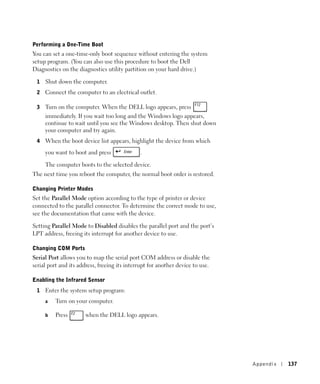
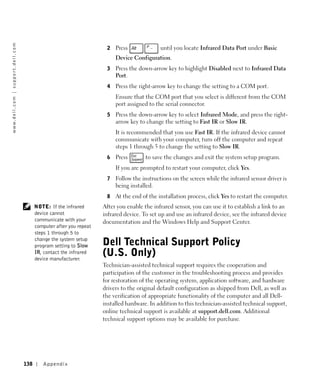
Manual CD/DVD from servicemanuals4u.com.

Please check out our eBay auctions for more great
deals on Factory Service Manuals:

               servicemanuals4u
Dell™ Inspiron™ 600m


Owner’s Manual


                       w w w. d e l l . c o m | s u p p o r t . d e l l . c o m
Notes, Notices, and Cautions
      NOTE: A NOTE indicates important information that helps you make better
      use of your computer.
      NOTICE: A NOTICE indicates either potential damage to hardware or loss of
      data and tells you how to avoid the problem.
      CAUTION: A CAUTION indicates a potential for property damage,
      personal injury, or death.


Abbreviations and Acronyms
For a complete list of abbreviations and acronyms, see the Tell Me How help
file. To access the help file, see page 98.


____________________
Information in this document is subject to change without notice.
© 2002–2003 Dell Computer Corporation. All rights reserved.
Reproduction in any manner whatsoever without the written permission of Dell Computer
Corporation is strictly forbidden.
Trademarks used in this text: Dell, the DELL logo, Inspiron, Dell TravelLite, Dell TrueMobile,
Dell Precision, Dimension, OptiPlex, DellNet, and Latitude are trademarks of Dell Computer
Corporation; Intel, Pentium, and Celeron are registered trademarks of Intel Corporation; Microsoft
and Windows are registered trademarks of Microsoft Corporation; Bluetooth is a trademark owned
by Bluetooth SIG, Inc., and is used by Dell Computer Corporation under license; EMC is a registered
trademark of the EMC Corporation.
Other trademarks and trade names may be used in this document to refer to either the entities claiming
the marks and names or their products. Dell Computer Corporation disclaims any proprietary interest
in trademarks and trade names other than its own.


Model PP05L


July 2003              P/N 4N142         Rev. A01
Contents


       CAUTION: Safety Instructions       . . . . . . . . . . . . . . . . . . .   11
           General    . . . . . . . . . . . . . . . . . . . . . . . . . . . . .   11
           Power    . . . . . . . . . . . . . . . . . . . . . . . . . . . . . .   12
           Battery    . . . . . . . . . . . . . . . . . . . . . . . . . . . . .   13
           Air Travel   . . . . . . . . . . . . . . . . . . . . . . . . . . . .   14
           EMC Instructions     . . . . . . . . . . . . . . . . . . . . . . . .   14
           California Residents   . . . . . . . . . . . . . . . . . . . . . . .   14

       When Using Your Computer         . . . . . . . . . . . . . . . . . . . .   15
           Ergonomic Computing Habits       . . . . . . . . . . . . . . . . . .   16
           When Working Inside Your Computer        . . . . . . . . . . . . . .   16
           Protecting Against Electrostatic Discharge     . . . . . . . . . . .   17
           Battery Disposal     . . . . . . . . . . . . . . . . . . . . . . . .   17


  1 A Tour of Your Computer
       Front View     . . . . . . . . . . . . . . . . . . . . . . . . . . . . .   20

       Left Side View     . . . . . . . . . . . . . . . . . . . . . . . . . . .   23

       Right Side View .    . . . . . . . . . . . . . . . . . . . . . . . . . .   25

       Back View .    . . . . . . . . . . . . . . . . . . . . . . . . . . . . .   26

       Bottom View      . . . . . . . . . . . . . . . . . . . . . . . . . . . .   30


  2 Setting Up Your Computer
       Connecting to the Internet     . . . . . . . . . . . . . . . . . . . . .   34
           Setting Up Your Internet Connection      . . . . . . . . . . . . . .   34


                                                                                       Contents   3
Modem and Internet Connection Problems           . . . . . . . . . . . .   35

           E-Mail Problems     . . . . . . . . . . . . . . . . . . . . . . . . . .    36

           Transferring Information to a New Computer           . . . . . . . . . .   37

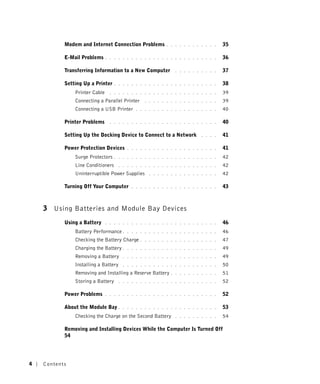
           Setting Up a Printer    . . . . . . . . . . . . . . . . . . . . . . . .    38
               Printer Cable     . . . . . . . . . . . . . . . . . . . . . . . . .    39
               Connecting a Parallel Printer      . . . . . . . . . . . . . . . . .   39
               Connecting a USB Printer       . . . . . . . . . . . . . . . . . . .   40

           Printer Problems      . . . . . . . . . . . . . . . . . . . . . . . . .    40

           Setting Up the Docking Device to Connect to a Network            . . . .   41

           Power Protection Devices       . . . . . . . . . . . . . . . . . . . . .   41
               Surge Protectors    . . . . . . . . . . . . . . . . . . . . . . . .    42
               Line Conditioners      . . . . . . . . . . . . . . . . . . . . . . .   42
               Uninterruptible Power Supplies       . . . . . . . . . . . . . . . .   42

           Turning Off Your Computer        . . . . . . . . . . . . . . . . . . . .   43


    3 Using Batteries and Module Bay Devices
           Using a Battery     . . . . . . . . . . . . . . . . . . . . . . . . . .    46
               Battery Performance .      . . . . . . . . . . . . . . . . . . . . .   46
               Checking the Battery Charge .      . . . . . . . . . . . . . . . . .   47
               Charging the Battery .     . . . . . . . . . . . . . . . . . . . . .   49
               Removing a Battery       . . . . . . . . . . . . . . . . . . . . . .   49
               Installing a Battery     . . . . . . . . . . . . . . . . . . . . . .   50
               Removing and Installing a Reserve Battery      . . . . . . . . . . .   51
               Storing a Battery      . . . . . . . . . . . . . . . . . . . . . . .   52

           Power Problems      . . . . . . . . . . . . . . . . . . . . . . . . . .    52

           About the Module Bay .       . . . . . . . . . . . . . . . . . . . . . .   53
               Checking the Charge on the Second Battery        . . . . . . . . . .   54

           Removing and Installing Devices While the Computer Is Turned Off
           54


4   Contents
If the Device Screw Is Not Installed   . . . . . . . . . . . . . . .   55
         If the Device Screw Is Installed   . . . . . . . . . . . . . . . . .   56

     Removing and Installing Devices While the Computer Is Running 58
         If the Device Screw Is Not Installed   . . . . . . . . . . . . . . .   58
         If the Device Screw Is Installed   . . . . . . . . . . . . . . . . .   60


4 Using the Keyboard and Touch Pad
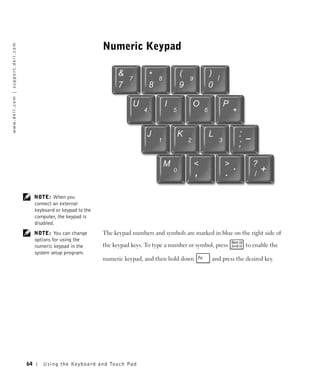
     Numeric Keypad      . . . . . . . . . . . . . . . . . . . . . . . . . .    64

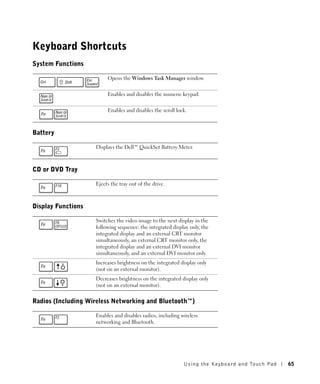
     Keyboard Shortcuts      . . . . . . . . . . . . . . . . . . . . . . . .    65
         System Functions    . . . . . . . . . . . . . . . . . . . . . . . .    65
         Battery   . . . . . . . . . . . . . . . . . . . . . . . . . . . . .    65
         CD or DVD Tray .    . . . . . . . . . . . . . . . . . . . . . . . .    65
         Display Functions   . . . . . . . . . . . . . . . . . . . . . . . .    65
         Radios (Including Wireless Networking and Bluetooth™)        . . . .   65
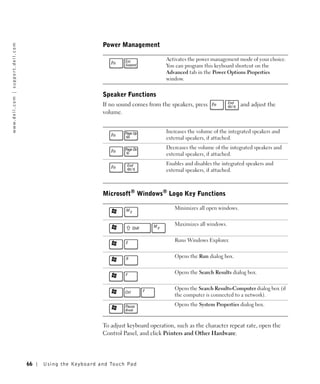
         Power Management      . . . . . . . . . . . . . . . . . . . . . . .    66
         Speaker Functions     . . . . . . . . . . . . . . . . . . . . . . .    66
         Microsoft® Windows® Logo Key Functions         . . . . . . . . . . .   66

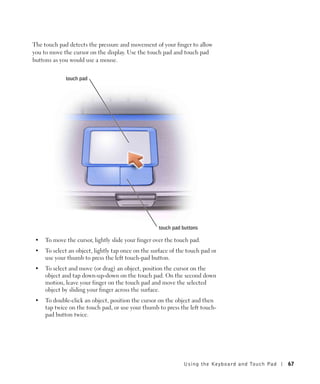
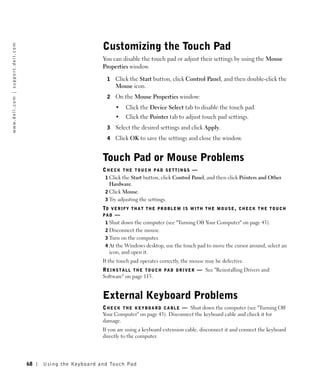
     Customizing the Touch Pad .     . . . . . . . . . . . . . . . . . . . .    68

     Touch Pad or Mouse Problems       . . . . . . . . . . . . . . . . . . .    68

     External Keyboard Problems      . . . . . . . . . . . . . . . . . . . .    68

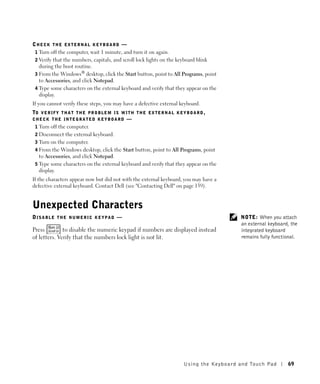
     Unexpected Characters .     . . . . . . . . . . . . . . . . . . . . . .    69


5 Using CDs, DVDs, and Other Multimedia
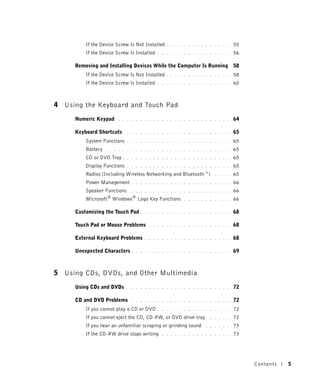
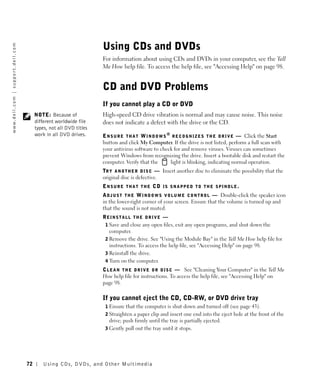
     Using CDs and DVDs      . . . . . . . . . . . . . . . . . . . . . . . .    72

     CD and DVD Problems       . . . . . . . . . . . . . . . . . . . . . . .    72
         If you cannot play a CD or DVD     . . . . . . . . . . . . . . . . .   72
         If you cannot eject the CD, CD-RW, or DVD drive tray       . . . . .   72
         If you hear an unfamiliar scraping or grinding sound     . . . . . .   73
         If the CD-RW drive stops writing     . . . . . . . . . . . . . . . .   73


                                                                                     Contents   5
Sound and Speaker Problems          . . . . . . . . . . . . . . . . . . .   73
               If you have a problem with integrated speakers .      . . . . . . . .   73
               If you have a problem with external speakers .      . . . . . . . . .   73

           Copying CDs   . . . . . . . . . . . . . . . . . . . . . . . . . . . .       74
               Using Easy CD Creator Basic         . . . . . . . . . . . . . . . . .   75
               Using Blank CD-R Discs or Blank CD-RW Discs           . . . . . . . .   75
               Helpful Tips   . . . . . . . . . . . . . . . . . . . . . . . . . .      75
               How to Copy a CD     . . . . . . . . . . . . . . . . . . . . . . .      76

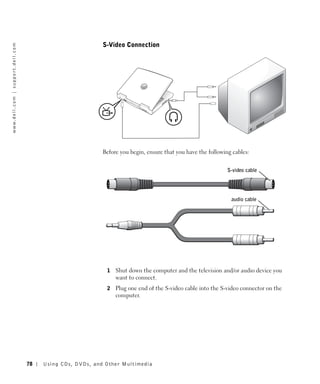
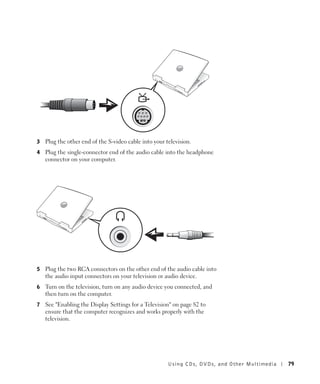
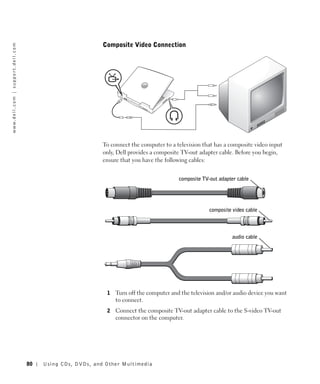
           Connecting a Television to the Computer         . . . . . . . . . . . . .   77
               S-Video Connection        . . . . . . . . . . . . . . . . . . . . . .   78
               Composite Video Connection        . . . . . . . . . . . . . . . . . .   80
               Enabling the Display Settings for a Television      . . . . . . . . .   82


    6 Setting Up a Home and Office Network
           Connecting to a Network Adapter           . . . . . . . . . . . . . . . .   84

           Network Setup Wizard          . . . . . . . . . . . . . . . . . . . . . .   84

           Network Problems     . . . . . . . . . . . . . . . . . . . . . . . . .      85

           Connecting to Wireless Local Area Networks          . . . . . . . . . . .   86
               Determining your Network Type         . . . . . . . . . . . . . . . .   86
               Connecting to a Network in Windows XP .         . . . . . . . . . . .   87
               Finalizing your Network Connection (Security Settings)        . . . .   90


    7 Solving Problems
           Finding Solutions    . . . . . . . . . . . . . . . . . . . . . . . . .      96

           Accessing Help     . . . . . . . . . . . . . . . . . . . . . . . . . .      98

           Error Messages     . . . . . . . . . . . . . . . . . . . . . . . . . .      98

           Video and Display Problems        . . . . . . . . . . . . . . . . . . . .   99
               If the display is blank     . . . . . . . . . . . . . . . . . . . . .   99


6   Contents
If the display is difficult to read   . . . . . . . . . . . . . . . .   100
    If only part of the display is readable     . . . . . . . . . . . . .   101

Scanner Problems      . . . . . . . . . . . . . . . . . . . . . . . .       101

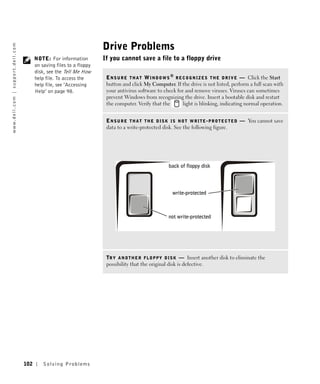
Drive Problems    . . . . . . . . . . . . . . . . . . . . . . . . . .       102
    If you cannot save a file to a floppy drive     . . . . . . . . . . .   102
    If you have problems with a hard drive        . . . . . . . . . . . .   103

PC Card Problems      . . . . . . . . . . . . . . . . . . . . . . . .       103

General Program Problems        . . . . . . . . . . . . . . . . . . . .     104
    A program crashes       . . . . . . . . . . . . . . . . . . . . . .     104
    A program stops responding .      . . . . . . . . . . . . . . . . .     104
    Error messages appear       . . . . . . . . . . . . . . . . . . . .     104

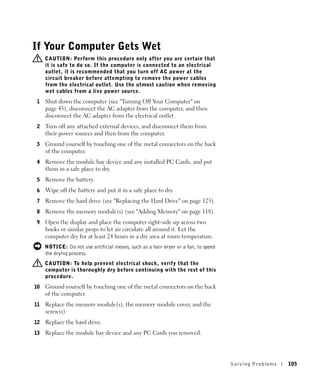
If Your Computer Gets Wet .       . . . . . . . . . . . . . . . . . . .     105

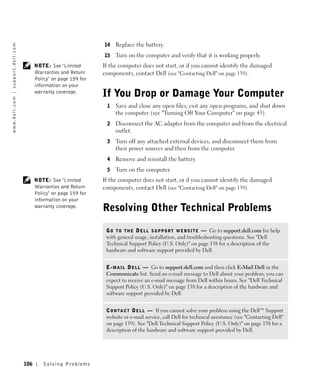
If You Drop or Damage Your Computer             . . . . . . . . . . . . .   106

Resolving Other Technical Problems          . . . . . . . . . . . . . . .   106

Drivers   . . . . . . . . . . . . . . . . . . . . . . . . . . . . . .       107
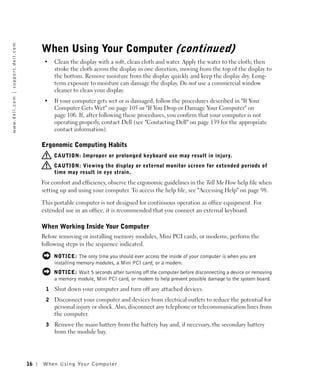
    What Is a Driver?     . . . . . . . . . . . . . . . . . . . . . . .     107
    Identifying Drivers     . . . . . . . . . . . . . . . . . . . . . .     107
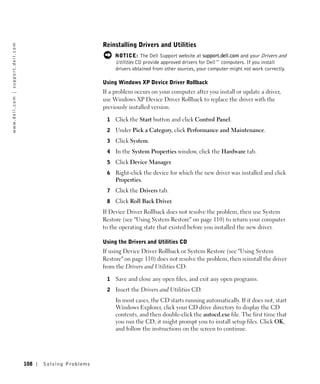
    Reinstalling Drivers and Utilities      . . . . . . . . . . . . . . .   108
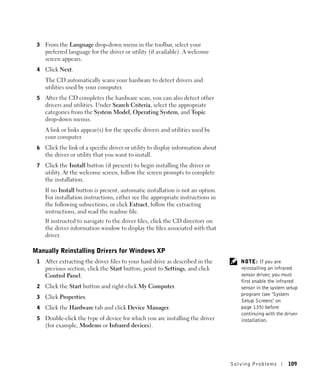
    Manually Reinstalling Drivers for Windows XP          . . . . . . . .   109

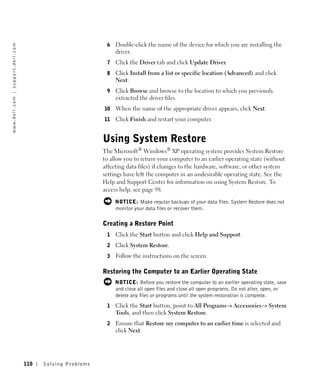
Using System Restore        . . . . . . . . . . . . . . . . . . . . . .     110
    Creating a Restore Point      . . . . . . . . . . . . . . . . . . .     110
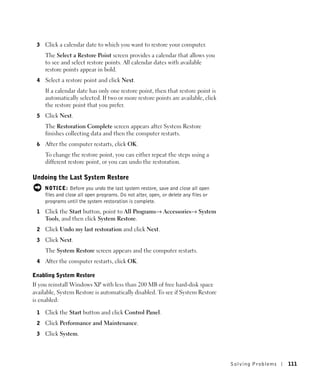
    Restoring the Computer to an Earlier Operating State        . . . . .   110
    Undoing the Last System Restore         . . . . . . . . . . . . . . .   111

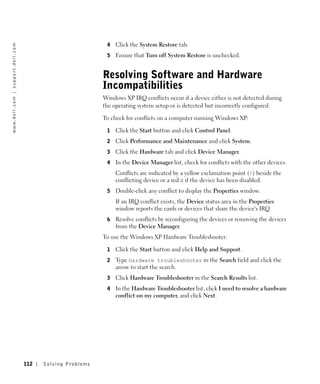
Resolving Software and Hardware Incompatibilities             . . . . . .   112

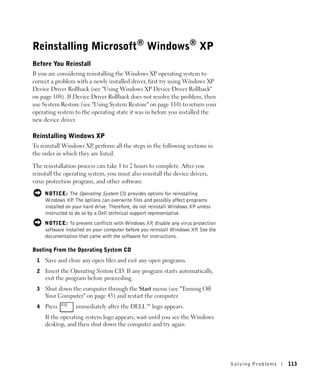
Reinstalling Microsoft® Windows® XP .           . . . . . . . . . . . . .   113
    Before You Reinstall      . . . . . . . . . . . . . . . . . . . . .     113
    Reinstalling Windows XP       . . . . . . . . . . . . . . . . . . .     113
    Reinstalling Drivers and Software       . . . . . . . . . . . . . . .   115


                                                                                  Contents   7
8 Adding and Replacing Parts
           Adding Memory      . . . . . . . . . . . . . . . . . . . . . . . . . .     118

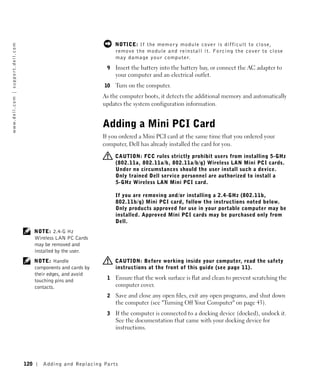
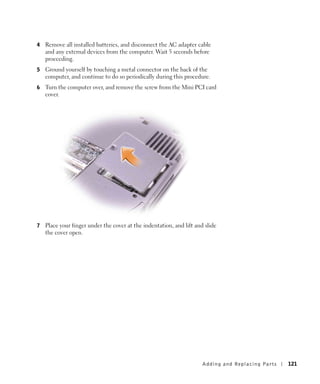
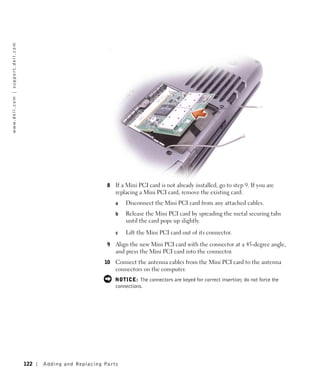
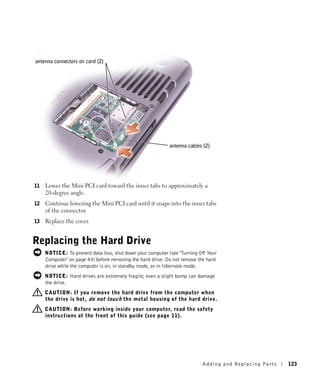
           Adding a Mini PCI Card     . . . . . . . . . . . . . . . . . . . . . .     120

           Replacing the Hard Drive     . . . . . . . . . . . . . . . . . . . . .     123


    9 Appendix
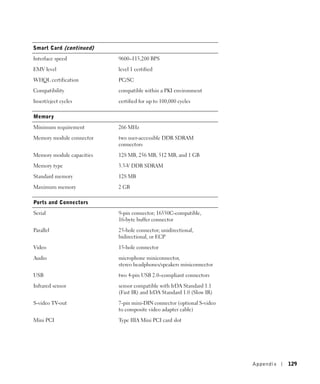
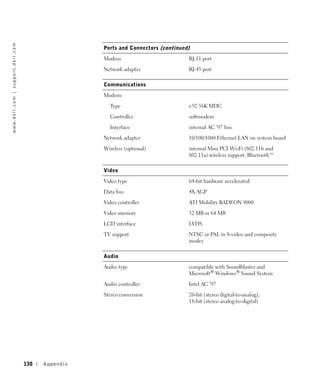
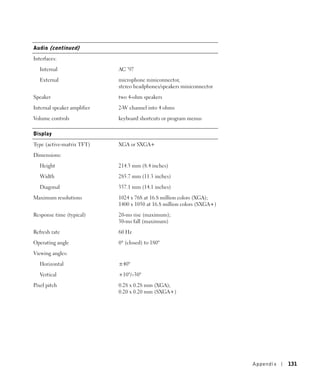
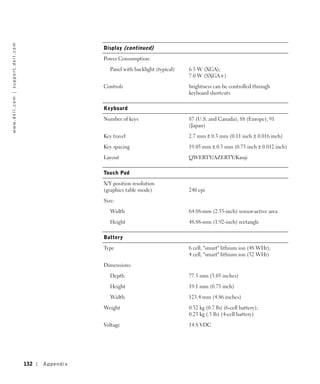
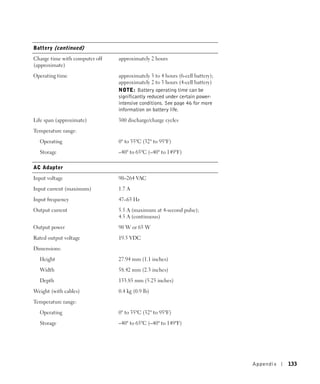
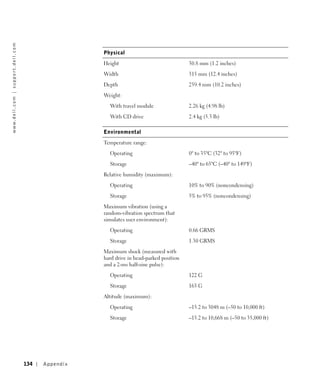
           Specifications   . . . . . . . . . . . . . . . . . . . . . . . . . . .     128

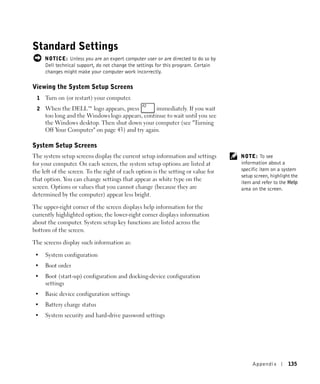
           Standard Settings    . . . . . . . . . . . . . . . . . . . . . . . . .     135
               Viewing the System Setup Screens     . . . . . . . . . . . . . . .     135
               System Setup Screens     . . . . . . . . . . . . . . . . . . . . .     135
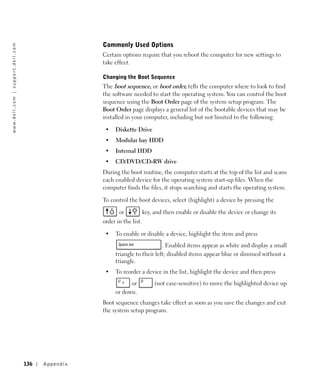
               Commonly Used Options      . . . . . . . . . . . . . . . . . . . .     136

           Dell Technical Support Policy (U.S. Only)      . . . . . . . . . . . .     138
               Definition of "Dell-Installed" Software and Peripherals    . . . . .   139
               Definition of "Third-Party" Software and Peripherals     . . . . . .   139

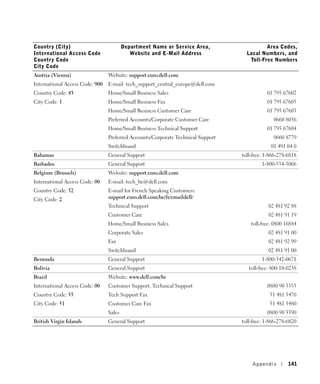
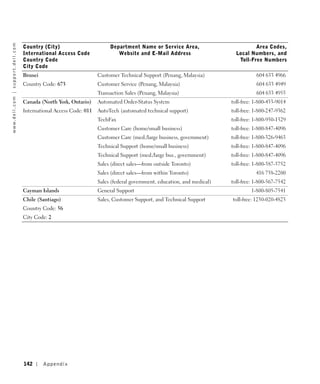
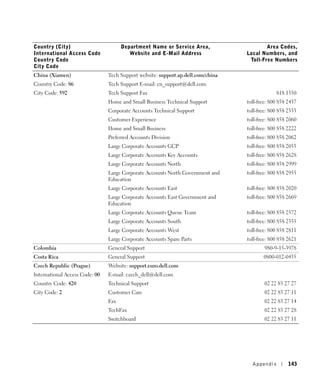
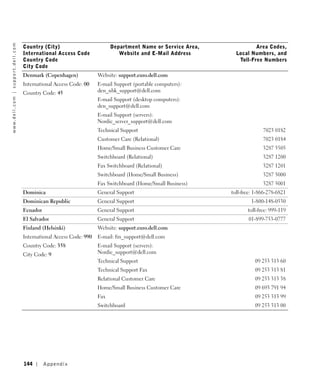
           Contacting Dell    . . . . . . . . . . . . . . . . . . . . . . . . . .     139

           Regulatory Notices     . . . . . . . . . . . . . . . . . . . . . . . .     157
               NOM Information (Mexico Only)      . . . . . . . . . . . . . . . .     158

           Limited Warranties and Return Policy       . . . . . . . . . . . . . .     159
               Limited Warranty for Dell-Branded Hardware Products
               (U.S. Only) . . . . . . . . . . . . . . . . . . . . . . .    . . . .   159
               "Total Satisfaction" Return Policy (U.S. Only) .   . . . . . . . . .   163
               Limited Warranty Terms for Dell-Branded Hardware Products
               (Canada Only) . . . . . . . . . . . . . . . . . . . . . . . .      .   163
               "Total Satisfaction" Return Policy (Canada Only)     . . . . . . . .   167
               Dell Software and Peripherals (Canada Only) .      . . . . . . . . .   167
               1-Year End-User Manufacturer Guarantee (Latin America and the
               Caribbean Only) . . . . . . . . . . . . . . . . . . . . . . . . 168
               Intel® Warranty Statement for Pentium® and Celeron® Processors
               Only (U.S. and Canada Only) . . . . . . . . . . . . . . . . . . 170


8   Contents
Index   . . . . . . . . . . . . . . . . . . . . . . . . . . . . . . . . . .   173


                                                                                    Contents   9
10   Contents
CAUTION: Safety Instructions
Use the following safety guidelines to help ensure your own personal safety and to help protect
your computer and working environment from potential damage.

General
 •   Do not attempt to service the computer yourself unless you are a trained service
     technician. Always follow installation instructions closely.
 •   If you use an extension power cable with your AC adapter, ensure that the total ampere
     rating of the products plugged in to the extension power cable does not exceed the
     ampere rating of the extension cable.
 •   Do not push objects into air vents or openings of your computer. Doing so can cause fire
     or electric shock by shorting out interior components.
 •   Do not store your computer in a low-airflow environment, such as a carrying case or a
     closed briefcase, while the computer is turned on. Restricting airflow can damage the
     computer or cause a fire.
 •   Keep your computer away from radiators and heat sources. Also, do not block cooling
     vents. Avoid placing loose papers underneath your computer; do not place your computer
     in a closed-in wall unit or on a bed, sofa, or rug.
 •   Place the AC adapter in a ventilated area, such as a desk top or on the floor, when you use
     it to run the computer or to charge the battery. Do not cover the AC adapter with papers
     or other items that will reduce cooling; also, do not use the AC adapter inside a carrying
     case.
 •   The AC adapter may become hot during normal operation of your computer. Use care
     when handling the adapter during or immediately after operation.
 •   Do not allow your portable computer to operate with the base resting directly on exposed
     skin for extended periods of time. The surface temperature of the base will rise during
     normal operation (particularly when AC power is present). Allowing sustained contact
     with exposed skin can cause discomfort or, eventually, a burn.
 •   Do not use your computer in a wet environment, for example, near a bath tub, sink, or
     swimming pool or in a wet basement
 •   If your computer includes an integrated or optional (PC Card) modem, disconnect the
     modem cable if an electrical storm is approaching to avoid the remote risk of electric
     shock from lightning via the telephone line.


                                                           CAUTION: Safety Instr uctions           11
w w w. d e l l . c o m | s u p p o r t . d e l l . c o m


                                                                        CAUTION: Safety Instructions (continued)
                                                                •   To help avoid the potential hazard of electric shock, do not connect or disconnect any
                                                                    cables or perform maintenance or reconfiguration of this product during an electrical
                                                                    storm. Do not use your computer during an electrical storm unless all cables have been
                                                                    disconnected and the computer is operating on battery power.
                                                                •   If your computer includes a modem, the cable used with the modem should be
                                                                    manufactured with a minimum wire size of 26 American wire gauge (AWG) and an FCC-
                                                                    compliant RJ-11 modular plug.
                                                                •   Before you open the memory module/Mini PCI card/modem cover on the bottom of your
                                                                    computer, disconnect all cables from their electrical outlets and disconnect the telephone
                                                                    cable.
                                                                •   If your computer has a modem RJ-11 connector and a network RJ-45 connector, insert the
                                                                    telephone cable into the RJ-11 connector, not the RJ-45 connector.
                                                                •   PC Cards may become very warm during normal operation. Use care when removing PC
                                                                    Cards after their continuous operation.
                                                                •   Before you clean your computer, disconnect the computer from the electrical outlet.
                                                                    Clean your computer with a soft cloth dampened with water. Do not use liquid or aerosol
                                                                    cleaners, which may contain flammable substances.

                                                                Power
                                                                •   Use only the Dell-provided AC adapter approved for use with this computer. Use of
                                                                    another AC adapter may cause a fire or explosion.
                                                                •   Before you connect the computer to an electrical outlet, check the AC adapter voltage
                                                                    rating to ensure that the required voltage and frequency match the available power
                                                                    source.
                                                                •   To remove the computer from all power sources, turn the computer off, remove the
                                                                    battery pack, and disconnect the AC adapter from the electrical outlet.
                                                                •   To help prevent electric shock, plug the AC adapter and device power cables into properly
                                                                    grounded power sources. These power cables may be equipped with 3-prong plugs to
                                                                    provide an earth grounding connection. Do not use adapter plugs or remove the
                                                                    grounding prong from the power cable plug. If you use a power extension cable, use the
                                                                    appropriate type, 2-prong or 3-prong, to mate with the AC adapter power cable.
                                                                •   Be sure that nothing rests on your AC adapter’s power cable and that the cable is not
                                                                    located where it can be tripped over or stepped on.


                                                           12   CAUTION: Safety Instr uctions
CAUTION: Safety Instructions (continued)
•   If you are using a multiple-outlet power strip, use caution when plugging the AC
    adapter’s power cable into the power strip. Some power strips may allow you to insert the
    plug incorrectly. Incorrect insertion of the power plug could result in permanent damage
    to your computer, as well as risk of electric shock and/or fire. Ensure that the ground
    prong of the power plug is inserted into the mating ground contact of the power strip.

Battery
•   Use only Dell™ battery modules that are approved for use with this computer. Use of
    other types may increase the risk of fire or explosion.
•   Do not carry a battery pack in your pocket, purse, or other container where metal objects
    (such as car keys or paper clips) could short-circuit the battery terminals. The resulting
    excessive current flow can cause extremely high temperatures and may result in damage
    to the battery pack or cause fire or burns.
•   The battery poses a burn hazard if you handle it improperly. Do not disassemble it.
    Handle a damaged or leaking battery pack with extreme care. If the battery is damaged,
    electrolyte may leak from the cells and may cause personal injury.
•   Keep the battery away from children.
•   Do not store or leave your computer or battery pack near a heat source such as a radiator,
    fireplace, stove, electric heater, or other heat-generating appliance or otherwise expose it
    to temperatures in excess of 60ºC (140ºF). When heated to excessive temperatures,
    battery cells could explode or vent, posing a risk of fire.
•   Do not dispose of your computer’s battery in a fire or with normal household waste.
    Battery cells may explode. Discard a used battery according to the manufacturer’s
    instructions or contact your local waste disposal agency for disposal instructions. Dispose
    of a spent or damaged battery promptly.


                                                           CAUTION: Safety Instr uctions           13
w w w. d e l l . c o m | s u p p o r t . d e l l . c o m


                                                                         CAUTION: Safety Instructions (continued)
                                                                Air Travel
                                                                 •   Certain Federal Aviation Administration regulations and/or airline-specific restrictions
                                                                     may apply to the operation of your Dell computer while you are on board an aircraft. For
                                                                     example, such regulations/restrictions may prohibit the use of any personal electronic
                                                                     device (PED) that has the capacity for intentional transmission of radio frequency or
                                                                     other electromagnetic signals while on an aircraft.
                                                                     –   In order to best comply with all such restrictions, if your Dell portable computer is
                                                                         equipped with Dell TrueMobile™ or some other wireless communication device,
                                                                         please disable this device before you board the aircraft and follow all instructions
                                                                         provided by airline personnel with regard to such device.
                                                                     –   Additionally, the use of any PED, such as a portable computer, may be prohibited in
                                                                         aircraft during certain critical phases of flight, for example, takeoff and landing. Some
                                                                         airlines may further define the critical flight phase as any time the aircraft is below
                                                                         3050 m (10,000 ft). Please follow the airline’s specific instructions as to when the use
                                                                         of a PED is allowed.

                                                                EMC Instructions
                                                                Use shielded signal cables to ensure that you maintain the appropriate EMC classification for
                                                                the intended environment. For parallel printers, a cable is available from Dell. If you prefer, you
                                                                can order a cable from Dell at its worldwide website at www.dell.com.

                                                                Static electricity can harm electronic components inside your computer. To prevent static
                                                                damage, discharge static electricity from your body before you touch any of your computer’s
                                                                electronic components, such as a memory module. You can do so by touching an unpainted
                                                                metal surface on the computer’s input/output panel.

                                                                California Residents
                                                                WARNING: Handling the cord on this product, or cords associated with accessories sold with
                                                                this product, will expose you to lead, a chemical known to the State of California to cause birth
                                                                defects or other reproductive harm. Wash your hands after handling the cord.


                                                           14   CAUTION: Safety Instr uctions
When Using Your Computer
Observe the following safe-handling guidelines to prevent damage to your computer:

 •   When setting up the computer for work, place it on a level surface.
 •   When traveling, do not check the computer as baggage. You can put your computer
     through an X-ray security machine, but never put your computer through a metal
     detector. If you have the computer checked by hand, be sure to have a charged battery
     available in case you are asked to turn on the computer.
 •   When traveling with the hard drive removed from the computer, wrap the drive in a
     nonconducting material, such as cloth or paper. If you have the drive checked by hand, be
     ready to install the drive in the computer. You can put the hard drive through an X-ray
     security machine, but never put the drive through a metal detector.
 •   When traveling, do not place the computer in overhead storage compartments where it
     could slide around. Do not drop your computer or subject it to other mechanical shocks.
 •   Protect your computer, battery, and hard drive from environmental hazards such as dirt,
     dust, food, liquids, temperature extremes, and overexposure to sunlight.
 •   When you move your computer between environments with very different temperature
     and/or humidity ranges, condensation may form on or within the computer. To avoid
     damaging the computer, allow sufficient time for the moisture to evaporate before using
     the computer.
     NOTICE: When taking the computer from low-temperature conditions into a warmer environment
     or from high-temperature conditions into a cooler environment, allow the computer to acclimate to
     room temperature before turning on power.
 •   When you disconnect a cable, pull on its connector or on its strain-relief loop, not on the
     cable itself. As you pull out the connector, keep it evenly aligned to avoid bending any
     connector pins. Also, before you connect a cable make sure both connectors are correctly
     oriented and aligned.
 •   Handle components with care. Hold a component such as a memory module by its edges,
     not its pins.
 •   When preparing to remove a memory module from the system board or disconnect a
     device from the computer, turn off the computer, disconnect the AC adapter cable, and
     then wait 5 seconds before proceeding to help avoid possible damage to the system board.


                                                                  When Using Yo ur Computer              15
w w w. d e l l . c o m | s u p p o r t . d e l l . c o m


                                                                When Using Your Computer (continued)
                                                                 •   Clean the display with a soft, clean cloth and water. Apply the water to the cloth; then
                                                                     stroke the cloth across the display in one direction, moving from the top of the display to
                                                                     the bottom. Remove moisture from the display quickly and keep the display dry. Long-
                                                                     term exposure to moisture can damage the display. Do not use a commercial window
                                                                     cleaner to clean your display.
                                                                 •   If your computer gets wet or is damaged, follow the procedures described in "If Your
                                                                     Computer Gets Wet" on page 105 or "If You Drop or Damage Your Computer" on
                                                                     page 106. If, after following these procedures, you confirm that your computer is not
                                                                     operating properly, contact Dell (see "Contacting Dell" on page 139 for the appropriate
                                                                     contact information).

                                                                Ergonomic Computing Habits
                                                                     CAUTION: Improper or prolonged keyboard use may result in injury.
                                                                     CAUTION: Viewing the display or external monitor screen for extended periods of
                                                                     time may result in eye strain.
                                                                For comfort and efficiency, observe the ergonomic guidelines in the Tell Me How help file when
                                                                setting up and using your computer. To access the help file, see "Accessing Help" on page 98.

                                                                This portable computer is not designed for continuous operation as office equipment. For
                                                                extended use in an office, it is recommended that you connect an external keyboard.

                                                                When Working Inside Your Computer
                                                                Before removing or installing memory modules, Mini PCI cards, or modems, perform the
                                                                following steps in the sequence indicated.

                                                                     NOTICE: The only time you should ever access the inside of your computer is when you are
                                                                     installing memory modules, a Mini PCI card, or a modem.
                                                                     NOTICE: Wait 5 seconds after turning off the computer before disconnecting a device or removing
                                                                     a memory module, Mini PCI card, or modem to help prevent possible damage to the system board.
                                                                 1   Shut down your computer and turn off any attached devices.
                                                                 2   Disconnect your computer and devices from electrical outlets to reduce the potential for
                                                                     personal injury or shock. Also, disconnect any telephone or telecommunication lines from
                                                                     the computer.
                                                                 3   Remove the main battery from the battery bay and, if necessary, the secondary battery
                                                                     from the module bay.


                                                           16   When Using Yo ur Computer
When Using Your Computer (continued)
 4   Ground yourself by touching the unpainted metal surface of the I/O panel on the back of
     the computer.
     While you work, periodically touch the I/O panel to dissipate any static electricity that
     might harm internal components.

Protecting Against Electrostatic Discharge
Static electricity can harm electronic components inside your computer. To prevent static
damage, discharge static electricity from your body before you touch any of your computer’s
electronic components, such as a memory module. You can do so by touching an unpainted
metal surface on the computer’s I/O panel.

As you continue to work inside the computer, periodically touch an I/O connector to remove
any static charge your body may have accumulated.
You can also take the following steps to prevent damage from electrostatic discharge (ESD):

 •   When unpacking a static-sensitive component from its shipping carton, do not remove
     the component from the antistatic packing material until you are ready to install the
     component. Just before unwrapping the antistatic packaging, be sure to discharge static
     electricity from your body.
 •   When transporting a sensitive component, first place it in an antistatic container or
     packaging.
 •   Handle all sensitive components in a static-safe area. If possible, use antistatic floor pads
     and workbench pads.
         Battery Disposal


Your computer uses a lithium-ion battery and a reserve battery. For instructions about replacing
the lithium-ion battery in your computer, see "Using a Battery" on page 46. The reserve battery
is a long-life battery, and it is very possible that you will never need to replace it. However,
should you need to replace it, see page 51 for instructions.

Do not dispose of the battery along with household waste. Contact your local waste disposal
agency for the address of the nearest battery deposit site.


                                                                When Using Yo ur Computer            17
w w w. d e l l . c o m | s u p p o r t . d e l l . c o m


18
When Using Yo ur Computer
SECTION 1


A To u r o f Yo u r
Computer

     Front View
     Left Side View
     Right Side View
     Back View
     Bottom View
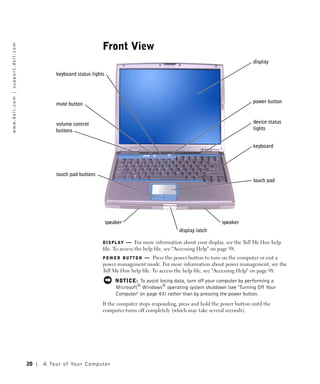
Front View
w w w. d e l l . c o m | s u p p o r t . d e l l . c o m


                                                                                                                                                                  display

                                                                      keyboard status lights


                                                                      mute button                                                                                 power button


                                                                      volume control                                                                              device status
                                                                      buttons                                                                                     lights


                                                                                                                                                                  keyboard


                                                                      touch pad buttons
                                                                                                                                                                  touch pad


                                                                                                speaker                                             speaker
                                                                                                                                 display latch

                                                                                               DISPLAY     — For more information about your display, see the Tell Me How help
                                                                                               file. To access the help file, see "Accessing Help" on page 98.
                                                                                               POWER BUTTON      — Press the power button to turn on the computer or exit a
                                                                                               power management mode. For more information about power management, see the
                                                                                               Tell Me How help file. To access the help file, see "Accessing Help" on page 98.
                                                                                                      NOTICE: To avoid losing data, turn off your computer by performing a
                                                                                                      Microsoft® Windows® operating system shutdown (see "Turning Off Your
                                                                                                      Computer" on page 43) rather than by pressing the power button.
                                                                                               If the computer stops responding, press and hold the power button until the
                                                                                               computer turns off completely (which may take several seconds).


                                                           20   A To u r o f Yo u r C o m p u t e r
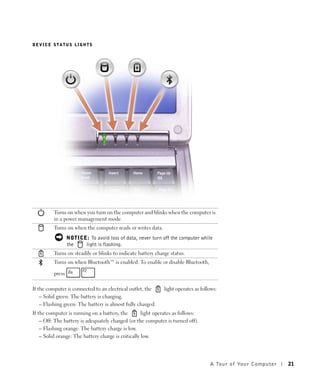
DEVICE STATUS LIGHTS


          Turns on when you turn on the computer and blinks when the computer is
          in a power management mode.
          Turns on when the computer reads or writes data.
                  NOTICE: To avoid loss of data, never turn off the computer while
                  the   light is flashing.
          Turns on steadily or blinks to indicate battery charge status.
          Turns on when Bluetooth™ is enabled. To enable or disable Bluetooth,

          press

If the computer is connected to an electrical outlet, the     light operates as follows:
    – Solid green: The battery is charging.
    – Flashing green: The battery is almost fully charged.
If the computer is running on a battery, the         light operates as follows:
    – Off: The battery is adequately charged (or the computer is turned off).
    – Flashing orange: The battery charge is low.
    – Solid orange: The battery charge is critically low.


                                                                                    A Tour of Yo ur Computer   21
KEYBOARD     — The keyboard includes a numeric keypad as well as the Windows
w w w. d e l l . c o m | s u p p o r t . d e l l . c o m


                                                                                               logo key       . For information on supported keyboard shortcuts, see "Using the
                                                                                               Keyboard and Touch Pad" on page 63.
                                                                                               T O U C H P A D — Provides the functionality of a mouse. See "Using the Keyboard
                                                                                               and Touch Pad" on page 63 for more information.
                                                                                               SPEAKERS     — To adjust the volume of the integrated speakers, press the volume
                                                                                               control buttons, mute button, or volume-control keyboard shortcuts. For more
                                                                                               information, see "Using the Keyboard and Touch Pad" on page 63.
                                                                                               DISPLAY LATCH      — Keeps the display closed.
                                                                                               T O U C H P A D B U T T O N S — Provide the functionality of a mouse. See "Using the
                                                                                               Keyboard and Touch Pad" on page 63 for more information.
                                                                                               VOLUME CONTROL BUTTONS            — Press these buttons to adjust the volume.
                                                                                               MUTE BUTTON      — Press this button to turn off the volume.
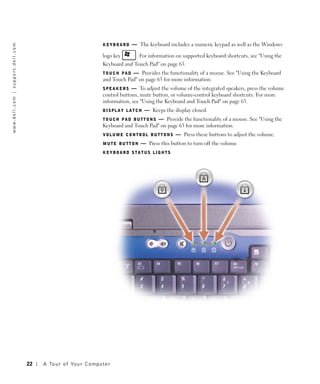
                                                                                               KEYBOARD STATUS LIGHTS


                                                           22   A To u r o f Yo u r C o m p u t e r
The green lights located above the keyboard indicate the following:


            9       Turns on when the numeric keypad is enabled.

            A       Turns on when the uppercase letter function is enabled.

                    Turns on when the scroll lock function is enabled.


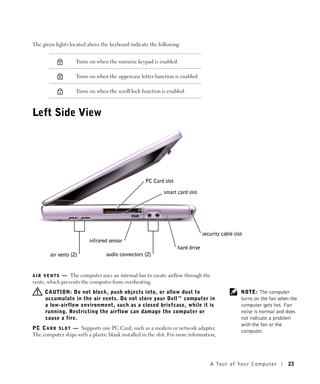
Left Side View


                                                   PC Card slot

                                                            smart card slot


                                                                               security cable slot
                          infrared sensor
                                                                  hard drive
        air vents (2)            audio connectors (2)


A I R V E N T S — The computer uses an internal fan to create airflow through the
vents, which prevents the computer from overheating.
     CAUTION: Do not block, push objects into, or allow dust to                                  NOTE: The computer
     accumulate in the air vents. Do not store your Dell™ computer in                            turns on the fan when the
     a low-airflow environment, such as a closed briefcase, while it is                          computer gets hot. Fan
     running. Restricting the airflow can damage the computer or                                 noise is normal and does
     cause a fire.                                                                               not indicate a problem
                                                                                                 with the fan or the
P C C A R D S L O T — Supports one PC Card, such as a modem or network adapter.
                                                                                                 computer.
The computer ships with a plastic blank installed in the slot. For more information,


                                                                                  A Tour of Yo ur Computer            23
see the Tell Me How help file. To access the help file, see"Accessing Help" on
w w w. d e l l . c o m | s u p p o r t . d e l l . c o m


                                                                                               page 98.
                                                                                               S M A R T C A R D S L O T — Supports one smart card. For more information, see the
                                                                                               Tell Me How help file. To access the help file, see "Accessing Help" on page 98.
                                                                                               I N F R A R E D S E N S O R — Lets you transfer files from your computer to another
                                                                                               infrared-compatible device without using cable connections.
                                                                                               When you receive your computer, the sensor is disabled. You can use the system
                                                                                               setup program to enable the sensor. For information on transferring data, see the
                                                                                               Help and Support Center or the documentation that came with your infrared-
                                                                                               compatible device.
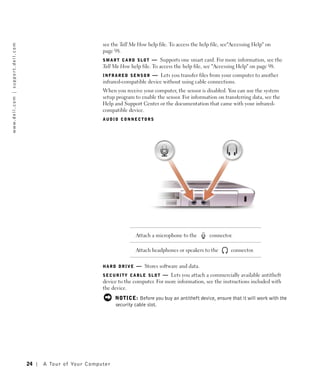
                                                                                               AUDIO CONNECTORS


                                                                                                               Attach a microphone to the        connector.

                                                                                                               Attach headphones or speakers to the        connector.


                                                                                               HARD DRIVE      — Stores software and data.
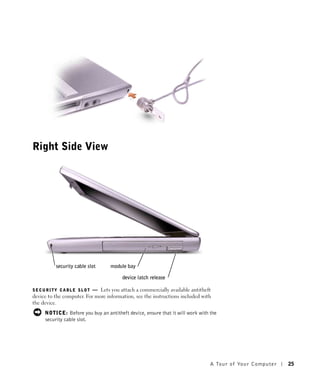
                                                                                               SECURITY CABLE SLOT        — Lets you attach a commercially available antitheft
                                                                                               device to the computer. For more information, see the instructions included with
                                                                                               the device.
                                                                                                      NOTICE: Before you buy an antitheft device, ensure that it will work with the
                                                                                                      security cable slot.


                                                           24   A To u r o f Yo u r C o m p u t e r
Right Side View


          security cable slot     module bay

                                        device latch release

SECURITY CABLE SLOT        — Lets you attach a commercially available antitheft
device to the computer. For more information, see the instructions included with
the device.
     NOTICE: Before you buy an antitheft device, ensure that it will work with the
     security cable slot.


                                                                               A Tour of Yo ur Computer   25
w w w. d e l l . c o m | s u p p o r t . d e l l . c o m


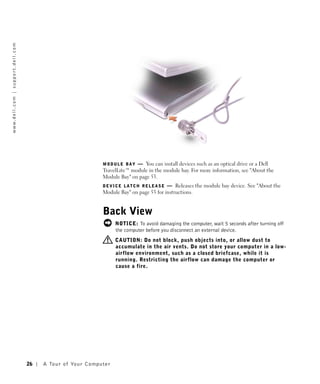
                                                                                               MODULE BAY    — You can install devices such as an optical drive or a Dell
                                                                                               TravelLite™ module in the module bay. For more information, see "About the
                                                                                               Module Bay" on page 53.
                                                                                               DEVICE LATCH RELEASE        — Releases the module bay device. See "About the
                                                                                               Module Bay" on page 53 for instructions.


                                                                                               Back View
                                                                                                      NOTICE: To avoid damaging the computer, wait 5 seconds after turning off
                                                                                                      the computer before you disconnect an external device.
                                                                                                      CAUTION: Do not block, push objects into, or allow dust to
                                                                                                      accumulate in the air vents. Do not store your computer in a low-
                                                                                                      airflow environment, such as a closed briefcase, while it is
                                                                                                      running. Restricting the airflow can damage the computer or
                                                                                                      cause a fire.


                                                           26   A To u r o f Yo u r C o m p u t e r
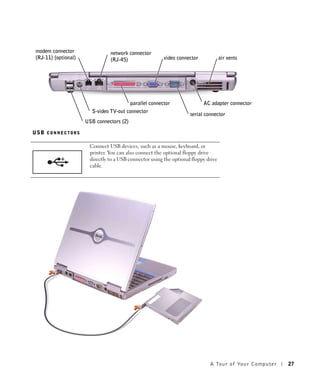
modem connector                 network connector
(RJ-11) (optional)              (RJ-45)                  video connector             air vents


                                          parallel connector               AC adapter connector
                        S-video TV-out connector
                                                                     serial connector
                     USB connectors (2)

USB CONNECTORS

                       Connect USB devices, such as a mouse, keyboard, or
                       printer. You can also connect the optional floppy drive
                       directly to a USB connector using the optional floppy drive
                       cable.


                                                                              A Tour of Yo ur Computer   27
S - V I D E O TV- O U T C O N N E C T O R
w w w. d e l l . c o m | s u p p o r t . d e l l . c o m


                                                                                                                               Connects your computer to a TV. For more information,
                                                                                                                               see "Connecting a Television to the Computer" on
                                                                                                                               page 77.


                                                                                               MODEM CONNECTOR             (RJ-11) (OPTIONAL)

                                                                                                                                  If you ordered the optional internal modem, connect
                                                                                                                                  the telephone line to the modem connector.
                                                                                                                                  For information on using the modem, see the online
                                                                                                                                  modem documentation supplied with your computer.
                                                                                                                                  See "Accessing Help" on page 98.

                                                                                               NETWORK CONNECTOR               (RJ-45)
                                                                                                      NOTICE: The network connector is slightly larger than the modem connector.
                                                                                                      To avoid damaging the computer, do not plug a telephone line into the network
                                                                                                      connector.


                                                                                                                              Connects the computer to a network. The green and
                                                                                                                              yellow lights next to the connector indicate activity for
                                                                                                                              both wired and wireless network communications.
                                                                                                                              For information on using the network adapter, see the
                                                                                                                              device user’s guide supplied with your computer. See
                                                                                                                              "Accessing Help" on page 98.

                                                                                               PARALLEL CONNECTOR


                                                                                                                              Connects a parallel device, such as a printer.


                                                                                               VIDEO CONNECTOR


                                                                                                                              Connects an external monitor. For more information, see
                                                                                                                              the Tell Me How help file. To access the help file, see
                                                                                                                              "Accessing Help" on page 98.


                                                           28   A To u r o f Yo u r C o m p u t e r
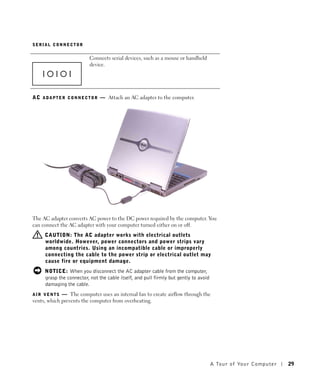
SERIAL CONNECTOR


                          Connects serial devices, such as a mouse or handheld
                          device.


A C A D A P T E R C O N N E C T O R — Attach an AC adapter to the computer.


The AC adapter converts AC power to the DC power required by the computer. You
can connect the AC adapter with your computer turned either on or off.
     CAUTION: The AC adapter works with electrical outlets
     worldwide. However, power connectors and power strips vary
     among countries. Using an incompatible cable or improperly
     connecting the cable to the power strip or electrical outlet may
     cause fire or equipment damage.
     NOTICE: When you disconnect the AC adapter cable from the computer,
     grasp the connector, not the cable itself, and pull firmly but gently to avoid
     damaging the cable.
A I R V E N T S — The computer uses an internal fan to create airflow through the
vents, which prevents the computer from overheating.


                                                                                      A Tour of Yo ur Computer   29
NOTE: The computer                       CAUTION: Do not block, push objects into, or allow dust to
w w w. d e l l . c o m | s u p p o r t . d e l l . c o m


                                                                turns on the fan when the                accumulate in the air vents. Do not store your computer in a low-
                                                                computer gets hot. Fan                   airflow environment, such as a closed briefcase, while it is
                                                                noise is normal and does                 running. Restricting the airflow can damage the computer or
                                                                not indicate a problem                   cause a fire.
                                                                with the fan or the
                                                                computer.


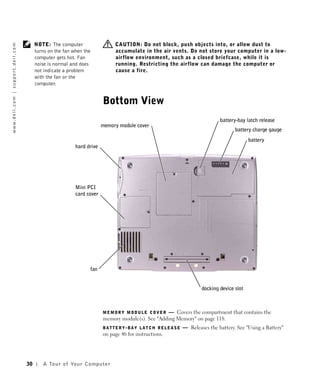
                                                                                                  Bottom View
                                                                                                                                                  battery-bay latch release
                                                                                                 memory module cover
                                                                                                                                                         battery charge gauge
                                                                                                                                                                battery
                                                                                   hard drive


                                                                                   Mini PCI
                                                                                   card cover


                                                                                           fan


                                                                                                                                          docking device slot


                                                                                                  MEMORY MODULE COVER       — Covers the compartment that contains the
                                                                                                  memory module(s). See "Adding Memory" on page 118.
                                                                                                  BATTERY-BAY LATCH RELEASE       — Releases the battery. See "Using a Battery"
                                                                                                  on page 46 for instructions.


                                                           30      A To u r o f Yo u r C o m p u t e r
BATTERY CHARGE GAUGE            — Provides information on the battery charge. See
"Using a Battery" on page 46.
BATTERY   — When a battery is installed, you can use the computer without
connecting the computer to an electrical outlet. See "Using a Battery" on page 46.
DOCKING DEVICE SLOT      — Lets you attach your computer to a docking device.
See the documentation that came with your docking device for additional
information.
F A N — The computer uses an internal fan to create airflow through the vents,
which prevents the computer from overheating.
     CAUTION: Do not block, push objects into, or allow dust to                              NOTE: The computer
     accumulate in the air vents. Do not store your computer in a low-                       turns on the fan when the
     airflow environment, such as a closed briefcase, while it is                            computer gets hot. Fan
     running. Restricting the airflow can damage the computer or                             noise is normal and does
     cause a fire.                                                                           not indicate a problem
                                                                                             with the fan or the
M I N I P C I C A R D C O V E R — Covers the compartment that contains the Mini
                                                                                             computer.
PCI card. See "Adding a Mini PCI Card" on page 120.
HARD DRIVE     — Stores software and data.


                                                                                  A Tour of Yo ur Computer        31
w w w. d e l l . c o m | s u p p o r t . d e l l . c o m


32
A To u r o f Yo u r C o m p u t e r
SECTION 2


S e t t i n g U p Yo u r
Computer

     Connecting to the Internet
     Modem and Internet Connection Problems
     E-Mail Problems
     Transferring Information to a New Computer
     Setting Up a Printer
     Printer Problems
     Setting Up the Docking Device to Connect to a Network
     Power Protection Devices
     Turning Off Your Computer
Connecting to the Internet
w w w. d e l l . c o m | s u p p o r t . d e l l . c o m


                                                                NOTE: ISPs and ISP           To connect to the Internet, you need a modem or network connection and
                                                                offerings vary by country.   an Internet service provider (ISP), such as AOL or MSN. Your ISP will offer
                                                                                             one or more of the following Internet connection options:

                                                                                              •   Dial-up connections that provide Internet access through a phone line.
                                                                                                  Dial-up connections are considerably slower than DSL and cable
                                                                                                  modem connections.
                                                                                              •   DSL connections that provide high-speed Internet access through
                                                                                                  your existing phone line. With a DSL connection, you can access the
                                                                                                  Internet and use your phone on the same line simultaneously.
                                                                                              •   Cable modem connections that provide high-speed Internet access
                                                                                                  through your local cable TV line.
                                                                                             If you are using a dial-up connection, connect a telephone line to the
                                                                                             modem connector on your computer and to the telephone wall jack before
                                                                                             you set up your Internet connection. If you are using a DSL or cable modem
                                                                                             connection, contact your ISP for setup instructions.

                                                                                             Setting Up Your Internet Connection
                                                                                             To set up an AOL or MSN connection:

                                                                                              1   Save and close any open files, and exit any open programs.
                                                                                              2   Double-click the MSN Explorer or AOL icon on the Windows®
                                                                                                  desktop.
                                                                                              3   Follow the instructions on the screen to complete the setup.
                                                                                             If you do not have an MSN Explorer or AOL icon on your desktop or if you
                                                                                             want to set up an Internet connection with a different ISP:

                                                                                              1   Save and close any open files, and exit any open programs.
                                                                                              2   Click the Start button and click Internet Explorer.
                                                                                                  The New Connection Wizard appears.
                                                                                              3   Click Connect to the Internet.
                                                                                              4   In the next window, click the appropriate option:
                                                                                                  •   If you do not have an ISP and want to select one, click Choose
                                                                                                      from a list of Internet service providers (ISPs).


                                                           34       Setting Up Yo ur Computer
•    If you have already obtained setup information from your ISP but
           you did not receive a setup CD, click Set up my connection
           manually.
      •    If you have a CD, click Use the CD I got from an ISP.
  5   Click Next.
      If you selected Set up my connection manually, continue to step 6.
      Otherwise, follow the instructions on the screen to complete the
      setup.
  6   Click the appropriate option under How do you want to connect to                              NOTE: If you do not
      the Internet?, and then click Next.                                                           know which type of
                                                                                                    connection to select,
  7   Use the setup information provided by your ISP to complete the setup.                         contact your ISP .
If you cannot connect to the Internet but have successfully connected in
the past, the ISP might have a service outage. Contact your ISP to check the
service status, or try connecting again later.


Modem and Internet Connection
Problems
      NOTICE: Connect the modem to an analog telephone wall jack only.
      Connecting the modem to a digital telephone network damages the modem.
      NOTICE: Modem and network connectors look similar. Do not plug a
      telephone line into the network connector.
C H E C K T H E T E L E P H O N E W A L L J A C K — Disconnect the telephone line from              NOTE: If you can
the modem and connect it to a telephone. Listen for a dial tone. Ensure that you                    connect to your Internet
have touchtone telephone service. Try connecting the modem to a different                           service provider (ISP),
telephone wall jack.                                                                                your modem is
Slow connection speeds can be caused by telephone noise as well as by telephone                     functioning properly. If
line or network conditions. Contact your telephone company or network                               you are sure that your
administrator for more information.                                                                 modem is working
                                                                                                    properly and you still
C O N N E C T T H E M O D E M D I R E C T L Y T O T H E T E L E P H O N E W A L L J A C K — If      experience problems,
you have other telephone devices sharing the line, such as an answering machine, fax                contact your ISP .
machine, surge protector, or line splitter, then bypass them and use the telephone
line to connect the modem directly to the telephone wall jack.
C H E C K T H E C O N N E C T I O N — Verify that the telephone line is connected to the
modem.
C H E C K T H E T E L E P H O N E L I N E — Try using a different telephone line. If you
are using a line that is 3 m (10 ft) or more in length, try a shorter one.


                                                                                        Setting Up Yo ur Computer           35
I R R E G U L A R D I A L T O N E — If you have voice mail service, you might hear an
w w w. d e l l . c o m | s u p p o r t . d e l l . c o m


                                                                                     irregular dial tone when you have messages. Contact your telephone company for
                                                                                     instructions on restoring a dial tone.
                                                                                     TU R N O F F C A L L W A I T I N G ( C A T C H - P H O N E ) — See your telephone directory
                                                                                     for instructions on deactivating this feature. Then adjust the dial-up networking
                                                                                     connection properties.
                                                                                      1 Click the Start button and click Control Panel.
                                                                                      2 Click Printers and Other Hardware, click Phone and Modem Options, click the
                                                                                        Dialing Rules tab, and then click Edit....
                                                                                      3 In the Edit Location window, ensure that To disable call waiting, dial: is
                                                                                        checked, and then select the proper code as listed in your telephone directory.
                                                                                      4 Click Apply and click OK.
                                                                                      5 Close the Phone and Modems Options window.
                                                                                      6 Close the Control Panel window.
                                                                                     VE R I F Y T H A T T H E M O D E M I S C O M M U N I C A T I N G W I T H W I N D O W S —
                                                                                      1 Click the Start button and click Control Panel.
                                                                                      2 Click Printers and Other Hardware and click Phone and Modem Options.
                                                                                      3 Click the Modems tab.
                                                                                      4 Click the COM port for your modem.
                                                                                      5 Click Properties, click the Diagnostics tab, and then click Query Modem to
                                                                                        verify that the modem is communicating with Windows.
                                                                                     If all commands receive responses, the modem is operating properly.


                                                                                     E-Mail Problems

                                                                                      E N S U R E T H A T Y O U A R E C O N N E C T E D T O T H E I N T E R N E T — With the
                                                                                      Outlook Express e-mail program open, click File. If Work Offline has a check
                                                                                      mark next to it, click the check mark to remove it and connect to the Internet.


                                                           36   Setting Up Yo ur Computer
Transferring Information to a New
Computer
The Microsoft® Windows® XP operating system provides a Files and
Settings Transfer wizard to move data from the source computer to the new
computer. You can move data such as:

 •   E-mails
 •   Toolbar settings
 •   Window sizes
 •   Internet bookmarks
You can transfer the data to the new computer over a network or serial
connection, or you can store it on a removable medium, such as a writable
CD or floppy disk.

To prepare the new computer for the file transfer:

 1   Click the Start button, point to All Programs→ Accessories→ System
     Tools, and then click Files and Settings Transfer Wizard.
 2   When the Files and Settings Transfer Wizard welcome screen
     appears, click Next.
 3   On the Which computer is this? screen, click New Computer and
     click Next.
 4   On the Do you have a Windows XP CD? screen, click I will use the
     wizard from the Windows XP CD and click Next.
 5   When the Now go to your old computer screen appears, go to your old
     or source computer. Do not click Next at this time.
To copy data from the old computer:

 1   On the old computer, insert the Windows XP Operating System CD.
 2   On the Welcome to Microsoft Windows XP screen, click Perform
     additional tasks.
 3   Under What do you want to do?, click Transfer files and settings.
 4   On the Files and Settings Transfer Wizard welcome screen, click Next.


                                                                         Setting Up Yo ur Computer   37
5     On the Which computer is this? screen, click Old Computer and click
w w w. d e l l . c o m | s u p p o r t . d e l l . c o m


                                                                                            Next.
                                                                                      6     On the Select a transfer method screen, click the transfer method you
                                                                                            prefer.
                                                                                      7     On the What do you want to transfer? screen, select the items you
                                                                                            want to transfer and click Next.
                                                                                            After the information has been copied, the Completing the
                                                                                            Collection Phase screen appears.
                                                                                      8     Click Finish.
                                                                                     To transfer data to the new computer:

                                                                                      1     On the Now go to your old computer screen on the new computer,
                                                                                            click Next.
                                                                                      2     On the Where are the files and settings? screen, select the method you
                                                                                            chose for transferring your settings and files and click Next.
                                                                                            The wizard reads the collected files and settings and applies them to
                                                                                            your new computer.
                                                                                            When all of the settings and files have been applied, the Finished
                                                                                            screen appears.
                                                                                      3     Click Finished and restart the new computer.


                                                                                     Setting Up a Printer
                                                                                            NOTICE: Complete the operating system setup before you connect a printer to
                                                                                            the computer.
                                                                                     See the documentation that came with the printer for setup information,
                                                                                     including how to:

                                                                                      •     Obtain and install updated drivers.
                                                                                      •     Connect the printer to the computer.
                                                                                      •     Load paper and install the toner or ink cartridge.
                                                                                      •     Contact the printer manufacturer for technical assistance.


                                                           38   Setting Up Yo ur Computer
Printer Cable
Your printer connects to your computer with either a USB cable or a parallel
cable. Your printer may not come with a printer cable, so if you purchase a
cable separately, ensure that it is compatible with your printer. If you
purchased a printer cable at the same time you purchased your computer,
the cable may arrive in the computer box.

Connecting a Parallel Printer
 1   Complete the operating system setup, if you have not already done so.
 2   Shut down the computer (see "Turning Off Your Computer" on
     page 43).
     NOTICE: For best results, use a 3-m (10-ft) or shorter parallel cable.
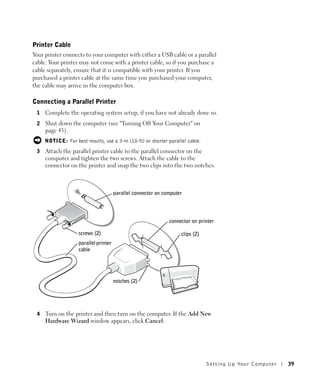
 3   Attach the parallel printer cable to the parallel connector on the
     computer and tighten the two screws. Attach the cable to the
     connector on the printer and snap the two clips into the two notches.


                                       parallel connector on computer


                                                               connector on printer

                    screws (2)                                      clips (2)
                    parallel printer
                    cable


                                       notches (2)


 4   Turn on the printer and then turn on the computer. If the Add New
     Hardware Wizard window appears, click Cancel.


                                                                                Setting Up Yo ur Computer   39
5   Install the printer driver if necessary. See the documentation that
w w w. d e l l . c o m | s u p p o r t . d e l l . c o m


                                                                                               came with your printer.

                                                                                         Connecting a USB Printer
                                                                NOTE: You can connect      1   Complete the operating system setup if you have not already done so.
                                                                USB devices while the
                                                                computer is turned on.     2   Install the printer driver if necessary. See the documentation that
                                                                                               came with your printer.
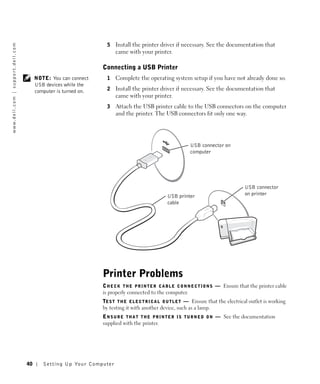
                                                                                           3   Attach the USB printer cable to the USB connectors on the computer
                                                                                               and the printer. The USB connectors fit only one way.


                                                                                                                                     USB connector on
                                                                                                                                     computer


                                                                                                                                                                USB connector
                                                                                                                         USB printer                            on printer
                                                                                                                         cable


                                                                                         Printer Problems
                                                                                         C H E C K T H E P R I N T E R C A B L E C O N N E C T I O N S — Ensure that the printer cable
                                                                                         is properly connected to the computer.
                                                                                         TE S T T H E E L E C T R I C A L O U T L E T — Ensure that the electrical outlet is working
                                                                                         by testing it with another device, such as a lamp.
                                                                                         E N S U R E T H A T T H E P R I N T E R I S T U R N E D O N — See the documentation
                                                                                         supplied with the printer.


                                                           40      Setting Up Yo ur Computer
VE R I F Y T H A T W I N D O W S ® R E C O G N I Z E S T H E P R I N T E R
 1 Click the Start button.
 2 Click Control Panel.
 3 Click Printers and Other Hardware.
 4 Click View installed printers or fax printers. If the printer model is listed, right-
   click the printer icon.
 5 Click Properties, and then click the Ports tab. Ensure that the Print to the
   following port(s): setting is LPT1 (Printer Port).
R E I N S T A L L T H E P R I N T E R D R I V E R — See "Reinstalling Drivers and Utilities"
on page 108.


Setting Up the Docking Device to
Connect to a Network
      NOTICE: Do not install a network adapter or a network adapter/modem                           NOTE: A network
      combination PC Card until you complete the docking device setup.                              adapter is also referred to
                                                                                                    as a network interface
      NOTICE: To prevent serious operating system problems, do not connect your
                                                                                                    controller (NIC).
      computer to a docking device until the Windows operating system setup on the
      computer is complete.
A docking device allows you to more fully integrate your portable computer
into a desktop environment.

For instructions and details on setting up a docking device, refer to the
documentation that came packaged with the device.


Power Protection Devices
Several devices are available to protect against power fluctuations and
failures:

 •    Surge protectors
 •    Line conditioners
 •    Uninterruptible power supplies (UPS)


                                                                                        Setting Up Yo ur Computer         41
Surge Protectors
w w w. d e l l . c o m | s u p p o r t . d e l l . c o m


                                                                                              Surge protectors and power strips equipped with surge protection help to
                                                                                              prevent damage to your computer from voltage spikes that can occur during
                                                                                              electrical storms or following power interruptions. The level of protection is
                                                                                              usually commensurate with the cost of the surge protector. Some surge
                                                                                              protector manufacturers include warranty coverage for certain types of
                                                                                              damage. Carefully read the device warranty when choosing a surge
                                                                                              protector. A device with a higher joule rating offers more protection.
                                                                                              Compare joule ratings to determine the relative effectiveness of different
                                                                                              devices.

                                                                                                   NOTICE: Most surge protectors do not protect against power fluctuations or
                                                                                                   power interruptions caused by nearby lightning strikes. When lightning occurs
                                                                                                   in your area, disconnect the telephone line from the telephone wall jack and
                                                                                                   disconnect your computer from the electrical outlet.
                                                                                              Many surge protectors have a telephone jack for modem protection. See the
                                                                                              surge protector documentation for modem connection instructions.

                                                                                                   NOTICE: Not all surge protectors offer network adapter protection.
                                                                                                   Disconnect the network cable from the network wall jack during electrical
                                                                                                   storms.

                                                                                              Line Conditioners
                                                                                                   NOTICE: Line conditioners do not protect against power interruptions.
                                                                                              Line conditioners are designed to maintain AC voltage at a fairly constant
                                                                                              level.

                                                                                              Uninterruptible Power Supplies
                                                                                                   NOTICE: Loss of power while data is being saved to the hard drive may result
                                                                                                   in data loss or file damage.
                                                                NOTE: To ensure               A UPS protects against power fluctuations and interruptions. UPS devices
                                                                maximum battery               contain a battery that provides temporary power to connected devices when
                                                                operating time, connect       AC power is interrupted. The battery charges while AC power is available.
                                                                only your computer to a
                                                                                              See the UPS manufacturer documentation for information on battery
                                                                UPS. Connect other
                                                                devices, such as a printer,   operating time and to ensure that the device is approved by Underwriters
                                                                to a separate power strip     Laboratories (UL).
                                                                that provides surge
                                                                protection.


                                                           42       Setting Up Yo ur Computer
Turning Off Your Computer
    NOTICE: To avoid losing data, turn off your computer by performing a
    Microsoft® Windows® operating system shutdown, as described next, rather
    than by pressing the power button.
1   Save and close any open files, exit any open programs, click the Start           NOTE: As an alternative
    button, and then click Turn Off Computer.                                        to turning off your
                                                                                     computer, you can set
2   In the Turn off computer window, click Turn off.                                 your computer to enter
    The computer turns off after the shutdown process finishes.                      standby or hibernate
                                                                                     mode.


                                                                         Setting Up Yo ur Computer      43
w w w. d e l l . c o m | s u p p o r t . d e l l . c o m


44
Setting Up Yo ur Computer
SECTION 3


Using Batteries and
Module Bay Devices

     Using a Battery
     Power Problems
     About the Module Bay
     Removing and Installing Devices While the Computer Is
       Turned Off
     Removing and Installing Devices While the Computer Is
       Running
Using a Battery
w w w. d e l l . c o m | s u p p o r t . d e l l . c o m


                                                                                             Battery Performance
                                                                NOTE: Batteries for          Use a battery to power the computer when the computer is not connected
                                                                portable computers are       to an electrical outlet. One battery is supplied as standard equipment in the
                                                                covered only during the      battery bay.
                                                                initial one-year period of
                                                                the limited warranty for     Battery operating time varies depending on operating conditions. With
                                                                your computer. For more
                                                                                             average usage, you may expect from 3 to 4 hours from a single, fully charged
                                                                information about the
                                                                Dell warranty for your       battery. You can install an optional second battery in the module bay to
                                                                computer, see "Limited       significantly increase operating time. For more information about the
                                                                Warranties and Return        second battery, see "About the Module Bay" on page 53.
                                                                Policy" on page 159.

                                                                NOTE: It is                  Operating time is significantly reduced when you perform operations
                                                                recommended that you         including, but not limited to, the following:
                                                                connect your computer to
                                                                an electrical outlet when     •   Using optical drives, especially DVD and CD-RW drives
                                                                writing to a CD.
                                                                                              •   Using wireless communications devices, PC Cards, or USB devices
                                                                                              •   Using high-brightness display settings, 3D screen savers, or other
                                                                                                  power-intensive programs, such as 3D games
                                                                                              •   Running the computer in maximum performance mode
                                                                                             You can check the battery charge on the bottom of the computer. You can
                                                                                             also set power management options to alert you when the battery charge
                                                                                             is low.

                                                                                                  CAUTION: Using an incompatible battery may increase the risk of
                                                                                                  fire or explosion. Replace the battery only with a compatible
                                                                                                  battery purchased from Dell. The lithium-ion battery is designed
                                                                                                  to work with your Dell™ computer. Do not use a battery from
                                                                                                  other computers with your computer.
                                                                                                  CAUTION: Do not dispose of batteries with household waste.
                                                                                                  When your battery no longer holds a charge, call your local waste
                                                                                                  disposal or environmental agency for advice on disposing of a
                                                                                                  lithium-ion battery. See the battery disposal instructions in
                                                                                                  "Battery Disposal" on page 17.


                                                           46       Us ing B atteries and Module Bay Devices
CAUTION: Misuse of the battery may increase the risk of fire or
        chemical burn. Do not puncture, incinerate, disassemble, or
        expose the battery to temperatures above 65°C (149°F). Keep the
        battery away from children. Handle damaged or leaking batteries
        with extreme care. Damaged batteries may leak and cause
        personal injury or equipment damage.

Checking the Battery Charge
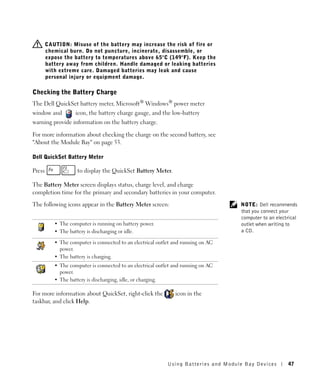
The Dell QuickSet battery meter, Microsoft® Windows® power meter
window and          icon, the battery charge gauge, and the low-battery
warning provide information on the battery charge.

For more information about checking the charge on the second battery, see
"About the Module Bay" on page 53.

Dell QuickSet Battery Meter

Press                to display the QuickSet Battery Meter.

The Battery Meter screen displays status, charge level, and charge
completion time for the primary and secondary batteries in your computer.

The following icons appear in the Battery Meter screen:                              NOTE: Dell recommends
                                                                                     that you connect your
                                                                                     computer to an electrical
           • The computer is running on battery power.                               outlet when writing to
           • The battery is discharging or idle.                                     a CD.

           • The computer is connected to an electrical outlet and running on AC
             power.
           • The battery is charging.
           • The computer is connected to an electrical outlet and running on AC
             power.
           • The battery is discharging, idle, or charging.

For more information about QuickSet, right-click the           icon in the
taskbar, and click Help.


                                                            Using Batteries and Module Bay Devices       47
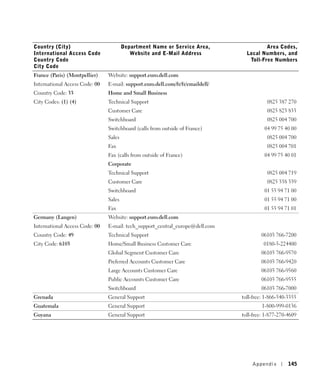
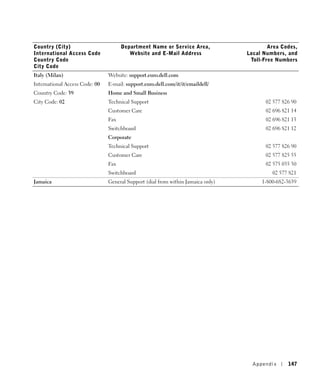
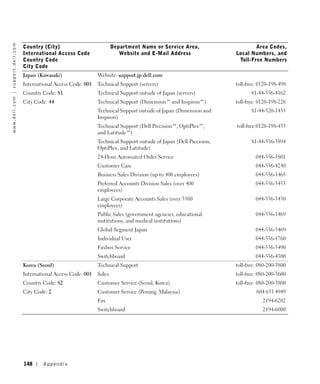
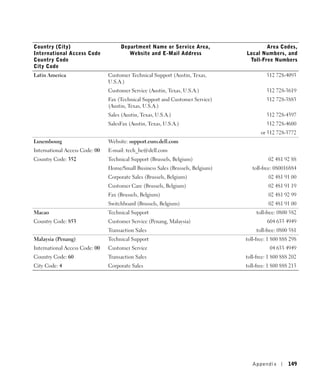
Microsoft Windows Power Meter
w w w. d e l l . c o m | s u p p o r t . d e l l . c o m


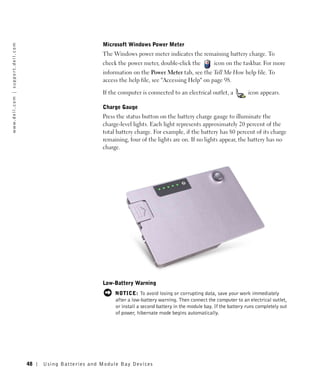
                                                                                     The Windows power meter indicates the remaining battery charge. To
                                                                                     check the power meter, double-click the            icon on the taskbar. For more
                                                                                     information on the Power Meter tab, see the Tell Me How help file. To
                                                                                     access the help file, see "Accessing Help" on page 98.

                                                                                     If the computer is connected to an electrical outlet, a            icon appears.

                                                                                     Charge Gauge
                                                                                     Press the status button on the battery charge gauge to illuminate the
                                                                                     charge-level lights. Each light represents approximately 20 percent of the
                                                                                     total battery charge. For example, if the battery has 80 percent of its charge
                                                                                     remaining, four of the lights are on. If no lights appear, the battery has no
                                                                                     charge.


                                                                                     Low-Battery Warning
                                                                                          NOTICE: To avoid losing or corrupting data, save your work immediately
                                                                                          after a low-battery warning. Then connect the computer to an electrical outlet,
                                                                                          or install a second battery in the module bay. If the battery runs completely out
                                                                                          of power, hibernate mode begins automatically.


                                                           48   Us ing B atteries and Module Bay Devices
A low-battery warning occurs when the battery charge is approximately
90 percent depleted. The computer beeps once, indicating that minimal
battery operating time remains. During that time, the speaker beeps
periodically. If two batteries are installed, the low-battery warning means
that the combined charge of both batteries is approximately 90 percent
depleted. The computer enters hibernate mode when the battery charge is
at a critically low level. For more information on low-battery alarms, see the
Tell Me How help file. To access the help file, see "Accessing Help" on
page 98.

Charging the Battery
When you connect the computer to an electrical outlet or install a battery         NOTE: The AC adapter
while the computer is connected to an electrical outlet, the computer              charges a completely
checks the battery charge and temperature. If necessary, the AC adapter            discharged battery in
                                                                                   approximately 1 hour
then charges the battery and maintains the battery charge.
                                                                                   with the computer turned
                                                                                   off. Charge time is longer
If the battery is hot from being used in your computer or being in a hot
                                                                                   with the computer turned
environment, the battery may not charge when you connect the computer              on. You can leave the
to an electrical outlet.                                                           battery in the computer as
                                                                                   long as you like. The
Disconnect the computer from the electrical outlet and allow the computer          battery internal circuitry
and the battery to cool to room temperature. Then connect the computer             prevents the battery from
to an electrical outlet to continue charging the battery.                          overcharging.

For more information on resolving problems with a battery, see "Power
Problems" on page 52.

Removing a Battery
For more information about removing the second battery, see "About the
Module Bay" on page 53.

     CAUTION: Before performing these procedures, turn off the
     computer, disconnect it from the electrical outlet, and disconnect
     the modem from the telephone wall jack.
     NOTICE: If you choose to replace the battery with the computer in standby
     mode, you have up to 90 seconds to complete the battery replacement before
     the computer shuts down and loses any unsaved data.
 1   Ensure that the computer is turned off, disconnected from an
     electrical outlet, and disconnected from the telephone wall jack.


                                                          Using Batteries and Module Bay Devices        49
2   If the computer is connected to a docking device (docked), undock it.
w w w. d e l l . c o m | s u p p o r t . d e l l . c o m


                                                                                           See the documentation that came with your docking device for
                                                                                           instructions.
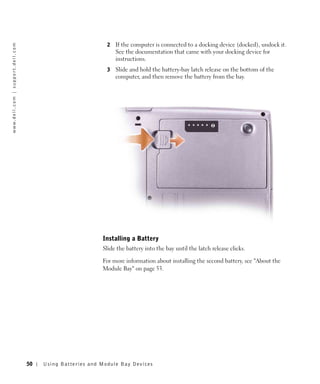
                                                                                       3   Slide and hold the battery-bay latch release on the bottom of the
                                                                                           computer, and then remove the battery from the bay.


                                                                                     Installing a Battery
                                                                                     Slide the battery into the bay until the latch release clicks.

                                                                                     For more information about installing the second battery, see "About the
                                                                                     Module Bay" on page 53.


                                                           50   Us ing B atteries and Module Bay Devices
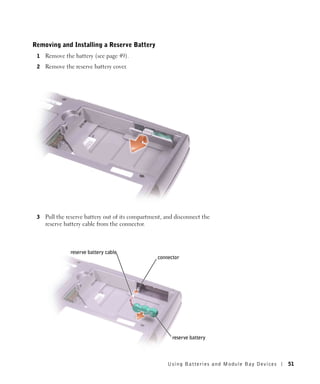
Removing and Installing a Reserve Battery
 1   Remove the battery (see page 49).
 2   Remove the reserve battery cover.


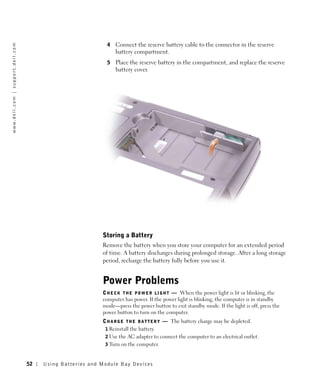
 3   Pull the reserve battery out of its compartment, and disconnect the
     reserve battery cable from the connector.


               reserve battery cable
                                                  connector


                                                        reserve battery


                                                      Using Batteries and Module Bay Devices   51
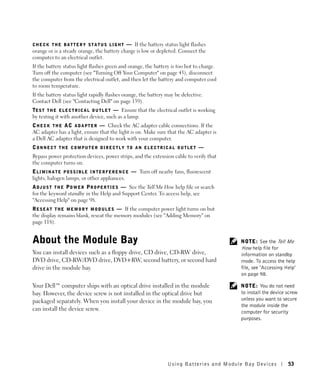
4   Connect the reserve battery cable to the connector in the reserve
w w w. d e l l . c o m | s u p p o r t . d e l l . c o m


                                                                                           battery compartment.
                                                                                       5   Place the reserve battery in the compartment, and replace the reserve
                                                                                           battery cover.


                                                                                     Storing a Battery
                                                                                     Remove the battery when you store your computer for an extended period
                                                                                     of time. A battery discharges during prolonged storage. After a long storage
                                                                                     period, recharge the battery fully before you use it.


                                                                                     Power Problems
                                                                                     C H E C K T H E P O W E R L I G H T — When the power light is lit or blinking, the
                                                                                     computer has power. If the power light is blinking, the computer is in standby
                                                                                     mode—press the power button to exit standby mode. If the light is off, press the
                                                                                     power button to turn on the computer.
                                                                                     C H A R G E T H E B A T T E R Y — The battery charge may be depleted.
                                                                                      1 Reinstall the battery.
                                                                                      2 Use the AC adapter to connect the computer to an electrical outlet.
                                                                                      3 Turn on the computer.


                                                           52   Us ing B atteries and Module Bay Devices
CHECK THE BATTERY STATUS LIGHT              — If the battery status light flashes
orange or is a steady orange, the battery charge is low or depleted. Connect the
computer to an electrical outlet.
If the battery status light flashes green and orange, the battery is too hot to charge.
Turn off the computer (see "Turning Off Your Computer" on page 43), disconnect
the computer from the electrical outlet, and then let the battery and computer cool
to room temperature.
If the battery status light rapidly flashes orange, the battery may be defective.
Contact Dell (see "Contacting Dell" on page 139).
TE S T T H E E L E C T R I C A L O U T L E T — Ensure that the electrical outlet is working
by testing it with another device, such as a lamp.
C H E C K T H E A C A D A P T E R — Check the AC adapter cable connections. If the
AC adapter has a light, ensure that the light is on. Make sure that the AC adapter is
a Dell AC adapter that is designed to work with your computer.
CONNECT THE COMPUTER DIRECTLY TO AN ELECTRICAL OUTLET —
Bypass power protection devices, power strips, and the extension cable to verify that
the computer turns on.
E L I M I N A T E P O S S I B L E I N T E R F E R E N C E — Turn off nearby fans, fluorescent
lights, halogen lamps, or other appliances.
A D J U S T T H E P O W E R P R O P E R T I E S — See the Tell Me How help file or search
for the keyword standby in the Help and Support Center. To access help, see
"Accessing Help" on page 98.
R E S E A T T H E M E M O R Y M O D U L E S — If the computer power light turns on but
the display remains blank, reseat the memory modules (see "Adding Memory" on
page 118).


About the Module Bay                                                                            NOTE: See the Tell Me
                                                                                                How help file for
You can install devices such as a floppy drive, CD drive, CD-RW drive,                          information on standby
DVD drive, CD-RW/DVD drive, DVD+RW, second battery, or second hard                              mode. To access the help
drive in the module bay.                                                                        file, see "Accessing Help"
                                                                                                on page 98.

Your Dell™ computer ships with an optical drive installed in the module                         NOTE: You do not need
bay. However, the device screw is not installed in the optical drive but                        to install the device screw
packaged separately. When you install your device in the module bay, you                        unless you want to secure
                                                                                                the module inside the
can install the device screw.                                                                   computer for security
                                                                                                purposes.


                                                                      Using Batteries and Module Bay Devices          53
Checking the Charge on the Second Battery
w w w. d e l l . c o m | s u p p o r t . d e l l . c o m


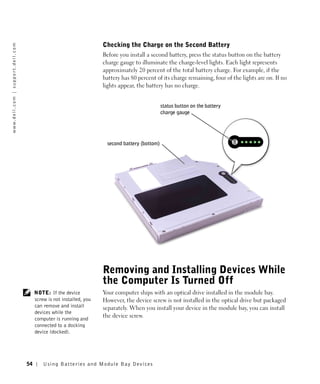
                                                                                              Before you install a second battery, press the status button on the battery
                                                                                              charge gauge to illuminate the charge-level lights. Each light represents
                                                                                              approximately 20 percent of the total battery charge. For example, if the
                                                                                              battery has 80 percent of its charge remaining, four of the lights are on. If no
                                                                                              lights appear, the battery has no charge.


                                                                                                                         status button on the battery
                                                                                                                         charge gauge


                                                                                               second battery (bottom)


                                                                                              Removing and Installing Devices While
                                                                                              the Computer Is Turned Off
                                                                NOTE: If the device           Your computer ships with an optical drive installed in the module bay.
                                                                screw is not installed, you   However, the device screw is not installed in the optical drive but packaged
                                                                can remove and install        separately. When you install your device in the module bay, you can install
                                                                devices while the
                                                                computer is running and
                                                                                              the device screw.
                                                                connected to a docking
                                                                device (docked).


                                                           54       Us ing B atteries and Module Bay Devices
If the Device Screw Is Not Installed                                                  NOTE: You do not need
                                                                                      to install the device screw
     NOTICE: To prevent damage to devices, place them in a safe, dry place when       unless you want to secure
     they are not installed in the computer. Avoid pressing down on them or placing   the module inside the
     heavy objects on top of them.                                                    computer for security
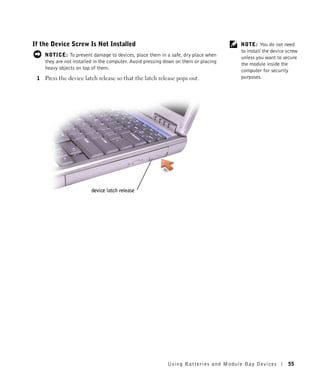
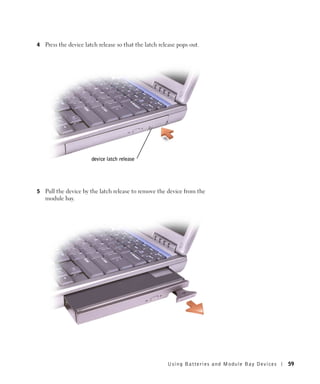
 1   Press the device latch release so that the latch release pops out.               purposes.


                          device latch release


                                                            Using Batteries and Module Bay Devices          55
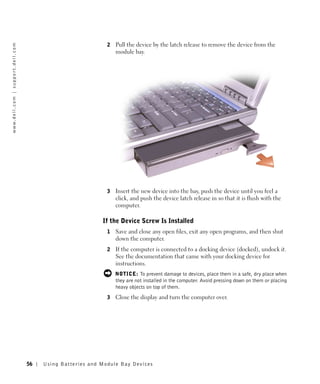
2   Pull the device by the latch release to remove the device from the
w w w. d e l l . c o m | s u p p o r t . d e l l . c o m


                                                                                           module bay.


                                                                                       3   Insert the new device into the bay, push the device until you feel a
                                                                                           click, and push the device latch release in so that it is flush with the
                                                                                           computer.

                                                                                     If the Device Screw Is Installed
                                                                                       1   Save and close any open files, exit any open programs, and then shut
                                                                                           down the computer.
                                                                                       2   If the computer is connected to a docking device (docked), undock it.
                                                                                           See the documentation that came with your docking device for
                                                                                           instructions.
                                                                                           NOTICE: To prevent damage to devices, place them in a safe, dry place when
                                                                                           they are not installed in the computer. Avoid pressing down on them or placing
                                                                                           heavy objects on top of them.
                                                                                       3   Close the display and turn the computer over.


                                                           56   Us ing B atteries and Module Bay Devices
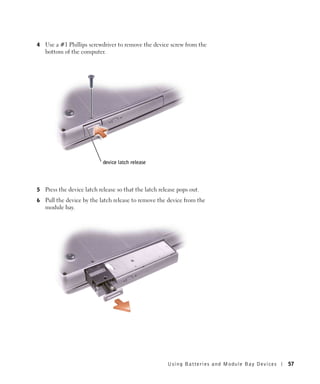
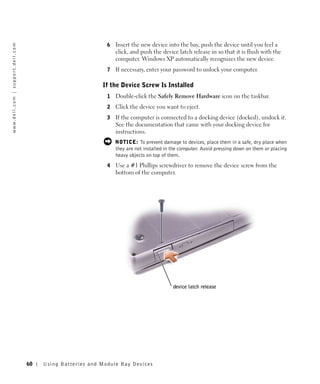
4   Use a #1 Phillips screwdriver to remove the device screw from the
    bottom of the computer.


                            device latch release


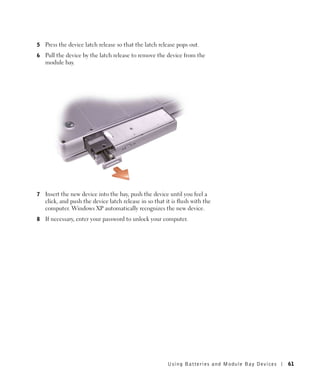
5   Press the device latch release so that the latch release pops out.
6   Pull the device by the latch release to remove the device from the
    module bay.


                                                        Using Batteries and Module Bay Devices   57
NOTICE: Insert devices into the module bay before you dock and turn on the
w w w. d e l l . c o m | s u p p o r t . d e l l . c o m


                                                                                                   computer.
                                                                                               7   Insert the new device into the bay, push the device until you feel a
                                                                                                   click, and push the device latch release in so that it is flush with the
                                                                                                   computer.
                                                                                               8   Replace the device screw.
                                                                                               9   Turn on the computer.


                                                                                              Removing and Installing Devices While
                                                                                              the Computer Is Running
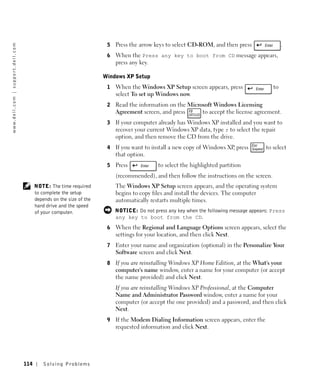
                                                                NOTE: If the device           Your computer ships with an optical drive installed in the module bay.
                                                                screw is not installed, you   However, the device screw is not installed in the optical drive but packaged
                                                                can remove and install        separately. When you install your device in the module bay, you can install
                                                                devices while the
                                                                                              the device screw.
                                                                computer is running and
                                                                connected to a docking
                                                                device (docked).

                                                                NOTE: You do not need         If the Device Screw Is Not Installed
                                                                to install the device screw
                                                                unless you want to secure      1   Double-click the Safely Remove Hardware icon on the taskbar.
                                                                the module inside the          2   Click Stop and wait for the operating system to confirm that the
                                                                computer for security              device has stopped.
                                                                purposes.
                                                                                               3   Click the device you want to eject.
                                                                                                   NOTICE: To prevent damage to devices, place them in a safe, dry place when
                                                                                                   they are not installed in the computer. Avoid pressing down on them or placing
                                                                                                   heavy objects on top of them.


                                                           58       Us ing B atteries and Module Bay Devices
4   Press the device latch release so that the latch release pops out.


                       device latch release


5   Pull the device by the latch release to remove the device from the
    module bay.


                                                        Using Batteries and Module Bay Devices   59
6   Insert the new device into the bay, push the device until you feel a
w w w. d e l l . c o m | s u p p o r t . d e l l . c o m


                                                                                           click, and push the device latch release in so that it is flush with the
                                                                                           computer. Windows XP automatically recognizes the new device.
                                                                                       7   If necessary, enter your password to unlock your computer.

                                                                                     If the Device Screw Is Installed
                                                                                       1   Double-click the Safely Remove Hardware icon on the taskbar.
                                                                                       2   Click the device you want to eject.
                                                                                       3   If the computer is connected to a docking device (docked), undock it.
                                                                                           See the documentation that came with your docking device for
                                                                                           instructions.
                                                                                           NOTICE: To prevent damage to devices, place them in a safe, dry place when
                                                                                           they are not installed in the computer. Avoid pressing down on them or placing
                                                                                           heavy objects on top of them.
                                                                                       4   Use a #1 Phillips screwdriver to remove the device screw from the
                                                                                           bottom of the computer.


                                                                                                                     device latch release


                                                           60   Us ing B atteries and Module Bay Devices
5   Press the device latch release so that the latch release pops out.
6   Pull the device by the latch release to remove the device from the
    module bay.


7   Insert the new device into the bay, push the device until you feel a
    click, and push the device latch release in so that it is flush with the
    computer. Windows XP automatically recognizes the new device.
8   If necessary, enter your password to unlock your computer.


                                                         Using Batteries and Module Bay Devices   61
w w w. d e l l . c o m | s u p p o r t . d e l l . c o m


62
Us ing B atteries and Module Bay Devices
SECTION 4


Using the Keyboard
a n d To u c h Pa d

     Numeric Keypad
     Keyboard Shortcuts
     Customizing the Touch Pad
     Touch Pad or Mouse Problems
     External Keyboard Problems
     Unexpected Characters
Numeric Keypad
w w w. d e l l . c o m | s u p p o r t . d e l l . c o m


                                                                NOTE: When you
                                                                connect an external
                                                                keyboard or keypad to the
                                                                computer, the keypad is
                                                                disabled.
                                                                NOTE: You can change        The keypad numbers and symbols are marked in blue on the right side of
                                                                options for using the
                                                                numeric keypad in the       the keypad keys. To type a number or symbol, press       to enable the
                                                                system setup program.
                                                                                            numeric keypad, and then hold down         and press the desired key.


                                                           64      Us ing the Ke yboard and To uch Pad
Keyboard Shortcuts
System Functions

                         Opens the Windows Task Manager window.


                         Enables and disables the numeric keypad.


                         Enables and disables the scroll lock.


Battery

                    Displays the Dell™ QuickSet Battery Meter.


CD or DVD Tray

                    Ejects the tray out of the drive.


Display Functions

                    Switches the video image to the next display in the
                    following sequence: the integrated display only, the
                    integrated display and an external CRT monitor
                    simultaneously, an external CRT monitor only, the
                    integrated display and an external DVI monitor
                    simultaneously, and an external DVI monitor only.
                    Increases brightness on the integrated display only
                    (not on an external monitor).
                    Decreases brightness on the integrated display only
                    (not on an external monitor).


Radios (Including Wireless Networking and Bluetooth™)

                    Enables and disables radios, including wireless
                    networking and Bluetooth.


                                                            U s ing the Key boar d and To uc h Pad   65
Power Management
w w w. d e l l . c o m | s u p p o r t . d e l l . c o m


                                                                                                                Activates the power management mode of your choice.
                                                                                                                You can program this keyboard shortcut on the
                                                                                                                Advanced tab in the Power Options Properties
                                                                                                                window.


                                                                                      Speaker Functions
                                                                                      If no sound comes from the speakers, press                 and adjust the
                                                                                      volume.


                                                                                                                Increases the volume of the integrated speakers and
                                                                                                                external speakers, if attached.
                                                                                                                Decreases the volume of the integrated speakers and
                                                                                                                external speakers, if attached.
                                                                                                                Enables and disables the integrated speakers and
                                                                                                                external speakers, if attached.


                                                                                      Microsoft® Windows® Logo Key Functions

                                                                                                                   Minimizes all open windows.


                                                                                                                   Maximizes all windows.


                                                                                                                   Runs Windows Explorer.


                                                                                                                   Opens the Run dialog box.


                                                                                                                   Opens the Search Results dialog box.


                                                                                                                   Opens the Search Results-Computer dialog box (if
                                                                                                                   the computer is connected to a network).
                                                                                                                   Opens the System Properties dialog box.


                                                                                      To adjust keyboard operation, such as the character repeat rate, open the
                                                                                      Control Panel, and click Printers and Other Hardware.


                                                           66   Us ing the Ke yboard and To uch Pad
The touch pad detects the pressure and movement of your finger to allow
you to move the cursor on the display. Use the touch pad and touch pad
buttons as you would use a mouse.


             touch pad


                                                    touch pad buttons

 •   To move the cursor, lightly slide your finger over the touch pad.
 •   To select an object, lightly tap once on the surface of the touch pad or
     use your thumb to press the left touch-pad button.
 •   To select and move (or drag) an object, position the cursor on the
     object and tap down-up-down on the touch pad. On the second down
     motion, leave your finger on the touch pad and move the selected
     object by sliding your finger across the surface.
 •   To double-click an object, position the cursor on the object and then
     tap twice on the touch pad, or use your thumb to press the left touch-
     pad button twice.


                                                               U s ing the Key boar d and To uc h Pad   67
Customizing the Touch Pad
w w w. d e l l . c o m | s u p p o r t . d e l l . c o m


                                                                                      You can disable the touch pad or adjust their settings by using the Mouse
                                                                                      Properties window.

                                                                                        1   Click the Start button, click Control Panel, and then double-click the
                                                                                            Mouse icon.
                                                                                        2   On the Mouse Properties window:
                                                                                            •     Click the Device Select tab to disable the touch pad.
                                                                                            •     Click the Pointer tab to adjust touch pad settings.
                                                                                        3   Select the desired settings and click Apply.
                                                                                        4   Click OK to save the settings and close the window.


                                                                                      Touch Pad or Mouse Problems
                                                                                      CHECK THE TOUCH PAD SETTINGS —
                                                                                       1 Click the Start button, click Control Panel, and then click Printers and Other
                                                                                         Hardware.
                                                                                       2 Click Mouse.
                                                                                       3 Try adjusting the settings.
                                                                                      TO V E R I F Y T H A T T H E P R O B L E M I S W I T H T H E M O U S E , C H E C K T H E T O U C H
                                                                                      PAD —
                                                                                       1 Shut down the computer (see "Turning Off Your Computer" on page 43).
                                                                                       2 Disconnect the mouse.
                                                                                       3 Turn on the computer.
                                                                                       4 At the Windows desktop, use the touch pad to move the cursor around, select an
                                                                                         icon, and open it.
                                                                                      If the touch pad operates correctly, the mouse may be defective.
                                                                                      R E I N S T A L L T H E T O U C H P A D D R I V E R — See "Reinstalling Drivers and
                                                                                      Software" on page 115.


                                                                                      External Keyboard Problems
                                                                                      C H E C K T H E K E Y B O A R D C A B L E — Shut down the computer (see "Turning Off
                                                                                      Your Computer" on page 43). Disconnect the keyboard cable and check it for
                                                                                      damage.
                                                                                      If you are using a keyboard extension cable, disconnect it and connect the keyboard
                                                                                      directly to the computer.


                                                           68   Us ing the Ke yboard and To uch Pad
CHECK THE EXTERNAL KEYBOARD —
 1 Turn off the computer, wait 1 minute, and turn it on again.
 2 Verify that the numbers, capitals, and scroll lock lights on the keyboard blink
   during the boot routine.
 3 From the Windows® desktop, click the Start button, point to All Programs, point
   to Accessories, and click Notepad.
 4 Type some characters on the external keyboard and verify that they appear on the
   display.
If you cannot verify these steps, you may have a defective external keyboard.
TO V E R I F Y T H A T T H E P R O B L E M I S W I T H T H E E X T E R N A L K E Y B O A R D ,
CHECK THE INTEGRATED KEYBOARD —
 1 Turn off the computer.
 2 Disconnect the external keyboard.
 3 Turn on the computer.
 4 From the Windows desktop, click the Start button, point to All Programs, point
   to Accessories, and click Notepad.
 5 Type some characters on the external keyboard and verify that they appear on the
   display.
If the characters appear now but did not with the external keyboard, you may have a
defective external keyboard. Contact Dell (see "Contacting Dell" on page 139).


Unexpected Characters
DISABLE THE NUMERIC KEYPAD —                                                                        NOTE: When you attach
                                                                                                    an external keyboard, the
Press         to disable the numeric keypad if numbers are displayed instead                        integrated keyboard
of letters. Verify that the numbers lock light is not lit.                                          remains fully functional.


                                                                             U s ing the Key boar d and To uc h Pad     69
w w w. d e l l . c o m | s u p p o r t . d e l l . c o m


70
Us ing the Ke yboard and To uch Pad
SECTION 5


Using CDs, DVDs, and
Other Multimedia

     Using CDs and DVDs
     CD and DVD Problems
     Sound and Speaker Problems
     Copying CDs
     Connecting a Television to the Computer
Using CDs and DVDs
w w w. d e l l . c o m | s u p p o r t . d e l l . c o m


                                                                                            For information about using CDs and DVDs in your computer, see the Tell
                                                                                            Me How help file. To access the help file, see "Accessing Help" on page 98.


                                                                                            CD and DVD Problems
                                                                                            If you cannot play a CD or DVD
                                                                NOTE: Because of            High-speed CD drive vibration is normal and may cause noise. This noise
                                                                different worldwide file    does not indicate a defect with the drive or the CD.
                                                                types, not all DVD titles
                                                                work in all DVD drives.     E N S U R E T H A T W I N D O W S ® R E C O G N I Z E S T H E D R I V E — Click the Start
                                                                                            button and click My Computer. If the drive is not listed, perform a full scan with
                                                                                            your antivirus software to check for and remove viruses. Viruses can sometimes
                                                                                            prevent Windows from recognizing the drive. Insert a bootable disk and restart the
                                                                                            computer. Verify that the          light is blinking, indicating normal operation.
                                                                                            TR Y A N O T H E R D I S C — Insert another disc to eliminate the possibility that the
                                                                                            original disc is defective.
                                                                                            ENSURE THAT THE CD IS SNAPPED TO THE SPINDLE.
                                                                                            A D J U S T T H E W I N D O W S V O L U M E C O N T R O L — Double-click the speaker icon
                                                                                            in the lower-right corner of your screen. Ensure that the volume is turned up and
                                                                                            that the sound is not muted.
                                                                                            REINSTALL THE DRIVE —
                                                                                             1 Save and close any open files, exit any open programs, and shut down the
                                                                                               computer.
                                                                                             2 Remove the drive. See "Using the Module Bay" in the Tell Me How help file for
                                                                                               instructions. To access the help file, see "Accessing Help" on page 98.
                                                                                             3 Reinstall the drive.
                                                                                             4 Turn on the computer.
                                                                                            C L E A N T H E D R I V E O R D I S C — See "Cleaning Your Computer" in the Tell Me
                                                                                            How help file for instructions. To access the help file, see "Accessing Help" on
                                                                                            page 98.

                                                                                            If you cannot eject the CD, CD-RW, or DVD drive tray
                                                                                             1 Ensure that the computer is shut down and turned off (see page 43).
                                                                                             2 Straighten a paper clip and insert one end into the eject hole at the front of the
                                                                                               drive; push firmly until the tray is partially ejected.
                                                                                             3 Gently pull out the tray until it stops.


                                                           72       Using CDs, DVDs, and Other Multimedia
If you hear an unfamiliar scraping or grinding sound
• Ensure that the sound is not caused by the program that is running.
• Ensure that the disk or disc is inserted properly.

If the CD-RW drive stops writing
DISABLE STANDBY MODE IN WINDOWS BEFORE WRITING TO A
C D - R W — Search for the keyword standby in the Help and Support Center. To
access help, see "Accessing Help" on page 98.
C H A N G E T H E W R I T E S P E E D T O A S L O W E R R A T E — See the help files for
your CD creation software.
E X I T A L L O T H E R O P E N P R O G R A M S — Exiting all other open programs before
writing to the CD-RW may alleviate the problem.


Sound and Speaker Problems
If you have a problem with integrated speakers
A D J U S T T H E W I N D O W S ® V O L U M E C O N T R O L — Double-click the speaker
icon in the lower-right corner of your screen. Ensure that the volume is turned up
and that the sound is not muted. Adjust the volume, bass, or treble controls to
eliminate distortion.
A D J U S T T H E V O L U M E U S I N G T H E V O L U M E C O N T R O L B U T T O N S — Press
the volume control buttons and mute button, which are located above the keyboard.
R E I N S T A L L T H E S O U N D ( A U D I O ) D R I V E R — See "Reinstalling Drivers and
Software" on page 115.

If you have a problem with external speakers
C H E C K T H E S P E A K E R C A B L E C O N N E C T I O N S — See the setup diagram           NOTE: The volume
supplied with the speakers.                                                                     control in some MP3
TE S T T H E E L E C T R I C A L O U T L E T — Ensure that the electrical outlet is working     players overrides the
by testing it with another device, such as a lamp.                                              Windows volume setting.
                                                                                                If you have been listening
E N S U R E T H A T T H E S P E A K E R S A R E T U R N E D O N — See the setup diagram         to MP3 songs, make sure
supplied with the speakers.                                                                     that you did not turn the
A D J U S T T H E W I N D O W S V O L U M E C O N T R O L — Double-click the speaker icon       player volume down or
in the lower-right corner of your screen. Ensure that the volume is turned up and               off.
that the sound is not muted. Adjust the volume, bass, or treble controls to eliminate
distortion.


                                                                     Using CDs, DV Ds , and Other Multimedia         73
TE S T T H E S P E A K E R S — Plug the speaker audio cable into the line-out
w w w. d e l l . c o m | s u p p o r t . d e l l . c o m


                                                                                               connector on the computer. Ensure that the headphone volume control is turned
                                                                                               up. Play a music CD.
                                                                                               R U N T H E S P E A K E R S E L F - T E S T — Some speaker systems have a self-test
                                                                                               button on the subwoofer. See the speaker documentation for self-test instructions.
                                                                                               E L I M I N A T E P O S S I B L E I N T E R F E R E N C E — Turn off nearby fans, fluorescent
                                                                                               lights, or halogen lamps to check for interference.
                                                                                               R E I N S T A L L T H E S O U N D ( A U D I O ) D R I V E R — See "Reinstalling Drivers and
                                                                                               Software" on page 115.


                                                                                               Copying CDs
                                                                NOTE: To "burn" a CD           This section applies only to computers that have a CD- or DVD-recording
                                                                means to copy or create        device.
                                                                your own custom CD.
                                                                Ensure that you follow all     The information in this section is based on the Roxio Easy CD Creator
                                                                copyright laws when you        Basic documentation that came with your computer. See "Using Easy CD
                                                                create CDs.
                                                                                               Creator Basic" on page 75 for instructions on how to locate that
                                                                                               documentation.

                                                                NOTE: The information          To burn CDs, you need to use CD-burner software. Roxio Easy CD Creator
                                                                in this section also applies   Basic is your computer's CD-burner software. The software includes the
                                                                to using Easy CD Creator       following project programs that enable you to record specialty CDs for
                                                                Basic with a DVD+RW
                                                                                               different types of uses:
                                                                or a DVD+R drive.
                                                                                                •    DirectCD allows you to format a blank CD-R or CD-RW disc so that
                                                                                                     you can use Microsoft® Windows® Explorer to drag and drop data
                                                                                                     files to the CD-RW drive. You can use a DirectCD-formatted CD-RW
                                                                                                     disc like another hard drive on your computer because CD-RW discs
                                                                                                     are fully rewritable (CD-R discs can be used with DirectCD, but that
                                                                                                     media type has overwriting limitations—see "Using Blank CD-R Discs
                                                                                                     or Blank CD-RW Discs" on page 75 for recording media differences).
                                                                                                •    MusicCD allows you to burn custom music CDs.
                                                                                                •    DataCD allows you to copy a variety of your documents, such as
                                                                                                     spreadsheet or accounting files, to a CD for permanent storage.


                                                           74       Using CDs, DVDs, and Other Multimedia
•   Disc Copier allows you to make a backup copy of almost any type of           NOTE: Some music and
     CD. This program allows you to make a copy of a CD for everyday use          game CDs are
     so that you can archive and save the original copy. (Disc Copier is          copy-protected. If you
     titled "CD Copier" in some versions of Roxio CD Creator Basic.)              have a CD that cannot be
                                                                                  copied, you must use the
All four project programs are available on the Easy CD Creator Basic Select       original CD for everyday
a Project menu screen. To view the Select a Project menu screen, click the        use.
Start button, point to All Programs→ Roxio Easy CD Creator, and then
click Project Selector.

Using Easy CD Creator Basic
See the Easy CD Creator Basic documentation for instructions on how to
use the program, information about different recording techniques, and CD
media limitations. The Easy CD Creator Basic documentation is located in
the Help and Support Center (see "Accessing Help" on page 98). The
documentation is also provided on the Roxio reinstallation CD, which is
included with your computer. Each Easy CD Creator Basic project program
also has thorough online help files.

Using Blank CD-R Discs or Blank CD-RW Discs
Your CD-RW drive writes to two different types of recording media—CD-R
and CD-RW discs. Use blank CD-R (CD-Recordable) disks to record music
or permanently store data files. After creating a CD-R disc, you cannot write
to that disc again without changing your method of recording (see the
Roxio documentation for more information). Use blank CD-RW
(CD-ReWritable) discs when you want to write, erase, rewrite, and update
your files onto CDs.

Helpful Tips
 •   You must use the Easy CD Creator Basic project programs to copy and
     record all music and data CDs. You can use Windows Explorer to drag
     and drop files to a CD-R or CD-RW disc only after you first use
     DirectCD to format the disc.
 •   You must use CD-R discs to burn music CDs that you want to play in
     regular stereos. CD-RW discs do not play in most home or car stereos.


                                                        Using CDs, DV Ds , and Other Multimedia       75
•   If you want to copy files from the Internet or files from a floppy or Zip
w w w. d e l l . c o m | s u p p o r t . d e l l . c o m


                                                                                                 drive, copy those files to your hard drive first, and then burn your CD.
                                                                                                 Your CD-RW drive requires a steady stream of data to properly record.
                                                                                                 Direct Internet downloads, floppy drives, and Zip drives may not be
                                                                                                 able to provide a steady data stream to your CD-RW drive.
                                                                                             •   Music MP3 files can be played only on MP3 players or on computers
                                                                                                 that have MP3 software installed.
                                                                                             •   Ensure that you set the sampling rate to at least 128 Kbps when you
                                                                                                 burn MP3 files to a CD. Otherwise, recording errors may occur.
                                                                                             •   Do not burn a blank CD-R or CD-RW disc to its maximum capacity;
                                                                                                 for example, do not copy a 650-MB file to a 650-MB blank CD. The
                                                                                                 CD-RW drive needs 1 or 2 MB of the blank CD to finalize the
                                                                                                 recording.
                                                                                             •   Use a blank CD-RW disc to practice CD recording until you are
                                                                                                 familiar with CD recording techniques. If you make a mistake, you can
                                                                                                 erase the CD-RW disc and try again. You can also use blank CD-RW
                                                                                                 discs to test music file projects before you record the project
                                                                                                 permanently to a blank CD-R disc.
                                                                                             •   See the Roxio support website at support.roxio.com for additional
                                                                                                 helpful tips.

                                                                                            How to Copy a CD
                                                                NOTE: If you have a         The procedure assumes that your computer is equipped with a single
                                                                DVD/CD-RW combo drive       CD-RW drive (without an additional CD drive). If your computer is
                                                                and you experience          equipped with both types of drives, see the Roxio documentation for
                                                                recording problems, first
                                                                                            instructions on how to copy CDs from a CD drive to a CD-RW drive.
                                                                check for available
                                                                software patches on the
                                                                                             1   Click the Start button, point to All Programs→ Roxio Easy CD
                                                                Dell Support website at
                                                                                                 Creator, and then click Project Selector.
                                                                support.dell.com and if
                                                                necessary, the Roxio             The Select a Project window appears.
                                                                support website at
                                                                support.roxio.com.           2   Click Disc Copier. (Disc Copier is titled "CD Copier" in some versions
                                                                                                 of Easy CD Creator Basic.)
                                                                                                 The Disc Copier window appears and displays your CD-RW drive in
                                                                                                 the Copy from and the Record to lists.


                                                           76      Using CDs, DVDs, and Other Multimedia
3   Insert the source CD that you want to copy into the CD-RW drive.
     The Disc Copier project program briefly checks the source CD in the
     CD-RW drive to ensure that it is a readable CD.
 4   Click Copy.
     Depending on the size of the files that are being copied, the copy
     process may take a few minutes.
 5   After the source CD is copied, remove the source CD from the
     CD-RW drive tray.
     The CD-RW drive tray opens automatically after the source CD is
     copied.
 6   Insert a blank CD into the CD-RW drive and close the tray.
     The recording starts automatically.
 7   After the recording completes, click OK.


Connecting a Television to the
Computer
Your computer has an S-video TV-out connector that enables you to                NOTE: Video and audio
connect the computer to a television. Using a commercially available             cables for connecting your
S-video cable or composite video cable, you can connect the computer to a        computer to a television
                                                                                 are not included with your
television in one of two ways:                                                   computer. Cables may be
                                                                                 purchased at most
 •   S-video (for a television with S-video input)
                                                                                 consumer electronics
 •   Composite video (for a television with only a composite video input;        stores.
     also uses the Dell-supplied composite TV-out adapter cable)
The audio connector on the side of the computer enables you to connect           NOTE: Diagrams for
the computer to your television or audio device, using a commercially            each connection
available audio cable.                                                           combination appear at the
                                                                                 beginning of each
When you complete the cable connection, see "Enabling the Display                subsection to help you
                                                                                 determine which method
Settings for a Television" on page 82 to ensure that the computer recognizes
                                                                                 you should use.
and works properly with the television.


                                                       Using CDs, DV Ds , and Other Multimedia        77
S-Video Connection
w w w. d e l l . c o m | s u p p o r t . d e l l . c o m


                                                                                    Before you begin, ensure that you have the following cables:


                                                                                                                                       S-video cable


                                                                                                                                        audio cable


                                                                                     1   Shut down the computer and the television and/or audio device you
                                                                                         want to connect.
                                                                                     2   Plug one end of the S-video cable into the S-video connector on the
                                                                                         computer.


                                                           78   Using CDs, DVDs, and Other Multimedia
3   Plug the other end of the S-video cable into your television.
4   Plug the single-connector end of the audio cable into the headphone
    connector on your computer.


5   Plug the two RCA connectors on the other end of the audio cable into
    the audio input connectors on your television or audio device.
6   Turn on the television, turn on any audio device you connected, and
    then turn on the computer.
7   See "Enabling the Display Settings for a Television" on page 82 to
    ensure that the computer recognizes and works properly with the
    television.


                                                       Using CDs, DV Ds , and Other Multimedia   79
Composite Video Connection
w w w. d e l l . c o m | s u p p o r t . d e l l . c o m


                                                                                    To connect the computer to a television that has a composite video input
                                                                                    only, Dell provides a composite TV-out adapter cable. Before you begin,
                                                                                    ensure that you have the following cables:


                                                                                                                  composite TV-out adapter cable


                                                                                                                               composite video cable


                                                                                                                                         audio cable


                                                                                     1   Turn off the computer and the television and/or audio device you want
                                                                                         to connect.
                                                                                     2   Connect the composite TV-out adapter cable to the S-video TV-out
                                                                                         connector on the computer.


                                                           80   Using CDs, DVDs, and Other Multimedia
S-video TV-out
                          connector


                                                  composite video
                                                  connector


    S-video
    connector


                                                  composite TV-out
                                                  adapter cable

3   Plug one end of the composite video cable into the composite video
    connector on the composite TV-out adapter cable.


4   Plug the other end of the composite video cable into the composite
    video connector on the television.
5   Plug the single-connector end of the audio cable into the headphone
    connector on the computer.


                                                     Using CDs, DV Ds , and Other Multimedia   81
w w w. d e l l . c o m | s u p p o r t . d e l l . c o m


                                                                                            6   Plug the two RCA connectors on the other end of the audio cable into
                                                                                                the audio input connectors on your television or audio device.

                                                                                           Enabling the Display Settings for a Television

                                                                                           ATI Video Controller
                                                                NOTE: Ensure that you       1   To open the Control Panel window, click the Start button and then
                                                                properly connect the            click the Control Panel icon.
                                                                television before you
                                                                enable the display          2   Double-click the Display icon, click the Settings tab, and then click
                                                                settings.                       Advanced.
                                                                                            3   Click the Displays tab.
                                                                                            4   Click the upper-left corner of the TV button to enable the television.
                                                                                            5   To play a DVD on the television, click the small "primary" button
                                                                                                (resembles a bull’s-eye) at the bottom-left under the TV picture.
                                                                NOTE: Various programs      6   Click Apply.
                                                                access the hardware in
                                                                different ways. You may     7   Click Yes to keep the new settings.
                                                                or may not need to click    8   Click OK.
                                                                the primary button for
                                                                operations other than      DVD video is visible only on the display that is set to primary. While the
                                                                playing DVDs.              DVD is playing, the DVD player window on your computer display is blank
                                                                                           or (if the DVD player window is set to full-screen mode) the entire
                                                                                           computer display screen is blank.


                                                           82      Using CDs, DVDs, and Other Multimedia
SECTION 6


Setting Up a Home and
Office Network

     Connecting to a Network Adapter
     Network Setup Wizard
     Network Problems
     Connecting to Wireless Local Area Networks
Connecting to a Network Adapter
w w w. d e l l . c o m | s u p p o r t . d e l l . c o m


                                                                                              Before you connect your computer to a network, the computer must have a
                                                                                              network adapter installed and a network cable connected to it.

                                                                                              To connect a network cable:

                                                                                               1   Connect the network cable to the network adapter connector on the
                                                                                                   back of your computer.
                                                                NOTE: Insert the cable         2   Connect the other end of the network cable to a network connection
                                                                until it clicks into place,        device, such as a network wall jack.
                                                                and then gently pull it to
                                                                ensure that it is secure.
                                                                NOTE: Do not use a
                                                                network cable with a
                                                                telephone wall jack.


                                                                                                network cable


                                                                                                                                             network adapter
                                                                                                                                             connector on computer


                                                                                              Network Setup Wizard
                                                                                              The Microsoft® Windows® XP operating system provides a Network Setup
                                                                                              Wizard to guide you through the process of sharing files, printers, or an
                                                                                              Internet connection between computers in a home or small office.

                                                                                               1   Click the Start button, point to All Programs→ Accessories→
                                                                                                   Communications, and then click Network Setup Wizard.


                                                           84       Setting Up a Home and Office Network
2   On the welcome screen, click Next.
  3   Click Checklist for creating a network.
  4   Complete the checklist and required preparations, and return to the                     NOTE: Selecting the
      Network Setup Wizard.                                                                   connection method This
                                                                                              computer connects
  5   Follow the instructions on the screen.                                                  directly to the Internet
                                                                                              enables the integrated
                                                                                              firewall provided with
Network Problems                                                                              Windows XP    .

C H E C K T H E N E T W O R K C A B L E C O N N E C T O R — Ensure that the network cable
connector is firmly connected to the optional connector on the computer and the
network wall jack.
C H E C K T H E N E T W O R K L I G H T S O N T H E N E T W O R K C O N N E C T O R — Green
indicates that the network connection is active. If the status light is not green, try
replacing the network cable. Amber indicates that the optional network adapter
driver is loaded and the adapter is detecting activity.
R E S T A R T T H E C O M P U T E R — Try to log on to the network again.
C O N T A C T Y O U R N E T W O R K A D M I N I S T R A T O R — Verify that your network
settings are correct and that the network is functioning.


                                                                      Setting Up a Home and Office Network         85
Connecting to Wireless Local Area
w w w. d e l l . c o m | s u p p o r t . d e l l . c o m


                                                                                             Networks
                                                                NOTE: These networking       Before you can connect to a wireless Local Area Network (LAN), you must
                                                                instructions do not apply    have specific information about your network. Be sure to get the name of
                                                                to Bluetooth or cellular     your wireless network along with any special security settings from your
                                                                products.
                                                                                             network administrator. These settings are unique to your network and
                                                                                             cannot be provided by Dell.

                                                                                             Determining your Network Type
                                                                NOTE: Most wireless          Wireless networks fall into two categories — infrastructure networks and
                                                                networks are the             ad-hoc networks. An infrastructure network uses routers or access points to
                                                                infrastructure type.         connect several computers together. An ad-hoc network does not use routers
                                                                Consult your network
                                                                                             or access points and consists of computers that broadcast to one another.
                                                                administrator if you are
                                                                unsure of the type of
                                                                network you are
                                                                connecting to.


                                                                                   Infrastructure Network                              Ad-Hoc Network


                                                           86       Setting Up a Home and Office Network
Connecting to a Network in Windows XP
Your wireless network card requires proper software and drivers in order to
connect to a network. This software is pre-installed from the factory. If the
software is removed or corrupted, follow the instructions listed in the User's
Guide for your wireless card. The User’s Guide is located on your Drivers,
Utilities, and Applications CD (that came with your computer) in the
"User’s Guides-Network User’s Guides" category. The User’s Guide is also
available on the Dell Support website at support.dell.com.

 1   Click Start, Control Panel, and then click Switch to Classic View.
 2   Double-click Network Connections.
 3   Click Wireless Network Connection.
     The Wireless Network Connection icon is highlighted.
 4   Under Network Tasks in the left-hand pane, click Change settings of
     this connection.
     The Wireless Network Connection Properties window appears.
 5   Select the Wireless Networks tab.


                                                           Setting Up a Home and Office Network   87
NOTE: The names of
w w w. d e l l . c o m | s u p p o r t . d e l l . c o m


                                                                wireless networks that
                                                                your computer can see are
                                                                listed in the Available
                                                                Networks area.


                                                                                            6   Click Add.
                                                                                                The Wireless network properties window appears.


                                                           88      Setting Up a Home and Office Network
7   Enter the name of your network in the Network name (SSID) field.
8   If you are connecting to an ad-hoc network, which does not use any
    routers or access points, click the check box labeled This is a
    computer-to-computer (ad hoc) network; wireless access points are
    not used.
9   Click OK.
    Your new network name appears in the Preferred networks area.


                                                      Setting Up a Home and Office Network   89
w w w. d e l l . c o m | s u p p o r t . d e l l . c o m


                                                                                    Finalizing your Network Connection (Security Settings)
                                                                                    To finalize your connection, you must change your wireless security settings
                                                                                    to match the wireless network you are trying to connect to. Choose one of
                                                                                    the following connection options based on the security settings for your
                                                                                    network:

                                                                                     •   Connecting to a Network with no Security-Related Requirements
                                                                                         (Common for home and small office networks)
                                                                                     •   Connecting to a Network with Wi-Fi Protected Access (WPA)
                                                                                         Security Requirements
                                                                                     •   Connecting to a Network with Wired Equivalent Protocol (WEP)
                                                                                         Security Requirements


                                                           90   Setting Up a Home and Office Network
Connecting to a Network with no Security-Related Requirements                   NOTE: Network security
                                                                                settings are only provided
 1   In the Preferred networks area, click the name of your wireless            by your network
     network.                                                                   administrator and are
 2   Click Properties.                                                          unique to your network.
                                                                                Dell cannot provide this
 3   From the Network Authentication drop-down menu, select Open.               information.
     Earlier versions of the Dell wireless software may not contain the
     drop-down menus. If you are using an earlier version, de-select the
     Data encryption (WEP enabled) check box and go to
     step 5.
 4   From the Data encryption drop-down menu, select Disabled.
 5   Click OK.                                                                  NOTE: Your computer
                                                                                may take up to a minute
     Your network setup is complete.                                            to attach to the network.

Connecting to a Network with Wi-Fi Protected Access (WPA) Security
Requirements
The following instructions are basic steps for connecting to a WPA network.
If your network requires a user name, password, or domain-settings, consult
the setup instructions in the User’s Guide for your wireless network card.

 1   In the Preferred networks section, click the name of your wireless         NOTE: WPA protocols
     network.                                                                   require that you know the
                                                                                Network Authentication
 2   Click Properties.                                                          and Data Encryption
 3   From the Network Authentication drop-down menu, select your                settings for your wireless
                                                                                network. In addition, your
     network authentication type (as provided by the network
                                                                                WPA-protected network
     administrator).
                                                                                may require special
     If you do not see the drop-down menus, you must update your wireless       settings such as a network
     software before continuing. Download and install the latest version of     key, user name, password,
     your wireless driver software from the Dell Support website at             and domain name. Be
                                                                                sure to get all necessary
     support.dell.com.
                                                                                WPA settings from your
                                                                                network administrator
                                                                                before continuing.


                                                         Setting Up a Home and Office Network        91
w w w. d e l l . c o m | s u p p o r t . d e l l . c o m


                                                                                             4   From the Data encryption drop-down menu, select your data
                                                                                                 encryption type (as provided by the network administrator).
                                                                                             5   If your wireless network requires a key, enter it in the Network key
                                                                                                 field.
                                                                NOTE: Your computer          6   Click OK.
                                                                may take up to a minute
                                                                to attach to the network.        Your network setup is complete.

                                                                                            Connecting to a Network with Wired Equivalent Protocol (WEP) Security
                                                                                            Requirements
                                                                                             1   In the Preferred networks section, click the name of your wireless
                                                                                                 network.


                                                           92       Setting Up a Home and Office Network
2   Click Properties.
3   From the Network Authentication drop-down menu, select Open.
    Earlier versions of Dell wireless software may not contain the
    drop-down menus. If you are using an earlier version, select the check
    box labeled Data encryption (WEP enabled) and go to step 5.


4   From the Data encryption drop-down menu, select WEP.
5   If the wireless network does not require a network key (for example,
    password), go to step 8.
6   De-select the check box labeled The key is provided for me
    automatically.


                                                        Setting Up a Home and Office Network   93
7   Enter the WEP network key, provided by your network administrator,
w w w. d e l l . c o m | s u p p o r t . d e l l . c o m


                                                                                                in the Network key field.
                                                                                            8   Enter this key again in the Confirm network key field.
                                                                NOTE: Your computer         9   Click OK.
                                                                may take up to a minute
                                                                to attach to the network.       Your network setup is complete.


                                                           94       Setting Up a Home and Office Network
SECTION 7


Solving Problems

     Finding Solutions
     Accessing Help
     Error Messages
     Video and Display Problems
     Scanner Problems
     Drive Problems
     PC Card Problems
     General Program Problems
     If Your Computer Gets Wet
     If You Drop or Damage Your Computer
     Resolving Other Technical Problems
     Drivers
     Using System Restore
     Resolving Software and Hardware Incompatibilities
     Reinstalling Microsoft® Windows® XP
Finding Solutions
w w w. d e l l . c o m | s u p p o r t . d e l l . c o m


                                                                                           Sometimes it’s difficult to figure out where to go for answers. Use this chart
                                                                                           to quickly find the answers to your questions.

                                                                NOTE: If you have a
                                                                problem with an external
                                                                device, see the device                                                See page 52.
                                                                documentation or contact
                                                                the manufacturer.
                                                                                                                                      Press the power button to
                                                                                                                                      resume from standby mode.
                                                                                                                                      See the Tell Me How help file
                                                                                                                                      for more information on
                                                                                                                                      standby mode.


                                                                                                                                      Get technical assistance from
                                                                                                                                      Dell. See page 98.


                                                                                                                          ®
                                                                                                                                      See page 98.


                                                           96      Solving Pr oblems
See page 99.


                See page 73.


                See page 40.


                See page 35.


                See page 101.


                See page 68.


                See page 68.


                See page 69.


                See page 102


                See page 85.


                See page 98.


                See page 104.


                See page 34.


                See page 36.


See page 106.


                                Solving Pr oblems   97
Accessing Help
w w w. d e l l . c o m | s u p p o r t . d e l l . c o m


                                                                                     TO A C C E S S T H E TE L L M E H O W H E L P F I L E —
                                                                                      1 Click the Start button and click Help and Support.
                                                                                      2 Click User and system guides and click User’s guides.
                                                                                      3 Click Tell Me How.


                                                                                     TO A C C E S S H E L P —
                                                                                      1 Click the Start button and click Help and Support.
                                                                                      2 Type a word or phrase that describes your problem and click the arrow icon.
                                                                                      3 Click the topic that describes your problem.
                                                                                      4 Follow the instructions shown on the screen.


                                                                                    Error Messages
                                                                                    If the message is not listed, see the documentation for the operating system
                                                                                    or the program that was running at the time the message appeared.


                                                                                     THE FILE BEING COPIED IS TOO LARGE FOR THE DESTINATION
                                                                                     D R I V E — The file that you are trying to copy is too large to fit on the disk, or
                                                                                     the disk is too full. Try copying the file to a different disk or use a larger capacity
                                                                                     disk.


                                                                                     A FILENAME CANNOT CONTAIN ANY OF THE FOLLOWING
                                                                                     C H A R A C T E R S :  / : * ? “ < > | — Do not use these characters in
                                                                                     filenames.


                                                                                     I N S E R T B O O T A B L E M E D I A — The operating system is trying to boot to a
                                                                                     nonbootable floppy disk or CD. Insert a bootable floppy disk or CD.


                                                                                     N O N - S Y S T E M D I S K O R D I S K E R R O R — A floppy disk is in the floppy drive.
                                                                                     Remove the floppy disk and restart the computer.


                                                           98   Solving Pr oblems
NOT ENOUGH MEMORY OR RESOURCES. EXIT SOME PROGRAMS AND
 T R Y A G A I N — You have too many programs open. Close all windows and open
 the program that you want to use.


 O P E R A T I N G S Y S T E M N O T F O U N D — Contact Dell (see "Accessing Help" on
 page 98).


 A R E Q U I R E D . D L L F I L E W A S N O T F O U N D — The program that you are
 trying to open is missing an essential file. Remove and then reinstall the program.
  1 Click the Start button.
  2 Click Control Panel.
  3 Click Add or Remove Programs.
  4 Select the program you want to remove.
  5 Click Remove or Change/Remove and follow the prompts on the screen.
  6 See the program documentation for installation instructions.


 X : I S N O T A C C E S S I B L E .   T H E D E V I C E I S N O T R E A D Y — Insert a disk
 into the drive and try again.


Video and Display Problems
If the display is blank
                                                                                                   NOTE: If you are using a
                                                                                                   program that requires a
 CHECK THE             L I G H T — When the        light is blinking, the computer                 higher resolution than
 has power.                                                                                        your computer supports,
 • If the       light is blinking, the computer is in standby mode—press the                       it is recommended that
    power button to exit standby mode.                                                             you attach an external
 • If the       light is off, press the power button.                                              monitor to your computer.
 • If the       light is on, your power management settings may have caused the
    display to turn off. Try pressing any key or move the cursor to exit standby
    mode.


 C H E C K T H E B A T T E R Y — If you are using a battery to power your computer,
 the battery charge may be depleted. Connect the computer to an electrical outlet
 using the AC adapter, and turn on the computer.


                                                                                                Solving Pr oblems      99
w w w. d e l l . c o m | s u p p o r t . d e l l . c o m


                                                                                      TE S T T H E E L E C T R I C A L O U T L E T — Ensure that the electrical outlet is
                                                                                      working by testing it with another device, such as a lamp.


                                                                                      C H E C K T H E A C A D A P T E R — Check the AC adapter cable connections. If
                                                                                      the AC adapter has a light, ensure that it is on.


                                                                                      CONNECT THE COMPUTER DIRECTLY TO AN ELECTRICAL OUTLET —
                                                                                      Bypass power protection devices, power strips, and the extension cable to verify
                                                                                      that the computer turns on. To access the help file, see "Accessing Help" on
                                                                                      page 98.


                                                                                      A D J U S T T H E P O W E R P R O P E R T I E S — Search for the keyword standby in
                                                                                      the Help and Support Center. For instructions on accessing help files, see
                                                                                      "Accessing Help" on page 98.


                                                                                      S W I T C H T H E V I D E O I M A G E — If your computer is attached to an external

                                                                                      monitor, press                   to switch the video image to the display.


                                                                                     If the display is difficult to read

                                                                                      A D J U S T T H E B R I G H T N E S S — See the Tell Me How help file for instructions
                                                                                      on adjusting the brightness. To access the help file, see "Accessing Help" on
                                                                                      page 98.


                                                                                      MOVE THE SUBWOOFER AWAY FROM THE COMPUTER OR MONITOR —
                                                                                      If your external speaker system includes a subwoofer, ensure that the subwoofer is
                                                                                      at least 60 cm (2 ft) away from the computer or external monitor.


                                                                                      E L I M I N A T E P O S S I B L E I N T E R F E R E N C E — Turn off nearby fans, fluorescent
                                                                                      lights, halogen lamps, or other appliances.


                                                                                      RO T A T E T H E C O M P U T E R T O F A C E A D I F F E R E N T D I R E C T I O N —
                                                                                      Eliminate sunlight glare, which can cause poor picture quality.


                                                           100   Solving Pr oblems
ADJUST THE WINDOWS DISPLAY SETTINGS —
  1 Click the Start button and click Control Panel.
  2 Click Appearance and Themes.
  3 Click the area you want to change or click the Display icon.
  4 Try different settings for Color quality and Screen resolution.


 S E E " E R R O R M E S S A G E S " — If an error message appears, see "Error
 Messages" on page 98.


If only part of the display is readable

 CONNECT AN EXTERNAL MONITOR —
  1 Turn off your computer and connect an external monitor to the computer.
  2 Turn on the computer and the monitor, and adjust the monitor brightness and
    contrast controls.
 If the external monitor works, the computer display or video controller may be
 defective. Contact Dell (see "Contacting Dell" on page 139).


Scanner Problems
                                                                                            NOTE: If you can
                                                                                            connect to your Internet
 C H E C K T H E P O W E R C A B L E C O N N E C T I O N — Ensure that the scanner          service provider (ISP),
 power cable is firmly connected to a working electrical power source and that the          your modem is
 scanner is turned on.                                                                      functioning properly. If
                                                                                            you are sure that your
 C H E C K T H E S C A N N E R C A B L E C O N N E C T I O N — Ensure that the scanner      modem is working
 cable is firmly connected to the computer and to the scanner.                              properly and you still
                                                                                            experience problems,
                                                                                            contact your ISP .
 U N L O C K T H E S C A N N E R — Ensure that your scanner is unlocked if it has a
 locking tab or button.


 R E I N S T A L L T H E S C A N N E R D R I V E R — See the scanner documentation for
 instructions.


                                                                                         Solving Pr oblems       101
Drive Problems
w w w. d e l l . c o m | s u p p o r t . d e l l . c o m


                                                                 NOTE: For information         If you cannot save a file to a floppy drive
                                                                 on saving files to a floppy
                                                                 disk, see the Tell Me How
                                                                 help file. To access the       E N S U R E T H A T W I N D O W S ® R E C O G N I Z E S T H E D R I V E — Click the Start
                                                                 help file, see "Accessing      button and click My Computer. If the drive is not listed, perform a full scan with
                                                                 Help" on page 98.              your antivirus software to check for and remove viruses. Viruses can sometimes
                                                                                                prevent Windows from recognizing the drive. Insert a bootable disk and restart
                                                                                                the computer. Verify that the           light is blinking, indicating normal operation.


                                                                                                E N S U R E T H A T T H E D I S K I S N O T W R I T E - P R O T E C T E D — You cannot save
                                                                                                data to a write-protected disk. See the following figure.


                                                                                                                                back of floppy disk


                                                                                                                                  write-protected


                                                                                                                                not write-protected


                                                                                                T R Y A N O T H E R F L O P P Y D I S K — Insert another disk to eliminate the
                                                                                                possibility that the original disk is defective.


                                                           102       Solving Pr oblems
REINSTALL THE DRIVE —
  1 Save and close any open files, exit any open programs, and shut down the
    computer.
  2 Remove the drive from the module bay. See "Using the Module Bay" in the
    Tell Me How help file for instructions. To access the help file, see "Accessing
    Help" on page 98.
  3 Reinstall the drive.
  4 Turn on the computer.


 C L E A N T H E D R I V E — See "Cleaning Your Computer" in the Tell Me How
 help file for instructions. To access the help file, see "Accessing Help" on page 98.


If you have problems with a hard drive

 A L L O W T H E C O M P U T E R T O C O O L B E F O R E T U R N I N G I T O N — A hot
 hard drive may prevent the operating system from starting. Try allowing the
 computer to return to room temperature before turning it on.


 CHECK THE DRIVE FOR ERRORS —
  1 Click the Start button and click My Computer.
  2 Right-click the drive letter (local disk) that you want to scan for errors, and
    then click Properties.
  3 Click the Tools tab.
  4 Under Error-checking, click Check Now.
  5 Click Start.


PC Card Problems
 C H E C K T H E P C C A R D — Ensure that the PC Card is properly inserted into
 the connector.


 E N S U R E T H A T T H E C A R D I S R E C O G N I Z E D B Y W I N D O W S ® — Double-
 click the Unplug or Eject Hardware icon in the Windows taskbar. Ensure that
 the card is listed.


                                                                                           Solving Pr oblems   103
w w w. d e l l . c o m | s u p p o r t . d e l l . c o m


                                                                                           IF YOU HAVE PROBLEMS WITH A DELL-PROVIDED PC CARD —
                                                                                           Contact Dell (see "Accessing Help" on page 98).


                                                                                           IF YOU HAVE PROBLEMS WITH A PC CARD NOT PROVIDED BY
                                                                                           D E L L — Contact the PC Card manufacturer.


                                                                                          General Program Problems
                                                                                          A program crashes
                                                                 NOTE: Software usually
                                                                 includes installation
                                                                 instructions in its       S E E T H E S O F T W A R E D O C U M E N T A T I O N — Many software manufacturers
                                                                 documentation or on a     maintain websites with information that may help you solve the problem. Ensure
                                                                 floppy disk or CD.        that you properly installed and configured the program. Reinstall the program if
                                                                                           necessary.


                                                                                          A program stops responding

                                                                                           END THE PROGRAM —
                                                                                            1 Simultaneously press                              .
                                                                                            2 Click the Applications tab, and then select the program that is no longer
                                                                                              responding.
                                                                                            3 Click End Task.


                                                                                          Error messages appear

                                                                                           R E V I E W " E R R O R M E S S A G E S " — Look up the message and take the
                                                                                           appropriate action. See the software documentation.


                                                           104      Solving Pr oblems
If Your Computer Gets Wet
     CAUTION: Perform this procedure only after you are certain that
     it is safe to do so. If the computer is connected to an electrical
     outlet, it is recommended that you turn off AC power at the
     circuit breaker before attempting to remove the power cables
     from the electrical outlet. Use the utmost caution when removing
     wet cables from a live power source.
1    Shut down the computer (see "Turning Off Your Computer" on
     page 43), disconnect the AC adapter from the computer, and then
     disconnect the AC adapter from the electrical outlet.
2    Turn off any attached external devices, and disconnect them from
     their power sources and then from the computer.
3    Ground yourself by touching one of the metal connectors on the back
     of the computer.
4    Remove the module bay device and any installed PC Cards, and put
     them in a safe place to dry.
5    Remove the battery.
6    Wipe off the battery and put it in a safe place to dry.
7    Remove the hard drive (see "Replacing the Hard Drive" on page 123).
8    Remove the memory module(s) (see "Adding Memory" on page 118).
9    Open the display and place the computer right-side up across two
     books or similar props to let air circulate all around it. Let the
     computer dry for at least 24 hours in a dry area at room temperature.
     NOTICE: Do not use artificial means, such as a hair dryer or a fan, to speed
     the drying process.
     CAUTION: To help prevent electrical shock, verify that the
     computer is thoroughly dry before continuing with the rest of this
     procedure.
10   Ground yourself by touching one of the metal connectors on the back
     of the computer.
11   Replace the memory module(s), the memory module cover, and the
     screw(s).
12   Replace the hard drive.
13   Replace the module bay device and any PC Cards you removed.


                                                                                    Solving Pr oblems   105
14   Replace the battery.
w w w. d e l l . c o m | s u p p o r t . d e l l . c o m


                                                                                           15   Turn on the computer and verify that it is working properly.
                                                                 NOTE: See "Limited        If the computer does not start, or if you cannot identify the damaged
                                                                 Warranties and Return     components, contact Dell (see "Contacting Dell" on page 139).
                                                                 Policy" on page 159 for
                                                                 information on your
                                                                 warranty coverage.
                                                                                           If You Drop or Damage Your Computer
                                                                                            1   Save and close any open files, exit any open programs, and shut down
                                                                                                the computer (see "Turning Off Your Computer" on page 43).
                                                                                            2   Disconnect the AC adapter from the computer and from the electrical
                                                                                                outlet.
                                                                                            3   Turn off any attached external devices, and disconnect them from
                                                                                                their power sources and then from the computer.
                                                                                            4   Remove and reinstall the battery.
                                                                                            5   Turn on the computer.
                                                                 NOTE: See "Limited        If the computer does not start, or if you cannot identify the damaged
                                                                 Warranties and Return     components, contact Dell (see "Contacting Dell" on page 139).
                                                                 Policy" on page 159 for
                                                                 information on your
                                                                 warranty coverage.
                                                                                           Resolving Other Technical Problems

                                                                                            G O T O T H E D E L L S U P P O R T W E B S I T E — Go to support.dell.com for help
                                                                                            with general usage, installation, and troubleshooting questions. See "Dell
                                                                                            Technical Support Policy (U.S. Only)" on page 138 for a description of the
                                                                                            hardware and software support provided by Dell.


                                                                                            E - M A I L D E L L — Go to support.dell.com and then click E-Mail Dell in the
                                                                                            Communicate list. Send an e-mail message to Dell about your problem; you can
                                                                                            expect to receive an e-mail message from Dell within hours. See "Dell Technical
                                                                                            Support Policy (U.S. Only)" on page 138 for a description of the hardware and
                                                                                            software support provided by Dell.


                                                                                            C O N T A C T D E L L — If you cannot solve your problem using the Dell™ Support
                                                                                            website or e-mail service, call Dell for technical assistance (see "Contacting Dell"
                                                                                            on page 139). See "Dell Technical Support Policy (U.S. Only)" on page 138 for a
                                                                                            description of the hardware and software support provided by Dell.


                                                           106      Solving Pr oblems
Drivers
What Is a Driver?
A driver is a program that controls a device such as a printer, mouse, or
keyboard. All devices require a driver program.

A driver acts like a translator between the device and the programs that use
the device. Each device has its own set of specialized commands that only
its driver recognizes.

Dell ships your computer to you with required drivers already installed—no
further installation or configuration is needed.

     NOTICE: The Drivers and Utilities CD may contain drivers for operating
     systems that are not on your computer. Ensure that you are installing software
     appropriate for your operating system.
Many drivers, such as the keyboard driver, come with your Microsoft®
Windows® operating system. You may need to install drivers if you:

 •   Upgrade your operating system.
 •   Reinstall your operating system.
 •   Connect or install a new device.

Identifying Drivers
If you experience a problem with any device, identify whether the driver is
the source of your problem and, if necessary, update the driver.

 1   Click the Start button and click Control Panel.
 2   Under Pick a Category, click Performance and Maintenance.
 3   Click System.
 4   In the System Properties window, click the Hardware tab.
 5   Click Device Manager.
 6   Scroll down the list to see if any device has an exclamation point (a
     yellow circle with a [!]) on the device icon.
     If an exclamation point is next to the device name, you may need to
     reinstall the driver or install a new driver.


                                                                                      Solving Pr oblems   107
Reinstalling Drivers and Utilities
w w w. d e l l . c o m | s u p p o r t . d e l l . c o m


                                                                                          NOTICE: The Dell Support website at support.dell.com and your Drivers and
                                                                                          Utilities CD provide approved drivers for Dell™ computers. If you install
                                                                                          drivers obtained from other sources, your computer might not work correctly.

                                                                                     Using Windows XP Device Driver Rollback
                                                                                     If a problem occurs on your computer after you install or update a driver,
                                                                                     use Windows XP Device Driver Rollback to replace the driver with the
                                                                                     previously installed version.

                                                                                      1   Click the Start button and click Control Panel.
                                                                                      2   Under Pick a Category, click Performance and Maintenance.
                                                                                      3   Click System.
                                                                                      4   In the System Properties window, click the Hardware tab.
                                                                                      5   Click Device Manager.
                                                                                      6   Right-click the device for which the new driver was installed and click
                                                                                          Properties.
                                                                                      7   Click the Drivers tab.
                                                                                      8   Click Roll Back Driver.
                                                                                     If Device Driver Rollback does not resolve the problem, then use System
                                                                                     Restore (see "Using System Restore" on page 110) to return your computer
                                                                                     to the operating state that existed before you installed the new driver.

                                                                                     Using the Drivers and Utilities CD
                                                                                     If using Device Driver Rollback or System Restore (see "Using System
                                                                                     Restore" on page 110) does not resolve the problem, then reinstall the driver
                                                                                     from the Drivers and Utilities CD:

                                                                                      1   Save and close any open files, and exit any open programs.
                                                                                      2   Insert the Drivers and Utilities CD.
                                                                                          In most cases, the CD starts running automatically. If it does not, start
                                                                                          Windows Explorer, click your CD drive directory to display the CD
                                                                                          contents, and then double-click the autocd.exe file. The first time that
                                                                                          you run the CD, it might prompt you to install setup files. Click OK,
                                                                                          and follow the instructions on the screen to continue.


                                                           108   Solving Pr oblems
3   From the Language drop-down menu in the toolbar, select your
     preferred language for the driver or utility (if available). A welcome
     screen appears.
 4   Click Next.
     The CD automatically scans your hardware to detect drivers and
     utilities used by your computer.
 5   After the CD completes the hardware scan, you can also detect other
     drivers and utilities. Under Search Criteria, select the appropriate
     categories from the System Model, Operating System, and Topic
     drop-down menus.
     A link or links appear(s) for the specific drivers and utilities used by
     your computer.
 6   Click the link of a specific driver or utility to display information about
     the driver or utility that you want to install.
 7   Click the Install button (if present) to begin installing the driver or
     utility. At the welcome screen, follow the screen prompts to complete
     the installation.
     If no Install button is present, automatic installation is not an option.
     For installation instructions, either see the appropriate instructions in
     the following subsections, or click Extract, follow the extracting
     instructions, and read the readme file.
     If instructed to navigate to the driver files, click the CD directory on
     the driver information window to display the files associated with that
     driver.

Manually Reinstalling Drivers for Windows XP
 1   After extracting the driver files to your hard drive as described in the         NOTE: If you are
     previous section, click the Start button, point to Settings, and click           reinstalling an infrared
     Control Panel.                                                                   sensor driver, you must
                                                                                      first enable the infrared
 2   Click the Start button and right-click My Computer.                              sensor in the system setup
                                                                                      program (see "System
 3   Click Properties.
                                                                                      Setup Screens" on
 4   Click the Hardware tab and click Device Manager.                                 page 135) before
                                                                                      continuing with the driver
 5   Double-click the type of device for which you are installing the driver          installation.
     (for example, Modems or Infrared devices).


                                                                                   Solving Pr oblems       109
6   Double-click the name of the device for which you are installing the
w w w. d e l l . c o m | s u p p o r t . d e l l . c o m


                                                                                          driver.
                                                                                      7   Click the Driver tab and click Update Driver.
                                                                                      8   Click Install from a list or specific location (Advanced) and click
                                                                                          Next.
                                                                                      9   Click Browse and browse to the location to which you previously
                                                                                          extracted the driver files.
                                                                                     10   When the name of the appropriate driver appears, click Next.
                                                                                     11   Click Finish and restart your computer.


                                                                                     Using System Restore
                                                                                     The Microsoft® Windows® XP operating system provides System Restore
                                                                                     to allow you to return your computer to an earlier operating state (without
                                                                                     affecting data files) if changes to the hardware, software, or other system
                                                                                     settings have left the computer in an undesirable operating state. See the
                                                                                     Help and Support Center for information on using System Restore. To
                                                                                     access help, see page 98.

                                                                                          NOTICE: Make regular backups of your data files. System Restore does not
                                                                                          monitor your data files or recover them.

                                                                                     Creating a Restore Point
                                                                                      1   Click the Start button and click Help and Support.
                                                                                      2   Click System Restore.
                                                                                      3   Follow the instructions on the screen.

                                                                                     Restoring the Computer to an Earlier Operating State
                                                                                          NOTICE: Before you restore the computer to an earlier operating state, save
                                                                                          and close all open files and close all open programs. Do not alter, open, or
                                                                                          delete any files or programs until the system restoration is complete.
                                                                                      1   Click the Start button, point to All Programs→ Accessories→ System
                                                                                          Tools, and then click System Restore.
                                                                                      2   Ensure that Restore my computer to an earlier time is selected and
                                                                                          click Next.


                                                           110   Solving Pr oblems
3   Click a calendar date to which you want to restore your computer.
     The Select a Restore Point screen provides a calendar that allows you
     to see and select restore points. All calendar dates with available
     restore points appear in bold.
 4   Select a restore point and click Next.
     If a calendar date has only one restore point, then that restore point is
     automatically selected. If two or more restore points are available, click
     the restore point that you prefer.
 5   Click Next.
     The Restoration Complete screen appears after System Restore
     finishes collecting data and then the computer restarts.
 6   After the computer restarts, click OK.
     To change the restore point, you can either repeat the steps using a
     different restore point, or you can undo the restoration.

Undoing the Last System Restore
     NOTICE: Before you undo the last system restore, save and close all open
     files and close all open programs. Do not alter, open, or delete any files or
     programs until the system restoration is complete.
 1   Click the Start button, point to All Programs→ Accessories→ System
     Tools, and then click System Restore.
 2   Click Undo my last restoration and click Next.
 3   Click Next.
     The System Restore screen appears and the computer restarts.
 4   After the computer restarts, click OK.

Enabling System Restore
If you reinstall Windows XP with less than 200 MB of free hard-disk space
available, System Restore is automatically disabled. To see if System Restore
is enabled:

 1   Click the Start button and click Control Panel.
 2   Click Performance and Maintenance.
 3   Click System.


                                                                                     Solving Pr oblems   111
4   Click the System Restore tab.
w w w. d e l l . c o m | s u p p o r t . d e l l . c o m


                                                                                      5   Ensure that Turn off System Restore is unchecked.


                                                                                     Resolving Software and Hardware
                                                                                     Incompatibilities
                                                                                     Windows XP IRQ conflicts occur if a device either is not detected during
                                                                                     the operating system setup or is detected but incorrectly configured.

                                                                                     To check for conflicts on a computer running Windows XP:

                                                                                      1   Click the Start button and click Control Panel.
                                                                                      2   Click Performance and Maintenance and click System.
                                                                                      3   Click the Hardware tab and click Device Manager.
                                                                                      4   In the Device Manager list, check for conflicts with the other devices.
                                                                                          Conflicts are indicated by a yellow exclamation point (!) beside the
                                                                                          conflicting device or a red X if the device has been disabled.
                                                                                      5   Double-click any conflict to display the Properties window.
                                                                                          If an IRQ conflict exists, the Device status area in the Properties
                                                                                          window reports the cards or devices that share the device's IRQ.
                                                                                      6   Resolve conflicts by reconfiguring the devices or removing the devices
                                                                                          from the Device Manager.
                                                                                     To use the Windows XP Hardware Troubleshooter:

                                                                                      1   Click the Start button and click Help and Support.
                                                                                      2   Type hardware troubleshooter in the Search field and click the
                                                                                          arrow to start the search.
                                                                                      3   Click Hardware Troubleshooter in the Search Results list.
                                                                                      4   In the Hardware Troubleshooter list, click I need to resolve a hardware
                                                                                          conflict on my computer, and click Next.


                                                           112   Solving Pr oblems
Reinstalling Microsoft® Windows® XP
Before You Reinstall
If you are considering reinstalling the Windows XP operating system to
correct a problem with a newly installed driver, first try using Windows XP
Device Driver Rollback (see "Using Windows XP Device Driver Rollback"
on page 108). If Device Driver Rollback does not resolve the problem, then
use System Restore (see "Using System Restore" on page 110) to return your
operating system to the operating state it was in before you installed the
new device driver.

Reinstalling Windows XP
To reinstall Windows XP perform all the steps in the following sections in
                        ,
the order in which they are listed.

The reinstallation process can take 1 to 2 hours to complete. After you
reinstall the operating system, you must also reinstall the device drivers,
virus protection program, and other software.

     NOTICE: The Operating System CD provides options for reinstalling
     Windows XP The options can overwrite files and possibly affect programs
                  .
     installed on your hard drive. Therefore, do not reinstall Windows XP unless
     instructed to do so by a Dell technical support representative.
     NOTICE: To prevent conflicts with Windows XP disable any virus protection
                                                     ,
     software installed on your computer before you reinstall Windows XP See the
                                                                        .
     documentation that came with the software for instructions.

Booting From the Operating System CD
 1   Save and close any open files and exit any open programs.
 2   Insert the Operating System CD. If any program starts automatically,
     exit the program before proceeding.
 3   Shut down the computer through the Start menu (see "Turning Off
     Your Computer" on page 43) and restart the computer.
 4   Press        immediately after the DELL™ logo appears.
     If the operating system logo appears, wait until you see the Windows
     desktop, and then shut down the computer and try again.


                                                                                   Solving Pr oblems   113
5   Press the arrow keys to select CD-ROM, and then press                 .
w w w. d e l l . c o m | s u p p o r t . d e l l . c o m


                                                                                               6   When the Press any key to boot from CD message appears,
                                                                                                   press any key.

                                                                                              Windows XP Setup
                                                                                               1   When the Windows XP Setup screen appears, press                  to
                                                                                                   select To set up Windows now.
                                                                                               2   Read the information on the Microsoft Windows Licensing
                                                                                                   Agreement screen, and press      to accept the license agreement.
                                                                                               3   If your computer already has Windows XP installed and you want to
                                                                                                   recover your current Windows XP data, type r to select the repair
                                                                                                   option, and then remove the CD from the drive.
                                                                                               4   If you want to install a new copy of Windows XP press
                                                                                                                                                  ,              to select
                                                                                                   that option.
                                                                                               5   Press            to select the highlighted partition
                                                                                                   (recommended), and then follow the instructions on the screen.
                                                                 NOTE: The time required           The Windows XP Setup screen appears, and the operating system
                                                                 to complete the setup             begins to copy files and install the devices. The computer
                                                                 depends on the size of the        automatically restarts multiple times.
                                                                 hard drive and the speed
                                                                 of your computer.                 NOTICE: Do not press any key when the following message appears: Press
                                                                                                   any key to boot from the CD.
                                                                                               6   When the Regional and Language Options screen appears, select the
                                                                                                   settings for your location, and then click Next.
                                                                                               7   Enter your name and organization (optional) in the Personalize Your
                                                                                                   Software screen and click Next.
                                                                                               8   If you are reinstalling Windows XP Home Edition, at the What's your
                                                                                                   computer's name window, enter a name for your computer (or accept
                                                                                                   the name provided) and click Next.
                                                                                                   If you are reinstalling Windows XP Professional, at the Computer
                                                                                                   Name and Administrator Password window, enter a name for your
                                                                                                   computer (or accept the one provided) and a password, and then click
                                                                                                   Next.
                                                                                               9   If the Modem Dialing Information screen appears, enter the
                                                                                                   requested information and click Next.


                                                           114       Solving Pr oblems
10   Enter the date, time, and time zone in the Date and Time Settings
     window and click Next.
11   If the Networking Settings screen appears, click Typical and click
     Next.
12   If you are reinstalling Windows XP Professional and you are prompted
     to provide further information regarding your network configuration,
     enter your selections. If you are unsure of your settings, accept the
     default selections.
     Windows XP installs the operating system components and configures
     the computer. The computer automatically restarts.
     NOTICE: Do not press any key when the following message appears: Press
     any key to boot from the CD.
13   When the Welcome to Microsoft screen appears, click Next.
14   When the How will this computer connect to the
     Internet? message appears, click Skip.

15   When the Ready to register with Microsoft? screen appears, select No,
     not at this time and click Next.
16   When the Who will use this computer? screen appears, you can enter
     up to five users. Click Next.
17   Click Finish to complete the setup, and remove the CD from the
     drive.

Reinstalling Drivers and Software
 1   Reinstall the appropriate drivers (see "Drivers" on page 107).
 2   Reinstall your virus protection software. See the documentation that
     came with the software for instructions.
 3   Reinstall your other software programs. See the documentation that
     came with the software for instructions.


                                                                              Solving Pr oblems   115
w w w. d e l l . c o m | s u p p o r t . d e l l . c o m


116
Solving Pr oblems
SECTION 8


Adding and Replacing
Pa r t s

     Adding Memory
     Adding a Mini PCI Card
     Replacing the Hard Drive
Adding Memory
w w w. d e l l . c o m | s u p p o r t . d e l l . c o m


                                                                                           You can increase your computer memory by installing memory modules on
                                                                                           the system board. See "Specifications" on page 128 for information on the
                                                                                           memory supported by your computer. Be sure to add only memory modules
                                                                                           that are intended for your computer.

                                                                 NOTE: Memory modules           CAUTION: Before working inside your Dell™ computer, read the
                                                                 purchased from Dell are        safety instructions on page 11.
                                                                 covered under your
                                                                 computer warranty.         1   Save and close any open files, exit any open programs, and shut down
                                                                                                the computer (see "Turning Off Your Computer" on page 43).
                                                                                            2   If the computer is connected to a docking device (docked), undock it.
                                                                                                See the documentation that came with your docking device for
                                                                                                instructions.
                                                                                            3   Remove all installed batteries, and disconnect the AC adapter cable
                                                                                                and any external devices from the computer. Wait 5 seconds before
                                                                                                proceeding.
                                                                                            4   Ground yourself by touching a metal connector on the back of the
                                                                                                computer, and continue to do so periodically during this procedure.
                                                                                                NOTICE: While you work, periodically touch unpainted metal on the
                                                                                                computer to dissipate static electricity that might harm internal components.
                                                                                            5   Turn the computer over, remove the screw from the memory module
                                                                                                cover, and lift the cover.


                                                           118      Adding and Re placing Par ts
NOTICE: To prevent damage to the memory module connector, do not use
    tools to spread the inner metal tabs that secure the memory module.
6   If you are replacing a memory module, remove the existing module.
    NOTICE: Handle memory modules by their edges, and do not touch the
    components on a module.
    a   Use your fingertips to carefully spread apart the securing clips on
        each end of the memory module connector until the module
        pops up.
    b   Remove the module from the connector.


    NOTICE: If you need to install memory modules in two connectors, install a
    memory module in the connector labeled "SLOT 1" before you install a module
    in the other connector.
7   Ground yourself and install the new memory module:
    a   Align the notch in the module with the slot in the center of the              NOTE: If the memory
        connector.                                                                    module is not installed
                                                                                      properly, the computer
    b   Slide the edge of the module firmly into the connector, and rotate            does not boot. No error
        the module down until you feel a click. If you do not feel the click,         message indicates this
        remove the module and reinstall it.                                           failure.

8   Replace the cover and screw.


                                                                        Adding and Re placing Pa rts      119
NOTICE: I f the m e m or y m odule c ov e r is dif f ic ult to c los e ,
w w w. d e l l . c o m | s u p p o r t . d e l l . c o m


                                                                                                r emove the module and reinstall it. Fo rcing the cover to close
                                                                                                may damage your computer.
                                                                                            9   Insert the battery into the battery bay, or connect the AC adapter to
                                                                                                your computer and an electrical outlet.
                                                                                           10   Turn on the computer.
                                                                                           As the computer boots, it detects the additional memory and automatically
                                                                                           updates the system configuration information.


                                                                                           Adding a Mini PCI Card
                                                                                           If you ordered a Mini PCI card at the same time that you ordered your
                                                                                           computer, Dell has already installed the card for you.

                                                                                                CAUTION: FCC rules strictly prohibit users from installing 5-GHz
                                                                                                (802.11a, 802.11a/b, 802.11a/b/g) Wireless LAN Mini PCI cards.
                                                                                                Under no circumstances should the user install such a device.
                                                                                                Only trained Dell service personnel are authorized to install a
                                                                                                5-GHz Wireless LAN Mini PCI card.

                                                                                                If you are removing and/or installing a 2.4-GHz (802.11b,
                                                                                                802.11b/g) Mini PCI card, follow the instructions noted below.
                                                                                                Only products approved for use in your portable computer may be
                                                                                                installed. Approved Mini PCI cards may be purchased only from
                                                                                                Dell.
                                                                 NOTE: 2.4-G Hz
                                                                 Wireless LAN PC Cards
                                                                 may be removed and
                                                                 installed by the user.
                                                                 NOTE: Handle                   CAUTION: Before working inside your computer, read the safety
                                                                 components and cards by        instructions at the front of this guide (see page 11).
                                                                 their edges, and avoid
                                                                 touching pins and          1   Ensure that the work surface is flat and clean to prevent scratching the
                                                                 contacts.                      computer cover.
                                                                                            2   Save and close any open files, exit any open programs, and shut down
                                                                                                the computer (see "Turning Off Your Computer" on page 43).
                                                                                            3   If the computer is connected to a docking device (docked), undock it.
                                                                                                See the documentation that came with your docking device for
                                                                                                instructions.


                                                           120      Adding and Re placing Par ts
4   Remove all installed batteries, and disconnect the AC adapter cable
    and any external devices from the computer. Wait 5 seconds before
    proceeding.
5   Ground yourself by touching a metal connector on the back of the
    computer, and continue to do so periodically during this procedure.
6   Turn the computer over, and remove the screw from the Mini PCI card
    cover.


7   Place your finger under the cover at the indentation, and lift and slide
    the cover open.


                                                                      Adding and Re placing Pa rts   121
w w w. d e l l . c o m | s u p p o r t . d e l l . c o m


                                                                                         8   If a Mini PCI card is not already installed, go to step 9. If you are
                                                                                             replacing a Mini PCI card, remove the existing card:
                                                                                             a   Disconnect the Mini PCI card from any attached cables.
                                                                                             b   Release the Mini PCI card by spreading the metal securing tabs
                                                                                                 until the card pops up slightly.

                                                                                             c   Lift the Mini PCI card out of its connector.

                                                                                         9   Align the new Mini PCI card with the connector at a 45-degree angle,
                                                                                             and press the Mini PCI card into the connector.
                                                                                        10   Connect the antenna cables from the Mini PCI card to the antenna
                                                                                             connectors on the computer.
                                                                                             NOTICE: The connectors are keyed for correct insertion; do not force the
                                                                                             connections.


                                                           122   Adding and Re placing Par ts
antenna connectors on card (2)


                                                            antenna cables (2)


11   Lower the Mini PCI card toward the inner tabs to approximately a
     20-degree angle.
12   Continue lowering the Mini PCI card until it snaps into the inner tabs
     of the connector.
13   Replace the cover.


Replacing the Hard Drive
     NOTICE: To prevent data loss, shut down your computer (see "Turning Off Your
     Computer" on page 43) before removing the hard drive. Do not remove the hard
     drive while the computer is on, in standby mode, or in hibernate mode.
     NOTICE: Hard drives are extremely fragile; even a slight bump can damage
     the drive.
     CAUTION: If you remove the hard drive from the computer when
     the drive is hot, do not touch the metal housing of the hard drive.
     CAUTION: Before working inside your computer, read the safety
     instructions at the front of this guide (see page 11).


                                                                          Adding and Re placing Pa rts   123
NOTE: Dell does not         1   Ensure that the work surface is flat and clean to prevent scratching the
w w w. d e l l . c o m | s u p p o r t . d e l l . c o m


                                                                 guarantee compatibility         computer cover.
                                                                 or provide support for
                                                                 hard drives from sources    2   Save and close any open files, exit any open programs, and shut down
                                                                 other than Dell.                the computer (see "Turning Off Your Computer" on page 43).
                                                                                             3   If the computer is connected to a docking device (docked), undock it.
                                                                                                 See the documentation that came with your docking device for
                                                                                                 instructions.
                                                                                             4   Remove all installed batteries, and disconnect the AC adapter cable
                                                                                                 and any external devices from the computer. Wait 5 seconds before
                                                                                                 proceeding.
                                                                                             5   Ground yourself by touching a metal connector on the back of the
                                                                                                 computer, and continue to do so periodically during this procedure.
                                                                 NOTE: You need the          6   Turn the computer over. Use a small screwdriver to loosen the
                                                                 Operating System CD to          M2.5 x 5-mm screw.
                                                                 install the Microsoft®
                                                                 Windows® operating
                                                                 system. You also need the
                                                                 Drivers and Utilities CD
                                                                 for your computer to
                                                                 install the drivers and
                                                                 utilities on the new hard
                                                                 drive.


                                                                                                                                                 M2.5 x 5-mm screw


                                                                                             7   Turn the computer over so that it is upright.


                                                           124      Adding and Re placing Par ts
NOTICE: When the hard drive is not in the computer, store it in protective
     antistatic packaging. See "Protecting Against Electrostatic Discharge" on
     page 17.
8    Pull the hard drive cover out of the computer.
9    Remove the new drive from its packaging.
     Save the original packaging for use when storing or shipping the hard
     drive.
     NOTICE: You cannot replace your hard drive unless you open your display
     first.
10   Ensure that the display is open approximately 2.54 cm (1 in).
     NOTICE: Use firm and even pressure to slide the drive into place. If you force
     the hard drive into place using excessive force, you may damage the hard drive
     connector.
11   Press the hard drive cover into the bay until it is fully seated in the bay.
12   Turn the computer over. Use a small screwdriver to tighten the screw.
13   Use the Operating System CD to install the operating system for your
     computer (see "Reinstalling Microsoft® Windows® XP" on page 113).
14   Use the Drivers and Utilities CD to install the drivers and utilities for
     your computer (see "Drivers" on page 107).


                                                                            Adding and Re placing Pa rts   125
w w w. d e l l . c o m | s u p p o r t . d e l l . c o m


126
Adding and Re placing Par ts
SECTION 9


Appendix

     Specifications
     Standard Settings
     Dell Technical Support Policy (U.S. Only)
     Contacting Dell
     Regulatory Notices
     Limited Warranties and Return Policy
Specifications
w w w. d e l l . c o m | s u p p o r t . d e l l . c o m


                                                                            Microprocessor

                                                                            Microprocessor type                Intel®

                                                                            L1 cache                           32 KB (internal)

                                                                            L2 cache                           1 MB

                                                                            External bus frequency             400 MHz, source synchronous processor
                                                                                                               system bus

                                                                            System Information

                                                                            Data bus width                     64 bits

                                                                            DRAM bus width                     64 bits

                                                                            Microprocessor address bus width   32 bits

                                                                            Flash EPROM                        1 MB

                                                                            Graphics bus                       64 bits (with 32 MB of video memory);
                                                                                                               128 bits (with 64 MB of video memory)

                                                                            PCI bus                            32 bits

                                                                            PC Card

                                                                            CardBus controller                 OZ711EC1 CardBus controller

                                                                            PC Card connector                  supports one Type I or Type II card

                                                                            Cards supported                    3.3 V and 5 V

                                                                            PC Card connector size             68 pins

                                                                            Data width (maximum)               PCMCIA 16 bits;
                                                                                                               CardBus 32 bits

                                                                            Smart Card

                                                                            Read/write capabilities            reads and writes to all ISO 7816 1/2/3/4
                                                                                                               microprocessor cards (T=0, T=1)

                                                                            Cards supported                    3 V and 5 V

                                                                            Program technology supported       Java cards


                                                           128   Appendix
Smart Card (continued)

Interface speed            9600–115,200 BPS

EMV level                  level 1 certified

WHQL certification         PC/SC

Compatibility              compatible within a PKI environment

Insert/eject cycles        certified for up to 100,000 cycles

Memory

Minimum requirement        266 MHz

Memory module connector    two user-accessible DDR SDRAM
                           connectors

Memory module capacities   128 MB, 256 MB, 512 MB, and 1 GB

Memory type                3.3-V DDR SDRAM

Standard memory            128 MB

Maximum memory             2 GB

Ports and Connectors

Serial                     9-pin connector; 16550C-compatible,
                           16-byte buffer connector

Parallel                   25-hole connector; unidirectional,
                           bidirectional, or ECP

Video                      15-hole connector

Audio                      microphone miniconnector,
                           stereo headphones/speakers miniconnector

USB                        two 4-pin USB 2.0–compliant connectors

Infrared sensor            sensor compatible with IrDA Standard 1.1
                           (Fast IR) and IrDA Standard 1.0 (Slow IR)

S-video TV-out             7-pin mini-DIN connector (optional S-video
                           to composite video adapter cable)

Mini PCI                   Type IIIA Mini PCI card slot


                                                                        Appendix   129
w w w. d e l l . c o m | s u p p o r t . d e l l . c o m


                                                                            Ports and Connectors (continued)

                                                                            Modem                          RJ-11 port

                                                                            Network adapter                RJ-45 port

                                                                            Communications

                                                                            Modem:

                                                                              Type                         v.92 56K MDC

                                                                              Controller                   softmodem

                                                                              Interface                    internal AC ’97 bus

                                                                            Network adapter                10/100/1000 Ethernet LAN on system board

                                                                            Wireless (optional)            internal Mini PCI Wi-Fi (802.11b and
                                                                                                           802.11a) wireless support; Bluetooth™

                                                                            Video

                                                                            Video type                     64-bit hardware accelerated

                                                                            Data bus                       4X AGP

                                                                            Video controller               ATI Mobility RADEON 9000

                                                                            Video memory                   32 MB or 64 MB

                                                                            LCD interface                  LVDS

                                                                            TV support                     NTSC or PAL in S-video and composite
                                                                                                           modes

                                                                            Audio

                                                                            Audio type                     compatible with Soundblaster and
                                                                                                           Microsoft® Windows® Sound System

                                                                            Audio controller               Intel AC ’97

                                                                            Stereo conversion              20-bit (stereo digital-to-analog);
                                                                                                           18-bit (stereo analog-to-digital)


                                                           130   Appendix
Audio (continued)

Interfaces:

   Internal                  AC ’97

   External                  microphone miniconnector,
                             stereo headphones/speakers miniconnector

Speaker                      two 4-ohm speakers

Internal speaker amplifier   2-W channel into 4 ohms

Volume controls              keyboard shortcuts or program menus

Display

Type (active-matrix TFT)     XGA or SXGA+

Dimensions:

   Height                    214.3 mm (8.4 inches)

   Width                     285.7 mm (11.3 inches)

   Diagonal                  357.1 mm (14.1 inches)

Maximum resolutions          1024 x 768 at 16.8 million colors (XGA);
                             1400 x 1050 at 16.8 million colors (SXGA+)

Response time (typical)      20-ms rise (maximum);
                             30-ms fall (maximum)

Refresh rate                 60 Hz

Operating angle              0° (closed) to 180°

Viewing angles:

   Horizontal                ±40°

   Vertical                  +10°/–30°

Pixel pitch                  0.28 x 0.28 mm (XGA);
                             0.20 x 0.20 mm (SXGA+)


                                                                          Appendix   131
w w w. d e l l . c o m | s u p p o r t . d e l l . c o m


                                                                            Display (continued)

                                                                            Power Consumption:

                                                                               Panel with backlight (typical)   6.5 W (XGA);
                                                                                                                7.0 W (SXGA+)

                                                                            Controls                            brightness can be controlled through
                                                                                                                keyboard shortcuts

                                                                            Keyboard

                                                                            Number of keys                      87 (U.S. and Canada); 88 (Europe); 91
                                                                                                                (Japan)

                                                                            Key travel                          2.7 mm ± 0.3 mm (0.11 inch ± 0.016 inch)

                                                                            Key spacing                         19.05 mm ± 0.3 mm (0.75 inch ± 0.012 inch)

                                                                            Layout                              QWERTY/AZERTY/Kanji

                                                                            Touch Pad

                                                                            X/Y position resolution
                                                                            (graphics table mode)               240 cpi

                                                                            Size:

                                                                               Width                            64.88-mm (2.55-inch) sensor-active area

                                                                               Height                           48.88-mm (1.92-inch) rectangle

                                                                            Battery

                                                                            Type                                6 cell, "smart" lithium ion (48 WHr);
                                                                                                                4 cell, "smart" lithium ion (32 WHr)

                                                                            Dimensions:

                                                                               Depth                            77.5 mm (3.05 inches)

                                                                               Height                           19.1 mm (0.75 inch)

                                                                               Width                            123.4 mm (4.86 inches)

                                                                            Weight                              0.32 kg (0.7 lb) (6-cell battery);
                                                                                                                0.23 kg (.5 lb) (4-cell battery)

                                                                            Voltage                             14.8 VDC


                                                           132   Appendix
Battery (continued)

Charge time with computer off   approximately 2 hours
(approximate)

Operating time                  approximately 3 to 4 hours (6-cell battery);
                                approximately 2 to 3 hours (4-cell battery)
                                NOTE: Battery operating time can be
                                significantly reduced under certain power-
                                intensive conditions. See page 46 for more
                                information on battery life.

Life span (approximate)         300 discharge/charge cycles

Temperature range:

  Operating                     0° to 35°C (32° to 95°F)

  Storage                       –40° to 65°C (–40° to 149°F)

AC Adapter

Input voltage                   90–264 VAC

Input current (maximum)         1.7 A

Input frequency                 47–63 Hz

Output current                  5.5 A (maximum at 4-second pulse);
                                4.5 A (continuous)

Output power                    90 W or 65 W

Rated output voltage            19.5 VDC

Dimensions:

  Height                        27.94 mm (1.1 inches)

  Width                         58.42 mm (2.3 inches)

  Depth                         133.85 mm (5.25 inches)

Weight (with cables)            0.4 kg (0.9 lb)

Temperature range:

  Operating                     0° to 35°C (32° to 95°F)

  Storage                       –40° to 65°C (–40° to 149°F)


                                                                               Appendix   133
w w w. d e l l . c o m | s u p p o r t . d e l l . c o m


                                                                            Physical

                                                                            Height                               30.8 mm (1.2 inches)

                                                                            Width                                315 mm (12.4 inches)

                                                                            Depth                                259.4 mm (10.2 inches)

                                                                            Weight:

                                                                              With travel module                 2.26 kg (4.98 lb)

                                                                              With CD drive                      2.4 kg (5.3 lb)

                                                                            Environmental

                                                                            Temperature range:

                                                                              Operating                          0° to 35°C (32° to 95°F)

                                                                              Storage                            –40° to 65°C (–40° to 149°F)

                                                                            Relative humidity (maximum):

                                                                              Operating                          10% to 90% (noncondensing)

                                                                              Storage                            5% to 95% (noncondensing)

                                                                            Maximum vibration (using a
                                                                            random-vibration spectrum that
                                                                            simulates user environment):

                                                                              Operating                          0.66 GRMS

                                                                              Storage                            1.30 GRMS

                                                                            Maximum shock (measured with
                                                                            hard drive in head-parked position
                                                                            and a 2-ms half-sine pulse):

                                                                              Operating                          122 G

                                                                              Storage                            163 G

                                                                            Altitude (maximum):

                                                                              Operating                          –15.2 to 3048 m (–50 to 10,000 ft)

                                                                              Storage                            –15.2 to 10,668 m (–50 to 35,000 ft)


                                                           134   Appendix
Standard Settings
     NOTICE: Unless you are an expert computer user or are directed to do so by
     Dell technical support, do not change the settings for this program. Certain
     changes might make your computer work incorrectly.

Viewing the System Setup Screens
 1   Turn on (or restart) your computer.
 2   When the DELL™ logo appears, press          immediately. If you wait
     too long and the Windows logo appears, continue to wait until you see
     the Windows desktop. Then shut down your computer (see "Turning
     Off Your Computer" on page 43) and try again.

System Setup Screens
The system setup screens display the current setup information and settings         NOTE: To see
for your computer. On each screen, the system setup options are listed at           information about a
the left of the screen. To the right of each option is the setting or value for     specific item on a system
                                                                                    setup screen, highlight the
that option. You can change settings that appear as white type on the               item and refer to the Help
screen. Options or values that you cannot change (because they are                  area on the screen.
determined by the computer) appear less bright.

The upper-right corner of the screen displays help information for the
currently highlighted option; the lower-right corner displays information
about the computer. System setup key functions are listed across the
bottom of the screen.

The screens display such information as:

 •   System configuration
 •   Boot order
 •   Boot (start-up) configuration and docking-device configuration
     settings
 •   Basic device configuration settings
 •   Battery charge status
 •   System security and hard-drive password settings


                                                                                         Appendix         135
Commonly Used Options
w w w. d e l l . c o m | s u p p o r t . d e l l . c o m


                                                                            Certain options require that you reboot the computer for new settings to
                                                                            take effect.

                                                                            Changing the Boot Sequence
                                                                            The boot sequence, or boot order, tells the computer where to look to find
                                                                            the software needed to start the operating system. You can control the boot
                                                                            sequence using the Boot Order page of the system setup program. The
                                                                            Boot Order page displays a general list of the bootable devices that may be
                                                                            installed in your computer, including but not limited to the following:

                                                                             •   Diskette Drive
                                                                             •   Modular bay HDD
                                                                             •   Internal HDD
                                                                             •   CD/DVD/CD-RW drive
                                                                            During the boot routine, the computer starts at the top of the list and scans
                                                                            each enabled device for the operating system start-up files. When the
                                                                            computer finds the files, it stops searching and starts the operating system.

                                                                            To control the boot devices, select (highlight) a device by pressing the

                                                                                   or            key, and then enable or disable the device or change its
                                                                            order in the list.

                                                                             •   To enable or disable a device, highlight the item and press
                                                                                                      . Enabled items appear as white and display a small
                                                                                 triangle to their left; disabled items appear blue or dimmed without a
                                                                                 triangle.
                                                                             •   To reorder a device in the list, highlight the device and then press
                                                                                       or             (not case-sensitive) to move the highlighted device up
                                                                                 or down.
                                                                            Boot sequence changes take effect as soon as you save the changes and exit
                                                                            the system setup program.


                                                           136   Appendix
Performing a One-Time Boot
You can set a one-time-only boot sequence without entering the system
setup program. (You can also use this procedure to boot the Dell
Diagnostics on the diagnostics utility partition on your hard drive.)

 1   Shut down the computer.
 2   Connect the computer to an electrical outlet.

 3   Turn on the computer. When the DELL logo appears, press
     immediately. If you wait too long and the Windows logo appears,
     continue to wait until you see the Windows desktop. Then shut down
     your computer and try again.
 4   When the boot device list appears, highlight the device from which
     you want to boot and press               .

     The computer boots to the selected device.
The next time you reboot the computer, the normal boot order is restored.

Changing Printer Modes
Set the Parallel Mode option according to the type of printer or device
connected to the parallel connector. To determine the correct mode to use,
see the documentation that came with the device.

Setting Parallel Mode to Disabled disables the parallel port and the port’s
LPT address, freeing its interrupt for another device to use.

Changing COM Ports
Serial Port allows you to map the serial port COM address or disable the
serial port and its address, freeing its interrupt for another device to use.

Enabling the Infrared Sensor
 1   Enter the system setup program:
     a   Turn on your computer.

     b   Press         when the DELL logo appears.


                                                                                Appendix   137
w w w. d e l l . c o m | s u p p o r t . d e l l . c o m


                                                                                              2   Press              until you locate Infrared Data Port under Basic
                                                                                                  Device Configuration.
                                                                                              3   Press the down-arrow key to highlight Disabled next to Infrared Data
                                                                                                  Port.
                                                                                              4   Press the right-arrow key to change the setting to a COM port.
                                                                                                  Ensure that the COM port that you select is different from the COM
                                                                                                  port assigned to the serial connector.
                                                                                              5   Press the down-arrow key to select Infrared Mode, and press the right-
                                                                                                  arrow key to change the setting to Fast IR or Slow IR.
                                                                                                  It is recommended that you use Fast IR. If the infrared device cannot
                                                                                                  communicate with your computer, turn off the computer and repeat
                                                                                                  steps 1 through 5 to change the setting to Slow IR.
                                                                                              6   Press        to save the changes and exit the system setup program.
                                                                                                  If you are prompted to restart your computer, click Yes.
                                                                                              7   Follow the instructions on the screen while the infrared sensor driver is
                                                                                                  being installed.
                                                                                              8   At the end of the installation process, click Yes to restart the computer.
                                                                 NOTE: If the infrared       After you enable the infrared sensor, you can use it to establish a link to an
                                                                 device cannot               infrared device. To set up and use an infrared device, see the infrared device
                                                                 communicate with your       documentation and the Windows Help and Support Center.
                                                                 computer after you repeat
                                                                 steps 1 through 5 to
                                                                 change the system setup
                                                                 program setting to Slow     Dell Technical Support Policy
                                                                 IR, contact the infrared
                                                                 device manufacturer.
                                                                                             (U.S. Only)
                                                                                             Technician-assisted technical support requires the cooperation and
                                                                                             participation of the customer in the troubleshooting process and provides
                                                                                             for restoration of the operating system, application software, and hardware
                                                                                             drivers to the original default configuration as shipped from Dell, as well as
                                                                                             the verification of appropriate functionality of the computer and all Dell-
                                                                                             installed hardware. In addition to this technician-assisted technical support,
                                                                                             online technical support is available at support.dell.com. Additional
                                                                                             technical support options may be available for purchase.


                                                           138      Appendix
Dell provides limited technical support for the computer and any "Dell-
installed" software and peripherals1. Support for third-party software and
peripherals is provided by the original manufacturer, including those
purchased and/or installed through Dell Software and Peripherals,
Readyware, and Custom Factory Integration2.
     1
          Repair services are provided pursuant to the terms and conditions of your limited
          warranty and any optional support service contract purchased with the
          computer.
     2
          All Dell-standard components included in a Custom Factory Integration (CFI)
          project are covered by the standard Dell limited warranty for your computer.
          However, Dell also extends a parts replacement program to cover all nonstand-
          ard, third-party hardware components integrated through CFI for the duration
          of the computer’s service contract.


Definition of "Dell-Installed" Software and Peripherals
Dell-installed software includes the operating system and some of the
application software that is preinstalled on the computer during the
manufacturing process (Microsoft Office, Norton Antivirus, and so on).

Dell-installed peripherals include any internal expansion cards, or Dell-
branded module bay or PC Card accessories. In addition, any Dell-branded
monitors, keyboards, mice, speakers, microphones for telephonic modems,
docking stations/port replicators, networking products, and all associated
cabling are included.

Definition of "Third-Party" Software and Peripherals
Third-party software and peripherals include any peripheral, accessory, or
application software sold by Dell not under the Dell brand (printers,
scanners, cameras, games, and so on). Support for all third-party software
and peripherals is provided by the original manufacturer of the product.


Contacting Dell
To contact Dell electronically, you can access the following websites:

 •       www.dell.com
 •   support.dell.com (technical support)


                                                                                              Appendix   139
•     premiersupport.dell.com (technical support for educational,
w w w. d e l l . c o m | s u p p o r t . d e l l . c o m


                                                                                                    government, healthcare, and medium/large business customers,
                                                                                                    including Premier, Platinum, and Gold customers)
                                                                                             For specific web addresses for your country, find the appropriate country
                                                                                             section in the table below.

                                                                                             NOTE: Toll-free numbers are for use within the country for which they are listed.

                                                                                             When you need to contact Dell, use the electronic addresses, telephone
                                                                                             numbers, and codes provided in the following table. If you need assistance
                                                                                             in determining which codes to use, contact a local or an international
                                                                                             operator.


                                                           Country (City)                          Department Name or Service Area,                              Area Codes,
                                                           International Access Code                  Website and E-Mail Address                         Local Numbers, and
                                                           Country Code                                                                                   Toll-Free Numbers
                                                           City Code
                                                           Anguilla                        General Support                                               toll-free: 800-335-0031
                                                           Antigua and Barbuda             General Support                                                      1-800-805-5924
                                                           Argentina (Buenos Aires)        Website: www.dell.com.ar
                                                           International Access Code: 00   Tech Support and Customer Care                              toll-free: 0-800-444-0733
                                                           Country Code: 54                Sales                                                                0-810-444-3355
                                                           City Code: 11                   Tech Support Fax                                                       11 4515 7139
                                                                                           Customer Care Fax                                                      11 4515 7138
                                                           Aruba                           General Support                                                   toll-free: 800-1578
                                                           Australia (Sydney)              E-mail (Australia): au_tech_support@dell.com
                                                           International Access Code: 0011 E-mail (New Zealand): nz_tech_support@dell.com
                                                           Country Code: 61                Home and Small Business                                              1-300-65-55-33
                                                           City Code: 2                    Government and Business                                      toll-free: 1-800-633-559
                                                                                           Preferred Accounts Division (PAD)                            toll-free: 1-800-060-889
                                                                                           Customer Care                                                toll-free: 1-800-819-339
                                                                                           Corporate Sales                                              toll-free: 1-800-808-385
                                                                                           Transaction Sales                                            toll-free: 1-800-808-312
                                                                                           Fax                                                          toll-free: 1-800-818-341


                                                           140        Appendix
Country (City)                           Department Name or Service Area,                   Area Codes,
International Access Code                   Website and E-Mail Address              Local Numbers, and
Country Code                                                                         Toll-Free Numbers
City Code
Austria (Vienna)                 Website: support.euro.dell.com
International Access Code: 900   E-mail: tech_support_central_europe@dell.com
Country Code: 43                 Home/Small Business Sales                                   01 795 67602
City Code: 1                     Home/Small Business Fax                                     01 795 67605
                                 Home/Small Business Customer Care                           01 795 67603
                                 Preferred Accounts/Corporate Customer Care                     0660 8056
                                 Home/Small Business Technical Support                       01 795 67604
                                 Preferred Accounts/Corporate Technical Support                 0660 8779
                                 Switchboard                                                   01 491 04 0
Bahamas                          General Support                                  toll-free: 1-866-278-6818
Barbados                         General Support                                           1-800-534-3066
Belgium (Brussels)               Website: support.euro.dell.com
International Access Code: 00    E-mail: tech_be@dell.com
Country Code: 32                 E-mail for French Speaking Customers:
City Code: 2                     support.euro.dell.com/be/fr/emaildell/
                                 Technical Support                                            02 481 92 88
                                 Customer Care                                                02 481 91 19
                                 Home/Small Business Sales                            toll-free: 0800 16884
                                 Corporate Sales                                              02 481 91 00
                                 Fax                                                          02 481 92 99
                                 Switchboard                                                  02 481 91 00
Bermuda                          General Support                                           1-800-342-0671
Bolivia                          General Support                                     toll-free: 800-10-0238
Brazil                           Website: www.dell.com/br
International Access Code: 00    Customer Support, Technical Support                         0800 90 3355
Country Code: 55                 Tech Support Fax                                             51 481 5470
City Code: 51                    Customer Care Fax                                            51 481 5480
                                 Sales                                                       0800 90 3390
British Virgin Islands           General Support                                  toll-free: 1-866-278-6820


                                                                                      Appendix         141
w w w. d e l l . c o m | s u p p o r t . d e l l . c o m


                                                           Country (City)                        Department Name or Service Area,                          Area Codes,
                                                           International Access Code                Website and E-Mail Address                     Local Numbers, and
                                                           Country Code                                                                             Toll-Free Numbers
                                                           City Code
                                                           Brunei                           Customer Technical Support (Penang, Malaysia)                   604 633 4966
                                                           Country Code: 673                Customer Service (Penang, Malaysia)                             604 633 4949
                                                                                            Transaction Sales (Penang, Malaysia)                            604 633 4955
                                                           Canada (North York, Ontario)     Automated Order-Status System                        toll-free: 1-800-433-9014
                                                           International Access Code: 011   AutoTech (automated technical support)               toll-free: 1-800-247-9362
                                                                                            TechFax                                              toll-free: 1-800-950-1329
                                                                                            Customer Care (home/small business)                  toll-free: 1-800-847-4096
                                                                                            Customer Care (med./large business, government)      toll-free: 1-800-326-9463
                                                                                            Technical Support (home/small business)              toll-free: 1-800-847-4096
                                                                                            Technical Support (med./large bus., government)      toll-free: 1-800-847-4096
                                                                                            Sales (direct sales—from outside Toronto)            toll-free: 1-800-387-5752
                                                                                            Sales (direct sales—from within Toronto)                        416 758-2200
                                                                                            Sales (federal government, education, and medical)   toll-free: 1-800-567-7542
                                                           Cayman Islands                   General Support                                               1-800-805-7541
                                                           Chile (Santiago)                 Sales, Customer Support, and Technical Support       toll-free: 1230-020-4823
                                                           Country Code: 56
                                                           City Code: 2


                                                           142      Appendix
Country (City)                        Department Name or Service Area,                    Area Codes,
International Access Code                Website and E-Mail Address               Local Numbers, and
Country Code                                                                       Toll-Free Numbers
City Code
China (Xiamen)                  Tech Support website: support.ap.dell.com/china
Country Code: 86                Tech Support E-mail: cn_support@dell.com
City Code: 592                  Tech Support Fax                                               818 1350
                                Home and Small Business Technical Support         toll-free: 800 858 2437
                                Corporate Accounts Technical Support              toll-free: 800 858 2333
                                Customer Experience                               toll-free: 800 858 2060
                                Home and Small Business                           toll-free: 800 858 2222
                                Preferred Accounts Division                       toll-free: 800 858 2062
                                Large Corporate Accounts GCP                      toll-free: 800 858 2055
                                Large Corporate Accounts Key Accounts             toll-free: 800 858 2628
                                Large Corporate Accounts North                    toll-free: 800 858 2999
                                Large Corporate Accounts North Government and     toll-free: 800 858 2955
                                Education
                                Large Corporate Accounts East                     toll-free: 800 858 2020
                                Large Corporate Accounts East Government and      toll-free: 800 858 2669
                                Education
                                Large Corporate Accounts Queue Team               toll-free: 800 858 2572
                                Large Corporate Accounts South                    toll-free: 800 858 2355
                                Large Corporate Accounts West                     toll-free: 800 858 2811
                                Large Corporate Accounts Spare Parts              toll-free: 800 858 2621
Colombia                        General Support                                           980-9-15-3978
Costa Rica                      General Support                                          0800-012-0435
Czech Republic (Prague)         Website: support.euro.dell.com
International Access Code: 00   E-mail: czech_dell@dell.com
Country Code: 420               Technical Support                                         02 22 83 27 27
City Code: 2                    Customer Care                                             02 22 83 27 11
                                Fax                                                       02 22 83 27 14
                                TechFax                                                   02 22 83 27 28
                                Switchboard                                               02 22 83 27 11


                                                                                    Appendix         143
w w w. d e l l . c o m | s u p p o r t . d e l l . c o m


                                                           Country (City)                         Department Name or Service Area,             Area Codes,
                                                           International Access Code                 Website and E-Mail Address        Local Numbers, and
                                                           Country Code                                                                 Toll-Free Numbers
                                                           City Code
                                                           Denmark (Copenhagen)             Website: support.euro.dell.com
                                                           International Access Code: 00    E-mail Support (portable computers):
                                                           Country Code: 45                 den_nbk_support@dell.com
                                                                                            E-mail Support (desktop computers):
                                                                                            den_support@dell.com
                                                                                            E-mail Support (servers):
                                                                                            Nordic_server_support@dell.com
                                                                                            Technical Support                                      7023 0182
                                                                                            Customer Care (Relational)                             7023 0184
                                                                                            Home/Small Business Customer Care                      3287 5505
                                                                                            Switchboard (Relational)                               3287 1200
                                                                                            Fax Switchboard (Relational)                           3287 1201
                                                                                            Switchboard (Home/Small Business)                      3287 5000
                                                                                            Fax Switchboard (Home/Small Business)                  3287 5001
                                                           Dominica                         General Support                          toll-free: 1-866-278-6821
                                                           Dominican Republic               General Support                                   1-800-148-0530
                                                           Ecuador                          General Support                                 toll-free: 999-119
                                                           El Salvador                      General Support                                 01-899-753-0777
                                                           Finland (Helsinki)               Website: support.euro.dell.com
                                                           International Access Code: 990   E-mail: fin_support@dell.com
                                                           Country Code: 358                E-mail Support (servers):
                                                           City Code: 9                     Nordic_support@dell.com
                                                                                            Technical Support                                  09 253 313 60
                                                                                            Technical Support Fax                              09 253 313 81
                                                                                            Relational Customer Care                           09 253 313 38
                                                                                            Home/Small Business Customer Care                  09 693 791 94
                                                                                            Fax                                                09 253 313 99
                                                                                            Switchboard                                        09 253 313 00


                                                           144       Appendix
Country (City)                          Department Name or Service Area,                   Area Codes,
International Access Code                  Website and E-Mail Address              Local Numbers, and
Country Code                                                                        Toll-Free Numbers
City Code
France (Paris) (Montpellier)    Website: support.euro.dell.com
International Access Code: 00   E-mail: support.euro.dell.com/fr/fr/emaildell/
Country Code: 33                Home and Small Business
City Codes: (1) (4)             Technical Support                                           0825 387 270
                                Customer Care                                               0825 823 833
                                Switchboard                                                 0825 004 700
                                Switchboard (calls from outside of France)                 04 99 75 40 00
                                Sales                                                       0825 004 700
                                Fax                                                         0825 004 701
                                Fax (calls from outside of France)                         04 99 75 40 01
                                Corporate
                                Technical Support                                           0825 004 719
                                Customer Care                                               0825 338 339
                                Switchboard                                                01 55 94 71 00
                                Sales                                                      01 55 94 71 00
                                Fax                                                        01 55 94 71 01
Germany (Langen)                Website: support.euro.dell.com
International Access Code: 00   E-mail: tech_support_central_europe@dell.com
Country Code: 49                Technical Support                                        06103 766-7200
City Code: 6103                 Home/Small Business Customer Care                         0180-5-224400
                                Global Segment Customer Care                             06103 766-9570
                                Preferred Accounts Customer Care                         06103 766-9420
                                Large Accounts Customer Care                             06103 766-9560
                                Public Accounts Customer Care                            06103 766-9555
                                Switchboard                                              06103 766-7000
Grenada                         General Support                                  toll-free: 1-866-540-3355
Guatemala                       General Support                                           1-800-999-0136
Guyana                          General Support                                  toll-free: 1-877-270-4609


                                                                                     Appendix         145
w w w. d e l l . c o m | s u p p o r t . d e l l . c o m


                                                           Country (City)                           Department Name or Service Area,                      Area Codes,
                                                           International Access Code                   Website and E-Mail Address                 Local Numbers, and
                                                           Country Code                                                                            Toll-Free Numbers
                                                           City Code
                                                           Hong Kong                        Technical Support (Dimension™ and Inspiron™)                      296 93188
                                                           International Access Code: 001   Technical Support (OptiPlex™, Latitude™, and                      296 93191
                                                           Country Code: 852                Dell Precision™)
                                                                                            Customer Service (non-technical, post-sales issues)             800 93 8291
                                                                                            Transaction Sales                                      toll-free: 800 96 4109
                                                                                            Large Corporate Accounts HK                            toll-free: 800 96 4108
                                                                                            Large Corporate Accounts GCP HK                        toll-free: 800 90 3708
                                                           India                            Technical Support                                              1600 33 8045
                                                                                            Sales                                                          1600 33 8044
                                                           Ireland (Cherrywood)             Website: support.euro.dell.com
                                                           International Access Code: 16    E-mail: dell_direct_support@dell.com
                                                           Country Code: 353                Ireland Technical Support                                      1850 543 543
                                                           City Code: 1                     U.K. Technical Support (dial within U.K. only)               0870 908 0800
                                                                                            Home User Customer Care                                         01 204 4095
                                                                                            Small Business Customer Care                                    01 204 4444
                                                                                            U.K. Customer Care (dial within U.K. only)                   0870 906 0010
                                                                                            Corporate Customer Care                                         01 204 4003
                                                                                            Ireland Sales                                                   01 204 4444
                                                                                            U.K. Sales (dial within U.K. only)                           0870 907 4000
                                                                                            SalesFax                                                        01 204 0144
                                                                                            Fax                                                             01 204 5960
                                                                                            Switchboard                                                     01 204 4444


                                                           146     Appendix
Country (City)                        Department Name or Service Area,                    Area Codes,
International Access Code                Website and E-Mail Address               Local Numbers, and
Country Code                                                                       Toll-Free Numbers
City Code
Italy (Milan)                   Website: support.euro.dell.com
International Access Code: 00   E-mail: support.euro.dell.com/it/it/emaildell/
Country Code: 39                Home and Small Business
City Code: 02                   Technical Support                                        02 577 826 90
                                Customer Care                                            02 696 821 14
                                Fax                                                      02 696 821 13
                                Switchboard                                              02 696 821 12
                                Corporate
                                Technical Support                                        02 577 826 90
                                Customer Care                                            02 577 825 55
                                Fax                                                      02 575 035 30
                                Switchboard                                                02 577 821
Jamaica                         General Support (dial from within Jamaica only)        1-800-682-3639


                                                                                    Appendix      147
w w w. d e l l . c o m | s u p p o r t . d e l l . c o m


                                                           Country (City)                           Department Name or Service Area,                      Area Codes,
                                                           International Access Code                   Website and E-Mail Address                 Local Numbers, and
                                                           Country Code                                                                            Toll-Free Numbers
                                                           City Code
                                                           Japan (Kawasaki)                 Website: support.jp.dell.com
                                                           International Access Code: 001   Technical Support (servers)                           toll-free: 0120-198-498
                                                           Country Code: 81                 Technical Support outside of Japan (servers)                 81-44-556-4162
                                                           City Code: 44                    Technical Support (Dimension™ and Inspiron™)          toll-free: 0120-198-226
                                                                                            Technical Support outside of Japan (Dimension and            81-44-520-1435
                                                                                            Inspiron)
                                                                                            Technical Support (Dell Precision™, OptiPlex™,        toll-free:0120-198-433
                                                                                            and Latitude™)
                                                                                            Technical Support outside of Japan (Dell Precision,          81-44-556-3894
                                                                                            OptiPlex, and Latitude)
                                                                                            24-Hour Automated Order Service                                044-556-3801
                                                                                            Customer Care                                                  044-556-4240
                                                                                            Business Sales Division (up to 400 employees)                  044-556-1465
                                                                                            Preferred Accounts Division Sales (over 400                    044-556-3433
                                                                                            employees)
                                                                                            Large Corporate Accounts Sales (over 3500                      044-556-3430
                                                                                            employees)
                                                                                            Public Sales (government agencies, educational                 044-556-1469
                                                                                            institutions, and medical institutions)
                                                                                            Global Segment Japan                                           044-556-3469
                                                                                            Individual User                                                044-556-1760
                                                                                            Faxbox Service                                                 044-556-3490
                                                                                            Switchboard                                                    044-556-4300
                                                           Korea (Seoul)                    Technical Support                                     toll-free: 080-200-3800
                                                           International Access Code: 001   Sales                                                 toll-free: 080-200-3600
                                                           Country Code: 82                 Customer Service (Seoul, Korea)                       toll-free: 080-200-3800
                                                           City Code: 2                     Customer Service (Penang, Malaysia)                            604 633 4949
                                                                                            Fax                                                               2194-6202
                                                                                            Switchboard                                                       2194-6000


                                                           148     Appendix
Country (City)                       Department Name or Service Area,                   Area Codes,
International Access Code               Website and E-Mail Address              Local Numbers, and
Country Code                                                                     Toll-Free Numbers
City Code
Latin America                   Customer Technical Support (Austin, Texas,               512 728-4093
                                U.S.A.)
                                Customer Service (Austin, Texas, U.S.A.)                 512 728-3619
                                Fax (Technical Support and Customer Service)             512 728-3883
                                (Austin, Texas, U.S.A.)
                                Sales (Austin, Texas, U.S.A.)                            512 728-4397
                                SalesFax (Austin, Texas, U.S.A.)                         512 728-4600
                                                                                       or 512 728-3772
Luxembourg                      Website: support.euro.dell.com
International Access Code: 00   E-mail: tech_be@dell.com
Country Code: 352               Technical Support (Brussels, Belgium)                     02 481 92 88
                                Home/Small Business Sales (Brussels, Belgium)      toll-free: 080016884
                                Corporate Sales (Brussels, Belgium)                       02 481 91 00
                                Customer Care (Brussels, Belgium)                         02 481 91 19
                                Fax (Brussels, Belgium)                                   02 481 92 99
                                Switchboard (Brussels, Belgium)                           02 481 91 00
Macao                           Technical Support                                    toll-free: 0800 582
Country Code: 853               Customer Service (Penang, Malaysia)                       604 633 4949
                                Transaction Sales                                    toll-free: 0800 581
Malaysia (Penang)               Technical Support                               toll-free: 1 800 888 298
International Access Code: 00   Customer Service                                           04 633 4949
Country Code: 60                Transaction Sales                               toll-free: 1 800 888 202
City Code: 4                    Corporate Sales                                 toll-free: 1 800 888 213


                                                                                   Appendix         149
w w w. d e l l . c o m | s u p p o r t . d e l l . c o m


                                                           Country (City)                          Department Name or Service Area,                      Area Codes,
                                                           International Access Code                  Website and E-Mail Address                 Local Numbers, and
                                                           Country Code                                                                           Toll-Free Numbers
                                                           City Code
                                                           Mexico                          Customer Technical Support                                001-877-384-8979
                                                           International Access Code: 00                                                           or 001-877-269-3383
                                                           Country Code: 52                Sales                                                            50-81-8800
                                                                                                                                                    or 01-800-888-3355
                                                                                           Customer Service                                          001-877-384-8979
                                                                                                                                                   or 001-877-269-3383
                                                                                           Main                                                             50-81-8800
                                                                                                                                                    or 01-800-888-3355
                                                           Montserrat                      General Support                                     toll-free: 1-866-278-6822
                                                           Netherlands Antilles            General Support                                           001-800-882-1519
                                                           Netherlands (Amsterdam)         Website: support.euro.dell.com
                                                           International Access Code: 00   E-mail (Technical Support):
                                                           Country Code: 31                (Enterprise): nl_server_support@dell.com
                                                           City Code: 20                   (Latitude): nl_latitude_support@dell.com
                                                                                           (Inspiron): nl_inspiron_support@dell.com
                                                                                           (Dimension): nl_dimension_support@dell.com
                                                                                           (OptiPlex): nl_optiplex_support@dell.com
                                                                                           (Dell Precision): nl_workstation_support@dell.com
                                                                                           Technical Support                                             020 674 45 00
                                                                                           Technical Support Fax                                         020 674 47 66
                                                                                           Home/Small Business Customer Care                             020 674 42 00
                                                                                           Relational Customer Care                                       020 674 4325
                                                                                           Home/Small Business Sales                                     020 674 55 00
                                                                                           Relational Sales                                              020 674 50 00
                                                                                           Home/Small Business Sales Fax                                 020 674 47 75
                                                                                           Relational Sales Fax                                          020 674 47 50
                                                                                           Switchboard                                                   020 674 50 00
                                                                                           Switchboard Fax                                               020 674 47 50


                                                           150      Appendix
Country (City)                           Department Name or Service Area,                 Area Codes,
International Access Code                   Website and E-Mail Address            Local Numbers, and
Country Code                                                                       Toll-Free Numbers
City Code
New Zealand                      E-mail (New Zealand): nz_tech_support@dell.com
International Access Code: 00    E-mail (Australia): au_tech_support@dell.com
Country Code: 64                 Home and Small Business                                 0800 446 255
                                 Government and Business                                 0800 444 617
                                 Sales                                                   0800 441 567
                                 Fax                                                     0800 441 566
Nicaragua                        General Support                                     001-800-220-1006
Norway (Lysaker)                 Website: support.euro.dell.com
International Access Code: 00    E-mail Support (portable computers):
Country Code: 47                 nor_nbk_support@dell.com
                                 E-mail Support (desktop computers):
                                 nor_support@dell.com
                                 E-mail Support (servers):
                                 nordic_server_support@dell.com
                                 Technical Support                                          671 16882
                                 Relational Customer Care                                   671 17514
                                 Home/Small Business Customer Care                          23162298
                                 Switchboard                                                671 16800
                                 Fax Switchboard                                            671 16865
Panama                           General Support                                     001-800-507-0962
Peru                             General Support                                          0800-50-669
Poland (Warsaw)                  Website: support.euro.dell.com
International Access Code: 011   E-mail: pl_support@dell.com
Country Code: 48                 Customer Service Phone                                     57 95 700
City Code: 22                    Customer Care                                              57 95 999
                                 Sales                                                      57 95 999
                                 Customer Service Fax                                       57 95 806
                                 Reception Desk Fax                                         57 95 998
                                 Switchboard                                                57 95 999


                                                                                    Appendix     151
w w w. d e l l . c o m | s u p p o r t . d e l l . c o m


                                                           Country (City)                           Department Name or Service Area,                        Area Codes,
                                                           International Access Code                   Website and E-Mail Address                   Local Numbers, and
                                                           Country Code                                                                              Toll-Free Numbers
                                                           City Code
                                                           Portugal                         E-mail: support.euro.dell.com/es/es/emaildell/
                                                           International Access Code: 00    Technical Support                                                 800 834 077
                                                           Country Code: 35                 Customer Care                                                   800 300 415 or
                                                                                                                                                              800 834 075
                                                                                            Sales                                            800 300 410 or 800 300 411 or
                                                                                                                                              800 300 412 or 121 422 07 10
                                                                                            Fax                                                             121 424 01 12
                                                           Puerto Rico                      General Support                                                1-800-805-7545
                                                           St. Kitts and Nevis              General Support                                       toll-free: 1-877-441-4731
                                                           St. Lucia                        General Support                                                1-800-882-1521
                                                           St. Vincent and the Grenadines General Support                                         toll-free: 1-877-270-4609
                                                           Singapore (Singapore)            Technical Support                                       toll-free: 800 6011 051
                                                           International Access Code: 005   Customer Service (Penang, Malaysia)                              604 633 4949
                                                           Country Code: 65                 Transaction Sales                                       toll-free: 800 6011 054
                                                                                            Corporate Sales                                         toll-free: 800 6011 053
                                                           South Africa (Johannesburg)      Website: support.euro.dell.com
                                                           International Access Code:       E-mail: dell_za_support@dell.com
                                                           09/091                           Technical Support                                                011 709 7710
                                                           Country Code: 27                 Customer Care                                                    011 709 7707
                                                           City Code: 11                    Sales                                                            011 709 7700
                                                                                            Fax                                                              011 706 0495
                                                                                            Switchboard                                                      011 709 7700
                                                           Southeast Asian and Pacific      Customer Technical Support, Customer Service,                    604 633 4810
                                                           Countries                        and Sales (Penang, Malaysia)


                                                           152        Appendix
Country (City)                          Department Name or Service Area,                 Area Codes,
International Access Code                  Website and E-Mail Address            Local Numbers, and
Country Code                                                                      Toll-Free Numbers
City Code
Spain (Madrid)                  Website: support.euro.dell.com
International Access Code: 00   E-mail: support.euro.dell.com/es/es/emaildell/
Country Code: 34                Home and Small Business
City Code: 91                   Technical Support                                        902 100 130
                                Customer Care                                            902 118 540
                                Sales                                                    902 118 541
                                Switchboard                                              902 118 541
                                Fax                                                      902 118 539
                                Corporate
                                Technical Support                                        902 100 130
                                Customer Care                                            902 118 546
                                Switchboard                                              91 722 92 00
                                Fax                                                      91 722 95 83
Sweden (Upplands Vasby)         Website: support.euro.dell.com
International Access Code: 00   E-mail: swe_support@dell.com
Country Code: 46                E-mail Support for Latitude and Inspiron:
City Code: 8                    Swe-nbk_kats@dell.com
                                E-mail Support for OptiPlex: Swe_kats@dell.com
                                E-mail Support for Servers:
                                Nordic_server_support@dell.com
                                Technical Support                                       08 590 05 199
                                Relational Customer Care                                08 590 05 642
                                Home/Small Business Customer Care                       08 587 70 527
                                Employee Purchase Program (EPP) Support                  20 140 14 44
                                Fax Technical Support                                   08 590 05 594
                                Sales                                                   08 590 05 185


                                                                                   Appendix      153
w w w. d e l l . c o m | s u p p o r t . d e l l . c o m


                                                           Country (City)                           Department Name or Service Area,                      Area Codes,
                                                           International Access Code                   Website and E-Mail Address                 Local Numbers, and
                                                           Country Code                                                                            Toll-Free Numbers
                                                           City Code
                                                           Switzerland (Geneva)             Website: support.euro.dell.com
                                                           International Access Code: 00    E-mail: swisstech@dell.com
                                                           Country Code: 41                 E-mail for French-speaking HSB and Corporate
                                                           City Code: 22                    Customers: support.euro.dell.com/ch/fr/emaildell/
                                                                                            Technical Support (Home and Small Business)                    0844 811 411
                                                                                            Technical Support (Corporate)                                  0844 822 844
                                                                                            Customer Care (Home and Small Business)                        0848 802 202
                                                                                            Customer Care (Corporate)                                      0848 821 721
                                                                                            Fax                                                           022 799 01 90
                                                                                            Switchboard                                                   022 799 01 01
                                                           Taiwan                           Technical Support (portable and desktop              toll-free: 00801 86 1011
                                                           International Access Code: 002   computers)

                                                           Country Code: 886                Technical Support (servers)                           toll-free: 0080 60 1256
                                                                                            Transaction Sales                                     toll-free: 0080 651 228
                                                                                                                                                          or 0800 33 556
                                                                                            Corporate Sales                                       toll-free: 0080 651 227
                                                                                                                                                          or 0800 33 555
                                                           Thailand                         Technical Support                                      toll-free: 0880 060 07
                                                           International Access Code: 001   Customer Service (Penang, Malaysia)                            604 633 4949
                                                           Country Code: 66                 Sales                                                  toll-free: 0880 060 09
                                                           Trinidad/Tobago                  General Support                                              1-800-805-8035
                                                           Turks and Caicos Islands         General Support                                     toll-free: 1-866-540-3355


                                                           154      Appendix
Country (City)                       Department Name or Service Area,                    Area Codes,
International Access Code               Website and E-Mail Address               Local Numbers, and
Country Code                                                                      Toll-Free Numbers
City Code
U.K. (Bracknell)                Website: support.euro.dell.com
International Access Code: 00   Customer Care website:
Country Code: 44                dell.co.uk/lca/customerservices

City Code: 1344                 E-mail: dell_direct_support@dell.com
                                Technical Support (Corporate/Preferred                   0870 908 0500
                                Accounts/PAD [1000+ employees])
                                Technical Support (direct/PAD and general)               0870 908 0800
                                Global Accounts Customer Care                            01344 373 185
                                                                                      or 01344 373 186
                                Home and Small Business Customer Care                    0870 906 0010
                                Corporate Customer Care                                  0870 908 0500
                                Preferred Accounts (500–5000 employees)                  01344 373 196
                                Customer Care
                                Central Government Customer Care                         01344 373 193
                                Local Government & Education Customer Care               01344 373 199
                                Health Customer Care                                     01344 373 194
                                Home and Small Business Sales                            0870 907 4000
                                Corporate/Public Sector Sales                            01344 860 456
Uruguay                         General Support                              toll-free: 000-413-598-2521


                                                                                    Appendix        155
w w w. d e l l . c o m | s u p p o r t . d e l l . c o m


                                                           Country (City)                         Department Name or Service Area,                                  Area Codes,
                                                           International Access Code                 Website and E-Mail Address                             Local Numbers, and
                                                           Country Code                                                                                      Toll-Free Numbers
                                                           City Code
                                                           U.S.A. (Austin, Texas)           Automated Order-Status Service                                toll-free: 1-800-433-9014
                                                           International Access Code: 011   AutoTech (portable and desktop computers)                     toll-free: 1-800-247-9362
                                                           Country Code: 1                  Consumer (Home and Home Office)
                                                                                            Technical Support                                             toll-free: 1-800-624-9896
                                                                                            Customer Service                                              toll-free: 1-800-624-9897
                                                                                            DellNet™ Service and Support                                    toll-free: 1-877-Dellnet
                                                                                                                                                                  (1-877-335-5638)
                                                                                            Employee Purchase Program (EPP) Customers                     toll-free: 1-800-695-8133
                                                                                            Financial Services website: www.dellfinancialservices.com
                                                                                            Financial Services (lease/loans)                              toll-free: 1-877-577-3355
                                                                                            Financial Services (Dell Preferred Accounts [DPA])            toll-free: 1-800-283-2210
                                                                                            Business
                                                                                            Customer Service and Technical Support                        toll-free: 1-800-822-8965
                                                                                            Employee Purchase Program (EPP) Customers                     toll-free: 1-800-695-8133
                                                                                            Projectors Technical Support                                  toll-free: 1-877-459-7298
                                                                                            Public (government, education, and healthcare)
                                                                                            Customer Service and Technical Support                        toll-free: 1-800-456-3355
                                                                                            Employee Purchase Program (EPP) Customers                     toll-free: 1-800-234-1490
                                                                                            Dell Sales                                                    toll-free: 1-800-289-3355
                                                                                                                                                        or toll-free: 1-800-879-3355
                                                                                            Dell Outlet Store (Dell refurbished computers)                toll-free: 1-888-798-7561
                                                                                            Software and Peripherals Sales                                toll-free: 1-800-671-3355
                                                                                            Spare Parts Sales                                             toll-free: 1-800-357-3355
                                                                                            Extended Service and Warranty Sales                           toll-free: 1-800-247-4618
                                                                                            Fax                                                           toll-free: 1-800-727-8320
                                                                                            Dell Services for the Deaf, Hard-of-Hearing, or              toll-free: 1-877-DELLTTY
                                                                                            Speech-Impaired                                                       (1-877-335-5889)
                                                           U.S. Virgin Islands              General Support                                                        1-877-673-3355
                                                           Venezuela                        General Support                                                              8001-3605


                                                           156      Appendix
Regulatory Notices
Electromagnetic Interference (EMI) is any signal or emission, radiated in
free space or conducted along power or signal leads, that endangers the
functioning of a radio navigation or other safety service or seriously
degrades, obstructs, or repeatedly interrupts a licensed radio
communications service. Radio communications services include but are
not limited to AM/FM commercial broadcast, television, cellular services,
radar, air-traffic control, pager, and Personal Communication Services
(PCS). These licensed services, along with unintentional radiators such as
digital devices, including computers, contribute to the electromagnetic
environment.

Electromagnetic Compatibility (EMC) is the ability of items of electronic
equipment to function properly together in the electronic environment.
While this computer has been designed and determined to be compliant
with regulatory agency limits for EMI, there is no guarantee that
interference will not occur in a particular installation. If this equipment
does cause interference with radio communications services, which can be
determined by turning the equipment off and on, you are encouraged to try
to correct the interference by one or more of the following measures:

 •   Reorient the receiving antenna.
 •   Relocate the computer with respect to the receiver.
 •   Move the computer away from the receiver.
 •   Plug the computer into a different outlet so that the computer and the
     receiver are on different branch circuits.
If necessary, consult a Dell Technical Support representative or an
experienced radio/television technician for additional suggestions.

For additional regulatory information, see the Tell Me How help file that
accompanied your computer. To access the help file, see "Accessing Help"
on page 98.


                                                                              Appendix   157
NOM Information (Mexico Only)
w w w. d e l l . c o m | s u p p o r t . d e l l . c o m


                                                                            The following information is provided on the device(s) described in this
                                                                            document in compliance with the requirements of the official Mexican
                                                                            standards (NOM):

                                                                             Exporter:                 Dell Computer Corporation
                                                                                                       One Dell Way
                                                                                                       Round Rock, TX 78682

                                                                             Importer:                 Dell Computer de México, S.A. de C.V.
                                                                                                       Paseo de la Reforma 2620 - 11° Piso
                                                                                                       Col. Lomas Altas
                                                                                                       11950 México, D.F.

                                                                             Ship to:                  Dell Computer de México, S.A. de C.V.
                                                                                                       al Cuidado de Kuehne & Nagel de México S. de R.I.
                                                                                                       Avenida Soles No. 55
                                                                                                       Col. Peñon de los Baños
                                                                                                       15520 México, D.F.

                                                                             Model number:             PP05L

                                                                             Supply voltage:           100–240 VAC

                                                                             Frequency:                50–60 Hz

                                                                             Current Consumption:      1.5 A

                                                                             Output voltage:           19.5 VDC

                                                                             Output current:           4.92 A


                                                           158   Appendix
Limited Warranties and Return Policy
Dell-branded hardware products purchased in the U.S. or Canada come with either a 90-day,
1-year, 2-year, 3-year, or 4-year limited warranty. To determine which warranty came with your
hardware product(s), see your packing slip or invoice. The following sections describe the
limited warranties and return policy for the U.S., the limited warranties and return policy for
Canada, the manufacturer guarantee for Latin America and the Caribbean, and the Intel®
Pentium® and Celeron® warranty for the U.S. and Canada.


Limited Warranty for Dell-Branded Hardware Products
(U.S. Only)

What is covered by this limited warranty?
This limited warranty covers defects in materials and workmanship in your—our end-user
customer's—Dell-branded hardware products, including Dell-branded peripheral products.

What is not covered by this limited warranty?
This limited warranty does not cover:

 •    Software, including the operating system and software added to the Dell-branded
      hardware products through our factory-integration system, third-party software, or the
      reloading of software
 •    Non-Dell-branded and Solution Provider Direct products and accessories
 •    Problems that result from:
      –    External causes such as accident, abuse, misuse, or problems with electrical power
      –    Servicing not authorized by Dell
      –    Usage that is not in accordance with product instructions
      –    Failure to follow the product instructions or failure to perform preventive
           maintenance
      –    Problems caused by using accessories, parts, or components not supplied by Dell
 •    Products with missing or altered Service Tags or serial numbers
 •    Products for which Dell has not received payment


                                                                                                  Appendix   159
THIS WARRANTY GIVES YOU SPECIFIC LEGAL RIGHTS, AND YOU MAY ALSO
w w w. d e l l . c o m | s u p p o r t . d e l l . c o m


                                                                            HAVE OTHER RIGHTS WHICH VARY FROM STATE TO STATE (OR JURISDICTION
                                                                            TO JURISDICTION). DELL'S RESPONSIBILITY FOR MALFUNCTIONS AND
                                                                            DEFECTS IN HARDWARE IS LIMITED TO REPAIR AND REPLACEMENT AS SET
                                                                            FORTH IN THIS WARRANTY STATEMENT. ALL EXPRESS AND IMPLIED
                                                                            WARRANTIES FOR THE PRODUCT, INCLUDING BUT NOT LIMITED TO ANY
                                                                            IMPLIED WARRANTIES AND CONDITIONS OF MERCHANTABILITY AND
                                                                            FITNESS FOR A PARTICULAR PURPOSE, ARE LIMITED IN TIME TO THE TERM
                                                                            OF THE LIMITED WARRANTY PERIOD REFLECTED ON YOUR PACKING SLIP OR
                                                                            INVOICE. NO WARRANTIES, WHETHER EXPRESS OR IMPLIED, WILL APPLY
                                                                            AFTER THE LIMITED WARRANTY PERIOD HAS EXPIRED. SOME STATES DO
                                                                            NOT ALLOW LIMITATIONS ON HOW LONG AN IMPLIED WARRANTY LASTS, SO
                                                                            THIS LIMITATION MAY NOT APPLY TO YOU.

                                                                            WE DO NOT ACCEPT LIABILITY BEYOND THE REMEDIES PROVIDED FOR IN
                                                                            THIS LIMITED WARRANTY OR FOR CONSEQUENTIAL OR INCIDENTAL
                                                                            DAMAGES, INCLUDING, WITHOUT LIMITATION, ANY LIABILITY FOR THIRD-
                                                                            PARTY CLAIMS AGAINST YOU FOR DAMAGES, FOR PRODUCTS NOT BEING
                                                                            AVAILABLE FOR USE, OR FOR LOST DATA OR LOST SOFTWARE. OUR LIABILITY
                                                                            WILL BE NO MORE THAN THE AMOUNT YOU PAID FOR THE PRODUCT THAT IS
                                                                            THE SUBJECT OF A CLAIM. THIS IS THE MAXIMUM AMOUNT FOR WHICH WE
                                                                            ARE RESPONSIBLE.
                                                                            SOME STATES DO NOT ALLOW THE EXCLUSION OR LIMITATION OF
                                                                            INCIDENTAL OR CONSEQUENTIAL DAMAGES, SO THE ABOVE LIMITATION OR
                                                                            EXCLUSION MAY NOT APPLY TO YOU.

                                                                            How long does this limited warranty last?
                                                                            This limited warranty lasts for the time period indicated on your packing slip or invoice, except
                                                                            for the following Dell-branded hardware:

                                                                             •    Portable computer batteries carry a 1-year limited warranty.
                                                                             •    Projector lamps carry a 90-day limited warranty.
                                                                             •    Memory carries a lifetime limited warranty.
                                                                             •    Monitors carry the longer of either a 3-year limited warranty or the remainder of the
                                                                                  warranty for the Dell computer to which the monitor will be connected.
                                                                             •    Other add-on hardware carries the longer of either a 1-year limited warranty for new
                                                                                  parts and a 90-day limited warranty for reconditioned parts or, for both new and
                                                                                  reconditioned parts, the reminder of the warranty for the Dell computer on which such
                                                                                  parts are installed.
                                                                            The limited warranty on all Dell-branded products begins on the date of the packing slip or
                                                                            invoice. The warranty period is not extended if we repair or replace a warranted product or any
                                                                            parts. Dell may change the availability of limited warranties, at its discretion, but any changes
                                                                            will not be retroactive.


                                                           160   Appendix
What do I do if I need warranty service?
Before the warranty expires, please call us at the relevant number listed in the following table.
Please also have your Dell Service Tag or order number available.

  Individual Home Consumers:                            U.S. Only
  Technical Support                                     1-800-624-9896
  Customer Service                                      1-800-624-9897
  Individual Home Consumers who purchased
  through an Employee Purchase Program:
  Technical Support and Customer Service                1-800-822-8965
  Home and Small Business Commercial
  Customers:
  Technical Support and Customer Service                1-800-456-3355
  Medium, Large, or Global Commercial
  Customers, Healthcare Customers, and
  Value-Added Resellers (VARs):
  Technical Support and Customer Service                1-800-822-8965
  Government and Education Customers:

  Technical Support and Customer Service                1-800-234-1490
  Dell-Branded Memory                                   1-888-363-5150


What will Dell do?
During the 90 days of the 90-day limited warranty and the first year of all other limited
warranties: During the 90 days of the 90-day limited warranty and the first year of all other
limited warranties, we will repair any Dell-branded hardware products returned to us that prove
to be defective in materials or workmanship. If we are not able to repair the product, we will
replace it with a comparable product that is new or refurbished.

When you contact us, we will issue a Return Material Authorization Number for you to include
with your return. You must return the products to us in their original or equivalent packaging,
prepay shipping charges, and insure the shipment or accept the risk if the product is lost or
damaged in shipment. We will return the repaired or replacement products to you. We will pay
to ship the repaired or replaced products to you if you use an address in the United States
(excluding Puerto Rico and U.S. possessions and territories). Otherwise, we will ship the
product to you freight collect.

If we determine that the product is not covered under this warranty, we will notify you and
inform you of service alternatives that are available to you on a fee basis.
NOTE: Before you ship the product(s) to us, make sure to back up the data on the hard
drive(s) and any other storage device(s) in the product(s). Remove any confidential, proprietary,
or personal information and removable media such as floppy disks, CDs, or PC Cards. We are
not responsible for any of your confidential, proprietary, or personal information; lost or
corrupted data; or damaged or lost removable media.


                                                                                                    Appendix   161
During the remaining years: For the remaining period of the limited warranty, we will replace
w w w. d e l l . c o m | s u p p o r t . d e l l . c o m


                                                                            any defective part with new or refurbished parts, if we agree that it needs to be replaced. When
                                                                            you contact us, we will require a valid credit card number at the time you request a
                                                                            replacement part, but we will not charge you for the replacement part as long as you return the
                                                                            original part to us within 30 days after we ship the replacement part to you. If we do not receive
                                                                            the original part within 30 days, we will charge to your credit card the then-current standard
                                                                            price for that part.

                                                                            We will pay to ship the part to you if you use an address in the United States (excluding Puerto
                                                                            Rico and U.S. possessions and territories). Otherwise, we will ship the part freight collect. We
                                                                            will also include a prepaid shipping container with each replacement part for your use in
                                                                            returning the replaced part to us.
                                                                            NOTE: Before you replace parts, make sure to back up the data on the hard drive(s) and any
                                                                            other storage device(s) in the product(s). We are not responsible for lost or corrupted data.

                                                                            What if I purchased a service contract?
                                                                            If your service contract is with Dell, service will be provided to you under the terms of the
                                                                            service agreement. Please refer to that contract for details on how to obtain service.

                                                                            If you purchased through us a service contract with one of our third-party service providers,
                                                                            please refer to that contract for details on how to obtain service.

                                                                            How will you fix my product?
                                                                            We use new and refurbished parts made by various manufacturers in performing warranty
                                                                            repairs and in building replacement parts and systems. Refurbished parts and systems are parts
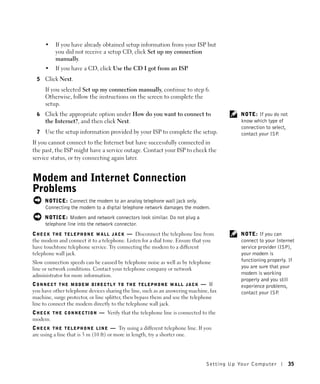
                                                                            or systems that have been returned to Dell, some of which were never used by a customer. All
                                                                            parts and systems are inspected and tested for quality. Replacement parts and systems are
                                                                            covered for the remaining period of the limited warranty for the product you bought. Dell owns
                                                                            all parts removed from repaired products.

                                                                            May I transfer the limited warranty?
                                                                            Limited warranties on systems may be transferred if the current owner transfers ownership of
                                                                            the system and records the transfer with us. The limited warranty on Dell-branded memory
                                                                            may not be transferred. You may record your transfer by going to Dell's website:
                                                                             •    If you are an Individual Home Consumer, go to
                                                                                  www.dell.com/us/en/dhs/topics/sbtopic_015_ccare.htm
                                                                             •    If you are a Home Office, Small, Medium, Large, or Global Commercial Customer, go to
                                                                                  www.dell.com/us/en/biz/topics/sbtopic_ccare_nav_015_ccare.htm
                                                                             •    If you are a Government, Education, or Healthcare Customer, or an Individual Home
                                                                                  Consumer who purchased through an Employee Purchase Program, go to
                                                                                  www.dell.com/us/en/pub/topics/sbtopic_015_ccare.htm
                                                                            If you do not have Internet access, call your customer care representative or call 1-800-624-
                                                                            9897.


                                                           162   Appendix
"Total Satisfaction" Return Policy (U.S. Only)
We value our relationship with you and want to make sure that you're satisfied with your
purchases. That's why we offer a "Total Satisfaction" return policy for most products that you—
the end-user customer—purchase directly from Dell. Under this policy, you may return to Dell
products that you purchased directly from Dell for a credit or a refund of the purchase price
paid, less shipping and handling and applicable restocking fees as follows:

 •    New Hardware Products and Accessories — All new hardware, accessories, parts, and
      unopened software still in its sealed package, excluding the products listed below, may
      be returned within 30 days from the date on the packing slip or invoice. To return
      applications software or an operating system that has been installed by Dell, you must
      return the entire computer. A different return policy applies to nondefective products
      purchased through Dell's Software and Peripherals division by customers of our Small
      and Medium Business divisions. Those products may be returned within 30 days from
      the date on the packing slip or invoice, but a fifteen percent (15%) restocking fee will be
      deducted from any refund or credit. The "Total Satisfaction" Return Policy and Software
      and Peripherals division return policy are not available for Dell | EMC storage products,
      EMC-branded products, or enterprise software.
 •    Reconditioned or Refurbished Dell-Branded Hardware Products and Parts — All
      reconditioned or refurbished Dell-branded server and storage products may be returned
      within 30 days from the date on the packing slip or invoice. All other reconditioned or
      refurbished Dell-branded hardware products and parts may be returned within 14 days
      of the date on the packing slip or invoice.
To return products, e-mail or call Dell customer service to receive a Credit Return
Authorization Number within the return policy period applicable to the product you want to
return. You must obtain a Credit Return Authorization Number in order to return the product.
See "Contacting Dell" or "Getting Help" in your customer documentation (or
www.dell.com/us/en/gen/contact.htm) to find the appropriate contact information for
obtaining customer assistance.

You must ship the products to Dell within 5 days of the date that Dell issues the Credit Return
Authorization Number. You must also return the products to Dell in their original packaging, in
as-new condition along with any media, documentation, and all other items that were included
in the original shipment, prepay shipping charges, and insure the shipment or accept the risk of
loss or damage during shipment.


Limited Warranty Terms for Dell-Branded Hardware Products
(Canada Only)

What is covered by this limited warranty?
This limited warranty covers defects in materials and workmanship in your—our end-user
customer's—Dell-branded hardware products, including Dell-branded peripheral products.


                                                                                                    Appendix   163
What is not covered by this limited warranty?
w w w. d e l l . c o m | s u p p o r t . d e l l . c o m


                                                                            This limited warranty does not cover:
                                                                             •    Software, including the operating system and software added to the Dell-branded
                                                                                  hardware products through our factory-integration system, or the reloading of the
                                                                                  software
                                                                             •    Non-Dell branded and Solution Provider Direct products and accessories
                                                                             •    Problems that result from:
                                                                                  –    External causes such as accident, abuse, misuse, or problems with electrical power
                                                                                  –    Servicing not authorized by Dell
                                                                                  –    Usage that is not in accordance with product instructions
                                                                                  –    Failure to follow the product instructions or failure to perform preventive
                                                                                       maintenance
                                                                                  –    Problems caused by using accessories, parts, or components not supplied by Dell
                                                                             •    Products with missing or altered Service Tags or serial numbers
                                                                             •    Products for which Dell has not received payment
                                                                            THIS WARRANTY GIVES YOU SPECIFIC LEGAL RIGHTS, AND YOU MAY ALSO HAVE
                                                                            OTHER RIGHTS WHICH VARY FROM PROVINCE TO PROVINCE. DELL'S
                                                                            RESPONSIBILITY FOR MALFUNCTIONS AND DEFECTS IN PRODUCT IS LIMITED
                                                                            TO REPAIR AND REPLACEMENT AS SET FORTH IN THIS WARRANTY STATEMENT,
                                                                            FOR THE TERM OF THE WARRANTY PERIOD REFLECTED ON YOUR PACKING SLIP
                                                                            OR INVOICE. EXCEPT FOR THE EXPRESS WARRANTIES CONTAINED IN THIS
                                                                            WARRANTY STATEMENT, DELL DISCLAIMS ALL OTHER WARRANTIES AND
                                                                            CONDITIONS, EXPRESS OR IMPLIED, INCLUDING WITHOUT LIMITATION
                                                                            IMPLIED WARRANTIES AND CONDITIONS OF MERCHANTABILITY AND FITNESS
                                                                            FOR A PARTICULAR PURPOSE, STATUTORY OR OTHERWISE. SOME PROVINCES
                                                                            DO NOT ALLOW THE EXCLUSION OF CERTAIN IMPLIED WARRANTIES OR
                                                                            CONDITIONS, OR LIMITATIONS ON HOW LONG AN IMPLIED WARRANTY OR
                                                                            CONDITION LASTS. THEREFORE, THE FOREGOING EXCLUSIONS AND
                                                                            LIMITATIONS MAY NOT APPLY TO YOU.

                                                                            WE DO NOT ACCEPT LIABILITY BEYOND THE REMEDIES PROVIDED FOR IN THIS
                                                                            WARRANTY STATEMENT OR FOR SPECIAL, INDIRECT, CONSEQUENTIAL, OR
                                                                            INCIDENTAL DAMAGES, INCLUDING, WITHOUT LIMITATION, ANY LIABILITY FOR
                                                                            THIRD-PARTY CLAIMS AGAINST YOU FOR DAMAGES, FOR PRODUCTS NOT BEING
                                                                            AVAILABLE FOR USE, OR FOR LOST DATA OR LOST SOFTWARE. OUR LIABILITY
                                                                            WILL BE NO MORE THAN THE AMOUNT YOU PAID FOR THE PRODUCT THAT IS
                                                                            THE SUBJECT OF A CLAIM. THIS IS THE MAXIMUM AMOUNT FOR WHICH WE
                                                                            ARE RESPONSIBLE.

                                                                            SOME PROVINCES DO NOT ALLOW THE EXCLUSION OR LIMITATION OF
                                                                            SPECIAL, INDIRECT, INCIDENTAL, OR CONSEQUENTIAL DAMAGES, SO THE
                                                                            ABOVE LIMITATION OR EXCLUSION MAY NOT APPLY TO YOU.


                                                           164   Appendix
How long does this limited warranty last?
This limited warranty lasts for the time period indicated on your packing slip or invoice, except
that the limited warranty on Dell-branded batteries lasts only 1 year and the limited warranty
on the lamps for Dell-branded projectors lasts only 90 days. The limited warranty begins on the
date of the packing slip or invoice. The warranty period is not extended if we repair or replace a
warranted product or any parts. Dell may change the terms and availability of limited
warranties, at its discretion, but any changes will not be retroactive (that is, the warranty terms
in place at the time of purchase will apply to your purchase).

What do I do if I need warranty service?
Before the warranty expires, please call us at the relevant number listed in the following table.
Please also have your Dell Service Tag or order number available.

   Individual Home Consumers; Home Office                Canada Only
   and Small Business Customers:
   Technical Support and Customer Service                1-800-847-4096
   Medium, Large, and Global Commercial
   Customers; Government, Education, and
   Healthcare Customers; and Value-Added
   Resellers (VARs):
   Technical Support                                     1-800-387-5757
   Customer Service                                      1-800-326-9463
   Government or Education Customers, or
   Individual Home Consumers who purchased
   through an Employee Purchase Program:
   Technical Support                                     1-800-387-5757
   Customer Service                                      1-800-326-9463 (Extension 8221 for
                                                         Individual Consumers)
   Dell-Branded Memory                                   1-888-363-5150


What will Dell do?
During the 90 days of the 90-day limited warranty and the first year of all other limited
warranties: During the 90 days of the 90-day limited warranty and the first year of all other
limited warranties, we will repair any Dell-branded hardware products returned to us that prove
to be defective in materials or workmanship. If we are not able to repair the product, we will
replace it with a comparable product that is new or refurbished.

When you contact us, we will issue a Return Material Authorization Number for you to include
with your return. You must return the products to us in their original or equivalent packaging,
prepay shipping charges, and insure the shipment or accept the risk if the product is lost or
damaged in shipment. We will return the repaired or replacement products to you. We will pay
to ship the repaired or replaced products to you if you use an address in Canada. Otherwise, we
will ship the product to you freight collect.
If we determine that the problem is not covered under this warranty, we will notify you and
inform you of service alternatives that are available to you on a fee basis.


                                                                                                      Appendix   165
NOTE: Before you ship the product(s) to us, make sure to back up the data on the hard
w w w. d e l l . c o m | s u p p o r t . d e l l . c o m


                                                                            drive(s) and any other storage device(s) in the product(s). Remove any confidential, proprietary
                                                                            or personal information, removable media, such as floppy disks, CDs, or PC Cards. We are not
                                                                            responsible for any of your confidential, proprietary or personal information; lost or corrupted
                                                                            data; or damaged or lost removable media.

                                                                            During the remaining years following the first year of all limited warranties: We will replace
                                                                            any defective part with new or refurbished parts, if we agree that it needs to be replaced. When
                                                                            you contact us, we will require a valid credit card number at the time you request a
                                                                            replacement part, but we will not charge you for the replacement part as long as you return the
                                                                            original part to us within 30 days after we ship the replacement part to you. If we do not receive
                                                                            the original part within 30 days, we will charge to your credit card the then-current standard
                                                                            price for that part.

                                                                            We will pay to ship the part to you if you use an address in Canada. Otherwise, we will ship the
                                                                            part freight collect. We will also include a prepaid shipping container with each replacement
                                                                            part for your use in returning the replaced part to us.

                                                                            NOTE: Before you replace parts, make sure to back up the data on the hard drive(s) and any
                                                                            other storage device(s) in the product(s). We are not responsible for lost or corrupted data.

                                                                            What if I purchased a service contract?
                                                                            If your service contract is with Dell, service will be provided to you under the terms of the
                                                                            service contract. Please refer to that contract for details on how to obtain service. Dell's service
                                                                            contracts can be found online at www.dell.ca or by calling Customer Care at 1-800-847-4096. If
                                                                            you purchased through us a service contract with one of our third-party service providers,
                                                                            please refer to that contract (mailed to you with your packing slip or invoice) for details on how
                                                                            to obtain service.

                                                                            How will you fix my product?
                                                                            We use new and refurbished parts made by various manufacturers in performing warranty
                                                                            repairs and in building replacement parts and systems. Refurbished parts and systems are parts
                                                                            or systems that have been returned to Dell, some of which were never used by a customer. All
                                                                            parts and systems are inspected and tested for quality. Replacement parts and systems are
                                                                            covered for the remaining period of the limited warranty for the product you bought. Dell owns
                                                                            all parts removed from repaired products.
                                                                            May I transfer the limited warranty?
                                                                            Limited warranties on systems may be transferred if the current owner transfers ownership of
                                                                            the system and records the transfer with us. The limited warranty on Dell-branded memory
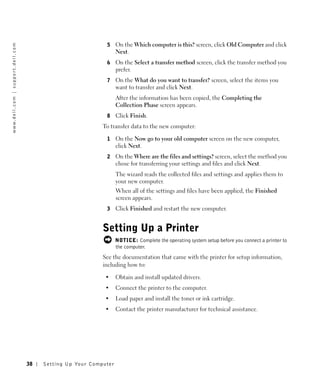
                                                                            may not be transferred. You may record your transfer by going to Dell’s website:

                                                                             •    For Canada-purchased computers (in-country transfers) and to transfer from one
                                                                                  customer to another, go to
                                                                                  www.dell.ca/ca/en/gen/topics/segtopic_ccare_nav_013_ccare.htm
                                                                             •    For out-of-country transfers (outside of the original country of purchase), go to
                                                                                  www.dell.com/us/en/biz/topics/sbtopic_ccare_nav_016_ccare.htm
                                                                            If you do not have Internet access, call Dell at 1-800-847-4096 (Home Consumer customers) or
                                                                            1-800-326-9463 (Corporate Commercial or Government customers).


                                                           166   Appendix
"Total Satisfaction" Return Policy (Canada Only)
If you are an end-user customer who bought new products directly from Dell, you may return
them to Dell up to 30 days after you receive them for a refund or credit of the product purchase
price. If you are an end-user customer who bought reconditioned or refurbished products from
Dell, you may return them to Dell within 14 days after the date on the packing slip or invoice
for a refund or credit of the product purchase price. In either case, the refund or credit will not
include any shipping and handling charges shown on your packing slip or invoice and will be
subject to a fifteen percent (15%) restocking fee, unless otherwise prohibited by law. If you are
an organization that bought the products under a written agreement with Dell, the agreement
may contain different terms for the return of products than specified by this policy.
To return products, you must call Dell Customer Service at 1-800-847-4096 to receive a Credit
Return Authorization Number. To expedite the process of your refund or credit, Dell expects
you to return the products to Dell in their original packaging within 5 days of the date that Dell
issues the Credit Return Authorization Number. You must also prepay shipping charges and
insure the shipment or accept the risk of loss or damage during shipment. You may return
software for a refund or credit only if the sealed package containing the floppy disk(s) or CD(s)
is unopened. Returned products must be in as-new condition, and all of the manuals, floppy
disk(s), CD(s), power cables, and other items included with a product must be returned with
it. For customers who want to return, for refund or credit only, either application or operating
system software that has been installed by Dell, the whole system must be returned, along with
any media and documentation that may have been included in the original shipment.
The "Total Satisfaction" Return Policy does not apply to Dell | EMC storage products. It also
does not apply to products purchased through Dell's Software and Peripherals division. For
those products, please instead refer to Dell's Software and Peripheral's then-current return
policy (see the following section, "Dell Software and Peripherals (Canada Only)").


Dell Software and Peripherals (Canada Only)

Third-Party Software and Peripherals Products
Similar to other resellers of software and peripherals, Dell does not warrant third-party
products. Third-party software and peripheral products are covered by the warranties provided
by the original manufacturer or publisher only. Third-party manufacturer warranties vary from
product to product. Consult your product documentation for specific warranty information.
More information may also be available from the manufacturer or publisher.

While Dell offers a wide selection of software and peripheral products, we do not specifically
test or guarantee that all of the products we offer work with any or all of the various models of
Dell computers, nor do we test or guarantee all of the products we sell on the hundreds of
different brands of computers available today. If you have questions about compatibility, we
recommend and encourage you to contact the third-party software and peripheral product
manufacturer or publisher directly.


                                                                                                      Appendix   167
Dell-Branded Peripheral Products
w w w. d e l l . c o m | s u p p o r t . d e l l . c o m


                                                                            Dell does provide a limited warranty for new Dell-branded peripheral products (products for
                                                                            which Dell is listed as the manufacturer) such as monitors, batteries, memory, docking stations,
                                                                            and projectors. To determine which limited warranty applies to the product you purchased, see
                                                                            the Dell packing slip or invoice and/or the product documentation that accompanied your
                                                                            product. Descriptions of Dell's limited warranties are described in preceding sections.

                                                                            Return Policy
                                                                            If you are an end-user customer who bought Dell Software and Peripherals products directly
                                                                            from a Dell company, you may return Dell Software and Peripherals products that are in as-new
                                                                            condition to Dell up to 30 days from the date on the packing slip or invoice for a refund of the
                                                                            product purchase price if already paid. This refund will not include any shipping and handling
                                                                            charges shown on your packing slip or invoice; you are responsible for those.

                                                                            To return products, you must call Dell Customer Service at 1-800-387-5759 to receive a Credit
                                                                            Return Authorization Number. You must ship the Dell Software and Peripherals products back
                                                                            to Dell in their original manufacturer's packaging (which must be in as-new condition), prepay
                                                                            shipping charges, and insure the shipment or accept the risk of loss or damage during
                                                                            shipment.

                                                                            To qualify for refund or replacement, returned products must be in as-new condition, software
                                                                            products must be unopened, and all of the manuals, floppy disk(s), CD(s), power cables, and
                                                                            other items included with a product must be returned with it.


                                                                            1-Year End-User Manufacturer Guarantee (Latin America and
                                                                            the Caribbean Only)

                                                                            Guarantee
                                                                            Dell Computer Corporation ("Dell") warrants to the end user in accordance with the following
                                                                            provisions that its branded hardware products, purchased by the end user from a Dell company
                                                                            or an authorized Dell distributor in Latin America or the Caribbean, will be free from defects
                                                                            in materials, workmanship, and design affecting normal use, for a period of 1 year from the
                                                                            original purchase date. Products for which proper claims are made will, at Dell’s option, be
                                                                            repaired or replaced at Dell’s expense. Dell owns all parts removed from repaired products. Dell
                                                                            uses new and reconditioned parts made by various manufacturers in performing repairs and
                                                                            building replacement products.

                                                                            Exclusions
                                                                            This Guarantee does not apply to defects resulting from: improper or inadequate installation,
                                                                            use, or maintenance; actions or modifications by unauthorized third parties or the end user;
                                                                            accidental or willful damage; or normal wear and tear.


                                                           168   Appendix
Making a Claim
Claims must be made in Latin America or the Caribbean by contacting the Dell point of sale
within the guarantee period. The end user must always supply proof of purchase, indicating
name and address of the seller, date of purchase, model and serial number, name and address of
the customer, and details of symptoms and configuration at the time of malfunction, including
peripherals and software used. Otherwise, Dell may refuse the guarantee claim. Upon diagnosis
of a warranted defect, Dell will make arrangements and pay for ground freight and insurance to
and from Dell’s repair/replacement center. The end user must ensure that the defective
product is available for collection properly packed in original or equally protective packaging
together with the details listed above and the return number provided to the end user by Dell.

Limitation and Statutory Rights
Dell makes no other warranty, guarantee or like statement other than as explicitly stated above,
and this Guarantee is given in place of all other guarantees whatsoever, to the fullest extent
permitted by law. In the absence of applicable legislation, this Guarantee will be the end user’s
sole and exclusive remedy against Dell or any of its affiliates, and neither Dell nor any of its
affiliates shall be liable for loss of profit or contracts, or any other indirect or consequential loss
arising from negligence, breach of contract, or howsoever.

This Guarantee does not impair or affect mandatory statutory rights of the end user against
and/or any rights resulting from other contracts concluded by the end user with Dell and/or
any other seller.

Dell World Trade LP
One Dell Way, Round Rock, TX 78682, USA

Dell Computadores do Brasil Ltda (CNPJ No. 72.381.189/0001-10)
Avenida Industrial Belgraf, 400
92990-000 - Eldorado do Sul – RS - Brasil

Dell Computer de Chile Ltda
Coyancura 2283, Piso 3- Of.302,
Providencia, Santiago - Chile

Dell Computer de Colombia Corporation
Carrera 7 #115-33 Oficina 603
Bogota, Colombia

Dell Computer de Mexico SA de CV
Paseo de la Reforma 2620 - 11° Piso
Col. Lomas Altas
11950 México, D.F.


                                                                                                          Appendix   169
Intel® Warranty Statement for Pentium® and Celeron®
w w w. d e l l . c o m | s u p p o r t . d e l l . c o m


                                                                                                                    Processors Only (U.S. and Canada Only)

                                                                                                                           Intel’s Three Year Limited Warranty
                                                            Limited Warranty
                                                            Intel warrants that its family of Pentium® and Celeron® processors, if properly used and installed, will be free from defects in materials and workmanship and will substantially
                                                            conform to Intel’s publicly available specifications for a period of three (3) years after the date the Pentium or Celeron processor was purchased (whether purchased separately
                                                            or as part of a computer system).
                                                            If the Pentium or Celeron processor, which is the subject of this Limited Warranty, fails during the warranty period for reasons covered by this Limited Warranty, Intel, at its option, will:
                                                            • REPAIR the Pentium or Celeron processor by means of hardware and/or software; OR
                                                            • REPLACE the Pentium or Celeron processor with another Pentium or Celeron processor; OR
                                                            if Intel is unable to repair or replace the particular Pentium or Celeron processor,
                                                            • REFUND the then-current value of the Pentium or Celeron processor.
                                                            THIS LIMITED WARRANTY, AND ANY IMPLIED WARRANTIES THAT MAY EXIST UNDER STATE LAW, APPLY ONLY TO THE ORIGINAL PURCHASER OF THE
                                                            PENTIUM OR CELERON PROCESSOR, OR PENTIUM OR CELERON PROCESSOR-BASED COMPUTER AND LAST ONLY FOR AS LONG AS SUCH PURCHASER
                                                            CONTINUES TO OWN THE PROCESSOR.
                                                            Extent of Limited Warranty
                                                            Intel does not warrant that your Pentium or Celeron processor will be free from design defects or errors known as "errata." Current characterized errata are available upon request.
                                                            This limited warranty is for purchasers in the United States and Canada only. The limited warranty does not cover any costs relating to removal or replacement of any Pentium or
                                                            Celeron processors that are soldered or otherwise permanently affixed to your system’s motherboard.
                                                            This limited warranty does not cover damages due to external causes, including accident, problems with electrical power, usage not in accordance with product instructions,
                                                            misuse, neglect, alteration, repair, improper installation, or improper testing.

                                                            How to Obtain Warranty Service
                                                            To obtain warranty service for your Pentium or Celeron processor, you may contact your computer system manufacturer in accordance with its instructions, or you may contact Intel.
                                                            To request warranty service from Intel, you should call Intel at 1-800-628-8686 during the warranty period during normal business hours (Pacific Time), excluding holidays. Please
                                                            be prepared to provide:
                                                            (1) your name, address, and telephone numbers;
                                                            (2) proof of purchase;
                                                            (3) this Intel warranty card;
                                                            (4) a description of the computer system including the brand and model; and
                                                            (5) an explanation of the problem.
                                                            [Note: The Customer Service Representative may need additional information from you depending on the nature of the problem.]

                                                            The replacement processor is warranted under this written warranty and is subject to the same limitations and exclusions for the remainder of the original warranty period or one
                                                            (1) year, whichever is longer.
                                                            WARRANTY LIMITATIONS AND EXCLUSIONS
                                                            THESE WARRANTIES REPLACE ALL OTHER WARRANTIES, EXPRESS OR IMPLIED INCLUDING, BUT NOT LIMITED TO, THE IMPLIED WARRANTIES OF
                                                            MERCHANTABILITY AND FITNESS FOR A PARTICULAR PURPOSE. INTEL MAKES NO EXPRESS WARRANTIES BEYOND THOSE STATED HERE. INTEL
                                                            DISCLAIMS ALL OTHER WARRANTIES, EXPRESS OR IMPLIED, INCLUDING, WITHOUT LIMITATION, IMPLIED WARRANTIES OF MERCHANTABILITY
                                                            AND FITNESS FOR A PARTICULAR PURPOSE.
                                                            SOME LAWS DO NOT ALLOW THE EXCLUSION OF IMPLIED WARRANTIES SO THIS LIMITATION MAY NOT APPLY TO YOU. IF THESE LAWS APPLY, THEN ALL
                                                            EXPRESS AND IMPLIED WARRANTIES ARE LIMITED IN DURATION TO THE LIMITED WARRANTY PERIOD. NO WARRANTIES APPLY AFTER THAT PERIOD.
                                                            SOME LAWS DO NOT ALLOW LIMITATIONS ON HOW LONG AN IMPLIED WARRANTY LASTS, SO THIS LIMITATION MAY NOT APPLY TO YOU.

                                                            LIMITATIONS OF LIABILITY
                                                            INTEL’S RESPONSIBILITY UNDER THIS, OR ANY OTHER WARRANTY, IMPLIED OR EXPRESS, IS LIMITED TO REPAIR, REPLACEMENT OR REFUND, AS SET
                                                            FORTH ABOVE. THESE REMEDIES ARE THE SOLE AND EXCLUSIVE REMEDIES FOR ANY BREACH OF WARRANTY. INTEL IS NOT RESPONSIBLE FOR INDIRECT,
                                                            SPECIAL, INCIDENTAL, OR CONSEQUENTIAL DAMAGES RESULTING FROM ANY BREACH OF WARRANTY OR UNDER ANY OTHER LEGAL THEORY
                                                            INCLUDING, BUT NOT LIMITED TO, LOST PROFITS, DOWNTIME, GOODWILL, DAMAGE TO OR REPLACEMENT OF EQUIPMENT AND PROPERTY, AND ANY
                                                            COSTS OF RECOVERING, REPROGRAMMING, OR REPRODUCING ANY PROGRAM OR DATA STORED IN OR USED WITH A SYSTEM CONTAINING YOUR
                                                            PENTIUM PROCESSOR. SOME JURISDICTIONS DO NOT ALLOW THE EXCLUSION OR LIMITATION OF INCIDENTAL OR CONSEQUENTIAL DAMAGES, SO THE
                                                            ABOVE LIMITATIONS OR EXCLUSIONS MAY NOT APPLY TO YOU.
                                                            THE LIMITED WARRANTY GIVES YOU SPECIFIC LEGAL RIGHTS, AND YOU MAY ALSO HAVE OTHER RIGHTS THAT VARY FROM JURISDICTION TO JURISDICTION.


                                                           170          Appendix
Intel Pentium® and Celeron® Processors are backed by a three-year limited warranty.
                                                      Please refer to the reverse side of this card for complete warranty details.
Intel’s Commitment to Quality
Intel is committed to producing the highest quality processors available. That’s why we have hundreds of people dedicated to continuously improve our design, manufacturing,
and testing technology.

We put every one of our Pentium® and Celeron® processors through a rigorous battery of tests during the design and manufacturing processes.
To verify that the new chip will correctly run the software written for Intel Architecture processors, a team of Intel engineers is dedicated to compatibility testing. In a state-of-art lab,
this group runs an extensive set of operating systems, applications, network tests and stress tests repeatedly to ensure that the processor is compatible with representative software.
Just as importantly, we work with hardware and software companies in the computer industry to ensure that our processors are compatible with their products.

Additionally, a sampling of Intel processors are subjected to a rigorous "burn-in" test whereby the chip is operated at higher-than-normal temperatures and voltages. During this
burn-in period, the processor experiences the equivalent of weeks of normal usage. These units are monitored for failures as part of our ongoing quality assurance process.
As a result, today’s microprocessors from Intel are among the most reliable components in computers.
What are "Errata"?
Exhaustive product testing can highlight differences between the actual behavior of the microprocessor and its specifications. Sometimes the discrepancies are caused by a design
defect or error, which we call errata. Rigorous validation identifies most errata during the development of the processor, but we do detect additional errata during the life cycle of
a microprocessor.

When an erratum is identified, our engineers work to characterize it and find a solution. We work with system designers and software developers to ensure that the discrepancy does
not affect their products. If necessary, special software or hardware solutions (sometimes known as "work arounds") are implemented in the system design to prevent computer
users from encountering the problem. Errata may then be corrected in future revisions of the microprocessor.
No microprocessor is perfect, and Intel recognizes that some consumers want to know about any errata, whether or not the errata affect them. Intel makes documentation of all
characterized Pentium and Celeron processor errata publicly available through our Technical Documentation Service.

At Intel, our goal is to make every computer user satisfied with his or her Pentium or Celeron processor. Should you have any questions, comments or concerns about your Intel
microprocessor, please call us at 1-800-628-8686.
©1997, 1998 Intel Corporation. All rights reserved.


                                                                                                                                                             Appendix                   171
w w w. d e l l . c o m | s u p p o r t . d e l l . c o m


172
Appendix
Index


A                           computer                            description, 22
                              crashes, 104                      system view, 22
air vents
                              specifications, 128           docking device latch
  description, 23, 29
  system view, 23, 29       conflicts                         description, 31
                              drivers, 107                    system view, 31
audio connectors
                              resolving software and        drivers
  description, 24
                                   hardware
  system view, 24                                             definition, 107
                                   incompatibilities, 112
                                                              reinstalling, 108, 113
                            copying CDs                       troubleshooting, 107
                              general information, 74
B                                                           drives
                              helpful tips, 75
                                                              fixing problems, 102
battery                       instructions, 76
  charge gauge, 48
                            crashes, 104
  charging, 49
  checking the charge, 47                                   E
  description, 31                                           e-mail
  installing, 50            D
                                                              fixing problems, 36
  low-battery warning, 48   damaged computer
  performance, 46             testing, 106
  power meter, 48           Dell support policy, 138        F
  removing, 49
                            Device Driver Rollback, 108     fan
  storing, 52
  system view, 31           device latch release              description, 31
                              description, 26, 30             system view, 31
                              system view, 26, 30           Files and Settings Transfer
C                           device status lights, 21            Wizard, 37

CD-RW drive                   description, 21               finding solutions, 96
 fixing problems, 74        display                         floppy drive
characters                    description, 20                 connecting to the parallel
                              system view, 20                      port, 27
  unexpected, 69
                                                              fixing problems, 102
                            display latch


                                                                                  Index    173
H                                 description, 22                N
                                  system view, 22
hard drive                                                       network
  description, 24, 31         keypad                               fixing problems, 85
  preventing damage, 125        numeric, 64
                                                                 network connector
  replacing, 123                                                   description, 28
  system view, 24, 31                                              system view, 28
hardware                      L
  drivers, 107                line conditioners, 42
Hardware                                                         P
   Troubleshooter, 112                                           parallel connector
help file                     M                                    description, 28
  accessing, 98               memory                               system view, 28
                               adding, 118                       PC Card slot
                               removing, 119                      description, 23
I                             memory module cover                 system view, 23
infrared sensor                description, 30                   PC Cards
  description, 24              system view, 30                    fixing problems, 103
  system view, 24             Mini PCI card                      power
Internet connection            description, 30                     fixing problems, 52
  about, 34                    installing, 120                     turning off your computer, 43
  options, 34                  system view, 30
                                                                 power button
  setting up, 34              modem                                description, 20
IR sensor                      description, 30                     system view, 20
  See infrared sensor          system view, 30
                                                                 printer
IRQ conflicts, 112            modem connector                      cable, 39
                               description, 28                     connecting, 38
                               system view, 28                     parallel, 39
K                             module bay                           setting up, 38
                               about, 53                           USB, 40
keyboard
                               description, 26                   programs
  description, 22
                               swapping devices while the          crashes, 104
  fixing problems, 69
                                    computer is running, 58        fixing problems, 104
  shortcuts, 65
                               swapping devices while the          not responding, 104
  system view, 22
                                    computer is turned off, 54
  unexpected characters, 69
                               system view, 26
keyboard status lights


174     Index
R                                       viewing, 135                        unexpected characters, 69
                                                                            wet computer, 105
RAM. See memory                     system specifications, 128
                                    system view, 21                     turning off your computer, 43
reinstalling
  drivers, 108, 113

                                    T                                   U
S                                   Tell Me How help file               uninterruptible power
                                                                            supplies
safety instructions, 11               accessing, 98
                                                                          See UPS
security cable slot                 touch pad
                                      customizing, 68                   UPS, 42
  description, 24-25
  system view, 24-25                  description, 22                   USB connector
                                      system view, 22                    description, 27
serial connector
                                    touch pad buttons                    system view, 27
  description, 29
  system view, 29                     description, 22
                                      system view, 22
shutting down your                                                      V
   computer, 43                     troubleshooting
                                      about, 96                         video connector
smart card slot
                                      cannot save to floppy disk, 102     description, 28
  description, 24
                                      CD-RW drive stops                   system view, 28
  system view, 24
                                          writing, 74
software                              conflicts, 112
  fixing problems, 104                Device Driver Rollback, 108       W
  reinstalling software, 108, 113     drivers, 107
                                                                        warranty, 159
speakers                              dropped or damaged
  description, 22                         computer, 106                 wet computer, 105
  system view, 22                     e-mail problems, 36               Windows XP
                                      external keyboard                  Device Driver Rollback, 108
specifications, system, 128
                                          problems, 69                   Hardware Troubleshooter, 112
surge protectors, 42                  Hardware Troubleshooter, 112       help, 98
S-video TV-out connector              network problems, 85               System Restore, 110
  description, 28                     PC Card problems, 103
  system view, 28                     power problems, 52
                                      program crash, 104
System Restore, 110
                                      program stopped
system setup program                      responding, 104
  commonly used options, 136          scanner problems, 101
  screens, 135                        System Restore, 110


                                                                                            Index       175
176   Index

600 M Owners Manual

  • 1.
    Thank you forpurchasing this Factory Service Manual CD/DVD from servicemanuals4u.com. Please check out our eBay auctions for more great deals on Factory Service Manuals: servicemanuals4u
  • 2.
    Dell™ Inspiron™ 600m Owner’sManual w w w. d e l l . c o m | s u p p o r t . d e l l . c o m
  • 3.
    Notes, Notices, andCautions NOTE: A NOTE indicates important information that helps you make better use of your computer. NOTICE: A NOTICE indicates either potential damage to hardware or loss of data and tells you how to avoid the problem. CAUTION: A CAUTION indicates a potential for property damage, personal injury, or death. Abbreviations and Acronyms For a complete list of abbreviations and acronyms, see the Tell Me How help file. To access the help file, see page 98. ____________________ Information in this document is subject to change without notice. © 2002–2003 Dell Computer Corporation. All rights reserved. Reproduction in any manner whatsoever without the written permission of Dell Computer Corporation is strictly forbidden. Trademarks used in this text: Dell, the DELL logo, Inspiron, Dell TravelLite, Dell TrueMobile, Dell Precision, Dimension, OptiPlex, DellNet, and Latitude are trademarks of Dell Computer Corporation; Intel, Pentium, and Celeron are registered trademarks of Intel Corporation; Microsoft and Windows are registered trademarks of Microsoft Corporation; Bluetooth is a trademark owned by Bluetooth SIG, Inc., and is used by Dell Computer Corporation under license; EMC is a registered trademark of the EMC Corporation. Other trademarks and trade names may be used in this document to refer to either the entities claiming the marks and names or their products. Dell Computer Corporation disclaims any proprietary interest in trademarks and trade names other than its own. Model PP05L July 2003 P/N 4N142 Rev. A01
  • 4.
    Contents CAUTION: Safety Instructions . . . . . . . . . . . . . . . . . . . 11 General . . . . . . . . . . . . . . . . . . . . . . . . . . . . . 11 Power . . . . . . . . . . . . . . . . . . . . . . . . . . . . . . 12 Battery . . . . . . . . . . . . . . . . . . . . . . . . . . . . . 13 Air Travel . . . . . . . . . . . . . . . . . . . . . . . . . . . . 14 EMC Instructions . . . . . . . . . . . . . . . . . . . . . . . . 14 California Residents . . . . . . . . . . . . . . . . . . . . . . . 14 When Using Your Computer . . . . . . . . . . . . . . . . . . . . 15 Ergonomic Computing Habits . . . . . . . . . . . . . . . . . . 16 When Working Inside Your Computer . . . . . . . . . . . . . . 16 Protecting Against Electrostatic Discharge . . . . . . . . . . . 17 Battery Disposal . . . . . . . . . . . . . . . . . . . . . . . . 17 1 A Tour of Your Computer Front View . . . . . . . . . . . . . . . . . . . . . . . . . . . . . 20 Left Side View . . . . . . . . . . . . . . . . . . . . . . . . . . . 23 Right Side View . . . . . . . . . . . . . . . . . . . . . . . . . . . 25 Back View . . . . . . . . . . . . . . . . . . . . . . . . . . . . . . 26 Bottom View . . . . . . . . . . . . . . . . . . . . . . . . . . . . 30 2 Setting Up Your Computer Connecting to the Internet . . . . . . . . . . . . . . . . . . . . . 34 Setting Up Your Internet Connection . . . . . . . . . . . . . . 34 Contents 3
  • 5.
    Modem and InternetConnection Problems . . . . . . . . . . . . 35 E-Mail Problems . . . . . . . . . . . . . . . . . . . . . . . . . . 36 Transferring Information to a New Computer . . . . . . . . . . 37 Setting Up a Printer . . . . . . . . . . . . . . . . . . . . . . . . 38 Printer Cable . . . . . . . . . . . . . . . . . . . . . . . . . 39 Connecting a Parallel Printer . . . . . . . . . . . . . . . . . 39 Connecting a USB Printer . . . . . . . . . . . . . . . . . . . 40 Printer Problems . . . . . . . . . . . . . . . . . . . . . . . . . 40 Setting Up the Docking Device to Connect to a Network . . . . 41 Power Protection Devices . . . . . . . . . . . . . . . . . . . . . 41 Surge Protectors . . . . . . . . . . . . . . . . . . . . . . . . 42 Line Conditioners . . . . . . . . . . . . . . . . . . . . . . . 42 Uninterruptible Power Supplies . . . . . . . . . . . . . . . . 42 Turning Off Your Computer . . . . . . . . . . . . . . . . . . . . 43 3 Using Batteries and Module Bay Devices Using a Battery . . . . . . . . . . . . . . . . . . . . . . . . . . 46 Battery Performance . . . . . . . . . . . . . . . . . . . . . . 46 Checking the Battery Charge . . . . . . . . . . . . . . . . . . 47 Charging the Battery . . . . . . . . . . . . . . . . . . . . . . 49 Removing a Battery . . . . . . . . . . . . . . . . . . . . . . 49 Installing a Battery . . . . . . . . . . . . . . . . . . . . . . 50 Removing and Installing a Reserve Battery . . . . . . . . . . . 51 Storing a Battery . . . . . . . . . . . . . . . . . . . . . . . 52 Power Problems . . . . . . . . . . . . . . . . . . . . . . . . . . 52 About the Module Bay . . . . . . . . . . . . . . . . . . . . . . . 53 Checking the Charge on the Second Battery . . . . . . . . . . 54 Removing and Installing Devices While the Computer Is Turned Off 54 4 Contents
  • 6.
    If the DeviceScrew Is Not Installed . . . . . . . . . . . . . . . 55 If the Device Screw Is Installed . . . . . . . . . . . . . . . . . 56 Removing and Installing Devices While the Computer Is Running 58 If the Device Screw Is Not Installed . . . . . . . . . . . . . . . 58 If the Device Screw Is Installed . . . . . . . . . . . . . . . . . 60 4 Using the Keyboard and Touch Pad Numeric Keypad . . . . . . . . . . . . . . . . . . . . . . . . . . 64 Keyboard Shortcuts . . . . . . . . . . . . . . . . . . . . . . . . 65 System Functions . . . . . . . . . . . . . . . . . . . . . . . . 65 Battery . . . . . . . . . . . . . . . . . . . . . . . . . . . . . 65 CD or DVD Tray . . . . . . . . . . . . . . . . . . . . . . . . . 65 Display Functions . . . . . . . . . . . . . . . . . . . . . . . . 65 Radios (Including Wireless Networking and Bluetooth™) . . . . 65 Power Management . . . . . . . . . . . . . . . . . . . . . . . 66 Speaker Functions . . . . . . . . . . . . . . . . . . . . . . . 66 Microsoft® Windows® Logo Key Functions . . . . . . . . . . . 66 Customizing the Touch Pad . . . . . . . . . . . . . . . . . . . . . 68 Touch Pad or Mouse Problems . . . . . . . . . . . . . . . . . . . 68 External Keyboard Problems . . . . . . . . . . . . . . . . . . . . 68 Unexpected Characters . . . . . . . . . . . . . . . . . . . . . . . 69 5 Using CDs, DVDs, and Other Multimedia Using CDs and DVDs . . . . . . . . . . . . . . . . . . . . . . . . 72 CD and DVD Problems . . . . . . . . . . . . . . . . . . . . . . . 72 If you cannot play a CD or DVD . . . . . . . . . . . . . . . . . 72 If you cannot eject the CD, CD-RW, or DVD drive tray . . . . . 72 If you hear an unfamiliar scraping or grinding sound . . . . . . 73 If the CD-RW drive stops writing . . . . . . . . . . . . . . . . 73 Contents 5
  • 7.
    Sound and SpeakerProblems . . . . . . . . . . . . . . . . . . . 73 If you have a problem with integrated speakers . . . . . . . . . 73 If you have a problem with external speakers . . . . . . . . . . 73 Copying CDs . . . . . . . . . . . . . . . . . . . . . . . . . . . . 74 Using Easy CD Creator Basic . . . . . . . . . . . . . . . . . 75 Using Blank CD-R Discs or Blank CD-RW Discs . . . . . . . . 75 Helpful Tips . . . . . . . . . . . . . . . . . . . . . . . . . . 75 How to Copy a CD . . . . . . . . . . . . . . . . . . . . . . . 76 Connecting a Television to the Computer . . . . . . . . . . . . . 77 S-Video Connection . . . . . . . . . . . . . . . . . . . . . . 78 Composite Video Connection . . . . . . . . . . . . . . . . . . 80 Enabling the Display Settings for a Television . . . . . . . . . 82 6 Setting Up a Home and Office Network Connecting to a Network Adapter . . . . . . . . . . . . . . . . 84 Network Setup Wizard . . . . . . . . . . . . . . . . . . . . . . 84 Network Problems . . . . . . . . . . . . . . . . . . . . . . . . . 85 Connecting to Wireless Local Area Networks . . . . . . . . . . . 86 Determining your Network Type . . . . . . . . . . . . . . . . 86 Connecting to a Network in Windows XP . . . . . . . . . . . . 87 Finalizing your Network Connection (Security Settings) . . . . 90 7 Solving Problems Finding Solutions . . . . . . . . . . . . . . . . . . . . . . . . . 96 Accessing Help . . . . . . . . . . . . . . . . . . . . . . . . . . 98 Error Messages . . . . . . . . . . . . . . . . . . . . . . . . . . 98 Video and Display Problems . . . . . . . . . . . . . . . . . . . . 99 If the display is blank . . . . . . . . . . . . . . . . . . . . . 99 6 Contents
  • 8.
    If the displayis difficult to read . . . . . . . . . . . . . . . . 100 If only part of the display is readable . . . . . . . . . . . . . 101 Scanner Problems . . . . . . . . . . . . . . . . . . . . . . . . 101 Drive Problems . . . . . . . . . . . . . . . . . . . . . . . . . . 102 If you cannot save a file to a floppy drive . . . . . . . . . . . 102 If you have problems with a hard drive . . . . . . . . . . . . 103 PC Card Problems . . . . . . . . . . . . . . . . . . . . . . . . 103 General Program Problems . . . . . . . . . . . . . . . . . . . . 104 A program crashes . . . . . . . . . . . . . . . . . . . . . . 104 A program stops responding . . . . . . . . . . . . . . . . . . 104 Error messages appear . . . . . . . . . . . . . . . . . . . . 104 If Your Computer Gets Wet . . . . . . . . . . . . . . . . . . . . 105 If You Drop or Damage Your Computer . . . . . . . . . . . . . 106 Resolving Other Technical Problems . . . . . . . . . . . . . . . 106 Drivers . . . . . . . . . . . . . . . . . . . . . . . . . . . . . . 107 What Is a Driver? . . . . . . . . . . . . . . . . . . . . . . . 107 Identifying Drivers . . . . . . . . . . . . . . . . . . . . . . 107 Reinstalling Drivers and Utilities . . . . . . . . . . . . . . . 108 Manually Reinstalling Drivers for Windows XP . . . . . . . . 109 Using System Restore . . . . . . . . . . . . . . . . . . . . . . 110 Creating a Restore Point . . . . . . . . . . . . . . . . . . . 110 Restoring the Computer to an Earlier Operating State . . . . . 110 Undoing the Last System Restore . . . . . . . . . . . . . . . 111 Resolving Software and Hardware Incompatibilities . . . . . . 112 Reinstalling Microsoft® Windows® XP . . . . . . . . . . . . . . 113 Before You Reinstall . . . . . . . . . . . . . . . . . . . . . 113 Reinstalling Windows XP . . . . . . . . . . . . . . . . . . . 113 Reinstalling Drivers and Software . . . . . . . . . . . . . . . 115 Contents 7
  • 9.
    8 Adding andReplacing Parts Adding Memory . . . . . . . . . . . . . . . . . . . . . . . . . . 118 Adding a Mini PCI Card . . . . . . . . . . . . . . . . . . . . . . 120 Replacing the Hard Drive . . . . . . . . . . . . . . . . . . . . . 123 9 Appendix Specifications . . . . . . . . . . . . . . . . . . . . . . . . . . . 128 Standard Settings . . . . . . . . . . . . . . . . . . . . . . . . . 135 Viewing the System Setup Screens . . . . . . . . . . . . . . . 135 System Setup Screens . . . . . . . . . . . . . . . . . . . . . 135 Commonly Used Options . . . . . . . . . . . . . . . . . . . . 136 Dell Technical Support Policy (U.S. Only) . . . . . . . . . . . . 138 Definition of "Dell-Installed" Software and Peripherals . . . . . 139 Definition of "Third-Party" Software and Peripherals . . . . . . 139 Contacting Dell . . . . . . . . . . . . . . . . . . . . . . . . . . 139 Regulatory Notices . . . . . . . . . . . . . . . . . . . . . . . . 157 NOM Information (Mexico Only) . . . . . . . . . . . . . . . . 158 Limited Warranties and Return Policy . . . . . . . . . . . . . . 159 Limited Warranty for Dell-Branded Hardware Products (U.S. Only) . . . . . . . . . . . . . . . . . . . . . . . . . . . 159 "Total Satisfaction" Return Policy (U.S. Only) . . . . . . . . . . 163 Limited Warranty Terms for Dell-Branded Hardware Products (Canada Only) . . . . . . . . . . . . . . . . . . . . . . . . . 163 "Total Satisfaction" Return Policy (Canada Only) . . . . . . . . 167 Dell Software and Peripherals (Canada Only) . . . . . . . . . . 167 1-Year End-User Manufacturer Guarantee (Latin America and the Caribbean Only) . . . . . . . . . . . . . . . . . . . . . . . . 168 Intel® Warranty Statement for Pentium® and Celeron® Processors Only (U.S. and Canada Only) . . . . . . . . . . . . . . . . . . 170 8 Contents
  • 10.
    Index . . . . . . . . . . . . . . . . . . . . . . . . . . . . . . . . . . 173 Contents 9
  • 11.
    10 Contents
  • 12.
    CAUTION: Safety Instructions Usethe following safety guidelines to help ensure your own personal safety and to help protect your computer and working environment from potential damage. General • Do not attempt to service the computer yourself unless you are a trained service technician. Always follow installation instructions closely. • If you use an extension power cable with your AC adapter, ensure that the total ampere rating of the products plugged in to the extension power cable does not exceed the ampere rating of the extension cable. • Do not push objects into air vents or openings of your computer. Doing so can cause fire or electric shock by shorting out interior components. • Do not store your computer in a low-airflow environment, such as a carrying case or a closed briefcase, while the computer is turned on. Restricting airflow can damage the computer or cause a fire. • Keep your computer away from radiators and heat sources. Also, do not block cooling vents. Avoid placing loose papers underneath your computer; do not place your computer in a closed-in wall unit or on a bed, sofa, or rug. • Place the AC adapter in a ventilated area, such as a desk top or on the floor, when you use it to run the computer or to charge the battery. Do not cover the AC adapter with papers or other items that will reduce cooling; also, do not use the AC adapter inside a carrying case. • The AC adapter may become hot during normal operation of your computer. Use care when handling the adapter during or immediately after operation. • Do not allow your portable computer to operate with the base resting directly on exposed skin for extended periods of time. The surface temperature of the base will rise during normal operation (particularly when AC power is present). Allowing sustained contact with exposed skin can cause discomfort or, eventually, a burn. • Do not use your computer in a wet environment, for example, near a bath tub, sink, or swimming pool or in a wet basement • If your computer includes an integrated or optional (PC Card) modem, disconnect the modem cable if an electrical storm is approaching to avoid the remote risk of electric shock from lightning via the telephone line. CAUTION: Safety Instr uctions 11
  • 13.
    w w w.d e l l . c o m | s u p p o r t . d e l l . c o m CAUTION: Safety Instructions (continued) • To help avoid the potential hazard of electric shock, do not connect or disconnect any cables or perform maintenance or reconfiguration of this product during an electrical storm. Do not use your computer during an electrical storm unless all cables have been disconnected and the computer is operating on battery power. • If your computer includes a modem, the cable used with the modem should be manufactured with a minimum wire size of 26 American wire gauge (AWG) and an FCC- compliant RJ-11 modular plug. • Before you open the memory module/Mini PCI card/modem cover on the bottom of your computer, disconnect all cables from their electrical outlets and disconnect the telephone cable. • If your computer has a modem RJ-11 connector and a network RJ-45 connector, insert the telephone cable into the RJ-11 connector, not the RJ-45 connector. • PC Cards may become very warm during normal operation. Use care when removing PC Cards after their continuous operation. • Before you clean your computer, disconnect the computer from the electrical outlet. Clean your computer with a soft cloth dampened with water. Do not use liquid or aerosol cleaners, which may contain flammable substances. Power • Use only the Dell-provided AC adapter approved for use with this computer. Use of another AC adapter may cause a fire or explosion. • Before you connect the computer to an electrical outlet, check the AC adapter voltage rating to ensure that the required voltage and frequency match the available power source. • To remove the computer from all power sources, turn the computer off, remove the battery pack, and disconnect the AC adapter from the electrical outlet. • To help prevent electric shock, plug the AC adapter and device power cables into properly grounded power sources. These power cables may be equipped with 3-prong plugs to provide an earth grounding connection. Do not use adapter plugs or remove the grounding prong from the power cable plug. If you use a power extension cable, use the appropriate type, 2-prong or 3-prong, to mate with the AC adapter power cable. • Be sure that nothing rests on your AC adapter’s power cable and that the cable is not located where it can be tripped over or stepped on. 12 CAUTION: Safety Instr uctions
  • 14.
    CAUTION: Safety Instructions(continued) • If you are using a multiple-outlet power strip, use caution when plugging the AC adapter’s power cable into the power strip. Some power strips may allow you to insert the plug incorrectly. Incorrect insertion of the power plug could result in permanent damage to your computer, as well as risk of electric shock and/or fire. Ensure that the ground prong of the power plug is inserted into the mating ground contact of the power strip. Battery • Use only Dell™ battery modules that are approved for use with this computer. Use of other types may increase the risk of fire or explosion. • Do not carry a battery pack in your pocket, purse, or other container where metal objects (such as car keys or paper clips) could short-circuit the battery terminals. The resulting excessive current flow can cause extremely high temperatures and may result in damage to the battery pack or cause fire or burns. • The battery poses a burn hazard if you handle it improperly. Do not disassemble it. Handle a damaged or leaking battery pack with extreme care. If the battery is damaged, electrolyte may leak from the cells and may cause personal injury. • Keep the battery away from children. • Do not store or leave your computer or battery pack near a heat source such as a radiator, fireplace, stove, electric heater, or other heat-generating appliance or otherwise expose it to temperatures in excess of 60ºC (140ºF). When heated to excessive temperatures, battery cells could explode or vent, posing a risk of fire. • Do not dispose of your computer’s battery in a fire or with normal household waste. Battery cells may explode. Discard a used battery according to the manufacturer’s instructions or contact your local waste disposal agency for disposal instructions. Dispose of a spent or damaged battery promptly. CAUTION: Safety Instr uctions 13
  • 15.
    w w w.d e l l . c o m | s u p p o r t . d e l l . c o m CAUTION: Safety Instructions (continued) Air Travel • Certain Federal Aviation Administration regulations and/or airline-specific restrictions may apply to the operation of your Dell computer while you are on board an aircraft. For example, such regulations/restrictions may prohibit the use of any personal electronic device (PED) that has the capacity for intentional transmission of radio frequency or other electromagnetic signals while on an aircraft. – In order to best comply with all such restrictions, if your Dell portable computer is equipped with Dell TrueMobile™ or some other wireless communication device, please disable this device before you board the aircraft and follow all instructions provided by airline personnel with regard to such device. – Additionally, the use of any PED, such as a portable computer, may be prohibited in aircraft during certain critical phases of flight, for example, takeoff and landing. Some airlines may further define the critical flight phase as any time the aircraft is below 3050 m (10,000 ft). Please follow the airline’s specific instructions as to when the use of a PED is allowed. EMC Instructions Use shielded signal cables to ensure that you maintain the appropriate EMC classification for the intended environment. For parallel printers, a cable is available from Dell. If you prefer, you can order a cable from Dell at its worldwide website at www.dell.com. Static electricity can harm electronic components inside your computer. To prevent static damage, discharge static electricity from your body before you touch any of your computer’s electronic components, such as a memory module. You can do so by touching an unpainted metal surface on the computer’s input/output panel. California Residents WARNING: Handling the cord on this product, or cords associated with accessories sold with this product, will expose you to lead, a chemical known to the State of California to cause birth defects or other reproductive harm. Wash your hands after handling the cord. 14 CAUTION: Safety Instr uctions
  • 16.
    When Using YourComputer Observe the following safe-handling guidelines to prevent damage to your computer: • When setting up the computer for work, place it on a level surface. • When traveling, do not check the computer as baggage. You can put your computer through an X-ray security machine, but never put your computer through a metal detector. If you have the computer checked by hand, be sure to have a charged battery available in case you are asked to turn on the computer. • When traveling with the hard drive removed from the computer, wrap the drive in a nonconducting material, such as cloth or paper. If you have the drive checked by hand, be ready to install the drive in the computer. You can put the hard drive through an X-ray security machine, but never put the drive through a metal detector. • When traveling, do not place the computer in overhead storage compartments where it could slide around. Do not drop your computer or subject it to other mechanical shocks. • Protect your computer, battery, and hard drive from environmental hazards such as dirt, dust, food, liquids, temperature extremes, and overexposure to sunlight. • When you move your computer between environments with very different temperature and/or humidity ranges, condensation may form on or within the computer. To avoid damaging the computer, allow sufficient time for the moisture to evaporate before using the computer. NOTICE: When taking the computer from low-temperature conditions into a warmer environment or from high-temperature conditions into a cooler environment, allow the computer to acclimate to room temperature before turning on power. • When you disconnect a cable, pull on its connector or on its strain-relief loop, not on the cable itself. As you pull out the connector, keep it evenly aligned to avoid bending any connector pins. Also, before you connect a cable make sure both connectors are correctly oriented and aligned. • Handle components with care. Hold a component such as a memory module by its edges, not its pins. • When preparing to remove a memory module from the system board or disconnect a device from the computer, turn off the computer, disconnect the AC adapter cable, and then wait 5 seconds before proceeding to help avoid possible damage to the system board. When Using Yo ur Computer 15
  • 17.
    w w w.d e l l . c o m | s u p p o r t . d e l l . c o m When Using Your Computer (continued) • Clean the display with a soft, clean cloth and water. Apply the water to the cloth; then stroke the cloth across the display in one direction, moving from the top of the display to the bottom. Remove moisture from the display quickly and keep the display dry. Long- term exposure to moisture can damage the display. Do not use a commercial window cleaner to clean your display. • If your computer gets wet or is damaged, follow the procedures described in "If Your Computer Gets Wet" on page 105 or "If You Drop or Damage Your Computer" on page 106. If, after following these procedures, you confirm that your computer is not operating properly, contact Dell (see "Contacting Dell" on page 139 for the appropriate contact information). Ergonomic Computing Habits CAUTION: Improper or prolonged keyboard use may result in injury. CAUTION: Viewing the display or external monitor screen for extended periods of time may result in eye strain. For comfort and efficiency, observe the ergonomic guidelines in the Tell Me How help file when setting up and using your computer. To access the help file, see "Accessing Help" on page 98. This portable computer is not designed for continuous operation as office equipment. For extended use in an office, it is recommended that you connect an external keyboard. When Working Inside Your Computer Before removing or installing memory modules, Mini PCI cards, or modems, perform the following steps in the sequence indicated. NOTICE: The only time you should ever access the inside of your computer is when you are installing memory modules, a Mini PCI card, or a modem. NOTICE: Wait 5 seconds after turning off the computer before disconnecting a device or removing a memory module, Mini PCI card, or modem to help prevent possible damage to the system board. 1 Shut down your computer and turn off any attached devices. 2 Disconnect your computer and devices from electrical outlets to reduce the potential for personal injury or shock. Also, disconnect any telephone or telecommunication lines from the computer. 3 Remove the main battery from the battery bay and, if necessary, the secondary battery from the module bay. 16 When Using Yo ur Computer
  • 18.
    When Using YourComputer (continued) 4 Ground yourself by touching the unpainted metal surface of the I/O panel on the back of the computer. While you work, periodically touch the I/O panel to dissipate any static electricity that might harm internal components. Protecting Against Electrostatic Discharge Static electricity can harm electronic components inside your computer. To prevent static damage, discharge static electricity from your body before you touch any of your computer’s electronic components, such as a memory module. You can do so by touching an unpainted metal surface on the computer’s I/O panel. As you continue to work inside the computer, periodically touch an I/O connector to remove any static charge your body may have accumulated. You can also take the following steps to prevent damage from electrostatic discharge (ESD): • When unpacking a static-sensitive component from its shipping carton, do not remove the component from the antistatic packing material until you are ready to install the component. Just before unwrapping the antistatic packaging, be sure to discharge static electricity from your body. • When transporting a sensitive component, first place it in an antistatic container or packaging. • Handle all sensitive components in a static-safe area. If possible, use antistatic floor pads and workbench pads. Battery Disposal Your computer uses a lithium-ion battery and a reserve battery. For instructions about replacing the lithium-ion battery in your computer, see "Using a Battery" on page 46. The reserve battery is a long-life battery, and it is very possible that you will never need to replace it. However, should you need to replace it, see page 51 for instructions. Do not dispose of the battery along with household waste. Contact your local waste disposal agency for the address of the nearest battery deposit site. When Using Yo ur Computer 17
  • 19.
    w w w.d e l l . c o m | s u p p o r t . d e l l . c o m 18 When Using Yo ur Computer
  • 20.
    SECTION 1 A Tou r o f Yo u r Computer Front View Left Side View Right Side View Back View Bottom View
  • 21.
    Front View w ww. d e l l . c o m | s u p p o r t . d e l l . c o m display keyboard status lights mute button power button volume control device status buttons lights keyboard touch pad buttons touch pad speaker speaker display latch DISPLAY — For more information about your display, see the Tell Me How help file. To access the help file, see "Accessing Help" on page 98. POWER BUTTON — Press the power button to turn on the computer or exit a power management mode. For more information about power management, see the Tell Me How help file. To access the help file, see "Accessing Help" on page 98. NOTICE: To avoid losing data, turn off your computer by performing a Microsoft® Windows® operating system shutdown (see "Turning Off Your Computer" on page 43) rather than by pressing the power button. If the computer stops responding, press and hold the power button until the computer turns off completely (which may take several seconds). 20 A To u r o f Yo u r C o m p u t e r
  • 22.
    DEVICE STATUS LIGHTS Turns on when you turn on the computer and blinks when the computer is in a power management mode. Turns on when the computer reads or writes data. NOTICE: To avoid loss of data, never turn off the computer while the light is flashing. Turns on steadily or blinks to indicate battery charge status. Turns on when Bluetooth™ is enabled. To enable or disable Bluetooth, press If the computer is connected to an electrical outlet, the light operates as follows: – Solid green: The battery is charging. – Flashing green: The battery is almost fully charged. If the computer is running on a battery, the light operates as follows: – Off: The battery is adequately charged (or the computer is turned off). – Flashing orange: The battery charge is low. – Solid orange: The battery charge is critically low. A Tour of Yo ur Computer 21
  • 23.
    KEYBOARD — The keyboard includes a numeric keypad as well as the Windows w w w. d e l l . c o m | s u p p o r t . d e l l . c o m logo key . For information on supported keyboard shortcuts, see "Using the Keyboard and Touch Pad" on page 63. T O U C H P A D — Provides the functionality of a mouse. See "Using the Keyboard and Touch Pad" on page 63 for more information. SPEAKERS — To adjust the volume of the integrated speakers, press the volume control buttons, mute button, or volume-control keyboard shortcuts. For more information, see "Using the Keyboard and Touch Pad" on page 63. DISPLAY LATCH — Keeps the display closed. T O U C H P A D B U T T O N S — Provide the functionality of a mouse. See "Using the Keyboard and Touch Pad" on page 63 for more information. VOLUME CONTROL BUTTONS — Press these buttons to adjust the volume. MUTE BUTTON — Press this button to turn off the volume. KEYBOARD STATUS LIGHTS 22 A To u r o f Yo u r C o m p u t e r
  • 24.
    The green lightslocated above the keyboard indicate the following: 9 Turns on when the numeric keypad is enabled. A Turns on when the uppercase letter function is enabled. Turns on when the scroll lock function is enabled. Left Side View PC Card slot smart card slot security cable slot infrared sensor hard drive air vents (2) audio connectors (2) A I R V E N T S — The computer uses an internal fan to create airflow through the vents, which prevents the computer from overheating. CAUTION: Do not block, push objects into, or allow dust to NOTE: The computer accumulate in the air vents. Do not store your Dell™ computer in turns on the fan when the a low-airflow environment, such as a closed briefcase, while it is computer gets hot. Fan running. Restricting the airflow can damage the computer or noise is normal and does cause a fire. not indicate a problem with the fan or the P C C A R D S L O T — Supports one PC Card, such as a modem or network adapter. computer. The computer ships with a plastic blank installed in the slot. For more information, A Tour of Yo ur Computer 23
  • 25.
    see the TellMe How help file. To access the help file, see"Accessing Help" on w w w. d e l l . c o m | s u p p o r t . d e l l . c o m page 98. S M A R T C A R D S L O T — Supports one smart card. For more information, see the Tell Me How help file. To access the help file, see "Accessing Help" on page 98. I N F R A R E D S E N S O R — Lets you transfer files from your computer to another infrared-compatible device without using cable connections. When you receive your computer, the sensor is disabled. You can use the system setup program to enable the sensor. For information on transferring data, see the Help and Support Center or the documentation that came with your infrared- compatible device. AUDIO CONNECTORS Attach a microphone to the connector. Attach headphones or speakers to the connector. HARD DRIVE — Stores software and data. SECURITY CABLE SLOT — Lets you attach a commercially available antitheft device to the computer. For more information, see the instructions included with the device. NOTICE: Before you buy an antitheft device, ensure that it will work with the security cable slot. 24 A To u r o f Yo u r C o m p u t e r
  • 26.
    Right Side View security cable slot module bay device latch release SECURITY CABLE SLOT — Lets you attach a commercially available antitheft device to the computer. For more information, see the instructions included with the device. NOTICE: Before you buy an antitheft device, ensure that it will work with the security cable slot. A Tour of Yo ur Computer 25
  • 27.
    w w w.d e l l . c o m | s u p p o r t . d e l l . c o m MODULE BAY — You can install devices such as an optical drive or a Dell TravelLite™ module in the module bay. For more information, see "About the Module Bay" on page 53. DEVICE LATCH RELEASE — Releases the module bay device. See "About the Module Bay" on page 53 for instructions. Back View NOTICE: To avoid damaging the computer, wait 5 seconds after turning off the computer before you disconnect an external device. CAUTION: Do not block, push objects into, or allow dust to accumulate in the air vents. Do not store your computer in a low- airflow environment, such as a closed briefcase, while it is running. Restricting the airflow can damage the computer or cause a fire. 26 A To u r o f Yo u r C o m p u t e r
  • 28.
    modem connector network connector (RJ-11) (optional) (RJ-45) video connector air vents parallel connector AC adapter connector S-video TV-out connector serial connector USB connectors (2) USB CONNECTORS Connect USB devices, such as a mouse, keyboard, or printer. You can also connect the optional floppy drive directly to a USB connector using the optional floppy drive cable. A Tour of Yo ur Computer 27
  • 29.
    S - VI D E O TV- O U T C O N N E C T O R w w w. d e l l . c o m | s u p p o r t . d e l l . c o m Connects your computer to a TV. For more information, see "Connecting a Television to the Computer" on page 77. MODEM CONNECTOR (RJ-11) (OPTIONAL) If you ordered the optional internal modem, connect the telephone line to the modem connector. For information on using the modem, see the online modem documentation supplied with your computer. See "Accessing Help" on page 98. NETWORK CONNECTOR (RJ-45) NOTICE: The network connector is slightly larger than the modem connector. To avoid damaging the computer, do not plug a telephone line into the network connector. Connects the computer to a network. The green and yellow lights next to the connector indicate activity for both wired and wireless network communications. For information on using the network adapter, see the device user’s guide supplied with your computer. See "Accessing Help" on page 98. PARALLEL CONNECTOR Connects a parallel device, such as a printer. VIDEO CONNECTOR Connects an external monitor. For more information, see the Tell Me How help file. To access the help file, see "Accessing Help" on page 98. 28 A To u r o f Yo u r C o m p u t e r
  • 30.
    SERIAL CONNECTOR Connects serial devices, such as a mouse or handheld device. A C A D A P T E R C O N N E C T O R — Attach an AC adapter to the computer. The AC adapter converts AC power to the DC power required by the computer. You can connect the AC adapter with your computer turned either on or off. CAUTION: The AC adapter works with electrical outlets worldwide. However, power connectors and power strips vary among countries. Using an incompatible cable or improperly connecting the cable to the power strip or electrical outlet may cause fire or equipment damage. NOTICE: When you disconnect the AC adapter cable from the computer, grasp the connector, not the cable itself, and pull firmly but gently to avoid damaging the cable. A I R V E N T S — The computer uses an internal fan to create airflow through the vents, which prevents the computer from overheating. A Tour of Yo ur Computer 29
  • 31.
    NOTE: The computer CAUTION: Do not block, push objects into, or allow dust to w w w. d e l l . c o m | s u p p o r t . d e l l . c o m turns on the fan when the accumulate in the air vents. Do not store your computer in a low- computer gets hot. Fan airflow environment, such as a closed briefcase, while it is noise is normal and does running. Restricting the airflow can damage the computer or not indicate a problem cause a fire. with the fan or the computer. Bottom View battery-bay latch release memory module cover battery charge gauge battery hard drive Mini PCI card cover fan docking device slot MEMORY MODULE COVER — Covers the compartment that contains the memory module(s). See "Adding Memory" on page 118. BATTERY-BAY LATCH RELEASE — Releases the battery. See "Using a Battery" on page 46 for instructions. 30 A To u r o f Yo u r C o m p u t e r
  • 32.
    BATTERY CHARGE GAUGE — Provides information on the battery charge. See "Using a Battery" on page 46. BATTERY — When a battery is installed, you can use the computer without connecting the computer to an electrical outlet. See "Using a Battery" on page 46. DOCKING DEVICE SLOT — Lets you attach your computer to a docking device. See the documentation that came with your docking device for additional information. F A N — The computer uses an internal fan to create airflow through the vents, which prevents the computer from overheating. CAUTION: Do not block, push objects into, or allow dust to NOTE: The computer accumulate in the air vents. Do not store your computer in a low- turns on the fan when the airflow environment, such as a closed briefcase, while it is computer gets hot. Fan running. Restricting the airflow can damage the computer or noise is normal and does cause a fire. not indicate a problem with the fan or the M I N I P C I C A R D C O V E R — Covers the compartment that contains the Mini computer. PCI card. See "Adding a Mini PCI Card" on page 120. HARD DRIVE — Stores software and data. A Tour of Yo ur Computer 31
  • 33.
    w w w.d e l l . c o m | s u p p o r t . d e l l . c o m 32 A To u r o f Yo u r C o m p u t e r
  • 34.
    SECTION 2 S et t i n g U p Yo u r Computer Connecting to the Internet Modem and Internet Connection Problems E-Mail Problems Transferring Information to a New Computer Setting Up a Printer Printer Problems Setting Up the Docking Device to Connect to a Network Power Protection Devices Turning Off Your Computer
  • 35.
    Connecting to theInternet w w w. d e l l . c o m | s u p p o r t . d e l l . c o m NOTE: ISPs and ISP To connect to the Internet, you need a modem or network connection and offerings vary by country. an Internet service provider (ISP), such as AOL or MSN. Your ISP will offer one or more of the following Internet connection options: • Dial-up connections that provide Internet access through a phone line. Dial-up connections are considerably slower than DSL and cable modem connections. • DSL connections that provide high-speed Internet access through your existing phone line. With a DSL connection, you can access the Internet and use your phone on the same line simultaneously. • Cable modem connections that provide high-speed Internet access through your local cable TV line. If you are using a dial-up connection, connect a telephone line to the modem connector on your computer and to the telephone wall jack before you set up your Internet connection. If you are using a DSL or cable modem connection, contact your ISP for setup instructions. Setting Up Your Internet Connection To set up an AOL or MSN connection: 1 Save and close any open files, and exit any open programs. 2 Double-click the MSN Explorer or AOL icon on the Windows® desktop. 3 Follow the instructions on the screen to complete the setup. If you do not have an MSN Explorer or AOL icon on your desktop or if you want to set up an Internet connection with a different ISP: 1 Save and close any open files, and exit any open programs. 2 Click the Start button and click Internet Explorer. The New Connection Wizard appears. 3 Click Connect to the Internet. 4 In the next window, click the appropriate option: • If you do not have an ISP and want to select one, click Choose from a list of Internet service providers (ISPs). 34 Setting Up Yo ur Computer
  • 36.
    If you have already obtained setup information from your ISP but you did not receive a setup CD, click Set up my connection manually. • If you have a CD, click Use the CD I got from an ISP. 5 Click Next. If you selected Set up my connection manually, continue to step 6. Otherwise, follow the instructions on the screen to complete the setup. 6 Click the appropriate option under How do you want to connect to NOTE: If you do not the Internet?, and then click Next. know which type of connection to select, 7 Use the setup information provided by your ISP to complete the setup. contact your ISP . If you cannot connect to the Internet but have successfully connected in the past, the ISP might have a service outage. Contact your ISP to check the service status, or try connecting again later. Modem and Internet Connection Problems NOTICE: Connect the modem to an analog telephone wall jack only. Connecting the modem to a digital telephone network damages the modem. NOTICE: Modem and network connectors look similar. Do not plug a telephone line into the network connector. C H E C K T H E T E L E P H O N E W A L L J A C K — Disconnect the telephone line from NOTE: If you can the modem and connect it to a telephone. Listen for a dial tone. Ensure that you connect to your Internet have touchtone telephone service. Try connecting the modem to a different service provider (ISP), telephone wall jack. your modem is Slow connection speeds can be caused by telephone noise as well as by telephone functioning properly. If line or network conditions. Contact your telephone company or network you are sure that your administrator for more information. modem is working properly and you still C O N N E C T T H E M O D E M D I R E C T L Y T O T H E T E L E P H O N E W A L L J A C K — If experience problems, you have other telephone devices sharing the line, such as an answering machine, fax contact your ISP . machine, surge protector, or line splitter, then bypass them and use the telephone line to connect the modem directly to the telephone wall jack. C H E C K T H E C O N N E C T I O N — Verify that the telephone line is connected to the modem. C H E C K T H E T E L E P H O N E L I N E — Try using a different telephone line. If you are using a line that is 3 m (10 ft) or more in length, try a shorter one. Setting Up Yo ur Computer 35
  • 37.
    I R RE G U L A R D I A L T O N E — If you have voice mail service, you might hear an w w w. d e l l . c o m | s u p p o r t . d e l l . c o m irregular dial tone when you have messages. Contact your telephone company for instructions on restoring a dial tone. TU R N O F F C A L L W A I T I N G ( C A T C H - P H O N E ) — See your telephone directory for instructions on deactivating this feature. Then adjust the dial-up networking connection properties. 1 Click the Start button and click Control Panel. 2 Click Printers and Other Hardware, click Phone and Modem Options, click the Dialing Rules tab, and then click Edit.... 3 In the Edit Location window, ensure that To disable call waiting, dial: is checked, and then select the proper code as listed in your telephone directory. 4 Click Apply and click OK. 5 Close the Phone and Modems Options window. 6 Close the Control Panel window. VE R I F Y T H A T T H E M O D E M I S C O M M U N I C A T I N G W I T H W I N D O W S — 1 Click the Start button and click Control Panel. 2 Click Printers and Other Hardware and click Phone and Modem Options. 3 Click the Modems tab. 4 Click the COM port for your modem. 5 Click Properties, click the Diagnostics tab, and then click Query Modem to verify that the modem is communicating with Windows. If all commands receive responses, the modem is operating properly. E-Mail Problems E N S U R E T H A T Y O U A R E C O N N E C T E D T O T H E I N T E R N E T — With the Outlook Express e-mail program open, click File. If Work Offline has a check mark next to it, click the check mark to remove it and connect to the Internet. 36 Setting Up Yo ur Computer
  • 38.
    Transferring Information toa New Computer The Microsoft® Windows® XP operating system provides a Files and Settings Transfer wizard to move data from the source computer to the new computer. You can move data such as: • E-mails • Toolbar settings • Window sizes • Internet bookmarks You can transfer the data to the new computer over a network or serial connection, or you can store it on a removable medium, such as a writable CD or floppy disk. To prepare the new computer for the file transfer: 1 Click the Start button, point to All Programs→ Accessories→ System Tools, and then click Files and Settings Transfer Wizard. 2 When the Files and Settings Transfer Wizard welcome screen appears, click Next. 3 On the Which computer is this? screen, click New Computer and click Next. 4 On the Do you have a Windows XP CD? screen, click I will use the wizard from the Windows XP CD and click Next. 5 When the Now go to your old computer screen appears, go to your old or source computer. Do not click Next at this time. To copy data from the old computer: 1 On the old computer, insert the Windows XP Operating System CD. 2 On the Welcome to Microsoft Windows XP screen, click Perform additional tasks. 3 Under What do you want to do?, click Transfer files and settings. 4 On the Files and Settings Transfer Wizard welcome screen, click Next. Setting Up Yo ur Computer 37
  • 39.
    5 On the Which computer is this? screen, click Old Computer and click w w w. d e l l . c o m | s u p p o r t . d e l l . c o m Next. 6 On the Select a transfer method screen, click the transfer method you prefer. 7 On the What do you want to transfer? screen, select the items you want to transfer and click Next. After the information has been copied, the Completing the Collection Phase screen appears. 8 Click Finish. To transfer data to the new computer: 1 On the Now go to your old computer screen on the new computer, click Next. 2 On the Where are the files and settings? screen, select the method you chose for transferring your settings and files and click Next. The wizard reads the collected files and settings and applies them to your new computer. When all of the settings and files have been applied, the Finished screen appears. 3 Click Finished and restart the new computer. Setting Up a Printer NOTICE: Complete the operating system setup before you connect a printer to the computer. See the documentation that came with the printer for setup information, including how to: • Obtain and install updated drivers. • Connect the printer to the computer. • Load paper and install the toner or ink cartridge. • Contact the printer manufacturer for technical assistance. 38 Setting Up Yo ur Computer
  • 40.
    Printer Cable Your printerconnects to your computer with either a USB cable or a parallel cable. Your printer may not come with a printer cable, so if you purchase a cable separately, ensure that it is compatible with your printer. If you purchased a printer cable at the same time you purchased your computer, the cable may arrive in the computer box. Connecting a Parallel Printer 1 Complete the operating system setup, if you have not already done so. 2 Shut down the computer (see "Turning Off Your Computer" on page 43). NOTICE: For best results, use a 3-m (10-ft) or shorter parallel cable. 3 Attach the parallel printer cable to the parallel connector on the computer and tighten the two screws. Attach the cable to the connector on the printer and snap the two clips into the two notches. parallel connector on computer connector on printer screws (2) clips (2) parallel printer cable notches (2) 4 Turn on the printer and then turn on the computer. If the Add New Hardware Wizard window appears, click Cancel. Setting Up Yo ur Computer 39
  • 41.
    5 Install the printer driver if necessary. See the documentation that w w w. d e l l . c o m | s u p p o r t . d e l l . c o m came with your printer. Connecting a USB Printer NOTE: You can connect 1 Complete the operating system setup if you have not already done so. USB devices while the computer is turned on. 2 Install the printer driver if necessary. See the documentation that came with your printer. 3 Attach the USB printer cable to the USB connectors on the computer and the printer. The USB connectors fit only one way. USB connector on computer USB connector USB printer on printer cable Printer Problems C H E C K T H E P R I N T E R C A B L E C O N N E C T I O N S — Ensure that the printer cable is properly connected to the computer. TE S T T H E E L E C T R I C A L O U T L E T — Ensure that the electrical outlet is working by testing it with another device, such as a lamp. E N S U R E T H A T T H E P R I N T E R I S T U R N E D O N — See the documentation supplied with the printer. 40 Setting Up Yo ur Computer
  • 42.
    VE R IF Y T H A T W I N D O W S ® R E C O G N I Z E S T H E P R I N T E R 1 Click the Start button. 2 Click Control Panel. 3 Click Printers and Other Hardware. 4 Click View installed printers or fax printers. If the printer model is listed, right- click the printer icon. 5 Click Properties, and then click the Ports tab. Ensure that the Print to the following port(s): setting is LPT1 (Printer Port). R E I N S T A L L T H E P R I N T E R D R I V E R — See "Reinstalling Drivers and Utilities" on page 108. Setting Up the Docking Device to Connect to a Network NOTICE: Do not install a network adapter or a network adapter/modem NOTE: A network combination PC Card until you complete the docking device setup. adapter is also referred to as a network interface NOTICE: To prevent serious operating system problems, do not connect your controller (NIC). computer to a docking device until the Windows operating system setup on the computer is complete. A docking device allows you to more fully integrate your portable computer into a desktop environment. For instructions and details on setting up a docking device, refer to the documentation that came packaged with the device. Power Protection Devices Several devices are available to protect against power fluctuations and failures: • Surge protectors • Line conditioners • Uninterruptible power supplies (UPS) Setting Up Yo ur Computer 41
  • 43.
    Surge Protectors w ww. d e l l . c o m | s u p p o r t . d e l l . c o m Surge protectors and power strips equipped with surge protection help to prevent damage to your computer from voltage spikes that can occur during electrical storms or following power interruptions. The level of protection is usually commensurate with the cost of the surge protector. Some surge protector manufacturers include warranty coverage for certain types of damage. Carefully read the device warranty when choosing a surge protector. A device with a higher joule rating offers more protection. Compare joule ratings to determine the relative effectiveness of different devices. NOTICE: Most surge protectors do not protect against power fluctuations or power interruptions caused by nearby lightning strikes. When lightning occurs in your area, disconnect the telephone line from the telephone wall jack and disconnect your computer from the electrical outlet. Many surge protectors have a telephone jack for modem protection. See the surge protector documentation for modem connection instructions. NOTICE: Not all surge protectors offer network adapter protection. Disconnect the network cable from the network wall jack during electrical storms. Line Conditioners NOTICE: Line conditioners do not protect against power interruptions. Line conditioners are designed to maintain AC voltage at a fairly constant level. Uninterruptible Power Supplies NOTICE: Loss of power while data is being saved to the hard drive may result in data loss or file damage. NOTE: To ensure A UPS protects against power fluctuations and interruptions. UPS devices maximum battery contain a battery that provides temporary power to connected devices when operating time, connect AC power is interrupted. The battery charges while AC power is available. only your computer to a See the UPS manufacturer documentation for information on battery UPS. Connect other devices, such as a printer, operating time and to ensure that the device is approved by Underwriters to a separate power strip Laboratories (UL). that provides surge protection. 42 Setting Up Yo ur Computer
  • 44.
    Turning Off YourComputer NOTICE: To avoid losing data, turn off your computer by performing a Microsoft® Windows® operating system shutdown, as described next, rather than by pressing the power button. 1 Save and close any open files, exit any open programs, click the Start NOTE: As an alternative button, and then click Turn Off Computer. to turning off your computer, you can set 2 In the Turn off computer window, click Turn off. your computer to enter The computer turns off after the shutdown process finishes. standby or hibernate mode. Setting Up Yo ur Computer 43
  • 45.
    w w w.d e l l . c o m | s u p p o r t . d e l l . c o m 44 Setting Up Yo ur Computer
  • 46.
    SECTION 3 Using Batteriesand Module Bay Devices Using a Battery Power Problems About the Module Bay Removing and Installing Devices While the Computer Is Turned Off Removing and Installing Devices While the Computer Is Running
  • 47.
    Using a Battery ww w. d e l l . c o m | s u p p o r t . d e l l . c o m Battery Performance NOTE: Batteries for Use a battery to power the computer when the computer is not connected portable computers are to an electrical outlet. One battery is supplied as standard equipment in the covered only during the battery bay. initial one-year period of the limited warranty for Battery operating time varies depending on operating conditions. With your computer. For more average usage, you may expect from 3 to 4 hours from a single, fully charged information about the Dell warranty for your battery. You can install an optional second battery in the module bay to computer, see "Limited significantly increase operating time. For more information about the Warranties and Return second battery, see "About the Module Bay" on page 53. Policy" on page 159. NOTE: It is Operating time is significantly reduced when you perform operations recommended that you including, but not limited to, the following: connect your computer to an electrical outlet when • Using optical drives, especially DVD and CD-RW drives writing to a CD. • Using wireless communications devices, PC Cards, or USB devices • Using high-brightness display settings, 3D screen savers, or other power-intensive programs, such as 3D games • Running the computer in maximum performance mode You can check the battery charge on the bottom of the computer. You can also set power management options to alert you when the battery charge is low. CAUTION: Using an incompatible battery may increase the risk of fire or explosion. Replace the battery only with a compatible battery purchased from Dell. The lithium-ion battery is designed to work with your Dell™ computer. Do not use a battery from other computers with your computer. CAUTION: Do not dispose of batteries with household waste. When your battery no longer holds a charge, call your local waste disposal or environmental agency for advice on disposing of a lithium-ion battery. See the battery disposal instructions in "Battery Disposal" on page 17. 46 Us ing B atteries and Module Bay Devices
  • 48.
    CAUTION: Misuse ofthe battery may increase the risk of fire or chemical burn. Do not puncture, incinerate, disassemble, or expose the battery to temperatures above 65°C (149°F). Keep the battery away from children. Handle damaged or leaking batteries with extreme care. Damaged batteries may leak and cause personal injury or equipment damage. Checking the Battery Charge The Dell QuickSet battery meter, Microsoft® Windows® power meter window and icon, the battery charge gauge, and the low-battery warning provide information on the battery charge. For more information about checking the charge on the second battery, see "About the Module Bay" on page 53. Dell QuickSet Battery Meter Press to display the QuickSet Battery Meter. The Battery Meter screen displays status, charge level, and charge completion time for the primary and secondary batteries in your computer. The following icons appear in the Battery Meter screen: NOTE: Dell recommends that you connect your computer to an electrical • The computer is running on battery power. outlet when writing to • The battery is discharging or idle. a CD. • The computer is connected to an electrical outlet and running on AC power. • The battery is charging. • The computer is connected to an electrical outlet and running on AC power. • The battery is discharging, idle, or charging. For more information about QuickSet, right-click the icon in the taskbar, and click Help. Using Batteries and Module Bay Devices 47
  • 49.
    Microsoft Windows PowerMeter w w w. d e l l . c o m | s u p p o r t . d e l l . c o m The Windows power meter indicates the remaining battery charge. To check the power meter, double-click the icon on the taskbar. For more information on the Power Meter tab, see the Tell Me How help file. To access the help file, see "Accessing Help" on page 98. If the computer is connected to an electrical outlet, a icon appears. Charge Gauge Press the status button on the battery charge gauge to illuminate the charge-level lights. Each light represents approximately 20 percent of the total battery charge. For example, if the battery has 80 percent of its charge remaining, four of the lights are on. If no lights appear, the battery has no charge. Low-Battery Warning NOTICE: To avoid losing or corrupting data, save your work immediately after a low-battery warning. Then connect the computer to an electrical outlet, or install a second battery in the module bay. If the battery runs completely out of power, hibernate mode begins automatically. 48 Us ing B atteries and Module Bay Devices
  • 50.
    A low-battery warningoccurs when the battery charge is approximately 90 percent depleted. The computer beeps once, indicating that minimal battery operating time remains. During that time, the speaker beeps periodically. If two batteries are installed, the low-battery warning means that the combined charge of both batteries is approximately 90 percent depleted. The computer enters hibernate mode when the battery charge is at a critically low level. For more information on low-battery alarms, see the Tell Me How help file. To access the help file, see "Accessing Help" on page 98. Charging the Battery When you connect the computer to an electrical outlet or install a battery NOTE: The AC adapter while the computer is connected to an electrical outlet, the computer charges a completely checks the battery charge and temperature. If necessary, the AC adapter discharged battery in approximately 1 hour then charges the battery and maintains the battery charge. with the computer turned off. Charge time is longer If the battery is hot from being used in your computer or being in a hot with the computer turned environment, the battery may not charge when you connect the computer on. You can leave the to an electrical outlet. battery in the computer as long as you like. The Disconnect the computer from the electrical outlet and allow the computer battery internal circuitry and the battery to cool to room temperature. Then connect the computer prevents the battery from to an electrical outlet to continue charging the battery. overcharging. For more information on resolving problems with a battery, see "Power Problems" on page 52. Removing a Battery For more information about removing the second battery, see "About the Module Bay" on page 53. CAUTION: Before performing these procedures, turn off the computer, disconnect it from the electrical outlet, and disconnect the modem from the telephone wall jack. NOTICE: If you choose to replace the battery with the computer in standby mode, you have up to 90 seconds to complete the battery replacement before the computer shuts down and loses any unsaved data. 1 Ensure that the computer is turned off, disconnected from an electrical outlet, and disconnected from the telephone wall jack. Using Batteries and Module Bay Devices 49
  • 51.
    2 If the computer is connected to a docking device (docked), undock it. w w w. d e l l . c o m | s u p p o r t . d e l l . c o m See the documentation that came with your docking device for instructions. 3 Slide and hold the battery-bay latch release on the bottom of the computer, and then remove the battery from the bay. Installing a Battery Slide the battery into the bay until the latch release clicks. For more information about installing the second battery, see "About the Module Bay" on page 53. 50 Us ing B atteries and Module Bay Devices
  • 52.
    Removing and Installinga Reserve Battery 1 Remove the battery (see page 49). 2 Remove the reserve battery cover. 3 Pull the reserve battery out of its compartment, and disconnect the reserve battery cable from the connector. reserve battery cable connector reserve battery Using Batteries and Module Bay Devices 51
  • 53.
    4 Connect the reserve battery cable to the connector in the reserve w w w. d e l l . c o m | s u p p o r t . d e l l . c o m battery compartment. 5 Place the reserve battery in the compartment, and replace the reserve battery cover. Storing a Battery Remove the battery when you store your computer for an extended period of time. A battery discharges during prolonged storage. After a long storage period, recharge the battery fully before you use it. Power Problems C H E C K T H E P O W E R L I G H T — When the power light is lit or blinking, the computer has power. If the power light is blinking, the computer is in standby mode—press the power button to exit standby mode. If the light is off, press the power button to turn on the computer. C H A R G E T H E B A T T E R Y — The battery charge may be depleted. 1 Reinstall the battery. 2 Use the AC adapter to connect the computer to an electrical outlet. 3 Turn on the computer. 52 Us ing B atteries and Module Bay Devices
  • 54.
    CHECK THE BATTERYSTATUS LIGHT — If the battery status light flashes orange or is a steady orange, the battery charge is low or depleted. Connect the computer to an electrical outlet. If the battery status light flashes green and orange, the battery is too hot to charge. Turn off the computer (see "Turning Off Your Computer" on page 43), disconnect the computer from the electrical outlet, and then let the battery and computer cool to room temperature. If the battery status light rapidly flashes orange, the battery may be defective. Contact Dell (see "Contacting Dell" on page 139). TE S T T H E E L E C T R I C A L O U T L E T — Ensure that the electrical outlet is working by testing it with another device, such as a lamp. C H E C K T H E A C A D A P T E R — Check the AC adapter cable connections. If the AC adapter has a light, ensure that the light is on. Make sure that the AC adapter is a Dell AC adapter that is designed to work with your computer. CONNECT THE COMPUTER DIRECTLY TO AN ELECTRICAL OUTLET — Bypass power protection devices, power strips, and the extension cable to verify that the computer turns on. E L I M I N A T E P O S S I B L E I N T E R F E R E N C E — Turn off nearby fans, fluorescent lights, halogen lamps, or other appliances. A D J U S T T H E P O W E R P R O P E R T I E S — See the Tell Me How help file or search for the keyword standby in the Help and Support Center. To access help, see "Accessing Help" on page 98. R E S E A T T H E M E M O R Y M O D U L E S — If the computer power light turns on but the display remains blank, reseat the memory modules (see "Adding Memory" on page 118). About the Module Bay NOTE: See the Tell Me How help file for You can install devices such as a floppy drive, CD drive, CD-RW drive, information on standby DVD drive, CD-RW/DVD drive, DVD+RW, second battery, or second hard mode. To access the help drive in the module bay. file, see "Accessing Help" on page 98. Your Dell™ computer ships with an optical drive installed in the module NOTE: You do not need bay. However, the device screw is not installed in the optical drive but to install the device screw packaged separately. When you install your device in the module bay, you unless you want to secure the module inside the can install the device screw. computer for security purposes. Using Batteries and Module Bay Devices 53
  • 55.
    Checking the Chargeon the Second Battery w w w. d e l l . c o m | s u p p o r t . d e l l . c o m Before you install a second battery, press the status button on the battery charge gauge to illuminate the charge-level lights. Each light represents approximately 20 percent of the total battery charge. For example, if the battery has 80 percent of its charge remaining, four of the lights are on. If no lights appear, the battery has no charge. status button on the battery charge gauge second battery (bottom) Removing and Installing Devices While the Computer Is Turned Off NOTE: If the device Your computer ships with an optical drive installed in the module bay. screw is not installed, you However, the device screw is not installed in the optical drive but packaged can remove and install separately. When you install your device in the module bay, you can install devices while the computer is running and the device screw. connected to a docking device (docked). 54 Us ing B atteries and Module Bay Devices
  • 56.
    If the DeviceScrew Is Not Installed NOTE: You do not need to install the device screw NOTICE: To prevent damage to devices, place them in a safe, dry place when unless you want to secure they are not installed in the computer. Avoid pressing down on them or placing the module inside the heavy objects on top of them. computer for security 1 Press the device latch release so that the latch release pops out. purposes. device latch release Using Batteries and Module Bay Devices 55
  • 57.
    2 Pull the device by the latch release to remove the device from the w w w. d e l l . c o m | s u p p o r t . d e l l . c o m module bay. 3 Insert the new device into the bay, push the device until you feel a click, and push the device latch release in so that it is flush with the computer. If the Device Screw Is Installed 1 Save and close any open files, exit any open programs, and then shut down the computer. 2 If the computer is connected to a docking device (docked), undock it. See the documentation that came with your docking device for instructions. NOTICE: To prevent damage to devices, place them in a safe, dry place when they are not installed in the computer. Avoid pressing down on them or placing heavy objects on top of them. 3 Close the display and turn the computer over. 56 Us ing B atteries and Module Bay Devices
  • 58.
    4 Use a #1 Phillips screwdriver to remove the device screw from the bottom of the computer. device latch release 5 Press the device latch release so that the latch release pops out. 6 Pull the device by the latch release to remove the device from the module bay. Using Batteries and Module Bay Devices 57
  • 59.
    NOTICE: Insert devicesinto the module bay before you dock and turn on the w w w. d e l l . c o m | s u p p o r t . d e l l . c o m computer. 7 Insert the new device into the bay, push the device until you feel a click, and push the device latch release in so that it is flush with the computer. 8 Replace the device screw. 9 Turn on the computer. Removing and Installing Devices While the Computer Is Running NOTE: If the device Your computer ships with an optical drive installed in the module bay. screw is not installed, you However, the device screw is not installed in the optical drive but packaged can remove and install separately. When you install your device in the module bay, you can install devices while the the device screw. computer is running and connected to a docking device (docked). NOTE: You do not need If the Device Screw Is Not Installed to install the device screw unless you want to secure 1 Double-click the Safely Remove Hardware icon on the taskbar. the module inside the 2 Click Stop and wait for the operating system to confirm that the computer for security device has stopped. purposes. 3 Click the device you want to eject. NOTICE: To prevent damage to devices, place them in a safe, dry place when they are not installed in the computer. Avoid pressing down on them or placing heavy objects on top of them. 58 Us ing B atteries and Module Bay Devices
  • 60.
    4 Press the device latch release so that the latch release pops out. device latch release 5 Pull the device by the latch release to remove the device from the module bay. Using Batteries and Module Bay Devices 59
  • 61.
    6 Insert the new device into the bay, push the device until you feel a w w w. d e l l . c o m | s u p p o r t . d e l l . c o m click, and push the device latch release in so that it is flush with the computer. Windows XP automatically recognizes the new device. 7 If necessary, enter your password to unlock your computer. If the Device Screw Is Installed 1 Double-click the Safely Remove Hardware icon on the taskbar. 2 Click the device you want to eject. 3 If the computer is connected to a docking device (docked), undock it. See the documentation that came with your docking device for instructions. NOTICE: To prevent damage to devices, place them in a safe, dry place when they are not installed in the computer. Avoid pressing down on them or placing heavy objects on top of them. 4 Use a #1 Phillips screwdriver to remove the device screw from the bottom of the computer. device latch release 60 Us ing B atteries and Module Bay Devices
  • 62.
    5 Press the device latch release so that the latch release pops out. 6 Pull the device by the latch release to remove the device from the module bay. 7 Insert the new device into the bay, push the device until you feel a click, and push the device latch release in so that it is flush with the computer. Windows XP automatically recognizes the new device. 8 If necessary, enter your password to unlock your computer. Using Batteries and Module Bay Devices 61
  • 63.
    w w w.d e l l . c o m | s u p p o r t . d e l l . c o m 62 Us ing B atteries and Module Bay Devices
  • 64.
    SECTION 4 Using theKeyboard a n d To u c h Pa d Numeric Keypad Keyboard Shortcuts Customizing the Touch Pad Touch Pad or Mouse Problems External Keyboard Problems Unexpected Characters
  • 65.
    Numeric Keypad w ww. d e l l . c o m | s u p p o r t . d e l l . c o m NOTE: When you connect an external keyboard or keypad to the computer, the keypad is disabled. NOTE: You can change The keypad numbers and symbols are marked in blue on the right side of options for using the numeric keypad in the the keypad keys. To type a number or symbol, press to enable the system setup program. numeric keypad, and then hold down and press the desired key. 64 Us ing the Ke yboard and To uch Pad
  • 66.
    Keyboard Shortcuts System Functions Opens the Windows Task Manager window. Enables and disables the numeric keypad. Enables and disables the scroll lock. Battery Displays the Dell™ QuickSet Battery Meter. CD or DVD Tray Ejects the tray out of the drive. Display Functions Switches the video image to the next display in the following sequence: the integrated display only, the integrated display and an external CRT monitor simultaneously, an external CRT monitor only, the integrated display and an external DVI monitor simultaneously, and an external DVI monitor only. Increases brightness on the integrated display only (not on an external monitor). Decreases brightness on the integrated display only (not on an external monitor). Radios (Including Wireless Networking and Bluetooth™) Enables and disables radios, including wireless networking and Bluetooth. U s ing the Key boar d and To uc h Pad 65
  • 67.
    Power Management w ww. d e l l . c o m | s u p p o r t . d e l l . c o m Activates the power management mode of your choice. You can program this keyboard shortcut on the Advanced tab in the Power Options Properties window. Speaker Functions If no sound comes from the speakers, press and adjust the volume. Increases the volume of the integrated speakers and external speakers, if attached. Decreases the volume of the integrated speakers and external speakers, if attached. Enables and disables the integrated speakers and external speakers, if attached. Microsoft® Windows® Logo Key Functions Minimizes all open windows. Maximizes all windows. Runs Windows Explorer. Opens the Run dialog box. Opens the Search Results dialog box. Opens the Search Results-Computer dialog box (if the computer is connected to a network). Opens the System Properties dialog box. To adjust keyboard operation, such as the character repeat rate, open the Control Panel, and click Printers and Other Hardware. 66 Us ing the Ke yboard and To uch Pad
  • 68.
    The touch paddetects the pressure and movement of your finger to allow you to move the cursor on the display. Use the touch pad and touch pad buttons as you would use a mouse. touch pad touch pad buttons • To move the cursor, lightly slide your finger over the touch pad. • To select an object, lightly tap once on the surface of the touch pad or use your thumb to press the left touch-pad button. • To select and move (or drag) an object, position the cursor on the object and tap down-up-down on the touch pad. On the second down motion, leave your finger on the touch pad and move the selected object by sliding your finger across the surface. • To double-click an object, position the cursor on the object and then tap twice on the touch pad, or use your thumb to press the left touch- pad button twice. U s ing the Key boar d and To uc h Pad 67
  • 69.
    Customizing the TouchPad w w w. d e l l . c o m | s u p p o r t . d e l l . c o m You can disable the touch pad or adjust their settings by using the Mouse Properties window. 1 Click the Start button, click Control Panel, and then double-click the Mouse icon. 2 On the Mouse Properties window: • Click the Device Select tab to disable the touch pad. • Click the Pointer tab to adjust touch pad settings. 3 Select the desired settings and click Apply. 4 Click OK to save the settings and close the window. Touch Pad or Mouse Problems CHECK THE TOUCH PAD SETTINGS — 1 Click the Start button, click Control Panel, and then click Printers and Other Hardware. 2 Click Mouse. 3 Try adjusting the settings. TO V E R I F Y T H A T T H E P R O B L E M I S W I T H T H E M O U S E , C H E C K T H E T O U C H PAD — 1 Shut down the computer (see "Turning Off Your Computer" on page 43). 2 Disconnect the mouse. 3 Turn on the computer. 4 At the Windows desktop, use the touch pad to move the cursor around, select an icon, and open it. If the touch pad operates correctly, the mouse may be defective. R E I N S T A L L T H E T O U C H P A D D R I V E R — See "Reinstalling Drivers and Software" on page 115. External Keyboard Problems C H E C K T H E K E Y B O A R D C A B L E — Shut down the computer (see "Turning Off Your Computer" on page 43). Disconnect the keyboard cable and check it for damage. If you are using a keyboard extension cable, disconnect it and connect the keyboard directly to the computer. 68 Us ing the Ke yboard and To uch Pad
  • 70.
    CHECK THE EXTERNALKEYBOARD — 1 Turn off the computer, wait 1 minute, and turn it on again. 2 Verify that the numbers, capitals, and scroll lock lights on the keyboard blink during the boot routine. 3 From the Windows® desktop, click the Start button, point to All Programs, point to Accessories, and click Notepad. 4 Type some characters on the external keyboard and verify that they appear on the display. If you cannot verify these steps, you may have a defective external keyboard. TO V E R I F Y T H A T T H E P R O B L E M I S W I T H T H E E X T E R N A L K E Y B O A R D , CHECK THE INTEGRATED KEYBOARD — 1 Turn off the computer. 2 Disconnect the external keyboard. 3 Turn on the computer. 4 From the Windows desktop, click the Start button, point to All Programs, point to Accessories, and click Notepad. 5 Type some characters on the external keyboard and verify that they appear on the display. If the characters appear now but did not with the external keyboard, you may have a defective external keyboard. Contact Dell (see "Contacting Dell" on page 139). Unexpected Characters DISABLE THE NUMERIC KEYPAD — NOTE: When you attach an external keyboard, the Press to disable the numeric keypad if numbers are displayed instead integrated keyboard of letters. Verify that the numbers lock light is not lit. remains fully functional. U s ing the Key boar d and To uc h Pad 69
  • 71.
    w w w.d e l l . c o m | s u p p o r t . d e l l . c o m 70 Us ing the Ke yboard and To uch Pad
  • 72.
    SECTION 5 Using CDs,DVDs, and Other Multimedia Using CDs and DVDs CD and DVD Problems Sound and Speaker Problems Copying CDs Connecting a Television to the Computer
  • 73.
    Using CDs andDVDs w w w. d e l l . c o m | s u p p o r t . d e l l . c o m For information about using CDs and DVDs in your computer, see the Tell Me How help file. To access the help file, see "Accessing Help" on page 98. CD and DVD Problems If you cannot play a CD or DVD NOTE: Because of High-speed CD drive vibration is normal and may cause noise. This noise different worldwide file does not indicate a defect with the drive or the CD. types, not all DVD titles work in all DVD drives. E N S U R E T H A T W I N D O W S ® R E C O G N I Z E S T H E D R I V E — Click the Start button and click My Computer. If the drive is not listed, perform a full scan with your antivirus software to check for and remove viruses. Viruses can sometimes prevent Windows from recognizing the drive. Insert a bootable disk and restart the computer. Verify that the light is blinking, indicating normal operation. TR Y A N O T H E R D I S C — Insert another disc to eliminate the possibility that the original disc is defective. ENSURE THAT THE CD IS SNAPPED TO THE SPINDLE. A D J U S T T H E W I N D O W S V O L U M E C O N T R O L — Double-click the speaker icon in the lower-right corner of your screen. Ensure that the volume is turned up and that the sound is not muted. REINSTALL THE DRIVE — 1 Save and close any open files, exit any open programs, and shut down the computer. 2 Remove the drive. See "Using the Module Bay" in the Tell Me How help file for instructions. To access the help file, see "Accessing Help" on page 98. 3 Reinstall the drive. 4 Turn on the computer. C L E A N T H E D R I V E O R D I S C — See "Cleaning Your Computer" in the Tell Me How help file for instructions. To access the help file, see "Accessing Help" on page 98. If you cannot eject the CD, CD-RW, or DVD drive tray 1 Ensure that the computer is shut down and turned off (see page 43). 2 Straighten a paper clip and insert one end into the eject hole at the front of the drive; push firmly until the tray is partially ejected. 3 Gently pull out the tray until it stops. 72 Using CDs, DVDs, and Other Multimedia
  • 74.
    If you hearan unfamiliar scraping or grinding sound • Ensure that the sound is not caused by the program that is running. • Ensure that the disk or disc is inserted properly. If the CD-RW drive stops writing DISABLE STANDBY MODE IN WINDOWS BEFORE WRITING TO A C D - R W — Search for the keyword standby in the Help and Support Center. To access help, see "Accessing Help" on page 98. C H A N G E T H E W R I T E S P E E D T O A S L O W E R R A T E — See the help files for your CD creation software. E X I T A L L O T H E R O P E N P R O G R A M S — Exiting all other open programs before writing to the CD-RW may alleviate the problem. Sound and Speaker Problems If you have a problem with integrated speakers A D J U S T T H E W I N D O W S ® V O L U M E C O N T R O L — Double-click the speaker icon in the lower-right corner of your screen. Ensure that the volume is turned up and that the sound is not muted. Adjust the volume, bass, or treble controls to eliminate distortion. A D J U S T T H E V O L U M E U S I N G T H E V O L U M E C O N T R O L B U T T O N S — Press the volume control buttons and mute button, which are located above the keyboard. R E I N S T A L L T H E S O U N D ( A U D I O ) D R I V E R — See "Reinstalling Drivers and Software" on page 115. If you have a problem with external speakers C H E C K T H E S P E A K E R C A B L E C O N N E C T I O N S — See the setup diagram NOTE: The volume supplied with the speakers. control in some MP3 TE S T T H E E L E C T R I C A L O U T L E T — Ensure that the electrical outlet is working players overrides the by testing it with another device, such as a lamp. Windows volume setting. If you have been listening E N S U R E T H A T T H E S P E A K E R S A R E T U R N E D O N — See the setup diagram to MP3 songs, make sure supplied with the speakers. that you did not turn the A D J U S T T H E W I N D O W S V O L U M E C O N T R O L — Double-click the speaker icon player volume down or in the lower-right corner of your screen. Ensure that the volume is turned up and off. that the sound is not muted. Adjust the volume, bass, or treble controls to eliminate distortion. Using CDs, DV Ds , and Other Multimedia 73
  • 75.
    TE S TT H E S P E A K E R S — Plug the speaker audio cable into the line-out w w w. d e l l . c o m | s u p p o r t . d e l l . c o m connector on the computer. Ensure that the headphone volume control is turned up. Play a music CD. R U N T H E S P E A K E R S E L F - T E S T — Some speaker systems have a self-test button on the subwoofer. See the speaker documentation for self-test instructions. E L I M I N A T E P O S S I B L E I N T E R F E R E N C E — Turn off nearby fans, fluorescent lights, or halogen lamps to check for interference. R E I N S T A L L T H E S O U N D ( A U D I O ) D R I V E R — See "Reinstalling Drivers and Software" on page 115. Copying CDs NOTE: To "burn" a CD This section applies only to computers that have a CD- or DVD-recording means to copy or create device. your own custom CD. Ensure that you follow all The information in this section is based on the Roxio Easy CD Creator copyright laws when you Basic documentation that came with your computer. See "Using Easy CD create CDs. Creator Basic" on page 75 for instructions on how to locate that documentation. NOTE: The information To burn CDs, you need to use CD-burner software. Roxio Easy CD Creator in this section also applies Basic is your computer's CD-burner software. The software includes the to using Easy CD Creator following project programs that enable you to record specialty CDs for Basic with a DVD+RW different types of uses: or a DVD+R drive. • DirectCD allows you to format a blank CD-R or CD-RW disc so that you can use Microsoft® Windows® Explorer to drag and drop data files to the CD-RW drive. You can use a DirectCD-formatted CD-RW disc like another hard drive on your computer because CD-RW discs are fully rewritable (CD-R discs can be used with DirectCD, but that media type has overwriting limitations—see "Using Blank CD-R Discs or Blank CD-RW Discs" on page 75 for recording media differences). • MusicCD allows you to burn custom music CDs. • DataCD allows you to copy a variety of your documents, such as spreadsheet or accounting files, to a CD for permanent storage. 74 Using CDs, DVDs, and Other Multimedia
  • 76.
    Disc Copier allows you to make a backup copy of almost any type of NOTE: Some music and CD. This program allows you to make a copy of a CD for everyday use game CDs are so that you can archive and save the original copy. (Disc Copier is copy-protected. If you titled "CD Copier" in some versions of Roxio CD Creator Basic.) have a CD that cannot be copied, you must use the All four project programs are available on the Easy CD Creator Basic Select original CD for everyday a Project menu screen. To view the Select a Project menu screen, click the use. Start button, point to All Programs→ Roxio Easy CD Creator, and then click Project Selector. Using Easy CD Creator Basic See the Easy CD Creator Basic documentation for instructions on how to use the program, information about different recording techniques, and CD media limitations. The Easy CD Creator Basic documentation is located in the Help and Support Center (see "Accessing Help" on page 98). The documentation is also provided on the Roxio reinstallation CD, which is included with your computer. Each Easy CD Creator Basic project program also has thorough online help files. Using Blank CD-R Discs or Blank CD-RW Discs Your CD-RW drive writes to two different types of recording media—CD-R and CD-RW discs. Use blank CD-R (CD-Recordable) disks to record music or permanently store data files. After creating a CD-R disc, you cannot write to that disc again without changing your method of recording (see the Roxio documentation for more information). Use blank CD-RW (CD-ReWritable) discs when you want to write, erase, rewrite, and update your files onto CDs. Helpful Tips • You must use the Easy CD Creator Basic project programs to copy and record all music and data CDs. You can use Windows Explorer to drag and drop files to a CD-R or CD-RW disc only after you first use DirectCD to format the disc. • You must use CD-R discs to burn music CDs that you want to play in regular stereos. CD-RW discs do not play in most home or car stereos. Using CDs, DV Ds , and Other Multimedia 75
  • 77.
    If you want to copy files from the Internet or files from a floppy or Zip w w w. d e l l . c o m | s u p p o r t . d e l l . c o m drive, copy those files to your hard drive first, and then burn your CD. Your CD-RW drive requires a steady stream of data to properly record. Direct Internet downloads, floppy drives, and Zip drives may not be able to provide a steady data stream to your CD-RW drive. • Music MP3 files can be played only on MP3 players or on computers that have MP3 software installed. • Ensure that you set the sampling rate to at least 128 Kbps when you burn MP3 files to a CD. Otherwise, recording errors may occur. • Do not burn a blank CD-R or CD-RW disc to its maximum capacity; for example, do not copy a 650-MB file to a 650-MB blank CD. The CD-RW drive needs 1 or 2 MB of the blank CD to finalize the recording. • Use a blank CD-RW disc to practice CD recording until you are familiar with CD recording techniques. If you make a mistake, you can erase the CD-RW disc and try again. You can also use blank CD-RW discs to test music file projects before you record the project permanently to a blank CD-R disc. • See the Roxio support website at support.roxio.com for additional helpful tips. How to Copy a CD NOTE: If you have a The procedure assumes that your computer is equipped with a single DVD/CD-RW combo drive CD-RW drive (without an additional CD drive). If your computer is and you experience equipped with both types of drives, see the Roxio documentation for recording problems, first instructions on how to copy CDs from a CD drive to a CD-RW drive. check for available software patches on the 1 Click the Start button, point to All Programs→ Roxio Easy CD Dell Support website at Creator, and then click Project Selector. support.dell.com and if necessary, the Roxio The Select a Project window appears. support website at support.roxio.com. 2 Click Disc Copier. (Disc Copier is titled "CD Copier" in some versions of Easy CD Creator Basic.) The Disc Copier window appears and displays your CD-RW drive in the Copy from and the Record to lists. 76 Using CDs, DVDs, and Other Multimedia
  • 78.
    3 Insert the source CD that you want to copy into the CD-RW drive. The Disc Copier project program briefly checks the source CD in the CD-RW drive to ensure that it is a readable CD. 4 Click Copy. Depending on the size of the files that are being copied, the copy process may take a few minutes. 5 After the source CD is copied, remove the source CD from the CD-RW drive tray. The CD-RW drive tray opens automatically after the source CD is copied. 6 Insert a blank CD into the CD-RW drive and close the tray. The recording starts automatically. 7 After the recording completes, click OK. Connecting a Television to the Computer Your computer has an S-video TV-out connector that enables you to NOTE: Video and audio connect the computer to a television. Using a commercially available cables for connecting your S-video cable or composite video cable, you can connect the computer to a computer to a television are not included with your television in one of two ways: computer. Cables may be purchased at most • S-video (for a television with S-video input) consumer electronics • Composite video (for a television with only a composite video input; stores. also uses the Dell-supplied composite TV-out adapter cable) The audio connector on the side of the computer enables you to connect NOTE: Diagrams for the computer to your television or audio device, using a commercially each connection available audio cable. combination appear at the beginning of each When you complete the cable connection, see "Enabling the Display subsection to help you determine which method Settings for a Television" on page 82 to ensure that the computer recognizes you should use. and works properly with the television. Using CDs, DV Ds , and Other Multimedia 77
  • 79.
    S-Video Connection w ww. d e l l . c o m | s u p p o r t . d e l l . c o m Before you begin, ensure that you have the following cables: S-video cable audio cable 1 Shut down the computer and the television and/or audio device you want to connect. 2 Plug one end of the S-video cable into the S-video connector on the computer. 78 Using CDs, DVDs, and Other Multimedia
  • 80.
    3 Plug the other end of the S-video cable into your television. 4 Plug the single-connector end of the audio cable into the headphone connector on your computer. 5 Plug the two RCA connectors on the other end of the audio cable into the audio input connectors on your television or audio device. 6 Turn on the television, turn on any audio device you connected, and then turn on the computer. 7 See "Enabling the Display Settings for a Television" on page 82 to ensure that the computer recognizes and works properly with the television. Using CDs, DV Ds , and Other Multimedia 79
  • 81.
    Composite Video Connection ww w. d e l l . c o m | s u p p o r t . d e l l . c o m To connect the computer to a television that has a composite video input only, Dell provides a composite TV-out adapter cable. Before you begin, ensure that you have the following cables: composite TV-out adapter cable composite video cable audio cable 1 Turn off the computer and the television and/or audio device you want to connect. 2 Connect the composite TV-out adapter cable to the S-video TV-out connector on the computer. 80 Using CDs, DVDs, and Other Multimedia
  • 82.
    S-video TV-out connector composite video connector S-video connector composite TV-out adapter cable 3 Plug one end of the composite video cable into the composite video connector on the composite TV-out adapter cable. 4 Plug the other end of the composite video cable into the composite video connector on the television. 5 Plug the single-connector end of the audio cable into the headphone connector on the computer. Using CDs, DV Ds , and Other Multimedia 81
  • 83.
    w w w.d e l l . c o m | s u p p o r t . d e l l . c o m 6 Plug the two RCA connectors on the other end of the audio cable into the audio input connectors on your television or audio device. Enabling the Display Settings for a Television ATI Video Controller NOTE: Ensure that you 1 To open the Control Panel window, click the Start button and then properly connect the click the Control Panel icon. television before you enable the display 2 Double-click the Display icon, click the Settings tab, and then click settings. Advanced. 3 Click the Displays tab. 4 Click the upper-left corner of the TV button to enable the television. 5 To play a DVD on the television, click the small "primary" button (resembles a bull’s-eye) at the bottom-left under the TV picture. NOTE: Various programs 6 Click Apply. access the hardware in different ways. You may 7 Click Yes to keep the new settings. or may not need to click 8 Click OK. the primary button for operations other than DVD video is visible only on the display that is set to primary. While the playing DVDs. DVD is playing, the DVD player window on your computer display is blank or (if the DVD player window is set to full-screen mode) the entire computer display screen is blank. 82 Using CDs, DVDs, and Other Multimedia
  • 84.
    SECTION 6 Setting Upa Home and Office Network Connecting to a Network Adapter Network Setup Wizard Network Problems Connecting to Wireless Local Area Networks
  • 85.
    Connecting to aNetwork Adapter w w w. d e l l . c o m | s u p p o r t . d e l l . c o m Before you connect your computer to a network, the computer must have a network adapter installed and a network cable connected to it. To connect a network cable: 1 Connect the network cable to the network adapter connector on the back of your computer. NOTE: Insert the cable 2 Connect the other end of the network cable to a network connection until it clicks into place, device, such as a network wall jack. and then gently pull it to ensure that it is secure. NOTE: Do not use a network cable with a telephone wall jack. network cable network adapter connector on computer Network Setup Wizard The Microsoft® Windows® XP operating system provides a Network Setup Wizard to guide you through the process of sharing files, printers, or an Internet connection between computers in a home or small office. 1 Click the Start button, point to All Programs→ Accessories→ Communications, and then click Network Setup Wizard. 84 Setting Up a Home and Office Network
  • 86.
    2 On the welcome screen, click Next. 3 Click Checklist for creating a network. 4 Complete the checklist and required preparations, and return to the NOTE: Selecting the Network Setup Wizard. connection method This computer connects 5 Follow the instructions on the screen. directly to the Internet enables the integrated firewall provided with Network Problems Windows XP . C H E C K T H E N E T W O R K C A B L E C O N N E C T O R — Ensure that the network cable connector is firmly connected to the optional connector on the computer and the network wall jack. C H E C K T H E N E T W O R K L I G H T S O N T H E N E T W O R K C O N N E C T O R — Green indicates that the network connection is active. If the status light is not green, try replacing the network cable. Amber indicates that the optional network adapter driver is loaded and the adapter is detecting activity. R E S T A R T T H E C O M P U T E R — Try to log on to the network again. C O N T A C T Y O U R N E T W O R K A D M I N I S T R A T O R — Verify that your network settings are correct and that the network is functioning. Setting Up a Home and Office Network 85
  • 87.
    Connecting to WirelessLocal Area w w w. d e l l . c o m | s u p p o r t . d e l l . c o m Networks NOTE: These networking Before you can connect to a wireless Local Area Network (LAN), you must instructions do not apply have specific information about your network. Be sure to get the name of to Bluetooth or cellular your wireless network along with any special security settings from your products. network administrator. These settings are unique to your network and cannot be provided by Dell. Determining your Network Type NOTE: Most wireless Wireless networks fall into two categories — infrastructure networks and networks are the ad-hoc networks. An infrastructure network uses routers or access points to infrastructure type. connect several computers together. An ad-hoc network does not use routers Consult your network or access points and consists of computers that broadcast to one another. administrator if you are unsure of the type of network you are connecting to. Infrastructure Network Ad-Hoc Network 86 Setting Up a Home and Office Network
  • 88.
    Connecting to aNetwork in Windows XP Your wireless network card requires proper software and drivers in order to connect to a network. This software is pre-installed from the factory. If the software is removed or corrupted, follow the instructions listed in the User's Guide for your wireless card. The User’s Guide is located on your Drivers, Utilities, and Applications CD (that came with your computer) in the "User’s Guides-Network User’s Guides" category. The User’s Guide is also available on the Dell Support website at support.dell.com. 1 Click Start, Control Panel, and then click Switch to Classic View. 2 Double-click Network Connections. 3 Click Wireless Network Connection. The Wireless Network Connection icon is highlighted. 4 Under Network Tasks in the left-hand pane, click Change settings of this connection. The Wireless Network Connection Properties window appears. 5 Select the Wireless Networks tab. Setting Up a Home and Office Network 87
  • 89.
    NOTE: The namesof w w w. d e l l . c o m | s u p p o r t . d e l l . c o m wireless networks that your computer can see are listed in the Available Networks area. 6 Click Add. The Wireless network properties window appears. 88 Setting Up a Home and Office Network
  • 90.
    7 Enter the name of your network in the Network name (SSID) field. 8 If you are connecting to an ad-hoc network, which does not use any routers or access points, click the check box labeled This is a computer-to-computer (ad hoc) network; wireless access points are not used. 9 Click OK. Your new network name appears in the Preferred networks area. Setting Up a Home and Office Network 89
  • 91.
    w w w.d e l l . c o m | s u p p o r t . d e l l . c o m Finalizing your Network Connection (Security Settings) To finalize your connection, you must change your wireless security settings to match the wireless network you are trying to connect to. Choose one of the following connection options based on the security settings for your network: • Connecting to a Network with no Security-Related Requirements (Common for home and small office networks) • Connecting to a Network with Wi-Fi Protected Access (WPA) Security Requirements • Connecting to a Network with Wired Equivalent Protocol (WEP) Security Requirements 90 Setting Up a Home and Office Network
  • 92.
    Connecting to aNetwork with no Security-Related Requirements NOTE: Network security settings are only provided 1 In the Preferred networks area, click the name of your wireless by your network network. administrator and are 2 Click Properties. unique to your network. Dell cannot provide this 3 From the Network Authentication drop-down menu, select Open. information. Earlier versions of the Dell wireless software may not contain the drop-down menus. If you are using an earlier version, de-select the Data encryption (WEP enabled) check box and go to step 5. 4 From the Data encryption drop-down menu, select Disabled. 5 Click OK. NOTE: Your computer may take up to a minute Your network setup is complete. to attach to the network. Connecting to a Network with Wi-Fi Protected Access (WPA) Security Requirements The following instructions are basic steps for connecting to a WPA network. If your network requires a user name, password, or domain-settings, consult the setup instructions in the User’s Guide for your wireless network card. 1 In the Preferred networks section, click the name of your wireless NOTE: WPA protocols network. require that you know the Network Authentication 2 Click Properties. and Data Encryption 3 From the Network Authentication drop-down menu, select your settings for your wireless network. In addition, your network authentication type (as provided by the network WPA-protected network administrator). may require special If you do not see the drop-down menus, you must update your wireless settings such as a network software before continuing. Download and install the latest version of key, user name, password, your wireless driver software from the Dell Support website at and domain name. Be sure to get all necessary support.dell.com. WPA settings from your network administrator before continuing. Setting Up a Home and Office Network 91
  • 93.
    w w w.d e l l . c o m | s u p p o r t . d e l l . c o m 4 From the Data encryption drop-down menu, select your data encryption type (as provided by the network administrator). 5 If your wireless network requires a key, enter it in the Network key field. NOTE: Your computer 6 Click OK. may take up to a minute to attach to the network. Your network setup is complete. Connecting to a Network with Wired Equivalent Protocol (WEP) Security Requirements 1 In the Preferred networks section, click the name of your wireless network. 92 Setting Up a Home and Office Network
  • 94.
    2 Click Properties. 3 From the Network Authentication drop-down menu, select Open. Earlier versions of Dell wireless software may not contain the drop-down menus. If you are using an earlier version, select the check box labeled Data encryption (WEP enabled) and go to step 5. 4 From the Data encryption drop-down menu, select WEP. 5 If the wireless network does not require a network key (for example, password), go to step 8. 6 De-select the check box labeled The key is provided for me automatically. Setting Up a Home and Office Network 93
  • 95.
    7 Enter the WEP network key, provided by your network administrator, w w w. d e l l . c o m | s u p p o r t . d e l l . c o m in the Network key field. 8 Enter this key again in the Confirm network key field. NOTE: Your computer 9 Click OK. may take up to a minute to attach to the network. Your network setup is complete. 94 Setting Up a Home and Office Network
  • 96.
    SECTION 7 Solving Problems Finding Solutions Accessing Help Error Messages Video and Display Problems Scanner Problems Drive Problems PC Card Problems General Program Problems If Your Computer Gets Wet If You Drop or Damage Your Computer Resolving Other Technical Problems Drivers Using System Restore Resolving Software and Hardware Incompatibilities Reinstalling Microsoft® Windows® XP
  • 97.
    Finding Solutions w ww. d e l l . c o m | s u p p o r t . d e l l . c o m Sometimes it’s difficult to figure out where to go for answers. Use this chart to quickly find the answers to your questions. NOTE: If you have a problem with an external device, see the device See page 52. documentation or contact the manufacturer. Press the power button to resume from standby mode. See the Tell Me How help file for more information on standby mode. Get technical assistance from Dell. See page 98. ® See page 98. 96 Solving Pr oblems
  • 98.
    See page 99. See page 73. See page 40. See page 35. See page 101. See page 68. See page 68. See page 69. See page 102 See page 85. See page 98. See page 104. See page 34. See page 36. See page 106. Solving Pr oblems 97
  • 99.
    Accessing Help w ww. d e l l . c o m | s u p p o r t . d e l l . c o m TO A C C E S S T H E TE L L M E H O W H E L P F I L E — 1 Click the Start button and click Help and Support. 2 Click User and system guides and click User’s guides. 3 Click Tell Me How. TO A C C E S S H E L P — 1 Click the Start button and click Help and Support. 2 Type a word or phrase that describes your problem and click the arrow icon. 3 Click the topic that describes your problem. 4 Follow the instructions shown on the screen. Error Messages If the message is not listed, see the documentation for the operating system or the program that was running at the time the message appeared. THE FILE BEING COPIED IS TOO LARGE FOR THE DESTINATION D R I V E — The file that you are trying to copy is too large to fit on the disk, or the disk is too full. Try copying the file to a different disk or use a larger capacity disk. A FILENAME CANNOT CONTAIN ANY OF THE FOLLOWING C H A R A C T E R S : / : * ? “ < > | — Do not use these characters in filenames. I N S E R T B O O T A B L E M E D I A — The operating system is trying to boot to a nonbootable floppy disk or CD. Insert a bootable floppy disk or CD. N O N - S Y S T E M D I S K O R D I S K E R R O R — A floppy disk is in the floppy drive. Remove the floppy disk and restart the computer. 98 Solving Pr oblems
  • 100.
    NOT ENOUGH MEMORYOR RESOURCES. EXIT SOME PROGRAMS AND T R Y A G A I N — You have too many programs open. Close all windows and open the program that you want to use. O P E R A T I N G S Y S T E M N O T F O U N D — Contact Dell (see "Accessing Help" on page 98). A R E Q U I R E D . D L L F I L E W A S N O T F O U N D — The program that you are trying to open is missing an essential file. Remove and then reinstall the program. 1 Click the Start button. 2 Click Control Panel. 3 Click Add or Remove Programs. 4 Select the program you want to remove. 5 Click Remove or Change/Remove and follow the prompts on the screen. 6 See the program documentation for installation instructions. X : I S N O T A C C E S S I B L E . T H E D E V I C E I S N O T R E A D Y — Insert a disk into the drive and try again. Video and Display Problems If the display is blank NOTE: If you are using a program that requires a CHECK THE L I G H T — When the light is blinking, the computer higher resolution than has power. your computer supports, • If the light is blinking, the computer is in standby mode—press the it is recommended that power button to exit standby mode. you attach an external • If the light is off, press the power button. monitor to your computer. • If the light is on, your power management settings may have caused the display to turn off. Try pressing any key or move the cursor to exit standby mode. C H E C K T H E B A T T E R Y — If you are using a battery to power your computer, the battery charge may be depleted. Connect the computer to an electrical outlet using the AC adapter, and turn on the computer. Solving Pr oblems 99
  • 101.
    w w w.d e l l . c o m | s u p p o r t . d e l l . c o m TE S T T H E E L E C T R I C A L O U T L E T — Ensure that the electrical outlet is working by testing it with another device, such as a lamp. C H E C K T H E A C A D A P T E R — Check the AC adapter cable connections. If the AC adapter has a light, ensure that it is on. CONNECT THE COMPUTER DIRECTLY TO AN ELECTRICAL OUTLET — Bypass power protection devices, power strips, and the extension cable to verify that the computer turns on. To access the help file, see "Accessing Help" on page 98. A D J U S T T H E P O W E R P R O P E R T I E S — Search for the keyword standby in the Help and Support Center. For instructions on accessing help files, see "Accessing Help" on page 98. S W I T C H T H E V I D E O I M A G E — If your computer is attached to an external monitor, press to switch the video image to the display. If the display is difficult to read A D J U S T T H E B R I G H T N E S S — See the Tell Me How help file for instructions on adjusting the brightness. To access the help file, see "Accessing Help" on page 98. MOVE THE SUBWOOFER AWAY FROM THE COMPUTER OR MONITOR — If your external speaker system includes a subwoofer, ensure that the subwoofer is at least 60 cm (2 ft) away from the computer or external monitor. E L I M I N A T E P O S S I B L E I N T E R F E R E N C E — Turn off nearby fans, fluorescent lights, halogen lamps, or other appliances. RO T A T E T H E C O M P U T E R T O F A C E A D I F F E R E N T D I R E C T I O N — Eliminate sunlight glare, which can cause poor picture quality. 100 Solving Pr oblems
  • 102.
    ADJUST THE WINDOWSDISPLAY SETTINGS — 1 Click the Start button and click Control Panel. 2 Click Appearance and Themes. 3 Click the area you want to change or click the Display icon. 4 Try different settings for Color quality and Screen resolution. S E E " E R R O R M E S S A G E S " — If an error message appears, see "Error Messages" on page 98. If only part of the display is readable CONNECT AN EXTERNAL MONITOR — 1 Turn off your computer and connect an external monitor to the computer. 2 Turn on the computer and the monitor, and adjust the monitor brightness and contrast controls. If the external monitor works, the computer display or video controller may be defective. Contact Dell (see "Contacting Dell" on page 139). Scanner Problems NOTE: If you can connect to your Internet C H E C K T H E P O W E R C A B L E C O N N E C T I O N — Ensure that the scanner service provider (ISP), power cable is firmly connected to a working electrical power source and that the your modem is scanner is turned on. functioning properly. If you are sure that your C H E C K T H E S C A N N E R C A B L E C O N N E C T I O N — Ensure that the scanner modem is working cable is firmly connected to the computer and to the scanner. properly and you still experience problems, contact your ISP . U N L O C K T H E S C A N N E R — Ensure that your scanner is unlocked if it has a locking tab or button. R E I N S T A L L T H E S C A N N E R D R I V E R — See the scanner documentation for instructions. Solving Pr oblems 101
  • 103.
    Drive Problems w ww. d e l l . c o m | s u p p o r t . d e l l . c o m NOTE: For information If you cannot save a file to a floppy drive on saving files to a floppy disk, see the Tell Me How help file. To access the E N S U R E T H A T W I N D O W S ® R E C O G N I Z E S T H E D R I V E — Click the Start help file, see "Accessing button and click My Computer. If the drive is not listed, perform a full scan with Help" on page 98. your antivirus software to check for and remove viruses. Viruses can sometimes prevent Windows from recognizing the drive. Insert a bootable disk and restart the computer. Verify that the light is blinking, indicating normal operation. E N S U R E T H A T T H E D I S K I S N O T W R I T E - P R O T E C T E D — You cannot save data to a write-protected disk. See the following figure. back of floppy disk write-protected not write-protected T R Y A N O T H E R F L O P P Y D I S K — Insert another disk to eliminate the possibility that the original disk is defective. 102 Solving Pr oblems
  • 104.
    REINSTALL THE DRIVE— 1 Save and close any open files, exit any open programs, and shut down the computer. 2 Remove the drive from the module bay. See "Using the Module Bay" in the Tell Me How help file for instructions. To access the help file, see "Accessing Help" on page 98. 3 Reinstall the drive. 4 Turn on the computer. C L E A N T H E D R I V E — See "Cleaning Your Computer" in the Tell Me How help file for instructions. To access the help file, see "Accessing Help" on page 98. If you have problems with a hard drive A L L O W T H E C O M P U T E R T O C O O L B E F O R E T U R N I N G I T O N — A hot hard drive may prevent the operating system from starting. Try allowing the computer to return to room temperature before turning it on. CHECK THE DRIVE FOR ERRORS — 1 Click the Start button and click My Computer. 2 Right-click the drive letter (local disk) that you want to scan for errors, and then click Properties. 3 Click the Tools tab. 4 Under Error-checking, click Check Now. 5 Click Start. PC Card Problems C H E C K T H E P C C A R D — Ensure that the PC Card is properly inserted into the connector. E N S U R E T H A T T H E C A R D I S R E C O G N I Z E D B Y W I N D O W S ® — Double- click the Unplug or Eject Hardware icon in the Windows taskbar. Ensure that the card is listed. Solving Pr oblems 103
  • 105.
    w w w.d e l l . c o m | s u p p o r t . d e l l . c o m IF YOU HAVE PROBLEMS WITH A DELL-PROVIDED PC CARD — Contact Dell (see "Accessing Help" on page 98). IF YOU HAVE PROBLEMS WITH A PC CARD NOT PROVIDED BY D E L L — Contact the PC Card manufacturer. General Program Problems A program crashes NOTE: Software usually includes installation instructions in its S E E T H E S O F T W A R E D O C U M E N T A T I O N — Many software manufacturers documentation or on a maintain websites with information that may help you solve the problem. Ensure floppy disk or CD. that you properly installed and configured the program. Reinstall the program if necessary. A program stops responding END THE PROGRAM — 1 Simultaneously press . 2 Click the Applications tab, and then select the program that is no longer responding. 3 Click End Task. Error messages appear R E V I E W " E R R O R M E S S A G E S " — Look up the message and take the appropriate action. See the software documentation. 104 Solving Pr oblems
  • 106.
    If Your ComputerGets Wet CAUTION: Perform this procedure only after you are certain that it is safe to do so. If the computer is connected to an electrical outlet, it is recommended that you turn off AC power at the circuit breaker before attempting to remove the power cables from the electrical outlet. Use the utmost caution when removing wet cables from a live power source. 1 Shut down the computer (see "Turning Off Your Computer" on page 43), disconnect the AC adapter from the computer, and then disconnect the AC adapter from the electrical outlet. 2 Turn off any attached external devices, and disconnect them from their power sources and then from the computer. 3 Ground yourself by touching one of the metal connectors on the back of the computer. 4 Remove the module bay device and any installed PC Cards, and put them in a safe place to dry. 5 Remove the battery. 6 Wipe off the battery and put it in a safe place to dry. 7 Remove the hard drive (see "Replacing the Hard Drive" on page 123). 8 Remove the memory module(s) (see "Adding Memory" on page 118). 9 Open the display and place the computer right-side up across two books or similar props to let air circulate all around it. Let the computer dry for at least 24 hours in a dry area at room temperature. NOTICE: Do not use artificial means, such as a hair dryer or a fan, to speed the drying process. CAUTION: To help prevent electrical shock, verify that the computer is thoroughly dry before continuing with the rest of this procedure. 10 Ground yourself by touching one of the metal connectors on the back of the computer. 11 Replace the memory module(s), the memory module cover, and the screw(s). 12 Replace the hard drive. 13 Replace the module bay device and any PC Cards you removed. Solving Pr oblems 105
  • 107.
    14 Replace the battery. w w w. d e l l . c o m | s u p p o r t . d e l l . c o m 15 Turn on the computer and verify that it is working properly. NOTE: See "Limited If the computer does not start, or if you cannot identify the damaged Warranties and Return components, contact Dell (see "Contacting Dell" on page 139). Policy" on page 159 for information on your warranty coverage. If You Drop or Damage Your Computer 1 Save and close any open files, exit any open programs, and shut down the computer (see "Turning Off Your Computer" on page 43). 2 Disconnect the AC adapter from the computer and from the electrical outlet. 3 Turn off any attached external devices, and disconnect them from their power sources and then from the computer. 4 Remove and reinstall the battery. 5 Turn on the computer. NOTE: See "Limited If the computer does not start, or if you cannot identify the damaged Warranties and Return components, contact Dell (see "Contacting Dell" on page 139). Policy" on page 159 for information on your warranty coverage. Resolving Other Technical Problems G O T O T H E D E L L S U P P O R T W E B S I T E — Go to support.dell.com for help with general usage, installation, and troubleshooting questions. See "Dell Technical Support Policy (U.S. Only)" on page 138 for a description of the hardware and software support provided by Dell. E - M A I L D E L L — Go to support.dell.com and then click E-Mail Dell in the Communicate list. Send an e-mail message to Dell about your problem; you can expect to receive an e-mail message from Dell within hours. See "Dell Technical Support Policy (U.S. Only)" on page 138 for a description of the hardware and software support provided by Dell. C O N T A C T D E L L — If you cannot solve your problem using the Dell™ Support website or e-mail service, call Dell for technical assistance (see "Contacting Dell" on page 139). See "Dell Technical Support Policy (U.S. Only)" on page 138 for a description of the hardware and software support provided by Dell. 106 Solving Pr oblems
  • 108.
    Drivers What Is aDriver? A driver is a program that controls a device such as a printer, mouse, or keyboard. All devices require a driver program. A driver acts like a translator between the device and the programs that use the device. Each device has its own set of specialized commands that only its driver recognizes. Dell ships your computer to you with required drivers already installed—no further installation or configuration is needed. NOTICE: The Drivers and Utilities CD may contain drivers for operating systems that are not on your computer. Ensure that you are installing software appropriate for your operating system. Many drivers, such as the keyboard driver, come with your Microsoft® Windows® operating system. You may need to install drivers if you: • Upgrade your operating system. • Reinstall your operating system. • Connect or install a new device. Identifying Drivers If you experience a problem with any device, identify whether the driver is the source of your problem and, if necessary, update the driver. 1 Click the Start button and click Control Panel. 2 Under Pick a Category, click Performance and Maintenance. 3 Click System. 4 In the System Properties window, click the Hardware tab. 5 Click Device Manager. 6 Scroll down the list to see if any device has an exclamation point (a yellow circle with a [!]) on the device icon. If an exclamation point is next to the device name, you may need to reinstall the driver or install a new driver. Solving Pr oblems 107
  • 109.
    Reinstalling Drivers andUtilities w w w. d e l l . c o m | s u p p o r t . d e l l . c o m NOTICE: The Dell Support website at support.dell.com and your Drivers and Utilities CD provide approved drivers for Dell™ computers. If you install drivers obtained from other sources, your computer might not work correctly. Using Windows XP Device Driver Rollback If a problem occurs on your computer after you install or update a driver, use Windows XP Device Driver Rollback to replace the driver with the previously installed version. 1 Click the Start button and click Control Panel. 2 Under Pick a Category, click Performance and Maintenance. 3 Click System. 4 In the System Properties window, click the Hardware tab. 5 Click Device Manager. 6 Right-click the device for which the new driver was installed and click Properties. 7 Click the Drivers tab. 8 Click Roll Back Driver. If Device Driver Rollback does not resolve the problem, then use System Restore (see "Using System Restore" on page 110) to return your computer to the operating state that existed before you installed the new driver. Using the Drivers and Utilities CD If using Device Driver Rollback or System Restore (see "Using System Restore" on page 110) does not resolve the problem, then reinstall the driver from the Drivers and Utilities CD: 1 Save and close any open files, and exit any open programs. 2 Insert the Drivers and Utilities CD. In most cases, the CD starts running automatically. If it does not, start Windows Explorer, click your CD drive directory to display the CD contents, and then double-click the autocd.exe file. The first time that you run the CD, it might prompt you to install setup files. Click OK, and follow the instructions on the screen to continue. 108 Solving Pr oblems
  • 110.
    3 From the Language drop-down menu in the toolbar, select your preferred language for the driver or utility (if available). A welcome screen appears. 4 Click Next. The CD automatically scans your hardware to detect drivers and utilities used by your computer. 5 After the CD completes the hardware scan, you can also detect other drivers and utilities. Under Search Criteria, select the appropriate categories from the System Model, Operating System, and Topic drop-down menus. A link or links appear(s) for the specific drivers and utilities used by your computer. 6 Click the link of a specific driver or utility to display information about the driver or utility that you want to install. 7 Click the Install button (if present) to begin installing the driver or utility. At the welcome screen, follow the screen prompts to complete the installation. If no Install button is present, automatic installation is not an option. For installation instructions, either see the appropriate instructions in the following subsections, or click Extract, follow the extracting instructions, and read the readme file. If instructed to navigate to the driver files, click the CD directory on the driver information window to display the files associated with that driver. Manually Reinstalling Drivers for Windows XP 1 After extracting the driver files to your hard drive as described in the NOTE: If you are previous section, click the Start button, point to Settings, and click reinstalling an infrared Control Panel. sensor driver, you must first enable the infrared 2 Click the Start button and right-click My Computer. sensor in the system setup program (see "System 3 Click Properties. Setup Screens" on 4 Click the Hardware tab and click Device Manager. page 135) before continuing with the driver 5 Double-click the type of device for which you are installing the driver installation. (for example, Modems or Infrared devices). Solving Pr oblems 109
  • 111.
    6 Double-click the name of the device for which you are installing the w w w. d e l l . c o m | s u p p o r t . d e l l . c o m driver. 7 Click the Driver tab and click Update Driver. 8 Click Install from a list or specific location (Advanced) and click Next. 9 Click Browse and browse to the location to which you previously extracted the driver files. 10 When the name of the appropriate driver appears, click Next. 11 Click Finish and restart your computer. Using System Restore The Microsoft® Windows® XP operating system provides System Restore to allow you to return your computer to an earlier operating state (without affecting data files) if changes to the hardware, software, or other system settings have left the computer in an undesirable operating state. See the Help and Support Center for information on using System Restore. To access help, see page 98. NOTICE: Make regular backups of your data files. System Restore does not monitor your data files or recover them. Creating a Restore Point 1 Click the Start button and click Help and Support. 2 Click System Restore. 3 Follow the instructions on the screen. Restoring the Computer to an Earlier Operating State NOTICE: Before you restore the computer to an earlier operating state, save and close all open files and close all open programs. Do not alter, open, or delete any files or programs until the system restoration is complete. 1 Click the Start button, point to All Programs→ Accessories→ System Tools, and then click System Restore. 2 Ensure that Restore my computer to an earlier time is selected and click Next. 110 Solving Pr oblems
  • 112.
    3 Click a calendar date to which you want to restore your computer. The Select a Restore Point screen provides a calendar that allows you to see and select restore points. All calendar dates with available restore points appear in bold. 4 Select a restore point and click Next. If a calendar date has only one restore point, then that restore point is automatically selected. If two or more restore points are available, click the restore point that you prefer. 5 Click Next. The Restoration Complete screen appears after System Restore finishes collecting data and then the computer restarts. 6 After the computer restarts, click OK. To change the restore point, you can either repeat the steps using a different restore point, or you can undo the restoration. Undoing the Last System Restore NOTICE: Before you undo the last system restore, save and close all open files and close all open programs. Do not alter, open, or delete any files or programs until the system restoration is complete. 1 Click the Start button, point to All Programs→ Accessories→ System Tools, and then click System Restore. 2 Click Undo my last restoration and click Next. 3 Click Next. The System Restore screen appears and the computer restarts. 4 After the computer restarts, click OK. Enabling System Restore If you reinstall Windows XP with less than 200 MB of free hard-disk space available, System Restore is automatically disabled. To see if System Restore is enabled: 1 Click the Start button and click Control Panel. 2 Click Performance and Maintenance. 3 Click System. Solving Pr oblems 111
  • 113.
    4 Click the System Restore tab. w w w. d e l l . c o m | s u p p o r t . d e l l . c o m 5 Ensure that Turn off System Restore is unchecked. Resolving Software and Hardware Incompatibilities Windows XP IRQ conflicts occur if a device either is not detected during the operating system setup or is detected but incorrectly configured. To check for conflicts on a computer running Windows XP: 1 Click the Start button and click Control Panel. 2 Click Performance and Maintenance and click System. 3 Click the Hardware tab and click Device Manager. 4 In the Device Manager list, check for conflicts with the other devices. Conflicts are indicated by a yellow exclamation point (!) beside the conflicting device or a red X if the device has been disabled. 5 Double-click any conflict to display the Properties window. If an IRQ conflict exists, the Device status area in the Properties window reports the cards or devices that share the device's IRQ. 6 Resolve conflicts by reconfiguring the devices or removing the devices from the Device Manager. To use the Windows XP Hardware Troubleshooter: 1 Click the Start button and click Help and Support. 2 Type hardware troubleshooter in the Search field and click the arrow to start the search. 3 Click Hardware Troubleshooter in the Search Results list. 4 In the Hardware Troubleshooter list, click I need to resolve a hardware conflict on my computer, and click Next. 112 Solving Pr oblems
  • 114.
    Reinstalling Microsoft® Windows®XP Before You Reinstall If you are considering reinstalling the Windows XP operating system to correct a problem with a newly installed driver, first try using Windows XP Device Driver Rollback (see "Using Windows XP Device Driver Rollback" on page 108). If Device Driver Rollback does not resolve the problem, then use System Restore (see "Using System Restore" on page 110) to return your operating system to the operating state it was in before you installed the new device driver. Reinstalling Windows XP To reinstall Windows XP perform all the steps in the following sections in , the order in which they are listed. The reinstallation process can take 1 to 2 hours to complete. After you reinstall the operating system, you must also reinstall the device drivers, virus protection program, and other software. NOTICE: The Operating System CD provides options for reinstalling Windows XP The options can overwrite files and possibly affect programs . installed on your hard drive. Therefore, do not reinstall Windows XP unless instructed to do so by a Dell technical support representative. NOTICE: To prevent conflicts with Windows XP disable any virus protection , software installed on your computer before you reinstall Windows XP See the . documentation that came with the software for instructions. Booting From the Operating System CD 1 Save and close any open files and exit any open programs. 2 Insert the Operating System CD. If any program starts automatically, exit the program before proceeding. 3 Shut down the computer through the Start menu (see "Turning Off Your Computer" on page 43) and restart the computer. 4 Press immediately after the DELL™ logo appears. If the operating system logo appears, wait until you see the Windows desktop, and then shut down the computer and try again. Solving Pr oblems 113
  • 115.
    5 Press the arrow keys to select CD-ROM, and then press . w w w. d e l l . c o m | s u p p o r t . d e l l . c o m 6 When the Press any key to boot from CD message appears, press any key. Windows XP Setup 1 When the Windows XP Setup screen appears, press to select To set up Windows now. 2 Read the information on the Microsoft Windows Licensing Agreement screen, and press to accept the license agreement. 3 If your computer already has Windows XP installed and you want to recover your current Windows XP data, type r to select the repair option, and then remove the CD from the drive. 4 If you want to install a new copy of Windows XP press , to select that option. 5 Press to select the highlighted partition (recommended), and then follow the instructions on the screen. NOTE: The time required The Windows XP Setup screen appears, and the operating system to complete the setup begins to copy files and install the devices. The computer depends on the size of the automatically restarts multiple times. hard drive and the speed of your computer. NOTICE: Do not press any key when the following message appears: Press any key to boot from the CD. 6 When the Regional and Language Options screen appears, select the settings for your location, and then click Next. 7 Enter your name and organization (optional) in the Personalize Your Software screen and click Next. 8 If you are reinstalling Windows XP Home Edition, at the What's your computer's name window, enter a name for your computer (or accept the name provided) and click Next. If you are reinstalling Windows XP Professional, at the Computer Name and Administrator Password window, enter a name for your computer (or accept the one provided) and a password, and then click Next. 9 If the Modem Dialing Information screen appears, enter the requested information and click Next. 114 Solving Pr oblems
  • 116.
    10 Enter the date, time, and time zone in the Date and Time Settings window and click Next. 11 If the Networking Settings screen appears, click Typical and click Next. 12 If you are reinstalling Windows XP Professional and you are prompted to provide further information regarding your network configuration, enter your selections. If you are unsure of your settings, accept the default selections. Windows XP installs the operating system components and configures the computer. The computer automatically restarts. NOTICE: Do not press any key when the following message appears: Press any key to boot from the CD. 13 When the Welcome to Microsoft screen appears, click Next. 14 When the How will this computer connect to the Internet? message appears, click Skip. 15 When the Ready to register with Microsoft? screen appears, select No, not at this time and click Next. 16 When the Who will use this computer? screen appears, you can enter up to five users. Click Next. 17 Click Finish to complete the setup, and remove the CD from the drive. Reinstalling Drivers and Software 1 Reinstall the appropriate drivers (see "Drivers" on page 107). 2 Reinstall your virus protection software. See the documentation that came with the software for instructions. 3 Reinstall your other software programs. See the documentation that came with the software for instructions. Solving Pr oblems 115
  • 117.
    w w w.d e l l . c o m | s u p p o r t . d e l l . c o m 116 Solving Pr oblems
  • 118.
    SECTION 8 Adding andReplacing Pa r t s Adding Memory Adding a Mini PCI Card Replacing the Hard Drive
  • 119.
    Adding Memory w ww. d e l l . c o m | s u p p o r t . d e l l . c o m You can increase your computer memory by installing memory modules on the system board. See "Specifications" on page 128 for information on the memory supported by your computer. Be sure to add only memory modules that are intended for your computer. NOTE: Memory modules CAUTION: Before working inside your Dell™ computer, read the purchased from Dell are safety instructions on page 11. covered under your computer warranty. 1 Save and close any open files, exit any open programs, and shut down the computer (see "Turning Off Your Computer" on page 43). 2 If the computer is connected to a docking device (docked), undock it. See the documentation that came with your docking device for instructions. 3 Remove all installed batteries, and disconnect the AC adapter cable and any external devices from the computer. Wait 5 seconds before proceeding. 4 Ground yourself by touching a metal connector on the back of the computer, and continue to do so periodically during this procedure. NOTICE: While you work, periodically touch unpainted metal on the computer to dissipate static electricity that might harm internal components. 5 Turn the computer over, remove the screw from the memory module cover, and lift the cover. 118 Adding and Re placing Par ts
  • 120.
    NOTICE: To preventdamage to the memory module connector, do not use tools to spread the inner metal tabs that secure the memory module. 6 If you are replacing a memory module, remove the existing module. NOTICE: Handle memory modules by their edges, and do not touch the components on a module. a Use your fingertips to carefully spread apart the securing clips on each end of the memory module connector until the module pops up. b Remove the module from the connector. NOTICE: If you need to install memory modules in two connectors, install a memory module in the connector labeled "SLOT 1" before you install a module in the other connector. 7 Ground yourself and install the new memory module: a Align the notch in the module with the slot in the center of the NOTE: If the memory connector. module is not installed properly, the computer b Slide the edge of the module firmly into the connector, and rotate does not boot. No error the module down until you feel a click. If you do not feel the click, message indicates this remove the module and reinstall it. failure. 8 Replace the cover and screw. Adding and Re placing Pa rts 119
  • 121.
    NOTICE: I fthe m e m or y m odule c ov e r is dif f ic ult to c los e , w w w. d e l l . c o m | s u p p o r t . d e l l . c o m r emove the module and reinstall it. Fo rcing the cover to close may damage your computer. 9 Insert the battery into the battery bay, or connect the AC adapter to your computer and an electrical outlet. 10 Turn on the computer. As the computer boots, it detects the additional memory and automatically updates the system configuration information. Adding a Mini PCI Card If you ordered a Mini PCI card at the same time that you ordered your computer, Dell has already installed the card for you. CAUTION: FCC rules strictly prohibit users from installing 5-GHz (802.11a, 802.11a/b, 802.11a/b/g) Wireless LAN Mini PCI cards. Under no circumstances should the user install such a device. Only trained Dell service personnel are authorized to install a 5-GHz Wireless LAN Mini PCI card. If you are removing and/or installing a 2.4-GHz (802.11b, 802.11b/g) Mini PCI card, follow the instructions noted below. Only products approved for use in your portable computer may be installed. Approved Mini PCI cards may be purchased only from Dell. NOTE: 2.4-G Hz Wireless LAN PC Cards may be removed and installed by the user. NOTE: Handle CAUTION: Before working inside your computer, read the safety components and cards by instructions at the front of this guide (see page 11). their edges, and avoid touching pins and 1 Ensure that the work surface is flat and clean to prevent scratching the contacts. computer cover. 2 Save and close any open files, exit any open programs, and shut down the computer (see "Turning Off Your Computer" on page 43). 3 If the computer is connected to a docking device (docked), undock it. See the documentation that came with your docking device for instructions. 120 Adding and Re placing Par ts
  • 122.
    4 Remove all installed batteries, and disconnect the AC adapter cable and any external devices from the computer. Wait 5 seconds before proceeding. 5 Ground yourself by touching a metal connector on the back of the computer, and continue to do so periodically during this procedure. 6 Turn the computer over, and remove the screw from the Mini PCI card cover. 7 Place your finger under the cover at the indentation, and lift and slide the cover open. Adding and Re placing Pa rts 121
  • 123.
    w w w.d e l l . c o m | s u p p o r t . d e l l . c o m 8 If a Mini PCI card is not already installed, go to step 9. If you are replacing a Mini PCI card, remove the existing card: a Disconnect the Mini PCI card from any attached cables. b Release the Mini PCI card by spreading the metal securing tabs until the card pops up slightly. c Lift the Mini PCI card out of its connector. 9 Align the new Mini PCI card with the connector at a 45-degree angle, and press the Mini PCI card into the connector. 10 Connect the antenna cables from the Mini PCI card to the antenna connectors on the computer. NOTICE: The connectors are keyed for correct insertion; do not force the connections. 122 Adding and Re placing Par ts
  • 124.
    antenna connectors oncard (2) antenna cables (2) 11 Lower the Mini PCI card toward the inner tabs to approximately a 20-degree angle. 12 Continue lowering the Mini PCI card until it snaps into the inner tabs of the connector. 13 Replace the cover. Replacing the Hard Drive NOTICE: To prevent data loss, shut down your computer (see "Turning Off Your Computer" on page 43) before removing the hard drive. Do not remove the hard drive while the computer is on, in standby mode, or in hibernate mode. NOTICE: Hard drives are extremely fragile; even a slight bump can damage the drive. CAUTION: If you remove the hard drive from the computer when the drive is hot, do not touch the metal housing of the hard drive. CAUTION: Before working inside your computer, read the safety instructions at the front of this guide (see page 11). Adding and Re placing Pa rts 123
  • 125.
    NOTE: Dell doesnot 1 Ensure that the work surface is flat and clean to prevent scratching the w w w. d e l l . c o m | s u p p o r t . d e l l . c o m guarantee compatibility computer cover. or provide support for hard drives from sources 2 Save and close any open files, exit any open programs, and shut down other than Dell. the computer (see "Turning Off Your Computer" on page 43). 3 If the computer is connected to a docking device (docked), undock it. See the documentation that came with your docking device for instructions. 4 Remove all installed batteries, and disconnect the AC adapter cable and any external devices from the computer. Wait 5 seconds before proceeding. 5 Ground yourself by touching a metal connector on the back of the computer, and continue to do so periodically during this procedure. NOTE: You need the 6 Turn the computer over. Use a small screwdriver to loosen the Operating System CD to M2.5 x 5-mm screw. install the Microsoft® Windows® operating system. You also need the Drivers and Utilities CD for your computer to install the drivers and utilities on the new hard drive. M2.5 x 5-mm screw 7 Turn the computer over so that it is upright. 124 Adding and Re placing Par ts
  • 126.
    NOTICE: When thehard drive is not in the computer, store it in protective antistatic packaging. See "Protecting Against Electrostatic Discharge" on page 17. 8 Pull the hard drive cover out of the computer. 9 Remove the new drive from its packaging. Save the original packaging for use when storing or shipping the hard drive. NOTICE: You cannot replace your hard drive unless you open your display first. 10 Ensure that the display is open approximately 2.54 cm (1 in). NOTICE: Use firm and even pressure to slide the drive into place. If you force the hard drive into place using excessive force, you may damage the hard drive connector. 11 Press the hard drive cover into the bay until it is fully seated in the bay. 12 Turn the computer over. Use a small screwdriver to tighten the screw. 13 Use the Operating System CD to install the operating system for your computer (see "Reinstalling Microsoft® Windows® XP" on page 113). 14 Use the Drivers and Utilities CD to install the drivers and utilities for your computer (see "Drivers" on page 107). Adding and Re placing Pa rts 125
  • 127.
    w w w.d e l l . c o m | s u p p o r t . d e l l . c o m 126 Adding and Re placing Par ts
  • 128.
    SECTION 9 Appendix Specifications Standard Settings Dell Technical Support Policy (U.S. Only) Contacting Dell Regulatory Notices Limited Warranties and Return Policy
  • 129.
    Specifications w w w.d e l l . c o m | s u p p o r t . d e l l . c o m Microprocessor Microprocessor type Intel® L1 cache 32 KB (internal) L2 cache 1 MB External bus frequency 400 MHz, source synchronous processor system bus System Information Data bus width 64 bits DRAM bus width 64 bits Microprocessor address bus width 32 bits Flash EPROM 1 MB Graphics bus 64 bits (with 32 MB of video memory); 128 bits (with 64 MB of video memory) PCI bus 32 bits PC Card CardBus controller OZ711EC1 CardBus controller PC Card connector supports one Type I or Type II card Cards supported 3.3 V and 5 V PC Card connector size 68 pins Data width (maximum) PCMCIA 16 bits; CardBus 32 bits Smart Card Read/write capabilities reads and writes to all ISO 7816 1/2/3/4 microprocessor cards (T=0, T=1) Cards supported 3 V and 5 V Program technology supported Java cards 128 Appendix
  • 130.
    Smart Card (continued) Interfacespeed 9600–115,200 BPS EMV level level 1 certified WHQL certification PC/SC Compatibility compatible within a PKI environment Insert/eject cycles certified for up to 100,000 cycles Memory Minimum requirement 266 MHz Memory module connector two user-accessible DDR SDRAM connectors Memory module capacities 128 MB, 256 MB, 512 MB, and 1 GB Memory type 3.3-V DDR SDRAM Standard memory 128 MB Maximum memory 2 GB Ports and Connectors Serial 9-pin connector; 16550C-compatible, 16-byte buffer connector Parallel 25-hole connector; unidirectional, bidirectional, or ECP Video 15-hole connector Audio microphone miniconnector, stereo headphones/speakers miniconnector USB two 4-pin USB 2.0–compliant connectors Infrared sensor sensor compatible with IrDA Standard 1.1 (Fast IR) and IrDA Standard 1.0 (Slow IR) S-video TV-out 7-pin mini-DIN connector (optional S-video to composite video adapter cable) Mini PCI Type IIIA Mini PCI card slot Appendix 129
  • 131.
    w w w.d e l l . c o m | s u p p o r t . d e l l . c o m Ports and Connectors (continued) Modem RJ-11 port Network adapter RJ-45 port Communications Modem: Type v.92 56K MDC Controller softmodem Interface internal AC ’97 bus Network adapter 10/100/1000 Ethernet LAN on system board Wireless (optional) internal Mini PCI Wi-Fi (802.11b and 802.11a) wireless support; Bluetooth™ Video Video type 64-bit hardware accelerated Data bus 4X AGP Video controller ATI Mobility RADEON 9000 Video memory 32 MB or 64 MB LCD interface LVDS TV support NTSC or PAL in S-video and composite modes Audio Audio type compatible with Soundblaster and Microsoft® Windows® Sound System Audio controller Intel AC ’97 Stereo conversion 20-bit (stereo digital-to-analog); 18-bit (stereo analog-to-digital) 130 Appendix
  • 132.
    Audio (continued) Interfaces: Internal AC ’97 External microphone miniconnector, stereo headphones/speakers miniconnector Speaker two 4-ohm speakers Internal speaker amplifier 2-W channel into 4 ohms Volume controls keyboard shortcuts or program menus Display Type (active-matrix TFT) XGA or SXGA+ Dimensions: Height 214.3 mm (8.4 inches) Width 285.7 mm (11.3 inches) Diagonal 357.1 mm (14.1 inches) Maximum resolutions 1024 x 768 at 16.8 million colors (XGA); 1400 x 1050 at 16.8 million colors (SXGA+) Response time (typical) 20-ms rise (maximum); 30-ms fall (maximum) Refresh rate 60 Hz Operating angle 0° (closed) to 180° Viewing angles: Horizontal ±40° Vertical +10°/–30° Pixel pitch 0.28 x 0.28 mm (XGA); 0.20 x 0.20 mm (SXGA+) Appendix 131
  • 133.
    w w w.d e l l . c o m | s u p p o r t . d e l l . c o m Display (continued) Power Consumption: Panel with backlight (typical) 6.5 W (XGA); 7.0 W (SXGA+) Controls brightness can be controlled through keyboard shortcuts Keyboard Number of keys 87 (U.S. and Canada); 88 (Europe); 91 (Japan) Key travel 2.7 mm ± 0.3 mm (0.11 inch ± 0.016 inch) Key spacing 19.05 mm ± 0.3 mm (0.75 inch ± 0.012 inch) Layout QWERTY/AZERTY/Kanji Touch Pad X/Y position resolution (graphics table mode) 240 cpi Size: Width 64.88-mm (2.55-inch) sensor-active area Height 48.88-mm (1.92-inch) rectangle Battery Type 6 cell, "smart" lithium ion (48 WHr); 4 cell, "smart" lithium ion (32 WHr) Dimensions: Depth 77.5 mm (3.05 inches) Height 19.1 mm (0.75 inch) Width 123.4 mm (4.86 inches) Weight 0.32 kg (0.7 lb) (6-cell battery); 0.23 kg (.5 lb) (4-cell battery) Voltage 14.8 VDC 132 Appendix
  • 134.
    Battery (continued) Charge timewith computer off approximately 2 hours (approximate) Operating time approximately 3 to 4 hours (6-cell battery); approximately 2 to 3 hours (4-cell battery) NOTE: Battery operating time can be significantly reduced under certain power- intensive conditions. See page 46 for more information on battery life. Life span (approximate) 300 discharge/charge cycles Temperature range: Operating 0° to 35°C (32° to 95°F) Storage –40° to 65°C (–40° to 149°F) AC Adapter Input voltage 90–264 VAC Input current (maximum) 1.7 A Input frequency 47–63 Hz Output current 5.5 A (maximum at 4-second pulse); 4.5 A (continuous) Output power 90 W or 65 W Rated output voltage 19.5 VDC Dimensions: Height 27.94 mm (1.1 inches) Width 58.42 mm (2.3 inches) Depth 133.85 mm (5.25 inches) Weight (with cables) 0.4 kg (0.9 lb) Temperature range: Operating 0° to 35°C (32° to 95°F) Storage –40° to 65°C (–40° to 149°F) Appendix 133
  • 135.
    w w w.d e l l . c o m | s u p p o r t . d e l l . c o m Physical Height 30.8 mm (1.2 inches) Width 315 mm (12.4 inches) Depth 259.4 mm (10.2 inches) Weight: With travel module 2.26 kg (4.98 lb) With CD drive 2.4 kg (5.3 lb) Environmental Temperature range: Operating 0° to 35°C (32° to 95°F) Storage –40° to 65°C (–40° to 149°F) Relative humidity (maximum): Operating 10% to 90% (noncondensing) Storage 5% to 95% (noncondensing) Maximum vibration (using a random-vibration spectrum that simulates user environment): Operating 0.66 GRMS Storage 1.30 GRMS Maximum shock (measured with hard drive in head-parked position and a 2-ms half-sine pulse): Operating 122 G Storage 163 G Altitude (maximum): Operating –15.2 to 3048 m (–50 to 10,000 ft) Storage –15.2 to 10,668 m (–50 to 35,000 ft) 134 Appendix
  • 136.
    Standard Settings NOTICE: Unless you are an expert computer user or are directed to do so by Dell technical support, do not change the settings for this program. Certain changes might make your computer work incorrectly. Viewing the System Setup Screens 1 Turn on (or restart) your computer. 2 When the DELL™ logo appears, press immediately. If you wait too long and the Windows logo appears, continue to wait until you see the Windows desktop. Then shut down your computer (see "Turning Off Your Computer" on page 43) and try again. System Setup Screens The system setup screens display the current setup information and settings NOTE: To see for your computer. On each screen, the system setup options are listed at information about a the left of the screen. To the right of each option is the setting or value for specific item on a system setup screen, highlight the that option. You can change settings that appear as white type on the item and refer to the Help screen. Options or values that you cannot change (because they are area on the screen. determined by the computer) appear less bright. The upper-right corner of the screen displays help information for the currently highlighted option; the lower-right corner displays information about the computer. System setup key functions are listed across the bottom of the screen. The screens display such information as: • System configuration • Boot order • Boot (start-up) configuration and docking-device configuration settings • Basic device configuration settings • Battery charge status • System security and hard-drive password settings Appendix 135
  • 137.
    Commonly Used Options ww w. d e l l . c o m | s u p p o r t . d e l l . c o m Certain options require that you reboot the computer for new settings to take effect. Changing the Boot Sequence The boot sequence, or boot order, tells the computer where to look to find the software needed to start the operating system. You can control the boot sequence using the Boot Order page of the system setup program. The Boot Order page displays a general list of the bootable devices that may be installed in your computer, including but not limited to the following: • Diskette Drive • Modular bay HDD • Internal HDD • CD/DVD/CD-RW drive During the boot routine, the computer starts at the top of the list and scans each enabled device for the operating system start-up files. When the computer finds the files, it stops searching and starts the operating system. To control the boot devices, select (highlight) a device by pressing the or key, and then enable or disable the device or change its order in the list. • To enable or disable a device, highlight the item and press . Enabled items appear as white and display a small triangle to their left; disabled items appear blue or dimmed without a triangle. • To reorder a device in the list, highlight the device and then press or (not case-sensitive) to move the highlighted device up or down. Boot sequence changes take effect as soon as you save the changes and exit the system setup program. 136 Appendix
  • 138.
    Performing a One-TimeBoot You can set a one-time-only boot sequence without entering the system setup program. (You can also use this procedure to boot the Dell Diagnostics on the diagnostics utility partition on your hard drive.) 1 Shut down the computer. 2 Connect the computer to an electrical outlet. 3 Turn on the computer. When the DELL logo appears, press immediately. If you wait too long and the Windows logo appears, continue to wait until you see the Windows desktop. Then shut down your computer and try again. 4 When the boot device list appears, highlight the device from which you want to boot and press . The computer boots to the selected device. The next time you reboot the computer, the normal boot order is restored. Changing Printer Modes Set the Parallel Mode option according to the type of printer or device connected to the parallel connector. To determine the correct mode to use, see the documentation that came with the device. Setting Parallel Mode to Disabled disables the parallel port and the port’s LPT address, freeing its interrupt for another device to use. Changing COM Ports Serial Port allows you to map the serial port COM address or disable the serial port and its address, freeing its interrupt for another device to use. Enabling the Infrared Sensor 1 Enter the system setup program: a Turn on your computer. b Press when the DELL logo appears. Appendix 137
  • 139.
    w w w.d e l l . c o m | s u p p o r t . d e l l . c o m 2 Press until you locate Infrared Data Port under Basic Device Configuration. 3 Press the down-arrow key to highlight Disabled next to Infrared Data Port. 4 Press the right-arrow key to change the setting to a COM port. Ensure that the COM port that you select is different from the COM port assigned to the serial connector. 5 Press the down-arrow key to select Infrared Mode, and press the right- arrow key to change the setting to Fast IR or Slow IR. It is recommended that you use Fast IR. If the infrared device cannot communicate with your computer, turn off the computer and repeat steps 1 through 5 to change the setting to Slow IR. 6 Press to save the changes and exit the system setup program. If you are prompted to restart your computer, click Yes. 7 Follow the instructions on the screen while the infrared sensor driver is being installed. 8 At the end of the installation process, click Yes to restart the computer. NOTE: If the infrared After you enable the infrared sensor, you can use it to establish a link to an device cannot infrared device. To set up and use an infrared device, see the infrared device communicate with your documentation and the Windows Help and Support Center. computer after you repeat steps 1 through 5 to change the system setup program setting to Slow Dell Technical Support Policy IR, contact the infrared device manufacturer. (U.S. Only) Technician-assisted technical support requires the cooperation and participation of the customer in the troubleshooting process and provides for restoration of the operating system, application software, and hardware drivers to the original default configuration as shipped from Dell, as well as the verification of appropriate functionality of the computer and all Dell- installed hardware. In addition to this technician-assisted technical support, online technical support is available at support.dell.com. Additional technical support options may be available for purchase. 138 Appendix
  • 140.
    Dell provides limitedtechnical support for the computer and any "Dell- installed" software and peripherals1. Support for third-party software and peripherals is provided by the original manufacturer, including those purchased and/or installed through Dell Software and Peripherals, Readyware, and Custom Factory Integration2. 1 Repair services are provided pursuant to the terms and conditions of your limited warranty and any optional support service contract purchased with the computer. 2 All Dell-standard components included in a Custom Factory Integration (CFI) project are covered by the standard Dell limited warranty for your computer. However, Dell also extends a parts replacement program to cover all nonstand- ard, third-party hardware components integrated through CFI for the duration of the computer’s service contract. Definition of "Dell-Installed" Software and Peripherals Dell-installed software includes the operating system and some of the application software that is preinstalled on the computer during the manufacturing process (Microsoft Office, Norton Antivirus, and so on). Dell-installed peripherals include any internal expansion cards, or Dell- branded module bay or PC Card accessories. In addition, any Dell-branded monitors, keyboards, mice, speakers, microphones for telephonic modems, docking stations/port replicators, networking products, and all associated cabling are included. Definition of "Third-Party" Software and Peripherals Third-party software and peripherals include any peripheral, accessory, or application software sold by Dell not under the Dell brand (printers, scanners, cameras, games, and so on). Support for all third-party software and peripherals is provided by the original manufacturer of the product. Contacting Dell To contact Dell electronically, you can access the following websites: • www.dell.com • support.dell.com (technical support) Appendix 139
  • 141.
    premiersupport.dell.com (technical support for educational, w w w. d e l l . c o m | s u p p o r t . d e l l . c o m government, healthcare, and medium/large business customers, including Premier, Platinum, and Gold customers) For specific web addresses for your country, find the appropriate country section in the table below. NOTE: Toll-free numbers are for use within the country for which they are listed. When you need to contact Dell, use the electronic addresses, telephone numbers, and codes provided in the following table. If you need assistance in determining which codes to use, contact a local or an international operator. Country (City) Department Name or Service Area, Area Codes, International Access Code Website and E-Mail Address Local Numbers, and Country Code Toll-Free Numbers City Code Anguilla General Support toll-free: 800-335-0031 Antigua and Barbuda General Support 1-800-805-5924 Argentina (Buenos Aires) Website: www.dell.com.ar International Access Code: 00 Tech Support and Customer Care toll-free: 0-800-444-0733 Country Code: 54 Sales 0-810-444-3355 City Code: 11 Tech Support Fax 11 4515 7139 Customer Care Fax 11 4515 7138 Aruba General Support toll-free: 800-1578 Australia (Sydney) E-mail (Australia): au_tech_support@dell.com International Access Code: 0011 E-mail (New Zealand): nz_tech_support@dell.com Country Code: 61 Home and Small Business 1-300-65-55-33 City Code: 2 Government and Business toll-free: 1-800-633-559 Preferred Accounts Division (PAD) toll-free: 1-800-060-889 Customer Care toll-free: 1-800-819-339 Corporate Sales toll-free: 1-800-808-385 Transaction Sales toll-free: 1-800-808-312 Fax toll-free: 1-800-818-341 140 Appendix
  • 142.
    Country (City) Department Name or Service Area, Area Codes, International Access Code Website and E-Mail Address Local Numbers, and Country Code Toll-Free Numbers City Code Austria (Vienna) Website: support.euro.dell.com International Access Code: 900 E-mail: tech_support_central_europe@dell.com Country Code: 43 Home/Small Business Sales 01 795 67602 City Code: 1 Home/Small Business Fax 01 795 67605 Home/Small Business Customer Care 01 795 67603 Preferred Accounts/Corporate Customer Care 0660 8056 Home/Small Business Technical Support 01 795 67604 Preferred Accounts/Corporate Technical Support 0660 8779 Switchboard 01 491 04 0 Bahamas General Support toll-free: 1-866-278-6818 Barbados General Support 1-800-534-3066 Belgium (Brussels) Website: support.euro.dell.com International Access Code: 00 E-mail: tech_be@dell.com Country Code: 32 E-mail for French Speaking Customers: City Code: 2 support.euro.dell.com/be/fr/emaildell/ Technical Support 02 481 92 88 Customer Care 02 481 91 19 Home/Small Business Sales toll-free: 0800 16884 Corporate Sales 02 481 91 00 Fax 02 481 92 99 Switchboard 02 481 91 00 Bermuda General Support 1-800-342-0671 Bolivia General Support toll-free: 800-10-0238 Brazil Website: www.dell.com/br International Access Code: 00 Customer Support, Technical Support 0800 90 3355 Country Code: 55 Tech Support Fax 51 481 5470 City Code: 51 Customer Care Fax 51 481 5480 Sales 0800 90 3390 British Virgin Islands General Support toll-free: 1-866-278-6820 Appendix 141
  • 143.
    w w w.d e l l . c o m | s u p p o r t . d e l l . c o m Country (City) Department Name or Service Area, Area Codes, International Access Code Website and E-Mail Address Local Numbers, and Country Code Toll-Free Numbers City Code Brunei Customer Technical Support (Penang, Malaysia) 604 633 4966 Country Code: 673 Customer Service (Penang, Malaysia) 604 633 4949 Transaction Sales (Penang, Malaysia) 604 633 4955 Canada (North York, Ontario) Automated Order-Status System toll-free: 1-800-433-9014 International Access Code: 011 AutoTech (automated technical support) toll-free: 1-800-247-9362 TechFax toll-free: 1-800-950-1329 Customer Care (home/small business) toll-free: 1-800-847-4096 Customer Care (med./large business, government) toll-free: 1-800-326-9463 Technical Support (home/small business) toll-free: 1-800-847-4096 Technical Support (med./large bus., government) toll-free: 1-800-847-4096 Sales (direct sales—from outside Toronto) toll-free: 1-800-387-5752 Sales (direct sales—from within Toronto) 416 758-2200 Sales (federal government, education, and medical) toll-free: 1-800-567-7542 Cayman Islands General Support 1-800-805-7541 Chile (Santiago) Sales, Customer Support, and Technical Support toll-free: 1230-020-4823 Country Code: 56 City Code: 2 142 Appendix
  • 144.
    Country (City) Department Name or Service Area, Area Codes, International Access Code Website and E-Mail Address Local Numbers, and Country Code Toll-Free Numbers City Code China (Xiamen) Tech Support website: support.ap.dell.com/china Country Code: 86 Tech Support E-mail: cn_support@dell.com City Code: 592 Tech Support Fax 818 1350 Home and Small Business Technical Support toll-free: 800 858 2437 Corporate Accounts Technical Support toll-free: 800 858 2333 Customer Experience toll-free: 800 858 2060 Home and Small Business toll-free: 800 858 2222 Preferred Accounts Division toll-free: 800 858 2062 Large Corporate Accounts GCP toll-free: 800 858 2055 Large Corporate Accounts Key Accounts toll-free: 800 858 2628 Large Corporate Accounts North toll-free: 800 858 2999 Large Corporate Accounts North Government and toll-free: 800 858 2955 Education Large Corporate Accounts East toll-free: 800 858 2020 Large Corporate Accounts East Government and toll-free: 800 858 2669 Education Large Corporate Accounts Queue Team toll-free: 800 858 2572 Large Corporate Accounts South toll-free: 800 858 2355 Large Corporate Accounts West toll-free: 800 858 2811 Large Corporate Accounts Spare Parts toll-free: 800 858 2621 Colombia General Support 980-9-15-3978 Costa Rica General Support 0800-012-0435 Czech Republic (Prague) Website: support.euro.dell.com International Access Code: 00 E-mail: czech_dell@dell.com Country Code: 420 Technical Support 02 22 83 27 27 City Code: 2 Customer Care 02 22 83 27 11 Fax 02 22 83 27 14 TechFax 02 22 83 27 28 Switchboard 02 22 83 27 11 Appendix 143
  • 145.
    w w w.d e l l . c o m | s u p p o r t . d e l l . c o m Country (City) Department Name or Service Area, Area Codes, International Access Code Website and E-Mail Address Local Numbers, and Country Code Toll-Free Numbers City Code Denmark (Copenhagen) Website: support.euro.dell.com International Access Code: 00 E-mail Support (portable computers): Country Code: 45 den_nbk_support@dell.com E-mail Support (desktop computers): den_support@dell.com E-mail Support (servers): Nordic_server_support@dell.com Technical Support 7023 0182 Customer Care (Relational) 7023 0184 Home/Small Business Customer Care 3287 5505 Switchboard (Relational) 3287 1200 Fax Switchboard (Relational) 3287 1201 Switchboard (Home/Small Business) 3287 5000 Fax Switchboard (Home/Small Business) 3287 5001 Dominica General Support toll-free: 1-866-278-6821 Dominican Republic General Support 1-800-148-0530 Ecuador General Support toll-free: 999-119 El Salvador General Support 01-899-753-0777 Finland (Helsinki) Website: support.euro.dell.com International Access Code: 990 E-mail: fin_support@dell.com Country Code: 358 E-mail Support (servers): City Code: 9 Nordic_support@dell.com Technical Support 09 253 313 60 Technical Support Fax 09 253 313 81 Relational Customer Care 09 253 313 38 Home/Small Business Customer Care 09 693 791 94 Fax 09 253 313 99 Switchboard 09 253 313 00 144 Appendix
  • 146.
    Country (City) Department Name or Service Area, Area Codes, International Access Code Website and E-Mail Address Local Numbers, and Country Code Toll-Free Numbers City Code France (Paris) (Montpellier) Website: support.euro.dell.com International Access Code: 00 E-mail: support.euro.dell.com/fr/fr/emaildell/ Country Code: 33 Home and Small Business City Codes: (1) (4) Technical Support 0825 387 270 Customer Care 0825 823 833 Switchboard 0825 004 700 Switchboard (calls from outside of France) 04 99 75 40 00 Sales 0825 004 700 Fax 0825 004 701 Fax (calls from outside of France) 04 99 75 40 01 Corporate Technical Support 0825 004 719 Customer Care 0825 338 339 Switchboard 01 55 94 71 00 Sales 01 55 94 71 00 Fax 01 55 94 71 01 Germany (Langen) Website: support.euro.dell.com International Access Code: 00 E-mail: tech_support_central_europe@dell.com Country Code: 49 Technical Support 06103 766-7200 City Code: 6103 Home/Small Business Customer Care 0180-5-224400 Global Segment Customer Care 06103 766-9570 Preferred Accounts Customer Care 06103 766-9420 Large Accounts Customer Care 06103 766-9560 Public Accounts Customer Care 06103 766-9555 Switchboard 06103 766-7000 Grenada General Support toll-free: 1-866-540-3355 Guatemala General Support 1-800-999-0136 Guyana General Support toll-free: 1-877-270-4609 Appendix 145
  • 147.
    w w w.d e l l . c o m | s u p p o r t . d e l l . c o m Country (City) Department Name or Service Area, Area Codes, International Access Code Website and E-Mail Address Local Numbers, and Country Code Toll-Free Numbers City Code Hong Kong Technical Support (Dimension™ and Inspiron™) 296 93188 International Access Code: 001 Technical Support (OptiPlex™, Latitude™, and 296 93191 Country Code: 852 Dell Precision™) Customer Service (non-technical, post-sales issues) 800 93 8291 Transaction Sales toll-free: 800 96 4109 Large Corporate Accounts HK toll-free: 800 96 4108 Large Corporate Accounts GCP HK toll-free: 800 90 3708 India Technical Support 1600 33 8045 Sales 1600 33 8044 Ireland (Cherrywood) Website: support.euro.dell.com International Access Code: 16 E-mail: dell_direct_support@dell.com Country Code: 353 Ireland Technical Support 1850 543 543 City Code: 1 U.K. Technical Support (dial within U.K. only) 0870 908 0800 Home User Customer Care 01 204 4095 Small Business Customer Care 01 204 4444 U.K. Customer Care (dial within U.K. only) 0870 906 0010 Corporate Customer Care 01 204 4003 Ireland Sales 01 204 4444 U.K. Sales (dial within U.K. only) 0870 907 4000 SalesFax 01 204 0144 Fax 01 204 5960 Switchboard 01 204 4444 146 Appendix
  • 148.
    Country (City) Department Name or Service Area, Area Codes, International Access Code Website and E-Mail Address Local Numbers, and Country Code Toll-Free Numbers City Code Italy (Milan) Website: support.euro.dell.com International Access Code: 00 E-mail: support.euro.dell.com/it/it/emaildell/ Country Code: 39 Home and Small Business City Code: 02 Technical Support 02 577 826 90 Customer Care 02 696 821 14 Fax 02 696 821 13 Switchboard 02 696 821 12 Corporate Technical Support 02 577 826 90 Customer Care 02 577 825 55 Fax 02 575 035 30 Switchboard 02 577 821 Jamaica General Support (dial from within Jamaica only) 1-800-682-3639 Appendix 147
  • 149.
    w w w.d e l l . c o m | s u p p o r t . d e l l . c o m Country (City) Department Name or Service Area, Area Codes, International Access Code Website and E-Mail Address Local Numbers, and Country Code Toll-Free Numbers City Code Japan (Kawasaki) Website: support.jp.dell.com International Access Code: 001 Technical Support (servers) toll-free: 0120-198-498 Country Code: 81 Technical Support outside of Japan (servers) 81-44-556-4162 City Code: 44 Technical Support (Dimension™ and Inspiron™) toll-free: 0120-198-226 Technical Support outside of Japan (Dimension and 81-44-520-1435 Inspiron) Technical Support (Dell Precision™, OptiPlex™, toll-free:0120-198-433 and Latitude™) Technical Support outside of Japan (Dell Precision, 81-44-556-3894 OptiPlex, and Latitude) 24-Hour Automated Order Service 044-556-3801 Customer Care 044-556-4240 Business Sales Division (up to 400 employees) 044-556-1465 Preferred Accounts Division Sales (over 400 044-556-3433 employees) Large Corporate Accounts Sales (over 3500 044-556-3430 employees) Public Sales (government agencies, educational 044-556-1469 institutions, and medical institutions) Global Segment Japan 044-556-3469 Individual User 044-556-1760 Faxbox Service 044-556-3490 Switchboard 044-556-4300 Korea (Seoul) Technical Support toll-free: 080-200-3800 International Access Code: 001 Sales toll-free: 080-200-3600 Country Code: 82 Customer Service (Seoul, Korea) toll-free: 080-200-3800 City Code: 2 Customer Service (Penang, Malaysia) 604 633 4949 Fax 2194-6202 Switchboard 2194-6000 148 Appendix
  • 150.
    Country (City) Department Name or Service Area, Area Codes, International Access Code Website and E-Mail Address Local Numbers, and Country Code Toll-Free Numbers City Code Latin America Customer Technical Support (Austin, Texas, 512 728-4093 U.S.A.) Customer Service (Austin, Texas, U.S.A.) 512 728-3619 Fax (Technical Support and Customer Service) 512 728-3883 (Austin, Texas, U.S.A.) Sales (Austin, Texas, U.S.A.) 512 728-4397 SalesFax (Austin, Texas, U.S.A.) 512 728-4600 or 512 728-3772 Luxembourg Website: support.euro.dell.com International Access Code: 00 E-mail: tech_be@dell.com Country Code: 352 Technical Support (Brussels, Belgium) 02 481 92 88 Home/Small Business Sales (Brussels, Belgium) toll-free: 080016884 Corporate Sales (Brussels, Belgium) 02 481 91 00 Customer Care (Brussels, Belgium) 02 481 91 19 Fax (Brussels, Belgium) 02 481 92 99 Switchboard (Brussels, Belgium) 02 481 91 00 Macao Technical Support toll-free: 0800 582 Country Code: 853 Customer Service (Penang, Malaysia) 604 633 4949 Transaction Sales toll-free: 0800 581 Malaysia (Penang) Technical Support toll-free: 1 800 888 298 International Access Code: 00 Customer Service 04 633 4949 Country Code: 60 Transaction Sales toll-free: 1 800 888 202 City Code: 4 Corporate Sales toll-free: 1 800 888 213 Appendix 149
  • 151.
    w w w.d e l l . c o m | s u p p o r t . d e l l . c o m Country (City) Department Name or Service Area, Area Codes, International Access Code Website and E-Mail Address Local Numbers, and Country Code Toll-Free Numbers City Code Mexico Customer Technical Support 001-877-384-8979 International Access Code: 00 or 001-877-269-3383 Country Code: 52 Sales 50-81-8800 or 01-800-888-3355 Customer Service 001-877-384-8979 or 001-877-269-3383 Main 50-81-8800 or 01-800-888-3355 Montserrat General Support toll-free: 1-866-278-6822 Netherlands Antilles General Support 001-800-882-1519 Netherlands (Amsterdam) Website: support.euro.dell.com International Access Code: 00 E-mail (Technical Support): Country Code: 31 (Enterprise): nl_server_support@dell.com City Code: 20 (Latitude): nl_latitude_support@dell.com (Inspiron): nl_inspiron_support@dell.com (Dimension): nl_dimension_support@dell.com (OptiPlex): nl_optiplex_support@dell.com (Dell Precision): nl_workstation_support@dell.com Technical Support 020 674 45 00 Technical Support Fax 020 674 47 66 Home/Small Business Customer Care 020 674 42 00 Relational Customer Care 020 674 4325 Home/Small Business Sales 020 674 55 00 Relational Sales 020 674 50 00 Home/Small Business Sales Fax 020 674 47 75 Relational Sales Fax 020 674 47 50 Switchboard 020 674 50 00 Switchboard Fax 020 674 47 50 150 Appendix
  • 152.
    Country (City) Department Name or Service Area, Area Codes, International Access Code Website and E-Mail Address Local Numbers, and Country Code Toll-Free Numbers City Code New Zealand E-mail (New Zealand): nz_tech_support@dell.com International Access Code: 00 E-mail (Australia): au_tech_support@dell.com Country Code: 64 Home and Small Business 0800 446 255 Government and Business 0800 444 617 Sales 0800 441 567 Fax 0800 441 566 Nicaragua General Support 001-800-220-1006 Norway (Lysaker) Website: support.euro.dell.com International Access Code: 00 E-mail Support (portable computers): Country Code: 47 nor_nbk_support@dell.com E-mail Support (desktop computers): nor_support@dell.com E-mail Support (servers): nordic_server_support@dell.com Technical Support 671 16882 Relational Customer Care 671 17514 Home/Small Business Customer Care 23162298 Switchboard 671 16800 Fax Switchboard 671 16865 Panama General Support 001-800-507-0962 Peru General Support 0800-50-669 Poland (Warsaw) Website: support.euro.dell.com International Access Code: 011 E-mail: pl_support@dell.com Country Code: 48 Customer Service Phone 57 95 700 City Code: 22 Customer Care 57 95 999 Sales 57 95 999 Customer Service Fax 57 95 806 Reception Desk Fax 57 95 998 Switchboard 57 95 999 Appendix 151
  • 153.
    w w w.d e l l . c o m | s u p p o r t . d e l l . c o m Country (City) Department Name or Service Area, Area Codes, International Access Code Website and E-Mail Address Local Numbers, and Country Code Toll-Free Numbers City Code Portugal E-mail: support.euro.dell.com/es/es/emaildell/ International Access Code: 00 Technical Support 800 834 077 Country Code: 35 Customer Care 800 300 415 or 800 834 075 Sales 800 300 410 or 800 300 411 or 800 300 412 or 121 422 07 10 Fax 121 424 01 12 Puerto Rico General Support 1-800-805-7545 St. Kitts and Nevis General Support toll-free: 1-877-441-4731 St. Lucia General Support 1-800-882-1521 St. Vincent and the Grenadines General Support toll-free: 1-877-270-4609 Singapore (Singapore) Technical Support toll-free: 800 6011 051 International Access Code: 005 Customer Service (Penang, Malaysia) 604 633 4949 Country Code: 65 Transaction Sales toll-free: 800 6011 054 Corporate Sales toll-free: 800 6011 053 South Africa (Johannesburg) Website: support.euro.dell.com International Access Code: E-mail: dell_za_support@dell.com 09/091 Technical Support 011 709 7710 Country Code: 27 Customer Care 011 709 7707 City Code: 11 Sales 011 709 7700 Fax 011 706 0495 Switchboard 011 709 7700 Southeast Asian and Pacific Customer Technical Support, Customer Service, 604 633 4810 Countries and Sales (Penang, Malaysia) 152 Appendix
  • 154.
    Country (City) Department Name or Service Area, Area Codes, International Access Code Website and E-Mail Address Local Numbers, and Country Code Toll-Free Numbers City Code Spain (Madrid) Website: support.euro.dell.com International Access Code: 00 E-mail: support.euro.dell.com/es/es/emaildell/ Country Code: 34 Home and Small Business City Code: 91 Technical Support 902 100 130 Customer Care 902 118 540 Sales 902 118 541 Switchboard 902 118 541 Fax 902 118 539 Corporate Technical Support 902 100 130 Customer Care 902 118 546 Switchboard 91 722 92 00 Fax 91 722 95 83 Sweden (Upplands Vasby) Website: support.euro.dell.com International Access Code: 00 E-mail: swe_support@dell.com Country Code: 46 E-mail Support for Latitude and Inspiron: City Code: 8 Swe-nbk_kats@dell.com E-mail Support for OptiPlex: Swe_kats@dell.com E-mail Support for Servers: Nordic_server_support@dell.com Technical Support 08 590 05 199 Relational Customer Care 08 590 05 642 Home/Small Business Customer Care 08 587 70 527 Employee Purchase Program (EPP) Support 20 140 14 44 Fax Technical Support 08 590 05 594 Sales 08 590 05 185 Appendix 153
  • 155.
    w w w.d e l l . c o m | s u p p o r t . d e l l . c o m Country (City) Department Name or Service Area, Area Codes, International Access Code Website and E-Mail Address Local Numbers, and Country Code Toll-Free Numbers City Code Switzerland (Geneva) Website: support.euro.dell.com International Access Code: 00 E-mail: swisstech@dell.com Country Code: 41 E-mail for French-speaking HSB and Corporate City Code: 22 Customers: support.euro.dell.com/ch/fr/emaildell/ Technical Support (Home and Small Business) 0844 811 411 Technical Support (Corporate) 0844 822 844 Customer Care (Home and Small Business) 0848 802 202 Customer Care (Corporate) 0848 821 721 Fax 022 799 01 90 Switchboard 022 799 01 01 Taiwan Technical Support (portable and desktop toll-free: 00801 86 1011 International Access Code: 002 computers) Country Code: 886 Technical Support (servers) toll-free: 0080 60 1256 Transaction Sales toll-free: 0080 651 228 or 0800 33 556 Corporate Sales toll-free: 0080 651 227 or 0800 33 555 Thailand Technical Support toll-free: 0880 060 07 International Access Code: 001 Customer Service (Penang, Malaysia) 604 633 4949 Country Code: 66 Sales toll-free: 0880 060 09 Trinidad/Tobago General Support 1-800-805-8035 Turks and Caicos Islands General Support toll-free: 1-866-540-3355 154 Appendix
  • 156.
    Country (City) Department Name or Service Area, Area Codes, International Access Code Website and E-Mail Address Local Numbers, and Country Code Toll-Free Numbers City Code U.K. (Bracknell) Website: support.euro.dell.com International Access Code: 00 Customer Care website: Country Code: 44 dell.co.uk/lca/customerservices City Code: 1344 E-mail: dell_direct_support@dell.com Technical Support (Corporate/Preferred 0870 908 0500 Accounts/PAD [1000+ employees]) Technical Support (direct/PAD and general) 0870 908 0800 Global Accounts Customer Care 01344 373 185 or 01344 373 186 Home and Small Business Customer Care 0870 906 0010 Corporate Customer Care 0870 908 0500 Preferred Accounts (500–5000 employees) 01344 373 196 Customer Care Central Government Customer Care 01344 373 193 Local Government & Education Customer Care 01344 373 199 Health Customer Care 01344 373 194 Home and Small Business Sales 0870 907 4000 Corporate/Public Sector Sales 01344 860 456 Uruguay General Support toll-free: 000-413-598-2521 Appendix 155
  • 157.
    w w w.d e l l . c o m | s u p p o r t . d e l l . c o m Country (City) Department Name or Service Area, Area Codes, International Access Code Website and E-Mail Address Local Numbers, and Country Code Toll-Free Numbers City Code U.S.A. (Austin, Texas) Automated Order-Status Service toll-free: 1-800-433-9014 International Access Code: 011 AutoTech (portable and desktop computers) toll-free: 1-800-247-9362 Country Code: 1 Consumer (Home and Home Office) Technical Support toll-free: 1-800-624-9896 Customer Service toll-free: 1-800-624-9897 DellNet™ Service and Support toll-free: 1-877-Dellnet (1-877-335-5638) Employee Purchase Program (EPP) Customers toll-free: 1-800-695-8133 Financial Services website: www.dellfinancialservices.com Financial Services (lease/loans) toll-free: 1-877-577-3355 Financial Services (Dell Preferred Accounts [DPA]) toll-free: 1-800-283-2210 Business Customer Service and Technical Support toll-free: 1-800-822-8965 Employee Purchase Program (EPP) Customers toll-free: 1-800-695-8133 Projectors Technical Support toll-free: 1-877-459-7298 Public (government, education, and healthcare) Customer Service and Technical Support toll-free: 1-800-456-3355 Employee Purchase Program (EPP) Customers toll-free: 1-800-234-1490 Dell Sales toll-free: 1-800-289-3355 or toll-free: 1-800-879-3355 Dell Outlet Store (Dell refurbished computers) toll-free: 1-888-798-7561 Software and Peripherals Sales toll-free: 1-800-671-3355 Spare Parts Sales toll-free: 1-800-357-3355 Extended Service and Warranty Sales toll-free: 1-800-247-4618 Fax toll-free: 1-800-727-8320 Dell Services for the Deaf, Hard-of-Hearing, or toll-free: 1-877-DELLTTY Speech-Impaired (1-877-335-5889) U.S. Virgin Islands General Support 1-877-673-3355 Venezuela General Support 8001-3605 156 Appendix
  • 158.
    Regulatory Notices Electromagnetic Interference(EMI) is any signal or emission, radiated in free space or conducted along power or signal leads, that endangers the functioning of a radio navigation or other safety service or seriously degrades, obstructs, or repeatedly interrupts a licensed radio communications service. Radio communications services include but are not limited to AM/FM commercial broadcast, television, cellular services, radar, air-traffic control, pager, and Personal Communication Services (PCS). These licensed services, along with unintentional radiators such as digital devices, including computers, contribute to the electromagnetic environment. Electromagnetic Compatibility (EMC) is the ability of items of electronic equipment to function properly together in the electronic environment. While this computer has been designed and determined to be compliant with regulatory agency limits for EMI, there is no guarantee that interference will not occur in a particular installation. If this equipment does cause interference with radio communications services, which can be determined by turning the equipment off and on, you are encouraged to try to correct the interference by one or more of the following measures: • Reorient the receiving antenna. • Relocate the computer with respect to the receiver. • Move the computer away from the receiver. • Plug the computer into a different outlet so that the computer and the receiver are on different branch circuits. If necessary, consult a Dell Technical Support representative or an experienced radio/television technician for additional suggestions. For additional regulatory information, see the Tell Me How help file that accompanied your computer. To access the help file, see "Accessing Help" on page 98. Appendix 157
  • 159.
    NOM Information (MexicoOnly) w w w. d e l l . c o m | s u p p o r t . d e l l . c o m The following information is provided on the device(s) described in this document in compliance with the requirements of the official Mexican standards (NOM): Exporter: Dell Computer Corporation One Dell Way Round Rock, TX 78682 Importer: Dell Computer de México, S.A. de C.V. Paseo de la Reforma 2620 - 11° Piso Col. Lomas Altas 11950 México, D.F. Ship to: Dell Computer de México, S.A. de C.V. al Cuidado de Kuehne & Nagel de México S. de R.I. Avenida Soles No. 55 Col. Peñon de los Baños 15520 México, D.F. Model number: PP05L Supply voltage: 100–240 VAC Frequency: 50–60 Hz Current Consumption: 1.5 A Output voltage: 19.5 VDC Output current: 4.92 A 158 Appendix
  • 160.
    Limited Warranties andReturn Policy Dell-branded hardware products purchased in the U.S. or Canada come with either a 90-day, 1-year, 2-year, 3-year, or 4-year limited warranty. To determine which warranty came with your hardware product(s), see your packing slip or invoice. The following sections describe the limited warranties and return policy for the U.S., the limited warranties and return policy for Canada, the manufacturer guarantee for Latin America and the Caribbean, and the Intel® Pentium® and Celeron® warranty for the U.S. and Canada. Limited Warranty for Dell-Branded Hardware Products (U.S. Only) What is covered by this limited warranty? This limited warranty covers defects in materials and workmanship in your—our end-user customer's—Dell-branded hardware products, including Dell-branded peripheral products. What is not covered by this limited warranty? This limited warranty does not cover: • Software, including the operating system and software added to the Dell-branded hardware products through our factory-integration system, third-party software, or the reloading of software • Non-Dell-branded and Solution Provider Direct products and accessories • Problems that result from: – External causes such as accident, abuse, misuse, or problems with electrical power – Servicing not authorized by Dell – Usage that is not in accordance with product instructions – Failure to follow the product instructions or failure to perform preventive maintenance – Problems caused by using accessories, parts, or components not supplied by Dell • Products with missing or altered Service Tags or serial numbers • Products for which Dell has not received payment Appendix 159
  • 161.
    THIS WARRANTY GIVESYOU SPECIFIC LEGAL RIGHTS, AND YOU MAY ALSO w w w. d e l l . c o m | s u p p o r t . d e l l . c o m HAVE OTHER RIGHTS WHICH VARY FROM STATE TO STATE (OR JURISDICTION TO JURISDICTION). DELL'S RESPONSIBILITY FOR MALFUNCTIONS AND DEFECTS IN HARDWARE IS LIMITED TO REPAIR AND REPLACEMENT AS SET FORTH IN THIS WARRANTY STATEMENT. ALL EXPRESS AND IMPLIED WARRANTIES FOR THE PRODUCT, INCLUDING BUT NOT LIMITED TO ANY IMPLIED WARRANTIES AND CONDITIONS OF MERCHANTABILITY AND FITNESS FOR A PARTICULAR PURPOSE, ARE LIMITED IN TIME TO THE TERM OF THE LIMITED WARRANTY PERIOD REFLECTED ON YOUR PACKING SLIP OR INVOICE. NO WARRANTIES, WHETHER EXPRESS OR IMPLIED, WILL APPLY AFTER THE LIMITED WARRANTY PERIOD HAS EXPIRED. SOME STATES DO NOT ALLOW LIMITATIONS ON HOW LONG AN IMPLIED WARRANTY LASTS, SO THIS LIMITATION MAY NOT APPLY TO YOU. WE DO NOT ACCEPT LIABILITY BEYOND THE REMEDIES PROVIDED FOR IN THIS LIMITED WARRANTY OR FOR CONSEQUENTIAL OR INCIDENTAL DAMAGES, INCLUDING, WITHOUT LIMITATION, ANY LIABILITY FOR THIRD- PARTY CLAIMS AGAINST YOU FOR DAMAGES, FOR PRODUCTS NOT BEING AVAILABLE FOR USE, OR FOR LOST DATA OR LOST SOFTWARE. OUR LIABILITY WILL BE NO MORE THAN THE AMOUNT YOU PAID FOR THE PRODUCT THAT IS THE SUBJECT OF A CLAIM. THIS IS THE MAXIMUM AMOUNT FOR WHICH WE ARE RESPONSIBLE. SOME STATES DO NOT ALLOW THE EXCLUSION OR LIMITATION OF INCIDENTAL OR CONSEQUENTIAL DAMAGES, SO THE ABOVE LIMITATION OR EXCLUSION MAY NOT APPLY TO YOU. How long does this limited warranty last? This limited warranty lasts for the time period indicated on your packing slip or invoice, except for the following Dell-branded hardware: • Portable computer batteries carry a 1-year limited warranty. • Projector lamps carry a 90-day limited warranty. • Memory carries a lifetime limited warranty. • Monitors carry the longer of either a 3-year limited warranty or the remainder of the warranty for the Dell computer to which the monitor will be connected. • Other add-on hardware carries the longer of either a 1-year limited warranty for new parts and a 90-day limited warranty for reconditioned parts or, for both new and reconditioned parts, the reminder of the warranty for the Dell computer on which such parts are installed. The limited warranty on all Dell-branded products begins on the date of the packing slip or invoice. The warranty period is not extended if we repair or replace a warranted product or any parts. Dell may change the availability of limited warranties, at its discretion, but any changes will not be retroactive. 160 Appendix
  • 162.
    What do Ido if I need warranty service? Before the warranty expires, please call us at the relevant number listed in the following table. Please also have your Dell Service Tag or order number available. Individual Home Consumers: U.S. Only Technical Support 1-800-624-9896 Customer Service 1-800-624-9897 Individual Home Consumers who purchased through an Employee Purchase Program: Technical Support and Customer Service 1-800-822-8965 Home and Small Business Commercial Customers: Technical Support and Customer Service 1-800-456-3355 Medium, Large, or Global Commercial Customers, Healthcare Customers, and Value-Added Resellers (VARs): Technical Support and Customer Service 1-800-822-8965 Government and Education Customers: Technical Support and Customer Service 1-800-234-1490 Dell-Branded Memory 1-888-363-5150 What will Dell do? During the 90 days of the 90-day limited warranty and the first year of all other limited warranties: During the 90 days of the 90-day limited warranty and the first year of all other limited warranties, we will repair any Dell-branded hardware products returned to us that prove to be defective in materials or workmanship. If we are not able to repair the product, we will replace it with a comparable product that is new or refurbished. When you contact us, we will issue a Return Material Authorization Number for you to include with your return. You must return the products to us in their original or equivalent packaging, prepay shipping charges, and insure the shipment or accept the risk if the product is lost or damaged in shipment. We will return the repaired or replacement products to you. We will pay to ship the repaired or replaced products to you if you use an address in the United States (excluding Puerto Rico and U.S. possessions and territories). Otherwise, we will ship the product to you freight collect. If we determine that the product is not covered under this warranty, we will notify you and inform you of service alternatives that are available to you on a fee basis. NOTE: Before you ship the product(s) to us, make sure to back up the data on the hard drive(s) and any other storage device(s) in the product(s). Remove any confidential, proprietary, or personal information and removable media such as floppy disks, CDs, or PC Cards. We are not responsible for any of your confidential, proprietary, or personal information; lost or corrupted data; or damaged or lost removable media. Appendix 161
  • 163.
    During the remainingyears: For the remaining period of the limited warranty, we will replace w w w. d e l l . c o m | s u p p o r t . d e l l . c o m any defective part with new or refurbished parts, if we agree that it needs to be replaced. When you contact us, we will require a valid credit card number at the time you request a replacement part, but we will not charge you for the replacement part as long as you return the original part to us within 30 days after we ship the replacement part to you. If we do not receive the original part within 30 days, we will charge to your credit card the then-current standard price for that part. We will pay to ship the part to you if you use an address in the United States (excluding Puerto Rico and U.S. possessions and territories). Otherwise, we will ship the part freight collect. We will also include a prepaid shipping container with each replacement part for your use in returning the replaced part to us. NOTE: Before you replace parts, make sure to back up the data on the hard drive(s) and any other storage device(s) in the product(s). We are not responsible for lost or corrupted data. What if I purchased a service contract? If your service contract is with Dell, service will be provided to you under the terms of the service agreement. Please refer to that contract for details on how to obtain service. If you purchased through us a service contract with one of our third-party service providers, please refer to that contract for details on how to obtain service. How will you fix my product? We use new and refurbished parts made by various manufacturers in performing warranty repairs and in building replacement parts and systems. Refurbished parts and systems are parts or systems that have been returned to Dell, some of which were never used by a customer. All parts and systems are inspected and tested for quality. Replacement parts and systems are covered for the remaining period of the limited warranty for the product you bought. Dell owns all parts removed from repaired products. May I transfer the limited warranty? Limited warranties on systems may be transferred if the current owner transfers ownership of the system and records the transfer with us. The limited warranty on Dell-branded memory may not be transferred. You may record your transfer by going to Dell's website: • If you are an Individual Home Consumer, go to www.dell.com/us/en/dhs/topics/sbtopic_015_ccare.htm • If you are a Home Office, Small, Medium, Large, or Global Commercial Customer, go to www.dell.com/us/en/biz/topics/sbtopic_ccare_nav_015_ccare.htm • If you are a Government, Education, or Healthcare Customer, or an Individual Home Consumer who purchased through an Employee Purchase Program, go to www.dell.com/us/en/pub/topics/sbtopic_015_ccare.htm If you do not have Internet access, call your customer care representative or call 1-800-624- 9897. 162 Appendix
  • 164.
    "Total Satisfaction" ReturnPolicy (U.S. Only) We value our relationship with you and want to make sure that you're satisfied with your purchases. That's why we offer a "Total Satisfaction" return policy for most products that you— the end-user customer—purchase directly from Dell. Under this policy, you may return to Dell products that you purchased directly from Dell for a credit or a refund of the purchase price paid, less shipping and handling and applicable restocking fees as follows: • New Hardware Products and Accessories — All new hardware, accessories, parts, and unopened software still in its sealed package, excluding the products listed below, may be returned within 30 days from the date on the packing slip or invoice. To return applications software or an operating system that has been installed by Dell, you must return the entire computer. A different return policy applies to nondefective products purchased through Dell's Software and Peripherals division by customers of our Small and Medium Business divisions. Those products may be returned within 30 days from the date on the packing slip or invoice, but a fifteen percent (15%) restocking fee will be deducted from any refund or credit. The "Total Satisfaction" Return Policy and Software and Peripherals division return policy are not available for Dell | EMC storage products, EMC-branded products, or enterprise software. • Reconditioned or Refurbished Dell-Branded Hardware Products and Parts — All reconditioned or refurbished Dell-branded server and storage products may be returned within 30 days from the date on the packing slip or invoice. All other reconditioned or refurbished Dell-branded hardware products and parts may be returned within 14 days of the date on the packing slip or invoice. To return products, e-mail or call Dell customer service to receive a Credit Return Authorization Number within the return policy period applicable to the product you want to return. You must obtain a Credit Return Authorization Number in order to return the product. See "Contacting Dell" or "Getting Help" in your customer documentation (or www.dell.com/us/en/gen/contact.htm) to find the appropriate contact information for obtaining customer assistance. You must ship the products to Dell within 5 days of the date that Dell issues the Credit Return Authorization Number. You must also return the products to Dell in their original packaging, in as-new condition along with any media, documentation, and all other items that were included in the original shipment, prepay shipping charges, and insure the shipment or accept the risk of loss or damage during shipment. Limited Warranty Terms for Dell-Branded Hardware Products (Canada Only) What is covered by this limited warranty? This limited warranty covers defects in materials and workmanship in your—our end-user customer's—Dell-branded hardware products, including Dell-branded peripheral products. Appendix 163
  • 165.
    What is notcovered by this limited warranty? w w w. d e l l . c o m | s u p p o r t . d e l l . c o m This limited warranty does not cover: • Software, including the operating system and software added to the Dell-branded hardware products through our factory-integration system, or the reloading of the software • Non-Dell branded and Solution Provider Direct products and accessories • Problems that result from: – External causes such as accident, abuse, misuse, or problems with electrical power – Servicing not authorized by Dell – Usage that is not in accordance with product instructions – Failure to follow the product instructions or failure to perform preventive maintenance – Problems caused by using accessories, parts, or components not supplied by Dell • Products with missing or altered Service Tags or serial numbers • Products for which Dell has not received payment THIS WARRANTY GIVES YOU SPECIFIC LEGAL RIGHTS, AND YOU MAY ALSO HAVE OTHER RIGHTS WHICH VARY FROM PROVINCE TO PROVINCE. DELL'S RESPONSIBILITY FOR MALFUNCTIONS AND DEFECTS IN PRODUCT IS LIMITED TO REPAIR AND REPLACEMENT AS SET FORTH IN THIS WARRANTY STATEMENT, FOR THE TERM OF THE WARRANTY PERIOD REFLECTED ON YOUR PACKING SLIP OR INVOICE. EXCEPT FOR THE EXPRESS WARRANTIES CONTAINED IN THIS WARRANTY STATEMENT, DELL DISCLAIMS ALL OTHER WARRANTIES AND CONDITIONS, EXPRESS OR IMPLIED, INCLUDING WITHOUT LIMITATION IMPLIED WARRANTIES AND CONDITIONS OF MERCHANTABILITY AND FITNESS FOR A PARTICULAR PURPOSE, STATUTORY OR OTHERWISE. SOME PROVINCES DO NOT ALLOW THE EXCLUSION OF CERTAIN IMPLIED WARRANTIES OR CONDITIONS, OR LIMITATIONS ON HOW LONG AN IMPLIED WARRANTY OR CONDITION LASTS. THEREFORE, THE FOREGOING EXCLUSIONS AND LIMITATIONS MAY NOT APPLY TO YOU. WE DO NOT ACCEPT LIABILITY BEYOND THE REMEDIES PROVIDED FOR IN THIS WARRANTY STATEMENT OR FOR SPECIAL, INDIRECT, CONSEQUENTIAL, OR INCIDENTAL DAMAGES, INCLUDING, WITHOUT LIMITATION, ANY LIABILITY FOR THIRD-PARTY CLAIMS AGAINST YOU FOR DAMAGES, FOR PRODUCTS NOT BEING AVAILABLE FOR USE, OR FOR LOST DATA OR LOST SOFTWARE. OUR LIABILITY WILL BE NO MORE THAN THE AMOUNT YOU PAID FOR THE PRODUCT THAT IS THE SUBJECT OF A CLAIM. THIS IS THE MAXIMUM AMOUNT FOR WHICH WE ARE RESPONSIBLE. SOME PROVINCES DO NOT ALLOW THE EXCLUSION OR LIMITATION OF SPECIAL, INDIRECT, INCIDENTAL, OR CONSEQUENTIAL DAMAGES, SO THE ABOVE LIMITATION OR EXCLUSION MAY NOT APPLY TO YOU. 164 Appendix
  • 166.
    How long doesthis limited warranty last? This limited warranty lasts for the time period indicated on your packing slip or invoice, except that the limited warranty on Dell-branded batteries lasts only 1 year and the limited warranty on the lamps for Dell-branded projectors lasts only 90 days. The limited warranty begins on the date of the packing slip or invoice. The warranty period is not extended if we repair or replace a warranted product or any parts. Dell may change the terms and availability of limited warranties, at its discretion, but any changes will not be retroactive (that is, the warranty terms in place at the time of purchase will apply to your purchase). What do I do if I need warranty service? Before the warranty expires, please call us at the relevant number listed in the following table. Please also have your Dell Service Tag or order number available. Individual Home Consumers; Home Office Canada Only and Small Business Customers: Technical Support and Customer Service 1-800-847-4096 Medium, Large, and Global Commercial Customers; Government, Education, and Healthcare Customers; and Value-Added Resellers (VARs): Technical Support 1-800-387-5757 Customer Service 1-800-326-9463 Government or Education Customers, or Individual Home Consumers who purchased through an Employee Purchase Program: Technical Support 1-800-387-5757 Customer Service 1-800-326-9463 (Extension 8221 for Individual Consumers) Dell-Branded Memory 1-888-363-5150 What will Dell do? During the 90 days of the 90-day limited warranty and the first year of all other limited warranties: During the 90 days of the 90-day limited warranty and the first year of all other limited warranties, we will repair any Dell-branded hardware products returned to us that prove to be defective in materials or workmanship. If we are not able to repair the product, we will replace it with a comparable product that is new or refurbished. When you contact us, we will issue a Return Material Authorization Number for you to include with your return. You must return the products to us in their original or equivalent packaging, prepay shipping charges, and insure the shipment or accept the risk if the product is lost or damaged in shipment. We will return the repaired or replacement products to you. We will pay to ship the repaired or replaced products to you if you use an address in Canada. Otherwise, we will ship the product to you freight collect. If we determine that the problem is not covered under this warranty, we will notify you and inform you of service alternatives that are available to you on a fee basis. Appendix 165
  • 167.
    NOTE: Before youship the product(s) to us, make sure to back up the data on the hard w w w. d e l l . c o m | s u p p o r t . d e l l . c o m drive(s) and any other storage device(s) in the product(s). Remove any confidential, proprietary or personal information, removable media, such as floppy disks, CDs, or PC Cards. We are not responsible for any of your confidential, proprietary or personal information; lost or corrupted data; or damaged or lost removable media. During the remaining years following the first year of all limited warranties: We will replace any defective part with new or refurbished parts, if we agree that it needs to be replaced. When you contact us, we will require a valid credit card number at the time you request a replacement part, but we will not charge you for the replacement part as long as you return the original part to us within 30 days after we ship the replacement part to you. If we do not receive the original part within 30 days, we will charge to your credit card the then-current standard price for that part. We will pay to ship the part to you if you use an address in Canada. Otherwise, we will ship the part freight collect. We will also include a prepaid shipping container with each replacement part for your use in returning the replaced part to us. NOTE: Before you replace parts, make sure to back up the data on the hard drive(s) and any other storage device(s) in the product(s). We are not responsible for lost or corrupted data. What if I purchased a service contract? If your service contract is with Dell, service will be provided to you under the terms of the service contract. Please refer to that contract for details on how to obtain service. Dell's service contracts can be found online at www.dell.ca or by calling Customer Care at 1-800-847-4096. If you purchased through us a service contract with one of our third-party service providers, please refer to that contract (mailed to you with your packing slip or invoice) for details on how to obtain service. How will you fix my product? We use new and refurbished parts made by various manufacturers in performing warranty repairs and in building replacement parts and systems. Refurbished parts and systems are parts or systems that have been returned to Dell, some of which were never used by a customer. All parts and systems are inspected and tested for quality. Replacement parts and systems are covered for the remaining period of the limited warranty for the product you bought. Dell owns all parts removed from repaired products. May I transfer the limited warranty? Limited warranties on systems may be transferred if the current owner transfers ownership of the system and records the transfer with us. The limited warranty on Dell-branded memory may not be transferred. You may record your transfer by going to Dell’s website: • For Canada-purchased computers (in-country transfers) and to transfer from one customer to another, go to www.dell.ca/ca/en/gen/topics/segtopic_ccare_nav_013_ccare.htm • For out-of-country transfers (outside of the original country of purchase), go to www.dell.com/us/en/biz/topics/sbtopic_ccare_nav_016_ccare.htm If you do not have Internet access, call Dell at 1-800-847-4096 (Home Consumer customers) or 1-800-326-9463 (Corporate Commercial or Government customers). 166 Appendix
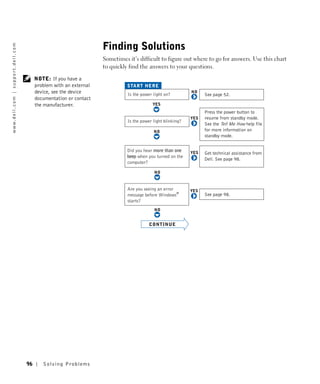
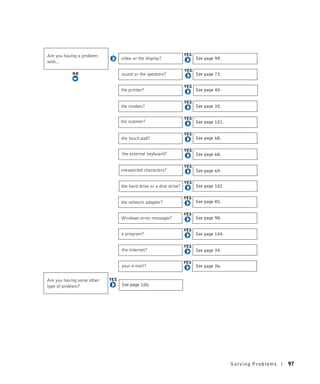
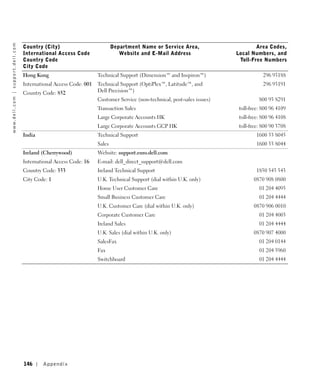
  • 168.
    "Total Satisfaction" ReturnPolicy (Canada Only) If you are an end-user customer who bought new products directly from Dell, you may return them to Dell up to 30 days after you receive them for a refund or credit of the product purchase price. If you are an end-user customer who bought reconditioned or refurbished products from Dell, you may return them to Dell within 14 days after the date on the packing slip or invoice for a refund or credit of the product purchase price. In either case, the refund or credit will not include any shipping and handling charges shown on your packing slip or invoice and will be subject to a fifteen percent (15%) restocking fee, unless otherwise prohibited by law. If you are an organization that bought the products under a written agreement with Dell, the agreement may contain different terms for the return of products than specified by this policy. To return products, you must call Dell Customer Service at 1-800-847-4096 to receive a Credit Return Authorization Number. To expedite the process of your refund or credit, Dell expects you to return the products to Dell in their original packaging within 5 days of the date that Dell issues the Credit Return Authorization Number. You must also prepay shipping charges and insure the shipment or accept the risk of loss or damage during shipment. You may return software for a refund or credit only if the sealed package containing the floppy disk(s) or CD(s) is unopened. Returned products must be in as-new condition, and all of the manuals, floppy disk(s), CD(s), power cables, and other items included with a product must be returned with it. For customers who want to return, for refund or credit only, either application or operating system software that has been installed by Dell, the whole system must be returned, along with any media and documentation that may have been included in the original shipment. The "Total Satisfaction" Return Policy does not apply to Dell | EMC storage products. It also does not apply to products purchased through Dell's Software and Peripherals division. For those products, please instead refer to Dell's Software and Peripheral's then-current return policy (see the following section, "Dell Software and Peripherals (Canada Only)"). Dell Software and Peripherals (Canada Only) Third-Party Software and Peripherals Products Similar to other resellers of software and peripherals, Dell does not warrant third-party products. Third-party software and peripheral products are covered by the warranties provided by the original manufacturer or publisher only. Third-party manufacturer warranties vary from product to product. Consult your product documentation for specific warranty information. More information may also be available from the manufacturer or publisher. While Dell offers a wide selection of software and peripheral products, we do not specifically test or guarantee that all of the products we offer work with any or all of the various models of Dell computers, nor do we test or guarantee all of the products we sell on the hundreds of different brands of computers available today. If you have questions about compatibility, we recommend and encourage you to contact the third-party software and peripheral product manufacturer or publisher directly. Appendix 167
  • 169.
    Dell-Branded Peripheral Products ww w. d e l l . c o m | s u p p o r t . d e l l . c o m Dell does provide a limited warranty for new Dell-branded peripheral products (products for which Dell is listed as the manufacturer) such as monitors, batteries, memory, docking stations, and projectors. To determine which limited warranty applies to the product you purchased, see the Dell packing slip or invoice and/or the product documentation that accompanied your product. Descriptions of Dell's limited warranties are described in preceding sections. Return Policy If you are an end-user customer who bought Dell Software and Peripherals products directly from a Dell company, you may return Dell Software and Peripherals products that are in as-new condition to Dell up to 30 days from the date on the packing slip or invoice for a refund of the product purchase price if already paid. This refund will not include any shipping and handling charges shown on your packing slip or invoice; you are responsible for those. To return products, you must call Dell Customer Service at 1-800-387-5759 to receive a Credit Return Authorization Number. You must ship the Dell Software and Peripherals products back to Dell in their original manufacturer's packaging (which must be in as-new condition), prepay shipping charges, and insure the shipment or accept the risk of loss or damage during shipment. To qualify for refund or replacement, returned products must be in as-new condition, software products must be unopened, and all of the manuals, floppy disk(s), CD(s), power cables, and other items included with a product must be returned with it. 1-Year End-User Manufacturer Guarantee (Latin America and the Caribbean Only) Guarantee Dell Computer Corporation ("Dell") warrants to the end user in accordance with the following provisions that its branded hardware products, purchased by the end user from a Dell company or an authorized Dell distributor in Latin America or the Caribbean, will be free from defects in materials, workmanship, and design affecting normal use, for a period of 1 year from the original purchase date. Products for which proper claims are made will, at Dell’s option, be repaired or replaced at Dell’s expense. Dell owns all parts removed from repaired products. Dell uses new and reconditioned parts made by various manufacturers in performing repairs and building replacement products. Exclusions This Guarantee does not apply to defects resulting from: improper or inadequate installation, use, or maintenance; actions or modifications by unauthorized third parties or the end user; accidental or willful damage; or normal wear and tear. 168 Appendix
  • 170.
    Making a Claim Claimsmust be made in Latin America or the Caribbean by contacting the Dell point of sale within the guarantee period. The end user must always supply proof of purchase, indicating name and address of the seller, date of purchase, model and serial number, name and address of the customer, and details of symptoms and configuration at the time of malfunction, including peripherals and software used. Otherwise, Dell may refuse the guarantee claim. Upon diagnosis of a warranted defect, Dell will make arrangements and pay for ground freight and insurance to and from Dell’s repair/replacement center. The end user must ensure that the defective product is available for collection properly packed in original or equally protective packaging together with the details listed above and the return number provided to the end user by Dell. Limitation and Statutory Rights Dell makes no other warranty, guarantee or like statement other than as explicitly stated above, and this Guarantee is given in place of all other guarantees whatsoever, to the fullest extent permitted by law. In the absence of applicable legislation, this Guarantee will be the end user’s sole and exclusive remedy against Dell or any of its affiliates, and neither Dell nor any of its affiliates shall be liable for loss of profit or contracts, or any other indirect or consequential loss arising from negligence, breach of contract, or howsoever. This Guarantee does not impair or affect mandatory statutory rights of the end user against and/or any rights resulting from other contracts concluded by the end user with Dell and/or any other seller. Dell World Trade LP One Dell Way, Round Rock, TX 78682, USA Dell Computadores do Brasil Ltda (CNPJ No. 72.381.189/0001-10) Avenida Industrial Belgraf, 400 92990-000 - Eldorado do Sul – RS - Brasil Dell Computer de Chile Ltda Coyancura 2283, Piso 3- Of.302, Providencia, Santiago - Chile Dell Computer de Colombia Corporation Carrera 7 #115-33 Oficina 603 Bogota, Colombia Dell Computer de Mexico SA de CV Paseo de la Reforma 2620 - 11° Piso Col. Lomas Altas 11950 México, D.F. Appendix 169
  • 171.
    Intel® Warranty Statementfor Pentium® and Celeron® w w w. d e l l . c o m | s u p p o r t . d e l l . c o m Processors Only (U.S. and Canada Only) Intel’s Three Year Limited Warranty Limited Warranty Intel warrants that its family of Pentium® and Celeron® processors, if properly used and installed, will be free from defects in materials and workmanship and will substantially conform to Intel’s publicly available specifications for a period of three (3) years after the date the Pentium or Celeron processor was purchased (whether purchased separately or as part of a computer system). If the Pentium or Celeron processor, which is the subject of this Limited Warranty, fails during the warranty period for reasons covered by this Limited Warranty, Intel, at its option, will: • REPAIR the Pentium or Celeron processor by means of hardware and/or software; OR • REPLACE the Pentium or Celeron processor with another Pentium or Celeron processor; OR if Intel is unable to repair or replace the particular Pentium or Celeron processor, • REFUND the then-current value of the Pentium or Celeron processor. THIS LIMITED WARRANTY, AND ANY IMPLIED WARRANTIES THAT MAY EXIST UNDER STATE LAW, APPLY ONLY TO THE ORIGINAL PURCHASER OF THE PENTIUM OR CELERON PROCESSOR, OR PENTIUM OR CELERON PROCESSOR-BASED COMPUTER AND LAST ONLY FOR AS LONG AS SUCH PURCHASER CONTINUES TO OWN THE PROCESSOR. Extent of Limited Warranty Intel does not warrant that your Pentium or Celeron processor will be free from design defects or errors known as "errata." Current characterized errata are available upon request. This limited warranty is for purchasers in the United States and Canada only. The limited warranty does not cover any costs relating to removal or replacement of any Pentium or Celeron processors that are soldered or otherwise permanently affixed to your system’s motherboard. This limited warranty does not cover damages due to external causes, including accident, problems with electrical power, usage not in accordance with product instructions, misuse, neglect, alteration, repair, improper installation, or improper testing. How to Obtain Warranty Service To obtain warranty service for your Pentium or Celeron processor, you may contact your computer system manufacturer in accordance with its instructions, or you may contact Intel. To request warranty service from Intel, you should call Intel at 1-800-628-8686 during the warranty period during normal business hours (Pacific Time), excluding holidays. Please be prepared to provide: (1) your name, address, and telephone numbers; (2) proof of purchase; (3) this Intel warranty card; (4) a description of the computer system including the brand and model; and (5) an explanation of the problem. [Note: The Customer Service Representative may need additional information from you depending on the nature of the problem.] The replacement processor is warranted under this written warranty and is subject to the same limitations and exclusions for the remainder of the original warranty period or one (1) year, whichever is longer. WARRANTY LIMITATIONS AND EXCLUSIONS THESE WARRANTIES REPLACE ALL OTHER WARRANTIES, EXPRESS OR IMPLIED INCLUDING, BUT NOT LIMITED TO, THE IMPLIED WARRANTIES OF MERCHANTABILITY AND FITNESS FOR A PARTICULAR PURPOSE. INTEL MAKES NO EXPRESS WARRANTIES BEYOND THOSE STATED HERE. INTEL DISCLAIMS ALL OTHER WARRANTIES, EXPRESS OR IMPLIED, INCLUDING, WITHOUT LIMITATION, IMPLIED WARRANTIES OF MERCHANTABILITY AND FITNESS FOR A PARTICULAR PURPOSE. SOME LAWS DO NOT ALLOW THE EXCLUSION OF IMPLIED WARRANTIES SO THIS LIMITATION MAY NOT APPLY TO YOU. IF THESE LAWS APPLY, THEN ALL EXPRESS AND IMPLIED WARRANTIES ARE LIMITED IN DURATION TO THE LIMITED WARRANTY PERIOD. NO WARRANTIES APPLY AFTER THAT PERIOD. SOME LAWS DO NOT ALLOW LIMITATIONS ON HOW LONG AN IMPLIED WARRANTY LASTS, SO THIS LIMITATION MAY NOT APPLY TO YOU. LIMITATIONS OF LIABILITY INTEL’S RESPONSIBILITY UNDER THIS, OR ANY OTHER WARRANTY, IMPLIED OR EXPRESS, IS LIMITED TO REPAIR, REPLACEMENT OR REFUND, AS SET FORTH ABOVE. THESE REMEDIES ARE THE SOLE AND EXCLUSIVE REMEDIES FOR ANY BREACH OF WARRANTY. INTEL IS NOT RESPONSIBLE FOR INDIRECT, SPECIAL, INCIDENTAL, OR CONSEQUENTIAL DAMAGES RESULTING FROM ANY BREACH OF WARRANTY OR UNDER ANY OTHER LEGAL THEORY INCLUDING, BUT NOT LIMITED TO, LOST PROFITS, DOWNTIME, GOODWILL, DAMAGE TO OR REPLACEMENT OF EQUIPMENT AND PROPERTY, AND ANY COSTS OF RECOVERING, REPROGRAMMING, OR REPRODUCING ANY PROGRAM OR DATA STORED IN OR USED WITH A SYSTEM CONTAINING YOUR PENTIUM PROCESSOR. SOME JURISDICTIONS DO NOT ALLOW THE EXCLUSION OR LIMITATION OF INCIDENTAL OR CONSEQUENTIAL DAMAGES, SO THE ABOVE LIMITATIONS OR EXCLUSIONS MAY NOT APPLY TO YOU. THE LIMITED WARRANTY GIVES YOU SPECIFIC LEGAL RIGHTS, AND YOU MAY ALSO HAVE OTHER RIGHTS THAT VARY FROM JURISDICTION TO JURISDICTION. 170 Appendix
  • 172.
    Intel Pentium® andCeleron® Processors are backed by a three-year limited warranty. Please refer to the reverse side of this card for complete warranty details. Intel’s Commitment to Quality Intel is committed to producing the highest quality processors available. That’s why we have hundreds of people dedicated to continuously improve our design, manufacturing, and testing technology. We put every one of our Pentium® and Celeron® processors through a rigorous battery of tests during the design and manufacturing processes. To verify that the new chip will correctly run the software written for Intel Architecture processors, a team of Intel engineers is dedicated to compatibility testing. In a state-of-art lab, this group runs an extensive set of operating systems, applications, network tests and stress tests repeatedly to ensure that the processor is compatible with representative software. Just as importantly, we work with hardware and software companies in the computer industry to ensure that our processors are compatible with their products. Additionally, a sampling of Intel processors are subjected to a rigorous "burn-in" test whereby the chip is operated at higher-than-normal temperatures and voltages. During this burn-in period, the processor experiences the equivalent of weeks of normal usage. These units are monitored for failures as part of our ongoing quality assurance process. As a result, today’s microprocessors from Intel are among the most reliable components in computers. What are "Errata"? Exhaustive product testing can highlight differences between the actual behavior of the microprocessor and its specifications. Sometimes the discrepancies are caused by a design defect or error, which we call errata. Rigorous validation identifies most errata during the development of the processor, but we do detect additional errata during the life cycle of a microprocessor. When an erratum is identified, our engineers work to characterize it and find a solution. We work with system designers and software developers to ensure that the discrepancy does not affect their products. If necessary, special software or hardware solutions (sometimes known as "work arounds") are implemented in the system design to prevent computer users from encountering the problem. Errata may then be corrected in future revisions of the microprocessor. No microprocessor is perfect, and Intel recognizes that some consumers want to know about any errata, whether or not the errata affect them. Intel makes documentation of all characterized Pentium and Celeron processor errata publicly available through our Technical Documentation Service. At Intel, our goal is to make every computer user satisfied with his or her Pentium or Celeron processor. Should you have any questions, comments or concerns about your Intel microprocessor, please call us at 1-800-628-8686. ©1997, 1998 Intel Corporation. All rights reserved. Appendix 171
  • 173.
    w w w.d e l l . c o m | s u p p o r t . d e l l . c o m 172 Appendix
  • 174.
    Index A computer description, 22 crashes, 104 system view, 22 air vents specifications, 128 docking device latch description, 23, 29 system view, 23, 29 conflicts description, 31 drivers, 107 system view, 31 audio connectors resolving software and drivers description, 24 hardware system view, 24 definition, 107 incompatibilities, 112 reinstalling, 108, 113 copying CDs troubleshooting, 107 general information, 74 B drives helpful tips, 75 fixing problems, 102 battery instructions, 76 charge gauge, 48 crashes, 104 charging, 49 checking the charge, 47 E description, 31 e-mail installing, 50 D fixing problems, 36 low-battery warning, 48 damaged computer performance, 46 testing, 106 power meter, 48 Dell support policy, 138 F removing, 49 Device Driver Rollback, 108 fan storing, 52 system view, 31 device latch release description, 31 description, 26, 30 system view, 31 system view, 26, 30 Files and Settings Transfer C device status lights, 21 Wizard, 37 CD-RW drive description, 21 finding solutions, 96 fixing problems, 74 display floppy drive characters description, 20 connecting to the parallel system view, 20 port, 27 unexpected, 69 fixing problems, 102 display latch Index 173
  • 175.
    H description, 22 N system view, 22 hard drive network description, 24, 31 keypad fixing problems, 85 preventing damage, 125 numeric, 64 network connector replacing, 123 description, 28 system view, 24, 31 system view, 28 hardware L drivers, 107 line conditioners, 42 Hardware P Troubleshooter, 112 parallel connector help file M description, 28 accessing, 98 memory system view, 28 adding, 118 PC Card slot removing, 119 description, 23 I memory module cover system view, 23 infrared sensor description, 30 PC Cards description, 24 system view, 30 fixing problems, 103 system view, 24 Mini PCI card power Internet connection description, 30 fixing problems, 52 about, 34 installing, 120 turning off your computer, 43 options, 34 system view, 30 power button setting up, 34 modem description, 20 IR sensor description, 30 system view, 20 See infrared sensor system view, 30 printer IRQ conflicts, 112 modem connector cable, 39 description, 28 connecting, 38 system view, 28 parallel, 39 K module bay setting up, 38 about, 53 USB, 40 keyboard description, 26 programs description, 22 swapping devices while the crashes, 104 fixing problems, 69 computer is running, 58 fixing problems, 104 shortcuts, 65 swapping devices while the not responding, 104 system view, 22 computer is turned off, 54 unexpected characters, 69 system view, 26 keyboard status lights 174 Index
  • 176.
    R viewing, 135 unexpected characters, 69 wet computer, 105 RAM. See memory system specifications, 128 system view, 21 turning off your computer, 43 reinstalling drivers, 108, 113 T U S Tell Me How help file uninterruptible power supplies safety instructions, 11 accessing, 98 See UPS security cable slot touch pad customizing, 68 UPS, 42 description, 24-25 system view, 24-25 description, 22 USB connector system view, 22 description, 27 serial connector touch pad buttons system view, 27 description, 29 system view, 29 description, 22 system view, 22 shutting down your V computer, 43 troubleshooting about, 96 video connector smart card slot cannot save to floppy disk, 102 description, 28 description, 24 CD-RW drive stops system view, 28 system view, 24 writing, 74 software conflicts, 112 fixing problems, 104 Device Driver Rollback, 108 W reinstalling software, 108, 113 drivers, 107 warranty, 159 speakers dropped or damaged description, 22 computer, 106 wet computer, 105 system view, 22 e-mail problems, 36 Windows XP external keyboard Device Driver Rollback, 108 specifications, system, 128 problems, 69 Hardware Troubleshooter, 112 surge protectors, 42 Hardware Troubleshooter, 112 help, 98 S-video TV-out connector network problems, 85 System Restore, 110 description, 28 PC Card problems, 103 system view, 28 power problems, 52 program crash, 104 System Restore, 110 program stopped system setup program responding, 104 commonly used options, 136 scanner problems, 101 screens, 135 System Restore, 110 Index 175
  • 177.
    176 Index