ASPEN PLUS
DYNAMIC
KHAIRUL ANWAR MOHAMAD SAID
INTRODUCTION
• It is a process control
• ASPEN dynamic simulate a process by running it within a controlled variable
• Basic term:
• Open loop control: controller output has no feedback from the process itself and
manually change by the operator. Controller fixed at a value
• Disturbance: uncontrolled changes which affect the process variable
• Close loop control: controller output has feedback from the process.
• PV: present value, SP: set point, OP: output (controller)
DESCRIPTION
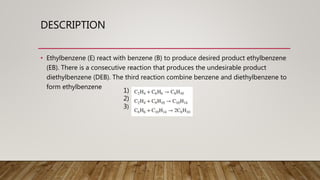
• Ethylbenzene (E) react with benzene (B) to produce desired product ethylbenzene
(EB). There is a consecutive reaction that produces the undesirable product
diethylbenzene (DEB). The third reaction combine benzene and diethylbenzene to
form ethylbenzene
1)
2)
3)
CONTINUE
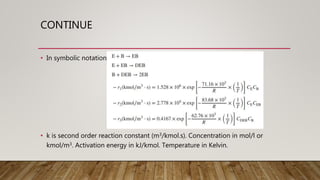
• In symbolic notation:
• k is second order reaction constant (m3/kmol.s). Concentration in mol/l or
kmol/m3. Activation energy in kJ/kmol. Temperature in Kelvin.
CONTINUE
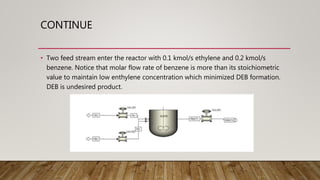
• Two feed stream enter the reactor with 0.1 kmol/s ethylene and 0.2 kmol/s
benzene. Notice that molar flow rate of benzene is more than its stoichiometric
value to maintain low enthylene concentration which minimized DEB formation.
DEB is undesired product.
PROPERTIES ENVIRONMENT
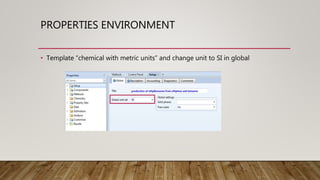
• Template “chemical with metric units” and change unit to SI in global
PROPERTIES ENVIRONMENT
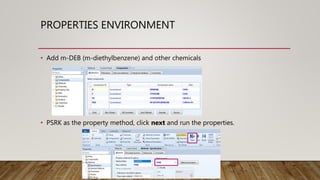
• Add m-DEB (m-diethylbenzene) and other chemicals
• PSRK as the property method, click next and run the properties.
SIMULATION ENVIRONMENT
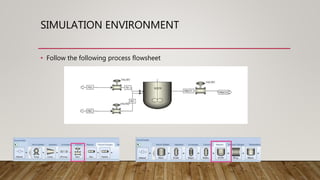
• Follow the following process flowsheet
SIMULATION ENVIRONMENT
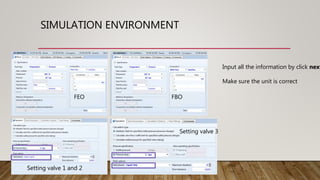
Setting valve 1 and 2
Setting valve 3
FBO
FEO
Input all the information by click next
Make sure the unit is correct
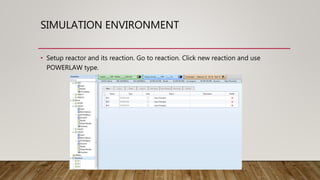
• Setup reactor and its reaction. Go to reaction. Click new reaction and use
POWERLAW type.
SIMULATION ENVIRONMENT
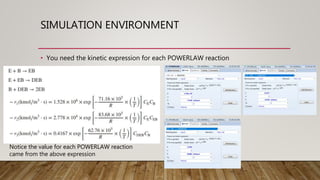
• You need the kinetic expression for each POWERLAW reaction
Notice the value for each POWERLAW reaction
came from the above expression
SIMULATION ENVIRONMENT
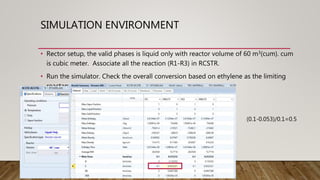
• Rector setup, the valid phases is liquid only with reactor volume of 60 m3(cum). cum
is cubic meter. Associate all the reaction (R1-R3) in RCSTR.
• Run the simulator. Check the overall conversion based on ethylene as the limiting
reactant
(0.1-0.053)/0.1=0.5
CONVERSION STEADY-STATE TO DYNAMIC MODE
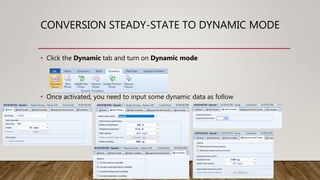
• Click the Dynamic tab and turn on Dynamic mode
• Once activated, you need to input some dynamic data as follow
CONVERSION STEADY-STATE TO DYNAMIC MODE
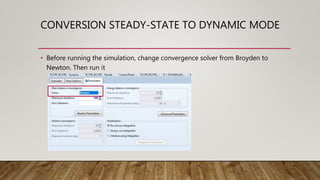
• Before running the simulation, change convergence solver from Broyden to
Newton. Then run it
EXPLANATION
• Temperature approach is LMTD, logarithmic mean temperature difference.
• LMTD=[(400-298)-(400-343)]/ln(102/57)]=77.33K; heat capacity water 4200J/kg.K
• 400 K refer to reactor temperature which need to maintain. 298 and 343 K refer to
coolant temperature enter and leave the jacket.
EXPLANATION
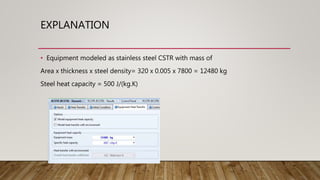
• Equipment modeled as stainless steel CSTR with mass of
Area x thickness x steel density= 320 x 0.005 x 7800 = 12480 kg
Steel heat capacity = 500 J/(kg.K)
EXPLANATION
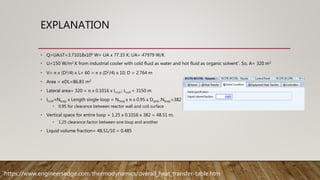
• Q=UA∆T=3.71018x10⁶ W= UA x 77.33 K; UA= 47979 W/K
• U=150 W/m2.K from industrial cooler with cold fluid as water and hot fluid as organic solvent*. So, A= 320 m2
• V= π x (D2/4) x L= 60 = π x (D2/4) x 10; D = 2.764 m
• Area = πDL=86.83 m2
• Lateral area= 320 = π x 0.1016 x Lcoil ; Lcoil = 3150 m
• Lcoil=Nloop x Length single loop = Nloop x π x 0.95 x Dtank ;Nloop=382
• 0.95 for clearance between reactor wall and coil surface
• Vertical space for entire loop = 1.25 x 0.1016 x 382 = 48.51 m.
• 1.25 clearance factor between one loop and another
• Liquid volume fraction= 48.51/10 = 0.485
*https://www.engineersedge.com/thermodynamics/overall_heat_transfer-table.htm
CONVERSION STEADY-STATE TO DYNAMIC MODE
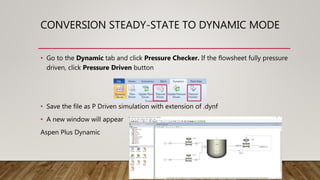
• Go to the Dynamic tab and click Pressure Checker. If the flowsheet fully pressure
driven, click Pressure Driven button
• Save the file as P Driven simulation with extension of .dynf
• A new window will appear
Aspen Plus Dynamic
CONVERSION STEADY-STATE TO DYNAMIC MODE
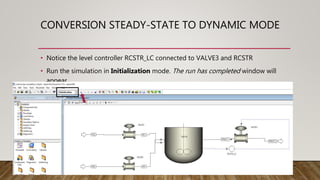
• Notice the level controller RCSTR_LC connected to VALVE3 and RCSTR
• Run the simulation in Initialization mode. The run has completed window will
appear.
CONVERSION STEADY-STATE TO DYNAMIC MODE
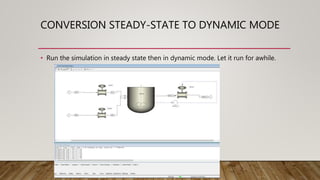
• Run the simulation in steady state then in dynamic mode. Let it run for awhile.
CONTROLLER FACEPLATE
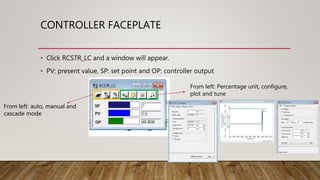
• Click RCSTR_LC and a window will appear.
• PV: present value, SP: set point and OP: controller output
From left: auto, manual and
cascade mode
From left: Percentage unit, configure,
plot and tune
OPEN-LOOP (MANUAL MODE) TUNE-UP
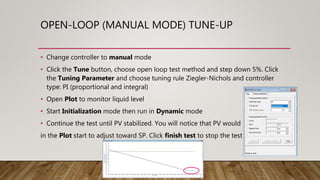
• Change controller to manual mode
• Click the Tune button, choose open loop test method and step down 5%. Click
the Tuning Parameter and choose tuning rule Ziegler-Nichols and controller
type: PI (proportional and integral)
• Open Plot to monitor liquid level
• Start Initialization mode then run in Dynamic mode
• Continue the test until PV stabilized. You will notice that PV would
in the Plot start to adjust toward SP. Click finish test to stop the test
OPEN-LOOP (MANUAL MODE) TUNE-UP
• After the test finish, Tune window will show the estimated control loop
characteristic
• Go to Tuning parameters, click calculate. You will get value for gain and integral
time for PI controller based on Ziegler-Nichols tuning rule
OPEN-LOOP (MANUAL MODE) TUNE-UP
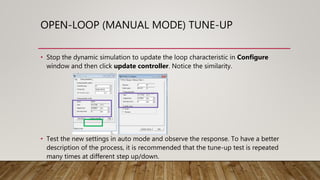
• Stop the dynamic simulation to update the loop characteristic in Configure
window and then click update controller. Notice the similarity.
• Test the new settings in auto mode and observe the response. To have a better
description of the process, it is recommended that the tune-up test is repeated
many times at different step up/down.
THANK YOU

Aspen Plus dynamic

  • 1.
  • 2.
    INTRODUCTION • It isa process control • ASPEN dynamic simulate a process by running it within a controlled variable • Basic term: • Open loop control: controller output has no feedback from the process itself and manually change by the operator. Controller fixed at a value • Disturbance: uncontrolled changes which affect the process variable • Close loop control: controller output has feedback from the process. • PV: present value, SP: set point, OP: output (controller)
  • 3.
    DESCRIPTION • Ethylbenzene (E)react with benzene (B) to produce desired product ethylbenzene (EB). There is a consecutive reaction that produces the undesirable product diethylbenzene (DEB). The third reaction combine benzene and diethylbenzene to form ethylbenzene 1) 2) 3)
  • 4.
    CONTINUE • In symbolicnotation: • k is second order reaction constant (m3/kmol.s). Concentration in mol/l or kmol/m3. Activation energy in kJ/kmol. Temperature in Kelvin.
  • 5.
    CONTINUE • Two feedstream enter the reactor with 0.1 kmol/s ethylene and 0.2 kmol/s benzene. Notice that molar flow rate of benzene is more than its stoichiometric value to maintain low enthylene concentration which minimized DEB formation. DEB is undesired product.
  • 6.
    PROPERTIES ENVIRONMENT • Template“chemical with metric units” and change unit to SI in global
  • 7.
    PROPERTIES ENVIRONMENT • Addm-DEB (m-diethylbenzene) and other chemicals • PSRK as the property method, click next and run the properties.
  • 8.
    SIMULATION ENVIRONMENT • Followthe following process flowsheet
  • 9.
    SIMULATION ENVIRONMENT Setting valve1 and 2 Setting valve 3 FBO FEO Input all the information by click next Make sure the unit is correct
  • 10.
    • Setup reactorand its reaction. Go to reaction. Click new reaction and use POWERLAW type. SIMULATION ENVIRONMENT
  • 11.
    SIMULATION ENVIRONMENT • Youneed the kinetic expression for each POWERLAW reaction Notice the value for each POWERLAW reaction came from the above expression
  • 12.
    SIMULATION ENVIRONMENT • Rectorsetup, the valid phases is liquid only with reactor volume of 60 m3(cum). cum is cubic meter. Associate all the reaction (R1-R3) in RCSTR. • Run the simulator. Check the overall conversion based on ethylene as the limiting reactant (0.1-0.053)/0.1=0.5
  • 13.
    CONVERSION STEADY-STATE TODYNAMIC MODE • Click the Dynamic tab and turn on Dynamic mode • Once activated, you need to input some dynamic data as follow
  • 14.
    CONVERSION STEADY-STATE TODYNAMIC MODE • Before running the simulation, change convergence solver from Broyden to Newton. Then run it
  • 15.
    EXPLANATION • Temperature approachis LMTD, logarithmic mean temperature difference. • LMTD=[(400-298)-(400-343)]/ln(102/57)]=77.33K; heat capacity water 4200J/kg.K • 400 K refer to reactor temperature which need to maintain. 298 and 343 K refer to coolant temperature enter and leave the jacket.
  • 16.
    EXPLANATION • Equipment modeledas stainless steel CSTR with mass of Area x thickness x steel density= 320 x 0.005 x 7800 = 12480 kg Steel heat capacity = 500 J/(kg.K)
  • 17.
    EXPLANATION • Q=UA∆T=3.71018x10⁶ W=UA x 77.33 K; UA= 47979 W/K • U=150 W/m2.K from industrial cooler with cold fluid as water and hot fluid as organic solvent*. So, A= 320 m2 • V= π x (D2/4) x L= 60 = π x (D2/4) x 10; D = 2.764 m • Area = πDL=86.83 m2 • Lateral area= 320 = π x 0.1016 x Lcoil ; Lcoil = 3150 m • Lcoil=Nloop x Length single loop = Nloop x π x 0.95 x Dtank ;Nloop=382 • 0.95 for clearance between reactor wall and coil surface • Vertical space for entire loop = 1.25 x 0.1016 x 382 = 48.51 m. • 1.25 clearance factor between one loop and another • Liquid volume fraction= 48.51/10 = 0.485 *https://www.engineersedge.com/thermodynamics/overall_heat_transfer-table.htm
  • 18.
    CONVERSION STEADY-STATE TODYNAMIC MODE • Go to the Dynamic tab and click Pressure Checker. If the flowsheet fully pressure driven, click Pressure Driven button • Save the file as P Driven simulation with extension of .dynf • A new window will appear Aspen Plus Dynamic
  • 19.
    CONVERSION STEADY-STATE TODYNAMIC MODE • Notice the level controller RCSTR_LC connected to VALVE3 and RCSTR • Run the simulation in Initialization mode. The run has completed window will appear.
  • 20.
    CONVERSION STEADY-STATE TODYNAMIC MODE • Run the simulation in steady state then in dynamic mode. Let it run for awhile.
  • 21.
    CONTROLLER FACEPLATE • ClickRCSTR_LC and a window will appear. • PV: present value, SP: set point and OP: controller output From left: auto, manual and cascade mode From left: Percentage unit, configure, plot and tune
  • 22.
    OPEN-LOOP (MANUAL MODE)TUNE-UP • Change controller to manual mode • Click the Tune button, choose open loop test method and step down 5%. Click the Tuning Parameter and choose tuning rule Ziegler-Nichols and controller type: PI (proportional and integral) • Open Plot to monitor liquid level • Start Initialization mode then run in Dynamic mode • Continue the test until PV stabilized. You will notice that PV would in the Plot start to adjust toward SP. Click finish test to stop the test
  • 23.
    OPEN-LOOP (MANUAL MODE)TUNE-UP • After the test finish, Tune window will show the estimated control loop characteristic • Go to Tuning parameters, click calculate. You will get value for gain and integral time for PI controller based on Ziegler-Nichols tuning rule
  • 24.
    OPEN-LOOP (MANUAL MODE)TUNE-UP • Stop the dynamic simulation to update the loop characteristic in Configure window and then click update controller. Notice the similarity. • Test the new settings in auto mode and observe the response. To have a better description of the process, it is recommended that the tune-up test is repeated many times at different step up/down.
  • 25.