Unit-2 Introduction to
Android and User Interface
Android | Android Application File Structure
It is very important to know about the basics of Android Studio’s file structure
In this article, some important files/folders, and their significance is explained
for the easy understanding of the Android studio work environment
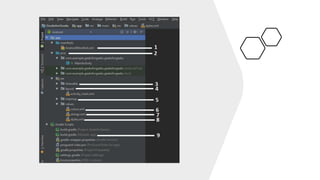
In the below image, several important files are marked
All of the files marked in the above image are
explained below in brief:
AndroidManifest.xml: Every project in Android includes a manifest file, which is
AndroidManifest.xml, stored in the root directory of its project hierarchy.
The manifest file is an important part of our app because it defines the structure and metadata
of our application, its components, and its requirements.
This file includes nodes for each of the Activities, Services, Content Providers and Broadcast
Receiver that make the application and using Intent Filters and Permissions, determines how
they co-ordinate with each other and other applications.
• java: The Kotlin folder contains the Java source code files. These files
are used as a controller for controlled UI (Layout file). It gets the data
from the Layout file and after processing that data output will be
shown in the UI layout. It works on the backend of an Android
application.
• drawable: A Drawable folder contains resource type file (something
that can be drawn). Drawables may take a variety of file like Bitmap
(PNG, JPEG), Nine Patch, Vector (XML), Shape, Layers, States, Levels,
and Scale.
layout: A layout defines the visual structure for a user
interface, such as the UI for an Android application.
This folder stores Layout files that are written in XML
language. You can add additional layout objects or
widgets as child elements to gradually build a View
hierarchy that defines your layout file.
mipmap: Mipmap folder contains the Image Asset file
that can be used in Android Studio application. You
can generate the following icon types like Launcher
icons, Action bar and tab icons, and Notification
icons.
colors.xml: colors.xml file contains color resources of the Android application.
Different color values are identified by a unique name that can be used in the
Android application program.
strings.xml: The strings.xml file contains string resources of the Android application.
The different string value is identified by a unique name that can be used in the
Android application program. This file also stores string array by using XML language.
styles.xml: The styles.xml file contains resources of the theme style in the
Android application. This file is written in XML language.
build.gradle(Module: app): This defines the module-specific build
configurations. Here you can add dependencies what you need in your
Android application.
Android UI Layouts
Android Layout is used to define the user interface that holds the UI
controls or widgets that will appear on the screen of an android
application or activity screen
Generally, every application is a combination of View and
ViewGroup
All the elements in a layout are built using a hierarchy
of View and ViewGroup objects
Layouts in Android UI Design
Layout Managers are said to be extensions of the ViewGroup class
We can nest the layouts, and therefore we can create arbitrarily complex UIs
using a combination of layouts
Each of these layouts is designed to scale to suit the screen size of the host
device by avoiding the used of absolute co- ordinates of the positions or
predetermined pixel values
Types of Android Layout
Android Linear Layout: LinearLayout is a ViewGroup subclass, used to provide child View
elements one by one either in a particular direction either horizontally or vertically based on
the orientation property
Android Relative Layout: RelativeLayout is a ViewGroup subclass, used to specify the position
of child View elements relative to each other like or relative to the parent
Android Constraint Layout: ConstraintLayout is a ViewGroup subclass, used to specify the
position of layout constraints for every child View relative to other views present
Android Frame Layout: FrameLayout is a ViewGroup subclass, used to specify the position of
View elements it contains on the top of each other to display only a single View inside the
FrameLayout
Types of Android Layout
Android Table Layout: TableLayout is a ViewGroup subclass, used
to display the child View elements in rows and columns
Android Web View: WebView is a browser that is used to display
the web pages in our activity layout
Android ListView: ListView is a ViewGroup, used to display
scrollable lists of items in a single column
Android Grid View: GridView is a ViewGroup that is used to
display a scrollable list of items in a grid view of rows and columns
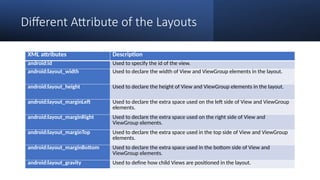
Different Attribute of the Layouts
XML attributes Description
android:id Used to specify the id of the view.
android:layout_width Used to declare the width of View and ViewGroup elements in the layout.
android:layout_height Used to declare the height of View and ViewGroup elements in the layout.
android:layout_marginLeft Used to declare the extra space used on the left side of View and ViewGroup
elements.
android:layout_marginRight Used to declare the extra space used on the right side of View and
ViewGroup elements.
android:layout_marginTop Used to declare the extra space used in the top side of View and ViewGroup
elements.
android:layout_marginBottom Used to declare the extra space used in the bottom side of View and
ViewGroup elements.
android:layout_gravity Used to define how child Views are positioned in the layout.
Views
A View is defined as the user interface which is used to create
interactive UI components such as TextView, ImageView, EditText,
RadioButton, etc., and is responsible for event handling and drawing.
They are Generally Called Widgets.
All of the views in a window are arranged in a single tree. You can add
views either from code or by specifying a tree of views in one or more
XML layout files. There are many specialized subclasses of views that
act as controls or are capable of displaying text, images, or other
content.
Views
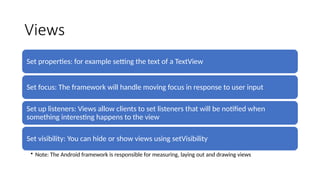
Set properties: for example setting the text of a TextView
Set focus: The framework will handle moving focus in response to user input
Set up listeners: Views allow clients to set listeners that will be notified when
something interesting happens to the view
Set visibility: You can hide or show views using setVisibility
• Note: The Android framework is responsible for measuring, laying out and drawing views
ViewGroup
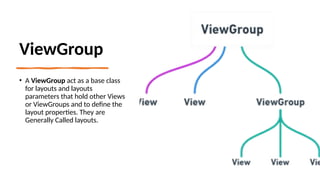
• A ViewGroup act as a base class
for layouts and layouts
parameters that hold other Views
or ViewGroups and to define the
layout properties. They are
Generally Called layouts.
Views
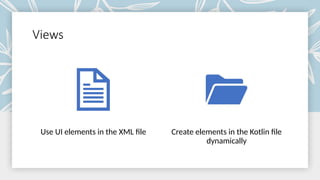
Use UI elements in the XML file Create elements in the Kotlin file
dynamically
Widgets
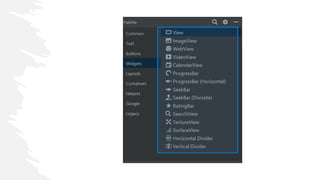
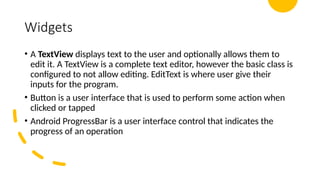
• A TextView displays text to the user and optionally allows them to
edit it. A TextView is a complete text editor, however the basic class is
configured to not allow editing. EditText is where user give their
inputs for the program.
• Button is a user interface that is used to perform some action when
clicked or tapped
• Android ProgressBar is a user interface control that indicates the
progress of an operation
Widgets
• A list view is an adapter view that does not know the details, such as type and contents,
of the views it contains. Instead list view requests views on demand from a ListAdapter as
needed, such as to display new views as the user scrolls up or down.
• In order to display items in the list, call setAdapter(android.widget.ListAdapter) to
associate an adapter with the list. For a simple example, see the discussion of filling an
adapter view with text in the Layouts guide.
• To display a more custom view for each item in your dataset, implement a ListAdapter.
For example, extend BaseAdapter and create and configure the view for each data item
in getView(...):
• Displays a vertically-scrollable collection of views, where each view is positioned
immediatelybelow the previous view in the list. For a more modern, flexible, and
performant approach to displaying lists, use RecyclerView
Load XML Layout File and its elements from
an Activity
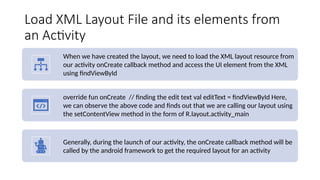
When we have created the layout, we need to load the XML layout resource from
our activity onCreate callback method and access the UI element from the XML
using findViewById
override fun onCreate // finding the edit text val editText = findViewById Here,
we can observe the above code and finds out that we are calling our layout using
the setContentView method in the form of R.layout.activity_main
Generally, during the launch of our activity, the onCreate callback method will be
called by the android framework to get the required layout for an activity
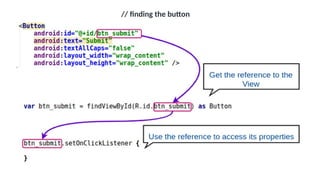
// finding the button
Mini Project 1
Develop an Application that shows the lifecycle of an activity

Unit 2 part for information technology1 4.pptx

  • 1.
  • 2.
    Android | AndroidApplication File Structure It is very important to know about the basics of Android Studio’s file structure In this article, some important files/folders, and their significance is explained for the easy understanding of the Android studio work environment In the below image, several important files are marked
  • 4.
    All of thefiles marked in the above image are explained below in brief: AndroidManifest.xml: Every project in Android includes a manifest file, which is AndroidManifest.xml, stored in the root directory of its project hierarchy. The manifest file is an important part of our app because it defines the structure and metadata of our application, its components, and its requirements. This file includes nodes for each of the Activities, Services, Content Providers and Broadcast Receiver that make the application and using Intent Filters and Permissions, determines how they co-ordinate with each other and other applications.
  • 5.
    • java: TheKotlin folder contains the Java source code files. These files are used as a controller for controlled UI (Layout file). It gets the data from the Layout file and after processing that data output will be shown in the UI layout. It works on the backend of an Android application. • drawable: A Drawable folder contains resource type file (something that can be drawn). Drawables may take a variety of file like Bitmap (PNG, JPEG), Nine Patch, Vector (XML), Shape, Layers, States, Levels, and Scale.
  • 6.
    layout: A layoutdefines the visual structure for a user interface, such as the UI for an Android application. This folder stores Layout files that are written in XML language. You can add additional layout objects or widgets as child elements to gradually build a View hierarchy that defines your layout file. mipmap: Mipmap folder contains the Image Asset file that can be used in Android Studio application. You can generate the following icon types like Launcher icons, Action bar and tab icons, and Notification icons.
  • 7.
    colors.xml: colors.xml filecontains color resources of the Android application. Different color values are identified by a unique name that can be used in the Android application program. strings.xml: The strings.xml file contains string resources of the Android application. The different string value is identified by a unique name that can be used in the Android application program. This file also stores string array by using XML language.
  • 9.
    styles.xml: The styles.xmlfile contains resources of the theme style in the Android application. This file is written in XML language. build.gradle(Module: app): This defines the module-specific build configurations. Here you can add dependencies what you need in your Android application.
  • 10.
    Android UI Layouts AndroidLayout is used to define the user interface that holds the UI controls or widgets that will appear on the screen of an android application or activity screen Generally, every application is a combination of View and ViewGroup All the elements in a layout are built using a hierarchy of View and ViewGroup objects
  • 11.
    Layouts in AndroidUI Design Layout Managers are said to be extensions of the ViewGroup class We can nest the layouts, and therefore we can create arbitrarily complex UIs using a combination of layouts Each of these layouts is designed to scale to suit the screen size of the host device by avoiding the used of absolute co- ordinates of the positions or predetermined pixel values
  • 12.
    Types of AndroidLayout Android Linear Layout: LinearLayout is a ViewGroup subclass, used to provide child View elements one by one either in a particular direction either horizontally or vertically based on the orientation property Android Relative Layout: RelativeLayout is a ViewGroup subclass, used to specify the position of child View elements relative to each other like or relative to the parent Android Constraint Layout: ConstraintLayout is a ViewGroup subclass, used to specify the position of layout constraints for every child View relative to other views present Android Frame Layout: FrameLayout is a ViewGroup subclass, used to specify the position of View elements it contains on the top of each other to display only a single View inside the FrameLayout
  • 13.
    Types of AndroidLayout Android Table Layout: TableLayout is a ViewGroup subclass, used to display the child View elements in rows and columns Android Web View: WebView is a browser that is used to display the web pages in our activity layout Android ListView: ListView is a ViewGroup, used to display scrollable lists of items in a single column Android Grid View: GridView is a ViewGroup that is used to display a scrollable list of items in a grid view of rows and columns
  • 14.
    Different Attribute ofthe Layouts XML attributes Description android:id Used to specify the id of the view. android:layout_width Used to declare the width of View and ViewGroup elements in the layout. android:layout_height Used to declare the height of View and ViewGroup elements in the layout. android:layout_marginLeft Used to declare the extra space used on the left side of View and ViewGroup elements. android:layout_marginRight Used to declare the extra space used on the right side of View and ViewGroup elements. android:layout_marginTop Used to declare the extra space used in the top side of View and ViewGroup elements. android:layout_marginBottom Used to declare the extra space used in the bottom side of View and ViewGroup elements. android:layout_gravity Used to define how child Views are positioned in the layout.
  • 15.
    Views A View isdefined as the user interface which is used to create interactive UI components such as TextView, ImageView, EditText, RadioButton, etc., and is responsible for event handling and drawing. They are Generally Called Widgets. All of the views in a window are arranged in a single tree. You can add views either from code or by specifying a tree of views in one or more XML layout files. There are many specialized subclasses of views that act as controls or are capable of displaying text, images, or other content.
  • 16.
    Views Set properties: forexample setting the text of a TextView Set focus: The framework will handle moving focus in response to user input Set up listeners: Views allow clients to set listeners that will be notified when something interesting happens to the view Set visibility: You can hide or show views using setVisibility • Note: The Android framework is responsible for measuring, laying out and drawing views
  • 17.
    ViewGroup • A ViewGroupact as a base class for layouts and layouts parameters that hold other Views or ViewGroups and to define the layout properties. They are Generally Called layouts.
  • 18.
    Views Use UI elementsin the XML file Create elements in the Kotlin file dynamically
  • 20.
    Widgets • A TextViewdisplays text to the user and optionally allows them to edit it. A TextView is a complete text editor, however the basic class is configured to not allow editing. EditText is where user give their inputs for the program. • Button is a user interface that is used to perform some action when clicked or tapped • Android ProgressBar is a user interface control that indicates the progress of an operation
  • 21.
    Widgets • A listview is an adapter view that does not know the details, such as type and contents, of the views it contains. Instead list view requests views on demand from a ListAdapter as needed, such as to display new views as the user scrolls up or down. • In order to display items in the list, call setAdapter(android.widget.ListAdapter) to associate an adapter with the list. For a simple example, see the discussion of filling an adapter view with text in the Layouts guide. • To display a more custom view for each item in your dataset, implement a ListAdapter. For example, extend BaseAdapter and create and configure the view for each data item in getView(...): • Displays a vertically-scrollable collection of views, where each view is positioned immediatelybelow the previous view in the list. For a more modern, flexible, and performant approach to displaying lists, use RecyclerView
  • 22.
    Load XML LayoutFile and its elements from an Activity When we have created the layout, we need to load the XML layout resource from our activity onCreate callback method and access the UI element from the XML using findViewById override fun onCreate // finding the edit text val editText = findViewById Here, we can observe the above code and finds out that we are calling our layout using the setContentView method in the form of R.layout.activity_main Generally, during the launch of our activity, the onCreate callback method will be called by the android framework to get the required layout for an activity
  • 23.
  • 24.
    Mini Project 1 Developan Application that shows the lifecycle of an activity

Editor's Notes

  • #15 Once you have created a tree of views, there are typically a few types of common operations you may wish to perform